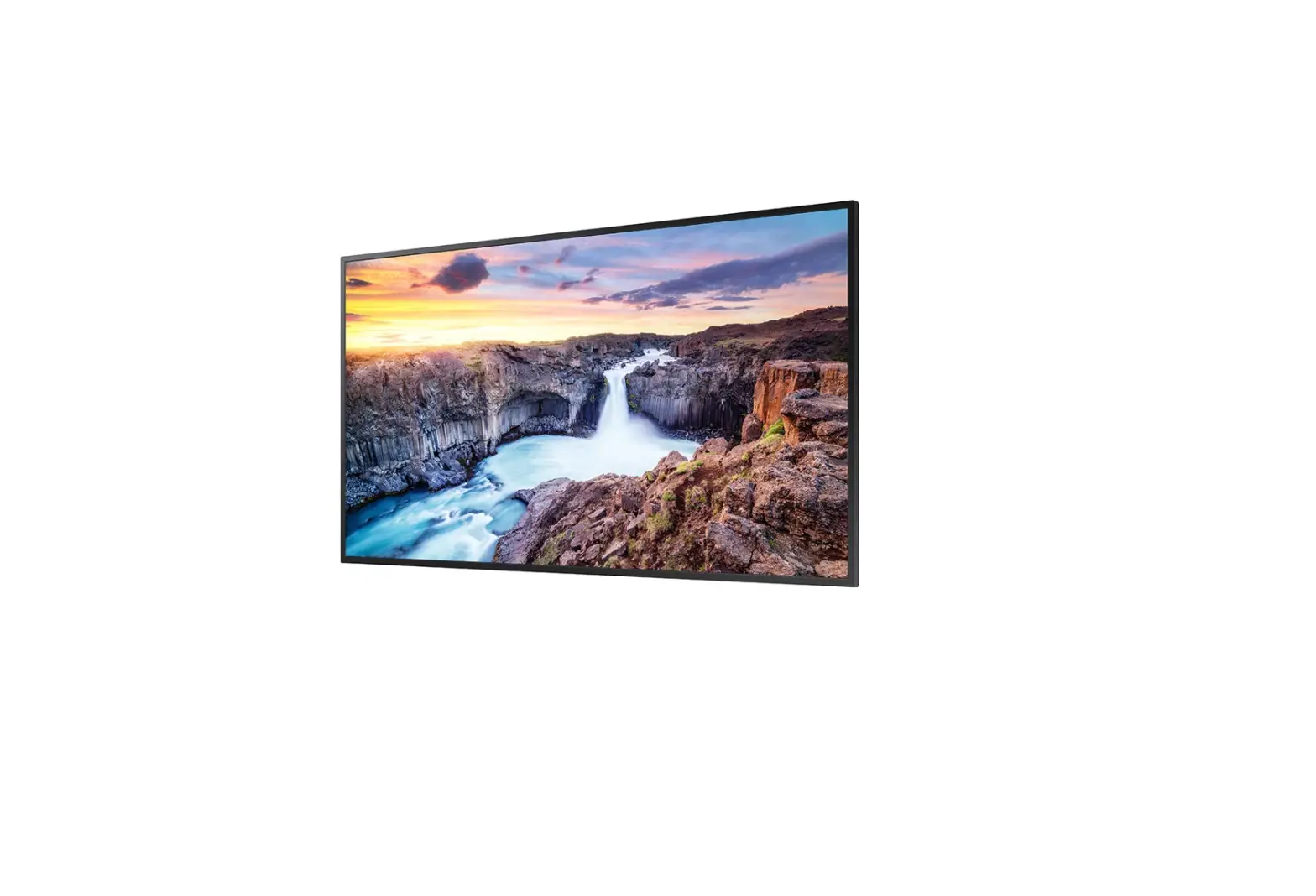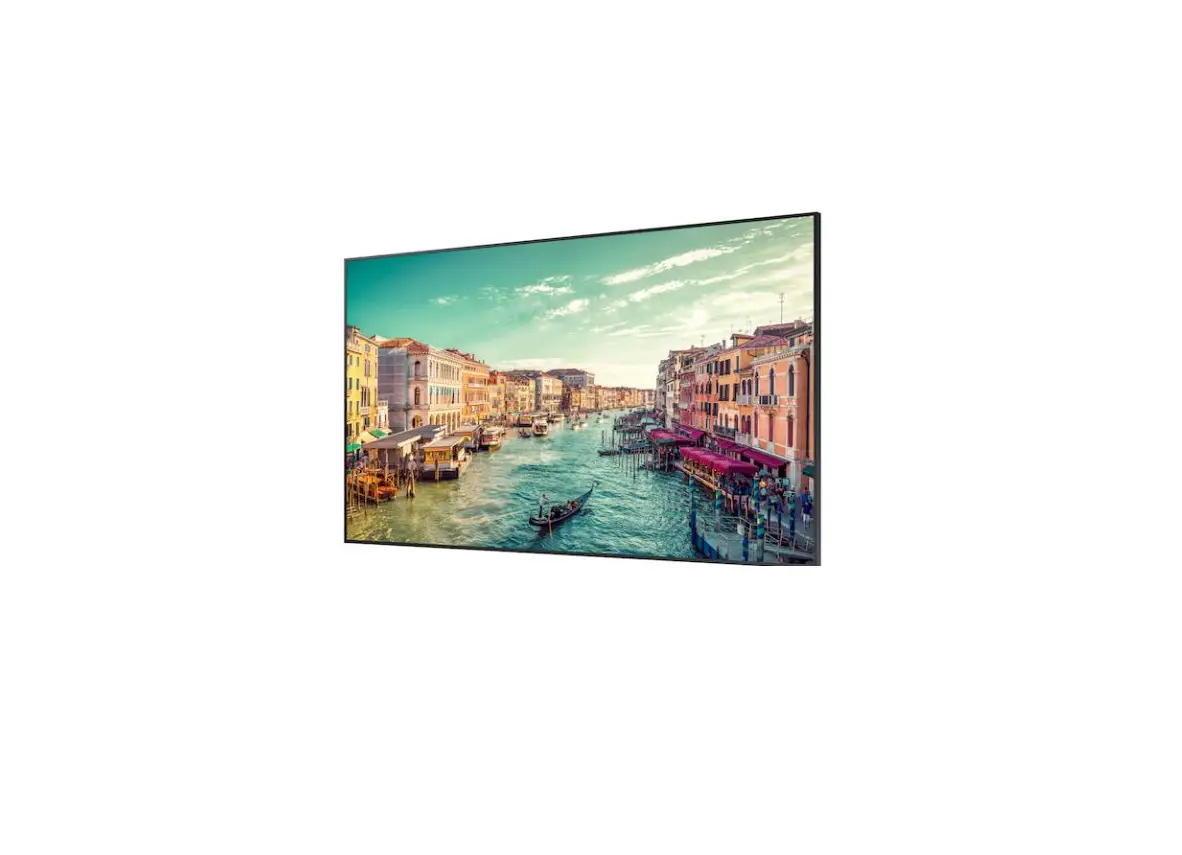

SAMSUNG QM Series 4K UHD Cisco Compatible Display
Checking the Components
Contact the vendor where you purchased the product if any components are missing.
Components may differ in different locations.
- Quick Setup Guide
- Regulatory guide
- Batteries (AAA x 2) (Not available in some locations)
- RS232C adapter
- Warranty card (Not available in some locations)
- Power cord
- Remote Control
- HOLDER-CABLE
(Supported models: QM65B, QM75B)
Ports
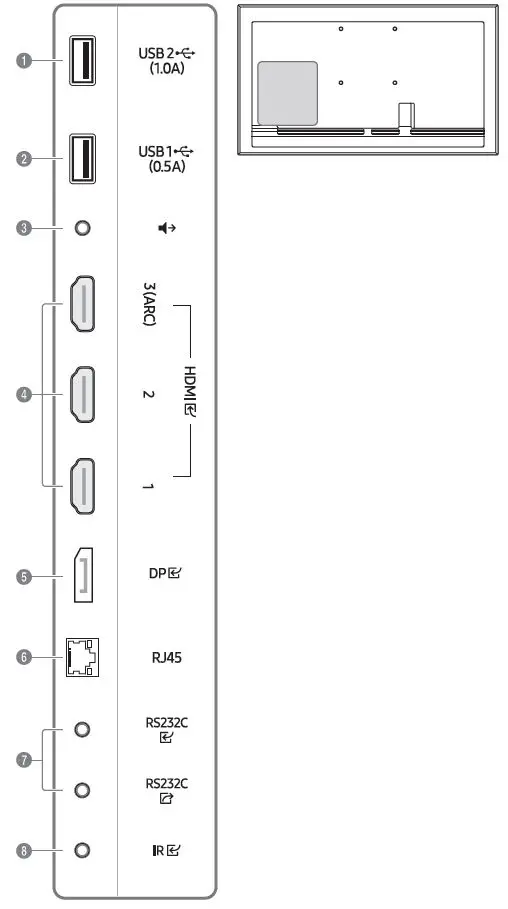
- Connect to a USB memory device.
The USB ports on the product accept a maximum constant current of 1.0A. If the maximum value is exceeded, USB ports may not work. - Connect to a USB memory device.
The USB ports on the product accept a maximum constant current of 0.5A. If the maximum value is exceeded, USB ports may not work. - Outputs sound to an audio device via an audio cable.
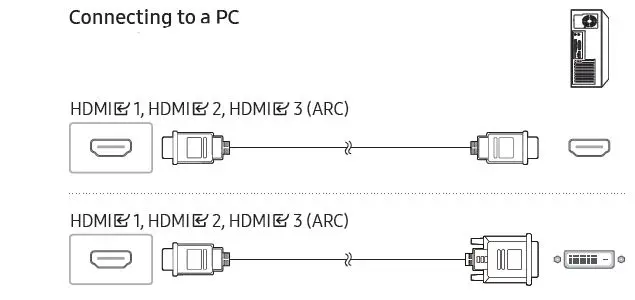
- Connects to a source device using a HDMI cable or HDMI-DVI cable.
- Connects to a PC using a DP cable.
- Connects to MDC and the Internet using a LAN cable. (10/100 Mbps)
- Connects to MDC using an RS232C adapter.
- Connects to an external IR cable that receives signals from the remote control.
Connecting and Using a Source Device
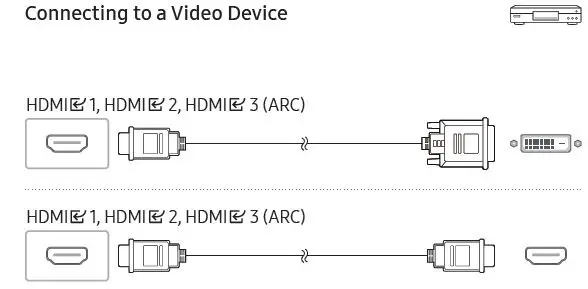
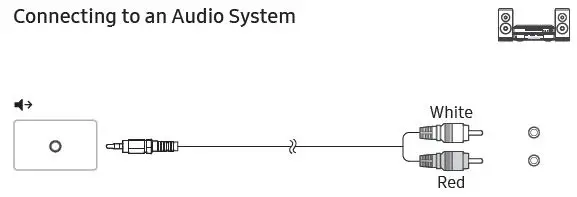

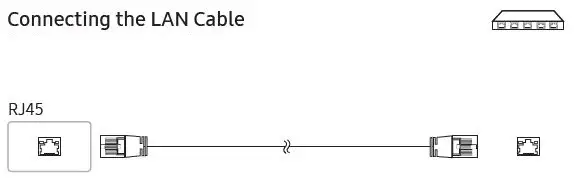
Use Cat7(*STP Type) cable for the connection. (10/100 Mbps)
Shielded Twist Pair
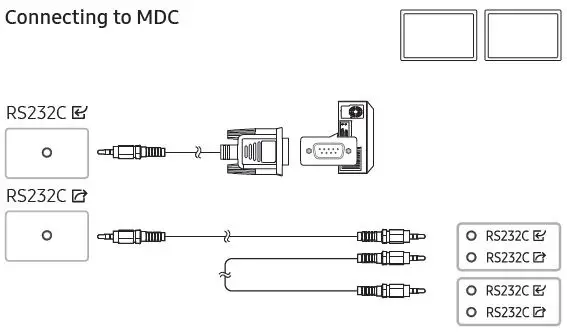
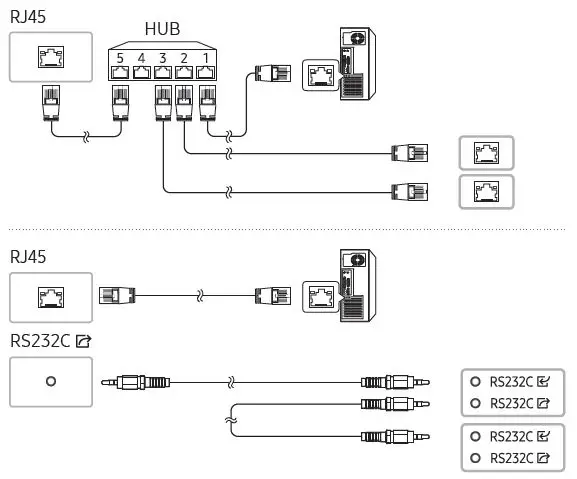
For details on how to use the MDC program, refer to Help after installing the program.
The MDC program is available on the website. http://www.samsung.com/displaysolutions
Parts
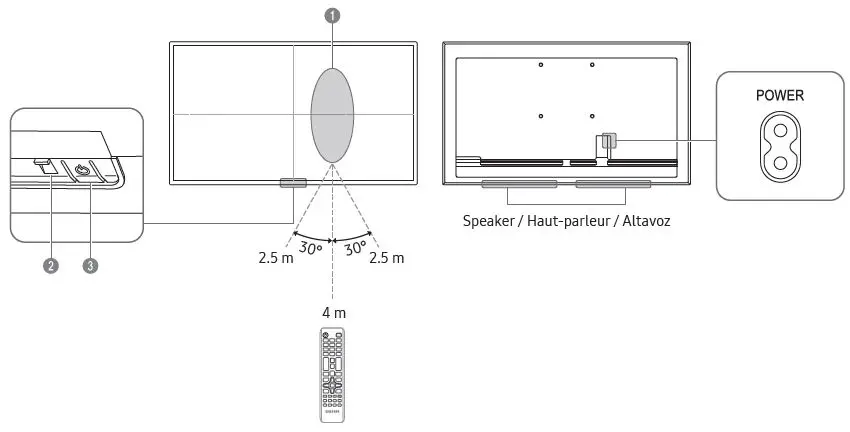
- Remote sensor
Press a button on the remote control pointing at the sensor on the front of the product to perform the corresponding function.
Using other display devices in the same space as the remote control of this product can cause the other display devices to be inadvertently controlled. - Power indicator
- Power button
Turns the product on or off.
Troubleshooting Guide
| Issues | Solutions |
| The screen keeps switching on and off. | Check that the cable between the product and the PC is connected correctly. |
|
No Signal is displayed on the screen. | Check that the product is connected correctly with a cable. |
| Check that the source device connected to the product is powered on. | |
| Depending on the type of external device, the screen may not display properly. In this case, connect it with the HDMI Hot Plug function turned On. | |
|
Not Optimum Mode is displayed. | This message is displayed when a signal from the graphics card exceeds the product’s maximum resolution and frequency. |
| Refer to the Standard Signal Mode Table and set the maximum resolution and frequency according to the product specifications. |
Specifications
| Model Name | QM43B | QM50B | QM55B | ||
|
Panel | Size | 43 CLASS (42.5 inches / 107.9 cm) | 50 CLASS (49.5 inches / 125.7 cm) | 55 CLASS (54.6 inches / 138.7 cm) | |
| Display area | 941.184 mm (H) x 529.416 mm (V) | 1095.84 mm (H) x 616.41 mm (V) | 1209.6 mm (H) x 680.4 mm (V) | ||
| Model Name | QM65B | QM75B | |||
|
Panel | Size | 65 CLASS (64.5 inches / 163.9 cm) | 75 CLASS (74.5 inches / 189.3 cm) | ||
| Display area | 1428.48 mm (H) x 803.52 mm (V) | 1650.24 mm (H) x 928.26 mm (V) | |||
| Power Supply | AC100-240V~ 50/60Hz Refer to the label at the back of the product as the standard voltage can vary in different countries. | ||||
|
Environmental considerations | Operating | Temperature: 32 °F – 104 °F (0 °C – 40 °C) Humidity: 10% – 80%, non-condensing | |||
| Storage | Temperature: -4 °F – 113 °F (-20 °C – 45 °C) Humidity: 5% – 95%, non-condensing | ||||
This device is a Class B digital apparatus.
For detailed device specifications, visit the Samsung website.
Wall Mount Kit Specifications
| 1 Model Name | 2 VESA screw hole specs (A * B) in millimeters | 3 C | 4 Standard Screw | 5 Quantity | 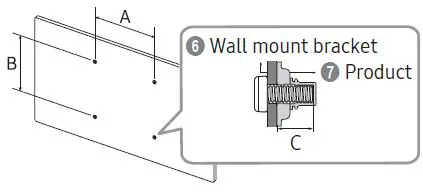 |
| QM43B |
200 x 200 | 31-32 mm 3.1-3.2 cm | M8 | 4 | |
| QM50B QM55B | 29-30 mm 2.9-3.0 cm | ||||
| QM65B |
400 x 400 | ||||
| QM75B | 30-31 mm 3.0-3.1 cm |
Contact SAMSUNG WORLD WIDE
Web site: http://www.samsung.com
| Country/Area | Customer Care Center |
| U.S.A | 1-800-SAMSUNG (726-7864) |
| CANADA | 1-800-SAMSUNG (726-7864) |
| ARGENTINA | 0800-555-SAMS (7267) |
| BOLIVIA | 800 107 260 |
| BRAZIL | 0800 555 0000 (Demais cidades e regiões) 4004-0000 (Capitais e grandes centros) |
| CHILE | 800 726 786 |
| COLOMBIA | Bogotá en el 600 12 72 Sin costo en todo el pais 01 8000 112 112 Y desde tu celular #726 |
| COSTA RICA | 00-800-1-SAMSUNG (726-7864) |
| DOMINICAN REPUBLIC | 1-800-751-2676 |
| ECUADOR | 1-800-SAMSUN (72-6786) |
| EL SALVADOR | 8000-SAMSUNG (726-7864) |
| GUATEMALA | 1-800-299-0033 |
| HONDURAS | 800-2791-9111 |
| JAMAICA | 1-800-SAMSUNG (726-7864) |
| MEXICO | 800-SAMSUNG |
| NICARAGUA | 001-800-5077267 |
| PANAMA | 800-0101 |
| PARAGUAY | 0800-11-SAMS (7267) |
| PERU | 080077708 Desde teléfonos fijos, públicos o celulares |
| PUERTO RICO | 1-800-682-3180 |
| TRINIDAD & TOBAGO | 1-800-SAMSUNG (726-7864) |
| URUGUAY | 0800-SAMS (7267) |
| VENEZUELA | 0-800-100-5303 |
General Mariano Escobedo 476, Piso 8 Col.
Anzures, Alcaldía Miguel Hidalgo, Ciudad de México CP. 11590
TEL : (55) 5747-5100 / 800 726 7864
The color and the appearance may differ depending on the product, and the content in the manual is subject to change without prior notice to improve the performance.
Download the user manual from the following Samsung Website for further details.
http://www.samsung.com/displaysolutions
 Samsung US | Mobile | TV | Home Electronics | Home Appliances | Samsung US