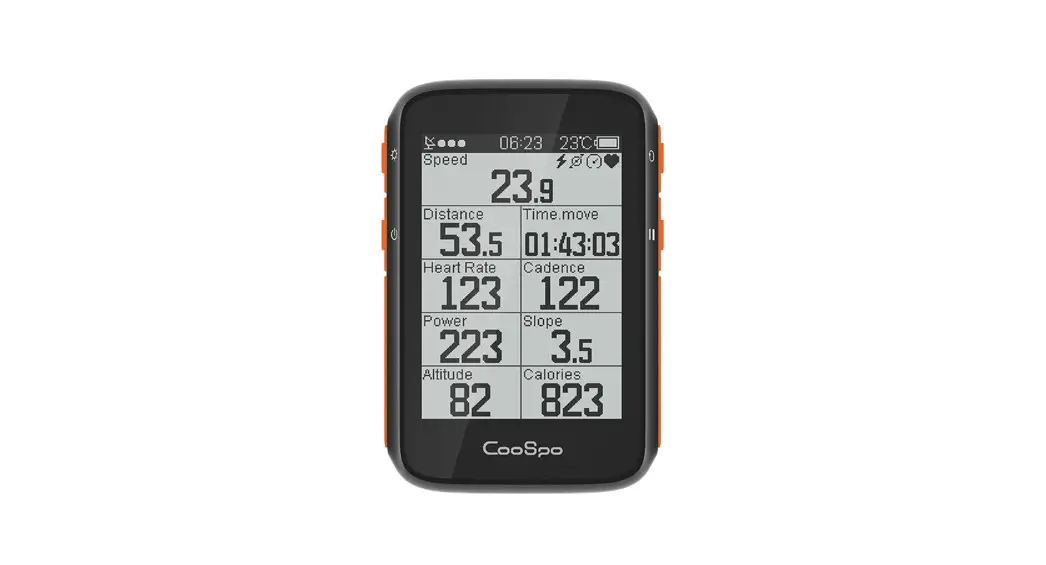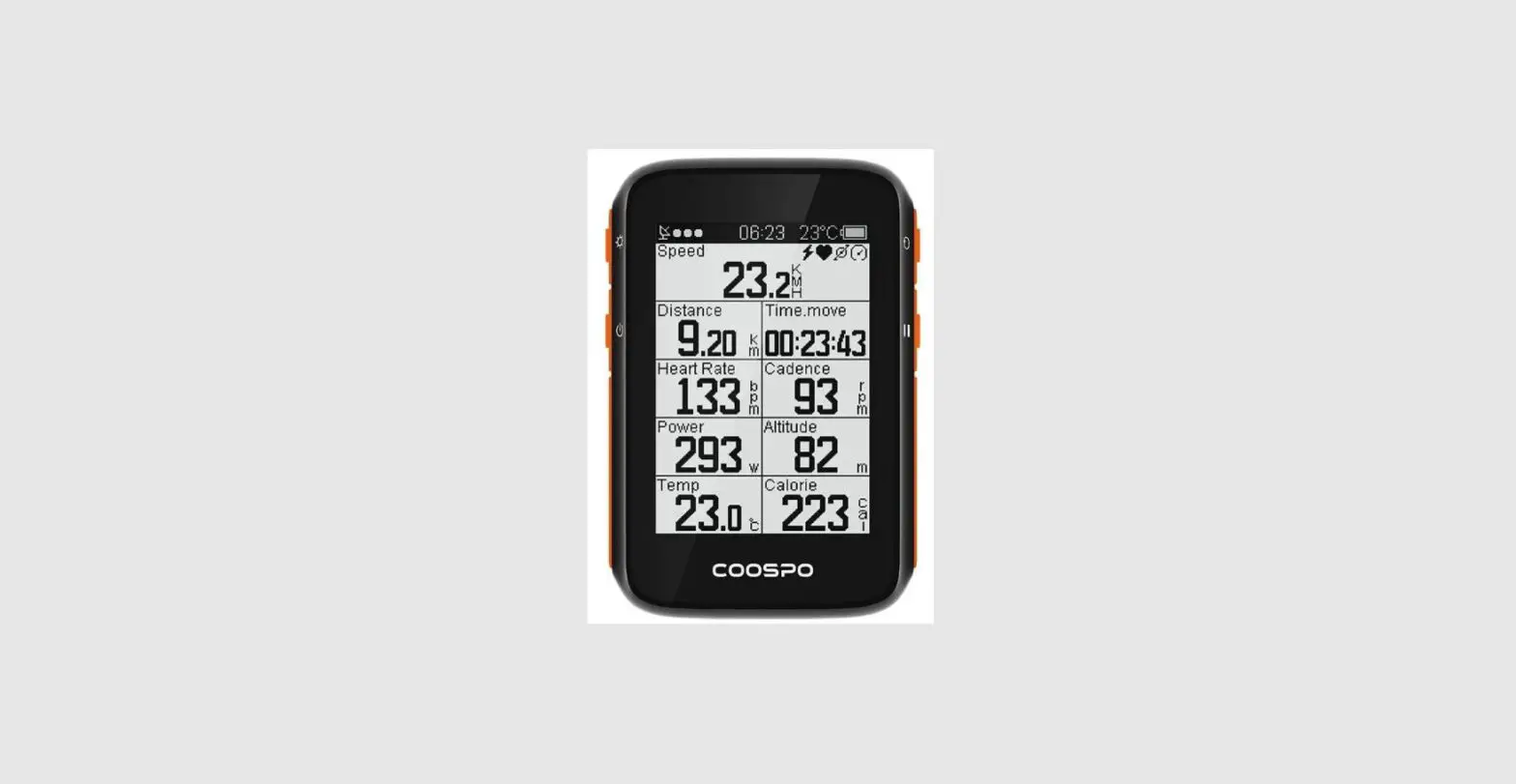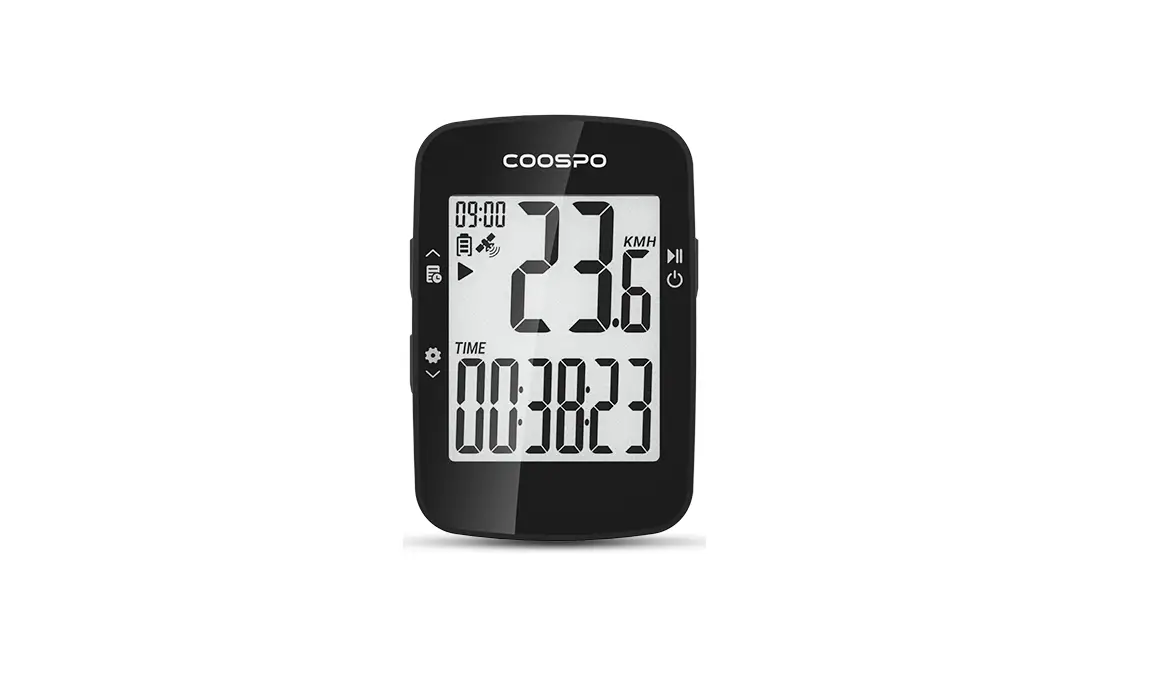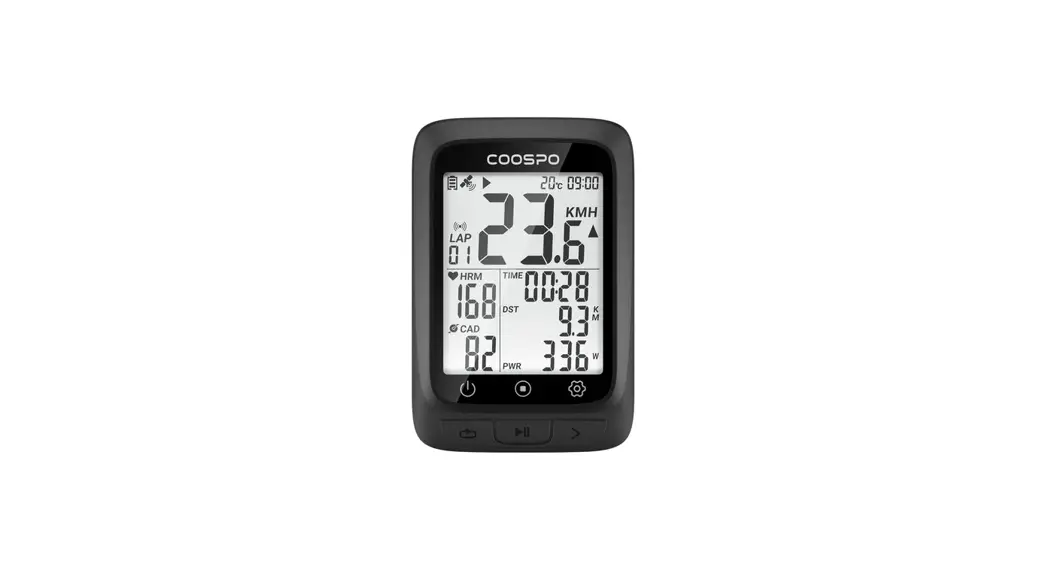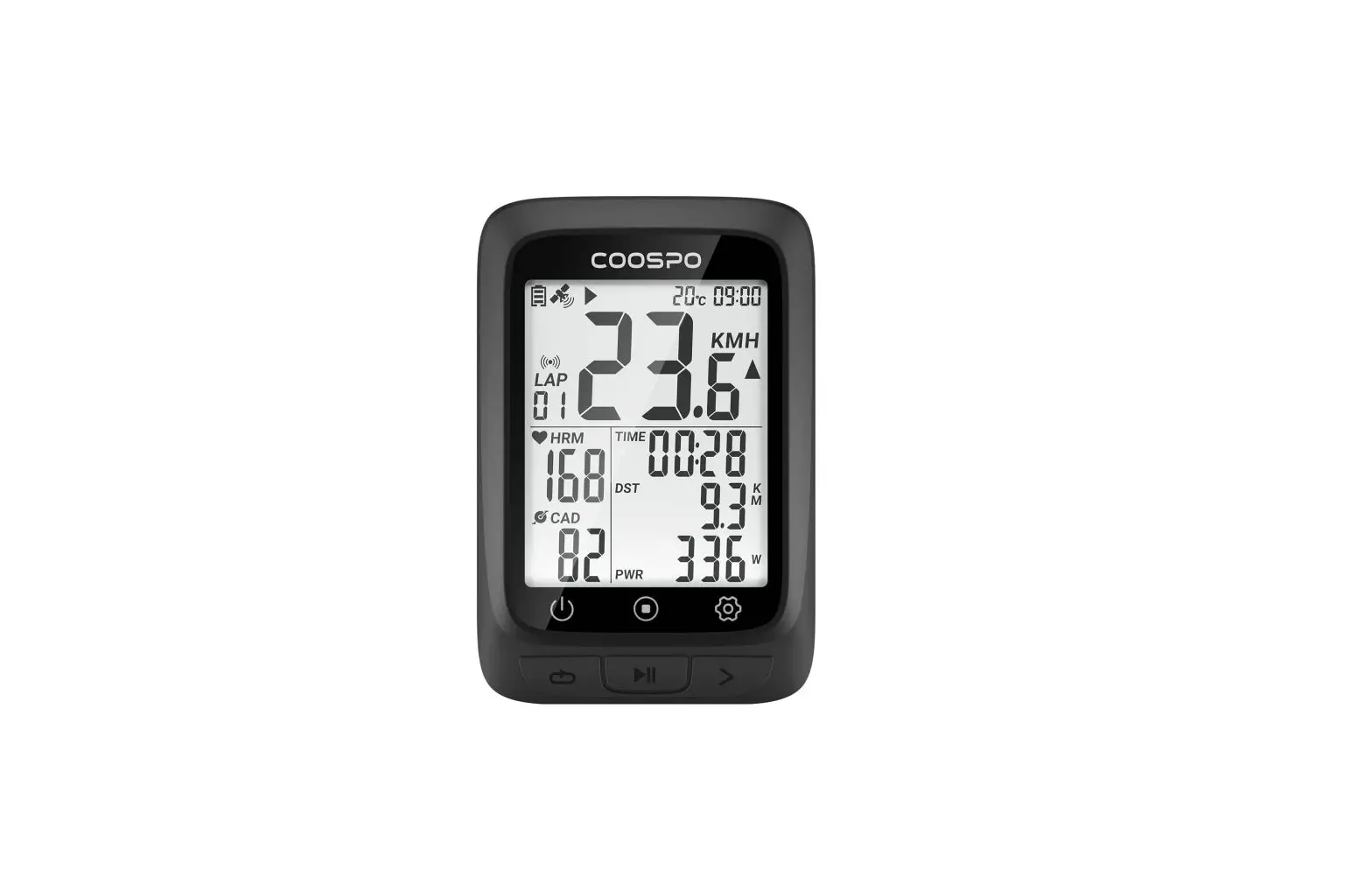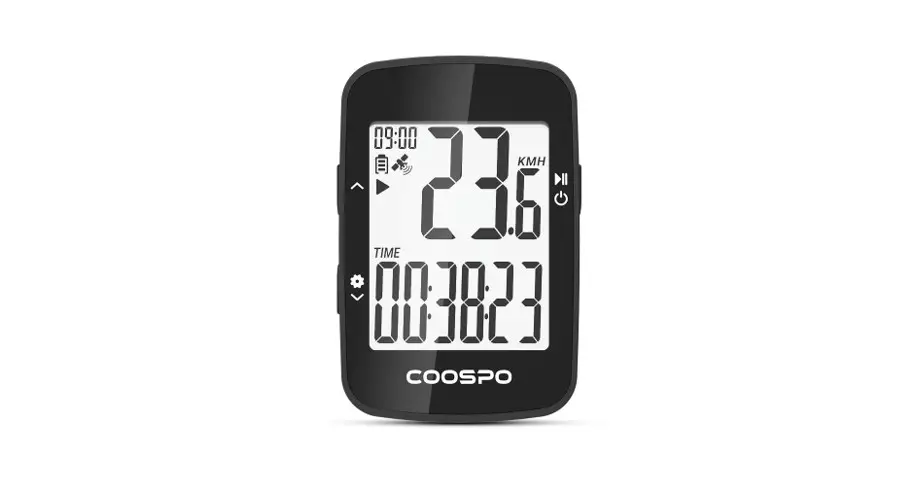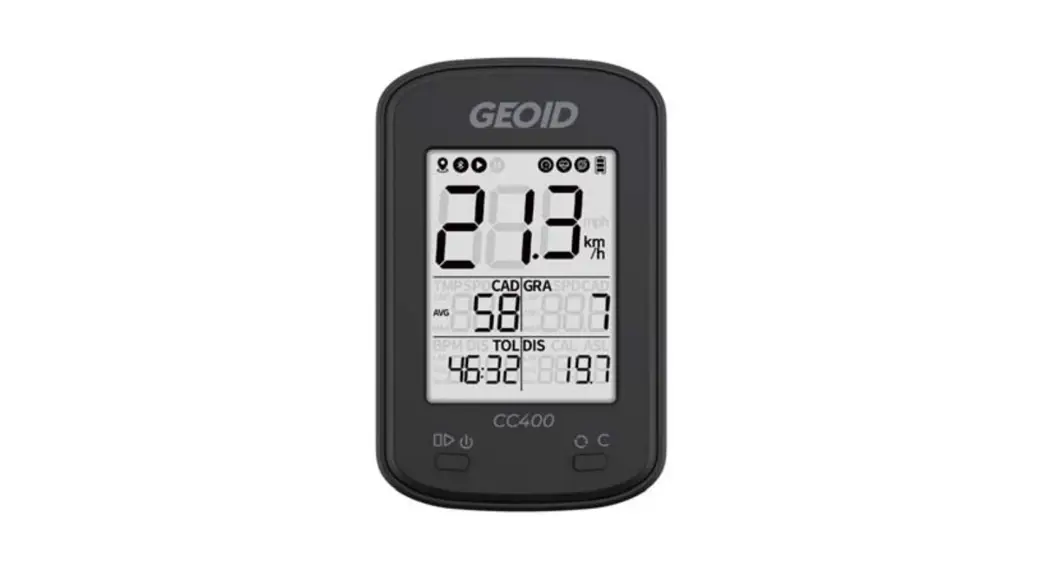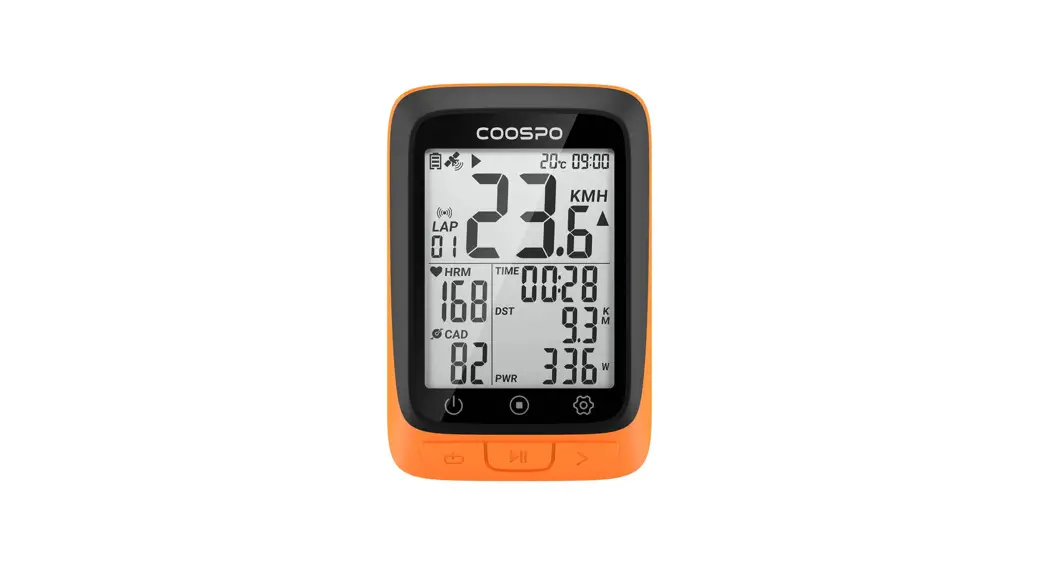

Bike Computer
User Manual
Model: BC107
Manufacturer: Shenzhen CooSpo Tech Co., Ltd.
Address:11F, Lingyun Building, Honglang North 2nd Rd.,
Baoan District, Shenzhen, Guangdong, China
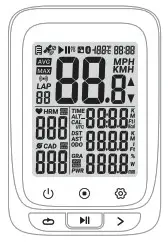
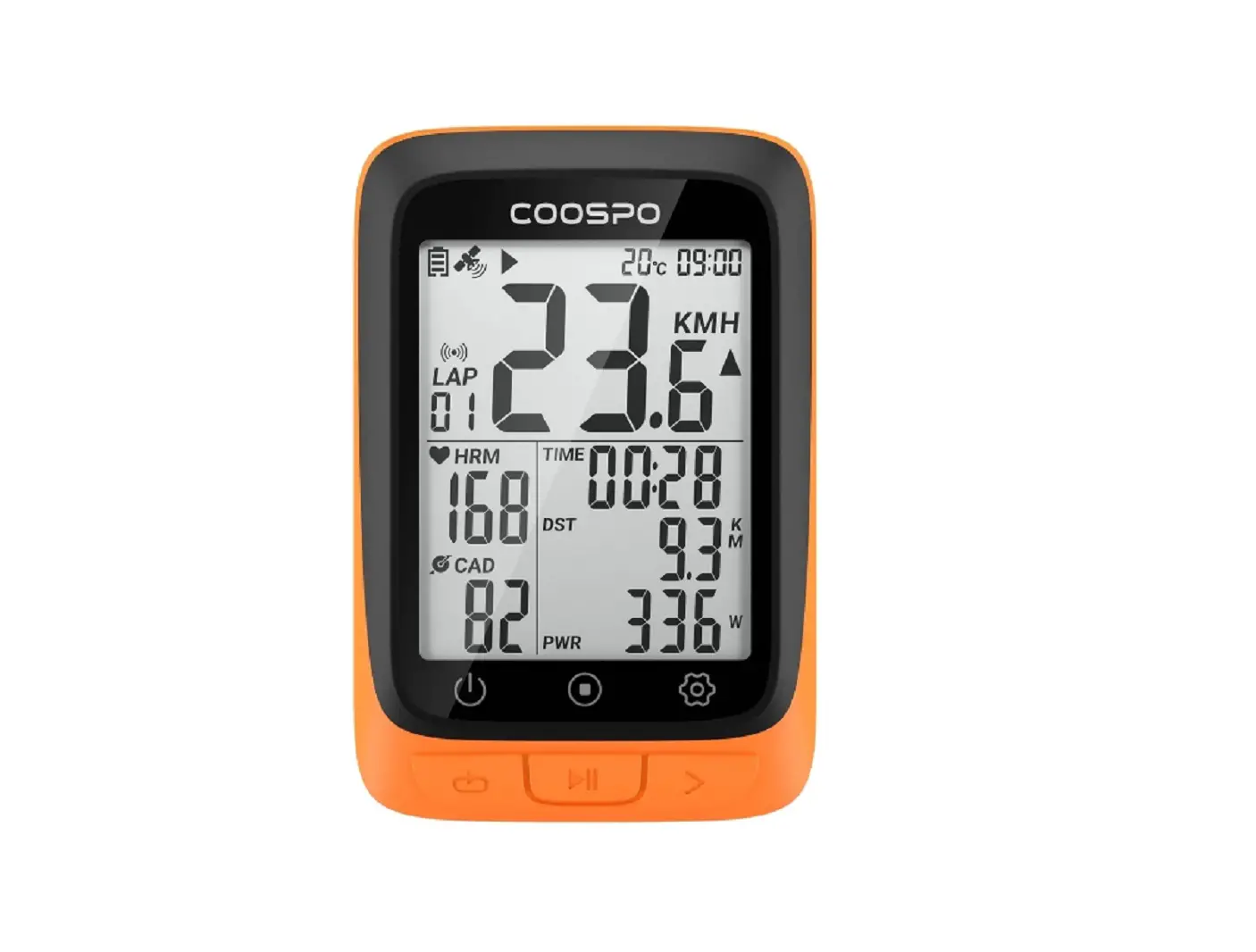
 Left Button
Short Press: Mark a new lap
Hold for 2 seconds: Power off
(Power on: short press the button)
(Short press in setting mode: exit / return and save the setting) Mid Button
Short Press: Pause/Continue
(Short press to start recording after power on)
Hold for 2 seconds: save the exercise record and exit the exercise (Short press in setting mode: enter the current setting / switch the number of digits)
> Right Button
Short Press: Page turning
Hold for 2 seconds: setting mode
(Short press in setting mode: switch setting options / switch the numerical)
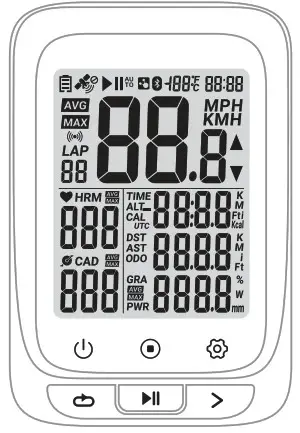
Status Icons
 | Time |
| No satellite signal | |
| Satellite signal level | |
| Accessory connecting status | |
| Under exercising | |
| Manual pause | |
| Connected with App by BLE | |
| Temperature | |
| Battery level | |
| Average | |
| Maximum | |
| Miles per hour | |
| Kilometers per hour | |
| Increased & Decreased | |
| Heart Rate | |
| Cadence | |
| Gradient |
 | Sport time |
| Altitude | |
| Odometer (Total distance) | |
| Distance Ascend | |
| Distance | |
| Calories | |
| LAP | |
| Power | |
| Time zone |
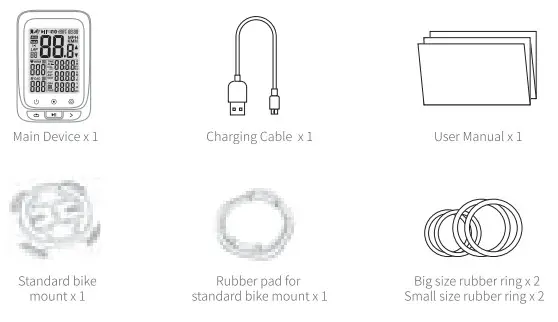
Standard accessories
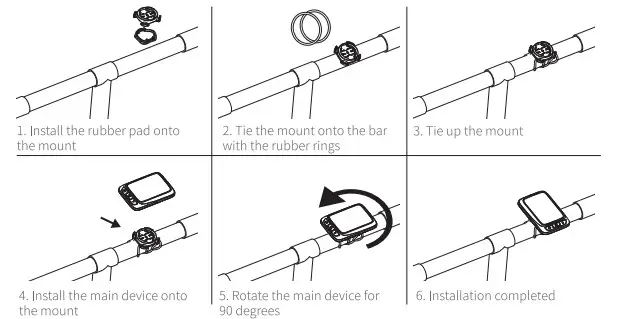
How to Install
Standard Mount Installation
Charging
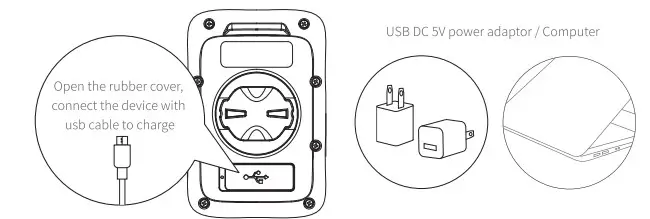
- Please charge the device before first-time use.
- Please use the DC SV power adaptor for charging.
- During the charging, the battery icon will flash until fully charged.

AcquiringSatellite Signals, Time Setting, and Auto Back Light
Auto Back Light
This device will automatically calculate the sunrise and sunset time, from the time half an hour before sunset to half an hour after sunrise, the backlight will automatically lighten up, in the rest of the time, the backlight will be turned off if no operation is detected in 15 seconds.
Acquiring Satellite Signals
Please make sure the device is outdoor and under a clear view of the sky. Usually, it may take 15-90 seconds to locate satellite signals, remain stationary when acquiring satellite signals. This device can use a speed sensor or GPS for speed tracking, when the speed sensor is not connected, the device will use GPS for speed tracking, and will use a speed sensor when the sensor is connected.
Time Setting
The time and date will be calibrated automatically after locating the satellite signals when the device is powered on (Please set the time zone correctly, refer to the time zone setting chapter) or connect the device to the App (CoospoRide) to sync the time.
Connecting with ANT+ Sensors
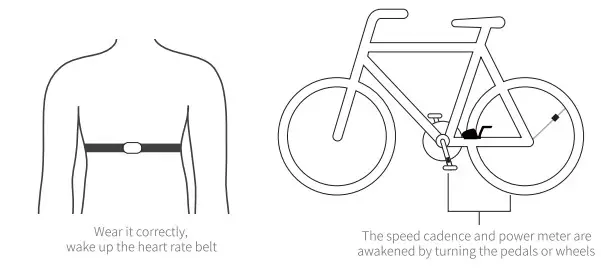
- Please make sure the sensors are in wake-up mode(For example, the heart rate monitor should be worn on properly, and the speed cadence and power meter should be awakened by turning the pedals or wheels).
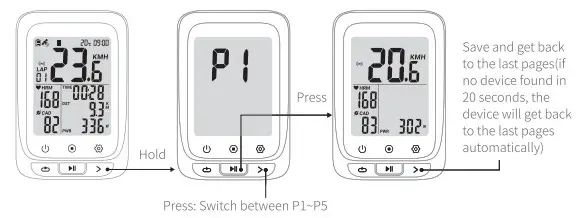
- Hold the> to get into setting mode;
- There are 5 settings pages available (P1 – P5), press the> to switch to P1;
- Press
 to select to enter;
 - The computer automatically searches for ANT+ peripherals, and automatically connects after searching for ANT+ peripherals;
- Press
 to saves the found accessories and return. If no ANT+ accessory is found, the device will return to the last pages automatically (When a power device is connected during riding, the computer will display power data first, and when there is no power device, it will display GRA slope data).
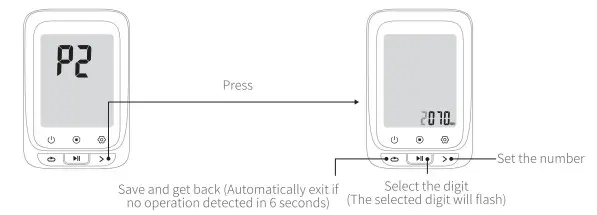
Setting the Wheel Size
- Hold the > to get into setting mode;
- There are 5 settings pages available (P1 ∼ P5), press the> to switch to P2;
- Press to select to enter;
- Press to select the setting digit, press the> to set the numbers;
- Press to save and exit (Automatically exit in 6 seconds if no operation detected).
Common wheel size and circumference(Wheel Size L (mm)
| 12 x 1.75935mm | 24 x 1.75 1890mm | 26 x 1-3/8 2068mm | 650x 35A 209Crnm |
| 14 X 1.5 1020mm | 24 X 2.00 1925mm | 26 x 1-1/2 2100mm | 650 x 38A 2125min |
| 14 X 1,75 1055mm | 74 X 2.125 1965mm | x 1.40 2005mm | 650 x 3882105mm |
| 16 X 1.5 1185mm | 26 X 1.75 2023mm | 26 x 1.50 2010mm | 700 x 18C 2070mm |
| 16 X 1.75 1195mm | 26 x 1.95 2050mm | 27 x 1 2145mm | 100 x 19C 2080mm |
| 18 x 1.5 1340mm | 26 x 2.00 2055mm | 27 x 1-1M 2155mm | 700 X 20C 2086mm |
| 18 x 175 1350mm | 76 x 710 2068mm | 27 x 1-1M 7161mm | 700 x 73C 7096mm |
| 20 x 1.75 1515mm | 26 x 2.125 2070mm | 27 x 1-3/8 2169mm | 700 X 25C 2105mm |
| 20 x 1-3/8 1615mm | 26 x 2.35 2083mm | 27.5 X 1.75 2114mm | 700 X 28C 2136mm |
| 72 X 1-3/8 1770mm | x 3.00 2170mm | 27,5x 7.125 2174mm | 700 X 30C. 2170mm |
| 22 x 1-1/2 1785mm | 26 X 7 8 1920mm | 27.5 X 1.5 2074mm | 700 X 32C 2155mm |
| 24 x 1 1753mm | 26 X 1(59) 1913mm | 27.5 x 1.95 2146mm | 700C Tubular 2130mm |
| 24 x 314 Tubular 1755mm | 26 x 1(6511952mm | 29×2.1 2288mm | 700 X 35C 2168mm |
| 74 X 1-1M 1795mm | 76 x 1 75 1953mm | x 7.2 2298mm | 700 x 38C. 2180mm |
| 24 x 1-1/4 1905mm | 26 X 1-1/8 1970mm | 29×2.3 2326mm | 700 x 40C 2200mm |
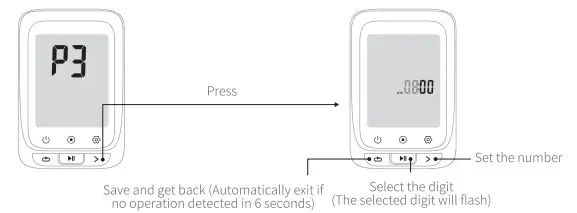
Time Zone Setting
- Hold the >to get into setting mode;
- There are 5 settings pages available (P1 – P5), press the >to switch to P3;
- Press to select to enter (Default time zone: UTC/GMT + 08:00);
- Press to select the setting digit, press the> to set the numbers;
- Press to save and exit (Automatically exit in 6 seconds if no operation detected)
Setting Metric and Imperial Units
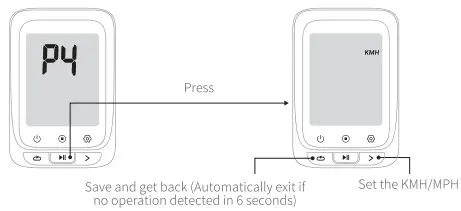
- Hold the > to get into setting mode.
- There are 5 settings pages available (P1 – P5), press the >to switch to P4.
- Press to select to enter(Default time zone: UTC/GMT + 08:00).
- Press to select the setting digit, press the >to set the numbers.
- Press a to save and exit (Automatically exit in 6 seconds if no operation detected).
Power calibration
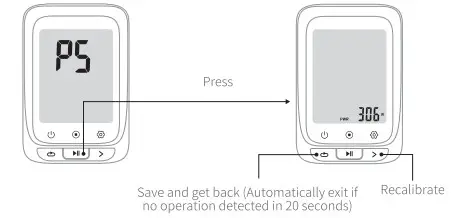
- Hold the> to get into setting mode;
- There are 5 settings pages available (P1 – P5), press the>to switch to P5, it will automatically calibrate;
- Short press to recalibrate, the value flashes during the calibration, the value does not flash after the calibration is successful;
- After the calibration is successful, press a to save and exit(Automatically exit in 20 seconds if no operation detected).
Cycling
Thrn on the device, press to start an exercise and recording(During the cycling, when the cycling speed is 0, the device will pause automatically, if no data get for speed, cadence, and heart rate in 15 minutes the device will turn into sleep mode, press to resume).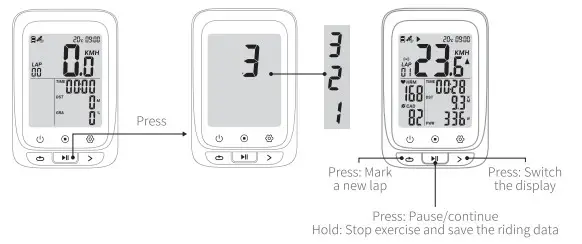
Bluetooth Connection
- Download CoospoRide in Google Play or App Store

Compatible with iOS 9.0 version and above, iPhone 4s and above
 Any Bluetooth 4.0 enabled Android device with Android 4.3 and above
 - Power on the bike computer;
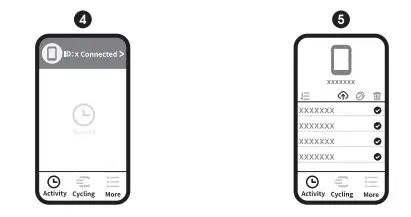
- Open the CoospoRide App, enter the binding computer step, select the BC107 computer the device list to bind the device, (the phone needs to turn on Bluetooth and allow Bluetooth permissions);

- In the activity page of the App, click on the connected device to enter the record synchronization operation page (through the authorization to Strava in the App more settings, the computer data can be synchronized to the Strava platform at the same time);
- Select the record to be synchronized and click Cr> Sync, and the record on the computer will be deleted automatically after synchronization.


 iOS 9.0 version and above, iPhone 4s and above
 Any Bluetooth 4.0 enabled Android device with Android 4.3 and above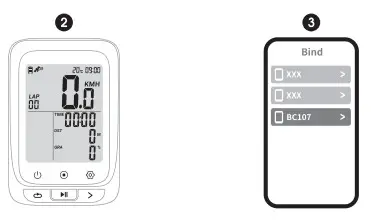
Basic Parameters
Wireless: AN T+ Bluetooth
Display: FSTN Screen, 2.3 inch
Back Light: Yes
Locate mode: GPS & BDS Lap
Count: Yes
Storage Format: .fit
Water Resistance: IPX7
Weight: 64g
Language: English
Battery Capacity: 1000mAh
Battery Life: 28 hours for a single-use after fully charged
Material: PC+ABS+TPO
Dimension: 81x54x20.6 mm
Accessories Supported: ANT+ peripherals (Heart Rate Monitor, Speed Sensor, Cadence Sensor, Speed and Cadence 2 in 1 Sensor, Power Meter)
File Transfer: Bluetooth (Specified App Compatible)
Attentions
The water-resistant level of the bicycle computer is IPX7. It can be used in the rain if you close the protective cover on the back tightly. It is recommended to take down the bicycle computer and put it into the waterproof bag if it rains heavily.
Responsibility Disclaimer
- The information contained in this manual just for reference. The product described above may be subject to alteration owing to the manufacturer’s continuing research and development plans, without making an announcement in advance.
- We shall not bare any legal responsibility for any direct or indirect, accidental or special damages, losses, and expenses arising from or in connection with this manual or the contained product.
FCC Statement
NOTE: This equipment has been tested and found to comply with the limits for a Class B digital device, pursuant to part 15 of the FCC Rules. These limits are designed to provide reasonable protection against harmful interference in a residential installation. This equipment generates uses and can radiate radio frequency energy and, if not installed and used in accordance with the instructions, may cause harmful interference to radio communications. However, there is no guarantee that interference will not occur in a particular installation. If this equipment does cause harmful interference to radio or television reception, which can be determined by turning the equipment off and on, the user is encouraged to try to correct the interference by one or more of the following measures:
– Reorient or relocate the receiving antenna.
– Increase the separation between the equipment and receiver.
-Connect the equipment into an outlet on a circuit different from that to which the receiver is connected.
-Consult the dealer or an experienced radio/TV technician for help
Changes or modifications not expressly approved by the party responsible for compliance could void the user’s authority to operate the equipment.
This device complies with Part 15 of the FCC Rules. Operation is subject to the following two conditions:
(1) this device may not cause harmful interference, and (2) this device must accept any interference received, including interference that may cause undesired operation.
IC Statement
This device contains license-exempt transmitter(s)/receiver(s) that comply with Innovation, Science, and Economic Development Canada’s license-exempt RSS(s). Operation is subject to the following two conditions:
- This device may not cause interference.
- This device must accept any interference, including interference that may cause undesired operation of the device.