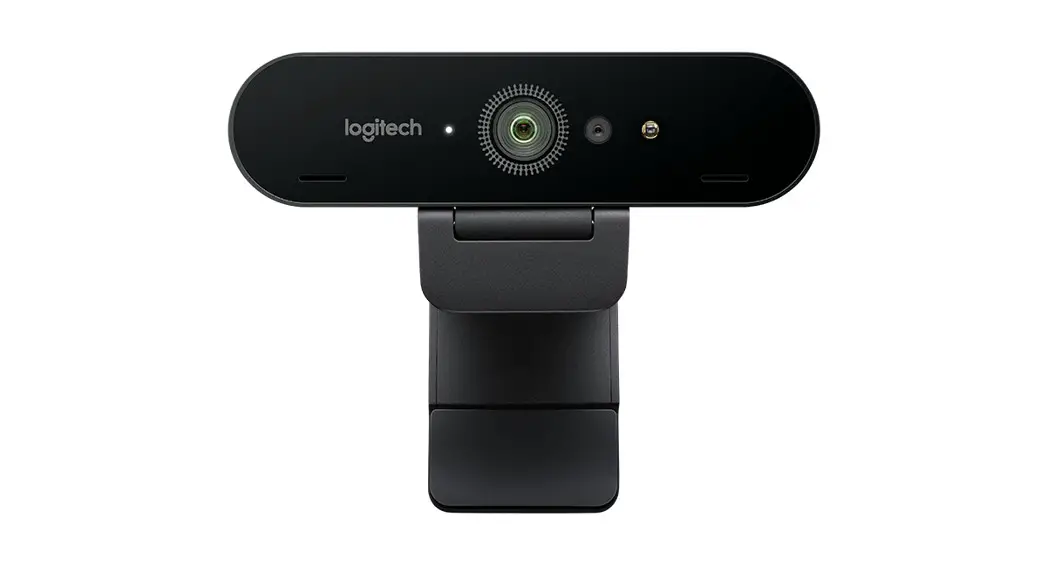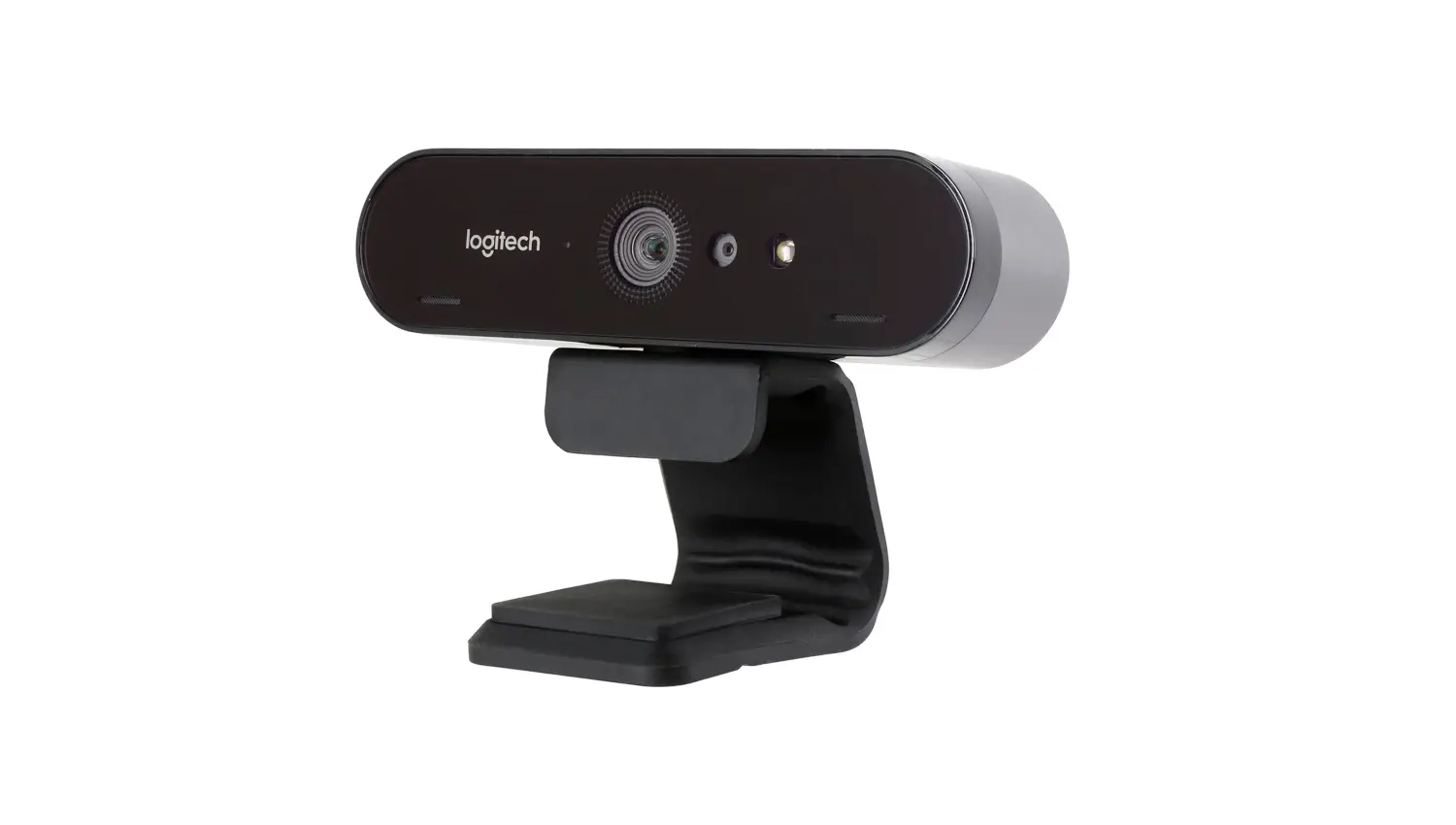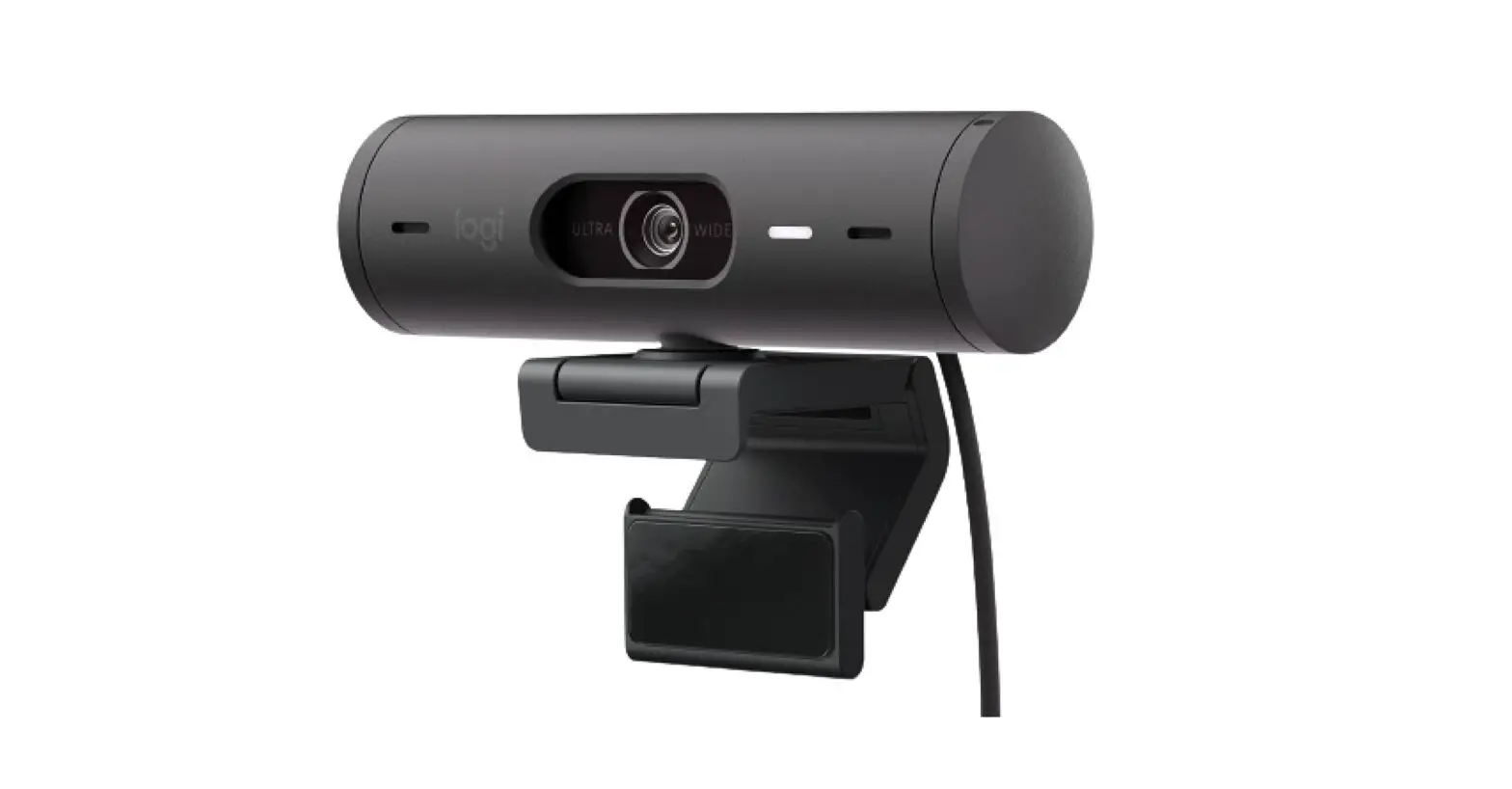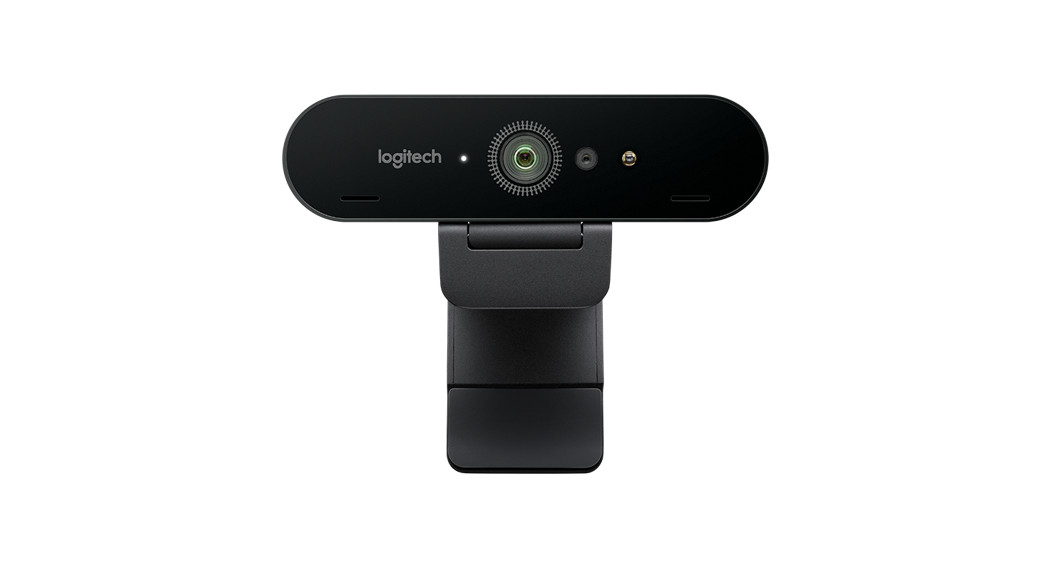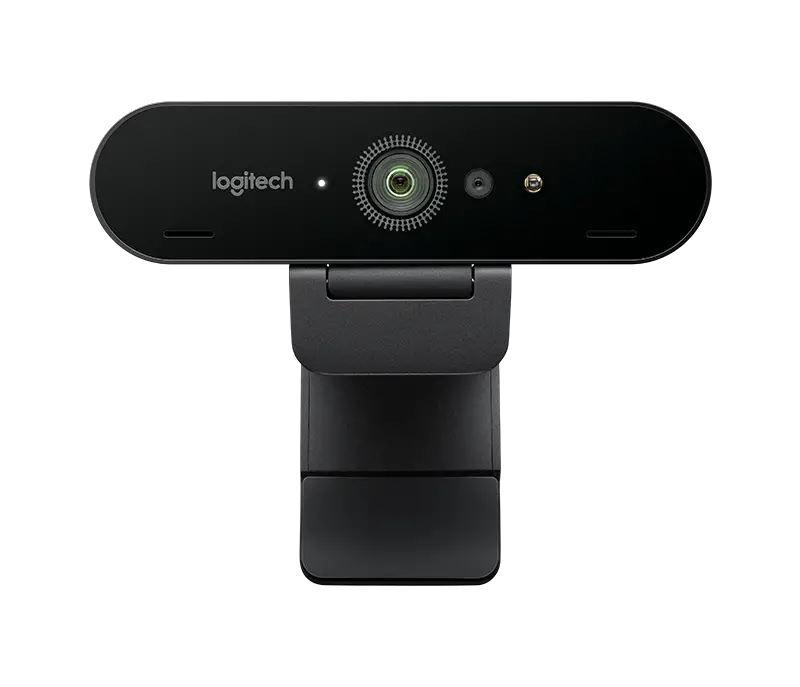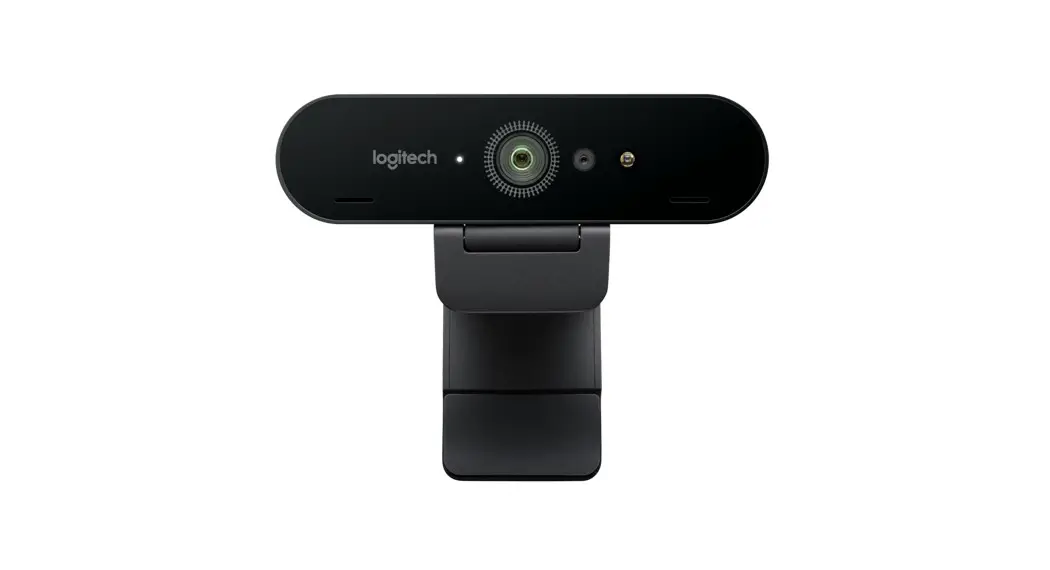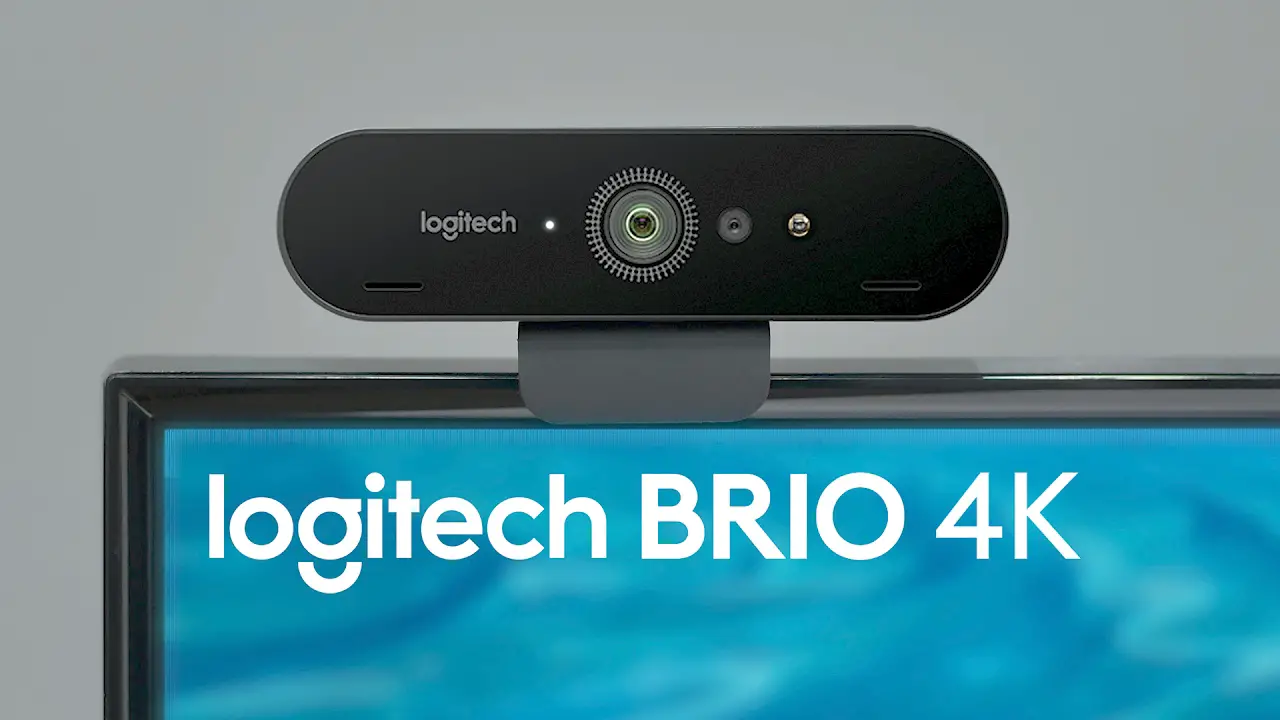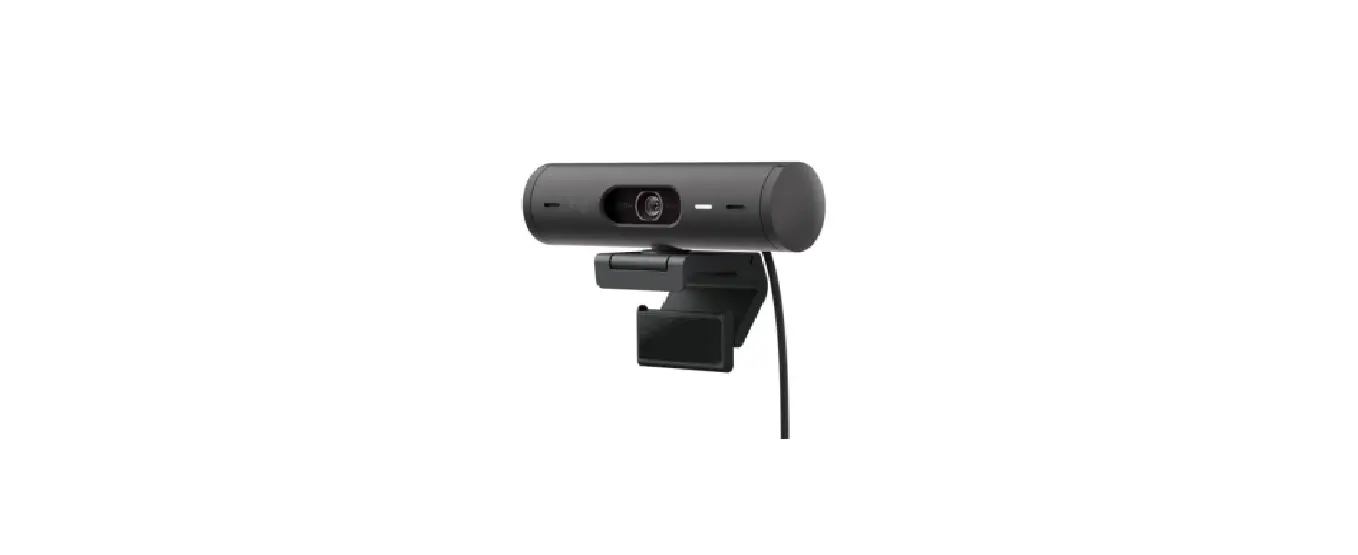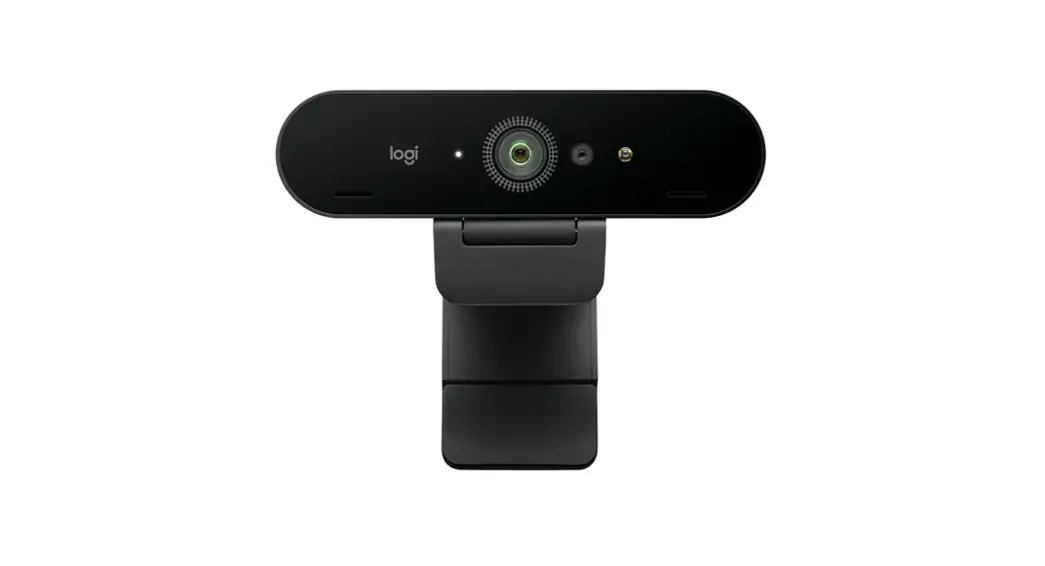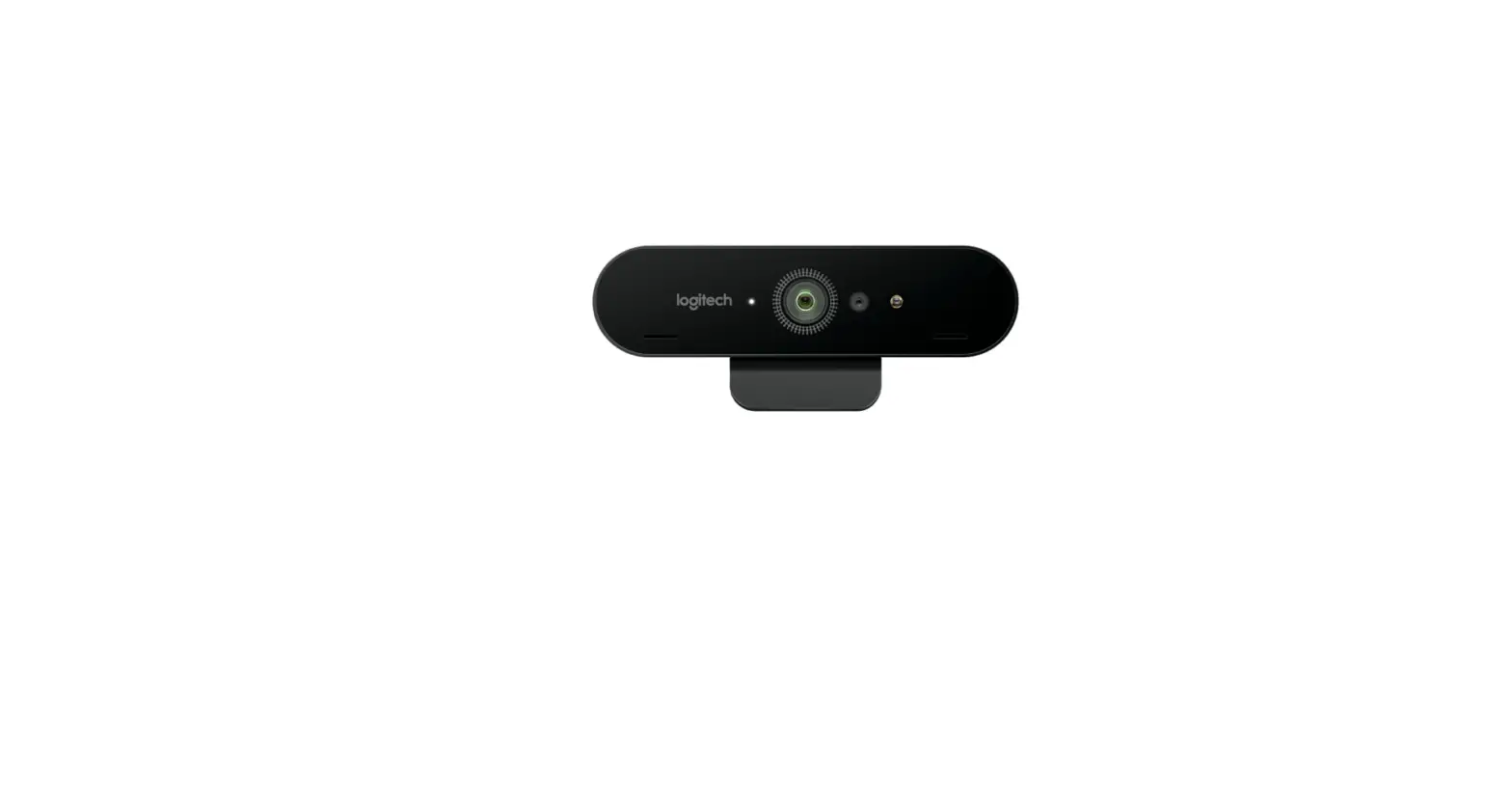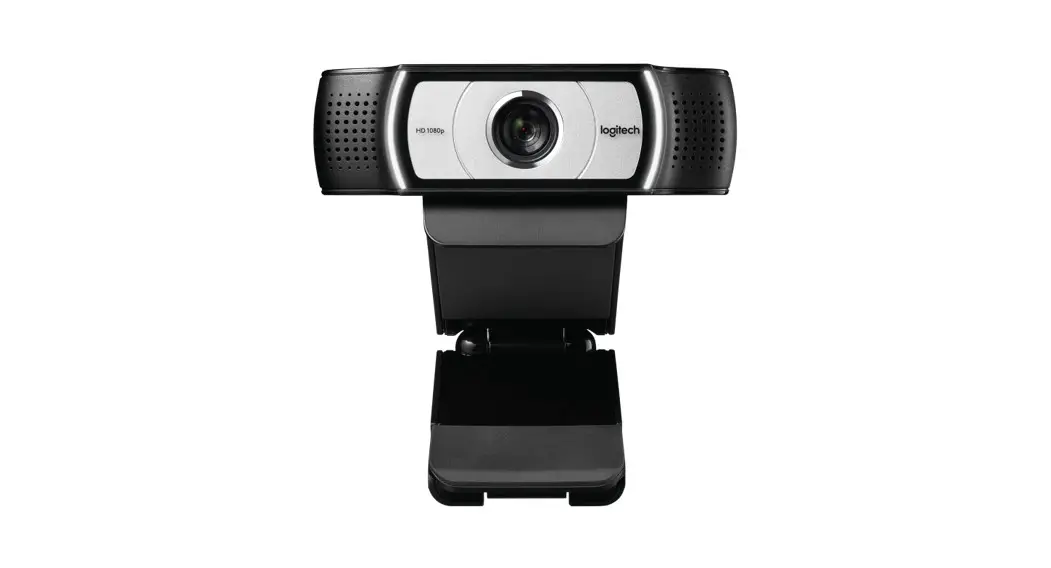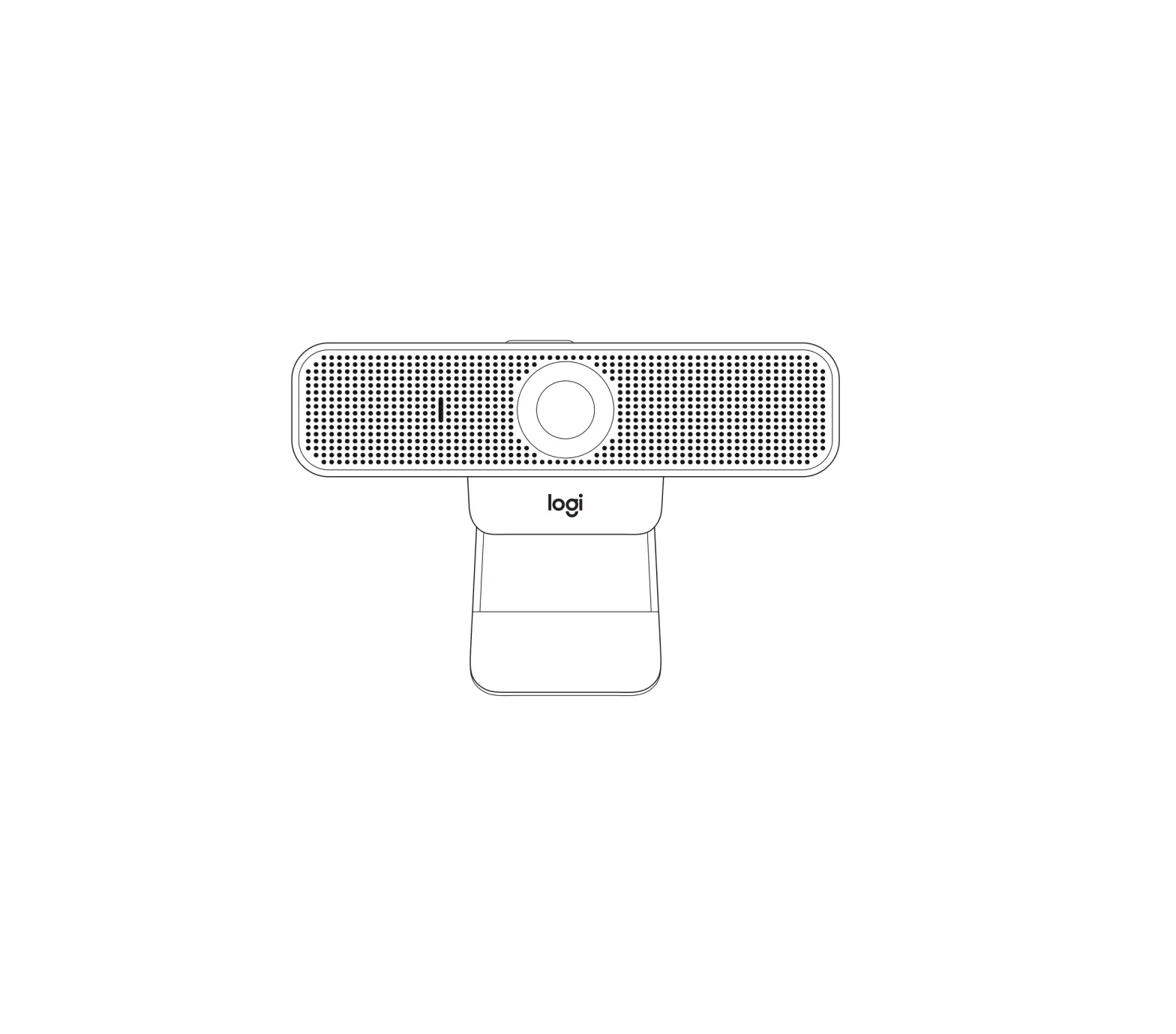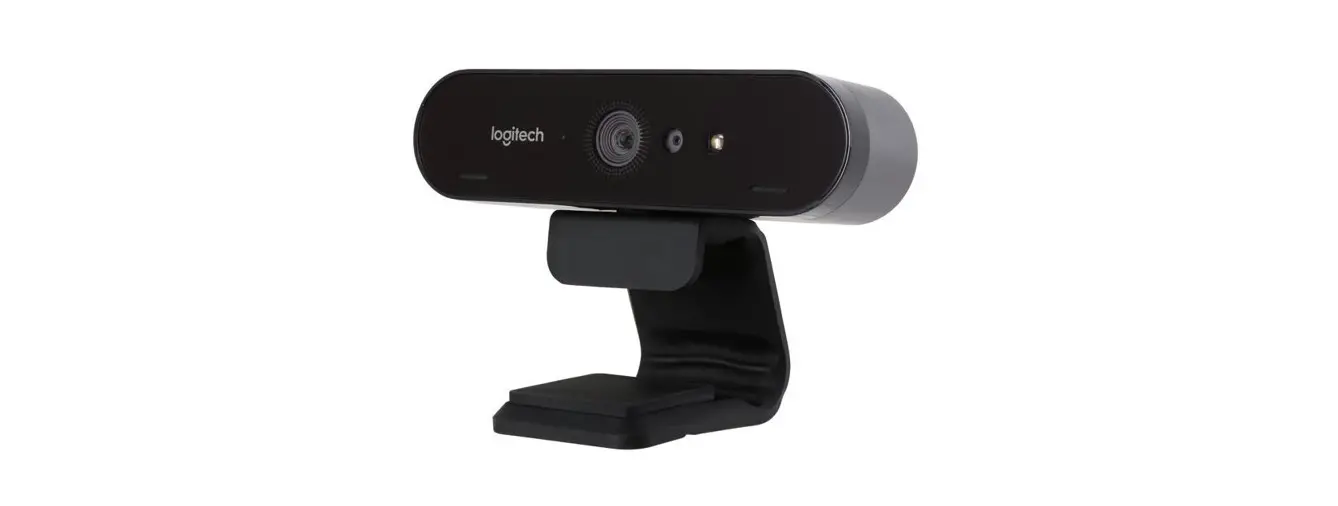
 960-001105 4K Brio Ultra HD Business Webcam
User Guide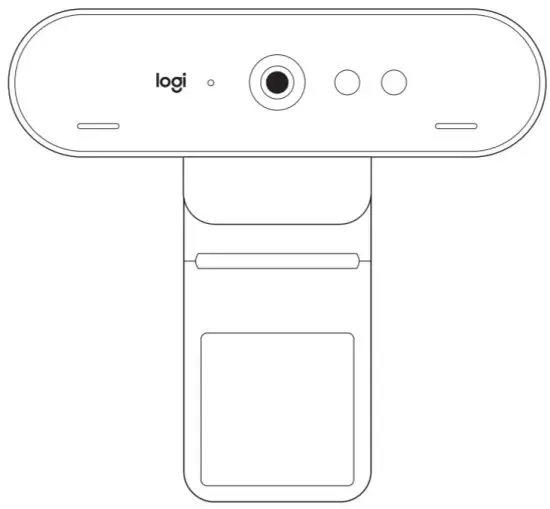
KNOW YOUR PRODUCT
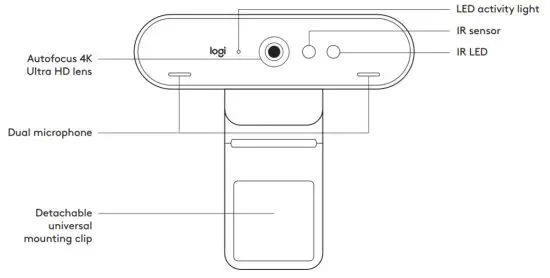

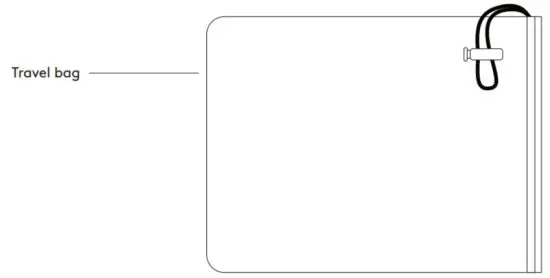
WHAT’S IN THE BOX
- Webcam with detachable universal mounting clip (on webcam)
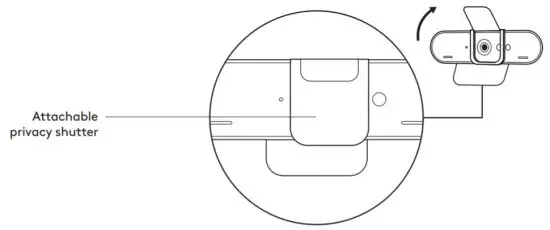
- External privacy shutter
- Carrying case
- 7 2 ft (2 2 m) USB-A to USB-C cable (USB 2 0 or 3 0)
- User documentation

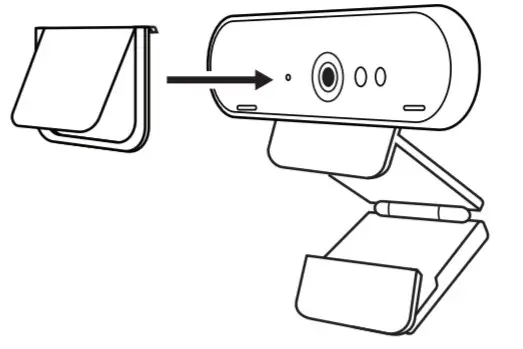
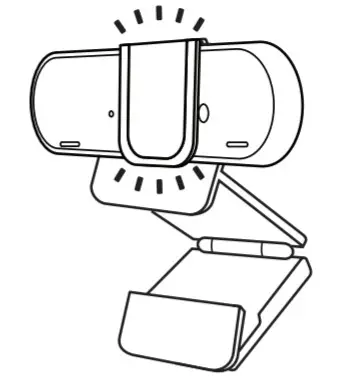
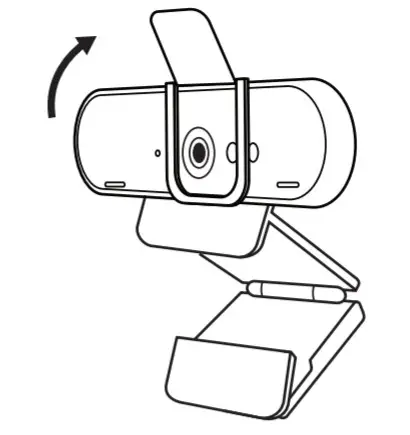
ATTACH THE PRIVACY SHUTTER
- Attach the privacy shutter over the lens on the webcam as shown

- Snap it onto the front of the webcam, directly over the center

- Manually adjust the privacy shutter to open or close as desired

SETTING UP THE WEBCAM
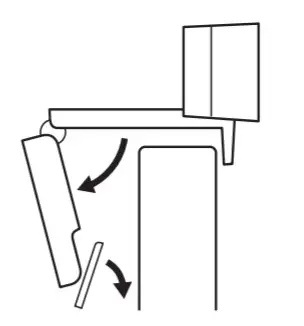
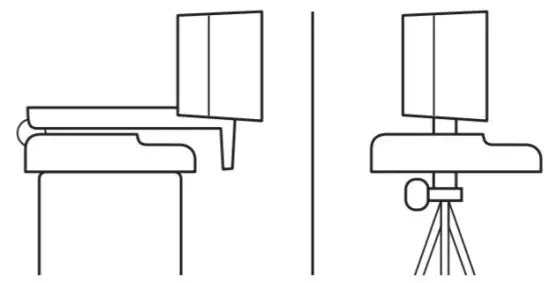
For placement on a monitor
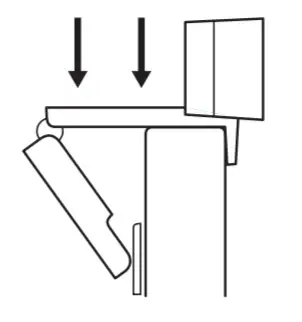
- Place your webcam on a computer, laptop or monitor at a position or angle you desire

- Adjust the webcam to make sure the foot on the universal mounting clip is flush with the back of your device

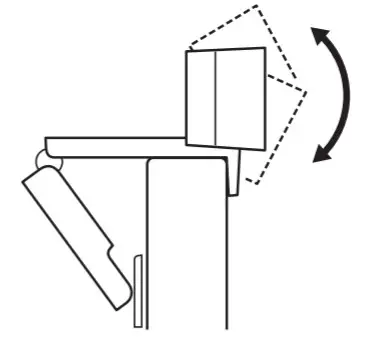
- Manually adjust the webcam up/down to the best position to frame yourself

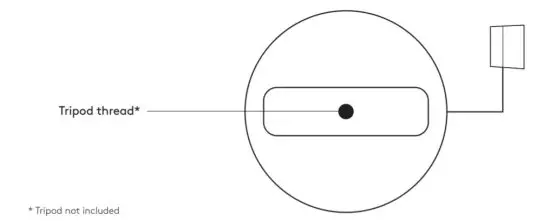
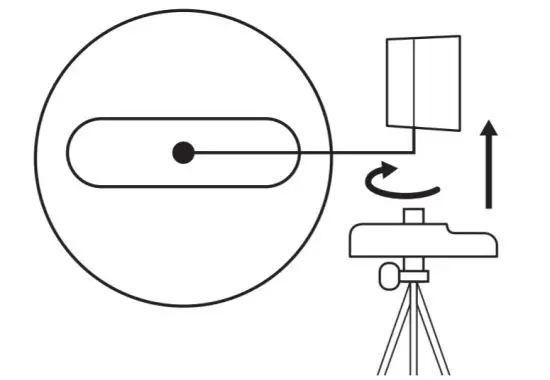
For placement on a tripod*
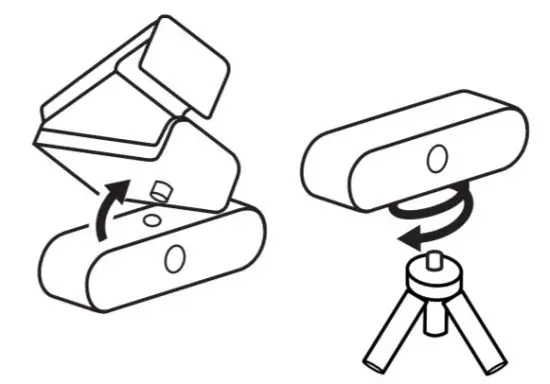
- Remove the detachable universal mounting clip from the webcam

- Locate the ¼ inch tripod thread on the bottom of the webcam.

- Secure the webcam on your tripod by twisting it into the ¼ inch thread.

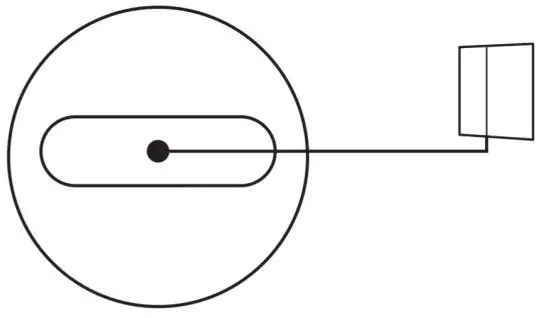
- Place your webcam with the tripod anywhere you desire to the best position to frame yourself.

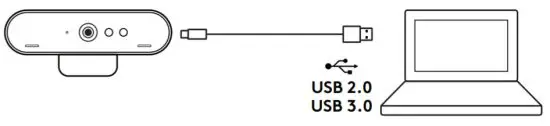
CONNECTING THE WEBCAM VIA USB-A
Plug the USB-C end into the webcam and the USB-A connector into the USB-A port on your computer
SUCCESSFUL CONNECTION
LED activity light will light up when the webcam is in use by an application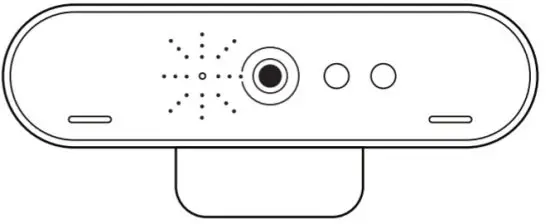
DIMENSIONS
WEBCAM:
Height x Width x Depth:
1 06 in (27 mm) x 4 02 in (102 mm) x 1 04 in (27 mm)
Cable Length: 7 2 ft (2 2 m)
Weight: 2 22 oz (63 g)
ATTACHABLE MOUNTING CLIP:
Height x Width x Depth:
0 75 in (19 mm) x 1 42 in (36 mm) x 2 48 in (63 mm)
Weight: 1 55 oz (44 g)
© 2021 Logitech, Logi, and the Logitech Logo are trademarks or registered trademarks of Logitech Europe S A and/or its affiliates in the U S and other countries Logitech assumes no responsibility for any errors that may appear in this manual Information contained herein is subject to change without notice