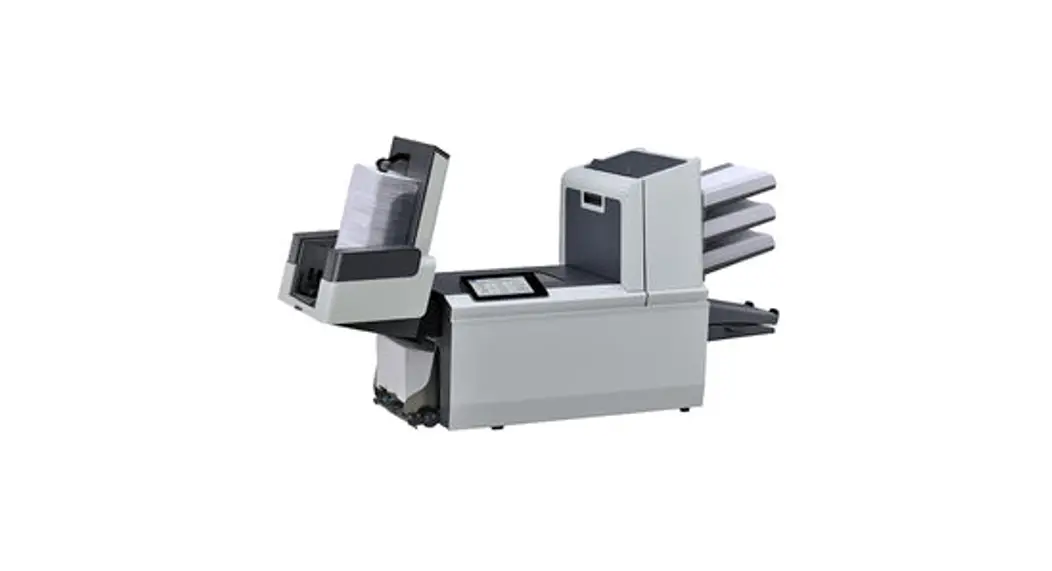
FPi 700 Folder Inserter
Product Information:
The product is a job management system designed for tasks that
require sealing and mailing documents. It allows users to work with
existing jobs, create new jobs, edit job settings, delete jobs,
reset the job counter, configure feeder options, save jobs, and run
jobs.
Product Usage Instructions:
- Using an Existing Job:
- Ensure the sealing liquid reservoir is filled if sealing is
required for the job. - From the home screen, choose a job. The job information will be
displayed. - Load envelopes as specified in the job.
- Load the documents face up and trailing, as specified in the
job. - Place the address carrier in feeder 1.
- Tap the [1x] button to start a test run or tap the [Start]
button to start the job. If you tap the [1x] button, the system
will help you adjust the address position.
- Ensure the sealing liquid reservoir is filled if sealing is
- Creating a New Job:
- On the home screen, tap [New job]. The New job Wizard will
guide you through selecting job settings.
- On the home screen, tap [New job]. The New job Wizard will
- Editing a Job:
- From the home screen, choose a job.
- Tap the [Edit job] button. The Job Settings menu will
open. - In the Job Settings menu, tap the [Edit job] button. The Job
Wizard will help you change job settings. - Tap [Save] to save the job with the changed settings.
- Press the [1x] button to ensure the address position is
correct.
- Deleting a Job:
- From the home screen, choose a job.
- Tap the [Edit job] button. The Job Settings menu will
open. - Tap [Delete job].
- Tap [Yes] to confirm. The job will be deleted without a
warning.
- Resetting the Job Counter:
- From the home screen, tap the [Edit job] button. The Job
Settings menu will open. - In the Job Settings screen, tap the [Reset job counter] button.
- You will be asked if you want to reset the job counter. Tap
[Yes] to reset it. - The job counter will be reset to zero, and the Job Settings
screen will appear again.
- From the home screen, tap the [Edit job] button. The Job
- Configuring Feeder Options:
- From the home screen, tap the [Edit job] button. The Job
Settings menu will open. - Tap the [Feeder options] button.
- Select per feeder if you want to have the double feed control
switched on or off. - Tap the [Disk] button to save the settings.
- From the home screen, tap the [Edit job] button. The Job
- Saving a Job:
- After completing the job definition, tap the [Save] button.
- Enter the job name. You can delete the existing name using the
[clear] button. - Tap [OK] to save the job. It will be added to the job
list.
- Running a Job:
- Before running a job that requires sealing, ensure the sealing
liquid reservoir is filled. - From the home menu, choose a job. The job information will
appear. - Load envelopes as specified in the job.
- Load the documents face up and trailing, as specified in the
job. - Place the address carrier in the feeder.
- Before running a job that requires sealing, ensure the sealing
3 Working with Jobs
Introduction
With the system you can process mail sets in the following ways: · Using an existing (saved) job: Existing jobs are shown in the Job list. These jobs have been saved via the job creation process. · Using a new, unsaved job: after tapping the [New Job] button and finishing the Job Wizard just tap the start button. It is not needed to save the job first.
Use an existing job
Before you use an existing job where sealing is required, make sure the sealing liquid reservoir is filled.
To use an existing job: 1. From the home screen choose a job. The job information appears 2. Load envelopes as specified in the job. 3. Load the documents face up and trailing, as specified in the job. Place the address
carrier in feeder 1. 4. Tap the [1x] button to start a test run or tap the [Start] button to start the job. If you
tap the [1x] button, the system helps you to adjust the address position
Create a New Job
To create a new job: 1. In the home screen, tap [New job]. The New job Wizard starts and helps you to choose;
· Envelope type (size); Custom is only available if defined by the supervisor · Closing type; if the envelopes should be sealed or not. · Document size; for feeder 1. · Feeding type; Automatic feeding or Daily mail (manual). · Document size; for feeder 2. If you choose None, you can use feeder 2 as a
linked feeder. This means that when one feeder is empty, the system automatically starts picking documents from the other feeder. · Enclosure type (size); from feeder 3. · Fold type 2. Tap the [1x] button to make sure that the address position is correct 3. Tap the [Start] button to start the job or tap the [Save] (disk symbol) button to save the job. 4. If you tap the [Save] button: · Enter a name for the job. Use the backspace button to clear a character left of the cursor position. · Tap [OK] to confirm the job name.
Job Settings Job Settings menu
When you tap in the Home screen on the [Edit job] button, the “Job Settings” menu opens. This menu enables you to:
· Edit a job · Delete a job · Reset the job counter: sets the counter to zero · Switch per feeder the double feed control (DFC) on or off
Edit a Job
To edit an existing job: 1. From the home screen choose a job. 2. Tap the [Edit job] button. The “Job Settings” menu opens.
3. In the “Job settings” menu tap the [Edit job] button. The Job Wizard starts and helps you to change job settings.
4. Tap [Save] to save the job with the changed settings. 5. Press the [1x] button to make sure that the address position is correct
Delete a Job
To delete an existing job: 1. From the home screen choose a job. 2. Tap the [Edit job] button. The “Job Settings” menu opens. 3. Tap [Delete job].
4. Tap [Yes] to confirm. The job will be deleted without a warning.
Reset the job counter
Counter settings are job related. The job counter shows the total number of mail sets that have been processed with the selected job. If you want to set the job counter of the job to zero proceed as follows: 1. From the home screen tap the [Edit job] button. The “Job Settings” menu opens.
2. In the “Job Settings” screen tap the [Reset job counter] button.
3. You will be asked if you want to reset the job counter. Tap [Yes] to reset the job counter.
4. The job counter will be reset to zero. The “Job Settings” screens appears again.
Feeder options
For some applications it is preferred to switch the double feed control (DFC) off per feeder. For example, if you have a document with an address sticker on it, the DFC may see the sticker as a double feed; an error message will be generated. To prevent this you can switch the DFC off per feeder. Proceed as follows: 1. From the home screen tap the [Edit job] button. The “Job Settings” menu opens.
2. Tap the [Feeder options] button.
3. Select per feeder if you want to have the double feed control switched on or off.
4. Tap the [Disk] button to save the settings.
Save a Job
When you have created a new job or edited a job, save the job as follows: 1. After you have completed the job definition, tap the [Save] button. 2. Enter the job name.
Note: It is possible to delete the existing name at once by using the [clear] button.
3. Tap [OK] to save the job. The job is added to the job list.
Run a Job
Before you run a job where sealing is required, make sure the sealing liquid reservoir is filled.
1. From the home menu choose a job. The job information appears 2. Load envelopes as specified in the job. 3. Load the documents face up and trailing, as specified in the job. Place the address
carrier in feeder 1. 4. Tap the [1x] button to start a test run. If you tap the [1x] button, the system helps you
to adjust the address position
5. Tap the [Start] button to start the run. The system starts processing your mail sets. 6. Tap the [Stop] button to stop the run. The system completes and inserts the current
set and stops. This results in a cleared system which is ready to process a new job.
Address position
The address on the document set should be positioned in a way that you can read it from the envelope window. If it is not readable, adjust the address position as follows: 1. Choose a job and tap the [1x] button. 2. Use the arrow buttons up/down to adjust the address position.
3. Tap the [1x] button again to verify the new position. 4. Repeat step 2 and 3 until the address is clearly visible in the envelope window. 5. Tap the [OK] button if the position is correct.
A Daily Mail job
To process documents or sets of documents, which can not be processed automatically (e.g. stapled documents), you can use feeder 1 as a daily mail feeder. Daily mail can handle sets with a maximum of five sheets (80 g/m2).
1. To use the daily mail function, define a new job with daily mail 2. Place the document or document set in the feeder 1.
3. Tap the [1x] button to start a test run. If you tap the [1x] button, the system helps you to adjust the address position
4. Tap the [Start] button to start the job. The document or document set will be folded and inserted into the envelope as defined in the selected job.
5. Place the next document or document set in the feeder. The system will keep running to process the inserted document or document set.
6. When finished with Daily Mail, press the [Stop] button to stop the job.