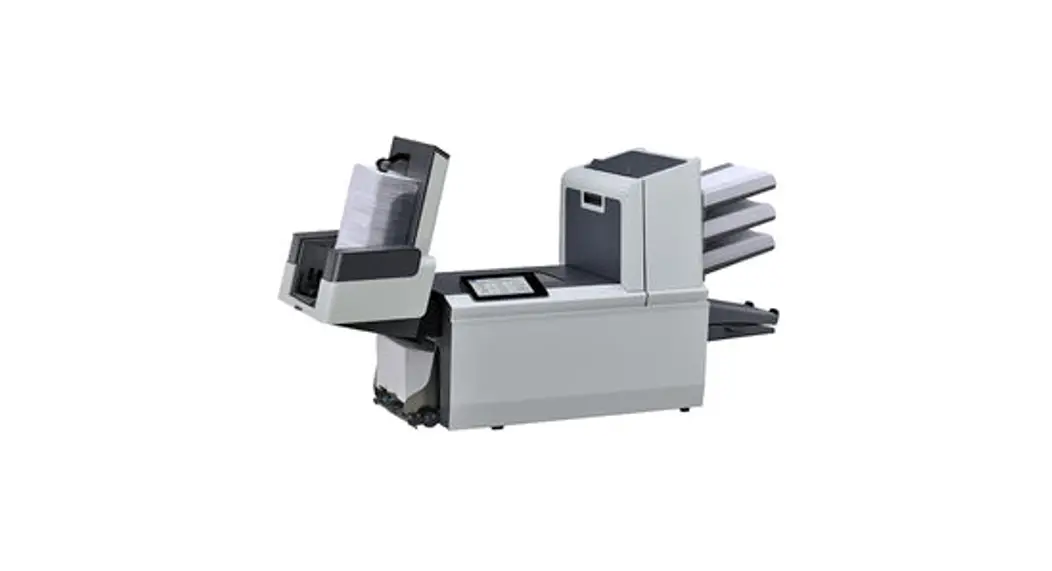
FPi 5100 Inserting System
Product Information
The FPi 6100/7100/8100 Series Inserting System is a
high-performance machine designed for efficient and accurate mail
insertion. It is manufactured by Francotyp-Postalia GmbH.
Display Screen Overview
The display screen of the FPi 6100/7100/8100 Series Inserting
System is divided into different areas:
Header Area
The header area consists of two colored bands running across the
top of the screen. The top blue band displays the name of the
current screen, and the bottom green band displays instructions and
screen navigation directions. The left side of the top blue band
may show the Job Name, depending on the screen. If a printer is
attached, the mail run name will be displayed in the middle of the
top blue band.
Status Area
The status area provides information such as batch count, piece
count, and User ID. It also indicates the orientation of the
sheets, specifying whether they should be loaded face up or face
down.
The footer area contains data at the bottom of the screen to
identify the user and account. It displays the User ID as
“#serv”.
Product Usage Instructions
To navigate through the options on the display screen:
1. Header Area
- The top blue band displays the name of the current screen.
- The bottom green band provides instructions and screen
navigation directions. - If applicable, the Job Name will be displayed on the right side
of the top blue band.
2. Status Area
- The status area shows important information such as batch
count, piece count, and User ID. - It also indicates the correct orientation for loading sheets,
specifying whether they should be face up or face down.
- The footer area displays the User ID as “#serv” to identify the
user and account.
Refer to the official
FPi 6100/7100/8100 Series Inserting System Operator Guide for
more detailed instructions on operating the product.
2. Display Screen
Operator Guide
Contents
Display Screen Overview ……………………………………………………2-3 Header Area ……………………………………………………………….. 2-4 Footer Area…………………………………………………………………. 2-4 Status Area …………………………………………………………………. 2-5 Navigating Options ……………………………………………………… 2-8
Icons and Letters ……………………………………………………………….2-9 Envelope Icons ……………………………………………………………. 2-9 Fold Icons …………………………………………………………………… 2-9 Sheet Icons……………………………………………………………….. 2-10 Insert Icons …………………………………………………………………2-11 Feeder Assignment Icons ……………………………………………. 2-12 Other Icons ……………………………………………………………….. 2-12
09/2022
Francotyp-Postalia GmbH | FPi 5100/6100/7100/8100 Series | P-FP63136_EN; Rev. 00 2-1 FP. (2022b, September). FPi 6100/7100/8100 Series Inserting System Operator Guide. FPi 6130 Support.
https://cdn0.scrvt.com/0b415e9fe7995370c62ceab2d1317f1c/04db543091b3345c/8b579b74a7ff/User-Guide-OG-FPi-5100-8100-EN.pdf
Display Screen | Operator Guide
This page is intentionally blank.
2-2 Francotyp-Postalia GmbH | FPi 5100/6100/7100/8100 Series | P-FP63136_EN; Rev. 00 FP. (2022b, September). FPi 6100/7100/8100 Series Inserting System Operator Guide. FPi 6130 Support.
09/2022
https://cdn0.scrvt.com/0b415e9fe7995370c62ceab2d1317f1c/04db543091b3345c/8b579b74a7ff/User-Guide-OG-FPi-5100-8100-EN.pdf
Display Screen | Operator Guide
Display Screen Overview
The display screen is divided into three major areas: · Header · Status · Footer
Header Area
Home Run Trial Piece Job Items
A
Job: ABC
Low Sealant
Select Another Job
SwiftStart
Status Area
B
Menu
D Loading Instructions and Pre-Run Adjustments
Footer Area
Pieces User: #serv
:1658
09/2022
Francotyp-Postalia GmbH | FPi 5100/6100/7100/8100 Series | P-FP63136_EN; Rev. 00 2-3 FP. (2022b, September). FPi 6100/7100/8100 Series Inserting System Operator Guide. FPi 6130 Support.
https://cdn0.scrvt.com/0b415e9fe7995370c62ceab2d1317f1c/04db543091b3345c/8b579b74a7ff/User-Guide-OG-FPi-5100-8100-EN.pdf
Display Screen | Operator Guide
Header Area
The header area has two colored bands that run across the top of the screen: the top blue band, the bottom green band.
The left side of the top blue band displays the name of the current screen. Depending on the screen, the Job Name may show on the right side.
The green band displays instructions and screen navigation directions.
The top (blue) band displays the name of the screen and Job.
If the job uses the attached printer, the mail run name displays in the middle of the top (blue) band.
Home Run Trial Piece
Job: ABC
Low Sealant
The bottom (green) band displays the instructions and screen navigational directions.
Footer Area
The footer area contains data across the bottom of the Home screen to identify the user and account.
Footer Area
User: #serv
2-4 Francotyp-Postalia GmbH | FPi 5100/6100/7100/8100 Series | P-FP63136_EN; Rev. 00 FP. (2022b, September). FPi 6100/7100/8100 Series Inserting System Operator Guide. FPi 6130 Support.
09/2022
https://cdn0.scrvt.com/0b415e9fe7995370c62ceab2d1317f1c/04db543091b3345c/8b579b74a7ff/User-Guide-OG-FPi-5100-8100-EN.pdf
Display Screen | Operator Guide
Status Area
The status area displays information about the task(s) you are performing. This area contains any or all of the following: · Mail Piece Icon Tree · Item Orientation · Options · Data across the bottom of the screen (Home screen only) –
batch count, piece count, and User ID
Mail Piece Icon Tree The Mail Piece Icon Tree gives a road map of icons to visually help guide you through how a mailpiece will be put together and processed. · It displays an icon for each component in the mail piece and a fold icon,
if the material is to be folded. · The icons are arranged in the order in which the mailpiece components
will be collated. The outer envelope icon shows at the top of the tree. · A letter appearing alongside the icon designates the Feeder Tray
assignment; a small blue droplet icon indicates that the seal feature is enabled. · The Mail Piece Icon Tree is located on the left side of the screen in the status area. · Each icon has one darker edge, either at the top or bottom, that indicates the leading edge of the material. The leading edge is the edge that feeds into the machine first. (For example, a sheet that must be loaded face up with the top of the sheet leading would be represented by a “face-up” sheet icon containing a “leading edge” line on top.)
Leading Edge
Sheet, Face Up
09/2022
Francotyp-Postalia GmbH | FPi 5100/6100/7100/8100 Series | P-FP63136_EN; Rev. 00 2-5 FP. (2022b, September). FPi 6100/7100/8100 Series Inserting System Operator Guide. FPi 6130 Support.
https://cdn0.scrvt.com/0b415e9fe7995370c62ceab2d1317f1c/04db543091b3345c/8b579b74a7ff/User-Guide-OG-FPi-5100-8100-EN.pdf
Display Screen | Operator Guide
· A feeder assignment letter is placed alongside the icon to indicate the feeder tray the material is loaded into. Two or more feeder assignment letters alongside a single icon indicate that feeder trays have been linked. The material should be loaded in all the feeder trays indicated. During a job, when one feeder tray is empty, the feed will automatically switch to the next linked feeder tray, in a continuous cycle.
· If double detect is in use, the double detect icon appears to the left of the relevant icon.
Double Detect Icon
A Linked Feeders
C
Feeder Assignment Letter
· If any sheet feeder(s) are programmed to feed multiple sheets, a modified icon indicating multiple sheets appears with a number showing the number of sheets in the set.
3 Number of sheets in set · On scanning (OMR or Barcode) jobs, a variable number of sheets might be fed under control of the OMR / barcode marks. In this case, a small letter “n” will appear in place of the number.
n Indicates variable number of sheets in set (scanning jobs only)
2-6 Francotyp-Postalia GmbH | FPi 5100/6100/7100/8100 Series | P-FP63136_EN; Rev. 00 FP. (2022b, September). FPi 6100/7100/8100 Series Inserting System Operator Guide. FPi 6130 Support.
09/2022
https://cdn0.scrvt.com/0b415e9fe7995370c62ceab2d1317f1c/04db543091b3345c/8b579b74a7ff/User-Guide-OG-FPi-5100-8100-EN.pdf
Display Screen | Operator Guide
Mail Piece Icon Tree Example
In the Mail Piece Icon Tree, each icon displays important information about the mail piece component it represents. The following diagram identifies information conveyed by the icon and how it assists you in loading and running a job.
G
Window envelope loaded flap down, flap last. Envelope sealing turned on, loaded
into Feeder G.
C Fold selected.
Top address loaded face up, fed top first, C loaded into Feeder C. Double Detect is on.
Additional Sheet – (no address) loaded B face up, fed Top first loaded into Feeders B
D and D; Feeders B and D are linked. (Linked trays will always be on the same side of the
tower.) Double Detect is on.
A
Reply envelope loaded flap side down, fed flap first, loaded into Feeder A.
* In the example above, the top address, additional sheet and C fold icons represent a set. That is, the Top Address and Additional Sheets are accumulated together, into a collation and the C Fold is applied to the collation.
* An insert (see the Reply Envelope icon) always appears as a single set within the Mail Piece Icon Tree.
NOTES: · Lines connecting the icons indicate the way the mail piece is assembled.
The outer envelope is at the top of the icon tree. · Making any change to the job settings can cause the feeder tray assignments to
change in the Mail Piece Icon Tree. · Any time the job set up changes, be sure to check the Mail Piece Icon Tree for
changes in the feeder tray assignments.
09/2022
Francotyp-Postalia GmbH | FPi 5100/6100/7100/8100 Series | P-FP63136_EN; Rev. 00 2-7 FP. (2022b, September). FPi 6100/7100/8100 Series Inserting System Operator Guide. FPi 6130 Support.
https://cdn0.scrvt.com/0b415e9fe7995370c62ceab2d1317f1c/04db543091b3345c/8b579b74a7ff/User-Guide-OG-FPi-5100-8100-EN.pdf
Display Screen | Operator Guide
Navigating Options
The right side of the display screen lists the options and functions available for the current screen. Once you make a selection, more options for that selection display. Refer to the example screens below.
Jobs
Job: 123 Edit Outer Envelope
Job: 123
Job Items
A A
D
B D
C B
C
Select Job Edit Current Job Review Current Job Save Current Job Create New Job
Job Items
A A
D
B D
C B
C
Name: ENV1 Size: Letter
Window: Yes Type: Standard Flap
Seal: On
Delete Saved Job
Depth: Auto Measure
Additional Settings
Finished Example: Functions
Accept Example: Options for the Selection
NOTE: Two chevrons ( >>) indicate that there is a submenu of options. One chevron (>) indicates there is a toggle between two choices, like Yes/No or On/Off.
2-8 Francotyp-Postalia GmbH | FPi 5100/6100/7100/8100 Series | P-FP63136_EN; Rev. 00 FP. (2022b, September). FPi 6100/7100/8100 Series Inserting System Operator Guide. FPi 6130 Support.
09/2022
https://cdn0.scrvt.com/0b415e9fe7995370c62ceab2d1317f1c/04db543091b3345c/8b579b74a7ff/User-Guide-OG-FPi-5100-8100-EN.pdf
Display Screen | Operator Guide
Icons and Letters
The following tables provide descriptions of the icons on the display screen.
Envelope Icons
Non-Window Letter Envelope
Window Standard Flap Envelope
Window Forward Flap Letter Envelope
Window Bottom Flap Letter Envelope
Tower Feeder
HCEF*
Orientation: flap side down, Orientation: flap side down,
flap first.
flap last.
Non-Window Flat Envelope
N/A
Window Standard Flap Flat Envelope
N/A
Window Forward Flap Flat Envelope
N/A
Window Bottom Flap Flat Envelope
N/A
*High Capacity Envelope Feeder
Fold Icons
No Fold
C Fold
Z Fold
Single Fold
Double Fold
09/2022
Francotyp-Postalia GmbH | FPi 5100/6100/7100/8100 Series | P-FP63136_EN; Rev. 00 2-9 FP. (2022b, September). FPi 6100/7100/8100 Series Inserting System Operator Guide. FPi 6130 Support.
https://cdn0.scrvt.com/0b415e9fe7995370c62ceab2d1317f1c/04db543091b3345c/8b579b74a7ff/User-Guide-OG-FPi-5100-8100-EN.pdf
Display Screen | Operator Guide
Sheet Icons
Sheet, Not Personalized
Orientation: face up, top
first.
Orientation: Orientation:
face up, bottom face down, top
first.
first.
Orientation: face down, bottom first.
Sheet, Top Address
Sheet, Middle Address
Sheet, Bottom Address
Multiple Sheets, Not Personalized
Multiple Sheets, Top Address
Multiple Sheets, Middle Address
Multiple Sheets, Bottom Address
2-10 Francotyp-Postalia GmbH | FPi 5100/6100/7100/8100 Series | P-FP63136_EN; Rev. 00 FP. (2022b, September). FPi 6100/7100/8100 Series Inserting System Operator Guide. FPi 6130 Support.
09/2022
https://cdn0.scrvt.com/0b415e9fe7995370c62ceab2d1317f1c/04db543091b3345c/8b579b74a7ff/User-Guide-OG-FPi-5100-8100-EN.pdf
Display Screen | Operator Guide
Insert Icons
Slip or Generic Insert
Orientation: face up, top
first.
Orientation: face up,
bottom first.
Orientation: face down, top
first.
Orientation: face down, bottom first.
Reply Envelope
N/A
N/A
N/A
Reply Card
Multiple Slips or Generic Inserts
Multiple Reply Envelopes
Multiple Reply Cards
N/A
N/A
N/A
09/2022
Francotyp-Postalia GmbH | FPi 5100/6100/7100/8100 Series | P-FP63136_EN; Rev. 00 2-11 FP. (2022b, September). FPi 6100/7100/8100 Series Inserting System Operator Guide. FPi 6130 Support.
https://cdn0.scrvt.com/0b415e9fe7995370c62ceab2d1317f1c/04db543091b3345c/8b579b74a7ff/User-Guide-OG-FPi-5100-8100-EN.pdf
Display Screen | Operator Guide
Feeder Assignment Icons
Feeder assignment is indicated by a letter in a grey square to the right of the job item icon in the Mail Piece Icon Tree. The letter that will display in the blue square depends on the assigned feeder.
· Single Feeder Assignment is indicated by one grey square. A
· Linked Feeder Assignment is indicated by two grey squares. A C
NOTE: The table below provides a list of all possible feeder assignments. Available feeders depend on your system configuration.
Feeder Letter
A B C D G J K L M X Z
Location
Feeder Tower Feeder Tower Feeder Tower Feeder Tower High Capacity Envelope Feeder (HCEF) High Capacity Sheet Feeder 1 (HCSF) High Capacity Sheet Feeder 1 (HCSF) High Capacity Sheet Feeder 2 (HCSF) High Capacity Sheet Feeder 2 (HCSF) Custom Feeder Attached Printer
Position
Bottom left feeder Bottom right feeder
Top left feeder Top right feeder
N/A Bottom feeder
Top feeder Bottom feeder
Top feeder N/A N/A
Other Icons
Error Icon – appears in pop-up messages on display screen. Indicates message is an error message.
Warning Icon – appears in pop-up messages on display screen. Indicates message is a warning message.
Seal On Icon – appears in Mail Piece Icon Tree if sealing is on. Safe Seal Icon – appears in Mail Piece Icon Tree if safe seal is on.
Double Detect Icon – appears in Mail Piece Icon Tree if double detect is on.
2-12 Francotyp-Postalia GmbH | FPi 5100/6100/7100/8100 Series | P-FP63136_EN; Rev. 00 FP. (2022b, September). FPi 6100/7100/8100 Series Inserting System Operator Guide. FPi 6130 Support.
09/2022
https://cdn0.scrvt.com/0b415e9fe7995370c62ceab2d1317f1c/04db543091b3345c/8b579b74a7ff/User-Guide-OG-FPi-5100-8100-EN.pdf