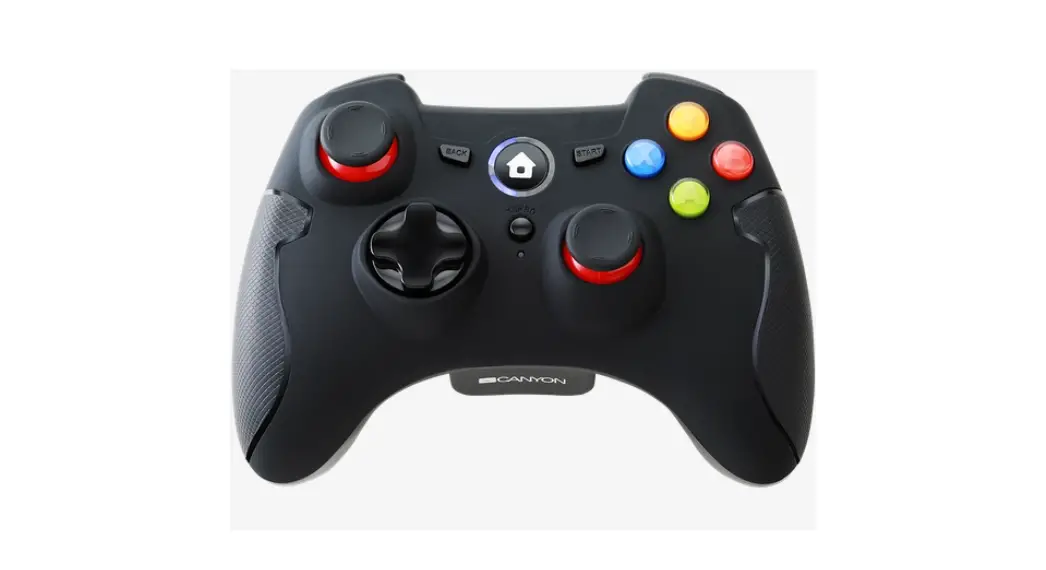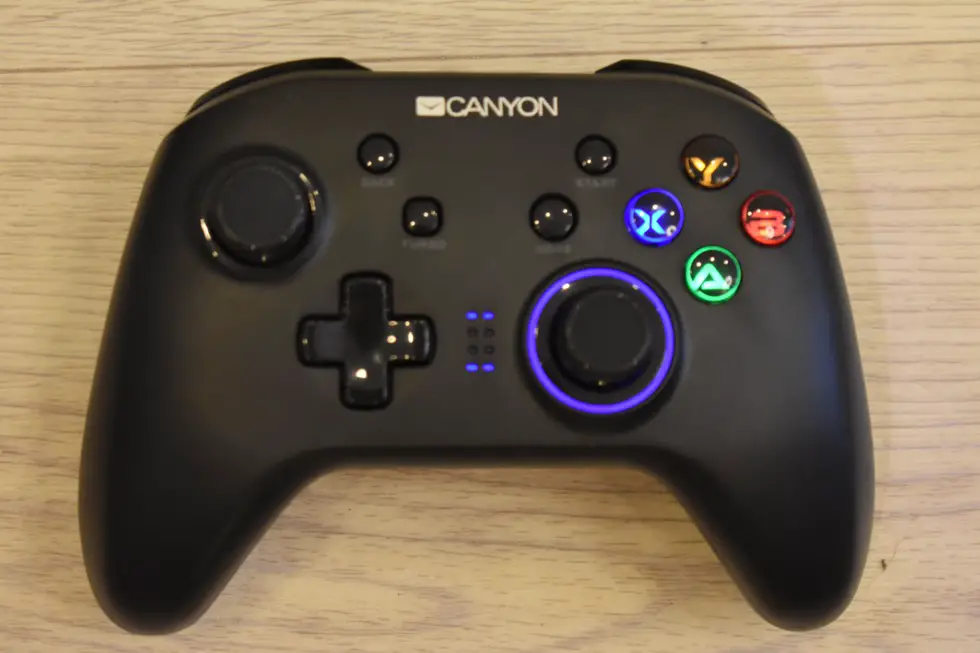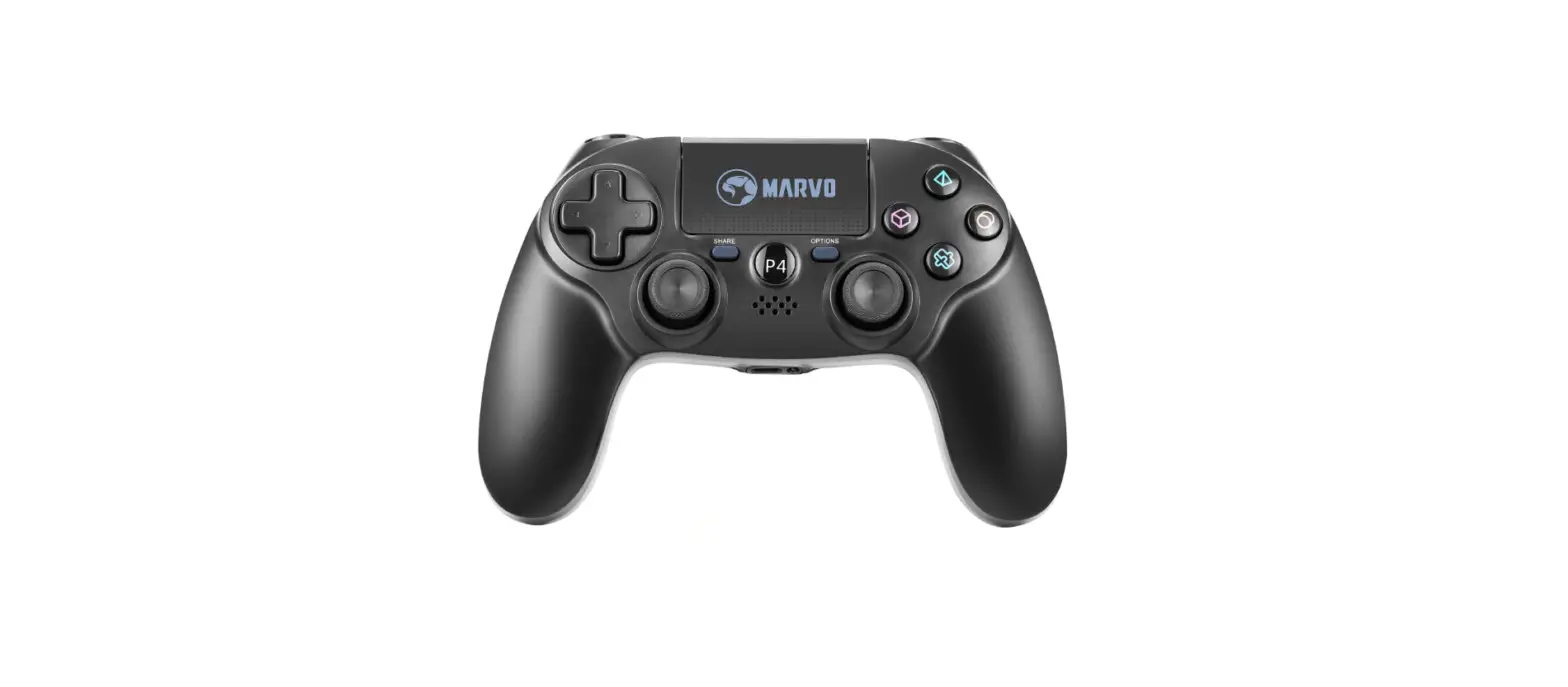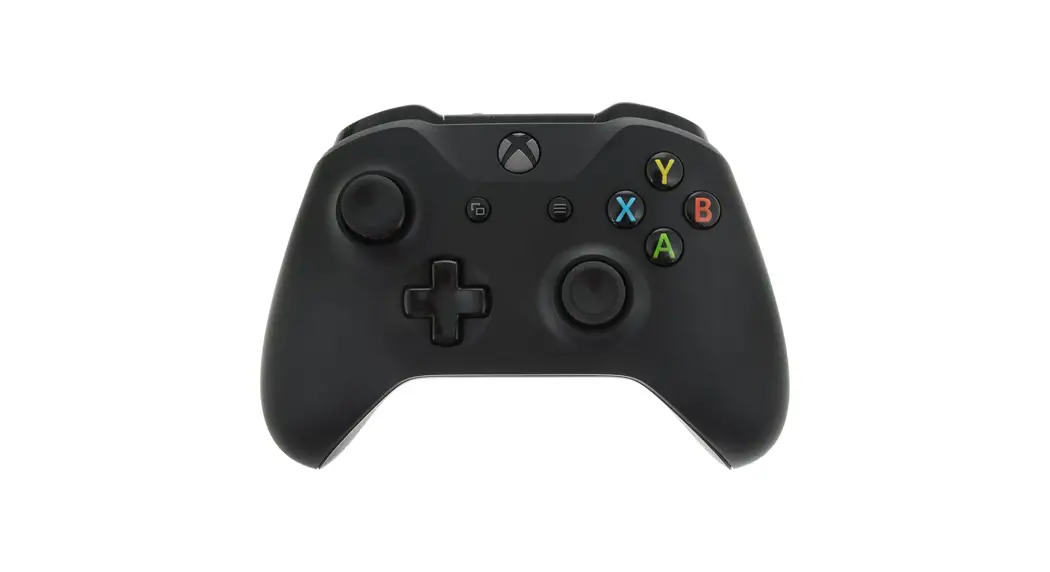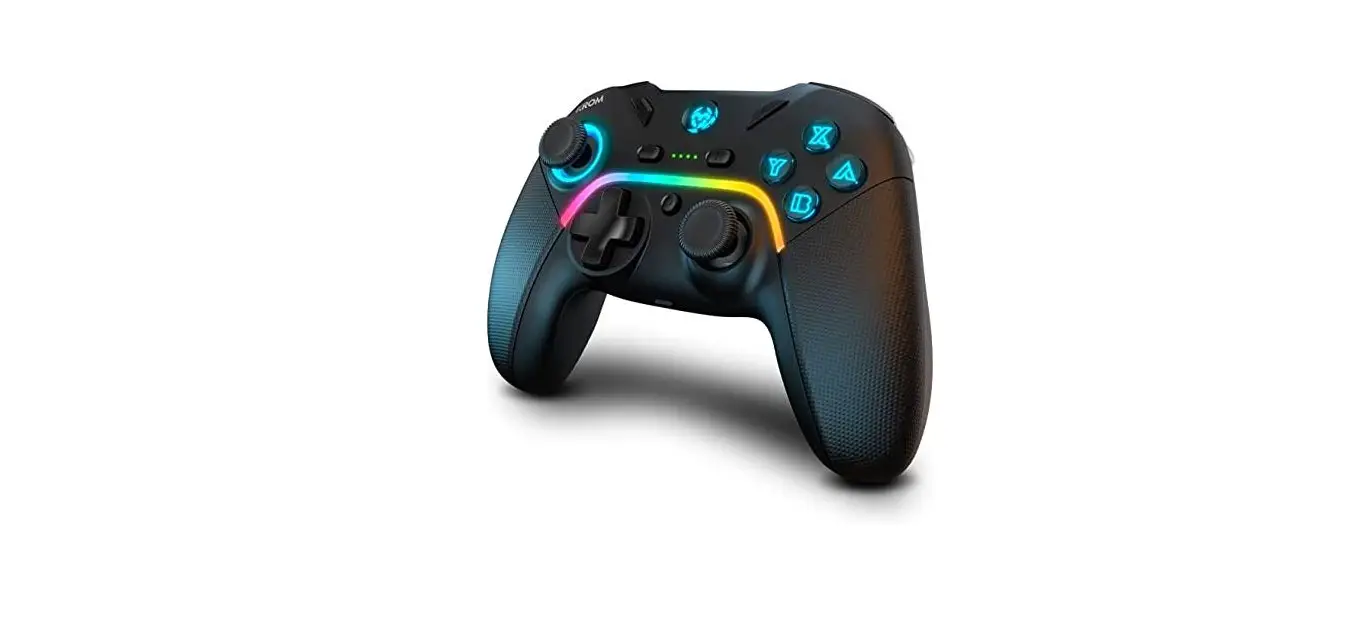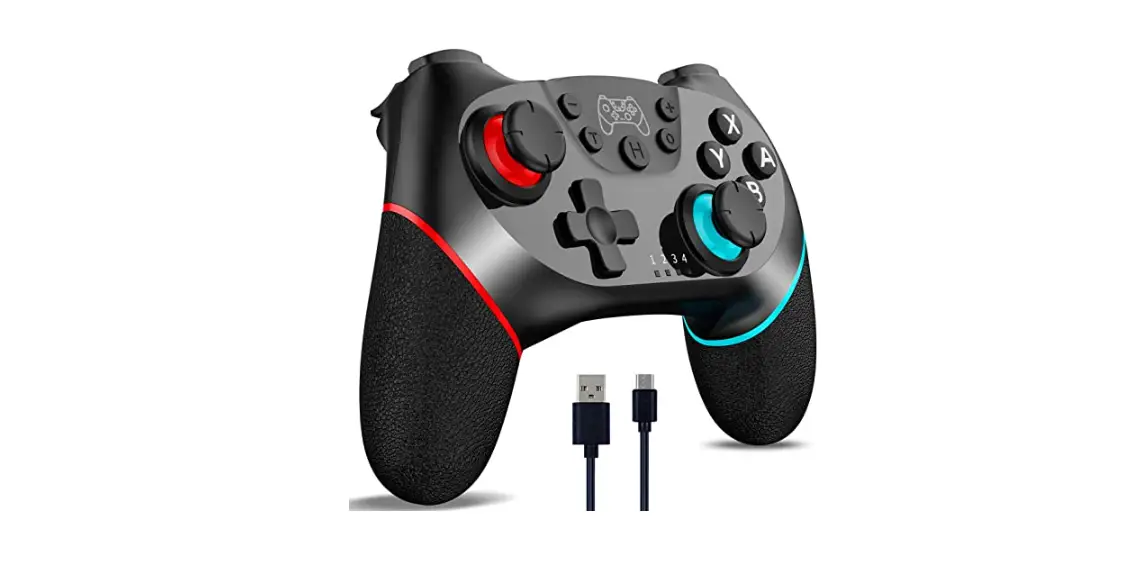
CANYON GP-W6 Wireless Gamepad
Dear Customer!
Congratulations on purchasing the premium quality CANYON product!
We are happy to present you our gaming accessories, which are the combination of new technology and fresh design.
Our own design bureau implements the latest trends in fashion and design, while our scrupulous quality control system ensures a long life of CANYON products.
To take full advantage of this product, we recommend you to read this manual completely.
Have a good time with our product!
Device overview
Driver
http://canyon.eu/drivers-and-manuals/
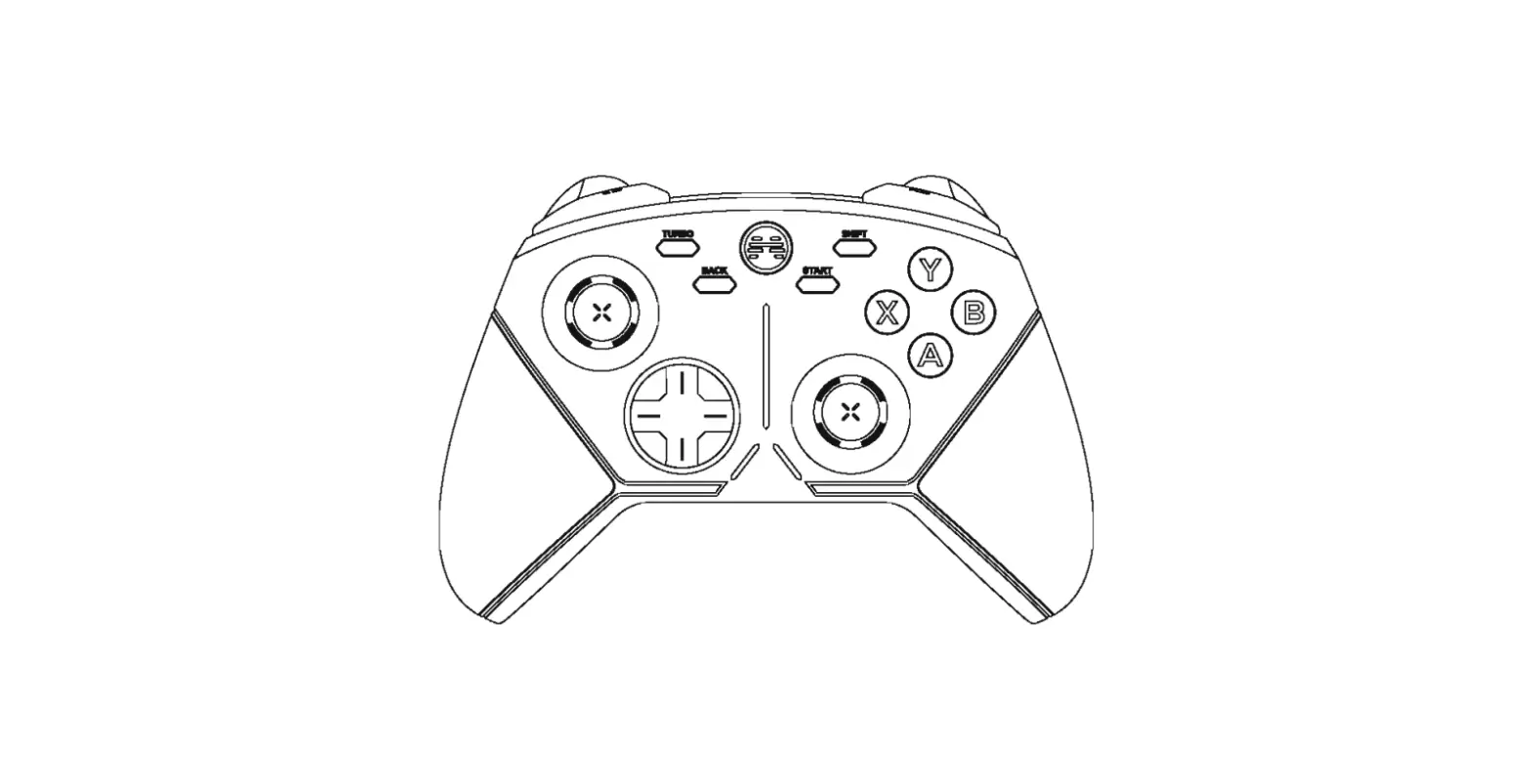
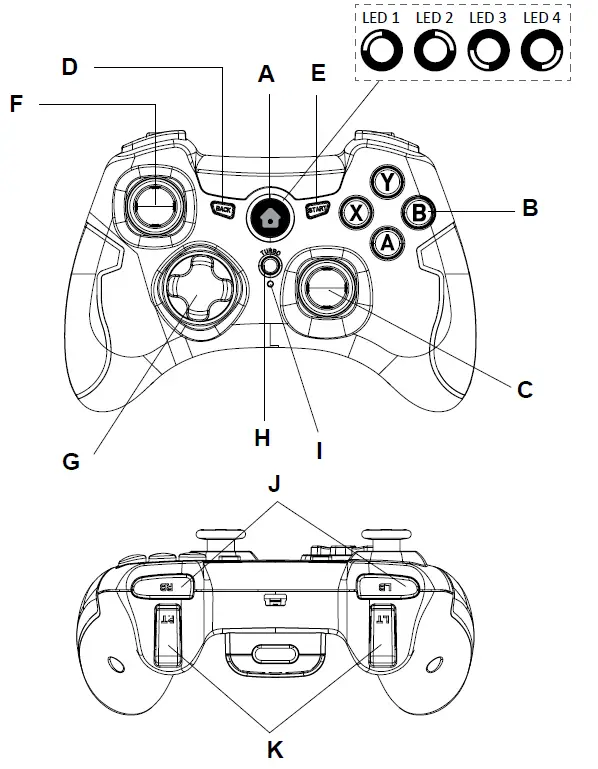
Device Overview
| A | Power or pairing button |
| B | The function keys: A, B, X, Y They are used to control other actions of your role. It can be set in special function according to different games. |
| C / F | Left joystick: Right joystick: L3 button is left joystick button. R3 button is right joystick button. |
| D | Button BACK |
| E | Button START |
| G | Directional pad: 8-way point of view control button |
| H | Turbo button: TURBO function keys 1. Hold the key which you want to set to turbo function, then press the turbo key once to set. To clear, hold the key which you have set to turbo function, then press the turbo key again 2. These buttons can be set to TURBO :A,B,X,Y,LB,RB,LT,RT,L3,R3. |
| I | Turbo LED: TURBO function is activated, TURBO LED flashing. |
| J | LB/RB buttons/triggers |
| K | LT/RT buttons/triggers |
Note: Linear pressure LT/RT buttons, according to the difference in button pressure, produce different key effects such as speed and weight
Technical specifications
| Wireless technology | 2.4 GHz |
| Operation range | up to 10 м |
| Playing time | more than 8 hours |
| Alkaline battery | 2 PCS AA |
| Sleep current | 40 mAh |
| Working current | 13 mAh |
| Sleep time | 5 minutes |
| Compatible with | Windows XP, Win10, PS3, Android |
| Dimensions | LWH: 108x148x65 mm |
| Weight | 215 g |
| Operating temperature | -20°C ~ 45°C |
| Operation humidity | ≤ 55% |
PS3 connection/pair Settings
- Insert receiver into the PS3 console USB port.
- The controller LED should turn off.
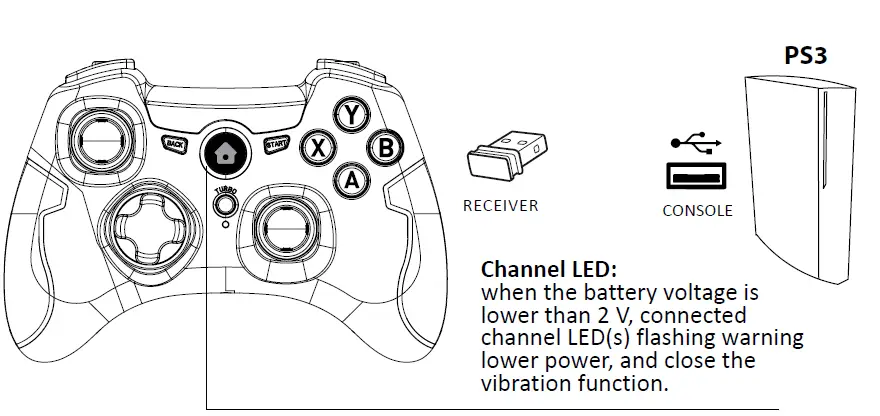
- Quickly press the HOME button twice, 4 channel LED lights should flash .
- When channel LED stays on, the connection is successful.

Channel indicate:
| Channel indicate: | ||
| The PS3 connect 7 controllers | ||
| Controller number | Glowing LEDs | |
| 1 | LED1 |
is normally on |
| 2 | LED2 | |
| 3 | LED3 | |
| 4 | LED4 | |
| 5 | LED1+LED4 | |
| 6 | LED2+LED4 | |
| 7 | LED3+LED4 | |
PC connection/pair Settings
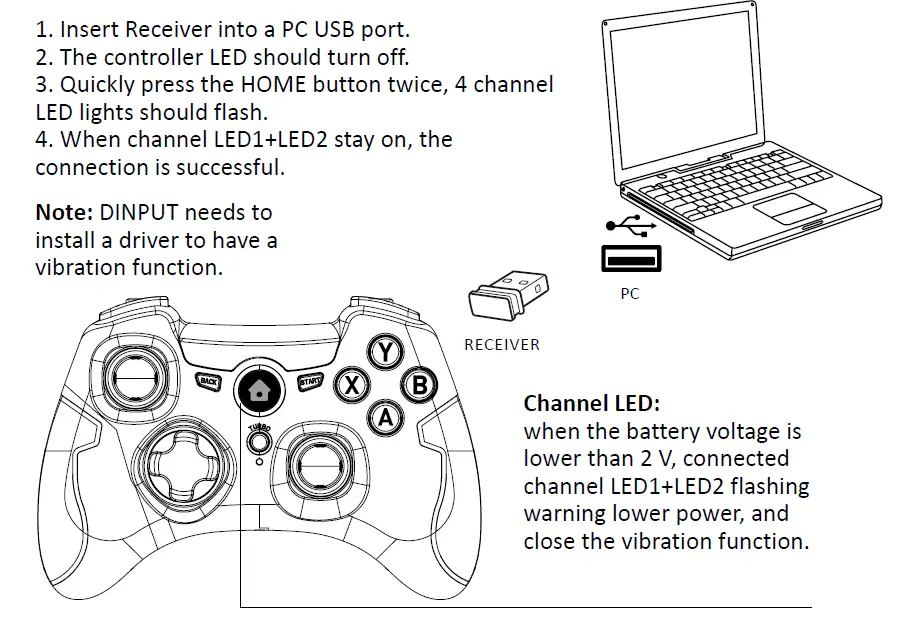
- Insert Receiver into a PC USB port.
- The controller LED should turn off.
- Quickly press the HOME button twice, 4 channel LED lights should flash.
- When channel LED1+LED2 stay on, the connection is successful.
Note: DINPUT needs to install a driver to have a vibration function.
Channel LED:
when the battery voltage is lower than 2 V, connected channel LED1+LED2 flashing warning lower power, and close the vibration function.
Modes and indicators:
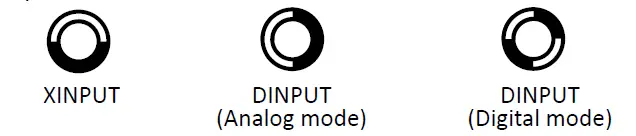
- Default mode is Xinput , LED1+LED2 will light.
- Hold the “HOME” button for 6 seconds, when changing to D-input mode successfully, LED1 + LED3 will light.
- You can press the “Home” button once to change to digital mode when it is in Dinput mode , LED1+LED4 will light. In this mode the direction key and left joystick swaps function position.

Mobile phone / tablet connection Settings
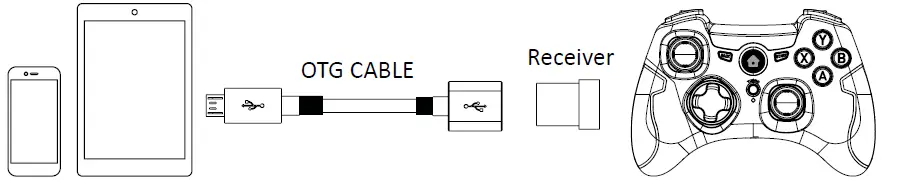
- Insert receiver into the OTG cable.
- Connect the OTG cable to phone/tablet.
- The controller LED should turn off.
- Quickly press the HOME button twice, 4 channel LED lights should flash .
- When channel LED3+LED4 stay on ,connection is successful .
Note:
- The mobile phone or tablet must support the OTG function and be able to use an OTG cable connection.
- The current Android version does not support the controller vibration function.
- If not in Android mode, you can press the HOME button for 6 seconds to switch mode.
Note: The factory default is x input mode. Controller with memory function, can save settings from last time of use.
Troubleshooting
The gamepad does not work
- Check USB connection;
- Try to plug gamepad into a different USB port;
- Restart computer/console.
- Gamepad works well when plugging into a full powered USB port. If you use USB HUB, it must have its own power supply.
The gamepad detects a disconnection when playing a game
- Check your console system is latest version or not, if you updated your system, please download our updating software.
Warranty
- This product comes with 24-months limited warranty.
- For more information about usage and warranty, please refer to www.canyon.eu/support
Manufacturer: Asbisc Enterprises PLC, Cyprus, Limassol 4103. Diamond Court, 43 Kolonakiou Street. Agios Athanasios. http://canyon.eu/

 Canyon | Mobile and Computer Accessories
 Canyon | Mobile and PC Accessories
 Сертификати
 Canyon