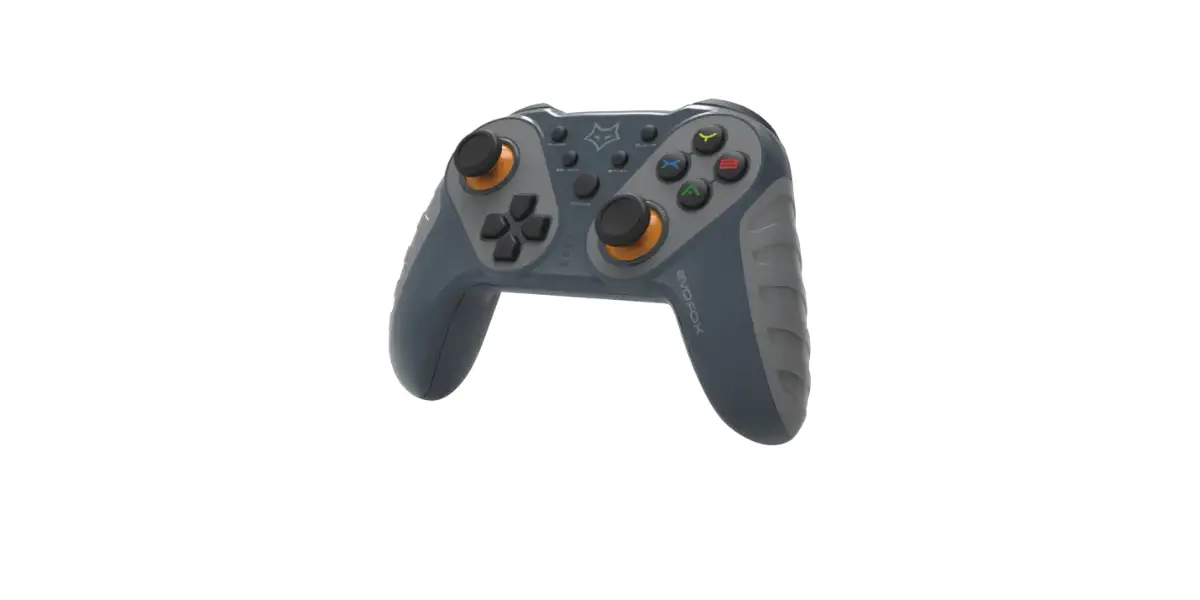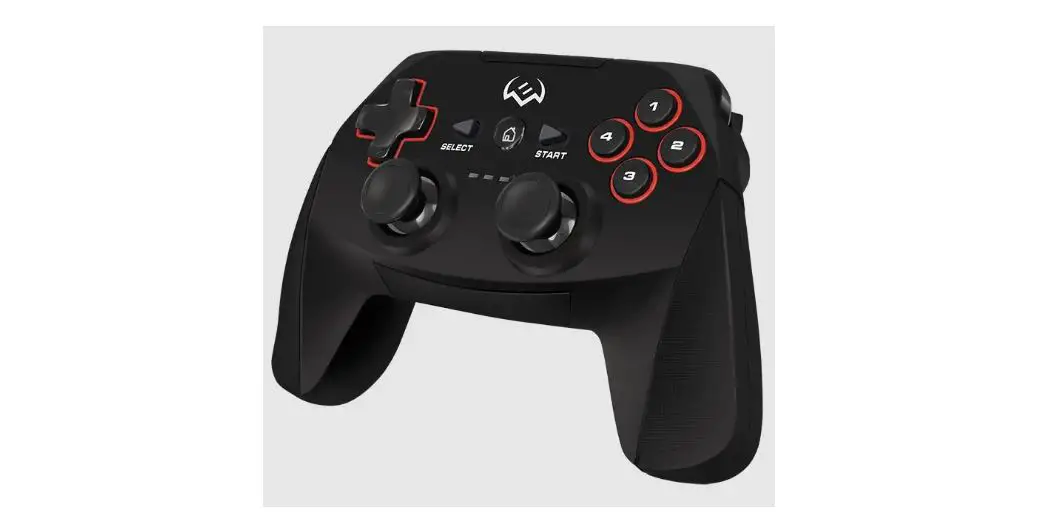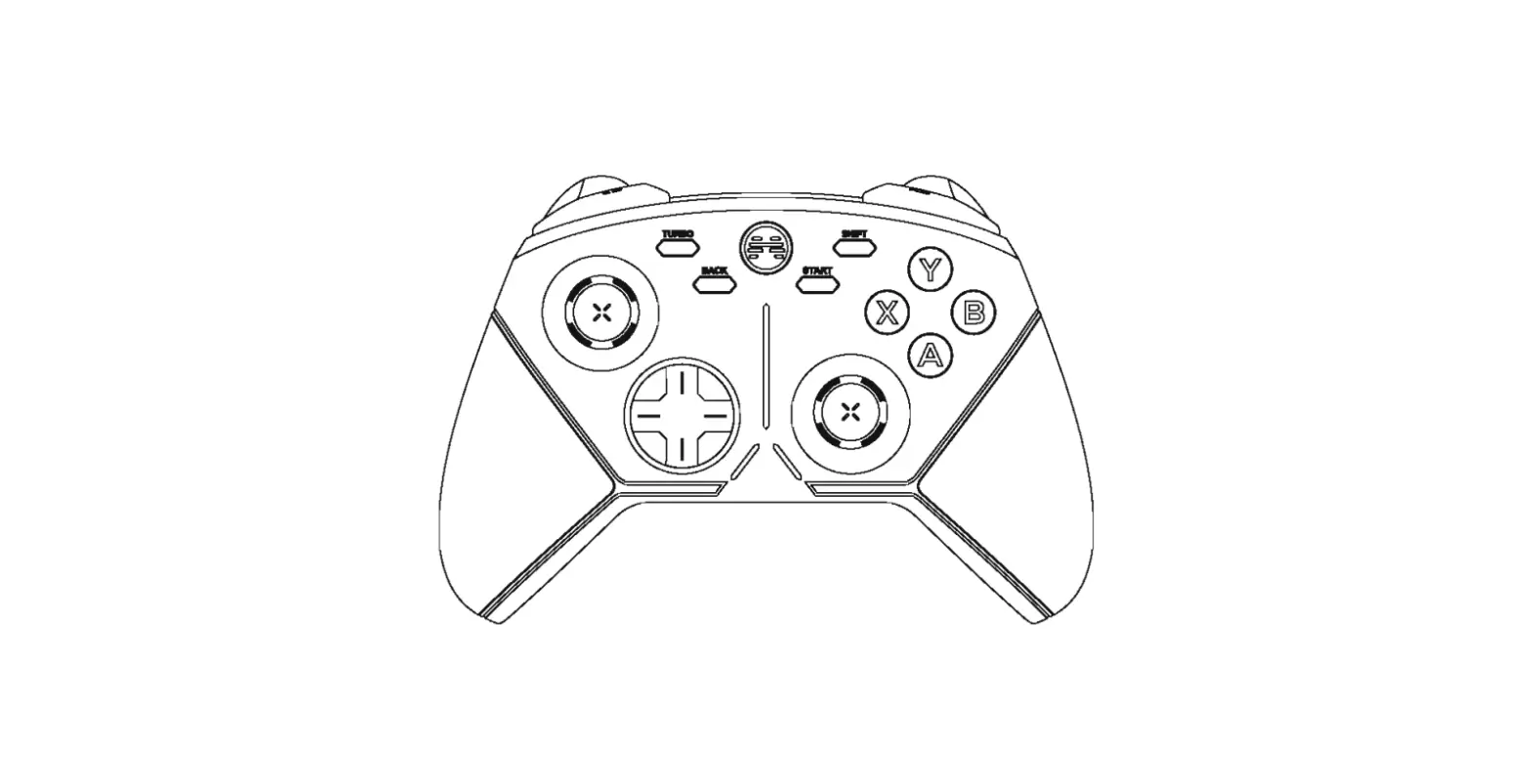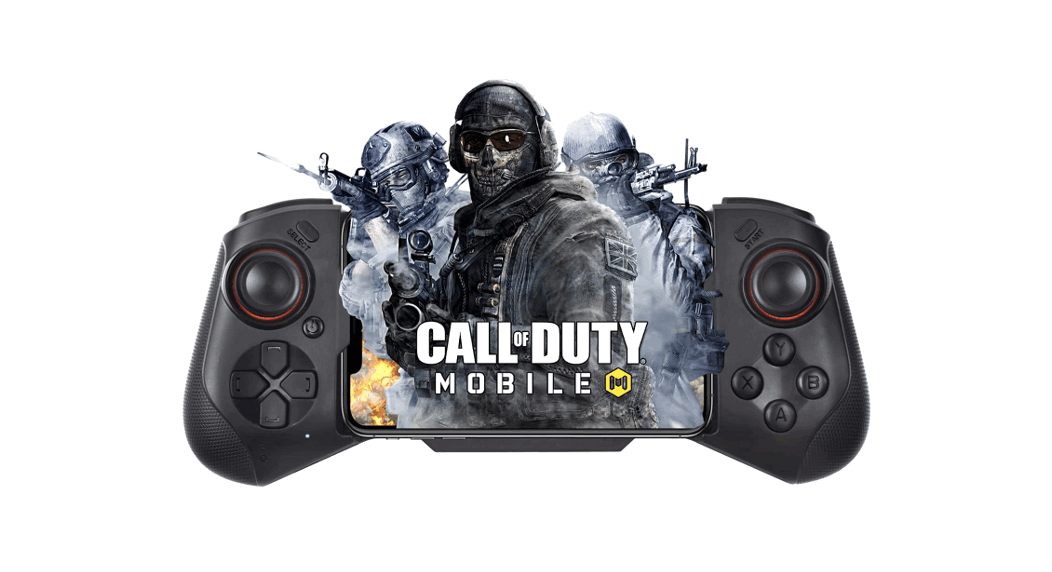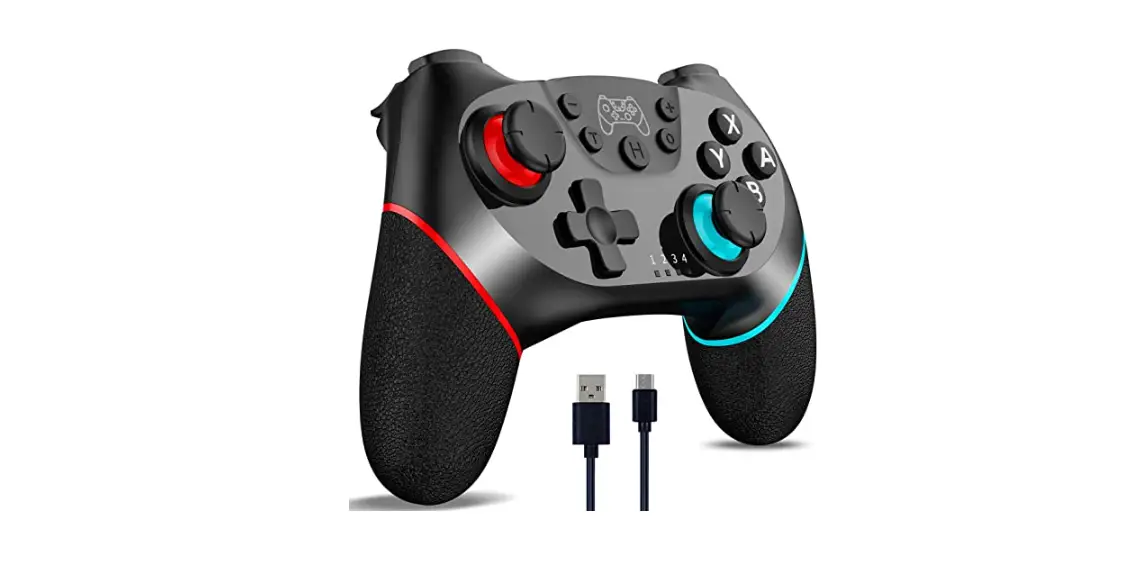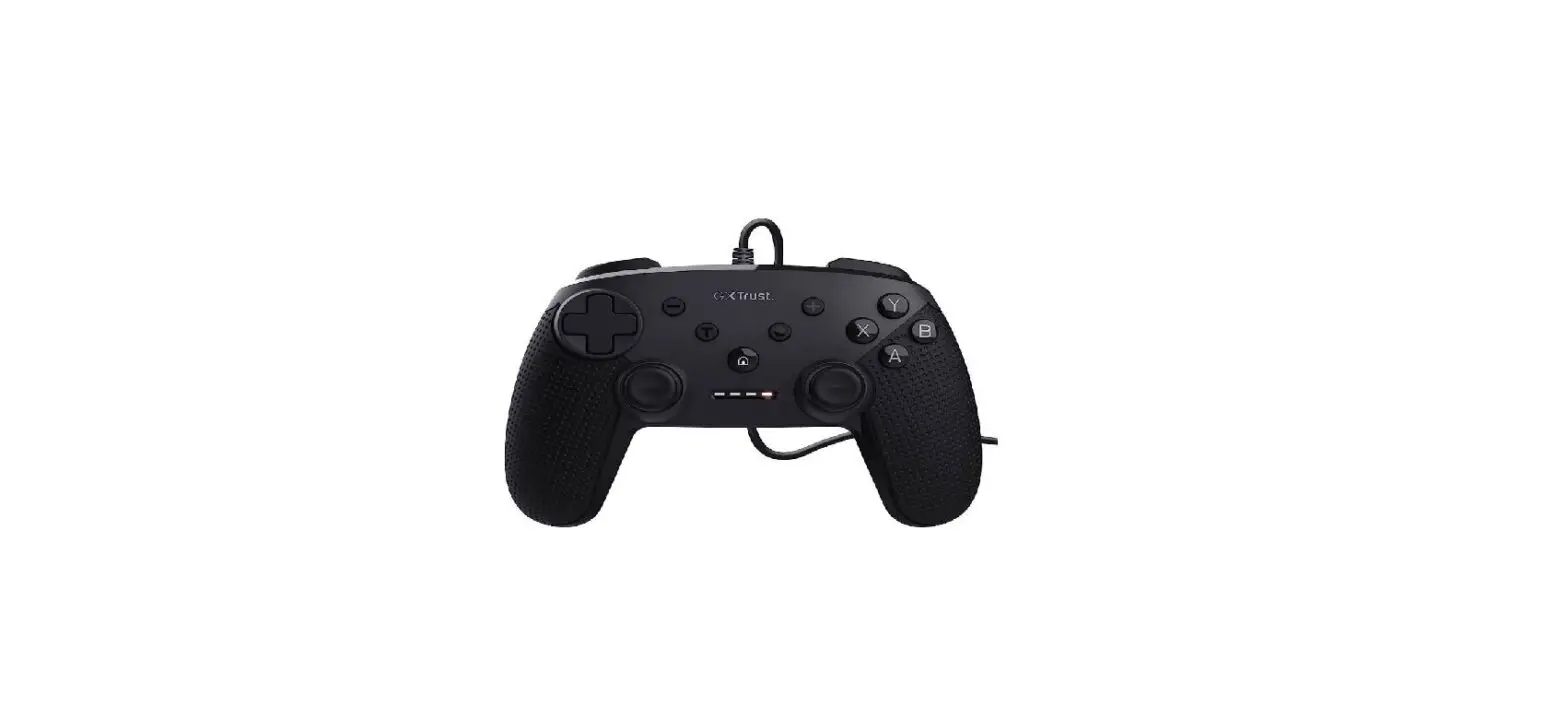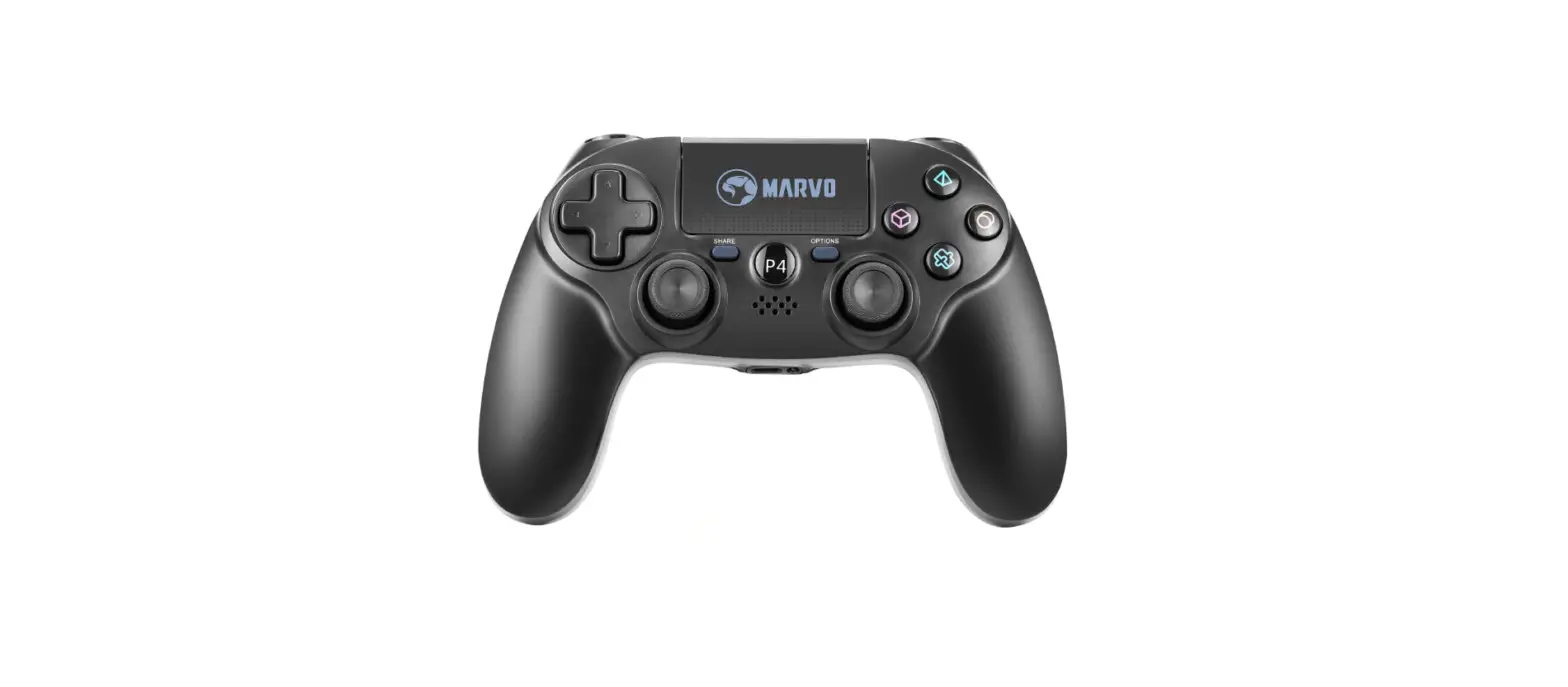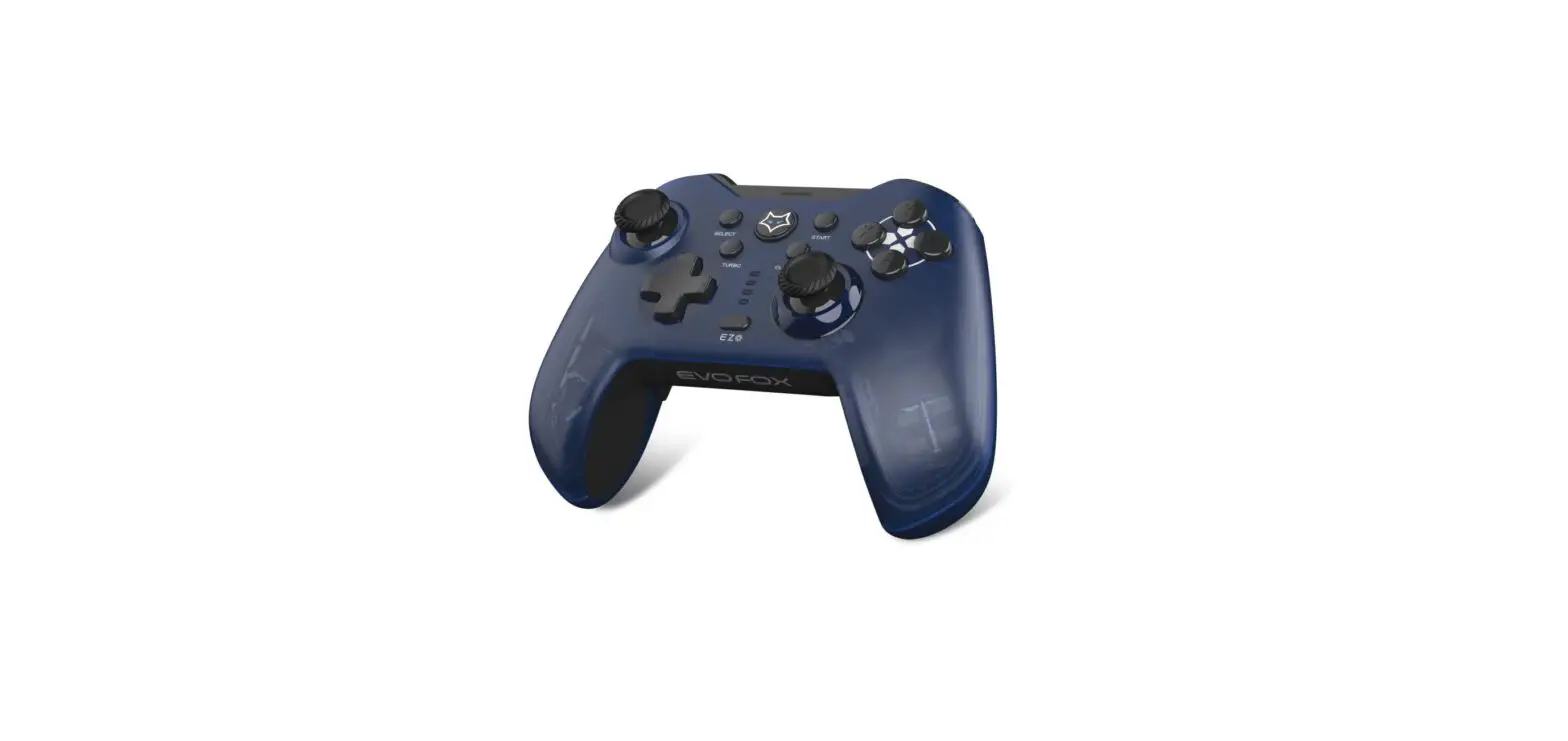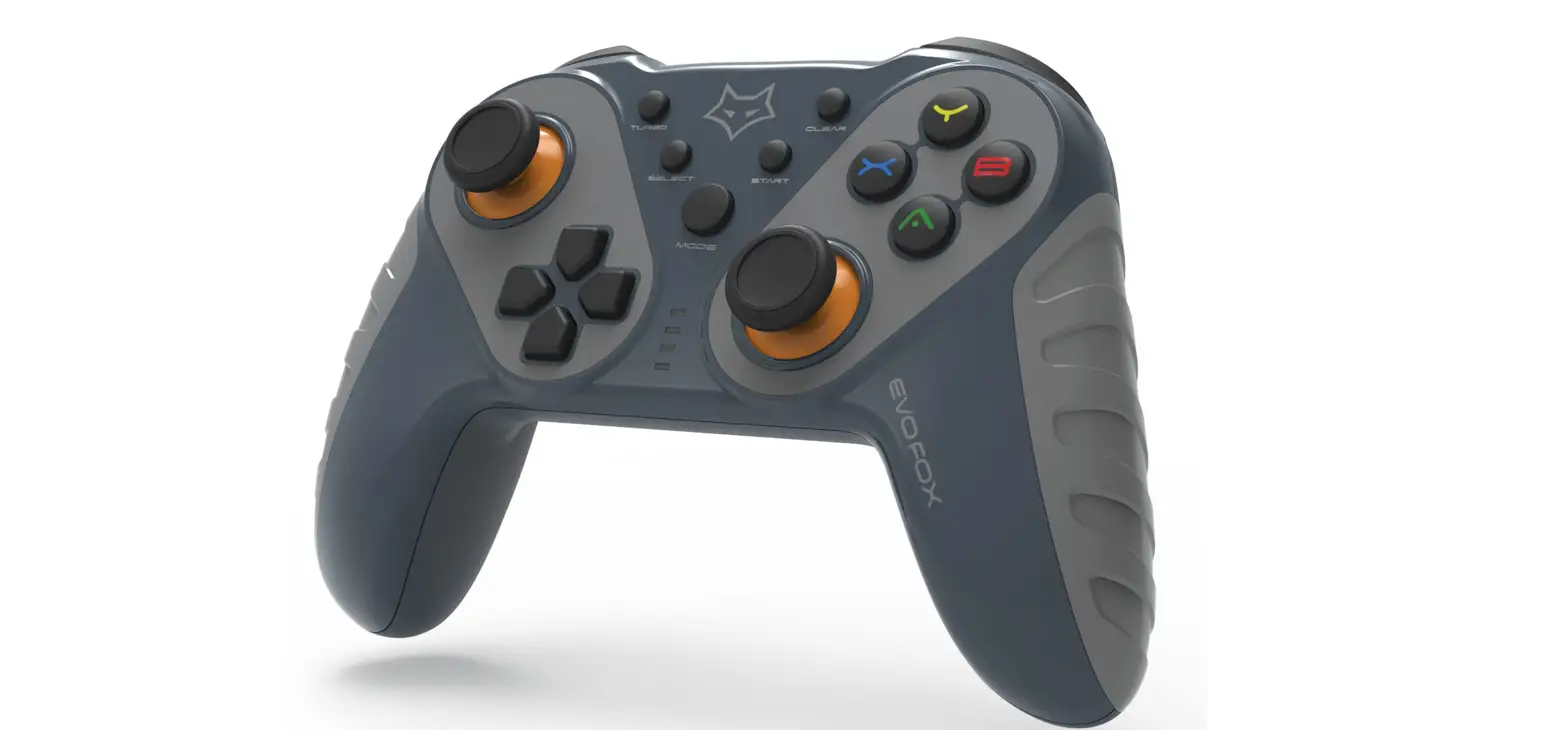

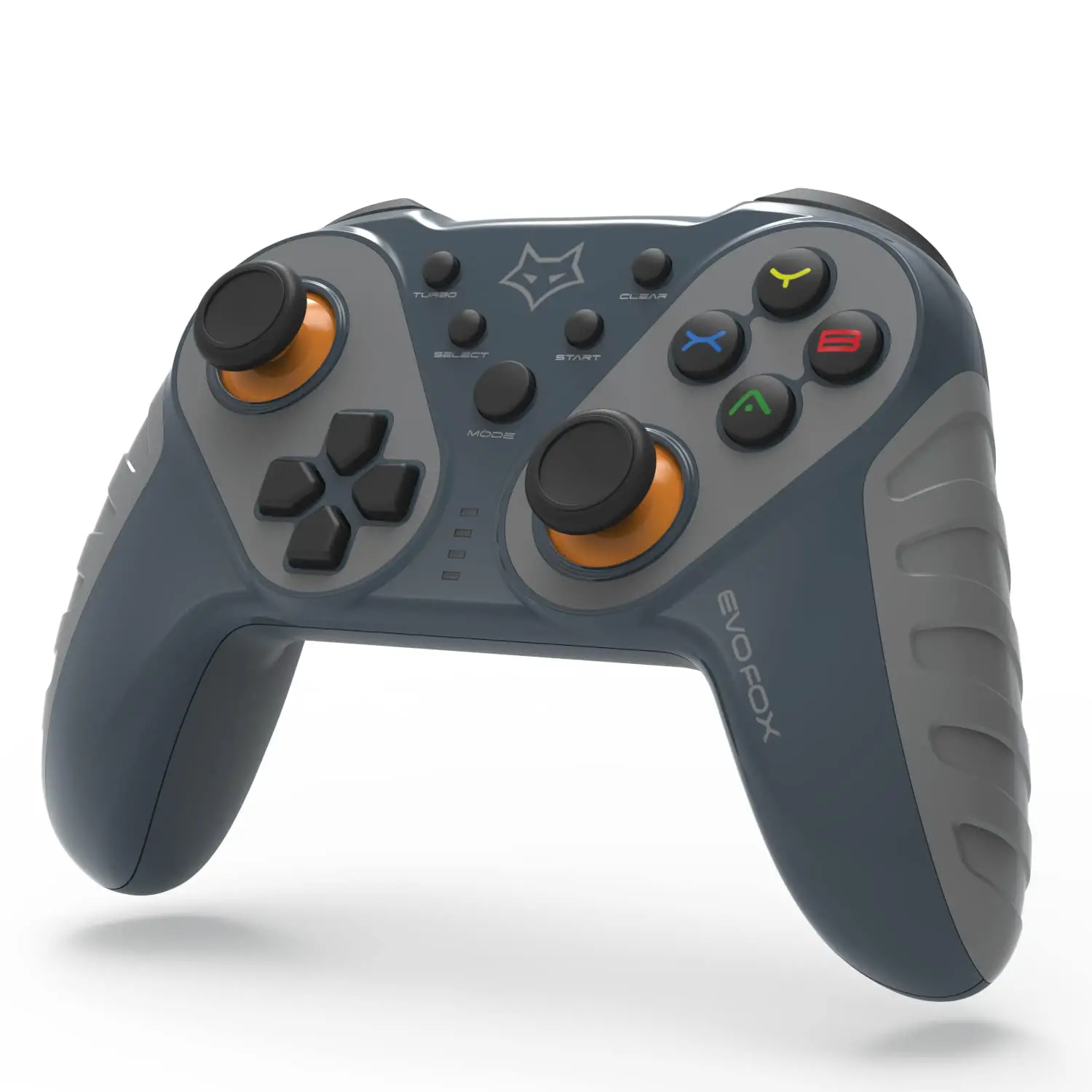
EVOFOX 579 Eliterpro Wireless Gamepad
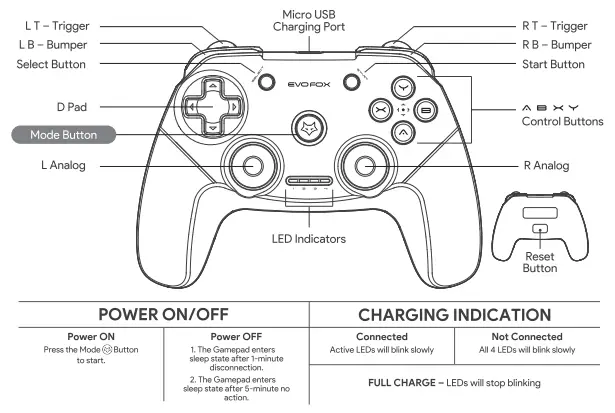
PRODUCT OVERVIEW 
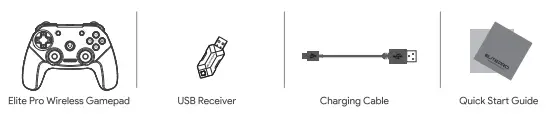
BOX CONTENTS 
USING THE GAMEPAD
COMPATIBILITY
SUPPORTED WINDOWS VERSION Windows 7, 8, 10
HOW TO CONNECT
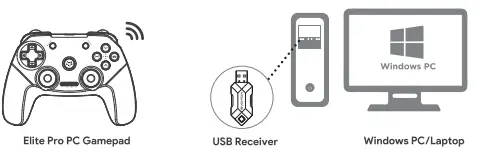
- Connect the USB receiver in a free USB port on your PC
- Simply press the @) button to turn the Gamepad ON

- When connected, Gamepad will be in Xlnput mode(Default mode} and LED 2 ON.


CHANGING MODES IN WINDOWS PC
X Input vs D Input
To change modes between X Input mode and D Input mode long press MODE @) Button, until the LEDs indicator change.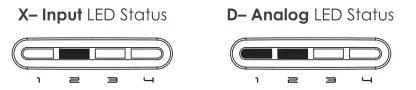
D Input Analog to D Input Digital
To change modes between D Input Analog and D Input Digital short press MODE@) Button for about 2 seconds, until the LEDs indicator change. 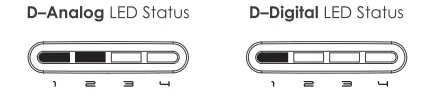
TROUBLESHOOTING
Why is the Gamepad not being detected by my computer?
- Make sure the computer USB port is working. Try a different USB Port.
- Some PCs may require you to install the Software Driver – Please visit – www.amkette.com/elitepro
Why is the Gamepad Disconnecting?
- The Gamepad needs to be charged.
Why is the Gamepad not working in all my games?
- Ensure that the game has support for Gamepads.
- Set the Gamepad mode to D Input and try again.
Why is the Gamepad not vibrating?
- Not all Games have a vibration or the vibration setting needs to be turned on (in the game).
- Some PCs may require you to install the Software Driver – Please visit – www.amkette.com/elitepro
SPECIFICATIONS
- Working Platforms Windows 7 and above
- Working Modes PC Xinput / Din put
- PlayTime 8hrs
- Connection Types Wireless
- Charging Time 2 Hours
- Working Distance 30 Feet
- Net weight 210g
WARRANTY STATEMENT
Amkette EvoFox ElitePro Wireless PC Gamepad is backed by a 1-year performance warranty against any manufacturing defects in material or workmanship from the date of original purchase. This warranty entitles the purchaser to get the product repaired or replaced under the following conditions:
- The warranty applies to the original purchaser. Proof of original purchase is required.
- The warranty does not cover the damage caused by misuse, abuse, or improper storage.
- In no event shall Amkette be responsible for any direct. incidental, consequential, or other damages of any kind.
Please contact our Technical Support Line and/or send the defective product, postage pre-paid, together with the proof of purchase to our Customer Care Service Center to avail warranty service.
Return postage will be paid by us.
Customer Care Service Center Amkette House, C-64/4, Okhla, Phase-II, New Delhi-170020 1800-11-9090 (Toll Free) (9,30 AM – 6,00 PM) (9 +91 9312691448 {9:30 AM – 6:00 PM) [email protected]