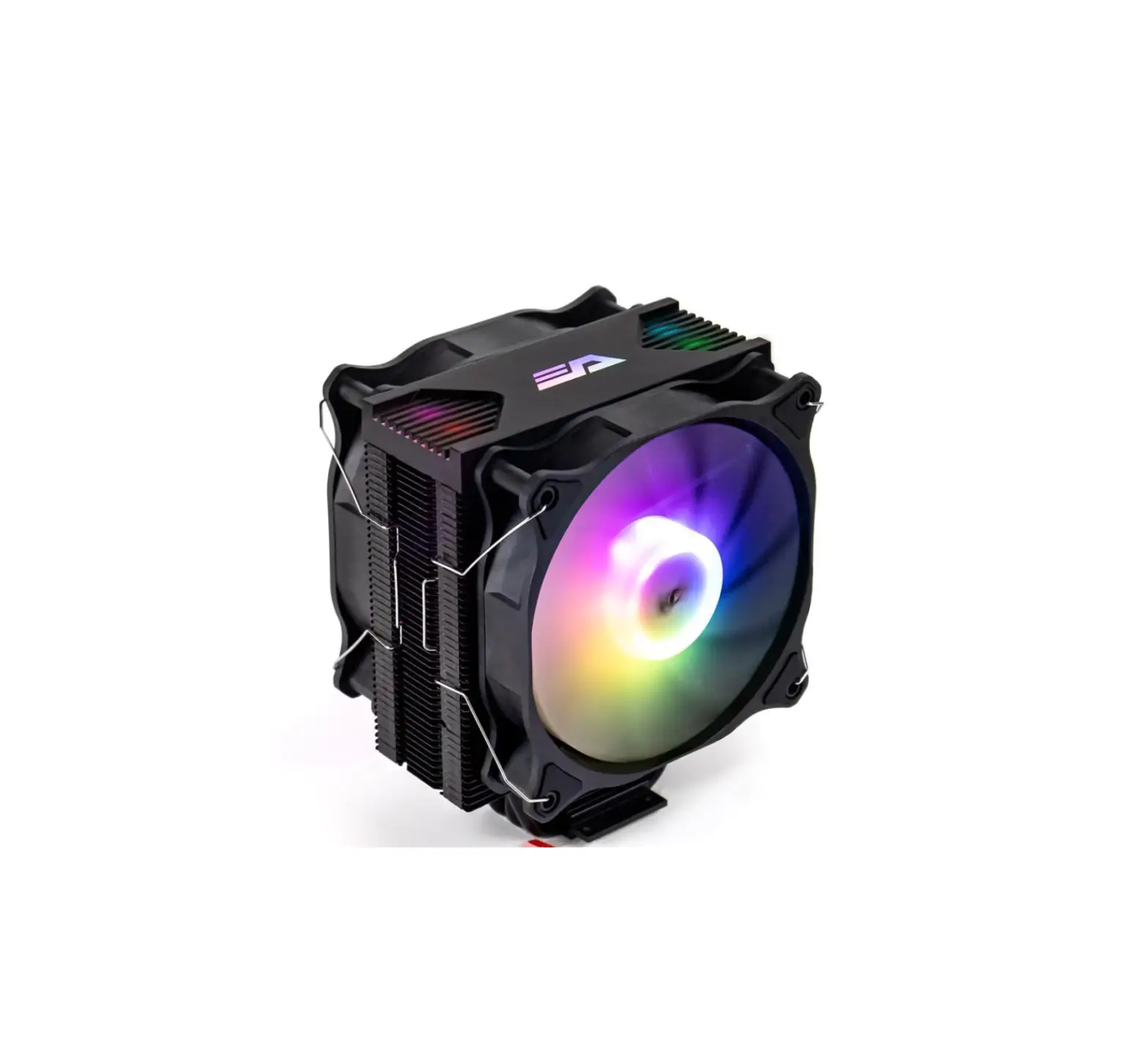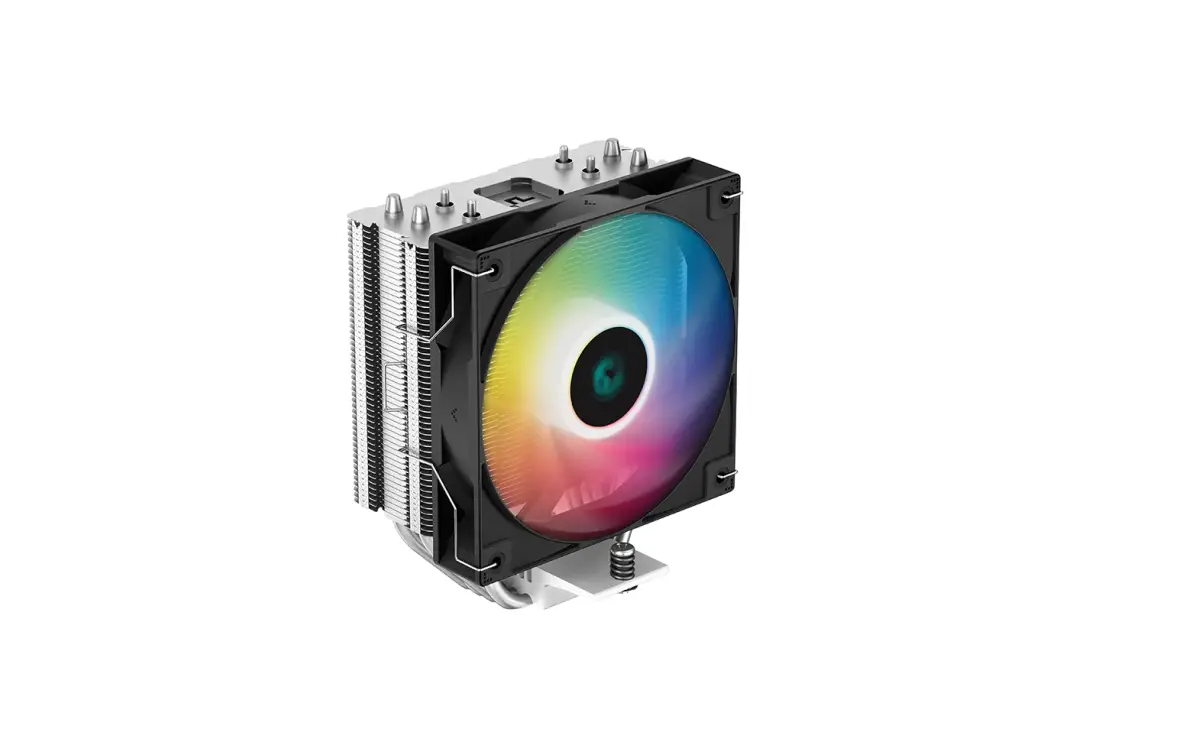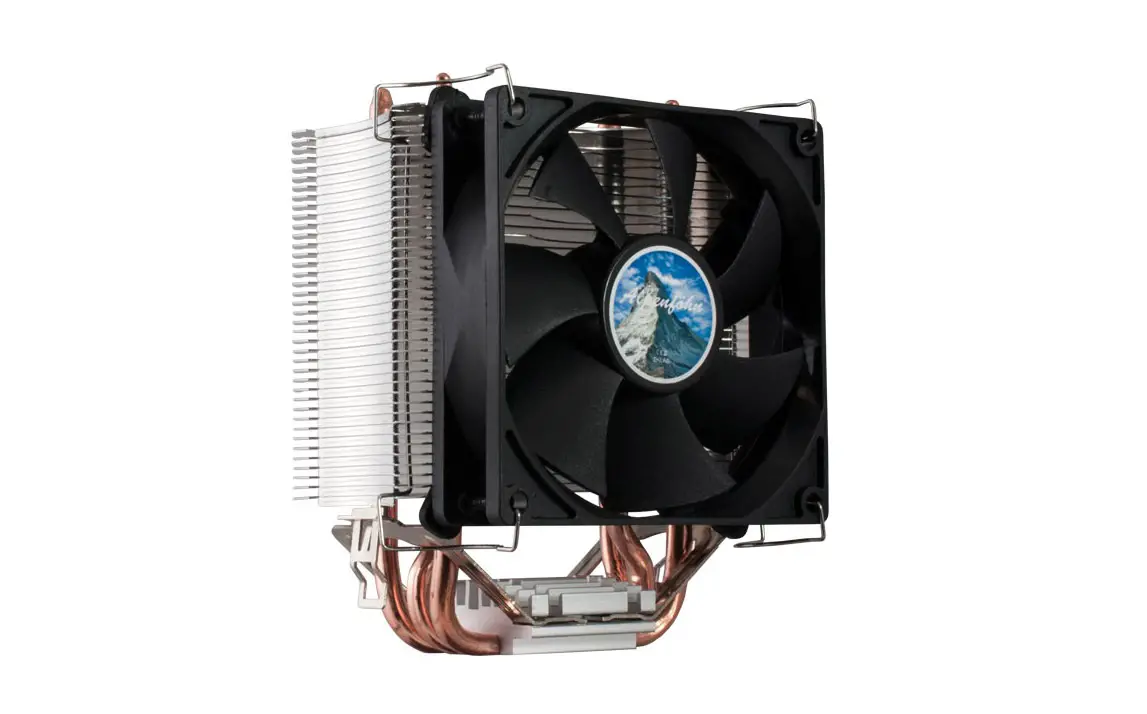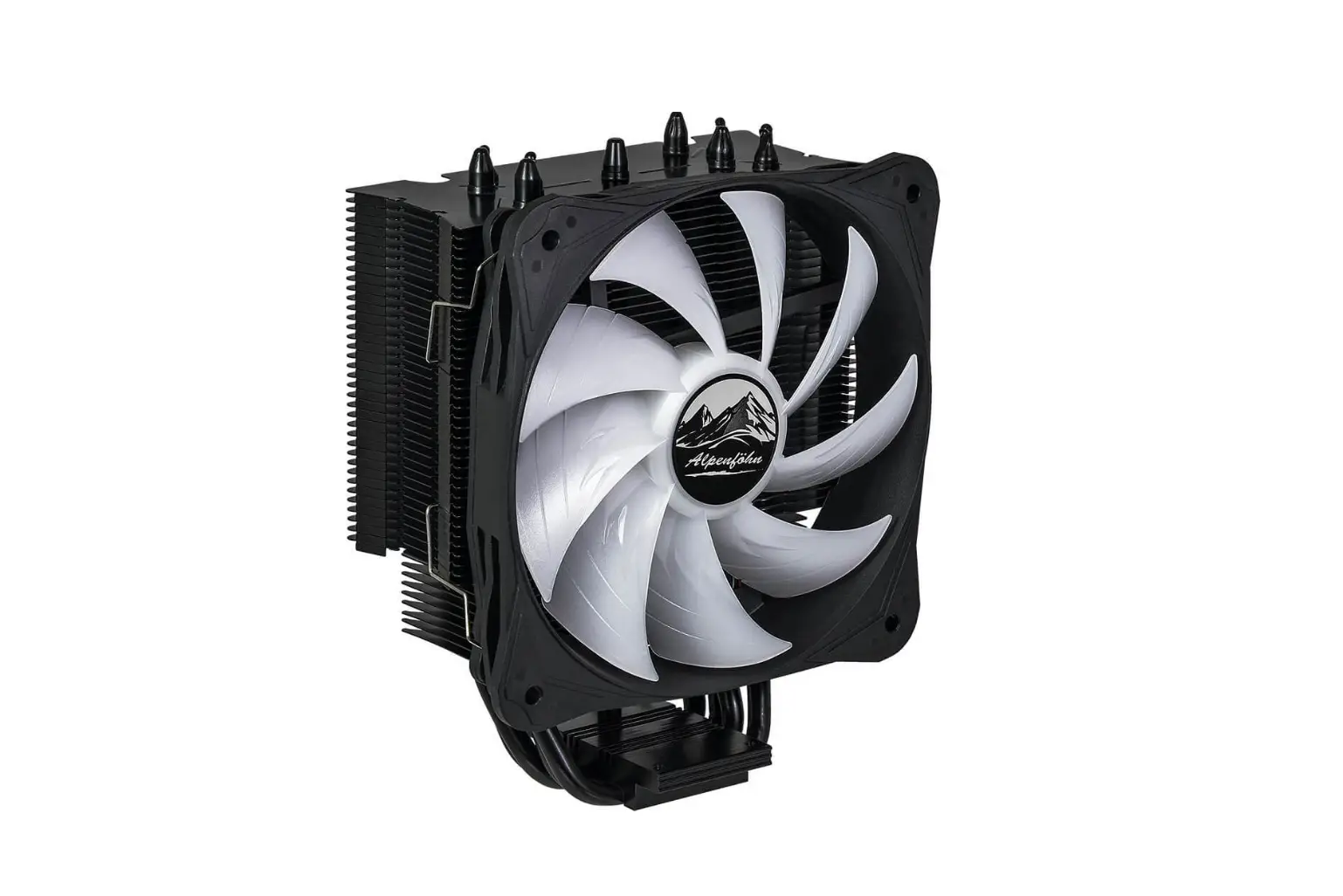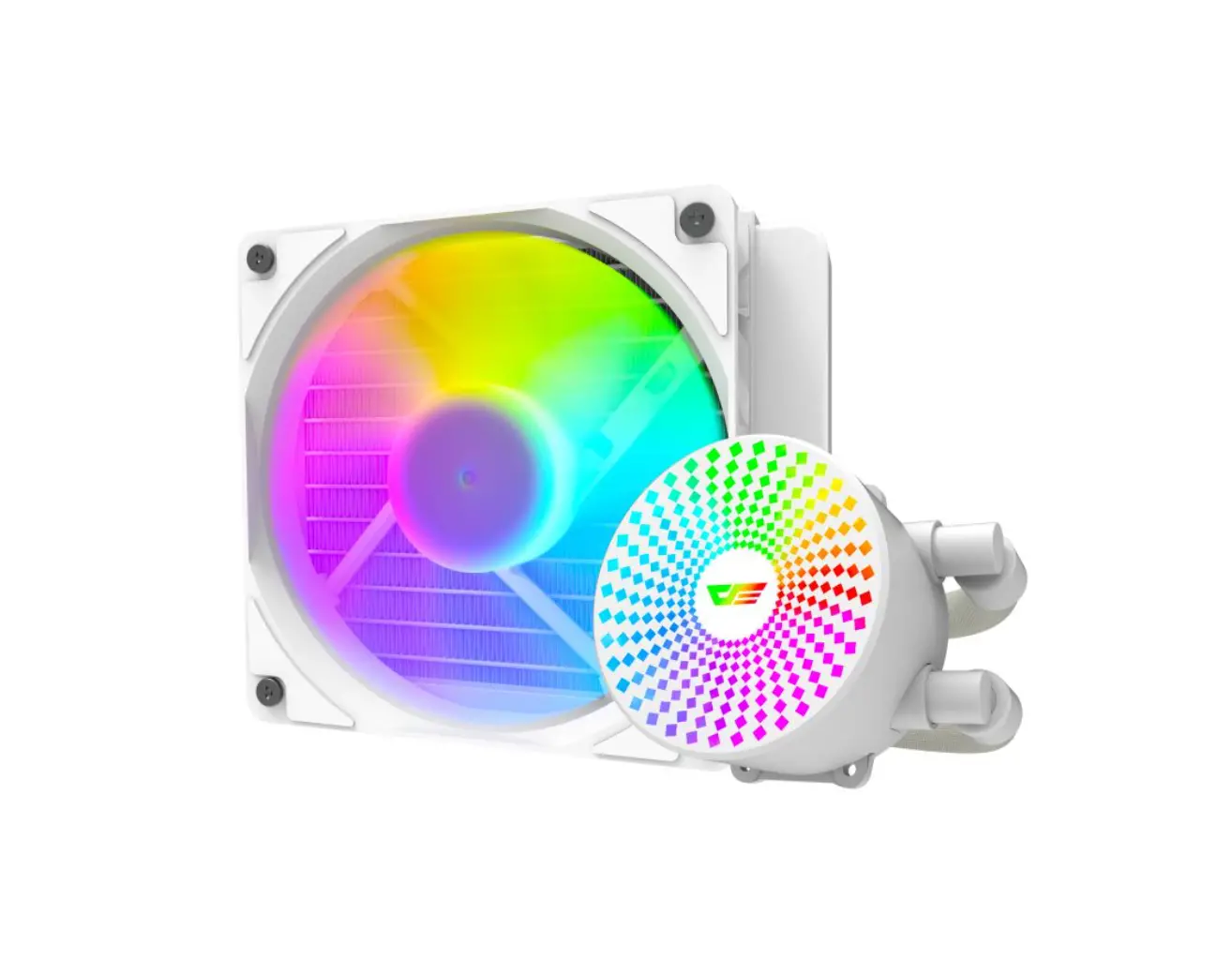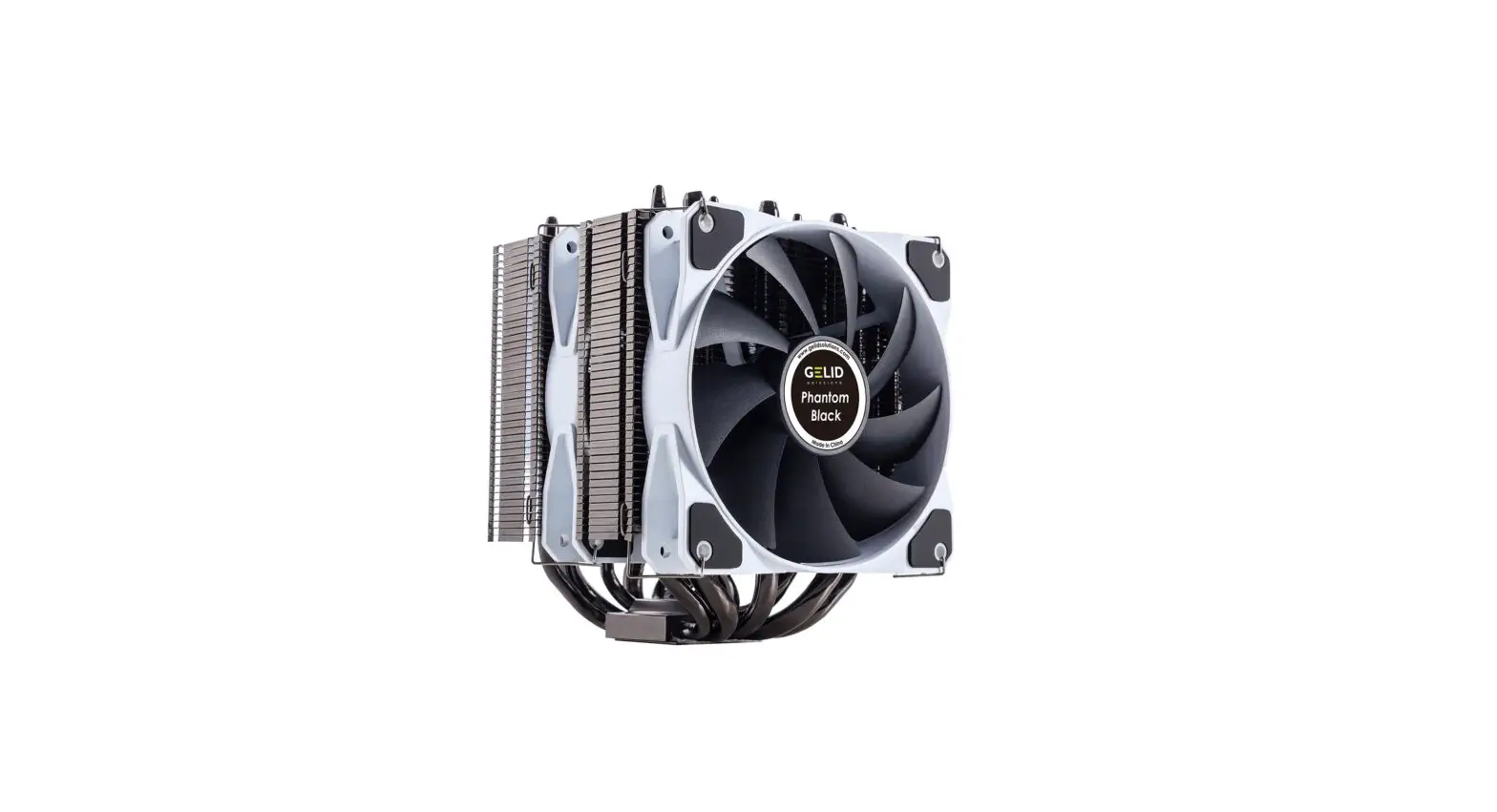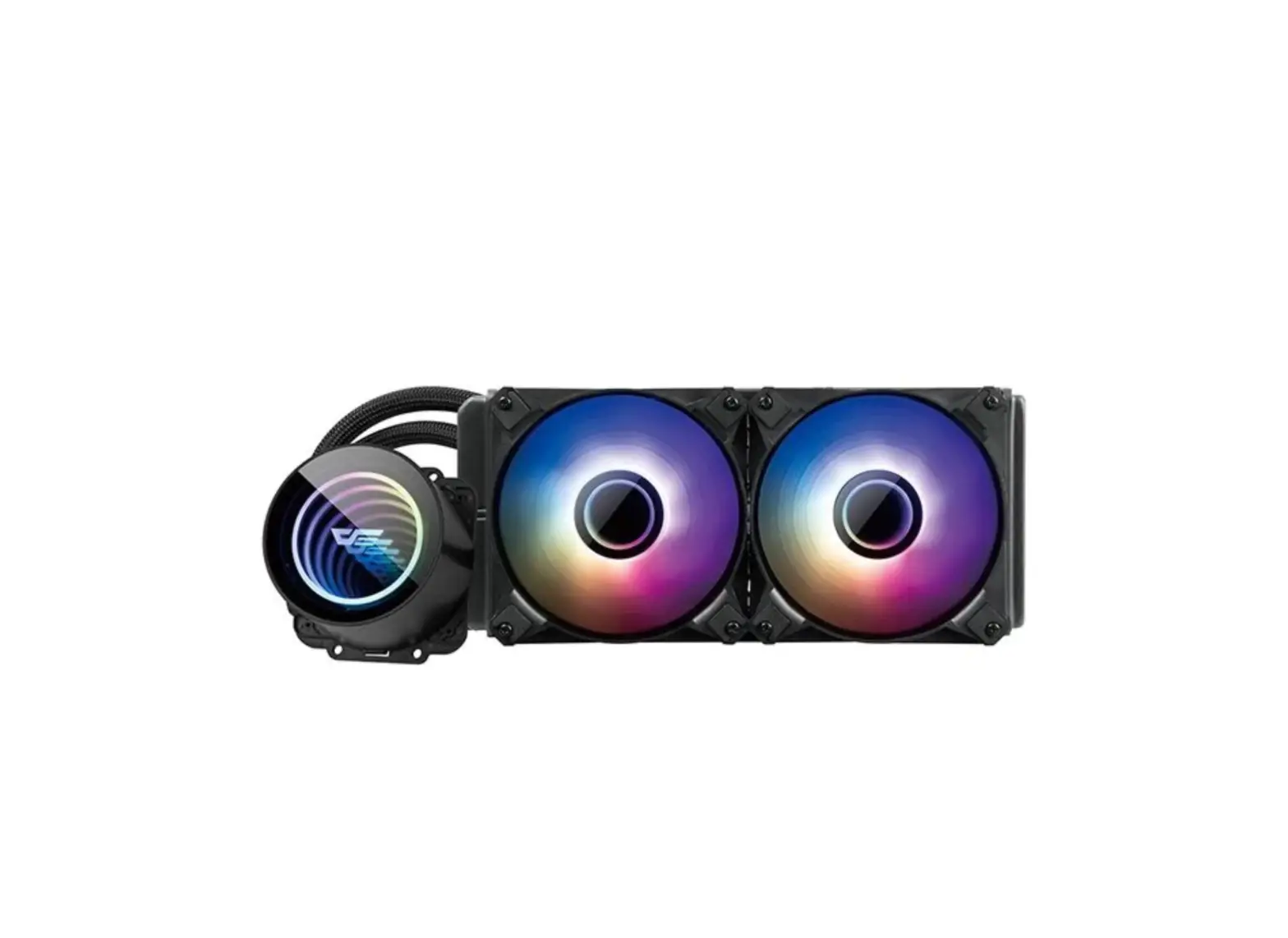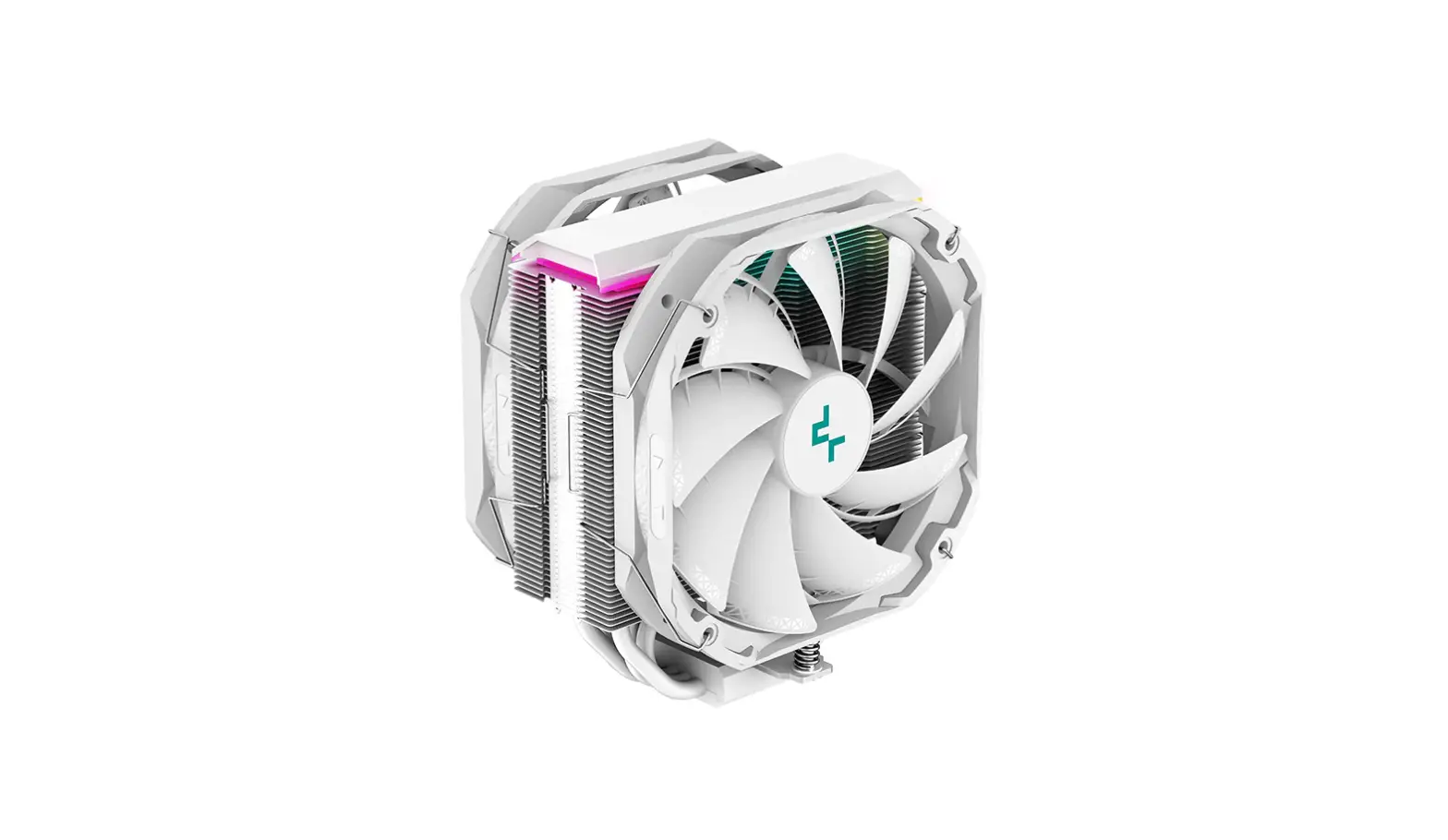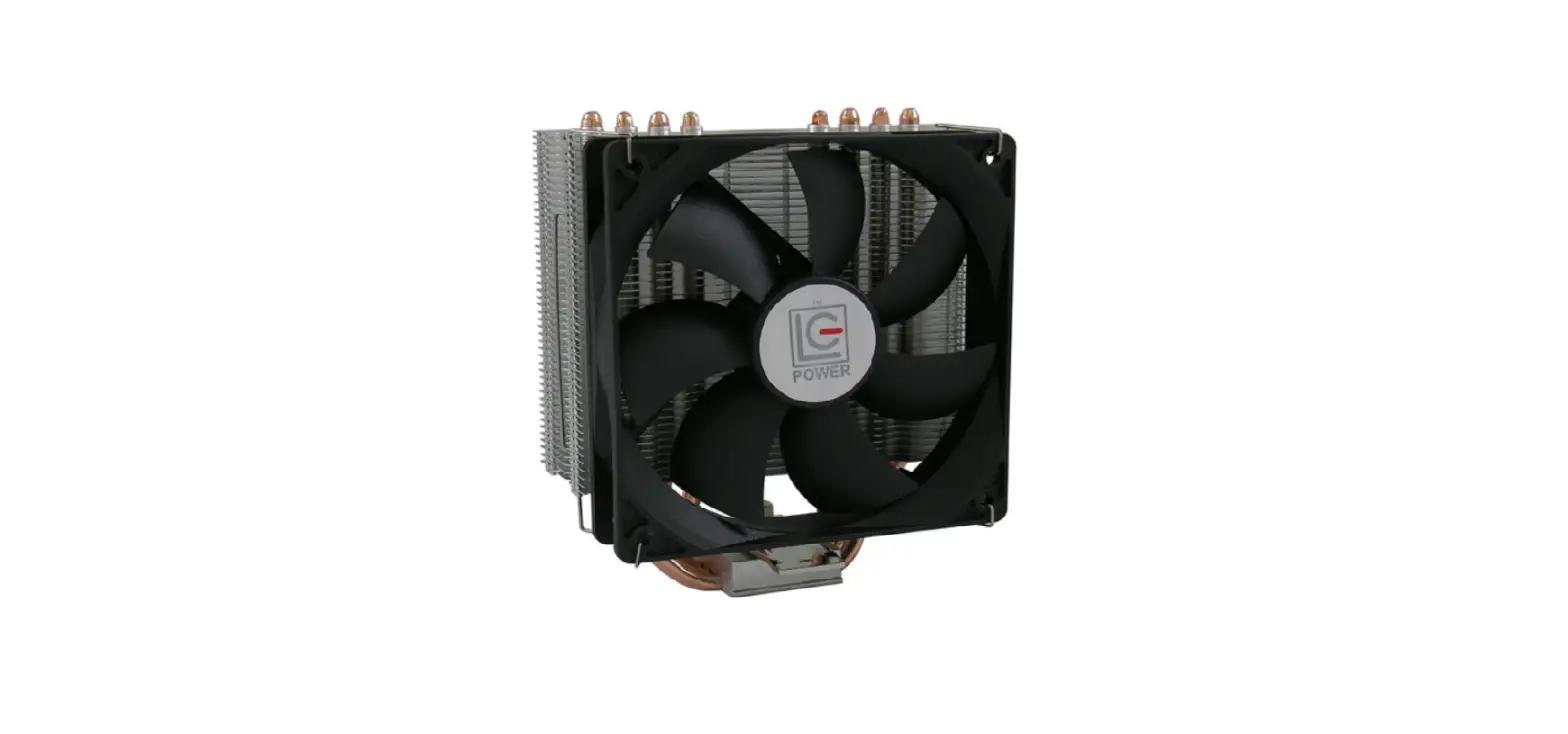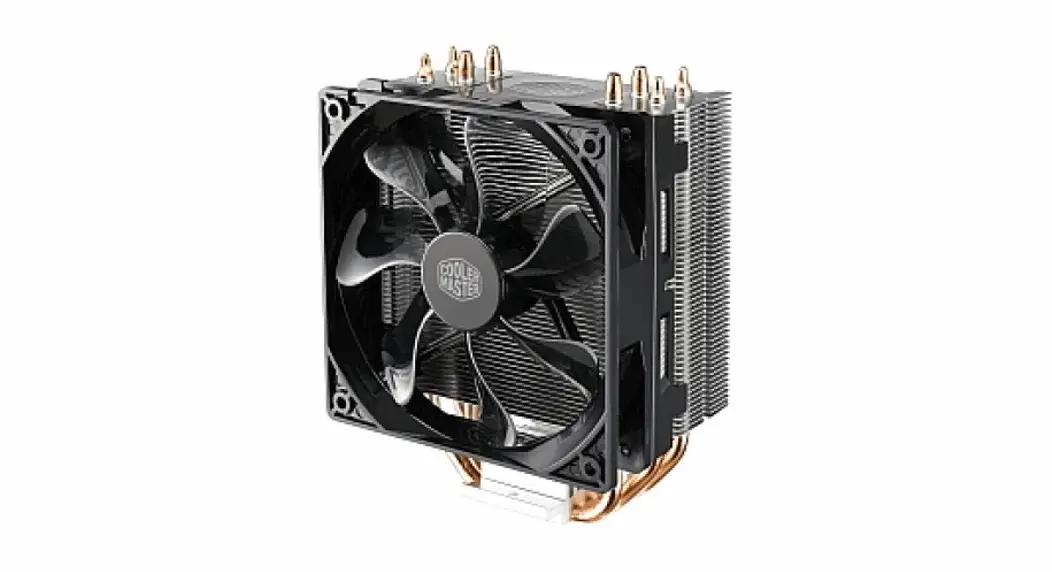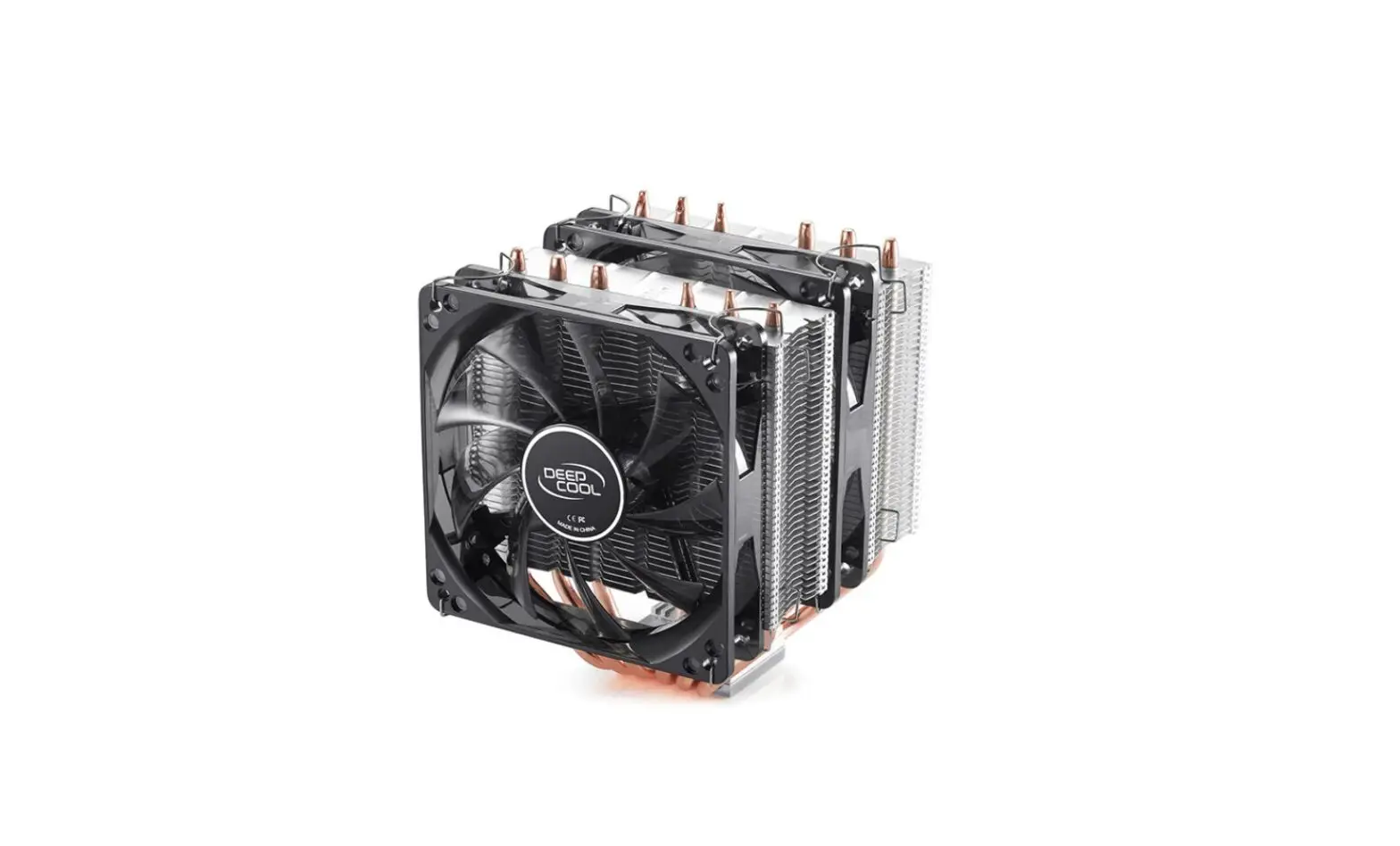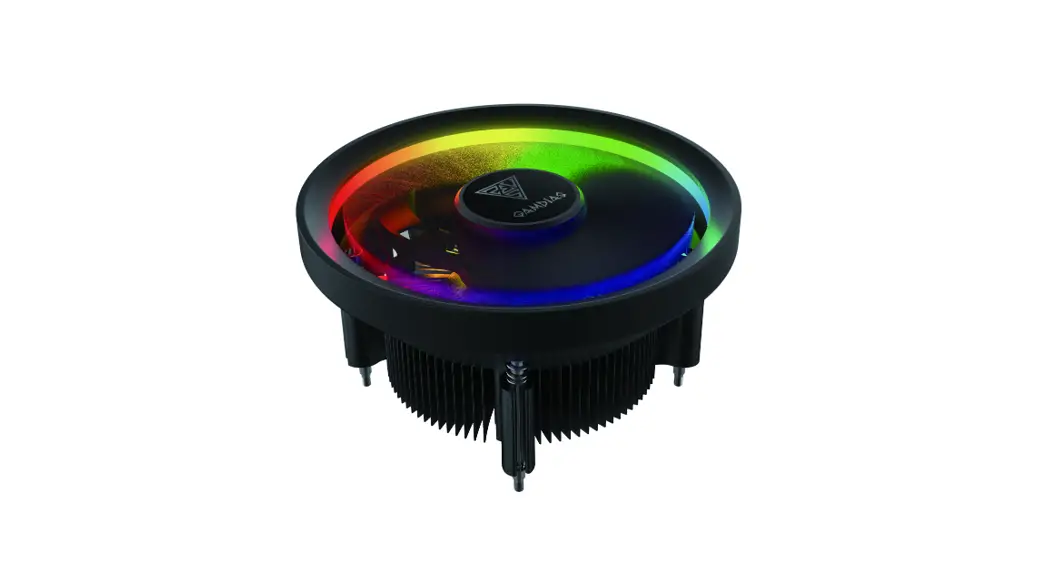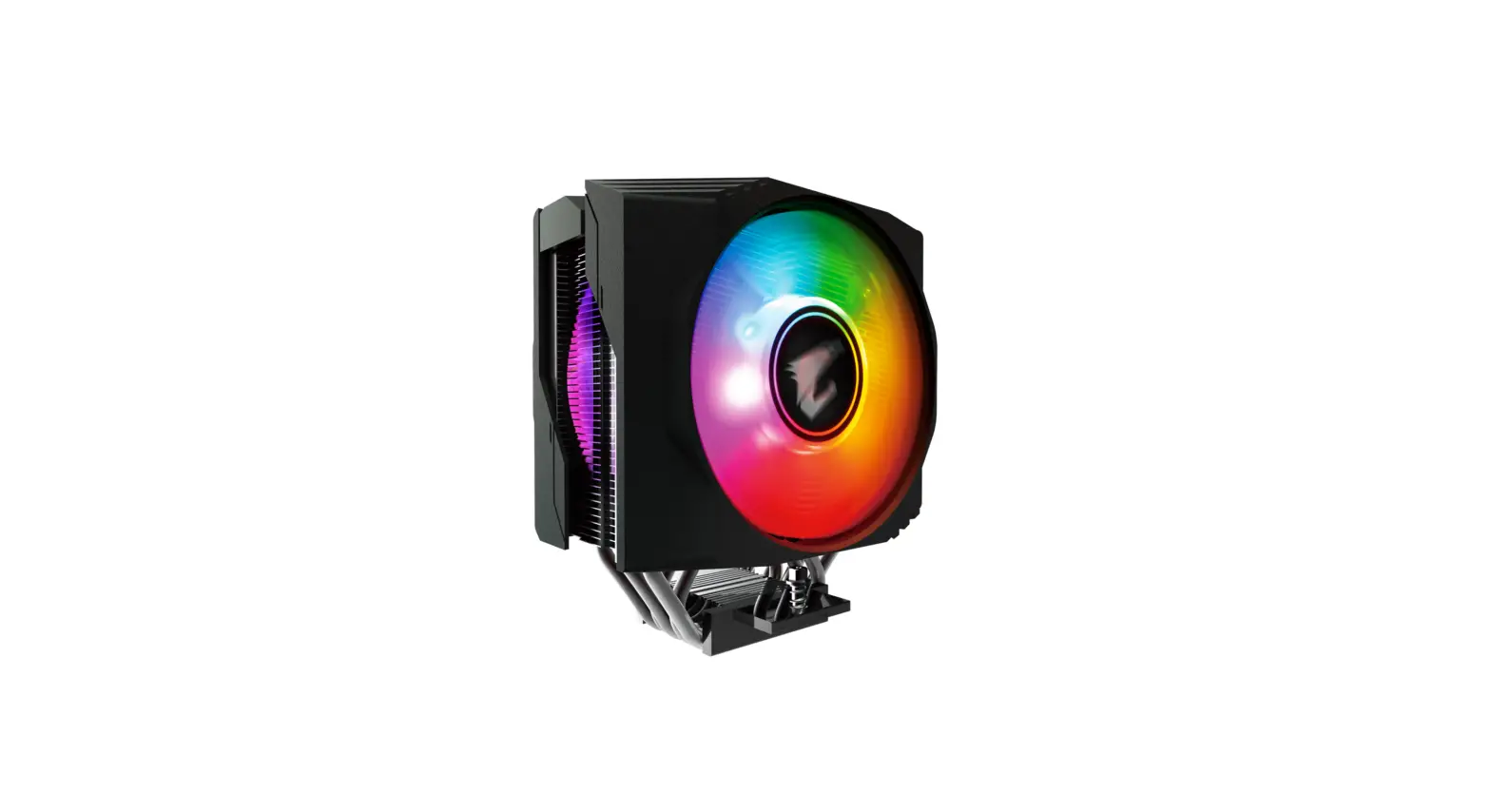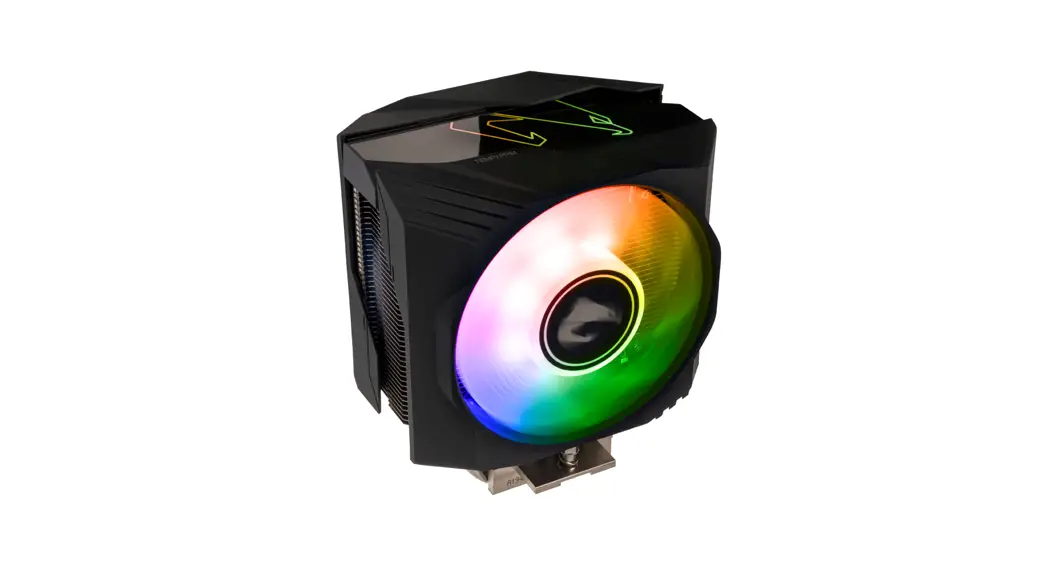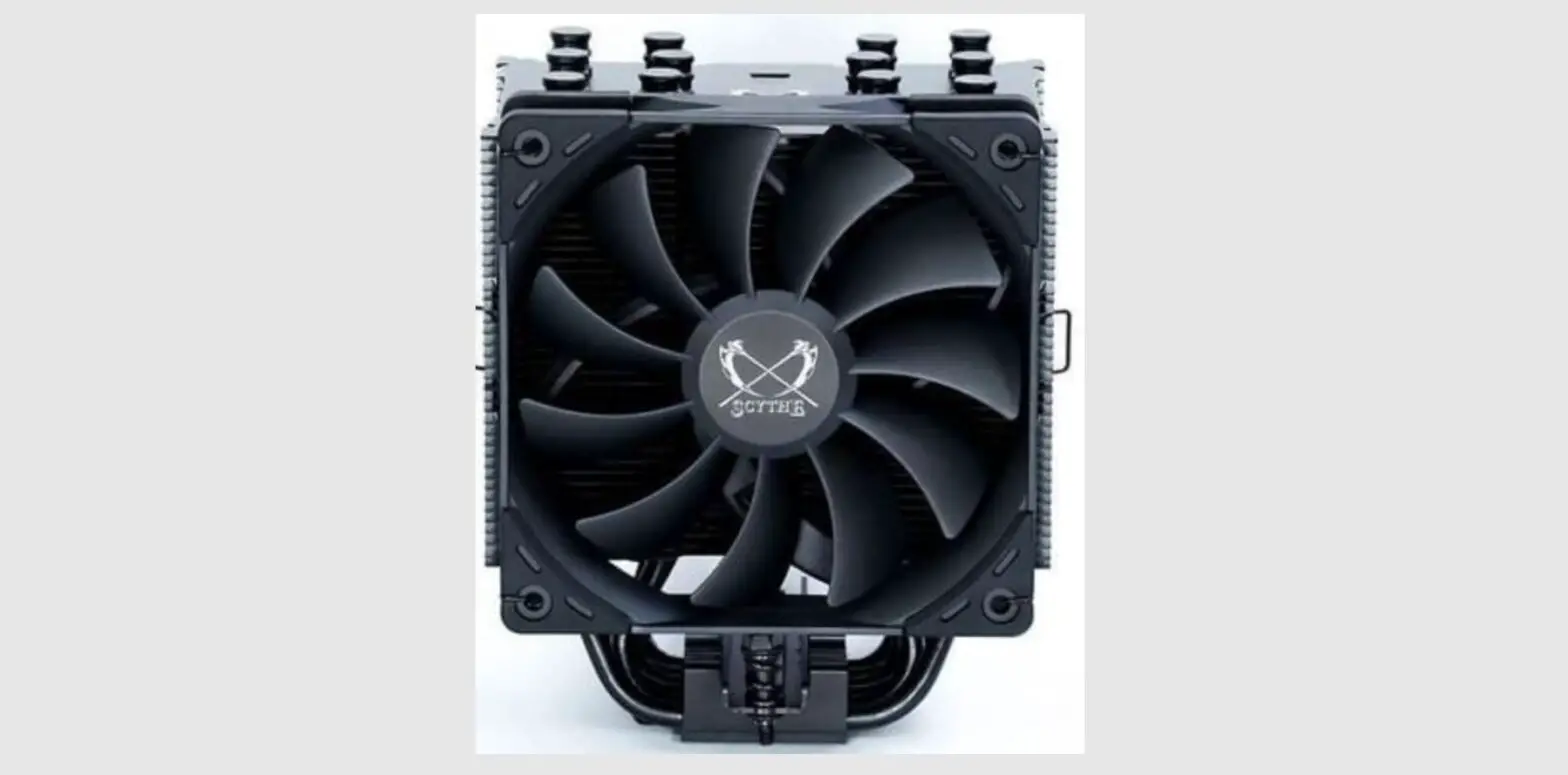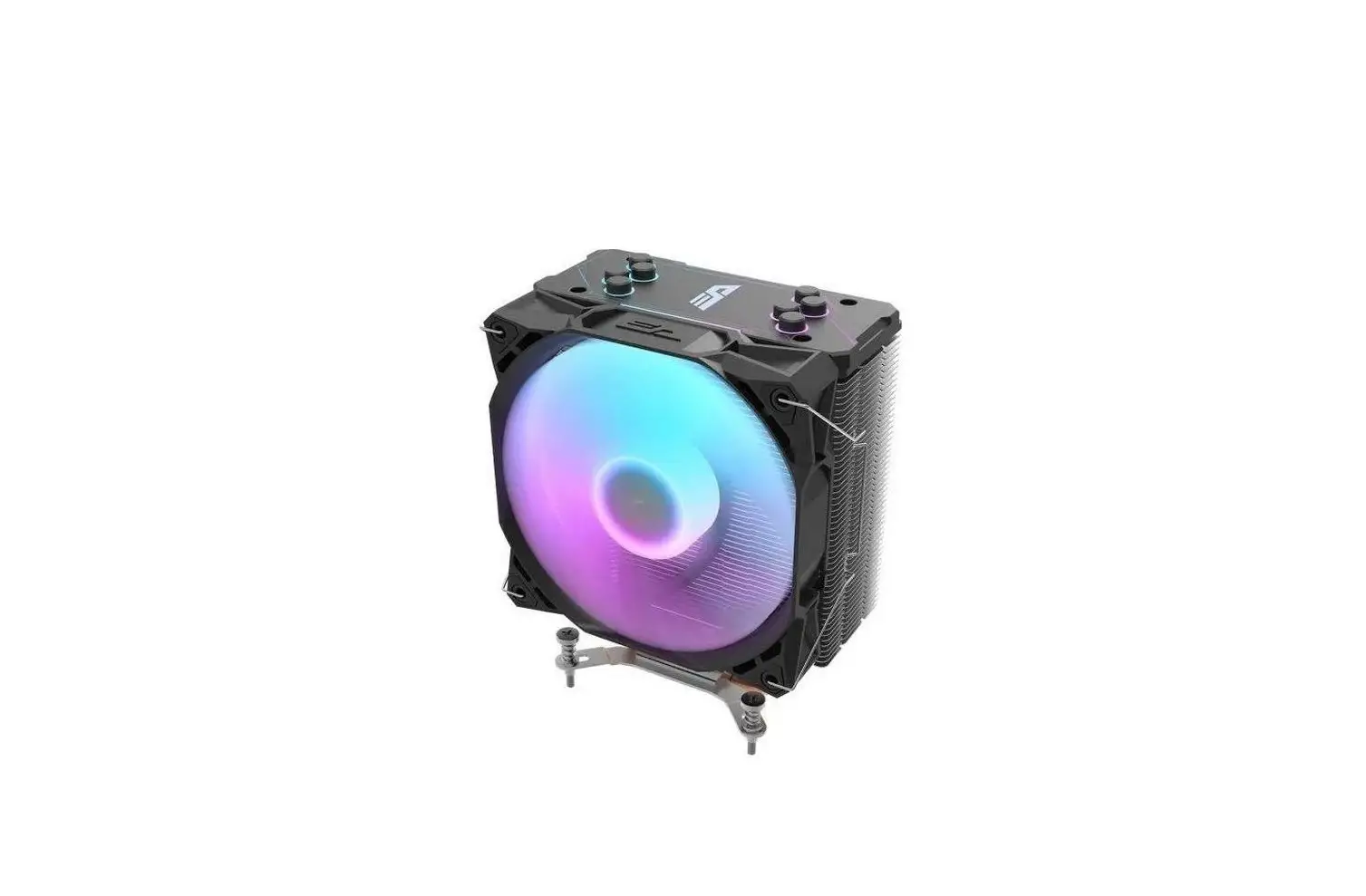

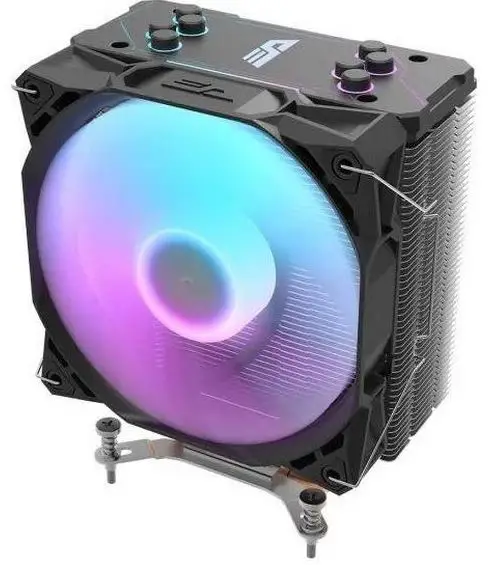
darkflash Ellsworth S11 Pro Tower CPU Cooler
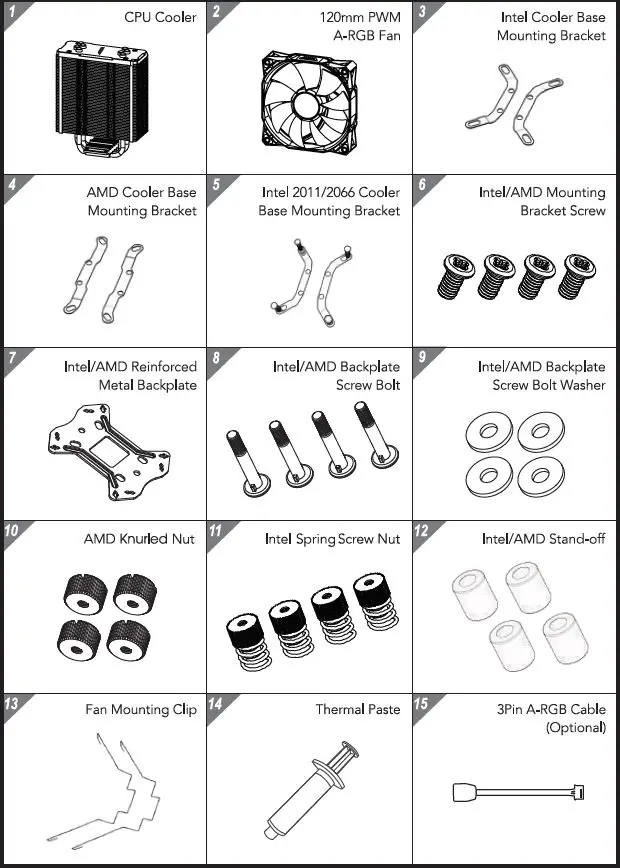
Part List
Instruction
Intel LGA 115x/1366/17xx
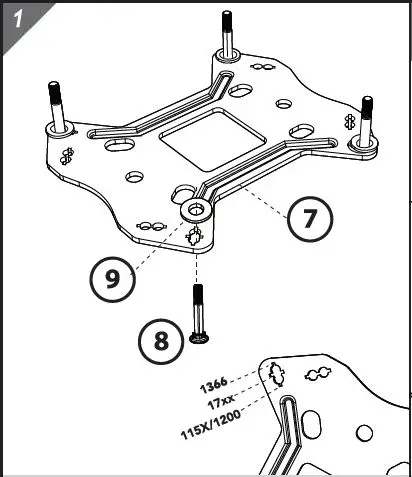
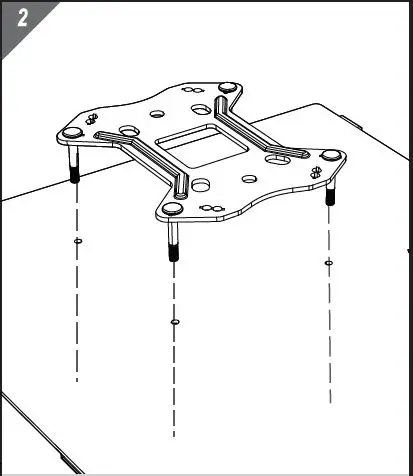
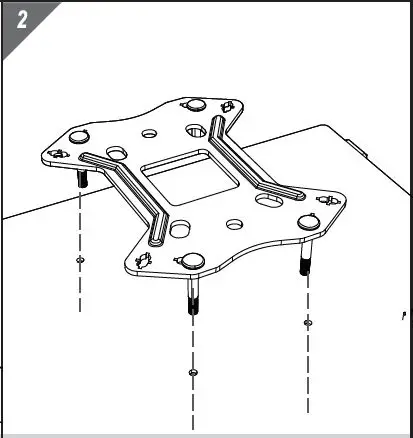
- Insert screw bolts to Intel 115x/ 1366/ 17xx backplate mounting holes.
- Install screw bolt washers to lock the screw bolts & backplate.
- Stick insulation pad on the backplate (Intel logo side).

- Make sure the screw bolt is lock in on the backplate.
- Install the green side backplate to motherboard.

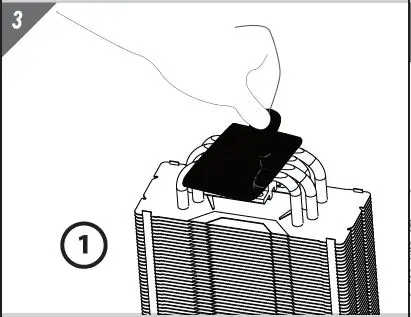
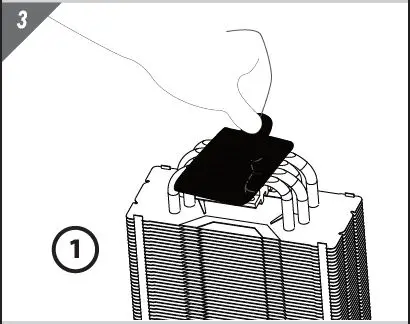
- Remove cooler base protective film.

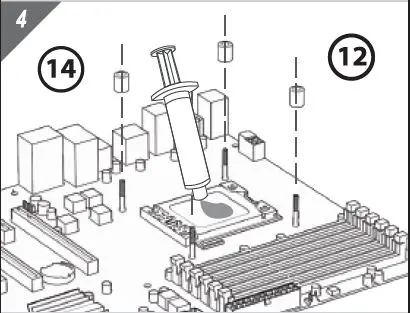
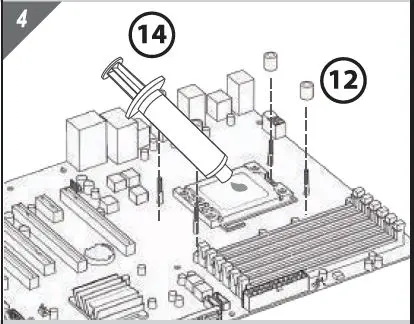
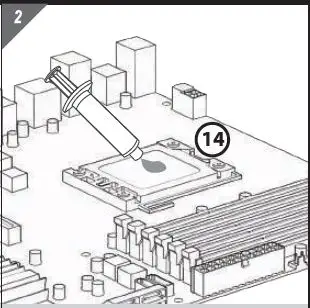
- Clean the CPU surface.
- Apply and spread the thermal paste to CPU evenly.
- Place the stand-off to backplate screw bolt
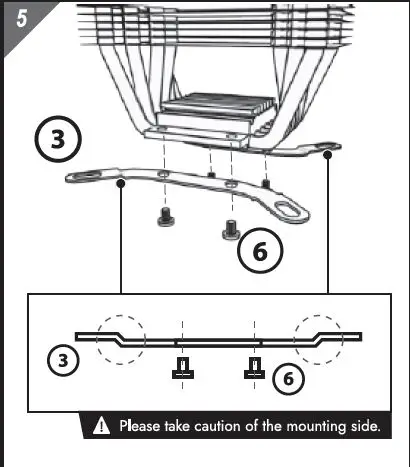
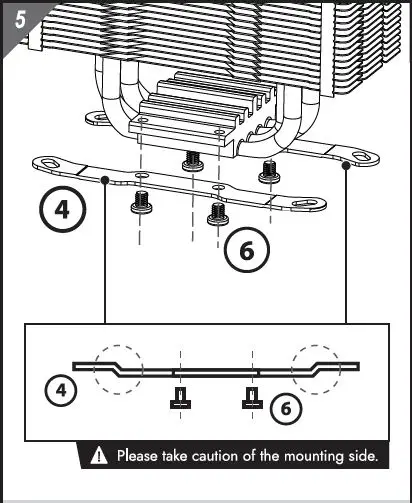
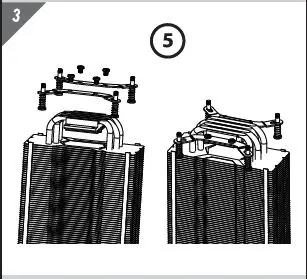
- Install the Intel cooler base mounting brackets.

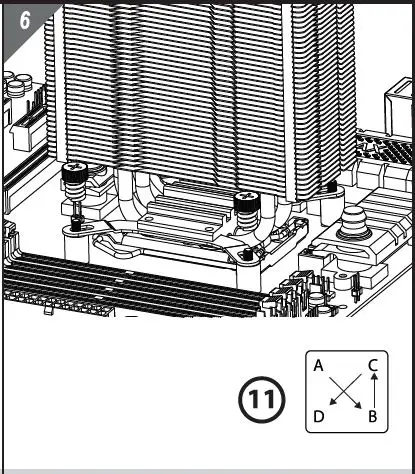
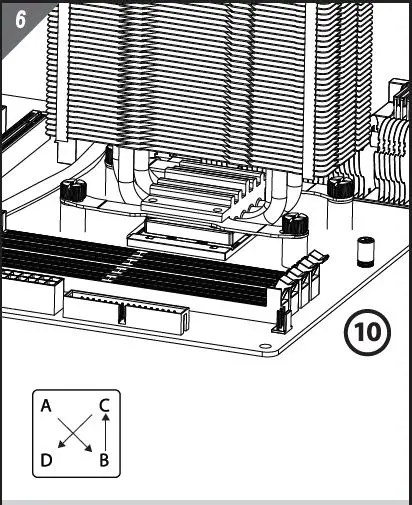
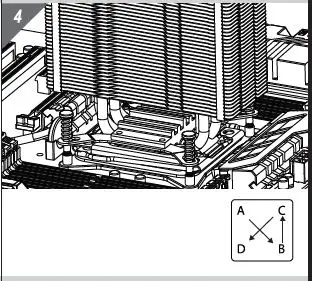
- Align the Intel cooler base mounting brackets to backplate screw bolts, then place the air cooler on the CPU carefully.
- Using spring screw nuts to complete the air cooler and motherboard installation

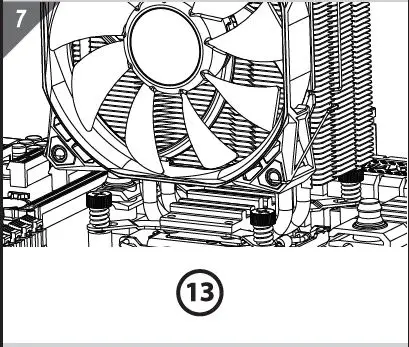
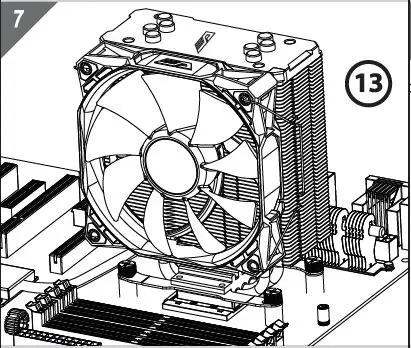
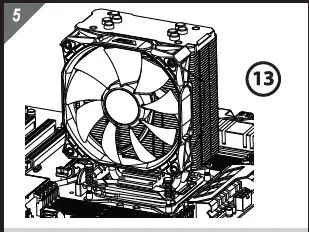
- Install cooling fan using included fan clips.

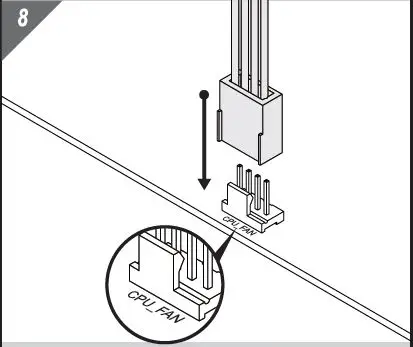
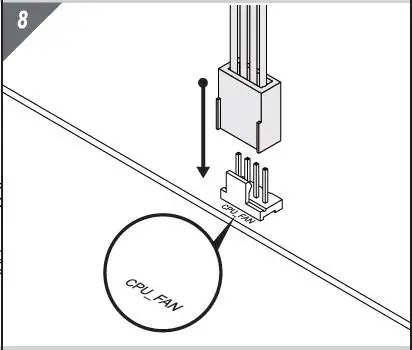
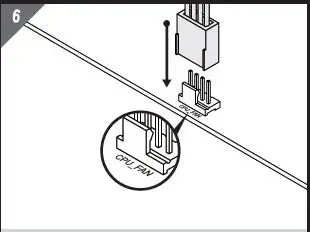
- Connect cooling fan 4Pin PWM connector to motherboard CPU Fan socket.
INSTALLATION
AMD AM3/AM4
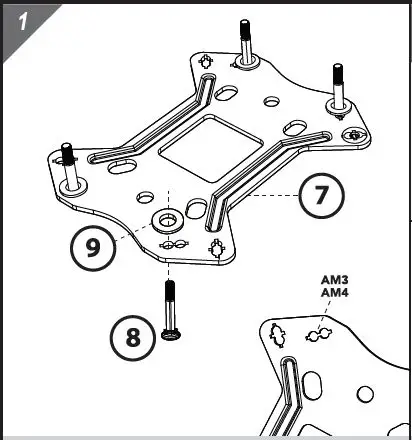
- Insert screw bolts to AMD AM3 or AM4 backplate mounting holes.
- Install screw bolt washers to lock the screw bolts & backplate.
- Stick insulation pad on the backplate (AMD logo side).

- Make sure the screw bolt is lock in on the backplate.
- Install the green side backplate to motherboard.

- Remove cooler base protective.

- Clean the CPU surface.
- Apply and spread the thermal paste to CPU evenly.
- Place the stand-off to backplate screw bolt.

- Install the AMD cooler base mounting brackets.

- Align the AMD cooler base mounting brackets to backplate screw bolts, then place the air cooler on the CPU carefully.
- Using spring screw pillar to complete the air cooler and m/b installation.

- Install cooling fan using included fan clips.

- Connect cooling fan 4Pin PWIM
Intel LGA 2011 (V3)/2066
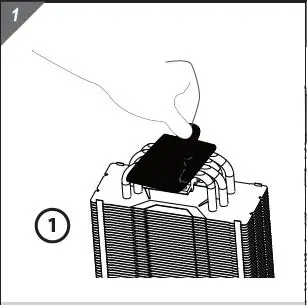
- Remove cooler base protective.

- Clean the CPU surface.
- Apply and spread the thermal paste to CPU evenly.

- Install the Intel 2011/2066 cooler base mounting brackets.

- Align the Intel 2011/2066 cooler base mounting brackets to backplate screw bolts, then place the air cooler on the CPU carefully.
- Using spring screw pillar to complete the air cooler and m/b installation.

- Install cooling fan using included fan clips.

- Connect cooling fan 4Pin PWM connector to m/b CPU Fan socket.
S11 PRO & PLUS ONLY
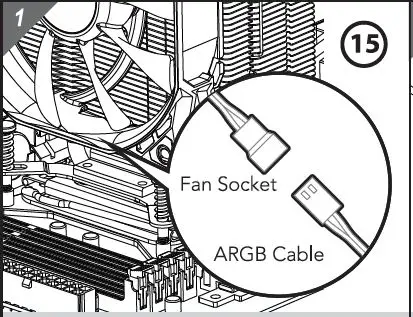
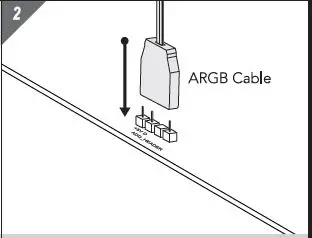
- Connect the 3 Pin ARGB cable to fan cable socket.

DARKFLASH INFOTECH CO., LTD.
www.darkflash.com