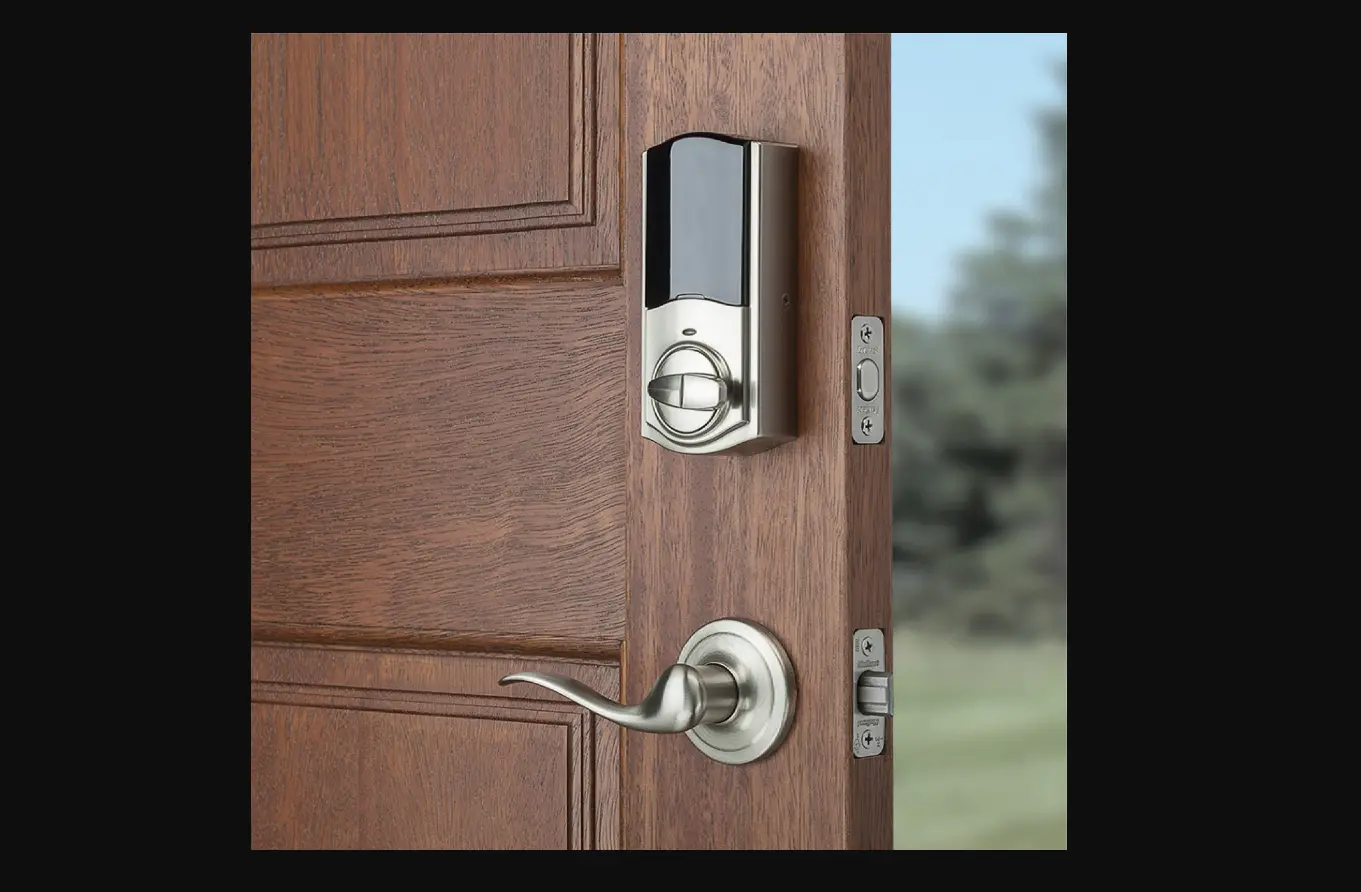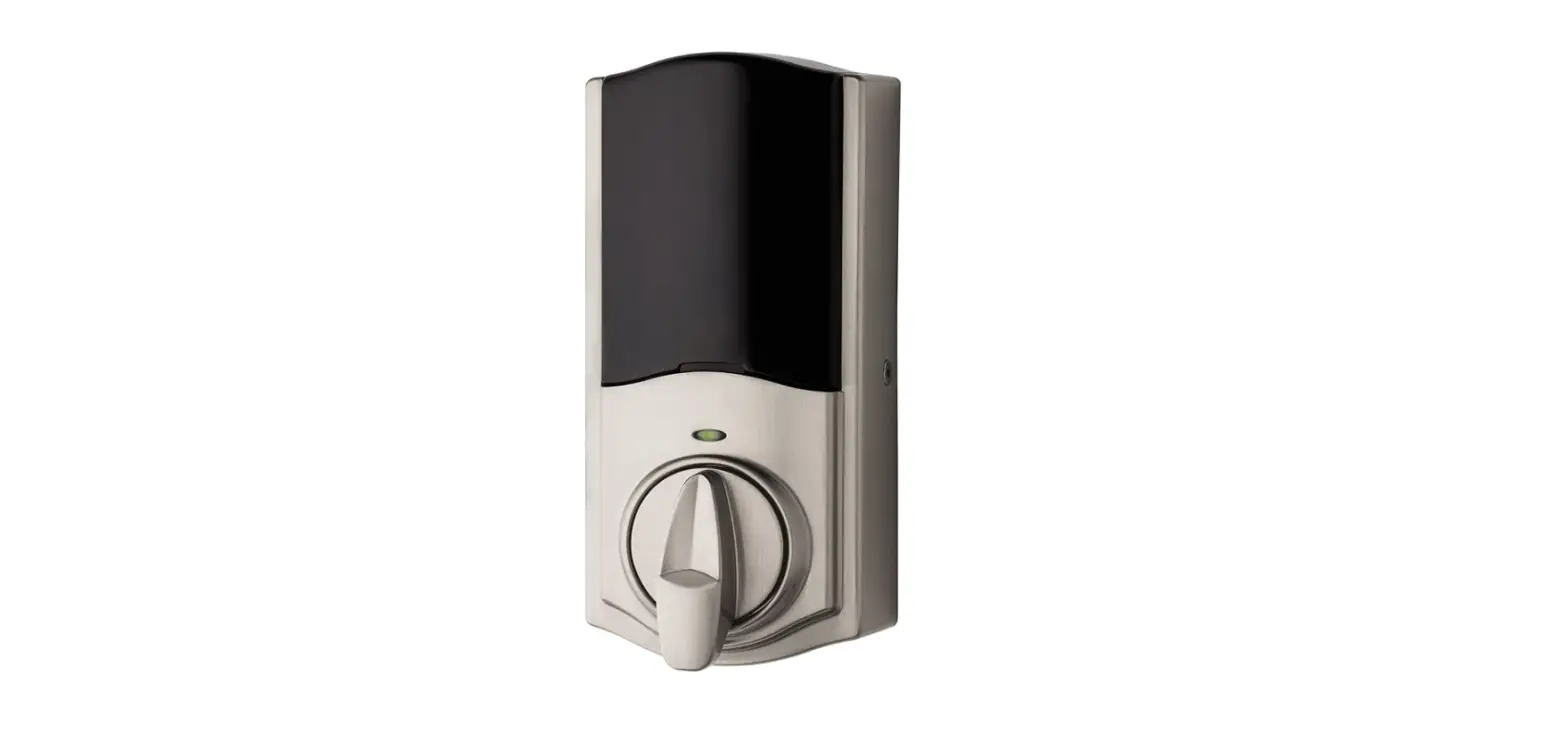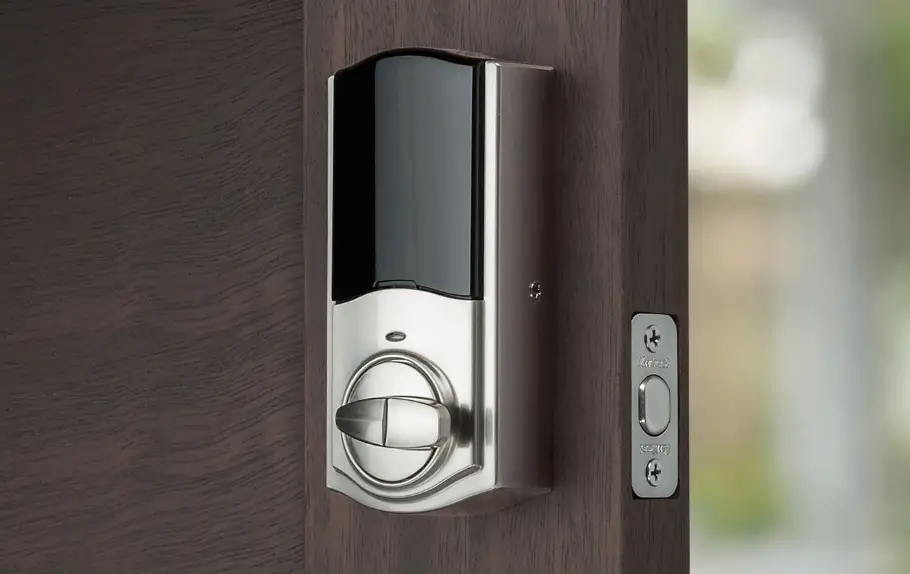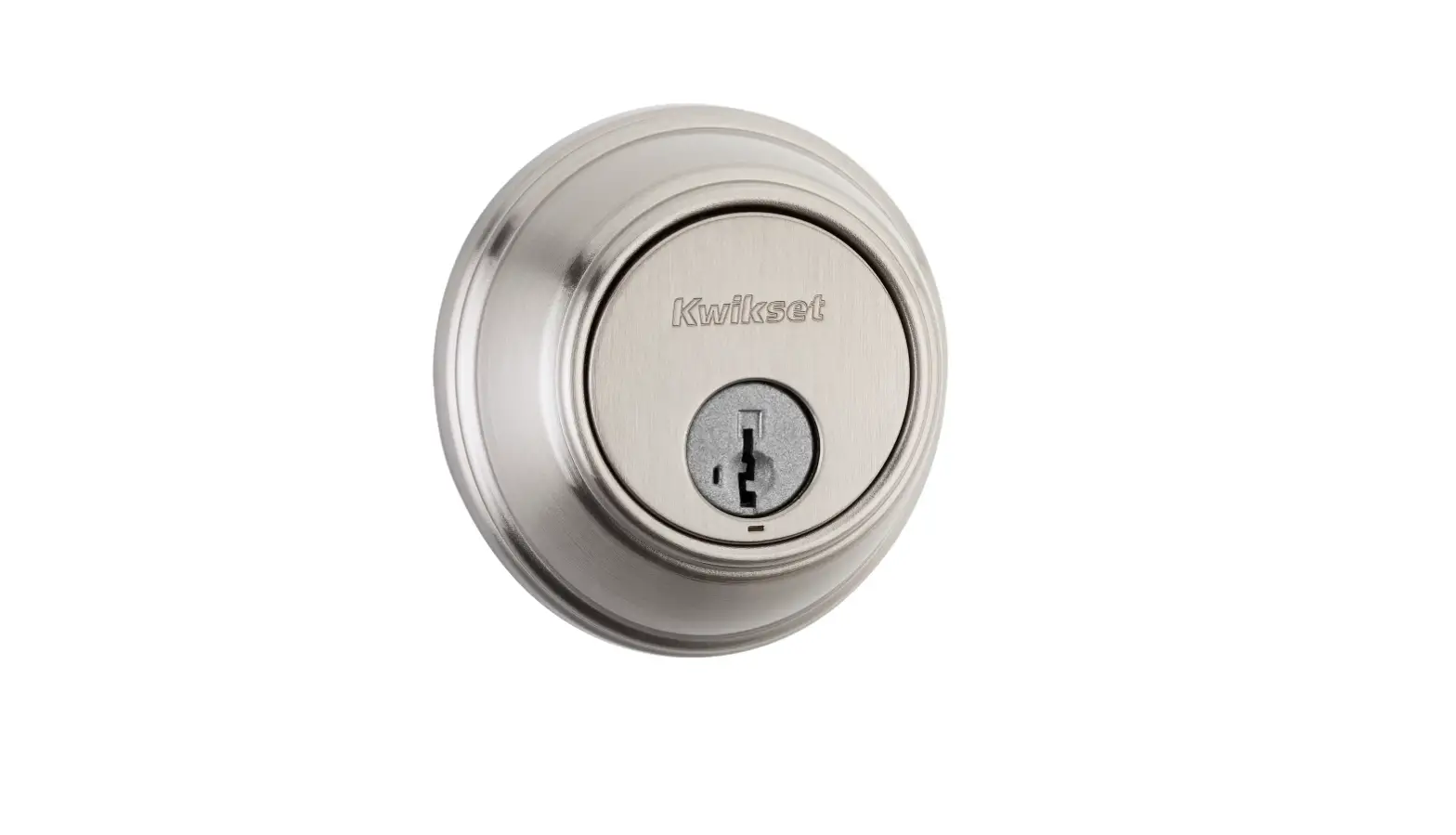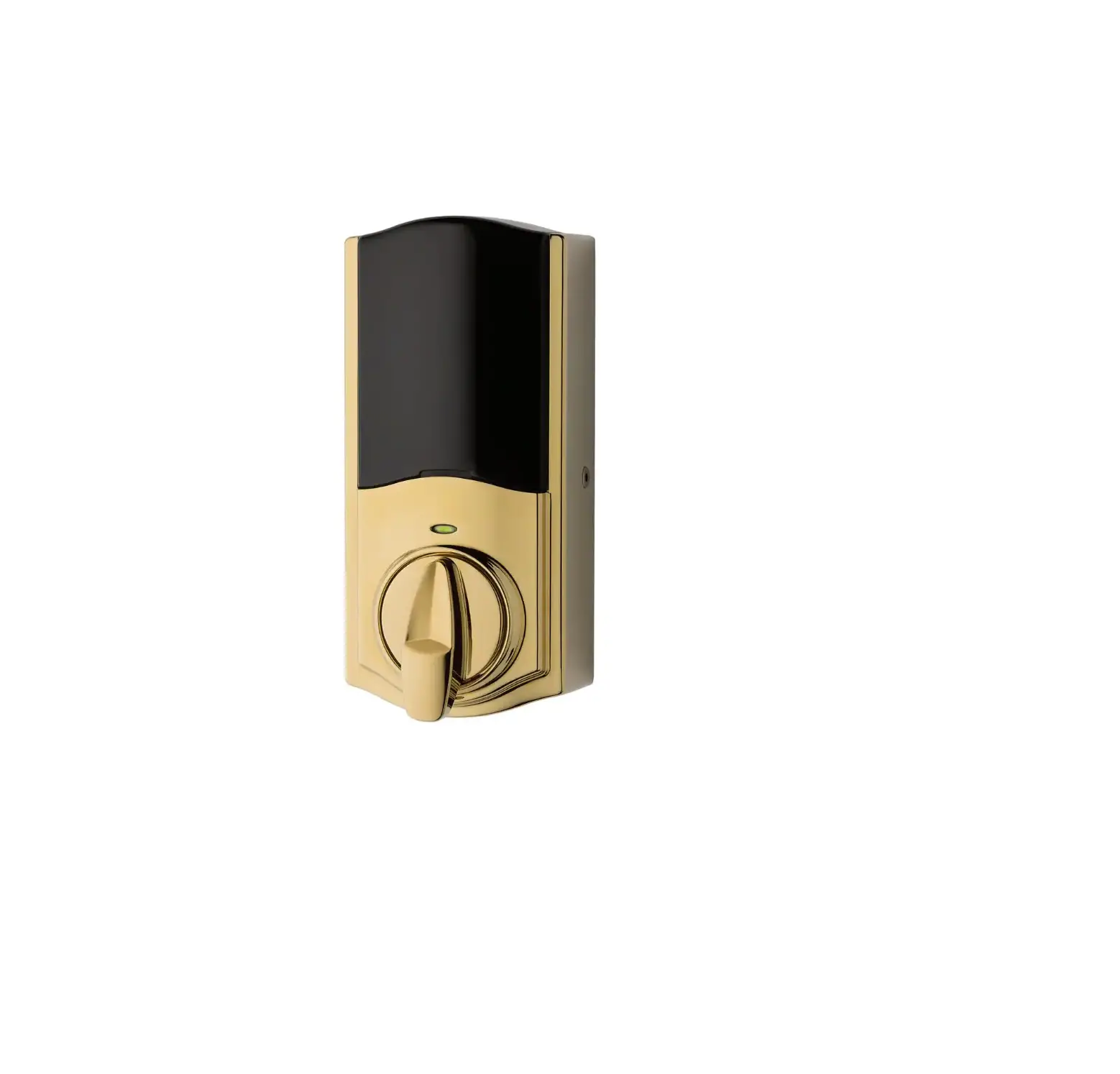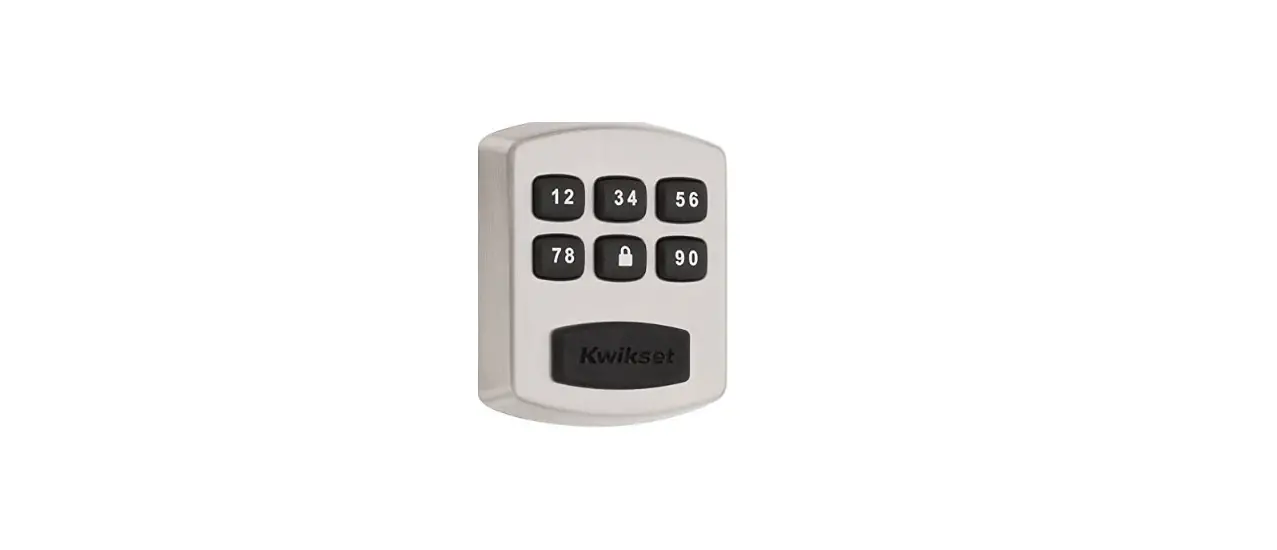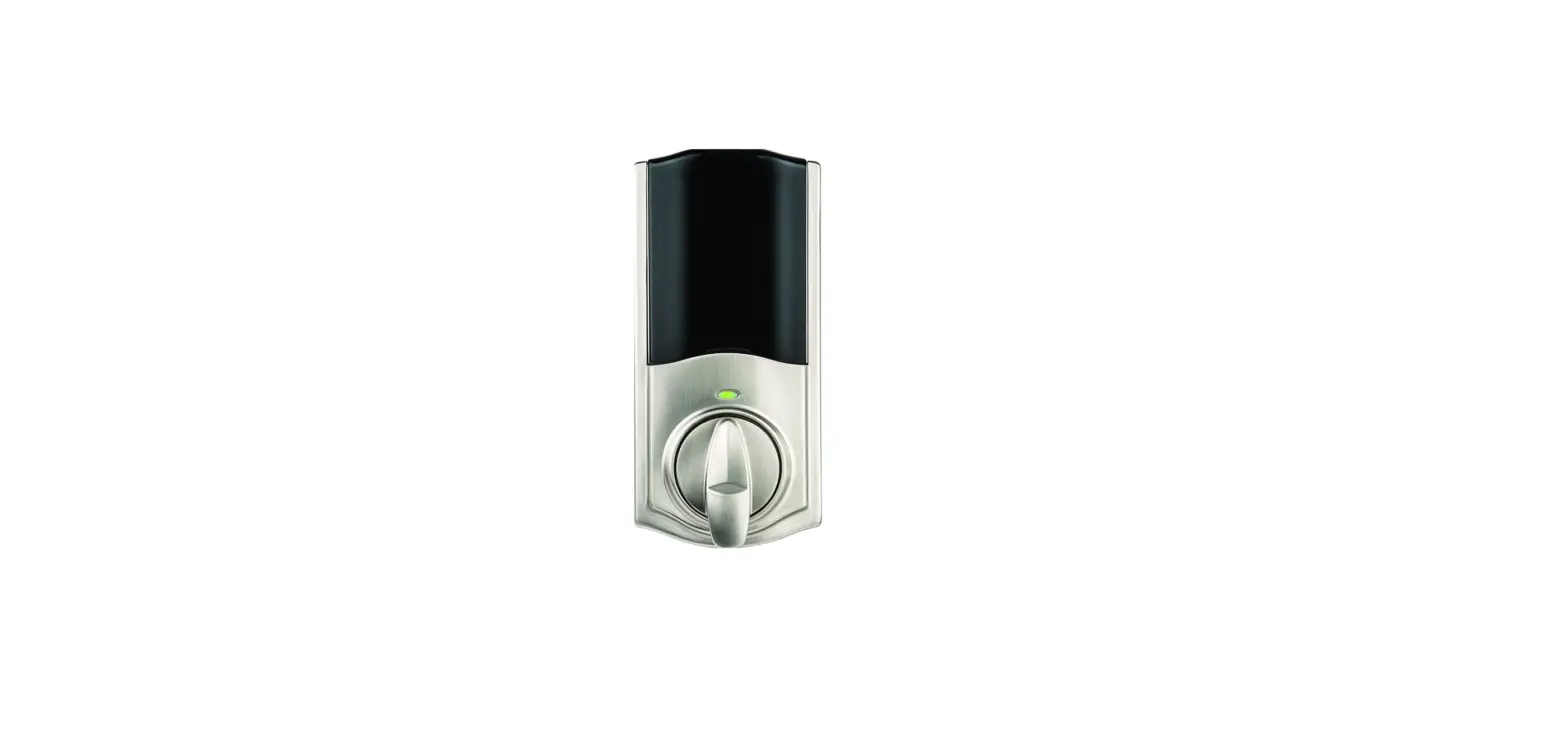

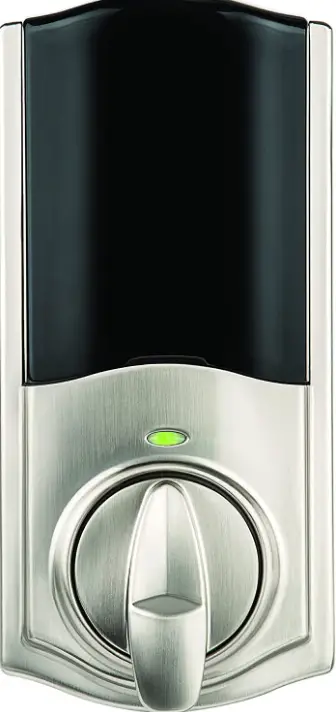
Kwikset 99250-102 Convert Smart Lock Conversion Kit
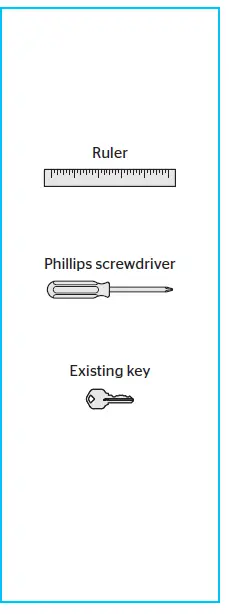
Required tools
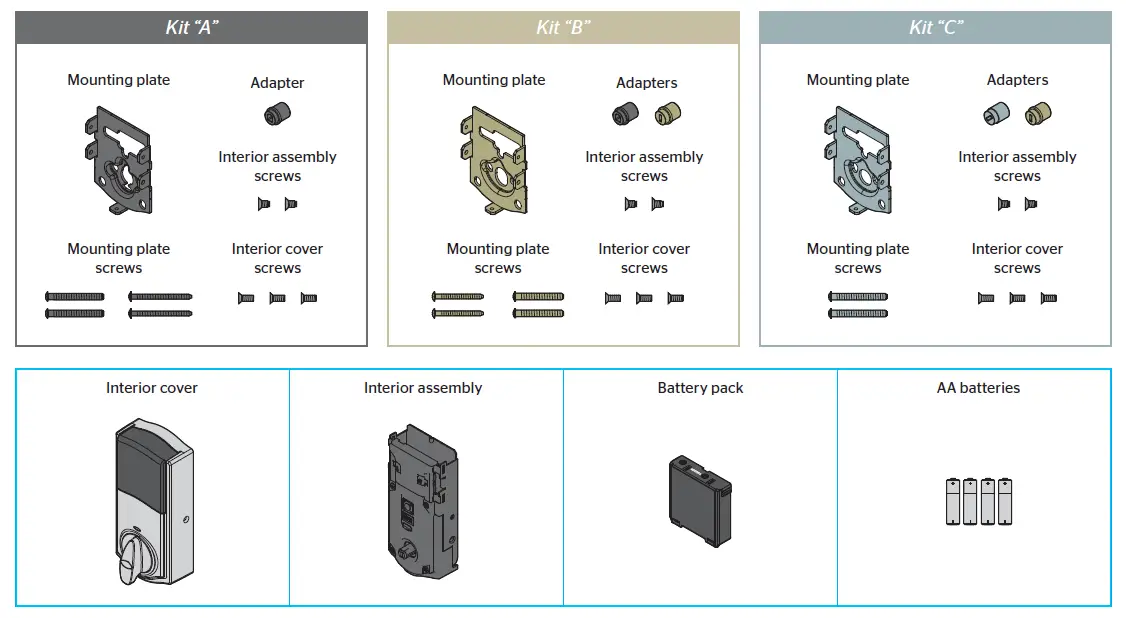
Parts in the box
Make sure your existing deadbolt is compatible
Measure the thickness of your door.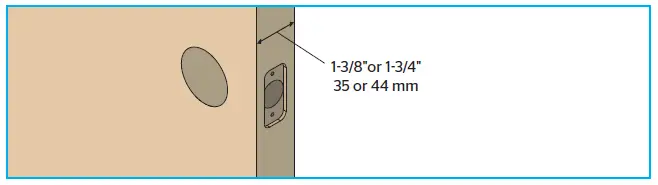
Disassemble your existing deadbolt.
- Make sure your door is open and extend your latch bolt.
- Remove all existing deadbolt hardware from the interior side of your door. Keep your deadbolt exterior in place.


Determine the parts needed for your door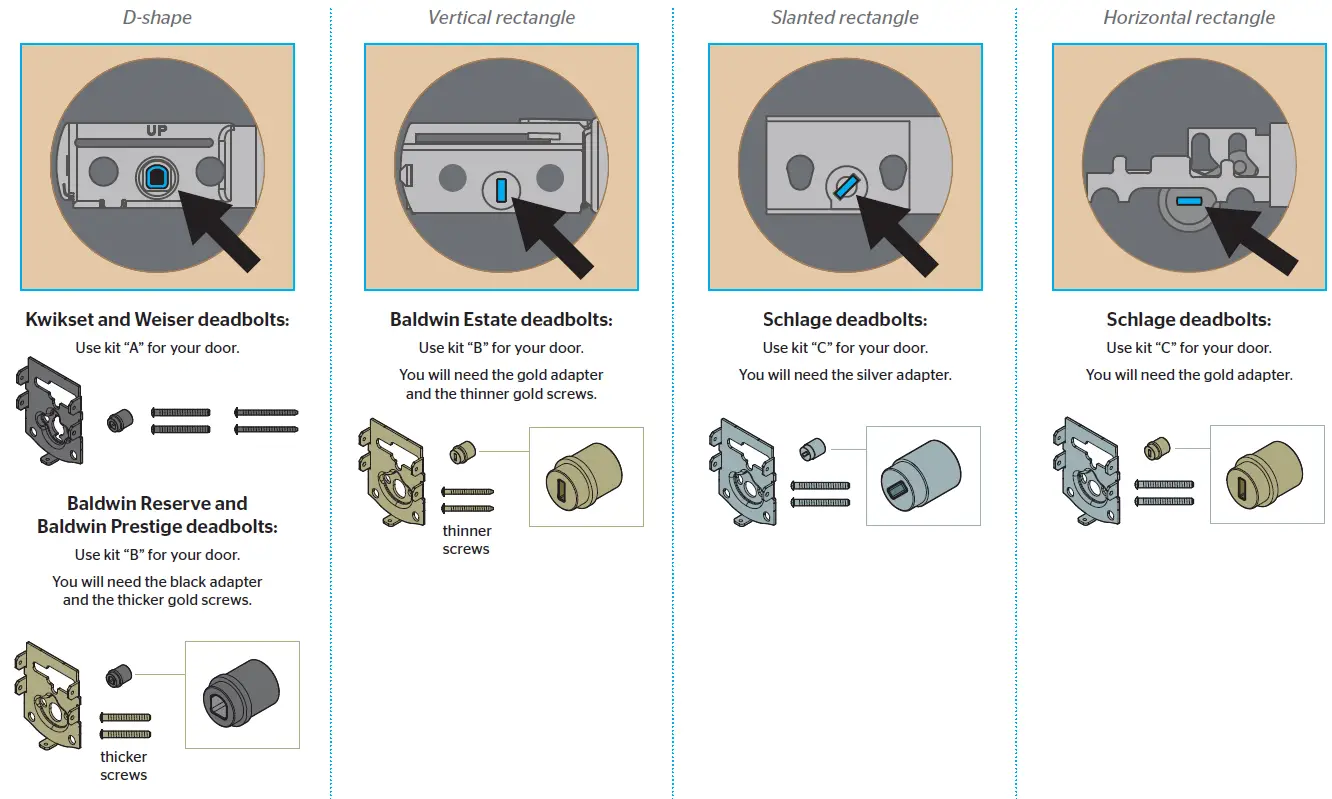
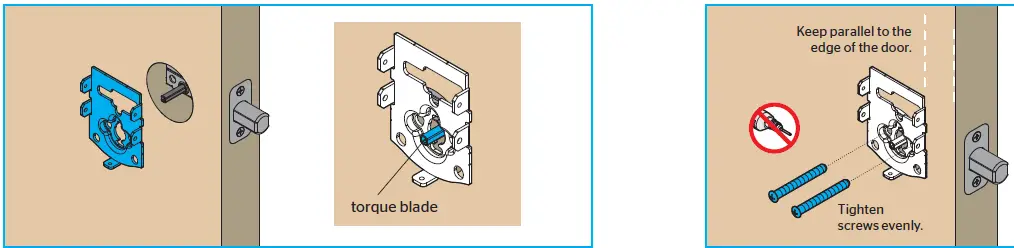
Install the mounting plate and test your latch.
- Place the mounting plate on the door so that the torque blade inserts through the center hole
- Secure the mounting plate with the mounting screws

- Insert your key and test the latch for smooth operation
- Remove your key and make sure the bolt is fully extended


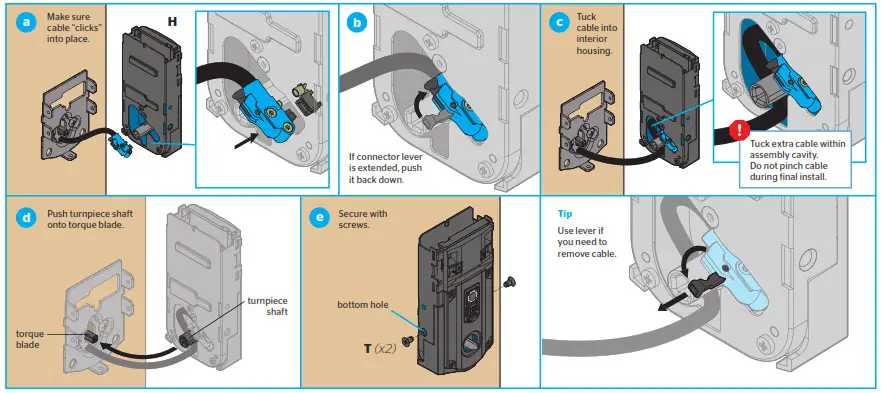
Install the interior assembly.
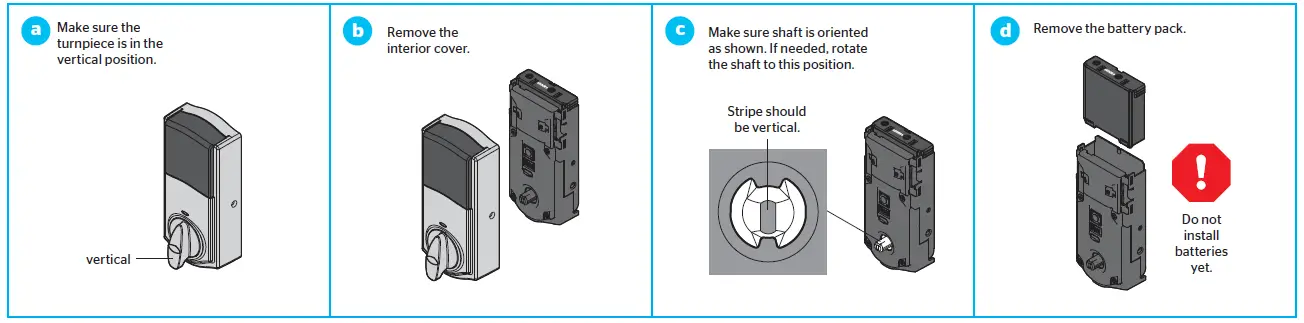
- Prepare the interior assembly

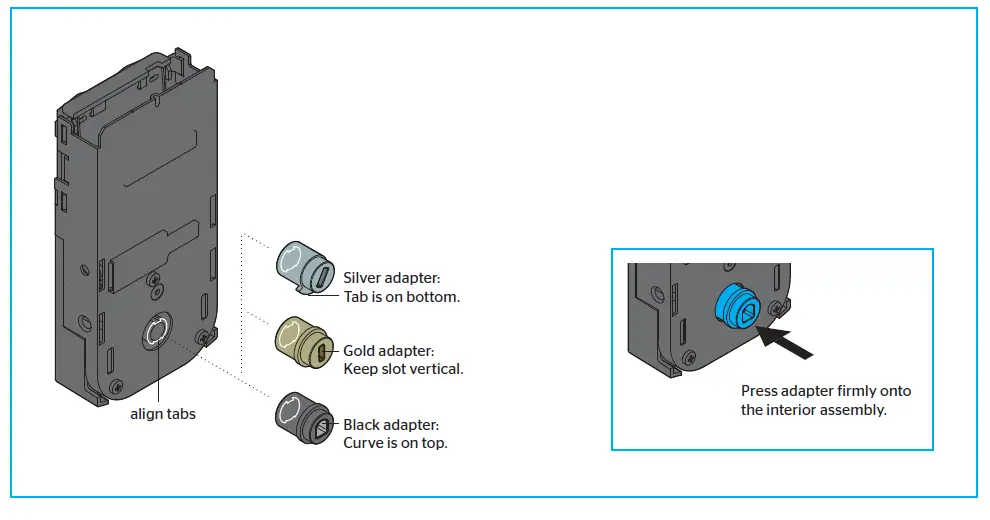
- Install the adapter on the interior assembly.

- Prepare the interior assembly
SCHLAGE DEADBOLTS ONLY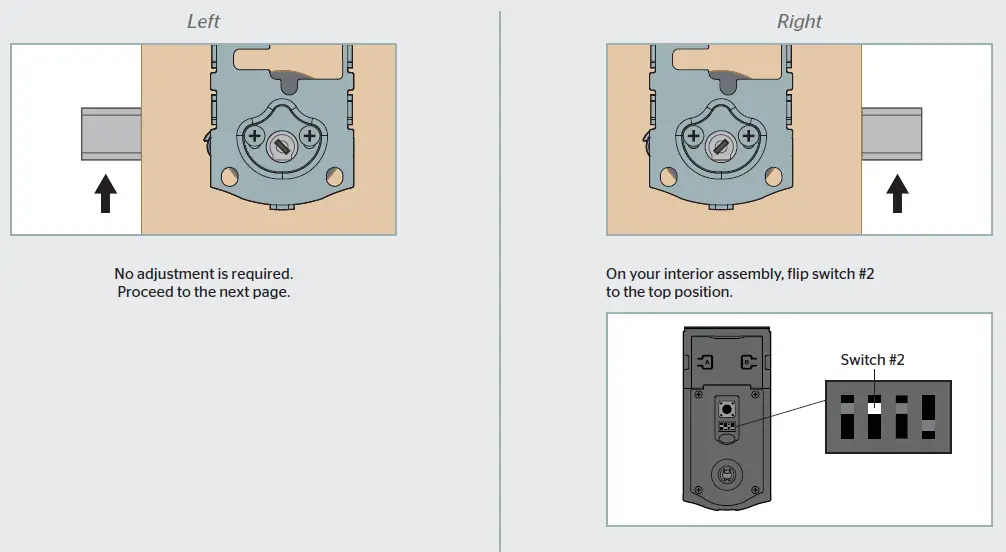
Install the interior assembly onto the mounting plate.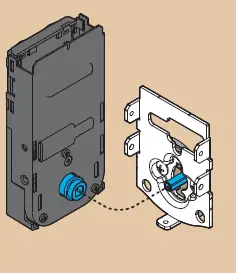
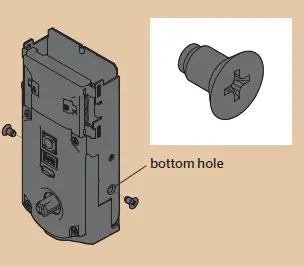
Perform the door handing process
- Install 4 AA batteries in the battery pack
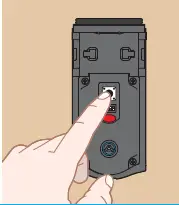
- Make sure the door is open. Insert the battery pack while PRESSING AND HOLDING the Program button. Release the button when the battery pack is all the way inside the lock interior.
 The Status LED will flash red and green, and the lock will beep. Press and release the Program button again.
- The latch bolt will retract and extend on its own to learn the orientation of the door.

 The Status LED will flash red and green, and the lock will beep. Press and release the Program button again.
Red Status LED
Download the app
Download the Kevo app and set up your smartphone.
- Download the Kevo app at kwikset.com/kevo/app or scan the QR code below
- Follow the instructions inside the app to create an account, enroll your first smartphone and send eKeys to family and friends.


Install the interior cover.

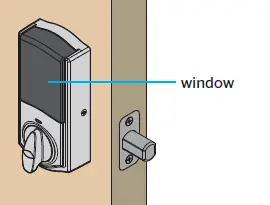
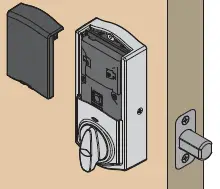
If you want to keep the window locked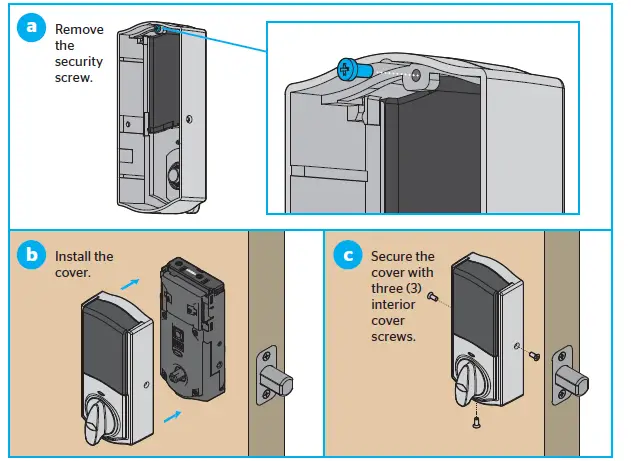
If you want to unlock the window
Kevo Convert at a Glance
Kevo-Compatible Devices
Smartphones and Smart Devices
A Kevo-compatible smartphone (or other mobile internet-connected device or tablet) must have Bluetooth Smart Ready/ Bluetooth 4.0 and an app specific to the device must be installed. Find out if your device is compatible at www.kwikset.com/kevo/devices.
Standard Key
Always make sure you have access to your standard key.
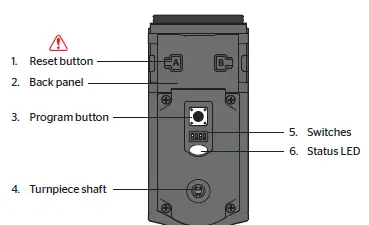
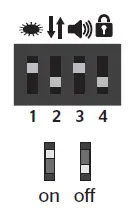
Switches
System Reset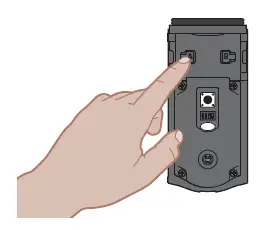
Status LED Notifications
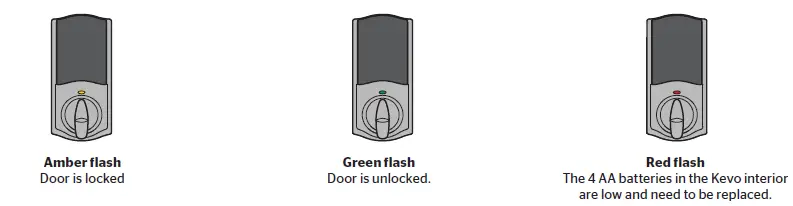
Advanced Features
History Log
A history of the lock’s activity may be viewed through the Kevo app or by logging into the web portal: www.mykevo.com.
Notifications
The Kevo app can send notifications when the door is locked and unlocked by eKey holders. You can choose to receive the system’s default notifications or set up custom notifications to monitor a specific user or time frame.
Dual Factor Authentication
Kevo features an optional, added-security passcode that you can enable inside the app to be used in addition to the app’s password. Enabling the passcode will require you to enter a 4-digit PIN whenever you access the app, and it protects your Kevo account against unauthorized changes when your phone is unlocked.
Kevo Plus
With Kevo Plus, you will be able to lock and unlock your home and check whether your door is locked or unlocked when you are away from home. You can upgrade to Kevo Plus inside the Kevo app. Visit www.kwikset.com/kevo/kevo-plus for more information.
Connect Smart Products
Connect Kevo to select smart products. In the Kevo app, tap the gear icon to connect to smart products (iOS only: select “Preferences”). Visit www.kwikset.com/kevo/support for more information.
FAQS
What if I forgot my master code for my lock door?
You can visit a Master Lock Distributor / Retailer or submit a Lost Combination form. Bring your lock to the retailer.
How many codes can a Kwikset lock have?
The SmartCode 917 supports up to 30 user code between 4-8 digits
What does red light mean on Kwikset lock?
Amber flashes mean it is locked, while green flashes mean it is unlocked, and red means low battery.
How long does a smart lock last?
Several factors play into how long your batteries will last, including environment, temperature, and weather stripping. Typically, battery life ranges from 6 months to 1 year.
Do smart locks run out of battery?
Electronic keyless locks are extremely reliable, but like any other battery-powered device, there will eventually come a time when the battery’s power will run out
Why is my Kwikset lock not unlocking?
Make sure the User Code is correct and that the Kwikset button is pushed after entering the User Code
Where is the reset button on Kwikset lock?
Ensure the door with the Kwikset 888 SmartCode deadbolt with Z-Wave or 913/914 SmartCode is open and unlocked.
How long do the batteries last in a Kwikset lock?
Replace batteries with new ones to ensure that lock is properly powered
Why is my deadbolt not unlocking?
Sometimes the lock is stuck because the parts inside it have disengaged
Any technology that connects to the internet has the potential to be hacked
Your Smart Lock will give you low-battery warnings for multiple weeks before it loses power.
What is the master code for Kwikset?
The default Mastercode is 0-0-0-0. It is recommended that you change it to a code of your own. 1. Make sure the lock is unlocked and the door is open
How do I check the battery on my Kwikset lock?
There are two low battery indicators on the unit. The LED light on the interior side of the lock will flash red when the batteries are low.
Why did my Smart Lock stop working?
There’s a chance that your phone simply hasn’t updated its location status in a while.
Why is my Kwikset Smart Lock not working?
Test each button on the keypad (one at a time), and listen for a beep as each button is pressed. If beeping is not heard on all buttons, replace the batteries.