SC008 Plug-in Bluetooth PIR Sensor with IR for HBC
Product Information:
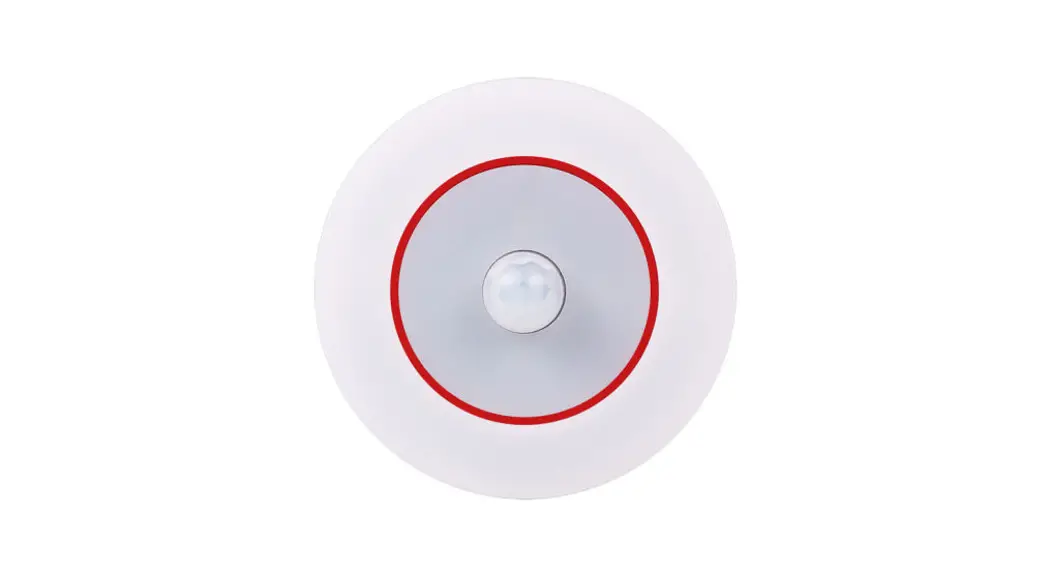
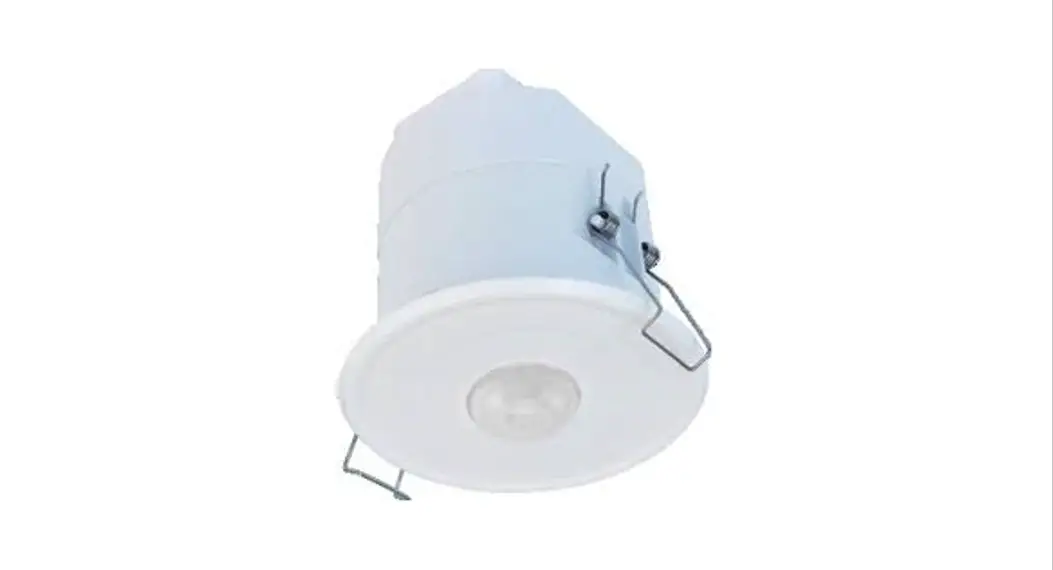
The Plug-in Bluetooth PIR Sensor with IR for HBC/LHB (SC008) is
a sensor designed for use with Litetronics high bay fixtures,
specifically the HBC and LHB Series. This sensor enables wireless
control of fixtures or groups of fixtures through the LiteSmart
mobile app. It offers complete control over your fixtures,
including occupancy sensing, daylight harvesting, dimming,
grouping, time schedule programming, and scene creation. The sensor
can be controlled remotely via Bluetooth and comes with default
settings for various parameters.
Sensor Default Settings:
- ON/OFF: On
- 1st Time Delay: 20 minutes
- 2nd Time Delay: 1 minute
- DIM LEVEL %: 50%
Sensor Coverage:
The Bluetooth switch allows control of fixtures from a remote
location.
LiteSmart App:
The LiteSmart mobile app is available for download on both IOS
and Android devices. It provides a detailed user guide for
controlling and configuring your fixtures.
Troubleshooting:
If you encounter issues with the LiteSmart app recognizing
sensors/fixtures, you can try resetting the lights. Resetting
lights will delete all configurations and restore factory default
settings. To avoid resetting lights, make sure to delete them from
a project on the mobile app while they are online.
Product Usage Instructions:
- Before installation, ensure that the power to the high bay
fixtures is turned off. - Unscrew and remove the sensor port plug on the high bay
fixture. - Plug the SC008 sensor into the port on the high bay
fixture. - Gently screw in the sensor to secure it in place.
- Restore power to the high bay fixtures.
Occupancy Sensing:
The SC008 sensor includes an occupancy sensor that monitors
motion in a space and makes automatic adjustments based on set
parameters. The following steps describe the behavior of the
fixture based on occupancy:
- When the space is occupied and regular motion is detected, the
fixtures will maintain the set parameters. - Once the space is empty and no motion is detected, the fixture
will maintain the current light level based on the 1st Time Delay
setting. - After the 1st Time Delay has elapsed, the fixture can either
power down completely or dim to a lower level based on the DIM
LEVEL % setting. - The dimmed light level specified under DIM LEVEL % will
continue for a set time based on the 2nd Time Delay setting, after
which the fixture will power off completely.
Daylight Sensor:
The SC008 sensor also includes a built-in photocell that detects
the level of ambient light in a space and adjusts the fixture
output accordingly, based on set parameters.
For more information on commissioning your fixtures using the
LiteSmart app, you can visit the Litetronics website or contact
customer service at 800-860-3392 or via email at
[email protected].
Please note that the information and product specifications
provided in these instructions are accurate at the time of printing
but are subject to change without notice. For the latest
instructions, please visit www.litetronics.com.
Plug-in Bluetooth PIR Sensor with IR for HBC/LHB (SC008) Installation Instructions
The SC008 is a plug-in PIR sensor intended for use on Litetronics high bay fixtures; HBC and LHB Series. This sensor enables wireless control of fixtures, or groups of fixtures, through the LiteSmart mobile app.
INSTALLATION
Installing the SC008 sensor onto the HBC or LHB series high bay is quick and simple.
First, shut off power Unscrew and remove
the sensor port plug
Plug sensor into port
on high bay and gently screw in to secure
Restore power
LiteSmart* offers complete control over your fixtures; includes occupancy sensing, daylight harvesting, dimming, grouping, time schedule programming and scene creation.
LiteSmart is available in the app store for download to either IOS or Android devices.
SENSOR COVERAGE
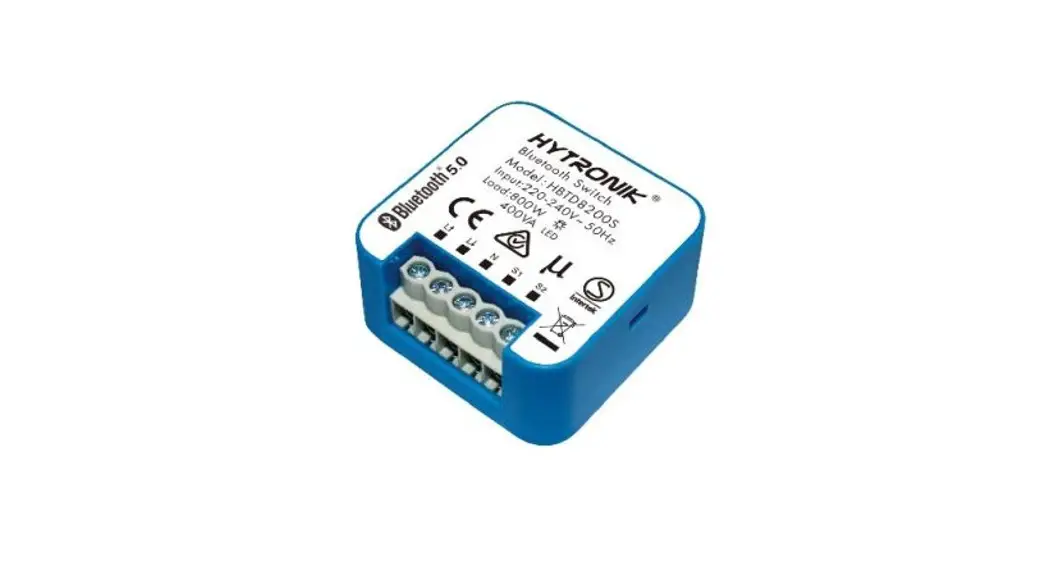
This bluetooth switch offers control of your fixture from a remote location.
Bluetooth Control Switch Available for purchase from Litetronics under part # BCS01.
* A detailed user guide for LiteSmart can be viewed or downloaded from Litetronics.com
SENSOR DEFAULT SETTINGS
ON/OFF 1ST TIME DELAY 2ND TIME DELAY
On
20 minutes
1 minute
DIM LEVEL % 50%
OPERATION
Warm-up time: After the sensor connects to input power for the first time, the light will display full power for 40 seconds, then revert to default settings. Setting adjustments: When settings are changed via mobile app, the fixture will flash ON/OFF to confirm.
OCCUPANCY SENSING
The occupancy sensor will monitor motion in a space and make automatic adjustments based on the set parameters.
When the space is occupied and regular motion
detected, the fixtures maintain set parameters.
Once space is empty and no motion is detected,
the fixture will maintain the current light level based on the 1ST TIME DELAY.
Once the 1ST TIME DELAY has elapsed, the fixture
can power down completely or dim to a lower level based on the DIM LEVEL %. The level specified under DIM LEVEL % time will continue for set time based on 2ND TIME DELAY setting, then will power off completely.
DAYLIGHT SENSOR
The built-in photocell will detect the level of ambient light in the space and adjust the fixture output based on set parameters.
LEARN MORE
To learn more about commissioning your fixtures via LiteSmart, visit Litetronics.com
The information and product specifications contained in these instructions are based upon data believed to be accurate at the time of printing. This information is subject to change without notice and without incurring liability. Please contact us at 800-860-3392 or via email at [email protected]. For the latest instructions, please visit www.litetronics.com.
1/19/23 – V1.3
TROUBLE SHOOTING
Reset Lights
If LiteSmart is having trouble recognizing sensors/fixtures, you can try the following reset procedure. Keep in mind…
Lights will become unresponsive and will not respond to discovery if they were added to a project with a
different QR Code or the QR Code used to configure them is no longer available
Resetting lights deletes all the configuration and restores factory default settings Avoid having to reset lights by deleting them from a project on the mobile app while they are online.
When lights are deleted using the app, they will be restored to factory settings and the configuration erased so they will be ready to add to a new project (My Zones).
Reset a sensor manually by powering on and off the light seven times in a specific pattern. See steps below:
Power OFF and wait for 10 seconds or more Power ON and then OFF immediately after the light turns on, and leave off for 10 seconds Power ON and then OFF immediately, and leave for 10 seconds Power ON and then OFF immediately, and leave off for 10 seconds Power ON and wait for 8 seconds, then power OFF and wait for 10 seconds Power ON and wait for 8 seconds, then power OFF and wait for 10 seconds Power ON and the light will blink 3 times to indicate it has been reset. Lights that have been successfully
reset will be restored to factory settings; all settins will be erased and they are open for discovery.
Sensor reset can be done from remote SCR054 sold separately.
1/19/23 – V1.3
 Commercial Lighting Company | LED Lighting Solutions
 Commercial Lighting Company | LED Lighting Solutions