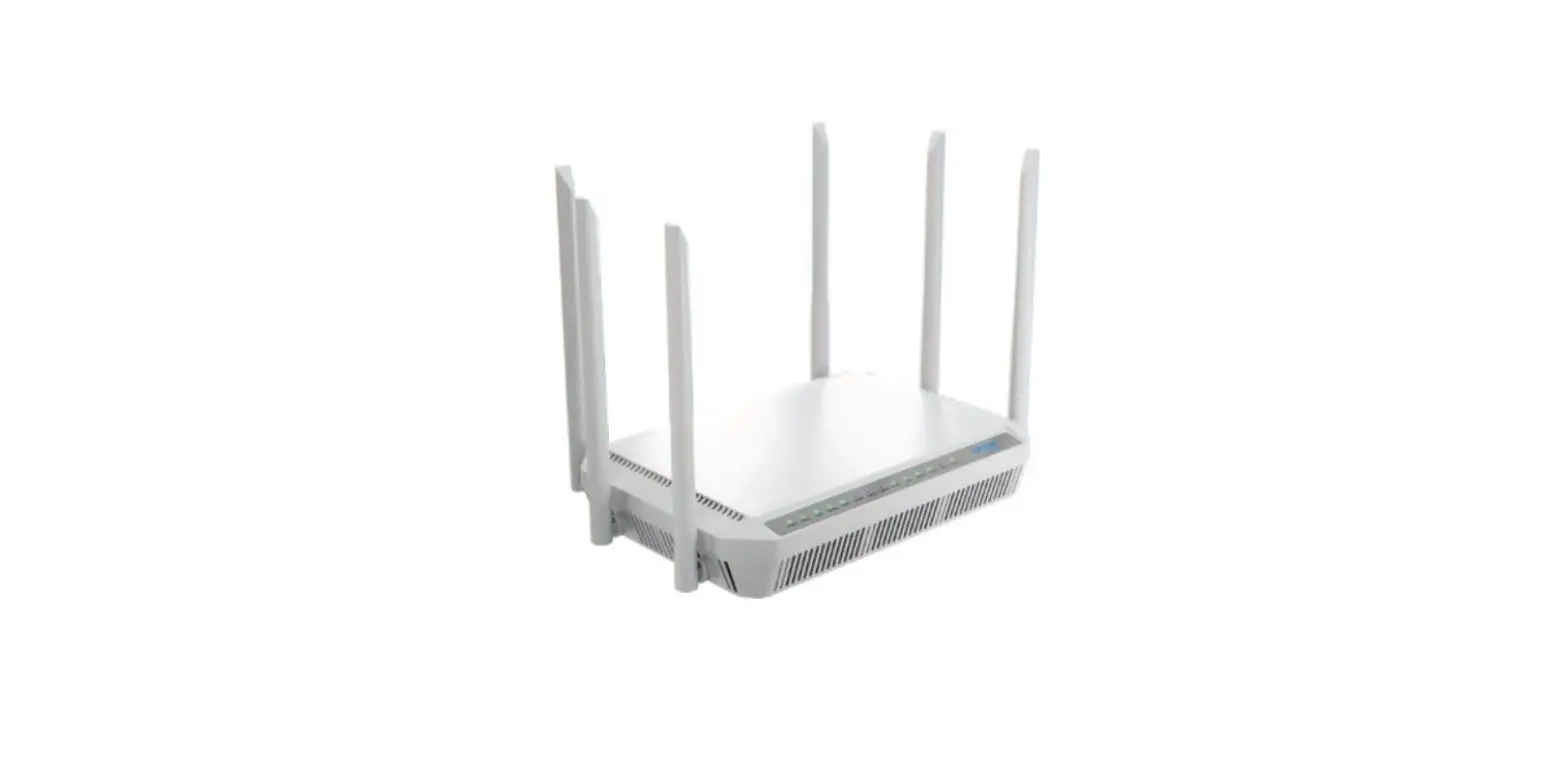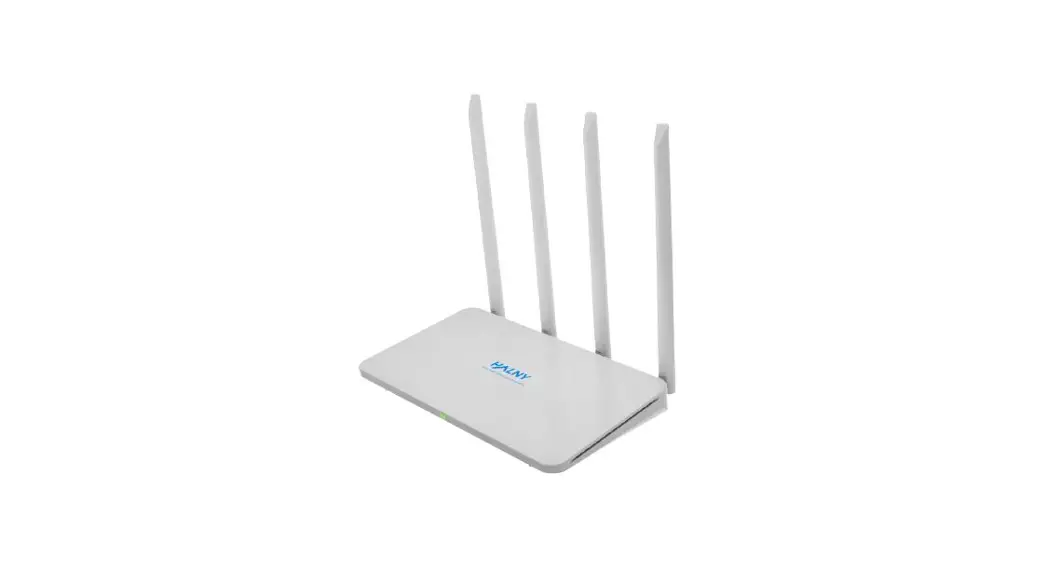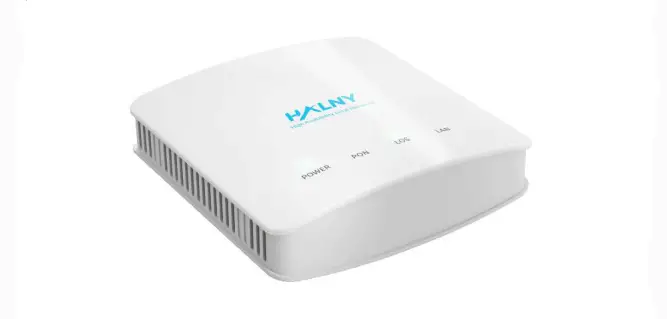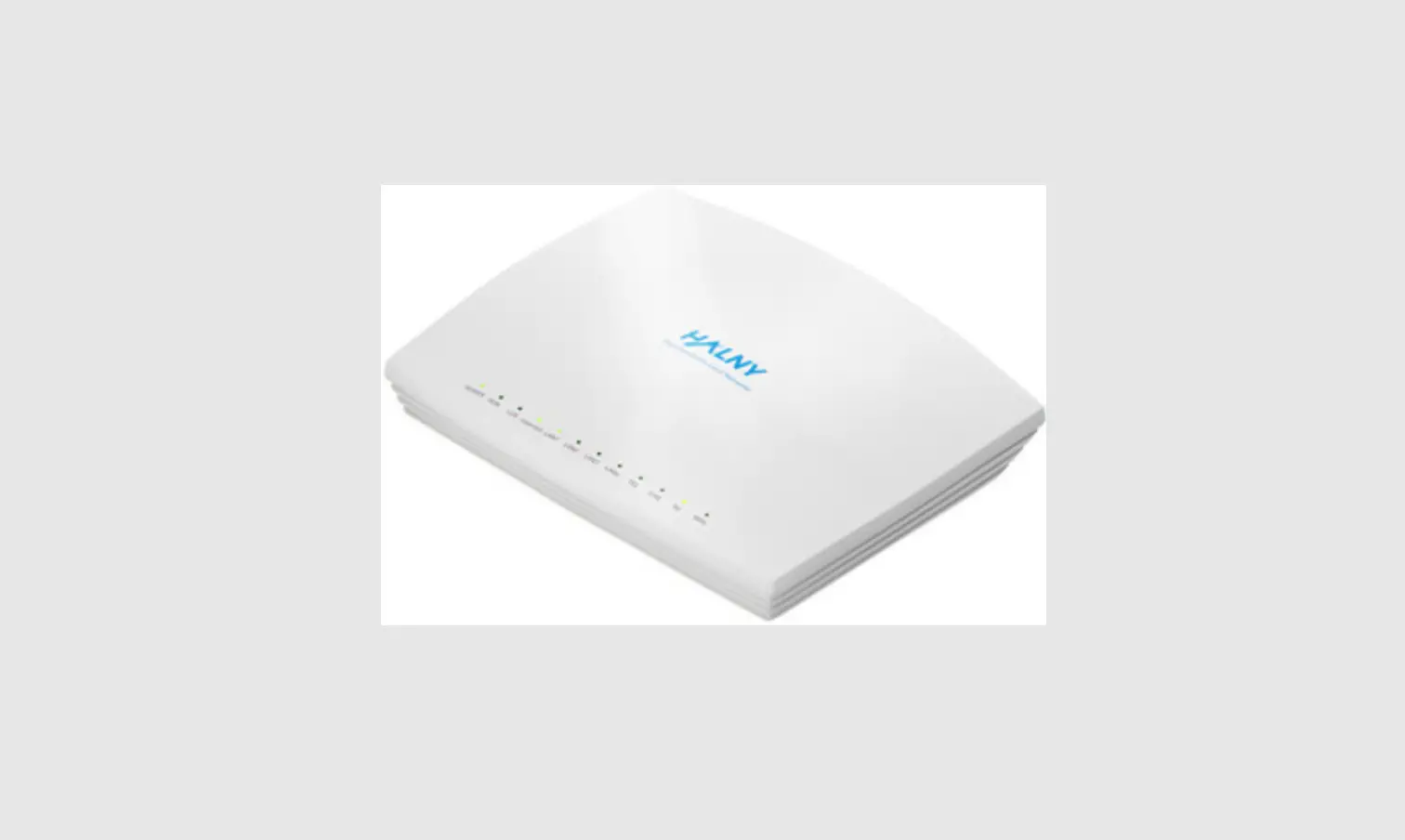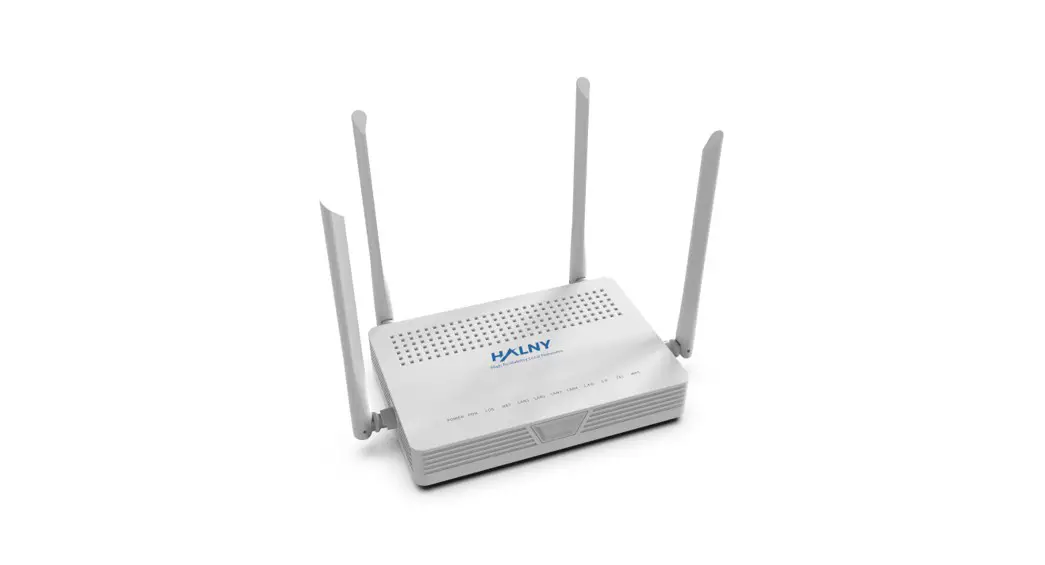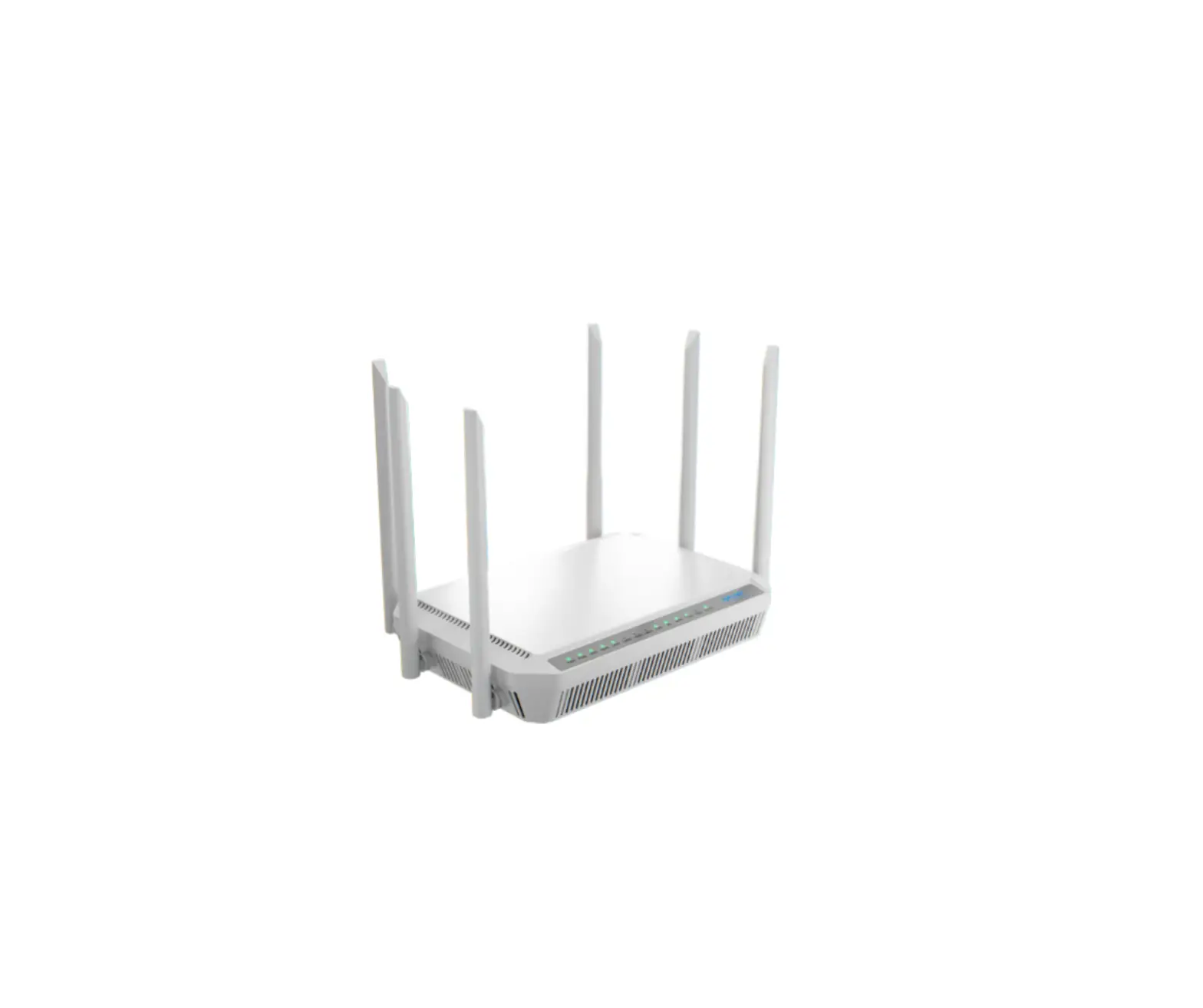
HALNY HL-4GQV Home Gateway
Safety Guidance
Safety Check
Before installing the device, you must check the following items.
Electric Safety
- Ensure that there are no inflammable, conductive or moist objects around. Check whether the cables are aged and whether other electrical appliances are placed stably,
- Check whether the alternating or direct input current is within the allowed range of the device, whether the polarity of the direct current is correct, and whether the earth line is properly connected.
Device Position
- Because the running electric device easily generates heat, please ensure to place the device in a well-ventilated environment,
- Avoid direct sunshine, and do not place the device on a PC case,
- Keep the device away from heat and water,
- Check whether power supply is available. The input voltage fluctuation range must be smaller than 10%. The power plug should not share one socket with a hair drier, an iron or a refrigerator.
Safety Caution
- Read the quick installation guide carefully before using the device,
- Note all Cautions in the quick installation guide,
- Do not use any accessory that does not belong to the device without prior consent of the manufacture, as it may cause fire or product damage,
- Use the power adapter accompanied in the package,
- Do not place any object on the device,
- Keep the device dry, ventilated, rainproof, and clean,
- During lightning weather, unplug the power plug and all connection cables, to protect the device against lightning,
- Clean the device using a soft and dry cloth rather than liquid or atomizers.
- Power off the device before cleansing it,
- Power off the idle device,
- Keep the ventilation hole clean and prevent any object from dropping into the device through it. Otherwise, it may cause short circuit and further cause device damage or fire. Do not spray liquid on the surface of the device,
- Do not open the case of the device, especially during device power-on,
- Before plugging or unplugging the power, ensure that the power is off, thus avoiding surge,
- Be careful when unplugging the power, as the transformer may be very hot,
- Cover the optical interface with fiber interface cap when it is not in use. Avoid direct eye exposure to the laser emitted from the optical interface. Wear safety glasses if possible, to protect your eyes.
 Caution:
Please read the above safety guidance carefully before device use.
Users should assume responsibilities for any accidents due to incompliance with the above instructions.
Overview
This chapter mainly describes functions and the structure of the HALNy HL-4GQV.
Features and Function
- Fast rate. Support up to 1.25Gbps uplink and 2.5Gbps downlink data transmission rates,
- Strong maintainability. Provide various statuses of LED indicators, to help troubleshooting,
- Long transmission distance, up to 20 km.
Front, rear and side Panel
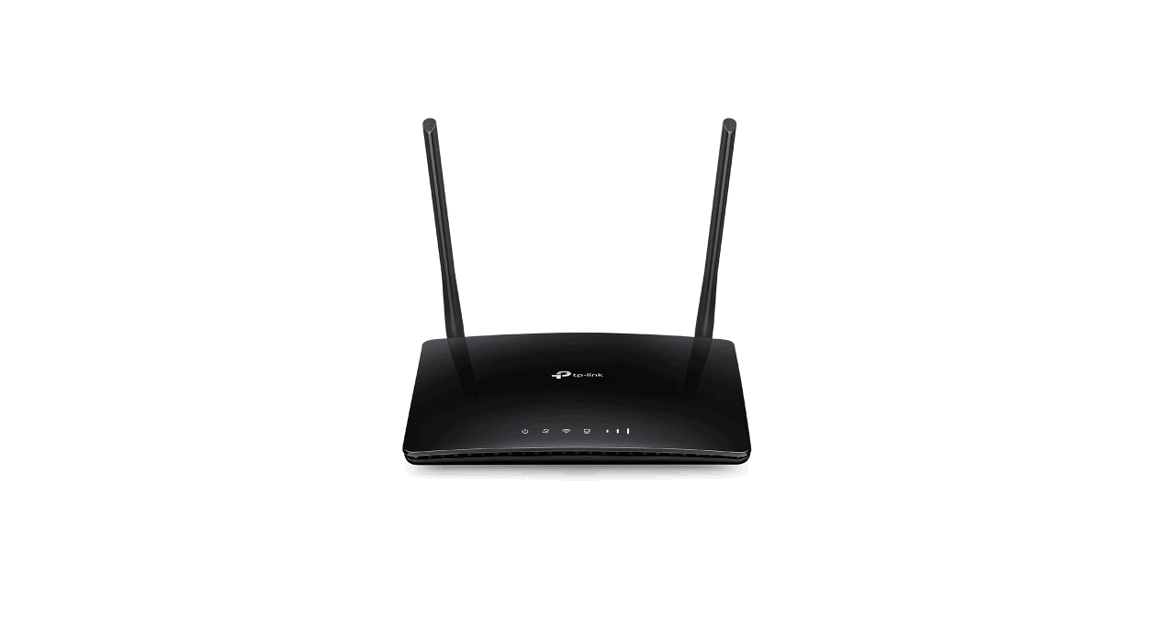
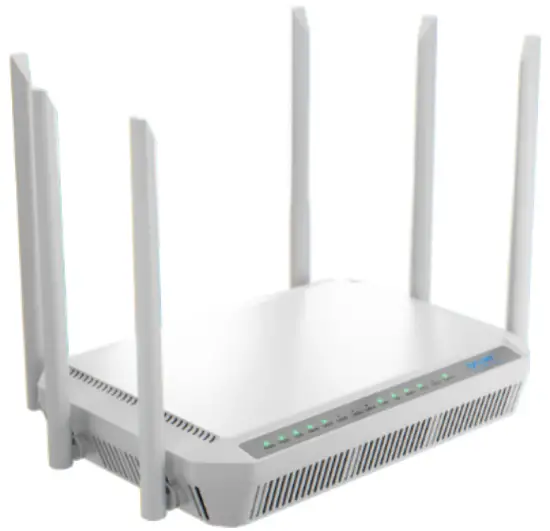
The description of the front, rear and side panel of the GPON ONU as follows.
Front Panel

Table 1. ONU LED Indication Table
| LED | Color | Status | Description |
| PWR | Green | On | The power works normally. |
| Off | Powered off or the power supply is abnormal. | ||
| PON | Green | Refer to Table 2: “PON LED Status Instruction” | |
| LOS | Red | Refer to Table 2: “PON LED Status Instruction” | |
| WAN | Green | On | Got WAN IP Address Successfully |
| Blink | Data is being transmitted | ||
| Off | Device in bridged mode or no IP | ||
| LAN1-4 | Green | On | The connection of Ethernet interface is normal. |
| Blink | Data is being transmitted through the Ethernet interface. | ||
| Off | The connection of the Ethernet interface fails to establish. | ||
| 2.4G | Green | On | The connection of Ethernet interface is normal. |
| Blink | Data is being transmitted through the Ethernet interface. | ||
| Off | The connection of the Ethernet interface fails to establish. | ||
| 5G | Green | On | The connection of Ethernet interface is normal. |
| Blink | Data is being transmitted through the Ethernet interface. | ||
| Off | The connection of the Ethernet interface fails to establish. | ||
| TEL1-2 | Green | On | Voip account is registered |
| Blink | Phone call | ||
| Off | Port deactivated or Voip account is unregistered | ||
| WPS | Green | On | Pairing ok |
| Blink | In pairing | ||
| Off | Not activated/not triggered | ||
Table 2.PON LED Status Instruction
| PON LED Status Instruction | ||
| PON | LOS | Description |
| Off | Off | The ONT is disabled by the OLT |
| Flash | Off | The ONT is registering to the OLT |
| On | Off | The ONT has already registered to OLT |
| Off | Flash | The fiber is not connected properly |
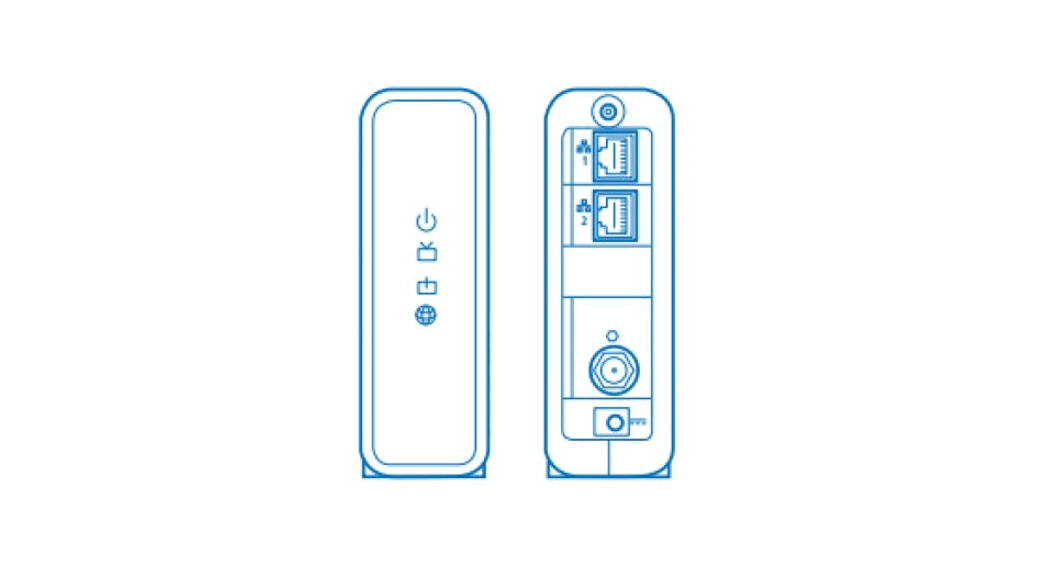
Rear Panel
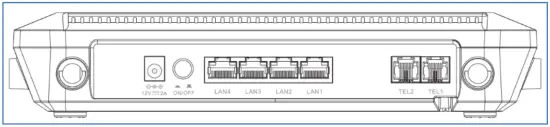
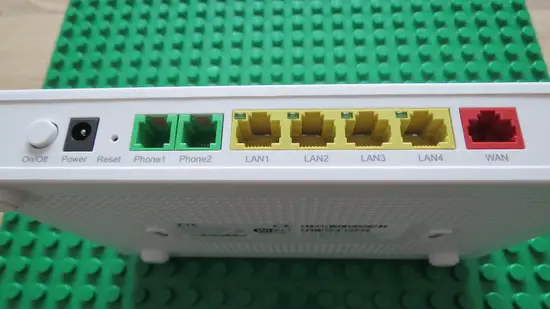
Fig 2. Rear Panel
ONU Rear Panel Description
| Interface / Button | Function |
| LAN1-4 | Ethernet interface, for connecting to a computer or an Ethernet interface of a switch. |
| Power | Connect power cable |
Table 3. Rear Panel port description
| Interface / Button | Function |
| ON/OFF | Turn on/off the power supply. |
| TEL1-2 | RJ-11 Telephone Port |
Side Panel
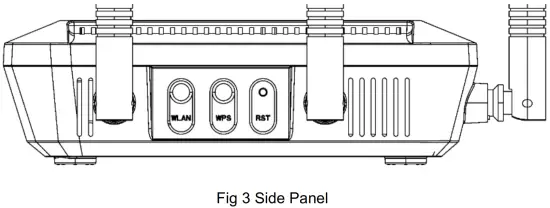
ONT Bottom Panel Description
| Button | Function |
| WLAN | Press and hold for 5 seconds to disable/enable Wi-Fi |
| WPS | Press and hold for 5 seconds to activate WPS pairing |
| RST | Press and hold for 5 seconds to Reset configuration to the factory default settings. |
ONU Installation
The chapter describes the required installation operations before you use the device for the first time.
Product Networking Application – FTTH
Fiber to the Home (FTTH) means to install the ONU to residences or enterprise buildings. The optical line terminal (OLT) is placed in the central equipment room. The ONU can be placed in the home of a user, or it can provide connection for the user through the Ethernet interface, according to the user requirement. The OLT connects to the ONU with an optical distributor in the point-to-multipoint way. See the following figure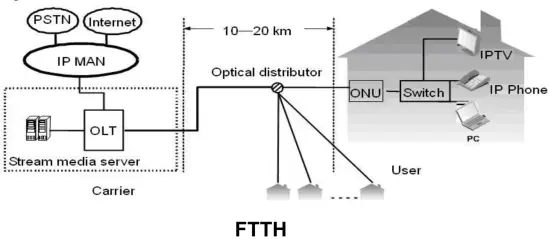
Note
The ONU applies to installation at home or in the corridor. Because installation and cabling in the corridor are relatively complex, let the professional engineers deploy according to the actual situation. This manual describes the procedure for installing the device at home, and is for reference only.
Installation Preparations
The Ethernet interface of your computer connects to the Ethernet interface of the ONU. Before installing it, ensure that an Ethernet adapter is already installed in your computer.
Connecting ONU
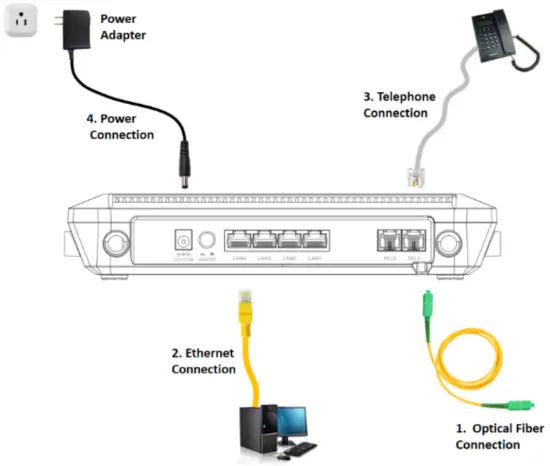
Connecting the Network Cable
Step 1 Use the one end of the network cable to connect the Ethernet interface of the computer.
Step 2 Use other end of a network cable to connect the Ethernet interface on the rear panel of the HALNy HL-4GQV.
Connecting the Fiber
Caution:
- When a fiber is not in use, ensure to cover the optical interface of the ONU and the dust cap of the optical fiber. Prevent grease, dust pollution or water immersion, which may lead to unavailable fiber and optical interface of the device.
- If fibers need to be fixed or bended during cabling, do not fasten the fibers too tight. Avoid fiber extrusion, which may lead to increase of fiber material or unavailable fiber.
Connecting the Power Adapter and Power Cord
- Connect the output end of the power adapter included in the device package to the input end of the power supply of the ONU ,
- Insert one end of the power cord attached with the device into the input end of the power adapter. Insert the other end of the power cord into the power socket,
- Check whether the Power indicator is on. If it is on, the power supply is normal. Otherwise, check whether the power cord and the power adapter are correctly connected.
Troubleshooting
| Symptom | Solution |
| The POWER indicator is not on |
|
| The PON indicator is not on |
|
| The LOS indicator is not on |
|
| The LAN indicators are not on |
|
Technical Specification
| Main Technical Specifications | ||
| Standard | GPON Standard | ITU-T G.984, TR156/TR255 |
| Rate | Uplink | 1.25Gbps |
| Downlink | 2.5Gbps | |
| Interface | Optical interface | Single Mode |
| 4 LAN ports | RJ-45 10/100/1000Mbps MDI/MDIX Self adaption | |
| 2 POTS ports | RJ-11 FXS | |
| WiFi 2.4Ghz WiFi 5Ghz | 802.11n (2T2R MIMO) 300Mbps 802.11ac (4T4R MIMO) 1733Mbps | |
| Physical Characteristics and Environment Requirements | ||
| Power adapter input | 100V~240V AC,50Hz~60Hz | |
| Whole-device power supply | 12V DC,2A | |
| Standard power consumption | <20W | |
| Operating temperature | 0˚C~45˚C | |
| Operating humidity | 10%~95% (non-condensing) | |
| Dimension | L x W x H:280mm x 195mm x 45mm | |
| Weight | <500g | |
Appendix A Acronyms and Abbreviations
| GPON | Gigabit Passive Optical Network |
| FTTB | Fiber to the Building |
| FTTH | Fiber to the Home |
| OLT | Optical Line Terminal |
| ONU | Optical Network Unit |
| PON | Passive Optical Network |
Additional information
Declaration of Conformity (CE)
This device has been tested and found to comply with the stated standards which are required by the Council Directive of 2014/30/EU. The device complies with this CE Declaration when the installation is done in accordance with the instruction and documentation. The importer don’t take responsibility for any issues caused by improper use of the device.
The full document is on below web page and it is available in importer:
CE / warranty terms and conditions:
www.halny.com
Importer:
FIBRAIN Sp. z o.o
36-062 Zaczernie 190F (POLAND)
[email protected]
Information furnished by HALNy Networks is believed to be accurate and reliable. However, no responsibility is assumed by importer for its use, nor for any infringements of patents or other rights of third parties which may result from its use. No license is granted by implication or otherwise under any patent or patent rights of the manufacturer. Manufacturer reserves the rights to change specifications at any time without notice.
FCC Statement
This equipment has been tested and found to comply with the limits for a Class B digital device, pursuant to part 15 of the FCC rules. These limits are designed to provide reasonable protection against harmful interference in a residential installation. This equipment generates, uses and can radiate radio frequency energy and, if not installed and used in accordance with the instructions, may cause harmful interference to radio communications. However, there is no guarantee that interference will not occur in a particular installation. If this equipment does cause harmful interference to radio or television reception, which can be determined by turning the equipment off and on, the user is encouraged to try to correct the interference by one or more of the following measures:
- Reorient or relocate the receiving antenna.
- Increase the separation between the equipment and receiver.
- Connect the equipment into an outlet on a circuit different from that to which the receiver is connected.
- Consult the dealer or an experienced radio/TV technician for help.
To assure continued compliance, any changes or modifications not expressly approved by the party. Responsible for compliance could void the user’s authority to operate this equipment. (Example- use only shielded interface cables when connecting to computer or peripheral devices
This equipment complies with Part 15 of the FCC Rules. Operation is subject to the following two conditions:
(1) This device may not cause harmful interference, and
(2) This device must accept any interference received, including interference that may cause undesired operation.
FCC Radiation Exposure Statement:
The equipment complies with FCC Radiation exposure limits set forth for uncontrolled enviroment. This equipment should be installed and operated with minimum distance 20cm between the radiator and your body
Recycling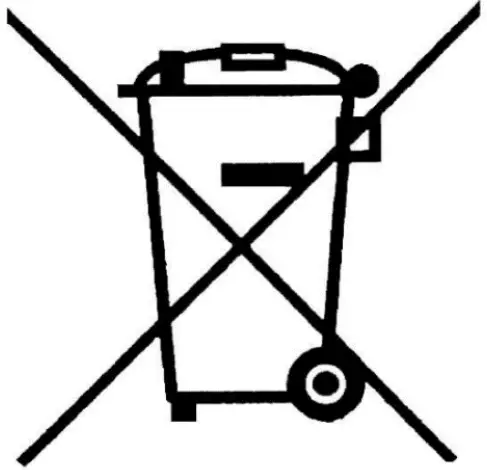 This product bears the selective sorting symbol for Waste electrical and electronic equipment (WEEE). This means that this product must be handled according to European directive 2012/19/EU in order to be recycled or dismantled. This will minimize the negative effects on the environment and human health resulting from the possibility of the presence in the equipment substances, mixtures and hazardous components. A user can give the product to a competent recycling organization, to WEEE collection points or to a distributor (in accordance with local regulations).
Operation of 5150-5250 MHz is restricted to indoor use only.

 HALNy NETWORKS