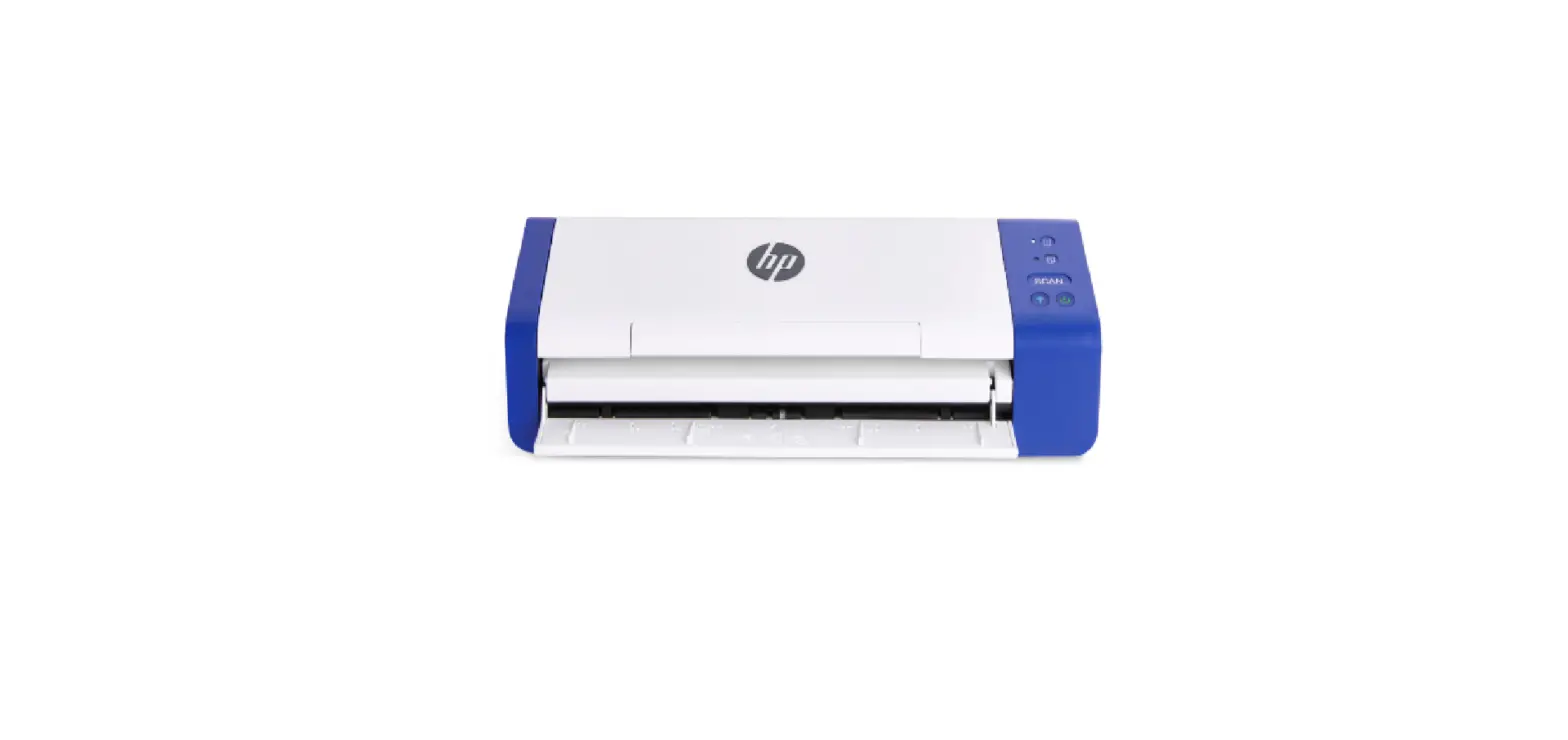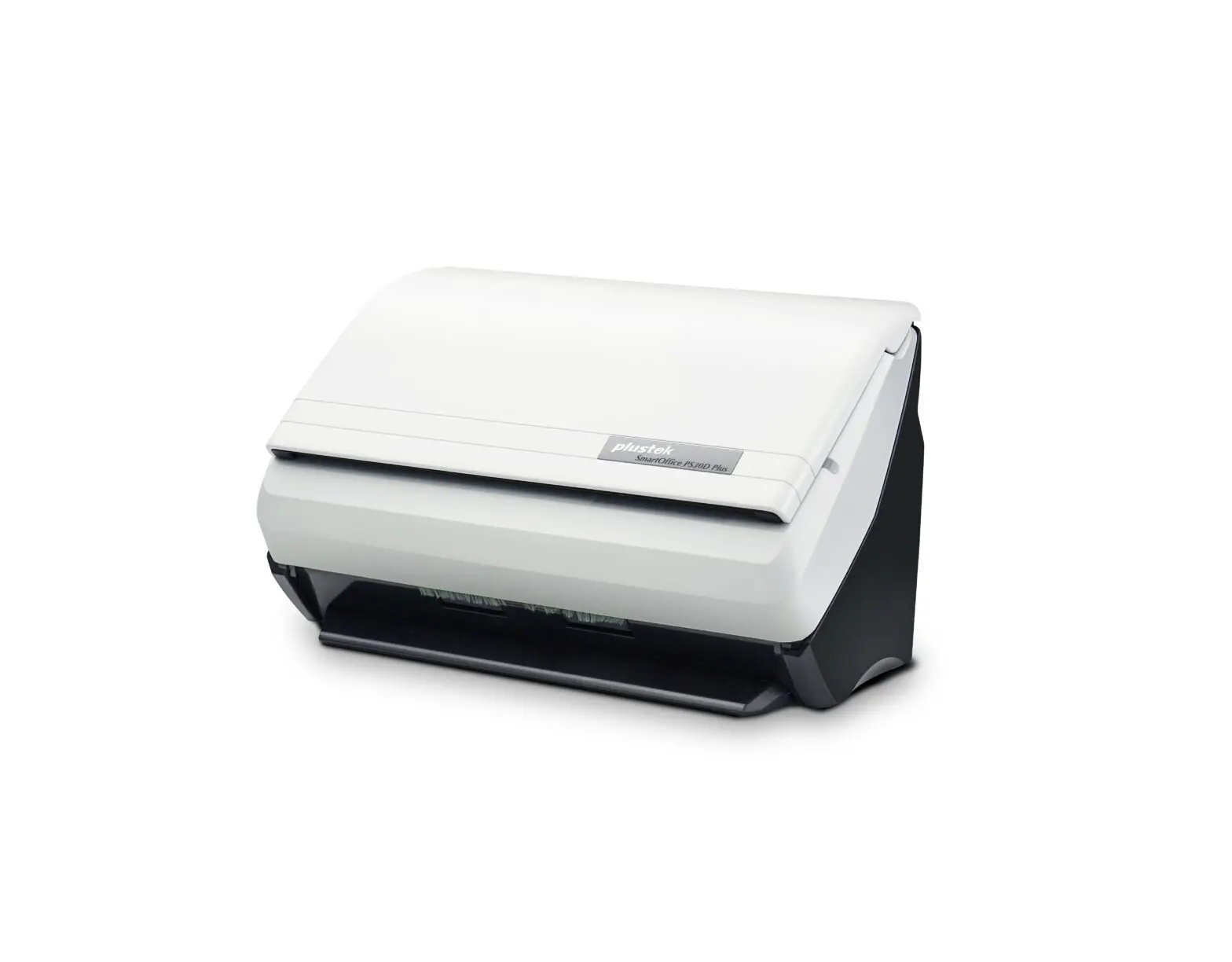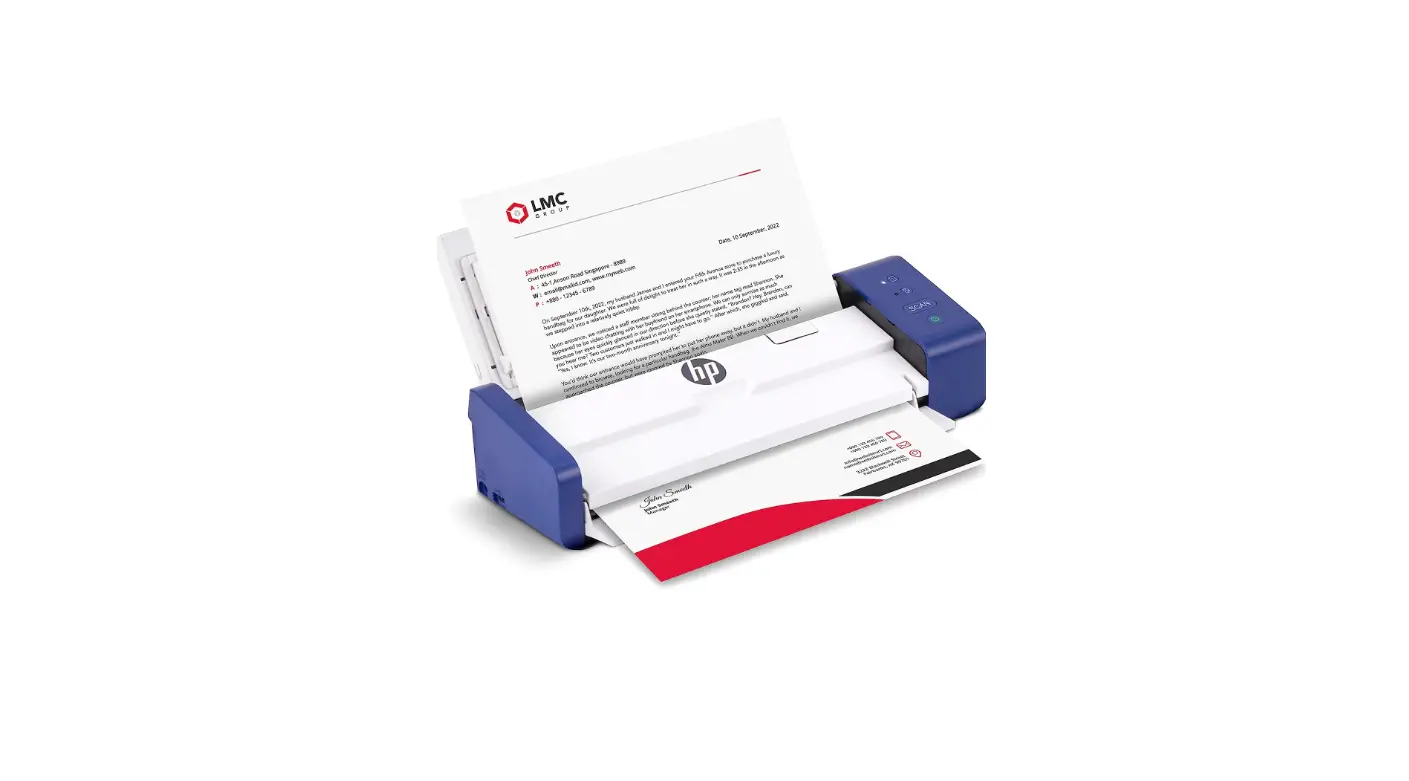
 HPPS200 Portable Desktop Scanner
 HPPS200 Portable Desktop Scanner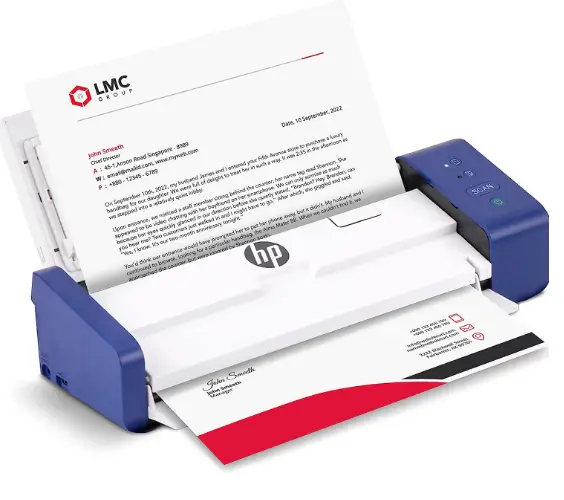
Product Information
- Product Name: HP Portable Desktop Scanner
- Model: PS200
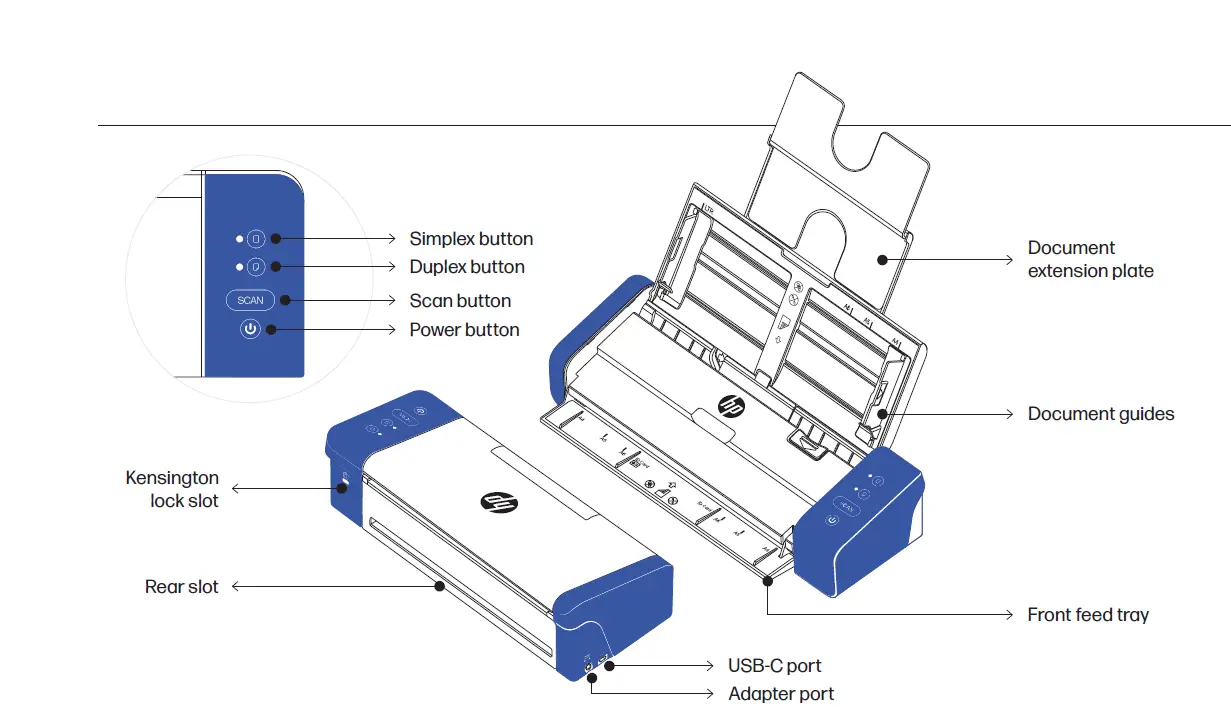
- Product Overview: The HP Portable Desktop Scanner is a compact and portable scanner designed for scanning single and multipage documents. It features a front feed tray, rear slot, and document extension plate for versatile scanning options. The scanner is powered by the HP WorkScan software, which can be downloaded from hpworksolutions.com/setup.
- Function & LED Guide:
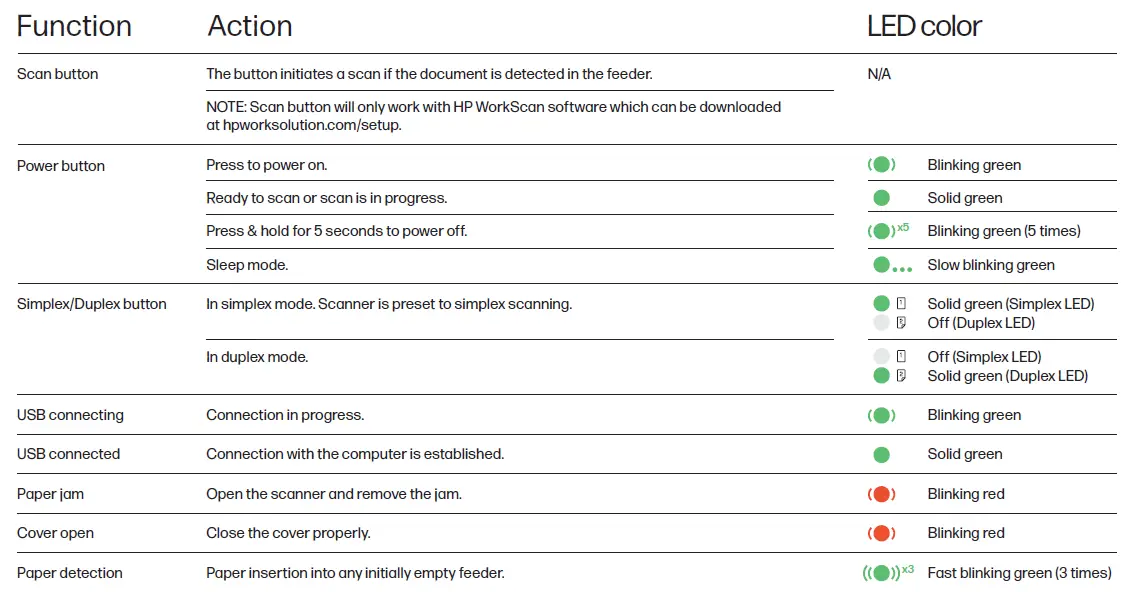
- Scan button: Initiates a scan if a document is detected in the feeder. This button only works with the HP WorkScan software.
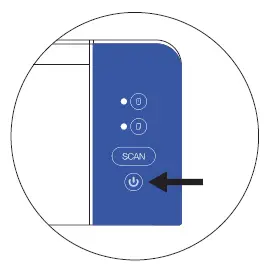
- Power button: Turns the scanner on or off.
- Simplex/Duplex button: Allows selection between single-sided (simplex) or double-sided (duplex) scanning.
- Safety Precautions:
- Keep the included calibration sheet away from dust and debris.
- Ensure documents are free of staples, paper clips, or other debris that may cause scanning issues.
- Avoid scanning wrinkled materials, cloth, newspapers, or magazines.
- Clean the scanner after every 200 scans or if vertical lines or stripes appear on scanned images.
- Turn off and unplug the scanner when not in use for long periods of time.
- Use only the provided power cord and power adapter.
- Do not use the scanner if any parts are missing or damaged.
- Do not attempt to disassemble or repair the scanner yourself.
- Avoid using solvents or corrosive liquids to clean any part of the scanner.
- Keep the scanner away from direct sunlight and humid, dusty environments.
- Always place the scanner on a flat, level surface.
- Power Input: 24 V, 1.5 A
Product Usage Instructions
- Setting up the scanner:
- Remove the protective tape from the scanner and inside the feeder.
- Connect the scanner to a power outlet using the AC adapter.
- Connect the scanner to your computer using the USB cable.
- Install the HP WorkScan software from hpworksolutions.com/setup and follow the setup steps.
- Operating the scanner:
- Make sure the scanner is turned on.
- Center your document with the paper size marks on the scanner.
- Insert your document into the scanner using the front feed tray, rear slot, or document extension plate. Ensure that the document is facing down.
- Activate the scan from the software or press the scan button on the scanner to start the scan. Before scanning, you can select single-sided (simplex) or double-sided (duplex) scanning using the simplex/duplex button.
Product overview
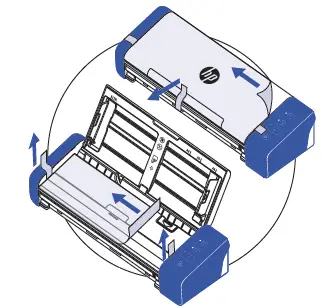
Setting up the scanner
- Remove protective tape from the scanner and inside the feeder.

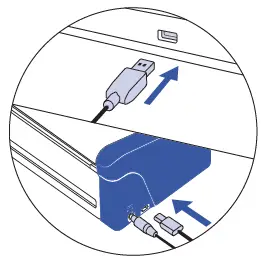
- Connect the scanner to a power outlet using the AC adapter. Then, connect the scanner to your computer using the USB cable.
 Turn on the scanner with the power button.
- Install the HP WorkScan software at hpworksolutions.com/setup and follow the steps to start using your scanner.

 Turn on the scanner with the power button.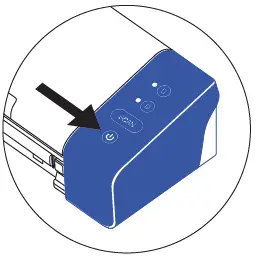
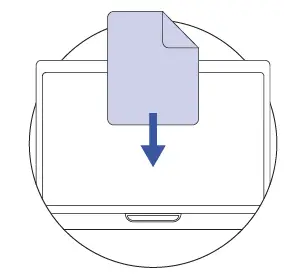
Operating the scanner
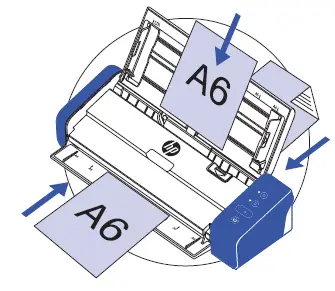
NOTE: Multipage documents can be scanned through the top of the scanner using the document extension plate. However, the front feed tray and rear slot are for single documents only.
- Make sure that the scanner is turned on.

- Insert your document into the scanner using the front feed tray, rear slot, or document extension plate. Make sure your document is facing down when using any of these methods to scan.
NOTE: Use only one scanning method at a time.
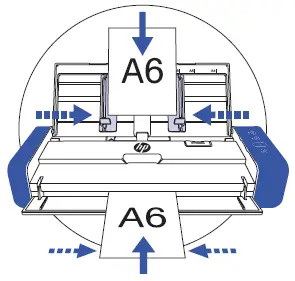
- Center your document with the paper size marks on the scanner.
NOTE: Documents must be inserted into the center of the feeder when using the front feed tray. Improper insertion will cause the scanner to not recognize the document.
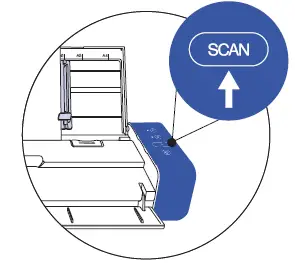
- Activate the scan from the software or press the scan button on the scanner to start the scan.
NOTE: Press the simplex or duplex button for single- or double-sided scanning before activating the scan. Keep in mind selecting the scan method in the software can override what is selected on the scanner. The scan button only works with the HP WorkScan software.
Pro tips
- Keep the included calibration sheet away from dust and debris.
- Make sure your documents are free of staples, paper clips, or other debris that may cause scan to malfunction.
- Do not push your document into the scanner during operation.
- Avoid scanning certain materials. (Ex. wrinkled material, cloth, newspapers, or magazines.)
- Clean the scanner after 200 scans or if vertical lines or stripes appear on the scanned images.
Safety precautions
- Please turn off and unplug the scanner when not in use for long periods of time.
- Use only with the power cord and power adapter supplied with the product.
*Power rating: 24Vdc, 1.5 A - Do not use scanner if any parts are missing or damaged.
- Do not attempt to disassemble or repair the scanner yourself.
- Do not use any solvents or corrosive liquid to clean any part of the scanner. Keep scanner out of direct sunlight and humid, dusty environments.
- Always place the scanner on a flat, level surface.
- The power input for this scanner is 24 V, 1.5 A. Use only with the power cord and power adapter supplied with the product.
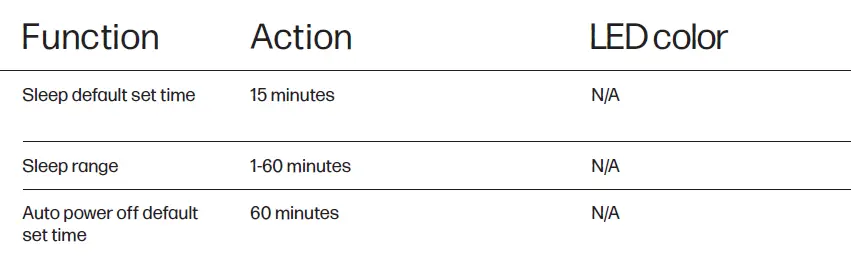
Function & LED guide
Need help?
Get in touch by live chat
at www.hpworksolutions.com, emailing us at [email protected], or calling 1-877-424-9746.
To watch a quick instructional video, view the manual with complete instructions, or learn more about your HP Portable Desktop Scanner, please visit
www.hpworksolutions.com/setup or scan the QR code:
 hpworksolution.com/setup
 Setup – HP WorkSolutions
 HP WorkSolutions