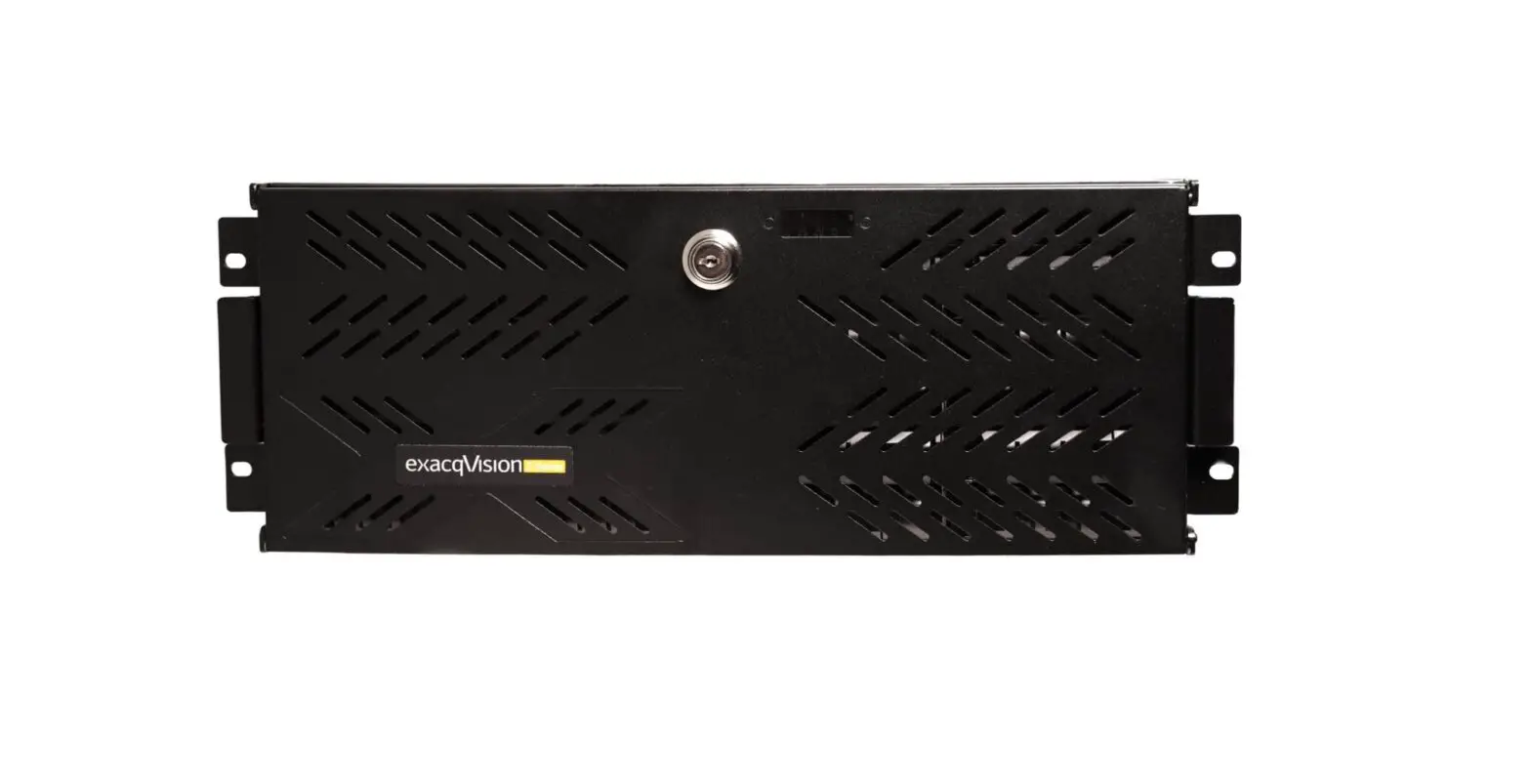
IP04-02T-Q exacqVision Q-Series 24-Channel NVR 4 IP Camera Licenses
exacqVision Q-Series Enterprise H410 Quick Start Guide
Introduction
The exacqVision Q-Series is a network video recorder (NVR) that
can connect to both IP and analog cameras. The server comes
pre-installed with the exacqVision video management software and
can support up to 24 IP cameras and 16 analog cameras. It is not
possible to replace analog cameras with IP cameras.
Installation Requirements
Mounting and Operating Environment Requirements
Ensure that the server is mounted and operated in a suitable
environment. Ensure that the grounding wire is connected and
labeled near the power connector.
Electrical Requirements
The server should be operated in an environment with stable
electrical power. Use a surge protector to protect the server from
power surges.
Network Connection Requirements
The server should be connected to a VLAN network that reduces
the chances of network traffic conflicts and unauthorized access to
the cameras.
Initial Startup
To start the exacqVision server for the first time, create user
account credentials for the operating system and the Enterprise
Manager. Follow the steps below:
- Turn on the exacqVision server.
- Create a user name and password for the operating system when
the logon dialog box appears. Configure operating system settings
as required. - If prompted, log on again to the operating system with the user
name and password you just created. - Create an exacqVision admin user name and password when you log
on. These are not the same as the credentials you created to log on
to the operating system. Use these credentials to log on to the
exacqVision Server.
Setting up Remote Access to the Server
To configure the server through a remote exacqVision client,
follow the steps below:
- Download the latest exacqVision Client software from the Exacq
website: https://www.exacq.com/support/downloads.php - Install the client software on a system administrator
computer. - Confirm the connectivity with the server using the ping command
and the server’s IP address. If the client PC cannot communicate
with the server, contact your network administrator.
Remote Access for Administrative Support
To allow administrative support to access the server remotely,
configure remote desktop for Windows or SSH for Linux, depending on
the computer operating system. Refer to the Exacq Knowledge Base
articles for more information.
Configuring the Server
To configure the server, follow the steps below:
- Turn on the server.
- Open the exacqVision client application.
- Select System Setup from the navigation tree, and select the
Network tab. - Choose one of the following options:
- To install the server on a network that uses static IP
addressing, select Static and enter the IP address. - To install the server on a network using DHCP (dynamic host
configuration protocol), select Dynamic. If the information does
not configure automatically, contact your network
administrator.
- To install the server on a network that uses static IP
- Click Apply.
- Repeat this procedure for any additional network ports. For
more information about configuring the server, refer to the
exacqVision Start User Manual.
Configuring the Client
To configure the client, follow the steps below:
- Start the exacqVision client application.
- Click the Config (Setup) page icon.
exacqVision Q-Series Enterprise H410 Quick Start Guide
Introduction
The Q-Series is part of the exacqVision series of network video recorders (NVR). The server is pre-installed with the exacqVision video management software, and can connect to both IP and analog cameras. You can connect the server to up to 24 IP cameras and 16 analog cameras.
Note: You cannot replace analog cameras with IP cameras.
Installation requirements
Before turning on the exacqVision Q-Series server, ensure that you adhere to the following requirements:
Mounting and operating environment requirements
· Mount the exacqVision server in a dust-free and climate controlled location where the temperature is between 40°F to 95°F (4.5°C to 35°C), and the humidity level is less than 80% non-condensing. Note: Dust can cause components of the server to overheat, and elevated temperatures can contribute to premature hard drive failures.
· If the hard drives dispatch separately to the system, insert each drive into the appropriate hard drive slot, if they are numbered. · You can place a surge suppressor between the camera and the recorder of all outdoor cameras. · The server must connect permanently to the ground wire. Ensure this connection is made by a skilled individual. Use an 18 AWG wire or
larger to make the connection, and label the grounding screw near the power connector with the following image. Figure 1: Grounding wire
Electrical requirements
· Do not replace NVR batteries. There is a risk of explosion if the battery is replaced with an incorrect battery. · Do not use this NVR in locations where children are likely to be present. · Only a skilled person must install the socket-outlet protective earthing connection. Use a green-yellow wire minimum 18 AWG. Figure 2: Socket-outlet protective earthing connection
Electrical environment requirements
· For maximum reliability, connect the exacqVision server to an online UPS (uninterrupted power supply). An online UPS filters power surges and dips that can damage the server.
· Connect a mouse and keyboard to the server. · Connect the exacqVision server network interface cards (NIC) to the appropriate network switch ports. · Ensure that only a skilled person replaces the battery. 500-00113 Rev A 2022-07-01
· Use cables with a ferrite core to connect to monitors. If the cables do not have a ferrite core, the unit still performs as expected but may not meet CE safety regulation standards.
Network connection requirements
· If the video surveillance system does not have a physically isolated network, connect all IP cameras and one server NIC to a dedicated camera VLAN (virtual LAN).
· Install the camera manufacturer’s software on a PC in this subnet, or configure the router to connect a client computer with the camera subnet. For information on how to configure the network, see Configuring the server.
This VLAN configuration reduces the chances of network traffic conflicts and unauthorized access to the cameras.
Initial startup
When you start the exacqVision server for the first time, create a user name and password for the operating system, then create a root user name and password for the Enterprise Manager. 1. Turn on the exacqVision server. 2. Create a user name and password for the operating system when the log on dialog box appears. Configure operating system settings as
required. 3. If prompted, log on again to the operating system with the user name and password you just created. 4. When you log on, an exacqVision dialog box appears on the desktop. Create the exacqVision admin user name and password.
Note: These are not the same as the credentials you created to log on to the operating system. Use these credentials to log on to the exacqVision Server.
Setting up remote access to the server
Configure the server through a remote exacqVision client. 1. Download the latest exacqVision Client software from the Exacq website at: https://www.exacq.com/support/downloads.php 2. Install the client software on a system administrator computer. 3. Confirm the connectivity with the server using the ping command and the server’s IP address. If the client PC can not communicate with the server, contact your network administrator.
Remote access for administrative support
For administrative support to access to the server remotely, configure remote desktop for Windows, or SSH for Linux depending on the computer operating system. For more information, refer to the following Exacq Knowledge Base articles:
· Using remote desktop to manage Windows-based exacqVision servers: https://support.exacq.com/#/knowledge-base/article/579 · Enabling/Disabling SSH on exacqVision Linux Server: https://www.exacq.com/kb/?kbid=6186
Configuring the server
1. Turn on the server. 2. Open the exacqVision client application. 3. From the navigation tree, select System Setup, and select the Network tab. 4. Choose one of the following options:
– To install the server on a network that uses static IP addressing, select Static and enter the IP address. – To install the server on a network using DHCP (dynamic host configuration protocol), select Dynamic. If the information does not
configure automatically, contact your network administrator. 5. Click Apply. 6. Repeat this procedure for any additional network ports. For more information about configuring the server, refer to the exacqVision Start
User Manual.
Configuring the client
1. Start the exacqVision client application. 2. Click the Config (Setup) page icon.
2
exacqVision Q-Series Enterprise H410 Quick Start Guide
3. From the navigation tree, select Add Systems. 4. In the System List select the server. 5. In the System Information area, type the exacqVision user name and password that you created during initial start up. 6. Select the Connection Speed.
Choose from the following options, Remote, WAN, LAN or Local. 7. Verify that the server appears in the Systems list with a status showing Connected.
Note: If the server does not connect to the client, check for antivirus software on the remote client machine that may block the communication between the server IP addresses and ports. 8. Click Apply.
Connecting the cameras
1. Connect the analog cameras, PTZ serial cables, or alarm I/O. For more information, see Connections.
Note: Connections vary by model. 2. Using the camera manufacturer’s software, configure the IP address for all the cameras, and record this information for future reference.
Note: Do not change the user name and password until after you establish connectivity with the exacqVision server.
For additional information, see the camera manufacturer’s website or the exacqVision IP Camera Quick Start Guide at http://
www.exacq.com/downloads/ev-ip-quickstart-0311.pdf. You can also find the Quick Start Guide in the Quickstarts directory on the CD that
Exacq dispatches with your system.
3. To determine the compatibility of a particular camera model and firmware combination with exacqVision servers, use the following link: http://www.exacq.com/support/ipcams.php
4. Test the connectivity between the camera and the server by completing the following steps:
a.
Log off from the operating system user account.
b.
Type the camera’s IP address into the address bar on your Internet browser.
c.
Press Enter. If the browser does not display an introductory or log on window, the camera is not establishing a connection with
the server. Check the exacqVision User Manual, and www.exacq.com/kb for a solution if the problem persists.
5. Repeat this process for all other camera connections.
Connections
For information on the exacqVision Q-Series server’s Hybrid and IP back panel, see the following figure and table.
Figure 3: Q-Series Hybrid only system back panel
Callout A B
C D
E
Name Power Video out
10/100/1000 Ethernet USB 3.0/3.1
Audio in/out
No. of ports 1 3
2 4
3-5
Description 100-240VAC 50/60Hz. Power port (A1) and power switch (A2). VGA (B1), Display port (B2), and HDMI (B3). Use a maximum of three video outputs simultaneously. Dual onboard NICs, 2.5Gbps (blue) and 1Gbps (black). USB, keyboard, mouse, memory device, or DVD burner. USB 3.0 (D1) and USB 3.1 (D2). Line in (blue), line out (green), microphone (pink).
exacqVision Q-Series Enterprise H410 Quick Start Guide
3
© 2022 Johnson Controls. All rights reserved. JOHNSON CONTROLS, TYCO and Exacq are trademarks and/or registered trademarks. Unauthorized use is strictly prohibited.
 exacq.com/kb
 support.exacq.com/#/knowledge-base/article/579