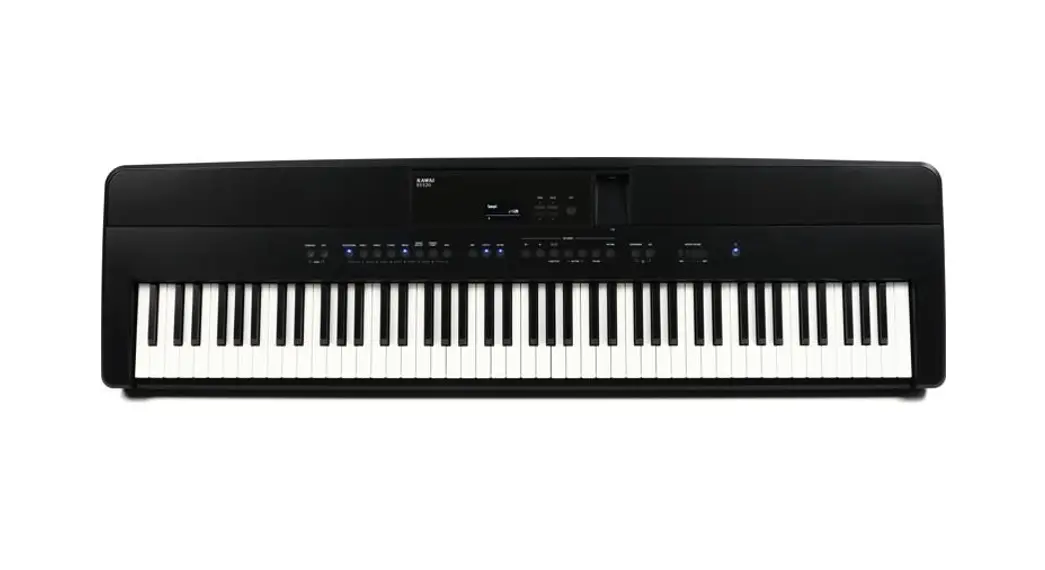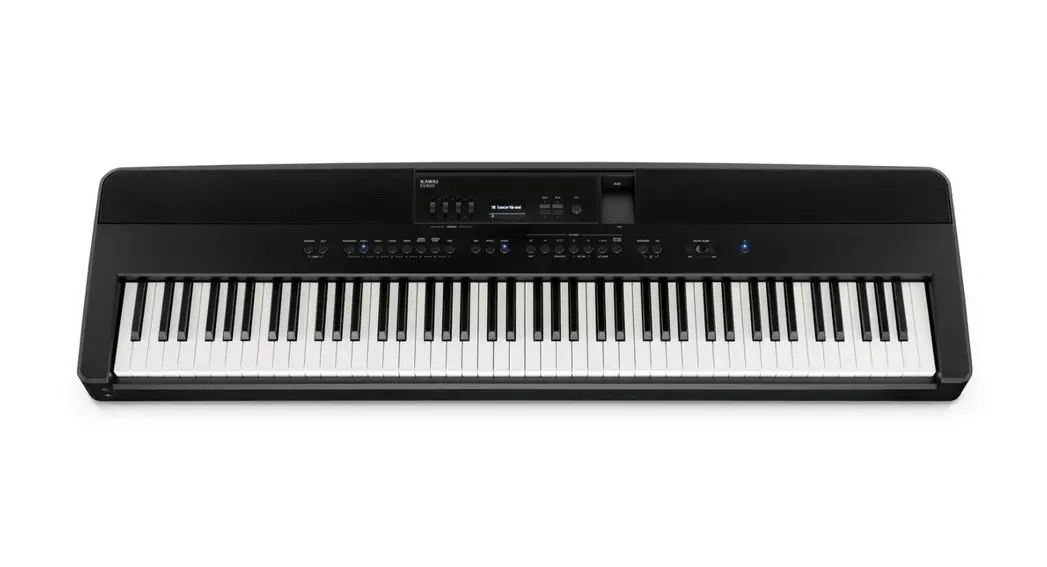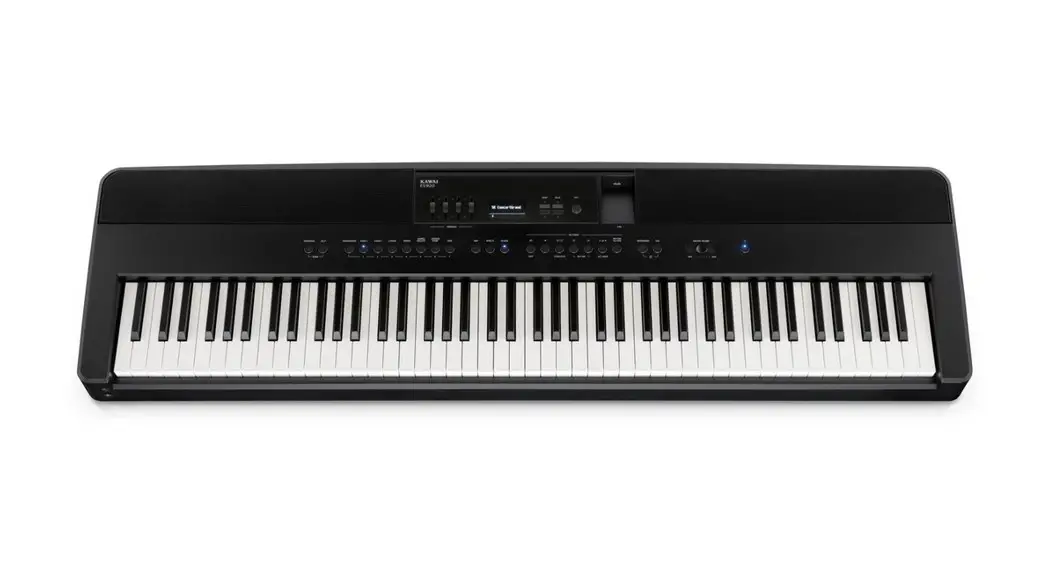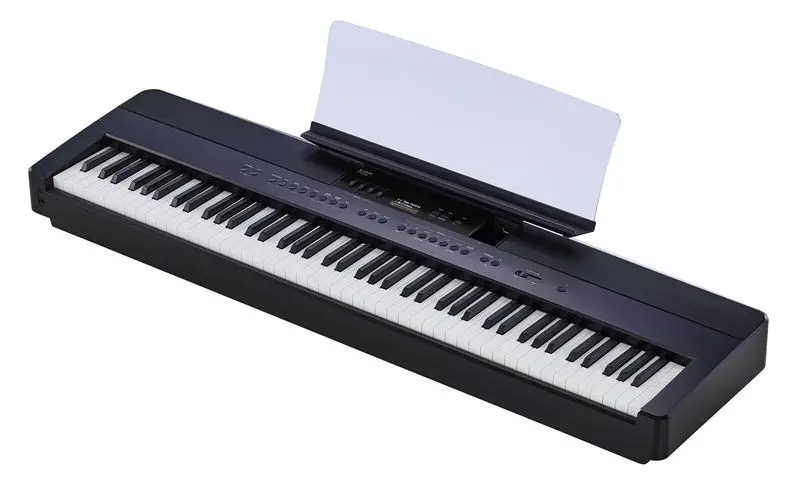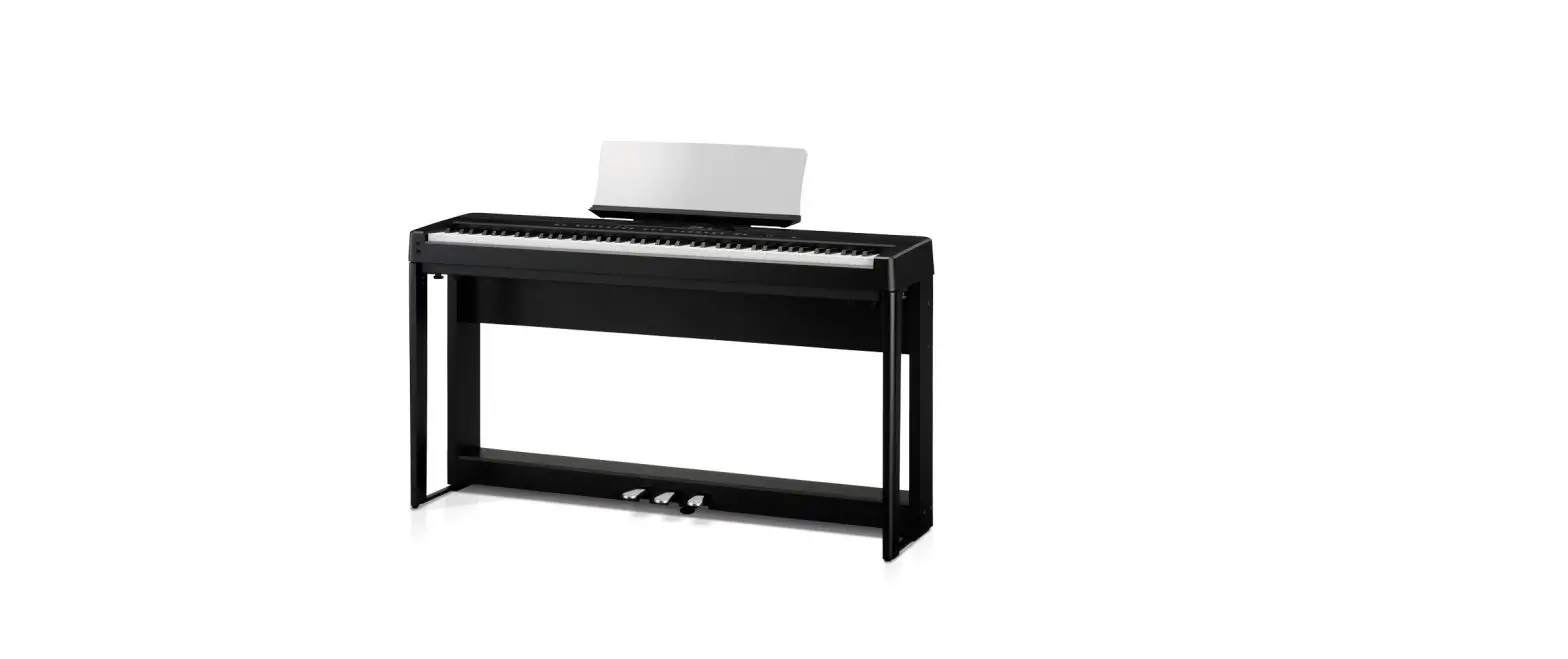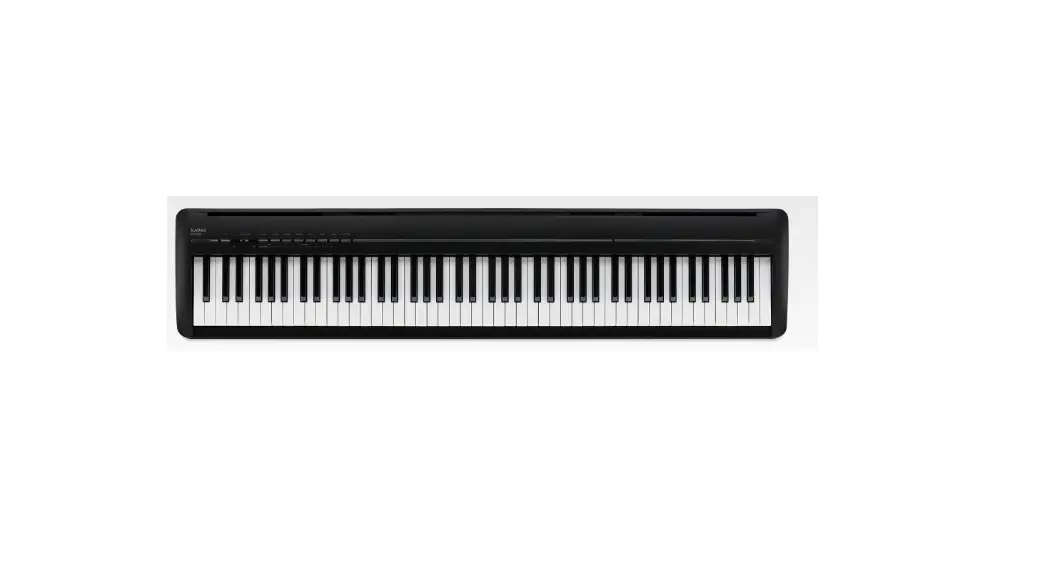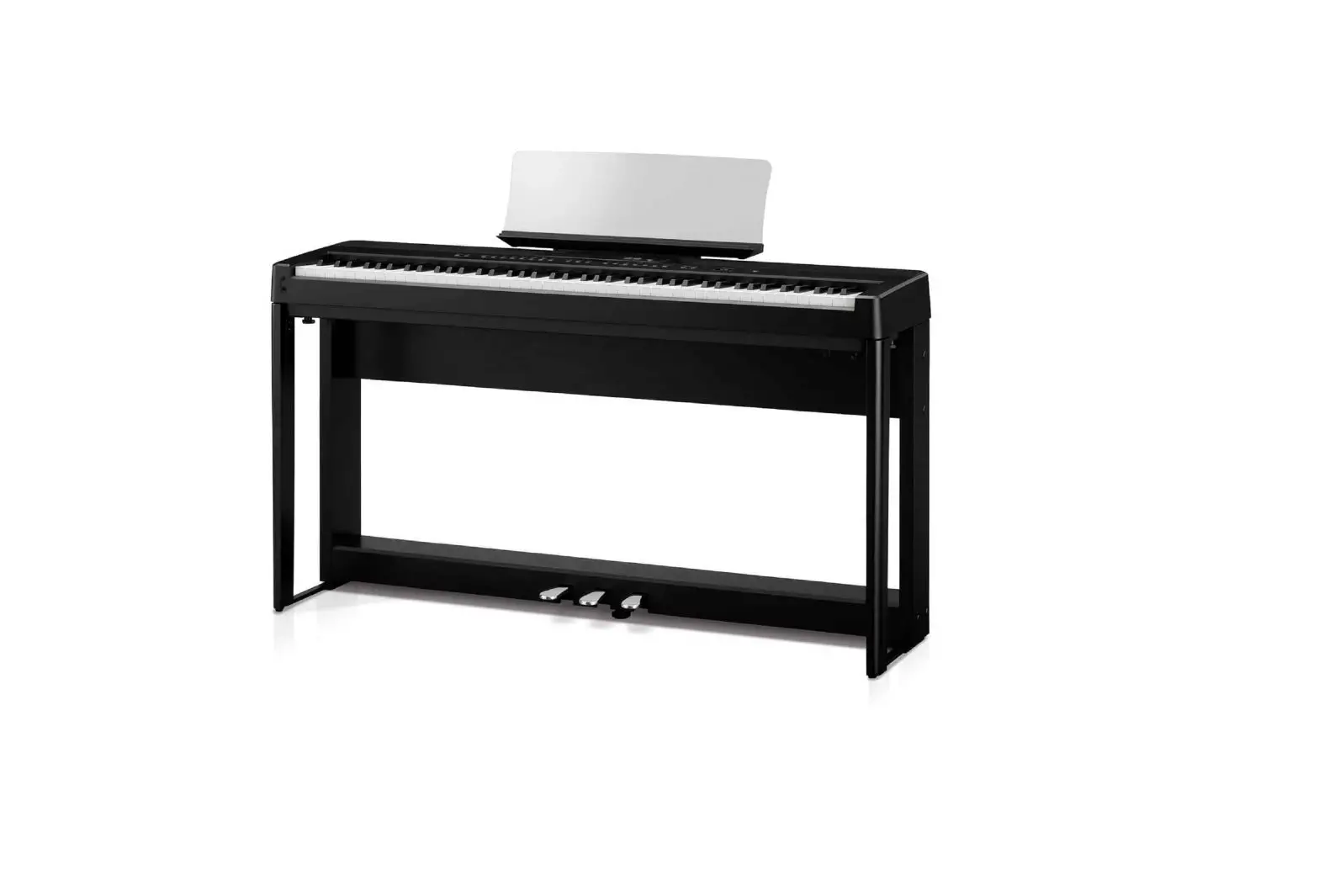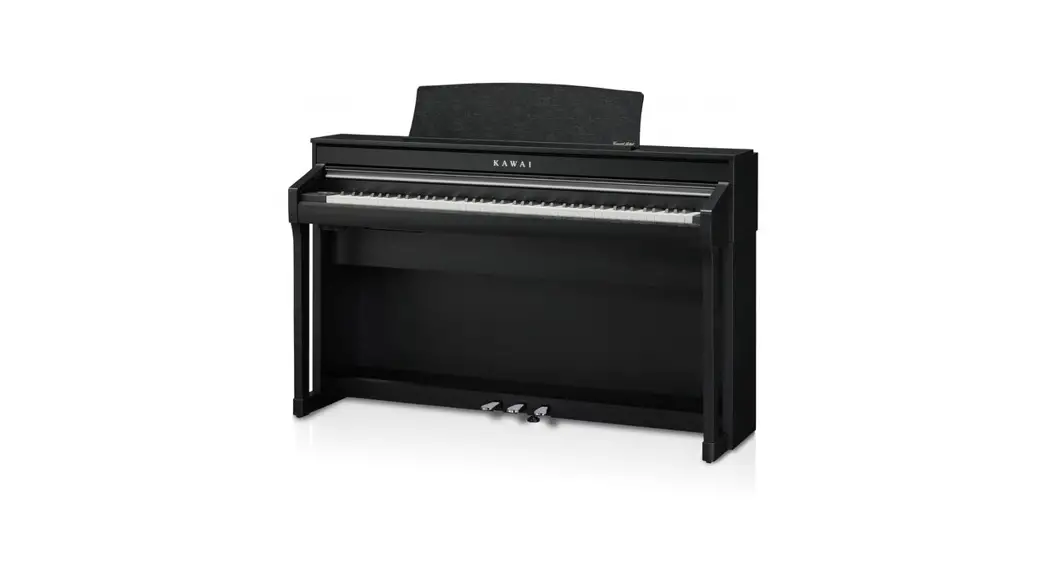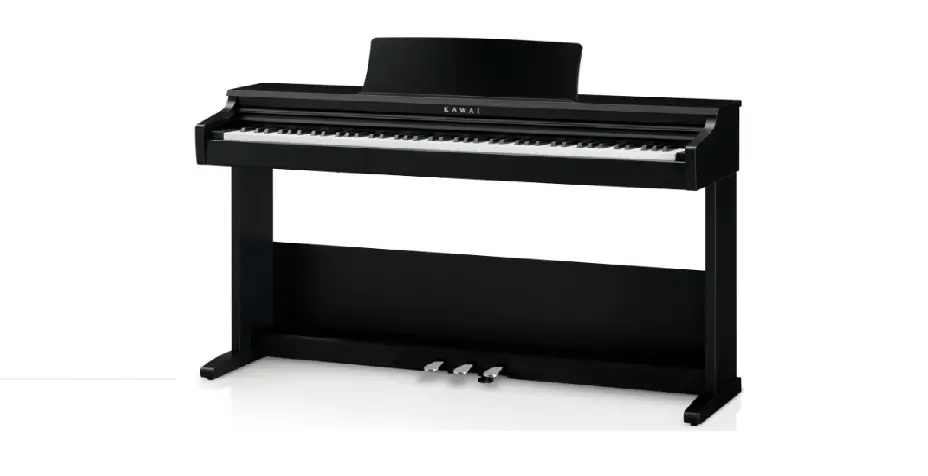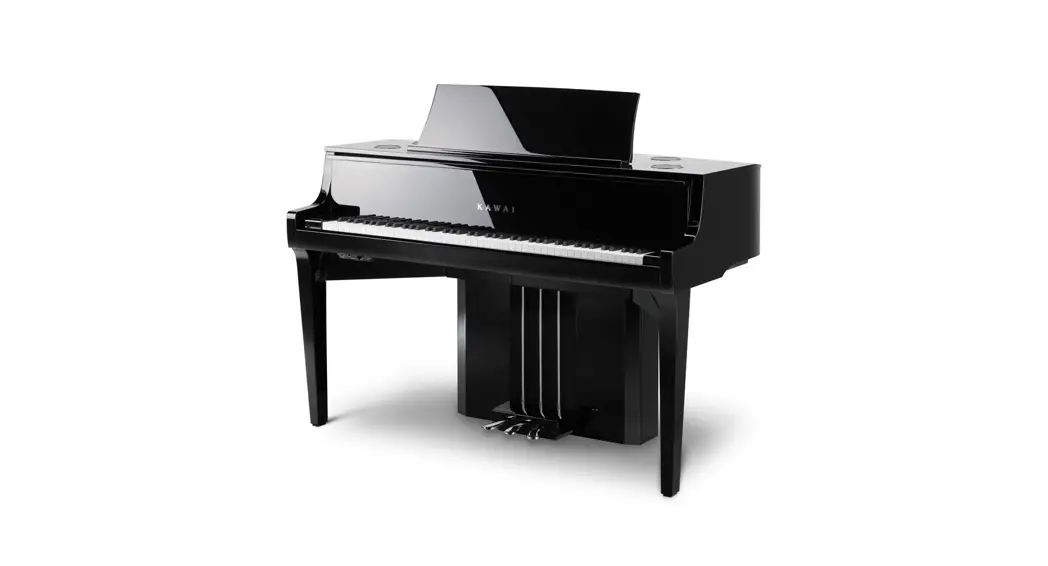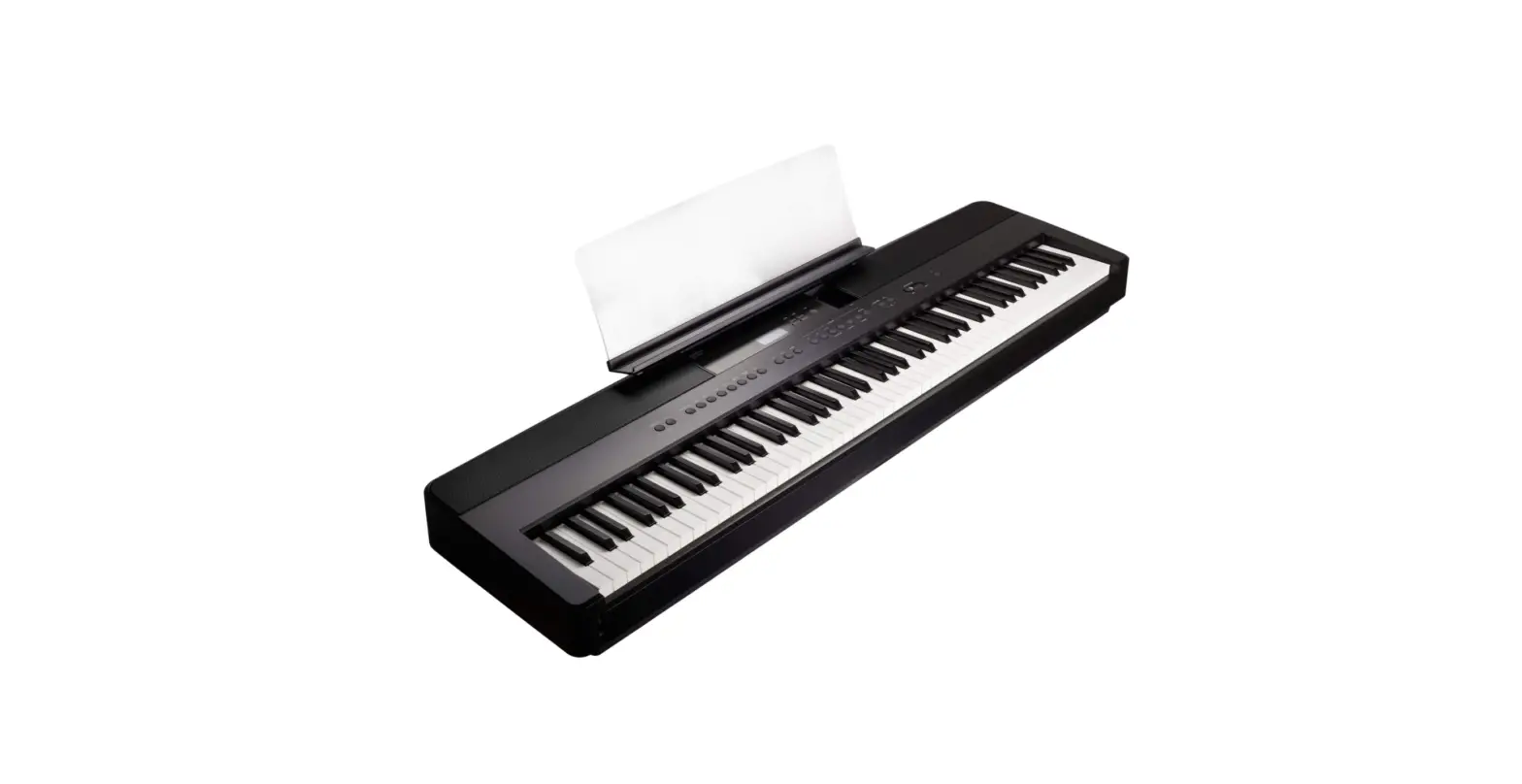

KAWAI ES520 Portable Digital Piano 
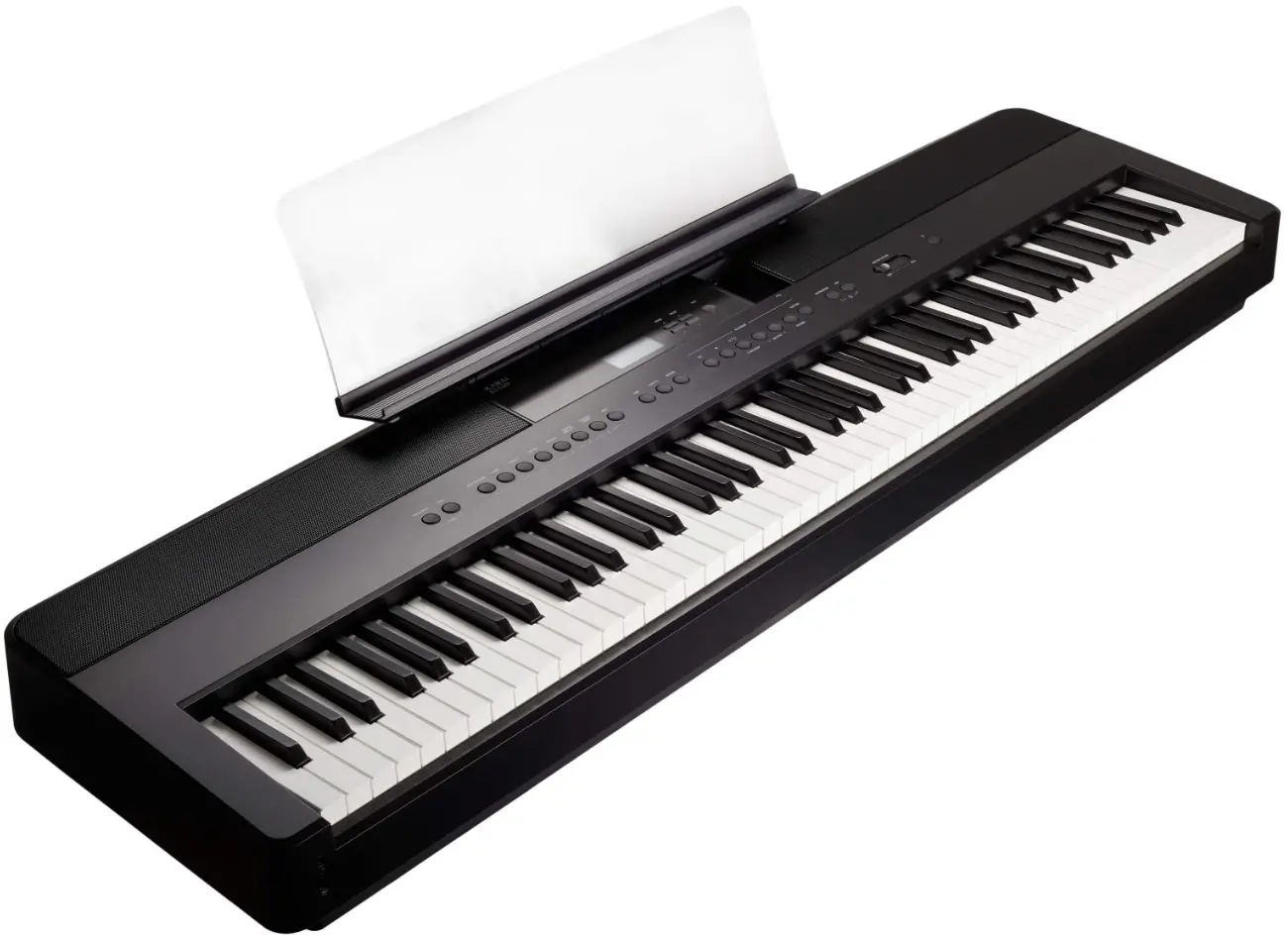
This document contains instructions for updating the system software of the Kawai ES520 digital piano. Please read these instructions thoroughly before attempting to perform the software update.
The update process will require approximately 5 minutes to complete.
Checking the current software version
While the ES520 digital piano is turned off:
Press and hold the [PIANO2], [ORGAN], and [STRINGS/CHOIR] buttons simultaneously, then press the [POWER] button to turn the instrument on.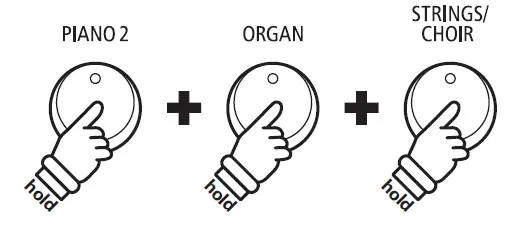
The current software version will be shown in the LCD display.
If the version number is greater than or equal to the update version, no further action is necessary.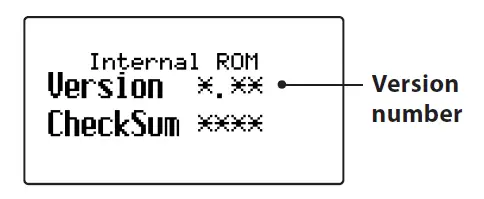
* Turn the instrument off and on to return to normal operation.
If the version number is lower than the update version, please continue to follow the instructions below.
Update requirements
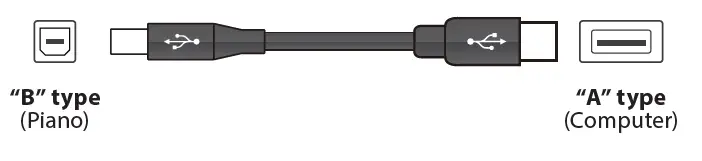
This stage of the software update will require a Windows or macOS computer with internet access, and a USB type “B” to type “A” cable.
Preparing for the update
After downloading the software update zip file, extract the contents to a temporary folder (e.g. the Desktop). 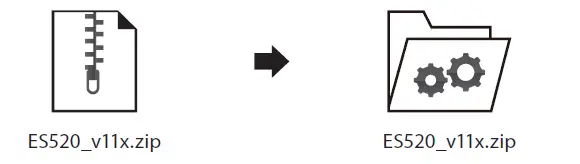
The folder should contain four files.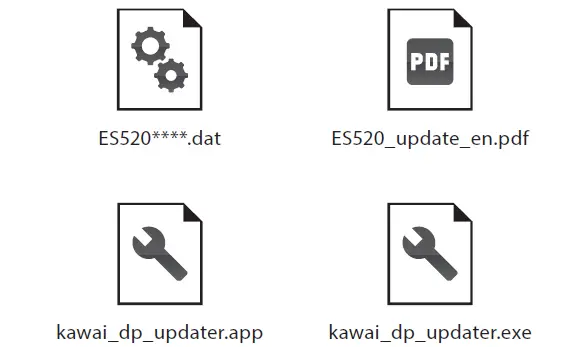
| Filename | Description |
| ES520****.dat | ES520 system software |
| ES520_update_en.pdf | Update instructions |
| kawai_dp_updater.app | Update tool for macOS |
| kawai_dp_updater.exe | Update tool for Windows |
- Turn on the piano in update mode
While the ES520 digital piano is turned off:
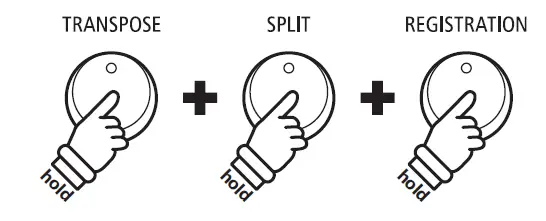
Press and hold the [TRANSPOSE], [SPLIT], and [REGISTRATION] buttons simultaneously, then press the [POWER] button to turn the instrument on.
The piano will turn on in update mode, and the LED indicators for the three pressed buttons will start to flash. - Connect the piano to the computer
Connect the piano to the computer using a USB type “B” to USB type “A” cable.
* Please refer to page 91 of the main ES520 owner’s manual for more information. - Launch the Kawai DP Updater tool

Launch the Kawai DP Updater tool on the Windows or macOS computer. - Select the update file and MIDI Out device
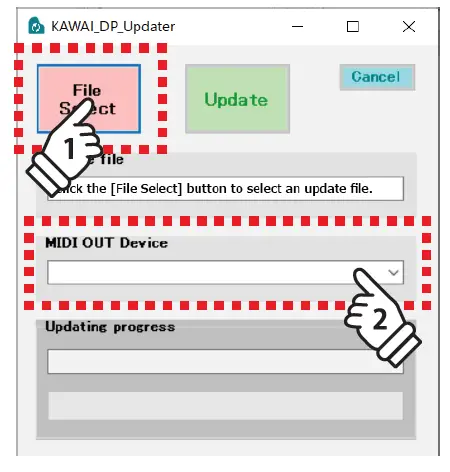
From the Kawai DP Updater tool window:
Click the [File Select] button, then select the ES520****.dat update file.
* The file should be stored in the temporary folder on the desktop.
Click the MIDI Out Device list and select the USB-MIDI device
* Note that the position of the USB-MIDI device within the list may vary if other MIDI devices are also connected to the computer. - Start the update process
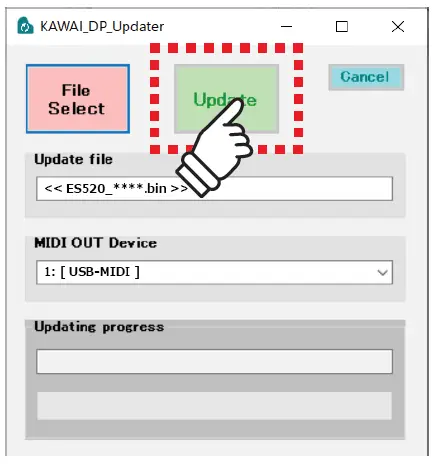
From the Kawai DP Updater tool window:
Click the [Update] button to start the software update process.
- The software update will take approximately 5 minutes to complete. The update progress will be shown in the bottom of the window.
- During the update, do not use or attempt to launch other applications, and ensure that the Kawai DP Updater tool remains the front-most window.
- During the update, the LED indicators for different buttons will continue to flash, however do not turn off the piano.
- Finish the update
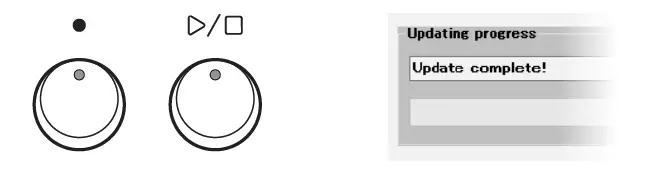
After approximately 5 minutes, the LED indicators for the [REC] and [PLAY/STOP] buttons will turn on, and an [Update complete!] message will be shown in the Kawai DP Updater tool window.
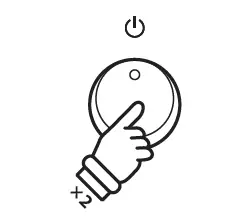
Disconnect the USB cable, then press the [POWER] button twice (pausing 1 second between presses) to turn the instrument off.
Perform the software version check (explained on the first page of these instructions) to confirm that the update was successful.
When the instrument is turned on, the updated software will be used automatically.
* If this stage of the update is unsuccessful, please restart from step 1.
ES520 system software changelog
- V1.22 (July 2022)
- Changed: USB-MIDI device ID initialization priority changed.
- V1.21 (January 2022)
- Fixed: Recording and playing Dual mode performance could alter Registration memory data.
- V1.11 (April 2021)
- Fixed: Notes could sustain indefinitely in certain circumstances when using the F-10H damper pedal.
- V1.10 (October 2020)
- Added: Support for PianoRemote app.
- Added: Support for the PiaBookPlayer app.
- V1.00 (March 2020)
- First production version.