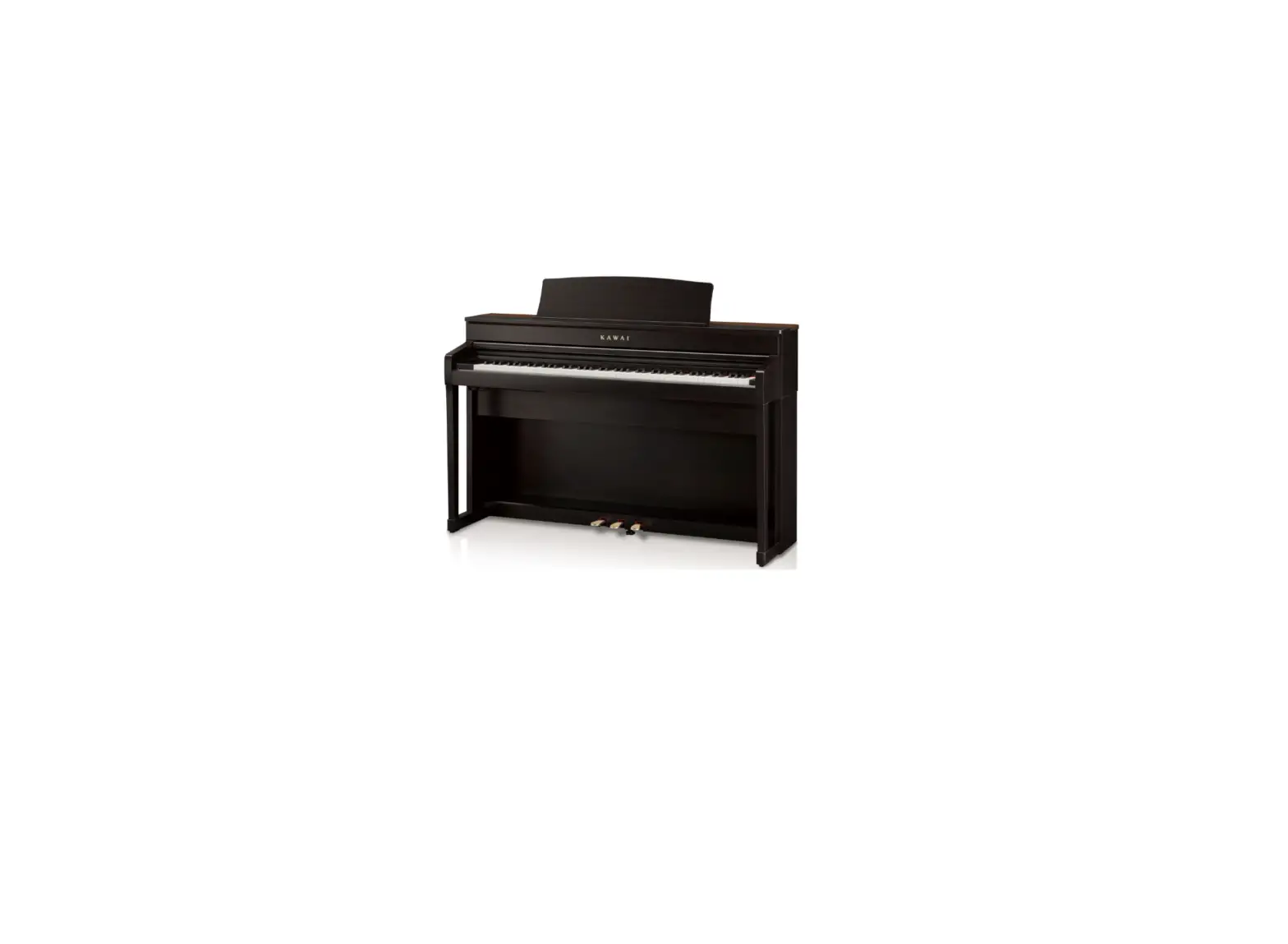
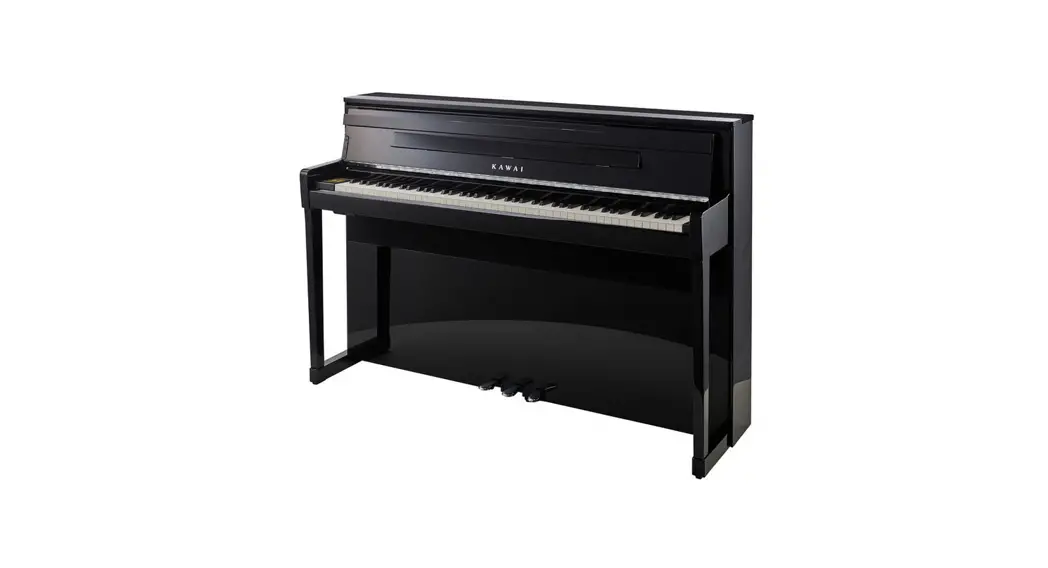
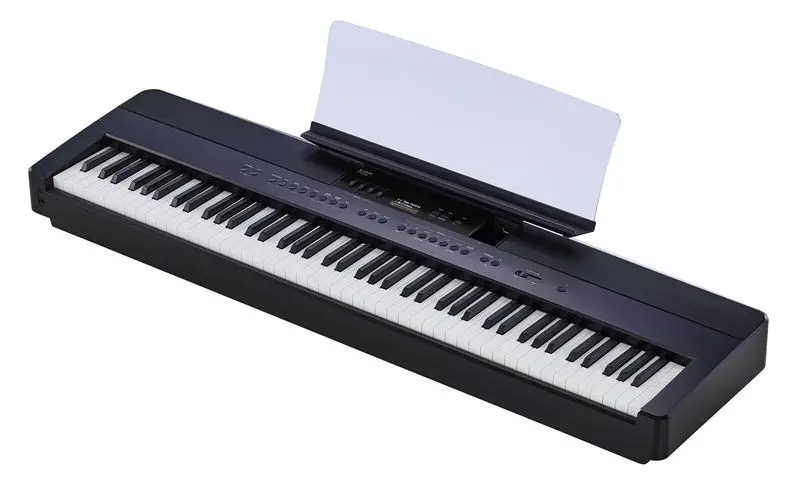
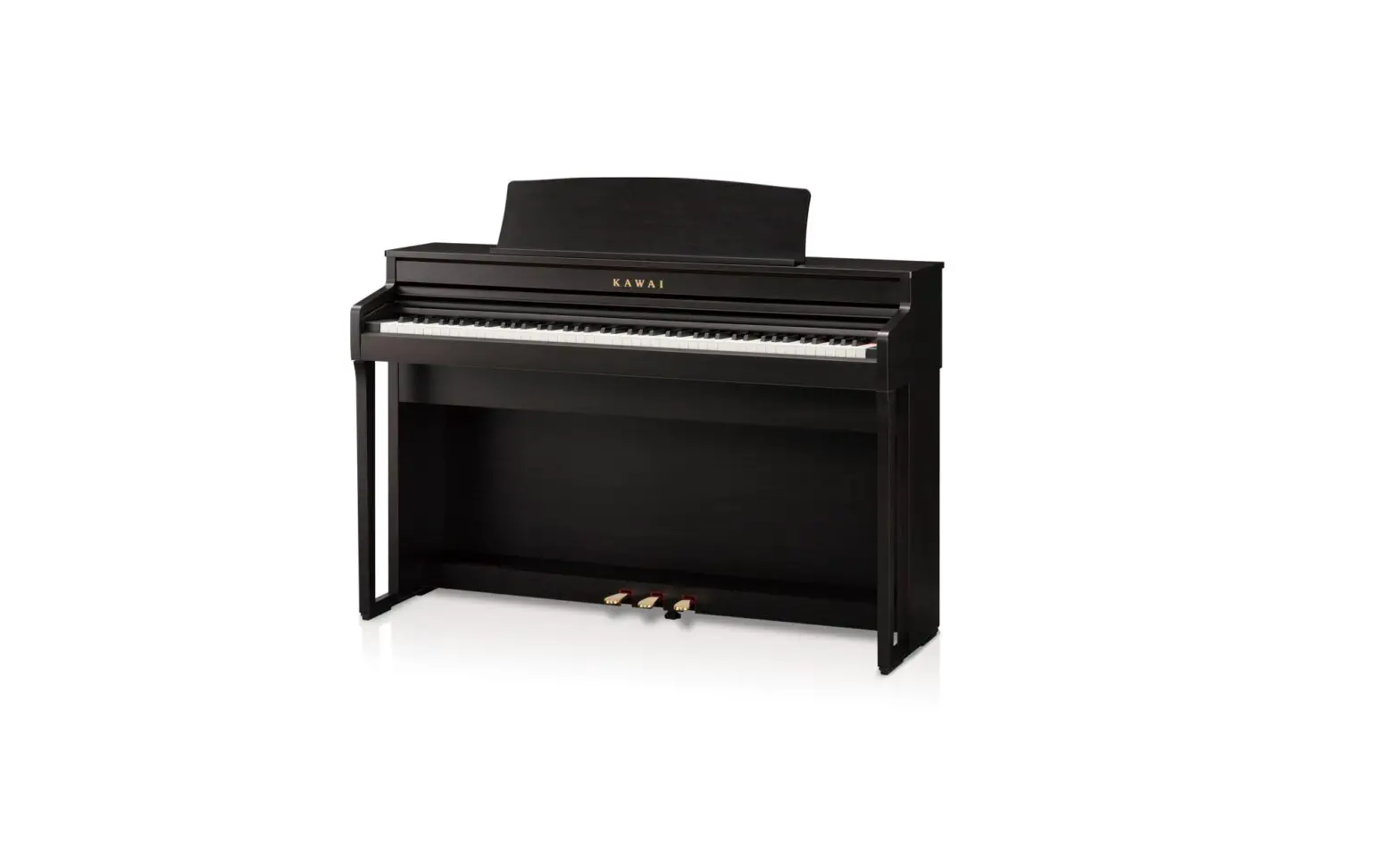
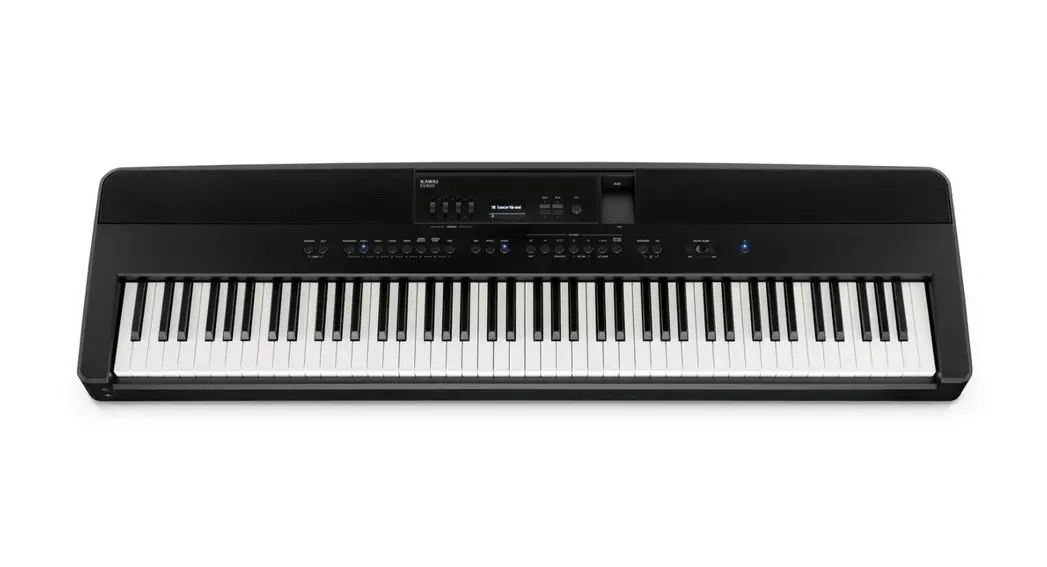
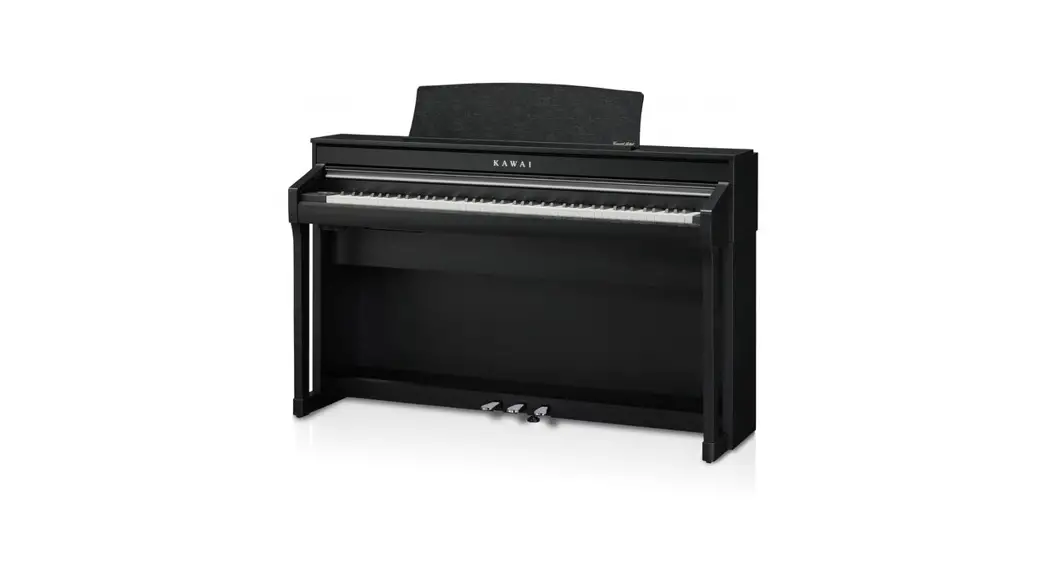
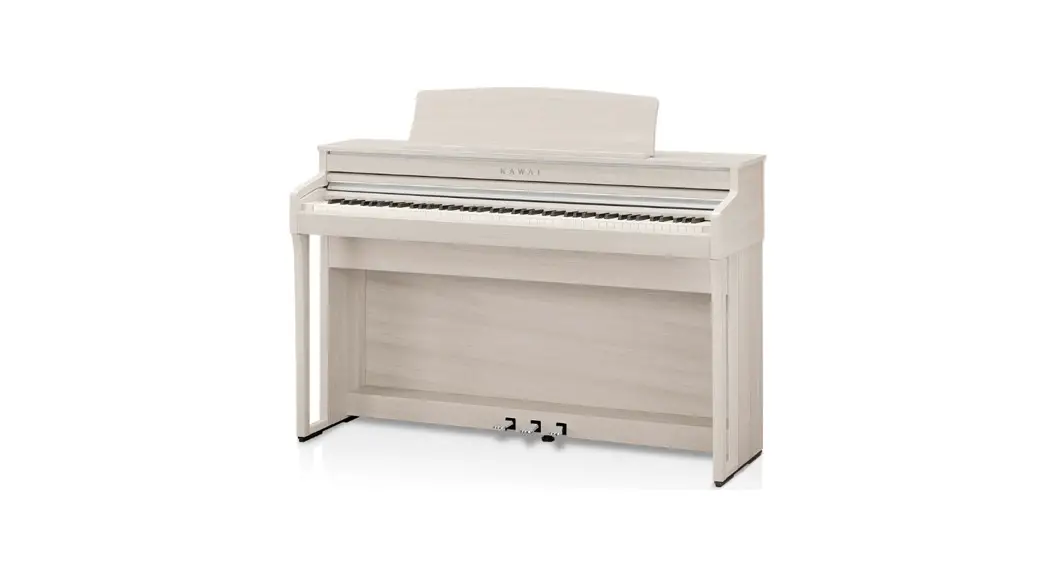
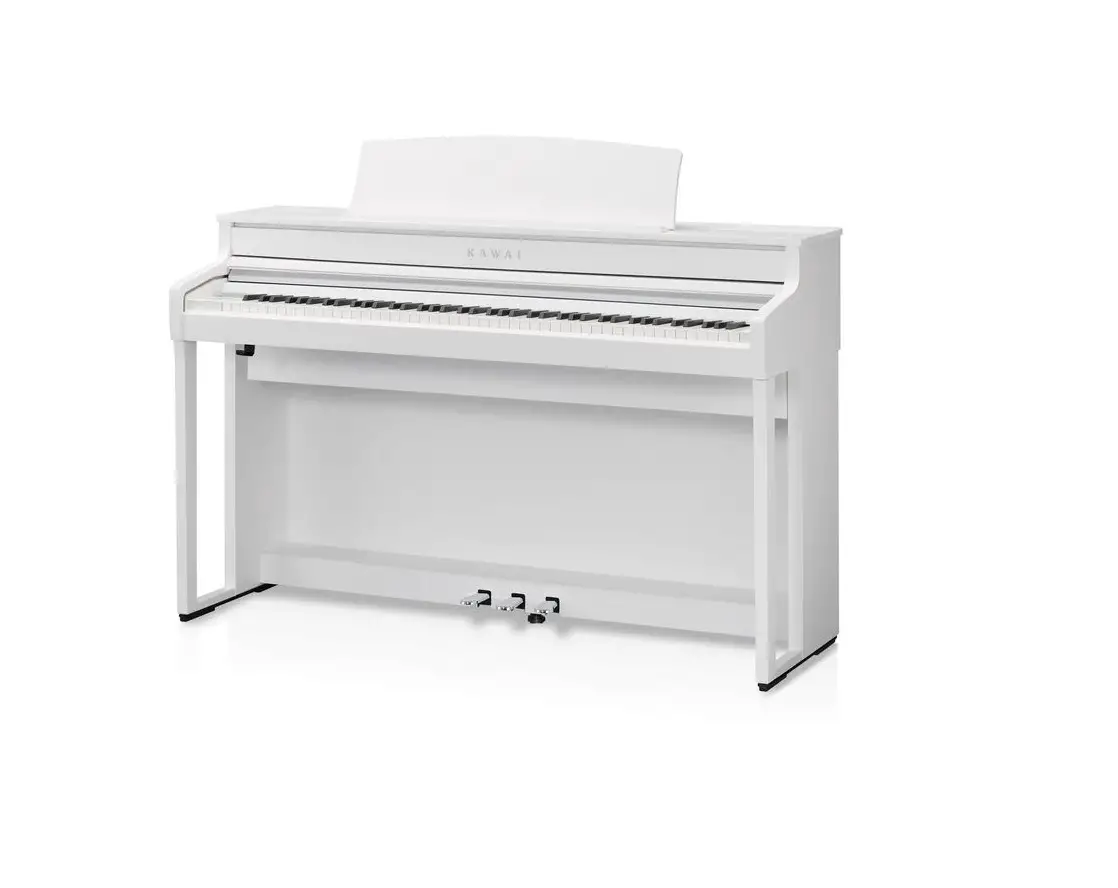
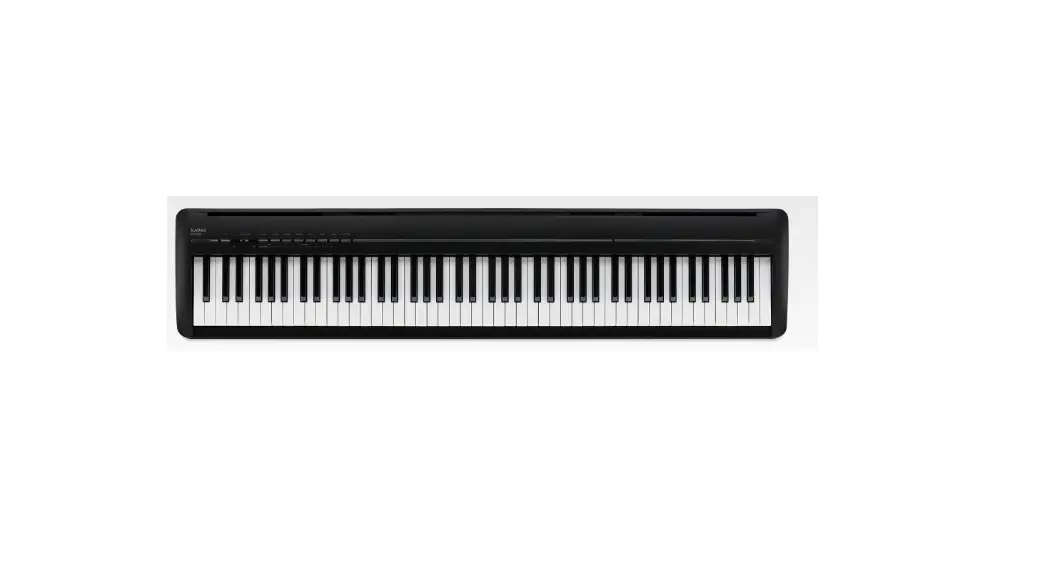
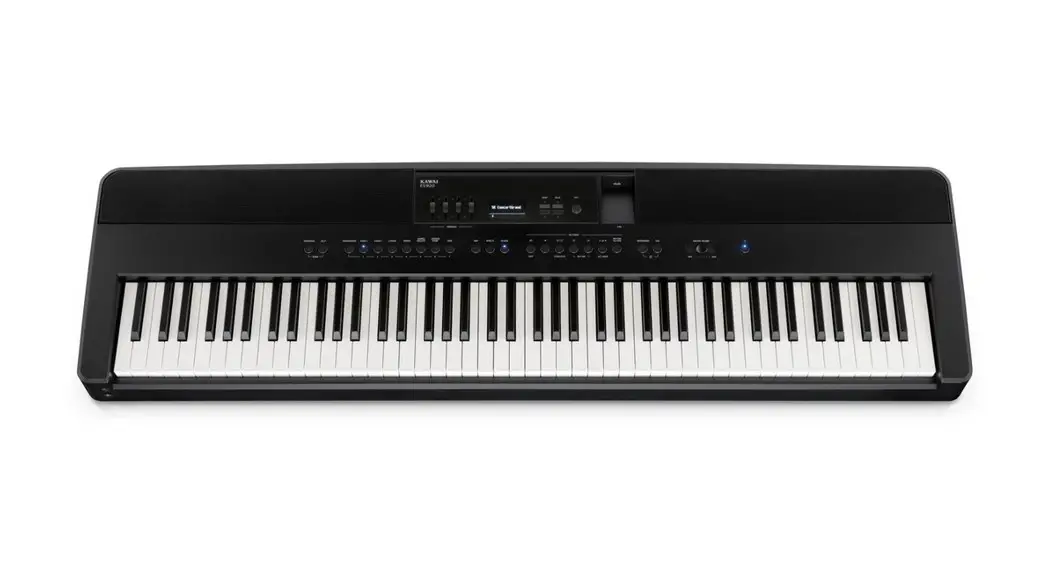
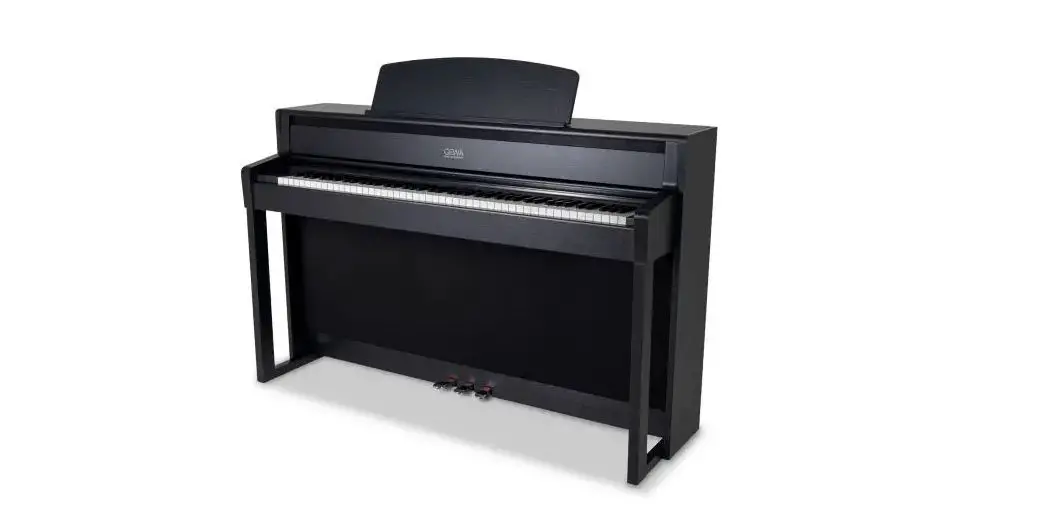
CA99 Digital Piano
Product Information
The CA99/CA79 digital piano is a high-quality instrument
designed for professional musicians and piano enthusiasts. It
features advanced technology and a wide range of features to
enhance your playing experience.
Software Update
The software update is a process that allows you to update the
system software of the CA99/CA79 digital piano. By updating the
software, you can benefit from bug fixes, improvements, and new
features.
Update Requirements
- A computer with internet access
- An empty USB memory device
- The USB memory device must use the FAT or FAT32 filesystem. The
exFAT filesystem is not supported.
Checking the Current Software Versions
Before performing the software update, it is recommended to
check the current software versions of your CA99/CA79 digital
piano.
Preparing for the Update
- Download the system software update zip file.
- Extract the contents of the zip file to a temporary folder on
your computer. - The temporary folder should contain two files: CAx9_P06.SYS and
ca99_ca79_sys_en.pdf.
Product Usage Instructions
Step 1: Copy the Update Files to the USB Memory Device
- Copy the CAx9_P06.SYS file from the temporary folder to the
root (top-most) folder of the empty USB memory device. - Do not attempt to modify the update files and do not copy any
other data to the USB memory device at this time.
Step 2: Connect the USB Memory Device
Make sure the CA99/CA79 digital piano is turned off. Connect the
prepared USB memory device to the [USB to DEVICE] port located on
the left side of the instrument, underneath the keyboard, beside
the headphone connectors. Be careful not to confuse this port with
the [USB for UPDATE] port located behind the headphone connector
block.
Step 3: Start the Update
Press and hold the uppermost E, A, B, and C keys simultaneously,
then press the [POWER] button to turn on the digital piano. The
Firmware Update screen will be shown, and the update process will
start automatically. Progress messages will be shown in the LCD
display. Do not disconnect the USB memory device or turn off the
instrument while the update is in progress.
Step 4: Finish the Update and Disconnect the USB Memory
Device
After approximately 1 minute, a Boot End message will be shown
in the LCD display, indicating that the first stage of the update
has been successful. Disconnect the USB memory device, then press
and hold the [POWER] button to turn off the instrument.
When you turn on the instrument again, the updated system
software will be used automatically. To confirm that the update has
been successful, repeat the steps to check the Firmware version at
the beginning of this document. If the update is unsuccessful,
please restart this procedure from step 1.
Software Changelog
- V2.15 (July 2023):
- Improved: The interaction between very soft/shallow key strokes
and the sostenuto pedal. - Fixed: Bug related to Key-off Effect parameter adjustments not
being stored to User Sound memory correctly.
- Improved: The interaction between very soft/shallow key strokes
- V2.13 (November 2022):
- Fixed: Bugs related to the Overdubbing function of the
Recorder. - Fixed: Bug related to data not being reset correctly following
a Factory Reset. - Improved: The playing sound is now muted when disconnecting
from Bluetooth MIDI.
- Fixed: Bugs related to the Overdubbing function of the
Software Update (CA99/CA79 System)
This document contains instructions for updating the system software of the CA99/CA79 digital piano. Please read these instructions thoroughly before attempting to perform the software update. The update procedure will require approximately two minutes to complete.
Update requirements
The software update will require a computer with internet access and an empty USB memory device. * The USB memory device must use the `FAT’ or `FAT32′ filesystem. The `exFAT’ filesystem is not supported.
Checking the current software versions
While the CA99/CA79 digital piano is turned on: Tap the button in the top right corner of the screen to open the Menu. Tap [SYSTEM], then scroll to the bottom of the menu and tap [Information: CHECK] to show the Version/License screen. If the Firmware version number is greater than or equal to the update zip file filename, no further action is necessary. * Exit the menu to return to normal operation. If the Firmware version number is lower than the update version, please follow the update instructions on the following page.
Preparing for the update
After downloading the system software update zip file, extract the contents to a temporary folder (e.g. the Desktop).
The folder should contain two files.
Filename CAx9_P06.SYS ca99_ca79_sys_en.pdf
Description System software Update instructions
ca99_ca79_sys_v2xx.zip
ca99_ca79_sys_v2xx
CAx9_P06.SYS
ca99_ca79_sys_en.pdf
1.
Software Update (CA99/CA79 System)
1. Copy the update files to the USB memory device
Copy the CAx9_P06.SYS file from the temporary folder to the root (i.e. top-most) folder of the empty USB memory device. * Do not attempt to modify the update files. * Do not copy any other data to the USB memory device at this time.
CAx9_P06.SYS
2. Connect the USB memory device
While the CA99/CA79 digital piano is turned o :
Connect the prepared USB memory device to the [USB to DEVICE] port located on the left side of the instrument, underneath the keyboard, beside the headphone connectors. * Be careful not to confuse this port with the [USB for UPDATE] port
located behind the headphone connector block.
3. Start the update
Press and hold the uppermost E, A, B, and C keys (see diagram) simultaneously, then press the [POWER] button to turn on the digital piano.
The Firmware Update screen will be shown, and the update process will start automatically, with progress messages shown in the LCD display. * Do not disconnect the USB memory device or turn o the instrument
while the update is in progress.
E ABC
4. Finish the update, disconnect the USB memory device
After approximately 1 minute a “Boot End” message will be shown in the LCD display, indicating that the first stage of the update has been successful.
Disconnect the USB memory device, then press and hold the [POWER] button to turn the instrument o .
When the instrument is turned on, the updated system software will be used automatically.
Please repeat the steps at the beginning of this document to check the Firmware version, and confirm that the update has been successful. * If the update is unsuccessful, please restart this procedure from step 1.
2.
Software Update (CA99/CA79 System)
CA99/CA79 System software changelog
V2.15 (July 2023) – Improved: The interaction between very soft/shallow key strokes and the sostenuto pedal. – Fixed: Bug related to Key-off Effect parameter adjustments not being stored to User Sound memory correctly.
V2.13 (November 2022) – Fixed: Bugs related to the Overdubbing function of the Recorder. – Fixed: Bug related to data not being reset correctly following a Factory Reset. – Improved: The playing sound is now muted when disconnecting from Bluetooth MIDI.
V2.10 (January 2022) – Added: Support for minor internal hardware revision.
V2.08 (October 2021) – Added: Support for adjusting ‘User’ Virtual Technician parameters. (Touch Curve/Voicing/Tuning/Temperament/Key Volume) Note: This functionality also requires LCD touchpanel system update v1.2.0 (or newer) to be installed. – Fixed: Bug related to switching between Piano and Sound screens. * For more information about the added `User’ Virtual Technician parameters, please refer to the URL below: https://www2.kawai.co.jp/emi-web/pianoremote-docs_update/en/
V2.04 (July 2021) – Internal revision.
V1.08 (April 2020) – Improved: Various improvements and fixes related to the PianoRemote app.
V1.07 (March 2020) – Improved: Sound changes. – Fixed: Bug related to USB memory player playback.
V1.05 (February 2020) – Added: Overdubbing (Recorder) function. – Added: Bluetooth MIDI display name setting. – Fixed: Various bugs.
V1.04 (December 2019) – Fixed: Various bugs.
V1.03 (December 2019) – First production version.
Copyright © 2023 Kawai Musical Instruments Mfg. Co., Ltd. All Rights Reserved.
 CA99/CA79, NV10S/NV5S Software Update: "User" Virtual Technician Information