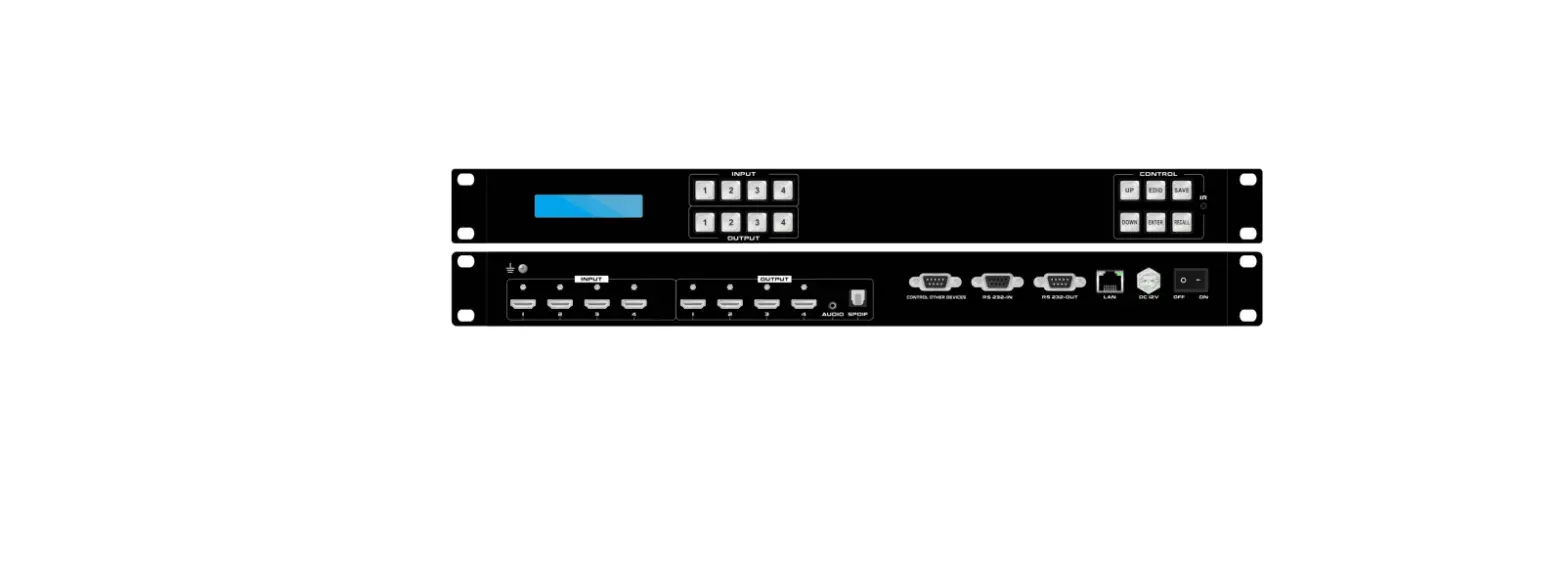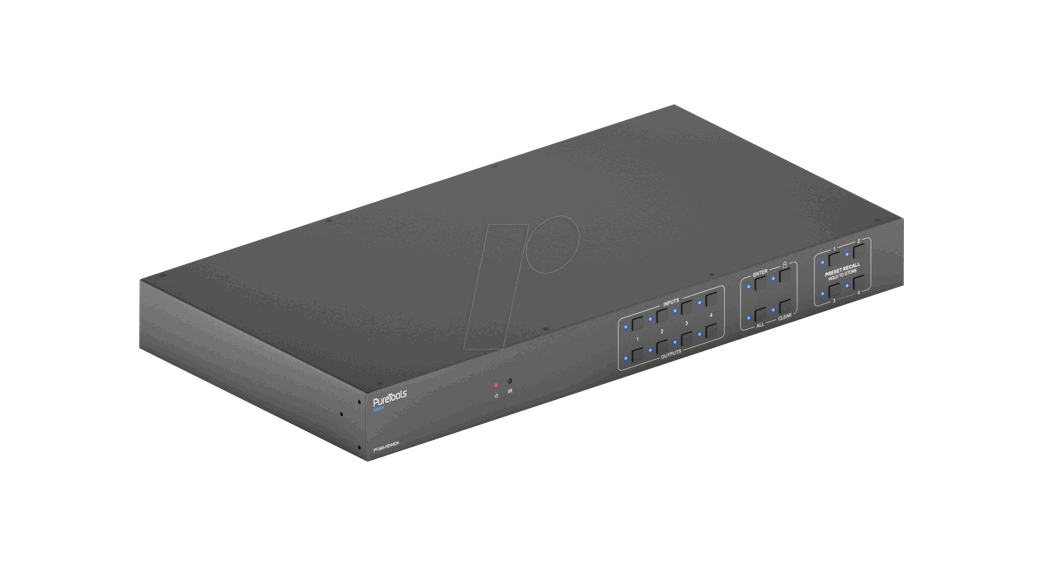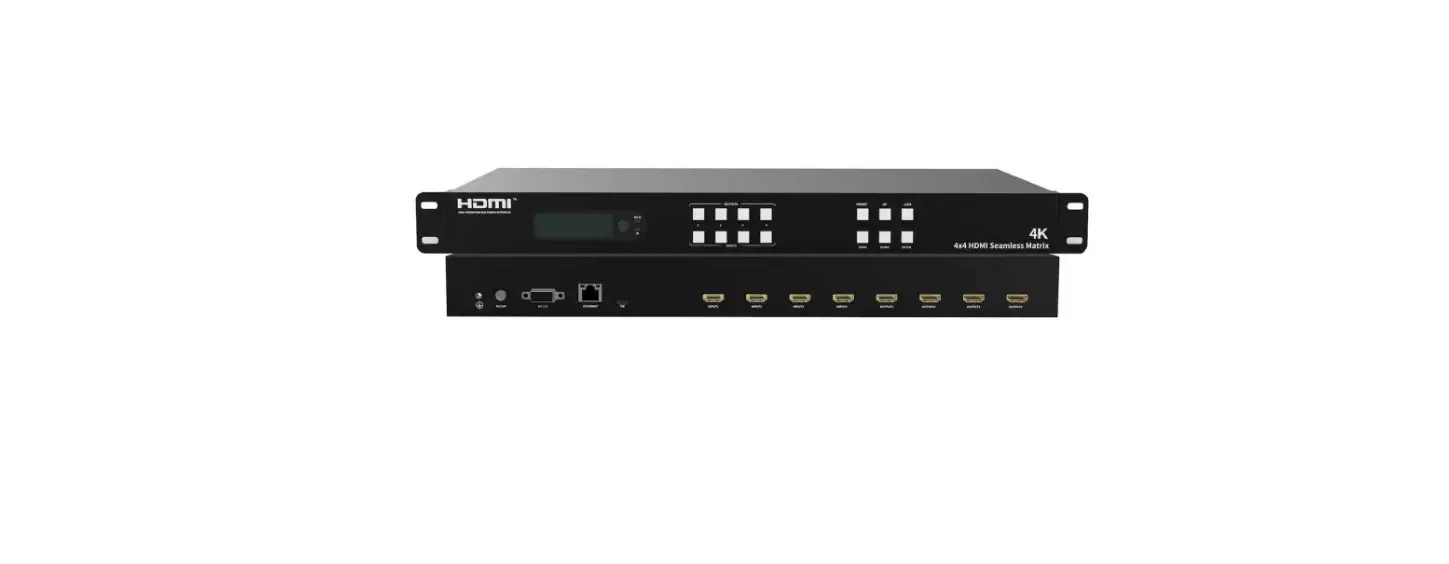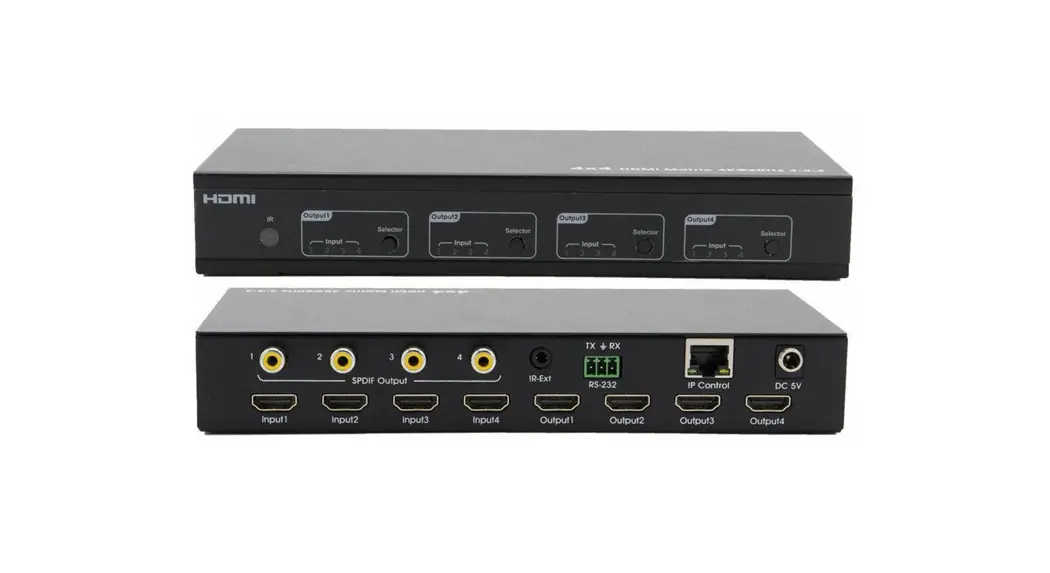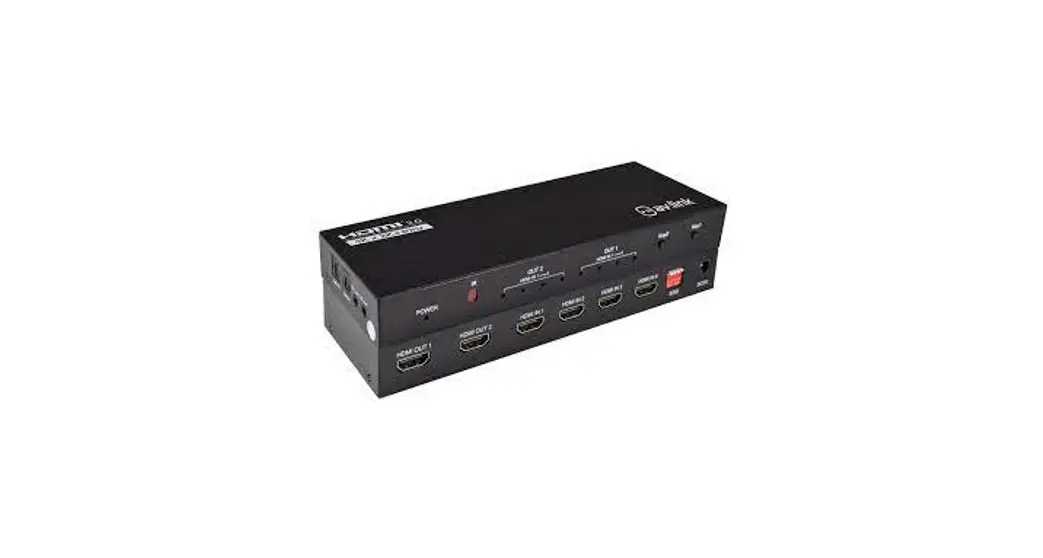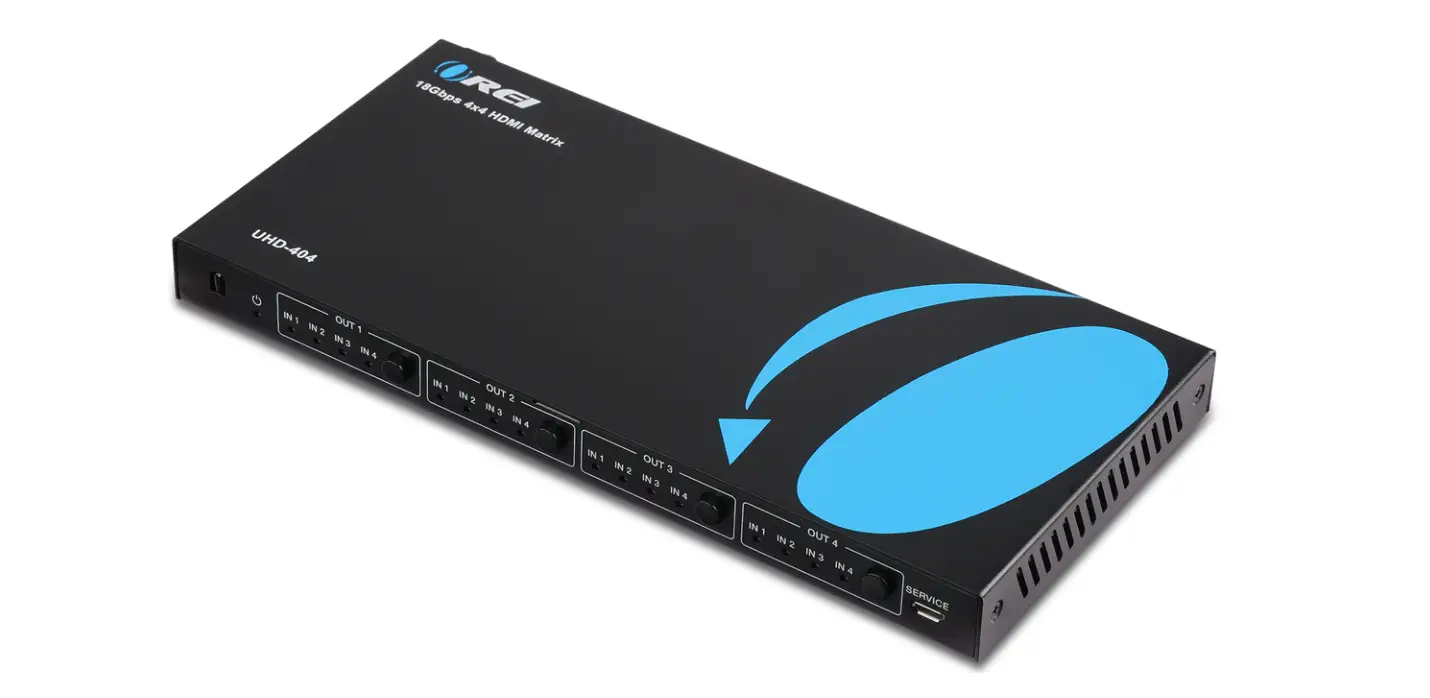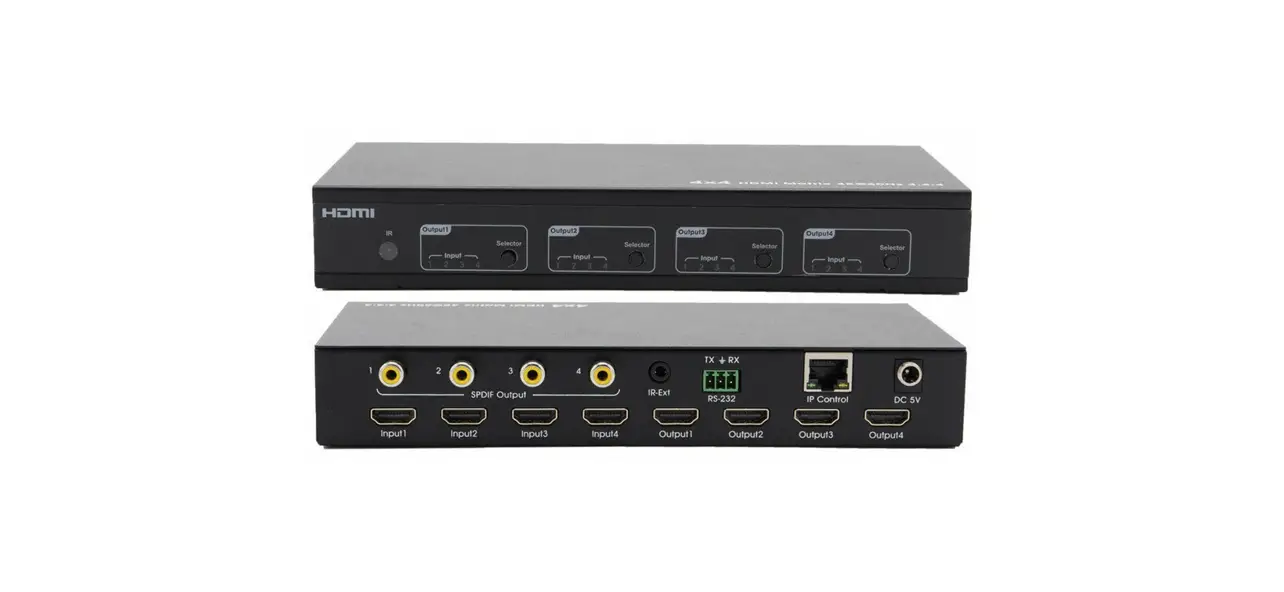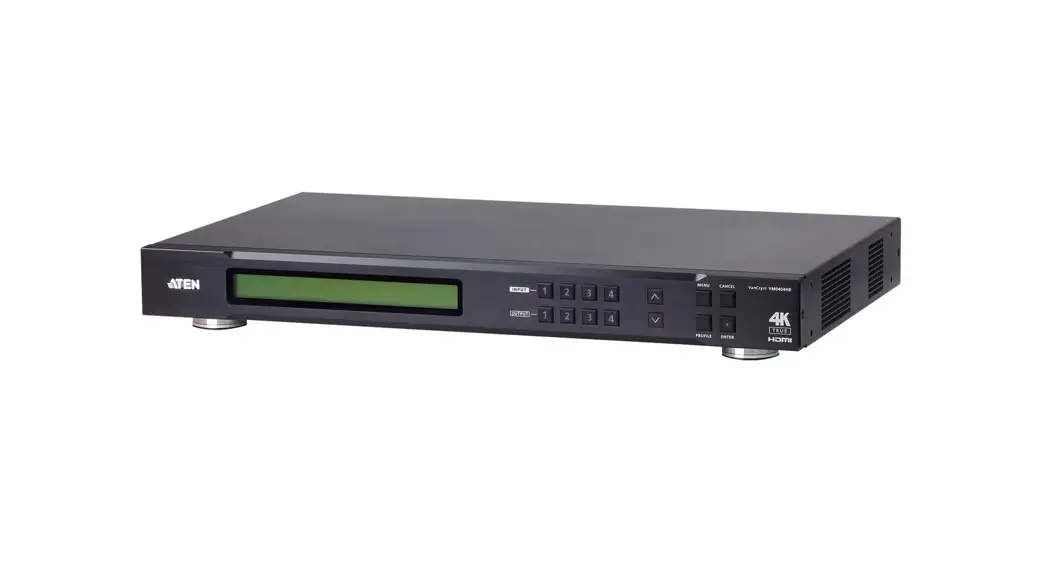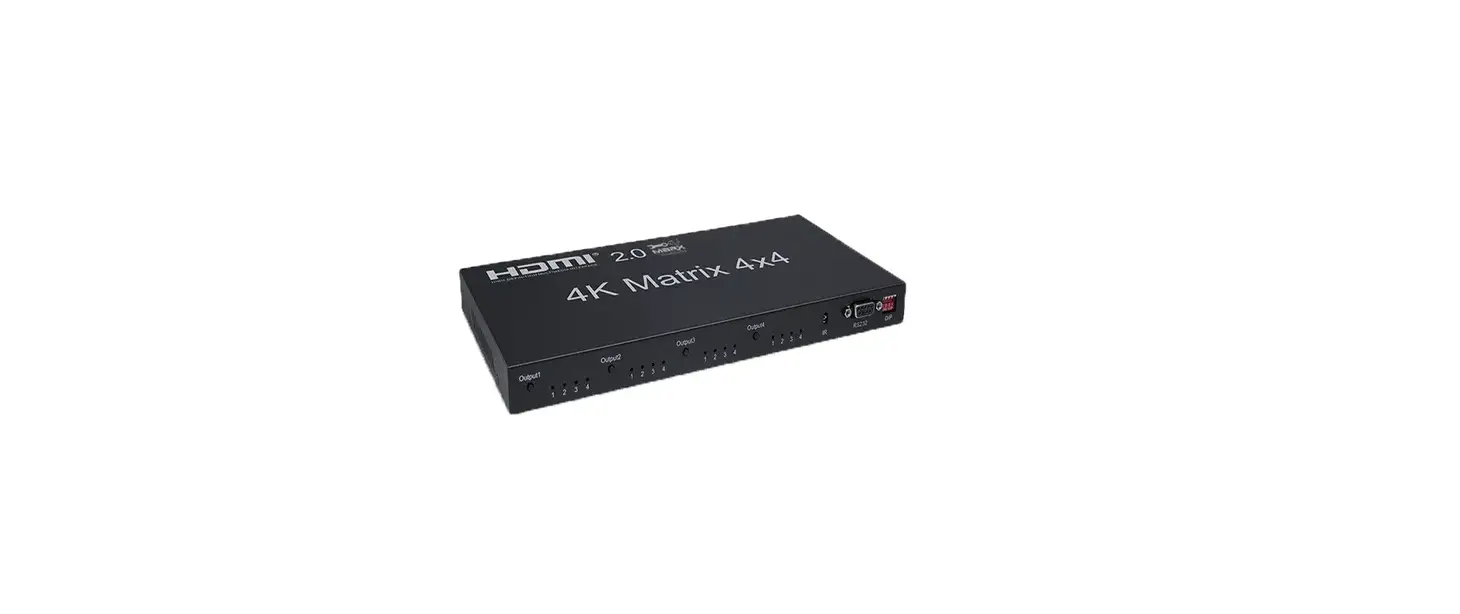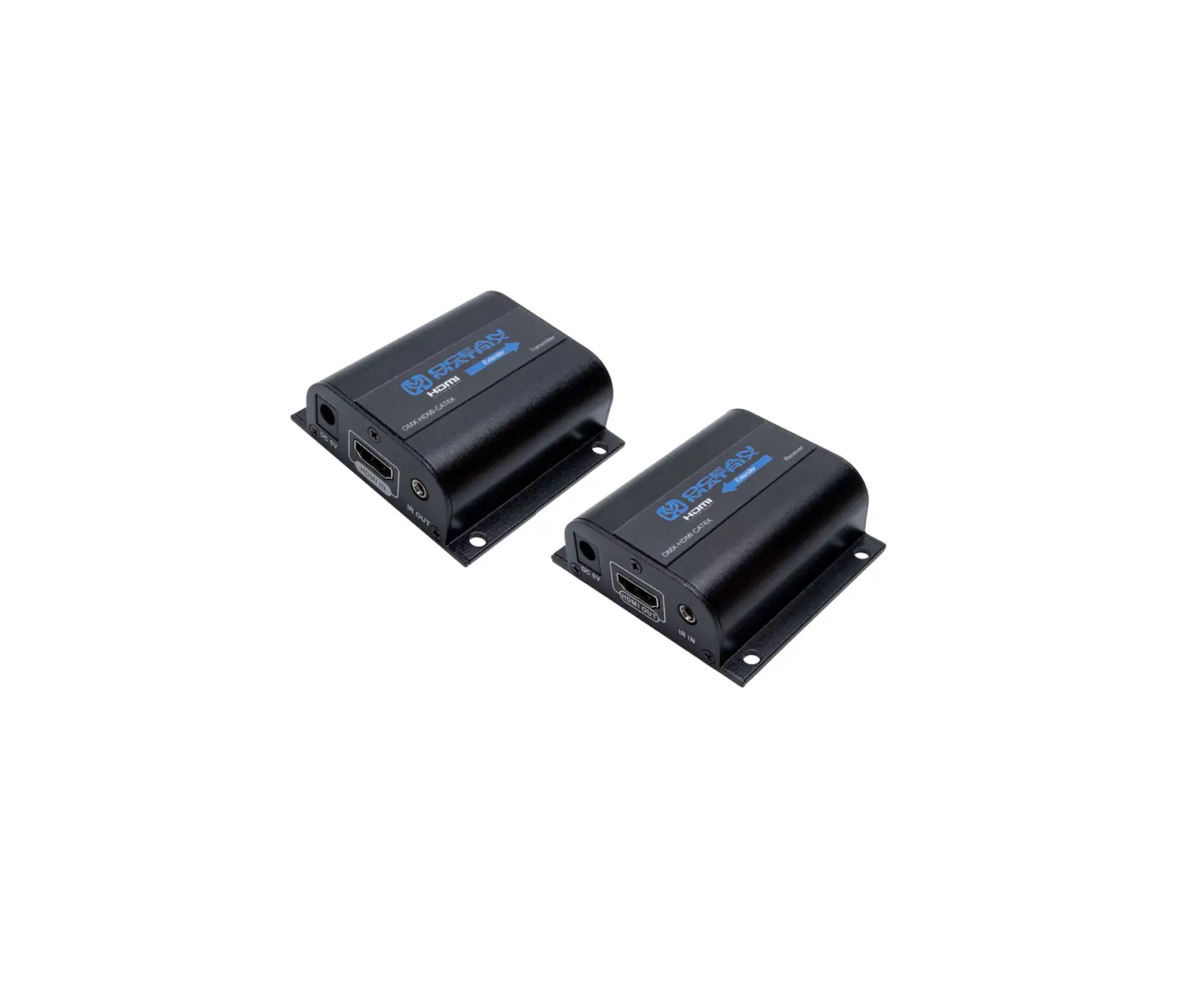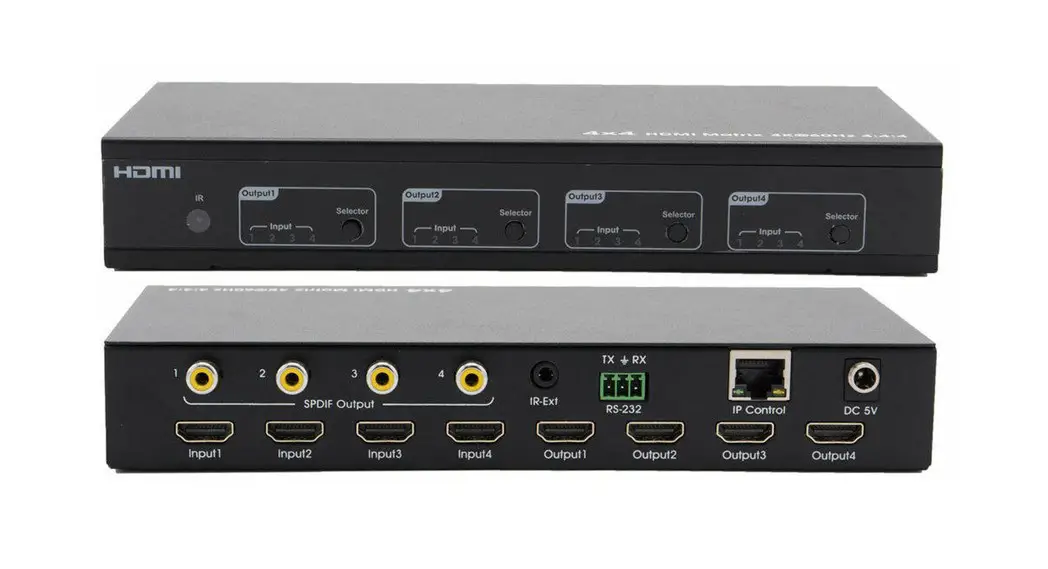
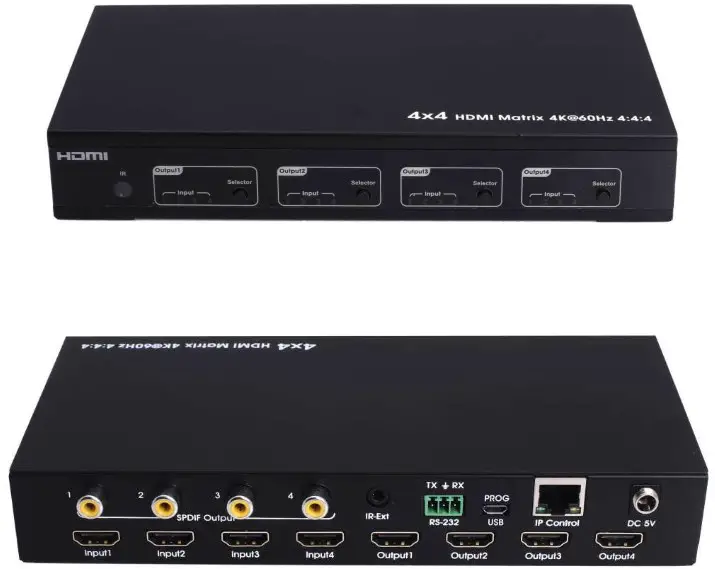
4×4 HDMI2.0 Matrix
Support 4K@60hz YUV4:4:4, 18Gbps, HDR
Operating Instruction
Thank you for purchasing this product. For optimum performance and safety, please read these instructions carefully before connecting, operating or adjusting this product. Please keep this manual for future reference.
SURGE PROTECTION DEVICE RECOMMENDED
This product contains sensitive electrical components that may be damaged by electrical spikes, surges, electric shock, lightning strikes, etc. Use of urge
protection systems is highly recommended in order to protect and extend the life of your equipment.
Features
- HDMI 2.0 version (Support 4K@60Hz YUV4:4:4)
- Bandwidth upto 18Gbps
- HDCP2.2 input ,HDCP2.2 output
- HDCP1.4 input, HDCP1.4 output
- Support HDR10
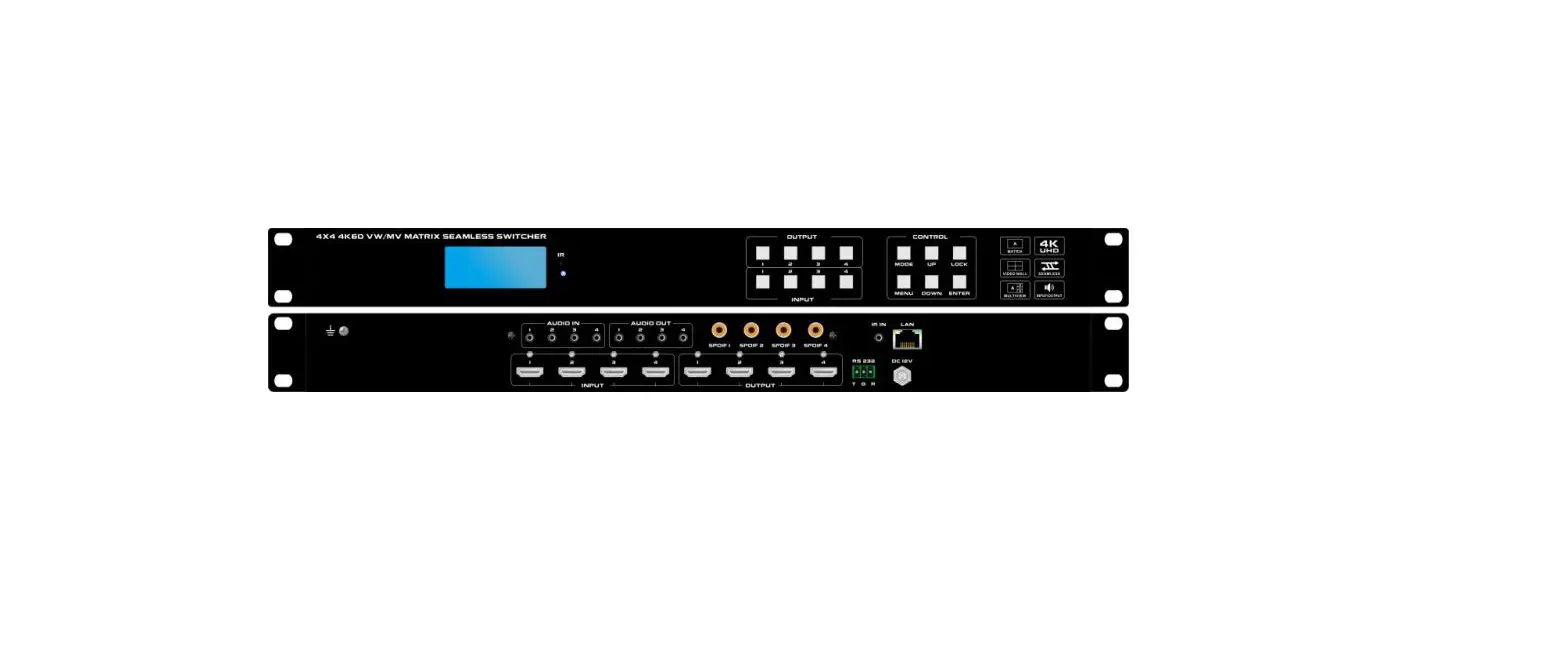
- 4xHDMI Input, 4xHDMI output with 4xSPDIF Audio
- Any one of the 4 Ultra HD sources to any one of the 4 Ultra HD displays
- Support Panel Button, Local IR, RS232 with command, IP, Web GUI Control
- Support Dolby True HD and DTS-HD master audio, Dolby Atmos under copy EDID mode
- Support firmware updating through USB port
- Unit size: L216XW105XH34mm
Package Contents
- 1x HDMI Matrix
- 1x 5V DC power supply
- 1x Remote control
- 1x IR Ext RX Cable
- 1x Phoenix plugs for RS232 cable termination
- 1x mounting kit
- 1x CD for control software & user manual
Specifications
| Operating Temperature | 23°F to 113°F (-5°C to 45°C) |
| Storage Temperature | -4°F to 140°F (-20°C to 60°C) |
| Resolution | 480p®60hz,576P®50hz,720P®60hz, 1080P 24hz,1080P®50hz,1080P®60hz, 4K hz,4K®30hz, 4K 60hz YUV4:2:0, 4K@ 60hz YUV4:4:4 |
| HDCP Compliant | HDCP2.2 and HDCP1.4 |
| Output Video | HDMI2.0 and HDMI 1.4 |
| Audio Format Supported | PCM, Dolby5.1/7.1, DTS5.1/7.1 digital audio, Dolby Atrnos |
| RS-232 serial port | 3PIN terminal block connectors |
| Ethernet port (IP control) | RJ45, female |
| IR Ext port | lx3.5mm stereo jack |
| USB port | Micro 5P female |
| Bandwidth | 18 Gbps |
| Default IP | 192.168.1.168 |
| Rack-Mountable | Rack ears included |
| Dimensions(WxHxD) | L216XW105XH34mm |
| Net Weight | 0.72kg |
| Power consumption | 13W(Max) |
Panel Descriptions
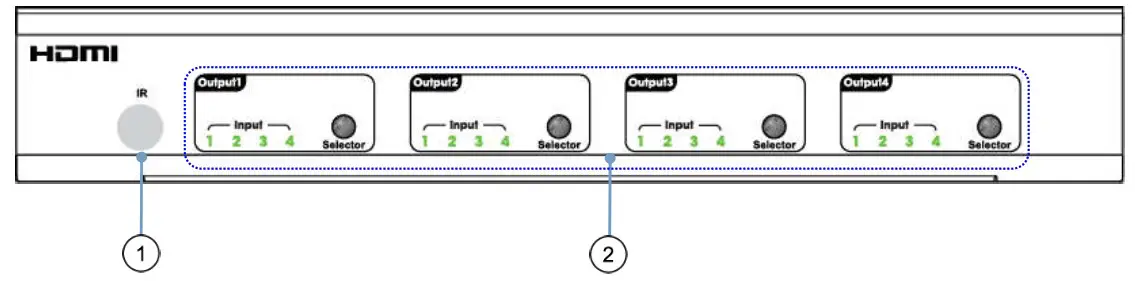
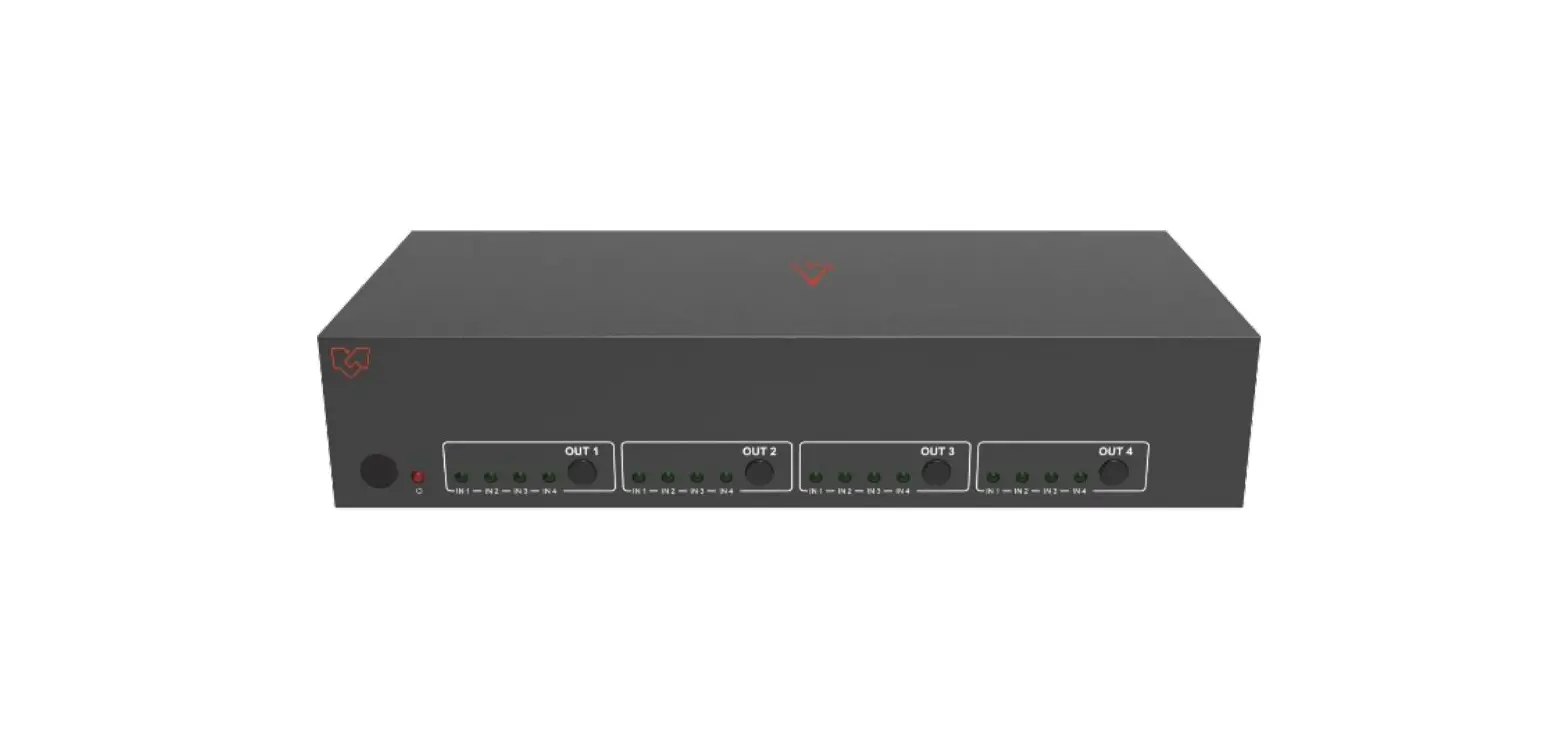
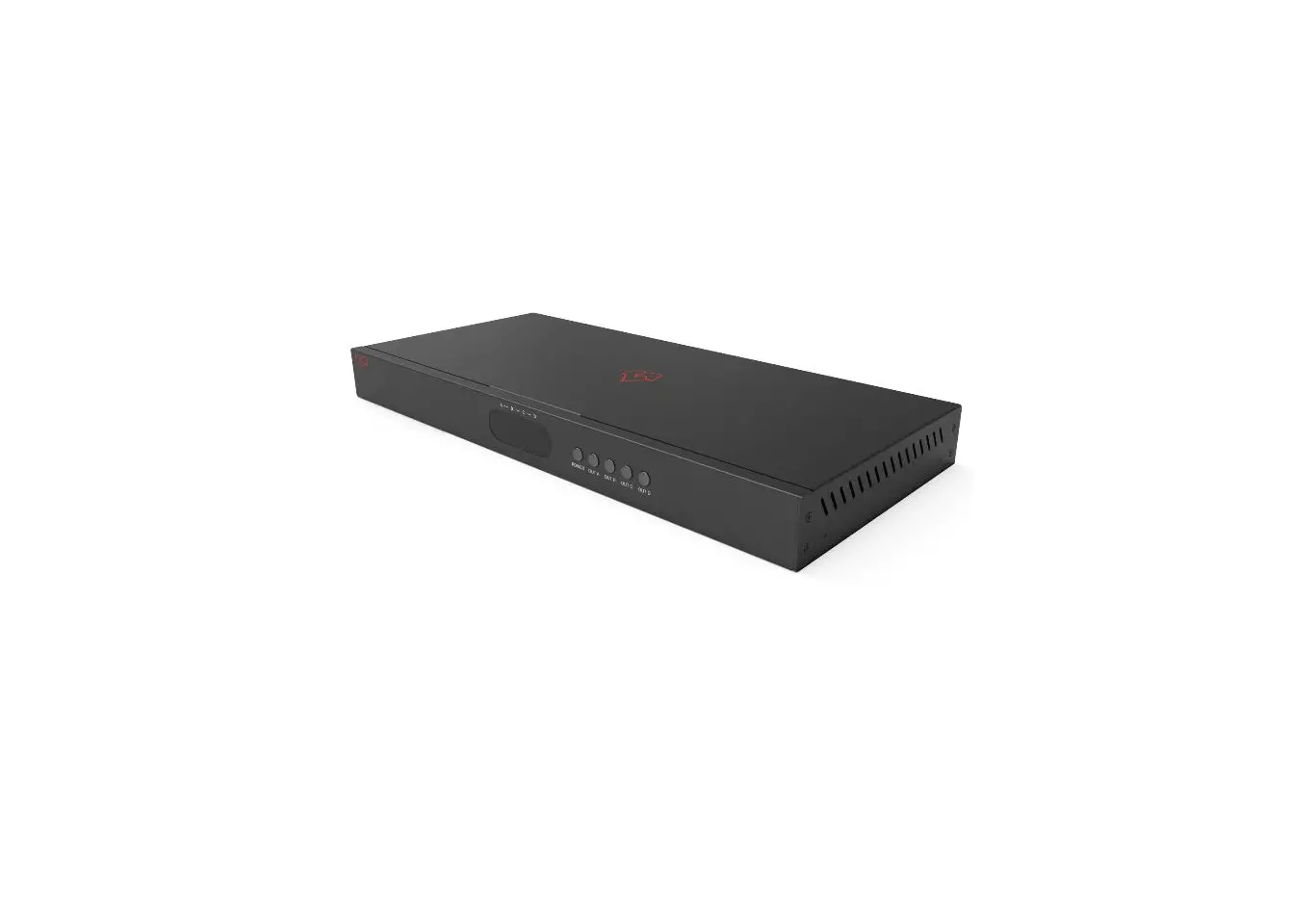
① IR receive window.
② Output button OUT1~4: choose the desired output port from input ports 1~4.
Note
- Turn on/off DHCP function: press the selector of output 1 and output 2 for 3 seconds.
- Restore factory settings: when all outputs select input 1, press the selector of output 3 and output 4 for 3 seconds.
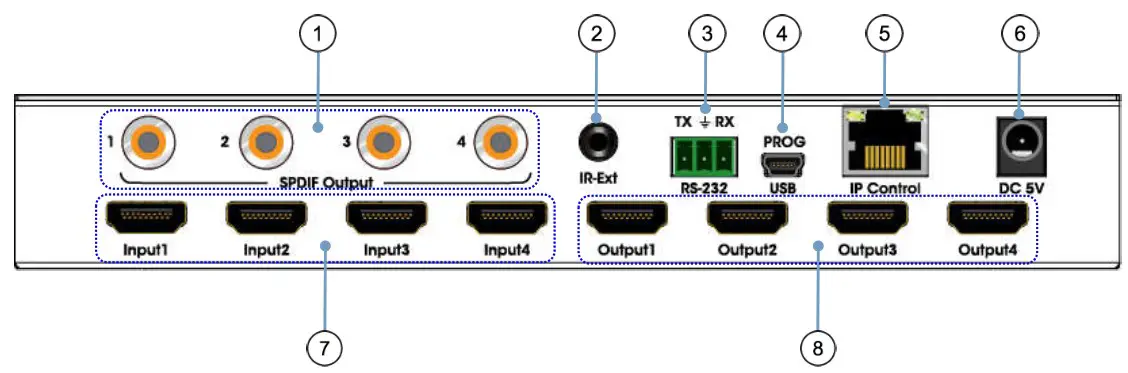
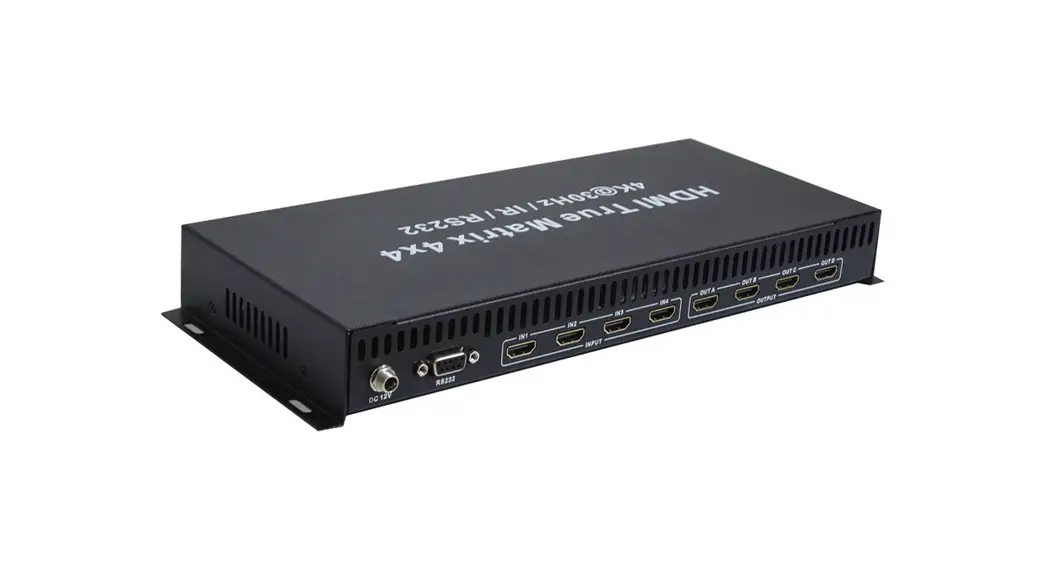
| ① SPDIF Audio output. ② For IR external receiver cable. ③ RS232 for control or upgrading the firmware. ④ USB micro 5P port for upgrading the firmware. | ⑤ IP control. ⑥ DC power input. ⑦ HDMI input port. ⑧ HDMI output port. |
 Warning: Misplug the power port will destroy products and TVs.
Connecting and Operating
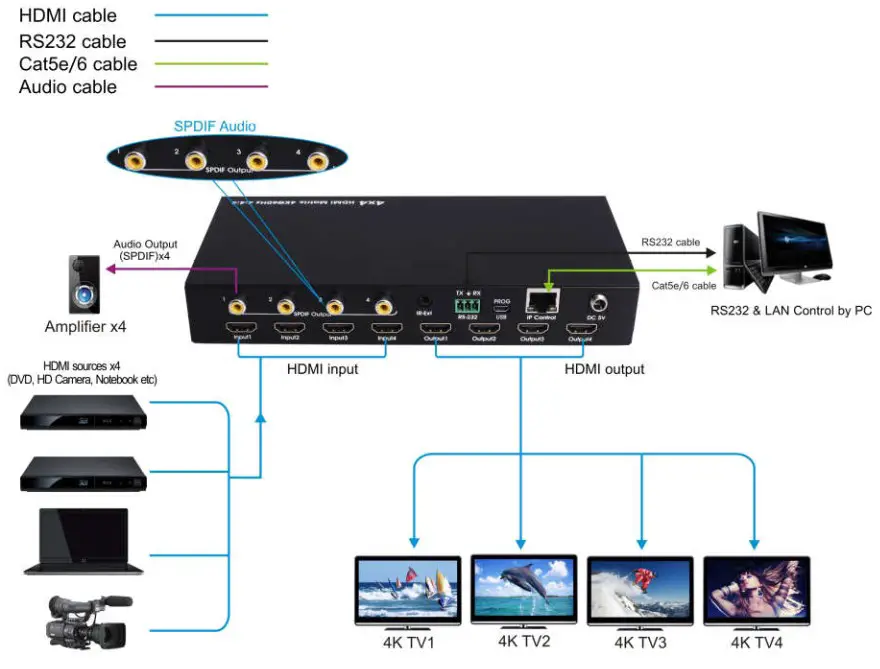
- Connect source devices to input ports of the matrix
- Connect HDMI output ports to TV or other HDMI sink devices.
- Optional: connect RS232 cable from PC RS232 port.
- Optional: connect an Ethernet cable from the TCP/IP port on the matrix to a local area network.
- Connect 5V POWER supply to DC power socket.
- Power on the matrix, HDMI sources and displays.
Application Diagram
Remote Control Description
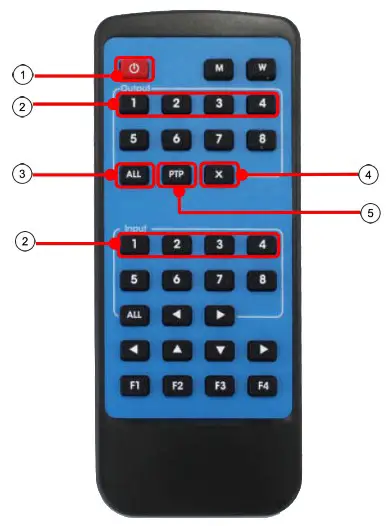 | ① Standby Mode. ② OUTPUT-X select INPUT-Y: Press OUTPUT-X (X means 1 to 4 of outputs) Press INPUT-Y (Y means 1 to 4 of inputs) ③ All outputs select INPUT-Y: Press ALL button in zone OUTPUT Press INPUT-Y button (Y means 1 to 4 of inputs), then INPUT-Y switched to ALL OUTPUTS. ④ Cancel Button: Cancel the switching operation ⑤ PTP button: Mirror all inputs and outputs (Ex. Input 1 to output 1, input 2 to output 2, etc): Press PTP button in Zone OUTPUT. |
RS232 Pin Assignment
| Matrix | Remote Control Console | ||
| Assignment | PIN | Assignment | |
| 1 | NC | ||
| Tx | 2 | Rx | |
| Rx | 3 | Tx | |
| 4 | NC | ||
| GND | 5 | GND | |
| 6 | NC | ||
| 7 | NC | ||
| c, | NC | ||
| 9 | NC | ||
RS232 Control
Software control

Connect the 4×4 Matrix to PC with a RS232 cable, open the software included in the manual. On the COM Setting session, select the COM port according to your PC and click Connect to get connected.
On this COM setting session, you can also change the Device name, Device name support up to 16 characters. Save or edit your status by clicking the Edit button. Come to Port Set session to select or switch your input sources for each output, We can read the current status by clicking the “Status” button, or Clear our historical operating record by clicking “Clear” button. The right down blank shows the operating history.
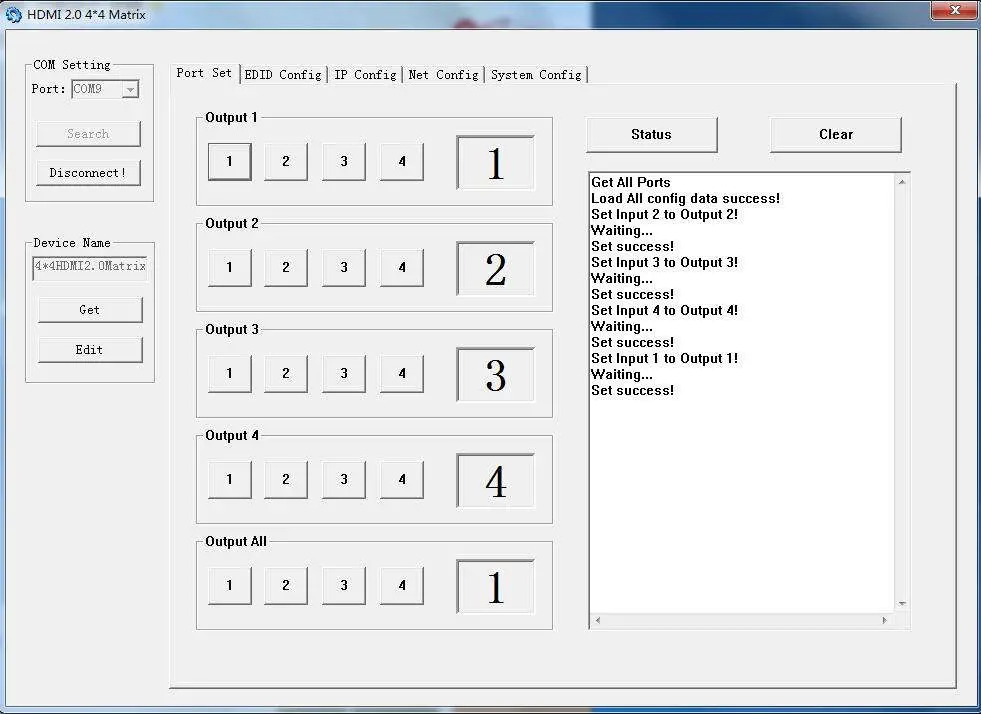 Picture 1: Porting Setting
The EDID session helps us to Read and Configure EDID for each input, such as HDR, 3D, Data rates and Audio channel.
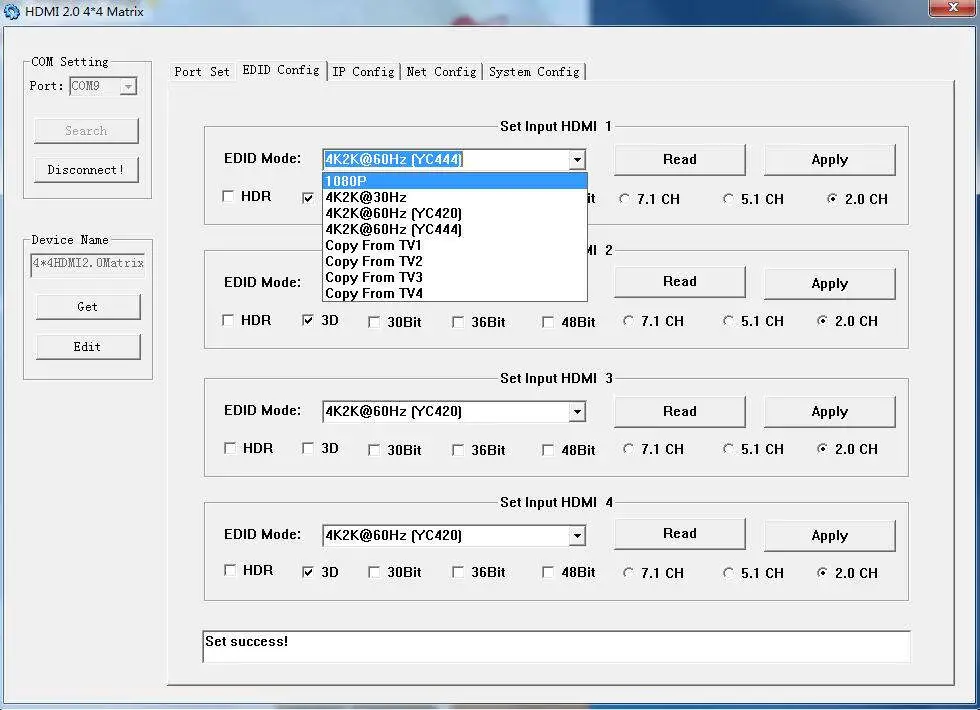 Picture 2: EDID Setting
The IP configure session helps to read and configure the IP address and MAC of the Matrix. Click DHCP if you want the router assign an automatic IP for the Matrix.
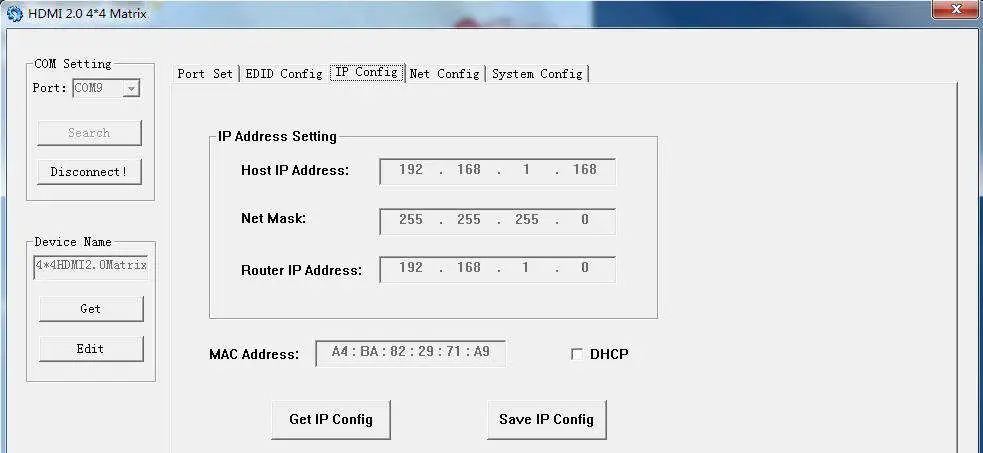 Picture 3: IP Config
The Net Config session allows us to configure the PC and Matrix in the same LAN with the IP Address and connection.
Click “Net config” → “Connect” → “Search Device” → “Sel Device Number” →“Connect” then you can see the device name, it meas connect successfully.
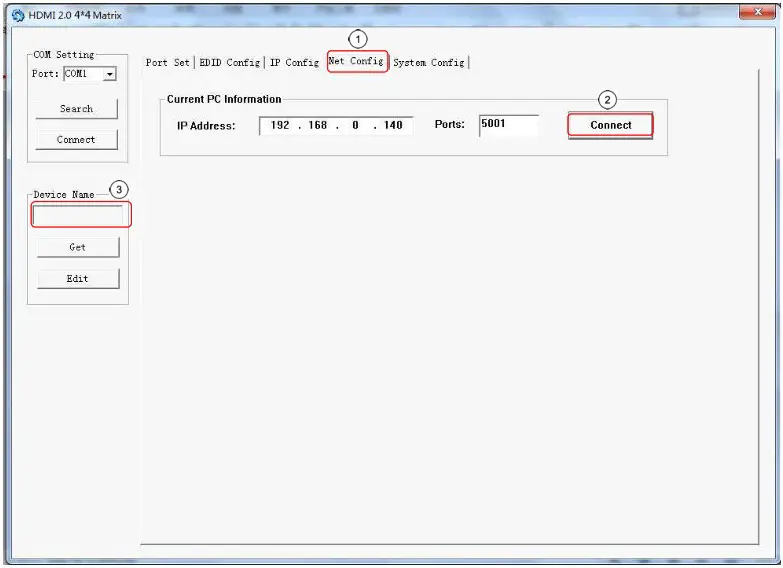 Picture 4: Net Config
You can also click “IE”, easy and click to enter into web.
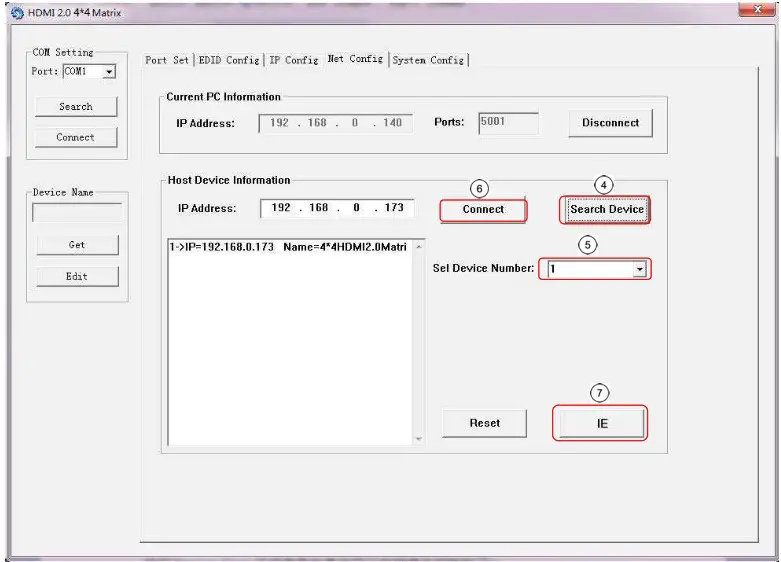 Picture 5: Net Config
The last session is System Config, which allows power ON/OFF or reset, default the Matrix.
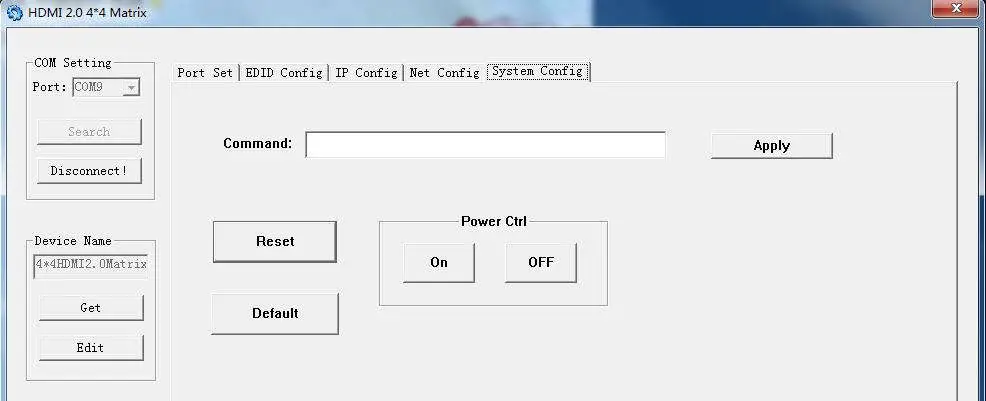 Picture 6: System config
Command Control
- Open CommUart Assistant.
- Comport setting:
Baud Rate: 115200 bps Parity: None Data Bits: 8 bit Stop Bits: 1 bit - Enter Port Command in Send options.
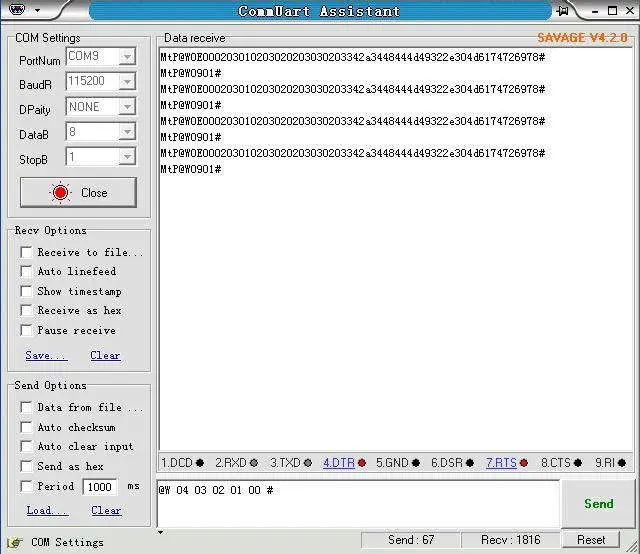
- Command
Command Function Note @W 04 00 01 02 03 # PTP Function Minor all inputs and outputs
(Ex. Input 1 to output 1, input 2 to output 2, etc)@W 50 # Reboot @W 51 # Restore Factory Setting @W OF 00 # Standby 00: Standby Mode
01: Cancel “Standby Mode” - Select HDMI input for HDMI output
Command Description 00 Output1 01 Output2 02 Output3 03 Output4 04 All Output 00 Input1 01 Input2 02 Input3 03 Input4 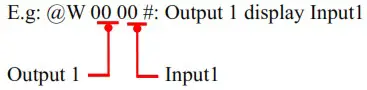
- EDID Setting
@W XX AA BB #: Parameter Description:
XX for configuration of “INPUT EDID”
| Command | 05 | 06 | 07 | 08 |
| Description | Input1 | Input2 | Input3 | Input4 |
AA for selecting “Video EDID Mode”
| Command | 00 | 01 | 02 | 03 |
| Description | 1080P | 4K2K_30 | 4K2K_60(YC420) | 4K2K_60(YC444) |
| Command | 04 | 05 | 06 | 07 |
| Description | Copy Output 1 | Copy Output 2 | Copy Output 3 | Copy Output 4 |
Note: If current EDID is AA=00 {1080P}, then use AA=04 to COPY Output 1’s EDID, but if TV1 isn’t connected to the TV, then it will automatically return to the mode AA=00 {1080P} before COPY.
BB for selecting below function
| Bit7 | Bit6 | Bit5 | Bit4 | Bit3 | Bit2 | Bit1 | Bit0 |
| HDR | 48Bit | 36Bit | 30Bit | 7.1CH | 5.1CH | 2CH | 3D |
| 1 | 1 | 1 | 1 | 1 | 1 | 1 | 1 |
| 0 | 0 | 0 | 0 | 0 | 0 | 0 | 0 |
“1”: choose the function, “0”: doesn’t choose the function.
E.g: 11001001: HDR, 48Bit, 7.1CH, 3D
Chang Binary code “11001001” to hexadecimal format “C9”.
E.g: @W 05 03 C9 #
The EDID of input 1 is: 4K2K_60(YC444)、HDR、48Bit、7.1CH、3D.
Web Control
Address Information
| Static IP Add: | 192.168.1.168 |
| Sub-Mask: | 255.255.255.0 |
| Gateway: | 192.168.1.1 |
| Dynamic IP | OFF |
| TCP/IP/UDP Port | 5000 |
| Telnet | Account and Password: Admin Note: Capitalize the first letter Port: 23 |
Change the IP address of your PC.
- Connect the HDMI Matrix and PC to the LAN.
- Configure your PC as follows:
- Click Start > Control Panel > Network and Sharing Center.
- Click Change Adapter Settings.
- Highlight the network adapter you want to use to connect to the device and click Change settings of this connection.
- Connect to the device and click change settings of this connection:
- Highlight Internet Protocol Version 4 (TCP/IPv4) by clicking on the item.
- Click Properties.
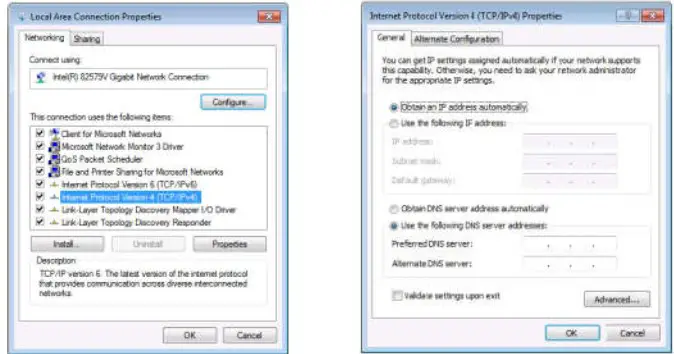
- Select Use the following IP Address for static IP addressing and fill in the details.
For TCP/IPv4 you can use any IP address in the range 192.168.1.2 to 192.168.1.254 (excluding 192.168.1.168). Picture 10
 - Click OK.
- Click Close.
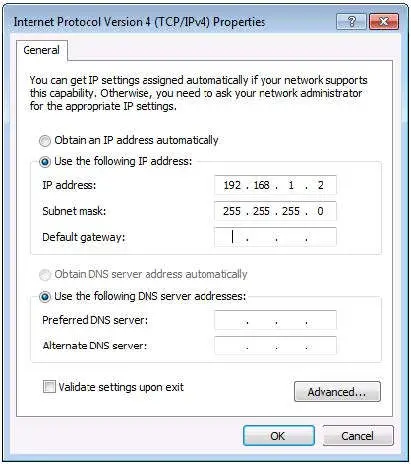 Picture 10
WEB setting page
- Open the Web browser and enter the IP address of the HDMI Matrix:192.168.1.168, then you can set the function as below pictures:
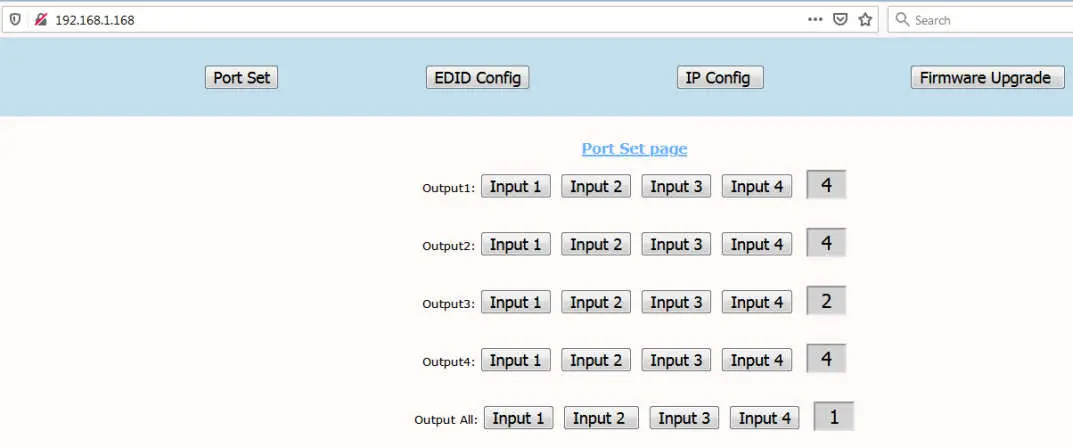 Picture 11: Port Setting Page
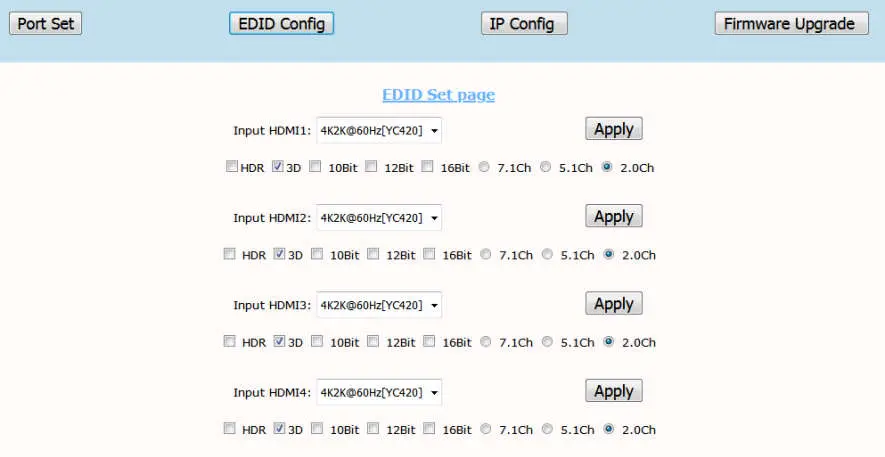 Picture 12: EDID Setting Page
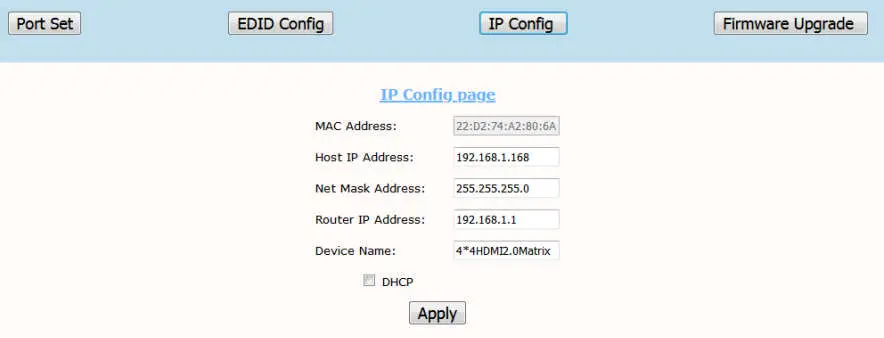 Picture 13: IP Configuration Page
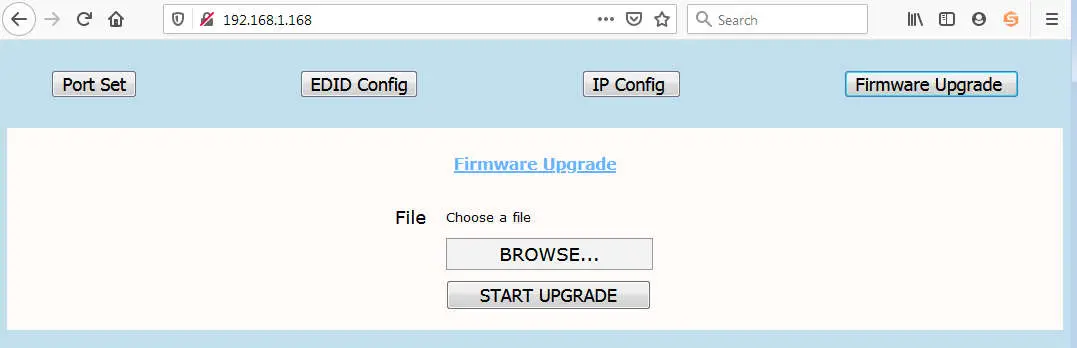 Picture 14: Firmware Upgrade Page
DHCP Setting
You can also choose “DHCP” for HDMI Matrix (refer to 9.1 picture)
- Connect the HDMI Matrix and PC to the LAN.
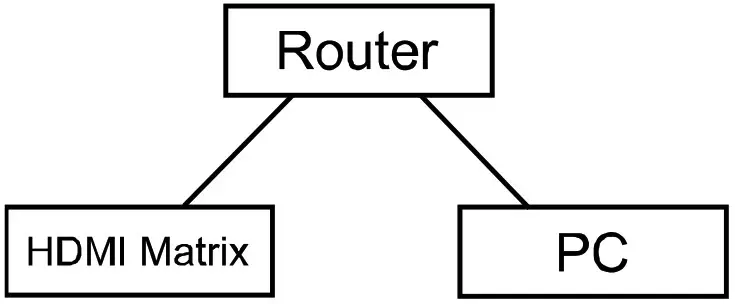
- Open the PC tool (included in the CD).

- Search the IP address of HDMI Matrix, please refer to 9.1 picture 4 & picture 5.
- Open the web browser and enter the IP address you searched. Then Enter the WEB GUI Page
Telnet Control
Login Telnet
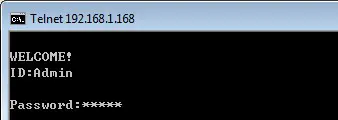
Press “Windows” + “R” to enter Operation page and type “cmd”
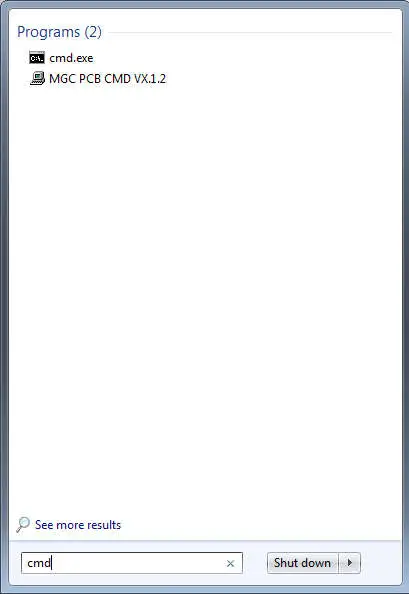
Typing “telnet 192.168.1.168” to enter login page
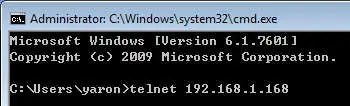
Typing ID and Password “Admin” to login
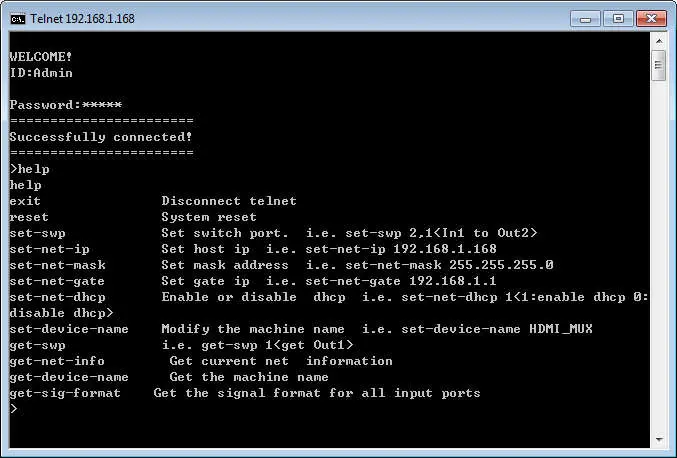
How to get commands
Typing “ Help” to check all the commands
Online upgrading firmware

- Connect the HDMI Matrix with PC via USB or RS232 port.
- Open the software to upgrade firmware ( Included in the manual).
- Click “Search” choose the port, then click “connect”, then you can see “S3R(C)”, click “Load FW File” to upload the firmware,click “update”, the firmware can be upgraded in one minute.
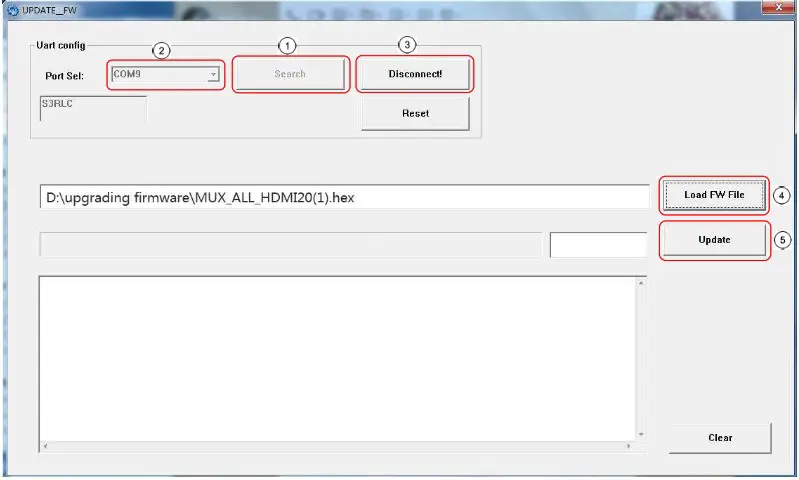 Picture 14:Upgrading firmware
MAINTENANCE
Clean this unit with a soft, dry cloth. Never use alcohol, paint thinner of benzine to clean this unit.
PRODUCT SERVICE
- Damage requiring service:
The unit should be serviced by qualified service personnel if:
(a) The DC power supply cord or AC adaptor has been damaged;
(b) Objects or liquids have gotten into the unit;
(c) The unit has been exposed to rain;
(d) The unit does not operate normally or exhibits a marked change in performance;
The unit has been dropped or the cabinet damaged. - Servicing Personnel: Do not attempt to service the unit beyond that described in these operating instructions.Refer all other servicing to authorized servicing personnel.
- Replacement parts: When parts need replacing ensure the servicer uses parts specified by the manufacturer or parts that have the same characteristics as the original parts. Unauthorized substitutes may result in fire, electric shock, or other Hazards.
- Safety check: After repairs or service, ask the servicer to perform safety checks to confirm that the unit is in proper working condition.
WARRANTY
If your product does not work properly because of a defect in materials or workmanship, our Company (referred to as “the warrantor” ) will, for the length of the period indicated as below, (Parts(2)Year, Labor(90) Days) which starts with the date of original purchase (“Limited Warranty period”), at its option either(a) repair your product with new or refurbished parts, or (b) replace it with a new of a refurbished product. The decision to repair or replace will be made by the warrantor.
During the “Labor” Limited Warranty period there will be no charge for labor. During the “Parts” warranty period, there will be no charge for parts. You must mail-in your product during the warranty period. This Limited Warranty is extended only to the original purchaser and only covers product purchased as new. A purchase receipt or other proof of original purchase date is required for Limited Warranty service.
MAIL-IN SERVICE
When shipping the unit carefully pack and send it prepaid, adequately insured and preferably in the original carton. Include a letter detailing the complaint and provide a day time phone and/or email address where you can be reached.
LIMITED WARRANTY LIMITS AND EXCLUSIONS
- This Limited Warranty ONLY COVERS failures due to defects in materials or workmanship, and DOES NOT COVER normal wear and tear or cosmetic damage. The Limited Warranty ALSO DOES NOT COVER damages which occurred in shipment, or failures which are caused by products not supplied by warrantor, or failures which result from accidents, misuse, abuse, neglect, mishandling, misapplication, alteration, faulty
installation, set-up adjustments, misadjustment of consumer controls, improper maintenance, power line surge, lightning damage, modification, or service by anyone other than a Factory Service center or other Authorized Servicer, or damage that is attributable to acts of God. - THERE ARE NO EXPRESS WARRANTIES EXCEPT AS LISTED UNDER “LIMITED WARRANTY COVERAGE”. THE WARRANTOR IS NOT LIABLE FOR INCIDENTAL OR CONSEQUENTIAL DAMAGES RESULTING FROM THE USE OF THIS PRODUCT, OR ARISING OUT OF ANY BREACH OF THIS WARRNTY. (As examples, this excludes damages for lost time, cost of having someone remove or re-install an installed unit if applicable, travel to and from the service, loss of or damage to media or images, data or other recorded content. The items listed are not exclusive, but are for illustration only.)
- PARTS AND SERVICE, WHICH ARE NOT COVERED BY THIS LIMITED WARRANTY, ARE YOUR RESPONSIBILITY.