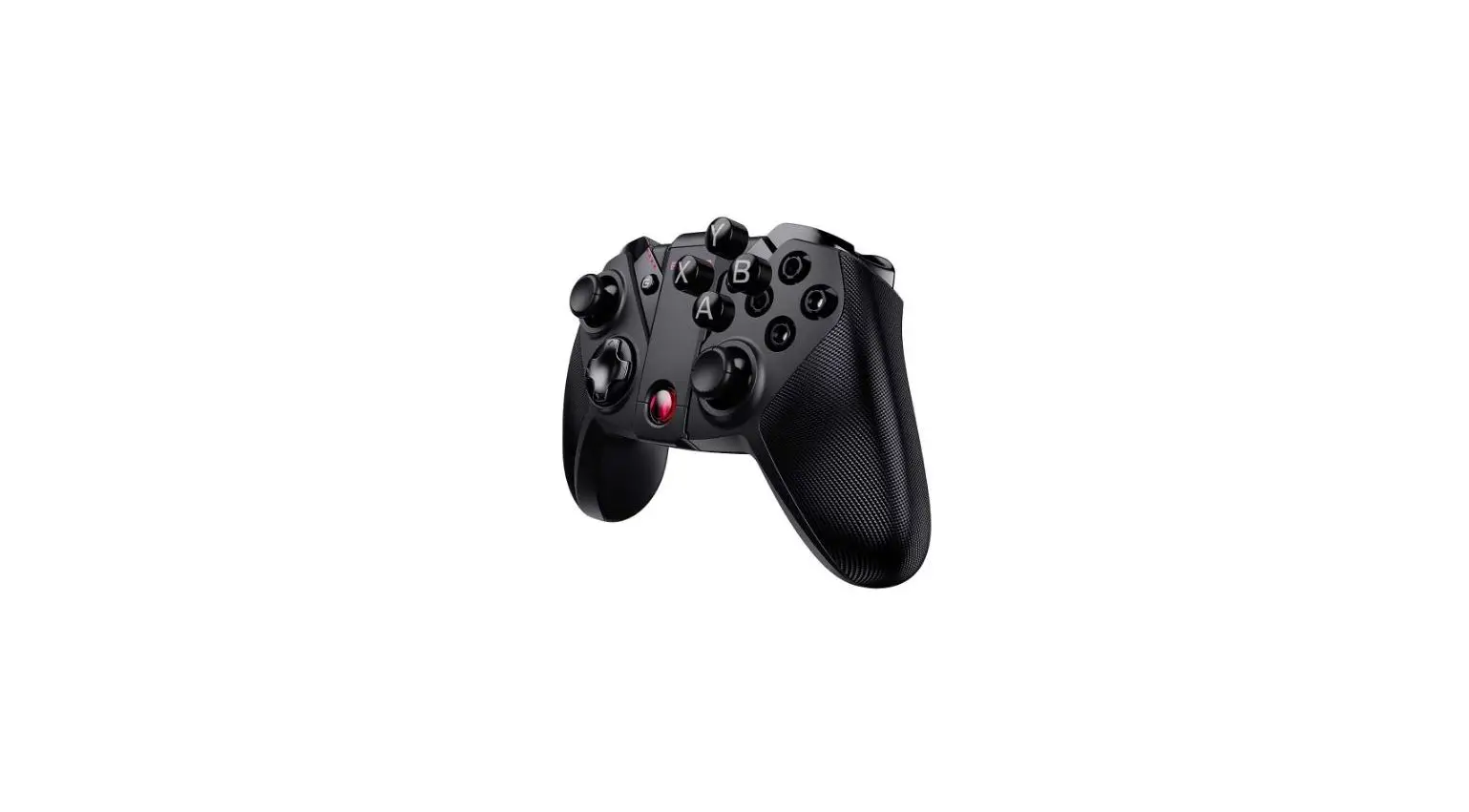
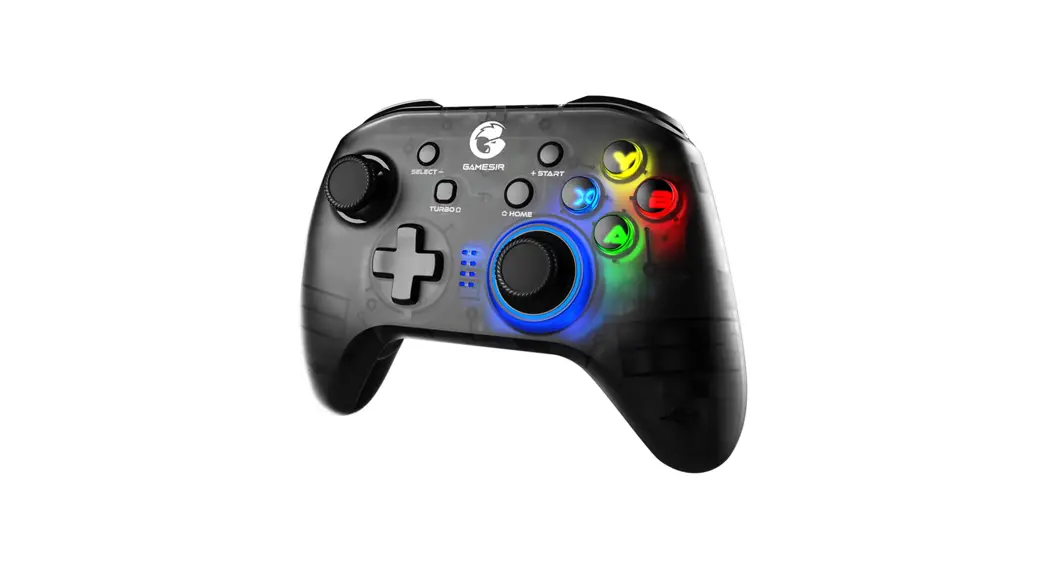
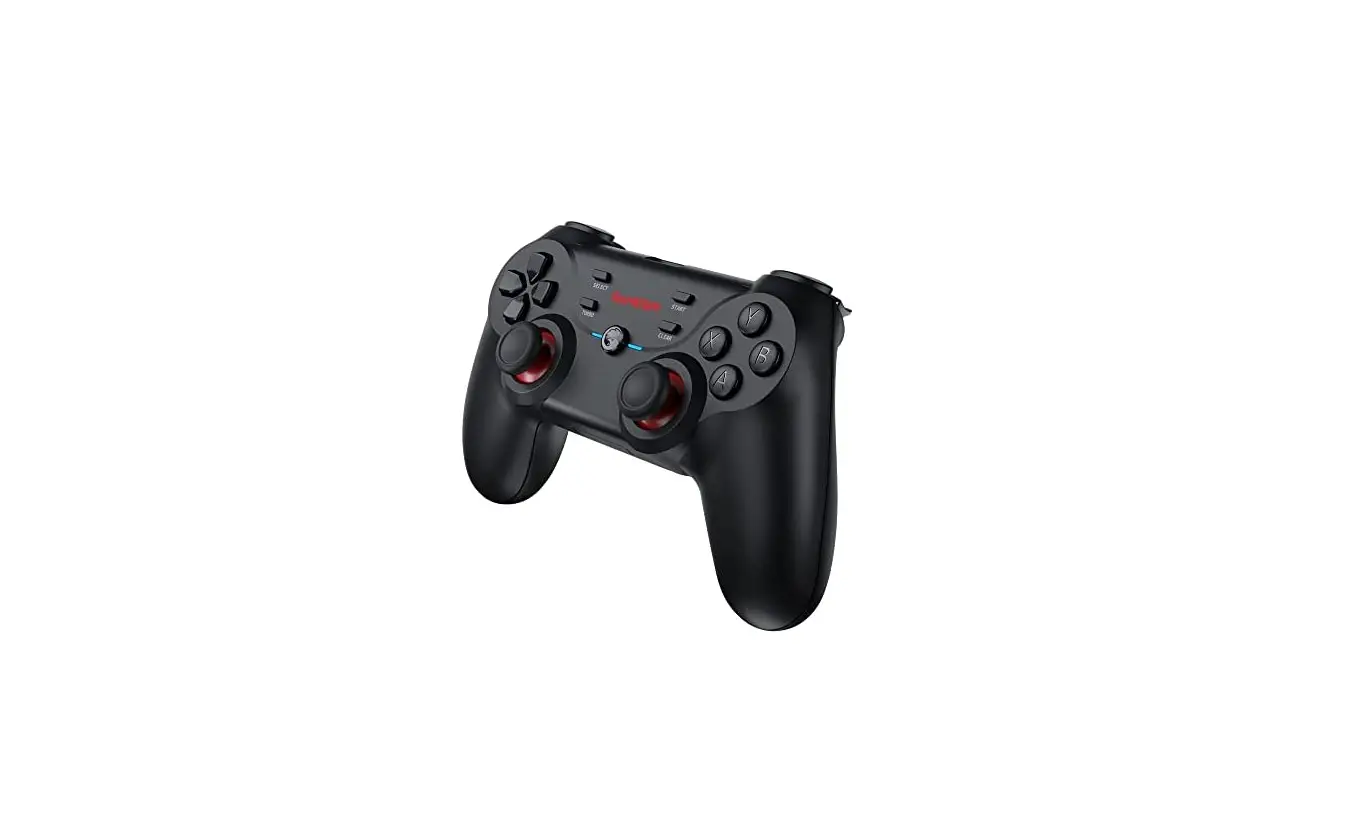
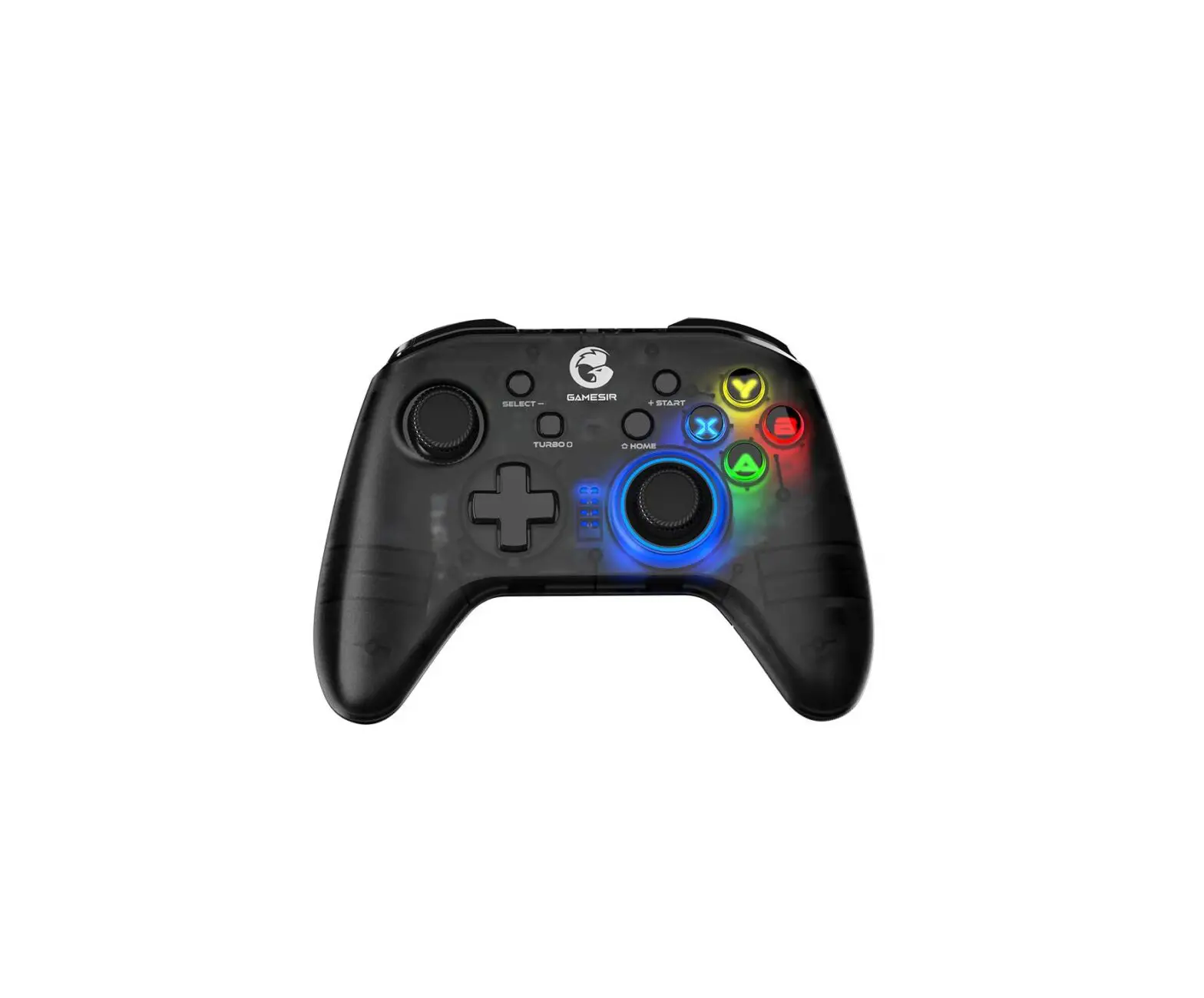
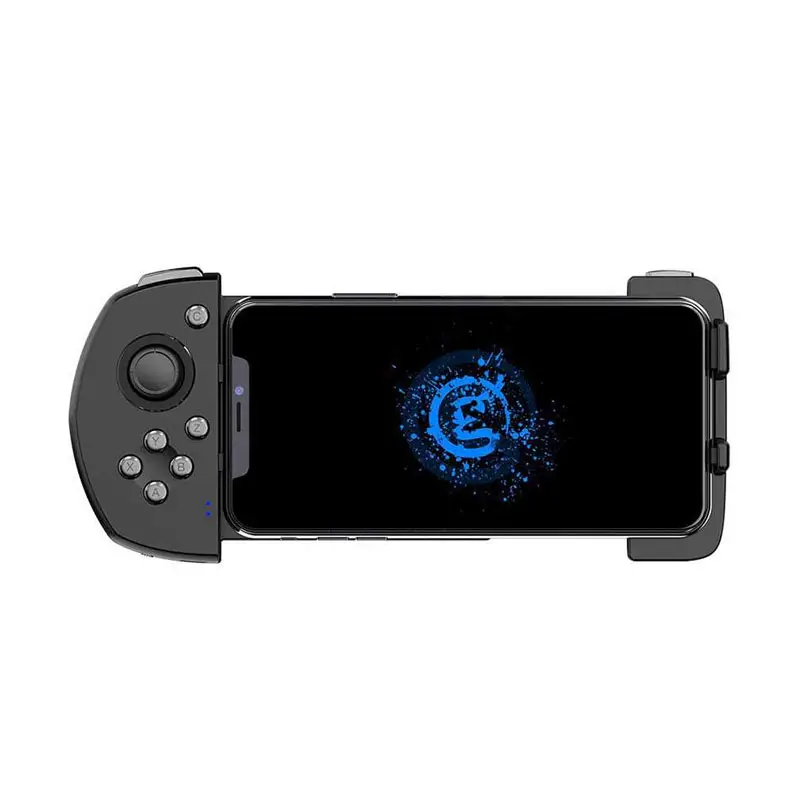
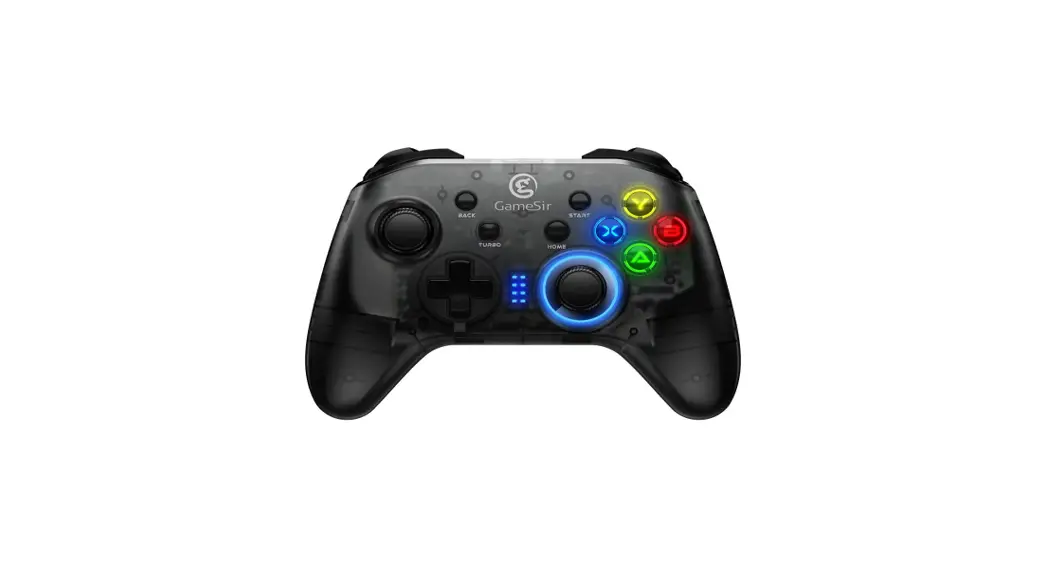
T4 Pro Multi Platform Game Controller
Product Information:
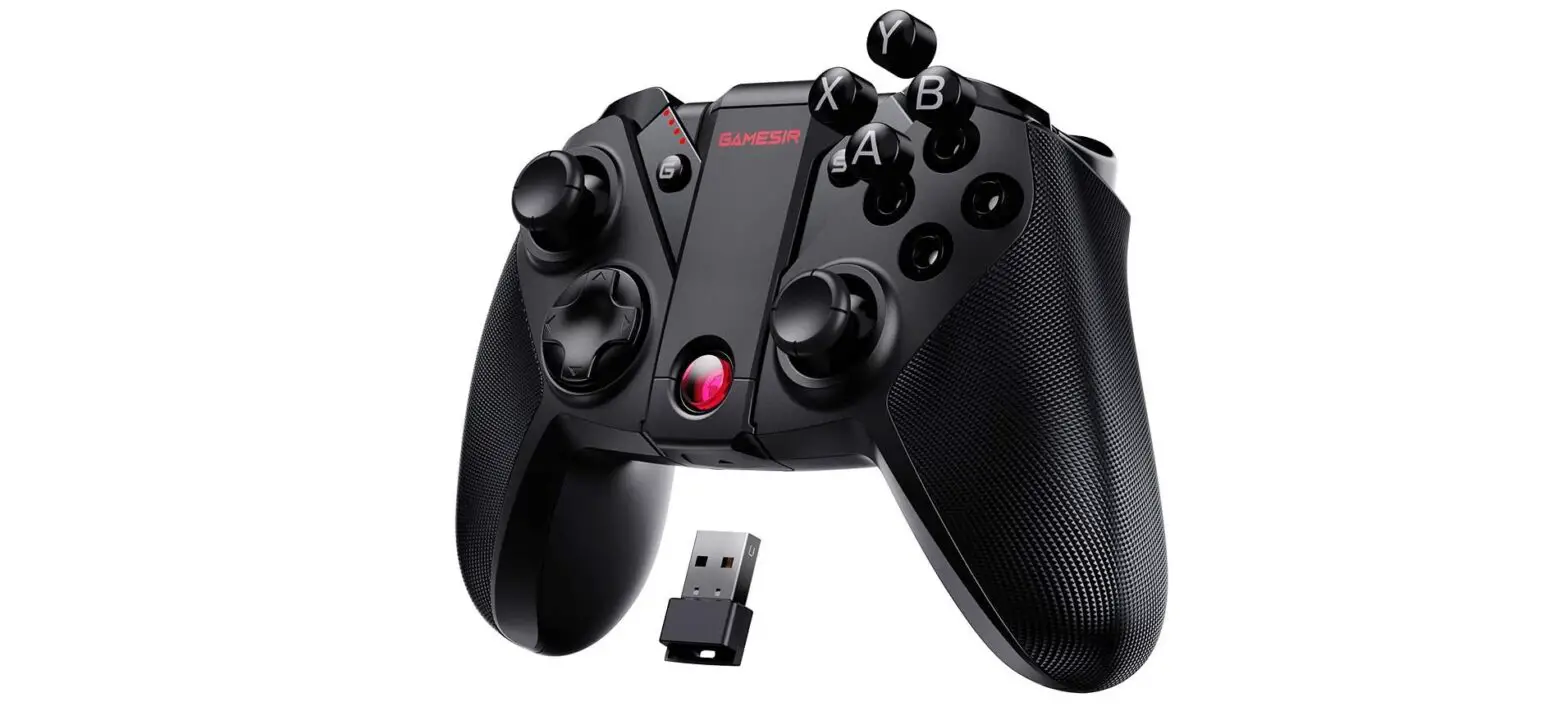
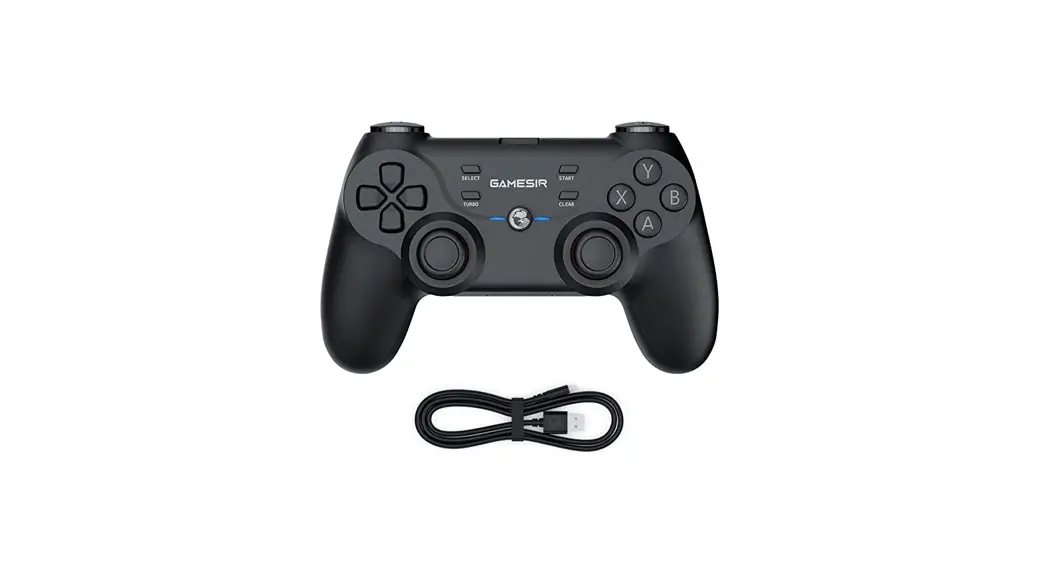
The T4 Pro / T4 Pro SE is a gaming controller designed for use
with various devices such as Android phones, iOS devices, Windows
computers, and Switch consoles. It features a phone holder for
convenient gaming on mobile devices and offers multiple connection
options including USB receiver and Bluetooth.
Product Usage Instructions:
System Requirements:
To use the T4 Pro / T4 Pro SE, ensure that your device meets the
following system requirements:
- Android 8.0 or above
- iOS 13 or above
- Windows 7/10/11
Device Layout:
The controller layout consists of the following buttons and
indicators:
- Left Joystick
- HOME Button
- ABXY Button
- D-Pad
- START Button
- TURBO Button
- SELECT Button
- Right Joystick
- Indicator
How to Use the Phone Holder:
To use the phone holder, follow these steps:
- Insert the phone holder from the top of the gamepad.
How to Charge the Gamepad:
To charge the gamepad, follow these steps:
- Use a charging cable to connect the Type-C interface on the top
of the gamepad to the USB charging port.
The charging indicator provides the following information:
- Red light stays on: Charging
- Red light goes out: Fully charged
How to Connect to a Computer or Android TV Box via USB
Receiver:
To connect the gamepad to a computer or Android TV box using the
USB receiver, follow these steps:
- Plug the USB receiver into the USB port of your computer or
Android TV box. - Press the X + HOME buttons until the gamepad is turned on. The
gamepad’s indicator should be solid blue and the receiver’s
indicator should be solid red to indicate a successful
connection. - The next time you connect, simply press the gamepad’s HOME
button to power on and it will automatically be connected. Note
that if the gamepad has been switched to another mode, you need to
use the key combination to restart.
How to Connect to PC via USB Cable:
To connect the gamepad to a PC using a USB cable, follow these
steps:
- When the gamepad is off, plug the USB cable into the USB port
of your PC.
How to Connect to Switch via Bluetooth:
To connect the gamepad to a Switch console via Bluetooth, follow
these steps:
- Go to the main interface of the Switch and click Controllers
-> Change Grip/Order to enter the pairing interface. - Press the Y + HOME buttons until the gamepad is turned on.
- The gamepad will be automatically paired with the Switch.
- The next time you connect, simply press the gamepad’s HOME
button to power on and it will automatically connect and wake up
the Switch. Note that if the gamepad has been switched to another
mode, you need to use the key combination to restart.
Note: In Switch mode, the values of the A button & B button,
and X button & Y button of the gamepad will be swapped.
How to Connect to Mobile Phone via Bluetooth:
To connect the gamepad to a mobile phone via Bluetooth for
playing Android controller-supported games, follow these steps:
- Press the A + HOME buttons until the gamepad is turned on.
- Turn on the phone’s Bluetooth, search for [Gamesir-T4pro],
click and pair. - The next time you connect, simply press the gamepad’s HOME
button to power on and it will automatically be connected. Note
that if the gamepad has been switched to another mode, you need to
use the key combination to restart.
How to Connect to Apple Arcade and MFI Games:
To connect the gamepad to an iOS device for playing Apple Arcade
and MFI games, follow these steps:
- Press the B + HOME buttons until the gamepad is turned on.
- Turn on the phone’s Bluetooth, search for [Xbox Wireless
Controller], click and pair. - The next time you connect, simply press the gamepad’s HOME
button to power on and it will automatically be connected. Note
that if the gamepad has been switched to another mode, you need to
use the key combination to restart.
Gaming is winning.TM
T4 Pro / T4 Pro SE
V2022-1.0
ENGLISH
1
13
25
37 User Manual
SYSTEM REQUIREMENTS
Android 8.0 or above iOS 13 or above Windows 7/10/11
DEVICE LAYOUT
ENGLISH
Left Joystick HOME Button ABXY Button
D-Pad START Button TURBO Button
1
SELECT Button Right Joystick Indicator
ENGLISH
ENGLISH Power On: Press and hold the HOME button for 1 second to power on. Power Off: Press and hold the HOME button for 5 seconds to power off. Pairing Mode: According to the gamepad mode you want to apply, select a key combination to power on to enter the corresponding pairing mode. Reconnect: The game controller can remember the last pairing record. The next time you turn it on, by simply pressing and holding the HOME button, it will automatically reconnect to the last paired device, without using the key combination.
HOW TO USE THE PHONE HOLDER
Please insert the phone holder from the top of the gamepad.
S
USB Receiver
LB Button
RB Button
LT Button
RT Button
Type-C Connector
Phone Holder Base
Charging Indicator
M1 M3 Button
M2 M4 Button
2
3
ENGLISH
HOW TO CHARGE THE GAMEPAD
Use a charging cable to connect the Type-C interface on the top of the gamepad to the USB charging port.
BATTERY STATUS
When the battery is below 15%, the current Charging Indicator will flash in RED quickly.
CHARGING INDICATOR
DESCRIPTION
Red light stays on
Charging
Red light goes out
Fully charged
ENGLISH
HOW TO CONNECT TO A COMPUTER OR ANDROID TV BOX VIA USB RECEIVER
1. Plug the USB receiver into the USB port of your computer or Android TV box. 2. Press the X + HOME buttons until the gamepad is turned on. The gamepad’s indicator is solid blue and the receiver’s is solid red to indicate a successful connection. 3. The next time you connect, just press the gamepad’s HOME button to power on, it will automatically be connected. NOTE: If the gamepad has been switched to another mode, you need to use the key combination to restart.
INDICATOR
DESCRIPTION
Mode indicator
Slow Blinking Blue Fast Blinking Blue
Solid Blue
Connecting Pairing
Connected
X+HOME
4
5
ENGLISH
HOW TO CONNECT TO PC VIA USB CABLE
When the gamepad is off, plug the USB cable to the USB port of your PC.
INDICATOR
DESCRIPTION
Mode indicator
INDICATOR
Slow Blinking Blue Fast Blinking Blue
Solid Blue Y+HOME
DESCRIPTION
Mode indicator
Connecting Pairing
Connected
ENGLISH
HOW TO CONNECT TO SWITCH VIA BLUETOOTH
1. Go to the main interface of the Switch, and click Controllers—-Change Grip/Order to enter the pairing interface. 2. Press the Y + HOME buttons until the gamepad is turned on. 3. The gamepad will be automatically paired with the Switch. 4. The next time you connect, just press the gamepad’s HOME button to power on, it will automatically connect and wake up the Switch. NOTE: If the gamepad has been switched to another mode, you need to use the key combination to restart.
In Switch mode, the values of the A button & B button, and X button & Y button of the gamepad will be swapped.
6
7
ENGLISH
HOW TO CONNECT TO MOBILE PHONE VIA BLUETOOTH
PLAY ANDROID CONTROLLER-SUPPORTED GAMES REFERS TO MOBILE GAMES THAT SUPPORT USING A GAMEPAD 1. Press the A + HOME buttons until the gamepad is turned on. 2. Turn on the phone’s Bluetooth, search for [Gamesir-T4pro], click and pair. 3. The next time you connect, just press the gamepad’s HOME button to power on, it will automatically be connected. NOTE: If the gamepad has been switched to another mode, you need to use the key combination to restart.
INDICATOR
Slow Blinking Blue Fast Blinking Blue
Solid Blue A+HOME
DESCRIPTION
Mode indicator
Connecting Pairing
Connected
ENGLISH
PLAY APPLE ARCADE AND MFI GAMES REFERS TO IOS MOBILE GAMES THAT SUPPORT USING A GAMEPAD 1. Press the B + HOME buttons until the gamepad is turned on. 2. Turn on the phone’s Bluetooth, search for [Xbox Wireless Controller], click and pair. 3. The next time you connect, just press the gamepad’s HOME button to power on, it will automatically be connected. NOTE: If the gamepad has been switched to another mode, you need to use the key combination to restart.
INDICATOR
Slow Blinking Blue Fast Blinking Blue
Solid Blue B+HOME
DESCRIPTION
Mode indicator
Connecting Pairing
Connected
8
9
ENGLISH
BACKLIGHT AND MOTOR VIBRATION INTENSITY ADJUSTMENT
KEYBINDS
DESCRIPTION
Hold LT, RT, R3 + D-Pad’s Up & Down
Adjust the brightness of the gamepad’s backlight (5 levels, default: the brightest)
Hold LB + RB for 5 Seconds
Open/Close ABXY backlight
Turbo + D-Pad’s Up & Down
Adjust the intensity of motor vibration (5 levels)
TURBO FUNCTION
TURBO FUNCTION
Achieve fast attacks in the game
SET/CANCEL TURBO
Press and hold the button that needs a Turbo set, then press the TURBO button.
INDICATOR LIGHT
The backlight of the right joystick flashes red, meaning the set is done. After canceling the Turbo, the backlight of the right joystick becomes blue again.
PROGRAMMABLE BUTTONS
A, B, X, Y, LB, RB, LT, RT
NOTE: In Switch mode, the TURBO button is defaulted to the Screenshot function. To use the Turbo function, it’s required to change the Screenshot function to the Turbo function by pressing the R3+TURBO buttons first. Then set the Motor Vibration Intensity / Turbo Function as above. To use the Screenshot function, press the R3+TURBO buttons again.
10
BACK BUTTONS FUNCTION
BACK BUTTONS LAYOUT
M1 B button
M2 A button
ENGLISH
M3 Y button
M4 X button
DEFAULT BUTTON VALUE
BACK BUTTONS PROGRAMMING
SINGLE BUTTON OR MULTIPLE BUTTONS CAN BE SET
TRIGGER MODE
HOW TO ENTER
DESCRIPTION
INDICATOR LIGHT
TRIGGERED AT THE
SAME TIME
Any M button + SELECT button
E.g: 1. M1 + SELECT buttons to enter the Same Time Trigger Programming Mode. 2.Hold the LB and R3 buttons. 3.Press M1 button again to confirm. 4. Press M1 to enable the LB and R3 to be triggered simultaneously.
The backlight of the Right joystick stays blue and red, meaning the programming mode is entered. The backlight of the right joystick stays blue, meaning the programming is completed.
TRIGGERED IN
SEQUENCE
Any M button + START button
E.g: 1. M1 + START buttons to enter the Sequential Trigger programming mode. 2. Hold the LB button first, then hold the R3 button. 3.Press M1 button again to confirm. 4. Press M1 to enable LB and R3 to be triggered in sequence.
The backlight of the right joystick stays blue and red, meaning the programming mode is entered. The backlight of the right joystick stays blue, meaning the programming is completed.
11
ENGLISH
NOTICE PLEASE READ THIS PRECAUTIONS CAREFULLY.
CONTAINS SMALL PARTS. Keep out of reach of children under the age of 3. Seek immediate medical attention if swallowed or inhaled. DO NOT use the product near fire. DO NOT expose to direct sunlight or high temperatures. DO NOT leave the product in a humid or dusty environment. DO NOT hit or drop the product. DO NOT touch USB port directly or it might cause malfunctions. DO NOT strongly bend or pull cable parts. Use a soft, dry cloth while cleaning. DO NOT use chemicals such as gasoline or thinner. DO NOT disassemble, repair or modify. DO NOT use for purposes other than its original purpose. We are NOT responsible for accidents or damage when used for non-original purposes. DO NOT look directly at the optical light. It might damage your eyes. If you have any quality concerns or suggestions, please contact GameSir or your local distributor.
Nintendo SwitchTM is a registered trademark of Nintendo. All rights reserved. All other trademarks are property of their respective owners. Photos and illustrations not binding. Contents, designs and specifications are subject to change without notice and may vary from one country to another. This product is not distributed under official license form or approved, sponsored or endorsed by Nintendo. This product is not manufactured for Nintendo.
This device complies with part 15 of the FCC Rules. Operation is subject to the following two conditions: (1) This device may not cause harmful interference, and (2) this device must accept any interference received, including interference that may cause undesired operation. Note: This equipment has been tested and found to comply with the limits for a Class B digital device, pursuant to part 15 of the FCC Rules. These limits are designed to provide reasonable protection against harmful interference in a residential installation. This equipment generates, uses and can radiate radio frequency energy and, if not installed and used in accordance with the instructions, may cause harmful interference to radio communications. However, there is no guarantee that interference will not occur in a particular installation. If this equipment does cause harmful interference to radio or television reception, which can be determined by turning the equipment off and on, the user is encouraged to try to correct the interference by one or more of the following measures: -Reorient or relocate the receiving antenna. -Increase the separation between the equipment and receiver. -Connect the equipment into an outlet on a circuit different from that to which the receiver is connected. -Consult the dealer or an experienced radio/TV technician for help.
12
Android 8.0 iOS 13 Windows 7/10/11
HOME ABXY
START TURBO
13
SELECT
HOME1 HOME5 HOME
S
USB
LB
RB
LT
RT
Type-C
M1 M3
M2 M4
14
15
Type-CUSB
15%
USBPC/Android TV Box
1. USBPC/Android TV Box USB 2. X+HOME USB 3. HOME :
X+HOME
16
17
USBPC
USBPCUSB
Y+HOME
BluetoothSwitch
1. Switch / 2. Y+HOME 3. Switch 4. SwitchHOME :
18
SwitchABXY
19
Bluetooth
Android
1. A+HOME 2. BluetoothGamesir-T4proBluetooth 3. HOME :
A+HOME
APPLE ARCADEMFi
1. B+HOME 2. BluetoothXbox Wireless Controller Bluetooth 3. HOME :
B+HOME
20
21
/
LTRTR3
LBRB5
ABXY/
TURBO+
TURBO
/
TURBO
A, B, X, Y, LB, RB, LT, RT
: SwitchTURBOScreenshot R3+TURBO Screenshot Turbo Screenshot R3+TURBO
22
M1 B
M2 A
M3 Y
M4 X
M +SELECT
: M1+SELECT LB R3 M1 M1 LBR3
M +START
: M1+START LBR3 M1 M1 LB R3
23
3 USB
Nintendo SwitchTM
Android 8.0 iOS 13 Windows 7/10/11
L
SELECT
HOME ABXY
START TURBO
R
24
25
: HOME 1 . : HOME 5 . : . : HOME .
.
S
USB
LB
RB
LT
RT
TYPE-C M1 M3
S M2 M4
26
27
Type-C USB .
15% .
LED
LED
USB
1. USB USB . 2. X + HOME . . 3. , HOME . : .
LED LED LED
X+HOME
28
29
USB
USB USB .
SWITCH
1. Switch ‘ / ‘ . 2. Y + HOME . 3. Switch Switch . 4. , HOME Switch . : .
30
LED LED LED
Y+HOME
Switch A B , X Y .
31
1. A + HOME . 2. “Gamesir-T4pro” . 3. , HOME . : .
LED LED LED
A+HOME
APPLE ARCADE MFI IOS
1. B + HOME . 2. “Xbox Wireless Controller” . 3. , HOME . : .
LED LED LED
B+HOME
32
33
LT, RT, R3 +
5
LB + RB 5 TURBO +
ABXY / 5
TURBO
/
TURBO
R LED . R LED .
A, B, X, Y, LB, RB, LT, RT
: Switch TURBO . TURBO R3 + TURBO Turbo . TURBO . R3 + TURBO .
34
( )
M1 B
M2 A
M3 Y
M4 X
M + SELECT
: M1+ SELECT . LB R3 M1 . , M1 LB R3 .
R LED . R LED .
M + START
: M1 + START . LB R3 . M1 . M1 LB R3 .
R LED . R LED .
35
.
. 3 . . . . . . USB . . . . . , , . . . . . GameSir .
Nintendo SwitchTM Nintendo . . Nintendo .
Android 8.0 iOS 13 Windows 7/10/11
HOME ABXY
START TURBO
SELECT
36
37
HOME1 HOME5 HOME
S
USB
LB
RB
LT
RT
Type-C
M1 M3
M2 M4
38
39
Type-CUSB
15%
X+HOME
USB
1. USBUSB 2. X+HOME 3. HOME
40
USB
USBUSB
41
SWITCH
1. Switch —-/ 2. Y+HOME 3. SwitchSwitch 4. HOMESwitch
Y+HOME
SwitchABXY
1. A+HOME 2. “Gamesir-T4pro” 3. HOME
A+HOME
42
43
APPLE ARCADEMFI
1. B+HOME 2. “Xbox Wireless Controller” 3. HOME
B+HOME
LTRTR3+
LB+RB 5
5
/ABXY
TURBO+
5
TURBO
/
TURBO
A, B, X, Y, LB, RB, LT, RT
SwitchTURBOTurbo R3+TURBOTurbo TurboR3+TURBO
44
45
(
M1
M2
B
A
M3 Y
M4 X
M+SELECT
M1+ SELECT LBR3 M1 M1LB
R3
M+START
M1+ START LB R3M1 M1
LB,R3
46
3 USB GameSir
Nintendo SwitchTM Nintendo Nintendo
47
(31