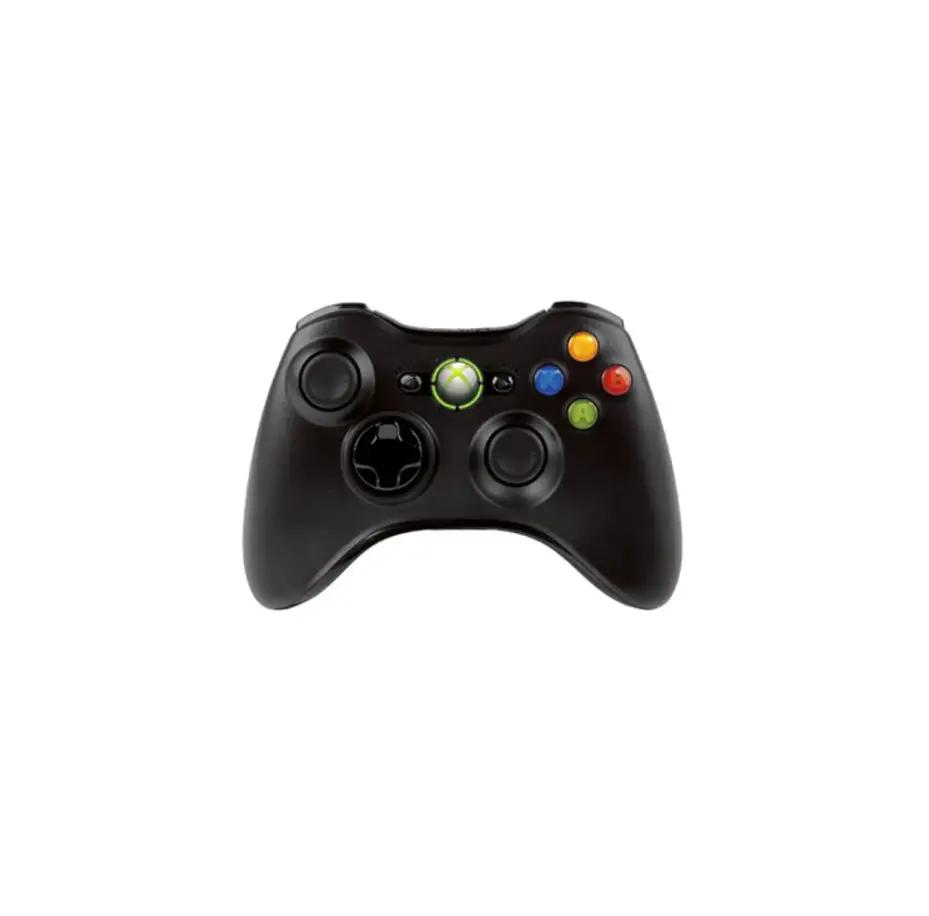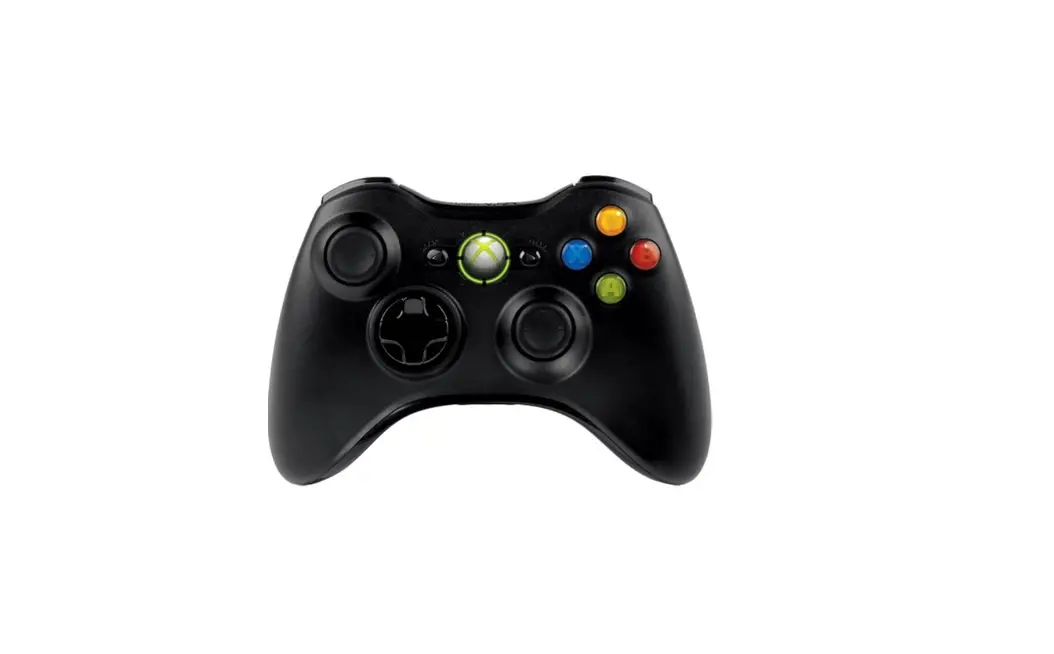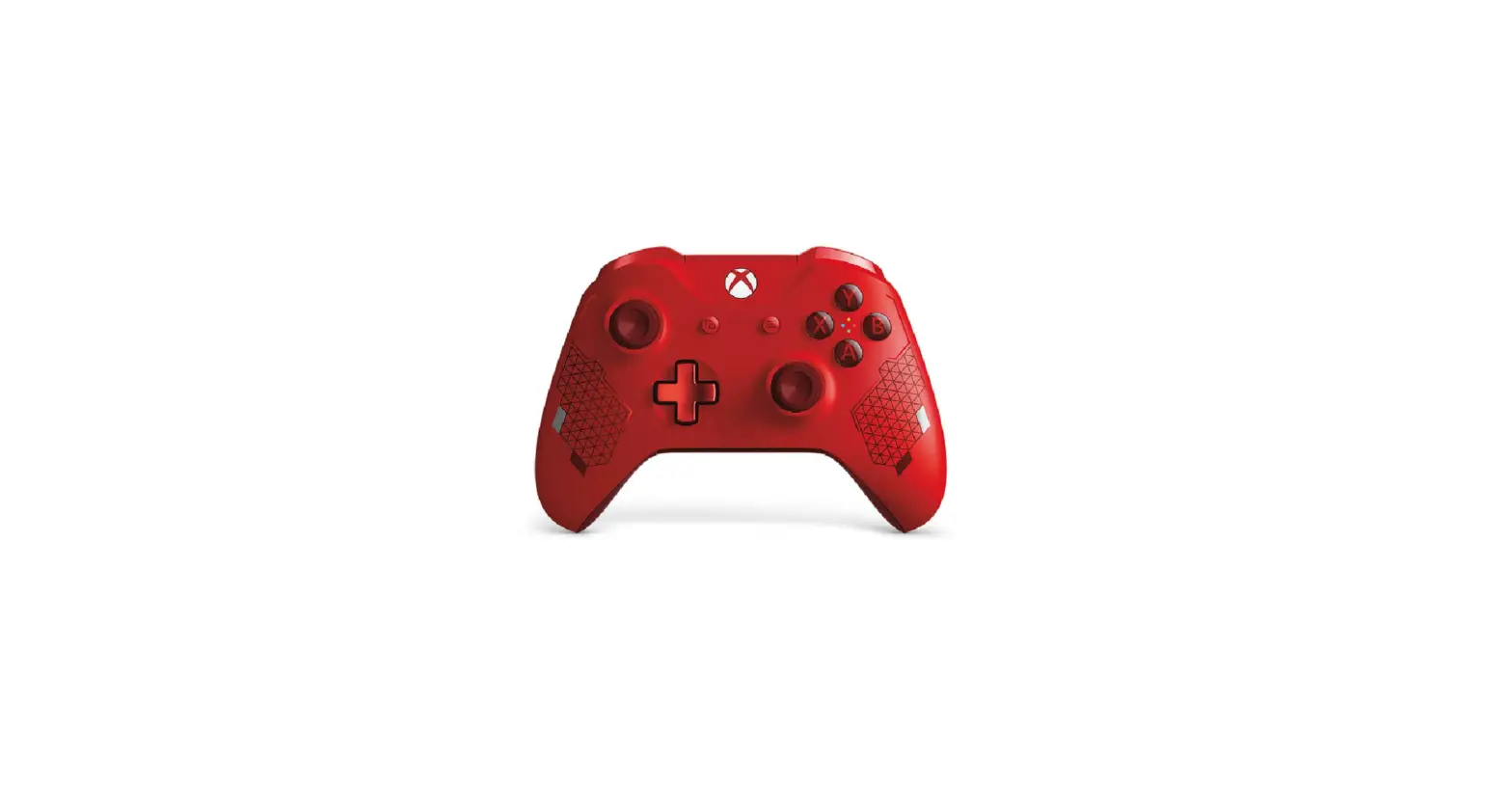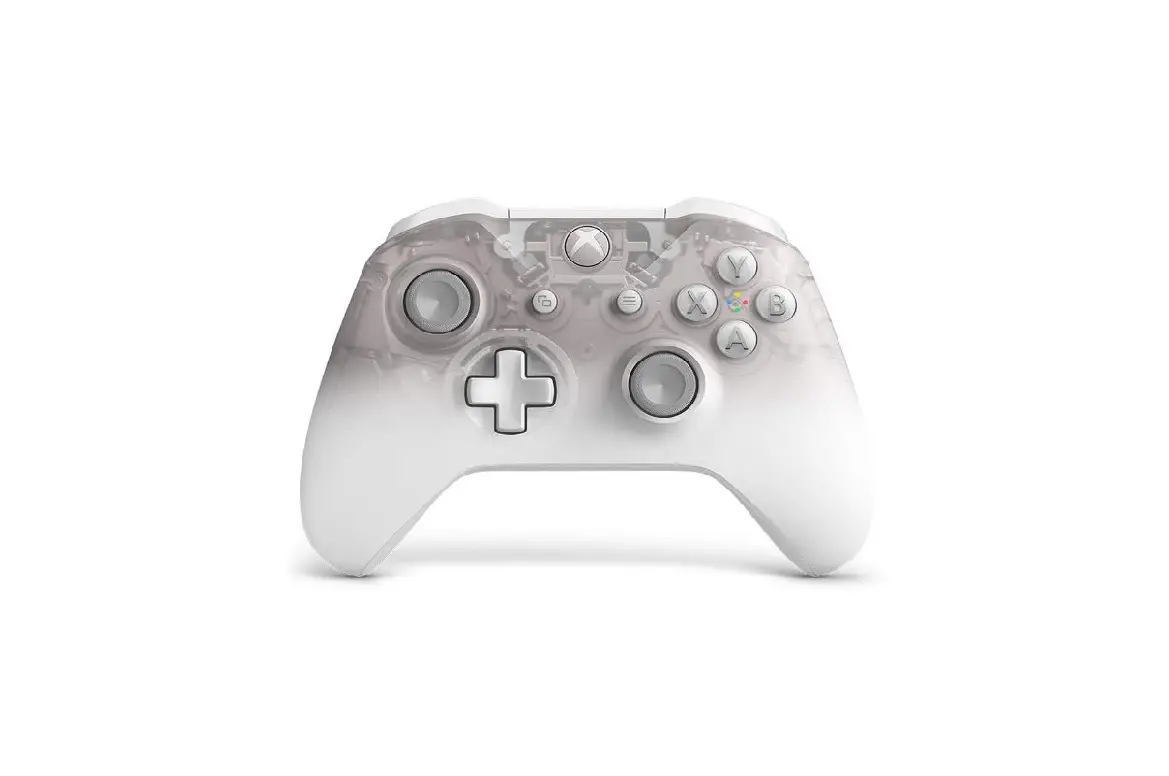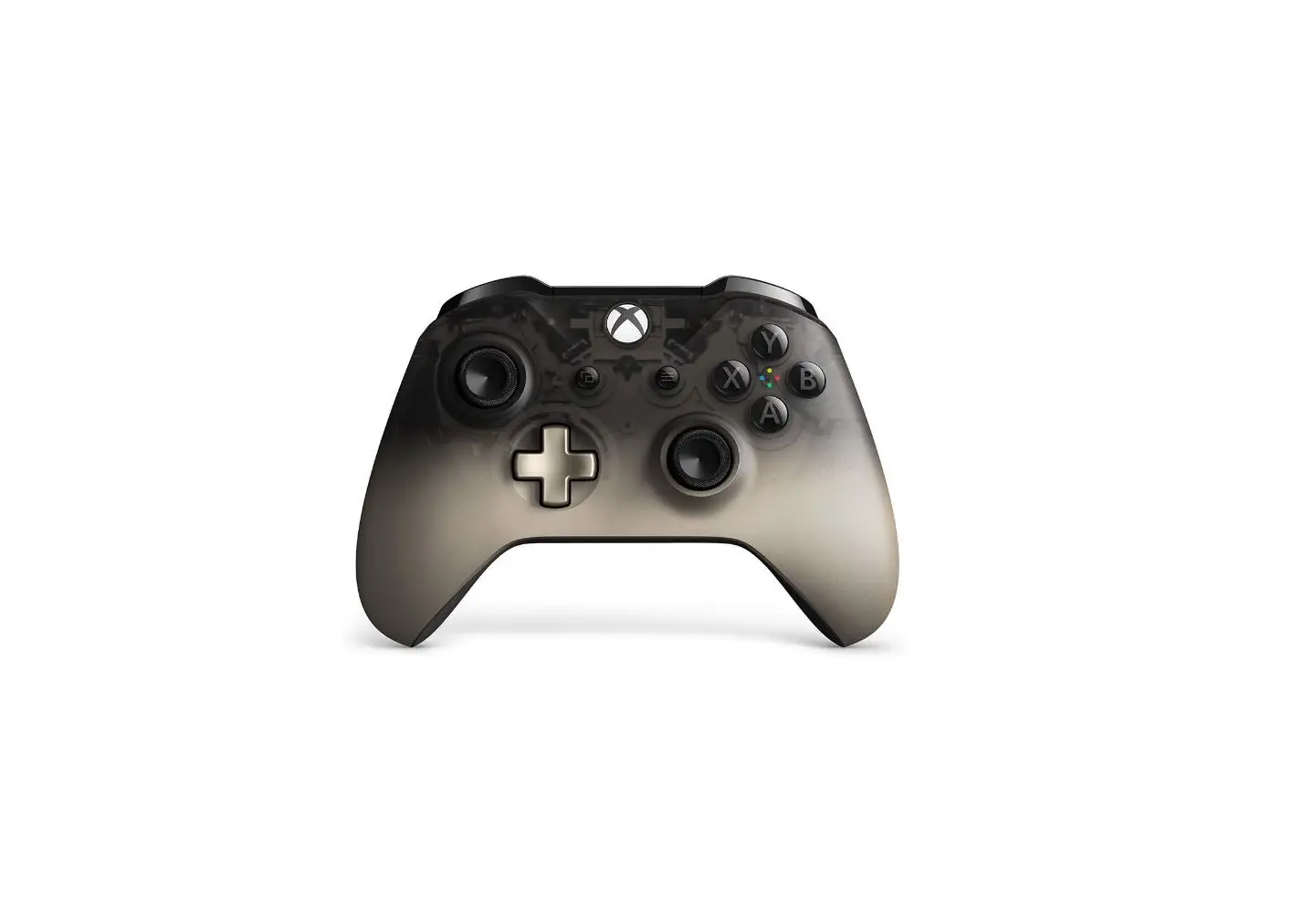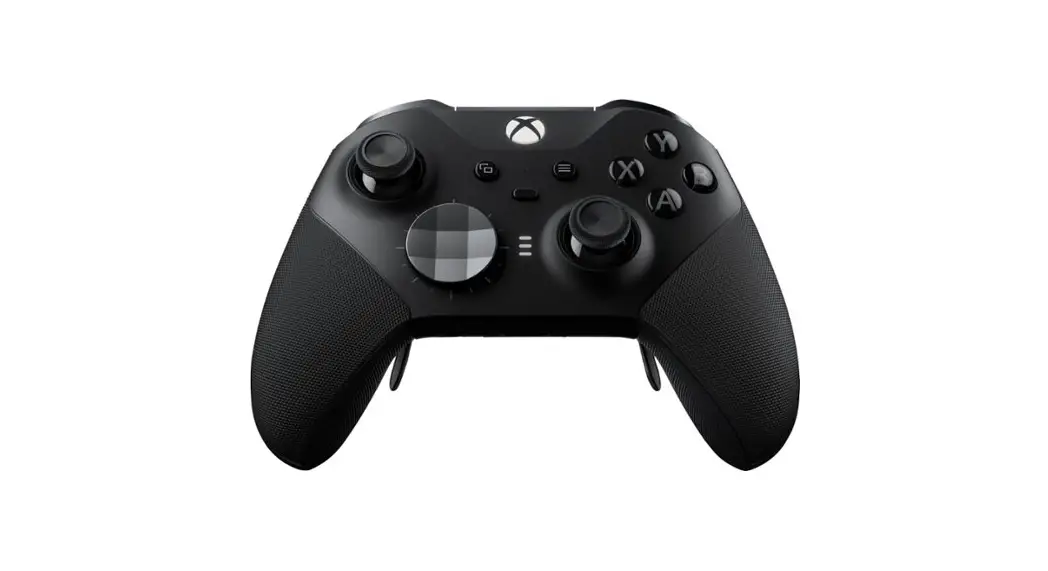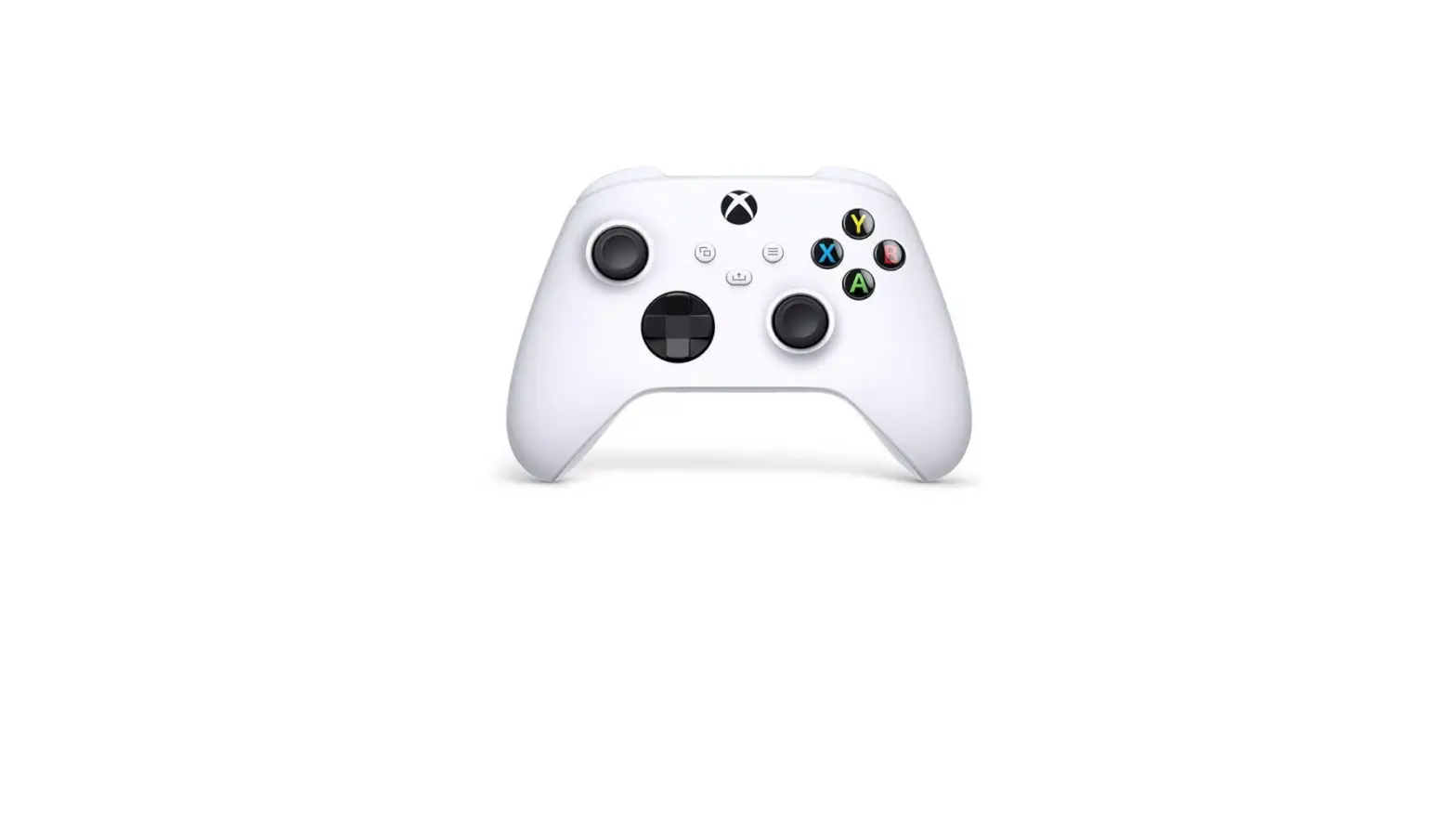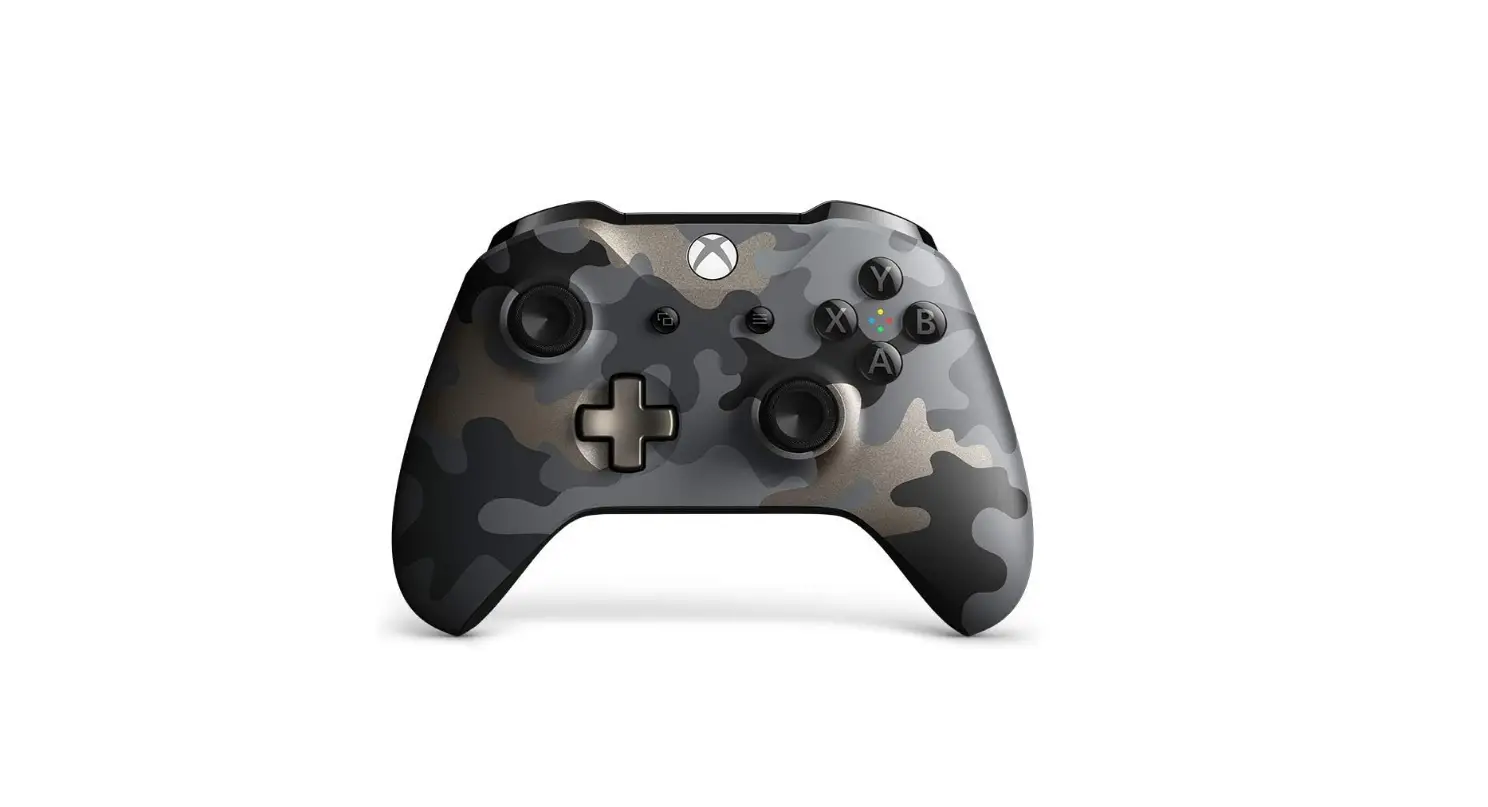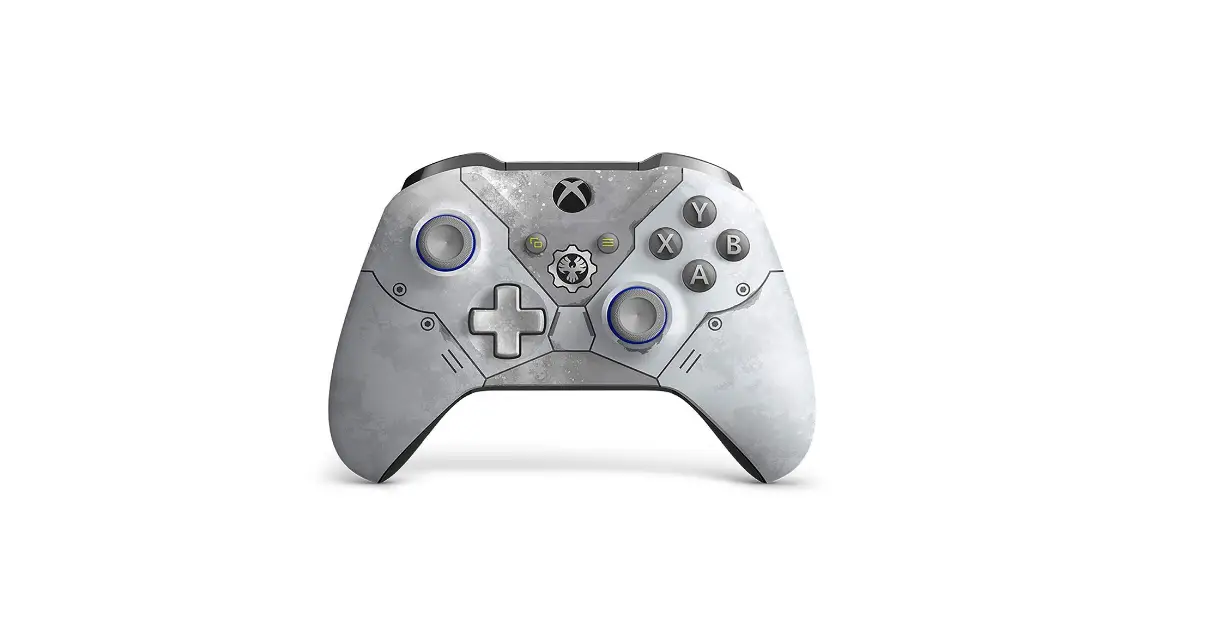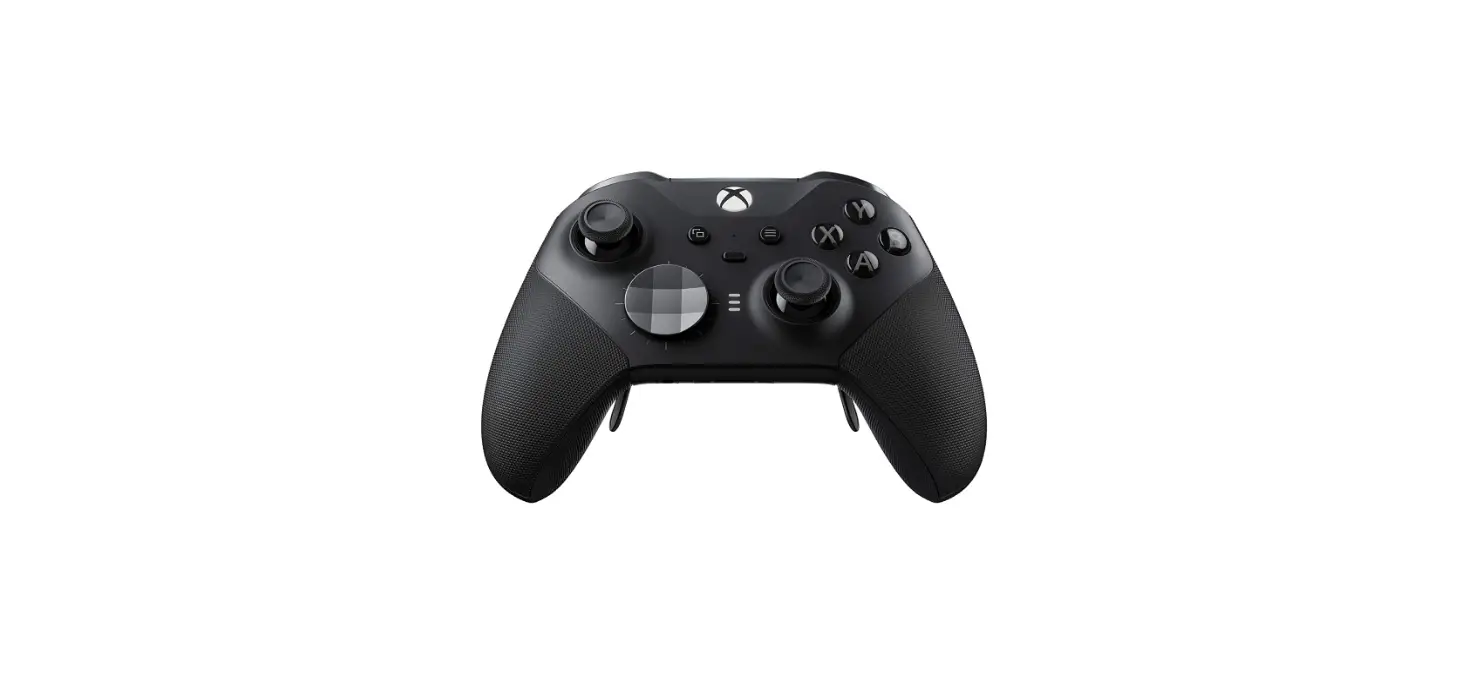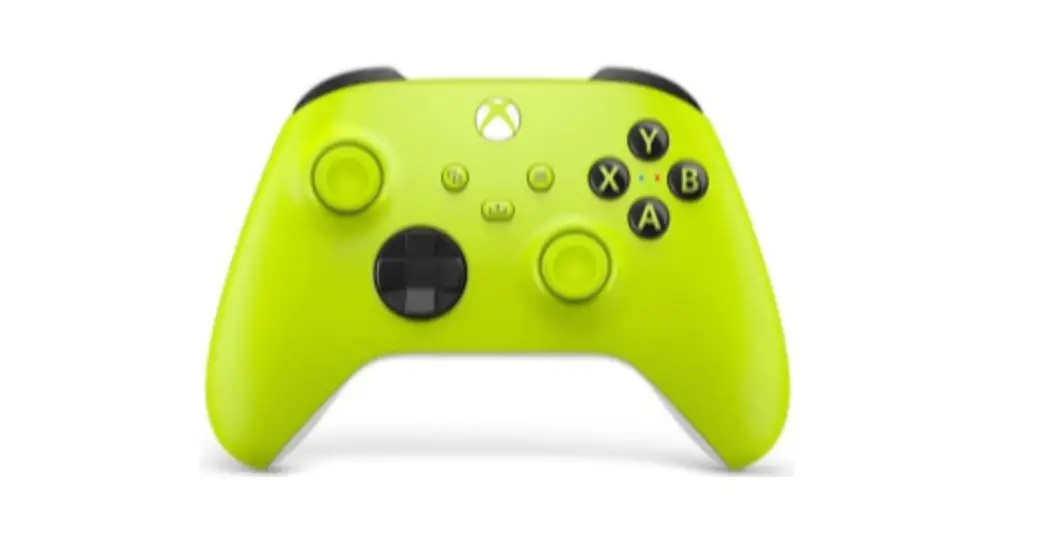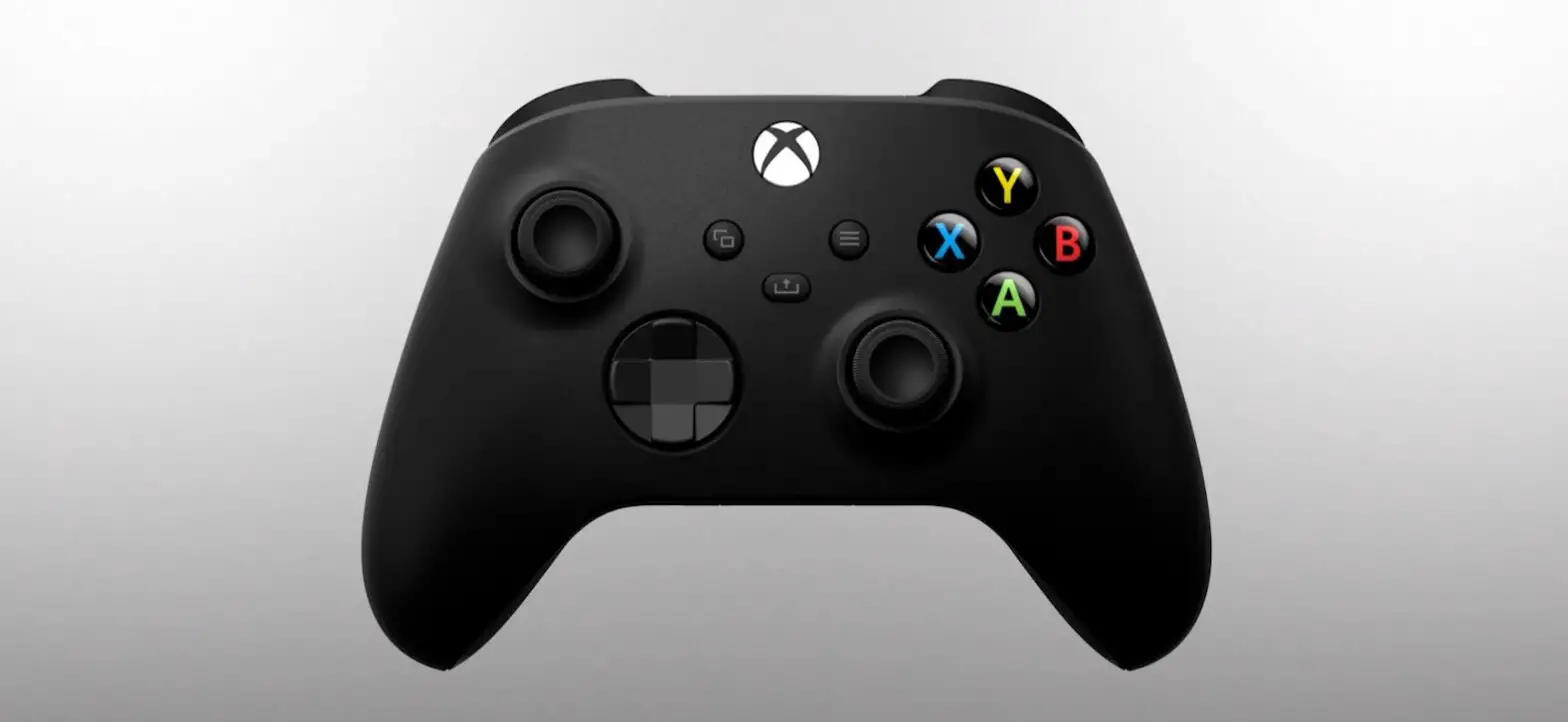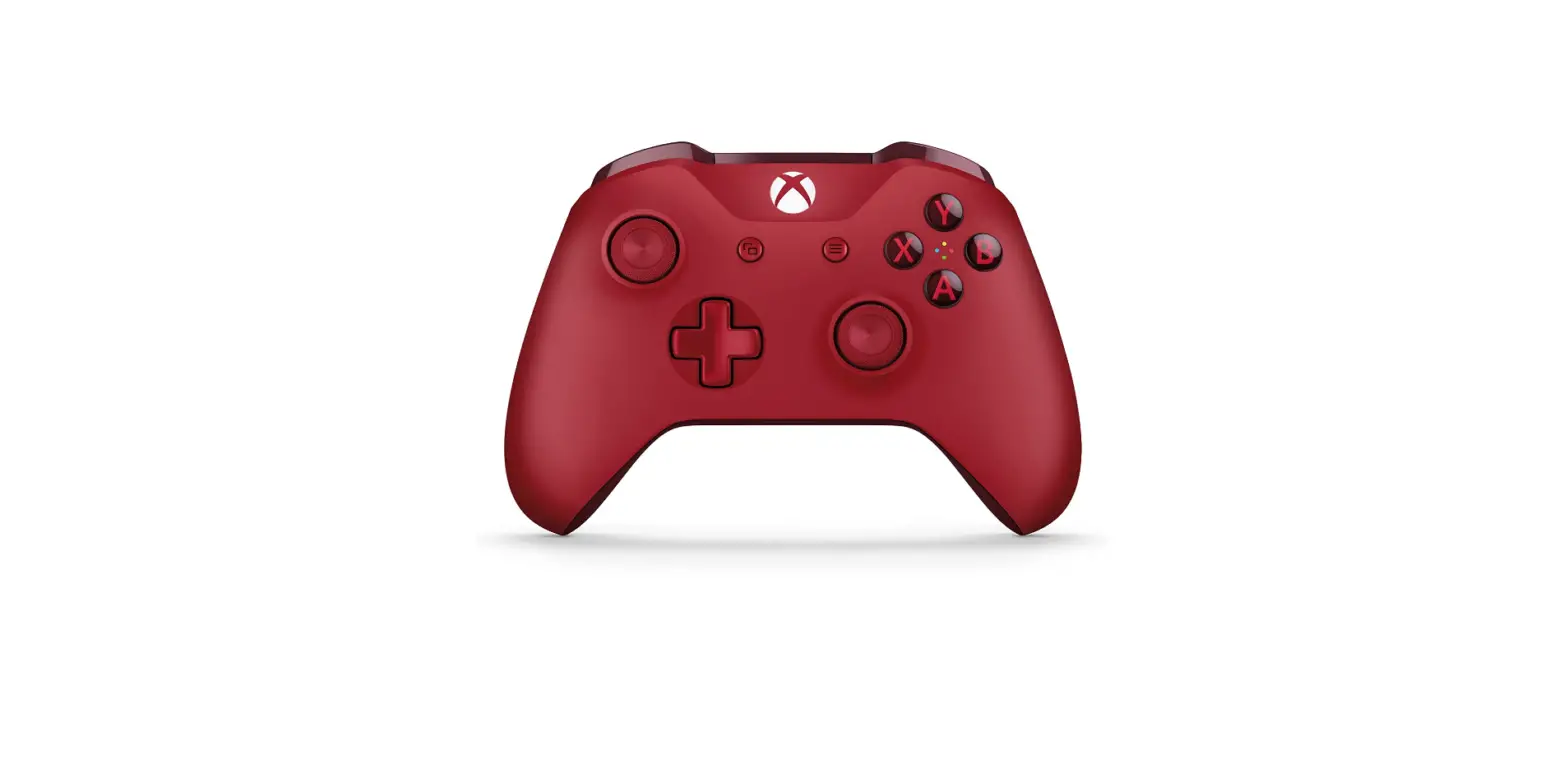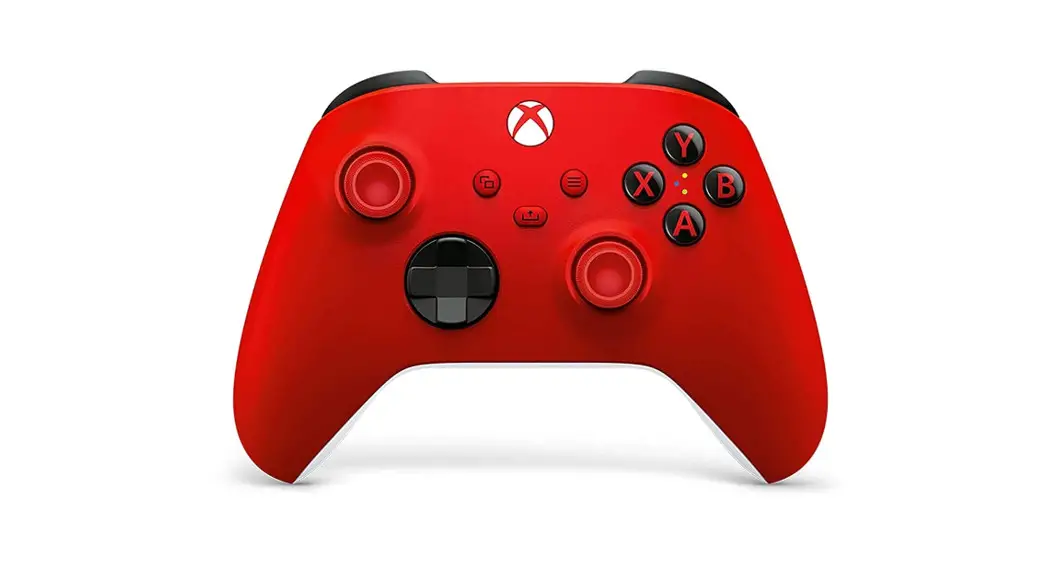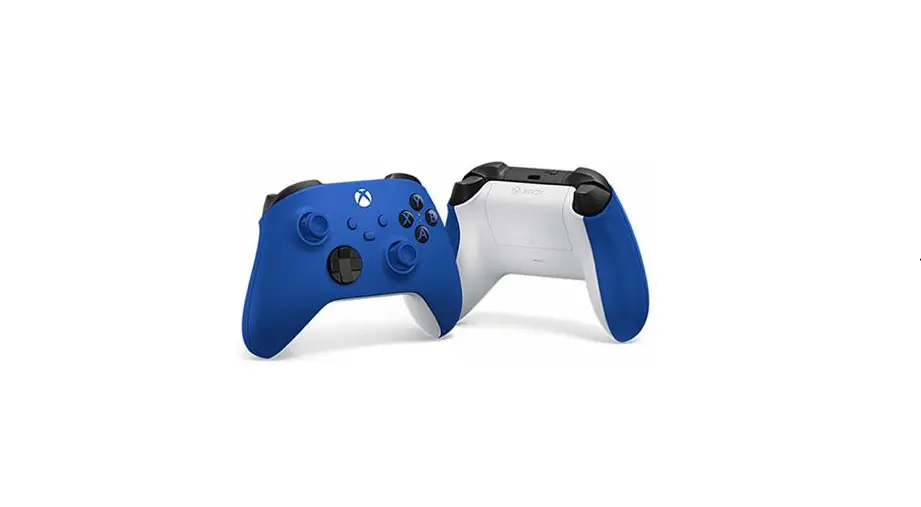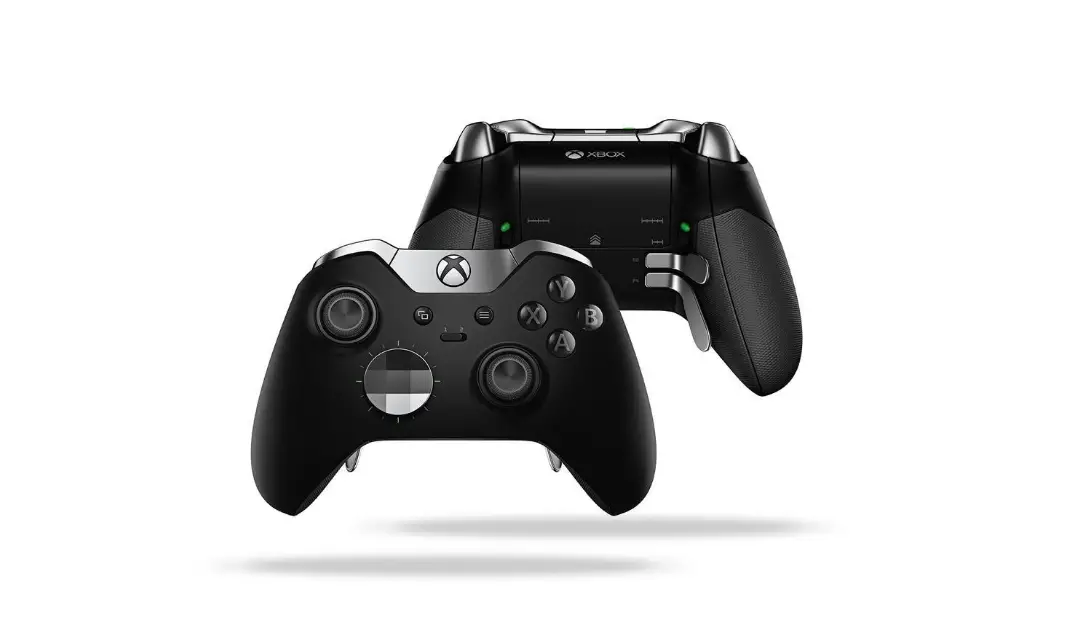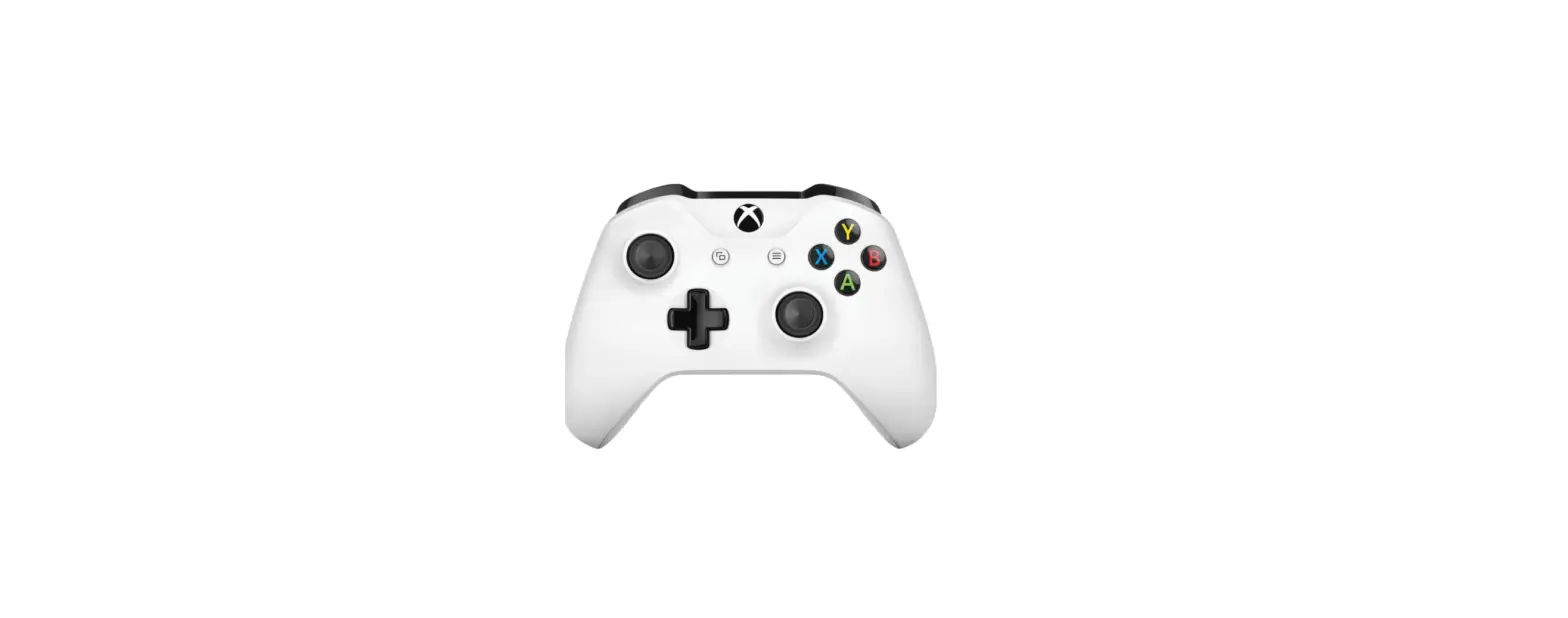

Xbox TF5-00002 Wireless Controller
Product Feature
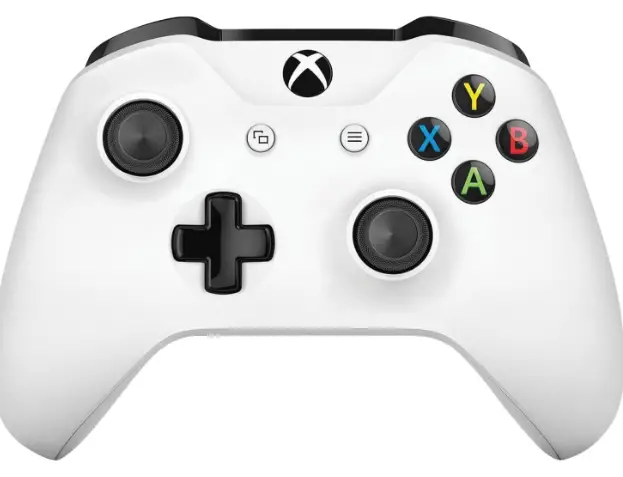
- Left stick
- Left bumper
- View button
- USB charge port
- Xbox button
- Menu button
- Right bumper
- Directional pad (D-pad)
- Expansion port
- Right stick
- 16 3.5-mm port
- X X button
- Y Y button
- A A button
- B B button
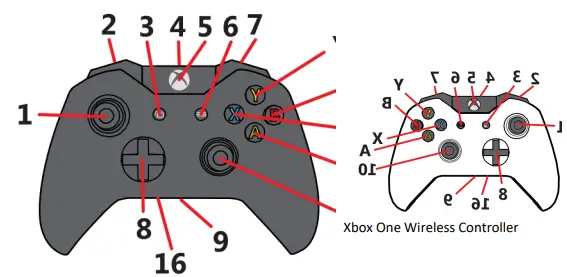
Left stick (1) and right stick (10): These are small joysticks, raised above the controller surface, with concaved rubbery pads. The left stick resides on the lower left of the front face of the controller, and the right stick resides on the lower right of the front face. The sticks are used to interact with games, apps, and the Xbox One interface. These move directionally, and they can also function as clickable buttons when you press down on them.
Left bumper (2) and right bumper (7): These are oblong-shaped pressable controls that reside on the top of the controller to the left and right of the USB charging port. These controls are used to interact with games, apps, and the Xbox One interface. They are often used as accelerators to jump between sections of the UI but have varied functionality depending on the game.
View button (3): This button resides just to the lower left of the Xbox button (around 7 o’clock). Use this button to focus in on an activity in a game or app, such as pulling up a map during a role-playing game or accessing the address bar in Internet Explorer. The functions of this button vary depending on the app or game.
USB charge port (4): This port resides on the top edge of the controller above the Xbox button. It’s a recessed mini USB port, which connects your wireless controller to the console using a mini USB cable. For more information, see About the Xbox One Play & Charge Kit.
Xbox button (5): This button resides at the top front face of the controller (12 o’clock position). It is slightly recessed and round. It has multiple functions:
- When the controller or console is turned off, hold this button to turn on the console. If the console is already on and the controller is off, hold this button to turn on the controller.
- When the controller and console are already on, hold this button to turn off the console.
- When the controller and console are already on, press and hold this button until it rumbles and from there you can turn on Narrator or magnifier. See Turn on Narrator on Xbox One for more info.
- When using the console, press this button once to open the guide.
- When using the controller with a Windows 10 device, this button opens the Game bar when pressed during PC gameplay. Exception: During game streaming through the Xbox App for Windows 10, pressing this button returns you to the Home screen of the Xbox App for Windows 10.
Menu button (6): This button resides just to the lower right of the Xbox button (around 5 o’clock). Use this button to access game and app menu options like Settings or Help, along with commands within the user interface such as Enter on a keyboard.
Directional pad (D-pad) (8): This is a raised plus sign-shaped toggle that resides between the left and right thumb sticks. It moves the focus up, down, right, and left in the UI. Used to interact with games, apps, and the Xbox One interface.
Expansion port (9): This is a recessed port that resides on the bottom-side edge of the controller. It’s used to connect other accessories, such as an Xbox One Chat Headset.
3.5-mm port (16): This is a recessed port next to the expansion port on the bottom-side edge of the controller. Used to connect compatible 3.5-mm audio devices. Only available on controllers released after June 2015.
A , B , X , Y buttons: These buttons sit on the right side of the controller. The Y button sits in 12 o’clock position, with B, A, and X positioned clockwise. Used to interact with games, apps, and the Xbox One interface
The bottom and back of the wireless controller
- Left bumper
- USB charge port
- Right bumper
- Expansion port
- Right trigger
- IR window
- Wireless enrollment button
- Left trigger
- Battery cover
- 3.5-mm port

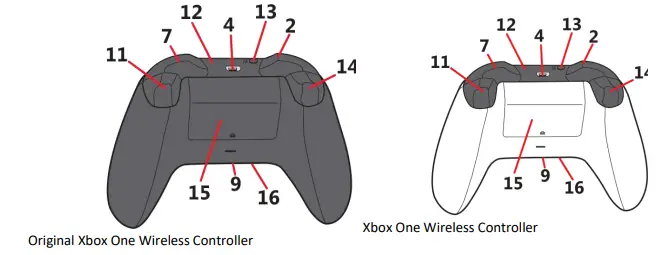
Left bumper (2) and right bumper (7): These are oblong-shaped pressable controls that reside on the top of the controller to the left and right of the USB charging port. These controls are used to interact with games, apps, and the Xbox One interface. They are often used as accelerators to jump between sections of the UI but have varied functionality depending on the game.
USB charge port (4): This port resides on the top edge of the controller above the Xbox button. It’s a recessed mini USB port, which connects your wireless controller to the console using a mini USB cable. For more information, see About the Xbox One Play & Charge Kit.
Expansion port (9): This is a recessed port that resides on the bottom-side edge of the controller. It’s used to connect other accessories, such as an Xbox One Chat Headset.
Infrared (IR) window (12): Hidden behind the “smoked” plastic next to the USB port are infrared LEDs used for auto-pairing users to the controller via the Kinect sensor. To learn more about this feature, see How to assign an account to an Xbox One Wireless Controller.
Wireless enrollment button (13): This small, slightly raised button resides just to the left of the USB port on the top edge of the controller. Used to wirelessly connect the controller to a console and to enroll in Bluetooth pairing on a Windows 10 PC. For more information, see Connect a wireless Xbox One controller to your console
Right trigger (11) and left trigger (14): Positioned just below the bumpers on the front-top edge of the controller. These are pressable controls most commonly used during gameplay. They often vibrate to provide feedback during the games, though you can turn off vibration in the controller settings.
Battery compartment cover (15): Sits on the middle back of the controller.
3.5-mm port (16): This is a recessed port next to the expansion port on the bottom-side edge of the controller. Used to connect compatible 3.5-mm audio devices. Only available on controllers released after June 2015
FAQS
Does new Xbox controller work with old wireless adapter?
Thanks for your question! Any of the new Xbox controllers for Xbox Series X/S are compatible with Xbox Wireless Adapter.
How do I put my Xbox Wireless Controller in pairing mode?
Press the controller’s Pair button for 3 seconds and release
Why won’t my Xbox pair with my controller?
If your controller doesn’t pair using the buttons, try using a USB cable to pair it. Simply plug the cable into a USB port on your console and connect the other end to your controller, then hold the Xbox button on your controller for a few seconds.
How do I manually sync my Xbox One controller?
Simply plug the cable into a USB port on the Xbox, then connect the other end to your controller.
How do you connect a wireless Xbox controller without Bluetooth?
So to sync your Xbox controller and PC wirelessly without Bluetooth, you’ll need to buy the Xbox Wireless Adapter
Why does my controller not work wirelessly?
Your batteries may be low. If the batteries are low, the controller’s wireless signal strength may be weak and therefore will not connect to the console
How do I know if my Xbox One controller needs an adapter?
It depends if you have the V1 (Xbox One) controller which has a 2.5mm port.
Which Bluetooth adapter is best for Xbox One controller?
8Bitdo Wireless USB Adapter 2 for Switch, Windows, Mac & Raspberry Pi Compatible with Xbox Series X & S Controller, Xbox One Bluetooth Controller, Switch Pro and PS5 Controller.
What is the difference between Bluetooth and WIFI adapter?
Bluetooth allows for short-range data transfer between devices
Are all wireless Xbox controllers Bluetooth?
The current Xbox Wireless Gamepad is the same one included with the Xbox Series S/X, and supports Xbox wireless communication and Bluetooth
How do I know what version my Xbox controller is?
On your Xbox controller, press the Xbox button to open the guide, select My games & apps > See all > Apps, and then select Xbox Accessories. Select the Xbox Adaptive Controller, and then select More options
How to reset an Xbox controller?
You have a couple of different options when it comes to resetting your Xbox controller.
How do I know if my Xbox controller has a 3.5 mm jack?
The 3.5mm port is a small circular port on the bottom of the controller
Can I use any USB-C charger for my Xbox controller?
As long as the USB C cable is rated as a Charge & Sync of which 99% of them are then yes, any cable will do.
VIDEO