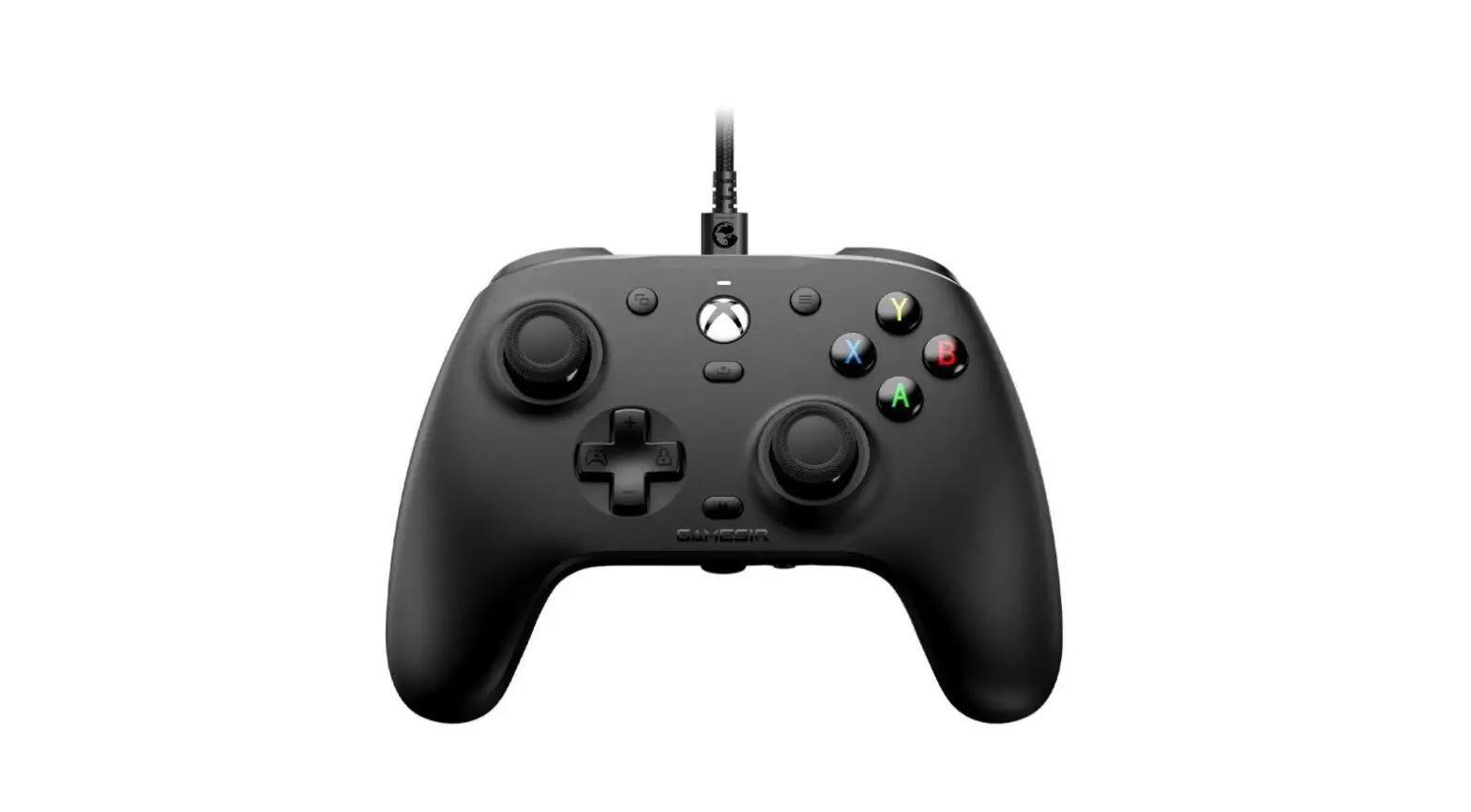
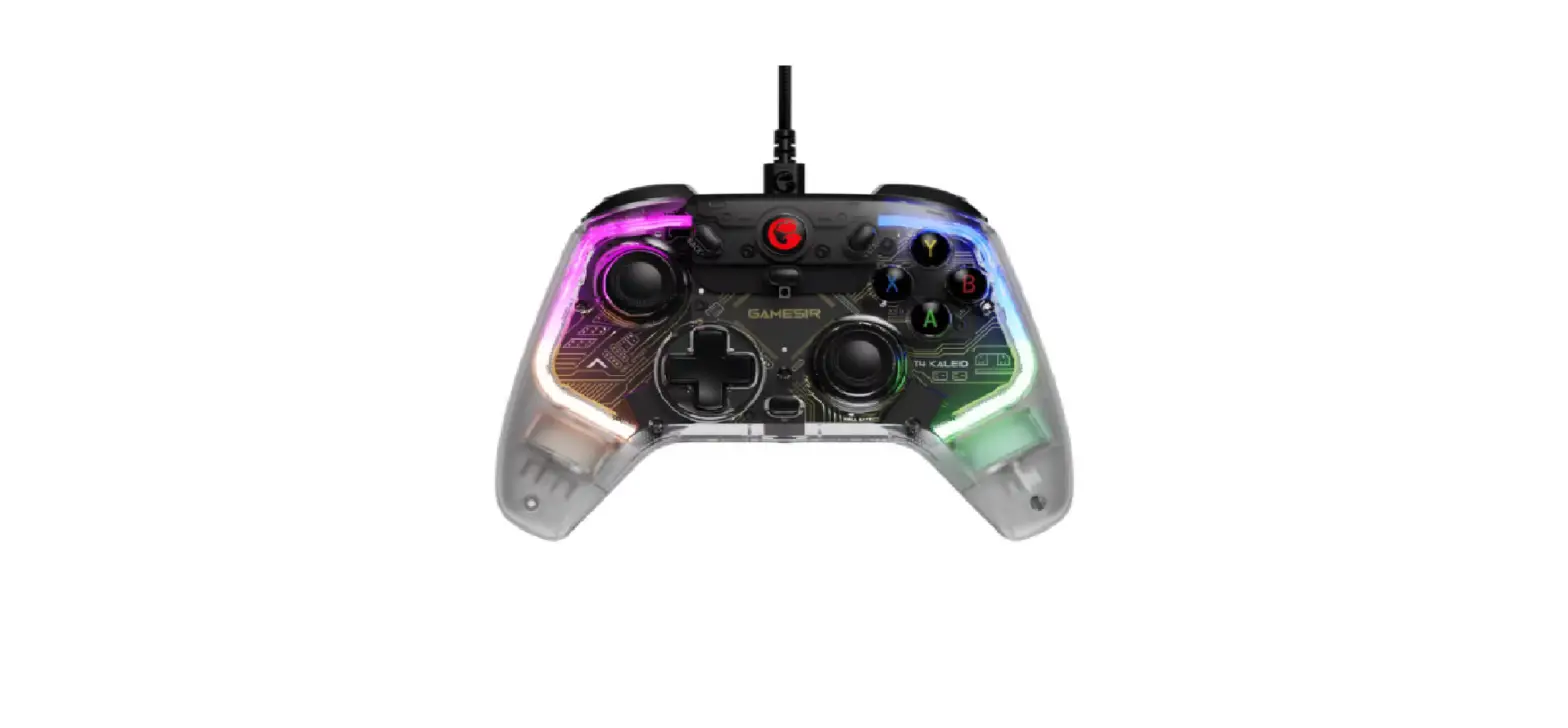
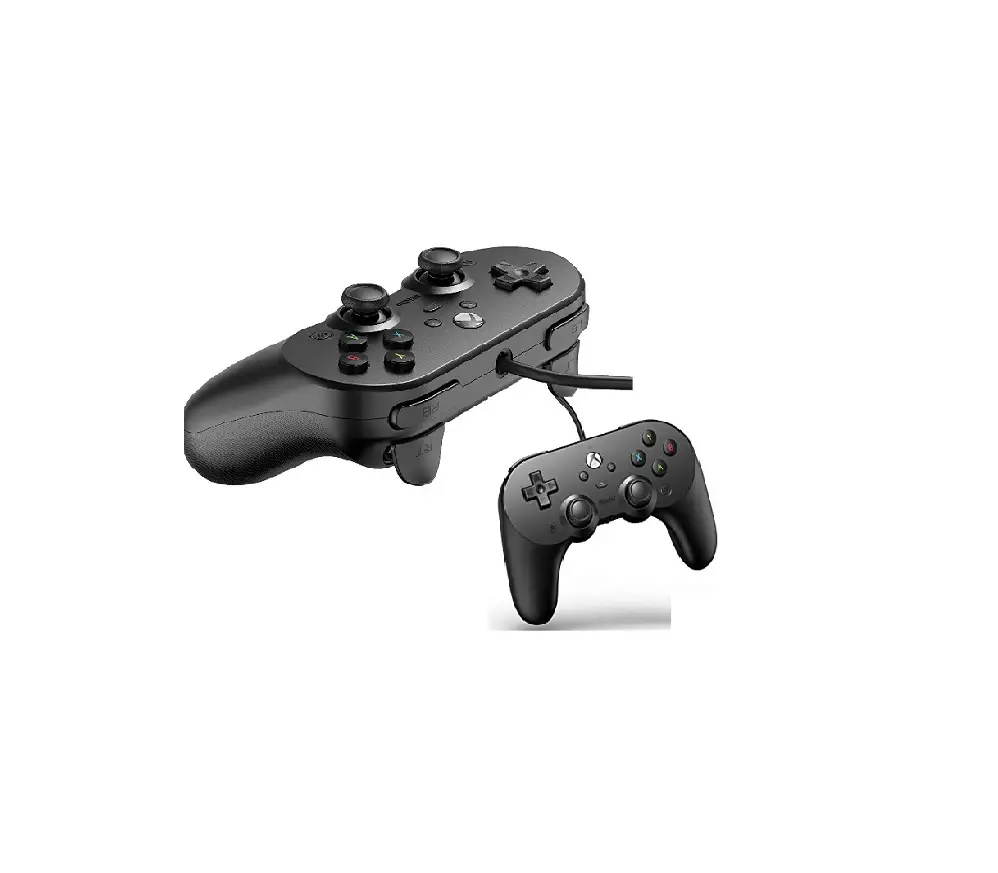
G7 SE Wired Controller Gaming Gamepad
Product Information
The GameSir G7 SE is a wired controller designed specifically
for Xbox One, Xbox Series X|S, and PC (Windows 10 or above) with a
USB port. It comes with a 3m USB-C cable for wired connectivity.
The package includes the GameSir-G7 SE controller, USB-C cable,
user manual, thank you & after-sale service card, GameSir
sticker, and certification.
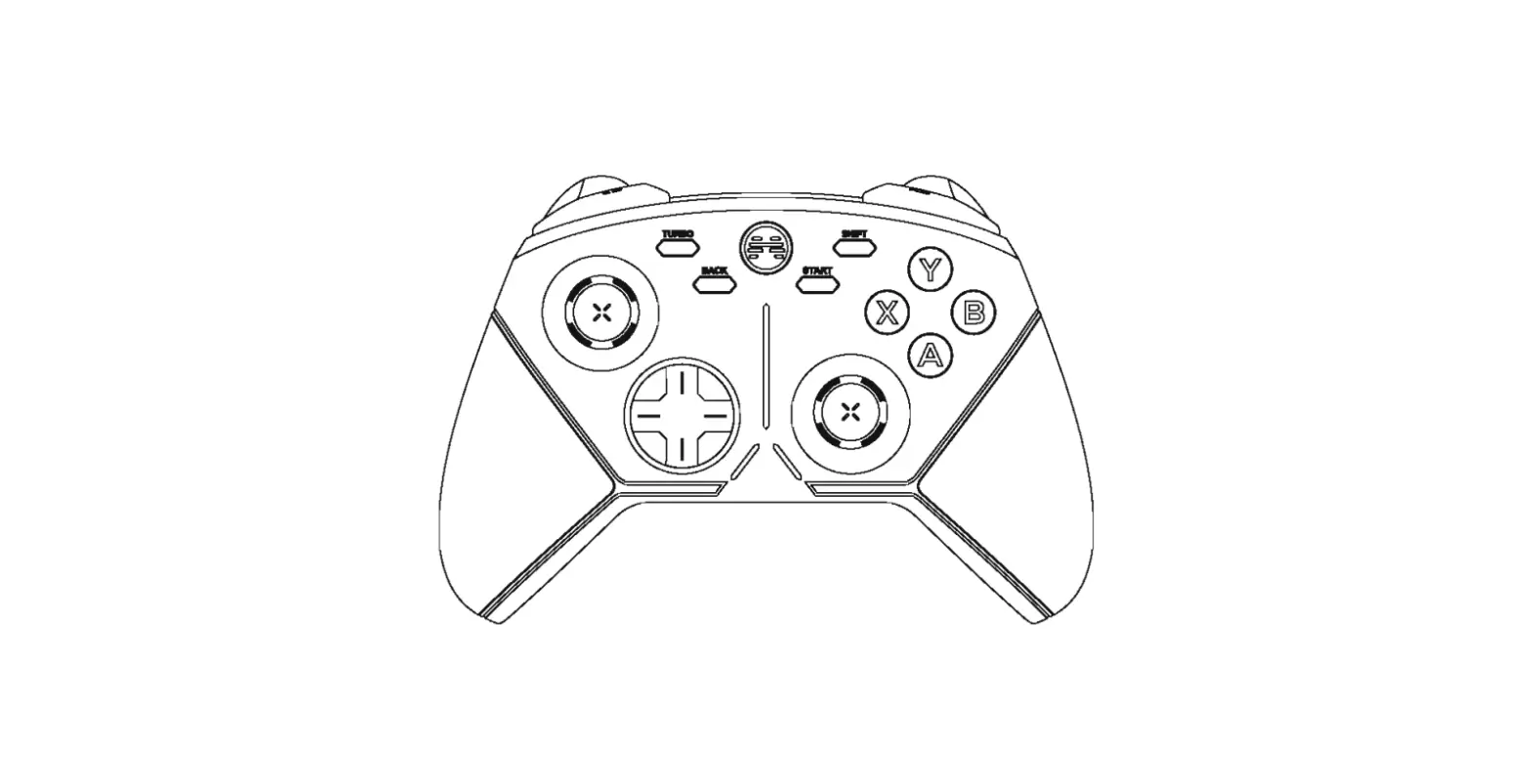
Device Layout

- Indicator
- View Button
- Left Joystick
- D-Pad
- Xbox Button
- Menu Button
- ABXY Buttons
- Share Button
- Right Joystick
- M Button
- USB-C Port
- RB (Right Bumper)
- LB (Left Bumper)
- RT (Right Trigger)
- LT (Left Trigger)
Product Usage Instructions
- Volume Control: Hold the M button and press
the D-pad’s Up/Down to increase/decrease the master volume. There
are a total of 10 volume levels. You will hear a beep when
adjusting to the maximum/minimum level. - Game and Voice Chat Volume: Hold the M button
and press the D-pad’s Left/Right to increase game volume while
decreasing voice chat volume, or decrease game volume while
increasing voice chat volume. You will hear a beep when adjusting
to the maximum/middle/minimum level. - Microphone Mute Function: When your
headphone/earphone is plugged in, press the Microphone Mute Button
to activate the microphone mute function. The indicator will turn
solid red when the function is on. Press the Microphone Mute Button
again to deactivate the function. The indicator will go out when
the function is off (default). - Back Buttons Settings: The controller allows
customization of the back buttons. Mappable buttons include
A/B/X/Y/LB/RB/LT/RT/L3/R3/D-pad/Menu/Xbox/View Button. To set R4/L4
button value, hold the M+R4/L4 buttons simultaneously for 3 seconds
until the indicator blinks slowly. Then, tap the button you want to
map to R4/L4. The indicator will turn solid to indicate that the
R4/L4 button value is set. To cancel R4/L4 button value, hold the
M+R4/L4 buttons simultaneously for 3 seconds until the indicator
blinks slowly, then tap R4/L4 button. The indicator will turn solid
to indicate that the R4/L4 button value is canceled.
GAMESIR G7 SE
WIRED CONTROLLER FOR XBOX
GAMESIR G7 SE
WIRED CONTROLLER FOR XBOX
GAMESIR G7 SE
WIRED CONTROLLER FOR XBOX
GAMESIR G7 SE
WIRED CONTROLLER FOR XBOX
GAMESIR G7 SE
WIRED CONTROLLER FOR XBOX
ENGLISH
https://www.gamesir.hk/pages/manuals-gamesir-g7-se (E-MANUAL)
PACKAGE CONTENTS
GameSir-G7 SE *1 3m USB-C Cable *1 User Manual *1 Thank You & After-sale Service Card *1 GameSir Sticker *1 Certification *1
REQUIREMENTS
*Xbox One / Xbox Series X|S / PC (Win 10 or above) with USB port
DEVICE LAYOUT
Indicator View Button Left Joystick
D-Pad
Xbox Button
Menu Button ABXY Buttons Share Button Right Joystick
M
USB-C Port
RB
LB
RT
LT
USB-C Cable
https://www.gamesir.hk/pages/manuals-gamesir-g7-se (E-MANUAL)
GameSir-G7 SE *1
USB-C 3m *1
*1 *1
GameSir*1 *1
*Xbox One/Xbox Series X|S/USBPCWin 10
Xbox
ABXY
M
USB-C
RB
LB
RT
LT
USB-C
https://www.gamesir.hk/pages/manuals-gamesir-g7-se (E-MANUAL)
GameSir-G7 SE*1 *1
USB-C (3m)*1 *1 GameSir *1 *1
*Xbox One / Xbox Series X|S / USB (Win 10 )
L
Xbox
ABXY
R
M
USB-C
RB
LB
RT
LT
USB-C
P
https://www.gamesir.hk/pages/manuals-gamesir-g7-se (E-MANUAL)
GameSir-G7 SE x 1 USB-C 3 x 1 x 1 x 1 GameSir x 1 x 1
*Xbox One / Xbox Series X|S / ( Windows 10 ) USB
Xbox
«»
ABXY
«»
USB-C
USB-C
DEUTSCH
https://www.gamesir.hk/pages/manuals-gamesir-g7-se (E-MANUAL)
PAKETINHALT
GameSir-G7 SE *1 USB-C-Kabel 3 m *1 Benutzerhandbuch *1 Danke- und Kundendienstkarte *1 GameSir Aufkleber *1 Zertifikat *1
ANFORDERUNGEN
*Xbox One / Xbox Series X|S / PC (Win 10 oder höher) mit USB-Anschluss
GERÄTELAYOUT
LED-Anzeige
Anzeigetaste Linker Joystick
Steuerkreuz
Xbox-Taste
Menütaste ABXY-Tasten Share-Taste Rechter Joystick
M
USB-C-Anschluss
RB
LB
RT
LT
USB-C-Kabel
R4 Quick-Latch R4
R4 Quick-Latch L4
R4 R4
L4 L4
R4 R4
L4 L4
R4
R4
L4
L4
R4 Schnelles Verriegeln
R4
L4 Schnelles Verriegeln
L4
3.5mm Audio Jack
CONNECT
Solid White=Connected
Microphone Mute Button
3.5mm
3.5mm
LED =
3,5
3,5-mmAudiobuchse
—
VERBINDUNGSANZEIGE
Weiß leuchtend = Verbunden
MikrofonStumm-Taste
VOLUME CONTROL
1. Hold the M button+D-pad’s Up/Down to Increase/Decrease the Master Volume. (10 levels in total) *There will be a beep when adjusting to the maximum/minimum level.
1. M 10 */
1. M + . ( 10) * / .
1. M, / , / ( 10 ). * .
LAUTSTÄRKESTEUERUNG
1. Halte die M-Taste gedrückt und drücke auf dem Pad nach oben oder unten, um die Gesamtlautstärke zu erhöhen bzw. zu reduzieren (insgesamt 10 Lautstärkestufen). *Wenn die niedrigste oder höchste Stufe eingestellt wird, ertönt ein Piepton.
2. Hold the M button+D-pad’s Left/Right to Increase game volume while Decreasing voice chat volume/Decrease game volume while Increasing voice chat volume. *There will be a beep when adjusting to the maximum/middle/minimum level.
2. M *//
2. M + , . * // .
3. Microphone Mute Function: When your headphone/earphone is plugged in, press the Microphone Mute Button, the indicator will become solid red and the Microphone Mute function is On. Press the Microphone Mute button again, the indicator will go out and the Microphone Mute function is Off (Default).
3. /
Solid Red=Microphone Mute
=
3. : , . ().
LED =
BACK BUTTONS SETTINGS
2. M, / , / . * , .
2. Halte die M-Taste gedrückt und drücke auf dem Pad nach links oder rechts, um die Spiellautstärke zu erhöhen und die Sprachchat-Lautstärke zu reduzieren bzw. die Spiellautstärke zu reduzieren und die Sprachchat-Lautstärke zu erhöhen. *Wenn die niedrigste, mittlere oder höchste Stufe eingestellt wird, ertönt ein Piepton.
3. , ( ). , ( , ).
—
3. Mikrofon stumm schalten: Drücke die Mikrofon-Stumm-Taste, während die Kopfhörer angeschlossen sind. Die Anzeige leuchtet rot und das Mikrofon ist dann auf stumm geschaltet. Wenn du dieselbe Taste erneut drückst, erlischt die LED-Anzeige daraufhin und die Mikrofon-Stummschaltung ist ausgeschaltet (Standardeinstellung).
Rot leuchtend = Mikrofon stummgeschaltet
EINSTELLUNGEN DER HINTEREN TASTEN
NO PRESET BUTTON VALUES (Mappable buttons: A/B/X/Y/LB/RB/LT/RT/L3/R3/D-pad/Menu/Xbox/View Button)
1. Set R4/L4 button value: Hold the M+R4/L4 buttons simultaneously for 3s. When the indicator blinks slowly, tap the button you want to map to R4/L4. The indicator turns solid to indicate R4/L4 button value is set. 2. Cancel R4/L4 button value: Hold the M+R4/L4 buttons simultaneously for 3s. When the indicator blinks slowly, tap R4/L4 button. The indicator turns solid to indicate R4/L4 button value is canceled.
JOYSTICKS & TRIGGERS CALIBRATION
1. Hold the View + Menu + Xbox buttons until the USB-C cable is inserted into the PC’s USB port. The indicator will slowly blink white. 2. Ensure that LT & RT and the left & right joysticks are not touched. Then Press the A button. The indicator will go out. 3. Press LT & RT to their maximum travel. Rotate the joysticks at their maximum angles for 3 times. Press the A button. The indicator becomes solid white to indicate the calibration is over. 4. After the calibration is over, it’s required to unplug and replug the controller before using.
CUSTOMIZATION VIA “GAMESIR NEXUS” SOFTWARE
Download “GameSir Nexus” software at Microsoft Store on Xbox/PC or gamesir.hk Use the “GameSir Nexus” software to upgrade firmware and create 3 custom profiles. The profile includes button mapping, joystick & trigger zones adjustment, vibration level control, etc. *If the R4/L4 button value set in the software is different from the manual setting, the latest setting shall prevail, and the former will be directly overwritten.
PROFILE SWITCH
Press M + A/B/X/Y buttons in sequence to switch to the corresponding profile. M + Y = Default M + B = Profile 1 M + A = Profile 2 M + X = Profile 3
A/B/X/Y/LB/RB/LT/RT/L3/R3///Xbox/
1. R4L4MR4L43 R4 L4 R4L4 2. R4L4MR4L4 3 R4L4R4 L4
1. XboxUSB-C PCUSB 2. LTRTA 3. LTRT3 A 4.
GameSir Nexus
XboxPCMicrosoft Storegamesir.hkGameSir Nexus GameSir Nexus3 *R4L4
M + A/B/X/Y
M + Y =
M + B = 1
M + A = 2 M + X = 3
JUST IN GAME.
www.gamesir.hk
Microsoft, Xbox, Xbox “Sphere” Design, Xbox
Series X, Xbox Series S, Xbox Series X|S,
Xbox One, Xbox Game Pass, Windows 10/11
are trademarks of the Microsoft group of
companies. All other trademarks are the https://www.gamesir.hk/pages/ask-for-help
property of their respective owners.
(CUSTOMER SERVICE)
JUST IN GAME.
www.gamesir.hk
Microsoft, Xbox, Xbox “Sphere” Design, Xbox
Series X, Xbox Series S, Xbox Series X|S,
Xbox One, Xbox Game Pass, Windows 10/11
are trademarks of the Microsoft group of
companies. All other trademarks are the https://www.gamesir.hk/pages/ask-for-help
property of their respective owners.
(CUSTOMER SERVICE)
( : A/B/X/Y/LB/RB/LT/RT/L3/R3///Xbox/ )
1. R4/L4 : M + R4/L4 3 . R4/L4 . R4/L4 . 2. R4/L4 : M + R4/L4 3 . R4/L4 . R4/L4 .
1. + + Xbox PC USB USB-C . LED d. 2. LT, RT L, R A . 3. LT RT 3 . A LED . 4. .
GameSir Nexus
Xbox, PC Microsoft Store gamesir.hk “GameSir Nexus” . “GameSir Nexus” , 3 . , , . * GameSir Nexus R4/L4 , .
M + A/B/X/Y .
M + Y =
M + B = 1
M + A = 2 M + X = 3
JUST IN GAME.
www.gamesir.hk
Microsoft, Xbox, Xbox “Sphere” Design, Xbox
Series X, Xbox Series S, Xbox Series X|S,
Xbox One, Xbox Game Pass, Windows 10/11
are trademarks of the Microsoft group of
companies. All other trademarks are the https://www.gamesir.hk/pages/ask-for-help
property of their respective owners.
(CUSTOMER SERVICE)
( : A / B / X / Y / LB / RB / LT / RT / L3 / R3 / / «» / Xbox / «»)
1. R4 / L4: + R4 / L4 3 . , , R4 / L4. — R4 / L4 . 2. R4 / L4: +R4 / L4 3 . , R4 / L4. — R4 / L4 .
1. «» + «» + Xbox, USB USB-C . . 2. LT RT, . . . 3. LT RT . 3 . . — . 4. , .
GAMESIR NEXUS
GameSir Nexus Microsoft Store Xbox / gamesir.hk.
GameSir Nexus 3 . , , . . * R4 / L4 , , .
M A, B, X Y
.
M + Y =
M + B = 1
M + A = 2
M + X = 3
JUST IN GAME.
www.gamesir.hk
Microsoft, Xbox, Xbox “Sphere” Design, Xbox
Series X, Xbox Series S, Xbox Series X|S,
Xbox One, Xbox Game Pass, Windows 10/11
are trademarks of the Microsoft group of
companies. All other trademarks are the https://www.gamesir.hk/pages/ask-for-help
property of their respective owners.
(CUSTOMER SERVICE)
KEINE VOREINGESTELLTEN TASTENWERTE (Zuweisbare Tasten: A/B/X/Y/LB/RB/LT/RT/L3/R3/Pad/Menü/Xbox/Anzeigetaste)
1. R4-/L4-Tastenzuweisung: Halte die M-Taste sowie die R4-/L4-Taste 3 Sek. lang gedrückt. Wenn die LED-Anzeige langsam blinkt, drücke die Taste, die du R4-/L4zuweisen möchtest. Die LED-Anzeige leuchtet durchgehend, um anzuzeigen, dass die R4-/L4-Taste zugewiesen wurde. 2. R4-/L4-Tastenzuweisung aufheben: Halte die M-Taste sowie die R4-/L4-Taste 3 Sek. lang gedrückt. Wenn die LED-Anzeige langsam blinkt, drücke die R4-/L4-Taste. Die LED-Anzeige leuchtet durchgehend, um anzuzeigen, dass die R4-/L4Tastenzuweisung aufgehoben wurde.
KALIBRIERUNG DER JOYSTICKS UND TRIGGER
1. Halte die Anzeige- , die Menü- und die Xbox-Taste gedrückt, bis das USB-C -Kabel mit dem USB-Anschluss des PCs verbunden wurde. Die LED-Anzeige blinkt daraufhin langsam weiß. 2. Stelle sicher, dass du LT und RT sowie den linken und den rechten Joystick nicht berührst. Drücke dann die A-Taste. Die LED-Anzeige erlischt daraufhin. 3. Drücke LT und RT vollständig durch. Drehe die Joysticks 3 Mal bis zum maximalen Winkel. Drücke dann erneut die A-Taste. Die LED-Anzeige leuchtet weiß, um anzuzeigen, dass die Kalibrierung abgeschlossen ist. 4. Nach Abschluss der Kalibrierung musst du den Controller trennen und dann erneut verbinden, bevor du ihn verwenden kannst.
PERSONALISIERUNG ÜBER DIE ,,GAMESIR NEXUS”SOFTWARE
Lade die ,,GameSir Nexus”-Software im Microsoft Store auf Xbox/PC oder über die Website gamesir.hk herunter. Aktualisiere über die ,,GameSir Nexus”-Software die Firmware und erstelle bis zu 3 benutzerdefinierte Profile. Du kannst für jedes Profil eigene Tastenzuweisungen, Joystick- und Triggerzonen, die Vibrationsstärke und noch mehr festlegen. *Wenn sich die der R4-/L4-Taste zugewiesene Taste in der Software von der manuellen Festlegung unterscheidet, hat die letzte durchgeführte Einstellung Priorität und überschreibt die vorletzte Einstellung.
UMSCHALTEN ZWISCHEN PROFILEN
Drücke die Tasten M + A/B/X/Y der Reihe nach, um zum entsprechenden Profil zu
wechseln.
M + Y = Standardeinstellung M + B = Profil 1
M + A = Profil 2
M + X = Profil 3
JUST IN GAME.
www.gamesir.hk
Microsoft, Xbox, Xbox “Sphere” Design, Xbox
Series X, Xbox Series S, Xbox Series X|S,
Xbox One, Xbox Game Pass, Windows 10/11
are trademarks of the Microsoft group of
companies. All other trademarks are the https://www.gamesir.hk/pages/ask-for-help
property of their respective owners.
(CUSTOMER SERVICE)
GAMESIR G7 SE
WIRED CONTROLLER FOR XBOX
GAMESIR G7 SE
WIRED CONTROLLER FOR XBOX
GAMESIR G7 SE
WIRED CONTROLLER FOR XBOX
GAMESIR G7 SE
WIRED CONTROLLER FOR XBOX
GAMESIR G7 SE
WIRED CONTROLLER FOR XBOX
FRANÇAIS
https://www.gamesir.hk/pages/manuals-gamesir-g7-se (E-MANUAL)
ITALIANO
https://www.gamesir.hk/pages/manuals-gamesir-g7-se (E-MANUAL)
ESPAÑOL
https://www.gamesir.hk/pages/manuals-gamesir-g7-se (E-MANUAL)
PORTUGUÊS
https://www.gamesir.hk/pages/manuals-gamesir-g7-se (E-MANUAL)
https://doc.xiaoji.com/zh/g7se ()
CONTENU
GameSir-G7 SE *1 Câble USB-C de 3 m *1 Mode d’emploi *1 Carte de service après-vente et de remerciement *1 Autocollant GameSir *1 Certification *1
MATÉRIEL REQUIS
*Xbox One/Xbox Series X|S/PC (Windows 10 ou version ultérieure) avec port USB
PRÉSENTATION DE L’APPAREIL
Voyant lumineux
Bouton Afficher Joystick gauche
Croix directionnelle
Bouton Xbox
Bouton Menu Boutons ABXY Bouton Partager Joystick droit
Bouton M
Port USB-C
RB
LB
RT
LT
Câble USB-C
Verrouillage rapide de R4
R4
Verrouillage rapide de L4
L4
CONTENUTO DELLA CONFEZIONE
GameSir-G7 SE *1 Cavo USB-C di 3 m *1 Manuale d’uso *1 Scheda di ringraziamento e assistenza post-vendita *1 Adesivo GameSir *1 Certificazione *1
REQUISITI
*Xbox One/Xbox Series X|S/PC (Windows 10 o successivi) con porta USB
LAYOUT DEL DISPOSITIVO
Indicatore Pulsante Vista Joystick sinistro
Tasto direzionale
Pulsante Xbox
Pulsante Menu Pulsanti ABXY Pulsante Condividi Joystick destro
M
Porta di ricarica USB-C
RB
LB
RT
LT
Cavo USB-C
Blocco R4 R4
Blocco L4 L4
CONTENIDO DEL PAQUETE
GameSir-G7 SE *1 Câble USB-C de 3 m *1 Mode d’emploi *1 Carte de service après-vente et de remerciement *1 Autocollant GameSir *1 Certification *1
REQUISITOS
*Xbox One/Xbox serie X o S/PC (con Windows 10 o versiones posteriores) con puerto USB.
DISEÑO DEL DISPOSITIVO
Indicador
Botón de vista Joystick izquierdo
Control direccional
Botón de Xbox
Botón de menú Botones ABXY Botón de compartir Joystick derecho
M
Puerto USB-C
RB
LB
RT
LT
Cable USB-C
Bloqueo rápido R4 R4
Bloqueo rápido L4 L4
CONTEÚDO DA EMBALAGEM
GameSir-G7 SE (x 1) Cabo USB-C de 3 m (x 1) Cartão de agradecimento e serviço pós-vendas (x 1) Adesivo GameSir (x 1) Certificação (x 1)
Manual do Usuário (x 1)
REQUISITOS
*Xbox One / Xbox Series X|S / PC (Win 10 ou superior) com porta USB
LAYOUT DO DISPOSITIVO
Indicador Botão View Joystick esquerdo
D-Pad
Botão Xbox
Botão Menu Botões ABXY Botão Share Joystick direito
M
Porta USB-C
RB
LB
RT
LT
Cabo USB-C
Trava rápida de R4 R4
Trava rápida de L4 L4
GameSir-G SE* USB-C* * * GameSir * *
*Xbox One / Xbox Series X|S / USB (Win 10)
Xbox
ABXY
M
USB-C
RB
LB
RT
LT
USB-C
R4 R4
L4 L4
3.5mm
Prise audio de 3,5 mm
Bouton de désactivation
du micro
Jack audio di 3,5 mm
Pulsante Silenzia microfono
Entrada de audio de 3,5 mm
Botón de silencio del micrófono
Tomada de áudio de 3,5 mm
Botão Silenciar microfone
=
CONNEXION
Blanc fixe = Connecté
CONNETTI
Luce bianca fissa = Collegato
CONEXIÓN
Blanco fijo = conectado
CONECTAR
Branco sólido = Conectado
1. M + / /10 */
2. M + / /
*//
CONTRÔLE DU VOLUME
1. Maintenez appuyés le bouton M et la croix directionnelle vers le haut/bas pour augmenter/diminuer le volume principal (10 niveaux au total). *Un bip retentira lors du réglage au niveau maximum/minimum.
COMANDI VOLUME
1. Tenere premuto il pulsante M + Tasto direzionale su/giù per aumentare/ridurre il volume principale. (10 livelli in totale) *Quando si regola il livello massimo e minimo, si sentirà un segnale acustico.
2. Maintenez appuyés le bouton M et la croix directionnelle vers la gauche/droite pour augmenter le volume de jeu tout en augmentant le volume du chat vocal/diminuer le volume de jeu tout en augmentant le volume du chat vocal. *Un bip retentira lors du réglage au niveau maximum/moyen/minimum.
2. Tenere premuto il pulsante M + Tasto direzionale destro/sinistro per aumentare il volume di gioco e ridurre il volume della chat vocale, o ridurre il volume di gioco e aumentare il volume della chat vocale. *Quando si regola il livello massimo, medio e minimo, si sentirà un segnale acustico.
3. Fonction de désactivation du micro : lorsque votre casque ou vos écouteurs sont branchés, appuyez sur le bouton de désactivation du micro ; le voyant lumineux devient rouge fixe, indiquant que la fonction de désactivation du micro est activée. Appuyez à nouveau sur le bouton de désactivation du micro ; le voyant lumineux s’éteint, indiquant que la fonction de désactivation du micro est désactivée (par défaut).
3. Funzione Silenzia microfono: con gli auricolari sono connessi, toccare il pulsante Silenzia microfono. L’indicatore presenterà una luce rossa fissa e la funzione sarà attivata. Toccando di nuovo il pulsante, l’indicatore si spegnerà e la funzione sarà disattivata (predefinita).
Rouge fixe = Micro désactivé
Luce rossa fissa = Microfono silenziato
PARAMÈTRES DES BOUTONS ARRIÈRE
IMPOSTAZIONI DEI PULSANTI POSTERIORI
AUCUNE VALEUR DE BOUTONS PRÉDÉFINIE (Boutons configurables : A/B/X/Y/LB/RB/LT/RT/L3/R3/croix
directionnelle/Menu/Xbox/bouton Afficher) 1. Configurer les boutons R4/L4 : appuyez simultanément sur les boutons M et R4/L4 pendant 3 secondes. Lorsque le voyant lumineux clignote lentement, appuyez sur le bouton que vous souhaitez associer à R4/L4. Le voyant lumineux devient fixe pour indiquer que la valeur du bouton R4/L4 est configurée. 2. Réinitialiser les boutons R4/L4 : appuyez simultanément sur les boutons M et R4/L4 pendant 3 secondes. Lorsque le voyant lumineux clignote lentement, appuyez sur le bouton R4/L4. Le voyant lumineux devient fixe pour indiquer que la valeur du bouton R4/L4 est réinitialisée.
CALIBRAGE DES JOYSTICKS ET GÂCHETTES
1. Maintenez appuyés les boutons Afficher , Menu et Xbox jusqu’à ce que le câble USB-C soit inséré dans le port USB du PC. Le voyant lumineux clignote lentement en blanc. 2. Assurez-vous que les boutons LT/RT et les joysticks gauche/droit ne sont pas appuyés. Appuyez ensuite sur le bouton A. Le voyant lumineux s’éteint. 3. Appuyez au maximum sur LT et RT. Faites tourner les joysticks à 3 reprises en les inclinant au maximum. Appuyez sur le bouton A. Le voyant lumineux devient blanc fixe, indiquant que le calibrage est terminé. 4. Une fois le calibrage terminé, il est nécessaire de débrancher et de rebrancher la manette avant de l’utiliser.
PERSONNALISATION VIA LE LOGICIEL GAMESIR NEXUS
Téléchargez le logiciel GameSir Nexus sur le Microsoft Store sur Xbox/PC ou sur gamesir.hk. Utilisez le logiciel GameSir Nexus pour mettre à jour le firmware et créer 3 profils personnalisés. Le profil comprend la configuration des boutons, le réglage de la sensibilité des joysticks et gâchettes, le contrôle du niveau de vibration, etc. *Si la valeur des boutons R4/L4 définie dans le logiciel est différente du réglage manuel, le dernier réglage prévaudra et le réglage précédent sera automatiquement écrasé.
CHANGEMENT DE PROFIL
Appuyez successivement sur les boutons M + A/B/X/Y pour activer le profil
correspondant.
M + Y = Profil par défaut M + B = Profil 1
M + A = Profil 2
M + X = Profil 3
JUST IN GAME.
www.gamesir.hk
Microsoft, Xbox, Xbox “Sphere” Design, Xbox
Series X, Xbox Series S, Xbox Series X|S,
Xbox One, Xbox Game Pass, Windows 10/11
are trademarks of the Microsoft group of
companies. All other trademarks are the https://www.gamesir.hk/pages/ask-for-help
property of their respective owners.
(CUSTOMER SERVICE)
NESSUN VALORE PREIMPOSTATO DEI PULSANTI (Pulsanti mappabili: A/B/X/Y/LB/RB/LT/RT/L3/R3/Tasti direzionali/Menu/Xbox/Pulsante Vista)
1. Impostare il valore dei pulsanti R4/L4: tenere premuti i pulsanti M + R4/L4 simultaneamente per 3 sec. Quando l’indicatore lampeggia lentamente, toccare il pulsante che si desidera mappare come pulsante R4/L4. Se la luce dell’indicatore diventa fissa, significa che il valore del pulsante R4/L4 è stato impostato. 2. Annullare il valore dei pulsanti R4/L4: tenere premuti i pulsanti M + R4/L4 simultaneamente per 3 sec. Quando l’indicatore lampeggia lentamente, toccare il pulsante R4/L4. Se la luce dell’indicatore diventa fissa, significa che il valore del pulsante R4/L4 è stato annullato.
CALIBRAZIONE DI JOYSTICK E GRILLETTI
1. Tenere premuti i pulsanti Vista + Menu + Xbox, finché il cavo USB-C non è inserito nella porta USB del PC. L’indicatore lampeggerà lentamente con una luce bianca. 2. Assicurarsi che LT, RT e le levette destra e sinistra non siano toccati. Quindi, premere il pulsante A. L’indicatore si spegnerà. 3. Premere lentamente LT e RT fino alla corsa massima. Ruotare i joystick all’angolazione massima per 3 volte. Premere il pulsante A. Se la luce diventa fissa e bianca, significa che la calibrazione è finita. 4. Dopo avere completato la calibrazione, sarà necessario scollegare e ricollegare il controller prima dell’utilizzo.
PERSONALIZZAZIONE CON IL SOFTWARE “GAMESIR NEXUS”
Scarica il software “GameSir Nexus” dal Microsoft Store su Xbox/PC o dal sito gamesir.hk Usa il software “GameSir Nexus” per migliorare il firmware e creare 3 profili personalizzati. Il profilo comprende la mappatura dei pulsanti, la calibrazione dei joystick e dei grilletti, il controllo del livello di vibrazione e molto altro. *Se il valore del pulsante R4/L4 impostato nel software è diverso dalle impostazioni manuali, vigerà l’ultima impostazione configurata, e la precedente sarà sovrascritta.
CAMBIARE PROFILO
Toccare M + A/B/X/Y in sequenza per passare al profilo corrispondente. M + Y = Predefinito M + B = Profilo 1 M + A = Profilo 2 M + X = Profilo 3
JUST IN GAME.
www.gamesir.hk
Microsoft, Xbox, Xbox “Sphere” Design, Xbox
Series X, Xbox Series S, Xbox Series X|S,
Xbox One, Xbox Game Pass, Windows 10/11
are trademarks of the Microsoft group of
companies. All other trademarks are the https://www.gamesir.hk/pages/ask-for-help
property of their respective owners.
(CUSTOMER SERVICE)
CONTROL DE VOLUMEN
1. Mantenga pulsados el botón M y el control direccional hacia arriba o hacia abajo para subir o bajar el volumen principal. (10 niveles en total) *Se escuchará un pitido al seleccionar el nivel máximo o mínimo.
CONTROLE DE VOLUME
1. Segure o botão M + Para cima/Para baixo do D-pad para aumentar/diminuir o volume principal. (10 níveis no total) *Haverá um bipe ao ajustar para o nível máximo/mínimo.
3.
=
2. Mantenga pulsados el botón M y el control direccional hacia la derecha o hacia la izquierda para subir el volumen del juego y bajar el volumen del chat al mismo tiempo o viceversa. *Se escuchará un pitido al seleccionar el nivel máximo, medio o mínimo.
3. Función de silencio del micrófono: cuando los auriculares estén conectados, pulsa el botón de silencio del micrófono; el color del indicador cambia a rojo y deja de parpadear, y la función de silencio del micrófono se activa. Pulsa el botón de silencio del micrófono de nuevo para que el indicador se apague y la función de silencio del micrófono se desactive (modo predeterminado).
Rojo fijo = micrófono silenciado
CONFIGURACIÓN DE LOS BOTONES TRASEROS
NO HAY VALORES DE BOTONES PREDEFINIDOS (Botones asignables: A/B/X/Y/LB/RB/LT/RT/L3/R3/ Control direccional/Menú/Xbox/Botón de vista)
1. Establecer el valor del botón R4/L4: pulse los botones M y R4/L4 al mismo tiempo durante 3 segundos. Cuando el indicador comience a parpadear lentamente, toque el botón que quiera asignar a R4/L4. Cuando el indicador queda fijo significa que se ha establecido el valor del botón R4/L4. 2. Cancelar el valor del botón R4/L4: pulse los botones M y R4/L4 al mismo tiempo durante 3 segundos. Cuando el indicador comience a parpadear lentamente, toque el botón R4/L4. Cuando el indicador deja de parpadear significa que se ha cancelado el valor del botón R4/L4.
CALIBRACIÓN DE LOS JOYSTICKS Y GATILLOS
1. Mantenga pulsados los botones Vista + Menú + Xbox hasta que el cable USB-C se haya insertado en el puerto USB del PC. El indicador comenzará a parpadear en blanco. 2. Asegúrese de no estar tocando los botones LT y RT, ni los joysticks derecho e izquierdo. A continuación, pulse el botón A. El indicador se apagará. 3. Pulse los botones LT y RT hasta su recorrido máximo. Gire los joysticks en el mayor ángulo posible 3 veces. Pulse el botón A. Cuando el indicador queda blanco fijo significa que la calibración ha terminado. 4. Una vez que la calibración haya terminado, debe desconectar y volver a conectar el control antes de usarlo.
PERSONALIZACIÓN A TRAVÉS DEL SOFTWARE “GAMESIR NEXUS”
Descargue el software “GameSir Nexus” desde Microsoft Store en la Xbox o el PC, o desde gamesir.hk Use el software “GameSir Nexus” para actualizar el firmware y crear tres perfiles personalizados. El perfil permite asignar los botones, ajustar los gatillos y joysticks, controlar los niveles de vibración, etc. * Si el valor establecido en el software para el botón R4/L4 difiere del configurado de forma manual, la última configuración prevalecerá y reemplazará la anterior.
CAMBIO DE PERFIL
Pulsa los botones M + A/B/X/Y en secuencia para cambiar al perfil correspondiente.
M + Y = Perfil predeterminado M + B = Perfil 1
M + A = Perfil 2
M + X = Perfil 3
JUST IN GAME.
www.gamesir.hk
Microsoft, Xbox, Xbox “Sphere” Design, Xbox
Series X, Xbox Series S, Xbox Series X|S,
Xbox One, Xbox Game Pass, Windows 10/11
are trademarks of the Microsoft group of
companies. All other trademarks are the https://www.gamesir.hk/pages/ask-for-help
property of their respective owners.
(CUSTOMER SERVICE)
2. Segure o botão M + Esquerda/Direita do D-pad para aumentar o volume do jogo e diminuir o volume do chat de voz/diminuir o volume do jogo e aumentar o volume do chat de voz. *Haverá um bipe ao ajustar para o nível máximo/médio/mínimo.
3. Função de microfone mudo: quando o headphone/earphone estiver conectado, pressione o botão Silenciar microfone. O indicador se tornará vermelho sólido e a função de microfone silenciado será ativada. Pressione o botão Silenciar microfone novamente. O indicador apagará e a função de Silenciar microfone será desativada (padrão).
Vermelho sólido = Silenciar microfone
CONFIGURAÇÕES DOS BOTÕES TRASEIROS
NENHUM VALOR DE BOTÃO PREDEFINIDO (Botões que podem ser mapeados: A/B/X/Y/LB/RB/LT/RT/L3/R3/D-pad/Menu/Xbox/Botão View) 1. Definir o valor do botão R4/L4: segure os botões M+R4/L4 simultaneamente por 3 segundos. Quando o indicador piscar lentamente, toque no botão que deseja mapear para R4/L4. O indicador se tornará sólido para indicar que o valor do botão R4/L4 está definido. 2. Cancelar o valor do botão R4/L4: segure os botões M+R4/L4 simultaneamente por 3 segundos. Quando o indicador piscar lentamente, toque no botão R4/L4. O indicador se tornará sólido para indicar que o valor do botão R4/L4 está cancelado.
CALIBRAÇÃO DOS JOYSTICKS E GATILHOS
1. Segure os botões View + Menu + Xbox até que o cabo USB-C seja inserido na porta USB do PC. O indicador piscará lentamente em branco. 2. Certifique-se de que LT & RT e os joysticks esquerdo e direito não sejam tocados. Em seguida, pressione o botão A. O indicador apagará. 3. Pressione LT & RT até o final dos seus cursos. Gire os joysticks em seus ângulos máximos 3 vezes. Pressione o botão A. O indicador se tornará branco sólido para indicar que a calibração terminou. 4. Após o fim da calibração, será necessário desconectar e reconectar o controlador antes do uso.
PERSONALIZAÇÃO VIA SOFTWARE “GAMESIR NEXUS”
Baixe o software “GameSir Nexus” da Microsoft Store no Xbox/PC ou gamesir.hk Use o software “GameSir Nexus” para atualizar o firmware e crie 3 perfis personalizados. O perfil inclui mapeamento de botões, ajuste de zonas de joysticks e gatilhos, controle do nível de vibração, etc. *Se o valor do botão R4/L4 definido no software for diferente da configuração manual, a última configuração prevalecerá, e a antiga será diretamente substituída.
TROCA DE PERFIL
Pressione os botões M + A/B/X/Y em sequência para trocar para o perfil correspondente. M + Y = Padrão M + B = Perfil 1 M + A = Perfil 2 M + X = Perfil 3
JUST IN GAME.
www.gamesir.hk
Microsoft, Xbox, Xbox “Sphere” Design, Xbox
Series X, Xbox Series S, Xbox Series X|S,
Xbox One, Xbox Game Pass, Windows 10/11
are trademarks of the Microsoft group of
companies. All other trademarks are the https://www.gamesir.hk/pages/ask-for-help
property of their respective owners.
(CUSTOMER SERVICE)
A/B/X/Y/LB/RB/LT/RT/L3/R3///Xbox/
1. R4/L4M+R4/L43 R4/L4R4/L4 2. R4/L4M+R4/L43R4/L4 R4/L4
1. + +XboxUSB-CPCUSB 2. LTRTA 3. LTRT3A 4.
GameSir Nexus
XboxMicrosoft Storexiaoji.com”GameSir Nexus” “GameSir Nexus”3 *R4/L4
M + A/B/X/Y
M + Y M + B
M + A
M + X
3 USB GameSir
1. : QQ800082537 400-8828035(9:00-18:00 www.xiaoji.com
21910011003 2. ()
3. ()
(
JUST IN GAME.
www.gamesir.hk
Microsoft, Xbox, Xbox “Sphere” Design, Xbox
Series X, Xbox Series S, Xbox Series X|S,
Xbox One, Xbox Game Pass, Windows 10/11
are trademarks of the Microsoft group of
companies. All other trademarks are the https://www.gamesir.hk/pages/ask-for-help
property of their respective owners.
(CUSTOMER SERVICE)
References
 GameSir | The Global Leading Game Peripheral Brand – GameSir Official Store
-
GameSir | The Global Leading Game Peripheral Brand – GameSir Official Store
 小鸡手柄|Gamesir|盖世小鸡 - Gaming is Winning._小鸡手柄|Gamesir title_小鸡手柄|Gamesir|小鸡网
-
gamesir G7 SE帮助中心 - 帮助中心
-
Ask for Help | GameSir – GameSir Official Store
-
Manuals-GameSir G7 SE – GameSir Official Store
 GameSir | The Global Leading Game Peripheral Brand – GameSir Official Store
 GameSir | The Global Leading Game Peripheral Brand – GameSir Official Store
 小鸡手柄|Gamesir|盖世小鸡 - Gaming is Winning._小鸡手柄|Gamesir title_小鸡手柄|Gamesir|小鸡网
 gamesir G7 SE帮助中心 - 帮助中心