
Product Manual │ 28.02.2022
Busch-free@home®
Integration of household appliances
Product Description
The seamless integration of modern household appliances into Busch-free@home® offers a variety of options for convenient use. This makes full interaction possible:
- Control (on/off)
- Query/display status (incl. standby)
- Super cool / Super freeze for refrigerator/freezer
- Display remaining running times
- Add scenes (e.g. everything-off switch)
- Usage within events/actions and time profiles
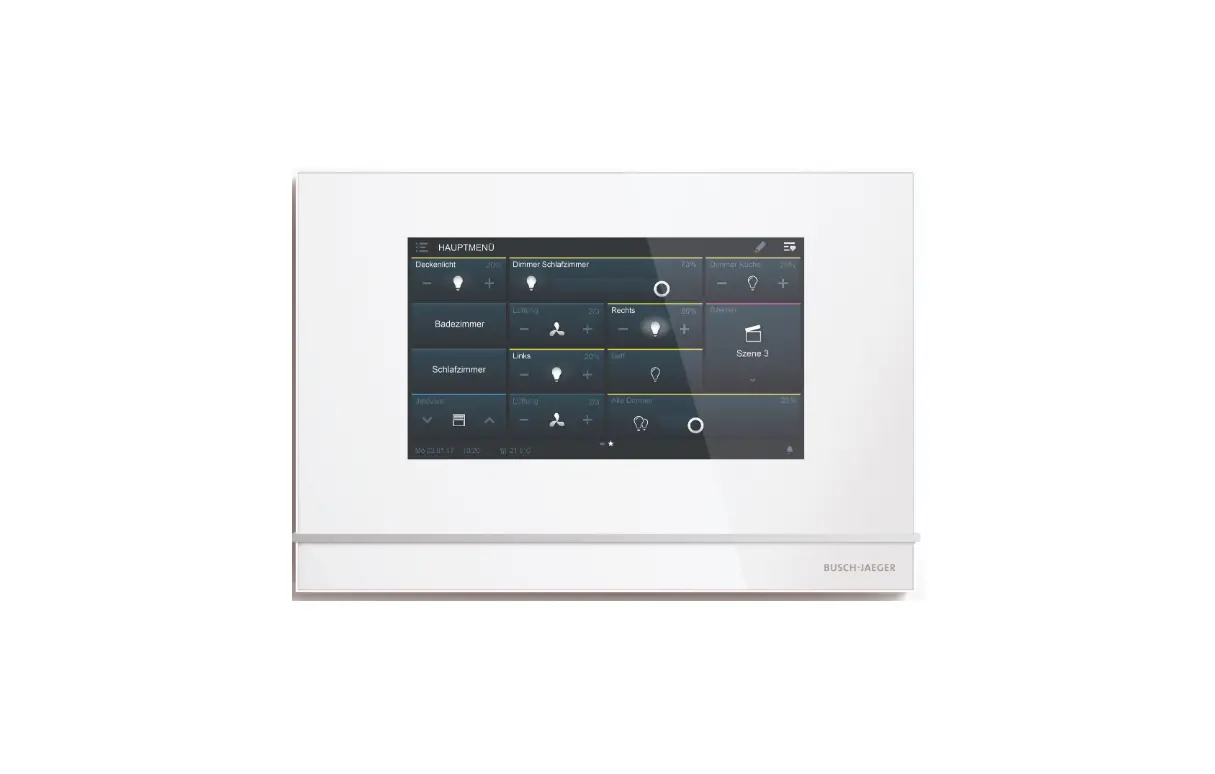
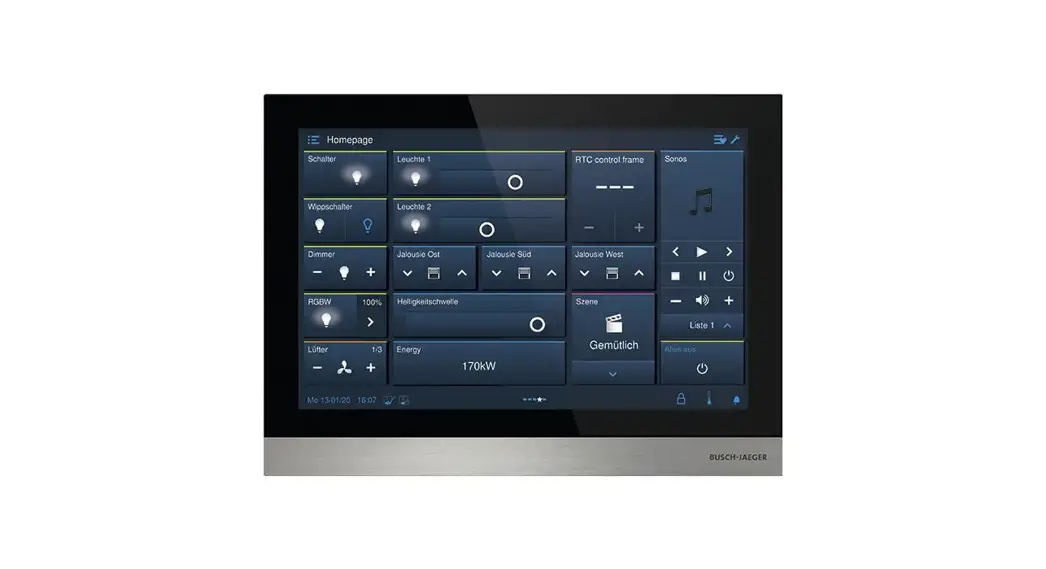
All networked devices with their icons are displayed in the free@home app and the panel and can be controlled from there.
These panels are supported:
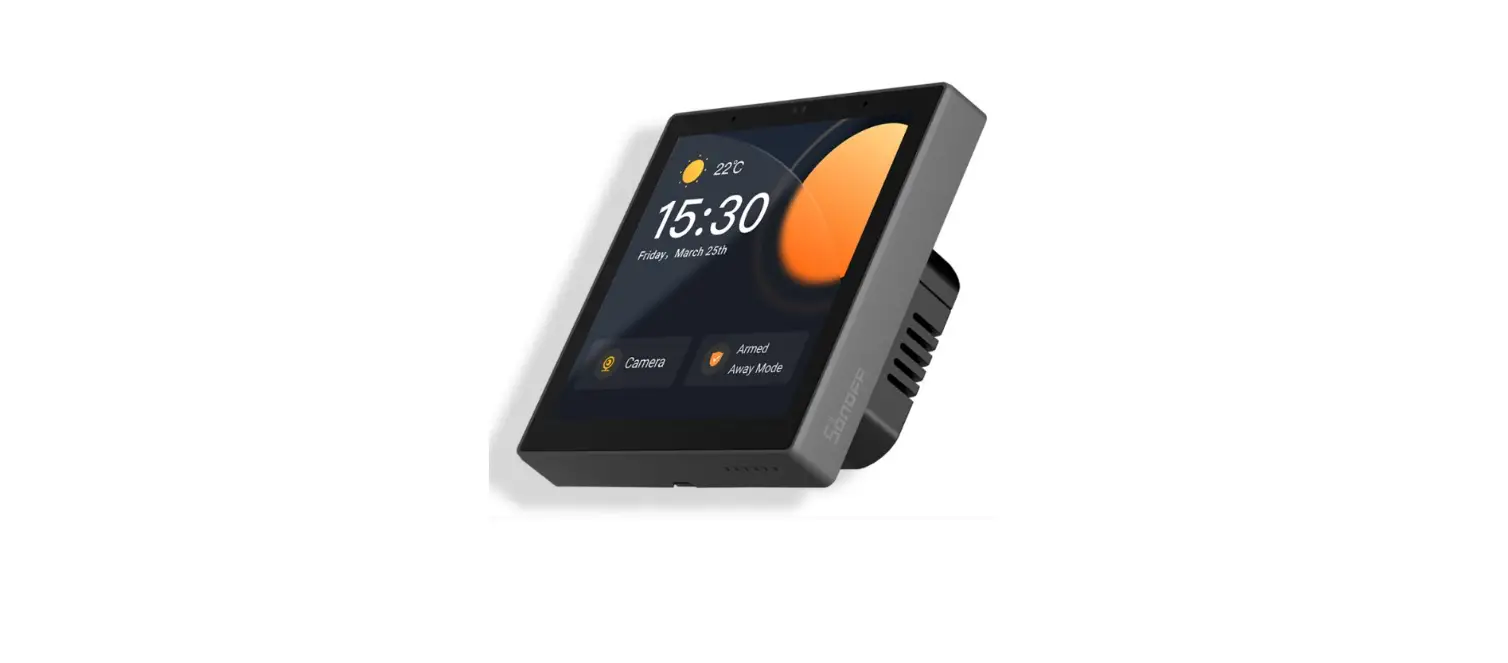
– Busch-free@homePanel 4.3″
– Busch-free@homeTouch 7″
– IP Touch 7″ Panel
– IP touch 10″ Panel
All functions can also be directly controlled via the wall-mounted push-buttons, which is possible only with Busch-free@home® Notice
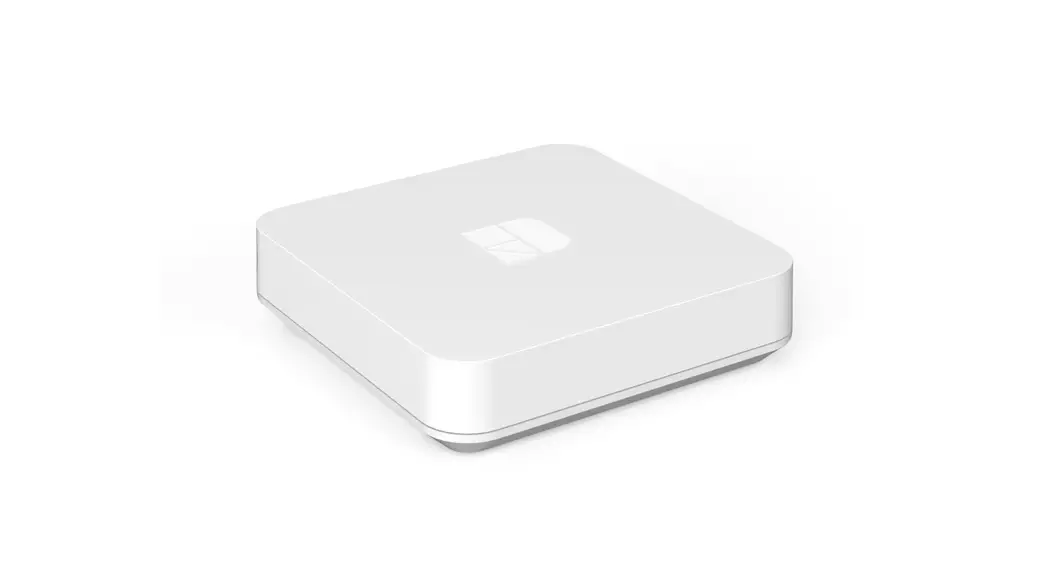
No additional gateway devices are required. Commissioning and configuration are easily carried out via the Busch-JAEGER portal and the Buschfree@home ® System Access Point.
To the excellence portal myBUSCH-JAEGER portal:
https://my.busch-jaeger.de/de/user/login/?
Prerequisites
- A third-party provider account (e.g. Miele and/or HomeConnect) has been set up and to which the corresponding household appliances have been added
 Notice
Please follow the operating instructions of the corresponding third-party provider! - Created myBUSCH-JAEGER account
- A set up free@home system
– Busch-free@home® System Access Point has been registered in the myBUSCH-JAEGER account - Internet connection
Notice
The pop-up blocker may have to be deactivated in the web browser
Example scenarios
- After waking up, a free@home scene is started. The kitchen light goes on, the sound of the system starts playing your favorite radio station and the coffee machine begins to heat the coffee.
- With the voice control command, “I’m leaving now!” (an additional prerequisite here is the installation of a voice control system), you tell the free@home system that you are leaving the apartment. All lights are switched off, the heating switches to standby mode, and the blinds are closed. And household appliances are switched to the “Off” or “Standby” status.
- Some household appliances are located in the cellar: dryer, washing machine, and freezer. I want to monitor the status of the remaining running time of these appliances via information icons on the panel: Is the door of the refrigerator closed? When will the dryer finish its cycle? This means you no longer have to keep going down to the cellar to check.Notice
For supported panels see “See “These panels are supported“ on page 3”.
Functions
The integration of household appliances in Busch-free@home® supports the following functions.
Each household appliance…
- will be visible as a native device in Busch-free@home®
- will display the main function on the control element, which the user can use by tapping it.
- will display additional available information on the control element, e.g. remaining running time or faults.
- can be used in events/actions.
- can be used with its main function within a time profile.
- can be positioned on a panel, see “See “These panels are supported“ on page 3”.
Notice
The available functions of individual household appliances from manufacturers Miele and HomeConnect can deviate from the range of functions offered in Busch-free@home ® and may not be compatible. Busch-Jaeger can therefore not guarantee that all functions are made available by partners (third-party suppliers) for every device. For questions about compatibility please contact the support service of the manufacturers.
Additional information about compatibility is available at:
Additional information is available at:
The main functions of the household appliances can be activated directly via the corresponding buttons. They can also be activated via the rounded icons in the free@home user interface or free@home app.
The example below shows a typical button. It appears in the web-based free@home user interface, in the free@home app, or in a panel. Notice
For supported panels see “See “These panels are supported“ on page 3”.
The buttons all have the same basic structure:
- The icon shows the main function of the household appliance. This icon may change accordingly, depending on the status.
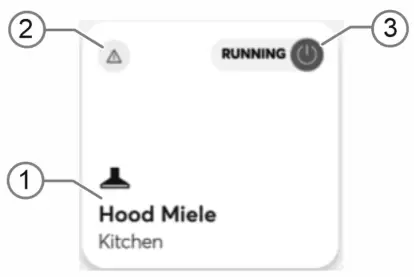
[1] Name of the household appliance.
[2] Note about an existing message. This is displayed in the message center.
[3] Status of the household appliance.
Additional display of functions or information (Figures only show examples):
- Operation
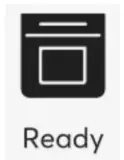
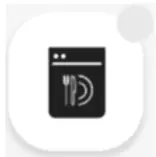
Devices are registered and activated in Busch-free@home ®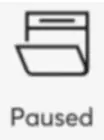 Devices are registered and activated in Busch-free@home®. Additional display possible, that the door is open for example.
 Devices wait for local operation or the “Remote control function” is not active on the device.
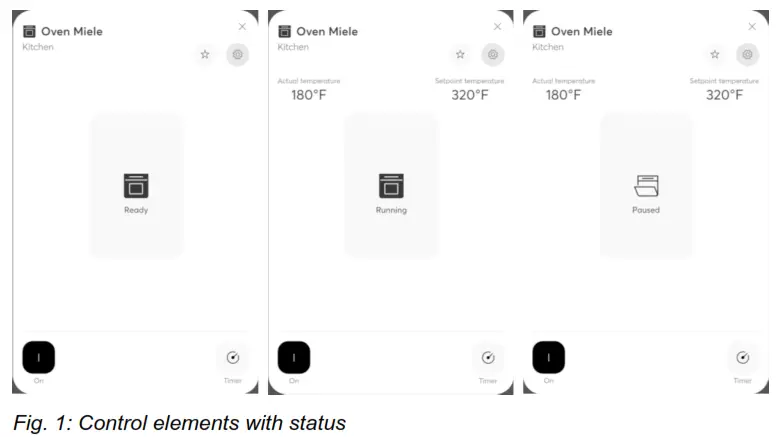
Control element with a status display of device after the icon has been pressed long.
 Display when a household device has no standby mode and is switched off. This, for example, is the case with the HomeConnect washing machine and dryer.
The message is displayed in the message center. This can also be verified in the app of the manufacturer.
Functions of household maintenance/small devices
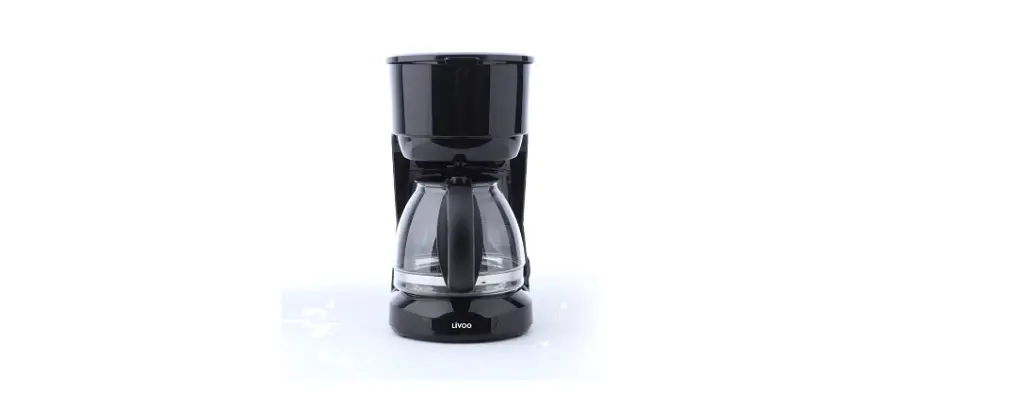
[1] Coffee machine
[2] Vacuuming robot*
| Feature | Function | 1 | 2 |
| Control household appliance | on/off | X | |
| Start cleaning | X | ||
| Pause cleaning | X | ||
| Back to the charging station | X | ||
| Display the status of the household appliance in free@home | Status on/off | X | |
| Operating mode1 | X | X | |
| Fault status2 | X | ||
| Display programming information of the household appliance in free@home | Remaining running time | ||
| Start time | |||
| Temperature display of the household appliance | Actual temperature and setpoint temperature | ||
| Activate and display special status modes of the household appliance in and via free@home | |||
| Trigger/display alarm in free@home when a specific status occurs | |||
| Transfer functions of the household appliances to a free@home scene | The main function of the household appliance | X | X |
| Use household appliances in free@home automation functions | Events Actions | X | X |
| Time control | X | X |
Table 1: Functions of household maintenance/small devices
- The available operating statuses depend on the respective household appliance: standby, preparation (e.g. heating), ready, the operation, stopped, ended, a process interrupted delayed start, and manual interaction necessary.
- The available fault states depend on the respective household appliance.
 The main function in free@home
* Vacuuming robots are currently not supported for HomeConnect.
Functions of cooling devices
| [1] | Refrigerator | [2] | Freezer |
| [3] | Wine cooler* | [4] | Wine cabinet* |
| [5] | Wine temperature control cabinet* |
| Feature | Function | 1 | 2 | 3 | 4 | 5 |
| Control household appliance | on/off | |||||
| Display the status of the household appliance in free@home | Status on/off | X | X | X | X | X |
| Operating mode1 | X | X | ||||
| Fault status2 | X | X | X | X | X | |
| Display programming information of the household appliance in free@home | ||||||
| Temperature display of the household appliance | Actual temperature and setpoint temperature | X | X | X | X | X |
| Activate and display special status modes of the household appliance in and via free@home | Super cool | X | ||||
| Super freeze | X | |||||
| Light on/off | X* | X* | X* | |||
| Trigger/display alarm in free@home when a specific status occurs | The door is open (too long) | X | X | X | X | X |
| Transfer functions of the household appliances to a free@home scene | The main function of the household appliance | X | X | X | X | X |
| Use household appliances in free@home automation functions | Events Actions | X | X | X | X | X |
| Time control | X | X | X | X | X |
Table 1: Functions of cooling devices
- The available operating statuses depend on the respective household appliance: standby, preparation (e.g. heating), ready, operation stopped, ended, a process interrupted delayed start, and manual interaction necessary.
- The available fault states depend on the respective household appliance.
*) Only when supported by the device model of the manufacturer The main function in free@home
* Wine cooling devices are currently not supported for HomeConnect.
Functions of kitchen/cooking
| [1] | Oven | [2] | Dialogue cooker |
| [3] | Combination steamer | [4] | Steamer |
| [5] | Microwave | [6] | Fume hood |
| Feature | Function | 1 | 2 | 3 | 4 | 5 | 6 |
| Control household appliance | on/off | X | X | X | X | X | X |
| Display the status of the household appliance in free@home | Status on/off | X | X | X | X | X | |
| Operating mode1 | X | X | X | X | X | X | |
| Fault status2 | X | X | X | X | X | X | |
| Display programming information of the household appliance in free@home | Remaining running time | X | X | X | X | X | |
| Start time | X | X | X | X | X | ||
| Temperature display of the household appliance | Actual temperature and setpoint temperature | X | X | X | X | X | |
| Activate and display special status modes of the household appliance in and via free@home | |||||||
| Device illumination | on/off | X* | |||||
| Dimming stage 0-100% | X* | ||||||
| Light on/off status | X* | ||||||
| Status of dimming stage | X* | ||||||
| Trigger/display alarm in free@home when a specific status occurs | The door is open (too long) | X | X | X | X | X | |
| Transfer functions of the household appliances to a free@home scene | The main function of the household appliance | X | X | X | X | X | X |
| Use household appliances in free@home automation functions | Events Actions | X | X | X | X | X | X |
| Time control | X | X | X | X | X | X |
Table 2: Functions of kitchen/cooking
- The available operating statuses depend on the respective household appliance: standby, preparation (e.g. heating), ready, operation, stopped, ended, a process interrupted, delayed start, manual interaction
- The available fault states depend on the respective household
*) Only when supported by the device model of the manufacturer
 The main function in free@home
Functions of washing/drying/dishwashing
| [1] | Dishwasher | [2] | Dryer |
| [3] | Washing machine | [4] | Clothes dryer |
| Feature | Function | 1 | 2 | 3 | 4 |
| Control household appliance | on/off | X* | X* | X* | X* |
| Display the status of the household appliance in free@home | Status on/off | X | X | X | X |
| Operating mode1 | X | X | X | X | |
| Fault status2 | X | X | X | X | |
| Display programming information of the household appliance in free@home | Remaining running time | X | X | X | X |
| Start time | X | X | X | X | |
| Temperature display of the household appliance | Actual temperature and setpoint temperature | ||||
| Activate and display special status modes of the household appliance in and via free@home | |||||
| Trigger/display alarm in free@home when a specific status occurs | Door open | X | X | X | X |
| Transfer functions of the household appliances to a free@home scene | The main function of the household appliance | X | X | X | X |
| Use household appliances in free@home automation functions | Events Actions | X | X | X | X |
| Time control | X | X | X | X |
Table 3: Functions of washing/drying/dishwashing
The available operating statuses depend on the respective household appliance: standby, preparation (e.g. heating), ready, operation, stopped, ended, a process interrupted, delayed start, manual interaction
- The available fault states depend on the respective household
*) Only when supported by the device model of the manufacturer Main function in free@home
Setup
- Register yourself at https://my.busch-jaeger.de/. Notice
The use of HomeConnect, Miele@home Service is free of charge.
It is not necessary to subscribe to fee-based remote access in order to use the integration of household appliances function. In order to use the function, you only have to set up my Busch-JAEGER account; it is not necessary to book remote access in addition.
The Busch-free@home® remote access gives you reliable mobile access to your free@home system and allows you to use the geofencing function, to send push messages and e-mails. Notice
The System Access Point to be used must be registered in the myBUSCHJAEGER. - Log yourself in at the Busch-free@home® App Next. Notice
In order to make all necessary settings, you require the authorization level “Installation” or “Configuration.”
Make sure that your free@home system is equipped with the latest software version. If this is not the case, carry out an update of your system. The latest firmware version is automatically downloaded when your system is connected to the Internet (for this, activate the function “Download new firmware automatically”).
The latest firmware version can also be downloaded at www.buschjaeger.de/en/smarter-home/systems/abb-freehome. Also, the panel requires the latest Firmware version. See the corresponding instructions in the product manuals.
For supported panels see “See “These panels are supported“ on page 3”.
The integration of your household appliances is made via the Busch-JAEGER. Notice
Ensure that your free@home system is connected successfully with the Busch-JAEGER.
Busch-free@home ® App Next Connect the Busch-JAEGER portal with the Busch-free@home ® App Next. 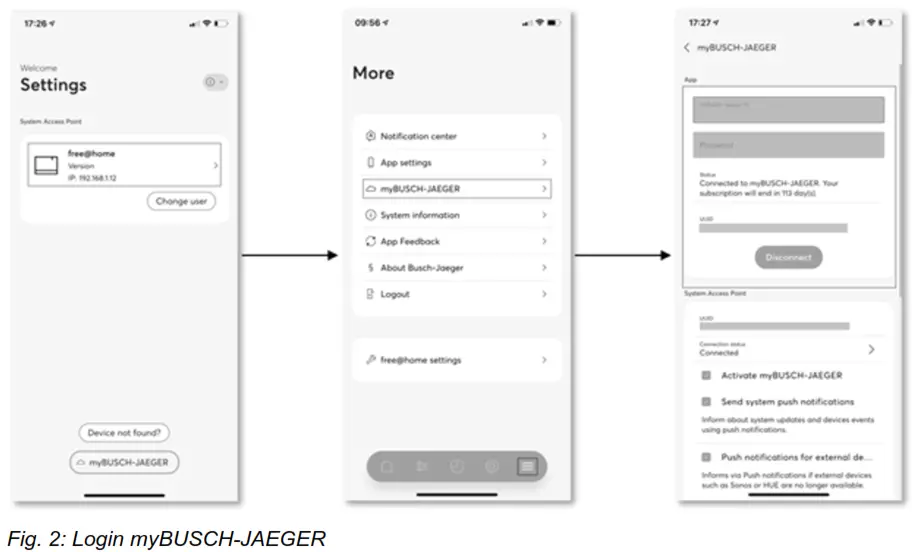
- Select the System Access Point under “Settings”.
- Select the entry myBUSCH-JAEGER under “Additional” and there enter the user data for the Busch-JAEGER portal.
System Access Point
The System Access Point must also be connected with the Busch-JAEGER portal.
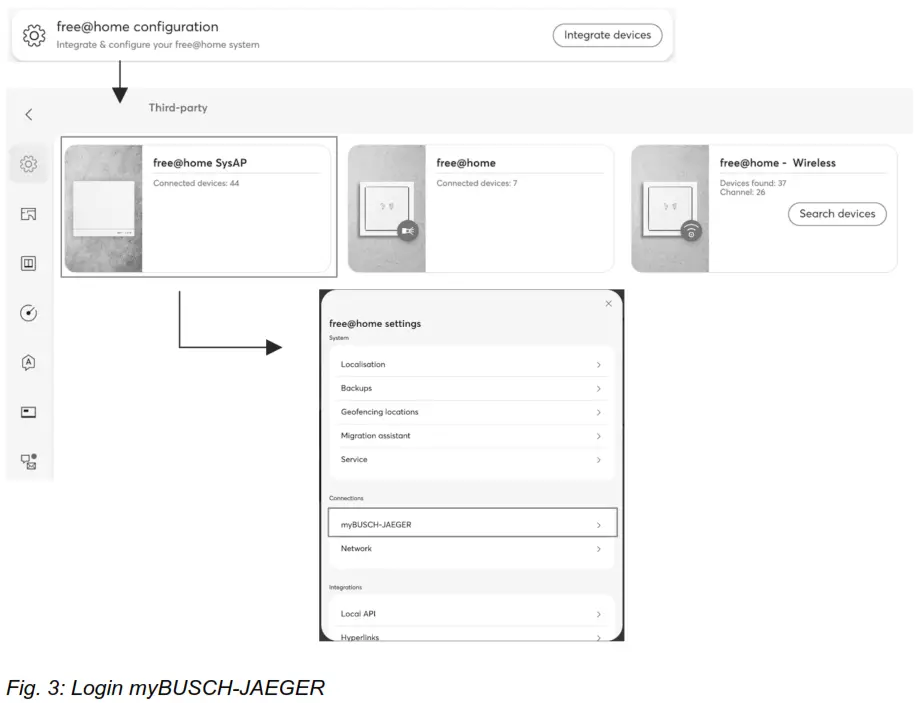
- Select “free@home configuration” → “free@home SysAp” → “Connections” – myBUSCHJAEGER“

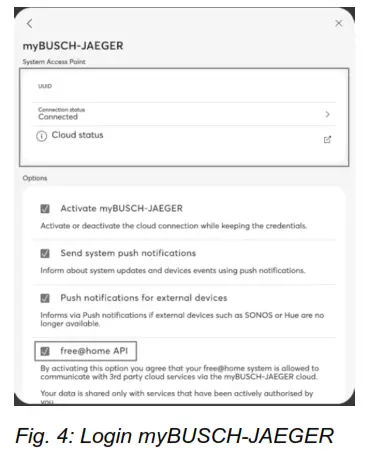
- Select “System Access Point – Connection status” and there enter your user data for the Busch-JAEGER portal and click on “Connect”.
- Activate the “free@home API” function by clicking the checkbox.
Integrate home appliances
Integrate home appliances into free@home via the Busch-JAEGER portal. Notice
The integration of the household appliances is illustrated with the example of Miele. 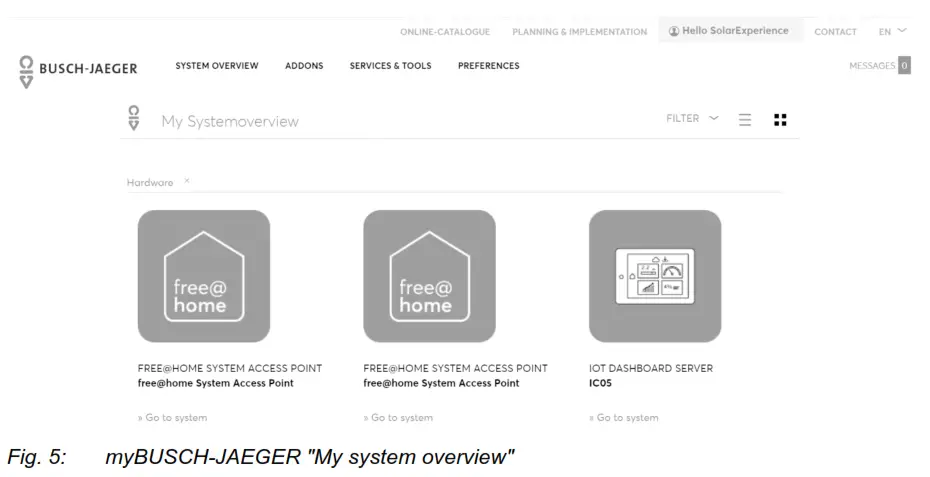
- Select “System overview” -> “To the system” in the Busch-JAEGER portal (Your free@home System)
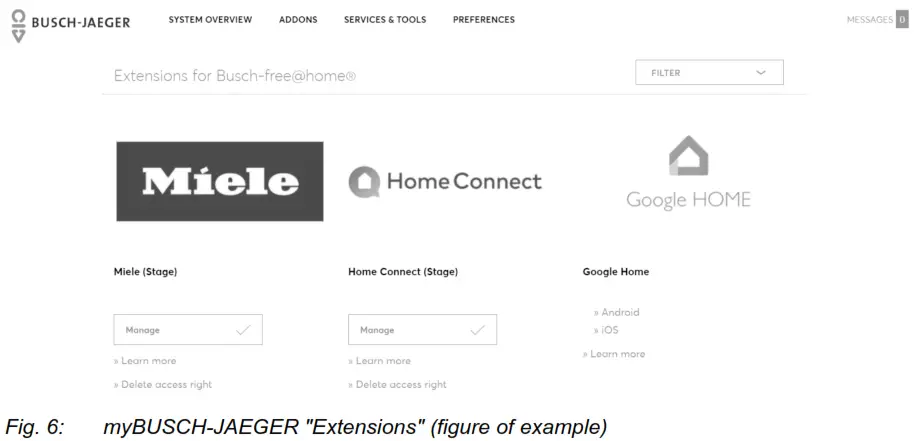
- Scroll down to “Extensions” on the page
 Notice
To continue, it is essential that a set up third-party provider account (e.g. Miele and/or HomeConnect) has been created, to which the corresponding household appliances have been added. - Now click on the button of the corresponding third-party provider (e.g. Miele or HomeConnect).
– The System Access Point selection window appears.

- Select the System Access Point in the window with which the household device function is to be connected. Then click on “Continue”.
– The pop-up window for logging into the third-party provider account opens.
- Now enter the data from the third-party provider account. Then click on the “Send” button. – An overview opens. Here, all household appliances which are available via the third-party account are displayed.

- Activate the devices that are to be integrated into the Busch-free@home®.
– Device categories that are not supported are identified and cannot be selected. - Click on the “Continue” button.
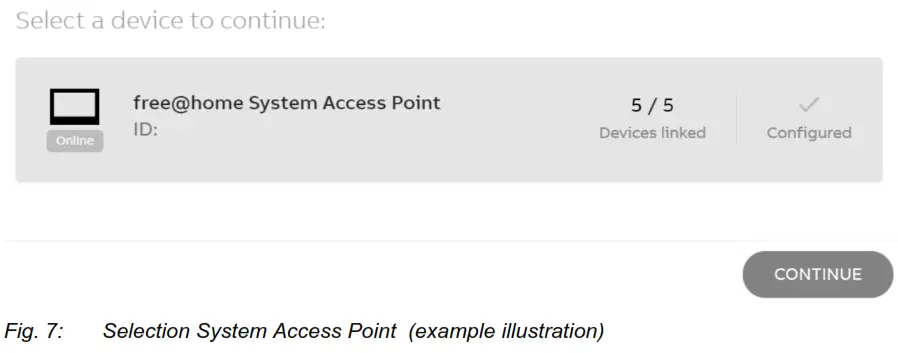
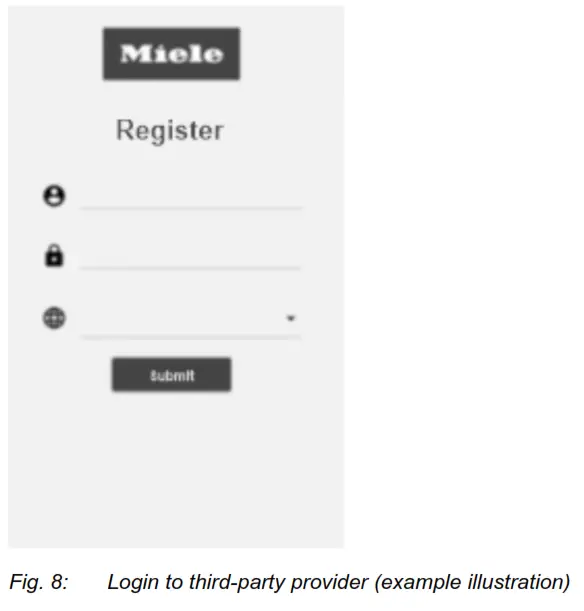
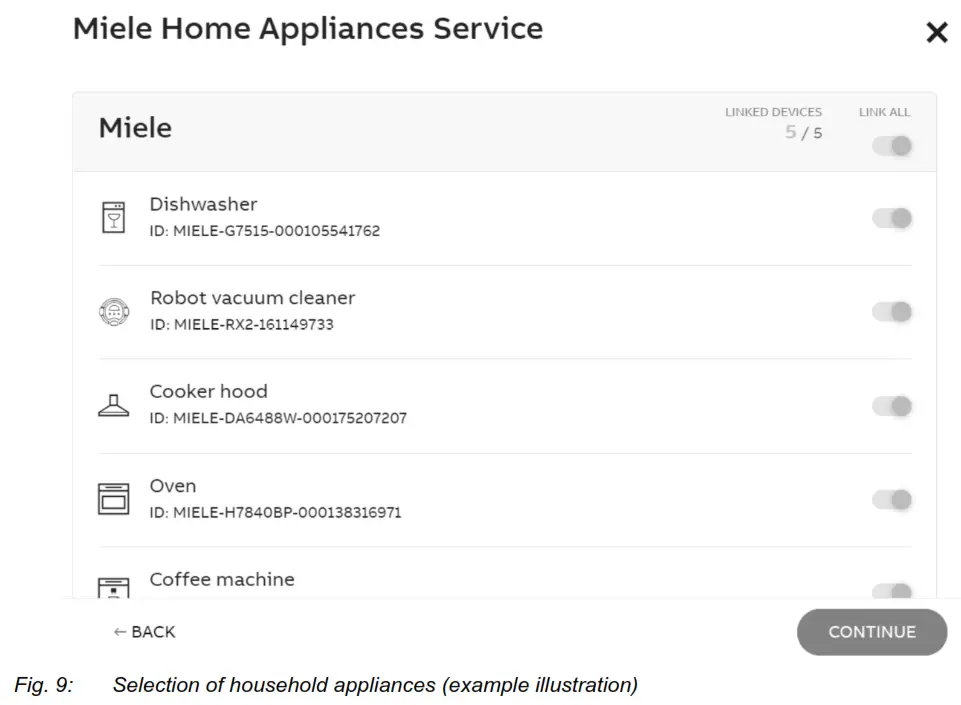
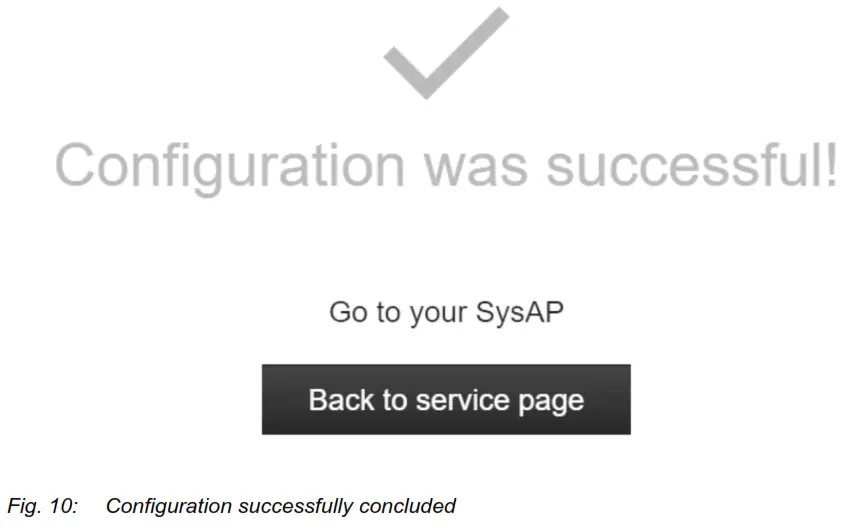
This concludes the process in the myBUSCH-JAEGER login.
Device configuration
– The available household devices can now be used in the Busch-free@home® just like other free@home devices.
– Detailed information on the configuration of the free@home functions is made available in the system manual of Busch-free@home ®.
Here are the functions such as adding devices, usage in scenes, events, and actions, as well time control is described in detail.
An initial overview of all linked household devices can be found in the device list in the System Access Point (device configuration):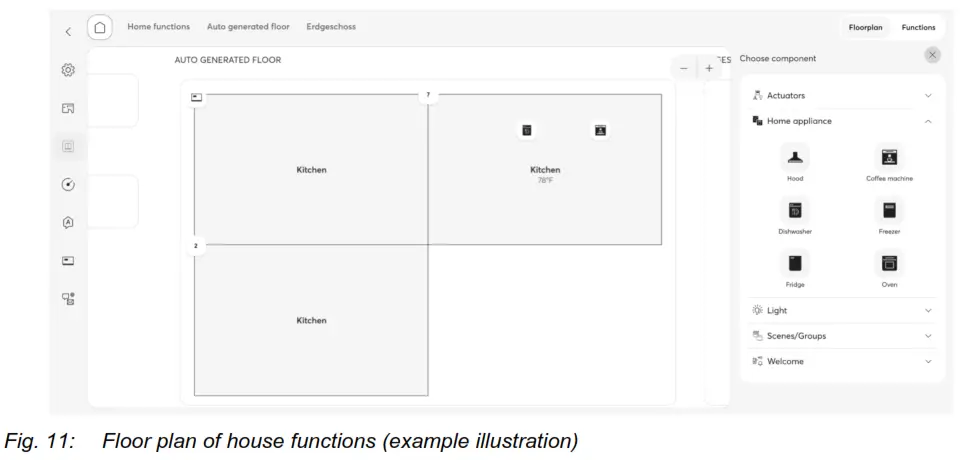
Notes on using the household appliances function
FAQ / Troubleshooting:
■ The household appliances signal that they can no longer be reached Procedure:
- Please check the Internet connection.
- Please check in the HomeConnect or Miele app, whether the devices are online there.
- Please check whether the System Access Point is online and connected in myBUSCHJAEGER.
If these measures do not help, run through the web configurator again, deactivate all devices and conclude the procedure, and then run through the web configurator again and reactivate the devices again.
■ The System Access Point is not displayed in the web configurator via the myBUSCHJAEGER login as being online.
Procedure:
- Restart the System Access Point.
- Use the free@home user interface to ensure that:
– a connection to myBUSCH-JAEGER has been established
– the “free@home API” is activated
Then deactivate this function and activate it again. Then update the web configurator via the Busch-JAEGER login and check again whether the System Access Point is now online.
■The household appliances are not correctly displayed or updated in Busch-free@home®.
Procedure:
- Rerun the web configurator via the Busch-JAEGER login and conclude. Leave the setting so.
- If this does not help, run through the web configurator again, deactivate all devices and conclude the procedure, and then run through the web configurator again and reactivate the devices again.
■ There is no reaction.
Procedure:
The user can completely delete the user settings for the service in the myBUSCH-JAEGER login (delete access rights) and then run the web configurator through again. 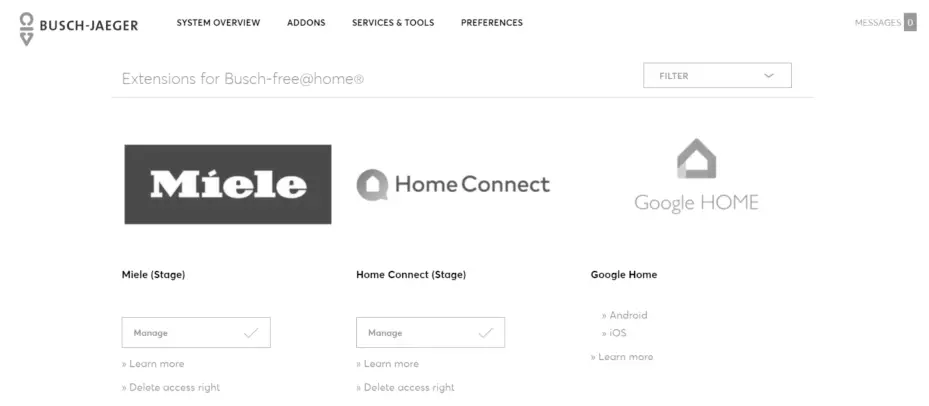 This does not delete the household appliances and their configuration in Busch-free@home®.
Special notes:
- Due to the Cloud connection and the Internet access, the System Access Point should be operated via the LAN connection and not via WLAN.
- A stable WLAN for household appliances must be ensured.
- If problems arise with the household appliances in Busch-free@home®, first always check the status in the apps of the manufacturers (third-party supplier account) to ensure that there is no error on the part of the partners (third-party suppliers).
- The “Remote control” function must always be activated on every household appliance to ensure that the integration functions.
- After an update or installing backups, it can take up to 10 minutes until the household appliances are synchronized again with Busch-free@home ®. If this is not the case, as a remedy, run through the web configurator again, deactivate all devices and conclude the procedure, and then run through the web configurator again and reactivate the devices again.
- For Miele devices, the menu path “Setting -> time of day -> display” must be set to “On” in the device menu.
- Some devices contain an Eco/deep-sleep function. This may have to be deactivated on the device, otherwise, the device cannot be taken out of deep sleep and switched on via Buschfree@home ®.
In addition, for some Miele devices also the clock must be activated in the device menu under “Settings -> monitor”, to prevent the devices from dropping into a deep sleep. More detailed information for the customer is available from the corresponding manufacturer.
Special features of the devices:
The range of functions of household appliances can be limited independent of the basic functionality offered by Busch-free@home ® :
- This, for example, makes washing machines and dryers subject to standard conditions to prevent people or objects from being in the device and the device is mistakenly activated remotely.
- Some dishwasher models from Miele cannot be activated/deactivated remotely.
- The door contact of some Miele devices is triggered only in Busch-free@home ® when the device is running in the program.
Busch-Jaeger Elektro GmbH
A member of the ABB Group
Freisenbergstraße 2
58513 Lüdenscheid
www.BUSCH-JAEGER.de
[email protected]
Central sales service:
Tel.: +49 2351 956-1600
Fax: +49 2351 956-1700
Copyright©2022 Busch-Jaeger Elektro GmbH
All rights reserved
2CKA001473B9733
 ABB Group. Leading digital technologies for industry — ABB Group
 Busch-Jaeger - Elektro- und Installationstechnik
 Home Connect API Documentation
 myBUSCH-JAEGER Portal
 Unser Service & Kontakt | Home Connect
 Service Kontaktdaten