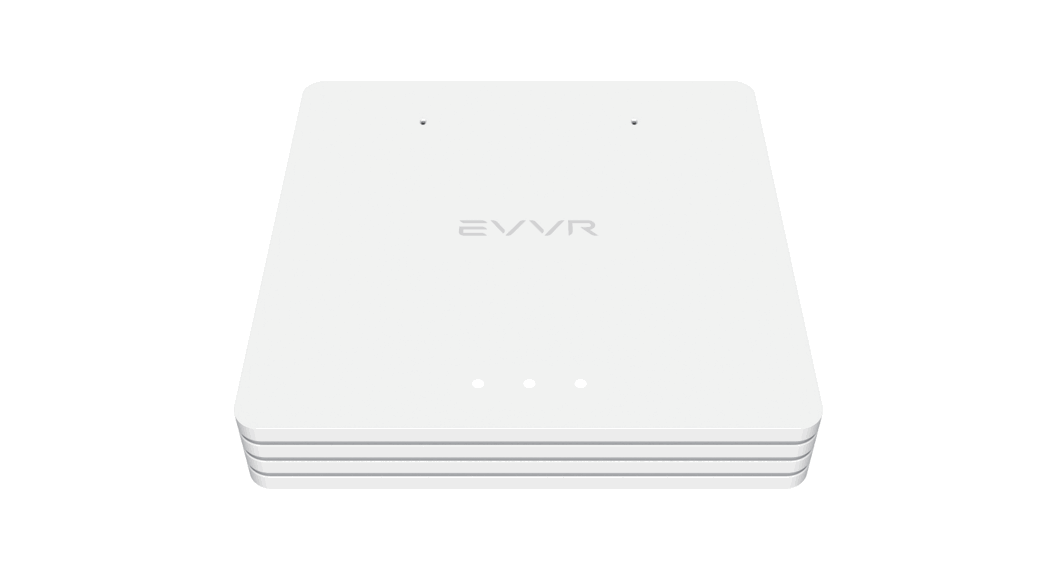
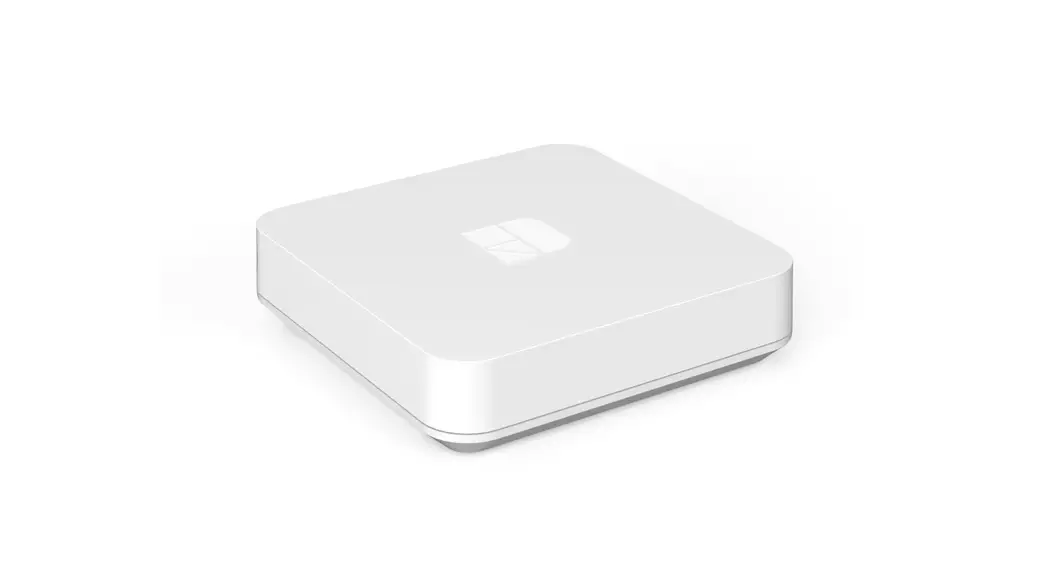
ECLV1.00 Center Lite Home Automation HUB
User Manual: Center Lite ECLV1.00
Contents
- 1. Preface
- 2. Safety Instructions
- General Safety
- Location
- Cleaning and Maintenance
- 3. About EVVR Center Lite
- 4. Parts and Functions
- 5. Before Use
- Assemble the Power Adapter
- Attach External Power Supply
- Connect to TV/Display (Optional)
- 6. Getting Started
- 7. Basic Operations
- Boot the device
- Shut Down the device
- Restore to Factory Settings
- Re-enable Wi-Fi Configuration
- 8. Legal Compliance
- Disposal Instructions
- CE Compliance Statement
- FCC Statement
- 9. Warranty and Service
- Limited Warranty
- Service
Safety Instructions
Please read and follow these safety instructions:
General Safety
- Do not expose the device to extreme temperatures, moisture, or
direct sunlight. - Do not use the device near water or other liquids.
- Do not use the device if the power cord or plug is
damaged. - Do not disassemble or attempt to repair the device
yourself. - Use only the power adapter provided with the device.
- Do not use the device if it is damaged or shows signs of
damage. - Keep the device away from children and pets.
Location
- Place the device on a stable and level surface.
- Ensure that there is enough space around the device for proper
ventilation. - Do not place the device in an enclosed space, such as a cabinet
or bookshelf.
Cleaning and Maintenance
- Unplug the device before cleaning.
- Clean the device with a soft, dry cloth.
- Do not use abrasive cleaners or solvents.
- Do not spray liquids directly onto the device.
Before Use
Before using the device, please follow these instructions:
Assemble the Power Adapter
Attach the power cord to the power adapter, and then plug the
power adapter into an electrical outlet.
Attach External Power Supply
If you are using an external power supply, connect it to the
device.
Connect to TV/Display (Optional)
If you want to connect the device to a TV or display, use an
HDMI cable to connect the device to the TV or display.
Getting Started
To get started with the device, press the power button.
Basic Operations
The following basic operations are available:
Boot the device
To boot the device, press the power button.
Shut Down the device
To shut down the device, press and hold the power button until
the device turns off.
Restore to Factory Settings
To restore the device to factory settings, go to the settings
menu and select “Restore to Factory Settings.”
Re-enable Wi-Fi Configuration
If you need to re-enable Wi-Fi configuration, go to the settings
menu and select “Wi-Fi Configuration.”
Legal Compliance
Please comply with all applicable laws and regulations when
using the device.
Disposal Instructions
When disposing of the device, follow all applicable laws and
regulations.
CE Compliance Statement
The device complies with all applicable CE requirements.
FCC Statement
The device complies with all applicable FCC requirements.
Warranty and Service
The device is covered by a limited warranty. For service, please
contact customer support.
User Manual
Center Lite
ECLV1.00
1
Contents
Contents ……………………………………………………………………………………………….. 2 1. Preface……………………………………………………………………………………………. 4 2. Safety Instructions…………………………………………………………………………….. 4
General Safety………………………………………………………………………………………………………5 Location ……………………………………………………………………………………………………………….5 Cleaning and Maintenance……………………………………………………………………………………..5
3. About EVVR Center Lite …………………………………………………………………….. 6
Overview ………………………………………………………………………………………………………………6 Package Contents …………………………………………………………………………………………………7 Features ……………………………………………………………………………………………………………….7 Specification …………………………………………………………………………………………………………9
4. Parts and Functions ………………………………………………………………………… 10 5. Before Use …………………………………………………………………………………….. 12
Assemble the Power Adapter………………………………………………………………………………. 12 Attach External Power Supply……………………………………………………………………………… 12 Connect to TV/Display (Optional)…………………………………………………………………………. 13
6. Getting Started ……………………………………………………………………………….. 14
Download EVVR App …………………………………………………………………………………………. 14 Create Account/Login (Optional) ………………………………………………………………………….. 14 Connect to the Internet ……………………………………………………………………………………….. 14 Pair EVVR Center Lite………………………………………………………………………………………… 15
7. Basic Operations …………………………………………………………………………….. 16
Boot the device…………………………………………………………………………………………………. 16
2
Shut Down the device…………………………………………………………………………………………. 16 Restore to Factory Settings …………………………………………………………………………………. 17 Re-enable Wi-Fi Configuration …………………………………………………………………………….. 17
8. Legal Compliance……………………………………………………………………………. 18
Disposal Instructions ………………………………………………………………………………………….. 18 CE Compliance Statement ………………………………………………………………………………….. 18 FCC Statement ………………………………………………………………………………………………….. 19
9. Warranty and Service ………………………………………………………………………. 20
Limited Warranty ……………………………………………………………………………………………….. 20 Service……………………………………………………………………………………………………………… 21
3
1. Contents
Thank you for purchasing EVVR Center Lite, the smart home controller. In order to use your controller safely and effectively, please read this User Manual thoroughly before use and follow the instructions provided. Please keep this User Manual for future reference. EVVR reserves the rights to change the product information and specifications without notice. Products and specifications discussed herein are for reference purposes only. All information discussed herein may change without notice and without warranties of any kind. This document and all information discussed herein remain the sole and exclusive property of EVVR. EVVR is a registered trademark of EVVR. Copyright © 2023 EVVR.
2. Safety Instructions
Warning: These safety instructions provide important safety information and should be observed at all times. Please read them before using the product.
4
General Safety
· This product is designed to be used in dry indoor places. It is not waterproof, please keep it away from rain or water. · Adapter shall be installed near the device and shall be easily accessible. · Do not use the device if it is damaged or it shows any kind of visible damage. · Do not handle the device and its components with wet hands. · Do not dismantle the device. · The AC adapter may become hot during normal operation of your Contorlloer. Use care when handling the adapter during or immediately after the operation. · Always use genuine parts and accessories provided. Using parts and accessories other than the provided one may cause short circuits or overheating, and result in electric shock or fire.
Location
· Always place the device on an even and stablesurface. · Keep the device away from direct sunlight or moisture. · Keep the device away from heat sources, such as stovetops or ovens. · Do not subject the device to extreme temperatures. · Do not subject the device to a strong impact or vibration. · Keep the device away from potentially dangerous locations, such as
flammable, explosive, chemical-laden or wet atmospheres where petrol orflammable liquids are used for storage.
Cleaning and Maintenance
5
It is recommended that you clean the hub by wiping it gently using a soft and dry cloth. Do not use water, chemical substances or detergents. These may cause discoloration or corrosion to the product’s exterior and may cause a fire or electric shock. Do not attempt to repair the hub or its accessories by yourself, as damage or personal injury may occur. Damage caused by unauthorized repair is not under the warranty. Please contact our Authorized Service Center for any possible problems concerned with the product.
Warning: No user-serviceable parts inside. Refer all servicing to qualified service personnel.
EVVR disclaims all liability for any accidents or damage caused by using the product in the ways that are not described in this User Manual or using non-genuine parts or accessories.
3. About EVVR Center Lite
Overview
EVVR Center Lite is a smart home controller that can manage various smart devices from different brands . It supports ZigBee , Z-Wave , Wi-Fi, Bluetooth devices and other connected devices for which there are corresponding and adaptive plugins installed
6
Package Contents
EVVR Center Lite x 1
User Manual x 1
AC Adapter & Plug x 1
Note: The images shown in this User Manual are for reference only and may slightly differ from the actual product. The plug is varied according to the destination country/area.
Features
· Easy to Use EVVR Center Lite works out of the box, free of wiring or installation · Internet Independent
EVVR Center Lite processes and stores data locally with end to end encryption , protecting your data and privacy. It can work even without internet.
· Voice Ready
EVVR Center Lite has a built-in voice control hardware that frees your hands
from manual controls. You can control your home simply by asking nicely,
EVVR assistant is not released as the date of this document, and it will be
released in
7
a future update. · All in One App You can manage your smart home devices from anywhere in the world within one app. · Big Screen Display You can monitor the status of your smart devices on TV or display when the hub and TV/display are connected with an HDMI cable. · Backup Battery In case of a power outage, EVVR Center Lite can continue working with the built-in rechargeable battery.
8
Specification
Model
US Version: ECL-NAZWZBBTG1
EU Version: ECL-EUZWZBBTG1
Oceania Version: ECL-OAZWZBBTG1
Processor
1.2GHz Quad-Core CortexTM-A7
Communication
ZigBee 3.0; Z-Wave Plus;
IEEE 802.11b/g/n; BLE 4.0
Storage
8GB eMMC
Memory
1GB DDR3 1333MHz
Built-in Speaker
1.0W/7Ohm
Built-in Battery
2500mAh Rechargeable Lithium-ion Battery
Adapter
Input: AC 100-240V; 50/60Hz; 0.6A
Output: 5V/2.5A
Network Connection
2.4G Wi-Fi/Ethernet
Operating Temperature 32 °F to 95 °F /0°C to 35°C
Storage Temperature
-4°F to 113°F /-20°C to 45°C
Net Weight*
0.72lb /328g
Gross Weight* Dimension
1.70lb /770g 6.3” x 6.3” x 1.1” c160 x 160 x 27 mm
*: Average weight: there may be slight weight deviation for each device.
9
4. Parts and Functions
Ethernet
Back View
Reset Button
HDMI Port
USB Port
Parts Reset Button Power Port
HDMI Port Ethernet Port
USB Port LED
Functions Restore to factory settings. See 7. Basic Operations.
The supplied power adapter converts AC power to DC power for use with this port. Support an HDMI cable for connection to TV or display. Support a standard Ethernet Cable for connection to a local network. Support USB-enabled accessories Indicate the real-time status of the device.
10
Top View
LED
The LED indicates the real-time status of the hub and connected devices:
Solid white Solid green
Flashing green Solid yellow Fast flashing red Breathing orange Flashing blue Blink blue 5 times
The device is starting up. 1. The device is powered on. 2. The device works normally. The device is discovering smart devices. Internet disconnected. A smart device has reached an emergency level. The device is powered by a battery. The built-in voice assistant is activated. The device is responding to the identification request.
11
5. Before Use
Assemble the Power Adapter
Before use, you need to connect the AC adapter with the plug to assemble a ready to use the power adapter. » Properly align the key in the plug and the slot in the AC adapter, and finger- tighten the plug and AC adapter to hold the adapter firmly in place.
Attach Extrenal Power Supply
» Plug in the adapter to an outlet and attach the power connector to the back of the device.
Warning: Only use the adapter and its accessory provided.
12
Connect to TV/Display (Optional)
You can see the real-time status of the device and connected devices on a TV or display when the hub and TV/display are connected with an HDMI cable. » Attach the HDMI cable to the device and plug in the other side of the cable to
the TV/display. Note: The HDMI cable is not provided. Note: The feature will be released in a future update.
13
6. Getting Started
Download EVVR App
Search ” EVVR ” in Apple App Store or Google Play and download the latest version of the EVVR App. Note: The EVVR App supports iOS 12+ or Android OS 8.0+
Create Account /Login (Optional)
You can create an account as instructed. If you already have an account, please login directly.
Connect to the internet
EVVR Center Lite can connect to the internet via a 2.4G Wi-Fi or an active Ethernet Cable. Note : EVVR Center Lite can work without internet only if there is a local area network. However, the internet is necessary for using the app to control your devices remotely. a) Wi-Fi Connection » Follow the instructions in EVVR App to complete the connection.
14
b) Ethernet Cable Network Connection » Insert an active Ethernet Cable into the Ethernet port of the hub.
Pair EVVR Center Lite
Follow the instructions on the app to pair EVVR Center Lite. Note: The first person who pairs the hub will be assigned as the owner of the hub. The others who want to pair the hub must be invited by the device owner, and the device owner can assign differentroles to newusers. However, in the case of local use, all users are owners.
15
7. Basic Operations
Boot the Device
The hub is about to work when it is plugged into the outlet.
Shut Down the Device
The hub stops working when the DC end of the adapter is unplugged from the device.
If the DC end is plugged, while only the AC end of the adapter unplugged from the outlet. The built-in battery will power the hub automatically and enable the hub to continue working. In case of power failure, you need to keep the DC end of the adapter being plugged in the device.
16
Restore to Factory Settings
Unplug the DC end of the adapter from the device, and then r-e-plug the adapter into the hub while keep pressing the Reset Button until the LED glows white. Note: All user data will be cleared if the hub is restored to factory settings.
–
17
8. Legal Compliance
Disposal Instructions
This symbol on the product or on its packaging indicates that this product must not be disposed of with your other household waste. Instead, it is your responsibility to dispose of your waste equipment by handing it over to a designated collection point for the recycling of waste electrical and electronic equipment. The separate collection and recycling of your waste equipment at the time of disposal will help conserve natural resources and ensure that it is recycled in a manner that protects human health and the environment. For more information about where you can drop off your waste equipment for recycling, please contact your local city office, your household waste disposal service, or the shop where you purchased the product.
CE Compliance Statement
This product had been subject to testing requirements for the CE mark.
18
FCC Statement
This device complies with Part 15 of the FCC Rules. Operation is subject to the following two conditions: (1) This device may not cause harmful interference, and (2) This device must accept any interference received, including interference that may cause undesired operation.
Warning: Changes or modifications not expressly approved by the party responsible for compliance could void the user’s authority to operate the equipment.
NOTE: This equipment has been tested and found to comply with the limits for a Class B digital device, pursuant to Part 15 of the FCC Rules. These limits are designed to provide reasonable protection against harmful interference in a residential installation. This equipment generates uses and can radiate radio frequency energy and, if not installed and used in accordance with the instructions, may cause harmful interference to radio communications. However, there is no guarantee that interference will not occur in a particular installation. If this equipment does cause harmful interference to radio or television reception, which can be determined by turning the equipment off and on, the user is encouraged to try to correct the interference by one or more of the following measures: · Reorient or relocate the receiving antenna. · Increase the separation between the equipment and receiver. · Connect the equipment into an outlet on a circuit different from that to which the
receiver is connected. · Consult the dealer or an experienced radio/TV technician for help.
19
9. Warranty and Service
Limited Warranty
For warranty information, please visit https://www.evvr.io/warranty
20
Service
If you have any question, please contact us through www.evvr.io. If it becomes necessary to return the device for repair, contact your local distributor for more information.
21
Make Every Moment Meaningful.
For more information, please visit www.evvr.io
22
 Complete Home Automation and Smart Home Control System | Evvr