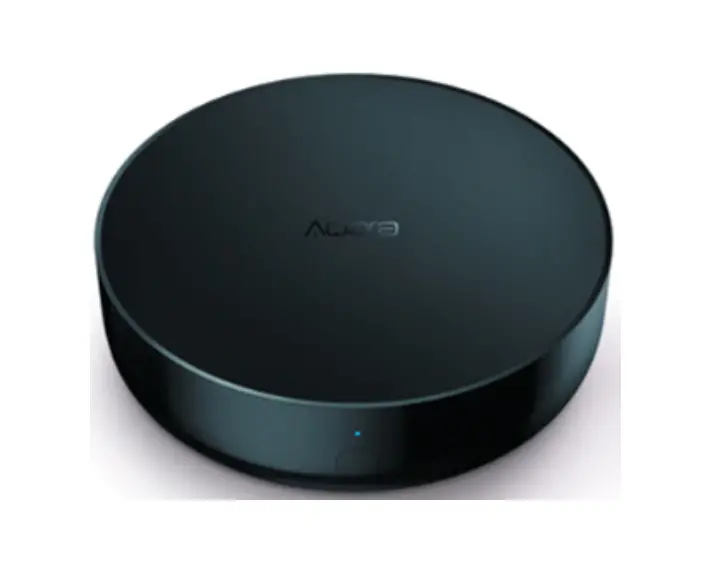
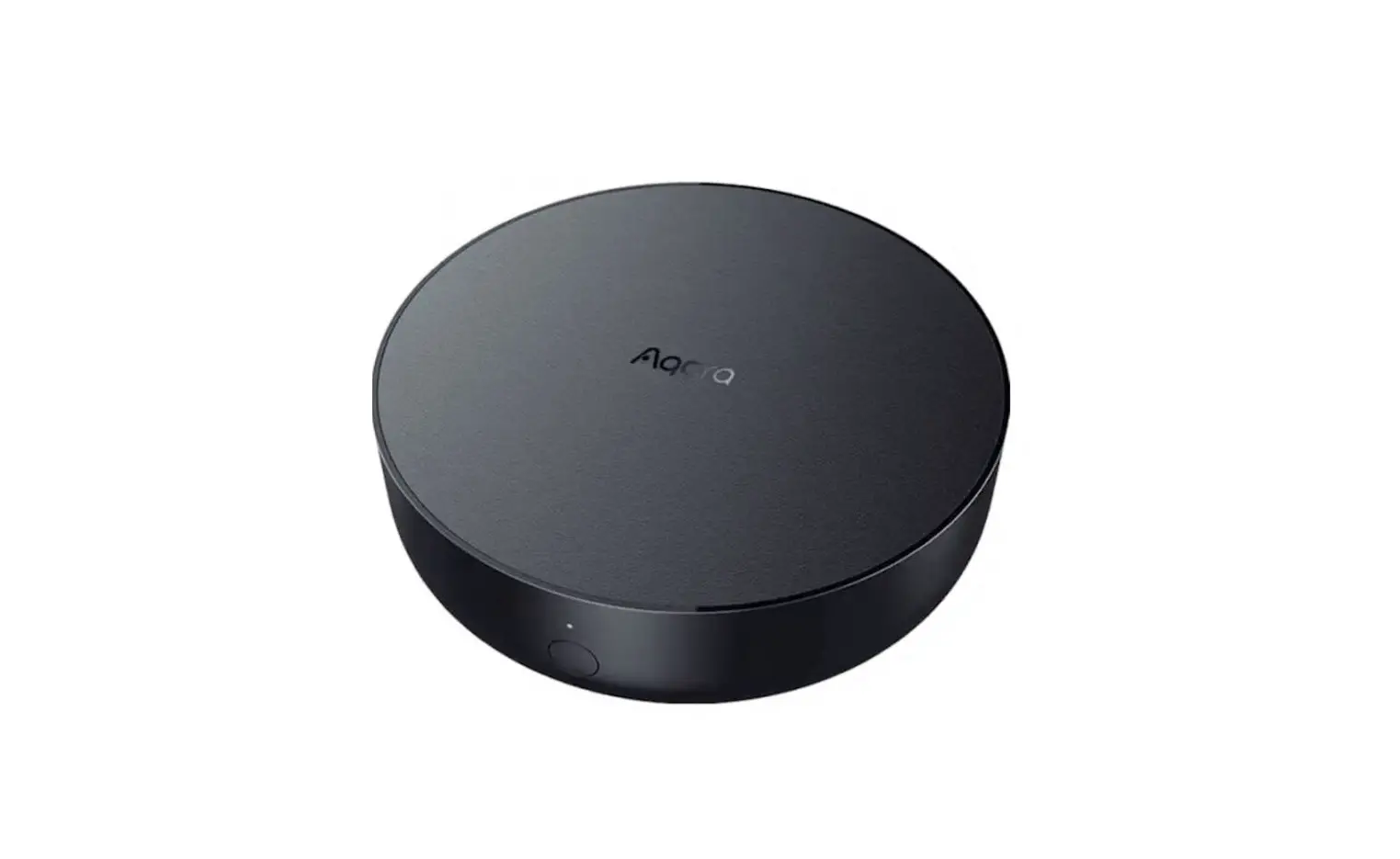
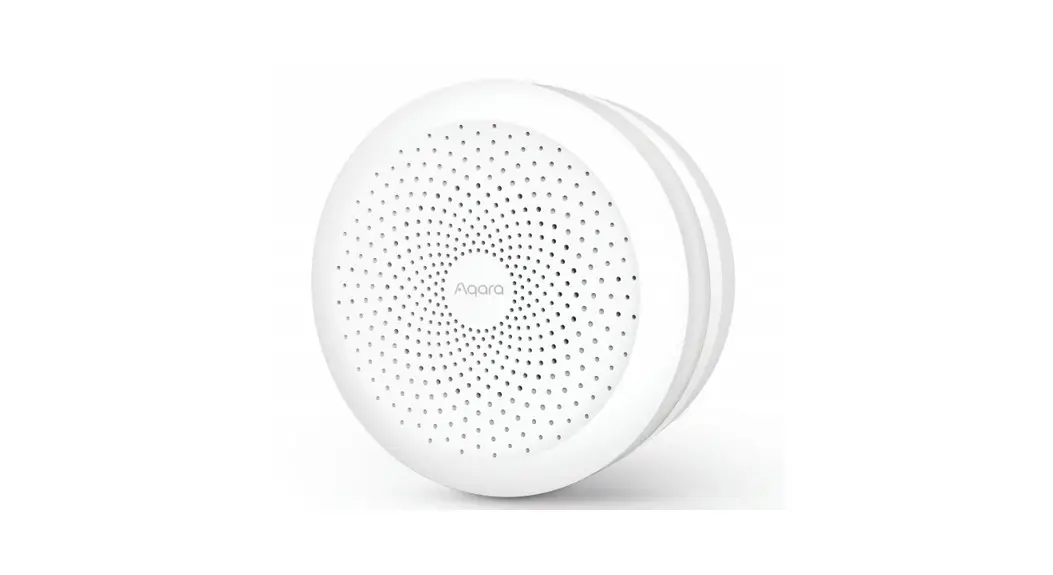
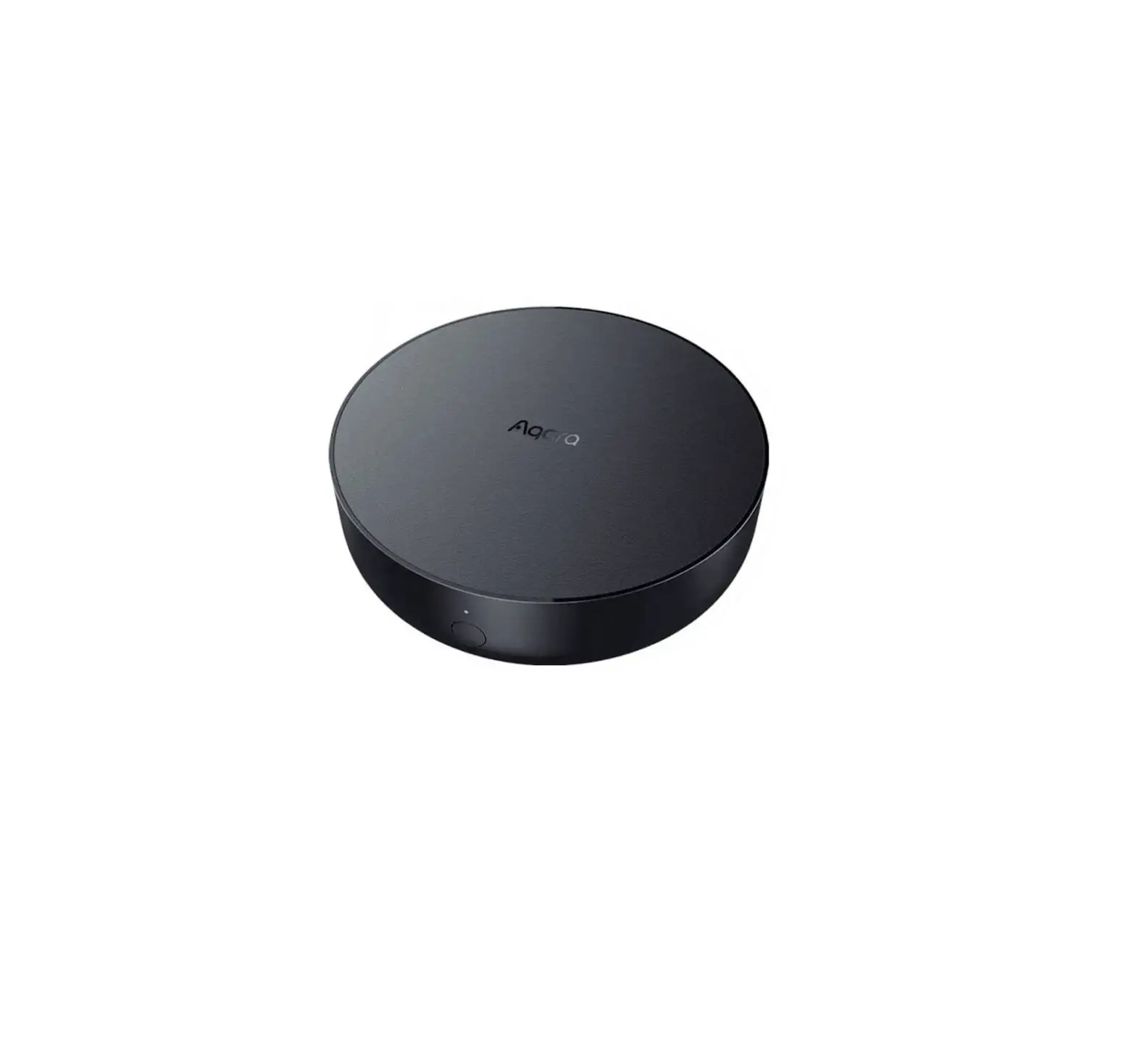
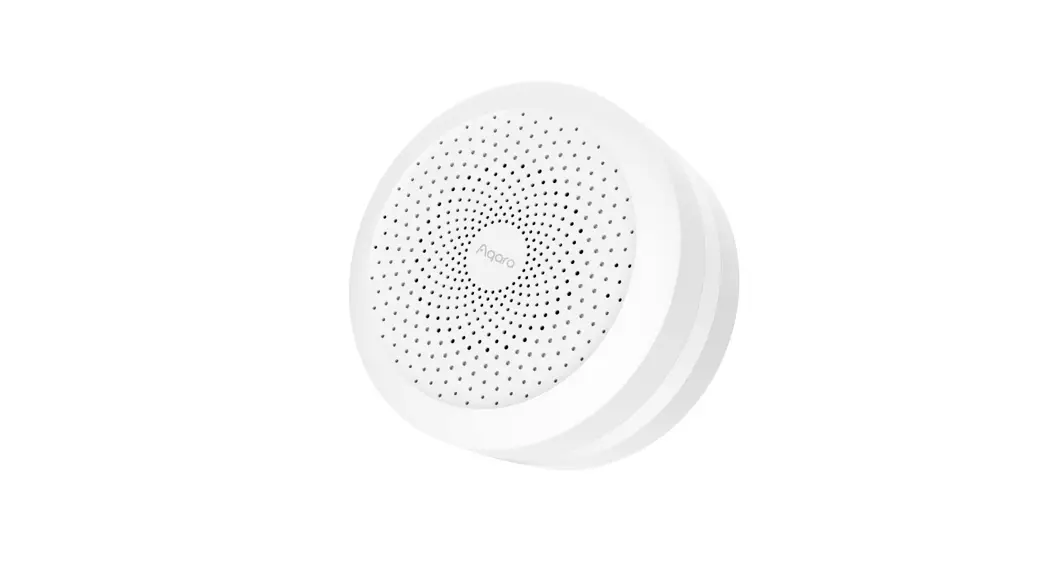
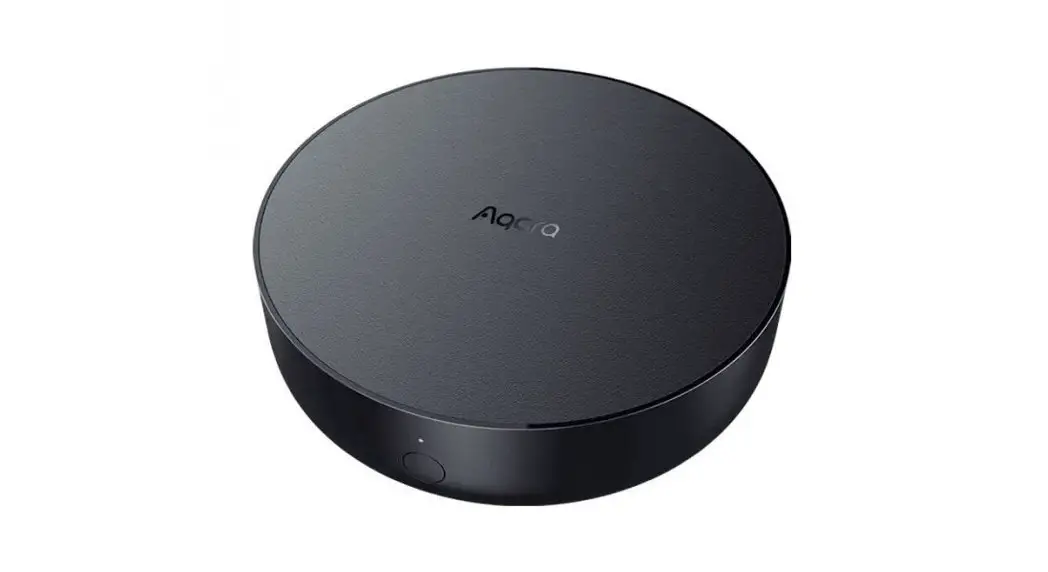
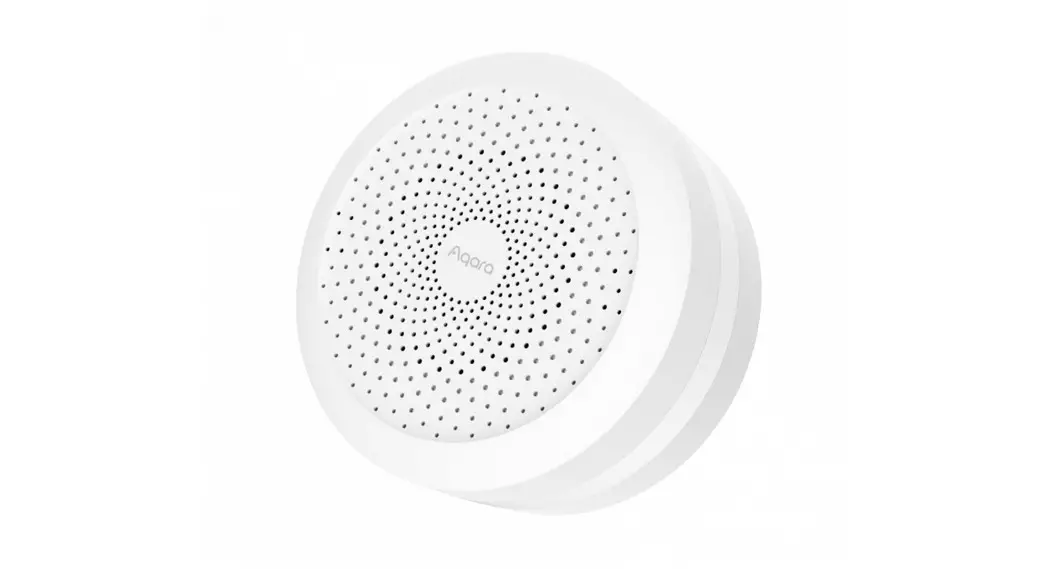
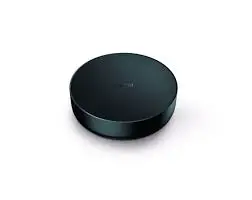
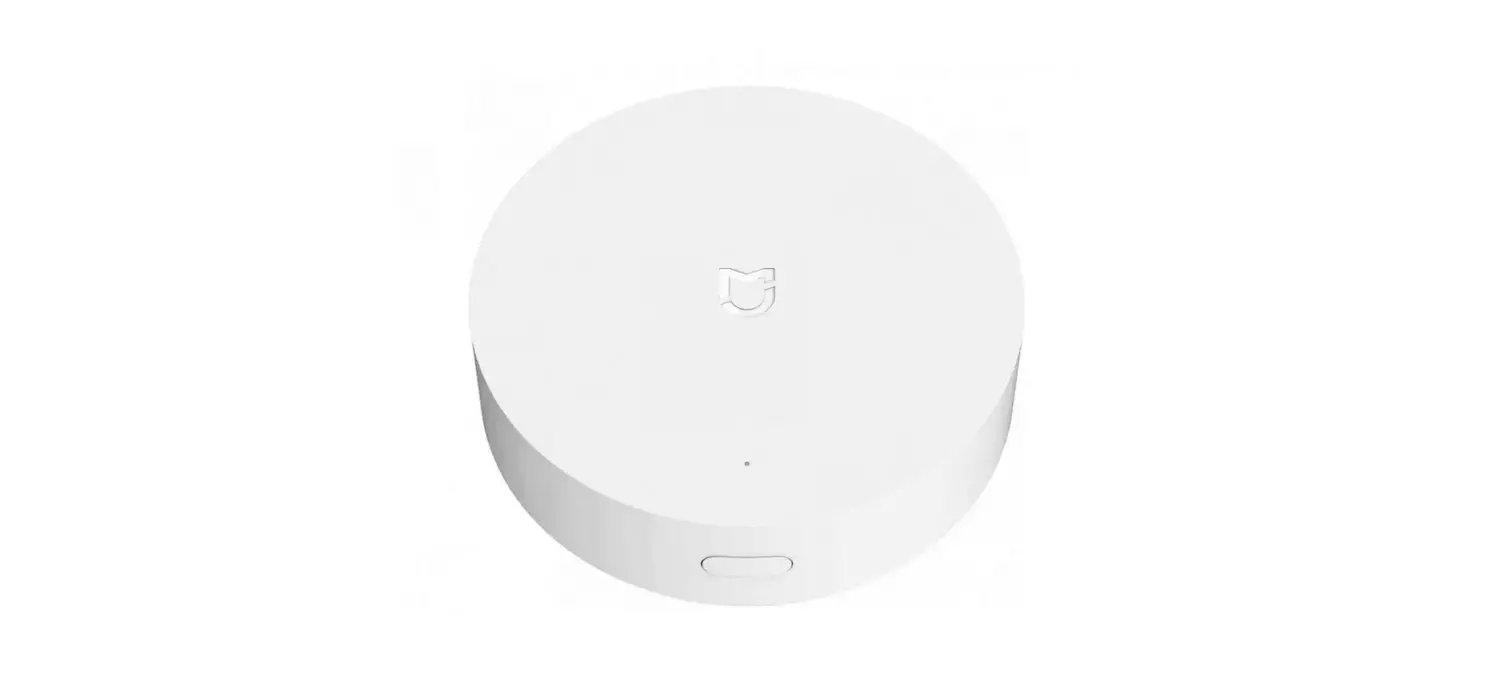
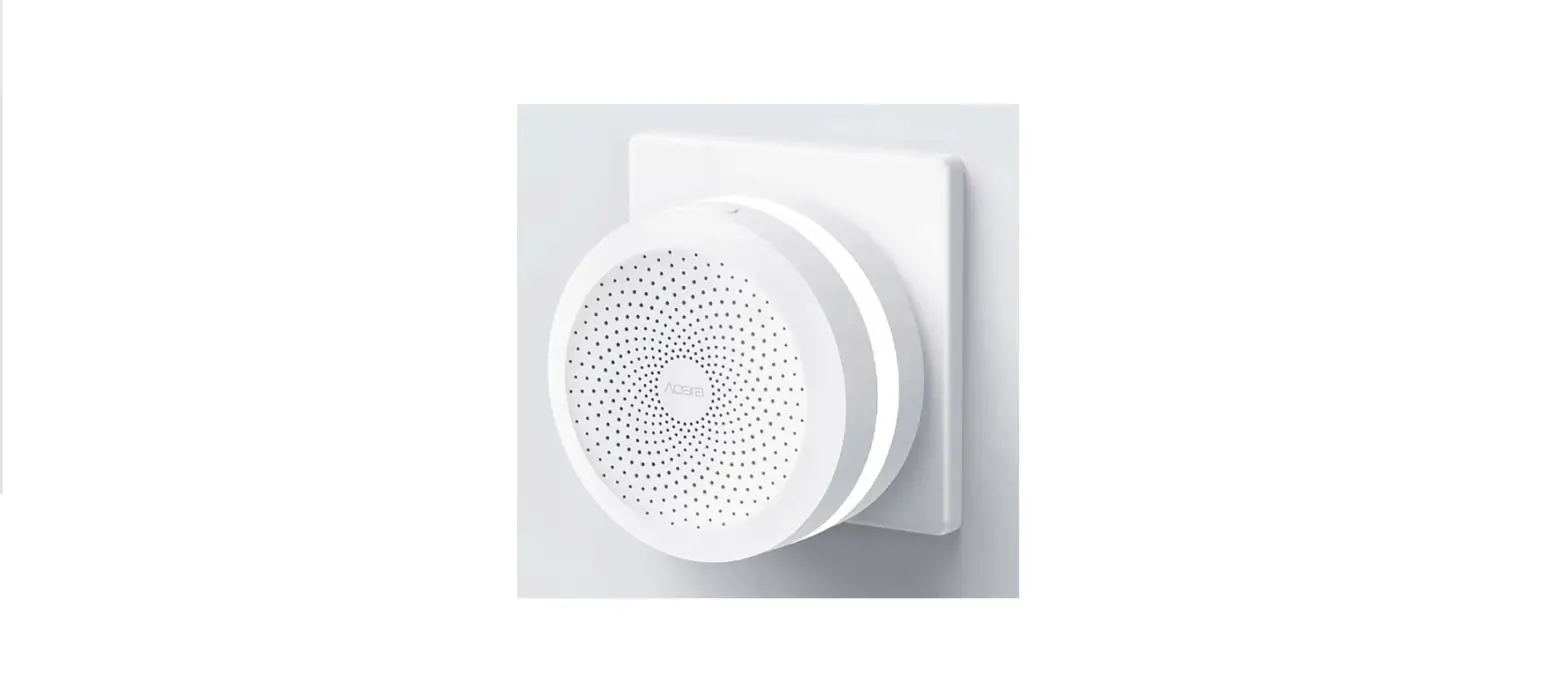
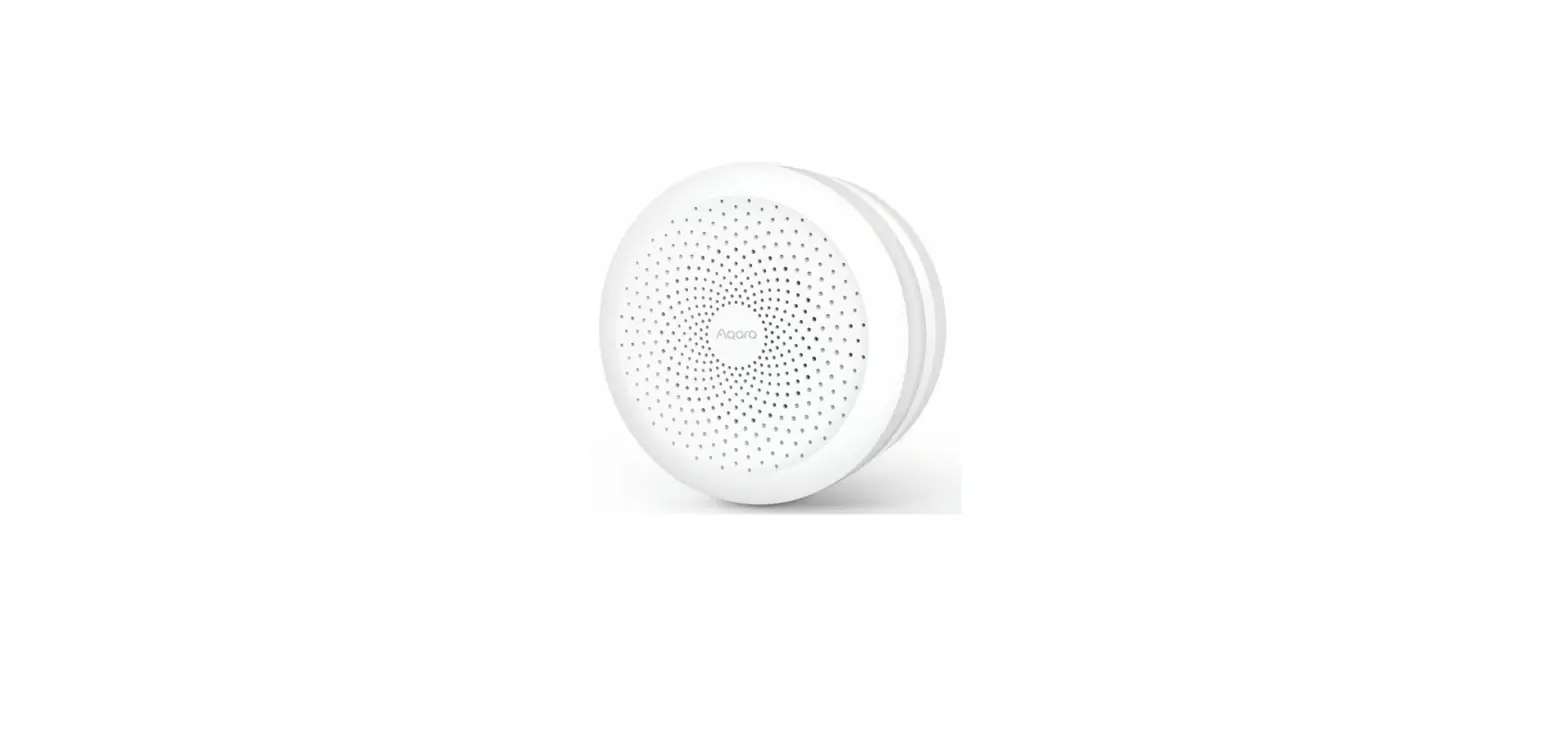
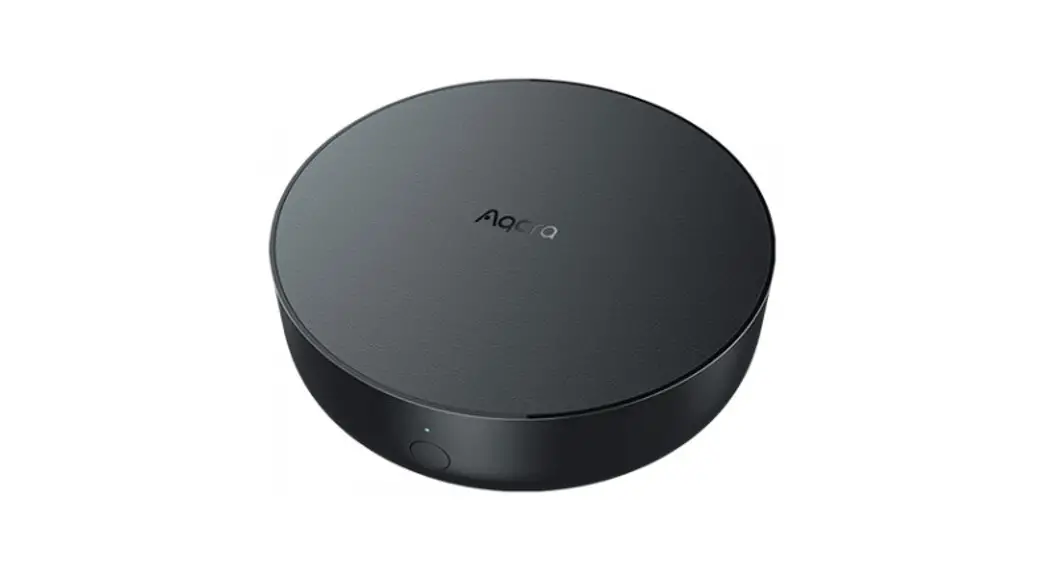
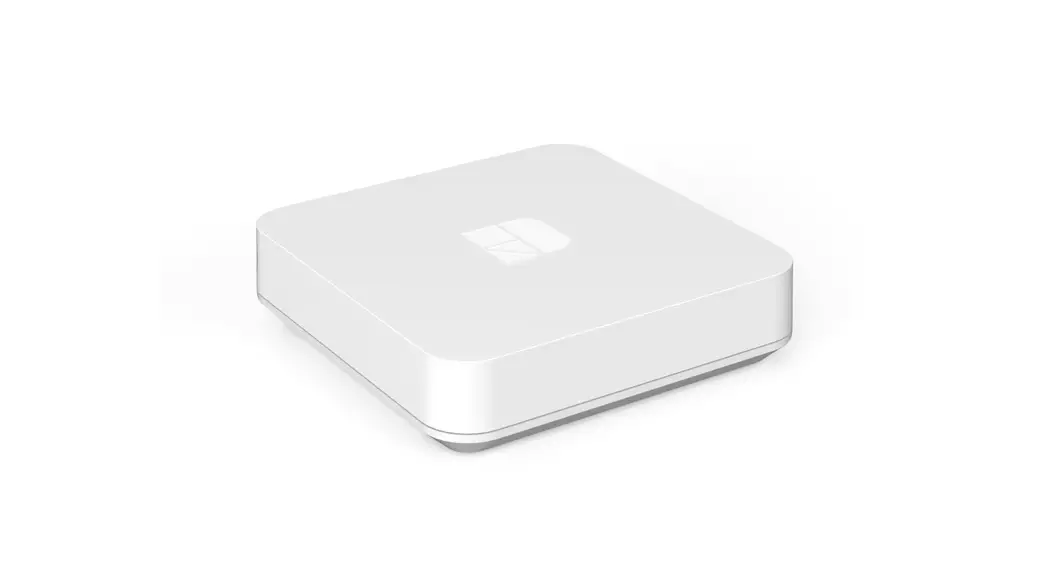
Hub M2 Smart Home Control Center
Product Information: Aqara Hub M2
The Aqara Hub M2 is a smart home control center that allows you
to conveniently control your Aqara accessories. It can be connected
to a WiFi or Ethernet network and supports interaction and
connection with Aqara Zigbee accessories. The hub also features an
IR remote control function, enabling you to add and manage the
control of different IR devices.
Please note that the Aqara Hub M2 is designed for indoor use
only.
Product Usage Instructions: Aqara Hub M2
Quick Setup:
- Download the Aqara Home app from your app store (Apple Store,
Google Play, Huawei App Gallery, etc.) or scan the QR code. - Choose the installation location for the hub, ensuring it is
2-6 meters away from the router and free from metal obstacles. - Power on the hub using a 5V-1A or 5V-2A adapter (sold
separately) and the USB power cable. - Wait for the yellow/red hub indicator light to start
flashing. - Ensure your mobile phone is connected to a 2.4GHz Wi-Fi
network. If using a dual-band router, make sure your phone is
connected to the 2.4GHz Wi-Fi or disable 5GHz Wi-Fi. - Open the Aqara Home app, tap the “+” icon in the upper right
corner, select “Hub M2,” and follow the instructions to complete
adding the hub. - If you want to enable Apple HomeKit control for iOS users, scan
or manually enter the HomeKit Setup Code (found on the bottom of
the hub or in the manual) during the hub adding process and bind
the hub to HomeKit. - If you encounter any issues with adding the hub, press the
button on the hub for more than 10 seconds to reset it.
Troubleshooting HomeKit Issues:
- If you encounter a “Failed to add accessory” error with iOS,
restart your iOS device and reset the hub. - If the accessory is already added but not found, restart your
iOS device and reset the hub, then manually enter the HomeKit setup
code to add it again. - If the accessory is not found, wait for 3 minutes after
resetting the hub, then manually enter the HomeKit setup code to
add it again.
Device Operations:
- After successfully adding the hub, refer to the accessory
installation guide to add an accessory. - To control IR home appliances, configure the brands and models
of the IR home appliances using the provided instructions.
Aqara Hub M2 Quick Start Guide
· 01
Hub M2
· 11
Bedienungsanleitung des Hub M2
· 17
Manuale di istruzione del Hub M2
· 25
Manual de usuario de Hub M2
· 33
Mode d’emploi pour Hub M2
· 41
Hub 2
· 50
Hub M
· 59
M2
· 67
Product Introduction The Aqara Hub M2 is a smart home control center. It can be connected with a WiFi or Ethernet network, and supports interaction and connection with Aqara Zigbee accessories. It also has an IR remote control function, which can add and manage the control of different IR devices. The Aqara Hub M2 allows you to control your Aqara accessories more conveniently.
* This product is for indoor use only.
Indicator light Button
Infrared emission area Infrared receiving area
LAN Port
Micro-B USB Type A Port Power Port (Reserved)
01
Quick Setup 1. Download the app Search for “Aqara Home” on the app store (Apple Store , Google Play ,Huawei App Gallery etc) or scan the QR code. Download and install the Aqara Home app.
2. Set up the hub 1 Choose the installation location of the hub: the hub should be 2-6 meters away from the
router in the house, and avoid metal obstacles between the hub and the router or around the hub.
2m~6m
02
2 Power the hub on: please use the 5V-1A or 5V-2A adapter (purchase it separately) and the USB power cable to power the hub on.
* If you need to use wired network communication between the hub and the router, please use a network cable with RJ45 network port to connect the LAN ports of the hub and your router, and wait for the orange and green lights on the side of the network port to light up.
03
3 Wait for the yellow/red hub indicator light to change from always on to flashing. 4 Make sure that the mobile phone is connected with the 2.4GHz Wi-Fi network. * If you use a dual-band router, please make sure your phone is connected with 2.4GHz Wi-Fi or disable 5GHz Wi-Fi. * Keep your phone close to the hub and make sure both of them are connected with the same Wi-Fi network. 5 Please open the Aqara Home app, click “+” in the upper right corner, select “Hub M2” and
follow the instructions to complete adding the hub. * For iOS users, if you want to realize Apple HomeKit control, please scan or manually enter the HomeKit Setup
Code (keep the code in a safe place in case you need to add it again) on the bottom of the hub or on the manual according to the app instructions during the hub adding process, and bind the hub to HomeKit. After it is bound successfully, you can view the added hub in Apple Home app. 6 If you fail to add the hub, please press the button on the hub for more than 10 seconds until
the yellow/red light flashes quickly, and then add it again. If you need any help, please contact www.aqara.com/en/support.html. If the device could not be added, please follow these steps: * Please make sure the device is connected with the 2.4GHz Wi-Fi network. * Wi-Fi name or password may contain special characters. Please replace them with ordinary characters and try again. * The device does not support the WAP/WAP2 Wi-Fi network. * Please check whether the router turns on the Wi-Fi connection watcher function, which causes network connection failures. * Please check whether the router turns on the AP isolation function, which causes the phone to not be able to search for the hub within the LAN. * It is recommended not to connect it to a bridge network.
04
Trouble adding to HomeKit : * “Failed to add accessory”. Due to multiple adding failures, the error information of iOS cache cannot be removed.
Please restart the iOS device and reset the hub. * “Accessory already added”. After restarting the iOS device and reset the hub, you can manually enter the HomeKit
setup code and add it again. * “Accessory not found”. Please wait for 3 minutes after resetting the hub. You can manually enter the HomeKit setup
code and add it again.
3. Device Operations 1 Add an accessory: after the hub is successfully added, please refer to the accessory
installation guide to add an accessory. 2 Control IR home appliances: please configure the brands and models of the IR home
appliances you need to control in the app according to the app guidelines, and then perform the corresponding app control and automation control. 4. Restore to Factory Settings Quick press the button on the hub ten times.
05
Indicator Light Description
Light Color Yellow/Red
Light Status Steady on
Flashing
Blue White Purple
Flashing Steady on Flashing
Steady on Flashing
Description
After the hub powers on, the system is starting up.
The hub enters the initialization status, waiting for network connection; Flashing appears after the first use or within fifteen minutes after the reset
Wi-Fi is connecting; app is connecting to the hub; the network is down; the hub is reconnecting to the network after it is powered off and on
Working normally
Wi-Fi is connecting; the hub is connecting to the network.
The hub enters the network connection failure status; only after you power the hub on/off or reset the hub, it can enter the status to wait for the network connection
The hub is allowed to add accessories
* Due to updates to the device firmware
the actual operation may be slightly different from the above description. Please follow the instructions in the current version of the Aqara Home app or operate the device according the actual device status.
06
Specifications
Model: HM2-G01 Dimensions:100.5×30.75mm(3.95×1.21 in.) Input Power: 5V 1A or 5V 2A Wireless Protocol: Wi-Fi IEEE 802.11 b/g/n 2.4GHz, Zigbee3.0 IEEE 802.15.4, BLE 5.0 Operating Temperature: -5°C~+50°C(23°F~122°F) Operating Humidity: 0%-95%RH, no condensation Support System: Android 6.0 or iOS 12.0 and above Wi-Fi Operation Frequency: 2412-2472 MHz Wi-Fi Maximum Output Power < 20 dBm Bluetooth Operation Frequency: 2402-2480 MHz Bluetooth Maximum Output Power < 13 dBm Zigbee Operation Frequency: 2405-2480 MHz Zigbee Maximum Output Power < 13 dBm
Notice
Communication between iPhone, iPad, Apple Watch, HomePod, or Mac and the HomeKitenabled Aqara Hub M2 is secured by HomeKit technology. A customer who owns an Apple TV (4th generation or later) with tvOS 10 or later, an iPad with iOS 10 or later, or a HomePod can control HomeKit-enabled accessories away from home and automatically through triggers such as time of day, location, sensor detection, or the action of an accessory. Use of the Works with Apple badge means that an accessory has been designed to work specifically with the technology identified in the badge and has been certified by the developer to meet Apple performance standards. Apple is not responsible for the operation of this device or its compliance with safety and regulatory standards.
07
FCC ID: 2AKIT-HM2-G01
Federal Communications Commission (FCC) compliance statement: 1. This device complies with part 15 of the FCC Rules. Operation is subject to the following two conditions: (1)This device may not cause harmful interference. (2) This device must accept any interference received, including interference that may cause undesired operation. 2. Changes or modifications not expressly approved by the party responsible for compliance could void the user’s authority to operate the equipment.
Note: This equipment has been tested and found to comply with the limits for a Class B digital device, pursuant to part 15 of the FCC Rules. These limits are designed to provide reasonable protection against harmful interference in a residential installation.
This equipment generates, uses and can radiate radio frequency energy and, if not installed and used in accordance with the instructions, may cause harmful interference to radio communications. However, there is no guarantee that interference will not occur in a particular installation. If this equipment does cause harmful interference to radio or television reception, which can be determined by turning the equipment off and on, the user is encouraged to try to correct the interference by one or more of the following measures: -Reorient or relocate the receiving antenna. -Increase the separation between the equipment and receiver. -Connect the equipment into an outlet on a circuit different from that to which the receiver is connected. -Consult the dealer or an experienced radio/TV technician for help.
RF Exposure statement:
This equipment complies with FCC radiation exposure limits set forth for an uncontrolled environment. This equipment should be installed and operated with minimum distance of 20 cm between the radiator and your body. This transmitter must not be co-located or operating in conjunction with any other antenna or transmitter.
08
IC: 22635-HM2G01
IC NOTICE TO CANADIAN USERS
This device contains licence-exempt transmitter(s)/receiver(s) that comply with Innovation, Science and Economic Development Canada’s licence-exempt RSS(s). Operation is subject to the following two conditions: (1) This device may not cause interference. (2) This device must accept any interference, including interference that may cause undesired operation of the device. This Class B digital apparatus complies with Canadian ICES003. This device complies with RSS247 of Industry Canada. Operation is subject to the condition that this device does not cause harmful interference.
This equipment complies with IC radiation exposure limits set forth for an uncontrolled environment. This equipment should be installed and operated with minimum distance of 20 cm between the radiator and your body. This transmitter must not be co-located or operating in
conjunction with any other antenna or transmitter.
L’émetteur/récepteur exempt de licence contenu dans le présent appareil est conforme aux CNR d’Innovation, Sciences et Développement économique Canada applicables aux appareils radio exempts de licence. L’exploitation est autorisée aux deux conditions suivantes : (1)L’appareil ne doit pas produire de brouillage; (2)L’appareil doit accepter tout brouillage radioélectrique subi, même si le brouillage est susceptible d’en compromettre le fonctionnement.
Cet appareil numérique de la Classe B conforme à la norme NMB003 du Canada. Cet appareil est conforme à la norme RSS-247 d’Industrie Canada. Le fonctionnement est soumis à la condition que cet appareil ne provoque pas d’interférences nuisibles. Cet équipement est conforme aux limites d’exposition aux rayonnements de la IC établies pour unenvironnement non contrôé. Cet équipement doit être installé et fonctionner à au moins 20cm de distance d’un radiateur ou de votre corps.Cet émetteur ne doit pas être co-localisé ou fonctionner en conjonction avec une autre antenne ou un autre émetteur.
09
EU Declaration of Conformity Hereby, [Lumi United Technology Co., Ltd.] declares that the radio equipment type [Hub M2, HM2-G01] is in compliance with Directive2014/53/EU. The full text of the EU declaration of conformity is available at the following internet address: https://www.aqara.com/DoC/ WEEE Disposal and Recycling Information All products bearing this symbol are waste electrical and electronic equipment (WEEE as in directive 2012/19/EU) which should not be mixed with unsorted household waste. Instead, you should protect human health and the environment by handing over your waste equipment to a designated collection point for the recycling of waste electrical and electronic equipment, appointed by the government or local authorities. Correct disposal and recycling will help prevent potential negative consequences to the environment and human health. Please contact the installer or local authorities for more information about the location as well as terms and conditions of such collection points. The Bluetooth® word mark and logos are registered trademarks owned by Bluetooth SIG, Inc. and any use of such marks by [Lumi United Technology Co., Ltd.] is under license. Other trademarks and trade names are those of their respective owners. Under normal use of condition, this equipment should be kept a separation distance of at least 20cm between the antenna and the body of the user.
10
Aqara Hub M2WiFiZigbee
*
LAN Micro-B USB Type A
11
1 “Aqara Home””Aqara Home”app
2Hub 1 HubHub2-6HubHub
2m~6m 12
2 Hub5V-1A5V-2AUSBHub
*HubRJ45HubLANLAN
3 Hub// 13
4 2.4GHzWi-Fi
*2.4GHz WiFi5GHz Wi-Fi *HubHubWi-Fi
5 Aqara Home app”+””Hub M2″app
*iOSApple HomeKitHubappHub HomeKitHubHomeKitApple”” appHub
6 Hub10S/app www.aqara.com/en/support.html
:
*2.4GHzWi-Fi; *Wi-Fi *WAP/WAP2Wi-Fi; *Wi-Fi; *AP; *
HomeKit:
*””iOSiOS *””iOSHomeKit *””3HomeKit
3
1 Hub 2 appapp
app 14
4
/
Hub Wi-FiappHub Hub
Hub Hub
*app
15
HM2-G01 100.5×30.75mm(3.95×1.21 in.) 5V1A 5V2A Wi-Fi IEEE 802.11 b/g/n 2.4GHzZigbee3.0 IEEE 802.15.4BLE 5.0 -5~+50(23~122) 0~95% RH Android 6.0iOS 12.0
1HomeKitiOSiPadOSHomeKit
HomePodApple TViPad 2HubiPhoneiPadApple WatchHomePodMacHomeKit 3Works with Apple AppleApple
Bluetooth® Bluetooth SIG, Inc. [Lumi United Technology Co., Ltd.]
16
Einführung des Produkts
Der Aqara Hub M2 ist eine intelligente Haussteuerungszentrale. Er kann mit einem WiFi- oder Ethernet-Netzwerk verbunden werden und unterstützt die Interaktion und Verbindung mit Zigbee-Untergeräten. Außerdem verfügt er über eine IR-Fernbedienungsfunktion, mit der die Steuerung verschiedener IR-Geräte hinzugefügt und verwaltet werden kann. Mit Aqara Hub M2 können Sie Stecker, Glühbirne, Vorhang, Klimaanlage, Ventilator usw. bequemer steuern.
* Dieses Produkt ist nur für die Verwendung in Innenräumen geeignet.
Kontrollleuchte Schaltfläche
Bereich der
Bereich des
Infrarot Emission Infrarot-Empfangs
LAN-Anschluss
USB-Anschluss Typ A (Reserviert)
Mikro-B-Stromanschluss
17
Schnelle Einrichtung 1. App herunterladen Suchen Sie nach ,,Aqara Home” im App Store oder scannen Sie den QR-Code. Laden Sie die Aqara Home App herunter und installieren Sie sie.
2. Hub einrichten 1 Wählen Sie den Installationsort des Hubs: Der Hub sollte 2-6 Meter vom Router im Haus
entfernt sein, und vermeiden Sie Metallblöcke zwischen dem Hub und dem Router oder um den Hub herum.
2m~6m
18
2 Schalten Sie den Hub ein: Bitte verwenden Sie den 5V-1A oder 5V-2A-Adapter (muss separat vorbereitet werden) und das USB-Stromkabel, um den Hub einzuschalten.
* Wenn Sie eine kabelgebundene Netzwerkkommunikation zwischen dem Hub und dem Router verwenden müssen, verwenden Sie bitte ein Netzwerkkabel mit RJ45-Netzwerkanschluss, um die LAN-Anschlüsse des Hubs und Ihres Routers zu verbinden, und warten Sie, bis die orangefarbene und grüne Leuchte an der Seite des Netzwerkanschlusses aufleuchtet.
19
3 Warten Sie, bis die gelbe/rote Hub-Anzeigelampe von Dauerbetrieb auf Blinken wechselt. 4 Stellen Sie sicher, dass das Mobiltelefon mit dem 2,4 GHz Wi-Fi-Netzwerk verbunden ist. * Wenn Sie einen Dual-Band-Router verwenden, stellen Sie bitte sicher, dass Ihr Telefon mit 2,4 GHz Wi-Fi verbunden ist, oder deaktivieren Sie 5 GHz Wi-Fi. * Halten Sie Ihr Telefon in der Nähe des Hubs und stellen Sie sicher, dass beide mit demselben Wi-Fi-Netzwerk verbunden sind. 5 Bitte öffnen Sie die Aqara Home App, klicken Sie auf ,,+” in der oberen rechten Ecke, wählen
Sie ,,Hub M2″ und folgen Sie den Anweisungen, um das Hinzufügen des Hubs abzuschließen.
* Für iOS-Benutzer: Wenn Sie die Apple HomeKit-Steuerung realisieren möchten, scannen Sie bitte den HomeKit-Einstellungscode (Bitte speichern Sie ihn ordnungsgemäß.) auf der Unterseite des Hubs oder im Handbuch entsprechend den Anweisungen der App während des Hub-Hinzufügungsprozesses ein oder geben Sie ihn manuell ein und binden Sie den Hub an HomeKit. Nachdem er erfolgreich gebunden wurde, können Sie den hinzugefügten Hub in der Apple Home App ansehen. 6 Wenn Sie den Hub nicht hinzufügen können, drücken Sie bitte die Taste auf dem Hub länger als 10 Sekunden, bis das gelbe/rote Licht schnell blinkt, und fügen Sie ihn dann erneut hinzu. Wenn Sie Hilfe benötigen, wenden Sie sich bitte anwww.aqara.com/en/support.html.
Wenn die Gerätehinzufügung fehlschlägt, bestätigen Sie die folgenden Punkte: * Bitte stellen Sie sicher, dass das Gerät mit einem 2,4-GHz-WLAN-Netzwerk verbunden ist; * Der WLAN-Name oder das WLAN-Passwort enthält Sonderzeichen, die nicht unterstützt werden, wodurch der
Router nicht verbunden werden kann. Bitte ändern Sie auf ein allgemeines Zeichen und versuchen Sie es erneut; * Das Gerät unterstützt derzeit keine WAP/WAP2-WLAN-Netzwerke auf Unternehmensebene; * Überprüfen Sie, ob der Router die WLAN-Anti-Rub-Einstellung aktiviert hat, was dazu führt, dass das Gerät keine
normale Verbindung mit dem Netzwerk herstellen kann; * Überprüfen Sie, ob der Router die AP-Isolation aktiviert hat, was dazu führt, dass das Mobiltelefon nicht nach
Geräten im LAN suchen kann; * Es wird nicht empfohlen, eine Verbindung zu überbrückten Netzwerken herzustellen.
20
Wenn die HomeKit-Bindung fehlschlägt, bestätigen Sie die folgenden Punkte: * Eingabeaufforderung ,,Zubehör kann nicht hinzugefügt werden”. Aufgrund wiederholter Fehlschläge beim
Hinzufügen können die vom iOS-System zwischengespeicherten Fehlerinformationen nicht freigegeben werden. Bitte starten Sie das iOS-Gerät neu, setzen Sie das Gerät zurück und versuchen Sie es erneut. Wenn es immer noch fehlschlägt, überprüfen Sie die Router-Kompatibilität und versuchen Sie, einen anderen Router zu ersetzen, um es erneut zu versuchen. * Eingabeaufforderung ,,Zubehör hinzugefügt”. Bitte starten Sie das iOS-Gerät neu und setzen Sie das Gerät zurück, dann fügen Sie es erneut durch manuelle Eingabe des HomeKit-Einstellcodes hinzu. * Eingabeaufforderung ,,Zubehör nicht gefunden”. Bitte setzen Sie das Gerät zurück, warten Sie 3 Minuten und fügen Sie es erneut durch manuelle Eingabe des HomeKit-Einstellcodes hinzu.
3. Geräteoperationen 1 Untergerät hinzufügen: Nachdem den Hub erfolgreich hinzugefügt wurde, lesen Sie bitte in
der Installationsanleitung für Untergeräte nach, um ein Untergerät hinzuzufügen. 2 IR-Heimgeräte steuern: Bitte konfigurieren Sie die Marken und Modelle der IR-Heimgeräte, die
Sie in der App steuern müssen, gemäß den App-Richtlinien und führen Sie dann die entsprechende App-Steuerung und Automatisierungssteuerung durch. 4. Wiederherstellen der Werkseinstellungen Drücken Sie zehnmal kurz die Taste auf dem Hub.
21
Beschreibung der Kontrollleuchten
Farbe der Leuchten Gelb/Rot
Blau
Weiß Lila
Zustand der Leuchten Immer hell
Blinkend
Blinkend Immer hell Blinkend
Immer hell Blinkend
Beschreibung
Nachdem der Hub eingeschaltet ist, wird das System gestartet.
Der Hub geht in den Initialisierungsstatus über und wartet auf die Netzwerkverbindung; Blinken erscheint nach der ersten Benutzung oder innerhalb von fünfzehn Minuten nach dem Zurücksetzen
Wi-Fi verbindet sich; die Anwendung verbindet sich mit dem Hub; das Netzwerk ist ausgefallen; der Hub verbindet sich wieder mit dem Netzwerk, nachdem er aus- und eingeschaltet wurde
Normales Arbeiten
Wi-Fi stellt eine Verbindung her; der Hub verbindet sich mit dem Netzwerk.
Der Hub geht in den Fehlerstatus der Netzwerkverbindung über; erst nachdem Sie den Hub ein-/ausschalten oder zurücksetzen, kann er auf die Netzwerkverbindung warten.
Man darf dem Hub Untergeräte hinzufügen
* Aufgrund des Firmware-Updates des Geräts kann der tatsächliche Betrieb von der obigen Beschreibung abweichen anders. Bitte folgen Sie den Anweisungen in der aktuellen App oder bedienen Sie das Gerät entsprechend dem aktuellen Gerätestatus.
22
Spezifikationen
Modell: HM2-G01 Abmessungen: 100.5×30.75mm(3.95×1.21 in.) Eingangsleistung: 5V 1A oder 5V 2A Drahtloses Protokoll: Wi-Fi IEEE 802.11 b/g/n 2.4GHz Zigbee3.0 IEEE 802.15.4BLE 5.0 Betriebstemperatur: -5°C~+50°C(23°F~122°F) Betriebsluftfeuchtigkeit: 0%-95%rF, keine Kondensation Unterstützungssystem: Android 6.0 oder iOS 12.0 und höher WLAN-Betriebsfrequenz: 2412-2472 MHz Maximale WLAN-Ausgangsleistung < 20 dBm Bluetooth-Betriebsfrequenz: 2402-2480 MHz Maximale Bluetooth-Ausgangsleistung < 13 dBm Zigbee-Betriebsfrequenz: 2405-2480 MHz Maximale Zigbee-Ausgangsleistung < 13 dBm
Hinweis für Benutzer
1. Dieses Produkt ist ein HomeKit-Gerät. Es wird empfohlen, die neueste Version von iOS oder iPadOS zu verwenden. Um HomeKit-Zubehör fernsteuern oder Automationen einstellen zu können, müssen Sie einen HomePod, ein Apple TV oder ein iPad, das bereits als Home Center eingestellt ist, installieren. Es wird empfohlen, die Software und das Betriebssystem auf die neueste Version zu aktualisieren.
2. Die Kommunikation zwischen dem Hub und iPhone, iPad, Apple Watch, HomePod oder Mac ist durch die HomeKit-Technologie geschützt.
3. Die Verwendung des Badges mit “Works with Apple” bedeutet, dass das Zubehör speziell für die Zusammenarbeit mit der Technologie entwickelt wurde und die Entwicklerzertifizierung gemäß den Apple-Leistungsstandards bestanden hat. Apple übernimmt keine Verantwortung für den Betrieb oder die Sicherheitsstandards des Produkts.
23
EU-Konformitätserklärung Hiermit bestätigt [Lumi United Technology Co., Ltd.] dass das Funkgerät des Typs [Hub M2,HM2-G01] mit der Verordnung 2014/53/EU in Einklang steht. Der vollständige Wortlaut der EU-Konformitätserklärung ist unter der folgenden Internetadresse abrufbar: https://www.aqara.com/DoC/
WEEE-Informationen zur Entsorgung und zum Recycling Alle mit diesem Symbol gekennzeichneten Produkte sind Elektroschrott und Elektrogeräte (WEEE entsprechend EU-Richtlinie 2012/19/EU) und dürfen nicht mit unsortiertem Haushaltsmüll vermischt werden. Schützen Sie stattdessen Ihre Mitmenschen und die Umwelt, indem Sie Ihre zu entsorgenden Geräte an eine dafür vorgesehene, von der Regierung oder einer lokalen Behörde eingerichtete Sammelstelle zum Recycling von Elektroschrott und Elektrogeräten bringen. Eine ordnungsgemäße Entsorgung und Recycling helfen, negative Auswirkungen auf die Gesundheit von Umwelt und Menschen zu vermeiden. Wenden Sie sich bitte an den Installateur oder lokale Behörden, um Informationen zum Standort und den allgemeinen Geschäftsbedingungen solcher Sammelstel Die Wortmarke und Logos von Bluetooth® sind eingetragene Handelsmarken von Bluetooth SIG, Inc. und jede Verwendung dieser Marken durch [Lumi United Technology Co., Ltd.] unterliegt einer Lizenz. Andere Handelsmarken und Handelsnamen gehören ihren jeweiligen Eigentümern. Unter normalen Einsatzbedingungen muss dieses Gerät einen Abstand von mindestens 20 cm zwischen der Antenne und dem Körper des Benutzers einhalten.
24
Informazioni sul prodotto Aqara Hub M2 consiste in un centro di controllo domestico intelligente che supporta l’accesso alla rete WiFi o Ethernet e l’interazione e la connessione con i sotto-dispositivi Zigbee; possiede una funzione di controllo remoto esterno a infrarossi ed è in grado di aggiungere e gestire il controllo di diversi dispositivi a infrarossi. Aqara Hub M2 permette di controllare più facilmente prese, lampadine, tende, condizionatori d’aria, ventole, ecc.
* Questo prodotto è solo per utilizzo interno.
Indicatore luminoso Pulsante
Area di emissione a infrarossi Area di ricezione infrarossi
LAN-Anschluss
Porta USB Tipo A (lasciato libero)
Porta di alimentazione Micro-B
25
Impostazioni veloci 1. Scaricare l’APP Cerca “Aqara Home” nell’app store o scansiona il codice QR che si trova qui sotto per scaricare l’app “Aqara Home”.
2. Configurazione del Hub 1 Scegli la posizione di installazione del Hub: il Hub dovrebbe essere a circa 2-6 metri di
distanza dal router di casa, ed evitare schermature metalliche tra il Hub e il router o intorno al Hub.
2m~6m
26
2 Collega l’alimentazione al Hub: si prega di utilizzare un adattatore 5V-1A o 5V-2A (è necessario prepararlo da soli) e il cavo di alimentazione USB per collegare il Hub all’alimentazione e accenderlo.
* Se è necessario utilizzare la comunicazione di rete cablata tra il Hub e il router, utilizzare un cavo di rete con porta di rete RJ45 per collegare la porta LAN del Hub alla porta LAN del router e attendere l’accensione delle spie arancione e verde che si trovano sul lato della porta di rete.
27
3 Attendere che la spia del Hub passi da gialla/rosso fissa a gialla lampeggiante. 4 Assicurarsi che il telefono cellulare sia collegato alla rete Wi-Fi con banda di frequenza a 2,4
GHz.
* Se si utilizza un router dual-band, assicurarsi che il telefono sia collegato al WiFi a 2,4 GHz o disattivare la rete Wi-Fi a 5GHz;
* Tenere il cellulare il più vicino possibile al Hub e assicurarsi che il cellulare e il Hub siano collegati alla stessa rete Wi-Fi.
5 Aprire l’app Aqara Home, fare clic su “+” nell’angolo in alto a destra della home page, selezionare “Hub M2” e seguire le istruzioni dell’app.
* Per gli utenti iOS, se si desidera realizzare il controllo Apple HomeKit, eseguire la scansione o inserire manualmente il codice di impostazione HomeKit che si trova nella parte inferiore del Hub o sul manuale (si prega di conservarlo correttamente) in base alle indicazioni dell’app durante il processo di aggiunta del Hub per associare quest’ultimo a HomeKit. Dopo che l’associazione è riuscita, potrai visualizzare il Hub aggiunto nell’app Apple Home.
6 Se l’aggiunta non riesce, premere il pulsante di ripristino del Hub per più di 10 secondi. Dopo aver atteso il lampeggiamento della luce gialla/rosso, provare ad aggiungere di nuovo sull’app. Se è necessario aiuto, si prega di contattare: www.aqara.com/en/support.html.
Se l’aggiunta dell’apparecchio non riesce, si prega di confermare quanto segue: * Assicurarsi che il dispositivo sia collegato a una rete Wi-Fi a 2,4 GHz; * Il nome o la password Wi-Fi contiene caratteri speciali che non sono supportati, con conseguente mancata
connessione al router, si prega di passare ai caratteri comuni e riprovare. * Il dispositivo non supporta temporaneamente la rete Wi-Fi a livello aziendale WAP/WAP2; * Controllare se il router abilita l’impostazione Wi-Fi anti-graffio, che fa sì che il dispositivo non possa connettersi
normalmente; * Controllare se il router apre l’isolamento AP, con il risultato che i telefoni cellulari nella LAN non possono cercare il
dispositivo; * Si raccomanda di non collegare la rete a ponte.
28
Se la rilegatura di HomeKit non riesce, si prega di verificare i seguenti punti: * Prompt “Impossibile aggiungere un accessorio”. Il messaggio di errore nella cache del sistema iOS non può essere
rilasciato a causa di ripetuti tentativi falliti di aggiungere accessori, si prega di riavviare il dispositivo iOS e di resettare il dispositivo e riprovare. Se ancora non funziona, controllate la compatibilità del vostro router e cercate di sostituirlo con un altro router. * Prompt “Sono stati aggiunti gli accessori”. Riavviare il dispositivo iOS e resettare il dispositivo, quindi provare ad aggiungerlo di nuovo inserendo manualmente il codice di impostazione di HomeKit. * Richieste “Accessori non trovati”. Si prega di reimpostare il dispositivo, attendere 3 minuti, e poi riaggiungerlo inserendo manualmente il codice di impostazione di HomeKit.
3. Utilizzo del dispositivo 1 Aggiungere sotto-dispositivo: dopo aver aggiunto correttamente il Hub, fare riferimento alla
guida di installazione rapida del sotto-dispositivo per aggiungere un sotto-dispositivo. 2 Controllo degli apparecchi a infrarossi: configurare la marca e il modello degli apparecchi a
infrarossi che è necessario controllare sull’app in base alle linee guida dell’app, dopo di che eseguire il controllo dell’app corrispondente e il controllo automatico. 4. Ripristino delle impostazioni di fabbrica Premere rapidamente il pulsante sul Hub per dieci volte.
29
Descrizione degli indicatori luminosi
Colore luce Giallo/Rosso
Blu
Bianca Viola
Stato luce Luce fissa Lampeggiante
Lampeggiante
Luce fissa Lampeggiante
Luce fissa Lampeggiante
Descrizione
Dopo l’accensione, il sistema si sta avviando
Il Hub entra nello stato di inizializzazione, in attesa per la connessione alla rete; appare entro 15 minuti quando si utilizza per la prima volta o dopo il reset.
Appare quando il Wi-Fi si sta connettendo, l’APP si sta connettendo al Hub, la rete si è disconnessa o quando il Hub si riconnette dopo aver staccato la corrente.
Funzionamento normale
Appare quando il Wi-Fi si sta connettendo o quando il Hub si sta collegando alla rete.
Il Hub entra nello stato di non poter collegarsi alla rete; è possibile entrare nello stato di collegamento solo dopo aver staccato e riattaccato l’alimentazione oppure
è permesso aggiungere sotto-dispositivi.
* A causa dell’aggiornamento del firmware del dispositivo, l’operazione reale potrebbe essere leggermente diversa dalla descrizione sopra riportata. Seguire le linee guida nell’APP corrente o utilizzare il dispositivo secondo lo stato attuale di questo.
30
Specifiche tecniche
Modello: HM2-G01 Dimensioni: 100.5×30.75mm(3.95×1.21 in.) Potenza di ingresso: 5V 1A o 5V 2A Protocollo Wireless: Wi-Fi IEEE 802.11 b/g/n 2.4GHz Zigbee3.0 IEEE 802.15.4BLE 5.0 Temperatura di operazione: -5°C~+50°C(23°F~122°F) Umidità di operazione: 0%-95%RH, senza condensazione Sistema di supporto: Android 6.0 o iOS 12.0 e successivi Frequenza d’esercizio Wi-Fi: 2412-2472 MHz Potenza in uscita massima Wi-Fi < 20 dBm Frequenza d’esercizio Bluetooth: 2402-2480 MHz Potenza in uscita massima Bluetooth < 13 dBm Frequenza d’esercizio Zigbee: 2405-2480 MHz Potenza in uscita massima Zigbee < 13 dBm
Avviso per l’utente
1. Questo prodotto è un dispositivo HomeKit, si consiglia di utilizzare l’ultima versione di iOS o iPadOS. Per supportare il controllo remoto degli accessori HomeKit o impostare le automazioni, è necessario installare un HomePod, una Apple TV o un iPad che è già stato impostato come home center. Si consiglia di aggiornare il software e il sistema operativo alla versione più recente.
2. La comunicazione tra Hub e iPhone, iPad, Apple Watch, HomePod o Mac è protetta dalla tecnologia HomeKit.
3. L’utilizzo del badge con Works with Apple significa che l’accessorio è stato appositamente progettato per funzionare con la tecnologia identificata nel badge ed è stato certificato dallo sviluppatore in linea con gli standard di performance di Apple. Apple non si assume la responsabilità delle operazioni o degli standard di sicurezza del prodotto.
31
Dichiarazione di conformità europea Con la presente, [Lumi United Technology Co., Ltd.] dichiara che l’apparecchiatura radio di tipo [Hub M2,HM2-G01] è conforme alla Direttiva 2014/53/UE. Il testo completo della dichiarazione di conformità UE è disponibile al seguente indirizzo Internet: https://www.aqara.com/DoC/
Informazioni sullo smaltimento e sul riciclaggio dei RAEE Tutti i prodotti contrassegnati da questo simbolo sono rifiuti di apparecchiature elettriche ed elettroniche (RAEE in base alla direttiva 2012/19/UE) che non devono essere smaltiti assieme a rifiuti domestici non differenziati. Al contrario, è necessario proteggere l’ambiente e la salute umana consegnando i rifiuti a un punto di raccolta autorizzato al riciclaggio di rifiuti di apparecchiature elettriche ed elettroniche, predisposto dalla pubblica amministrazione o dalle autorità locali. Lo smaltimento e il riciclaggio corretti aiutano a prevenire conseguenze potenzialmente negative all’ambiente e alla salute umana. Contattare l’installatore o le autorità locali per ulteriori informazioni sulla sede e per i termini e le condizioni di tali punti di raccolta.
Il marchio e i loghi Bluetooth® sono di proprietà di Bluetooth SIG, Inc. e il loro utilizzo è concesso in licenza a [Lumi United Technology Co., Ltd.]. Altri marchi e nomi appartengono ai rispettivi proprietari. In condizioni d’uso normali, questa apparecchiatura deve essere tenuta a una distanza minima di 20 cm tra l’antenna e il corpo dell’utente.
32
Introducción de producto Aqara Hub M2 es un centro de control inteligente para el hogar que admite acceso a redes WiFi o Ethernet; admite la interconexión con subdispositivos Zigbee; tiene una función de control remoto de energía externa infrarroja y puede agregar y administrar diferentes controles de dispositivos infrarrojos. Le permite controlar más convenientemente enchufes, bombillas, cortinas, aires acondicionados, ventiladores, etc.
* Este producto es solo para uso en interiores
Luz indicadora Botón
Área de emisión infrarroja Área de recepción de infrarrojos
Interfaz LAN
Interfaz USB tipo A (reservada)
Conector de alimentación Micro-B
33
Configuración rápida 1. Descargue el cliente Busque “Aqara Home” en la tienda de aplicaciones o escanee el código QR a continuación para descargar la aplicación “Aqara Home”.
2. Configurar Hub 1 Elija la ubicación de instalación de Hub: Hub debe estar a unos 2-6 metros del enrutador de
la casa y evite las pantallas metálicas entre Hub y el enrutador y alrededor de Hub.
2m~6m
34
2 Conecte la alimentación a Hub: use un adaptador 5V-1A o 5V-2A (debe prepararse por separado) y un cable de alimentación USB para conectar Hub a la alimentación
* Si necesita utilizar una comunicación de red cableada entre Hub y el enrutador, utilice un cable de red con puerto de red RJ45 para conectar el puerto LAN de Hub al puerto LAN de su enrutador, y espere a que se enciendan las luces naranja y verde en el costado del puerto de red.
35
3 Espere a que el indicador de puerta de enlace cambie de amarillo/rojo sólido a amarillo parpadeante.
4 Asegúrese de que el teléfono móvil esté conectado a la red Wi-Fi en la banda de 2.4GHz. * Si usa un enrutador de doble banda, asegúrese de que su teléfono esté conectado a WiFi de 2.4GHz o apague la
red Wi-Fi de 5GHz; * Conecte el teléfono móvil lo más cerca posible de Hub y asegúrese de que el teléfono móvil y Hub estén en la
misma red Wi-Fi. 5 Abra la aplicación Aqara Home, haga clic en “+” en la esquina superior derecha de la página
de inicio, seleccione “Hub M2” y siga las instrucciones de la aplicación.
* Para usuarios de iOS, si desea implementar el control Apple HomeKit, escanee o ingrese manualmente el código de configuración de HomeKit en la parte inferior de Hub o el manual (guárdelo correctamente) de acuerdo con la solicitud de la aplicación durante el proceso de adición de Hub, enlace Hub a HomeKit Después de tener éxito, puede ver Hub agregada en la aplicación “Inicio” de Apple. 6 Si la adición falla, presione el botón de reinicio de Hub durante más de 10 S. Después de esperar a que la luz amarillo/rojo parpadee, intente agregar nuevamente en la aplicación. Si necesita ayuda, consulte: www.aqara.com/en/support.html.
Si el dispositivo no se puede agregar, confirme lo siguiente: * Asegúrese de que el dispositivo esté conectado a una red Wi-Fi de 2.4GHz; * El nombre o la contraseña de Wi-Fi contiene caracteres especiales no compatibles, lo que hace que sea imposible
conectarse al enrutador. Modifíquelo a un carácter de uso común e intente nuevamente; * El dispositivo no es compatible con redes Wi-Fi empresariales WAP / WAP2 por el momento; * Verifique si el enrutador tiene habilitada la configuración de Wi-Fi anti-arañazos, lo que hace que el dispositivo no
se conecte a Internet; * Verifique si el enrutador ha encendido el aislamiento AP, lo que hace que el teléfono móvil no pueda buscar el
dispositivo en la LAN; * Se recomienda no conectarse a una red puenteada.
36
Si la vinculación de HomeKit falla, confirme lo siguiente: * Nota “No se pueden agregar accesorios”. Debido a las repetidas adiciones fallidas, la información de error
almacenada en caché por el sistema iOS no se puede liberar. Reinicie el dispositivo iOS y reinicie el dispositivo e intente nuevamente. Si aún falla, verifique la compatibilidad del enrutador e reemplace otro enrutador. * Nota “Se han agregado accesorios”. Después de reiniciar el dispositivo iOS y reiniciar el dispositivo, agreque nuevamente ingregando manualmente el código de configuración de HomeKit. * Nota “No se encontraron accesorios”. Reinicie el dispositivo, espere 3 minutos y luego agreque nuevamente ingregando manualmente el código de configuración de HomeKit.
3. Uso 1 Agregar subdispositivo: después de que Hub se haya agregado correctamente, consulte la
guía de instalación rápida de subdispositivo para agregar un subdispositivo. 2 Control de los electrodomésticos infrarrojos: configure la marca y el modelo de los
dispositivos infrarrojos que necesita controlar en la aplicación de acuerdo con las pautas de la aplicación, y luego realice el control de la aplicación y el control automático correspondientes. 4. Restaurar la configuración de fábrica Presione el botón de Hub diez veces rápidamente.
37
Descripción de la luz indicadora
Color del indicador
Amarillo / Rojo
Estado del indicador Siempre encendido
Intermitente
Azul
Blanco Púrpura
Intermitente
Siempre encendido Intermitente
Siempre encendido
Intermitente
Descripción
Después de que el Hub se enciende, el sistema se está iniciando.
Hub ingresa al estado de inicialización, esperando el acceso a la red; aparece dentro de los quince minutos posteriores al primer uso o restablecimiento
El Wi-Fi se está conectando, la aplicación aparece cuando Hub se conecta a Hub, la red se interrumpe o la alimentación se desconecta o Hub se vuelve a conectar a la red
Trabajando normalmente
El parpadeo se está conectando a la red; aparece cuando el dispositivo está conectado a la red
Hub ingresa al estado de no poder acceder a la red; solo después de volver a enchufar la fuente de alimentación o restablecer Hub, puede ingresar al estado de espera de acceso a la red
Permitir agregar dispositivos secundarios
* Debido a la actualización del firmware del dispositivo, la operación real puede ser ligeramente diferente de la descripción anterior. Siga las instrucciones en la APLICACIÓN actual o el indicador de estado del dispositivo real para la operación.
38
Parámetros básicos
Modelo de producto: HM2-G01 Tamaño del producto: 100.5×30.75mm(3.95×1.21 in.) Voltaje de entrada: 5V 1A o 5V 2A Conexión inalámbrica: Wi-Fi IEEE 802.11 b / g / n 2.4GHz, Zigbee3.0 IEEE 802.15.4, BLE 5.0 Temperatura de trabajo: -5°C~+50°C Humedad de trabajo: 0 ~ 95% HR, sin condensación Sistema de soporte: Android 6.0 o iOS 12.0 y superior Frecuencia de operación Wi-Fi: 2412-2472 MHz Potencia máxima de salida Wi-Fi < 20 dBm Frecuencia de operación Bluetooth: 2402-2480 MHz Potencia máxima de salida Bluetooth < 13 dBm Frecuencia de operación Zigbee: 2405-2480 MHz Potencia máxima de salida Zigbee < 13 dBm
Avviso per l’utente
1. Este producto es un accesorio compatible con HomeKit, se recomienda utilizar la última versión de iOS o iPadOS. Para controlar de forma remota los accesorios habilitados para
HomeKit o configurar la automatización, debe instalar un HomePod o Apple TV o un iPad que se haya configurado como centro de inicio. Se recomienda actualizar el software y el sistema operativo a la última versión. 2. La comunicación entre Hub y el iPhone, iPad, Apple Watch, HomePod o Mac está protegida
por la tecnología HomeKit.
3. El uso de la insignia con Works with Apple significa que el accesorio ha sido especialmente
diseñado para funcionar con la tecnología identificada en la insignia, y ha sido certificado por el desarrollador para cumplir con los estándares de rendimiento de Apple. Apple no es responsable del funcionamiento de este producto ni de su cumplimiento con los estándares
de seguridad.
39
Declaración de conformidad de la UE Por la presente, [Lumi United Technology Co., Ltd.] declara que el tipo de equipo radioeléctrico [Hub M2,HM2-G01] cumple con la Directiva 2014/53/UE. Encontrará el texto completo de la declaración de conformidad de la UE en esta dirección de Internet: https://www.aqara.com/DoC/
Directiva RAEE de información de eliminación y reciclaje Todos los productos que llevan este símbolo son residuos de aparatos eléctricos y electrónicos (RAEE según la directiva 2012/19/UE) que no deben mezclarse con residuos domésticos sin clasificar. En su lugar, debe proteger la salud humana y el medio ambiente entregando sus equipos de desecho a un punto de recogida para el reciclaje de residuos de equipos eléctricos y electrónicos, designado por el gobierno o las autoridades locales. La eliminación y el reciclado correctos ayudarán a evitar posibles consecuencias negativas para el medio ambiente y la salud humana. Póngase en contacto con el instalador o con las autoridades locales para obtener más información sobre la ubicación y las condiciones de dichos puntos de recogida.
La palabra Bluetooth® y sus logotipos son marcas registradas propiedad de Bluetooth SIG, Inc. y cualquier uso de tales marcas por parte de [Lumi United Technology Co., Ltd.] se realiza bajo licencia. Otras marcas y nombres comerciales son los de sus respectivos dueños. En condiciones normales de uso, este equipo debe mantenerse a una distancia de, al menos, 20 cm entre la antena y el cuerpo del usuario.
40
Présentation de produit Aqara Hub M2 est une box domotique qui permet de raccorder à WIFI ou au réseau Ethernet; celui qui permet l’interconnexion-l’intercommunication avec sous-appareil Zigbee. En plus, avec la fonction de télécommande infrarouge à énergie externe, celui-ci qui peut ajouter et contrôler de différents équipements infrarouges. Aqara Hub M2 vous permettra le contrôle plus pratique sur prise électronique, ampoule, rideau, climatiseur, ventilateur, etc.
* Ce produit est seulement employé dans la maison intérieure.
Voyant lumineux Bouton
zone d’émission infrarouge zone de réception infrarouge
LAN interface
USB Type A interface (en attente)
Micro-B interface d’alimentation
41
Installation rapide 1. télécharger l’application Cherchez Aqara Home sur magasin d’applications ou scanner le QR code puis télécharger et installer Aqara Home.
2. Installation de Hub 1 Choisir l’emplacement pour installer le Hub: le Hub doit être installé de préférence à environs
2 – 6 mètres du routeur dans la maison, et éviter les blindages métalliques entre le Hub et le routeur et autour du Hub.
2m~6m
42
2 Connectez l’alimentation au Hub: Veuillez utiliser un adaptateur 5V-1A ou 5V-2A (vous devez les préparer séparément) et un câble d’alimentation USB pour connecter le Hub à l’alimentation.
* S’il faut employer la communication réseau limitée entre le Hub et le routeur, veuillez utiliser un câble réseau avec une interface d’accès au réseau RJ45 pour connecter LAN interface du Hub au LAN interface de votre routeur. et puis attendez que les voyants oranges et verts du côté de l’interface du réseau s’allument.
43
3 Attendez que le voyant du Hub passe du jaune/rouge fixe au jaune/rouge clignotant. 4 Assurez que le téléphone portable est bien connecté avec le réseau Wi-Fi 2.4GHz (bande de
fréquences).
* Si vous utilisez un routeur bi-bande, assurez-vous que votre téléphone portable est connecté au WiFi 2. 4 GHz ou éteignez le réseau Wi-Fi 5 GHz.
* Veuillez connecter le téléphone portable aussi près que possible du Hub et assurez-vous que le téléphone portable et le Hub sont sur le même réseau Wi-Fi. 5 Ouvrez l’application Aqara Home, cliquez sur “+” au coin en haut et à droite de la page d’accueil, sélectionnez “Hub M2” et suivez les instructions de l’application.
* Pour les utilisateurs iOS, si vous souhaitez contrôler Apple HomeKit, veuillez numériser ou saisir manuellement le mot de passe de HomeKit au bas du Hub ou au mode d’emploi (veuillez le bien garder) selon les indications de l’application lors de l’ajout du Hub. Liez la passerelle à HomeKit, après cela, vous pouvez confirmer le Hub ajouté dans l’application Apple “Home”. 6 si vous n’arrivez pas à l’ajouter, veuillez appuyer le bouton de réinitialisation du Hub pendant plus de 10 secondes Jusqu’à ce que le voyant jaune/rouge clignote. Et puis vous le rajoutez à nouveau. Si vous avez besoin d’aide, n’hésitez pas à visiter : www.aqara.com/en/support.html.
Si l’ajout d’un appareil échoue, confirmez ce qui suit :
* Veuillez vous assurer que votre appareil est connecté à un réseau Wi-Fi à 2,4 GHz ; * Le nom ou le mot de passe Wi-Fi contient des caractères spéciaux qui ne sont pas pris en charge, ce qui entraîne
l’impossibilité de se connecter au routeur. Veuillez le changer pour un caractère commun et réessayer. * L’appareil n’est pas compatible temporairement avec le réseau Wi-Fi d’entreprise WAP/WAP2 ; * Vérifiez si le routeur active le réglage Wi-Fi anti-squatteur, ce qui conduit à l’appareil de ne pouvoir pas être mis en
réseau correctement ; * Vérifiez si le routeur active l’isolation AP, ce qui conduit à la téléphone de ne parvenir pas à rechercher l’appareil
dans le réseau local; * Il est recommandé de ne pas se connecter au réseau de passerelle.
44
Si la liaison HomeKit échoue, confirmez ce qui suit : * Indique “Ne peut pas ajouter des accessoires”. Le message d’erreur dans le cache du système iOS ne peut pas être
libéré en raison de tentatives répétées et infructueuses d’ajout d’accessoires. Veuillez redémarrer l’appareil iOS et réinitialiser l’appareil et réessayer. S’il ne fonctionne toujours pas, veuillez vérifier la compatibilité de votre routeur et essayer de le remplacer par un autre routeur. * Indique “Des accessoires ont été ajoutés”. Veuillez redémarrer l’appareil iOS et réinitialiser l’appareil, puis essayez de l’ajouter à nouveau en entrant manuellement le code de réglage du HomeKit. * Indique “Accessoires non trouvés”. Veuillez réinitialiser l’appareil, attendre 3 minutes, puis l’ajouter à nouveau en entrant manuellement le code de réglage du HomeKit.
3. Opération 1 Ajouter un sous-appareil : une fois l’installation correcte du Hub, reportez-vous au guide sur
l’installation rapide du sous-appareil pour l’installer. 2 Contrôler les appareils infrarouges: veuillez configurer la marque et le modèle des appareils
infrarouges que vous devez contrôler sur l’application selon les indications de l’application. Et puis vous pouvez effectuer le contrôle automatique correspondant. 4. Restaurer les paramètres d’usine Appuyez dix fois rapidement sur le bouton du Hub.
45
descriptions des voyants lumineux
couleur de voyant
jaune/rouge
Bleu
blanc pourpre
État de voyant Voyant fixe
Clignotant
Clignotant Voyant fixe Clignotant
Voyant fixe Clignotant
Description
Après le branchement à l’électricité , le système démarre.
Le Hub entre dans l’état d’initialisation, en attendant l’accès au réseau; quand on l’utilise pour la première fois ou bien en quinze minutes après la réinitialisation.
Wi-Fi est en train de se connecter; l’application se connecte au Hub; la rupture de réseau; ou bien le Hub se reconnecte au réseau après l’alimentation coupée.
Fonctionnement normal
Connexion en cours au réseau; lorsque l’appareil se connecte au réseau
Le Hub inaccessible au réseau; seulement après avoir rebranché l’alimentation ou réinitialisé du Hub, on est dans l’état d’attente d’accès au réseau
Autorisation de l’ajout de sous-appareil
* En raison de la mise à jour du micrologiciel de l’appareil, le fonctionnement réel peut être légèrement différent de la description ci-dessus, veuillez suivre les indications de l’APP actuelle ou utiliser d’après la situation actuelle de l’appareil.
46
Paramètres de base
Modèle: HM2-G01 Dimension: 100.5×30.75mm(3.95×1.21 in.) Tension d’entrée: 5V 1A ou 5V 2A Connexion sans fil: Wi-Fi IEEE 802.11 b/g/n 2.4GHz Zigbee3.0 IEEE 802.15.4BLE 5.0 Température de travail: -5°C~+50°C(23°F~122°F) Humidité de travail: 0%-95%RH, sans condensation Système de support: Android 6.0 ou iOS 12.0 et supérieur Fréquence de fonctionnement Wi-Fi : 2412-2472 MHz Puissance maximale en sortie Wi-Fi < 20 dBm Fréquence de fonctionnement Bluetooth : 2402-2480 MHz Puissance maximale en sortie Bluetooth < 13 dBm Fréquence de fonctionnement Zigbee : 2405-2480 MHz Puissance maximale en sortie Zigbee < 13 dBm
Avis aux utilisateurs
1. Ce produit est un accessoire à utiliser HomeKit. il est recommandé d’utiliser la dernière version d’iOS ou iPadOS. Pour prendre en charge la télécommande accessoires HomeKit ou configuration de l’automatisation, vous devez installer un HomePod ou une Apple TV ou un iPad déjà configuré comme home central, il est recommandé de mettre à jour le logiciel et le système vers la dernière version.
2. La communication entre le Hub et iPhone, iPad, Apple Watch, HomePod ou Mac est protégée par la technologie HomeKit.
3. L’utilisation du badge avec Works with Apple, c’est à dire, l’accessoire a été spécialement conçu pour fonctionner avec la technologie identifiée dans le badge et a aussi été certifié par le développeur pour répondre aux normes de performance d’Apple. Apple ne s’occupe pas de l’opération ou des normes de sécurité de ce produit qui répondent aux critères.
47
IC: 22635-HM2G01
IC NOTICE TO CANADIAN USERS This device contains licence-exempt transmitter(s)/receiver(s) that comply with Innovation, Science and Economic Development Canada’s licence-exempt RSS(s). Operation is subject to the following two conditions: (1) This device may not cause interference. (2) This device must accept any interference, including interference that may cause undesired operation of the device. This Class B digital apparatus complies with Canadian ICES003. This device complies with RSS247 of Industry Canada. Operation is subject to the condition that this device does not cause harmful interference. This equipment complies with IC radiation exposure limits set forth for an uncontrolled environment. This equipment should be installed and operated with minimum distance of 20 cm between the radiator and your body. This transmitter must not be co-located or operating in
conjunction with any other antenna or transmitter. L’émetteur/récepteur exempt de licence contenu dans le présent appareil est conforme aux CNR d’Innovation, Sciences et Développement économique Canada applicables aux appareils radio exempts de licence. L’exploitation est autorisée aux deux conditions suivantes : (1) L’appareil ne doit pas produire de brouillage; (2) L’appareil doit accepter tout brouillage radioélectrique subi, même si le brouillage est susceptible d’en compromettre le fonctionnement. Cet appareil numérique de la Classe B conforme à la norme NMB003 du Canada. Cet appareil est conforme à la norme RSS-247 d’Industrie Canada. Le fonctionnement est soumis à la condition que cet appareil ne provoque pas d’interférences nuisibles. Cet équipement est conforme aux limites d’exposition aux rayonnements de la IC établies pour unenvironnement non contrôé. Cet équipement doit être installé et fonctionner à au moins 20cm de distance d’un radiateur ou de votre corps.Cet émetteur ne doit pas être co-localisé ou
48
fonctionner en conjonction avec une autre antenne ou un autre émetteur.
Déclaration de conformité pour l’Union européenne Par la présente, [Lumi United Technology Co., Ltd.] déclare que cet équipement radio de type [Hub M2,HM2-G01] est conforme à la Directive européenne 2014/53/UE. L’intégralité de la déclaration de conformité pour l’UE est disponible à l’adresse suivante : https://www.aqara.com/DoC/
Informations sur la réglementation DEEE sur la mise au rebut et le recyclage Tous les produits portant ce symbole deviennent des déchets d’équipements électriques et électroniques (DEEE dans la Directive européenne 2012/19/UE) qui ne doivent pas être mélangés aux déchets ménagers non triés. Vous devez contribuer à la protection de l’environnement et de la santé humaine en apportant l’équipement usagé à un point de collecte dédié au recyclage des équipements électriques et électroniques, agréé par le gouvernement ou les autorités locales. Le recyclage et la destruction appropriés permettront d’éviter tout impact potentiellement négatif sur l’environnement et la santé humaine. Contactez l’installateur ou les autorités locales pour obtenir plus d’informations concernant l’emplacement ainsi que les conditions d’utilisation de ce type de point de collecte.
La marque Bluetooth® et les logos associés sont des marques déposées de Bluetooth SIG, Inc. et toute exploitation desdites marques par [Lumi United Technology Co., Ltd.] est effectuée sous licence. Toutes les autres marques ainsi que tous les noms commerciaux sont ceux de leurs propriétaires respectifs. Dans des conditions normales d’utilisation, cet équipement doit être maintenu à une distance d’au moins 20 cm entre l’antenne et le corps de l’utilisateur.
49
Aqara Hub M2 – « », Wi-Fi Ethernet, Zigbee. . , , , , . .
* .
LAN
USB Type A ()
Micro-B 50
1. «Aqara Home» QR- , «Aqara Home».
2. Hub 1 Hub: Hub 2-6
Hub Hub.
2m~6m
51
2 Hub: 5V-1A 5V-2A ( ) USB Hub.
* Hub , RJ45 Hub , , .
52
3 , / M2 .
4 , Wi-Fi 2,4 . * , , 2,4
Wi-Fi 5 Wi-Fi. * M2 , Hub Wi-Fi. 5 Aqara Home, «+»
, «Hub M2» . * iOS: Apple HomeKit,
HomeKit ( ) Hub , Hub HomeKit. Hub Apple Home. 6 , Hub 10
, / , . , www.aqara.com/en/support.html. , , : * , Wi-Fi 2.4 ; * Wi-Fi , , , ; * Wi-Fi WAP / WAP2; * , , – . * , AP , , ; * bridge-.
53
HomeKit , , : * ” “. – ,
, iOS, . , iOS, . , . * ” “. iOS HomeKit, . * ” “. , 3 , HomeKit, .
3. 1 : Hub
, . 2 :
, , , . 4. Hub .
54
/
.
Hub , ; 15
Wi-Fi . , Hub, Hub .
Wi-Fi . ,
Hub . Hub, .
.
* , . . 55
: HM2-G01 : 100.5×30.75mm(3.95×1.21 in.) : 5V 1A 5V 2A : Wi-Fi IEEE 802.11 b/g/n 2.4GHz, Zigbee3.0 IEEE 802.15.4, BLE 5.0 : -5°C~+50°C : 0~95% RH, : Android 6.0 iOS 12.0 Wi-Fi: 24122472 Wi-Fi < 20 Bluetooth: 24022480 Bluetooth < 13 Zigbee: 2405-2480 Zigbee < 13
1. HomeKit. iOS iPadOS. HomeKit HomePod Apple TV iPad, . .
2. Hub iPhone, iPad, Apple Watch, HomePod Mac HomeKit.
3. Works with Apple , , , Apple. Apple .
56
Bluetooth® , Bluetooth SIG, Inc., [Lumi United Technology Co., Ltd.] . . 20 . 1. – . , . 2. . . 3. , . 4. . 5. , . 6. . . , . , , . , . . -10° +60°C (14° 140°F) :
57
1. ; 2. *
58
Aqara Hub MWiFi Zigbee
*
LAN Micro-B USB Type A
59
. App StoreAqara HomeQRAqara Home
. Hub 1 HubHubmHub
Hub
m~m 60
2 HubV-A V-A USBHub
* HubRJLANHubLAN
61
3 Hub/ 4 .GHzWi-Fi * .GHz WiFiGHz Wi-Fi * HubHubWi-Fi 5 Aqara Home appHub M
* iOSApple HomeKitHub
HubHomeKit HubHomeKitApple App Hub 6 HubHub/
www.aqara.com/en/support.html * .GHz Wi-Fi * Wi-Fi *WAP / WAPWi-Fi * Wi-Fi * APLAN *
62
HomeKit *iOS iOS * iOSHomeKit
* HomeKit
. 1 Hub
2
. Hub
63
/
Hub
Wi-FiAPPHub Hub
Wi-FiHub
Hub Hub
Hub
*
64
HM-G .×.mm(.×. in.) VA VA Wi-Fi IEEE . b/g/n .GHzZigbee. IEEE ..BLE . -~+(~) ~% RH Android .iOS . Wi-Fi : MHz Wi-Fi < dBm Bluetooth : MHz Bluetooth < dBm Zigbee : MHz Zigbee < dBm
. HomeKitiOSiPadOS
HomeKit HomePodApple TViPad . HubiPhoneiPadApple WatchHomePodMacHomeKit . Works with Apple Apple Apple
65
Bluetooth®Bluetooth SIG, Inc. [Lumi United Technology Co., Ltd.] cm
66
M2 WiFi() Ethernet() Zigbee . , , , .
* .
LAN
USB Type A
(5 pin Micro ()
USB )
67
1. Aqara Home “Aqara Home” QR “Aqara Home”.
2. 1 : 2-6m ,
.
2m~6m 68
2 : 5V-1A 5V-2A () USB .
* , RJ45 LAN LAN.
3 () . (.)
4 Wi-Fi Wi-Fi 2.4GHz Wi-Fi. 69
* 5GHz Wi-Fi. * .
5 Aqara Home app `+’ ` M2′ .
* IOS Apple HomeKit Aqara Home app HomeKit () Apple Home app HomeKit. Apple Home app.
6 10. () . : www.aqara.com/kr/support.html.
.
* 2.4GHz . *
, . * WAP/WAP2 . * . * AP LAN . * .
HomeKit .
* . iOS , . , .
* , iOS , HomeKit .
* 3 HomeKit .
3.
1 : M2 … . 70
2 : .
3 IR () : app IR app. app .
4. M2
10.
15 Wi-Fi , APP
Wi-Fi ( .)
71
* .
: HM2-G01 : 100.5×30.75mm(3.95 ×1.21in.) : 5V 1A 5V 2A : Wi-Fi IEEE 802.11 b/g/n 2.4GHz, Zigbee3.0 IEEE 802.15.4, BLE 5.0 : -5~+50 : 0~95% RH, : Android 6.0 iOS 12.0 : 2412-2472 MHz < 20 dBm : 2402-2480 MHz < 13 dBm : 2405-2480 MHz < 13 dBm
1. HomeKit iOS iPadOS
. HomeKit HomePod Apple TV iPad . 2. iPhone, iPad, Apple Watch, HomePod Mac HomeKit .
72
3. Works with Apple , , Apple . Apple .
Warnings
1.This product is NOT a toy. Please keep children away from this product. 2.This product is designed for indoor use only. Do NOT use in humid environments or outdoors. 3.Beware of moisture, do NOT spill water or other liquids onto the product. 4.Do NOT place this product near a heat source. Do NOT place it in an enclosure unless there is normal ventilation. 5.Do NOT attempt to repair this product by yourself. All repairs should be performed by an authorized professional. 6.This product is only suitable for improving the entertainment, convenience of your home life and reminding you about the device status. It should NOT be used as security equipment for home, building, warehouse or any other places.If a user violates the product use instructions, the manufacturer will NOT be liable for any risks and property losses.
Online Customer Service: www.aqara.com/support Email: [email protected] Manufacturer: Lumi United Technology Co., Ltd Address: 8th Floor, JinQi Wisdom Valley, No.1 Tangling Road, Liuxian Ave, Taoyuan Residential District, Nanshan District, Shenzhen, China.
Lumi United Technology Co., Ltd. 8th Floor, JinQi Wisdom Valley, No.1 Tangling Road, Liuxian Ave, Taoyuan Residential District, Nanshan District,,
: 02-6949-2662 : www.aqara.com/kr/support.html : Lumi United Technology Co., Ltd : 1 8 :
 Support