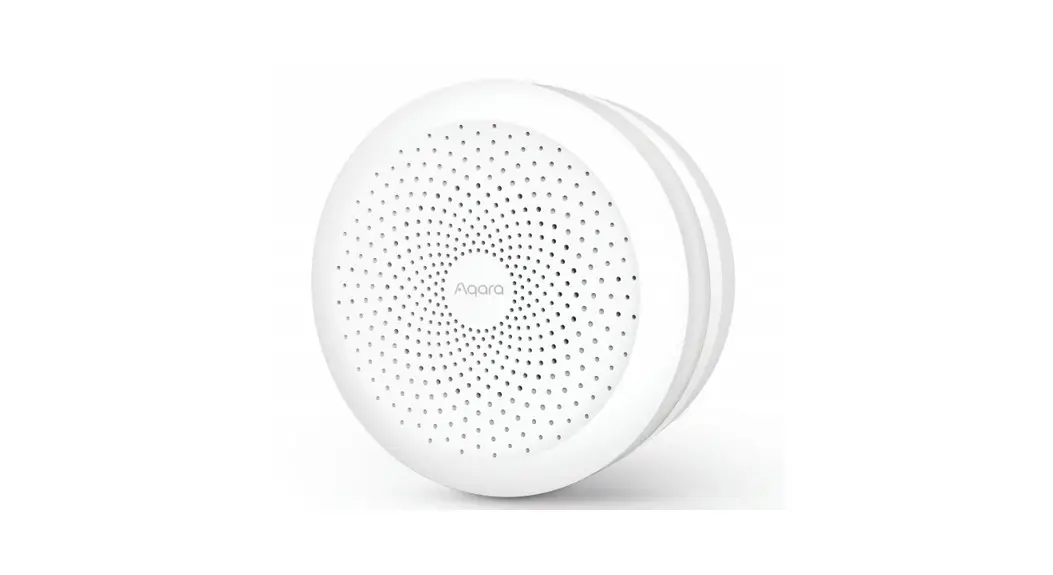
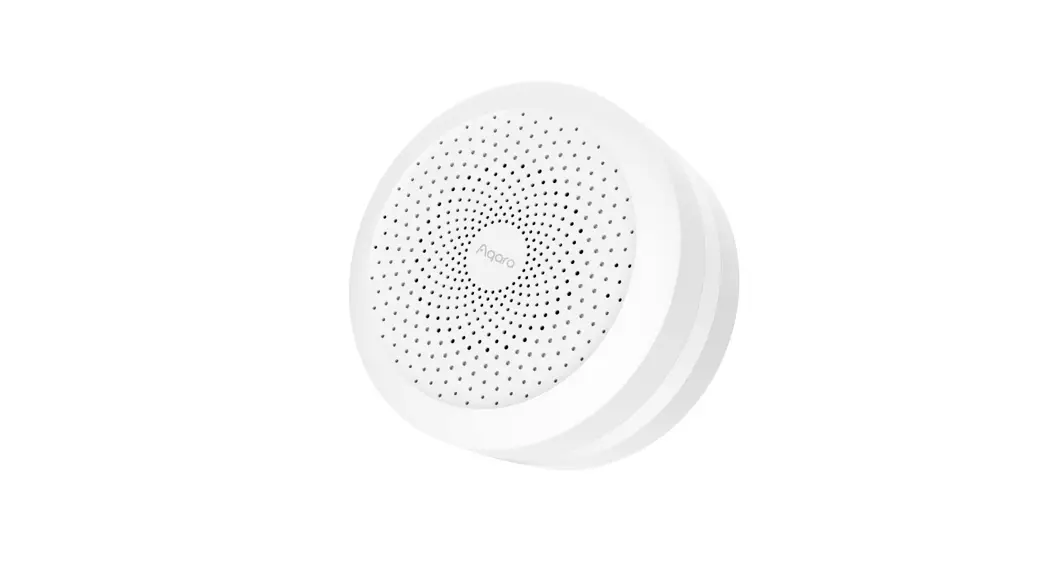
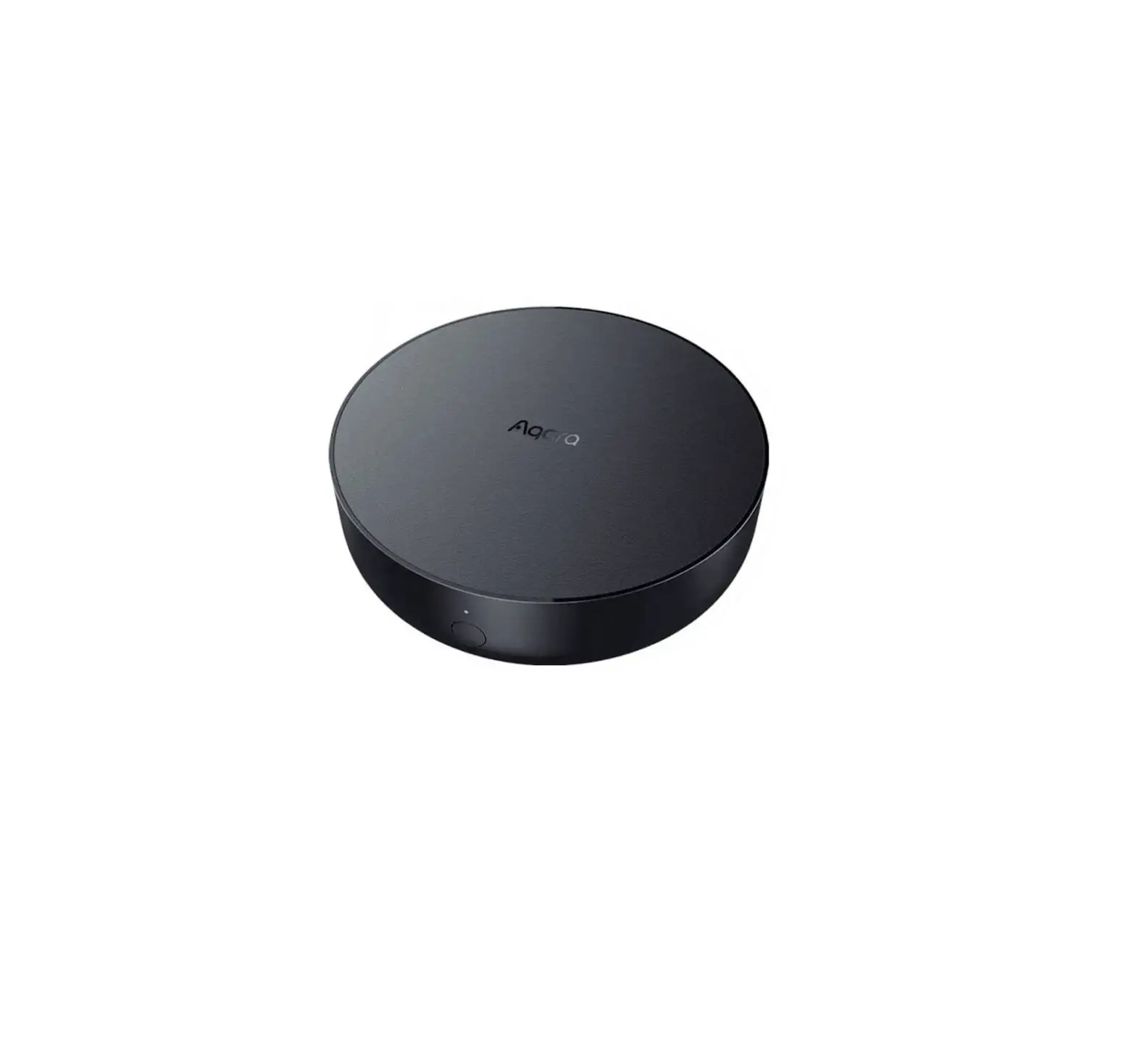
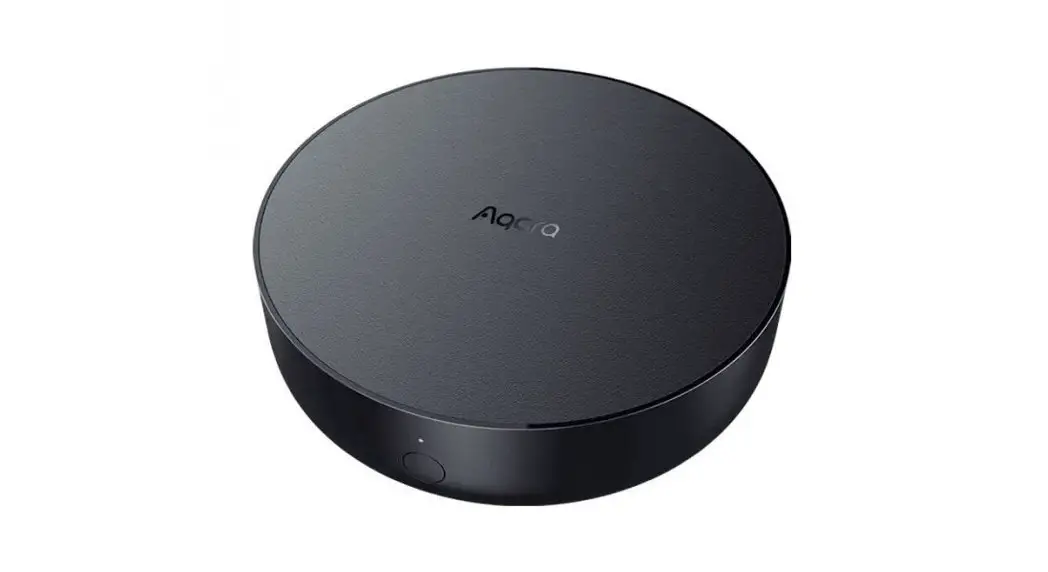
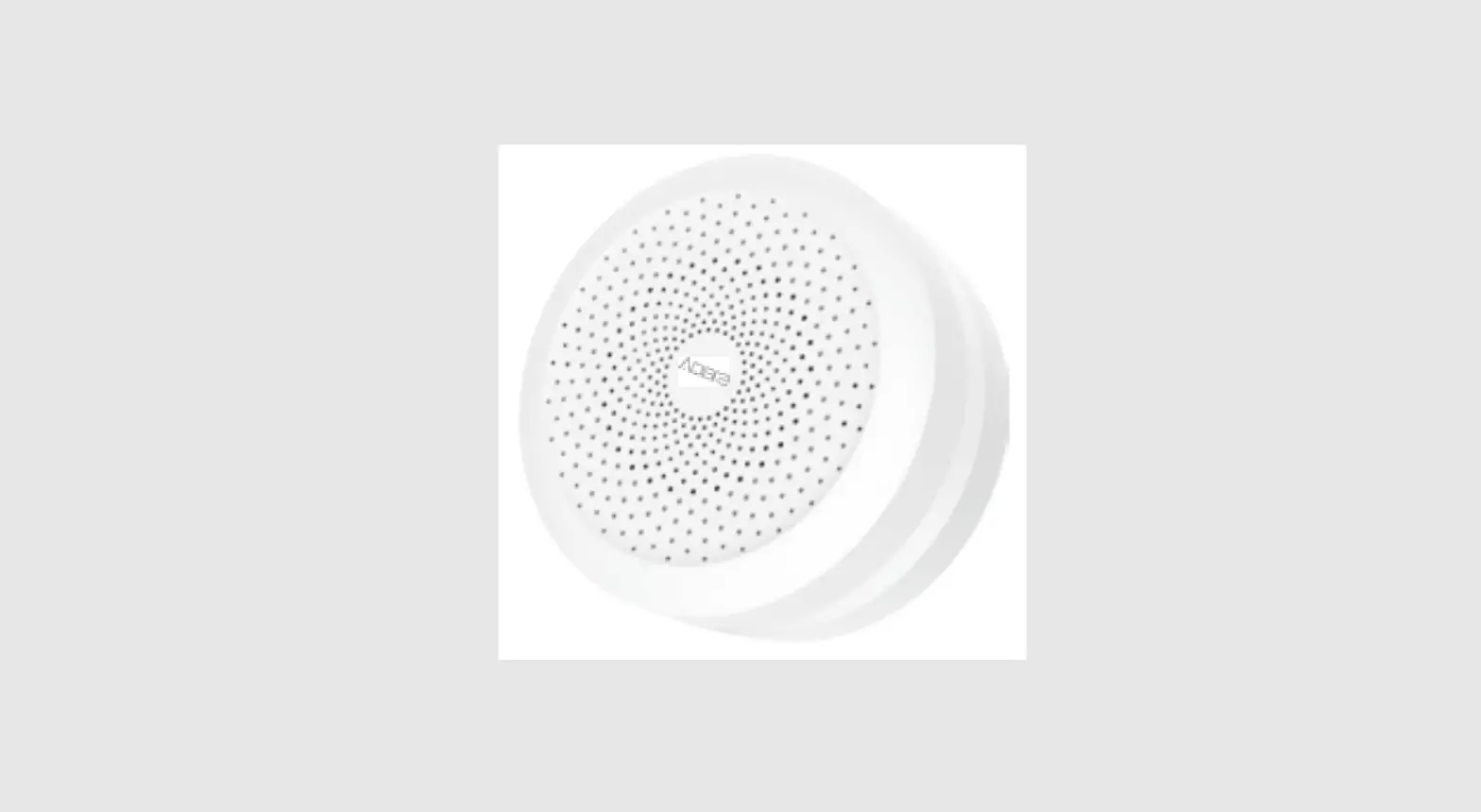
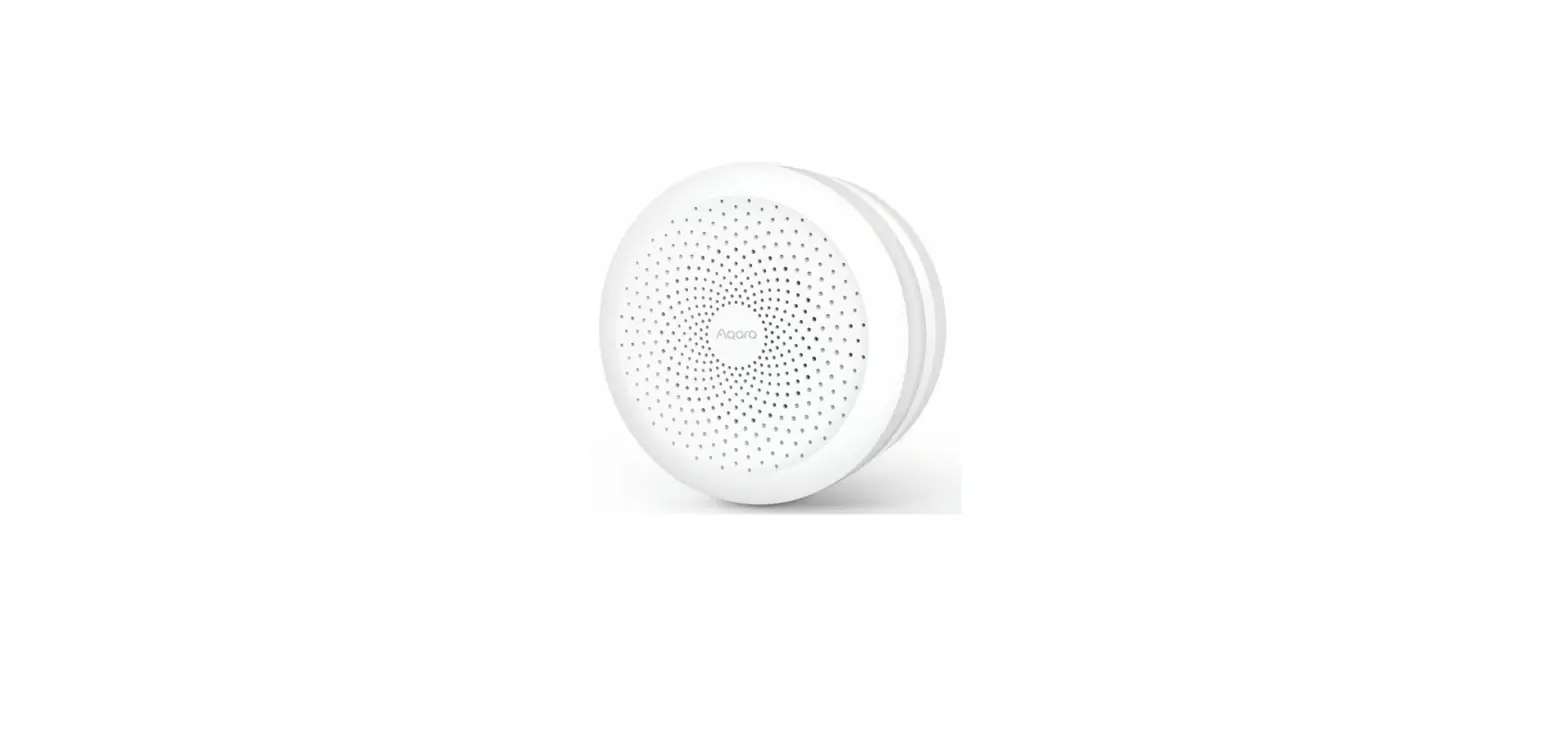
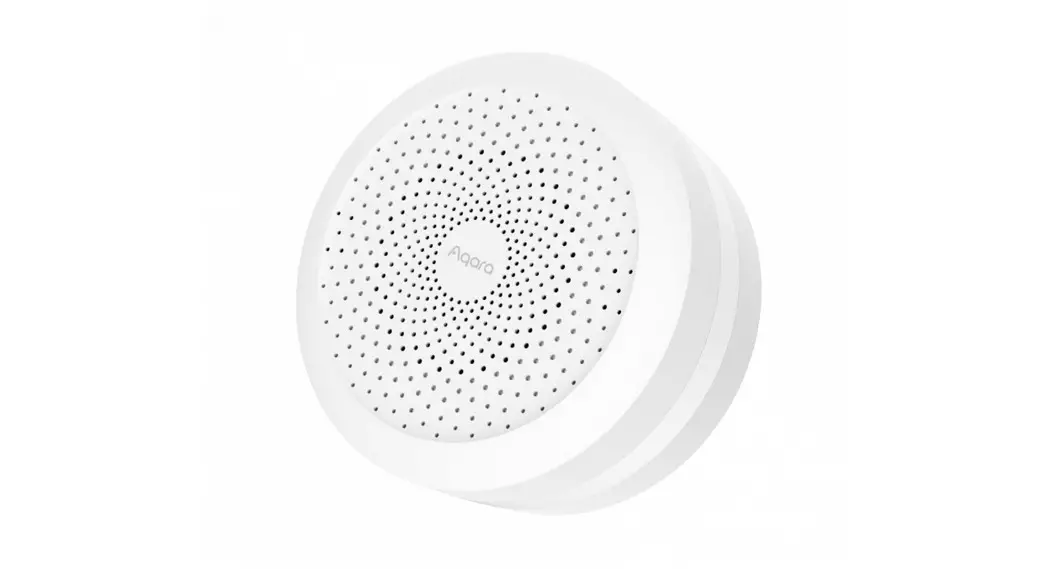
Hub M1S Smart Home Control Center
Product Information:
The Aqara Hub M1S is a smart home control center that connects
Zigbee devices to a Wi-Fi network. It can manage and control smart
scenes, as well as control various smart devices such as plugs,
switches, bulbs, curtains, and more. The hub also features a night
light with audio output.
For more details about Aqara products, please visit www.aqara.com.
Product Usage Instructions:
Quick Setup:
- Download the Aqara Home app from the app store or scan the QR
code provided. - If you want to use the Mi Home app, restore the factory
settings and then press the button twice within 10 seconds after
hearing the voice prompt “Ready to connect.” Open the Aqara Home
app and add the hub using the Mi Home app.
Add Hub M1S:
- Plug the hub into a socket and wait until the yellow light
blinks.
Add Bridge Accessories:
- After the hub is connected, open the Aqara Home app.
- Go to the Accessories page and tap “+” in the top right
corner. - Select the accessory you want to add to the hub according to
the instructions provided. - Refer to the bridge accessory quick start guide for more
details.
Installation:
- To ensure steady communication between the hub and its
accessories, it is recommended to install the hub at the center of
the area where the accessories are located. - The indoor transmission distance between the hub and bridge
accessories reaches up to 30 meters without barriers, such as
walls, depending on the local environment.
Indicator Light Description:
- Yellow light is always on: Hub is starting up.
- Yellow light flashes: Hub is waiting for network
connection. - Yellow or white light flashes: Hub is connecting to the
network. - White light is always on: Network configurations are not
completed within 15 minutes after start-up. Hub is allowed to add
the sub-device. - Purple light flashes: Hub works normally or is powered
off. - Indicator light is off: No hub status or power.
Notice:
- Customers who own compatible Apple devices can control
HomeKit-enabled accessories away from home and automate them
through triggers such as time, location, sensor detection, or
accessory actions. - Communication between Apple devices and the HomeKit-enabled
Aqara Hub is secured by HomeKit technology. - The “Works with Apple” badge indicates that the accessory has
been designed to work specifically with Apple technology and has
been certified to meet Apple performance standards. Apple is not
responsible for the operation of this device or its compliance with
safety and regulatory standards.
Wi-Fi and Zigbee Specifications:
- Wi-Fi Operation Frequency: 2412-2472 MHz
- Wi-Fi Maximum Output Power: 20 dBm
- Zigbee Operation Frequency: 2405-2480 MHz
- Zigbee Maximum Output Power: 13 dBm
- * Maximum Transmit Power and Working Frequency for EU
only.
For online customer service, visit www.aqara.com/support. For support via
email, contact [email protected]. The manufacturer is Lumi United
Technology Co., Ltd., located at 8th Floor, JinQi Wisdom Valley,
No.1 Tangling Road, Liuxian Ave, Taoyuan Residential District,
Nanshan District, Shenzhen, China.
Aqara Hub M1S Quick Start Guide · · · · · · · · · · · · · · · · · · · · · · · 01 Aqara Hub M1S· · · · · · · · · · ·· · · · · · · · · · · · · · · · · · · · 14 Aqara Hub M1S Schnellstartanleitung · · · · · · · · · · · · · · · · · · 21 Guide de démarrage rapide du Hub Aqara M1S · · · · · · · · 30 Guía rápida de Aqara Hub M1S ··························· 39 Guida rapida all’M1S Hub Aqara · · · · · · · · · · · · · · · · · · · · · · · · · 48 Aqara Hub M1S: · · · · · · · · · · · · · · · · · 45 Aqara Hub MS · · · · · · · 66
Product Introduction Aqara Hub M1S is a smart home control center, which connects Zigbee devices to Wi-Fi network. At the same time, it can manage and control smart scenes, and can conveniently control smart devices, such as plug, switch, bulb, curtain and so on.
Button Single Press: Turn on/off night light Long Press (10 seconds): Reset thenetwork connection Press 10 times: Restore the factory default settings
Audio Output Night Light
* For more details about Aqara products, please visit www.aqara.com
01
Quick Setup 1. Download the app Scan the QR code, or search for “Aqara Home” in the app store. Download and install the Aqara Home app.
If you want to use the Mi Home app, please restore the factory settings, and then press the button twice within 10 seconds after you hear the voice prompt “Ready to connect. Please open the Aqara Home app”. You can then add the hub using the Mi Home app.
02
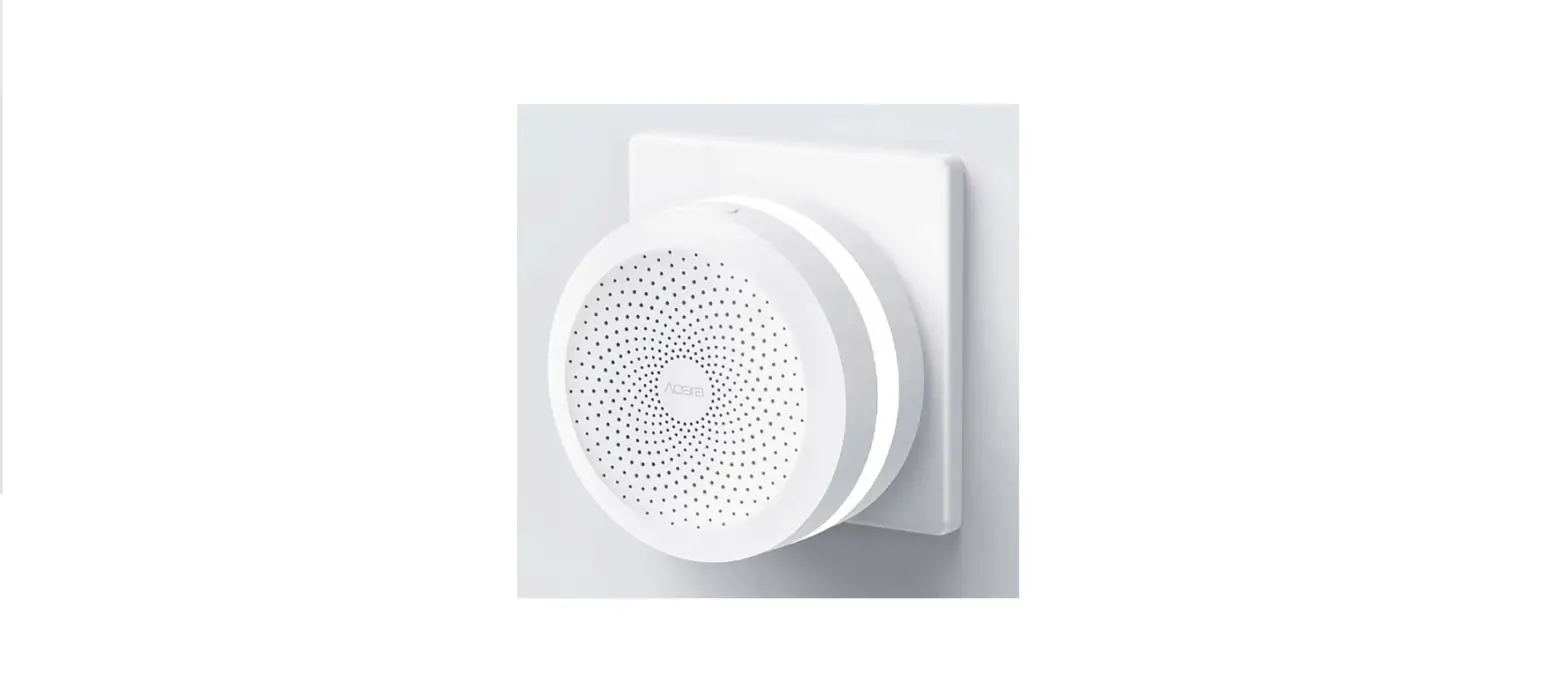
2. Add Hub M1S 1 Plug the hub into the socket and wait until the yellow light blinks
quickly. Make sure your mobile Phone is connected with 2.4 GHz Wi-Fi network. * If you are using a dual band router, please disable the 5 GHz Wi-Fi network. * Keep your phone close to the hub and make sure both of them are connected with the same Wi-Fi network. 2 Please open the Aqara Home app, click “+” in the upper right corner, select “Hub M1S” and follow the instructions to complete adding the hub. * iOS user: Follow the instructions to scan the product box or manually enter the HomeKit code on the hub, and complete the setup. Once it is added successfully, you can check the hub in the Apple Home app. Please keep the HomeKit code in a safe place in case you need to add the hub again. 3 If you failed to add the hub, please press the button on the hub for more than 10 seconds until the yellow light flashes quickly, and then add it again.
03
3. Add bridge accessories After the hub is connected, please open the Aqara Home app, go to “Accessories” page and tap “+” in the top right corner, and select the accessory to add to the hub according to instructions. Please refer to bridge accessory quick start guide for more details.
Installation 1. To ensure steady communication between the hub and its
accessories, it is recommended to install the hub at the center of the area where the accessories are located. 2. Depending on the local environment, the indoor transmission distance reaches up to 30 meters between the hub and bridge accessories without barriers, such as walls.
04
Indicator Light Description
Indicator light status Yellow light is always on Yellow light flashes Yellow or white light flashes
White light is always on
Purple light flashes Indicator light is off
Hub status Starting up
Waiting for network connection
Connecting to network
Network configurations are not completed within 15 minutes after start-up Allowed to add the sub-device Works normally or powered off
Notice 1. A customer who owns an Apple TV (4th generation or later) with
tvOS 10 or later, an iPad with iOS 10 or later, or a HomePod can control HomeKit-enabled accessories away from home and automatically through triggers such as time of day, location, sensor detection, or the action of an accessory.
05
2. Communication between iPhone, iPad, Apple Watch, HomePod, or Mac and the HomeKit- enabled Aqara Hub is secured by HomeKit technology.
3. Use of the Works with Apple badge means that an accessory has been designed to work specifically with the technology identified in the badge and has been certified by the developer to meet Apple performance standards. Apple is not responsible for the operation of this device or its compliance with safety and regulatory standards.
Specifications Model: HM1S-G01 Dimensions: 80 × 80 × 41.5 mm (3.15 × 3.15 × 1.63 in.) Wireless Protocol: Wi-Fi IEEE 802.11 b/g/n 2.4 GHz, Zigbee Input: 100–240V~, 50/60Hz, 0.2A Operating Temperature: -10°–+40¥ (14°–104°F) Operating Humidity: 0% 95% RH, no condensation
06
Wi-Fi Operation Frequency: 2412-2472 MHz Wi-Fi Maximum Output Power: 20 dBm Zigbee Operation Frequency: 2405-2480 MHz Zigbee Maximum Output Power: 13 dBm * Maximum Transmit Power and Working Frequency for EU only.
Online Customer Service: www.aqara.com/support Email: [email protected] Manufacturer: Lumi United Technology Co., Ltd. Address: 8th Floor, JinQi Wisdom Valley, No.1 Tangling Road, Liuxian Ave, Taoyuan Residential District, Nanshan District, Shenzhen, China.
Warnings 1. This product is NOT a toy. Please keep children away from this
product. 2. This product is designed for indoor use only. Do NOT use in humid
environments or outdoors. 3. Beware of moisture, do NOT spill water or other liquids onto the
product. 07
4. Do NOT place this product near a heat source. Do NOT place it in an enclosure unless there is normal ventilation.
5. Do NOT attempt to repair this product by yourself. All repairs should be performed by an authorized professional.
6. This product is only suitable for improving the convenience of your home life and reminding you about the device status. It should NOT be used as security equipment for home, building, warehouse or any other places. If a user violates the product use instructions, the manufacturer will NOT be liable for any risks and property losses.
7. Mains plug is used as disconnect device and it should remain readily operable during intended use.In order to disconnect the apparatus completely, the main plug should be disconnected from the main socket outlet completely.
FCC ID: 2AKIT-HM1S-G01 Federal Communications Commission (FCC) compliance statement: 1. This device complies with part 15 of the FCC Rules. Operation is subject to the following two conditions:
08
(1) This device may not cause harmful interference, and (2) this device must accept any interference received, including interference that may cause undesired operation. 2. Changes or modifications not expressly approved by the party responsible for compliance could void the user’s authority to operate the equipment. Note: This equipment has been tested and found to comply with the limits for a Class B digital device, pursuant to part 15 of the FCC Rules. These limits are designed to provide reasonable protection against harmful interference in a residential installation. This equipment generates, uses and can radiate radio frequency energy and, if not installed and used in accordance with the instructions, may cause harmful interference to radio communications. However, there is no guarantee that interference will not occur in a particular installation. If this equipment does cause harmful interference to radio or television reception, which can be determined by turning the equipment off and on, the user is encouraged to try to correct the interference by one or more of the following measures: -Reorient or relocate the receiving antenna.
09
-Increase the separation between the equipment and receiver. -Connect the equipment into an outlet on a circuit different from that to which the receiver is connected. -Consult the dealer or an experienced radio/TV technician for help. RF Exposure statement: This equipment complies with FCC radiation exposure limits set forth for an uncontrolled environment. This equipment should be installed and operated with minimum distance of 20 cm between the radiator and your body. This transmitter must not be co-located or operating in conjunction with any other antenna or transmitter.
IC: 22635-HM1SG01 IC NOTICE TO CANADIAN USERS This device contains licence-exempt transmitter(s)/receiver(s) that comply with Innovation, Science and Economic Development Canada’s licence-exempt RSS(s). Operation is subject to the following two conditions: (1) This device may not cause interference. (2) This device must accept any interference, including interference
10
that may cause undesired operation of the device. This Class B digital apparatus complies with Canadian ICES003. This device complies with RSS247 of Industry Canada. Operation is subject to the condition that this device does not cause harmful interference. This equipment complies with IC radiation exposure limits set forth for an uncontrolled environment. This equipment should be installed and operated with minimum distance of 20 cm between the radiator and your body. This transmitter must not be co-located or operating in conjunction with any other antenna or transmitter. L’émetteur/récepteur exempt de licence contenu dans le présent appareil est conforme aux CNR d’Innovation, Sciences et Développement économique Canada applicables aux appareils radio exempts de licence. L’exploitation est autorisée aux deux conditions suivantes : (1) L’appareil ne doit pas produire de brouillage; (2) L’appareil doit accepter tout brouillage radioélectrique subi, même si le brouillage est susceptible d’en compromettre le
11
fonctionnement. Cet appareil numérique de la Classe B conforme à la norme NMB003 du Canada. Cet appareil est conforme à la norme RSS 247 d’Industrie Canada. Le fonctionnement est soumis à la condition que cet appareil ne provoque pas d’interférences nuisibles. Cet équipement est conforme aux limites d’exposition aux rayonnements de la IC établies pour unenvironnement non contrôé. Cet équipement doit être installé et fonctionner à au moins 20cm de distance d’un radiateur ou de votre corps.Cet émetteur ne doit pas être co-localisé ou fonctionner en conjonction avec une autre antenne ou un autre émetteur.
EU Declaration of Conformity Under normal use of condition, this equipment should be kept a separation distance of at least 20cm between the antenna and the body of the user. Hereby, [Lumi United Technology Co., Ltd.] declares that the radio equipment type [Hub M1S, HM1S-G01] is in compliance with Directive2014/53/EU. The full text of the EU declaration of conformity is available at the following internet address: http://www.aqara.com/DoC/
12
All products bearing this symbol are waste electrical and electronic equipment (WEEE as in directive 2012/19/EU) which should not be mixed with unsorted household waste. Instead, you should protect human health and the environment by handing over your waste equipment to a designated collection point for the recycling of waste electrical and electronic equipment, appointed by the government or local authorities. Correct disposal and recycling will help prevent potential negative consequences to the environment and human health. Please contact the installer or local authorities for more information about the location as well as terms and conditions of such collection points.
13
AqaraM1SWi-FiZigbee
/ 10
*Aqarawww.aqara.com
14
1 App StoreAqara Home Aqara Home app
*Mi Home app Aqara Home app10
2 1 2.4GHz
Wi-Fi 15
*5GHz Wi-Fi *Wi-Fi 2 Aqara Home app+
M1Sapp *iOSappHomeKit Appleapp HomeKit 3 10
3 HomeKitHomeKit Appleapp
16
1
230
15
17
1HomeKitiOSiPadOS
HomeKit HomePodApple TViPad 2iPhoneiPadApple WatchHomePodMac HomeKit 3Works with Apple AppleApple
HM1S-G01 80×80×41.53.15×3.15×1.63 Wi-Fi IEEE 802.11 b/g/n 2.4 GHzZigbee 100–240V~, 50/60Hz, 0.2A -10°–+40 (14°–104°F)
18
0%95%RH Wi-Fi2412 MHz-2472 MHz Wi-Fi 20 dBm Zigbee2405-2480 MHz Zigbee 13 dBm
*
www.aqara.com/support [email protected] 18
1 2 3 4
19
5
6
7
20
Produktübersicht Aqara Hub M1S ist ein intelligentes Heim-Kontrollzentrum, das eine intelligente Verbindung zwischen WI-FI und ZigBee-Geräten realisieren kann. Gleichzeitig kann es intelligente Szenen verwalten und steuern und intelligente Geräte wie Stecker, Schalter, Glühbirne, Vorhang usw. zweckmäßig steuern.
Taste Einmal drücken: Nachtlicht ein-/ausschalten Langes Drücken (10 Sekunden): Die Netzwerkverbindung zurücksetzen Zehnfaches Drücken: Die Werkseinstellungen wiederherstellen
Audioausgang Nachtlicht
* Für weitere Details zu den Aqara-Produkten besuchen Sie bitte www.aqara.com.
21
Schnelleinrichtung 1. Laden Sie die App herunter Laden Sie “Aqara Home” aus dem App Store herunter oder scannen Sie den QR Code, um die Aqara Home-App herunterzuladen.
* Wenn Sie die Mi Home APP verwenden möchten, stellen Sie bitte die Werkseinstellungen wieder her und drücken Sie dann innerhalb von 10 Sekunden zweimal auf die Taste, nachdem Sie die Sprachaufforderung ,,Bereit zur Verbindung. Bitte öffnen Sie die Aqara Home App” gehört haben.
22
2. Fügen Sie den Hub hinzu 1 Stecken Sie den Hub in die Steckdose und warten Sie, bis das
gelbe Licht schnell blinkt. Stellen Sie sicher, dass Ihr Mobiltelefon mit dem 2,4-GHz-WI-FI-Netz verbunden ist.
* Wenn Sie einen Dualband-Router verwenden, deaktivieren Sie bitte das 5-GHz-WLAN-Netzwerk.
* Halten Sie das Telefon nahe an den Hub und stellen Sie sicher, dass beide sich in demselben WLAN-Netzwerk befinden.
2 Bitte öffnen Sie die Aqara Home App, klicken Sie auf ,,+” in der oberen rechten Ecke, wählen Sie ,,Hub M1S” und folgen Sie den Anweisungen, um das Hinzufügen des Hubs abzuschließen.
* iOS-Benutzer: Folgen Sie den Anweisungen zum Scannen der Produktbox oder geben Sie den HomeKit-Code auf dem Hub manuell ein und schließen Sie die Einrichtung ab. Sobald es erfolgreich hinzugefügt wurde, können Sie den Hub in der Apple Home App überprüfen. Bitte bewahren Sie den HomeKit-Code sorgfältig auf.
3 Wenn Sie es nicht geschafft haben, die Hub hinzuzufügen, drücken Sie bitte die Taste auf der Hub für mehr als 10 Sekunden, bis das gelbe Licht schnell blinkt, und fügen Sie sie dann erneut hinzu.
23
3. Vernetztes Zubehör hinzufügen Sobald der Hub verbunden ist, öffnen Sie bitte die Aqara Home-App, öffnen Sie dann die Seite ,,Zubehör” und berühren Sie ,,+” oben rechts. Wählen Sie nun das Zubehör aus und fügen Sie es gemäß den Anleitungen zum Hub hinzu. Weiterführende Angaben entnehmen Sie bitte der Bedienungsanleitung für vernetzte Geräte.
Montage 1. Um eine ständige Kommunikation zwischen dem Hub und seinen
untergeordneten Geräten zu gewährleisten, wird empfohlen, den Hub in der Mitte des Bereichs zu installieren, in dem sich die untergeordneten Geräte befindet. 2. Abhängig von der lokalen Umgebung beträgt die Übertragungsreichweite zwischen dem Hub und vernetzten Geräten in Innenräumen normalerweise bis 30 Meter, wenn keine Hindernisse vorhanden sind, beispielsweise Wände.
24
Beschreibung Meldeleuchte
Status des Indikators Gelb immer an Gelb blinkt Gelb oder Weiß blinkt
Weiß immer an
Lila blinkt Aus
Status des Hub Startet Warten auf eine Verbindung zum Netzwerk Verbindet zum Netzwerk 15 Minuten nach dem Start ist das Netzwerk nicht konfiguriert Hinzufügen von Untergeräten zulassen Normaler Betrieb oder nicht eingeschaltet
Hinweis 1. Ein Kunde, der ein Apple TV (4. Generation oder höher) mit tvOS 10
oder höher, ein iPad mit iOS 10 oder höher oder einen HomePod besitzt, kann HomeKit-aktiviertes Zubehör außer Haus und automatisch durch Auslöser wie Tageszeit, Standort, Sensorerkennung oder die Aktion eines Zubehörs steuern.
25
2. Die Kommunikation zwischen iPhone, iPad, Apple Watch, HomePod oder Mac und dem HomeKit-aktivierten Mi Smart Home Hub wird durch die HomeKit-Technologie gesichert.
3. Die Verwendung der Plakette “Works with Apple” bedeutet, dass der Zubehörteil speziell für die in der Plakette identifizierte Technologie entwickelt und vom Entwickler zertifiziert wurde, um die Leistungsstandards von Apple zu erfüllen. Apple ist nicht für den Betrieb dieses Geräts oder die Einhaltung von Sicherheitsund Regulierungsstandards verantwortlich.
Spezifikationen Modell: HM1S-G01 Abmessungen: 80 × 80 × 41.5 mm (3.15 × 3.15 × 1.63 Zoll Funkprotokoll: Wi-Fi IEEE 802.11 b/g/n 2.4 GHz, Zigbee Eingang: 100–240V~, 50/60Hz, 0.2A Betriebstemperatur: -10° bis +40°C (14° bis 104°F) Betriebsfeuchtigkeit: 0 95% RH, keine Kondensation
26
Wi-Fi Betriebsfrequenz: 2412-2472 MHz Wi-Fi Maximale Übertragungsleistung: 20 dBm Zigbee Betriebsfrequenz: 2405-2480 MHz Zigbee Maximale Übertragungsleistung: 13 dBm * Maximale Übertragungsleistung und Betriebsfrequenz nur für EU.
Online-Kundendienst: www.aqara.com/support E-Mail: [email protected] Hersteller: Lumi United Technology Co., Ltd. Adresse: 8th Floor, JinQi Wisdom Valley, No.1 Tangling Road, Liuxian Ave, Taoyuan Residential District, Nanshan District, Shenzhen, China.
Warnhinweise 1. Dieses Produkt ist KEIN Spielzeug. Bewahren Sie das Produkt bitte
außerhalb der Reichweite von Kindern auf. 2. Dieses Produkt ist ausschließlich für die Anwendung in
Innenräumen bestimmt. Verwenden Sie es NICHT in feuchten 3. Umgebungen oder im Freien. Das Gerät darf nicht feucht werden;
Wasser oder andere Flüssigkeiten dürfen KEINEN Kontakt mit dem 27
Produkt haben. 4. Stellen Sie dieses Produkt NICHT nahe einer Heizquelle auf.
Platzieren Sie das Gerät ausschließlich Deutsch dann in einem Gehäuse, wenn für AUSREICHENDE Belüftung gesorgt wurde. 5. Versuchen Sie NIEMALS dieses Produkt selbst zu reparieren. Reparaturen müssen qualifiziertem Fachpersonal vorbehalten sein. 6. Dieses Produkt eignet sich lediglich für die Verbesserung von Unterhaltungsgeräten, es dient der Bequemlichkeit und verfügt über eine Erinnerungsfunktion für die Geräte im Heim. Es darf NICHT als Sicherheitsvorrichtung für eine Wohnung, ein Gebäude, Lager oder andere Orte verwendet werden. Bei Zuwiderhandlung gegen die Bedienungsleitung für das Produkt schließt der Hersteller jegliche Haftung für Risiken sowie für Eigentumsverluste aus. 7. Der Netzstecker wird als Trennvorrichtung verwendet und sollte während des beabsichtigten Gebrauchs leicht funktionsfähig bleiben. Um das Gerät vollständig zu trennen, muss der Hauptstecker vollständig von der Hauptsteckdose getrennt werden.
28
EU-Konformitätserklärung Unter normalen Betriebsbedingungen sollte dieses Gerät einen Abstand von mindestens 20 cm zwischen der Antenne und dem Körper des Benutzers einhalten.Hiermit bestätigt [Lumi United Technology Co., Ltd.] dass das Funkgerät des Typs [Hub M1S, HM1S-G01] mit der Verordnung 2014/53/EU in Einklang steht. Der vollständige Wortlaut der EU-Konformitätserklärung ist unter der folgenden Internetadresse abrufbar: http://www.aqara.com/DoC/
Alle mit diesem Symbol gekennzeichneten Produkte sind Elektroschrott und Elektrogeräte (WEEE entsprechend EU-Richtlinie 2012/19/EU) und dürfen nicht mit unsortiertem Haushaltsmüll vermischt werden. Schützen Sie stattdessen Ihre Mitmenschen und die Umwelt, indem Sie Ihre zu entsorgenden Geräte an eine dafür vorgesehene, von der Regierung oder einer lokalen Behörde eingerichtete Sammelstelle zum Recycling von Elektroschrott und Elektrogeräten bringen. Eine ordnungsgemäße Entsorgung und Recycling helfen, negative Auswirkungen auf die Gesundheit von Umwelt und Menschen zu vermeiden. Wenden Sie sich bitte an den Installateur oder lokale Behörden, um Informationen zum Standort und den allgemeinen Geschäftsbedingungen solcher Sammelstellen zu erhalten.
29
Présentation du produit Le Hub Aqara M1S est un centre de contrôle domestique intelligent qui peut réaliser une connexion intelligente entre le Wi-Fi et les appareils Zigbee. Dans le même temps, il peut gérer et contrôler les scènes intelligentes et peut facilement contrôler les appareils intelligents, tels que les prises, les interrupteurs, les ampoules, les rideaux, etc.
Bouton Un seul appui : allumer ou éteindre l’éclairage nocturne Appui long (10 secondes): réinitialiser la connexion réseau Appui décuplé : restaurer les paramètres d’usine par défaut
Sortie audio Éclairage nocturne
* Pour plus de détails sur les produits Aqara, veuillez visiter le site www.aqara.com.
30
Configuration rapide 1. Téléchargez l’application Téléchargez l’application Aqara Home depuis l’App Store, ou en lisant le code QR ci-dessous.
* Si vous souhaitez utiliser l’application Mi Home, veuillez restaurer les paramètres d’usine, puis appuyez deux fois sur le bouton dans les 10 secondes après avoir entendu l’invite vocale “Prêt à vous connecter. Veuillez ouvrir l’application Aqara Home”.
31
2. Ajoutez le Hub 1 Branchez le Hub dans la prise et attendez que le voyant jaune
clignote rapidement. Assurez-vous que votre téléphone mobile est connecté à un réseau Wi-Fi 2.4 GHz. * Si vous utilisez un routeur double bande, désactivez le réseau Wi-Fi 5 GHz. * Placez votre téléphone près du hub et vérifiez que les deux appareils sont connectés au même réseau Wi-Fi. 2 Veuillez ouvrir l’application Aqara Home, cliquez sur “+” dans le coin supérieur droit, sélectionnez “Hub M1S” et suivez les instructions pour terminer l’ajout du Hub. * Utilisateur iOS: suivez les instructions pour scanner la boîte du produit ou entrez manuellement le code du kit domestique (HomeKit) sur le concentrateur et terminez la configuration. Une fois qu’il a été ajouté avec succès, vous pouvez vérifier le concentrateur dans l’application Apple Home. Veuillez conserver soigneusement le code du kit domestique (HomeKit). 3 Si vous n’arrivez pas à ajouter le Hub, veuillez appuyer sur le bouton du Hub pendant plus de 10 secondes jusqu’à ce que le voyant jaune clignote rapidement, puis ajoutez-le à nouveau.
32
3. Pour relier d’autres accessoires au Hub Une fois le Hub connecté, ouvrez l’application Aqara Home, allez à la page Accessoires et touchez le signe “+” situé au coin supérieur droit; ensuite, sélectionnez l’accessoireet ajoutez-le au hub en suivant les instructions. Pour de plus amples détails, consultez le mode d’emploi de l’accessoire.
Installation 1. Pour assurer une communication stable entre le Hub et ses
accessoires, il est recommandé d’installer le Hub au centre de la zone où se trouvent les accessoires. 2. Selon l’environnement local, la portée à l’intérieur atteint jusqu’à 30 mètres entre le hub et les accessoires reliés s’il n’y a pas d’obstacles tels que des murs.
33
Signification des états des voyants
Etat des voyants
Etat du Hub
Lumière jaune toujours allumée Démarrage en cours
Lumière jaune clignotant
En attente de connexion au réseau
Lumière jaune ou blanche clignote Connexion au réseau
Lumière blanche toujours allumée 15 minutes après le démarrage, le réseau n’est pas configuré
Lumière violette clignotant
Autoriser l’ajout d’un accessoire
Eteindre
Fonctionne normalement ou n’est pas alimenté
Remarque
1. Un client qui possède un Apple TV (4e génération ou version ultérieure) avec tvOS 10 ou version ultérieure, un iPad avec iOS 10 ou version ultérieure, ou un HomePod peut contrôler les accessoires compatibles HomeKit loin de chez lui et automatiquement via des déclencheurs tels que l’heure de la journée, l’emplacement, la détection du capteur ou l’action d’un accessoire. 34
2. La communication entre l’iPhone, l’iPad, l’Apple Watch, le HomePod ou le Mac et leHubest sécurisée par la technologie HomeKit.
3. L’utilisation du badge Works with Apple signifie qu’un accessoire a été conçu pour fonctionner spécifiquement avec la technologie identifiée dans le badge et a été certifié par le développeur pour répondre aux normes de performance d’Apple. Apple n’est pas responsable du fonctionnement de cet appareil ni de sa conformité aux normes de sécurité et réglementaires.
Caractéristiques Modèle : HM1S-G01 Dimensions : 80 × 80 × 41.5 mm (3.15 × 3.15 × 1.63 in) Protocole sans fil : Wi-Fi IEEE 802.11 b/g/n 2.4 GHz, Zigbee Alimentation: 100–240V~, 50/60Hz, 0.2A Température de service : de -10 à +40°C (de 14 à +104°F) Humidité de service : de 0 à 95 % HR, non condensante
35
Wi-Fi Fréquence de fonctionnement: 2412-2472 MHz Wi-Fi Puissance maximale de transmission: 20 dBm Zigbee Fréquence de fonctionnement: 2405-2480 MHz Zigbee Puissance maximale de transmission: 13 dBm * Puissance maximale de transmission et fréquence de fonctionnement pour l’UE
uniquement.
Service clientèle en ligne : www.aqara.com/support Courriel : [email protected] Fabricant : Lumi United Technology Co., Ltd. Adresse : 8th Floor, JinQi Wisdom Valley, No.1 Tangling Road, Liuxian Ave, Taoyuan Residential District, Nanshan District, Shenzhen, Chine.
Avertissements 1. Ce produit N’EST PAS un jouet Maintenez-le hors de portée des
enfants. 2. Cet appareil ne doit être utilisé qu’à l’intérieur. Ne l’utilisez PAS à
l’extérieur ou dans des environnements humides.
36
3. Méfiez-vous de l’humidité, et n’éclaboussez pas l’appareil d’eau ni d’autres liquides.
4. Ne placez PAS ce produit près d’une source de chaleur. Ne le mettez PAS dans un lieu clos, à moins qu’il ne soit suffisamment ventilé.
5. N’essayez PAS de réparer vous-même cet appareil. Toute réparation doit être effectuée par un professionnel agréé.
6. Ce produit n’est conçu que pour améliorer les divertissements et la praticité dans votre vie à la maison, et pour vous rappeler le statut de l’appareil Il ne doit PAS être utilisé comme équipement de sécurité domiciliaire, d’immeubles, d’entrepôts, etc. Si un utilisateur enfreint les instructions d’utilisation du produit, le fabricant ne sera responsable d’AUCUN risque ni perte de biens.
7. La fiche secteur est utilisée comme dispositif de déconnexion et elle doit rester facilement utilisable pendant l’utilisation prévue. Pour déconnecter complètement l’appareil, la fiche principale doit être complètement débranchée de la prise de courant principale.
37
Déclaration de conformité UE Dans des conditions normales d’utilisation, cet équipement doit être maintenu à une distance de séparation d’au moins 20 cm entre l’antenne et le corps de l’utilisateur.Par la présente, [Lumi United Technology Co., Ltd.] déclare que cet équipement radio de type [Hub M1S, HM1S-G01] est conforme à la Directive européenne 2014/53/UE. L’intégralité de la déclaration de conformité pour l’UE est disponible à l’adresse suivante : http://www.aqara.com/DoC/
Tous les produits portant ce symbole deviennent des déchets d’équipements électriques et électroniques (DEEE dans la Directive européenne 2012/19/UE) qui ne doivent pas être mélangés aux déchets ménagers non triés. Vous devez contribuer à la protection de l’environnement et de la santé humaine en apportant l’équipement usagé à un point de collecte dédié au recyclage des équipements électriques et électroniques, agréé par le gouvernement ou les autorités locales. Le recyclage et la destruction appropriés permettront d’éviter tout impact potentiellement négatif sur l’environnement et la santé humaine. Contactez l’installateur ou les autorités locales pour obtenir plus d’informations concernant l’emplacement ainsi que les conditions d’utilisation de ce type de point de collecte.
38
Presentación del producto Aqara Hub M1S es un centro de control doméstico inteligente, que puede realizar una conexión inteligente entre Wi-Fi y dispositivos Zigbee. Al mismo tiempo, puede administrar y controlar escenas inteligentes, y puede controlar convenientemente dispositivos inteligentes como enchufes, interruptores, bulbos, cortinas y así sucesivamente.
Botón Pulsación única Encender/apagar la luz nocturna Pulsación Larga (10 segundos): Restablecer la conexión de red Pulsación Décupla: Restaurar la configuración predeterminada de fábrica
Salida de audio Luz nocturna
* Para más detalles sobre los productos Aqara, por favor visite www.aqara.com.
39
Configuración rápida 1. Descarga la aplicación Descarga “Aqara Home” de la App Store o escanea el siguiente código QR para descargar la aplicación Aqara Home.
* Si desea utilizar la aplicación Mi Home, por favor, restaure la configuración de fábrica y luego presione el botón dos veces en 10 segundos después de escuchar el mensaje de voz “Listo para conectar. Por favor, abra la aplicación Aqara Home”.
40
2. Agregar el centro 1 Conecte el Hub al enchufe y espere hasta que la luz amarilla se
desconecte rápido. asegúrese de que su teléfono móvil está conectado a una red Wi-Fi de 2.4 GHz. * Si está utilizado un router de doble banda, desactive la red Wi-Fi de 5 GHz. * Ponga su teléfono cerca del Hub, y asegúrese de que está conectado a la misma red Wi-Fi. 2 Por favor, abra la aplicación Aqara Home, haga clic en “+” en la esquina superior derecha, seleccione “Hub M1S” y siga las instrucciones para agregar el Hub completamente. * Usuario de iOS: Siga las instrucciones para escanear la caja del producto o ingrese manualmente el código de HomeKit en el Hub y complete la configuración. Una vez que se agrega con éxito, puede verificar el centro en la aplicación Apple Home. Mantenga el código de HomeKit con cuidado. 3 Si falla en agregar el Hub, por favor presione el botón en el Hub por más de 10 segundos hasta que la luz amarilla parpadee rápidamente, y luego agregue de nuevo.
41
3. Añadir accesorios conectados Una vez que se ha conectado el Hub, abra la aplicación Aqara Home, vaya a la página de “Accesorios” y pulse “+” en la esquina superior derecha, y seleccione el accesorio para agregar el Hub siguiendo las instrucciones. Para más información, consulte el manual del usuario del accesorio conectado.
Installation 1. Para garantizar una comunicación estable entre el Hub y sus
accesorios, se recomienda instalar el Hub en el centro del área donde se encuentran los accesorios. 2. Dependiendo del entorno local, la distancia de transmisión en interiores tiene un alcance máximo de 30 m entre el Hub y los accesorios conectados con el brigde sin barreras, tales como paredes.
42
Descripción de la luz indicadora
Estado del indicador Amarillo siempre encendido Amarillo intermitente Amarillo o blanco intermitente Blanco siempre encendido
Púrpura intermitente
Apagado
Estado de hub Encendiendo Esperando para conectarse a la red Conectando a la red 15 minutos después del inicio, la red no está configurada Permitir agregar dispositivos secundarios
Trabajo normal o sin electricidad
Nota
1. Un cliente que posee un Apple TV (cuarta generación o posterior) con tvOS 10 o posterior, un iPad con iOS 10 o posterior, o un HomePod puede controlar los accesorios habilitados para HomeKit fuera de casa y automáticamente a través de activadores como la hora del día, la ubicación , detección del sensor o la acción de un accesorio. 43
2. La comunicación entre iPhone, iPad, Apple Watch, HomePod o Mac y Mi Smart Home Hub habilitado para HomeKit está asegurada por la tecnología HomeKit.
3. El uso de la insignia Works with Apple significa que un accesorio ha sido diseñado para funcionar específicamente con la tecnología Identificada en la insignia y ha sido certificado por el desarrollador para cumplir con los estándares de rendimiento de Apple. Apple no es responsable del funcionamiento de este dispositivo ni de su cumplimiento con los estándares de seguridad y regulatorios .
Especificaciones Modelo: HM1S-G01 Dimensions: 80 × 80 × 81.5 mm (3.15 × 3.15 × 1.63 pulgadas) Protocolo inalámbrico: Wi-Fi IEEE 802.11 b/g/n 2.4 GHz, Zigbee Entrada: 100–240V~, 50/60Hz, 0.2A Temperatura de funcionamiento: -10° +40°C (14° 104°F) Humedad de funcionamiento: 0 95% HR, sin condensación
44
Wi-Fi Frecuencia de trabajo: 2412-2472 MHz Wi-Fi Potencia de transmisión máxima: 20 dBm Zigbee Frecuencia de trabajo: 2405-2480 MHz Zigbee Potencia de transmisión máxima: 13 dBm * Potencia de transmisión máxima y la banda de frecuencia de trabajo solo son
aplicables en EU.
Servicio de Atención al Cliente en línea: www.aqara.com/support Correo electrónico: [email protected] Fabricante: Lumi United Technology Co., Ltd. Dirección: 8th Floor, JinQi Wisdom Valley, No.1 Tangling Road, Liuxian Ave, Taoyuan Residential District, Nanshan District, Shenzhen, China.
Advertencias 1. Este producto NO es un juguete. Mantenga este producto fuera del
alcance de los niños. 2. Este producto ha sido diseñado únicamente para uso en interiores
NO lo utilice en el exterior ni en entornos húmedos.
45
3. Evite la humedad y NO vierta agua ni otro líquidos sobre el producto.
4. NO instale el producto cerca de una fuente de calor. NO lo instale en lugares confinados, a menos que haya ventilación suficiente.
5. NO intente reparar este producto usted mismo. Las reparaciones deben ser realizadas por un profesional autorizado.
6. Este producto ha sido diseñado para mejorar la vida en el hogar. NO debe utilizarse como un equipo de seguridad para el hogar, edificios, almacenes u otros lugares. Si el usuario no sigue las instrucciones del producto, el fabricante NO se hace responsable de los daños o pérdidas que puedan originarse en consecuencia.
7. El enchufe de red se utiliza como dispositivo de desconexión y debe permanecer fácilmente operativo durante el uso previsto. Para desconectar completamente el aparato, el enchufe principal debe desconectarse completamente de la toma de corriente principal.
46
Declaración de conformidad de la UE En condiciones de uso normal, este equipo debe mantenerse a una distancia de separación de al menos 20 cm entre la antena y el cuerpo del usuario.Por la presente, [Lumi United Technology Co., Ltd.] declara que el tipo de equipo radioeléctrico [Hub M1S, HM1S-G01] cumple con la Directiva 2014/53/UE. Encontrará el texto completo de la declaración de conformidad de la UE en esta dirección de Internet: http://www.aqara.com/DoC/
Todos los productos que llevan este símbolo son residuos de aparatos eléctricos y electrónicos (RAEE según la directiva 2012/19/UE) que no deben mezclarse con residuos domésticos sin clasificar. En su lugar, debe proteger la salud humana y el medio ambiente entregando sus equipos de desecho a un punto de recogida para el reciclaje de residuos de equipos eléctricos y electrónicos, designado por el gobierno o las autoridades locales. La eliminación y el reciclado correctos ayudarán a evitar posibles consecuencias negativas para el medio ambiente y la salud humana. Póngase en contacto con el instalador o con las autoridades locales para obtener más información sobre la ubicación y las condiciones de dichos puntos de recogida.
47
Profilo del prodotto Aqara Hub M1S è un centro di controllo per casa intelligente, che è capace di realizzare connessioni intelligenti tra dispositivi Wi-Fi e Zigbee. Allo stesso tempo, può gestire e controllare scene intelligenti e può controllare comodamente i dispositivi intelligenti, come spina, interruttore, lampadina, tenda e così via.
Pulsante Tocco singolo: Attiva / Disattiva la luce notturna Tenere Premuto (10 secondi): Resetta la connessione di rete premere dieci volte: Ripristina l’impostaizone predefinita della fabbrica
Uscita audio Luce notturna
* Per ulteriori informazioni dei prodotti Aqara, si prega di visitare www.aqara.com.
48
Configurazione rapida 1. Scarica l’app Per operare con una vasta gamma di dispositivi intelligenti, scaricare l’APP Aqara Home da App Store / Google Play o scansionare il seguente codice QR per scaricare.
* Se si desidera utilizzare l’APP Mi Home, ripristinare le impostazioni di fabbrica, e poi premere due volte il pulsante entro 10 secondi dopo il messaggio vocale “Pronto per la connessione. Aprire l’app Aqara Home”.
49
2. Aggiungi l’Hub 1 Inserisce l’hub nella presa e aspetta che la luce gialla lampeggi
rapidamente. Assicurati che il tuo cellulare sia collegato con una rete Wi-Fi con frequenza di 2.4 GHz. * Se si sta utilizzando un router dual band, disabilitare la rete Wi-Fi a 5 GHz. * Tenere il telefono vicino all’Hub e assicurarsi che siano collegati alla stessa rete Wi-Fi. 2 Apre l’app Aqara Home, clicca su “+” nell’angolo in alto a destra, seleziona “Hub M1S” e segue le istruzioni per completare l’aggiunzione dell’hub. * Per Utente iOS: segue le istruzioni per scansionare la confezione del prodotto o inserisce manualmente il codice HomeKit sull’hub e completa l’installazione. Una volta aggiunto correttamente, può controllare l’hub nell’app Apple Home. Conserva attentamente il codice HomeKit. 3 Se non riesce ad aggiungere l’hub, tiene premuto il pulsante sull’hub per più di 10 secondi fino a quando la luce gialla lampeggia rapidamente, e poi aggiunge di nuovo.
50
3. Aggiunta di dispositivi secondari Dopo aver collegato l’hub, apri Aqara Home APP, vai alla pagina “Accessori” e tocca “+” nell’angolo in alto destro, scegliere l’accessorio da aggiungere all’hub secondo le istruzioni. Per ulteriori dettagli, consultare la guida di avvio rapido degli accessori bridge.
Installazione 1. Per garantire una comunicazione costante tra l’hub e i suoi
accessori, si consiglia di installare l’hub al centro dell’area in cui si trovano gli accessori. 2. La distanza di trasmissione interna può raggiungere fino a 30 metri tra l’Hub e i dispositivi secondari se non vi è la presenza di barriere, come ad esempio le pareti.
51
Descrizione spia Stato Indicatore Giallo sempre acceso Giallo lampeggiante Giallo o bianco lampeggiante Bianco sempre acceso
Viola lampeggiante
Spento
Stato Hub Avvio in corso In attesa della connessione rete Connessione della rete in corso La rete non è configurata dopo 15 minuti dall’avvio Consente ad aggiungre dispositivo secondario
Funzionamento normale o non alimentato
Avviso legale
1. Il consumatore in possesso di un Apple TV (4° Generazione o superiore) con tvOS 10 o superiore, di un iPad con iOS 10 o superiore o un HomePod può controllare gli accessori abilitati per HomeKit fuori da casa e automaticamente attivarli tramite l’ora del giorno, la posizione, rilevamento del sensore o azione di un accessorio. 52
2. La comunicazione tra iPhone, iPad, Apple Watch, HomePod o Mac e il Mi Smart Home Hub abilitato per HomeKit è protetta dalla tecnologia HomeKit.
3. L’etichetta Works with Apple significa che tale accessorio è stato progettato per funzionare specificamente con la tecnologia identificata nell’etichetta ed è stato certificato dallo sviluppatore per soddisfare gli standard prestazionali di Apple. Apple non è responsabile del funzionamento di questo dispositivo né della sua conformità con gli standard e normativi di sicurezza.
Specifiche tecniche Modello: HM1S-G01 Dimensioni: 80 × 80 × 41.5 (3.15 × 3.15 × 1.63 in.) Protocollo wireless: Wi-Fi IEEE 802.11 b/g/n 2.4 GHz, Zigbee Ingresso: 100–240V~, 50/60Hz, 0.2A Temperatura di lavoro: -10° – + 40°C (14° – 104°F) Umidità di lavoro: 0 – 95% RH, senza condensa
53
Wi-Fi Frequenza di lavoro: 2412-2472 MHz Wi-Fi Potenza di trasmissione massima: 20 dBm Zigbee Frequenza di lavoro: 2405-2480 MHz Zigbee Potenza di trasmissione massima: 13 dBm * Potenza di trasmissione massima e frequenza di lavoro solo per EU.
E-mail: [email protected] Servizio clienti online: www.aqara.com/support Produttore: Lumi United Technology Co., Ltd. Indirizzo: Ottavo piano, Valle della Saggezza JinQi, Via Tangling n.1, Strada Liuxian, Distretto residenziale di Taoyuan, Distretto di Nanshan, Shenzhen, China.
Avvertenze! 1. Questo prodotto NON è un giocattolo. Tenere i bambini lontani da
questo prodotto. 2. Questo prodotto è stato pensato unicamente per essere usato
all’interno. NON usare in ambienti umidi o all’aperto.
54
3. Attenzione all’umidità: non versare acqua o altri liquidi sul prodotto.
4. Non mettere il prodotto vicino a una sorgente di calore. Non mettere in aree chiuse a meno che non vi sia un livello di
5. ventilazione normale. Non cercare di riparare il prodotto autonomamente. Tutti gli interventi di riparazione dovrebbero essere eseguiti da professionisti autorizzati.
6. Questo prodotto è adatto solo per migliorare l’intrattenimento, la comodità della vita in casa oltre che per comunicarvi lo stato del dispositivo. NON dovrebbe essere usato come strumentazione di sicurezza per la casa, edifici, magazzini o altri luoghi. Qualora un utente violi le istruzioni d’uso del prodotto, il produttore NON sarà responsabile di eventuali rischi e perdite di proprietà.
7. La spina di rete viene utilizzata come dispositivo di disconnessione e dovrebbe rimanere facilmente utilizzabile durante l’uso previsto. Per scollegare completamente l’apparato la spina principale deve essere completamente scollegata dalla presa di corrente principale. 55
Dichiarazione di conformità UE In condizioni d’uso normali, questa apparecchiatura deve essere mantenuta a una distanza di almeno 20 cm tra l’antenna e il corpo dell’utente.Con la presente, [Lumi United Technology Co., Ltd.] dichiara che l’apparecchiatura radio di tipo [Hub M1S, HM1S-G01] è conforme alla Direttiva 2014/53/UE. Il testo completo della dichiarazione di conformità UE è disponibile al seguente indirizzo Internet: http://www.aqara.com/DoC/
Tutti i prodotti contrassegnati da questo simbolo sono rifiuti di apparecchiature elettriche ed elettroniche (RAEE in base alla direttiva 2012/19/UE) che non devono essere smaltiti assieme a rifiuti domestici non differenziati. Al contrario, è necessario proteggere l’ambiente e la salute umana consegnando i rifiuti a un punto di raccolta autorizzato al riciclaggio di rifiuti di apparecchiature elettriche ed elettroniche, predisposto dalla pubblica amministrazione o dalle autorità locali. Lo smaltimento e il riciclaggio corretti aiutano a prevenire conseguenze potenzialmente negative all’ambiente e alla salute umana. Contattare l’installatore o le autorità locali per ulteriori informazioni sulla sede e per i termini e le condizioni di tali punti di raccolta.
56
Aqara Hub M1S – , Wi-Fi Zigbee. , , , , .
: / (10 ): 10 :
* Aqara www.aqara.com.
57
1. Aqara Home App Store QR- Aqara Home.
* Mi Home, , 10 , : ” . , Aqara Home”. 58
2.
1 , . , Wi-Fi 2,4 .
* , 5 Wi-Fi.
* , Wi-Fi.
2 Aqara Home, “+” , “Aqara Hub M1S” , .
* iOS: , HomeKit ; . , , Apple Home. HomeKit.
3 , 10 , ; . 59
3. Aqara Home, “” “+” . .
1.
. 2. , , , , 30 .
60
15
1. , Apple TV (4- ) tvOS 10 , iPad iOS 10 HomePod, HomeKit , : , 61
, . 2. iPhone, iPad, Apple Watch, HomePod Mac Hub M1S HomeKit HomeKit. 3. «Works with Apple» , , Apple. Apple , .
: HM1S-G01 : 80 × 80 × 41.5 (3.15 × 3.15 × 1.63 ) : Wi-Fi IEEE 802.11 b/g/n 2.4 GHz, Zigbee : 100 – 240 ~, 50/60 , 0.2A
62
: -10° — +40°C (14° — 104°F) : 0 – 95% RH, Wi-Fi : 2412 2472 Wi-Fi : 20 Zigbee : 2405 2480 Zigbee : 13
* p U . -20° – +60° (-4° -140°F)
: 1. ; 2.
* .
63
– : www.aqara.com/support Email: [email protected] : Lumi United Technology Co., Ltd. : 8th Floor, JinQi Wisdom Valley, No.1 Tangling Road, Liuxian Ave, Taoyuan Residential District, Nanshan District, Shenzhen, China.
1. – . ,
. 2.
. . 3. , . 4. . , .
64
5. . .
6. , . , , . , .
7. , . .
65
Aqara Hub MSWi-FiZigbee
/ (): :
* Aqarawww.aqara.com
66
. App StoreAqara Home QRAqara Home app
* Mi Home APP Aqara Home Mi Home 67
.
1 LED . GHz Wi-Fi
* GHz Wi-Fi
* Wi-Fi 2 Aqara Home+Aqara Hub MS
* iOS:HomeKit Apple HomeHomeKit 3
.
Aqara Home app 68
+
.
.
Hub 69
. tvOSApple TV()iOS
iPadHomePod HomeKit . iPhoneiPadApple WatchHomePodMac HomeKit Mi Smart Home Hub HomeKit . Works with Apple Apple Apple
HMS-G ××.mm
70
Wi-Fi IEEE . b/g/n . GHzZigbee :–V~, /Hz, .A -°~+°C ~% RH Wi-Fi – MHz Wi-Fi dBm Zigbee – MHz Zigbee dBm *EU
www.aqara.com/support [email protected]
.
71
.
.
.
.
.
.
72
73
74
67
75
76
 Home
Home Home
Home