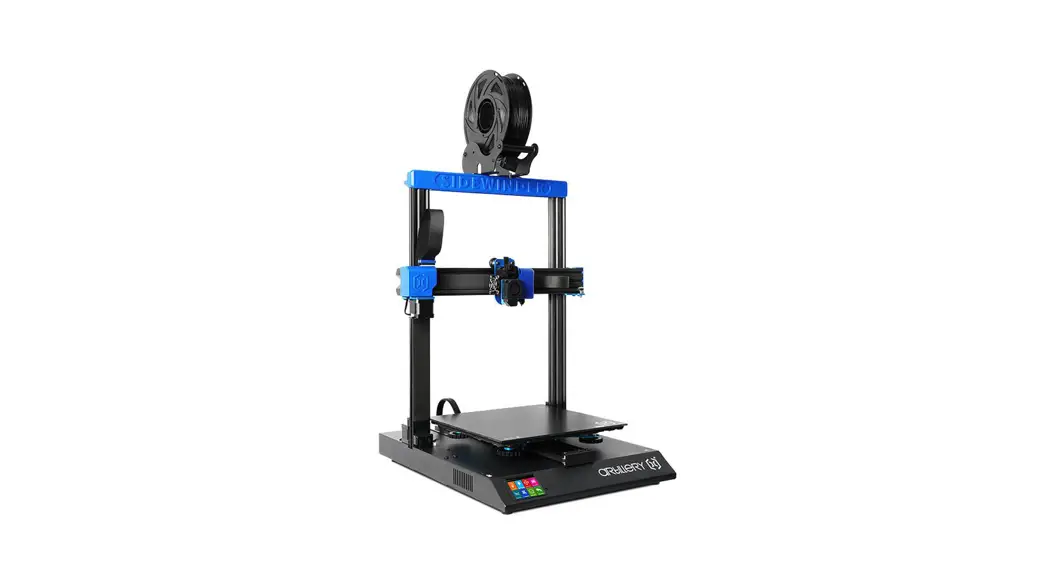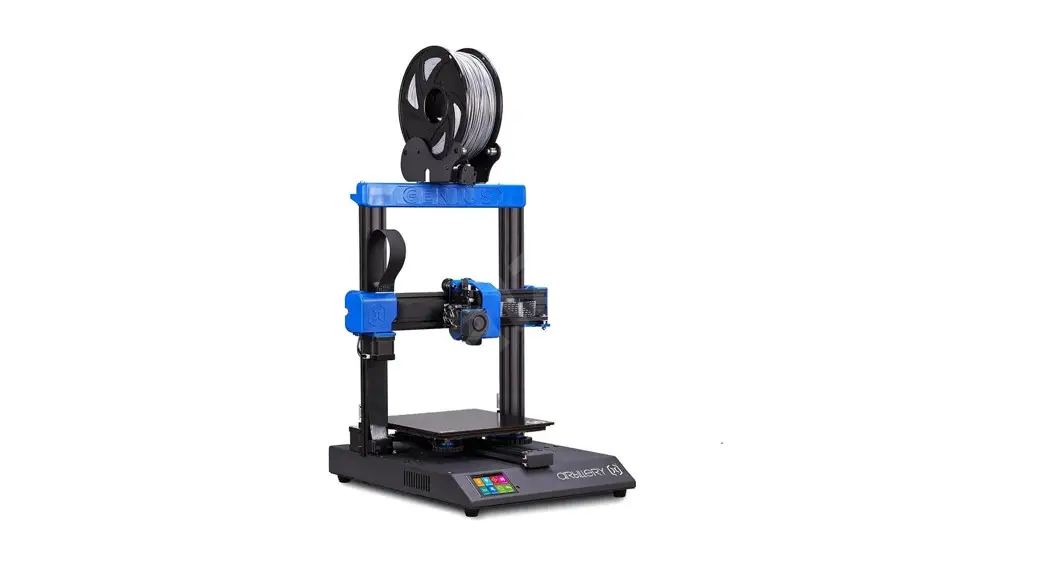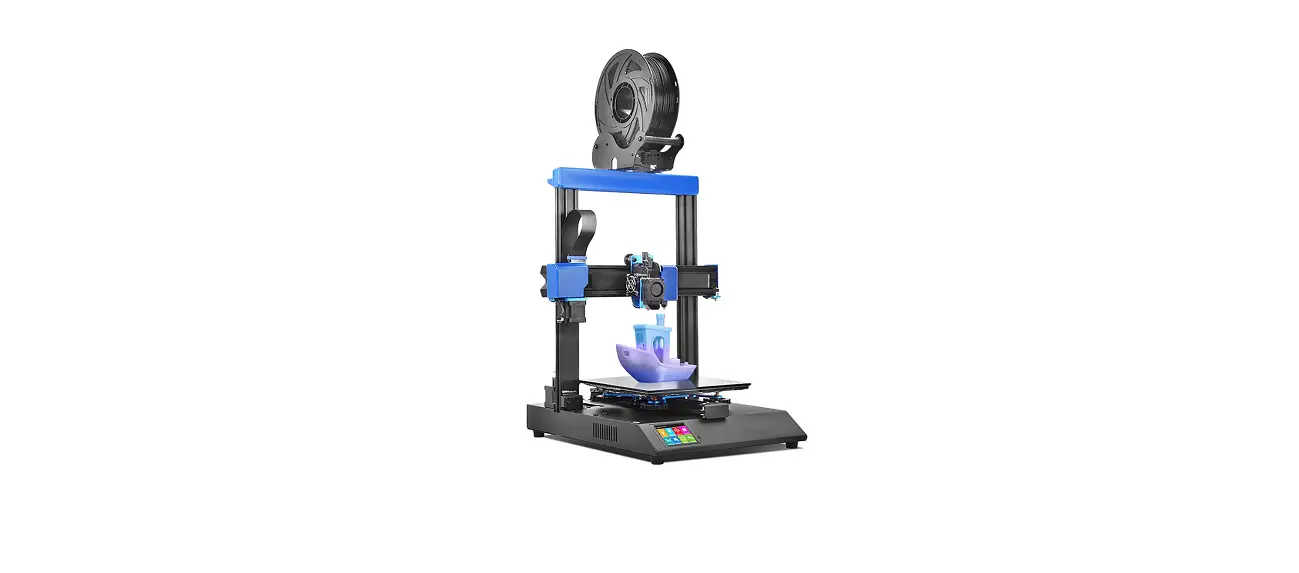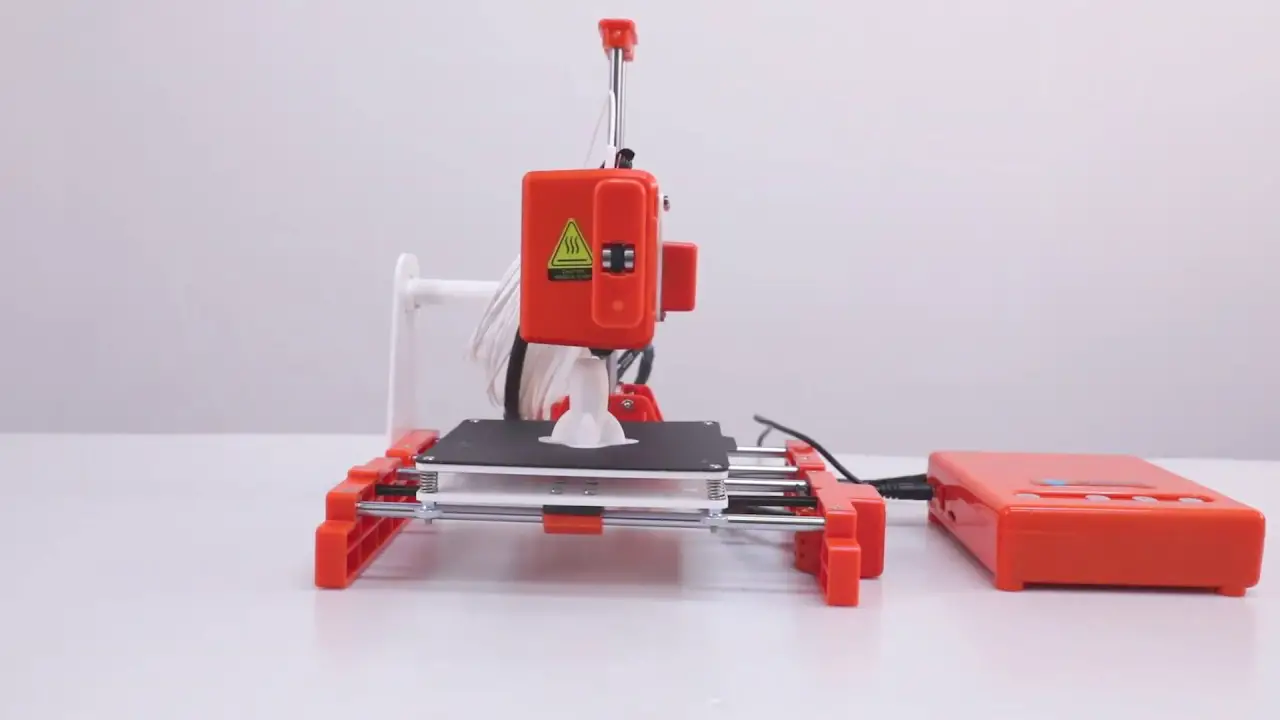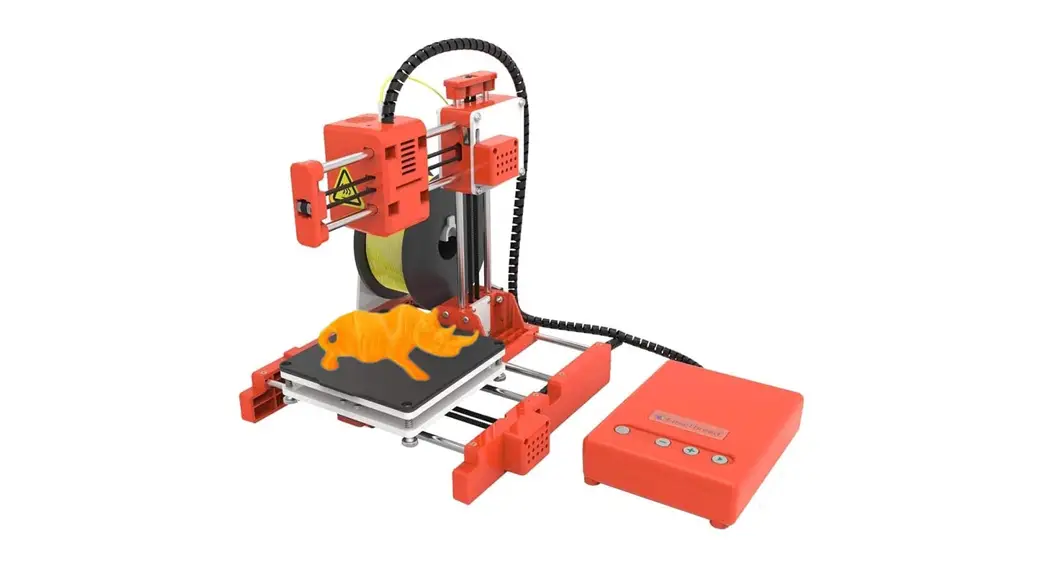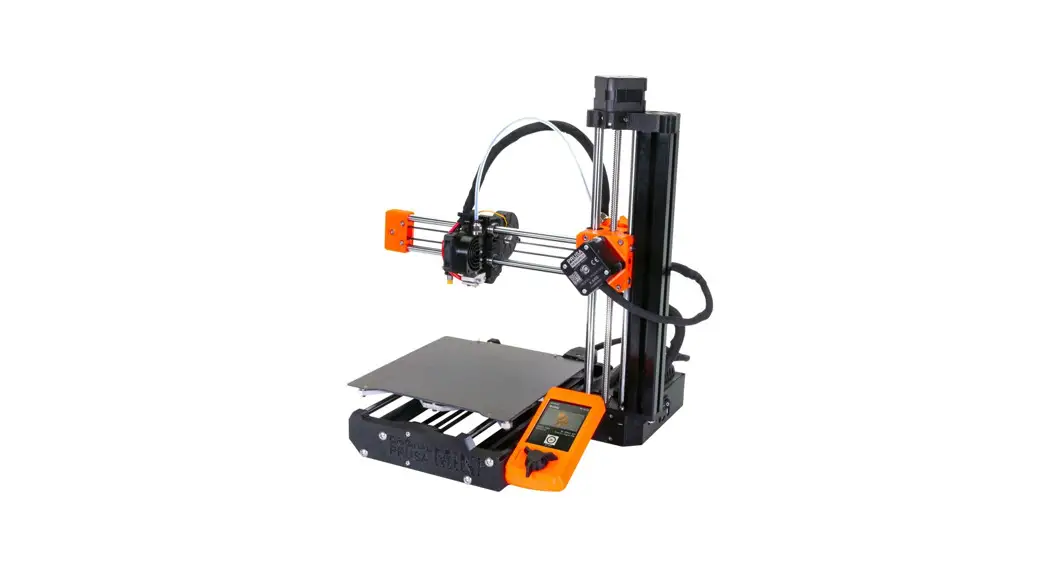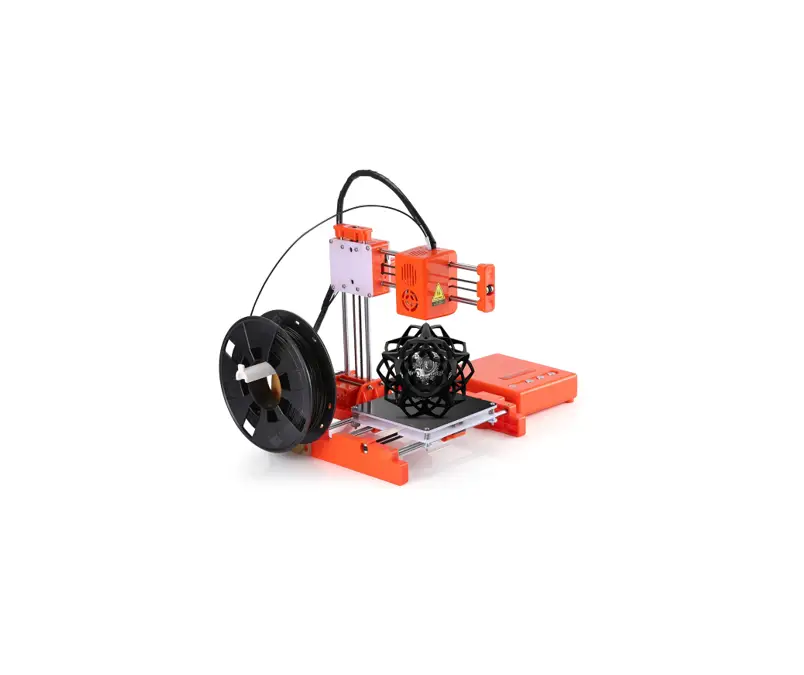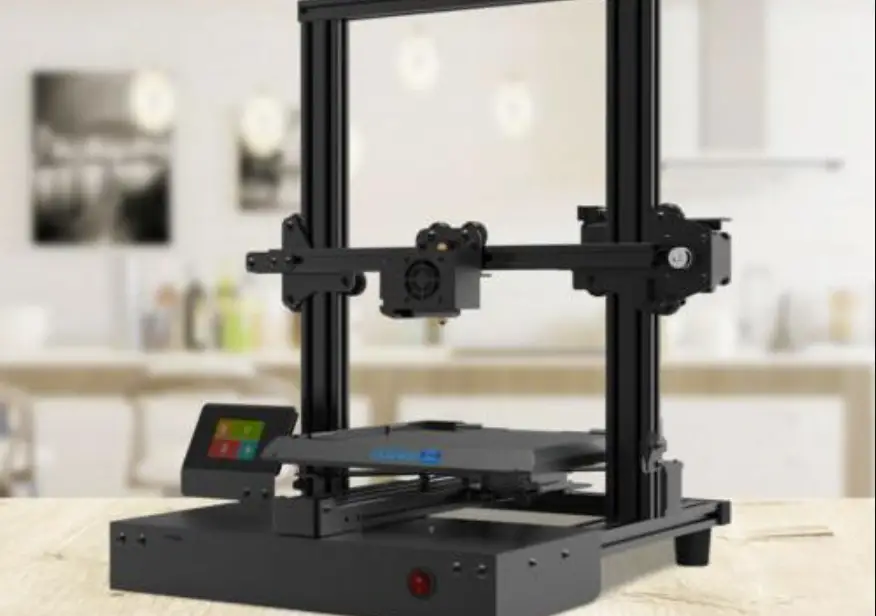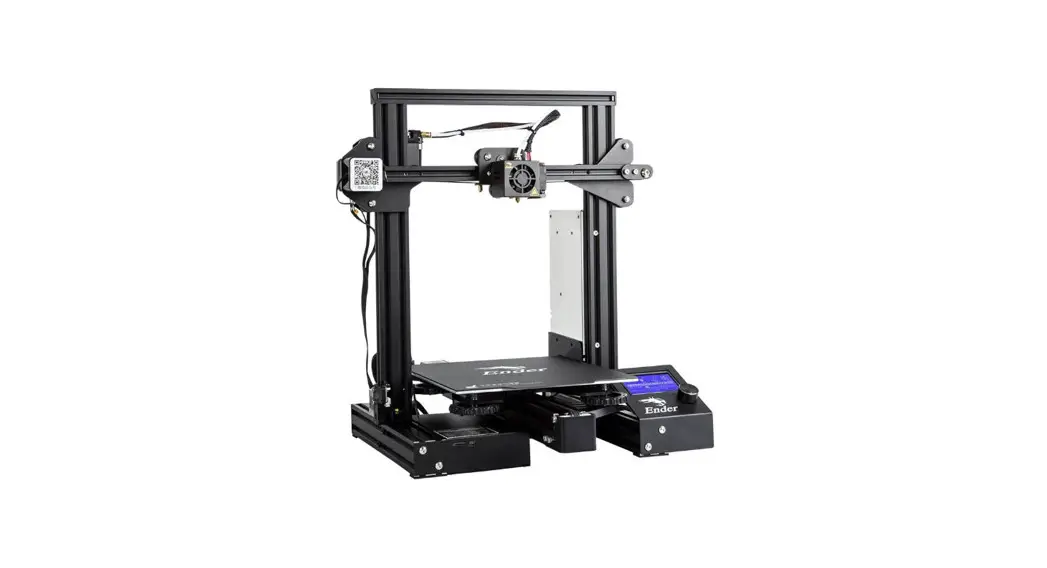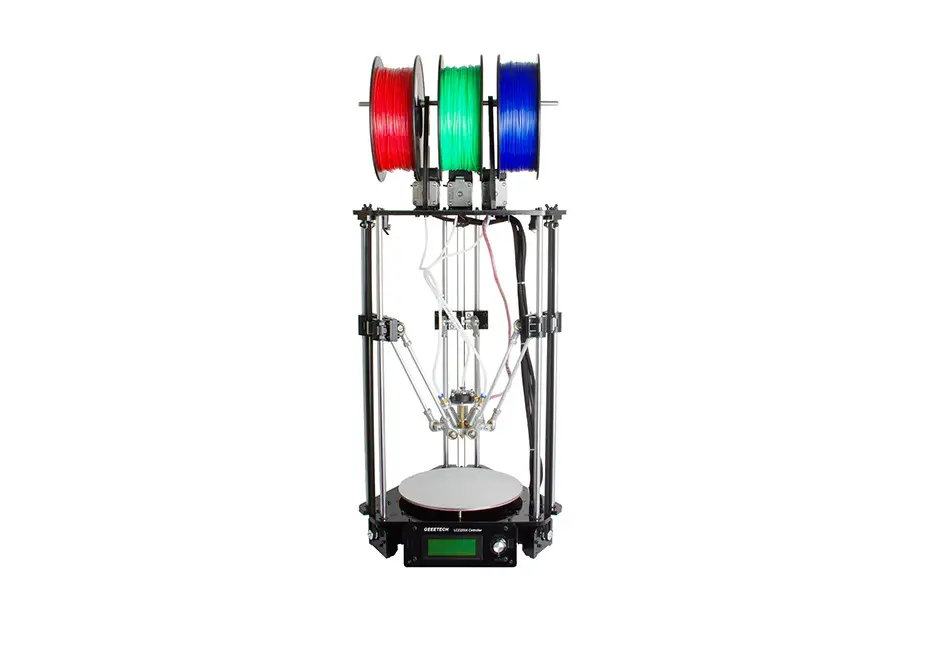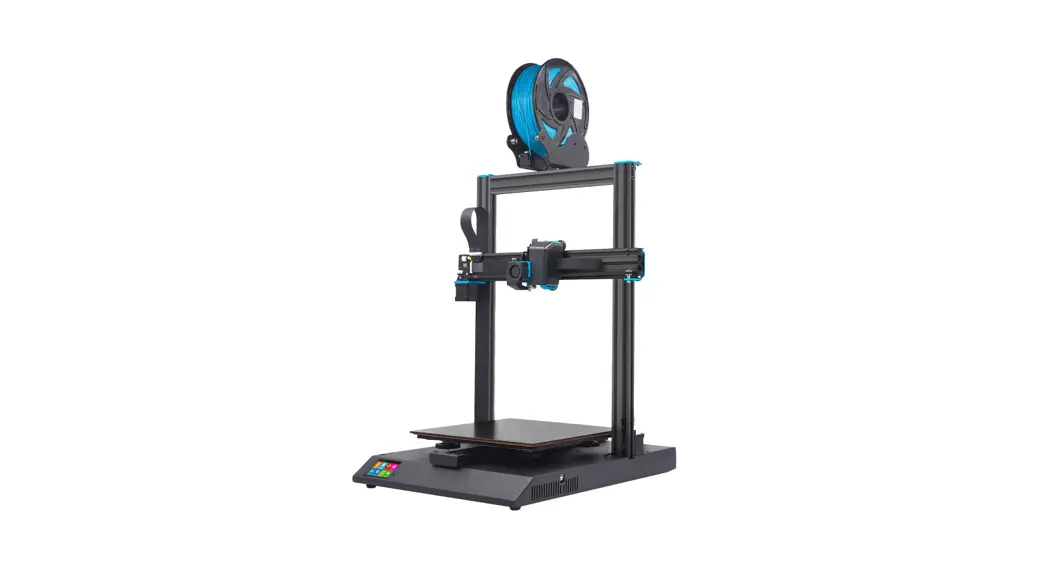

SW-X1 Sidewinder V4 3D Printer 95% Pre-Assembled
Instruction Manual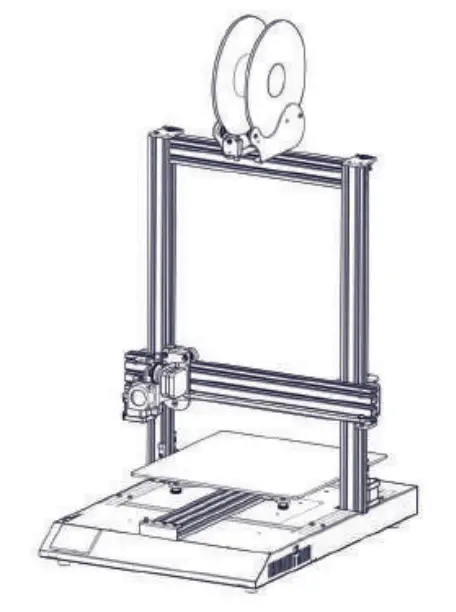
List 1 – Main Modules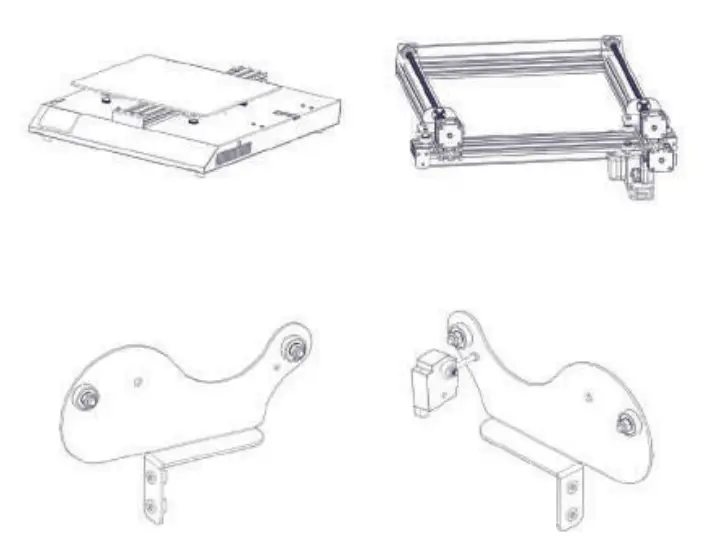
List 2 – Tools & Spares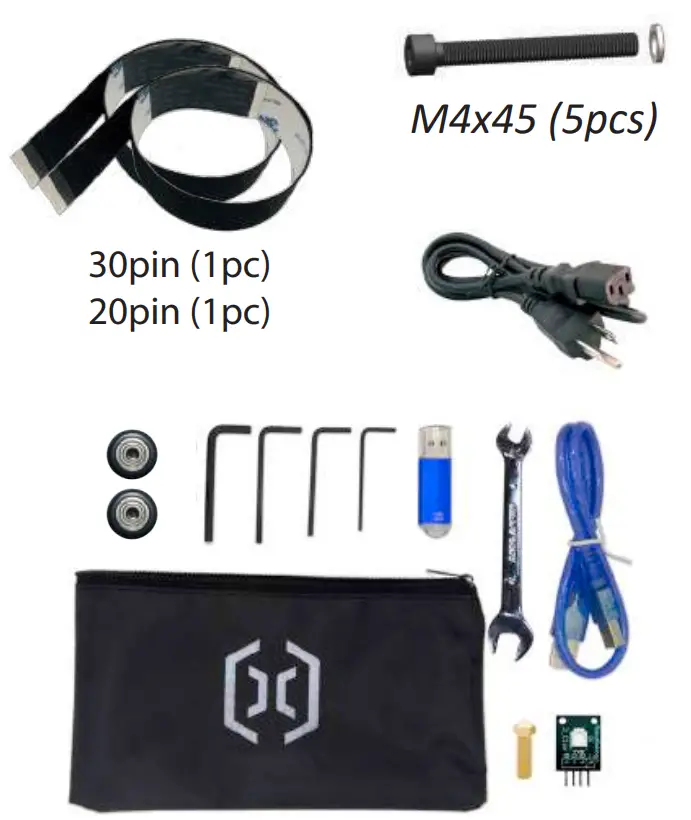
Step 1
Fix the XZ gantry to the base with 4pcs of M4x45 screws as shown in the picture below.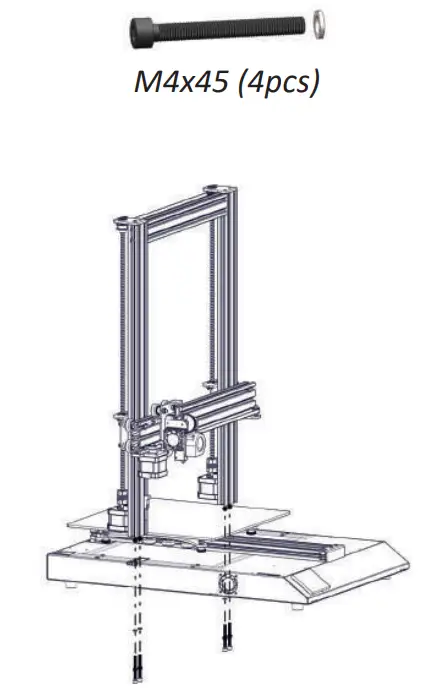 Step 2
Fix the spool holder to the top of the printer, adjust the width to fit the size of your filament spool. Make sure the filament sensor is facing forward.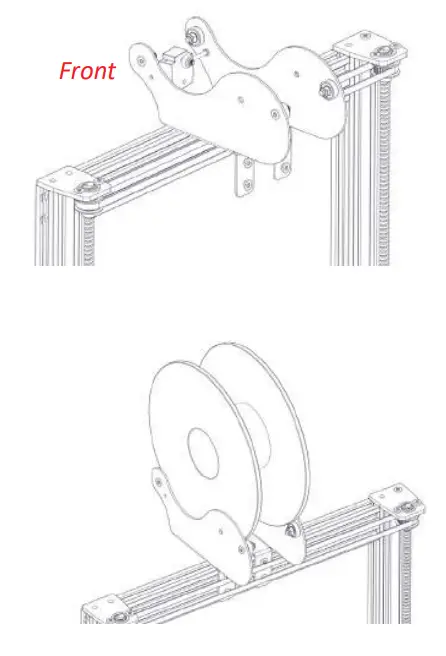
Step 3
Connect the filament runout sensor as shown in the pictures below: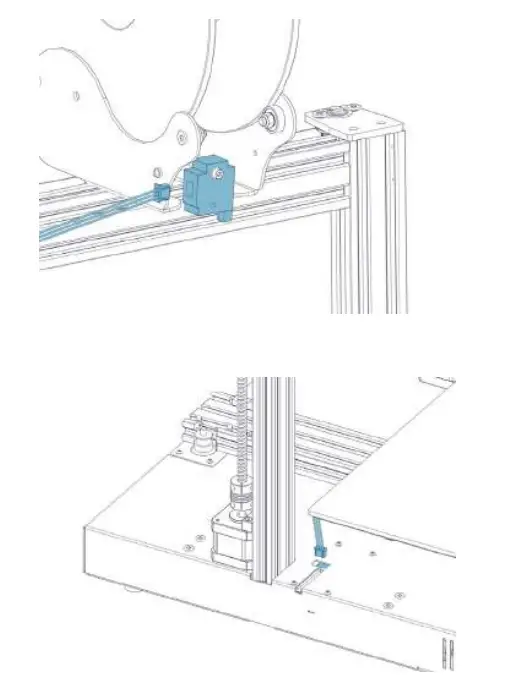
Step 4
Connect the Z end-stop to the cable.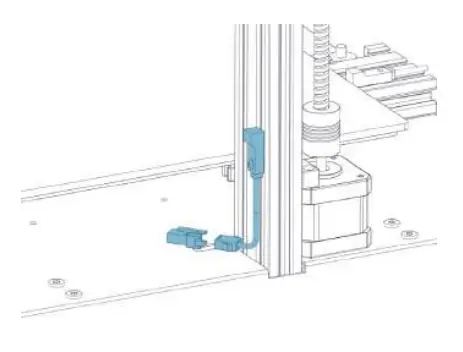
Step 5
Connect the Z Stepper Motors as shown in the pictures below: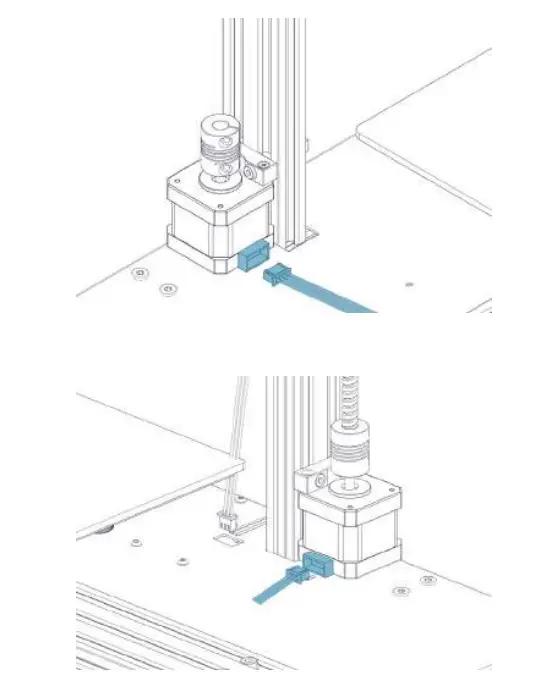
Step 6
Connect the X carriage and filament runout sensor as shown in the picture to the base. Caution: Please handle the flexible flat cable (FFC) with care, make sure it goes straight in when plugging them in, and make sure they’re sitting flush inside the connectors.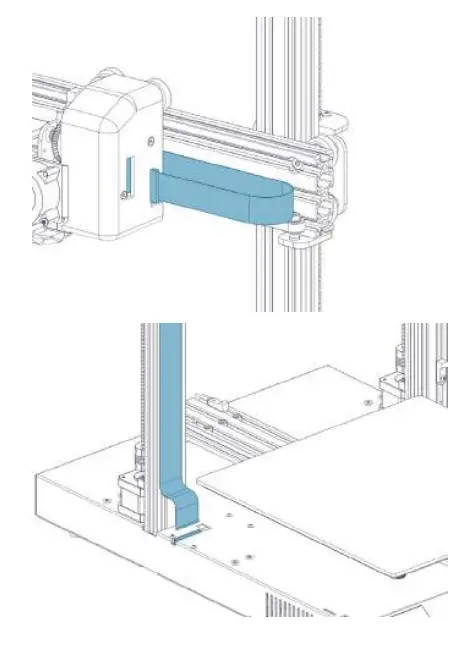
Step 7
Connect the FFC to the board on the X gantry.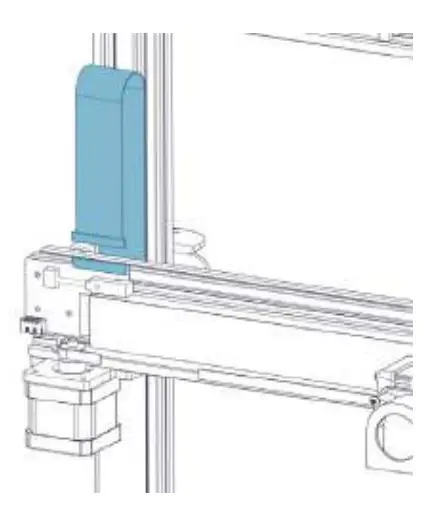
Step 8
Adjust the tension of all the wheels on the machine. Try to turn the wheels without forcing them. If the wheel turns freely or without much effort, then it is too loose. To tighten the wheels, rotate the eccentric nuts slightly until the wheel is snug against the frame.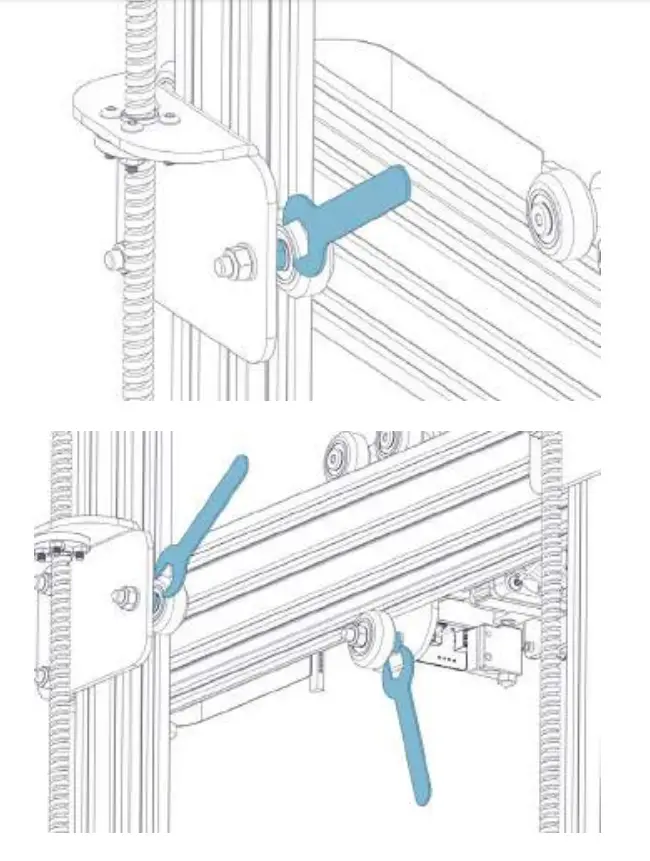
Step 8
For wheels under build plate, push the wheels (on the non-eccentric nut side) tight against the aluminum extrusion, then adjust the front and rear wheels by turning the eccentric nuts, adjust the middle one at last.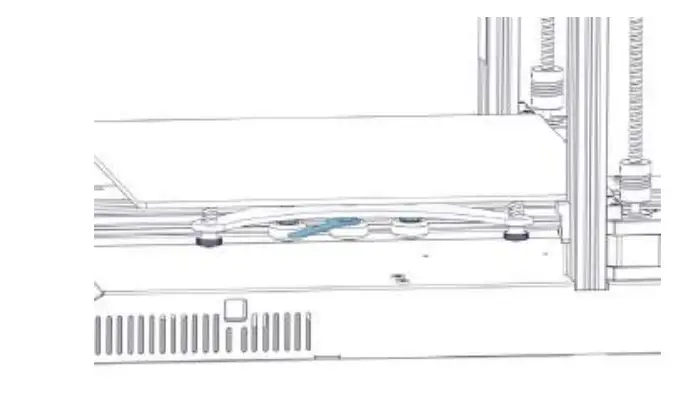
Step 9
Now you can connect power and turn on the machine. On the touch screen, go to Tools -> Heat to pre-heat the nozzle and bed. Wait till both heated up and stead, go to Tools -> Level:
Move the nozzle to all four corners, adjust the height by turning the knob below the bed. Slide an A4 paper between the nozzle and the bed, adjust the height so that the piece of paper slides, with just a bit of drag, in all locations of the bed.
You may need to do the same process twice because an adjustment in one corner will affect others.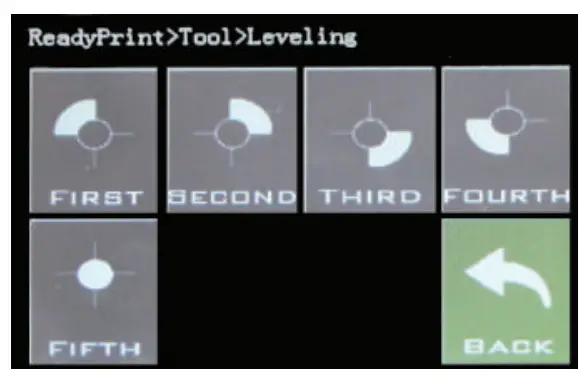
Reset Button
With this reset button, it will reset the machine and cannot resume printing after pressing, so be careful not to press it accidentally.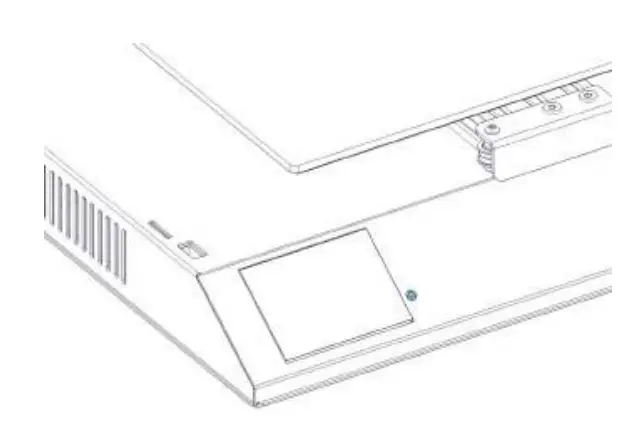
Tips
During printing, the LED near the nozzle shows the current printing status:
– gradually change from blue to violet as the heated bed gets to target temp.
– gradually change from violet to red as the hotend gets to temperature.
– change to white to illuminate the work surface.
– change to green once the print has finished.
– turn off after the print has finished.
Also, you can change the LED color or turn it off through the TFT touch screen.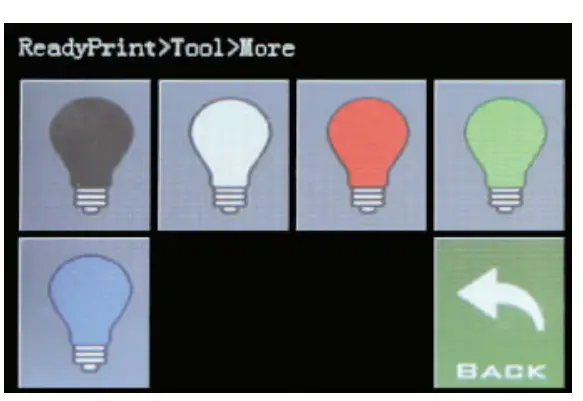
For a detailed warranty policy, please visit https://desk.zoho.com/portal/evnovo/kb/articles/Lenovo-limited-warranty
For support, please visit our packing page at https://desk.zoho.com/portal/evnovo/newcket
Or you can visit our Facebook group at https://www.facebook.com/groups/arlleryswx1/
 |  |
| https://www.facebook.com/artillery3d/ | https://www.facebook.com/artillery3d/ |
Artillery 3D Technology Co., Ltd.
Last update date: 6 September
2019 This manual is updated to the date of printing.
Please refer to the electronic version if in doubt.
 desk.zoho.com/portal/evnovo/kb/
 Facebook