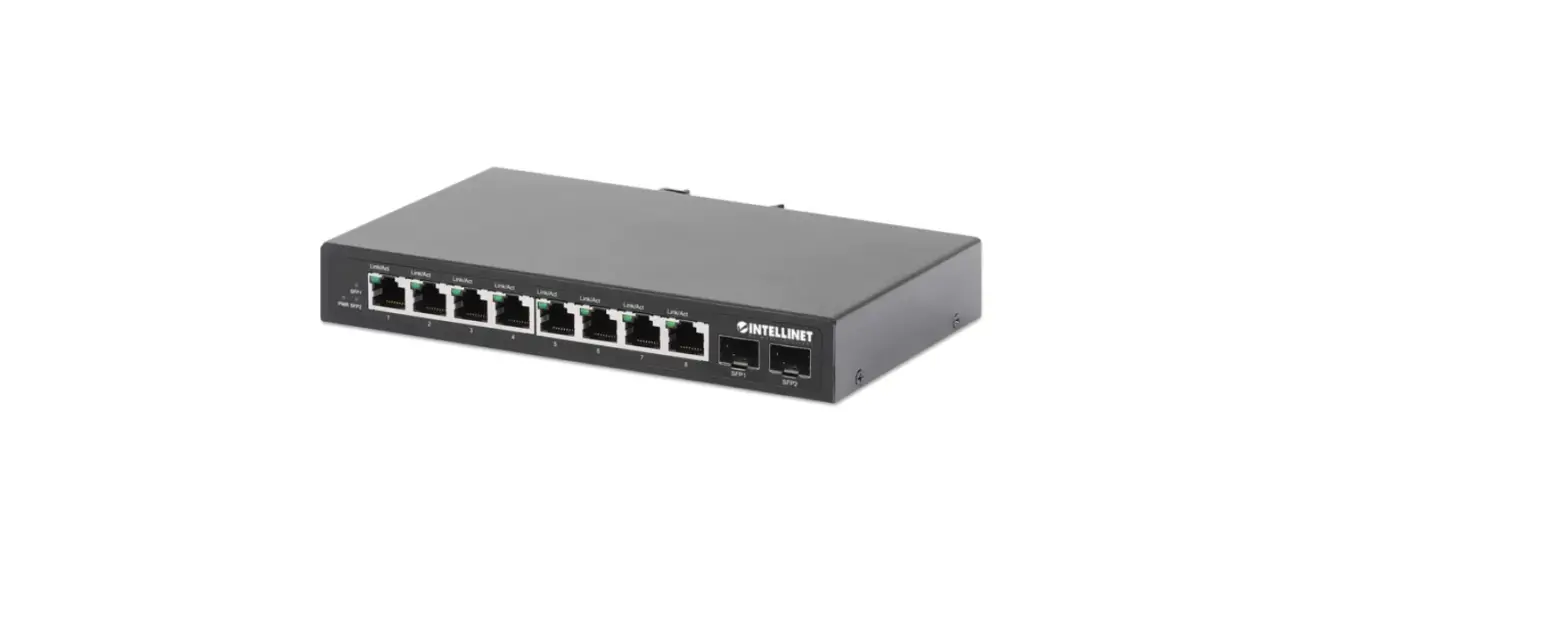
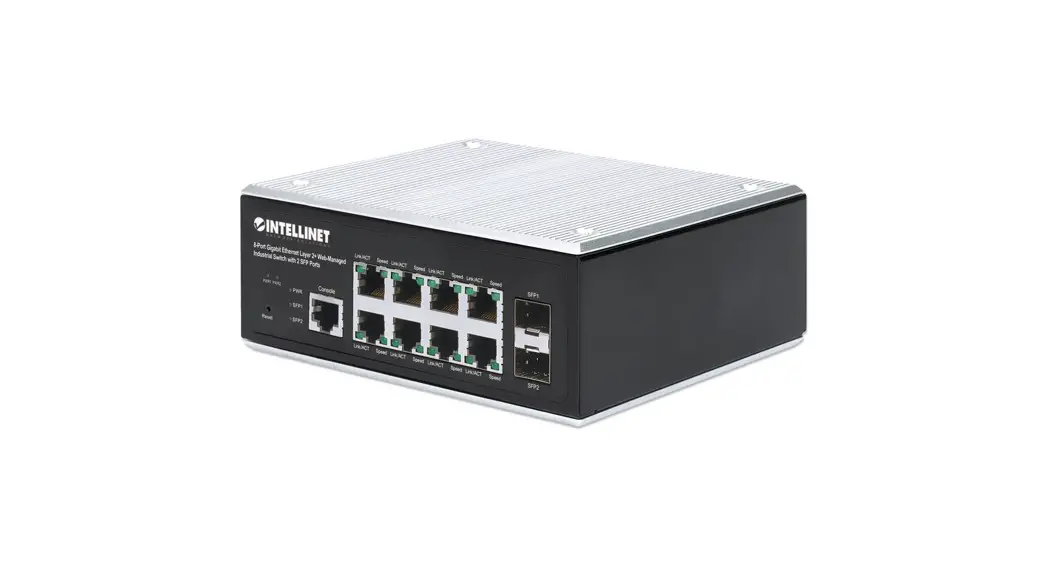
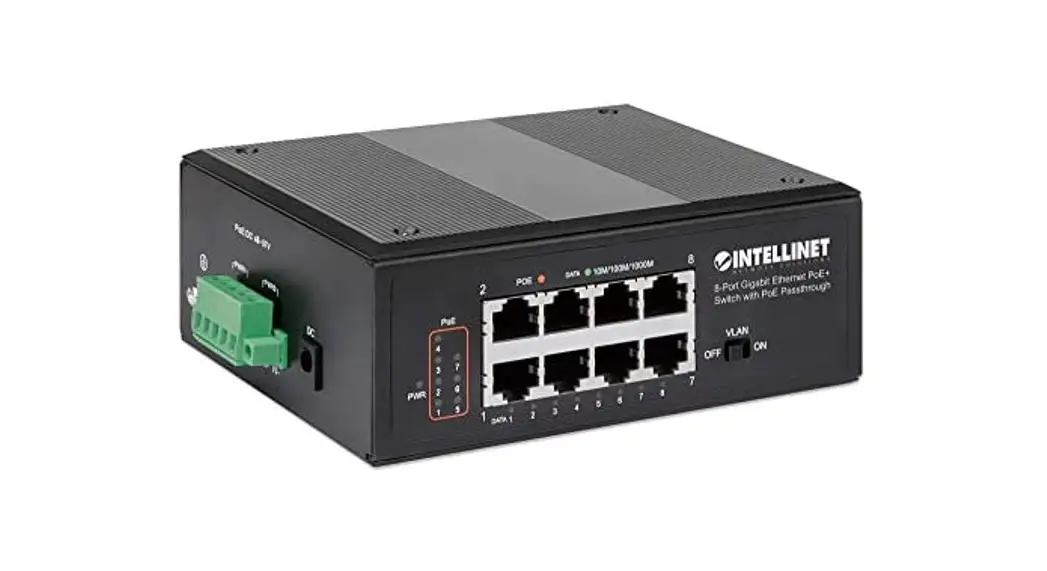
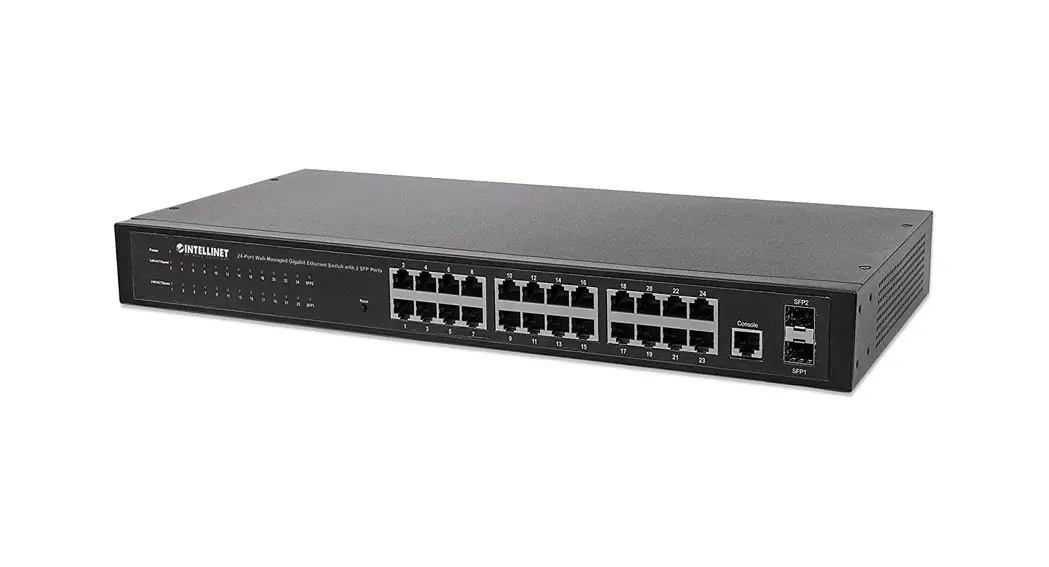
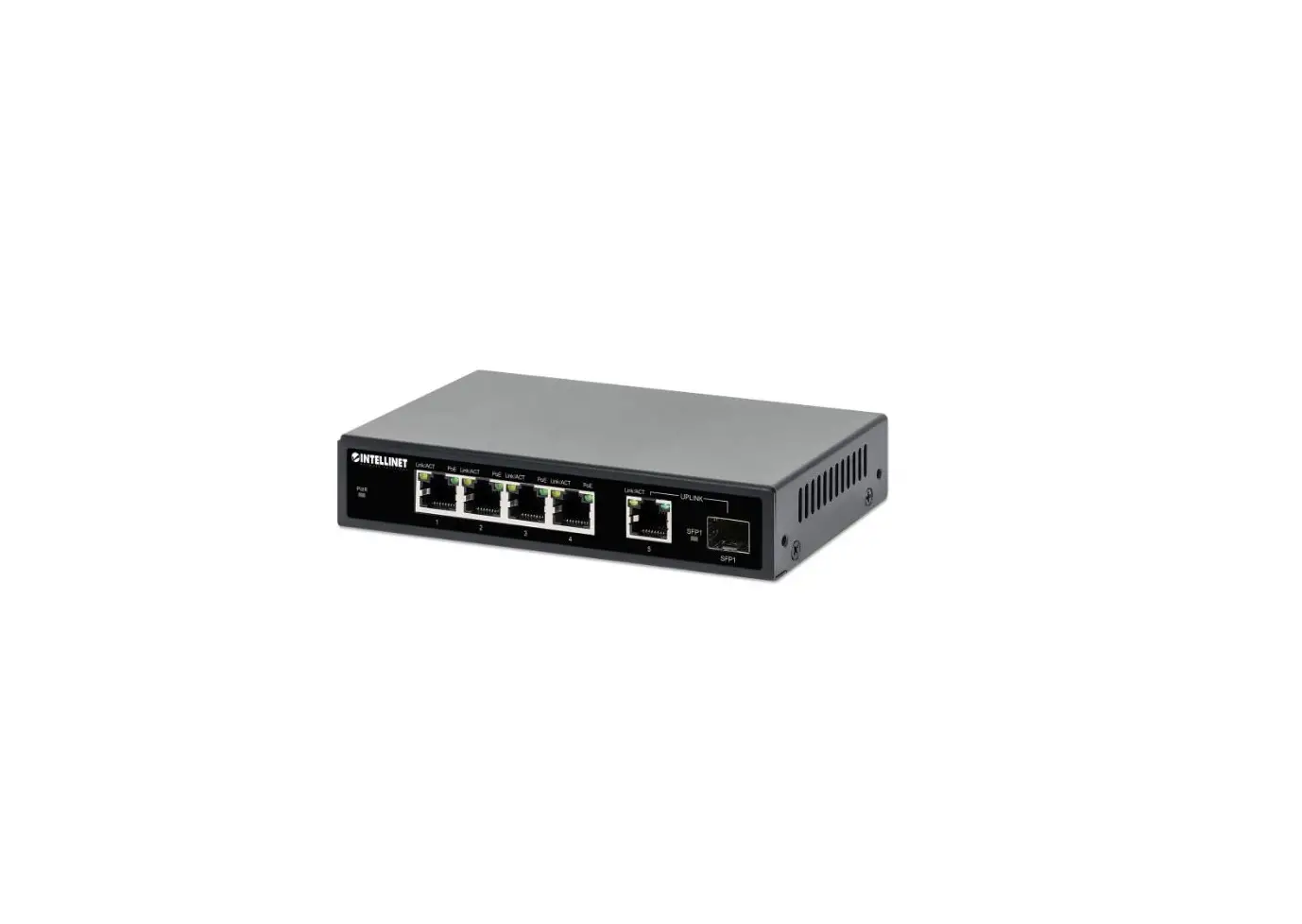
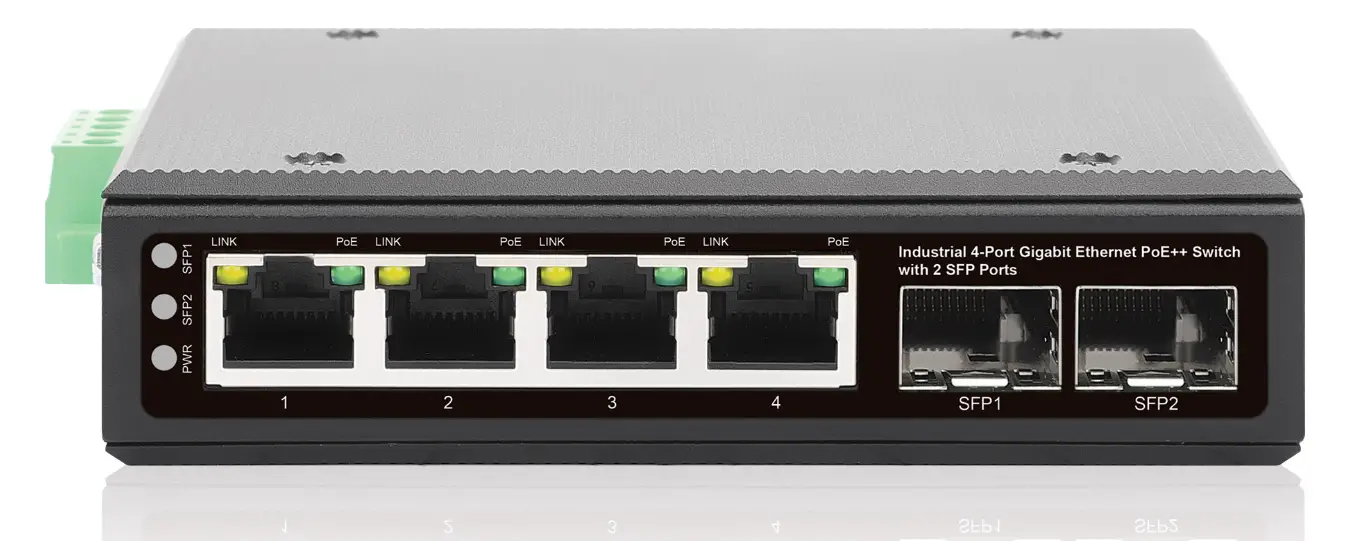
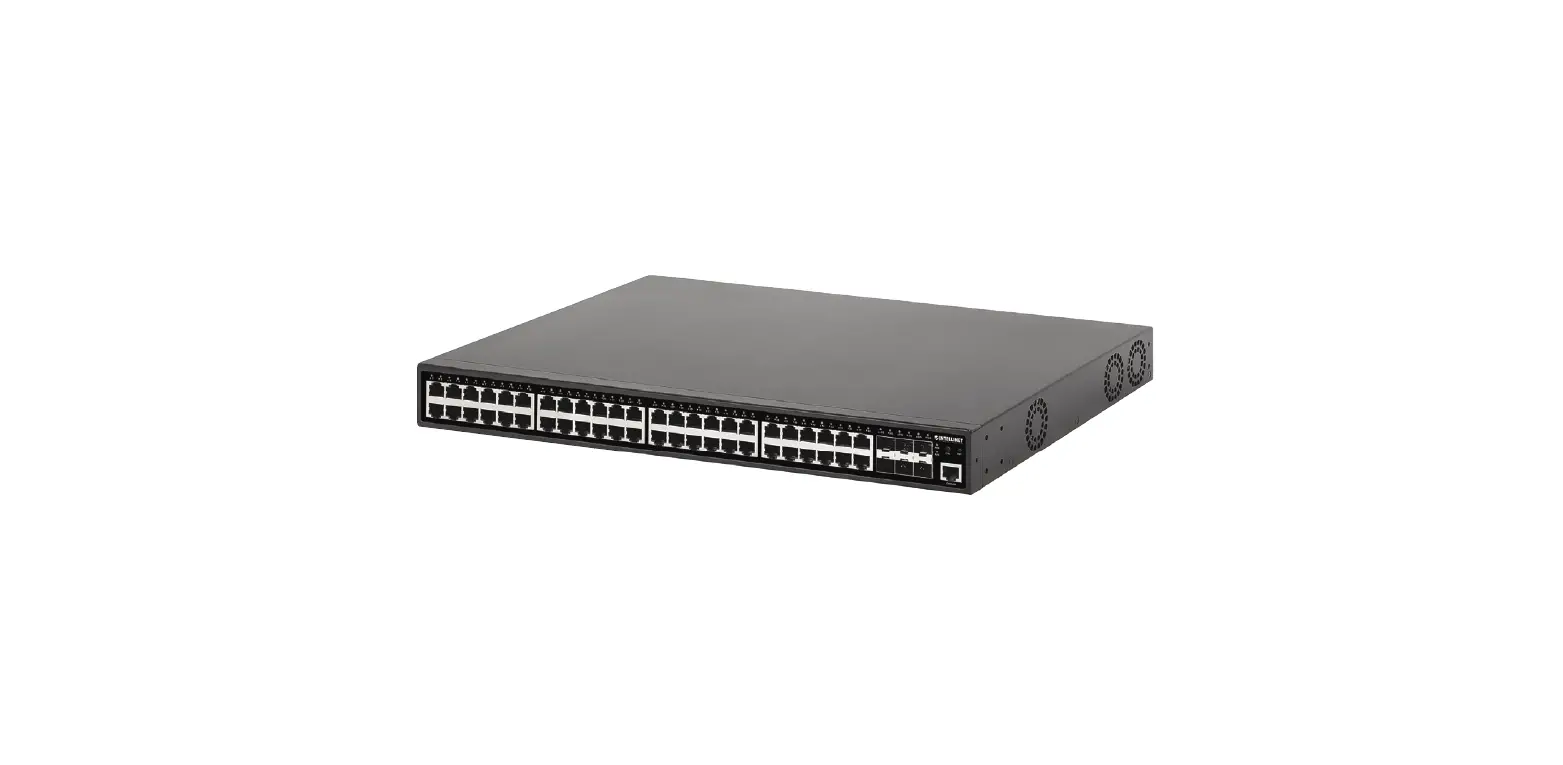
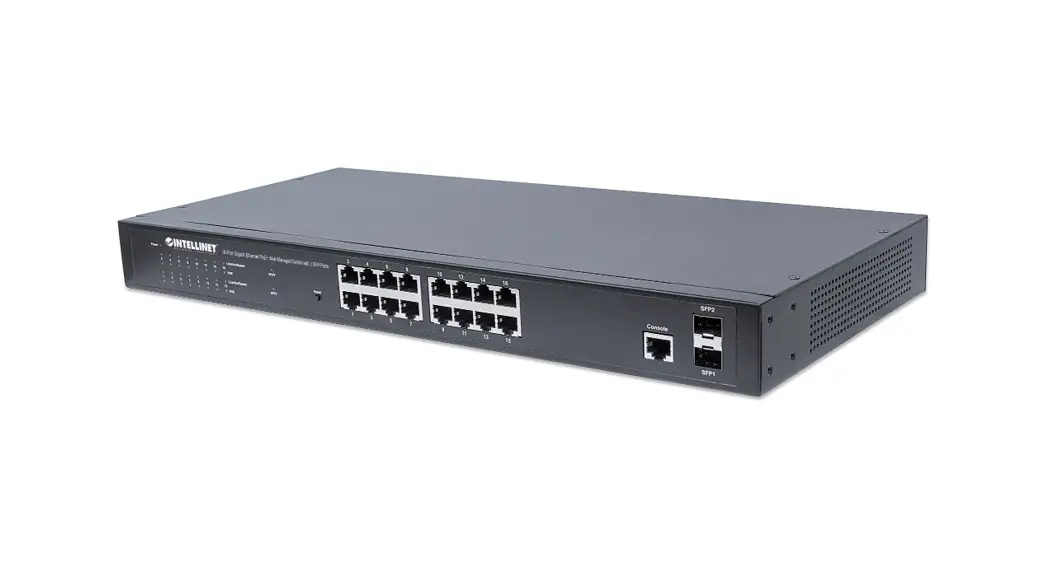
508834 Industrial 8 Port Gigabit Ethernet Layer 2+ Web Managed Switch with 2 SFP Ports
Product Information:
The Intellinet 8-Port Gigabit Ethernet Layer 2+ Web-Managed
Industrial Switch with 2 SFP Ports is a high-performance switch
that offers time-saving and cost-effective features. It provides
superior network throughput with a backplane speed of 20 Gbps. The
switch automatically adjusts the link speed of the connected
devices to 10, 100, or 1000 Mbps for compatibility and maximum
performance.
The switch features LEDs for power status, speed, and SFP ports.
The power status LEDs indicate whether the switch is powered on or
off, the power input status, and abnormal power conditions. The
speed LEDs indicate the link speed of the connected devices, either
10/100 Mbps or 1000 Mbps. The SFP port LEDs indicate the status of
the SFP ports.
The switch supports optimal performance with Cat5e/6/6a UTP/STP
cables. If a status LED does not indicate a link or activity, it is
recommended to check the corresponding device for proper setup and
operation.
For more detailed information and specifications, please visit
intellinetnetwork.com. To
register your product warranty, visit register.intellinet-network.com/r/508834
or scan the QR code on the cover of the user manual.
Product Usage Instructions:
- Power Off Alarm: You have the option to connect a power failure
warning device to the connecting terminal marked “Fault” according
to your requirements. When using power redundancy, if one power
source fails, a fault alarm will be generated. - Chassis Ground Column: To provide proper grounding for your
Intellinet Network Solutions switch, use the grounding terminal
connector located on the side of the power supply connector. If you
use the chassis grounding screw, it should be wired to an object
that provides earth ground. - Placement:
- DIN-Rail Installation:
- Attach the DIN-rail bracket to the device using screws.
- Angle the bracket onto the DIN rail.
- Push the device in until it clicks into place.
- Open your web browser.
- Enter “http://” followed by the IP address of the switch in the
Address field. The default management IP address is
192.168.2.1. - Press Enter to display the login screen.
- In the Username field, enter “admin”.
- In the Password field, enter the serial number located on the
bottom of the switch. - Click OK to proceed.
8-Port Gigabit Ethernet Layer2+ WebManaged Industrial Switch with 2 SFP Ports Instructions
Model 508834 (IIS-8G02M) Important: Read before use. · Importante: Leer antes de usar.
For additional benefits:
Scan to register your product warranty
or go to: register.intellinet-network.com/r/508834
Instructions
The Intellinet 8-Port Gigabit Ethernet Layer 2+ Web-Managed Industrial Switch with 2 SFP Ports offers an array of time-saving, cost-effective features while providing superior network throughput.
Features · Provides RJ45 data connections for up to eight network devices · IP30 slim-type metal housing to withstand harsh industrial conditions · Wide operating temperature: -40 85°C (-40 185°F) · Option for DIN-rail installation · Two small form-factor pluggable GBIC module slots (SFP) · Two redundant DC inputs (44 57 V) with I/O terminal block
With a backplane speed of 20 Gbps, plenty of performance is available for your computers, servers and other networking devices. Each of the ports automatically senses the link speed of the connected network device and adjusts to 10, 100 or 1000 Mbps for compatibility and maximum performance.
For the user manual and specifications, visit intellinetnetwork.com. Register your product at register.intellinet-network.com/r/508834 or scan the QR code on the cover.
LEDs
LED PWR PWR1 & PWR 2
Link/ACT 1 8
Speed
SFP 1 & 2
Color Green
Green
Green (10/100 Mbps) Green (1000 Mbps)
Green
Status On Off On Off On Blinking Off On Off On Blinking Off
Status Description Power on Power off; abnormal power PWR input has power Power is off or is working abnormally Valid port connection (10/100 Mbps) Sending or receiving data No link established or port is connected at 1000 Mbps speed Valid port connection (1000 Mbps) No link established or port is connected at 10/100 Mbps speed Valid port connection Sending or receiving data No link established
Cat5e/6/6a UTP/STP cables provide optimal performance; if a status LED doesn’t indicate a link or activity, check the corresponding device for proper setup and operation.
Power
Terminal Block Installation NOTE: Ensure all power is off/disconnected before beginning! 1 Loosen appropriate screws. 2 Insert bare power-supply wires into appropriate terminal slots (positive
wire into positive slot; negative wire into negative slot). 3 Tighten appropriate screws to secure wires. (If desired, repeat steps 1 3 on second input pair.) 4 Install block into the device and tighten screws.
2 English
1
+
PWR 1
+ PWR 2
Fault
2
+
PWR 1
+ PWR 2
Fault
3
+
PWR 1
+ PWR 2
Fault
Instructions
4
Power Off Alarm You can choose whether to connect the power failure warning device to the connecting terminal marked “Fault” according to your requirements. When using power redundancy, if one power source fails, a fault alarm will be generated.
Chassis Ground Column Located on the side of the power supply connector, a grounding terminal connector is used to provide proper grounding for your Intellinet Network Solutions switch. If you use the chassis grounding screw, it should be wired to an object that provides earth ground.
Placement
Desktop Installation Prior to use, place/position the switch: · on a level surface that can support the weight of the switch and that offers
at least 25 mm (approx. 1″) of clearance for ventilation; · away from sources of electrical noise: radios, transmitters, broadband amplifiers; · within 100 m (approx. 328′) of network devices it’s to be connected to.
DIN-Rail Installation 1 With DIN-rail bracket attached to device with screws, angle bracket onto DIN rail. 2 Push device in till it clicks into place.
1
2
Basic Web-Based Browser Management
1 Open your Web browser. 2 Enter http:// and the IP address of the switch in the Address field.
The default management IP address is 192.168.2.1. 3 Press Enter to display the login screen. In the Username field, enter admin; in the
Password field, enter the serial number on the bottom of the switch. Click OK.
English 3
Anleitung
Der Intellinet 8-Port Gigabit Ethernet Web-Managed Industrie-Switch mit 2 SFP-Ports bietet eine Reihe von zeitsparenden, kosteneffektiven Funktionen und gleichzeitig einen hohen Netzwerkdurchsatz.
Merkmale · RJ45-Datenverbindung für bis zu acht Netzwerkgeräte · Schlankes Metallgehäuse mit Schutzklasse IP30 für anspruchsvolle Industrieumgebungen · Für Umgebungstemperaturen von -40 bis 85°C · Auf DIN-Schiene montierbar · Zwei GBIC-Modul-Steckplätze (SFP) · Redundante Stromversorgung mit zwei Eingängen (44 57 V) und I/O-Klemmleiste
Mit einer Backplane-Geschwindigkeit von 20 Gbps steht viel Leistung für Ihre Computer, Server und andere Netzwerkgeräte zur Verfügung. Jeder der Ports erkennt automatisch die Verbindungsgeschwindigkeit des angeschlossenen Netzwerkgeräts und stellt sich auf 10, 100 oder 1000 Mbit/s ein, um Kompatibilität und maximale Leistung zu gewährleisten.
Das Benutzerhandbuch und die technischen Daten finden Sie unter intellinetnetwork.com. Registrieren Sie Ihr Produkt auf register.intellinet-network.com/r/508834 oder scannen Sie den QR-Code auf dem Deckblatt.
LED
LED
Farbe Status
Bedeutung
PWR (Strom)
Grün
An
Gerät wird mit Strom versorgt
Aus
Ausgeschaltet; anormale Leistung
PWR1 & PWR 2
Grün
An
PWR-Eingang hat Strom
Aus
Das Gerät ist ausgeschaltet oder funktioniert nicht ordnungsgemäß
Link/ ACT 1 8
Grün (10/100 Mbps)
An
Verbindung ist hergestellt (10/100 Mbps)
Blinkend Senden oder Empfangen von Daten
Aus
Keine Verbindung hergestellt oder Port ist mit einer Geschwindigkeit von 1000 Mbit/s verbunden
Speed
Grün (1000 An
Mbps)
Aus
Verbindung ist hergestellt (1000 Mbps) Keine Verbindung hergestellt oder Port ist mit einer Geschwindigkeit von 10/100 Mbit/s verbunden
SFP 1 & 2
Grün
An
Verbindung ist hergestellt
Blinkend Senden oder Empfangen von Daten
Aus
Verbindung ist nicht hergestellt
Cat5e/6/6a- UTP/STP-Kabel bieten die beste Performance. Wenn eine LED keine Verbindung/Aktivität anzeigt, überprüfen Sie das verbundene Gerät.
Strom
Installation der Klemmleiste HINWEIS: Vergewissern Sie sich, dass die Stromversorgung vor Beginn abgeschaltet/getrennt ist! 1 Lösen Sie die entsprechenden Schrauben. 2 Führen Sie die freiliegenden Stromkabel in die entsprechenden Steckplätze ein
(Pluskabel in den Plus-Steckplatz; Minuskabel in den Minus-Steckplatz). 3 Ziehen Sie die entsprechenden Schrauben an, um die Kabel zu fixieren. (Falls
4 Deutsch
gewünscht, wiederholen Sie die Schritte 1 – 3 am zweiten Eingangspaar.) 4 Setzen Sie die Leiste in das Gerät ein und ziehen Sie die Schrauben fest.
1
2
3
+
PWR 1
+ PWR 2
Fault
+
PWR 1
+ PWR 2
Fault
+
PWR 1
+ PWR 2
Fault
Anleitung
4
Strom-Aus-Fehlerwarnung Sie können wählen, ob Sie die Netzausfallwarneinrichtung an die mit ,,Fault (Störung)” gekennzeichnete Anschlussklemme anschließen. Bei Verwendung von Stromredundanz wird bei Ausfall einer Stromquelle eine Fehlerwarnung generiert.
Gehäuseerdungsschraube Der Erdungsendverbinder, der sich auf der rechten Seite des Netzsteckers befindet, erleichtert die korrekte Erdung des Intellinet Network Solutions Schalters. Wenn Sie die Gehäuseerdungsschraube verwenden, stellen Sie bitte sicher, dass sie mit einem Objekt verbunden ist, das eine direkte Verbindung zu einem Erdungsleiter besitzt.
Nutzungsumgebung
Desktop-Installation Er wird empfohlen, den Switch vor der Nutzung folgendermaßen: · auf ebenem Untergrund, der das Gewicht des Switches · auf ebenem Untergrund mit mind. 25 mm Rundumabstand für ausreichend Luftdurchsatz · fern von anderen Übertragungsgeräten wie Radio, Breitbandverstärker, etc. · max. 100 m vom zu verbindenden Netzwerkgerät entfernt.
DIN-Schienenmontage 1 DIN-Schienenhalterung mit Schrauben am Gerät befestigen, Winkelhalterung auf DIN-Schiene. 2 Schieben Sie das Gerät ein, bis es einrastet.
1
2
Grundlagen der Steuerung über den Webbrowser
1 Öffnen Sie Ihren Webbrowser. 2 Geben Sie http:// und die IP-Adresse des Switches in der Adresszeile
ein. Die Standard-IP-Adresse lautet 192.168.2.1. 3 Drücken Sie Enter, um zum Loginfenster zu gelangen. Geben Sie als Benutzernamen
admin. Geben Sie im Passwort-Feld die Seriennummer ein, die sich auf dem Aufkleber auf der Unterseite des Switch befindet. Klicken Sie auf OK.
Deutsch 5
Instrucciones
El Intellinet Switch industrial con 8 puertos Gigabit Ethernet administrado por Web con 2 puertos SFP cuenta con múltiples características que le ahorrarán tiempo y dinero, mientras disfruta de un mayor rendimiento en la red.
Caracteristicas · Proporciona conexión de datos RJ45 para ocho dispositivos de red · Carcasa metálica delgada IP30 para soportar las duras condiciones industriales · Temperatura de funcionamiento amplia: -40 85°C · Opción para instalación en carril DIN · Dos ranuras de conexión para modulos miniGBIC (SFP) · Dos entradas de CC redundantes (44 57 V) con bloque de terminales de E/S
Con una velocidad backplane de 20 Gbps, sus ordenadores, servidores y otros dispositivos de red podrán disfrutar de un mayor rendimiento. Cada uno de los puertos detecta automáticamente la velocidad de enlace del dispositivo y la ajusta a 10, 100 o 1000 Mbps para una compatibilidad y rendimiento máximos.
Para tener el manual de usuario y los requisitos, visita intellinetnetwork.com. Registre el producto en register.intellinet-network.com/r/508834 o escanee el código QR en la cubierta.
LED
LED
Color
Estado
Indicación
PWR Verde
Encendido Encendido Apagado Interruptor apagado; electricidad anormal
PWR1 & PWR 2
Verde
Encendido La entrada PWR tiene electricidad Apagado La electricidad está ausente o funcionando de manera anormal
Link/ Verde
Encendido Valide el puerto de conexión (10/100 Mbps)
ACT (10/100
Parpadeo Datos trasmitidos/recibidos
1 8 Mbps)
Apagado No se estableció conexión o el puerto está conectado a una velocidad de 1000 Mbps
Speed
Verde
Encendido Valide el puerto de conexión (1000 Mbps)
(1000 Mbps) Apagado No se estableció conexión o el puerto está conectado a una velocidad de 10/100 Mbps
SFP 1 & 2
Verde
Encendido Valide el puerto de conexión Parpadeo Datos trasmitidos/recibidos Apagado No hay comunicación
Los cables Cat5e/6/6a UTP/STP proporcionan un redimiento optimo; Si un LED no indica conectividad ó actividad, compruebe las conexiones sean adecuadas.
Alimentación
Instalación del bloque de terminales NOTA: asegúrese de que toda fuente de energía esté apagada/desconectada antes de comenzar. 1 Afloje los tornillos correspondientes. 2 Introduzca los cables de alimentación pelados en los orificios de los terminales adecuados
(cable positivo en orificio positivo, cable negativo en orificio negativo). 3 Apriete los tornillos correspondientes para asegurar los cables (si lo
desea, repita los pasos 1 a 3 en el segundo par de entrada).
6 Español
4 Instale el bloque en el dispositivo y apriete los tornillos.
1
2
+
PWR 1
+ PWR 2
Fault
+
PWR 1
+ PWR 2
Fault
3
+
PWR 1
+ PWR 2
Fault
Instrucciones
4
Alarma de falla eléctrica Ud. puede optar por conectar a la terminal de conexión marcada como “Fault” [falla] el dispositivo de alarma de aviso ante una falla eléctrica, según lo requiera. Al utilizar un sistema de redundancia energética, si una de las fuentes de energía falla, se disparará una alarma.
Chasis-Tornillo de toma de tierra Ubicado en el lado derecho del conector de la fuente de alimentación, el conector del terminal de tierra facilita la adecuada conexión para el switch (conmutador) de Intellinet Network Solutions. Cuando utilice el tornillo de toma de tierra del chasis, asegúrese de engancharlo a un objeto que proporcione acceso directo a un conductor de tierra.
Colocación
Instalación de escritorio Antes de utilizarlo, se recomienda que el switch sea colocado/fijado: · sobre una superficie plana que pueda soportar el peso del switch (y
cualquier otro artículo que deba ser considerado); · con un mínimo de 25 mm de espacio libre en la parte superior y en los lados para una ventilación adecuada; · apartado de fuentes de ruido eléctrico: radios, transmisores, amplificadores, etc.; · dentro de los 100 m (aprox. 328′) deben estar conectados los dispositivos de red.
Instalación del rail DIN 1 Para montar un soporte de rail DIN en el dispositivo mediante tornillos,
introduzca el soporte en el rail DIN formando un ángulo. 2 Empuje el dispositivo hacia adentro hasta que haga clic y quede fijo.
1
2
Administración básica vía Navegador Web 1 Inicie su Navegador Web. 2 Ingrese http:// y la dirección IP del switch en la barra de direcciones. La
dirección de administración por defecto es 192.168.2.1. 3 Presione Enter para ingresar a la pantalla de inicio de sesión. El nombre de usuario es admin, la contraseña
es el número de serie que está en la etiqueta en la parte inferior del conmutador. Haga clic en OK (Aceptar).
Español 7
Instructions
L’Intellinet Commutateur industriel à gestion Web 8 ports couche 2+ Ethernet Gigabit avec 2 ports SFP propose toute une gamme de fonctionnalités assurant le débit optimal de votre réseau, ainsi qu’un gain notable de temps et d’argent.
Traits · Muni de connexions de données RJ45 pour raccorder jusqu’à huit périphériques réseau · Boîtier métallique IP30 à profil mince pour résister à des conditions industrielles extrêmes · Écart de température pour le fonctionnement : -40 85 °C · Option pour l’installation sur rail DIN · 2 emplacements GBIC pour module émetteur/récepteur optique SFP · Deux entrées redondantes en courant continu (44 57 V) avec bloc terminal I/O
Avec sa vitesse de fond de panier de 20 Gpbs, le commutateur offre des performances de pointe à vos ordinateurs, à vos serveurs, et à vos autres appareils connectés. Chacun des ports détecte automatiquement la vitesse de connexion de l’appareil réseau connecté, et s’ajuste automatiquement à 10, 100 ou 1000 Mbps, pour une performance et une compatibilité accrues.
Pour obtenir le manuel utilisateur et des spécifications, visitez intellinetnetwork.com. Enregistrez votre produit sur register.intellinet-network.com/r/508834 ou scannez le code QR figurant sur la couverture.
DEL
DEL
PWR
PWR1 & PWR 2 Link/ ACT 1 8
Speed
SFP 1 & 2
Couleur Statut
Indication
Vert
Allumé Éteint
Appareil est alimenté Éteindre ; puissance anormale
Vert
Allumé Éteint
L’entrée PWR est alimentée L’alimentation est coupée ou fonctionne anormalement
Vert (10/100 Mbps)
Allumé Connexion est établie (10/100 Mbps)
Clignotant En train d’émettre ou de recevoir des données
Éteint
Aucune liaison établie ou le port est connecté à une vitesse de 1000 Mbps
Vert
Allumé
(1000 Mbps) Éteint
Connexion est établie (1000 Mbps) Aucune liaison établie ou le port est connecté à une vitesse de 10/100 Mbps
Allumé Connexion est établie
Vert
Clignotant En train d’émettre ou de recevoir des données
Éteint
Connexion n’est pas établie
Des câbles Cat5e/6/6a UTP/STP garantissent des performances optimales; si un DEL n’indique pas d’activité, vérifiez l’appareil correspondant.
Alimentation
Installation via bloc terminal NOTE : Assurez-vous que l’alimentation est intégralement éteinte/déconnectée avant de commencer ! 1 Desserrez les vis appropriées. 2 Insérez les fils d’alimentation nus dans les emplacements du terminal appropriés (fil
positif dans l’emplacement positif ; fil négatif dans l’emplacement négatif ).
8 Français
3 Serrez les vis appropriées pour fixer les fils. (Si vous le souhaitez, répétez les étapes 1 à 3 sur la deuxième paire d’entrées.)
4 Installez le bloc dans le périphérique et serrez les vis.
1
2
3
+
PWR 1
+ PWR 2
Fault
+
PWR 1
+ PWR 2
Fault
+
PWR 1
+ PWR 2
Fault
Instructions
4
Alarme de mise hors tension Vous pouvez choisir de connecter ou non le dispositif d’avertissement de panne de courant à la borne de connexion marquée « Fault » en fonction de vos besoins. Lors de l’utilisation de la redondance d’alimentation, si une source d’alimentation tombe en panne, une alarme de panne sera générée.
Vis de châssis/Mise à la terre Situé sur le côté droit du connecteur d’alimentation, le connecteur de terre facilite la mise à la terre du commutateur de données Intellinet Network Solutions. Lors de l’utilisation de la vis de mise à la terre du châssis, assurez-vous de la connecter à un objet qui fournit un accès direct à la terre.
Placement
Installation en bureau Avant d’utiliser le commutateur, il est recommandé: · de le placer sur une surface plane qui peut supporter son poids (et celui d’autres objets) ; · ac. un écartement minimal de 25 mm d’autres objets pour une ventilation suffisante ; · loin des appareils électriques qui peuvent être source d`interférence (des radios etc.) ; · pas plus loin que 100 m de l’appareil réseau auquel vous voudriez connecter.
Installation du DIN-Rail 1 Avec le support DIN-rail fixé au dispositif à vis, alignez le support avec le rail DIN. 2 Poussez le périphérique jusqu’à ce qu’il soit en place.
1
2
Base de la gestion Web
1 Ouvrez votre navigateur Web. 2 Entrez http:// et l’adresse IP du commutateur dans le champ Adresse.
L’adresse IP par défaut degestion est 192.168.2.1. 3 Appuyez sur Entrée pour afficher la fenêtre connexion. Dans le champ nom utilisateur,
entrez admin ; dans le champ mot de passe, saisissez le numéro de série figurant sur l’autocollant qui se trouve au bas de l’interrupteur. Cliquez sur OK.
Français 9
Instrukcje
8-portowy przemyslowy przelcznik Gigabit Ethernet warstwy 2+ z 2 portami SFP, zarzdzalny Intellinet zapewnia oszczdno czasu i pienidzy, oferujc jednoczenie maksymaln przepustowo sieci.
Funkcje · Zapewnia przeplyw danych RJ45 dla maksymalnie omiu urzdze sieciowych · Odporna na trudne warunki przemyslowe metalowa obudowa o stopniu ochrony IP30 · Szeroki zakres temperatury pracy: -40 85°C · Moliwo instalacji na szynie DIN · Wyposaony w dwa sloty (SFP) na moduly GBIC · Dwa redundantne wejcia zasilania DC (44 57 V) z blokiem zaciskowym I/O
Obwody drukowane o przepustowoci 20 Gbps oferuj wysok wydajno twoim komputerom, serwerom i innym urzdzeniom sieciowym. Kady z portów automatycznie wykrywa prdko lcza podlczonego urzdzenia i optymalnie dostosowuje j w przedzialach 10, 100 lub 1000 Mbps, uzyskujc maksymaln wydajno.
Instrukcja obslugi i specyfikacja produktu dostpne na stronie intellinetnetwork.com. Zarejestruj produkt na register.intellinet-network.com/r/508834 lub zeskanuj znajdujcy si na pokrywie kod QR.
Dioda LED
Dioda LED PWR PWR1 & PWR 2
Link/ACT 1 8
Speed
SFP 1 & 2
Kolor Zielony
Zielony
Zielony (10/100 Mbps) Zielony (1000 Mbps)
Zielony
Stan
Znaczenie
Wl. Urzdzenie wlczone
Wyl. Zasilanie wylczone; nieprawidlowe zasilanie
Wl. Zasilanie obecne na wejciu PWR
Wyl. Zasilanie jest wylczone lub dziala nieprawidlowo.
Wl. Prawidlowe podlczenie portu (10/100 Mbps)
Miga Wysyla lub odbiera dane
Wyl. Nie ustanowiono polczenia lub port jest podlczony z prdkoci 1000 Mbps
Wl. Prawidlowe podlczenie portu (1000 Mbps)
Wyl. Nie ustanowiono polczenia lub port jest podlczony z prdkoci 10/100 Mbps
Wl. Prawidlowe podlczenie portu
Miga Wysyla lub odbiera dane
Wyl. Nie nawizano polczenia
Kable Cat5e/6/6a/6 UTP/STP zapewniaj optymaln wydajno; jeli diody statusu nie sygnalizuj linku lub aktywnoci, sprawd podlczone urzdzenie pod ktem poprawnoci konfiguracji oraz jego zasilania.
Zasilanie
Monta bloku zacisków UWAGA: Przed rozpoczciem dzialania naley upewni si, e odlczono lub wylczono cale zasilanie! 1 Poluzowa odpowiednie ruby. 2 Odslonite yly kablowe zasilajce naley umieci w odpowiednich szczelinach zaciskowych (yla
o polaryzacji dodatniej w szczelinie dodatniej, yla o polaryzacji ujemnej w szczelinie ujemnej).
10 Polski
3 W celu zabezpieczenia przewodów naley dokrci odpowiednie ruby. (W razie potrzeby powtórzy kroki od 1 do 3 na drugiej parze wej).
4 Zamontowa blok w urzdzeniu i dokrci ruby.
1
2
3
+
PWR 1
+ PWR 2
Fault
+
PWR 1
+ PWR 2
Fault
+
PWR 1
+ PWR 2
Fault
Instrukcje
4
Alarm braku zasilania W zalenoci od potrzeb mona wybra, czy urzdzenie ostrzegajce o awarii zasilania ma by podlczone do zacisku polczeniowego oznaczonego jako ,,Fault” (Awaria). W przypadku korzystania z nadmiarowoci zasilania, jeli jedno ródlo zasilania ulegnie awarii, zostanie wygenerowany alarm o awarii.
rubka uziemienia obudowy Ulokowany po prawej stronie gniazda zasilania, terminal uziemiajcy pozwala prawidlowo uziemi przelcznik Intellinet Network Solutions. W przypadku uycia rubki uziemienia obudowy upewnij si, e przewód polczony jest z przedmiotem z bezporednim dostpem do przewodnika uziemienia.
Umiejscowienie
Instalacja pulpitu Zaleca si, aby urzdzenie: · w trakcie uytkowania bylo umiejscowione na plaskiej powierzchni,
w miejscu odpowiednim do wagi urzdzenia; · dla zapewnienia dobrej wentylacji w odlegloci co najmniej 25 mm
obudowy urzdzenia od podloa, na którym si znajduje; · z dala od ródel zaklóce elektrycznych: radia, nadajniki szerokopasmowe, itp.; · w odlegloci do 100 m od innych urzdze sieciowych, z którymi bezporednio jest polczony.
Monta na szynie DIN 1 Wgi wspornik szyny DIN przymocowany rubami do urzdzenia do szyny DIN. 2 Wsuwa urzdzenie, a zatrzanie si na swoim miejscu.
1
2
Konfiguracja podstawowa
1 Otwórz przegldark internetow. 2 Wpisz http:// oraz adres IP przelcznika w pasek adresu przegldarki.
Domylnym adresem IP urzdzenia jest 192.168.2.1. 3 Wcinij Enter, aby wywietli okno logowania. W pole nazwa uytkownika wpisz admin, w polu
Haslo wpisz numer seryjny znajdujcy si na naklejce na spodzie switcha. Wcinij OK.
Polski 11
Istruzioni
L’ Intellinet Switch Industriale 8 Porte Gigabit Layer 2 + 2 porte SFP Web- Managed offre una combinazione di caratteristiche veloci e convenienti, pur fornendo una capacità di trasmissione eccellente.
Caratteristiche · Fornisce connessione dati RJ45 per un massimo di otto dispositivi di rete · Alloggiamento in metallo compatto IP30 per resistere a condizioni industriali difficili · Ampia gamma di temperatura d’esercizio: -40 85°C · Installazione su guida DIN opzionale · Due alloggiamenti per slot per moduli GBIC (SFP) · Due ingressi DC ridondanti (44 57 V) con terminal block I/O
Con una velocità della scheda di collegamento di 20 Gbps, una performance incredibile sarà possibile per i vostri computer, server o altri dispositivi per la rete. Ognuna delle porte traccia automaticamente la velocità del dispositivo di rete connesso e la regola a 10, 100 o 1000 Mbps per massimizzare compatibilità e performance.
Per il manuale di utilizzo e le specifiche, visita intellinetnetwork.com. Registra il tuo prodotto su register.intellinet-network.com/r/508834 o scansiona il codice QR presente sulla copertina.
LED
LED
PWR
PWR1 & PWR 2 Link/ ACT 1 8
Speed
SFP 1 & 2
Colore Verde
Verde
Verde (10/100 Mbps) Verde (1000 Mbps)
Verde
Stato Acceso Spento Acceso Spento Acceso Lampeggiante Spento Acceso Spento Acceso Lampeggiante Spento
Indicazione Acceso Spento; potenza anomala Alimentazione all’ingresso PWR L’alimentazione è spenta o funziona in modo anomalo Porta di connessione valida (10/100 Mbps) Invio o ricezione dati Nessun collegamento stabilito o la porta è collegata alla velocità di 1000 Mbps Porta di connessione valida (1000 Mbps) Nessun collegamento stabilito o la porta è collegata alla velocità di 10/100 Mbps Porta di connessione valida Invio o ricezione dati Nessuna connessione stabilita
I cavi Cat5e/6/6a/6 UTP/STP forniscono ottimali prestazioni; se il LED di stato non indica una connessione o un’attività, verificare la corrispondente periferica per un corretto settaggio e funzionamento.
Alimentazione
Installazione morsettiera NOTA: Prima di iniziare, assicurarsi che l’alimentazione sia staccata/disattivata! 1 Allentare le viti appropriate. 2 Inserire i cavi nudi di alimentazione negli appositi alloggiamenti dei morsetti (il cavo positivo
nell’alloggiamento del positivo; il cavo negativo nell’alloggiamento del negativo). 3 Serrare le viti appropriate per fissare i cavi. (Se necessario, ripetere
12 Italiano
i punti da 1 a 3 sulla seconda coppia di ingresso). 4 Installare il blocco nel dispositivo e serrare le viti.
1
2
+
PWR 1
+ PWR 2
Fault
+
PWR 1
+ PWR 2
Fault
3
+
PWR 1
+ PWR 2
Fault
Istruzioni
4
Allarme di spegnimento È possibile scegliere se collegare il dispositivo di avviso di interruzione dell’alimentazione al terminale di connessione contrassegnato da “Fault”, in base alle proprie esigenze. Quando si utilizza la ridondanza dell’alimentazione, se una fonte di alimentazione si guasta, verrà generato un allarme di guasto.
Vite di messa a terra del telaio Collocato sul lato destro del connettore di alimentazione elettrica, il connettore del terminal di messa a terra facilita la corretta messa a terra dello switch dati Intellinet Network Solutions. Quando si utilizza la vite di messa a terra del telaio occorre collegarla con un cavo a una oggetto che fornisca accesso diretto a un conduttore di massa.
Posizionamento
Installazione desktop Prima di utilizzare il prodotto: · si consiglia di fare attenzione a dove viene collocato lo switch su una superficie piana che può
supportare il peso dello switch (o qualsiasi altro oggetto che deve essere tenuto in considerazione); · con un minimo di 25 mm di spazio libero verso l’alto e lateralmente
per permettere un’adeguata ventilazione; · lontano da sorgenti che possono provocare disturbi e interferenze elettro
magnetiche: radio, trasmettitori, amplificatori di banda, ecc.; · entro 100 m dalle periferiche di rete a cui è stato connesso.
Installazione su guida DIN 1 Con staffa per guida DIN fissata al dispositivo mediante viti, staffa angolare su guida DIN. 2 Spingere il dispositivo fino a quando non scatta in posizione.
1
2
Gestione tramite browser
1 Aprire il vostro Web browser. 2 Inserire http:// e l’indirizzo IP dello switch nel campo riservato
all’indirizzo. L’indirizzo IP predefinito è 192.168.2.1. 3 Premere Invio per visualizzare la schermata di accesso. Nel campo Username, inserire admin; nel campo
Password, inserire il numero di serie che si trova nell’adesivo sul fondo dell’interruttore. Cliccare OK.
Italiano 13
WASTE ELECTRICAL & ELECTRONIC EQUIPMENT
DISPOSAL OF ELECTRIC AND ELECTRONIC EQUIPMENT
(Applicable In The European Union And Other European Countries With Separate Collection Systems)
ENGLISH: This symbol on the product or its
emballage signifie que ce produit ne doit pas être
packaging means that this product must not traité comme un déchet ménager. Conformément à la
be treated as unsorted household waste. In
Directive 2012/19/EU sur les déchets d’équipements
accordance with EU Directive 2012/19/EU on électriques et électroniques (DEEE), ce produit
Waste Electrical and Electronic Equipment (WEEE), électrique ne doit en aucun cas être mis au rebut
this electrical product must be disposed of in
sous forme de déchet municipal non trié. Veuillez
accordance with the user’s local regulations for
vous débarrasser de ce produit en Ie renvoyant à
electrical or electronic waste. Please dispose of this son point de vente ou au point de ramassage local
product by returning it to your local point of sale
dans votre municipalité, à des fins de recyclage.
or recycling pickup point in your municipality.
POLSKI: Jeli na produkcie lub jego opakowaniu
DEUTSCH: Dieses auf dem Produkt oder der
umieszczono ten symbol, wówczas w czasie
Verpackung angebrachte Symbol zeigt an, dass dieses utylizacji nie wolno wyrzuca tego produktu
Produkt nicht mit dem Hausmüll entsorgtwerden
wraz z odpadami komunalnymi. Zgodnie z
darf. In Übereinstimmung mit der Richtlinie
Dyrektyw Nr 2012/19/EU w sprawie zuytego
2012/19/EU des Europäischen Parlaments und
sprztu elektrycznego i elektronicznego (WEEE),
des Rates über Elektro- und Elektronik-Altgeräte
niniejszego produktu elektrycznego nie wolno
(WEEE) darf dieses Elektrogerät nicht im normalen usuwa jako nie posortowanego odpadu
Hausmüll oder dem Gelben Sack entsorgt werden. komunalnego. Prosimy o usuniecie niniejszego
Wenn Sie dieses Produkt entsorgen möchten,
produktu poprzez jego zwrot do punktu zakupu
bringen Sie es bitte zur Verkaufsstelle zurück oder
lub oddanie do miejscowego komunalnego punktu
zum Recycling-Sammelpunkt Ihrer Gemeinde.
zbiórki odpadów przeznaczonych do recyklingu.
ESPAÑOL: Este símbolo en el producto o su
ITALIANO: Questo simbolo sui prodotto o
embalaje indica que el producto no debe tratarse
sulla relativa confezione indica che il prodotto
como residuo doméstico. De conformidad con
non va trattato come un rifiuto domestico. In
la Directiva 2012/19/EU de la UE sobre residuos
ottemperanza alla Direttiva UE 2012/19/EU sui
de aparatos eléctricos y electrónicos (RAEE), este
rifiuti di apparecchiature elettriche ed elettroniche
producto eléctrico no puede desecharse se con el
(RAEE), questa prodotto elettrico non deve
resto de residuos no clasificados. Deshágase de este essere smaltito come rifiuto municipale misto.
producto devolviéndolo a su punto de venta o a un Si prega di smaltire il prodotto riportandolo al
punto de recolección municipal para su reciclaje.
punto vendita o al punto di raccolta municipale
FRANÇAIS: Ce symbole sur Ie produit ou son
locale per un opportuno riciclaggio.
WARRANTY INFORMATION · GARANTIEINFORMATIONEN · GARANTÍA · GARANTIE · GWARANCJI · GARANZIA
intellinetnetwork.com
EN MÉXICO: Póliza de Garantía Intellinet — Datos del importador y responsable ante el consumidor IC Intracom México, S.A.P.I. de C.V. · Av. Interceptor Poniente # 73, Col. Parque Industrial La Joya, Cuautitlán Izcalli, Estado de México, C.P. 54730, México. · Tel. (55)1500-4500 · La presente garantía cubre los siguientes productos contra cualquier defecto de fabricación en sus materiales y mano de obra. A Garantizamos los productos de limpieza, aire comprimido y consumibles, por 60
dias a partir de la fecha de entrega, o por el tiempo en que se agote totalmente su contenido por su propia función de uso, lo que suceda primero. B Garantizamos los productos con partes móviles por 3 años. C Garantizamos los demás productos por 5 años (productos sin partes móviles), bajo las siguientes condiciones: 1 Todos los productos a que se refiere esta garantía, ampara su
cambio físico, sin ningún cargo para el consumidor. 2 El comercializador no tiene talleres de servicio, debido a que los productos que se garantizan
14
no cuentan con reparaciones, ni refacciones, ya que su garantía es de cambio físico. 3 La garantía cubre exclusivamente aquellas partes, equipos o sub-ensambles que
hayan sido instaladas de fábrica y no incluye en ningún caso el equipo adicional o cualesquiera que hayan sido adicionados al mismo por el usuario o distribuidor. Para hacer efectiva esta garantía bastará con presentar el producto al distribuidor en el domicilio donde fue adquirido o en el domicilio de IC Intracom México, S.A.P.I. de C.V., junto con los accesorios contenidos en su empaque, acompañado de su póliza debidamente llenada y sellada por la casa vendedora (indispensable el sello y fecha de compra) donde lo adquirió, o bien, la factura o ticket de compra original donde se mencione claramente el modelo, número de serie (cuando aplique) y fecha de adquisición. Esta garantía no es válida en los siguientes casos: Si el producto se hubiese utilizado en condiciones distintas a las normales; si el producto no ha sido operado conforme a los instructivos de uso; o si el producto ha sido alterado o tratado de ser reparado por el consumidor o terceras personas.
REGULATORY STATEMENTS FCC Class A
This equipment has been tested and found to comply with the limits for a Class A digital device, pursuant to Part 15 of the Federal Communications Commission (FCC) Rules. These limits are designed to provide reasonable protection against harmful interference when the equipment is operated in a commercial environment. This equipment generates, uses and can radiate radio frequency energy, and if not installed and used in accordance with the instruction manual may cause harmful interference to radio communications. Operation of this equipment in a residential area is likely to cause harmful interference, in which case the user will be required to correct the interference at his own expense. Any changes or modifications made to this equipment without the approval of the manuafacturer could result in the product not meeting the Class A limits, in which case the FCC could void the user’s authority to operate the equipment.
CE ENGLISH: This device complies with the requirements of CE 2014/30/EU and / or
2014/35/EU. The Declaration of Conformity for is available at: DEUTSCH: Dieses Gerät enspricht der CE 2014/30/EU und / oder 2014/35/EU. Die
Konformitätserklärung für dieses Produkt finden Sie unter: ESPAÑOL: Este dispositivo cumple con los requerimientos de CE 2014/30/EU y / o
2014/35/EU. La declaración de conformidad esta disponible en: FRANÇAIS: Cet appareil satisfait aux exigences de CE 2014/30/EU et / ou
2014/35/EU. La Déclaration de Conformité est disponible à : POLSKI: Urzdzenie spelnia wymagania CE 2014/30/EU I / lub 2014/35/EU. Deklaracja
zgodnoci dostpna jest na stronie internetowej producenta: ITALIANO: Questo dispositivo è conforme alla CE 2014/30/EU e / o 2014/35/EU.
La dichiarazione di conformità è disponibile al:
support.intellinet-network.com/barcode/508834
North America IC Intracom America 550 Commerce Blvd. Oldsmar, FL 34677, USA
Asia & Africa IC Intracom Asia 4-F, No. 77, Sec. 1, Xintai 5th Rd. Xizhi Dist., New Taipei City 221, Taiwan
Europe IC Intracom Europe Löhbacher Str. 7, D-58553
Halver, Germany
All trademarks and trade names are the property of their respective owners. Alle Marken und Markennamen sind Eigentum Ihrer jeweiligen Inhaber.
Todas las marcas y nombres comerciales son propiedad de sus respectivos dueños. Toutes les marques et noms commerciaux sont la propriété de leurs propriétaires respectifs.
Wszystkie znaki towarowe i nazwy handlowe nale do ich wlacicieli. Tutti i marchi registrati e le dominazioni commerciali sono di proprietà dei loro rispettivi proprietari.
15
intellinetnetwork.com
All trademarks and trade names are the property of their respective owners. © IC Intracom. All rights reserved. Intellinet Network Solutions is a trademark of IC Intracom, registered in the U.S. and other countries.
Printed on recycled paper.
INT_508834_QIG_0122_REV_5.11