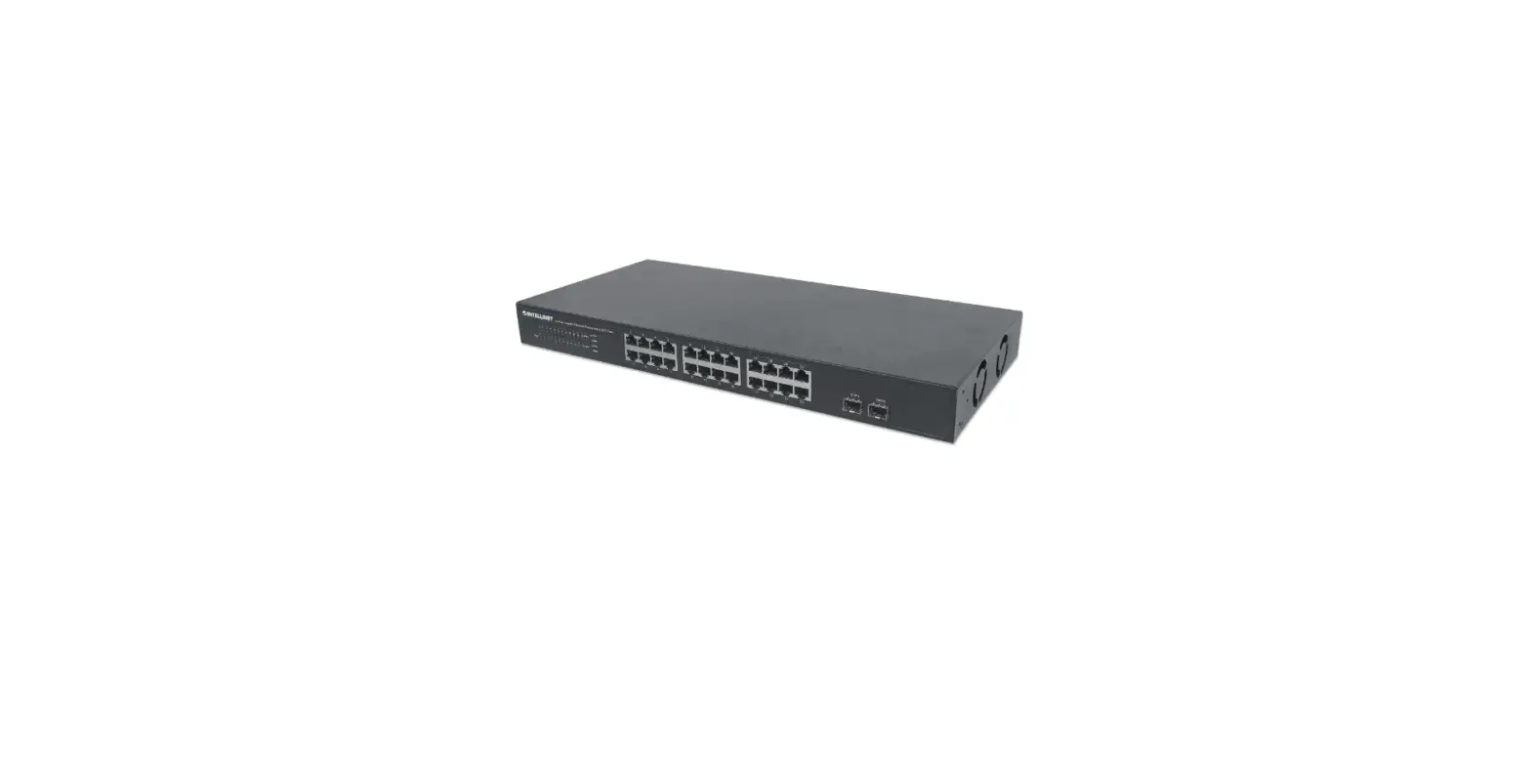
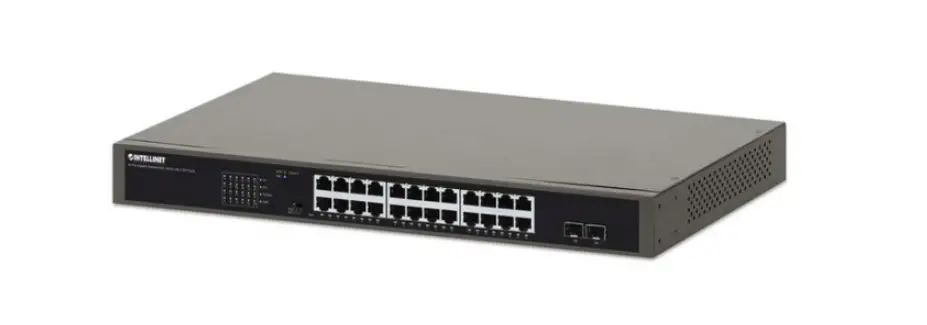
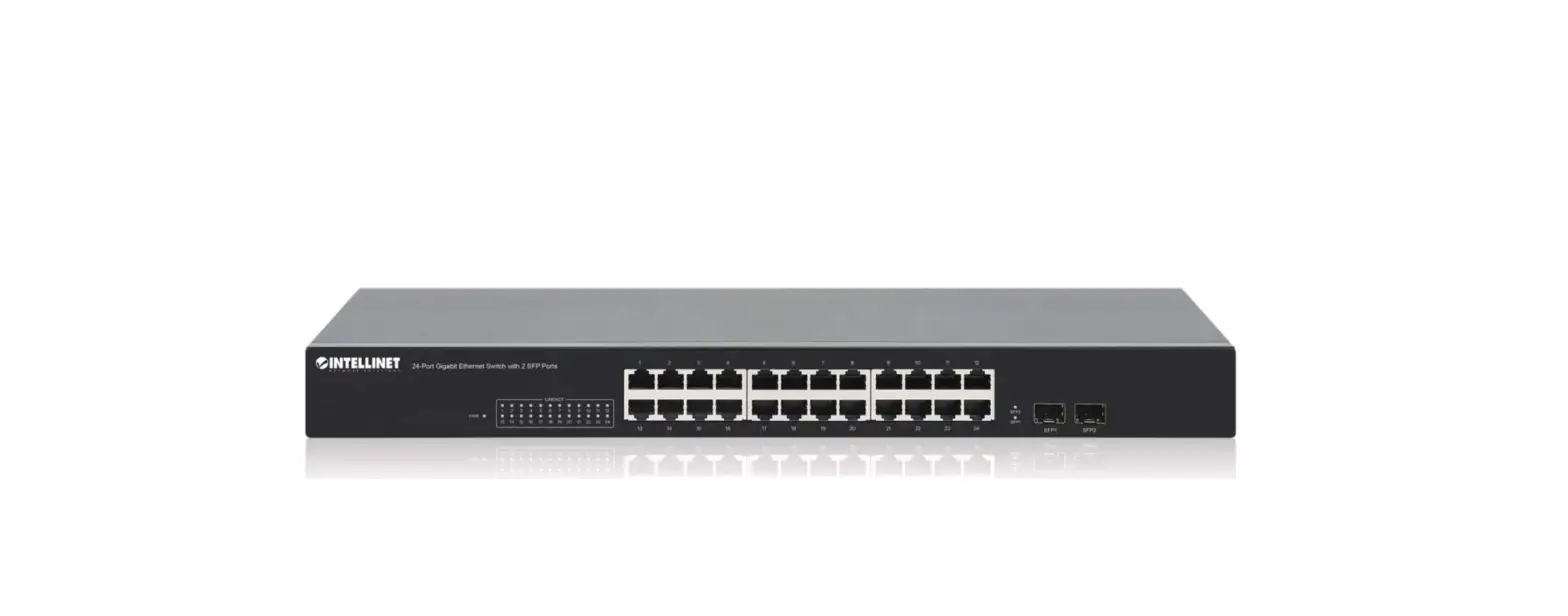
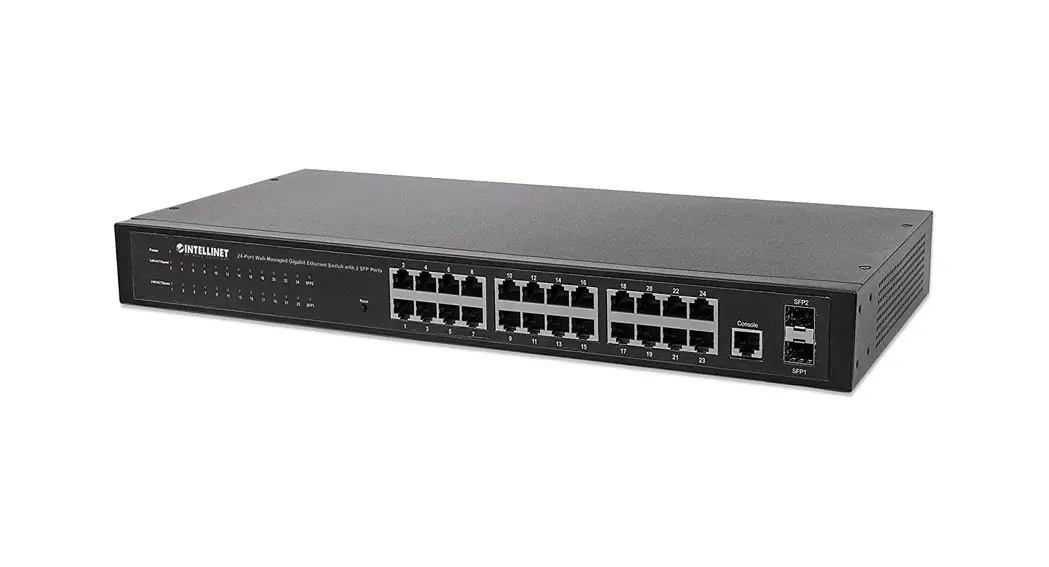
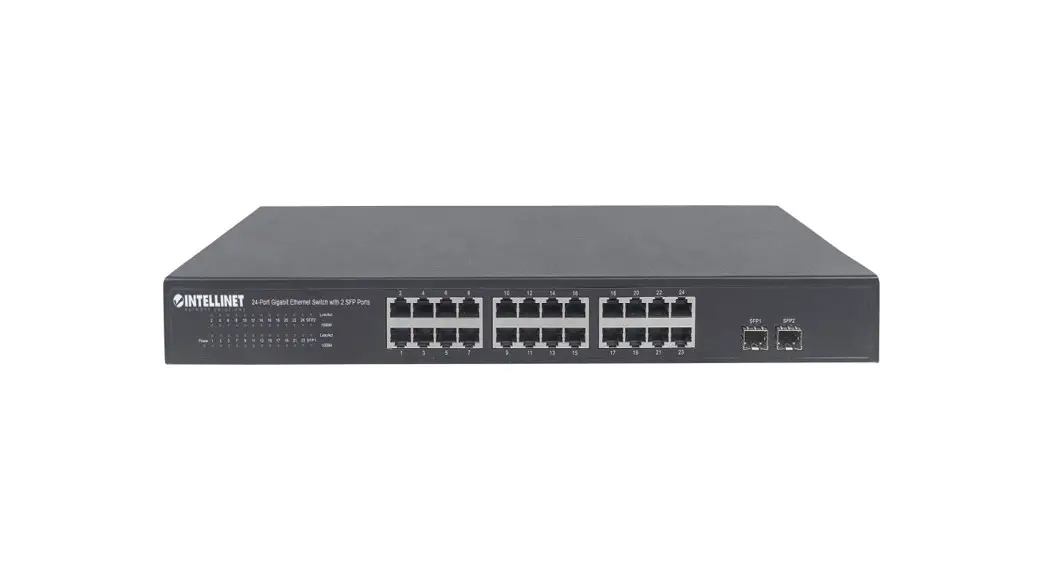
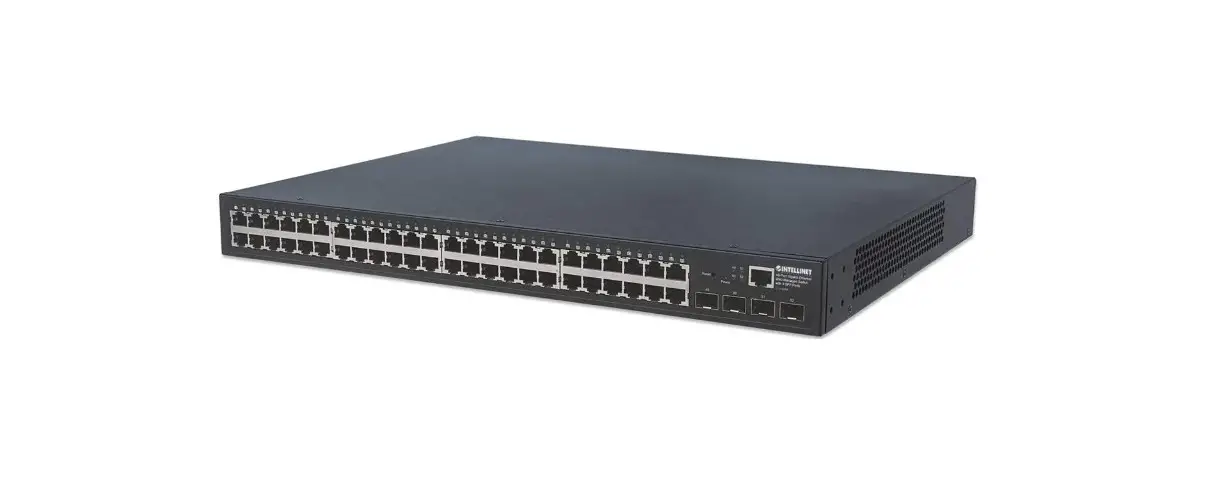
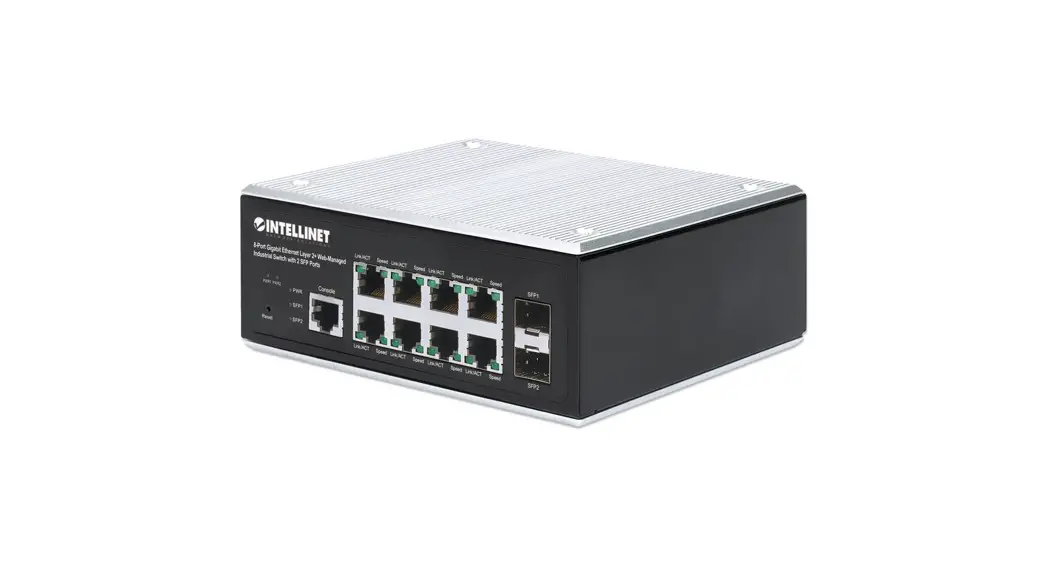
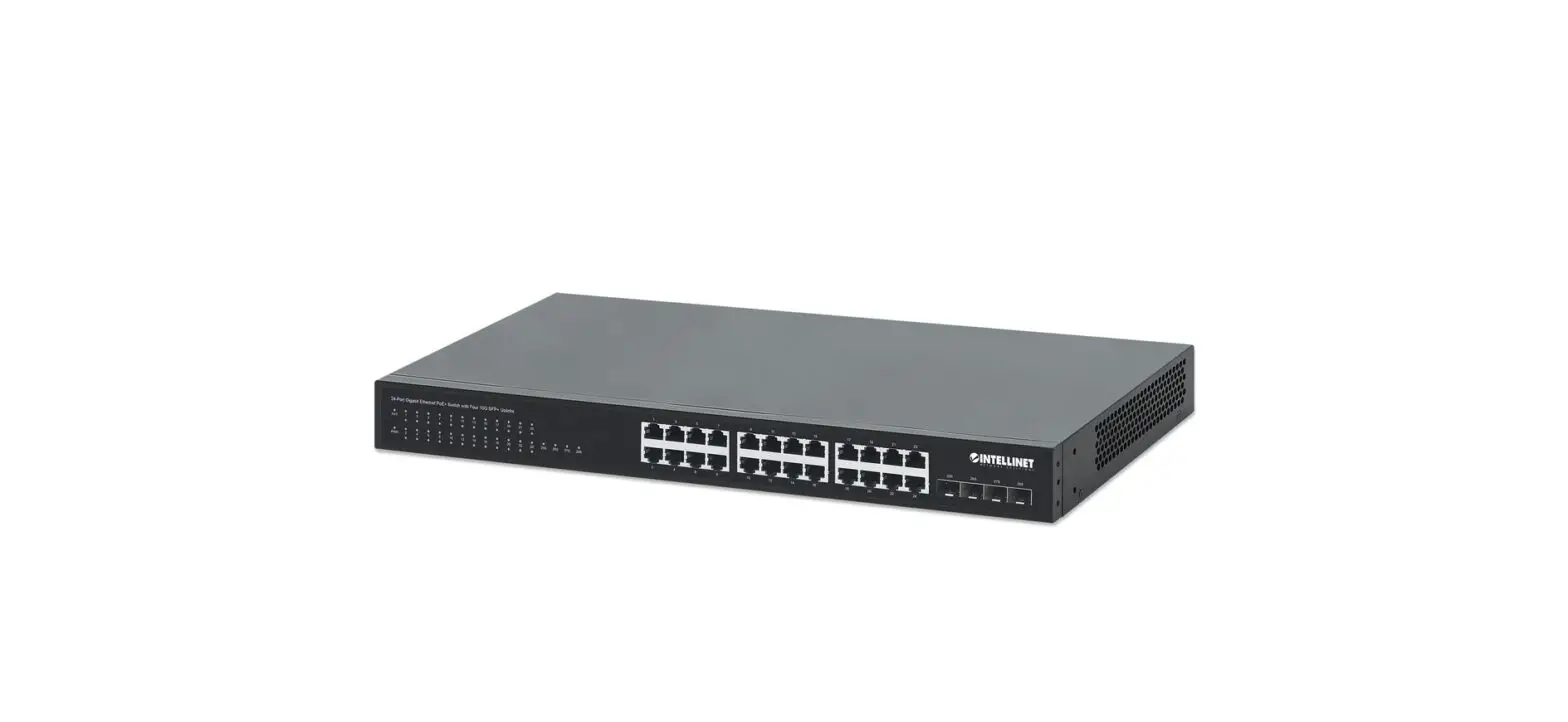
561877 24-Port Gigabit Ethernet Switch with 2 SFP Ports
24-Port Gigabit Ethernet Switch with 2 SFP Ports
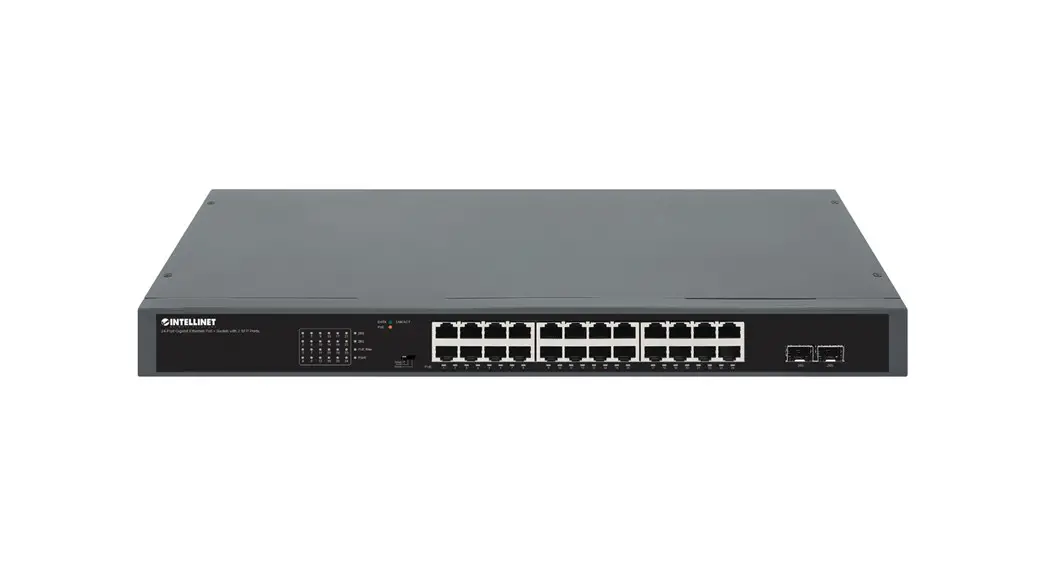
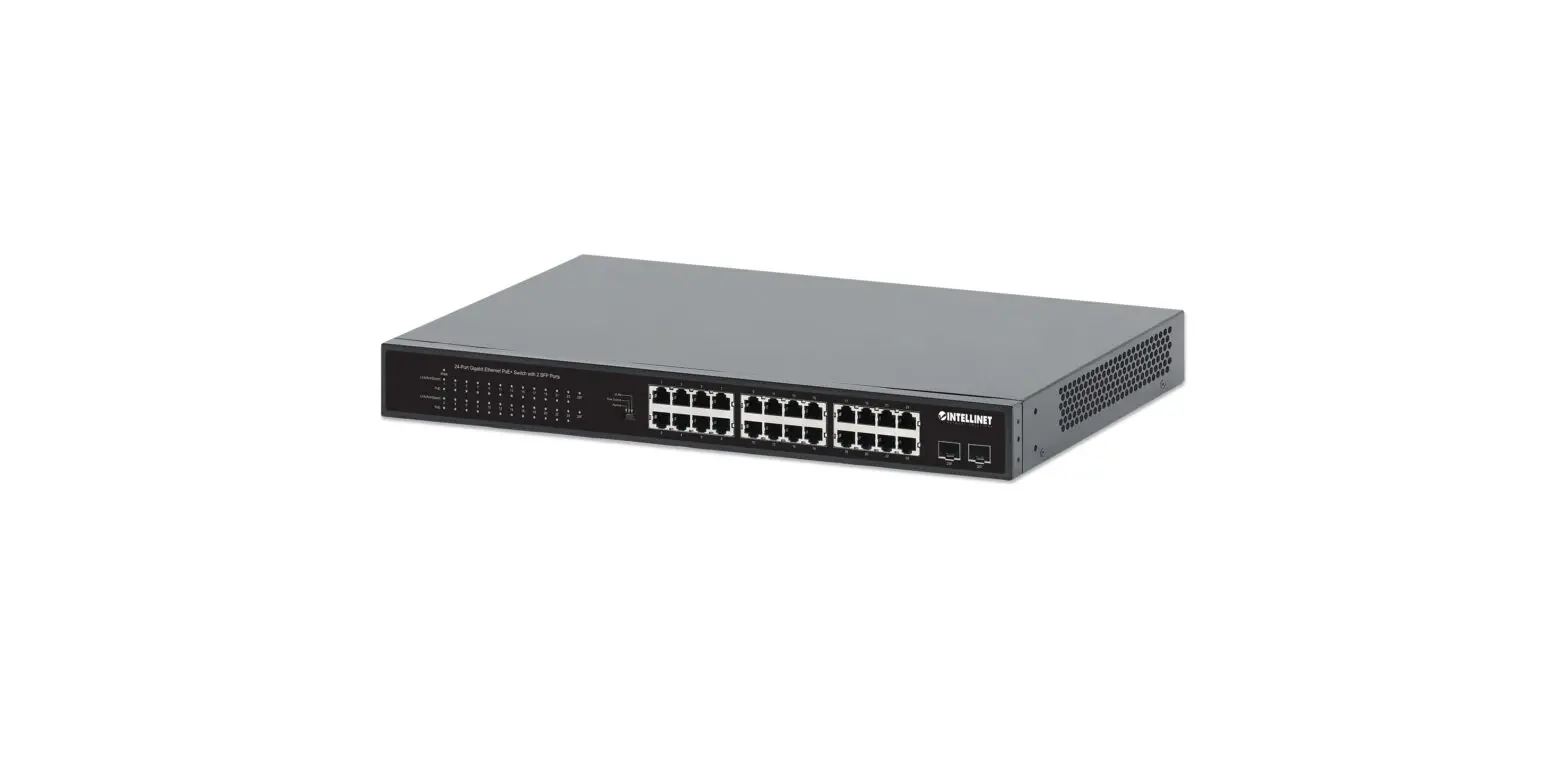
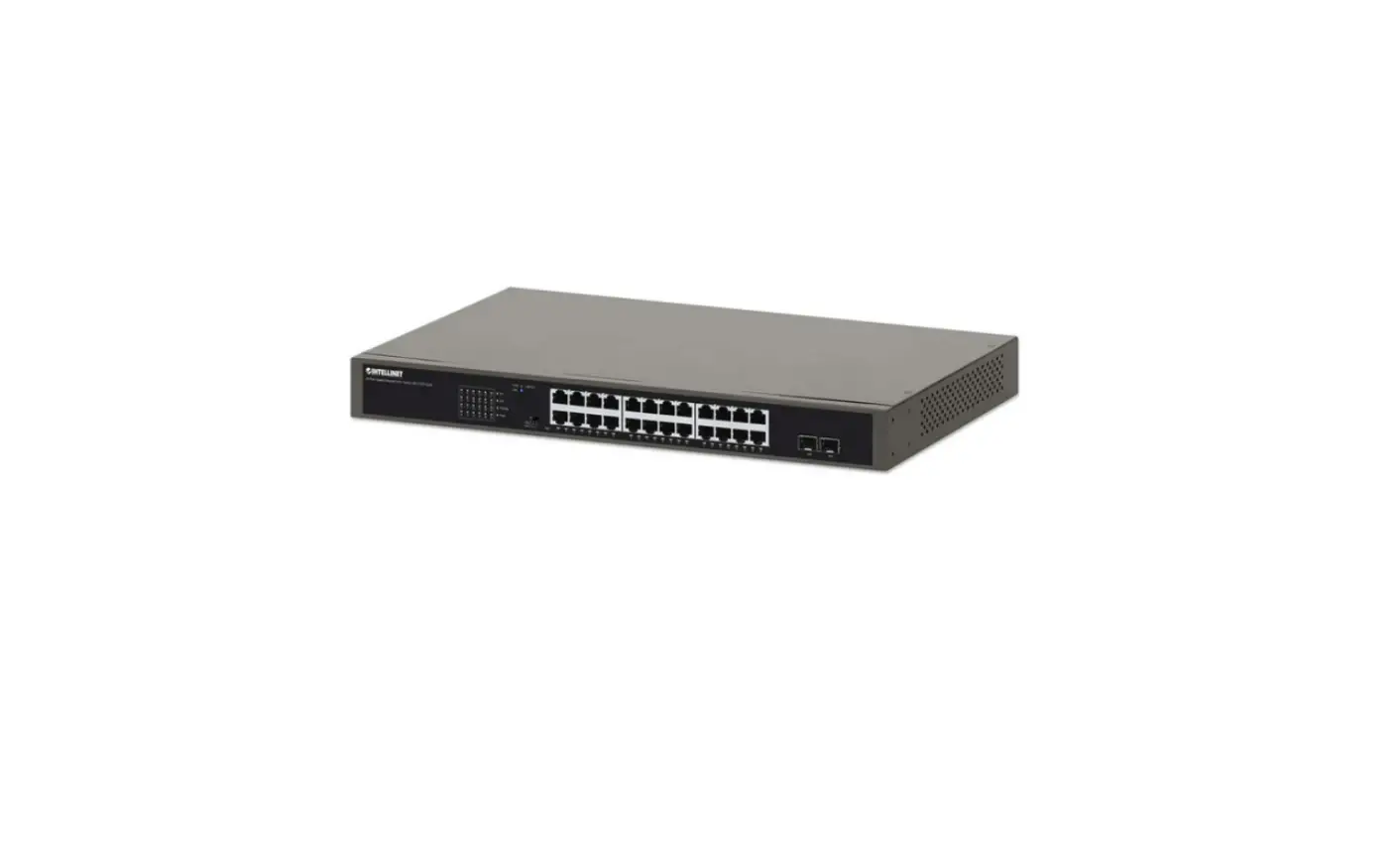
The 24-Port Gigabit Ethernet Switch with 2 SFP Ports is a
high-performance network switch that provides fast and reliable
connectivity for your devices. The switch features 24 RJ45 ports
that support AutoMDI/MDI-X functionality, eliminating the need for
crossover cables and uplink ports. The switch also includes 2 SFP
ports for fiber optic connections, providing flexibility for your
network setup.
Connections & Indicators
The switch features LED indicators that make it easy to monitor
the status of the switch and its connections. The LED colors and
their corresponding status descriptions are:
| LED | Color | Status | Description |
|---|---|---|---|
| PWR | Green | Off/On | Power off/on |
| Ports LINK/ACT, SFP1 | Green | Off/On | No link established/Valid port connection |
| SFP2 | Flashing | – | Sending or receiving data |
If a status LED doesn’t indicate a link, check the corresponding
device for proper setup and operation. Use Cat5/5e/6 UTP/STP cables
for optimal performance.
Power
Use the included power cord to connect the switch to an AC
outlet. Confirm that the power LED on the front panel is lit.
Placement
The switch includes a chassis ground column on the rear panel.
Wire the grounding terminal to an earth grounding object to protect
equipment from external electrical surges. The switch also includes
brackets and screws for optional rack mounting.
Rackmount Instructions:
- Disconnect any cables from the switch.
- Position a bracket over the mounting holes on one side of the
switch and secure it in place with screws. - Repeat Step 2 on the other side of the switch.
- Position the switch in the rack and screw the brackets to the
rack. - Reconnect any cables.
For specifications, visit intellinetnetwork.com. Register your
product at register.intellinet-network.com/r/561877 or scan the QR
code on the cover.
24-Port Gigabit Ethernet Switch with 2 SFP Ports Instructions
Model 561877 Important: Read before use. · Importante: Leer antes de usar.
For additional benefits: Scan to
register your product warranty
or go to: register.intellinet-network.com/r/561877
Connections & Indicators
Instructions
LEDs
LED
Color Status Status Description
The LED indicators make it easier to monitor the switch and its connections.
PWR
Green
Off On
Power Off Power On
Ports All RJ45 ports on the switch support AutoMDI/MDI-X functionality, so crossover cables
LINK/
Off No link established.
ACT, SFP1, Green On
Valid port connection.
SFP2
Flashing Sending or receiving data.
and uplink ports are not needed for connections to PCs, routers, other switches,
etc. Cat5/5e/6 UTP/STP cables provide optimal performance; if a status LED doesn’t
indicate a link, check the corresponding device for proper setup and operation.
Power Use the included power cord to connect the device to an AC outlet. Confirm that the power LED on the front panel is lit.
Placement
Prior to use, it is recommended that the switch be placed/positioned: · on a level surface that can support the weight of the switch · with a minimum of 25 mm (approx. 1″) of clearance on
the top and sides for adequate ventilation · away from sources of electrical noise: radios, transmitters, broadband amplifiers, etc. · where it cannot be affected by excessive moisture
Chassis Ground Column (Rear Panel) Wire the grounding terminal to an earth grounding object to protect equipment from external electrical surges.
Rackmount The switch includes brackets and screws for optional rack mounting. 1 Disconnect any cables from the switch. 2 Position a bracket over the mounting holes on one
side of the switch and secure it in place with screws. 3 Repeat Step 2 on the other side of the switch. 4 Position the switch in the rack and
screw the brackets to the rack. 5 Reconnect any cables.
2& 3
4
For specifications, visit intellinetnetwork.com. Register your product at register. intellinet-network.com/r/561877 or scan the QR code on the cover.
2 English
Anleitung Anschlüsse & anzeigen
LED-Anzeigen Die LEDs vereinfachen das Ablesen der Funktionen und Anschlüsse.
Ports
LED
Farbe Status Bedeutung
PWR
Grün
Aus An
Ausgeschaltet Gerät wird mit Strom versorgt.
LINK/
Aus Verbindung ist nicht hergestellt.
Alle RJ45-Ports unterstützen
ACT, SFP1, Grün An
Verbindung ist hergestellt.
Auto- MDI/MDI-X Funktionalität,
SFP2
Blinkend Senden oder Empfangen von Daten.
daher werden Crosskabel und
Uplink-Ports für Verbindungen zu PCs, Routern, anderen Switchen, etc. nicht
benötigt. Cat5/5e/6- UTP/STP-Kabel bieten die beste Performance. Wenn eine
LED keine Verbindung anzeigt, überprüfen Sie das verbundene Gerät.
Strom Schließen Sie das beiliegende Stromkabel an das Gerät und an eine Steckdose an. Vergewissern Sie sich dass die “Power”-LED aufleuchtet.
Nutzungsumgebung
Er wird empfohlen, den Switch vor der Nutzung folgendermaßen aufzustellen: · auf ebenem Untergrund, der das Gewicht des Switches · mit mindestens 25 mm Abstand zu allen Seiten für angemessenen Luftdurchsatz · fern von anderen Übertragungsgeräten wie Radios, Breitbandverstärker, etc. · nicht in feuchten Umgebungen
Gehäuseerdungsschraube (Rückwand) Verdrahten Sie die Erdungsklemme mit einem Erdungsobjekt, um das Gerät vor externen Überspannungen zu schützen.
Rackmontage Diesem Switch liegen Haltewinkel und Schrauben für optionale Rackmontage bei. 1 Trennen Sie alle Kabel von dem Switch. 2 Platzieren Sie einen Haltewinkel über den
Montagelöchern auf einer Seite des Switches und fixieren Sie ihn mit Schrauben. 3 Wiederholen Sie Schritt 2 auf der anderen Seite des Switches. 4 Platzieren Sie den Switch in dem Rack und schrauben Sie die Haltewinkel fest. 5 Schließen Sie alle Kabel wieder an.
2&3
4
Die Spezifikationen finden Sie auf intellinetnetwork.com. Registrieren Sie Ihr Produkt auf register.intellinet-network.com/r/561877 oder scannen Sie den QR-Code auf dem Deckblatt.
Deutsch 3
Conexiones e Indicadores
Instrucciones
LEDs Los LEDs hacen mas facil monitorear el switch y sus conexiones.
Puertos Todos los puertos RJ45 del switch
LED
Color Estado
PWR
Verde
Encendido Apagado
LINK/ACT,
Apagado
SFP1, Verde Encendido
Operación Encendido Interruptor apagado No hay comunicación. Válida el puerto de conexión
soportan Auto-MDI/MDI-X, los
SFP2
Parpadeando Enviando o recibiendo datos
cables crossover y puertos de
enlace no son necesarios para las conexiones para PCs, routers, otros switches,
etc. los cables Cat5/5e/6 UTP/STP proporcionan un redimiento optimo; Si un
LED no indica conectividad, compruebe las conexiones sean adecuadas.
Alimentación Utilice el cable de alimentación incluido para conectar el dispositivo a una toma de CA. Confirme que el LED en el panel frontal está encendido.
Colocación
Antes de utilizarlo, se recomienda que el switch sea ubicado/fijado: · sobre una superficie plana que pueda soportar el peso del switch · con un mínimo de 25 mm (1″ aprox.) de espacio libre en la parte
superior y en los lados para una ventilación adecuada · lejos de fuentes de ruido eléctrico: radios, transmisores, amplificadores, etc. · donde puede verse afectado por la humedad excesiva
Chasis-Tornillo de toma de tierra (panel trasero)
Conecte un cable desde la conexión de tierra a un objeto con toma de tierra, así el equipo estará protegido frente a sobrecargas eléctricas de origen externo.
Montaje en Rack El switch incluye soportes y tornillos opcionales para el montaje en el Rack. 1 Desconecte cualquier cable del switch. 2 Coloque el soporte sobre los orificios de montaje, ubicados
a un lado del switch y sujételo con los tornillos. 3 Repita el paso 2 en el lado contrario del switch. 4 Coloque el switch en el rack y atornille los soportes al rack. 5 Conecte nuevamente todos los cables.
2&3
4
Para más especificaciones, visite intellinetnetwork.com. Registre el producto en register.intellinet-network.com/r/561877 o escanee el código QR en la cubierta.
4 Español
Instructions Connexions & Indicateurs
Les DEL Les voyants d’état simplifient lire les fonctions et les connexions.
Les ports Tous les ports RJ45 de ce commutateur prennent en charge la fonctionnalité Auto-MDI/MDI-X, donc des câbles
DEL Couleur Statut Indication
PWR
Vert
Éteint Éteindre Allumé Appareil est alimenté.
LINK/ACT, SFP1, Vert SFP2
Éteinte Connexion n’est pas établie.
Allumée Connexion est établie.
Clignote
En train d’émettre ou de recevoir des données
croisés et des liaisons montantes
ne sont pas nécessaires pour des connections aux PC, routeurs, etc. Des
câbles Cat5/5e/6 UTP/STP garantissent des performances optimales; si un
DEL n’indique pas un connexion, vérifiez l’appareil correspondant.
Alimentation Connectez le cordon d’alimentation à l’appareil et à une prise de courant. Vérifiez que le DEL “Power” sur le panneau avant est allumé.
Placement
Avant d’utiliser le commutateur, il est recommandé de le placer: · sur une surface plane qui peut supporter son poids · ac. un écartement minimal de 25 mm d’autres objets pour une ventilation suffisante · loin des appareils électriques qui peuvent être source d`interférence (des radios etc.) · loin des environnements humides
Vis de châssis/Mise à la terre (panneau arrière) Câblez la borne de mise à la terre à un objet de mise à la terre pour protéger l’équipement contre les surtensions électriques externes.
Montage en rack Le commutateur inclut des équerres et vis pour un montage en rack optionnelle. 1 Déconnectez tous les cordons du commutateur. 2 Positionnez une équerre sur les trous de montage à un
côté du commutateur et sécurisez-la avec des vis. 3 Répétez l’étape 2 à l’autre côté du commutateur. 4 Positionnez le commutateur en rack
et vissez les équerres au rack. 5 Reconnectez tous les cordons.
2&3
4
Vous trouvez les spécifications sur intellinetnetwork.com. Enregistrez votre produit sur register.intellinet-network.com/r/561877 ou scannez le code QR figurant sur la couverture.
Français 5
Panel Przedni Urzdzenia
Instrukcje
Diody Diody sygnalizacyjne LED ulatwiaj monitorowanie przelcznika i jego polcze.
Diody Kolor Stan Znaczenie
PWR
Zielony
Wyl. Wl.
Zasilanie wylczone Zasilanie wlczone
Porty
LINK/ACT,
Wyl Nie nawizano polczenia.
Wszystkie porty RJ45 przelcznika obsluguj auto-krosowanie MDI/MDI-X, wic kabel
SFP1, Zielony Wl Prawidlowe podlczenie portu.
SFP2
Miga Wysyla lub odbiera dane
krosowany oraz port uplink nie jest wymagany
do polczenia z komputerami, routerami, czy innymi przelcznikami. Kable Cat5/5e/6 UTP/
STP zapewniaj optymaln wydajno; jeli diody statusu nie sygnalizuj linku, sprawd
podlczone urzdzenie pod ktem poprawnoci konfiguracji oraz jego zasilania.
Zasilanie Uyj znajdujcego si w zestawie kabla zasilajcego do podlczenia przelcznika do gniazda sieci energetycznej. Sprawd, czy dioda zasilania (Power) zapalila si.
Umiejscowienie
Zaleca si, aby urzdzenie w trakcie uytkowania bylo umiejscowione: · na plaskiej powierzchni, w miejscu odpowiednim do wagi urzdzenia · dla zapewnienia dobrej wentylacji w odlegloci co najmniej 25 mm
obudowy urzdzenia od podloa, na którym si znajduje · z dala od ródel zaklóce elektrycznych: radia, nadajniki szerokopasmowe, itp. · z dala od nadmiernej wilgoci
rubka uziemienia obudowy (tylny panel) Podlczy gniazdo uziemienia do instalacji uziemiajcej, aby zabezpieczy sprzt przed zewntrznymi skokami napicia.
Mocowanie Rackowe W zestawie znajduj si uchwyty oraz rubki do opcjonalnego mocowania rackowego. 1 Odlcz wszystkie kable od przelcznika. 2 Umie uchwyt na dziurach na bocznej czci
przelcznika i przykr go rubami. 3 Powtórz czynno z punktu nr 2 dla drugiego uchwytu. 4 Umie przelcznik w racku i przykr go rubami. 5 Podlcz kable.
2&3
4
Specyfikacja techniczna dostpna jest na stronie intellinetnetwork.com. Zarejestruj produkt na register.intellinet-network.com/r/561877 lub zeskanuj znajdujcy si na pokrywie kod QR.
6 Polski
Istruzioni Connessioni e indicatori
LEDs Gli indicatori LED permettono di monitorare facilmente lo switch e le sue connessioni. Porte Tutte le porte RJ45 dello switch
LED Colore Stato
Indicazione
PWR
Verde
Spento Acceso
Spento Acceso
LINK/ACT,
Spento
Nessuna connessione stabilita.
SFP1, Verde Acceso
Porta di connessione valida.
SFP2
Lampeggiante Invio o ricezione dati
supportano la funzionalità
Auto-MDI/MDI-X, così cavi incrociati e porte uplink non sono necessarie per
connessioni a PC, router, altri switch, etc. I cavi Cat5/5e/6 UTP/STP forniscono
ottimali prestazioni; se il LED di stato non indica una connessione, verificare
la corrispondente periferica per un corretto settaggio e funzionamento.
Alimentazione
Utilizzare il cavo di alimentazione per collegare l’apparecchiatura alla presa di corrente
AC. Verificare che il LED di alimentazione sul pannello frontale è illuminato.
Collocamento
Prima di utilizzare il prodotto, si consiglia di fare attenzione a dove viene posizionato lo switch: · su una superficie piana che può supportare il peso dello switch · con un minimo di 25 mm (approssimativamente 1″) di spazio libero verso
l’alto e lateralmente per permettere un’adeguata ventilazione · lontano da sorgenti che possono provocare disturbi e interferenze
elettromagnetiche: radio, trasmettitori, amplificatori di banda, ecc. · dove non venga sottoposto ad eccessiva umidità
Vite di messa a terra del telaio (pannello posteriore)
Collegare il terminale di messa a terra a un oggetto di messa a terra per
proteggere l’apparecchiatura da sovratensioni elettriche esterne.
Montaggio a rack Lo switch include staffe e viti per il montaggio opzionale a rack.
2&3
1 Disconnettere qualsiasi cavo dallo switch.
2 Posizionare la staffa sui fori di fissaggio su un lato
dello switch e assicurarla sul posto con le viti.
4
3 Ripetere il passo 2 sull’altro lato dello switch.
4 Posizionare lo switch sul rack ed avvitare le staffe sul rack.
5 Recollegare i cavi.
Per ulteriori specifiche, visita il sito intellinetnetwork.com. Registra il tuo prodotto su register. intellinet-network.com/r/561877 o scansiona il codice QR presente sulla copertina.
Italiano 7
WASTE ELECTRICAL & ELECTRONIC EQUIPMENT
DISPOSAL OF ELECTRIC AND ELECTRONIC EQUIPMENT
(Applicable In The European Union And Other European Countries With Separate Collection Systems)
ENGLISH: This symbol on the product or its packaging signifie que ce produit ne doit pas être traité comme un
means that this product must not be treated as déchet ménager. Conformément à la Directive 2012/19/EU
unsorted household waste. In accordance with sur les déchets d’équipements électriques et électroniques
EU Directive 2012/19/EU on Waste Electrical and (DEEE), ce produit électrique ne doit en aucun cas être
Electronic Equipment (WEEE), this electrical product
mis au rebut sous forme de déchet municipal non trié.
must be disposed of in accordance with the user’s local Veuillez vous débarrasser de ce produit en Ie renvoyant
regulations for electrical or electronic waste. Please
à son point de vente ou au point de ramassage local
dispose of this product by returning it to your local point dans votre municipalité, à des fins de recyclage.
of sale or recycling pickup point in your municipality.
POLSKI: Jeli na produkcie lub jego opakowaniu
DEUTSCH: Dieses auf dem Produkt oder der Verpackung umieszczono ten symbol, wówczas w czasie utylizacji
angebrachte Symbol zeigt an, dass dieses Produkt
nie wolno wyrzuca tego produktu wraz z odpadami
nicht mit dem Hausmüll entsorgtwerden darf. In
komunalnymi. Zgodnie z Dyrektyw Nr 2012/19/
Übereinstimmung mit der Richtlinie 2012/19/EU des
EU w sprawie zuytego sprztu elektrycznego i
Europäischen Parlaments und des Rates über Elektro- und elektronicznego (WEEE), niniejszego produktu
Elektronik-Altgeräte (WEEE) darf dieses Elektrogerät
elektrycznego nie wolno usuwa jako nie posortowanego
nicht im normalen Hausmüll oder dem Gelben Sack
odpadu komunalnego. Prosimy o usuniecie niniejszego
entsorgt werden. Wenn Sie dieses Produkt entsorgen
produktu poprzez jego zwrot do punktu zakupu
möchten, bringen Sie es bitte zur Verkaufsstelle zurück lub oddanie do miejscowego komunalnego punktu
oder zum Recycling-Sammelpunkt Ihrer Gemeinde.
zbiórki odpadów przeznaczonych do recyklingu.
ESPAÑOL: Este símbolo en el producto o su embalaje
ITALIANO: Questo simbolo sui prodotto o sulla relativa
indica que el producto no debe tratarse como residuo
confezione indica che il prodotto non va trattato
doméstico. De conformidad con la Directiva 2012/19/EU de come un rifiuto domestico. In ottemperanza alla
la UE sobre residuos de aparatos eléctricos y electrónicos Direttiva UE 2012/19/EU sui rifiuti di apparecchiature
(RAEE), este producto eléctrico no puede desecharse se elettriche ed elettroniche (RAEE), questa prodotto
con el resto de residuos no clasificados. Deshágase de
elettrico non deve essere smaltito come rifiuto
este producto devolviéndolo a su punto de venta o a
municipale misto. Si prega di smaltire il prodotto
un punto de recolección municipal para su reciclaje.
riportandolo al punto vendita o al punto di raccolta
FRANÇAIS: Ce symbole sur Ie produit ou son emballage municipale locale per un opportuno riciclaggio.
8
WARRANTY INFORMATION · GARANTIEINFORMATIONEN · GARANTÍA · GARANTIE · GWARANCJI · GARANZIA
intellinetnetwork.com
EN MÉXICO: Póliza de Garantía Intellinet Network Solutions — Datos del importador y responsable ante el consumidor IC Intracom México, S.A.P.I. de C.V. · Av. Interceptor Poniente # 73, Col. Parque Industrial La Joya, Cuautitlán Izcalli, Estado de México, C.P. 54730, México. · Tel. (55)1500-4500 La presente garantía cubre los siguientes productos contra cualquier defecto de fabricación en sus materiales y mano de obra. A Garantizamos los productos de limpieza, aire comprimido y consumibles, por 60 dias a partir de la fecha de entrega,
o por el tiempo en que se agote totalmente su contenido por su propia función de uso, lo que suceda primero. B Garantizamos los productos con partes móviles por 3 años. C Garantizamos los demás productos por 5 años (productos sin partes móviles), bajo las siguientes condiciones:
1 Todos los productos a que se refiere esta garantía, ampara su cambio físico, sin ningún cargo para el consumidor. 2 El comercializador no tiene talleres de servicio, debido a que los productos que se garantizan
no cuentan con reparaciones, ni refacciones, ya que su garantía es de cambio físico. 3 La garantía cubre exclusivamente aquellas partes, equipos o sub-ensambles que hayan
sido instaladas de fábrica y no incluye en ningún caso el equipo adicional o cualesquiera que hayan sido adicionados al mismo por el usuario o distribuidor. Para hacer efectiva esta garantía bastará con presentar el producto al distribuidor en el domicilio donde fue adquirido o en el domicilio de IC Intracom México, S.A.P.I. de C.V., junto con los accesorios contenidos en su empaque, acompañado de su póliza debidamente llenada y sellada por la casa vendedora (indispensable el sello y fecha de compra) donde lo adquirió, o bien, la factura o ticket de compra original donde se mencione claramente el modelo, número de serie (cuando aplique) y fecha de adquisición. Esta garantía no es válida en los siguientes casos: Si el producto se hubiese utilizado en condiciones distintas a las normales; si el producto no ha sido operado conforme a los instructivos de uso; o si el producto ha sido alterado o tratado de ser reparado por el consumidor o terceras personas.
REGULATORY STATEMENTS Class A
This equipment has been tested and found to comply with the limits for a Class A digital device, pursuant to Part 15 of the Federal Communications Commission (FCC) Rules. These limits are designed to provide reasonable protection against harmful interference when the equipment is operated in a commercial environment. This equipment generates, uses and can radiate radio frequency energy, and if not installed and used in accordance with the instruction manual may cause harmful interference to radio communications. Operation of this equipment in a residential area is likely to cause harmful interference, in which case the user will be required to correct the interference at his own expense. Any changes or modifications made to this equipment without the approval of the manuafacturer could result in the product not meeting the Class A limits, in which case the FCC could void the user’s authority to operate the equipment.
9
CE ENGLISH : This device complies with the requirements of CE 2014/30/EU and/
or 2014/35/EU. The Declaration of Conformity for is available at: DEUTSCH : Dieses Gerät enspricht der CE 2014/30/EU und / oder 2014/35/EU. Die
Konformitätserklärung für dieses Produkt finden Sie unter: ESPAÑOL : Este dispositivo cumple con los requerimientos de CE 2014/30/EU y / o
2014/35/EU. La declaración de conformidad esta disponible en: FRANÇAIS : Cet appareil satisfait aux exigences de CE 2014/30/EU et / ou 2014/35/EU.
La Déclaration de Conformité est disponible à: POLSKI : Urzdzenie spelnia wymagania CE 2014/30/EU I / lub 2014/35/EU. Deklaracja
zgodnoci dostpna jest na stronie internetowej producenta: ITALIANO : Questo dispositivo è conforme alla CE 2014/30/EU e / o 2014/35/EU.
La dichiarazione di conformità è disponibile al:
support.intellinet-network.com/barcode/561877
North America IC Intracom America 550 Commerce Blvd. Oldsmar, FL 34677
USA
Asia & Africa IC Intracom Asia 4-F, No. 77, Sec. 1, Xintai 5th Rd. Xizhi Dist., New Taipei City 221
Taiwan
Europe IC Intracom Europe Löhbacher Str. 7, D-58553
Halver Germany
All trademarks and trade names are the property of their respective owners. © IC Intracom. All rights reserved. Intellinet Network Solutions is a trademark of IC Intracom, registered in the U.S. and other countries. 10
NOTES 11
intellinetnetwork.com
Printed on recycled paper.
INT_561877_QIG_0122_REV_5.11
 Intellinet Network Solutions - Provider of PoE and Data Center Product – Intellinet Solutions
 DropCatch.com
 Intellinet Network Solutions Account and Product Registration