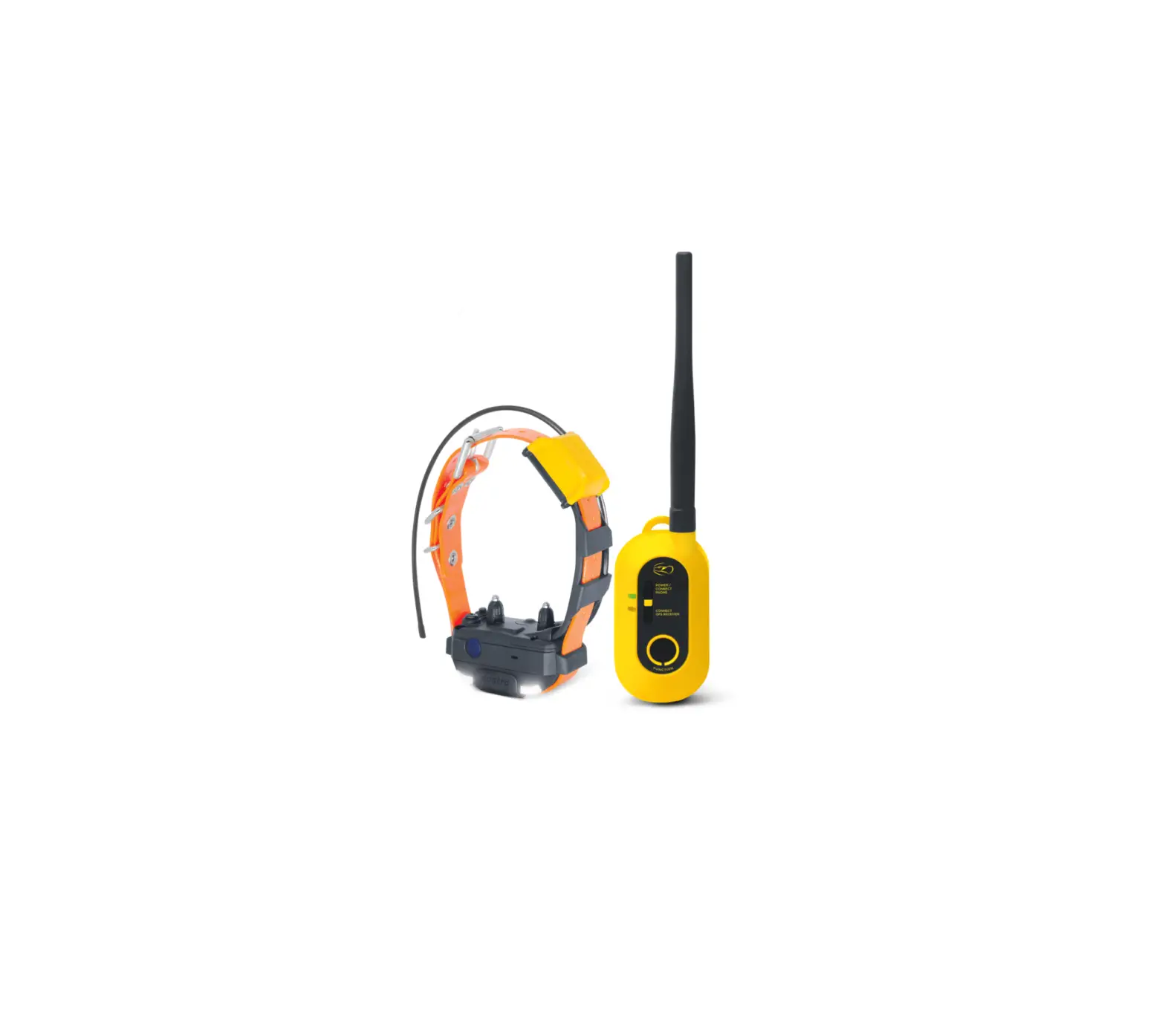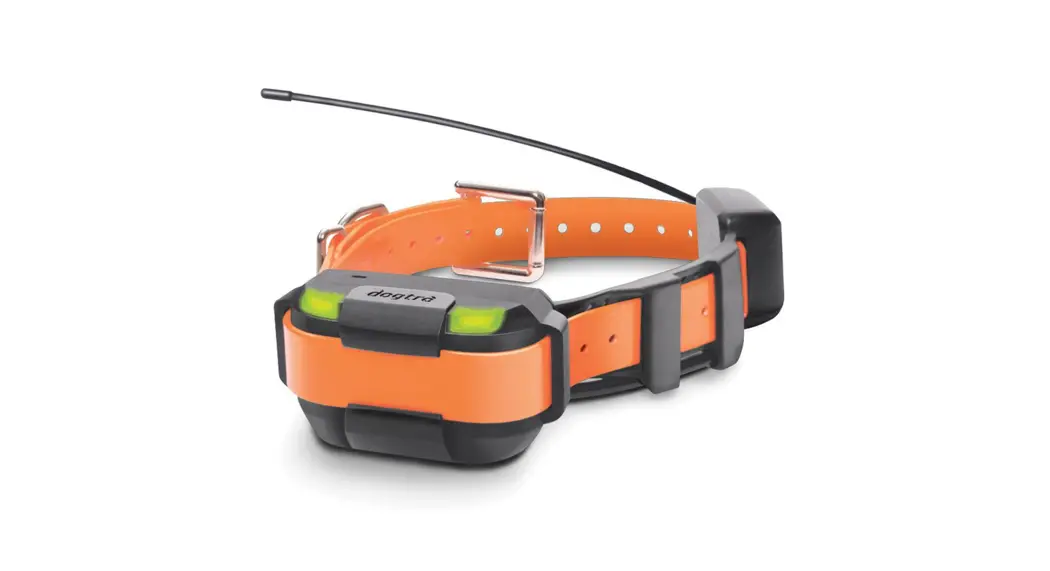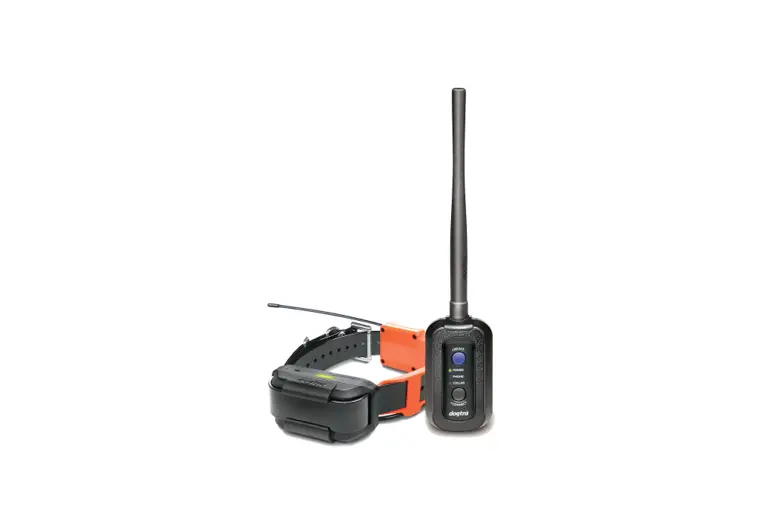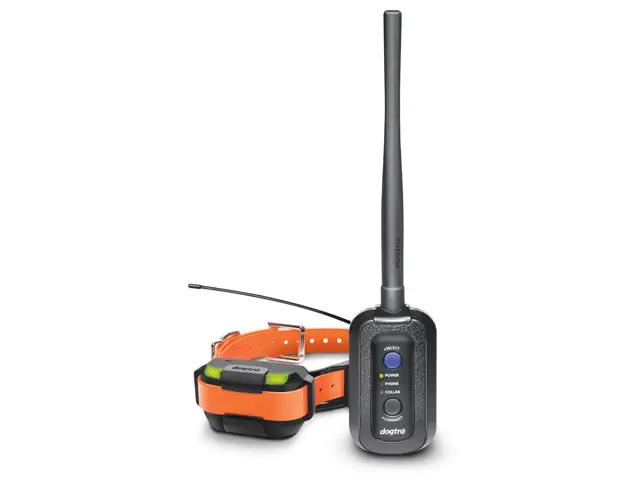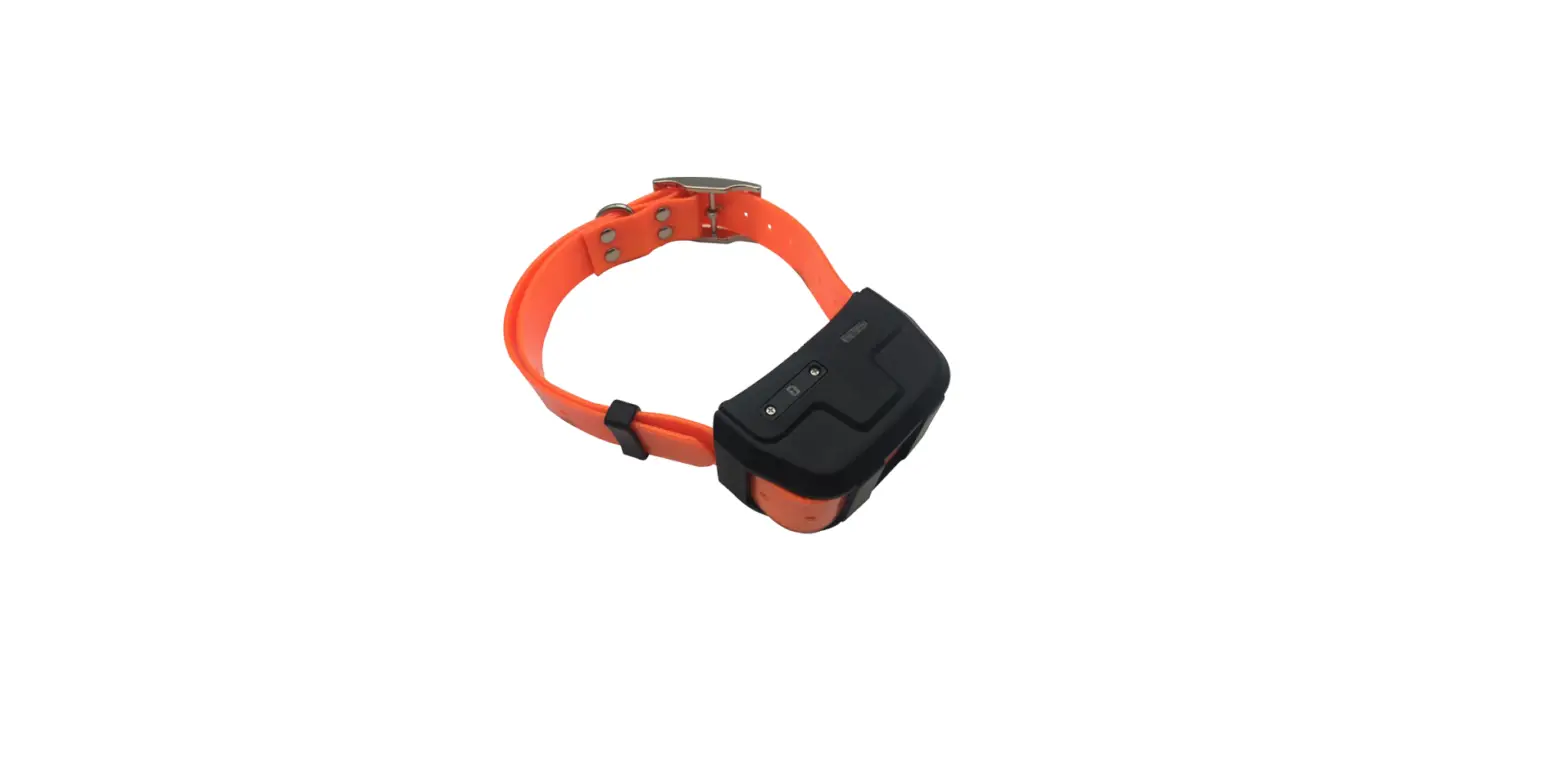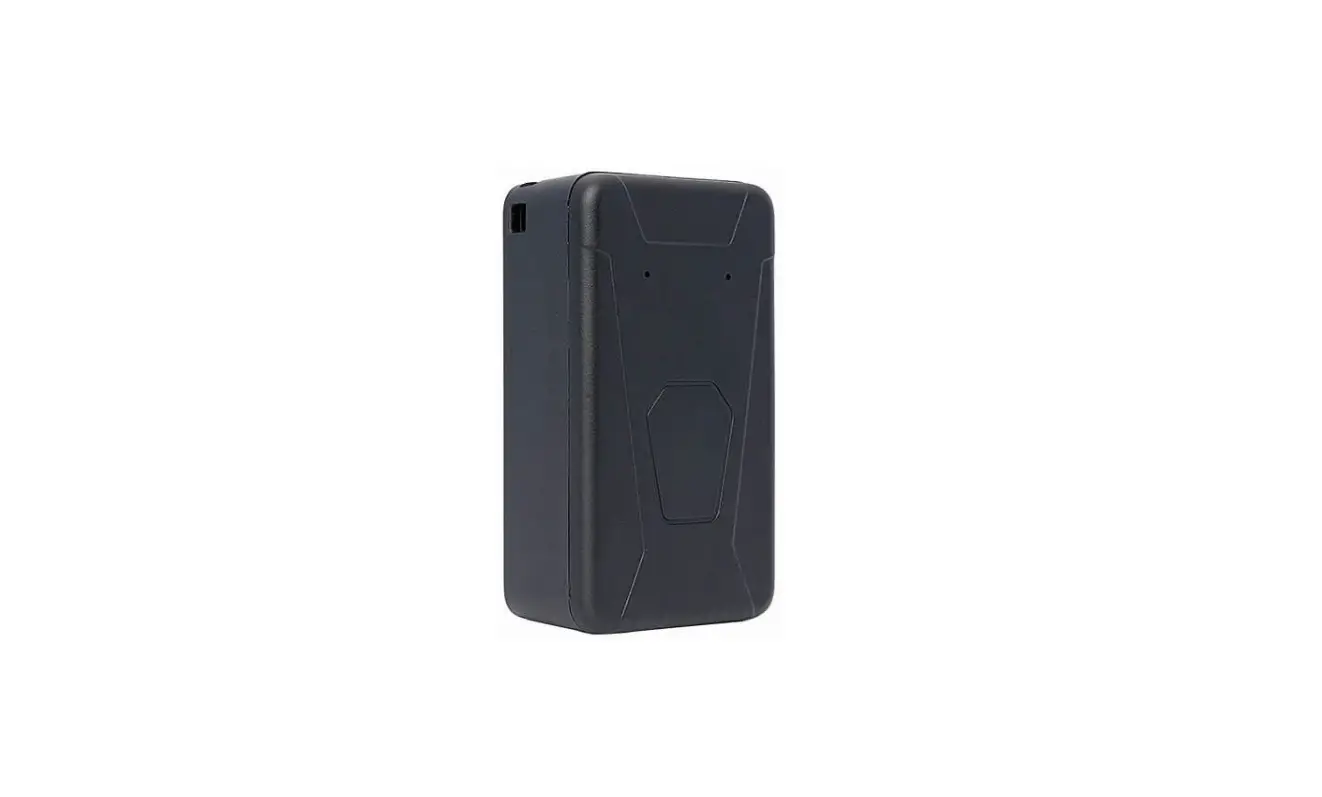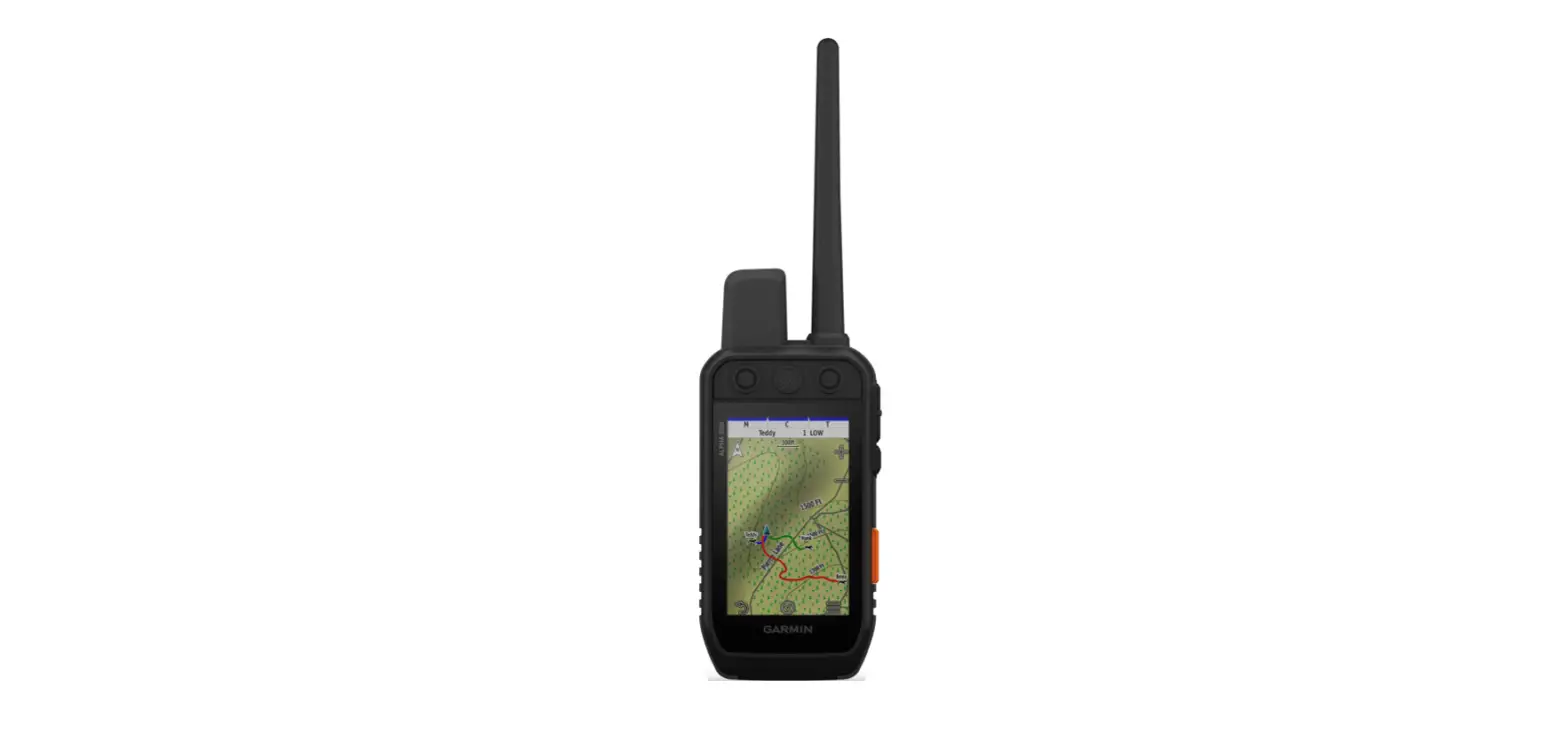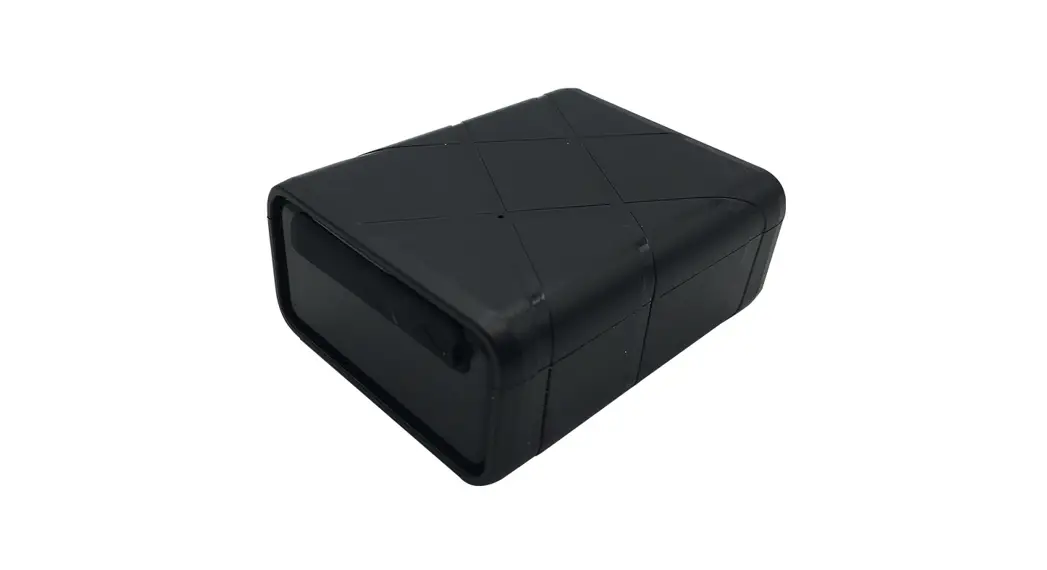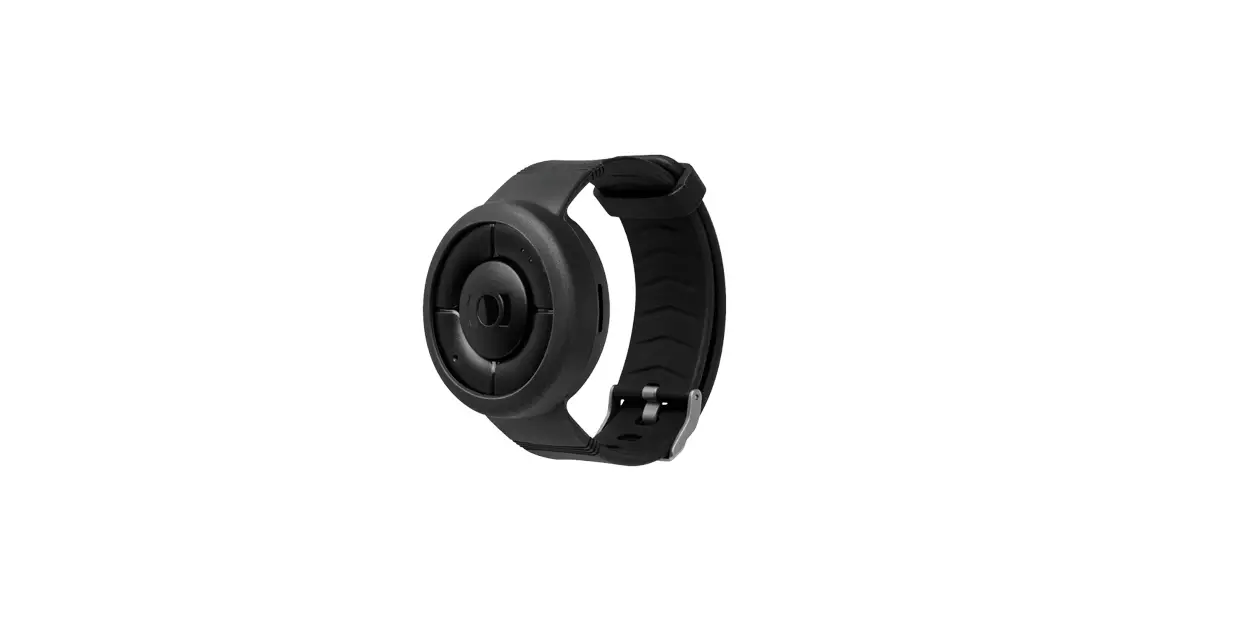
 PT20U Pathfinder 2 Mini Advanced GPS Tracking and Training Device
Owner’s Manual
Please read this manual thoroughly before operating the Dogtra PATHFINDER2 MINI.
IMPORTANT SAFETY AND PRODUCT INFORMATION
DOG SAFETY
Proper Use
Dogtra products should be used to train, educate, monitor, or track dogs. Each dog may have different tolerance for and reaction to Dogtra products. Closely observe your dog when determining the right level of stimulation, receiver fit, and other settings of your Dogtra product.
Training Methods
Dogtra products may be used with a variety of training methods that provide clear and consistent messages to your dog.
Fit and Wear
Proper fit and wear of your Dogtra product is important for the comfort of your dog as well as the functioning of your product. Dogtra receivers should fit comfortably and not too tightly so that the receiver stays in place and does not move around your dog’s neck. Do not leave a receiver on your dog for an extended time. Although each dog is different, Dogtra recommends that its receivers be used a maximum of 4 to 6 hours at any one time on your dog. A receiver that is used for overly long periods or that fits improperly may cause skin irritation or sores on your dog’s neck. Regularly check the receiver’s contact area on your dog’s skin. If your dog exhibits skin irritation or sores, stop using the Dogtra product and consult with a veterinarian.
UNAUTHORIZED USE
Dogtra products should be used only in a safe and responsible manner to train, educate, monitor, or track dogs. Dogtra products are not intended for use in any other manner; they are not intended for use with other animals or with humans; and they are not intended for use in unsafe situations or environments that could lead to death, injury, loss or damage.
BATTERY
Your Dogtra product contains batteries. Do not attempt to replace the battery yourself. Contact Dogtra or your Dogtra retailer to replace your battery. Dispose of batteries as provided by your local regulations. Do not disassemble, crush, heat, or otherwise alter the battery as it may cause fire, explosion, injury and/or property damage.
OWNER SAFETY
Handling and Repair
Dogtra products can be damaged or malfunction if dropped, especially on hard surfaces, or otherwise improperly handled. Do not use a damaged or malfunctioning product as it may cause injury or property damage. If your product is damaged or malfunctions, contact Dogtra to obtain service before using the product.
Electrical Product
Your Dogtra product contains electrical components and batteries. Do not use or keep your product near heat or flammable sources. Such use or storage may damage your product and/or cause fire, explosion, injury, or property damage.
Charging
Only charge your Dogtra product with its accompanying Dogtra charger. Do not attempt to charge your product in any other manner or in temperatures less than 32°F (0°C) or over 113°F (45°C) as it may cause fire, explosion, injury, and/or property damage. If you notice damage to your product, its charger, or battery, obtain service from Dogtra before charging the product. Do not use more than one splitter cable with a single battery charger.
Medical Device Interference
Dogtra products contain electrical and magnetic components that emit low-level electromagnetic waves and radio frequencies. These electromagnetic waves or radio frequencies may interfere with pacemakers, defibrillators, or other medical devices. Consult your physician or medical device maker before using your medical device with a Dogtra product. If you think that your Dogtra
product is interfering with your pacemaker, defibrillator, or another medical device, stop using the Dogtra product.
Aggressive Dogs
Do not use Dogtra products with aggressive dogs as such dogs may react adversely and cause injury to people or other dogs. Seek the assistance of a dog-training specialist or veterinarian when dealing with aggressive dogs.
Children
Dogtra products are not toys. Adult supervision and close attention are necessary when Dogtra products are used by or near children.
PACKAGE CONTENTS
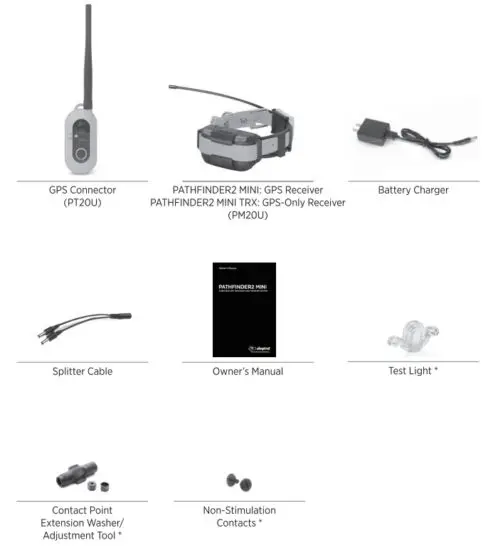
- Not included with PATHFINDER2 MINI TRX
MAIN FEATURES
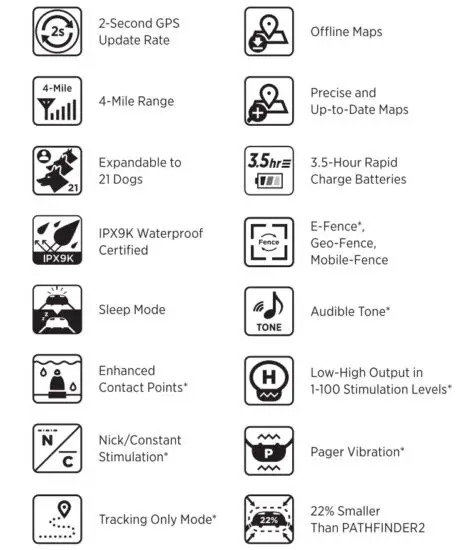
OVERVIEW
 | 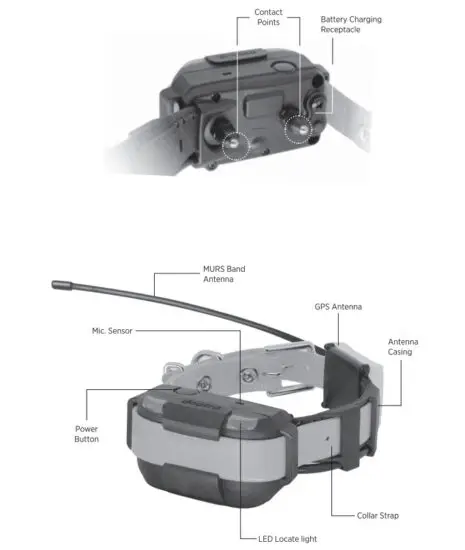 |
PATHFINDER2 MINI
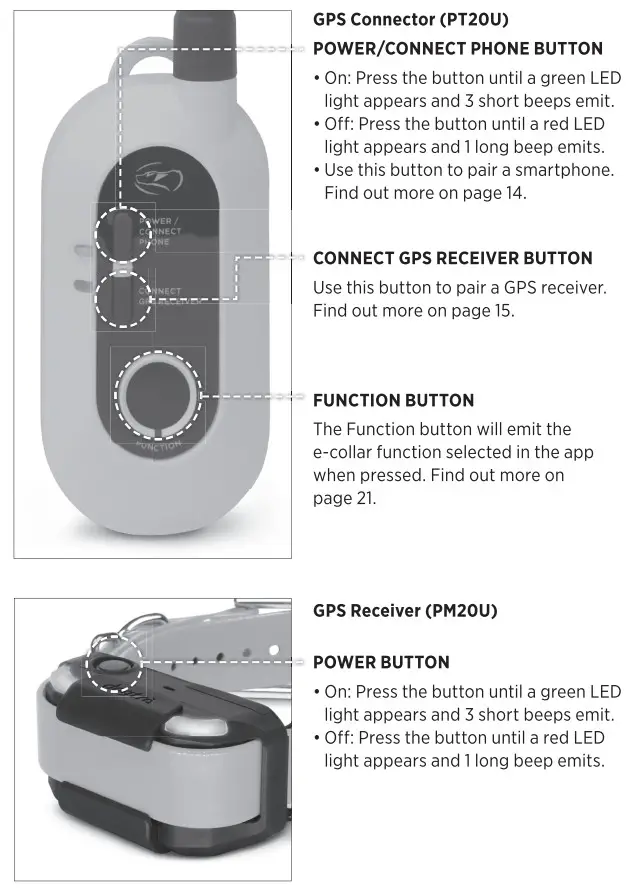
GPS Connector (PT20U)
UNDERSTANDING YOUR TRAINING SYSTEM
BUTTON FUNCTION
LED INDICATOR
GPS Connector (PT20U)
The Power LED blinks every 2 seconds while turned on. The LED colors represent the battery life:
Green: 50-100%
Orange: 10-49%
Red: 0-9%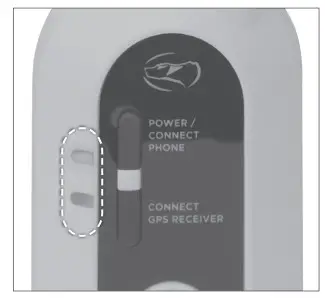
GPS Receiver (PM2OU)
The LED on the GPS receiver blinks every 2 seconds while turned on. The LED colors represent the battery life:
Green: 50-100%
Orange: 10-49%
Red: 0-9%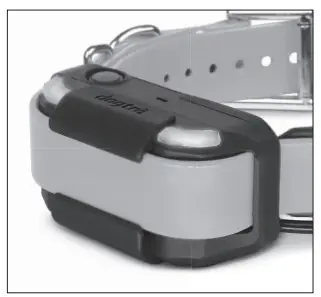
GETTING STARTED
DOWNLOADING THE PATHFINDER2 APP
To download the app:
- Go to the app store on your device.
- Search for the “Dogtra PATHFINDER2” app.
- Download the app on your device.

Note: Make sure to download the Dogtra PATHFINDER2 app as the previous app version is not compatible.
The app Is currently compatible with:
- Bluetooth 5.0 and above. Check the version with the phone manufacturer.
- iOS: 12.1 and above, iPhone 8 and above
- Apple Watch Series 5 and above
- Android: 6.0 and above
Compatibilities are subject to change.
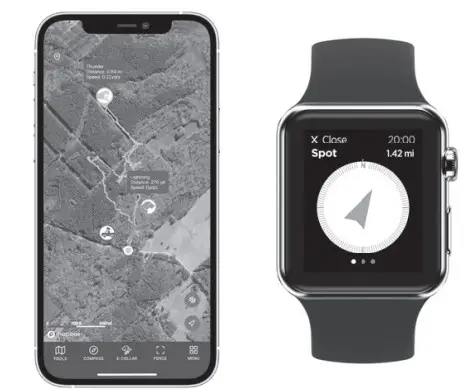
ONLINE WEB MANUAL
 https://dogtrapathfinder.com/manuals/pathfinder-2
Use the QR code to check out the full version of the PATHFINDER2 manual and more For more information, please check www.DogtraPATHFINDER.com.
*PATHFINDER2 app and screenshot images are subject to change as Dogtra continues to update the software
PAIRING YOUR DEVICE
The PATHFINDER2 GPS connector connects a smartphone and receiver.
These devices need to be paired for the system to work properly.
PAIRING THE GPS CONNECTOR TO A PHONE 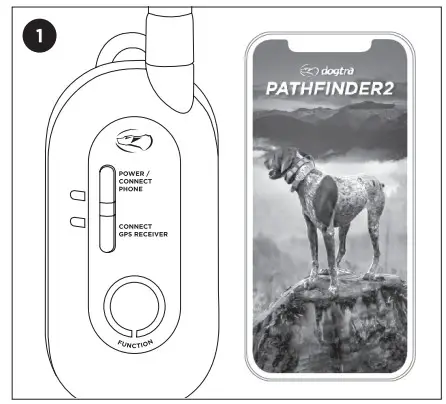
Make sure the PATHFINDER2 app has been downloaded on your phone. Turn on Bluetooth on your phone and place the GPS connector next to your phone. 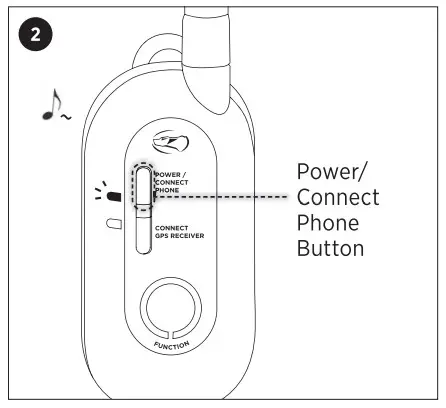
Make sure the GPS connector is off.
Press and hold the Power/Connect Phone Button until green LED light flashes and a melody plays to search for your phone. 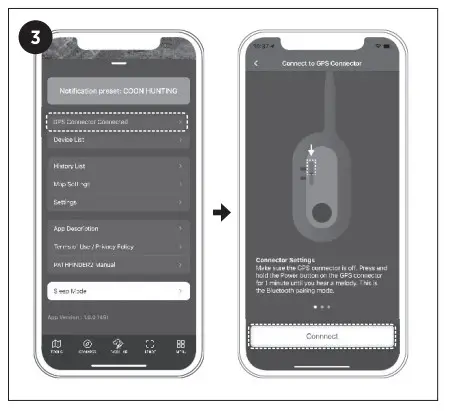
In the app, go to the Menu tab and click on ‘Connection Failed with GPS Connector.’ Press the ‘Connect’ button once the pairing screen shows on the app. 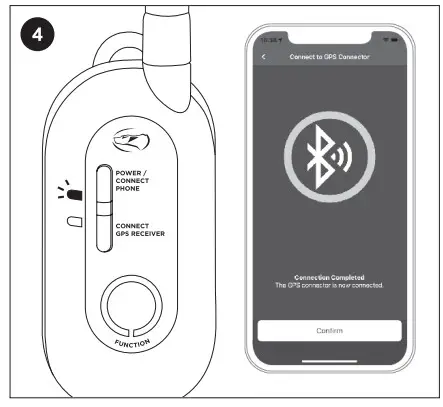
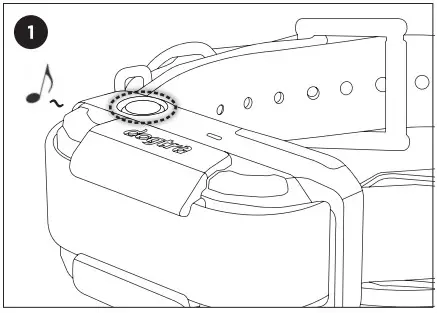
Your phone should show a connection completion screen and the green LED will blink slowly on your GPS connector.
PAIRING THE RECEIVER TO THE GPS CONNECTOR
Make sure the receiver is turned off.
Press and hold the power button for more than 3 seconds until the green LED rapidly flashes and a melody plays. Release the button. 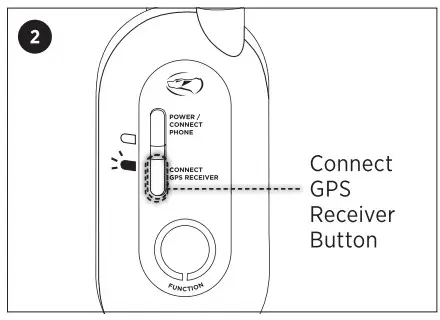
Make sure the connector is turned on. Press and hold the Connect GPS Receiver Button until the green LED rapidly flashes. 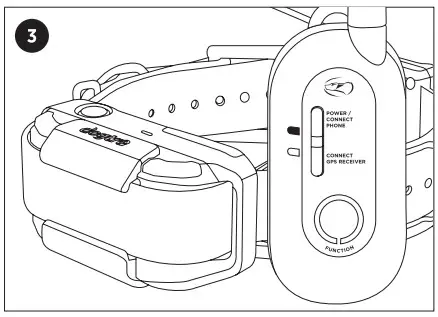
The pairing is complete when the melody stops and the LED lights stop rapidly flashing.
KEY FEATURES OF THE PATHFINDER2 APP
MAP 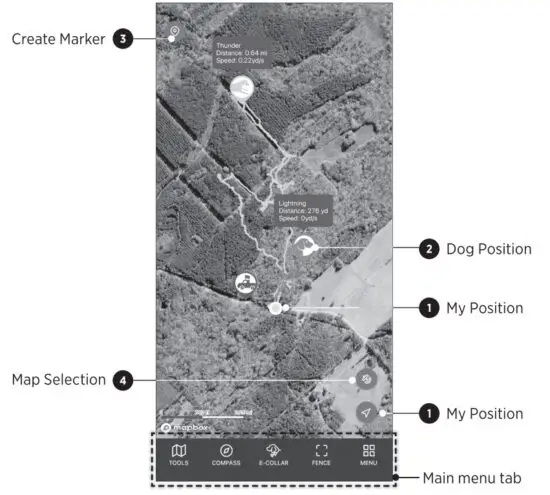
| Icon | Description |
 | 1. My Position The blue dot will show your location on the map. Press the My Position button on the bottom right corner to recenter your location on the map. |
 | 2. Dog Position The dog icon shows your dog’s current action status. It also provides Traveled Distance, Current Speed, Altitude, Battery, Updated Time, and Shared Device. |
 | 3. Create a Marker Press the icon to add a marker. You can create markers for ‘My Truck’ (car location), Truck, Dog, Tree, Favorite, or Note. |
 | 4. Map Selection Select general, satellite, or terrain map. |
Map Features
Zoom
- Zoom in once: double tap the map with one finger.
- Zoom out once: single tap the map with two fingers.
- Use two fingers to pinch screen to zoom in and stretch the screen to zoom out.
Scroll
- You can scroll by using one finger to drag the map to the area you want to view.
Tilt
- Tilt the map by using two fingers and dragging the map up or down.
Rotate - Rotate the map by using two fingers and applying a turning motion.
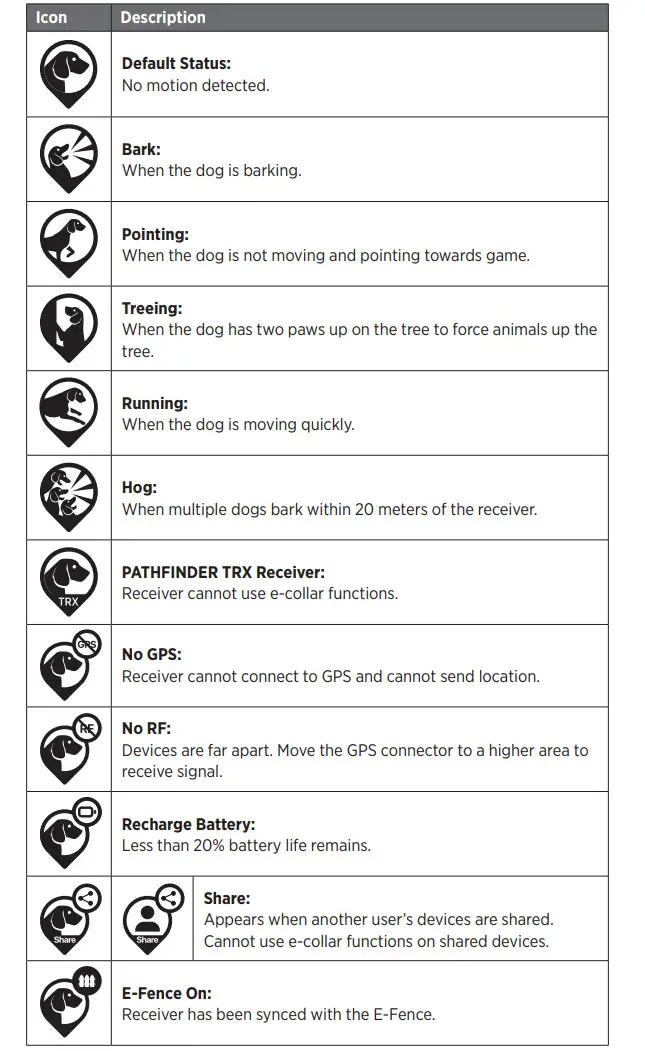
Dog Icons
TOOLS TAB
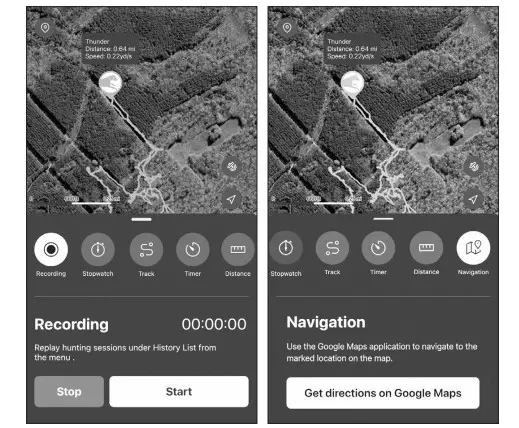
| Icon | Description |
 | Recording: Record sessions for location and statuses. Replay sessions from the History List on the menu. |
 | Stopwatch: Measure the amount of time that has elapsed, which will be visible on the map. |
 | Track: View track lines on the map for the past 5 hours and reset any track information. |
 | Timer: Set a timer that will alarm at the end of a time interval, which will be visible on the map. |
 | Distance: Measure the distance between two points on the map. |
 | Navigation: Use Google Maps to navigate to the marked location. Google Maps must be installed. |
COMPASS TAB
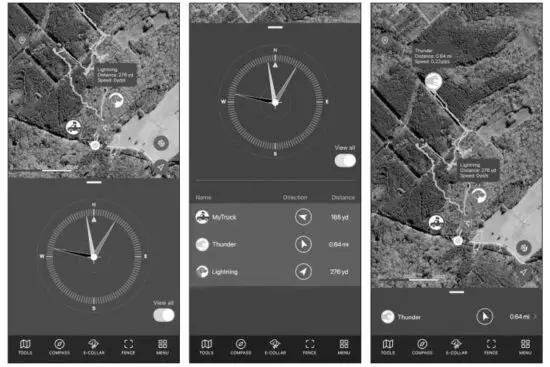
The Compass tab allows you to:
- View the direction and distance of dogs, selected marker, or hunter at a glance by swiping the bottom slider up.
- See each marker by swiping the slider left or right on the smallest slider size.
- Add ‘My Truck’ marker to view distance and direction.
- Use the ‘View All’ button to view all dogs and hunters at once. Dogs and hunters are not displayed when hidden or offline.
The Compass tab allows you to: - View the direction and distance of dogs, selected marker, or hunter at a glance by swiping the bottom slider up.
- See each marker by swiping the slider left or right on the smallest slider size.
- Add ‘My Truck’ marker to view distance and direction.
- Use the ‘View All’ button to view all dogs and hunters at once. Dogs and hunters are not displayed when hidden or offline.
Notes:
- Metal phone cases or metal objects attached to the phone will interfere with the compass.
- The phone may need to be calibrated for the compass to work properly.
E-COLLAR TAB
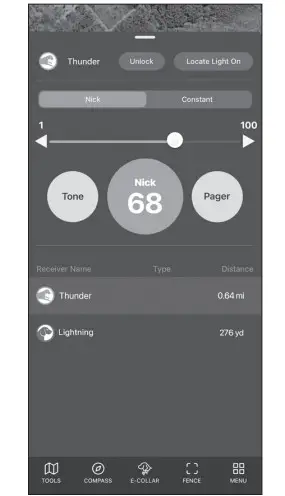
Nick/Constant
Nick will emit a single rapid pulse of stimulation.
Constant will provide continuous stimulation as long as the button is pressed, up to 12 seconds.
Stimulation Level
Set the stimulation from level 1-to 100 using the slider. Press and hold the button on the slider to turn the Lock feature on or off.
Pager
Press Pager to emit the Pager as long as the button is pressed, up to 12 seconds.
Tone
Press Tone to emit a sound as long as the button is pressed, up to 12 seconds.
Locate Light
Press the Locate Light button to turn the light on or off.
Lock Button
Press Lock to disable functions to prevent accidental stimulation until unlocked.
If Lock is on in the app, the GPS connector Function button will be locked too.
Sending Commands
- Select the device from the map or list view.
- Select Nick or Constant and set the stimulation level from 1 to 100, which can be set for each dog.
- You can also send commands such as Light, Tone, or Pager.
GPS Connector’s Function Button
The last used e-collar command will be color selected in the app. The Function Button on the GPS connector will operate the last selected command. Keep in mind that if the Lock is on in the app, the GPS connector Function button will be locked too. 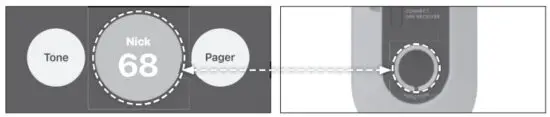
Notes:
The E-Collar tab is disabled when the Tracking Only Mode is turned on in the Settings menu. Dogs are not displayed when hidden or offline. The PATHFINDER2 TRX receivers and shared receivers will not show on the list view.
FENCE TAB
The PATHFINDER2 offers three types of fences for you to either receive notification of your dog crossing boundaries or to auto-correct your dog.
The types of fences included are:
- Mobile-Fence: A fence setup that moves based on your smartphone location and will send you a notification.
- Geo-Fence: A static fence set up that will send you a notification.
- E-Fence: A static fence set up that will send your dog an auto-correction and send you a notification.
Mobile-Fence (Notification Only)
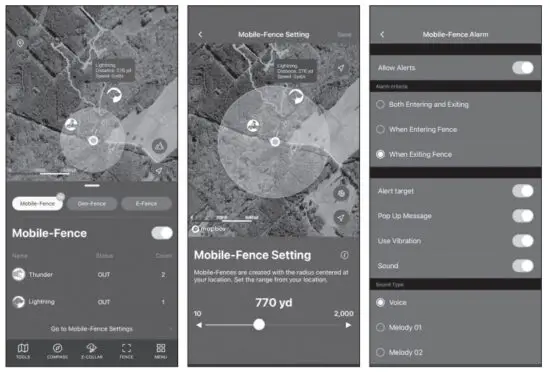
- Mobile-Fence is created with a radius centered around your smartphone (the blue point on the map).
- Status: Indication of the receiver in or out of the fence.
- Count: Number of times the receiver has crossed the fence.
- Set the radius from 10 to 2,000 yards.
- Set the Mobile-Fence Alarm settings by going to MENU
 SETTING MOBILE-FENCE.
 SETTING
Notes:
- The Mobile Fence gives notification on the smartphone but does not auto-correct the e-collar.
- The automatic e-collar correction will only work on the E-Fence.