Shantou Luomanna Cosmetics
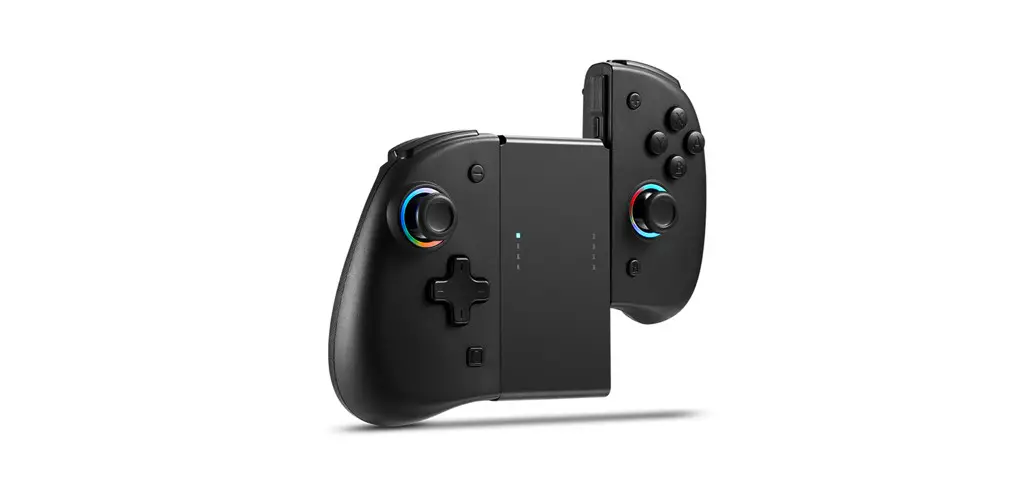
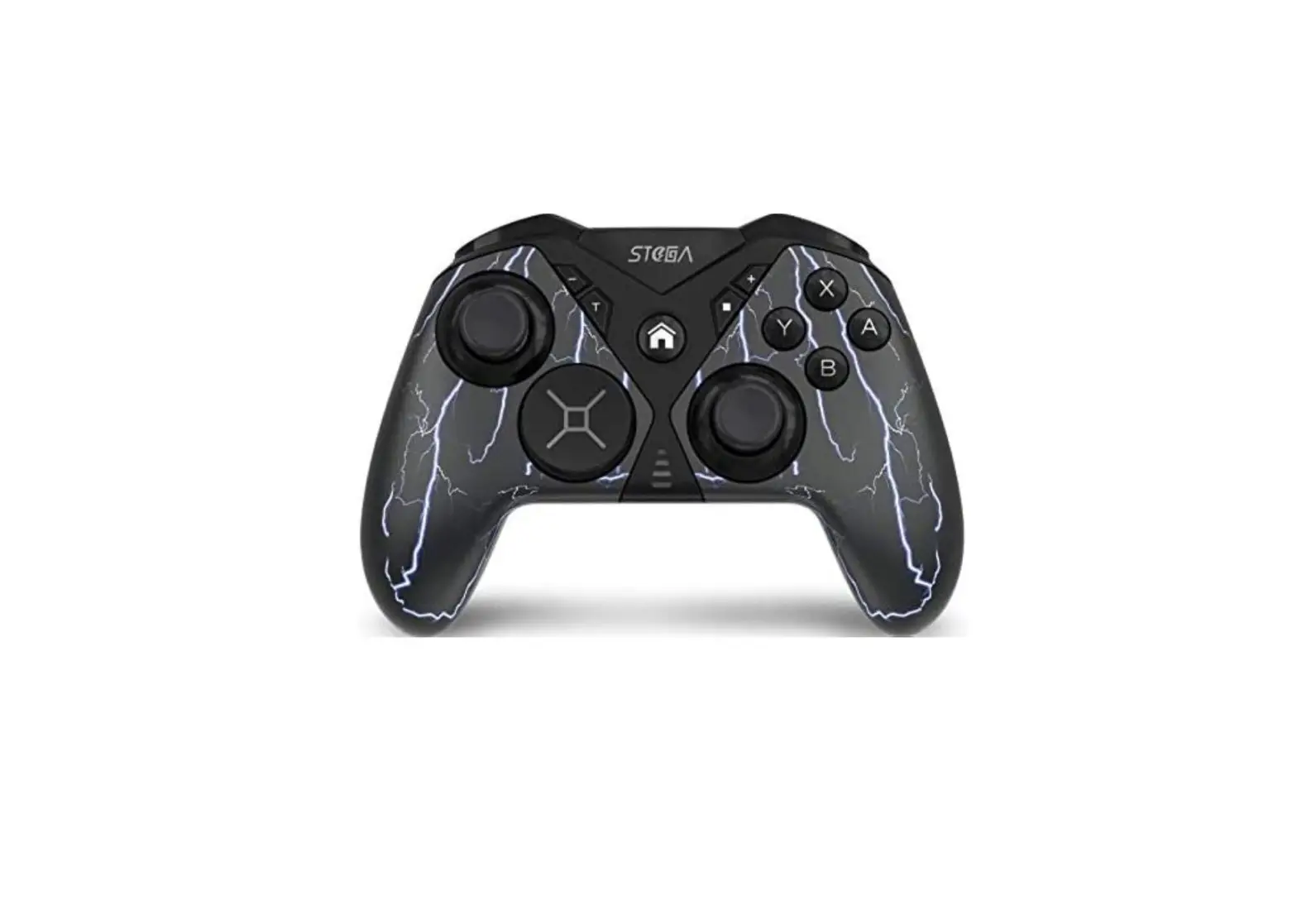
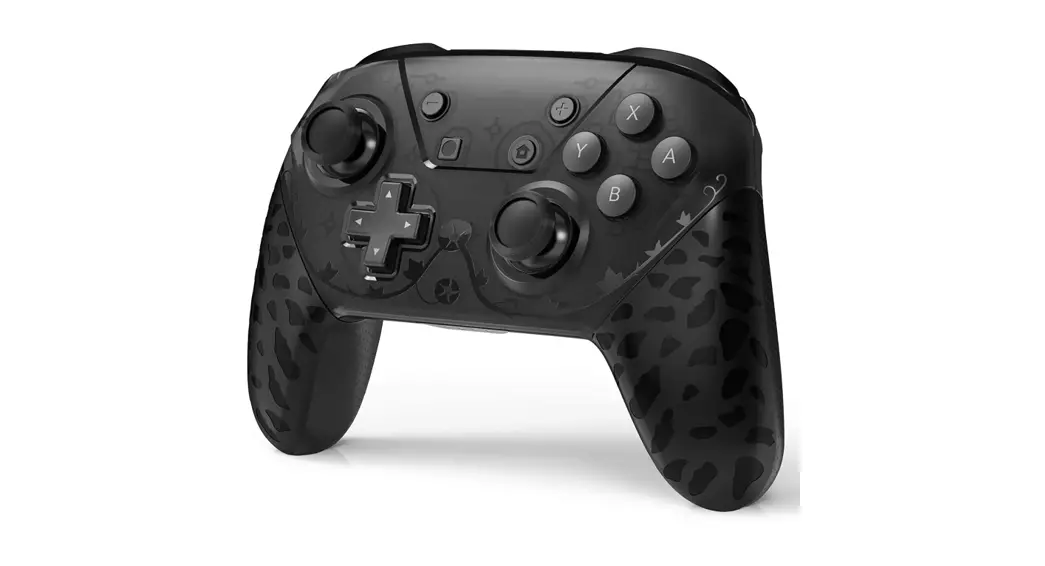
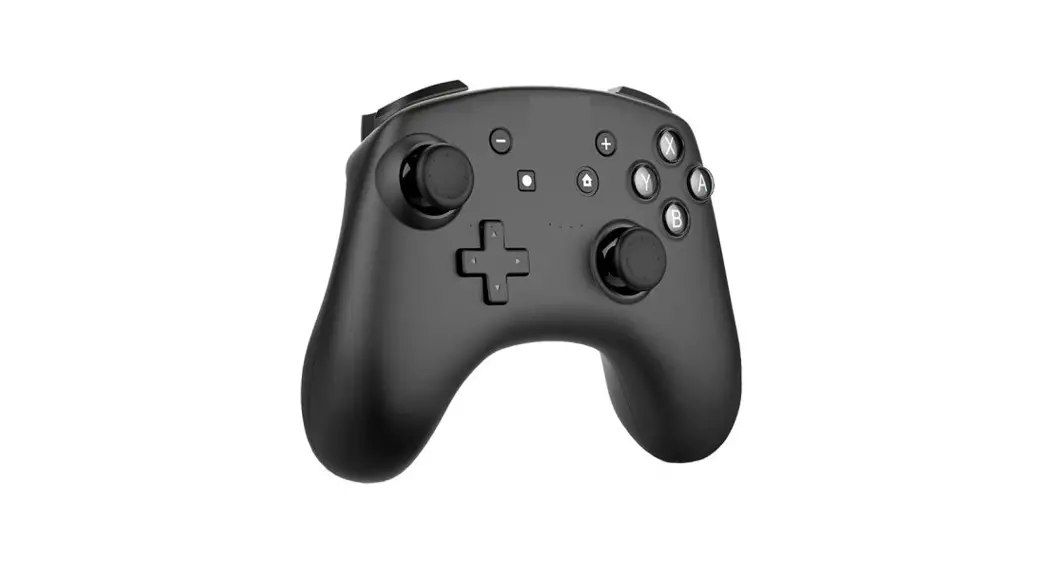
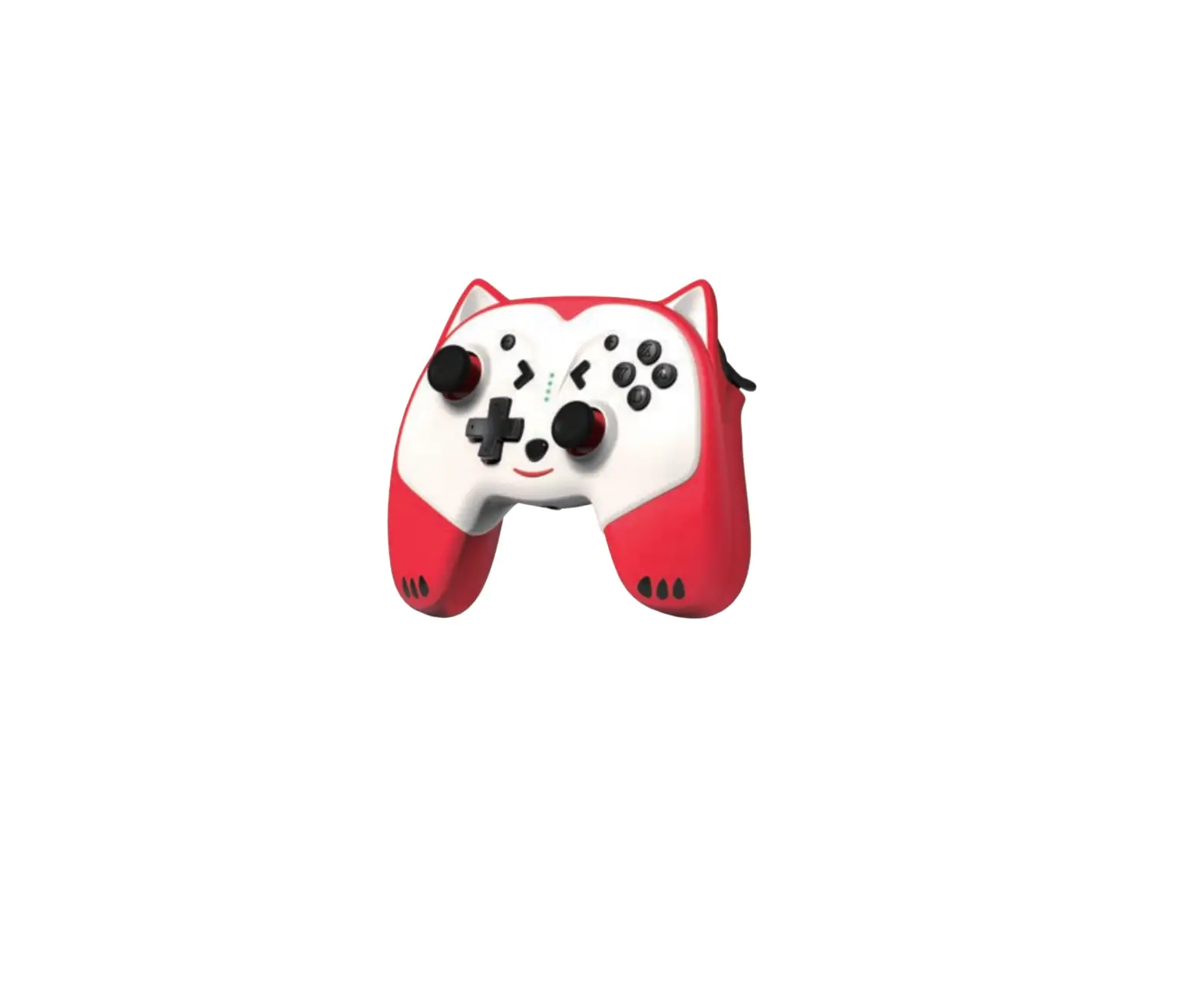
YS31-1 Wireless Controller
User Guide
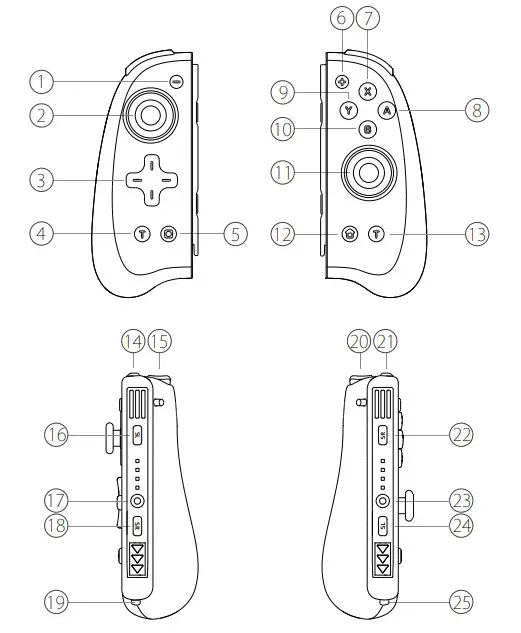
| 1. – button | 2. Left stick |
| 3. Directional pad | 4. Turbo button |
| 5. Screenshot button | 6. +button |
| 7. X button | 8. A button |
| 9. Y button | 10. B button |
| 11. Right stick | 12. Home button |
| 13. Turbo button | 14. L button |
| 15. ZL button | 16. SL button |
| 17. Pairing button | 18. SR button |
| 19. Type-C interface | 20. ZR button |
| 21. R button | 22. SR button |
| 23. Pairing button | 24. SL button |
| 25. Type-C interface | |
Specifications
- Transmission Media: Bluetooth 2.1
- Carrier Wave: 2.402-2.480GHz
- Protocol: Bluetooth 2.1
- LED: 8 LED Lights & 8 Multi-Color LED lights
- Battery: One Lithium polymer battery、3.7V 400/mAH
- Battery life: 2-3 hours after fully charged
- operating voltage: 3.7V-4.2V
- charging voltage: 5V
- Operating temperature: -10℃~50℃
- storage temperature: -20℃~70℃
- Dimensions (approx): 7*20*41mm
- weight(approx): 149g
Connection
A.Conventional Connection
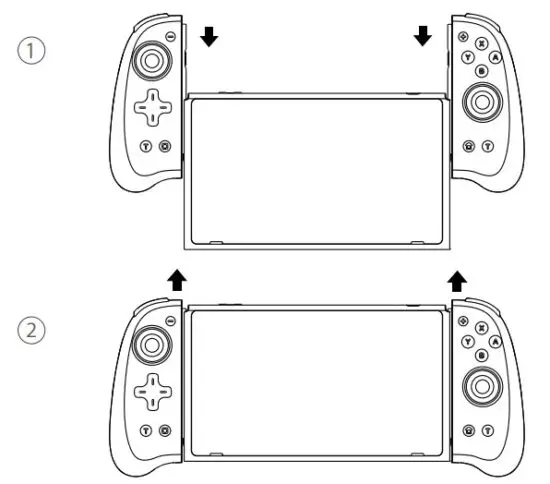
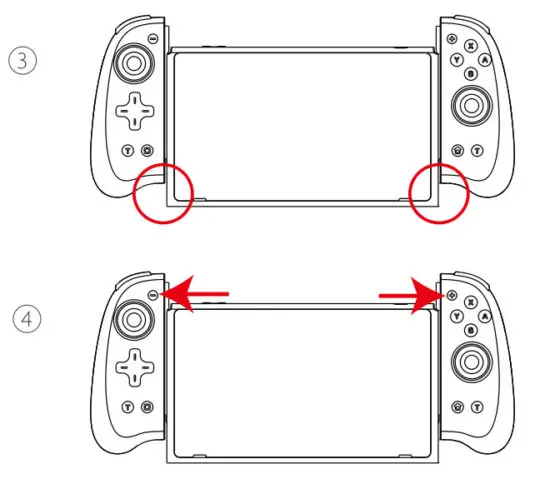
- Attaching the controllers to the console will connect them automatically.
- The Joy-Con controllers will remain paired when you detach them from the console, and you’ll be able to use them wirelessly.

B: Bluetooth Reconnecting
Press the Home button or the Capture button to reconnect your controllers back to the console, 4 LED indicators on the side will start to flash in a regular pattern as an indication of reconnecting.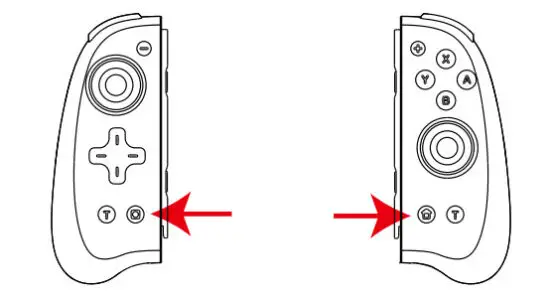
Turbo Function
Note: The T button on the left controller can only assign the buttons that are on the left controller. The same goes for the T button on the right controller.
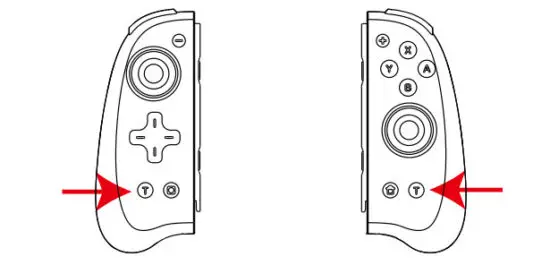
Turbo Mode
A: Hold down the T button and then press the button that you want to set for the 1st time to turn on the normal turbo function. (Controller will vibrate.)
B: Hold down the T button and then press the button that you want to set for the 2nd time to turn on the automatic turbo function. (Controller will vibrate.)
Turn Off
Hold down the T button and then press the button that you have set for the 3rd time to turn off its turbo function. (Controller will vibrate.)
* Hold the T button for 5 seconds to cancel the Turbo function of all buttons.
Turbo Speed Adjustment
* A total of 3 turbo speeds can be adjusted cyclically.
Hold down the T button and press the ‒ button for Controller(L). (Controller will vibrate.)
Hold down the T button and press the + button for Controller(R). (Controller will vibrate.)
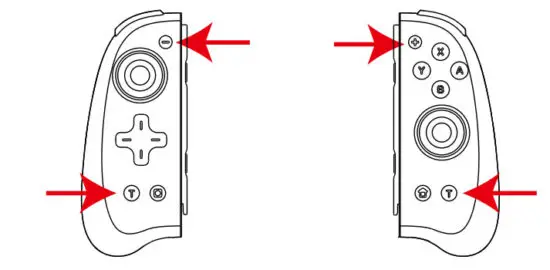
Buttons can be set
Left controller: L / ZL button and Control Pad (Up / Down/ Left/Right).
Right controller: R / ZR button and A / B / X / Y button.
Vibration Level Adjustment
Press the T button and push the Joystick up or down to adjust the vibration level of each controller. (Controller will vibrate when adjusting between each vibration level.)
* There are 5 levels of Vibration:100%,75%,50%,30%, and 0%. (Default level is 50%)
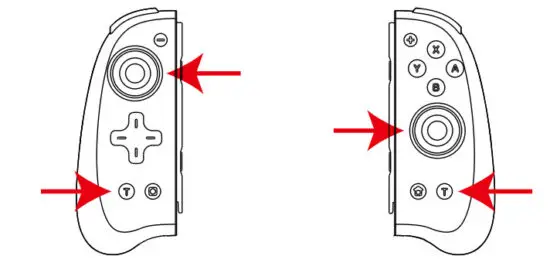
A: Normal Mode
Hold the T button and press the joystick once to turn the light into normal mode(the light will keep on this color), and repeat this procedure to change color. (Controller will vibrate when set successfully)
1-8 colors: 1. Red 2. Orange 3. Yellow 4. Green 5. Cyan 6.Blue 7. Purple 8.Rainbow
Brightness Adjustment
Press & hold the T button and joystick to change the brightness, then release the joystick to fix the brightness. (Controller will vibrate when set successfully)
B: Breathing Light Mode
Hold the T button and press the joystick twice to turn the light into breathing light mode, the following three modes will be cycled. (Controller will vibrate when set successfully)
Mode 1: 1-7 color auto cycling.
Mode 2: Rainbow light.
Mode 3: Light off.
Gyro Calibration
- First, press and hold the Pairing Button to turn off the controller.
- For controller(L), press the L, UP, and the Capture button together to enter the calibration mode.
For controller(R), press the R, X, and the Home button together to enter the calibration mode. - When entering the calibration mode, LED lights will flash alternately. Then align the controllers with the rails on either side of the console, and slide them down BUT DO NOT slide them to the bottom of the rail. (If you hear a click you need to press the release button and slide them up a little.)
- Then press the – button for the controller(L) and the + button for the control(R) to start the calibrating. Controllers will be reconnected back to the console when calibration is over.
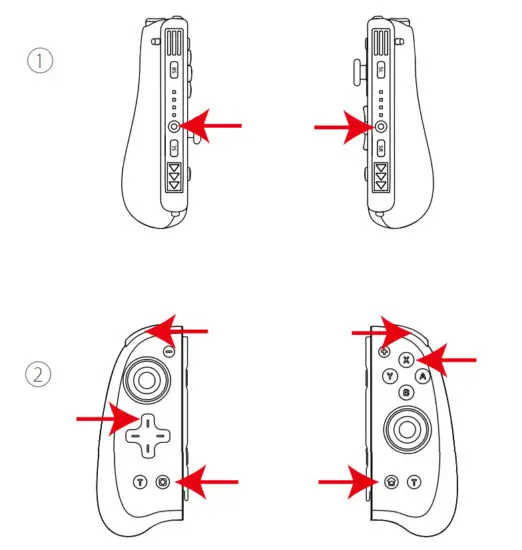 |  |
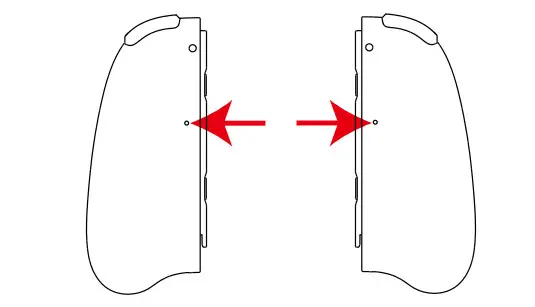
When there are some unsolvable faults in the controller, you can try to press and hold the reset button on the back of the controller for more than 5 seconds. At this time, the controller is powered off and reset, and you need to reconnect according to the method of connecting the controller for the first time.
Driver Package
We support downloading the driver package through a USB connection to the computer to fix some problems that may be encountered in use. If the driver package does not work, please contact us by email ([email protected]).
Driver package download website: www.binbok.com
Note No need to download the driver if it can be used normally, otherwise, new problems may occur due to version conflicts)
Use Method
- Turn off your controllers.
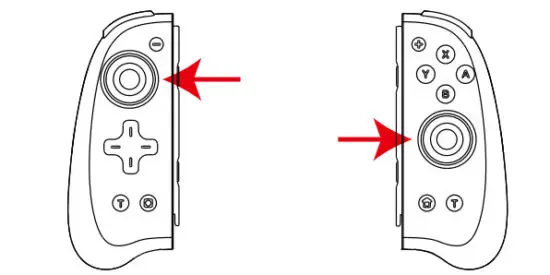
- Press down and hold the Left(Right) stick then connect them to your computer and release.
- Run the driver package.
- Click the Update Firmware on your computer.

Low Voltage Alarm
- If the lithium battery voltage is lower than 3.45V±0.1V, the current channel tight flashes quickly and indicate low voltage.
- If the lithium battery voltage is lower than 3.35V±0.1V, it will automatically sleep.
Charging Instructions
- When the controllers are in the USB charging state, LED lights will flash slowly, if connected to the console, the lights will stay on when it is fully charged; If not, the light will be off.
- When the pairing indication conflicts with the charging low power indicator, the pairing indicates a concern.
Warning
- Do not expose the controller to high temperature, high humidity or direct sunshine.
- Do not allow liquid or small particles to enter the controller.
- Do not put any heavy objects on the controller.
- Do not disassemble the controller.
- Do not twist or pull the cable too strongly.
- Do not throw, drop, or apply strong shock to the controller.
 | Binbrook Game |
 | @BINBOKOffcial |
 | Official Homepage: binbok.com(Register on this web to activate aftersales.) |
 | US: [email protected] EUR: [email protected] |
Business Contact: [email protected]
 Home - BINBOK RGB Joy Con Switch Controller
 Home - Binbok RGB Joy Con Switch Controller