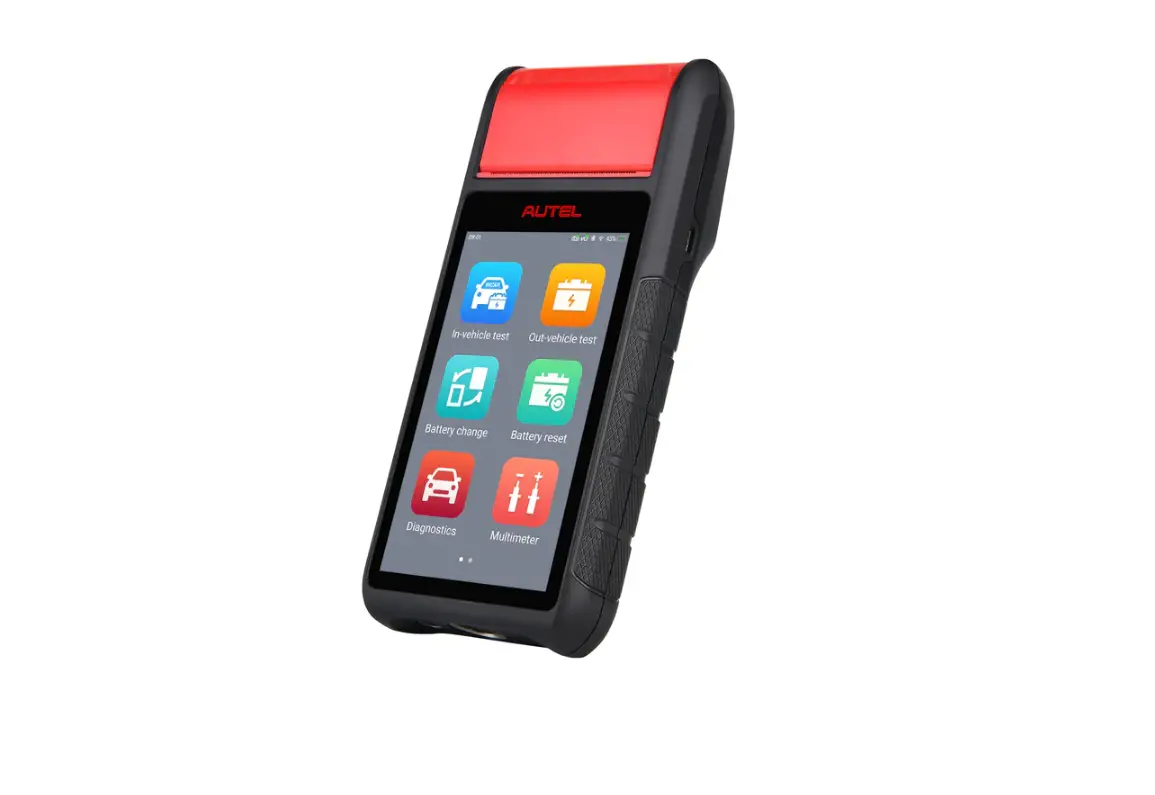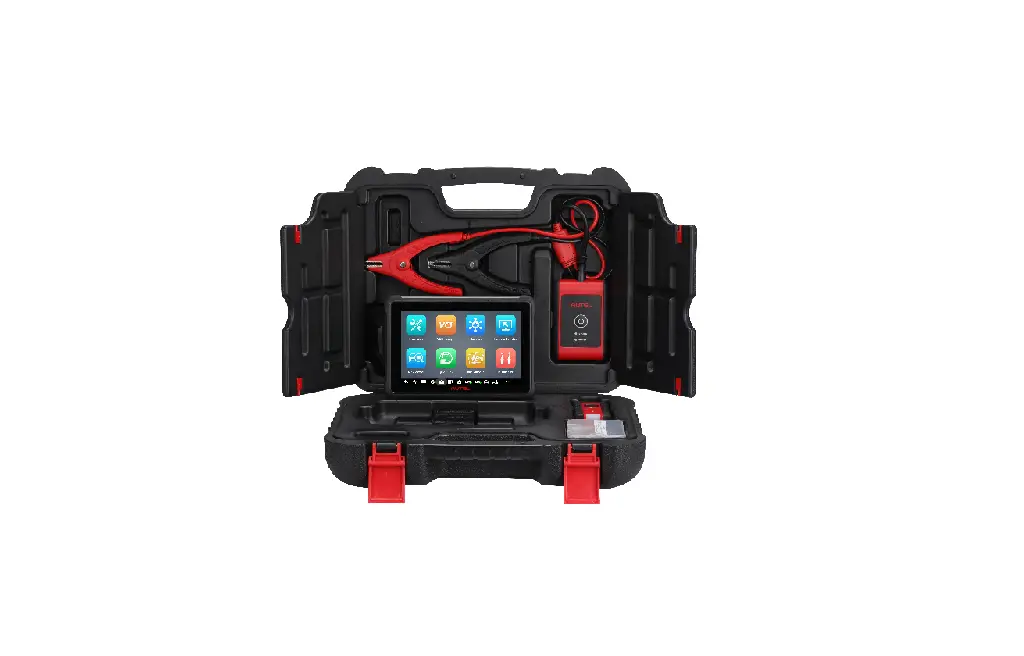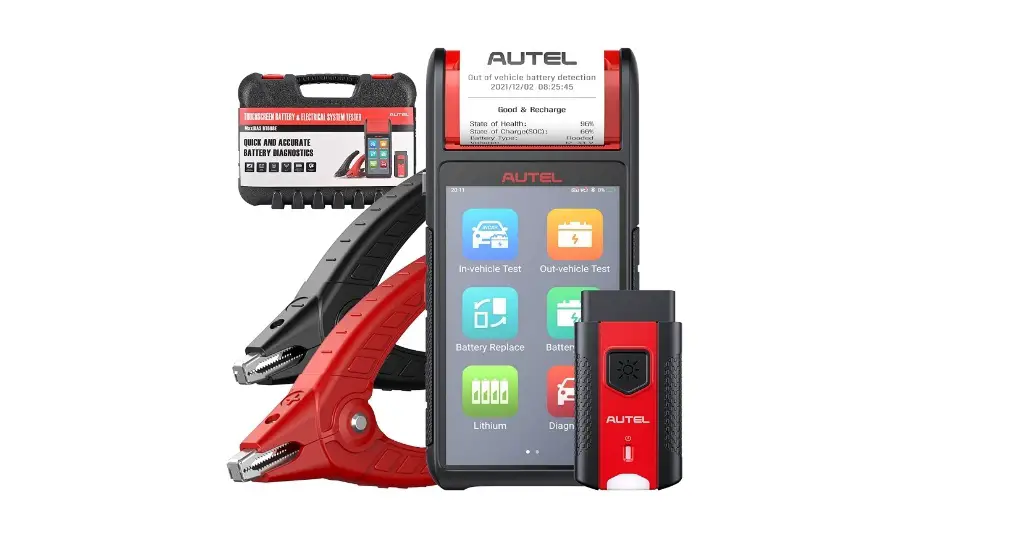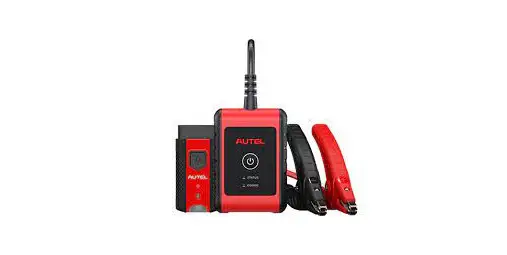
 MaxiBAS BT608 Battery Analysis Tool
User Guide
Please be advised this tool ships with minimal, non-vehicle-specific software.
To download software to use on the vehicles you service, the tool must be registered first.
Please follow the following steps:
REGISTER TOOL
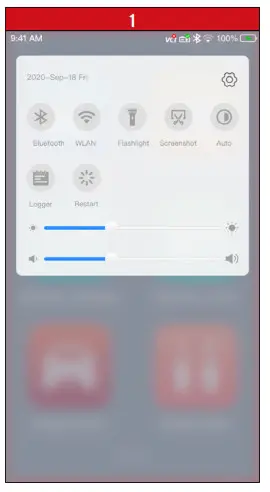 | 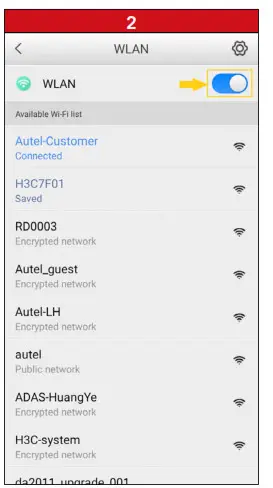 |
| • Power on the BT608. Swipe down from the top of the screen and a drop-down menu will display. • Long press the WLAN icon to enter the WLAN setting menu. | • Swipe the WLAN toggle to turn on the Wi-Fi. • Select your network and enter your password to sign in. |
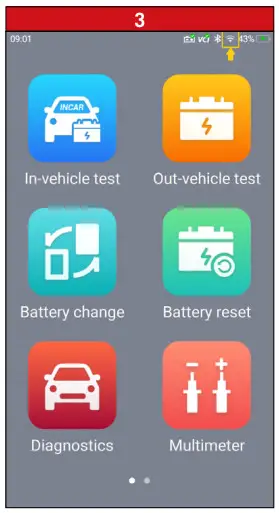
– The Wi-Fi icon will display at the top right corner of the screen when the connection is established.
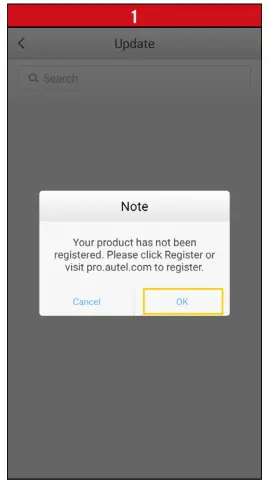 | 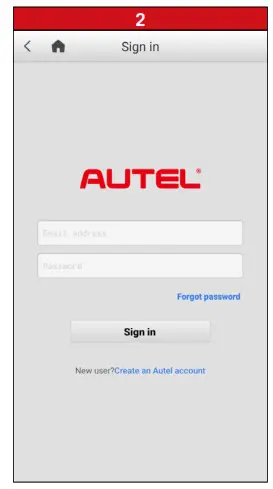 |
| • After the device is connected to Wi-Fi, access Update – A dialog box will display asking you to register your tool. • Tap OK. | – A sign-in screen will display • Create an Autel ID using an accessible email address |
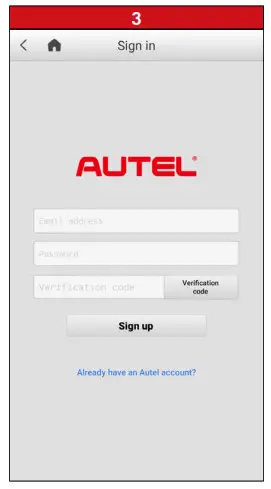 | 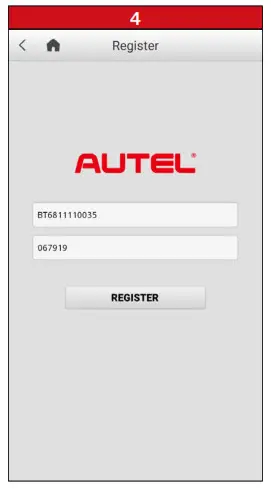 |
| • Enter your email address, password and tap Verification code • Check your email for the verification code, enter the verification code, and tap Sign up | – The serial number and password fields will be automatically completed. • Tap REGISTER |
REGISTER TOOL
REGISTRATION VIA A WINDOWS-BASED PC
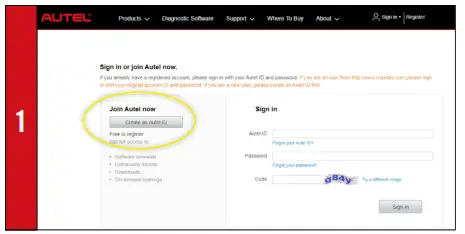 | 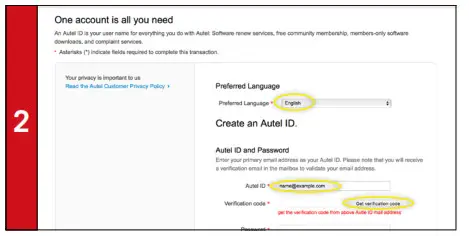 |
| • Using a computer, launch an Internet browser and go to http://pro.autel.com • Click Create Autel ID on the left side of the screen • If you already have an Autel ID, sign in and skip to Step 6 | • Set preferred language • Enter your email address as Autel ID • Click Get Verification Code |
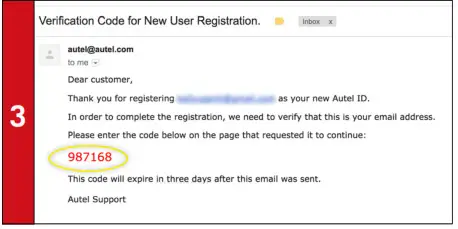 | 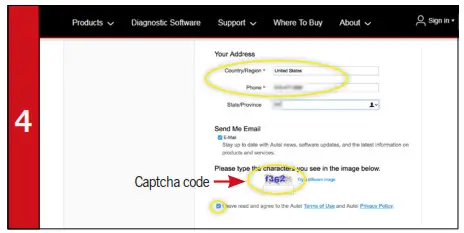 |
| – An email titled “Verification Code for New User Registration” will be sent to you. • Open the email and copy the 6-digit verification code • Return to http://pro.autel.com to continue registration | • Enter verification code and all other required information marked with a red asterisk • Enter Captcha code as shown • Read the Autel Terms of Use and Privacy Policy and select the check box |
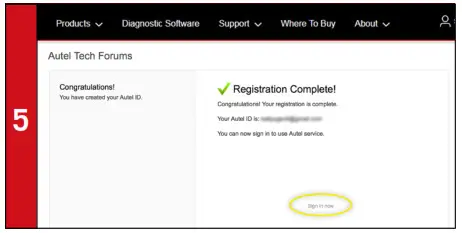 | 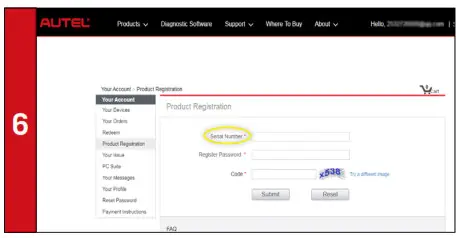 |
| • Click Create Autel ID at the bottom of the screen – The Registration Complete screen will display. • Click Sign in Now and log in | • Select Product Registration from the menu list – The Product Registration screen will display. |
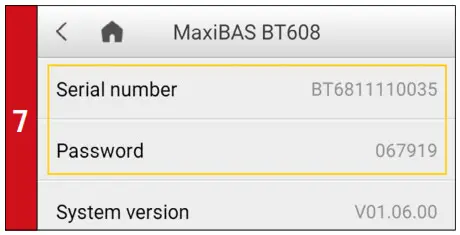 | 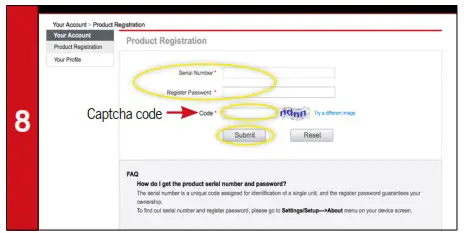 |
| • To locate the tool’s serial number and password: from the Main Menu select the Setting icon and tap About | • Input your tool’s Product Serial Number and Password • Type Captcha code as shown • Click Submit to complete tablet registration |
DOWNLOAD SOFTWARE
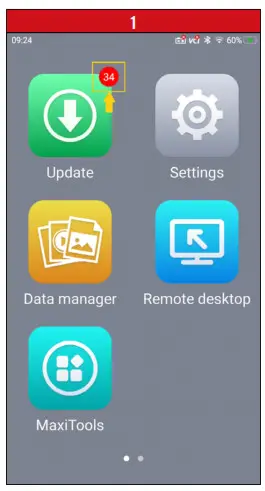 | 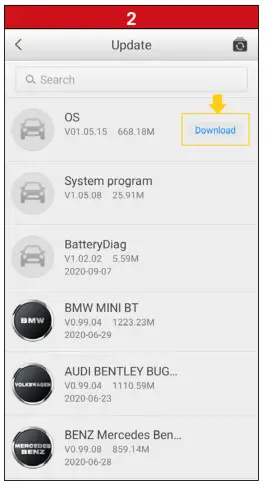 |
| – If updates are available, the number of available updates will display above the green Update button • Select the Update button to view a list of available updates. | • Download the system update by selecting the Download button on the right. |
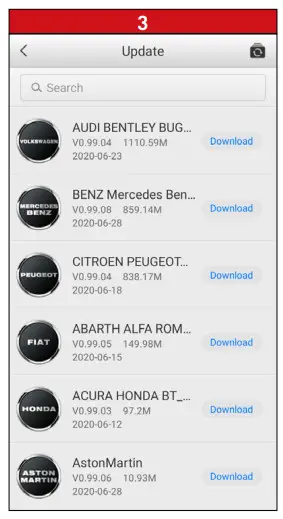 | |
| • Download update for each vehicle manufacturer you service | |
DOWNLOAD BAS FIRMWARE
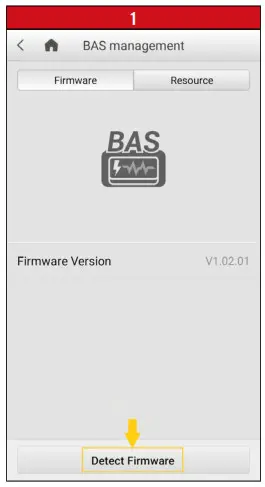 | 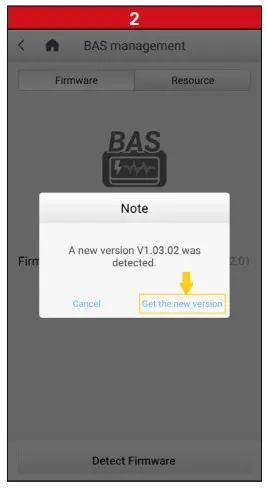 |
| • Select Settings from the main screen and tap BAS management • On the Firmware tab page, select Detect Firmware. | – A dialog box will display when a new firmware version is available. • Select Get the new version to download the new BAS firmware. |
PAIR VCI TO TABLET
PAIR TABLET WITH VCI VIA BLUETOOTH
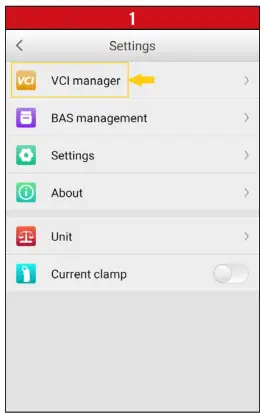 | 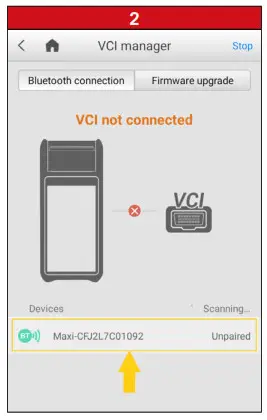 |
| • Connect the VCI to a vehicle or USB power source • Select Settings from the main screen and tap VCI manager. | – Your tool will automatically start scanning for available VCI devices. Found devices are listed on the bottom of the screen. • Press your VCI device serial number to pair the tablet with VCI. |
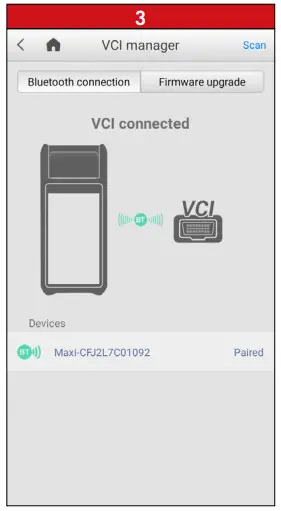 | |
| – A green Bluetooth icon will display when the tool and VCI are paired. | |
PAIR VCI TO TABLET
CHECK FOR VCI FIRMWARE
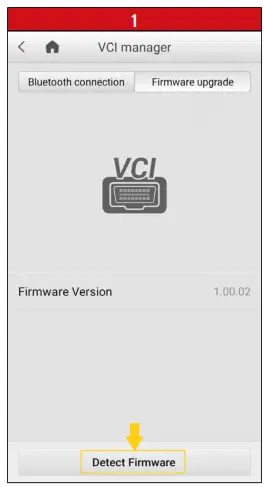 | |
| • Connect the VCI to a vehicle and turn the ignition on. • Select Settings from the main screen and tap VCI manager • On the Firmware upgrade tab page, select Detect Firmware | – A dialog box will display when a new firmware version is available. • Select Get the new version to download the new VCI firmware. |
PRINT VIA WINDOWS PC TO WI-FI PRINTER
Works with any printer with a Wi-Fi connection. No need for special software or a driver on the tablet.
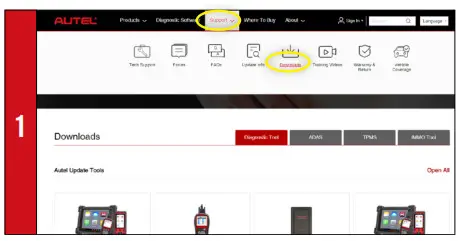 | 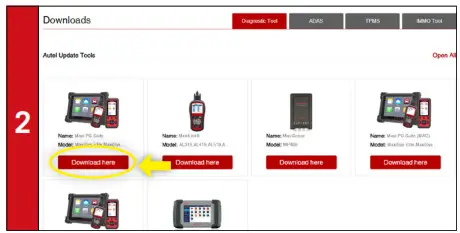 |
| • Make sure your Window PC and tablet are on the same Wi-Fi network • On your computer, go to Autel.com, select Support > Downloads > Autel Update Tools | • Locate the MaxiSYS PC Suite software and click on the Download Here button • Open the zip file |
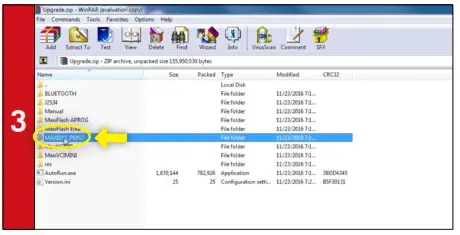 | 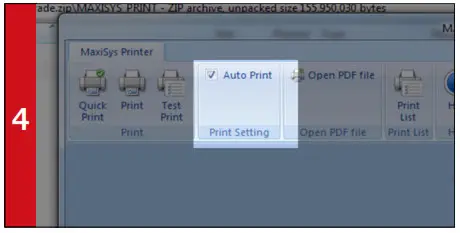 |
| • Select MaxiSYS Print, then click the setup.exe file to install the program | • Within the program dialogue box, check Auto Print to automatically use the default printer • Select Quick Print to use the default printer or select Print to choose a printer |
ONLY REGISTERED AUTEL TOOLS CAN DOWNLOAD SOFTWARE UPDATES
 Home | AUTEL
 pro.autel.com