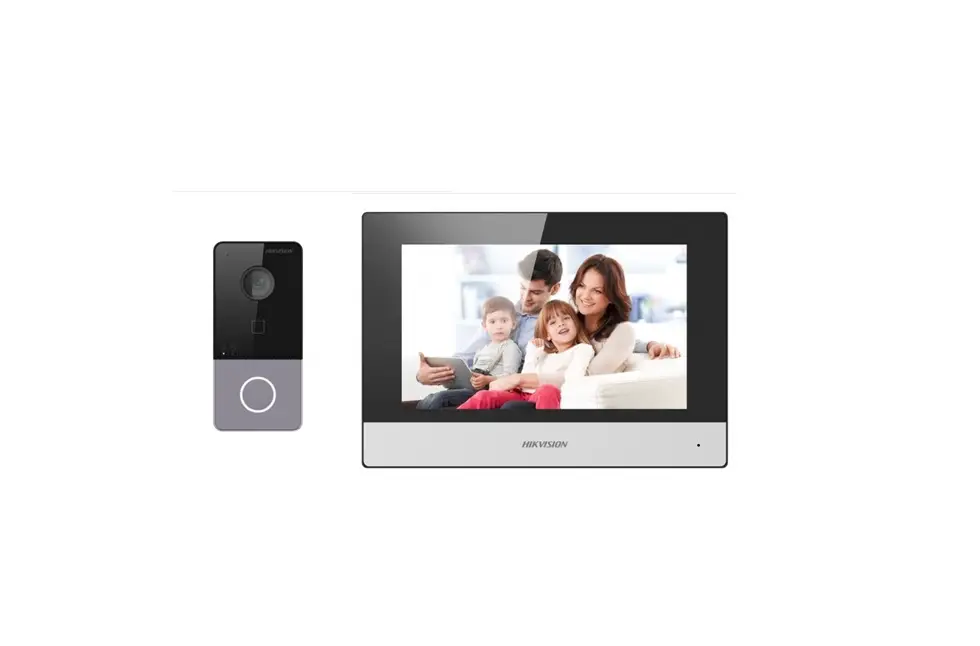
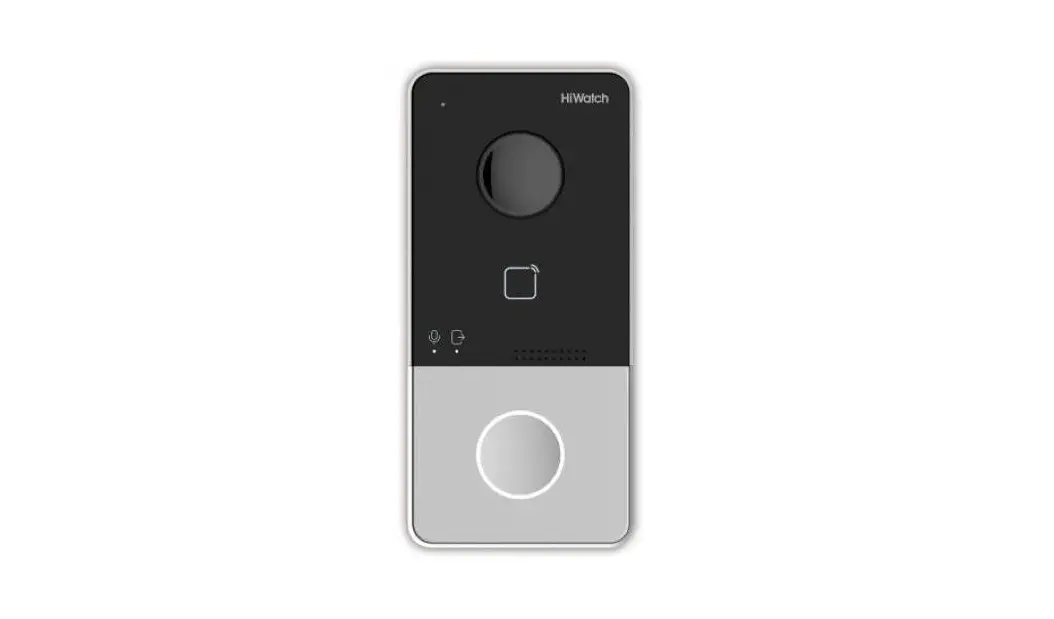
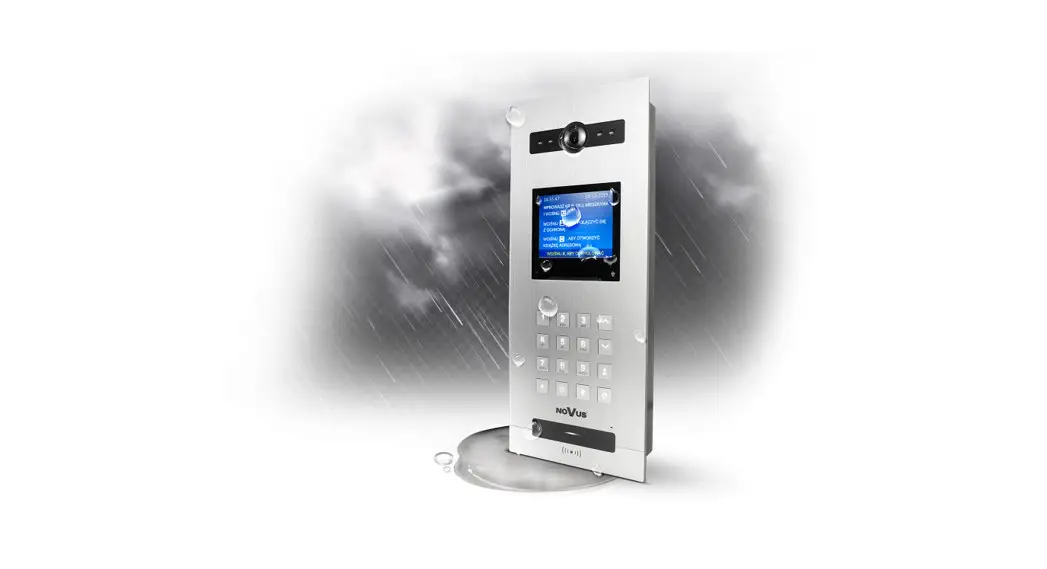
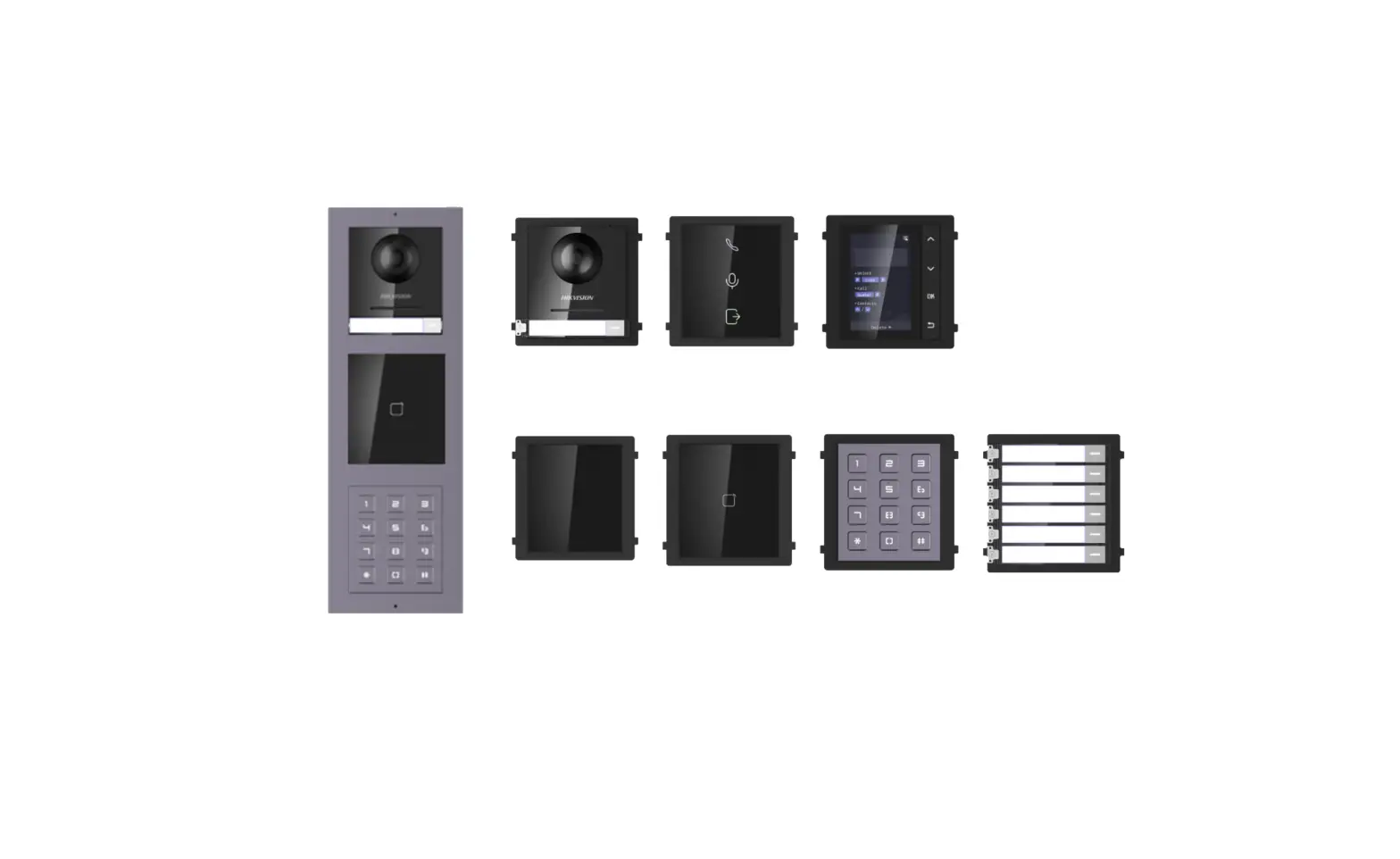
AIPK1 Single Door 2 Wire Video Intercom Kit
Product Information
The Indoor Monitor Station is a versatile product that offers
various functions such as calling, intercom, monitoring, and
unlocking. It supports video intercom and real-time monitoring from
an outdoor station. It allows for multiple indoor monitors in one
house and intercom between different apartments. The product also
supports TF card extension for photo capturing and video recording.
Additionally, it features a secondary doorbell and KNX home
automation extension.
Product Usage Instructions
1. Video Monitoring
To access the monitor interface for video monitoring:
- Click on the Video Monitoring option in the
menu. - In the monitor interface, you can adjust image effect, capture
photos, and record videos as needed.
2. Intercom
To use the intercom function:
- Click on the Intercom option in the menu.
- In the intercom interface, you can call and talk within one
apartment or between different apartments.
3. Message
To access the message interface:
- Click on the Message option in the menu.
- In the message interface, you can check captured photos,
recorded videos, and device information.
4. Setting
To access the setting interface:
- Click on the Setting option in the menu.
- In the setting interface, you can configure ringtone, language,
time, and other operational settings as desired.
Calling In
Follow these steps to handle incoming calls:
- When the doorbell rings, it indicates a visitor is calling the
indoor monitor from the outdoor station. - Press the Talk button to initiate a
conversation with the visitor. - During the conversation, you can press the
Unlock button to unlock the door for the
visitor. - After 5 seconds of unlocking the door, the call will
automatically end, and the system will return to standby mode. - To end the call, press the End button.
The product also features various interfaces for connection and
power supply:
- BUS1-A BUS1-B: Bus Interface 1
- BUS2-A BUS2-B: Bus Interface 2
- EXT-DC24V GND: Extended Power Supply 24V
- GND Doorbell: Interface for secondary doorbell
button
Additional settings and functions include:
- Master-slave indoor monitor setting: Allows
for differentiation between master and slave indoor monitors (M for
Master, S for Slave). - Video terminal resistance matching: Matching
interface for video terminals. - Setting: Adjust brightness, color, and
contrast manually during incoming calls. - Photo Capture: Capture photos manually during
incoming calls. Captured photos will be saved in the message. - Video Recording: Record videos manually during
incoming calls (requires a TF card). Videos will be saved in the
message. - Monitoring: Monitor devices by choosing the
desired device in the GUI interface and unlocking the door if
needed.
Key Button Function:
- Parameter: Static Current30V 15 mA
Display7inch TFT LCD TF card capacity232G (Class 4 is
suggested)
Note: It is recommended to set video terminal matching on the
last indoor monitor by switching No.2 to ON. Bus Interface 1 and
Bus Interface 2 are used to connect indoor monitors in series. The
master indoor monitor will turn on and ring, while the slave indoor
monitor will only ring without turning on.
Indoor Monitor Station User Manual v1.0
Menu
AIIS07
Overview
This product is an indoor monitor station. Functions such as calling, intercom, monitoring and unlocking are available, details are as below: Supports video intercom, unlocking Supports real-time monitoring from outdoor station Supports multiple indoor monitors in one house Supports intercom in one apartment and intercom between different apartments Supports TF card extension, photo capturing and video recording Supports secondary doorbell Supports KNX home automation extension
1. Video Monitoring
Click
to enter monitor
interface. Image effect, photo capturing and video recording can be set.
2. Intercom
Click
to enter intercom
interface. User can call and talk in one apartment or different apartments.
Call in
3. Message
Click
to enter message
interface, user can check captured photos, recorded videos and device information.
4. Setting
Click
to enter setting interface,
user can configure ringtone/language/ time and operate configuration setting.
Dimensions & Interface
Unit: mm
Calling In
Steps: Doorbell rings Talk Unlock the door End of incoming call: 1. Visitor calls the indoor monitor from outdoor station, the indoor monitor starts ringing;
2. Resident presses
button then talk with visitor.
3. During the conversation, resident presses
button to unlock the door for visitor.
4. 5 seconds after unlocking the door, the call ends automatically and system returns to standby mode.
5. Resident presses
button to end the call.
BUS1-A BUS1-B: Bus Interface 1;
BUS2-A BUS2-B: Bus Interface 2;
EXT-DC24V GND: Extended Power Supply 24V.
GND Doorbell: Interface for secondary doorbell button. 1.Master-slave indoor monitor setting
(M stands for Master, S stands for Slave).
2.Video terminal resistance matching. Interface for secondary doorbell. Interface for 485 extension.
Setting
Setting:
1. When visitor is calling, click
to
adjust brightness, color, and contrast
manually.
Photo Capture
1. During the call from visitor, click to capture manually.
2. Captured photos will be saved in message.
Note: Maximum of 50 images can be stored if there is no external TF card.
Video Recording:
1. During the call from visitor, click to record a video manually (must insert a TF card);
2. Video will be saved in the message.
Note: With an extended TF card, up to 40 videos can be stored and up to 1000 images can be stored.
Monitoring
Note Video terminal matching needs to be set on the last indoor monitor by setting the switch No.2 to ON; Bus Interface 1 and Bus Interface 2 are for connecting indoor monitors in series. Monitor of indoor monitor will turn on and ring, while slave indoor monitor will not turn on but only ring.
Key Button Function
Parameter
Working Voltage: DC 2430V Working Current30V 200 mA Resolution800×480 Dimensions (L /W /D) 220×140×24 mm
Static Current30V 15 mA Display7inch TFT LCD TF card capacity232GClass 4 is suggested
Basic Functions and Setting
Monitoring
Unlock the door when monitoring
Steps: Choose the device to monitor Monitoring Unlock
End
1. Click the
icon in the GUI,
choose the device to monitor. The default monitoring device is the outdoor station 1, if the outdoor station 1 does not exist, there will be no monitoring.
2. Resident can choose different
outdoor station by
and . If the
chosen monitor does not exist, it will exit
monitoring and return to standby mode.
3. During monitoring, resident can press
to unlock for visitor, monitoring
will end in 5 seconds after the door is unlocked.
4. Click
to end monitoring.
Talk with visitor
Steps: Monitor Talk End 1. During monitoring, resident can press
to talk with visitor.
Active Call
Click
and enter intercom interface.
1
2
Password Setting
Factory Reset
Calling Interface
Intercom between different apartments Steps: Call Ring Talk End 1. Call Input the room number and click
to call;
2. Indoor monitor echoes back.
3. The resident will click
to
answers the call and click
to
reject the call.
4. Resident can click call after communication.
to end the
Intercom in one apartment
Steps: Call Talk End
1. Click
to call the indoor
monitor in one same apartment.
2. Indoor monitor echoes back.
3. The called indoor monitor in the same apartment echoes back.
4. Resident can press
to
answer the call, click
to reject
the call, after answering the call, user can
click
to end the call.
Check Messages
Check Photos
Password Setting
1. Click
to enter password
setting.
2. Input new password and input again to confirm.
Factory Reset
1. Click reset interface.
to enter factory
Unit 4 Installation Height
Message Checking
Photo Checking
1. Click
to check messages,
captured photos, recorded videos and
device information.
1. Click
to check photos.
2. While checking photos, click
to
choose the next one, click
to
choose the last one, click
to delete
the current one, click photo record.
to empty the
Video checking
Device Information
Suggested height for installation: 1.5m
Unit 5 Installation Instruction
Video Checking
1. Click videos.
to check recorded
2. While checking videos, click
to
choose the next one, click
to
choose the last one, click
to
delete the current one, click
to
empty the video record.
Device Information Checking
1. Click
to check device
information including software version and
device address.
Unit 3 System Setting
Language Setting
Configuration Setting
Step 1Align the screw hold of bracket with the holes of 86 box. Tighten the screw and fix the bracket.
Step 2Connect the indoor monitor with
wire, and the opening with the hook of the bracket. Then, move down the device a little bit. It’s set correctly when you hear the joint click.
Language Setting Interface
1. Click setting interface.
, enter language
2. Language must be set in initial start-up.
Inputting Password
1. Click
input password to
enter configuration setting.
Note:
Password is 123456.
ADD Setting
Bracket installed
Attention
1. Please keep devices away from strong magnetic fields, high temperature and wet environments.
2. Please handle with care, a drop or any hard impact will damage the device.
1. Click setting.
Configuration Setting
to enter
address
Add Setting
Note
1.Add setting from 001 to 200.
2.If there are multiple indoor monitors in one apartment, the address of all indoor monitors should be the same.
3
3. Please do not use a wet cloth or chemicals to wipes devices.
4. Please do not disassemble the device. 4