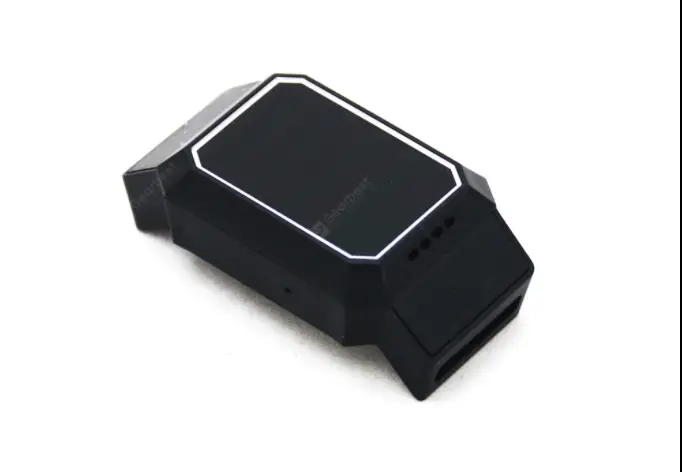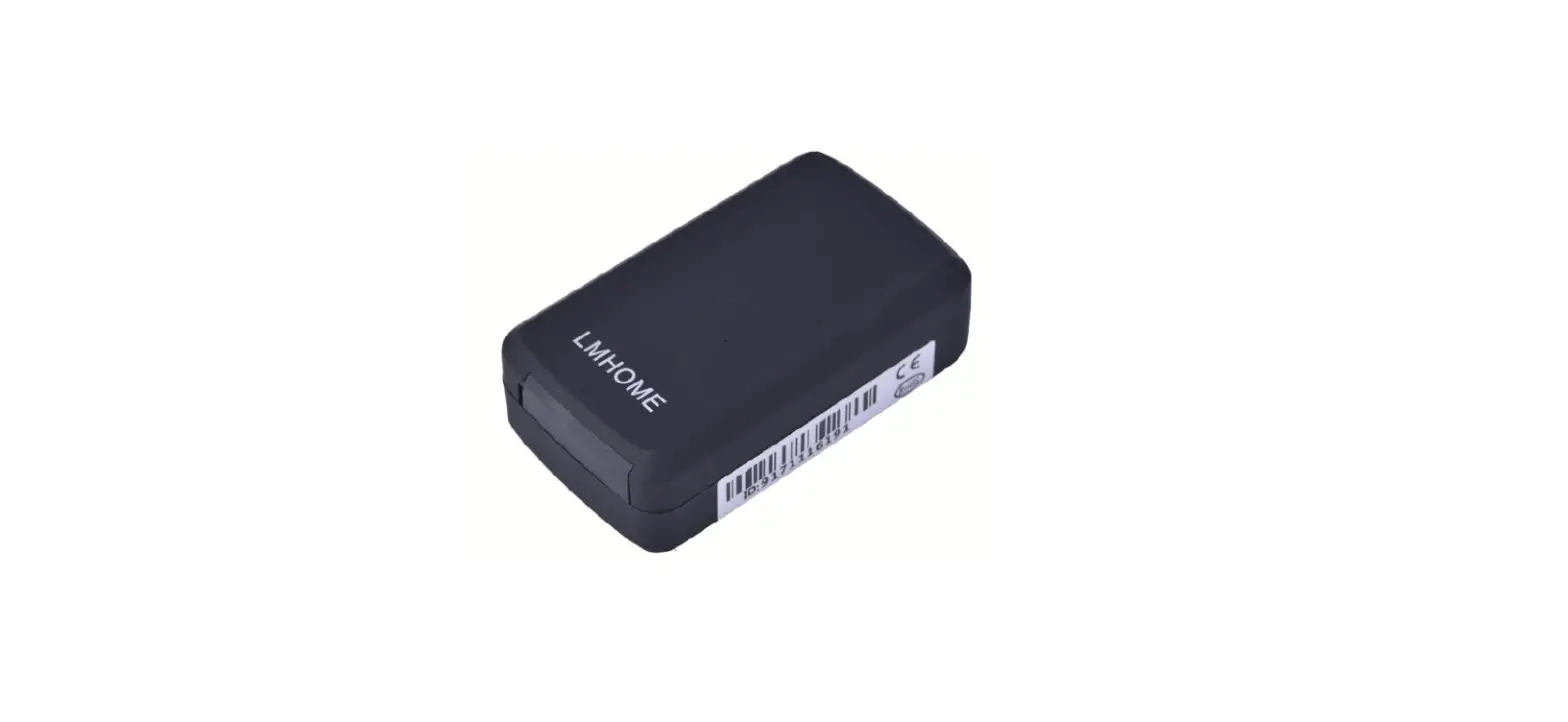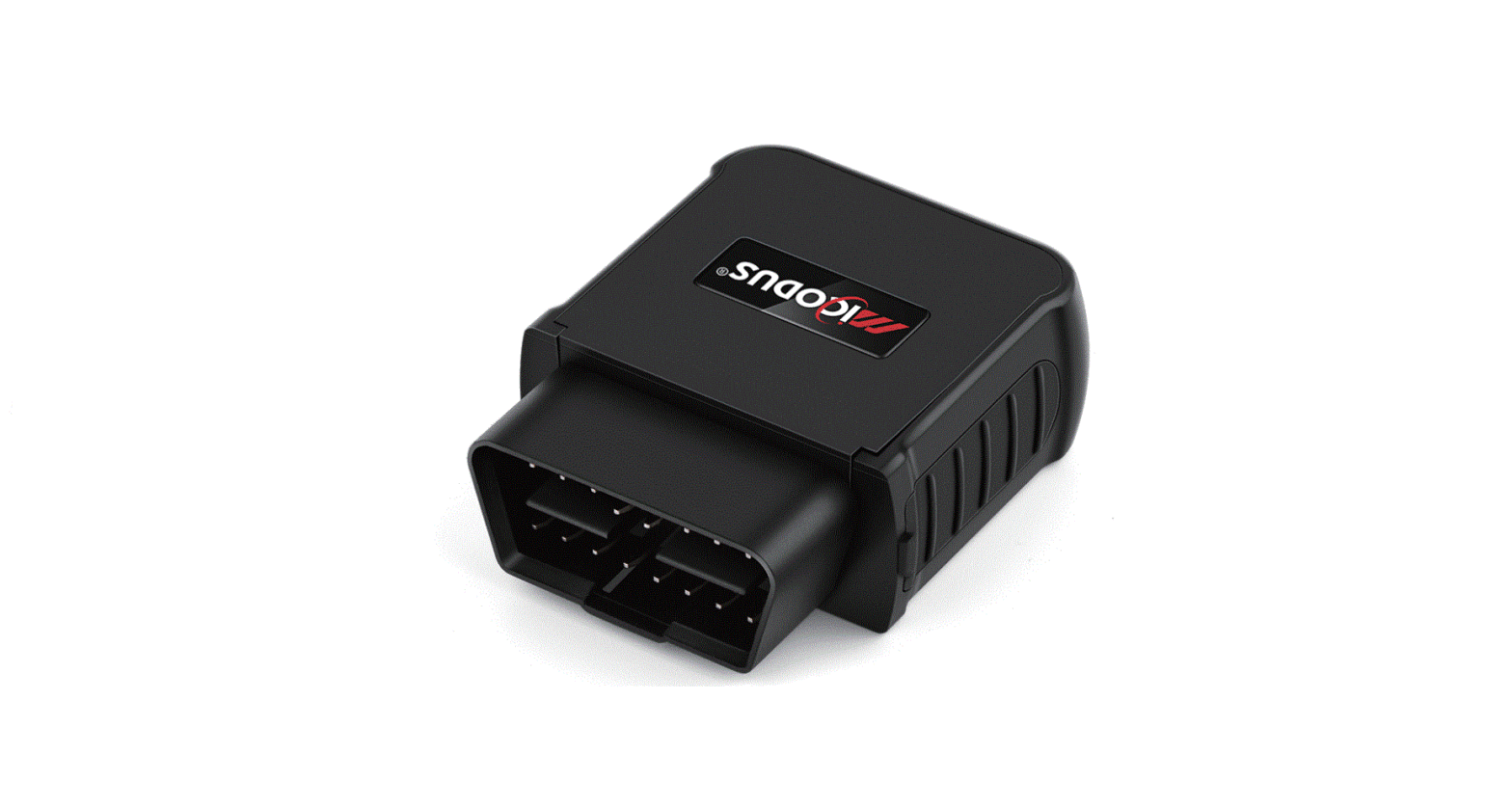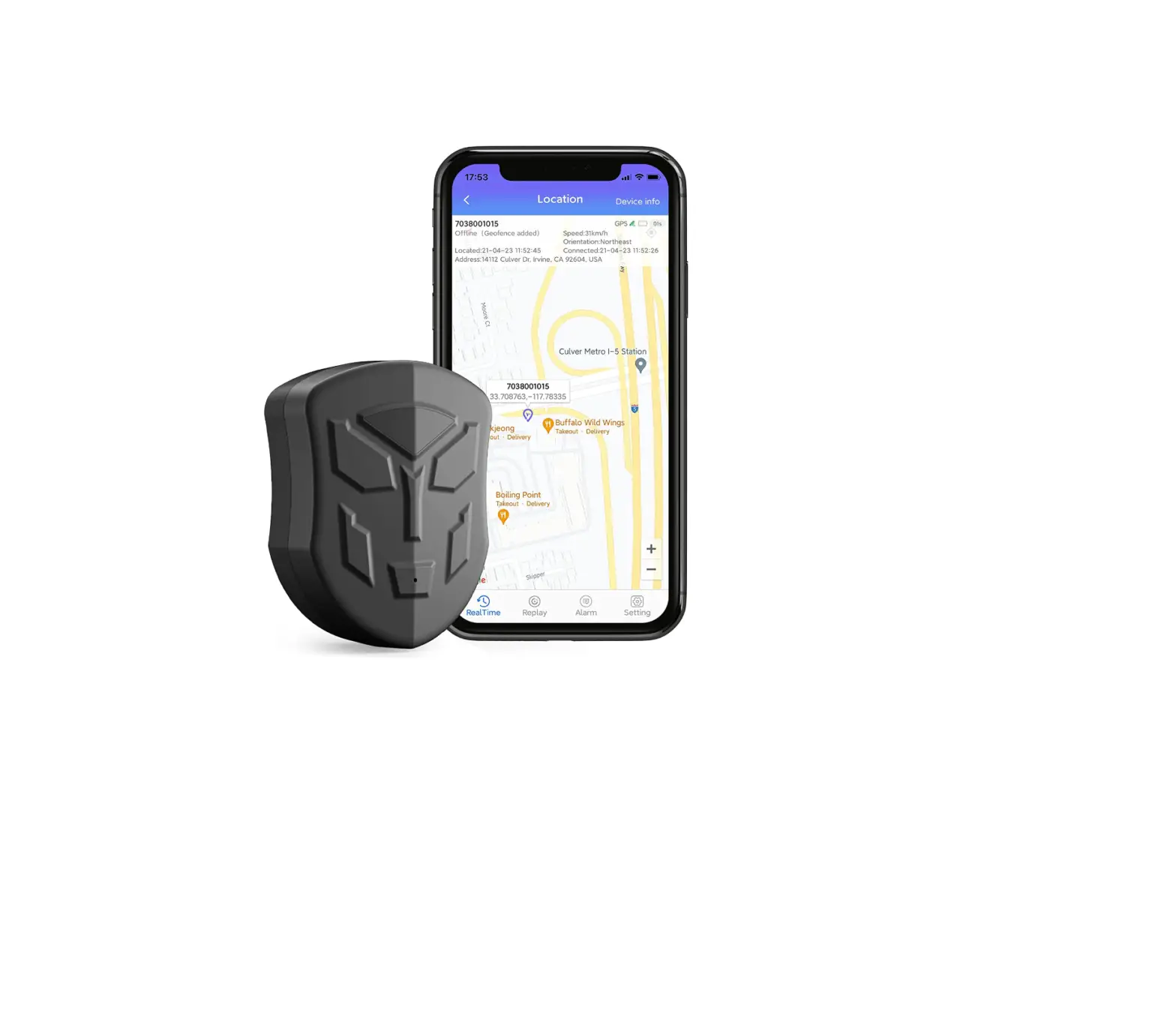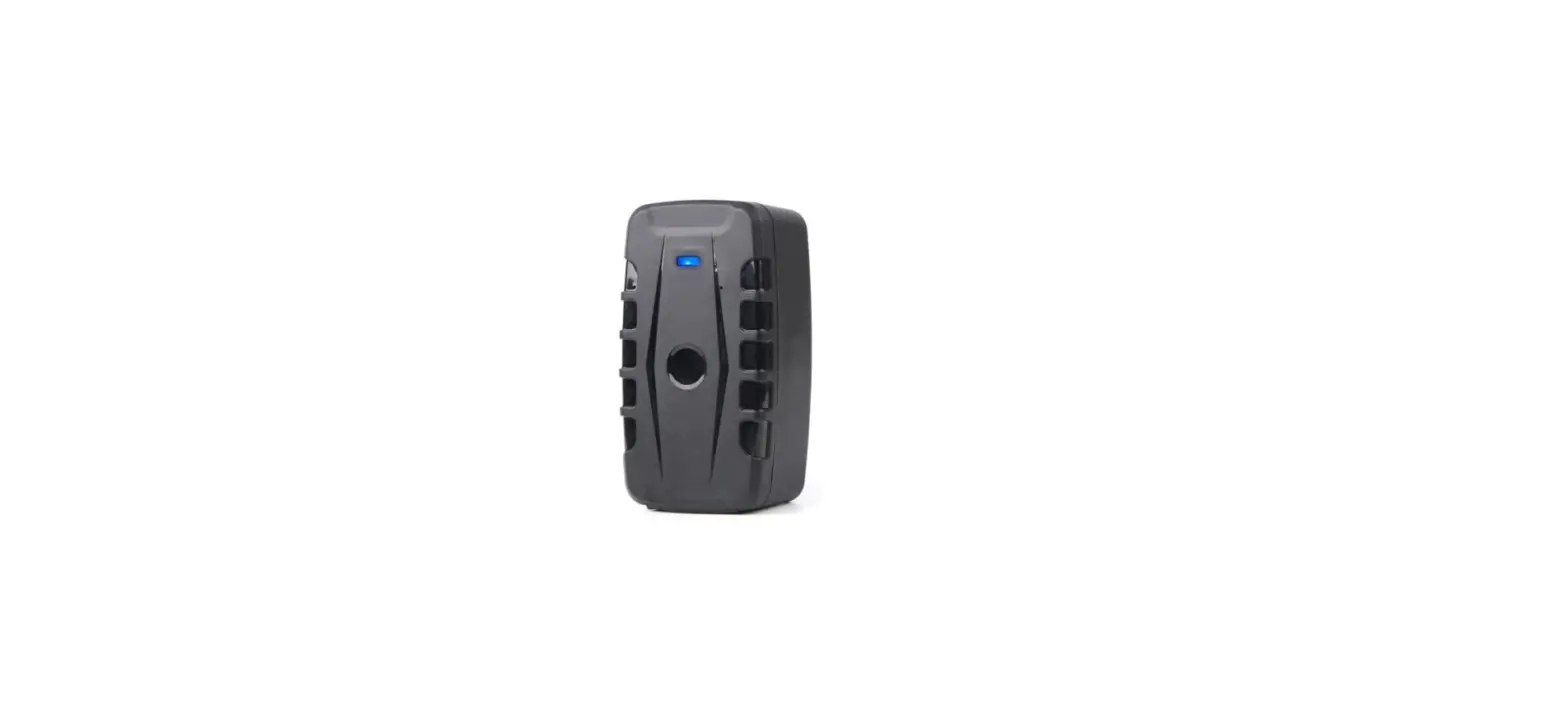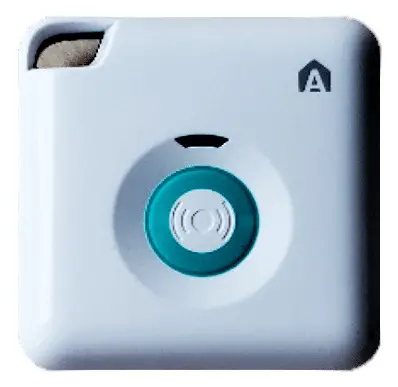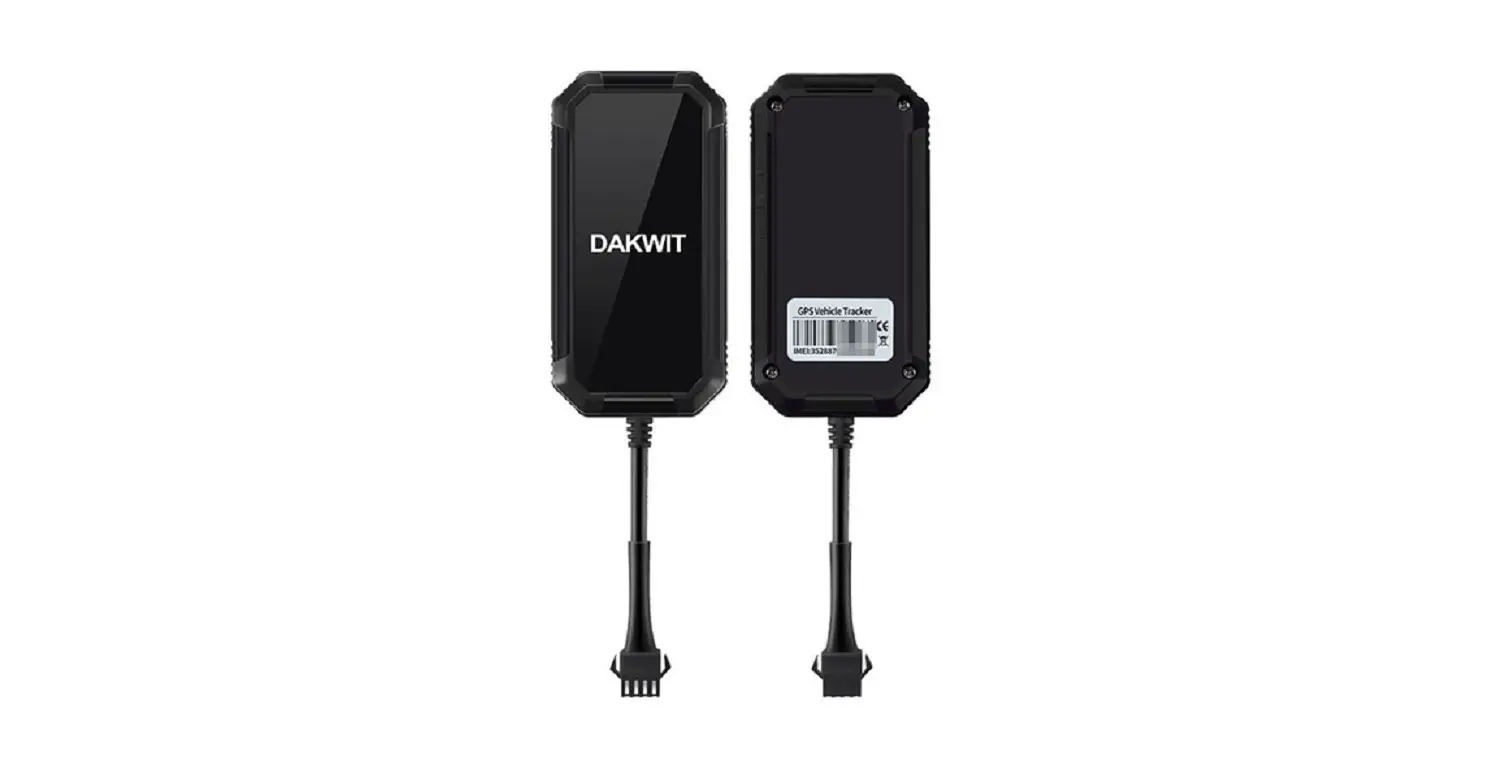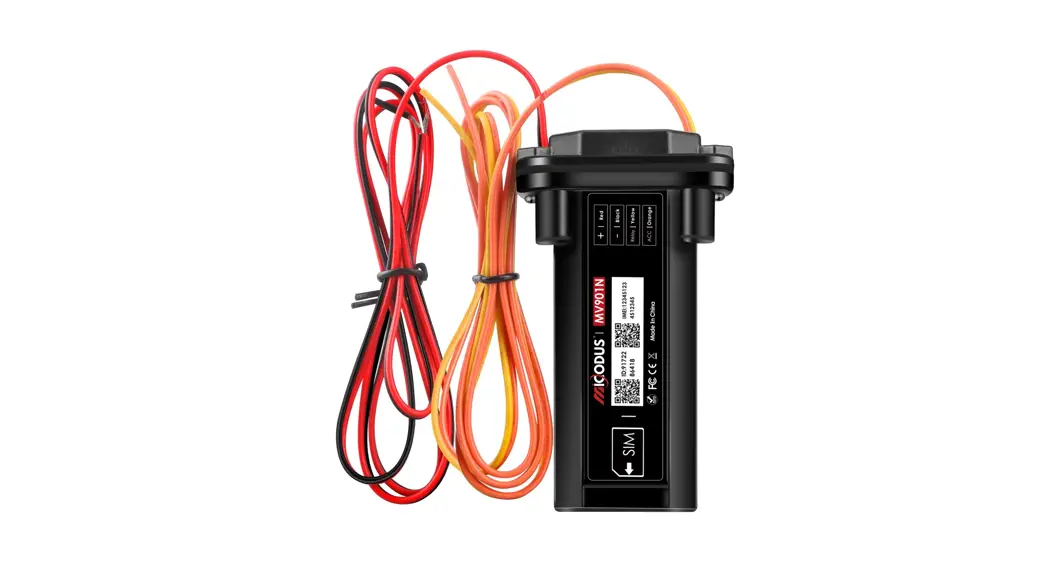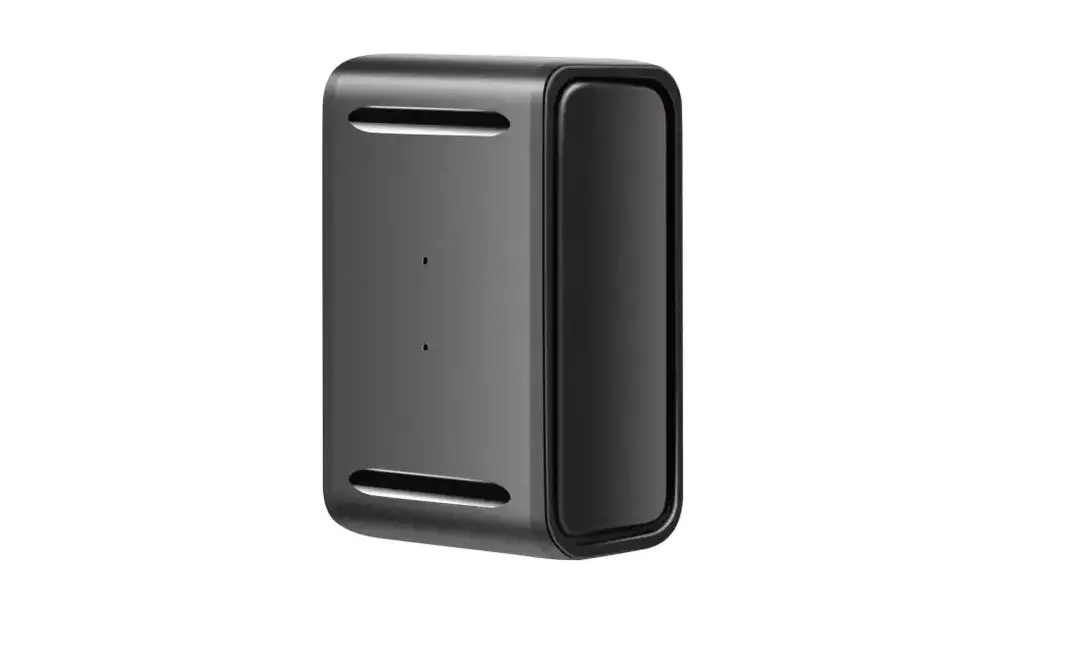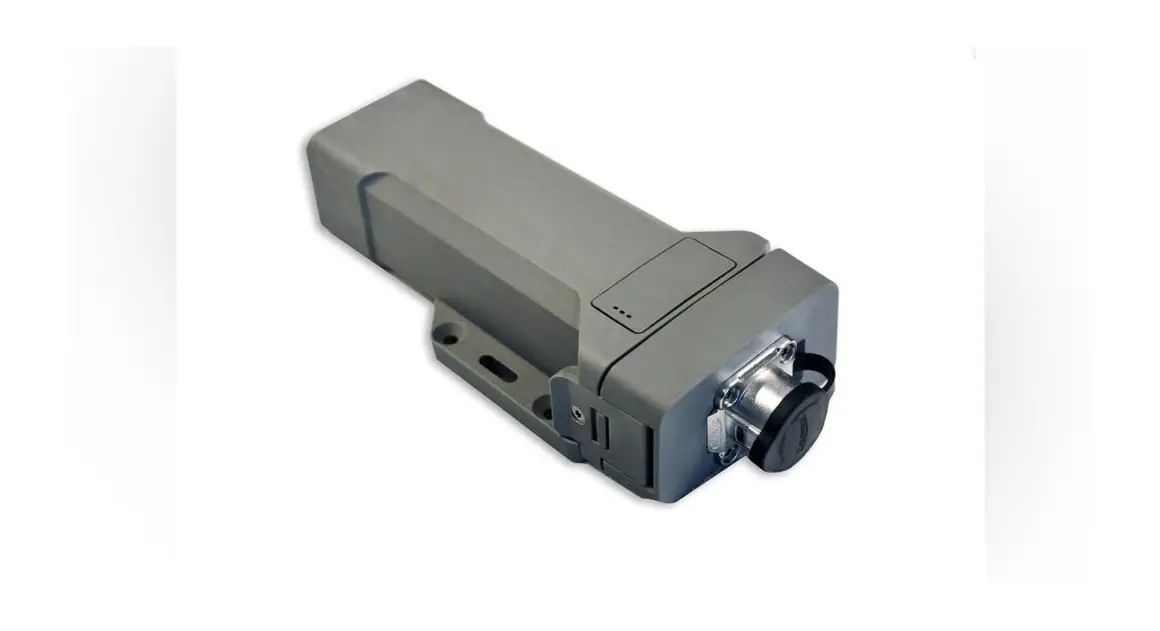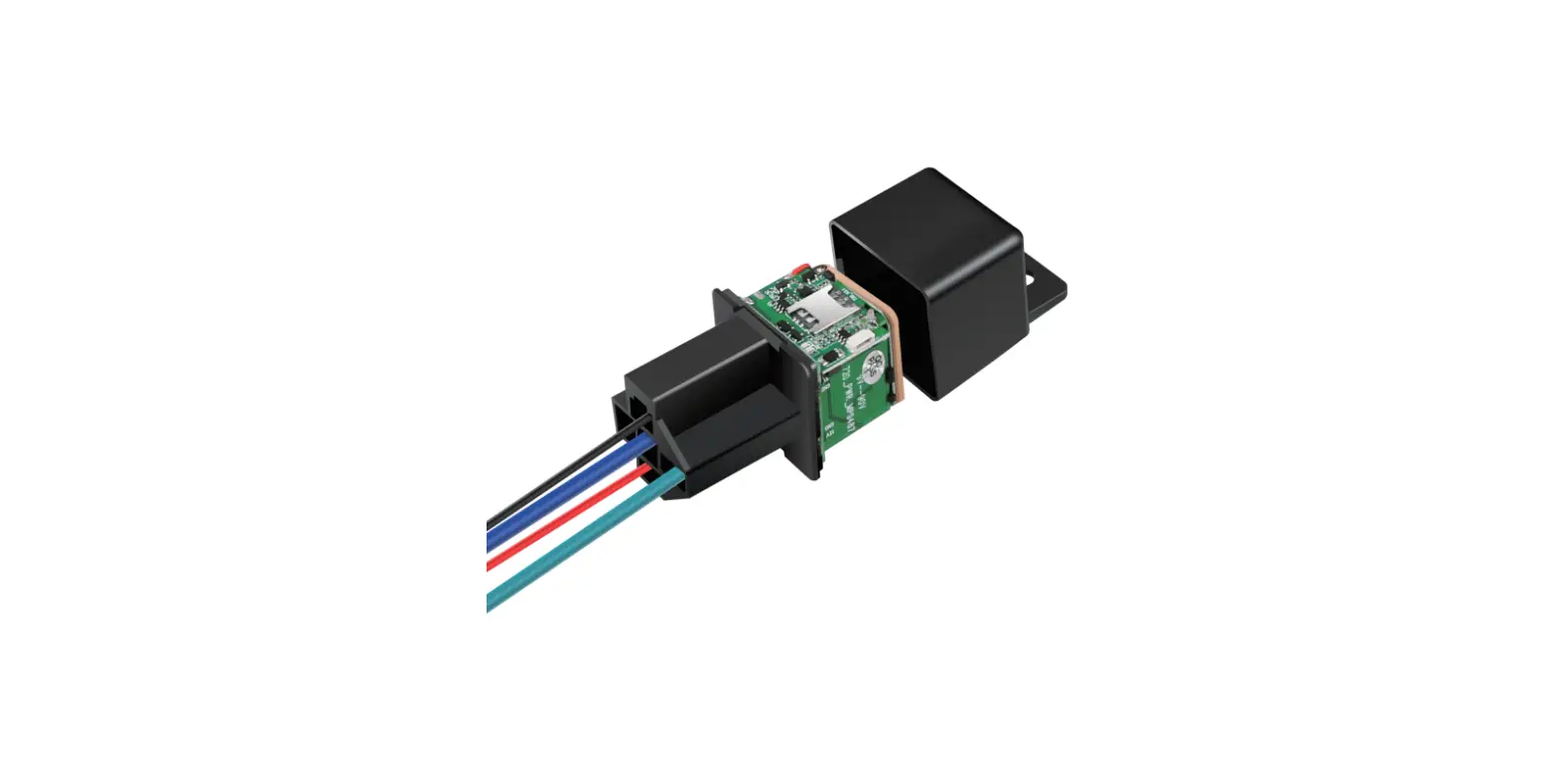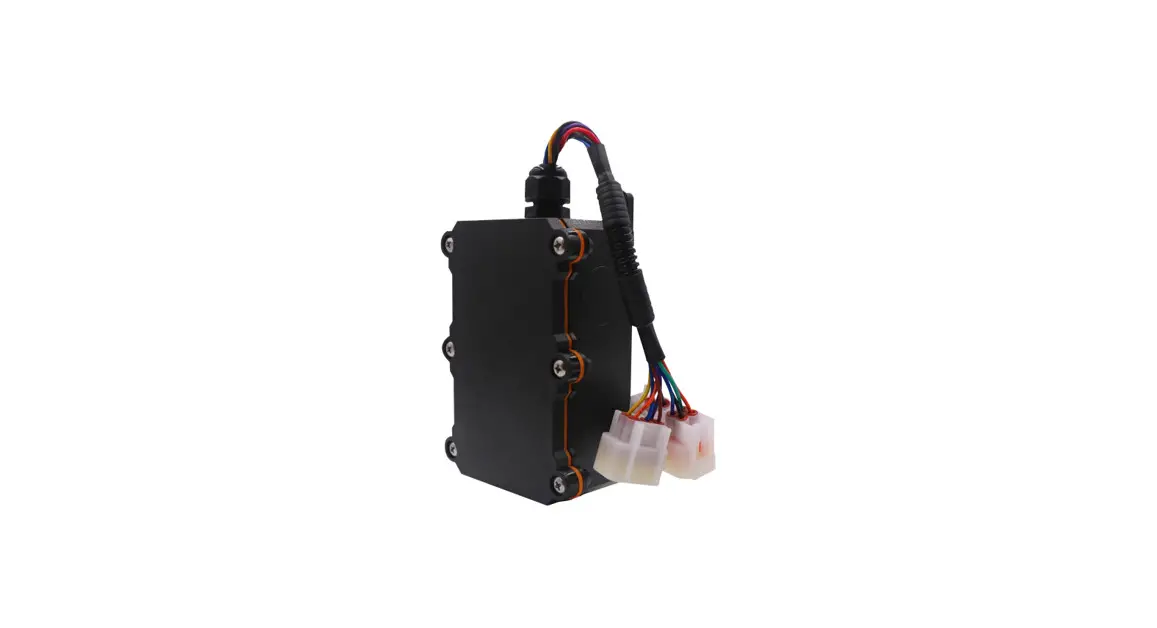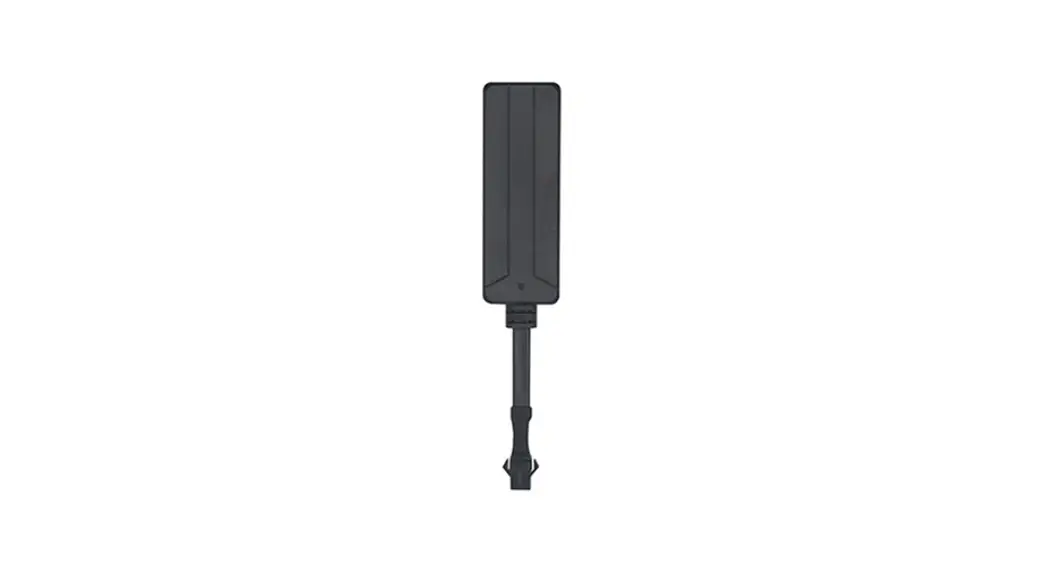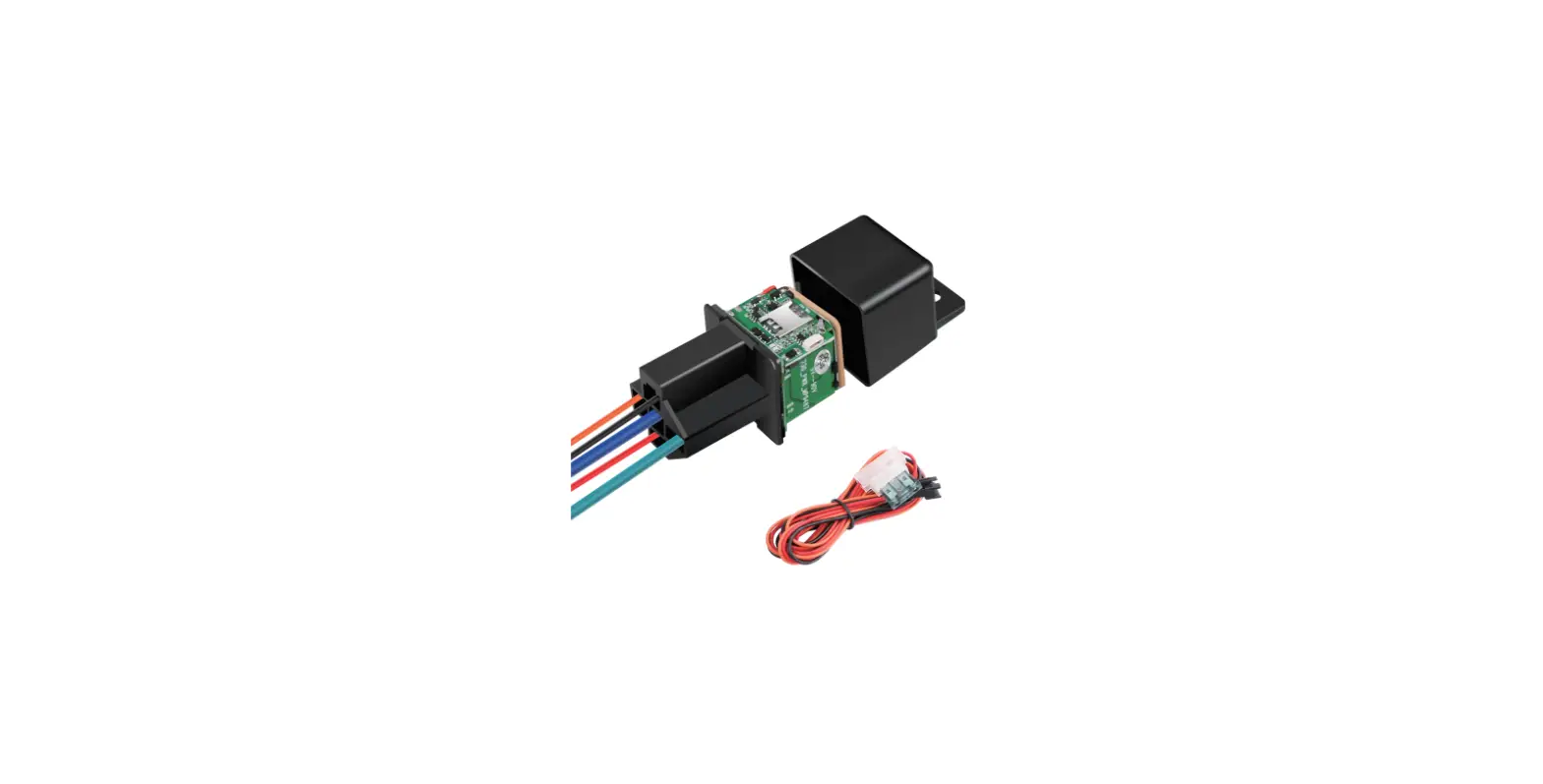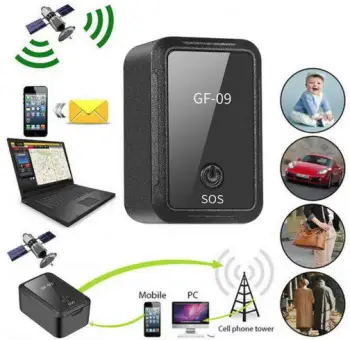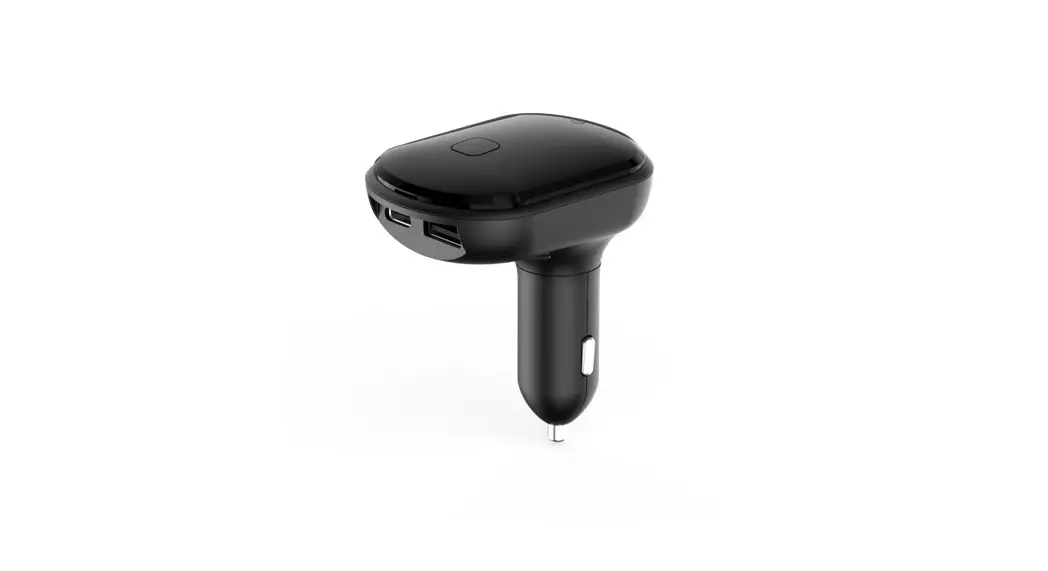

D51 GPS Tracker
(User Manual)
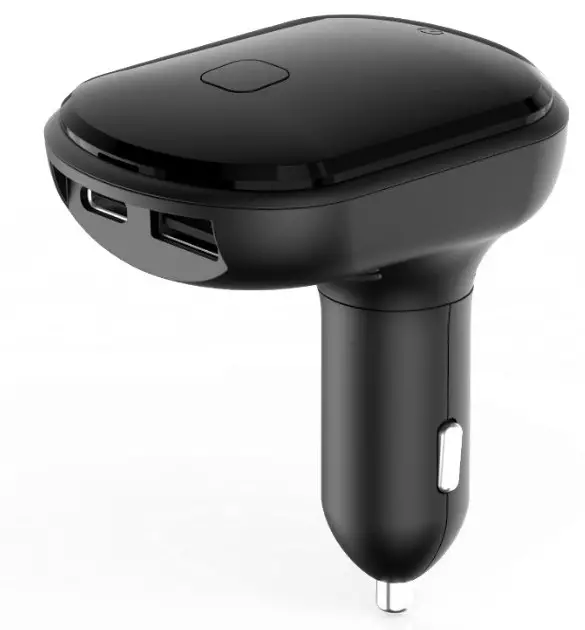
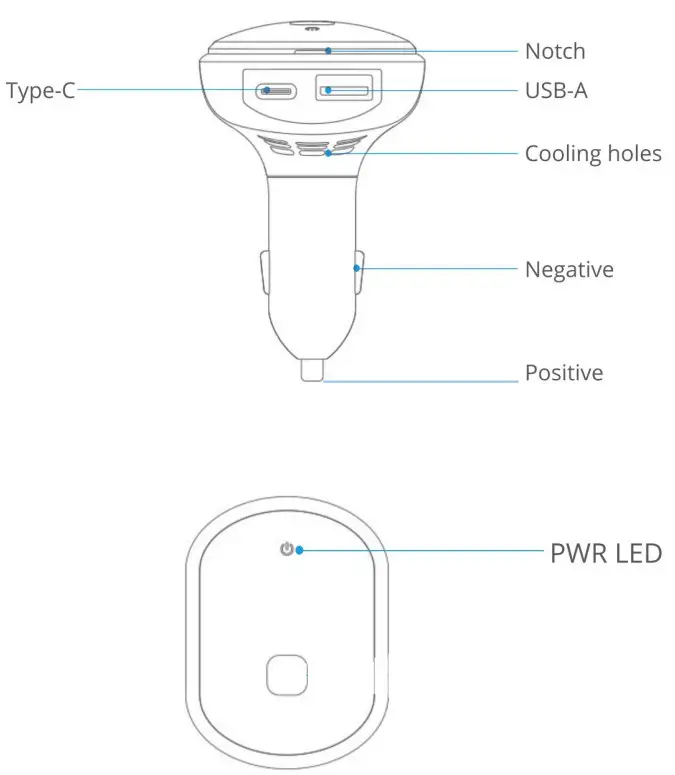
Appearance
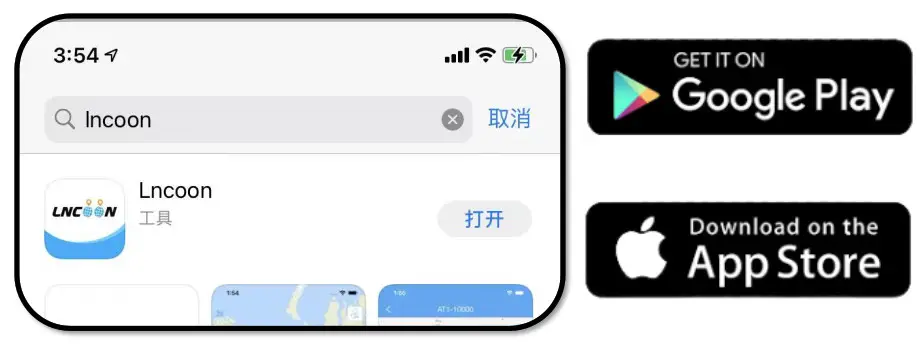
Download App
- Search “Lncoon” in App Store or Google Play to download.

- Visit Lncoon website: Lncoon.com/download to find quick download link.
*Android Backup Link: Dropbox
Sign up & Log in
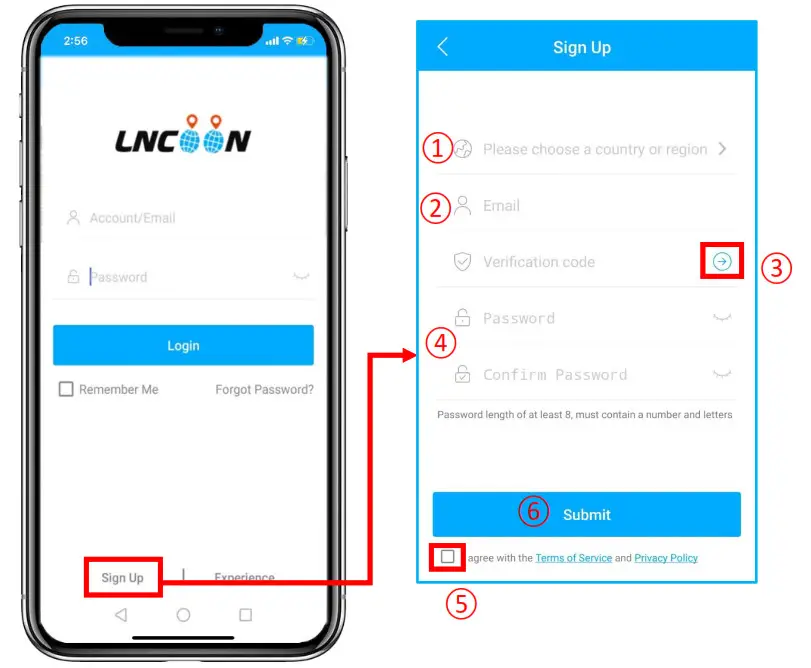
Click Sign Up
- Choose your country or region
- Enter a valid email address
- Click ‘→’ to get a verification code from [email protected]
* (If no email received, please check the trash or spam.) - Set up and confirm Password
- Check and agree the terms and policy
- Click on Submit
*The App will automatically log in to your account, please remember your account and password for future login.
Add Device
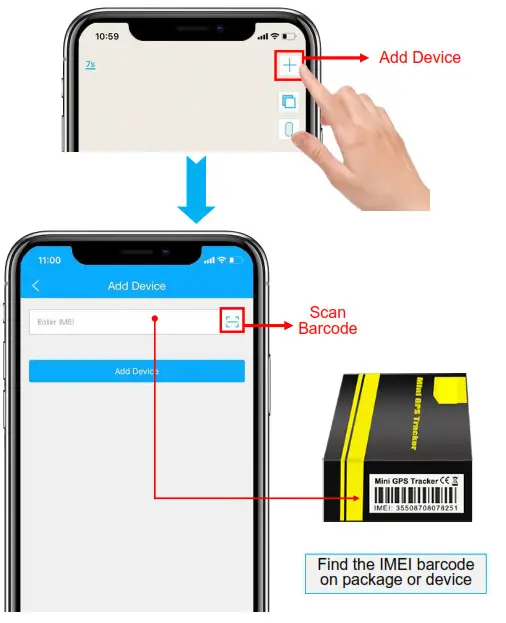
- Click the ‘+’ on the top right to add device.
- Scan or type in the IMEI number on the package or device body.
- Click ‘Add Device’ to confirm.
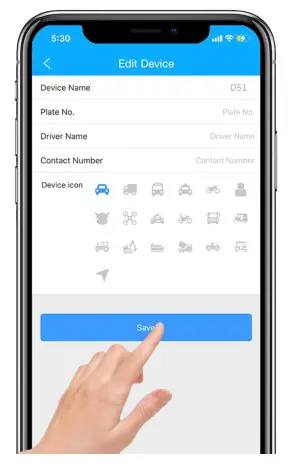
- Edit basic info about this device, or click on ‘Save’ directly to skip this step.

- You can always come back and edit in the ‘Detail’ Page later.


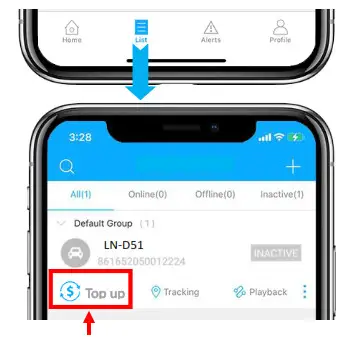
Top up
- Go to ‘List’, you will see the device you just bind.
- Click the ‘Top-up’ icon, or go to plan.lncoon.com

- Type in and check the ICCID is matching the ICCID on the back of the package and confirm to top up.

- Choose a plan and finish the payment.
*Alternate top-up page: lncoon.com/plan

Insert & Power on
- Connect the device to the cigarette lighter when the vehicle is ignition on.
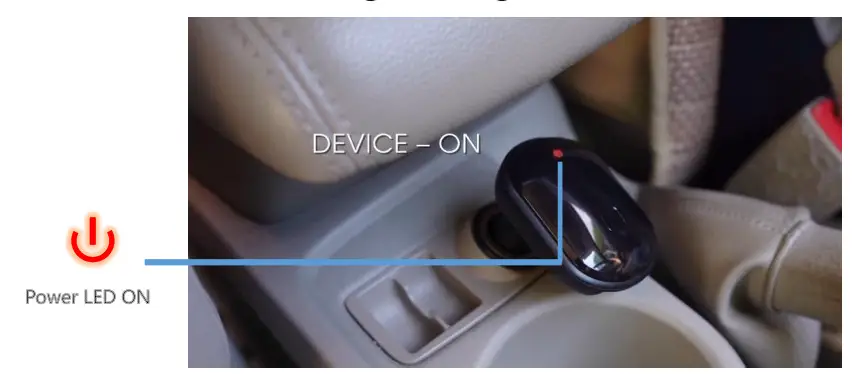
Ensure Device Online
- Go to ‘List’, you will see the D51 you just bind.
- You can tell the status of the device via the color of the icons.
- When the icons displayed in green or orange or red, it means the device is online.
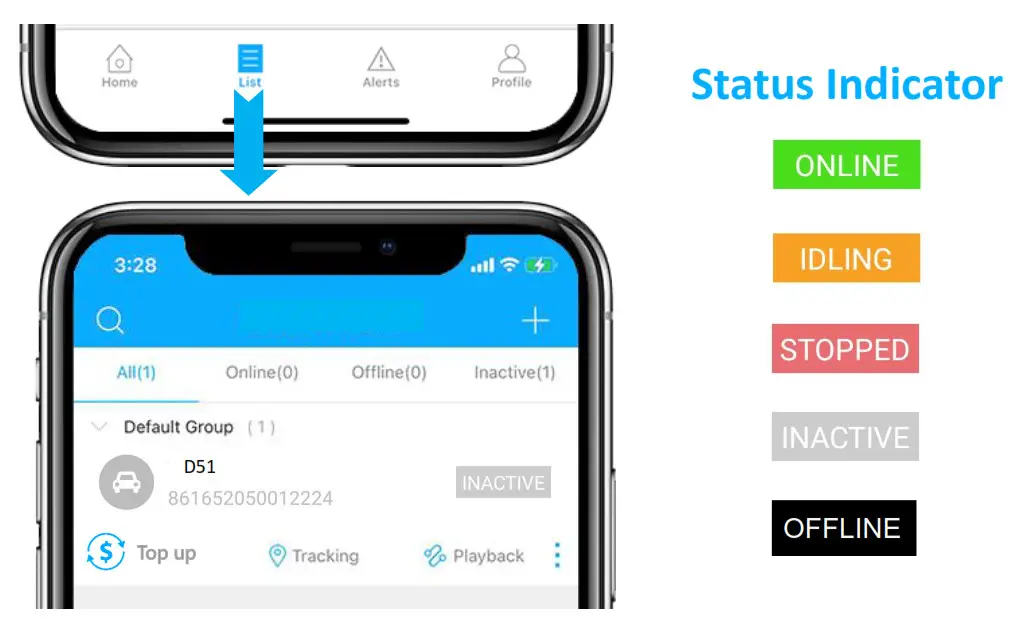
Device Inactive
- Top up is required before activating. If you have just topped up, please try restarting the device.
Device Offline
- Check whether the device is well connected to the power supply.
- Check if your subscription is expired.
Get Help
- Live chat with us by clicking the service icon

- Email: [email protected]
- Messenger us on Facebook: m.me/lncoon
- WhatsApp: +86 188 3978 7338
- Leave a voice message or text us: +1 (530) 564-8658
- Check the FAQ Library on website: lncoon.com/FAQ
App Instruction
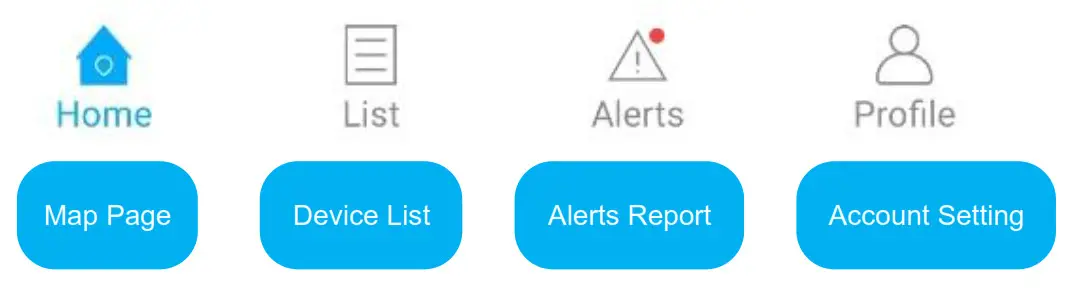
- Bottom Menu

- Console Menu
1. Tapping the icon to check the device.
2. Tapping the button to expand the menu.
 button to expand the menu.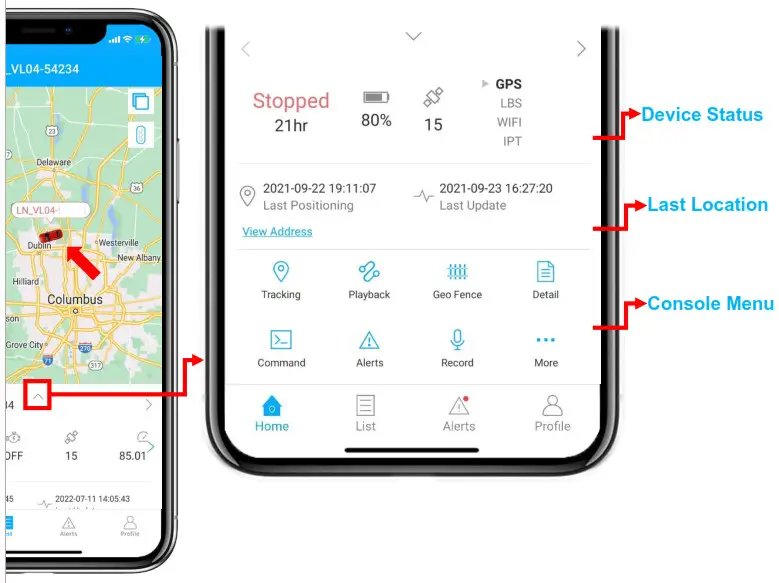
Note: If there is no map display, please install Google Maps app.
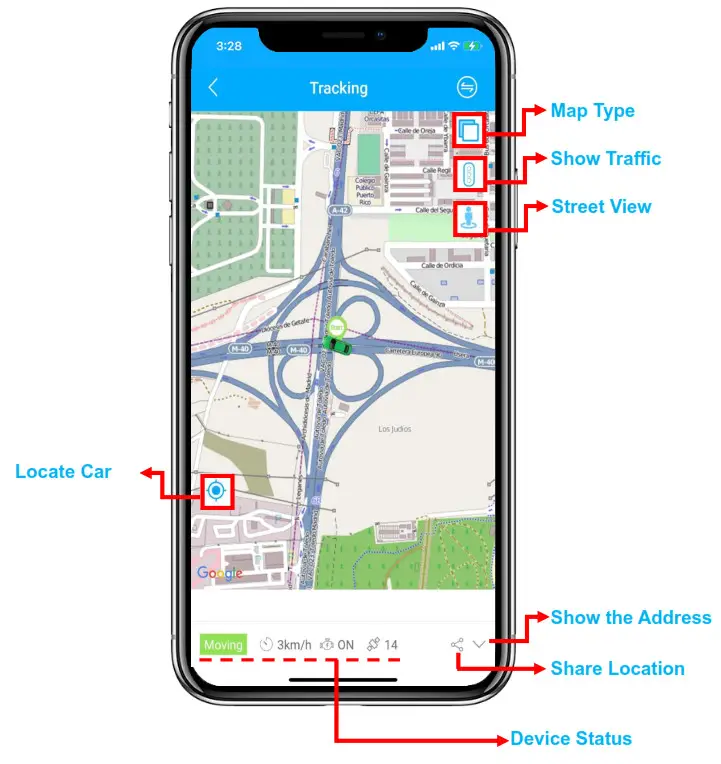
Real Time Tracking
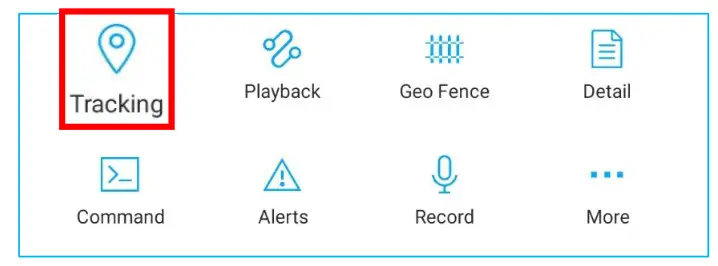
- Tapping on ‘Tracking’ to enter tracking page.
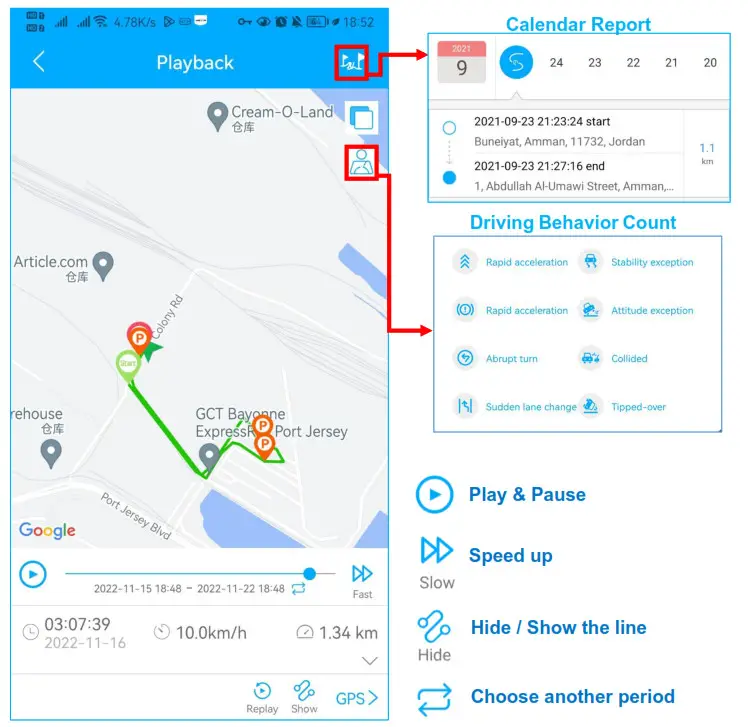
History Playback
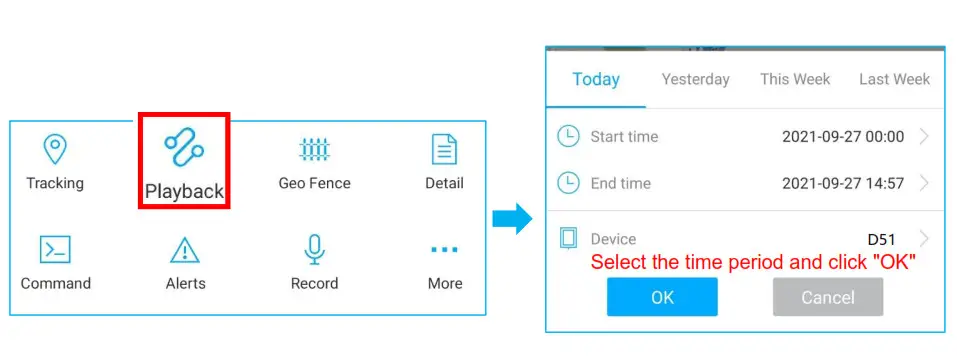
- Click ‘Playback’ to search the historical trips.
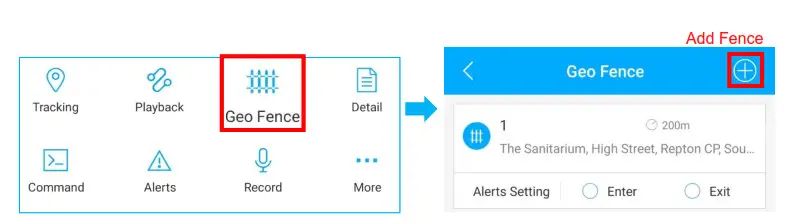
Geo Fence
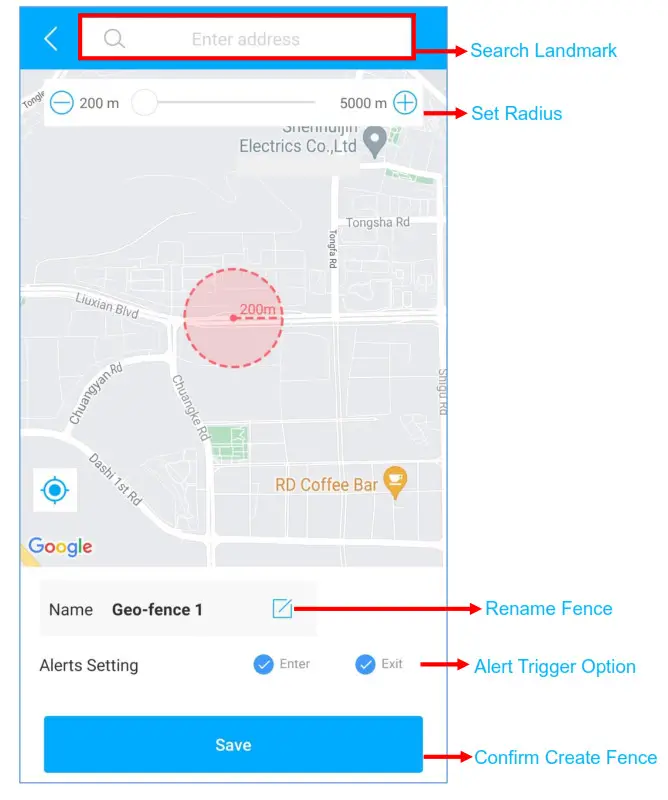
- Click ‘Geo Fence’ to manage your customized fences.
Alert Setting
- Find your device in the list page, click on the
 icon.
icon. - Go to ‘Command’ page to set alerts based on different situations.
- Explore more setting options to design your own tracking style.
 icon.
icon.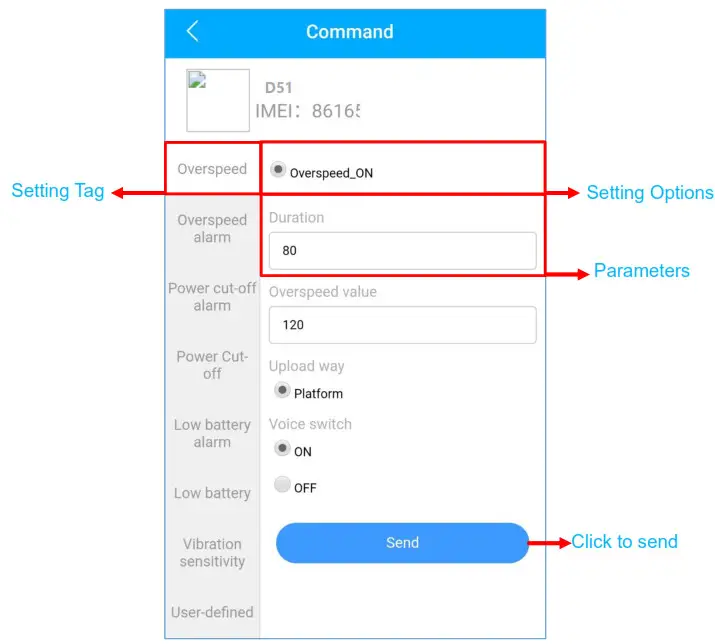
- These commands can only be affected when devices are online.
- If you are confused about these settings, please feel free to contact us.
FAQ
– A: 1. Make sure the device is fully charged and powered on;
– 2. Make sure you have a valid subscription plan;
– 3. Check the “List” page to make sure the device is online;
– *(The icon in red, orange or green means it is online)
– 4. Bring the device to an open sky, so that the device can obtain better GPS signals.
– A: Check whether the “Alert” page has corresponding alarm records.
– If yes: please click the logout button in the upper right corner of the Profile, and try to log in again.
– if no: 1. Please check the online status and network status of the device.
– 2. Please click the  button in the upper right corner and make sure you don’t filter out any alarms.
– 3. Please try to check and setup the alert again.
– A: please click the logout button in the upper right corner of the Profile, and try to log in again.
*If you have any other questions, click the  icon to get technical support.

Email: [email protected]
Website: www.lncoon.com
Tracking Platform: lncoon.com/download
 Download App – LNCOON
 Lncoon
 LNCOON
 WhatsApp Group Invite
 Transfer - Dropbox
 Lncoon (@lncoon.gps) • Instagram photos and videos