
SENA SRL for Shoei NeotecⅡ

Product Information
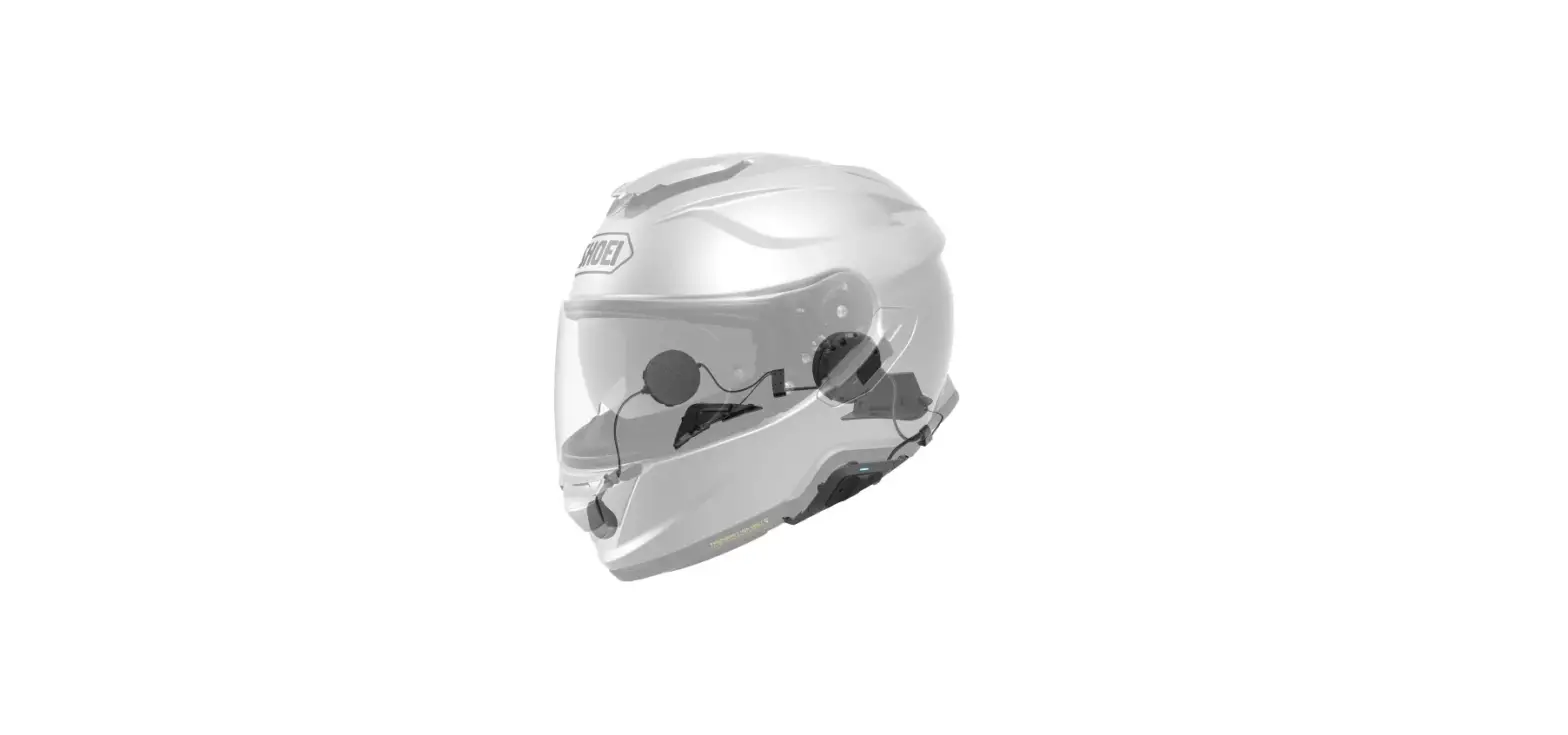
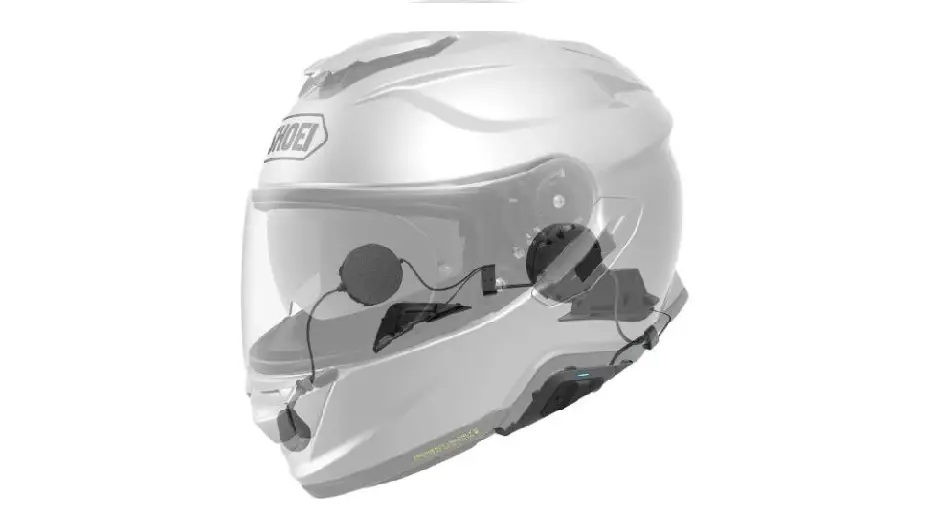
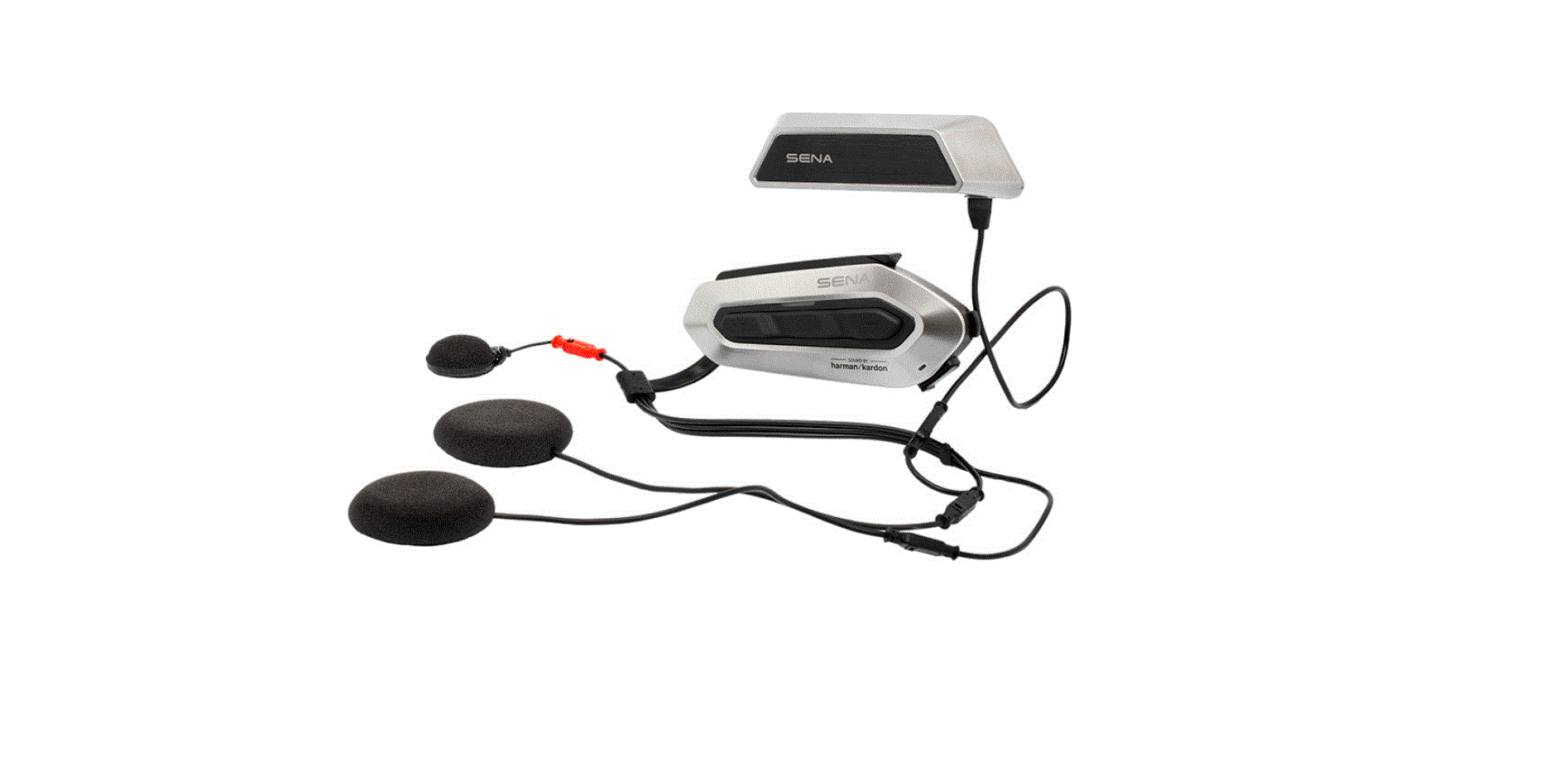
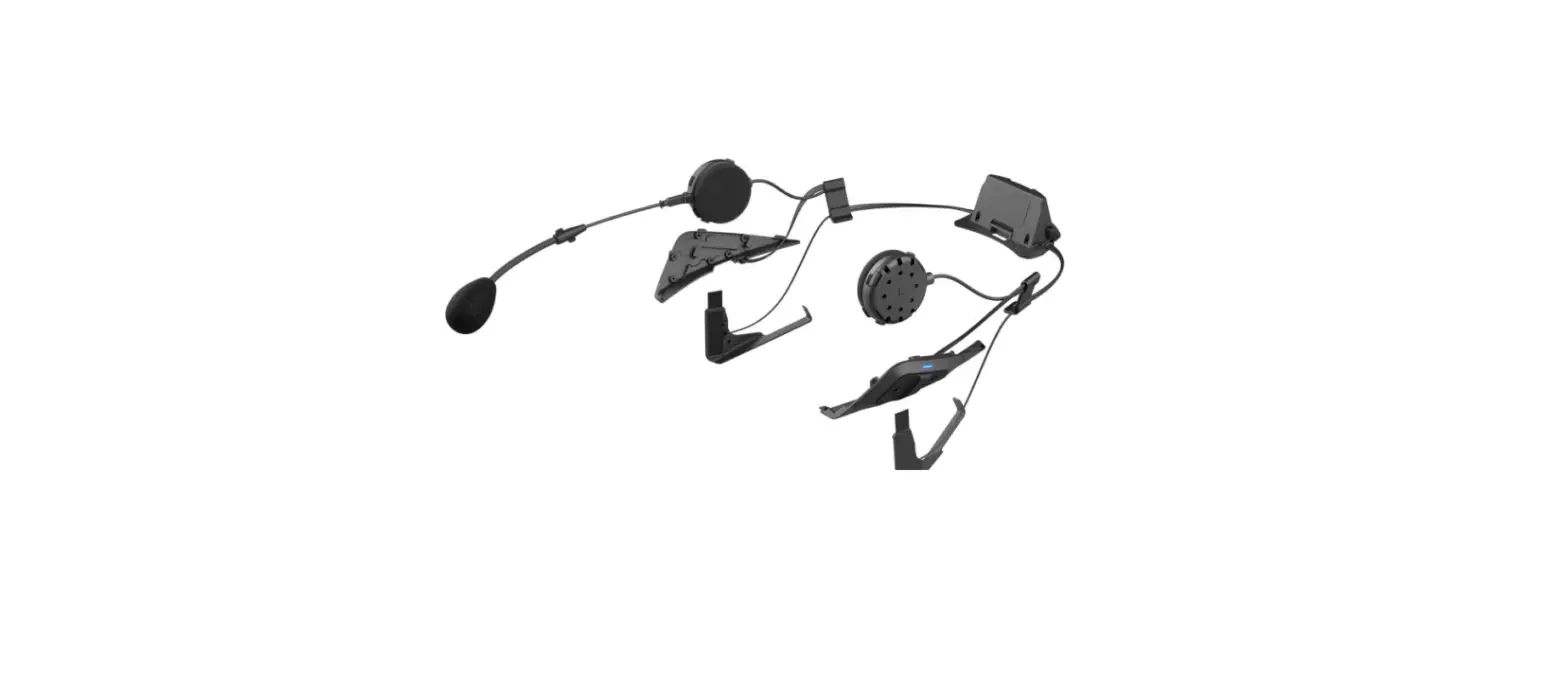
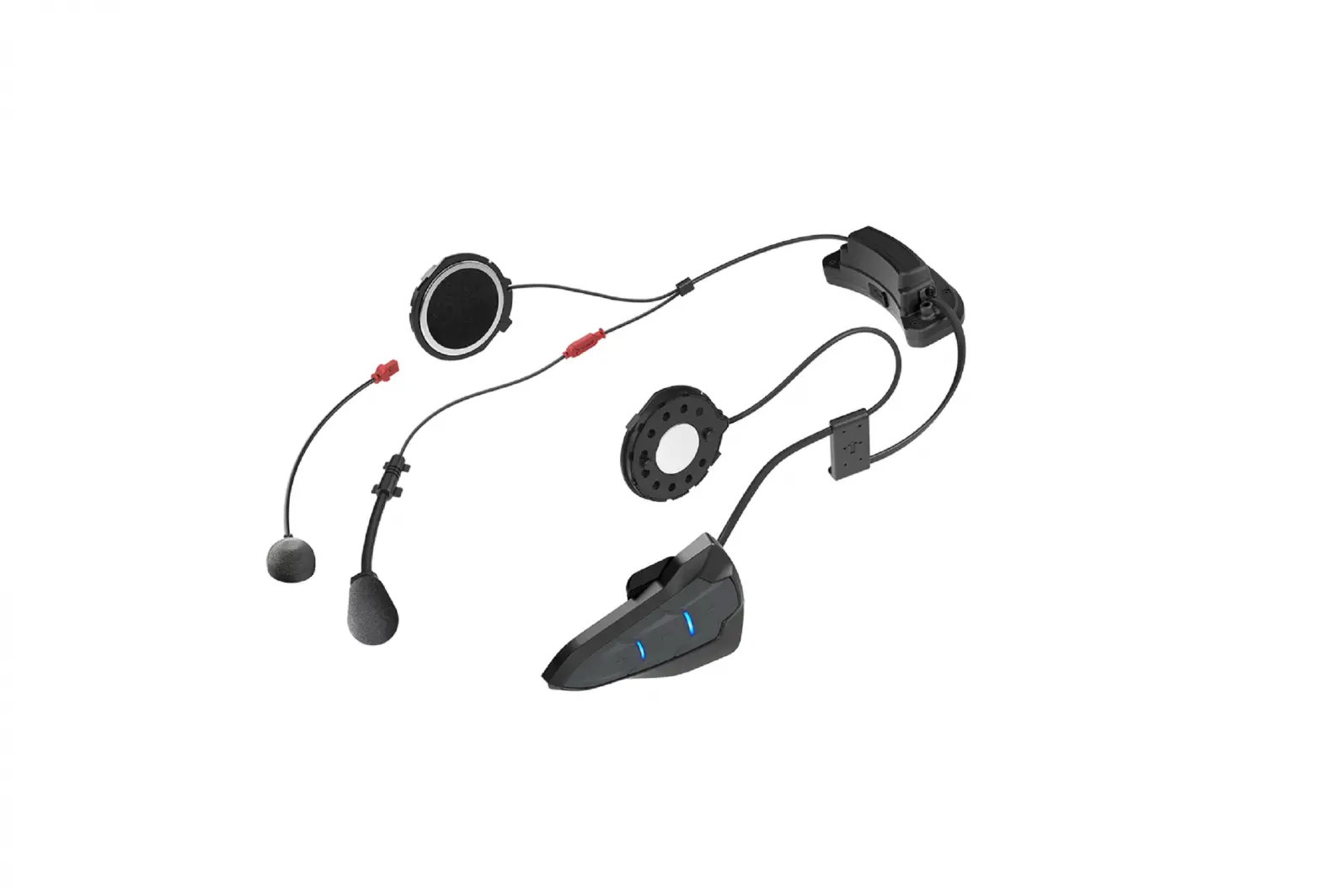
The SRL for Shoei Neotec is a Bluetooth communication system designed for use with Shoei Neotec helmets. It allows riders to connect their mobile phones, MP3 players, GPS devices, and other Bluetooth-enabled devices for wireless communication and audio playback. The SRL features speakers, a microphone, a Bluetooth module, and various control buttons for easy operation.
Product Usage Instructions
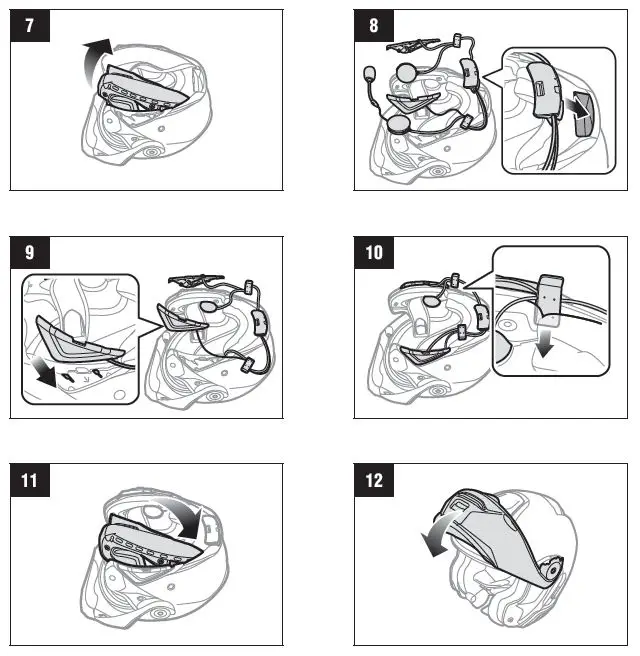
- Installation: Follow the instructions provided in the user manual to install the SRL system onto your Shoei Neotec helmet.
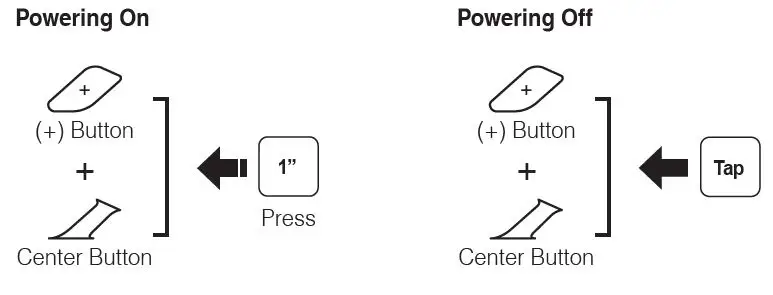
- Power On/Off: To power on the SRL, press and hold the (+) button and the center button simultaneously for 1 second. The LED will turn solid blue to indicate that the device is powered on. To power off the SRL, tap the (+) button and the center button simultaneously.
- Volume Adjustment: To adjust the volume, tap the (+) button to increase the volume or tap the (-) button to decrease the volume.
- Bluetooth Pairing: To pair your mobile phone, MP3 player, or GPS device via Bluetooth, select “Sena SRL” in your device’s Bluetooth settings. Enter the PIN “0000” if prompted.
- Answer/End Calls: To answer an incoming call, tap the center button. To end or reject a call, tap the center button again. To activate voice dialing, tap the center button once. To speed dial a contact, press and hold the center button.
- Music Control: To play or pause music playback, tap the center button. To skip to the next track, tap the (+) button. To go back to the previous track, tap the (-) button.
- Intercom Pairing: To pair with another SRL headset for intercom communication, press and hold the center button until the LED starts flashing. The headset will automatically search for nearby devices. Follow the same procedure on the other headset to complete the pairing.
- Start/End Intercom: To start an intercom conversation with another paired headset, tap the center button. To end the intercom conversation, tap the center button again.
- Group Intercom: To start or end a group intercom conversation with multiple paired headsets, tap the center button twice. To add a third to the ninth friend to the group intercom, tap the (+) button. To cancel or confirm, tap the (-) button or the center button respectively.
- Radio Control: To turn on/off the FM radio, press the (-) button once. To seek for radio stations, tap the (+) or (-) button. To save or delete a preset station, press the center button and follow the instructions on the LED.
- Voice Command: To activate voice commands, tap the center button and say the desired command, such as “Hello Sena” for general voice commands or specific commands for music, FM radio, intercom, and speed dialing.
- Troubleshooting: If you encounter any issues with the SRL, you can perform a factory reset by accessing the configuration menu. For more details on troubleshooting and resetting, refer to the SRL User’s Guide available for download on www.sena.com.
Product Details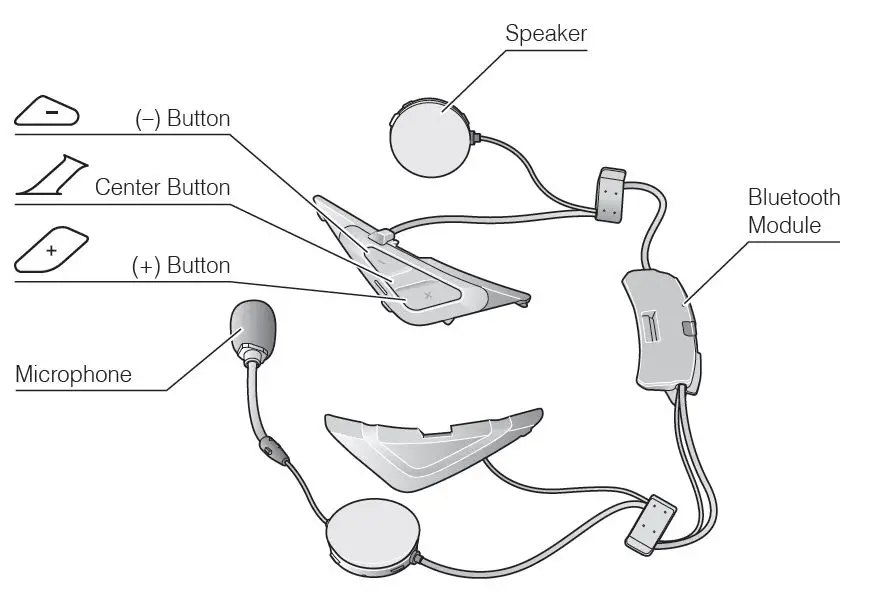
Installation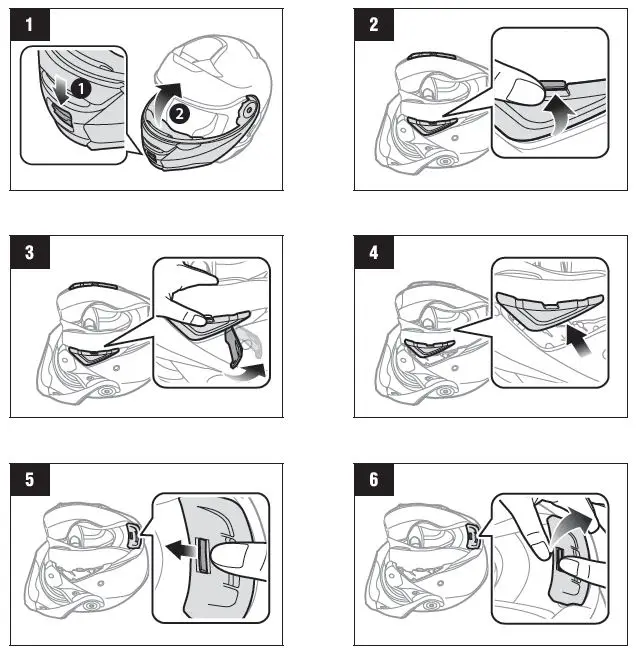
Sena Motorcycles App
- Download
- Android: Google Play Store > Sena Motorcycles
- iOS: App Store > Sena Motorcycles
Sena Device Manager
The Sena Device Manager allows you to upgrade the firmware and configure its settings directly from your PC or Apple computer. Download the Sena Device Manager from sena.com.
Button Operation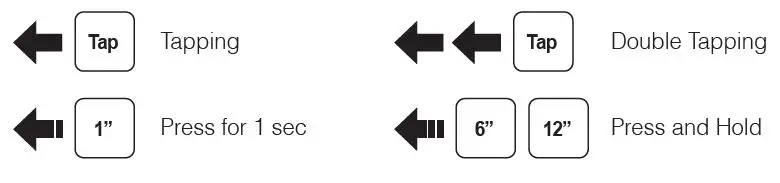
Power On/Off
Volume Adjustment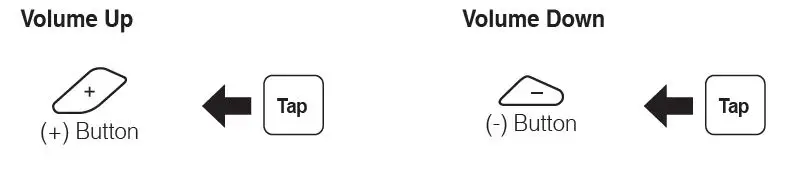
Bluetooth Pairing
Phone, MP3 and GPS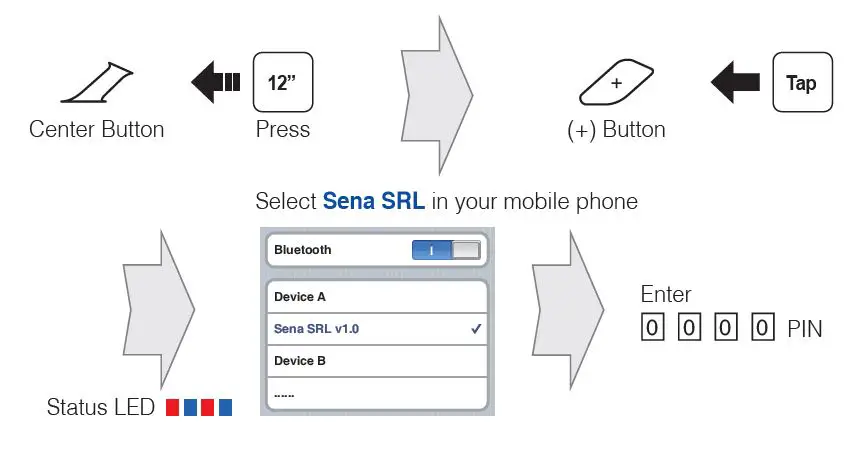
Mobile Phone
Music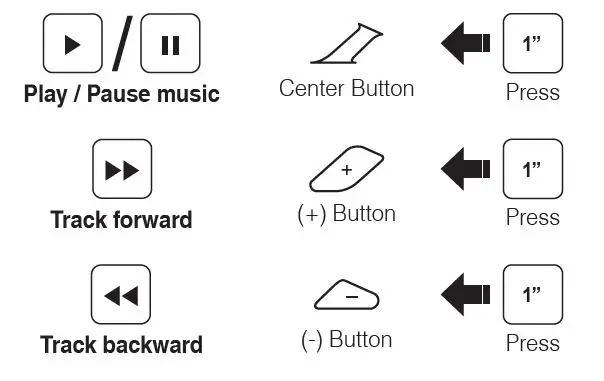
Battery Check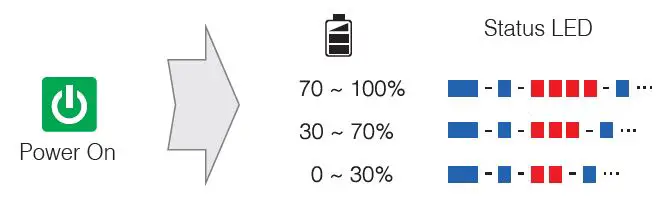
Configuration Menu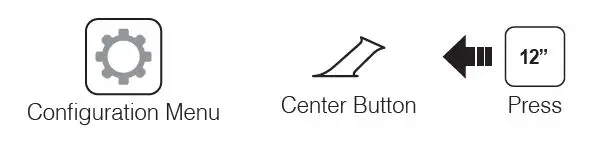
Intercom Pairing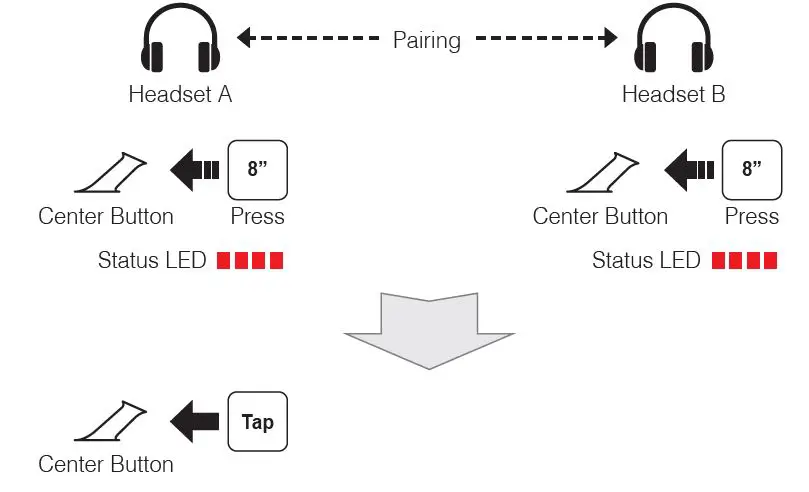
Start / End Intercom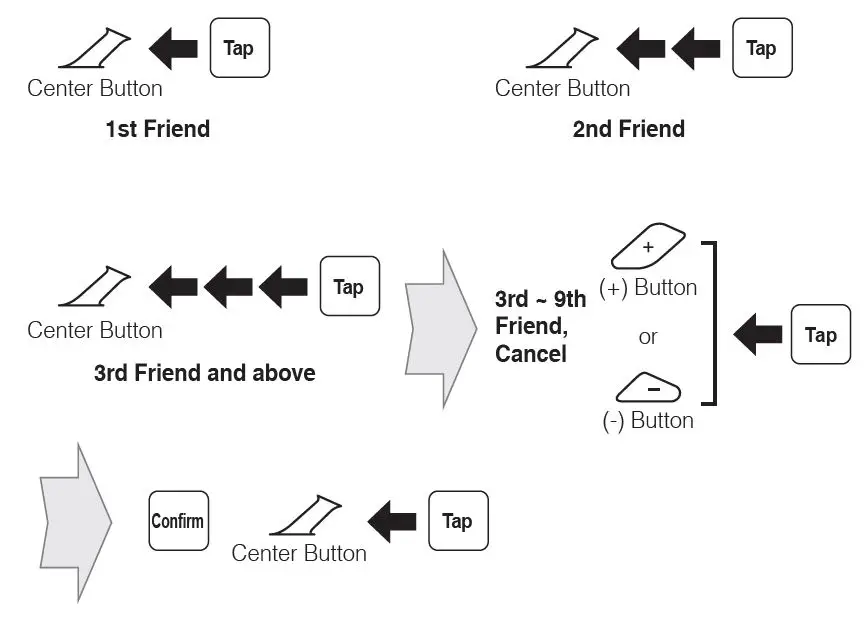
Start / End Group Intercom
Note: You can use Group Intercom after saving your own group in the Sena Motorcycles App. Please refer to the SRL User’s Guide in more details.
Radio On / Off
Radio Seek Station
Radio Scan Up FM Band
Save to preset while scanning
Radio Save and Delete Preset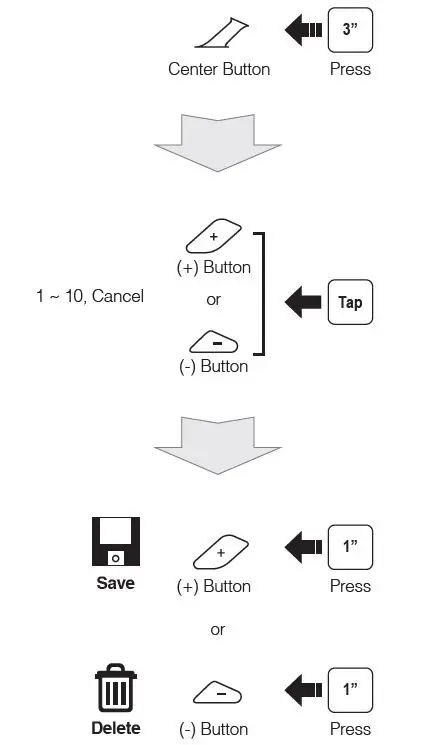
Radio Move to Preset Station Voice Command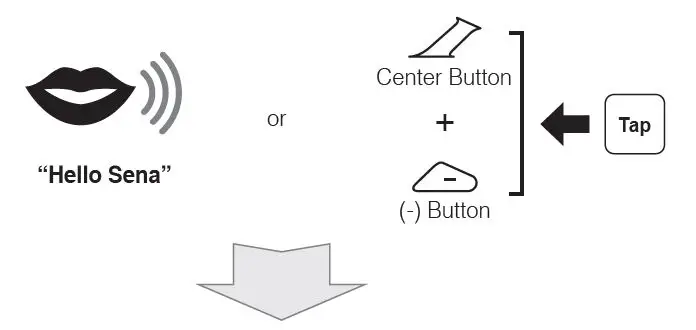
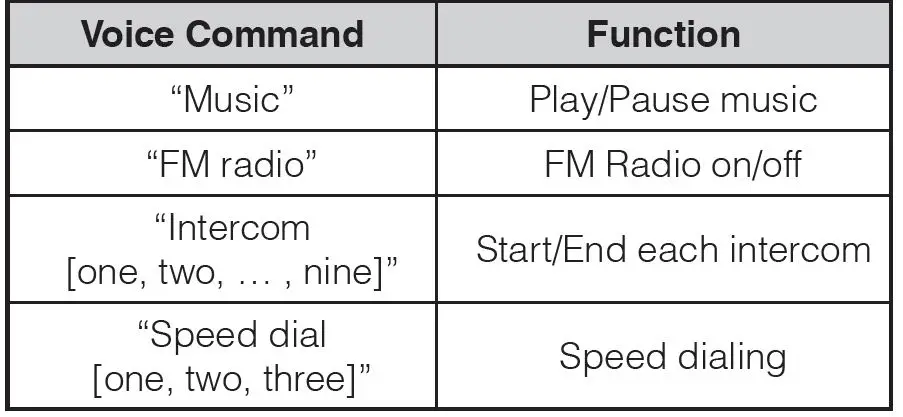
Troubleshooting
Factory Reset
If you want to restore the SRL to the factory default settings, use the Factory Reset in the configuration menu. The headset automatically restores the default settings and turns off.
Fault Reset
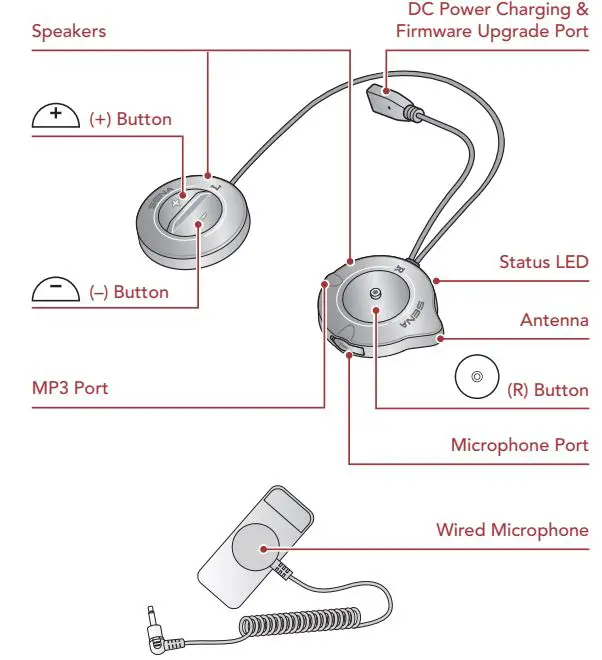
If the SRL is not working properly for any reason, reset it by gently pushing the pin-hole reset button located next to the DC Power Charging & FirmwareUpgrade Port.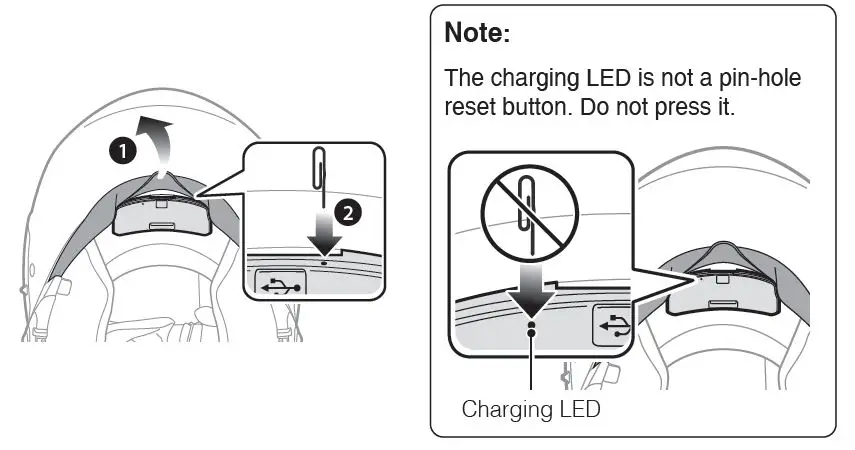
A full version of the manual is downloadable at www.sena.com.
SRL for Shoei Neotec Quick Reference
| Type: Basic Operations | Operation
Power on | Button Command Press the (+) Button and the Center Button for 1 second | LED
Solid blue |
| Power off | Tap the (+) Button and the Center Button | Solid red | |
| Volume adjustment | Tap the (+) Button or the (-) Button | – | |
| Voice Command | Say “Hello, Sena” | Green flashing | |
| Tap the Center Button and the (-) Button | |||
| Mobile Phone | Answer phone call | Tap the Center Button | – |
| End/Reject phone call | Press the Center Button for 2 seconds | – | |
| Voice dial | Press the Center Button for 3 seconds | – | |
| Speed dial | Press the (+) Button for 3 seconds | – | |
| Music | Play/Pause music | Press the Center Button for 1 second | – |
| Track forward | Press the (+) Button for 1 second | – | |
| Track backward | Press the (-) Button for 1 second | – | |
| FM Radio | FM radio on/off | Press the (-) Button for 1 second | – |
| Seek forward | Double tap the (+) Button | – | |
| Seek backward | Double tap the (-) Button | – | |
| Intercom | Intercom pairing | Center Button for 8 seconds | Red flashing |
| Tap the Center Button | |||
| Start/End intercom | Tap the Center Button | – | |
| End all intercoms | Press the Center Button for 5 seconds | Blue flashing | |
| Start group intercom | Tap the (+) Button and the (-) Button | Green flashing | |
| End group intercom | Tap the (+) Button and the (-) Button | – | |
SENA Technologies, Inc.
Customer Support: sena.com. www.sena.com.
 The Best Motorcycle & Action Sport Bluetooth Devices | Sena
 The Best Motorcycle & Action Sport Bluetooth Devices | Sena