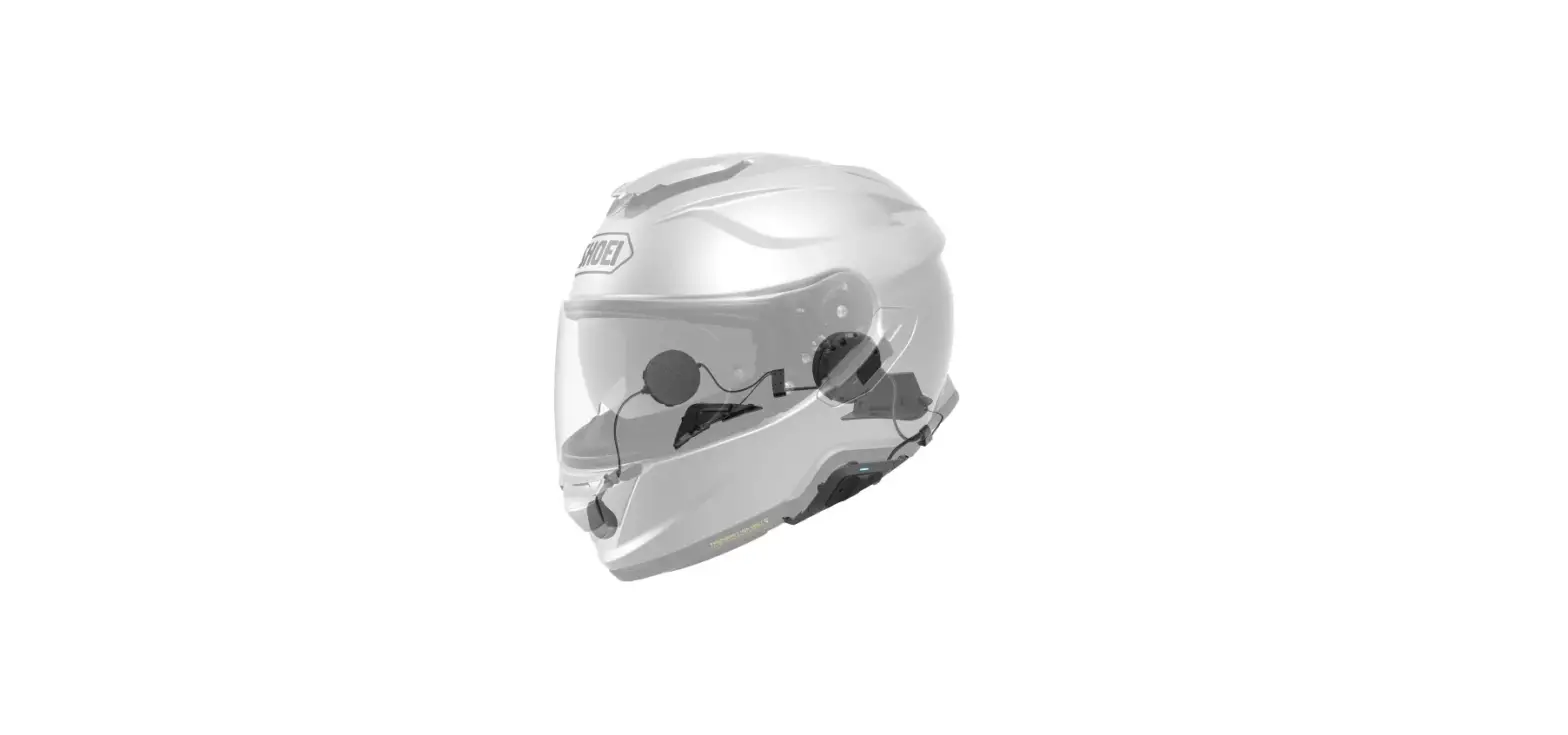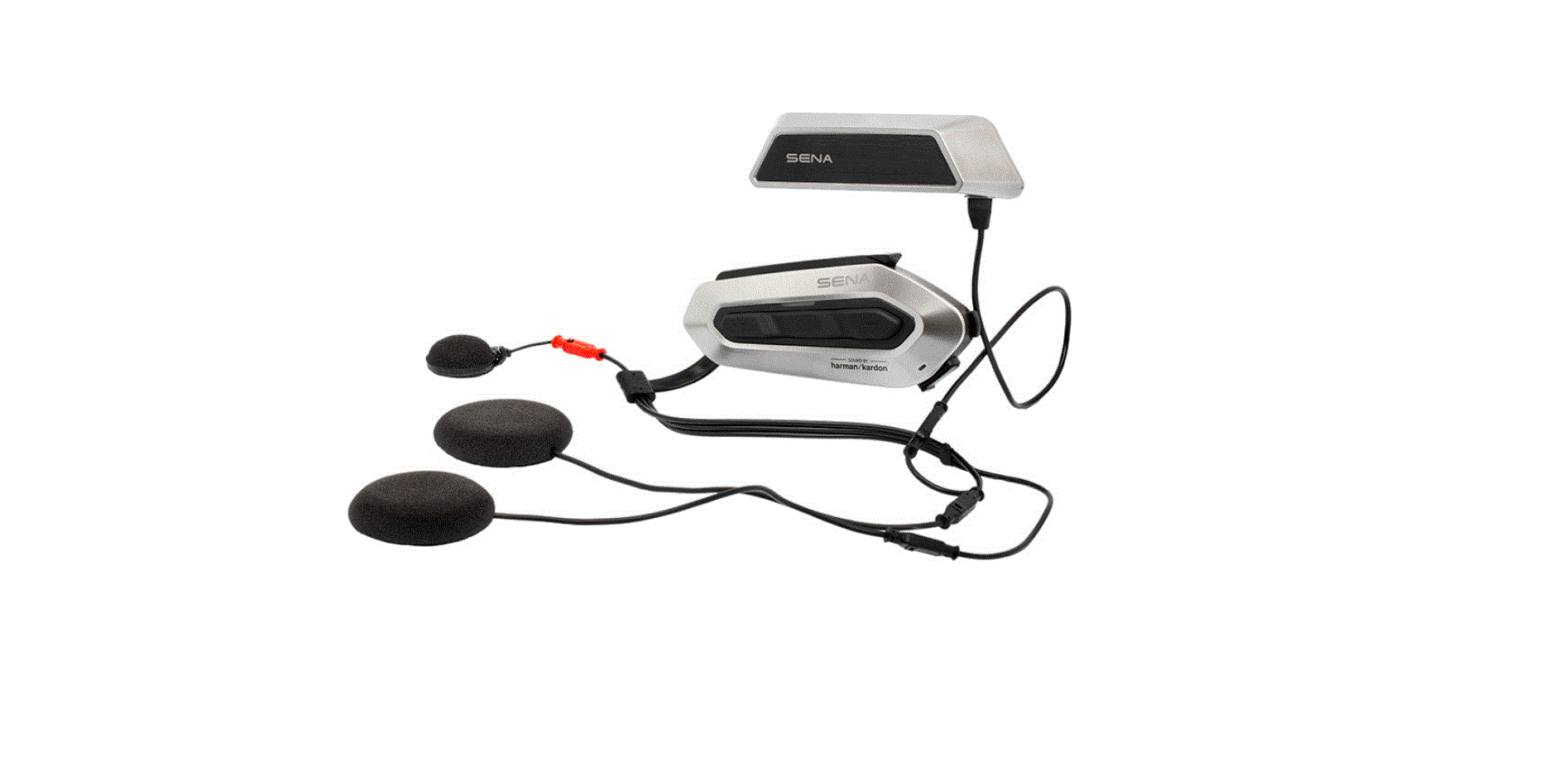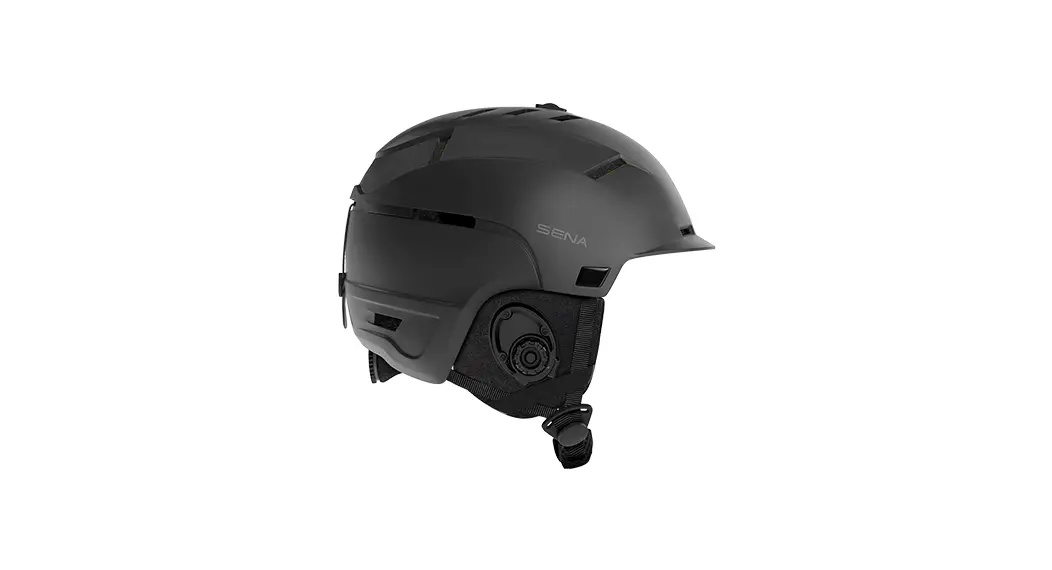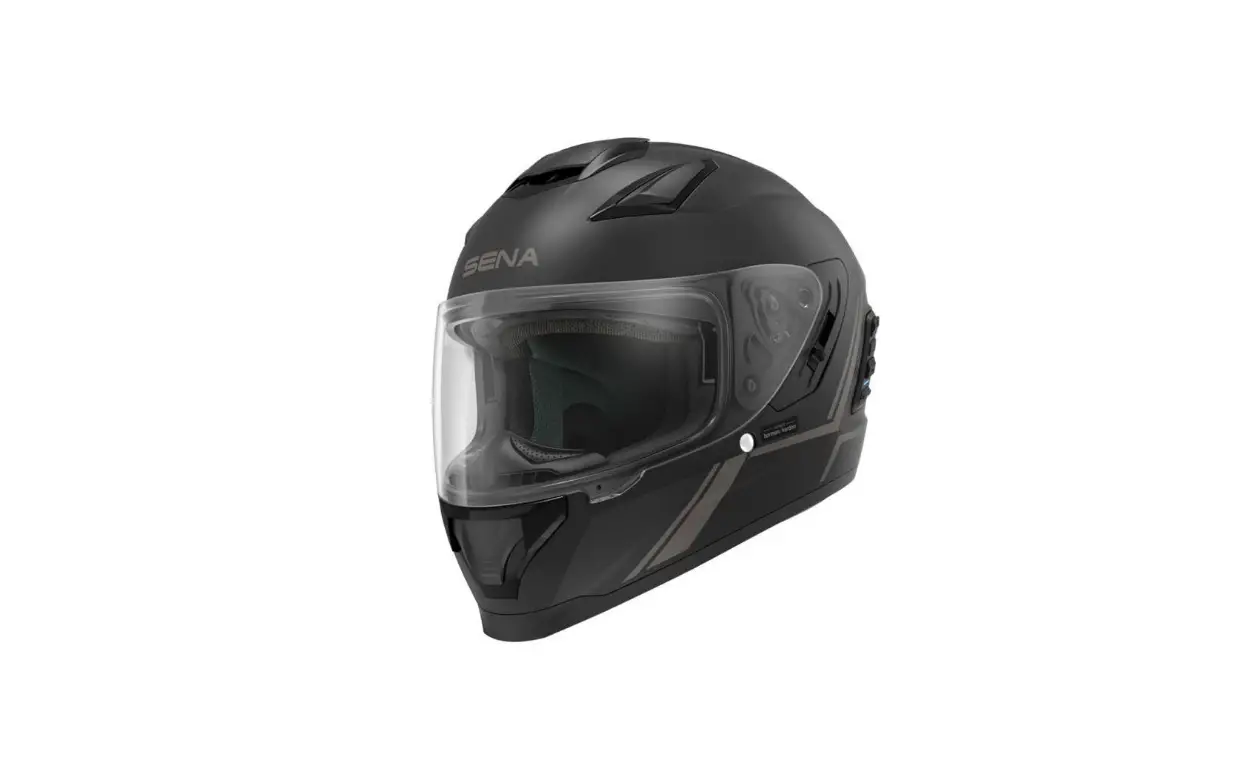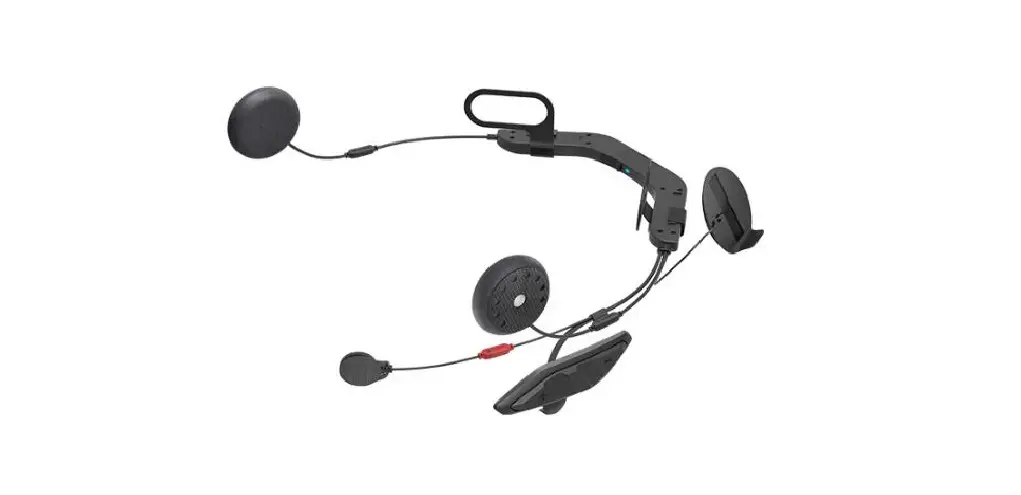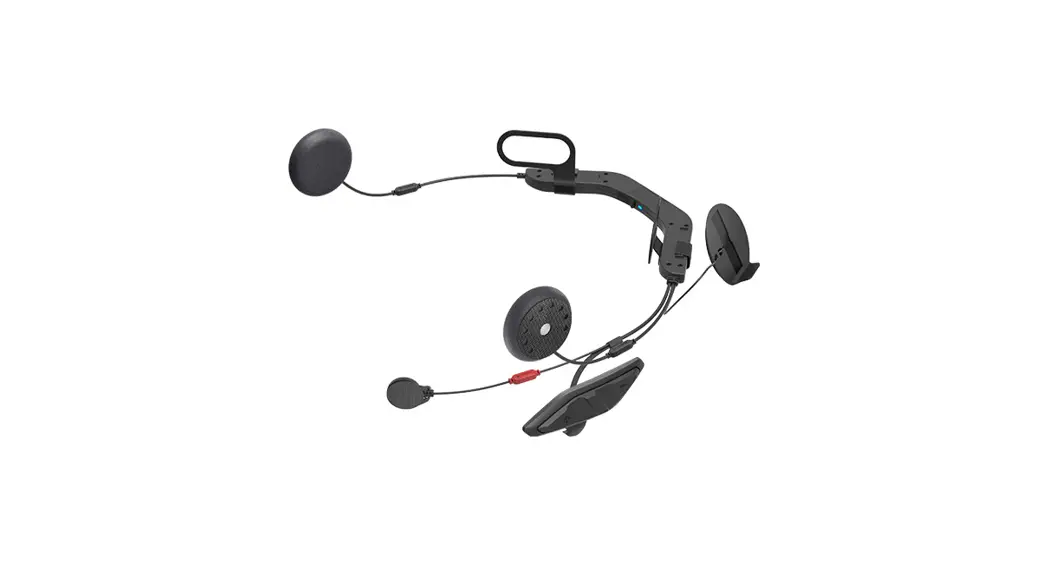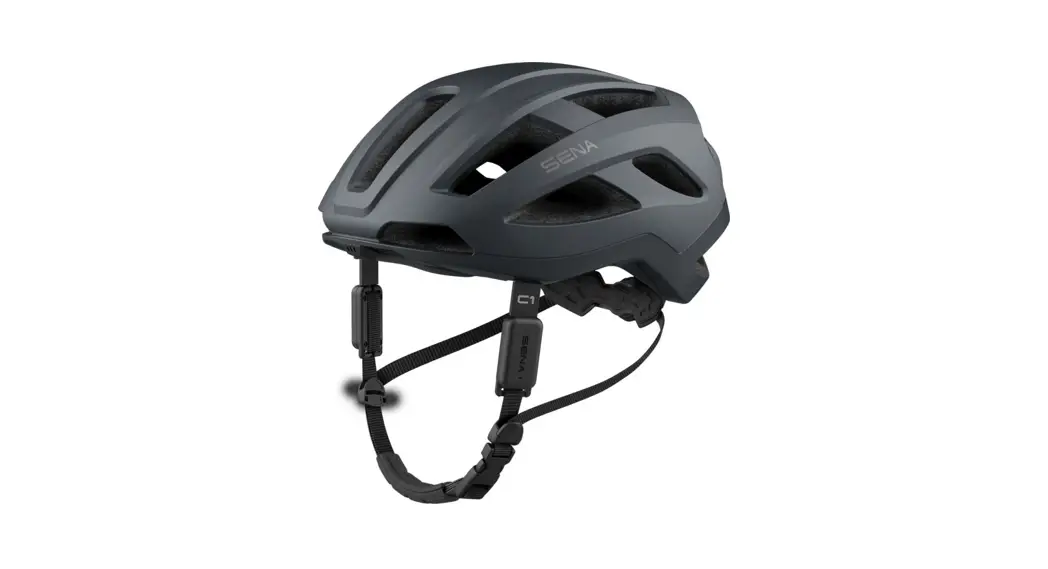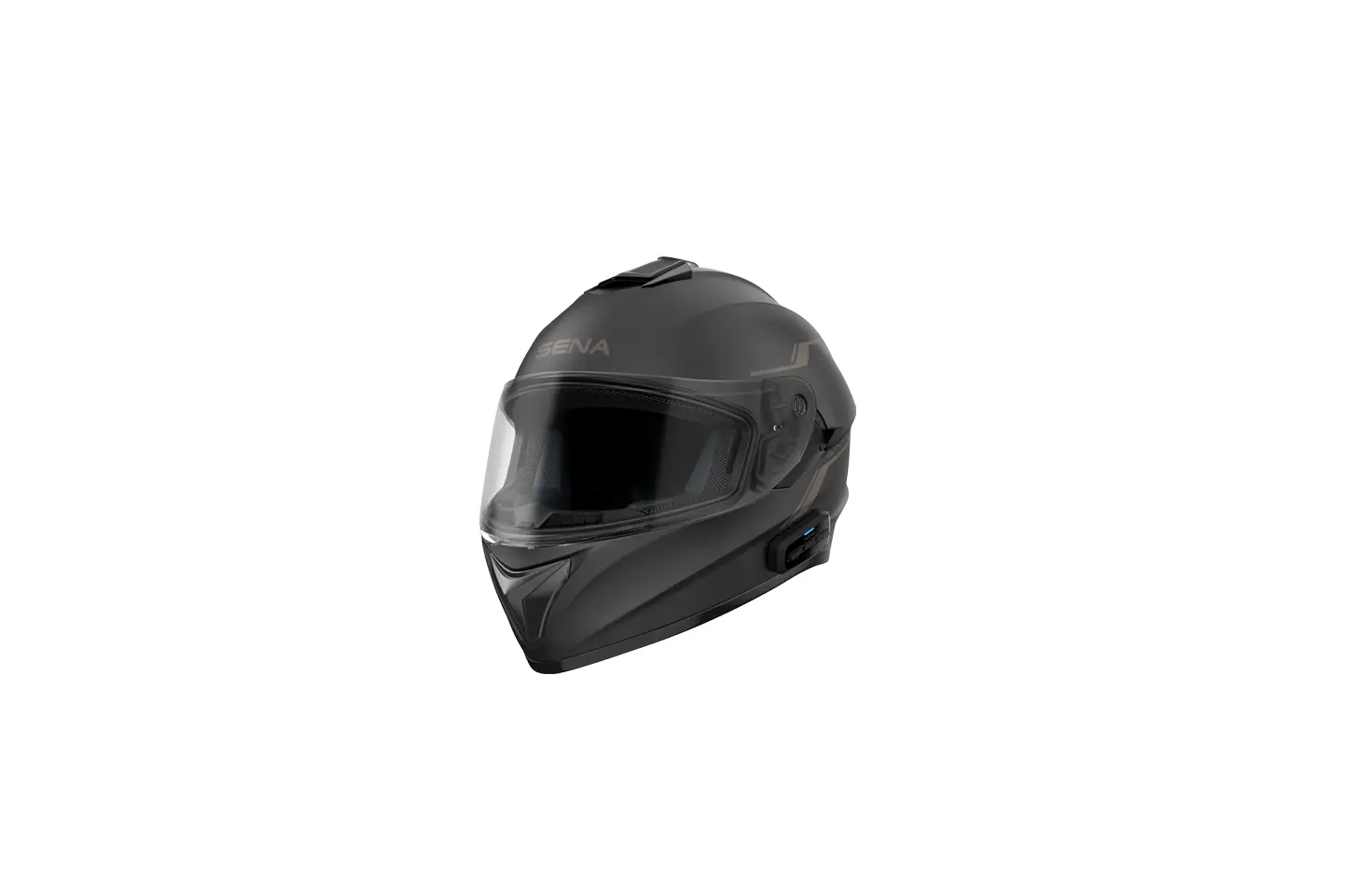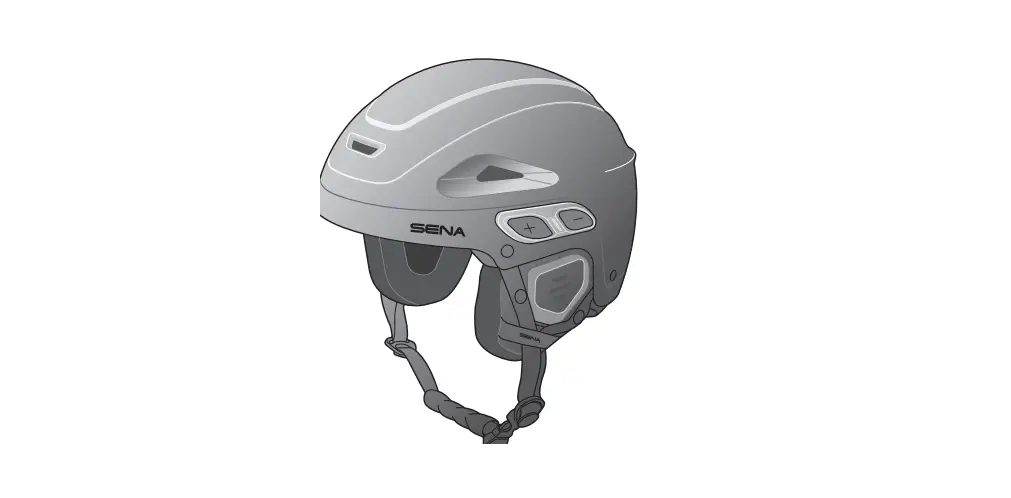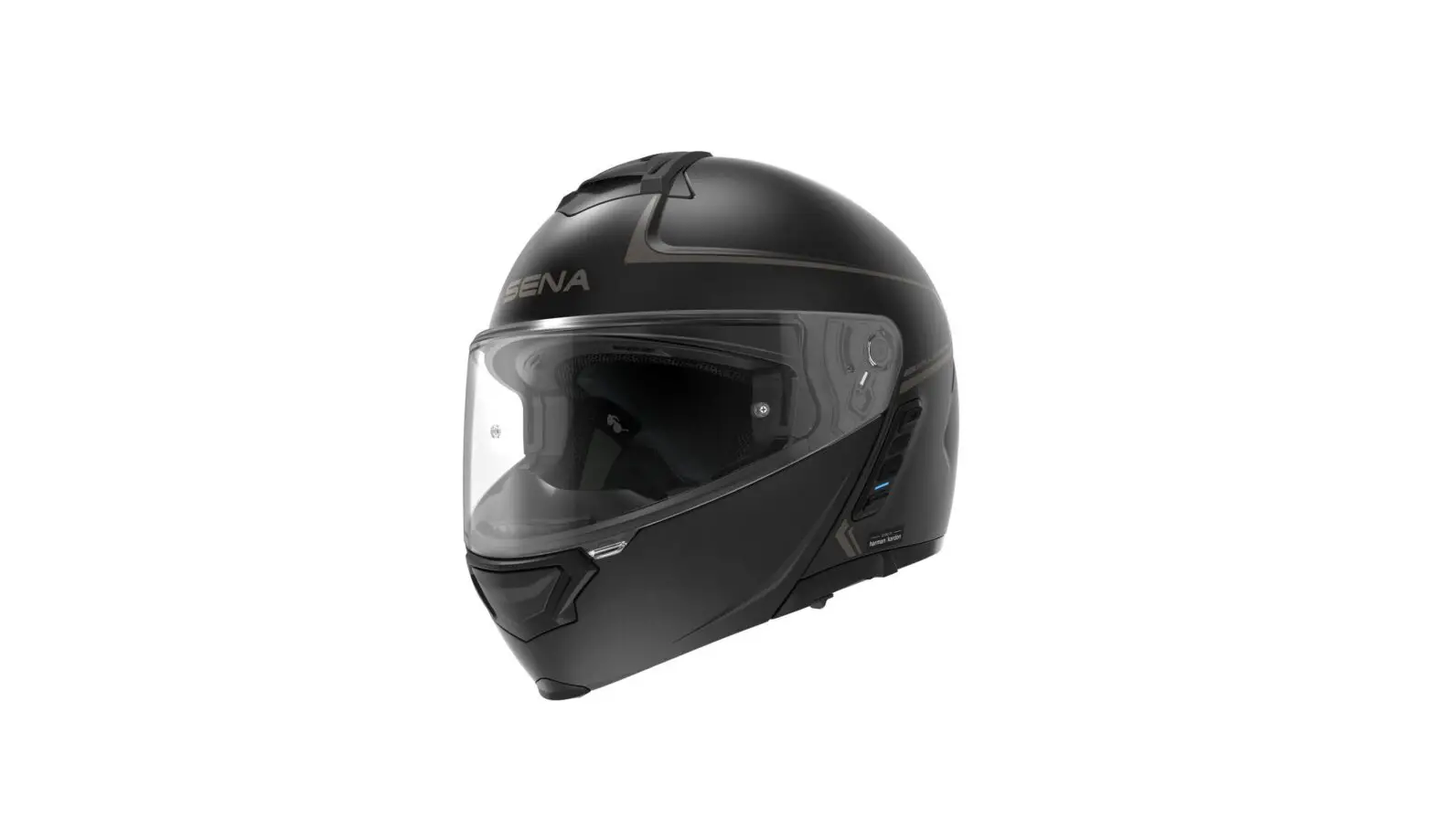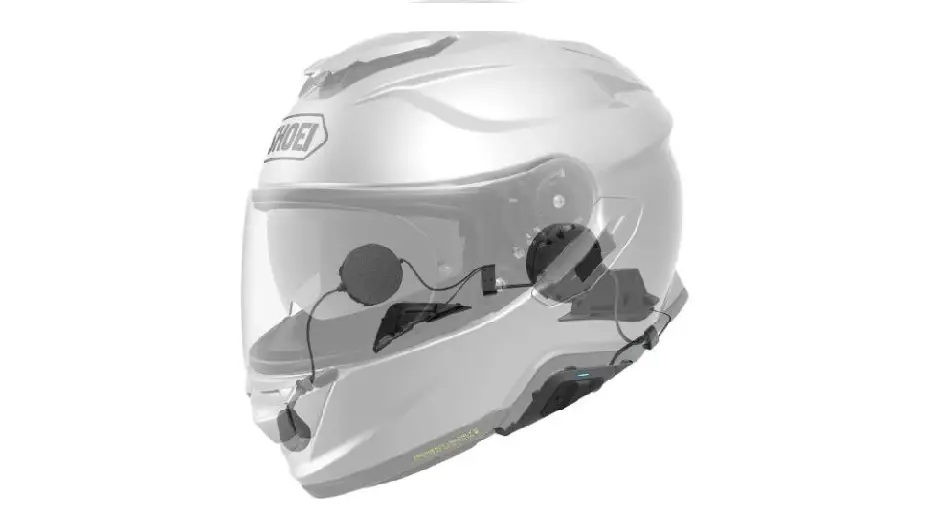

SENA SRL2 Shoei Helmets
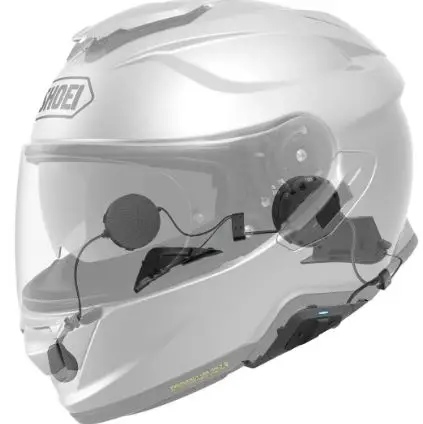
Product Information
- Product Name: SRL2 for Shoei Helmets
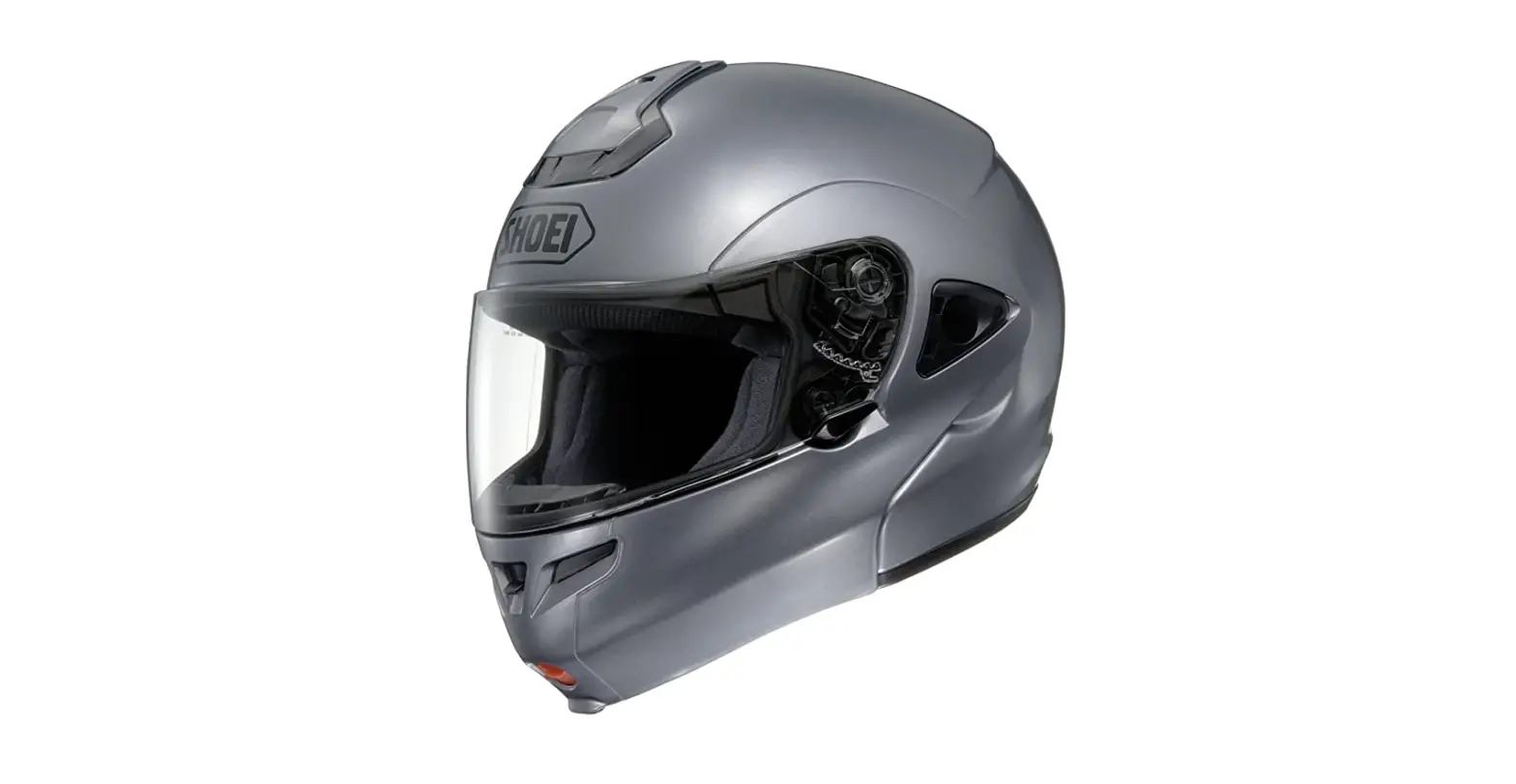
- Compatibility: SRL2 is compatible with Shoei helmets.
- Bluetooth Version: 4.1
- Intercom Range: 1.6 KM
- Intercom Capability: Eight-Way Intercom
- Helmet Fit: Custom Helmet Fit
- Audio Features: Audio Multitasking, Advanced Noise Control
- Additional Features: Voice Command, Music Sharing
Product Usage Instructions:
Getting Started
- This product comes with a Quick Start Guide. For a full version of the User’s Guide, download it from sena.com.
- To enjoy the advanced features, update the product firmware for free. Visit sena.com for instructions on updating your product.
- Follow Sena on social media platforms (Facebook, YouTube, Twitter, and Instagram) for the latest information, tips, and announcements about Sena products.
Flip Up Helmet Installation
- Follow steps 1 to 12 as shown in the manual for flip up helmet installation.
Full Face Helmet Installation:
- Follow steps 1 to 12 as shown in the manual for full face helmet installation.
Sena Motorcycles App:
The Sena Motorcycles App allows you to configure settings and use Group Intercom. Download the app from sena.com.
Sena Device Manager
The Sena Device Manager is a software that lets you upgrade firmware and configure settings directly from your PC or Apple computer. Download the Sena Device Manager from sena.com.
Button Operations
Refer to the manual for detailed instructions on button operations.
Bluetooth Pairing (Phone, MP3, and GPS):
- Press the center button to enter Bluetooth pairing mode.
- Select Sena SRL2 in your mobile phone’s Bluetooth settings.
- Enter the PIN “0000” if prompted.
Answer/End Calls:
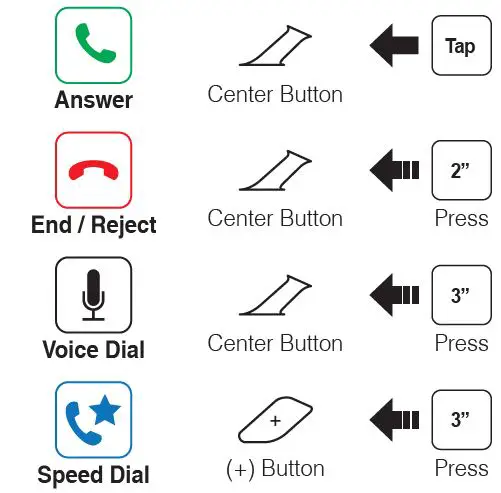
Press the center button to answer incoming calls. Press the center button again to end or reject calls.
Voice Dialing:
Press the center button to activate voice dialing on your mobile phone.
Speed Dialing:
Press the (+) button twice to initiate speed dialing on your mobile phone.
Music Control:
To control music playback, use the center button for play/pause, the (+) button for track forward, and the (-) button for track backward.
Battery Check:
Press the center button once to check the battery status using the LED indicator.
Intercom Pairing
- Press and hold the center button to enter intercom pairing mode.
- Pair with another headset by following the instructions in the manual.
Group Intercom:
Save your own group in the Sena Motorcycles App to use Group Intercom. Refer to the SRL2 User’s Guide for more details.
Radio Control:
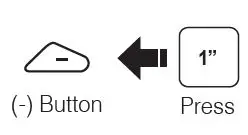
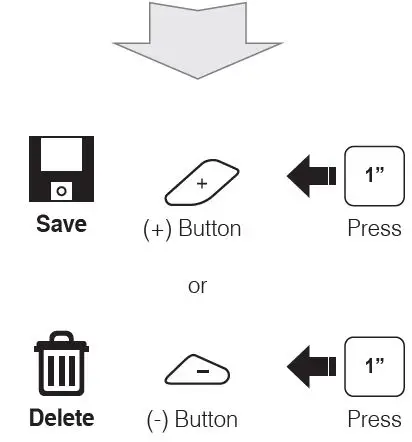
To turn the radio on/off, press the (-) button once. Use the (+) and (-) buttons to seek and scan radio stations. Save or delete presets using the center button and the (+) or (-) buttons.
Voice Command:
Press the center button to activate voice command on compatible devices.
SRL2 for Shoei Helmets Quick Start Guide
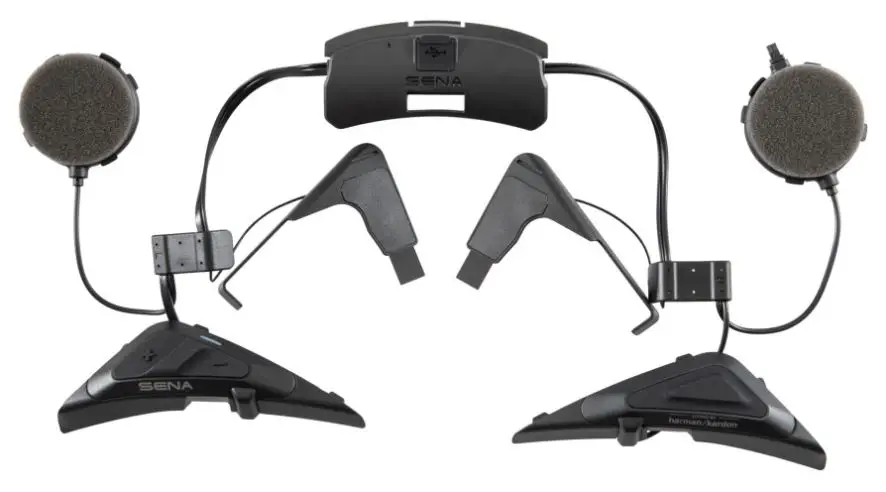
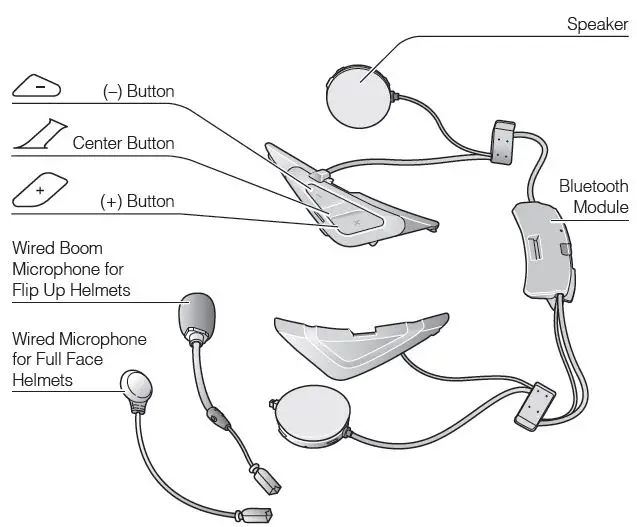
Parts List
Ride Connected
Blast your favorite tunes, talk over the intercom with your buddies, hear directions from your GPS and more, all through your headset. With built-in Bluetooth® capabilities, Audio Multitasking™, HD speakers and a microphone using Advanced Noise Control™, technology has never felt so minimal or freeing. 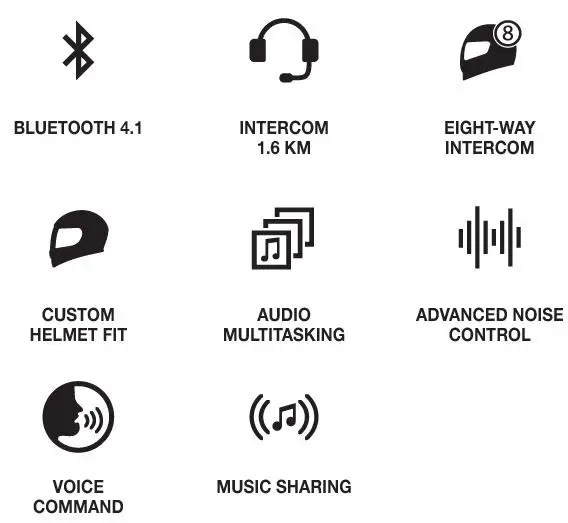
Getting Started
- This product comes with a Quick Start Guide, which is a basic version of the User’s Guide. A FULL VERSION OF THE USER’S GUIDE CAN BE DOWNLOADED AT SENA.COM.
- Update this product for free with the latest firmware to fully enjoy the new advanced features built into this product. Visit sena.com to see how to update your product.
- Users can follow Sena on Facebook, YouTube, Twitter and Instagram to receive the most up to date information on products, helpful tips and all other announcements regarding Sena products.
Flip Up Helmet Installation
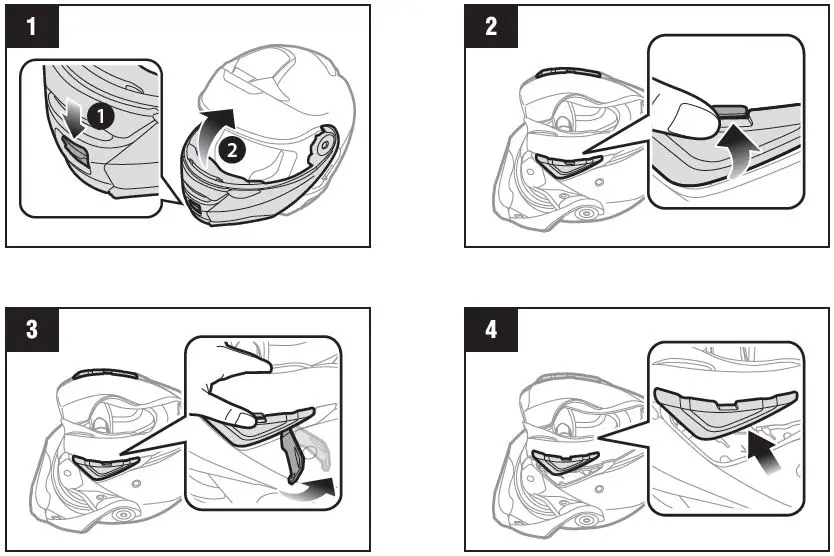
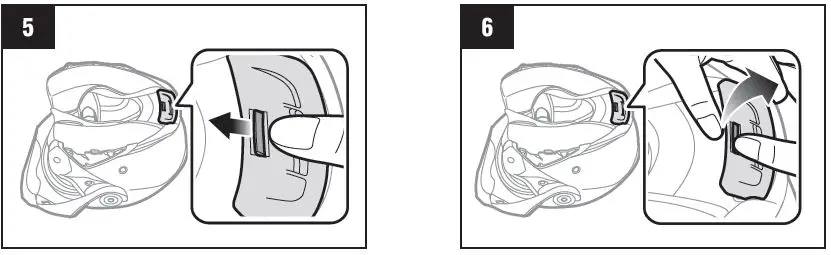
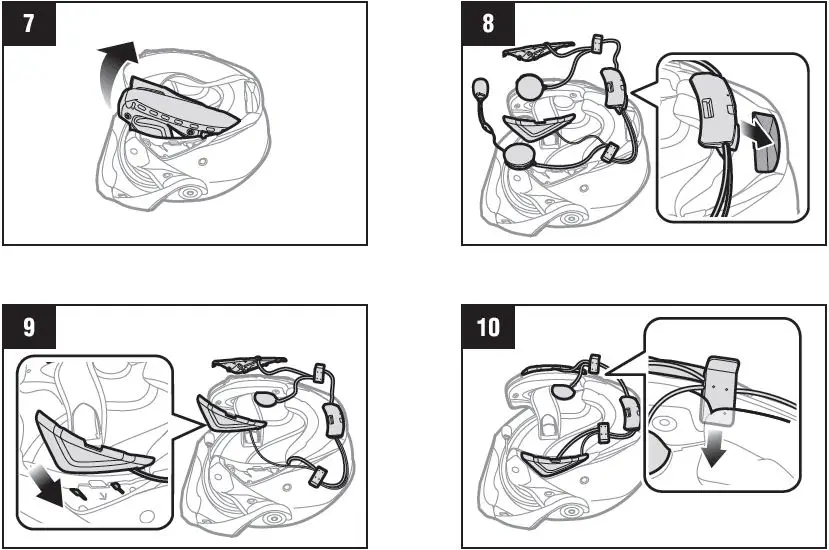
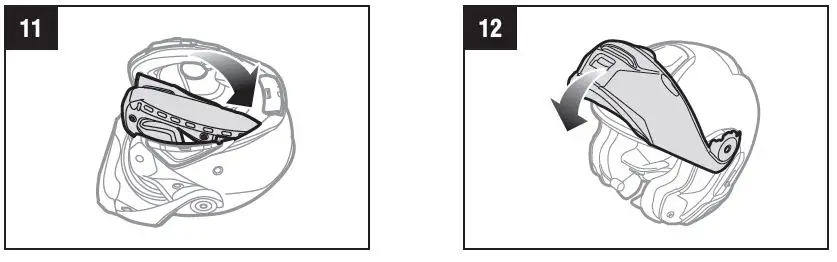
Flip Up Helmet Installation
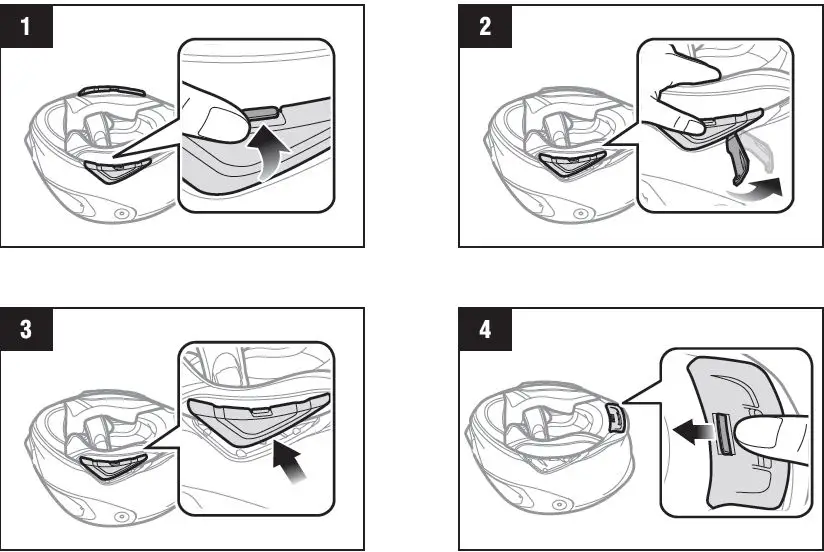
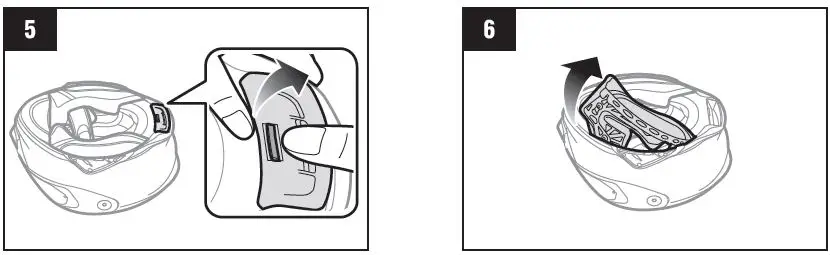
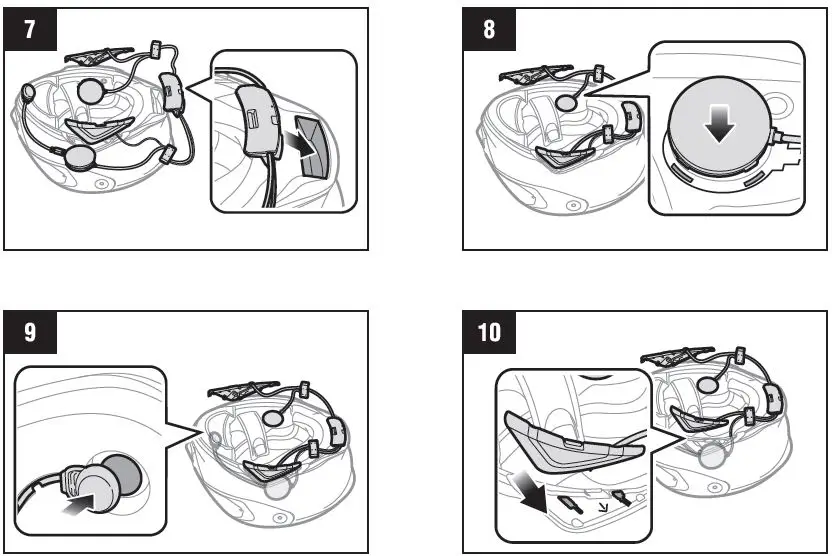
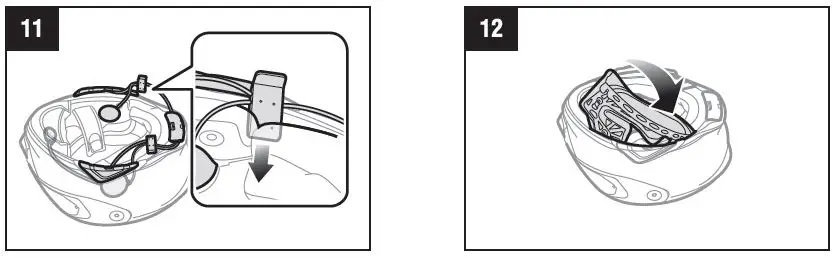
Sena Motorcycles App
- Download
- Android: Google Play Store > Sena Motorcycles
- iOS: App Store > Sena Motorcycles
Sena Device Manager
The Sena Device Manager allows you to upgrade the firmware and configure its settings directly from your PC or Apple computer. Download the Sena Device Manager from sena.com.
Button Operation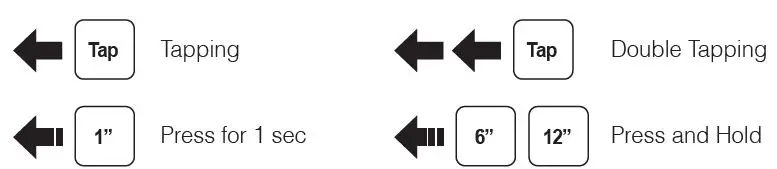
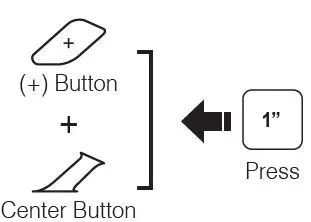
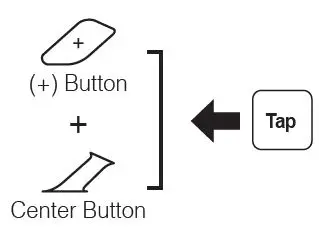
Power On/Off
- Powering On

- Powering Off
Volume Adjustment
- Volume Up
- Volume Down


Bluetooth Pairing Phone, MP3 and GPS
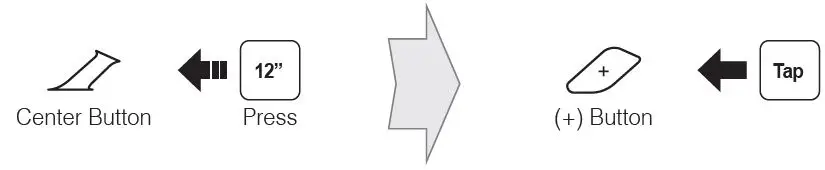
Select Sena SRL2 in your mobile phone 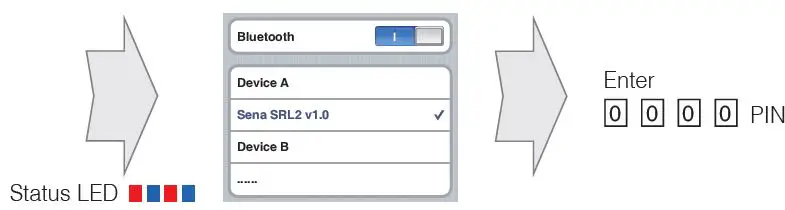
Mobile Phone
Music 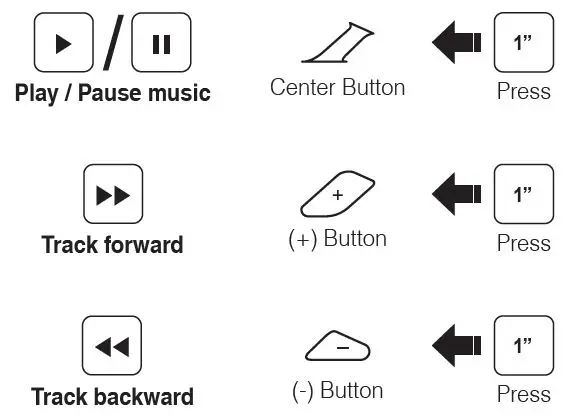
Battery Check 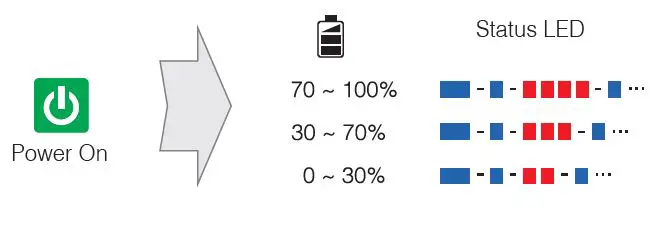
Configuration Menu 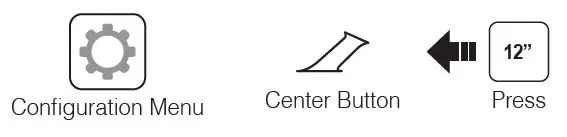
Intercom Pairing 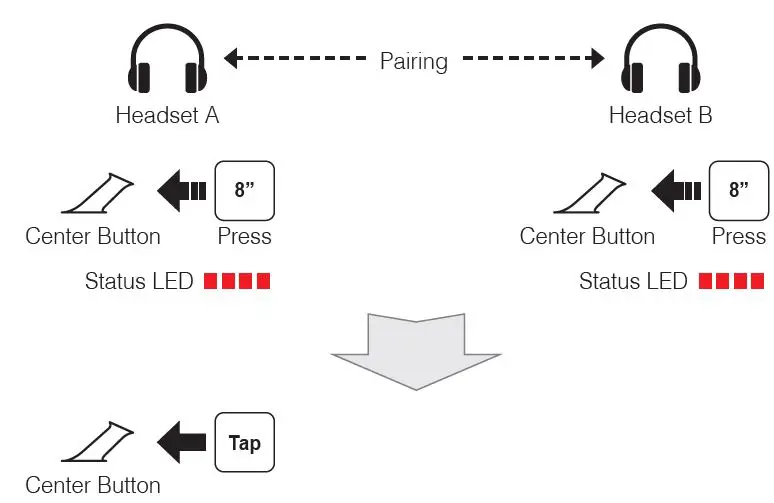
Start / End Intercom 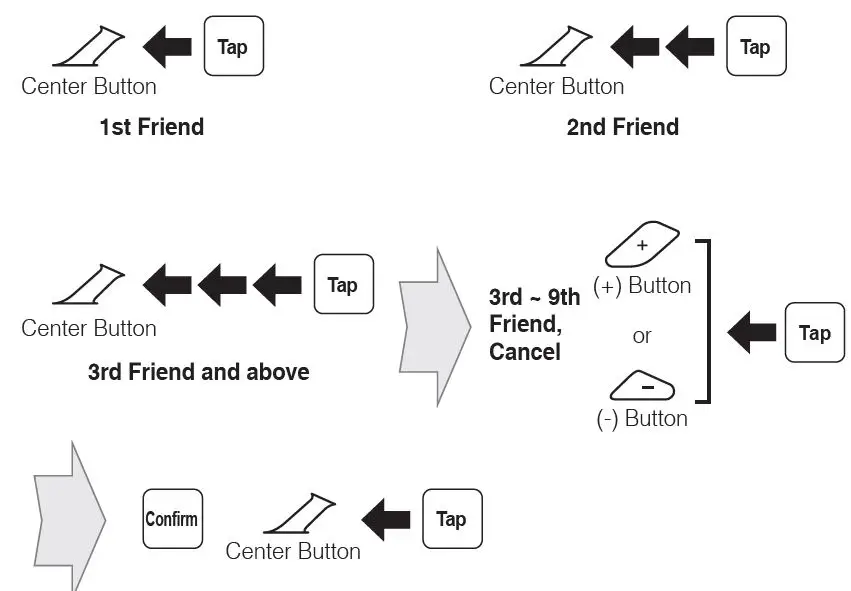
Start / End Group Intercom 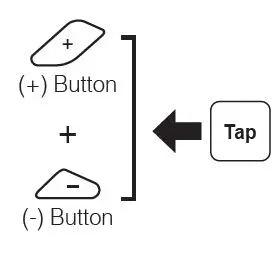
Note:
You can use Group Intercom after saving your own group in the Sena Motorcycles App. Please refer to the SRL2 User’s Guide in more details.
Radio On / Off
Radio Seek Station 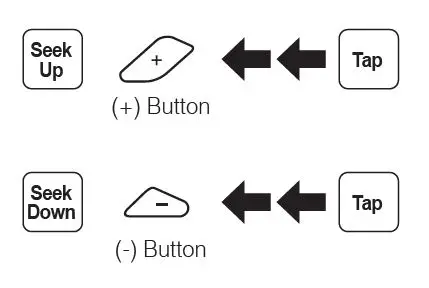
Radio Scan Up FM Band 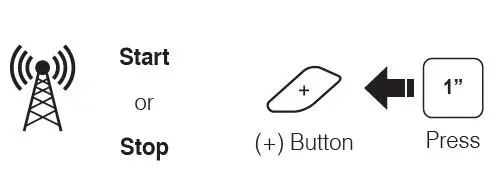
Save to preset while scanning 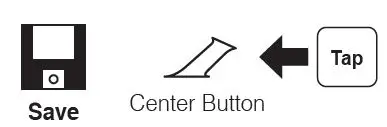
Radio Save and Delete Preset 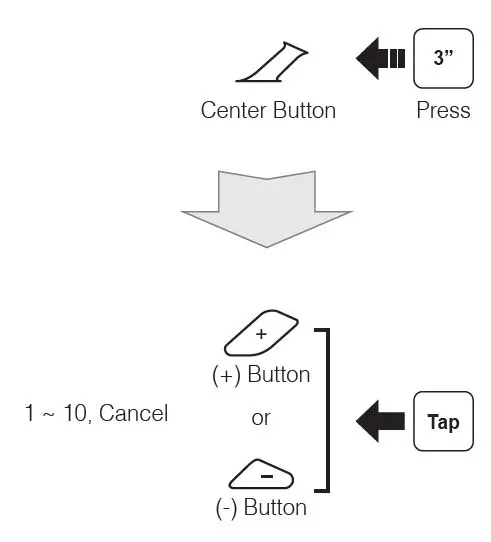
Radio Move to Preset Station 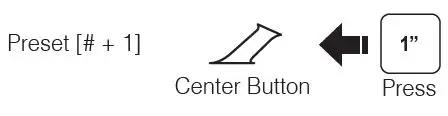
Voice Command 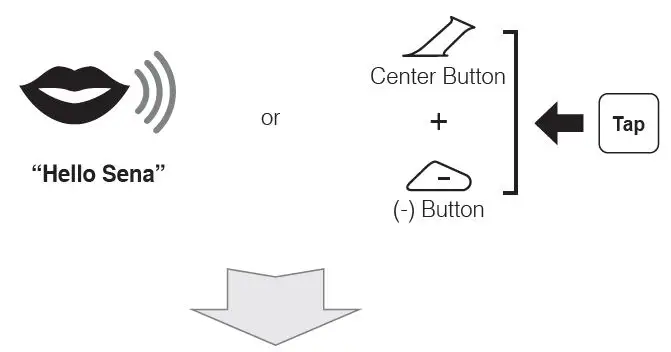
| Voice Command | Function |
| “Music” | Play/Pause music |
| “FM radio” | FM Radio on/off |
| “Intercom [one, two, … , nine]” | Start/End each intercom |
| “Speed dial [one, two, three]” | Speed dialing |
Troubleshooting
- Factory Reset
If you want to restore the SRL2 to factory default settings, use the Factory Reset in the configuration menu. The headset automatically restores the default settings and turns off. - Fault Reset
If the SRL2 is not working properly for any reason, reset by gently pushing the pin-hole reset button located next to the DC Power Charging & Firmware Upgrade Port.
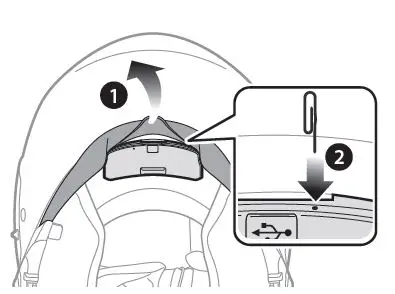
Note:
The charging LED is not a pin-hole reset button. Do not press it. 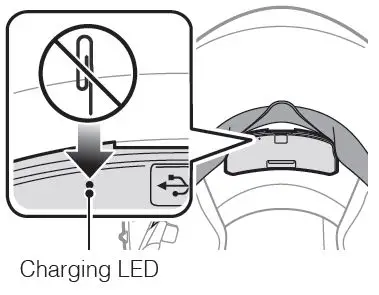
Quick Reference
| Type | Operation | Button Command |
| Basic Operations | Power on | Press the (+) Button and the Center Button for 1 second |
| Power off | Tap the (+) Button and the Center Button | |
| Volume adjustment | Tap the (+) Button or the (-) Button | |
| Voice Command | Say “Hello, Sena” | |
| Tap the Center Button and the (-) Button | ||
| Mobile Phone | Answer phone call | Tap the Center Button |
| End/Reject phone call | Press the Center Button for 2 seconds | |
| Voice dial | Press the Center Button for 3 seconds | |
| Speed dial | Press the (+) Button for 3 seconds | |
| Music | Play/Pause music | Press the Center Button for 1 second |
| Track forward | Press the (+) Button for 1 second | |
| Track backward | Press the (-) Button for 1 second |
| Type | Operation | Button Command |
| FM Radio | FM radio on/off | Press the (-) Button for 1 second |
| Seek forward | Double tap the (+) Button | |
| Seek backward | Double tap the (-) Button | |
| Intercom | Intercom pairing | Press the Center Button for 8 seconds |
| Tap the Center Button | ||
| Start/End intercom | Tap the Center Button | |
| End all intercoms | Press the Center Button for 5 seconds | |
| Start group intercom | Tap the (+) Button and the (-) Button | |
| End group intercom | Tap the (+) Button and the (-) Button |
SENA Technologies, Inc.
Customer Support: sena.com
 The Best Motorcycle & Action Sport Bluetooth Devices | Sena