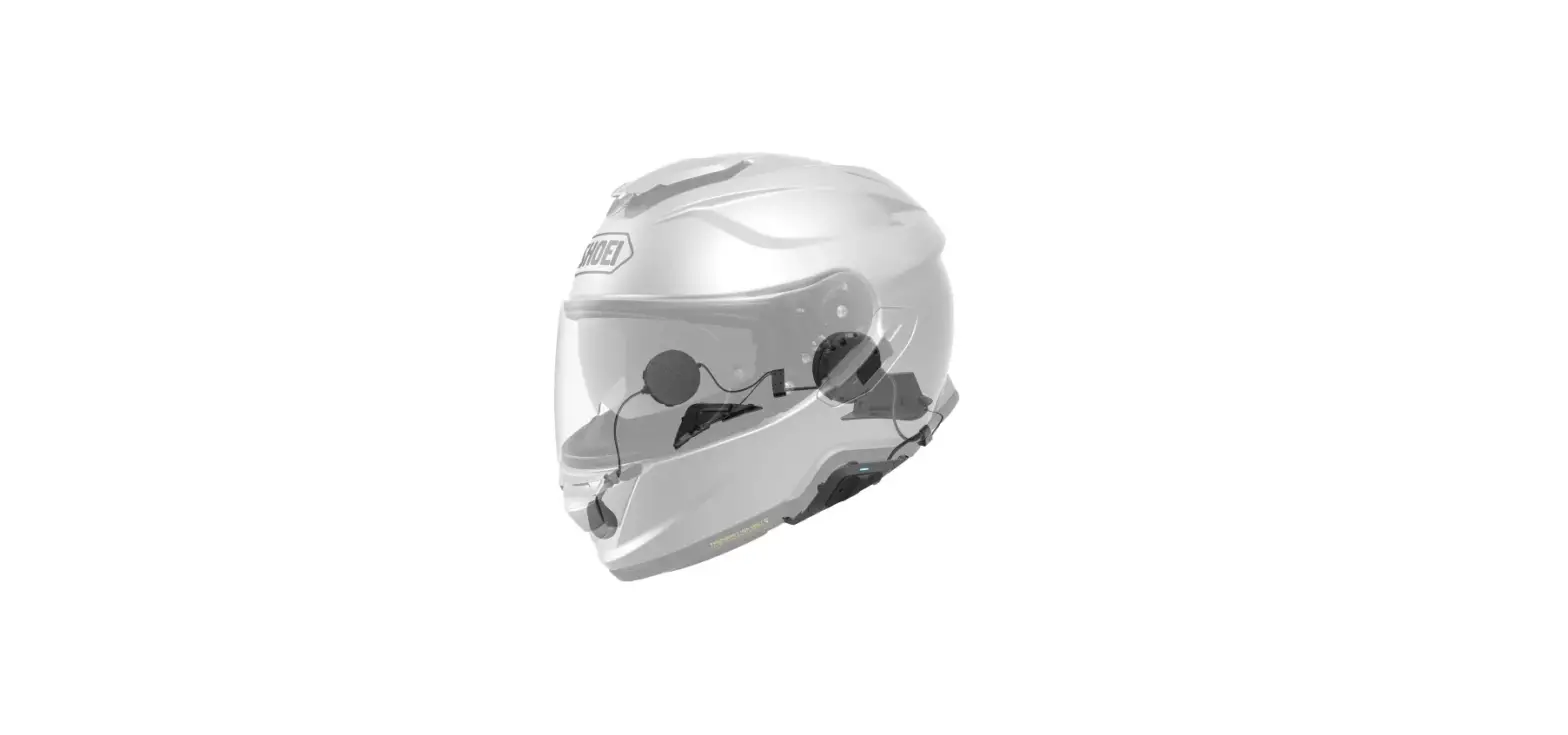
10U Arai Full Face Helmets
Product Information:
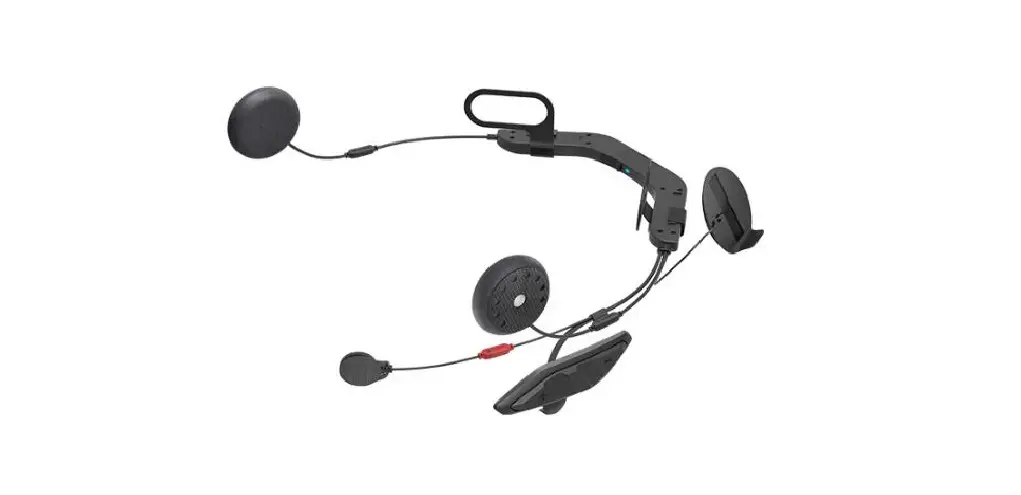
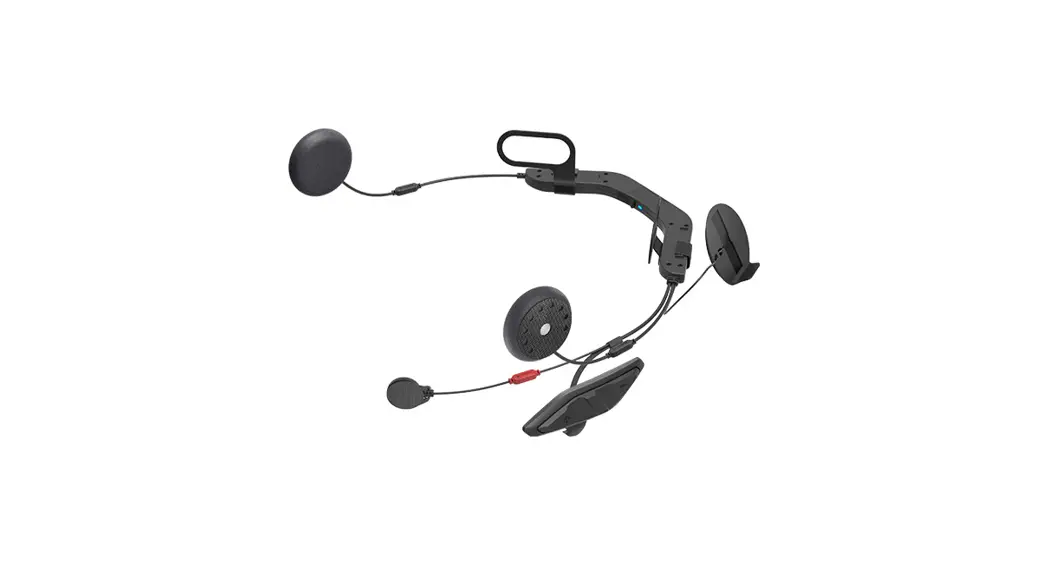
- Product Name: Sena 10U
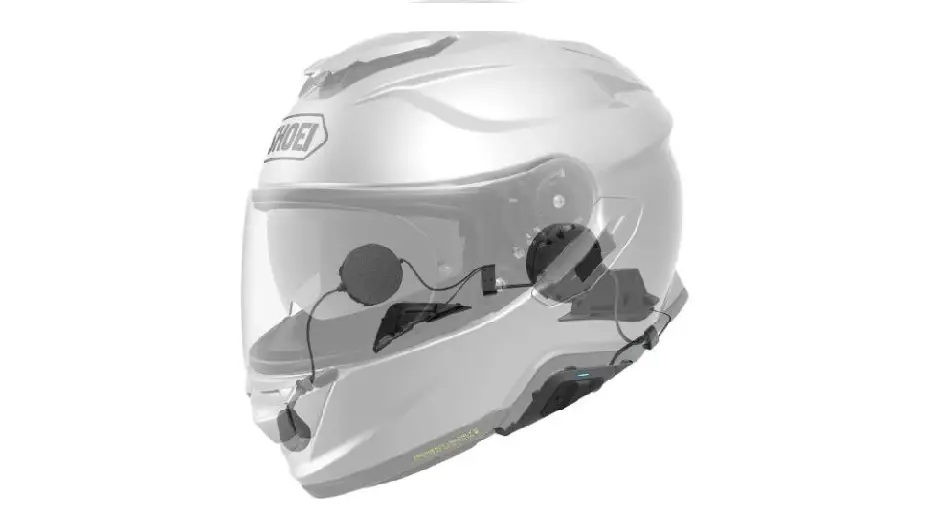
- Compatible with: Arai Full-face Helmets
- Features: Quick Start Guide, Status LED, DC Power Charging
& Firmware Upgrade Port, Battery, Speakers, FM Antenna, Wired
Microphone, Antenna, (-) Button, Center Button, (+) Button,
Multifunction Button - Additional Accessories: Sena Motorcycles App, Sena Device
Manager
Product Usage Instructions:
- Installation:
- Remove the plastic tape from the battery slot to begin using
the Remote Control.
- Remove the plastic tape from the battery slot to begin using
- Charging:
- Connect the DC Power Charging & Firmware Upgrade Port to a
power source using the provided cable.
- Connect the DC Power Charging & Firmware Upgrade Port to a
- Sena Device Manager:
- Download the Sena Device Manager from sena.com to upgrade the
firmware and configure settings directly from your PC or Apple
computer.
- Download the Sena Device Manager from sena.com to upgrade the
- Button Operation:
- Power On/Off Headset: Press and hold the
Center Button for 1 second. - Volume Adjustment: Tap the (+) Button to
increase volume and tap the (-) Button to decrease volume. - Phone, Music Pairing: Press and hold the (+)
Button for 5 seconds to enter Bluetooth pairing mode. Select “Sena
10U” on your device to pair. - Mobile Phone Call Making and Answering: Tap
the Center Button to answer a call or end a call. Press the Center
Button for 3 seconds to activate voice dialing. - Intercom Pairing: Press and hold the Center
Button for 5 seconds on both headsets to enter intercom pairing
mode. Tap the Center Button to start/end intercom communication
with different friends. - Radio On/Off: Press the (-) Button for 1
second to turn on/off the radio. Use the (+) Button or (-) Button
to seek stations and press the Center Button to save/delete
presets. - Setting Configuration Menu: Press and hold the
Center Button for 10 seconds to enter the setting configuration
menu.
- Power On/Off Headset: Press and hold the
- Troubleshooting:
- If the Remote Control becomes disconnected, replace the Remote
Control’s battery or go through the pairing process again. Use the
headset control buttons as an alternative. - To restore the 10U to factory default settings, use the Factory
Reset option in the configuration menu.
- If the Remote Control becomes disconnected, replace the Remote
10U for Arai Full-face Helmets
Quick Start Guide
ENGLISH
Status LED DC Power Charging & Firmware Upgrade Port
Microphone connector (+) Button () Button
Battery
Speakers FM Antenna Wired Microphone
Antenna
(-) Button Center Button
(+) Button Multifunction Button
1
Installation
1
Battery Slot
2.1.0
2
3
4
5
6
7
2
Sena Motorcycles App
· Download – Android: Google Play Store > Sena Motorcycles – iOS: App Store > Sena Motorcycles
Sena Device Manager
The Sena Device Manager allows you to upgrade the firmware and configure its settings directly from your PC or Apple computer. Download the Sena Device Manager from sena.com.
Charging
· Red: Charging · Blue: Fully charged
Getting Started
3 Button Operation
Tap Tapping 1″ Press for 1 sec
Remove the plastic tape from the battery slot to begin using the Remote Control.
Tap Double Tapping 5″ 12″ Press and Hold
Power On/Off Headset
(+) Button +
(-) Button
1″ Press
Remote Control
Power On
Center Button Deep Sleep
+
(+) Button Center Button
Tap
1″ Press
4
Remote Control Pairing
Remote Control
Headset
(+) Button
8″ Press
Pairing
(+) Button
10″ Press
Note: You can control the headset using the Remote Control only after you pair them together.
Volume Adjustment
Tap (+) Button
Tap (-) Button
5
Phone, Music Pairing
(-) Button
12″ Press
(+) Button
Tap Tap x 11
Tap (-) Button
Select Sena 10U
Bluetooth
ll
Device A Sena 10U v2.0 Device B ……
Enter 0 0 0 0 PIN
Music Operation
Center Button
1″ Press
(-) Button
1″ Press
1″
(+) Button
Press
6
Mobile Phone Call Making and Answering
Answer
Tap Center Button
2″
End
Center Button
Press
Voice Dial
Center Button
3″ Press
Speed Dial
(+) Button
3″ Press
Reject
Center Button
2″ Press
7
Intercom Pairing
Headset A
Center Button
5″ Press
Pairing
Headset B
Center Button
5″ Press
Tap Center Button
Intercom Start/End
Tap Center Button
1st Friend
Center Button 2nd Friend
Tap Double Tap
Center Button 3rd Friend
8
Tap Triple Tap
Radio On/Off
Radio Seek Stations
(-) Button
1″ Press
(+) Button or
(-) Button
Radio Scan Up FM Band
Start or
Stop
(+) Button
Save to preset while scanning
1″ Press
Tap Save Center Button
Tap Double Tap
Radio Move to Preset Station
Center Button
9
1″ I1I I2I …I5I… I9I I10I Press
Radio Save or Delete Preset
Center Button
3″ Press
(+) Button
1 ~ 10, Cancel
or
Tap
(-) Button
Save
(+) Button or
1″ Press
Delete (-) Button
1″ Press
10
Setting Configuration Menu
Center Button
10″ Press
leaflet included in the package. leaflet included in the package.
leaflet included in the package.
to configure the headset to configure the headset
to configure the headset
Setting to configure the headset settings. Setting to configure the headset settings.
11 Setting to configure the headset settings.
Troubleshooting
Remote Control Disconnection
If the Remote Control becomes disconnected with your headset, replace the Remote Control’s battery or go through the pairing process again. Meanwhile, you can use the headset control buttons to operate the headset. Please refer to the User’s Guide at www.sena.com for details on headset control button operations.
Factory Reset
If you want to restore the 10U to factory default settings, use the Factory RReesseett iinn tthhee ccoonnffiigguurraattiioonn mmeennuu.. TThhee hheeaaddsseett aauuttoommaattiiccaallllyy rreessttoorreess tthhee dReefsaeutltinsethtteincgosnafingdurtautrinosn omffe. nu. The headset automatically restores the
FReasuelttinRtheesceotnfiguration menu. The headset automatically restores the
If the 10U is not working properly for any reason, reset by gently pushing the pin-hole reset button located on the battery.
A full version of the manual is downloadable at www.sena.com.
SENA Technologies, Inc.
Customer Support: sena.com
10U 10U 10U Quick Reference Remote Control(4-Button) Button Operation
Type
Operation
Button Command
LED
Power on remote control
Tap the Center Button
Basic Function
Power off remote control
Press the (+) Button and the Center Button for 1 second
Volume adjustment Tap the (+) Button or the (-) Button
Answer mobile phone call
Tap the Center Button
Mobile
End mobile phone call
Press the Center Button for 2 seconds
Phone Voice dial
Press the Center Button for 3 seconds
Speed dial
Press the (+) Button for 3 seconds
Reject incoming call Press the Center Button for 2 seconds
Intercom pairing
Press the Center Button for 5 seconds
Red flashing
Tap the Center Button of any one of the two headsets
Start/End each intercom
Tap, double tap, or triple tap the Center Button
End all intercoms Intercom
Start Group Intercom
Press the Center Button for 1 second
Tap the (+) Button and the (-) Button
Press the Multifunction Button for 1 second
Purple flashing
Tap the (+) Button and the (-) Button
End Group Intercom
Press the Center Button or the Multifunction Button for 1 second
Play/Pause Bluetooth music
Press the Center Button for 1 second
Music
Track forward/back
Press the (+) Button or the (-) Button for 1 second
FM radio on/off
Press the (-) Button for 1 second
Select preset
Press the Center Button for 1 second
Seek stations
Double tap the (+) Button or the (-) Button
FM Radio
Scan up FM band Press the (+) Button for 1 second
Stop scanning
Press the (+) Button for 1 second
Save preset while scanning
Tap the Center Button
10U 10U Quick Reference Handle1b0arURemote Button Operation
Type
Operation
Button Command
LED
Power on
Tap the Front Button
Basic Function
Power off
Press the Front Button and the Joystick for 2 seconds
Volume adjustment Move the Joystick up or down
Mobile phone pairing
Press the Joystick for 5 seconds
Blue & red alternatively flashing
Mobile Phone
Second mobile phone pairing
Answer & end phone call
Press the Front Button for 5 seconds Tap the Rear Button within 2 seconds
Red flashing
Tap the Rear Button
Voice dial
Tap the Rear Button
Speed dial
Double tap the Rear Button
Reject incoming call Press the Front Button for 2 seconds
Intercom pairing
Press the Front Button for 5 seconds Red flashing Tap the Front Button of any one of the two headsets
Start/End each intercom
Tap the Front Button
Intercom
End all intercoms Press the Front Button for 1 second
Start Group Intercom
Press the Front Button for 3 seconds
Purple flashing
End Group Intercom Press the Front Button for 1 second
Play/Pause Bluetooth music
Press the Joystick for 1 seconds
Music
Track forward/back
Move the Joystick left or right for 1 second
FM radio on
Press the Rear Button for 1 second
FM radio off
Press the Rear Button for 1 second
Select preset
Tap the Rear Button
FM Radio Seek stations
Move the Joystick left or right for 1 second
Scan up FM band Double tap the Rear Button
Stop scanning
Double tap the Rear Button
Save preset while scanning
Tap the Rear Button
10U Quick Reference Heads1e0t CUontrol Button Operation
10U
Type
Operation
Button Command
LED
Basic Function
Power on Power off
Press the (+) Button and the () Button for 1 second
Solid blue
Press the (+) Button and the () Button Solid red
Volume adjustment Tap the (+) Button or the () Button
Mobile phone pairing
Press the () Button for 12 seconds
Blue & red alternatively flashing
Mobile Phone
Second mobile phone pairing
Answer mobile phone call
Press the () Button for 12 seconds Tap the (+) Button three times Tap the (+) Button
Blue & red alternatively flashing
End mobile phone call
Press the (+) Button for 2 seconds
Voice dial
Press the (+) Button for 3 seconds
Reject incoming call Press the (+) Button for 2 seconds
Intercom pairing
Press the () Button for 8 seconds
Red flashing
Tap the () Button of any one of the two headsets
Start/End each intercom
Press the () Button for 1 second
Intercom
End all intercoms Press the () Button for 5 seconds
Start Group Intercom
Press the (-) Button for 5 seconds
Purple flashing
End Group Intercom Press the (-) Button for 5 seconds
Play/Pause Bluetooth music
Press the (+) Button for 1 second
Music Track forward
Press the (+) Button for 2 seconds
Track back
Not available
FM radio on
Press the (+) Button for 5 seconds
FM radio off
Press the (+) Button for 5 seconds
Select preset
Press the (+) Button for 1 second
FM Radio Seek stations up
Press the (+) Button for 3 seconds
Scan up FM band Press the () Button for 5 seconds
Stop scanning
Press the () Button for 5 seconds
Save preset while scanning
Press the (+) Button for 1 second
www.sena.com
2.1.0_EN_October2022
 The Best Motorcycle & Action Sport Bluetooth Devices | Sena
 The Best Motorcycle & Action Sport Bluetooth Devices | Sena