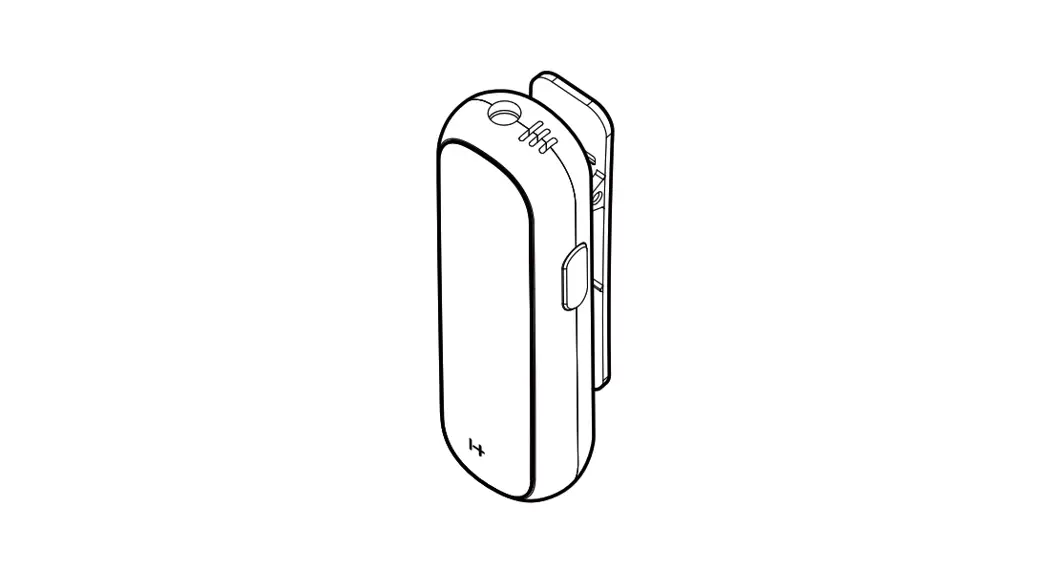
SENA Smart HJC 10B User Guide
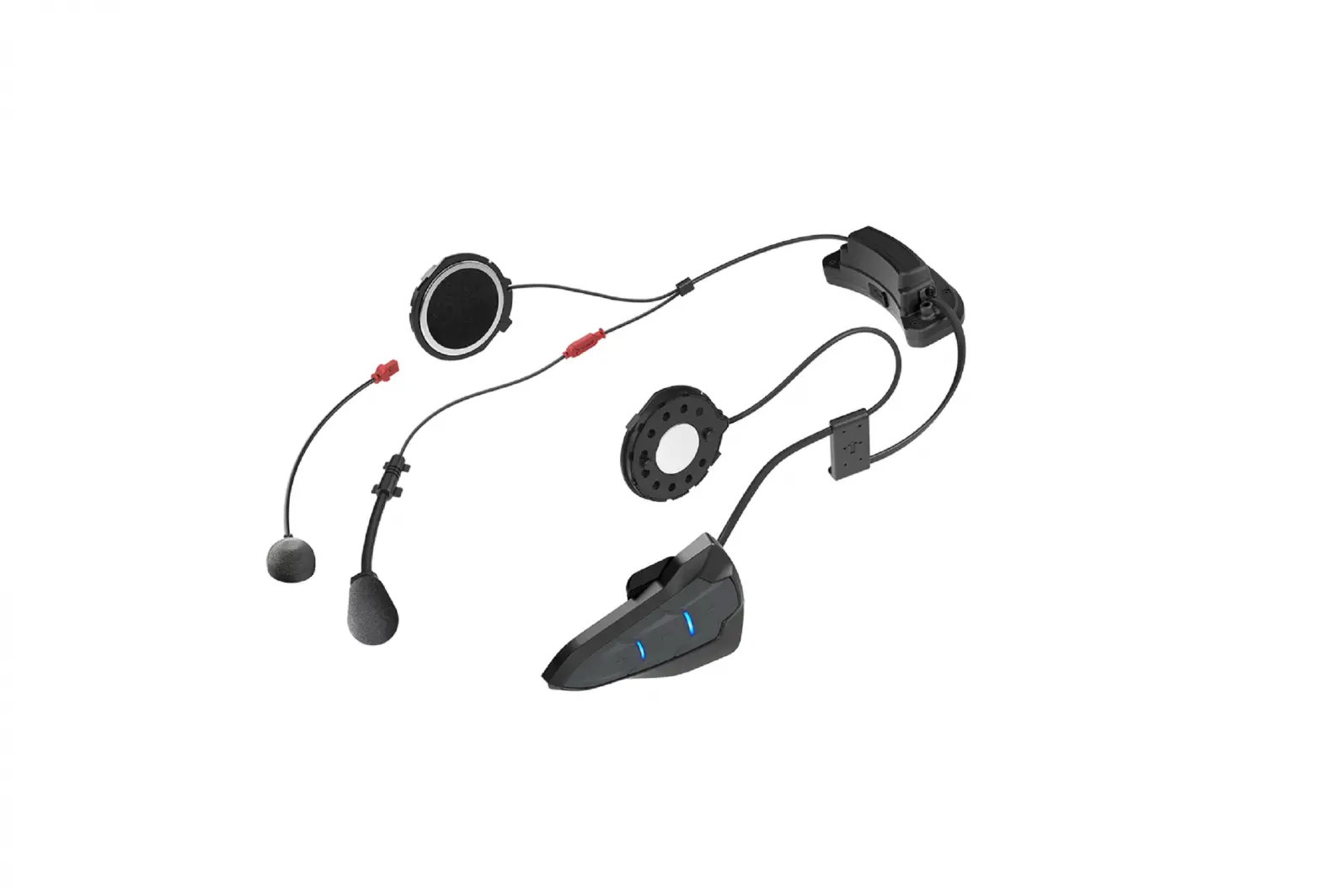
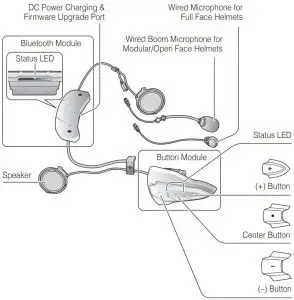
Product Overview
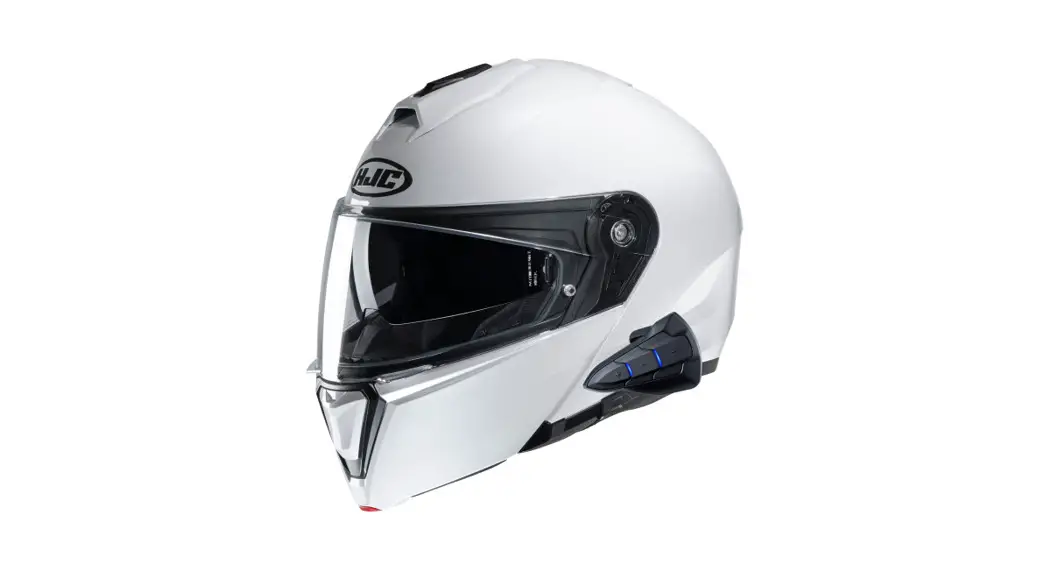
SMART HJC 10B compatible HJC helmets can be found by scanning the QR code of the product box.
Ride Connected
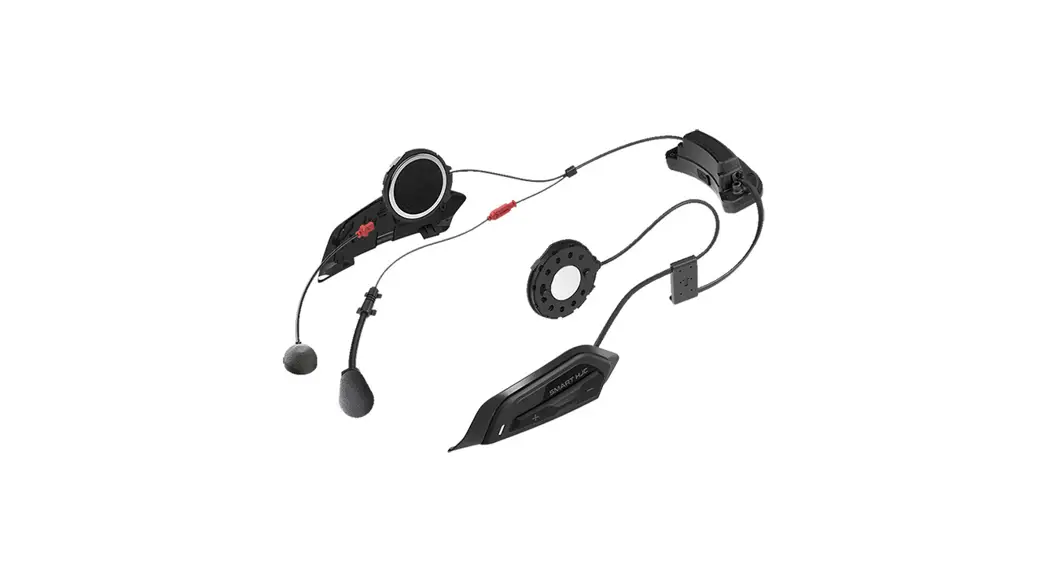
Blast your favorite tunes, call handsfree on your Bluetooth mobile phone, listen to voice instructions of GPS navigation by Bluetooth wirelessly, and talk over the intercom in full duplex with a passenger or other riders.
- BLUETOOTH 3.0

- INTERCOM 400 M (0.25 MILES)

- TWO-WAY INTERCOM

- CUSTOM HELMET FIT

- ADVANCED NOISE CONTROL

- MUSIC SHARING







( in open terrain)
Getting Started
- This product comes with a Quick Start Guide, which is a basic
version of the User’s Guide. A FULL VERSION OF THE USER’S
GUIDE CAN BE DOWNLOADED AT WWW.SMARTHJC.COM/BT - Update this product for free with the latest firmware to fully enjoy the new advanced features built into this product. Visit www.smarthjc.com/bt to see how to update your product.
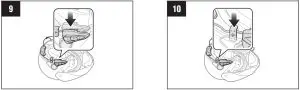
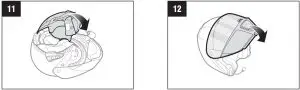
Modular/Open Face Helmet Installation
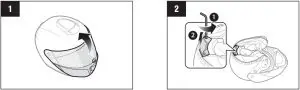
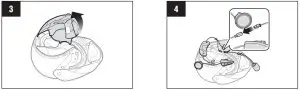
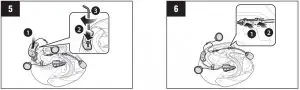
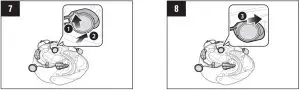
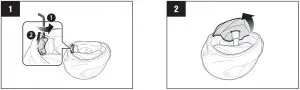
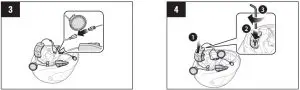
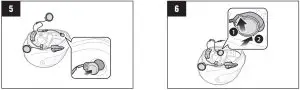
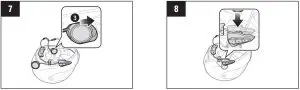
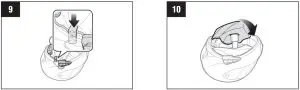
Full Face Helmet Installation
- Tapping

- Double Tapping
- Press for 1 sec

- Press and Hold

Power On/Off
- Powering On

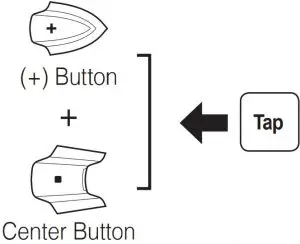
- Powering Off

Volume Adjustment
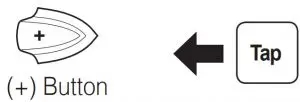
- Volume Up

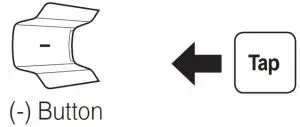
- Volume Down

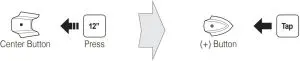
Bluetooth Pairing Phone, MP3 and GPS
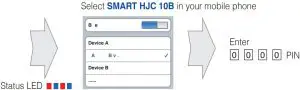
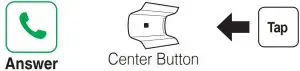
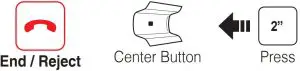
Mobile Phone


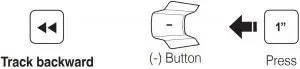
Music


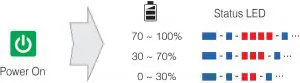
Battery Check
Using the SMART HJC Device Manager
You can upgrade the headset’s firmware and configure its settings directly from your PC or Apple computer.
Download the SMART HJC Device Manager, please visit www.smarthjc.com/bt
Intercom Pairing
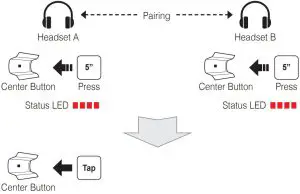
Intercom Start
- 1st Friend

- 2nd Friend

- 3rd Friend and above

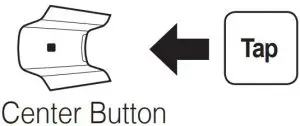
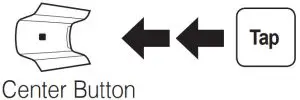
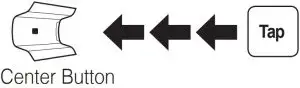
Intercom End
- 1st Friend

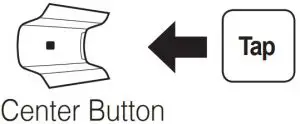
Troubleshooting
Factory Reset
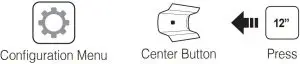
If you want to restore the headset to factory default settings, use the Factory Reset in the configuration menu. The headset automatically restores the default settings and turns off.
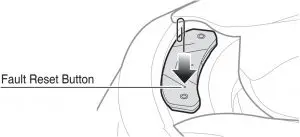
Fault Reset
If the headset is not working properly for any reason, reset the headset by gently inserting a paperclip into the pinhole located next to the screw and lightly pressing the Fault Reset Button.
Battery Charging
Please make sure to take off your headset while charging.
The headset automatically turns off during charging.
| Type | Operation | Button Command |
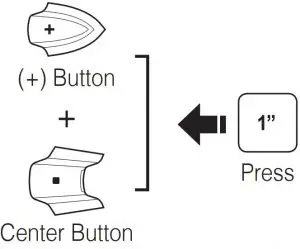
| Basic Operations | Power on | Press the (+) Button and the Center Button for 1 second |
| Power oft | Tap the (+) Button and the Center Button | |
| Volume adjustment | Tap the (+) Button or the (-) Button | |
| Mobile Phone | Answer phone call | Tap the Center Button |
| End/Reject phone call | Press the Center Button for 2 seconds | |
| Voice dial | Press the Center Button for 3 seconds | |
| Speed dial | Press the (+) Button for 3 seconds | |
| Music | Play/Pause music | Press the Center Button for 1 second |
| Track forward | Press the (+) Button for 1 second | |
| Track backward | Press the (-) Button for 1 second | |
| Intercom | Intercom pairing | Press the Center Button for 5 seconds |
| Tap the Center Button | ||
| Start/End intercom | Tap the Center Button |
 HJC Helmets Official Site – Full-Face, Open-Face, Off-Road Motorcycle Helmets
 SMART HJC BLUETOOTH – HJC HELMETS