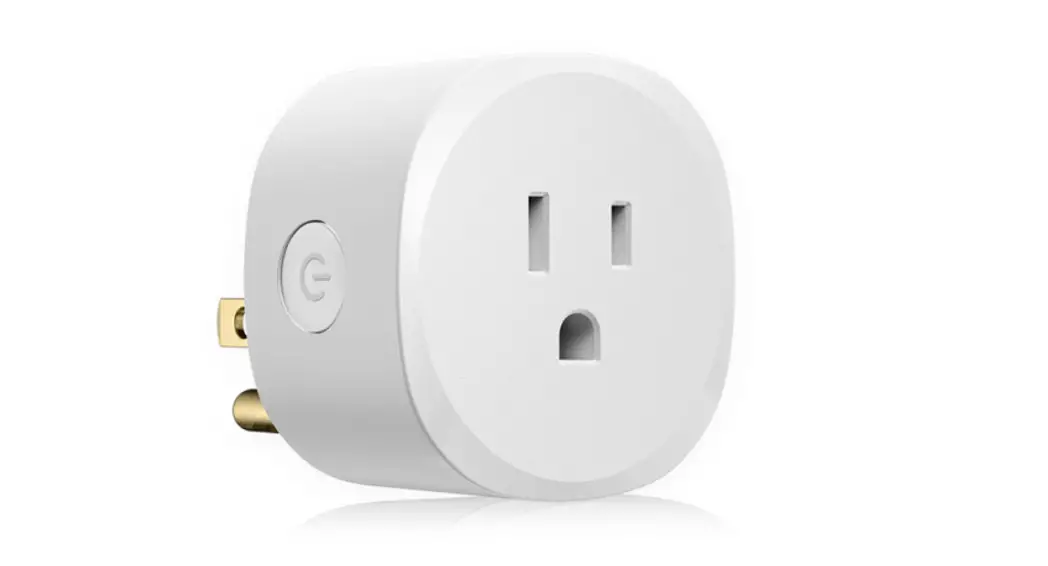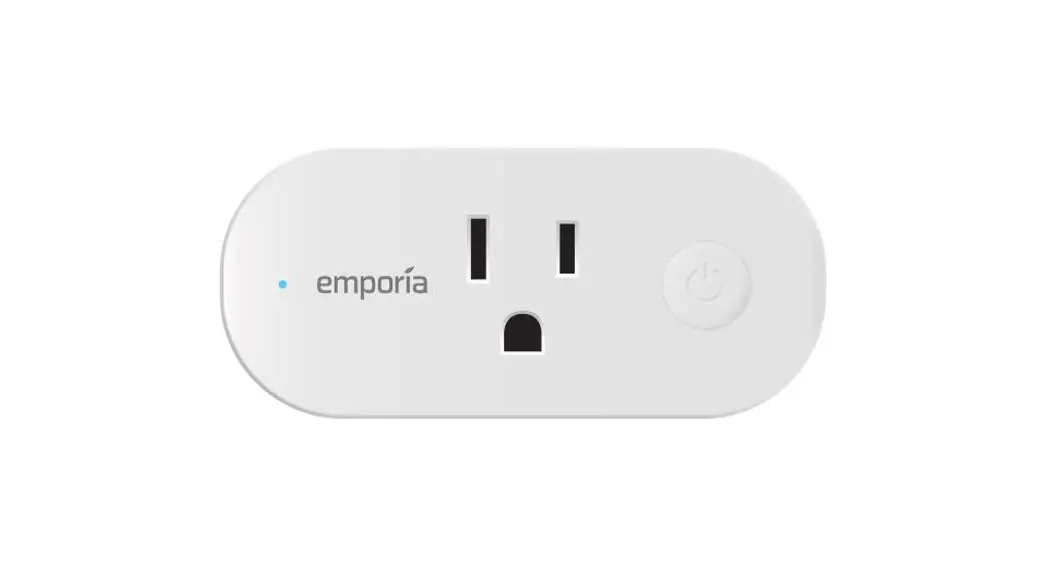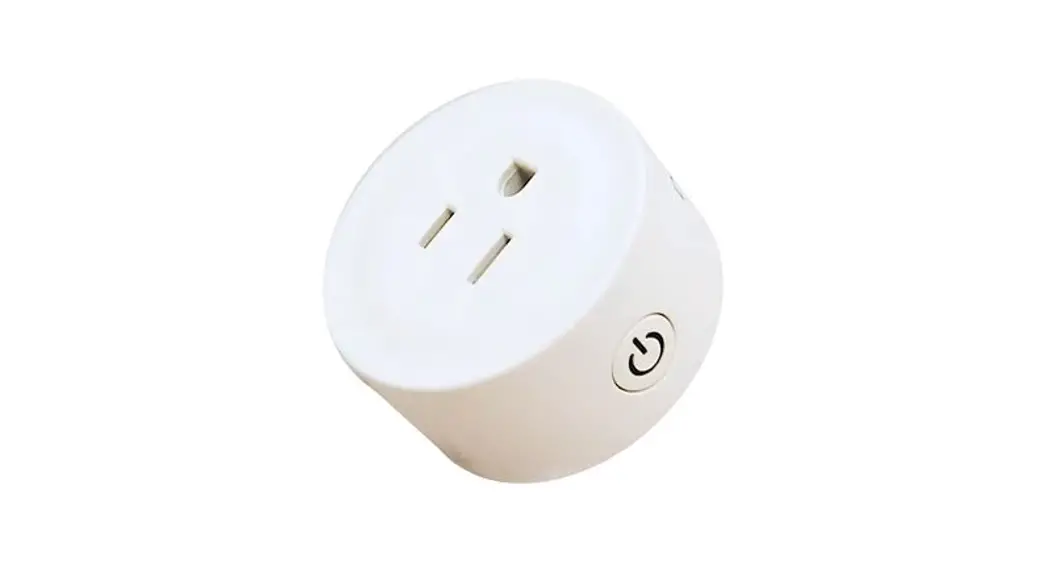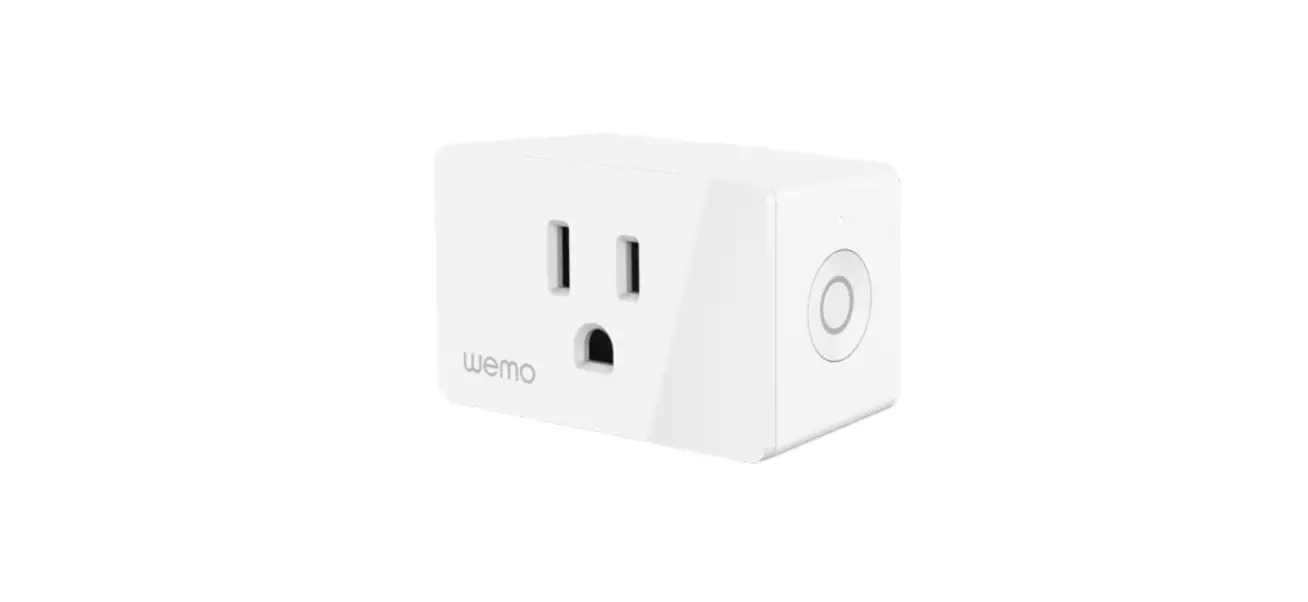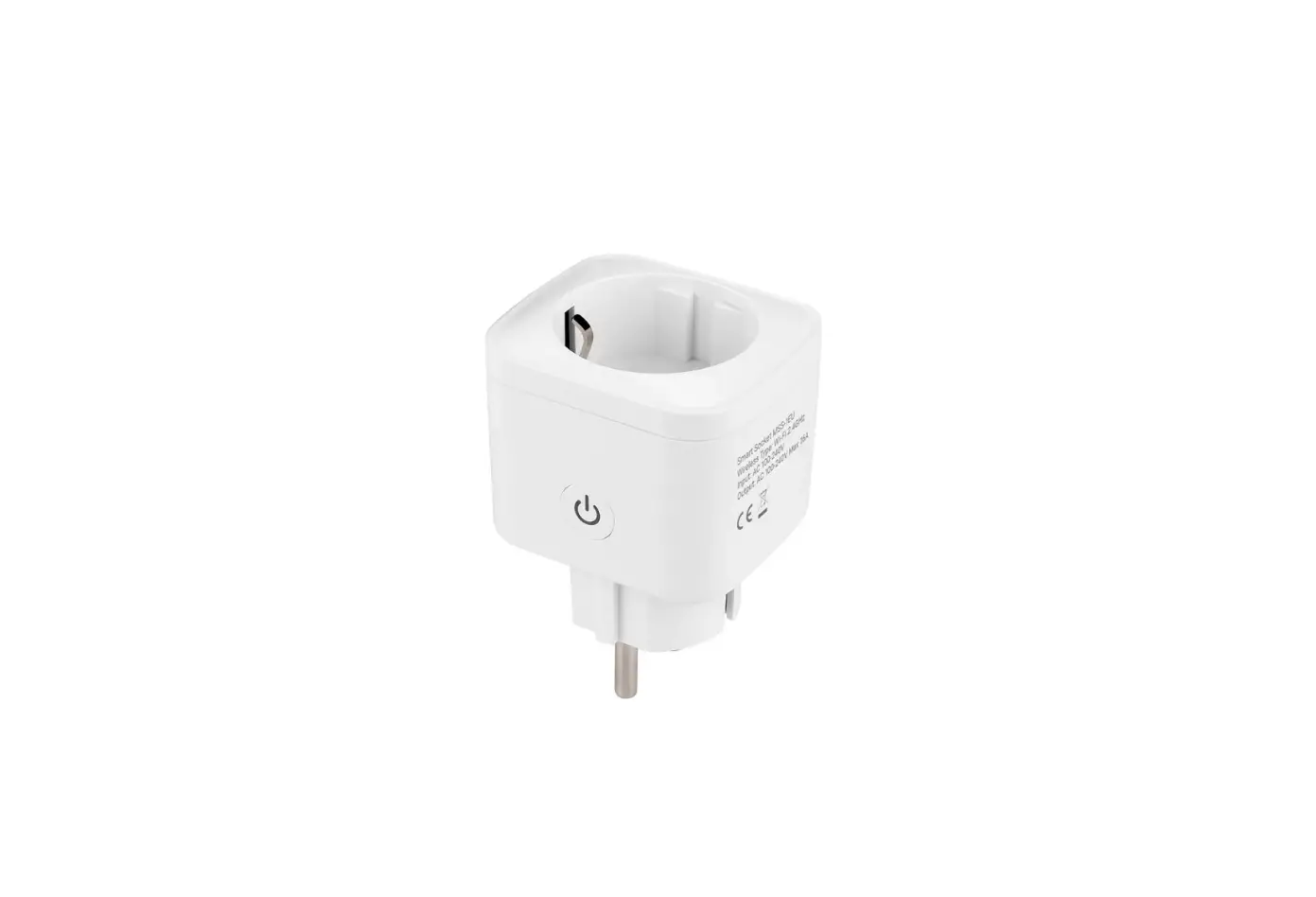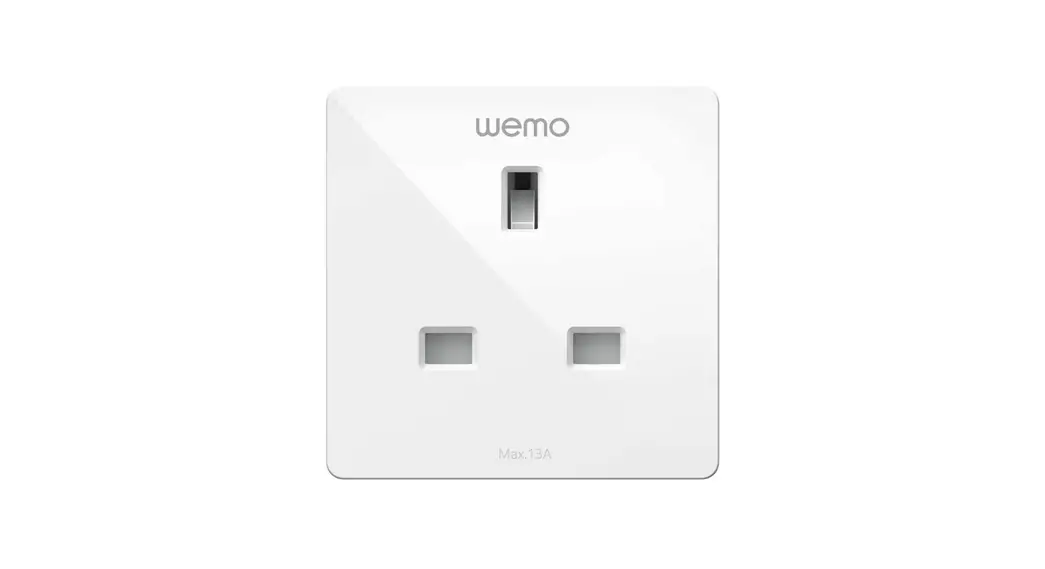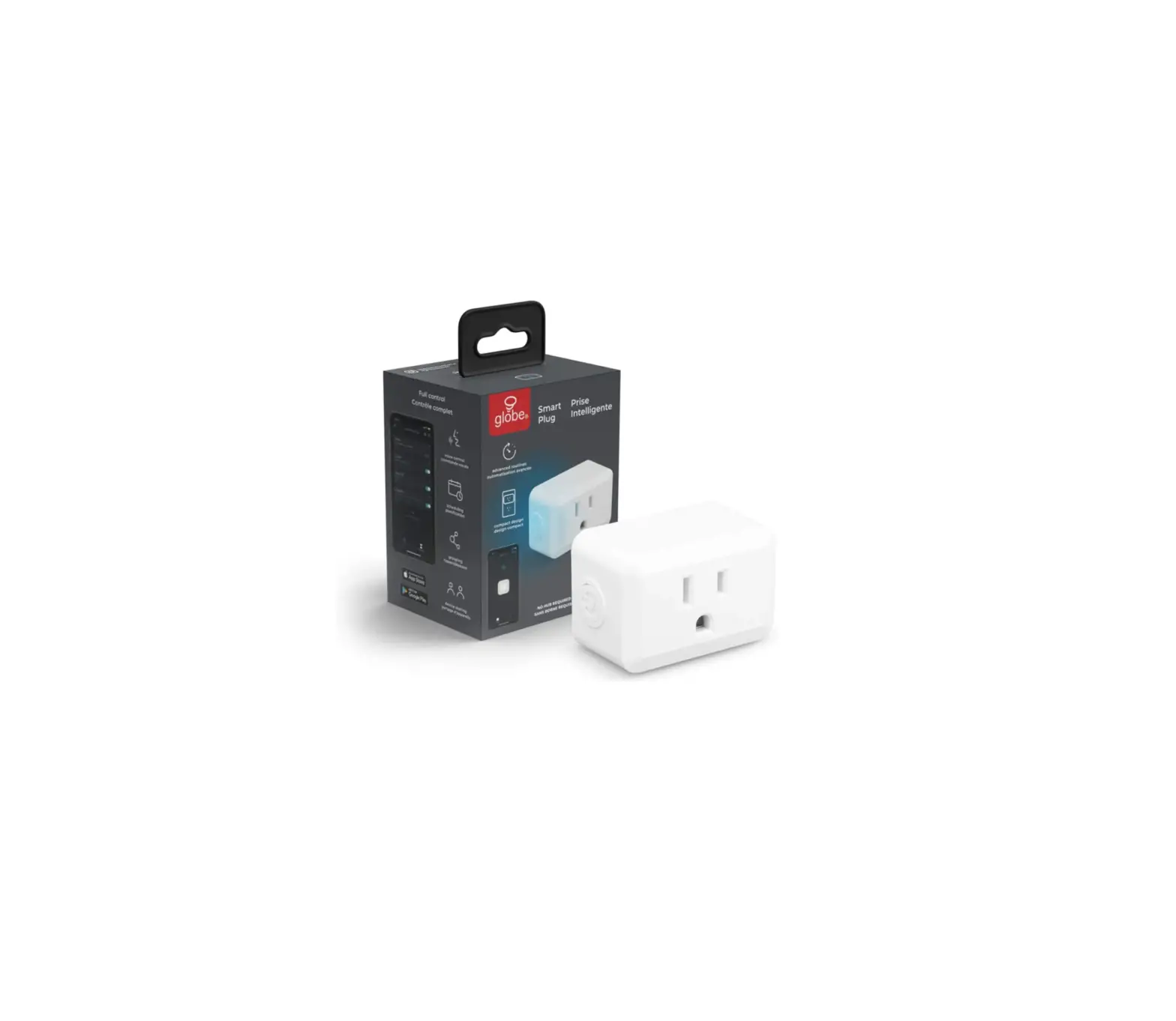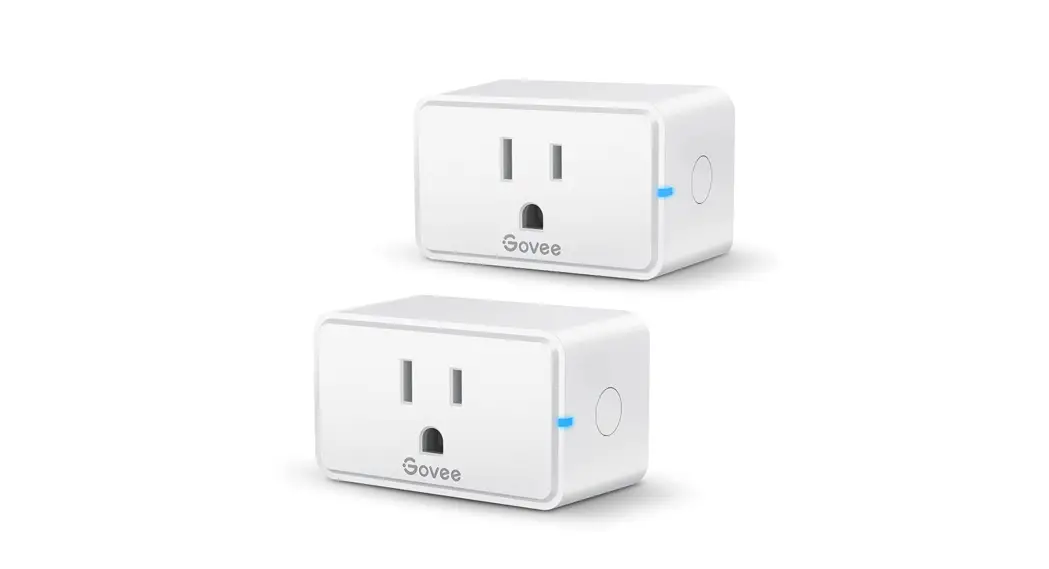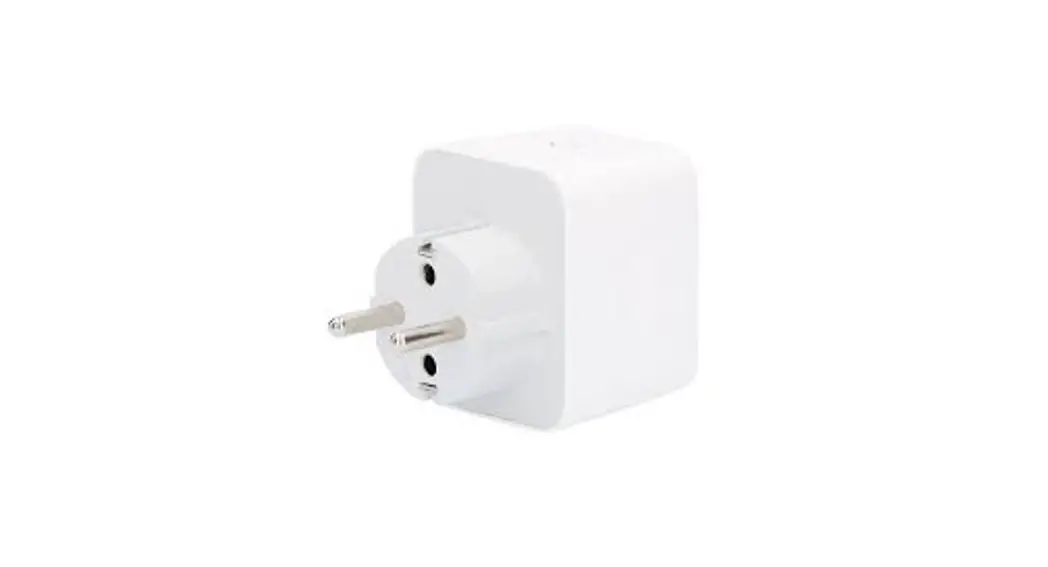

SMART PLUG
Quick Start Guile
Scan for product info. & manual
 LET’S MEET ONLINE
www.shada.ni/idinio
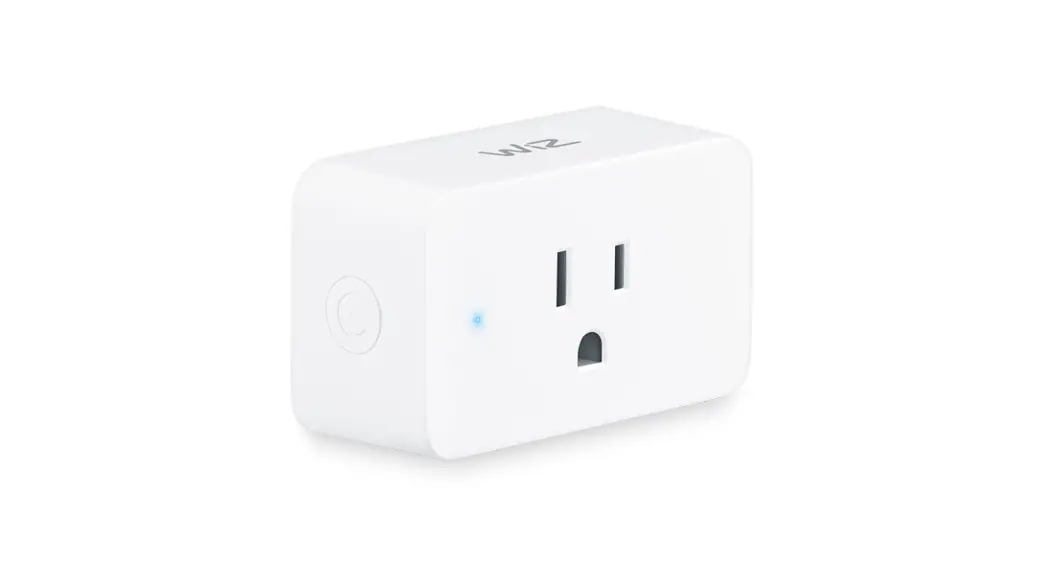
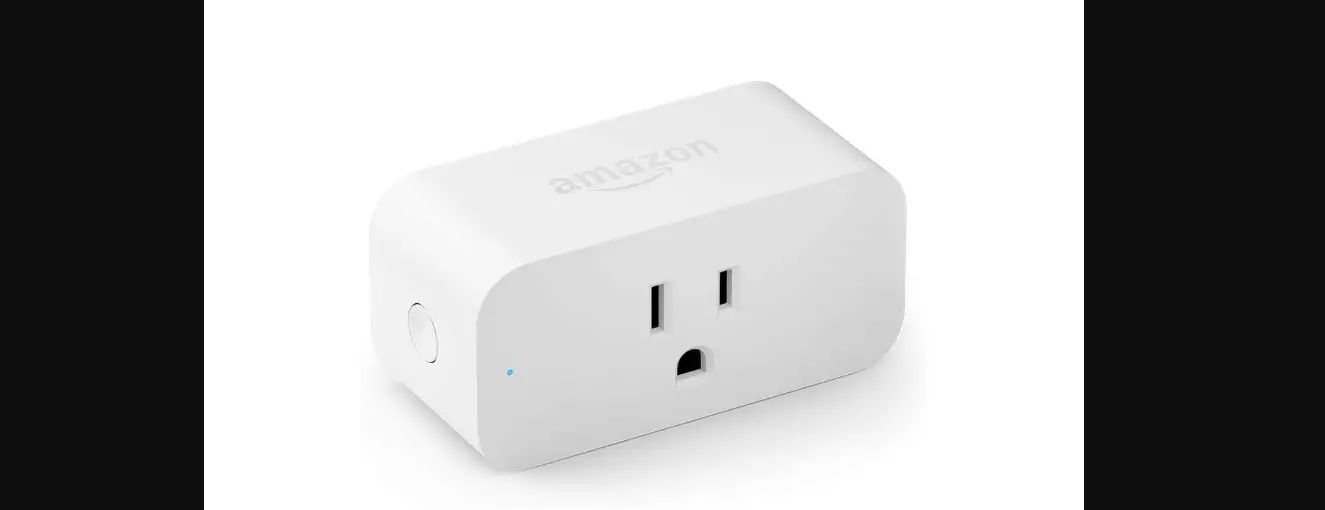
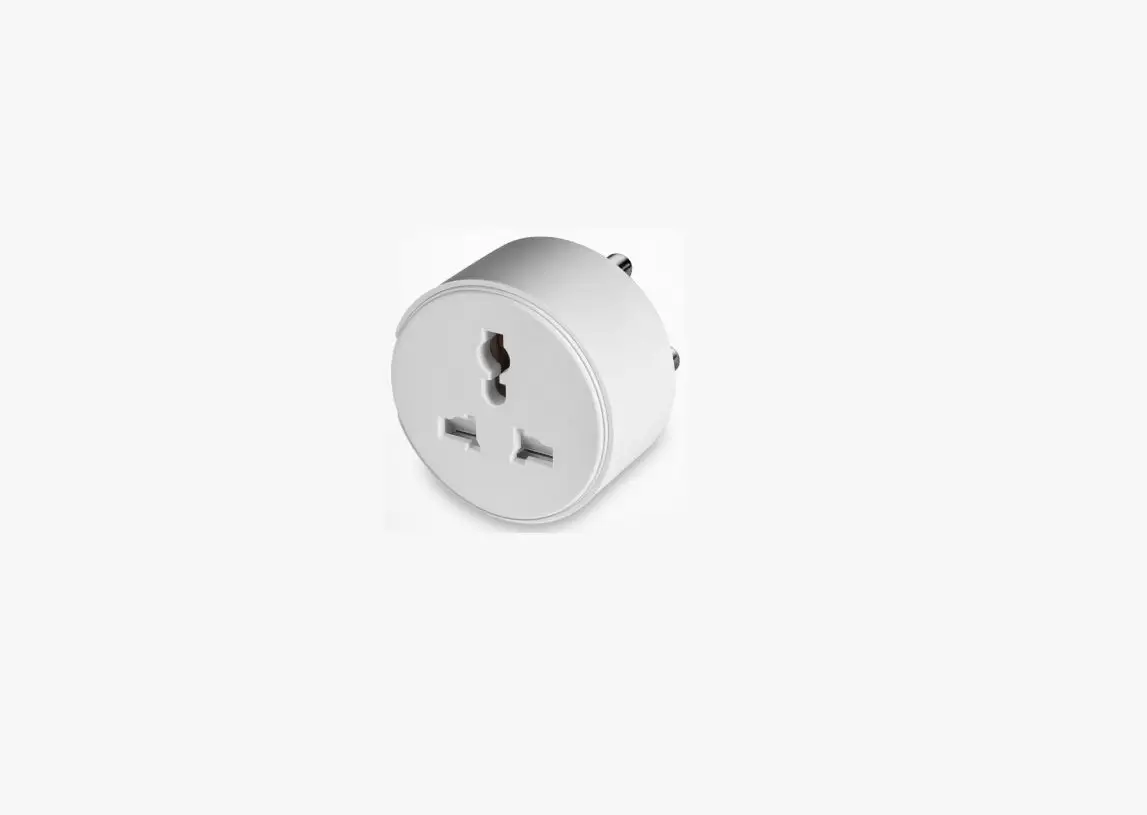
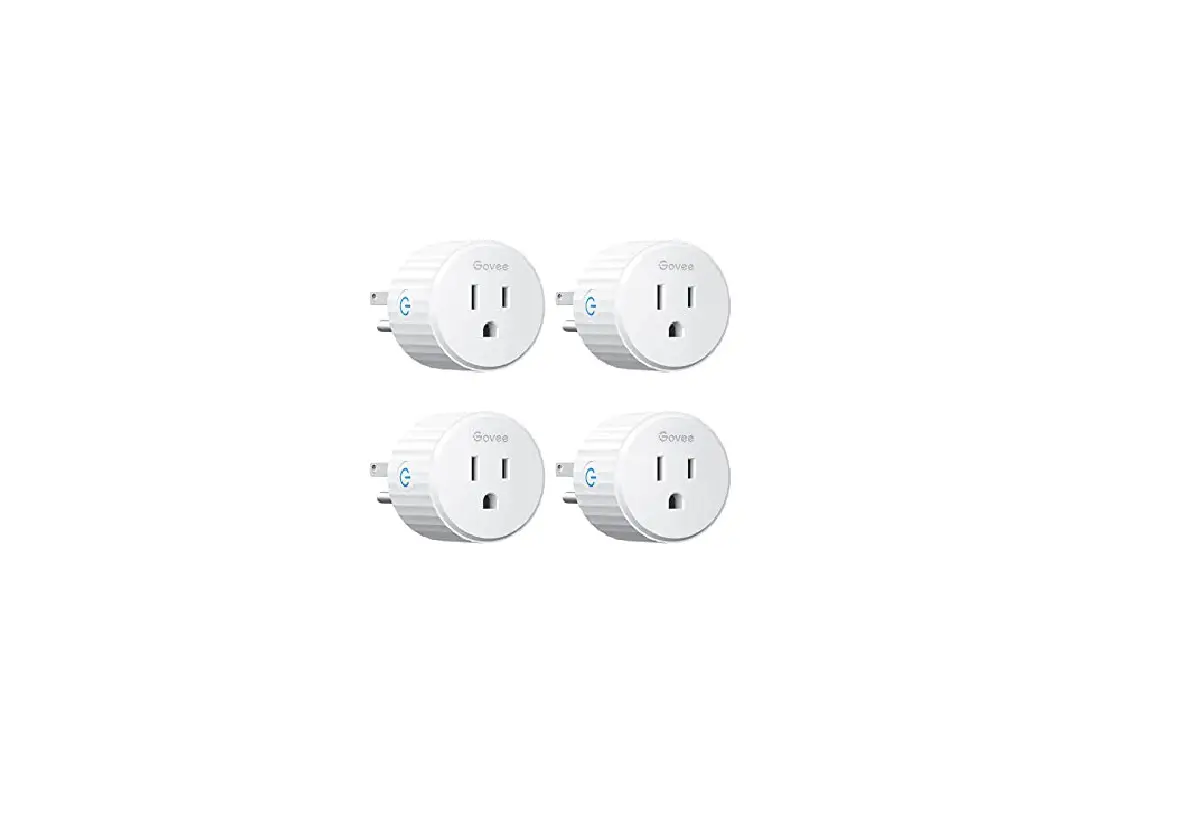
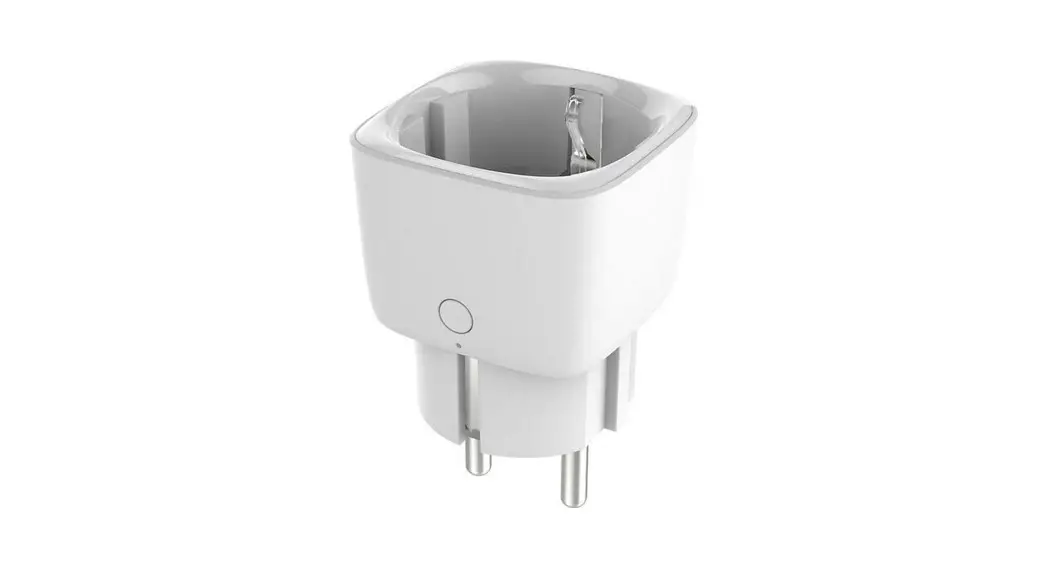
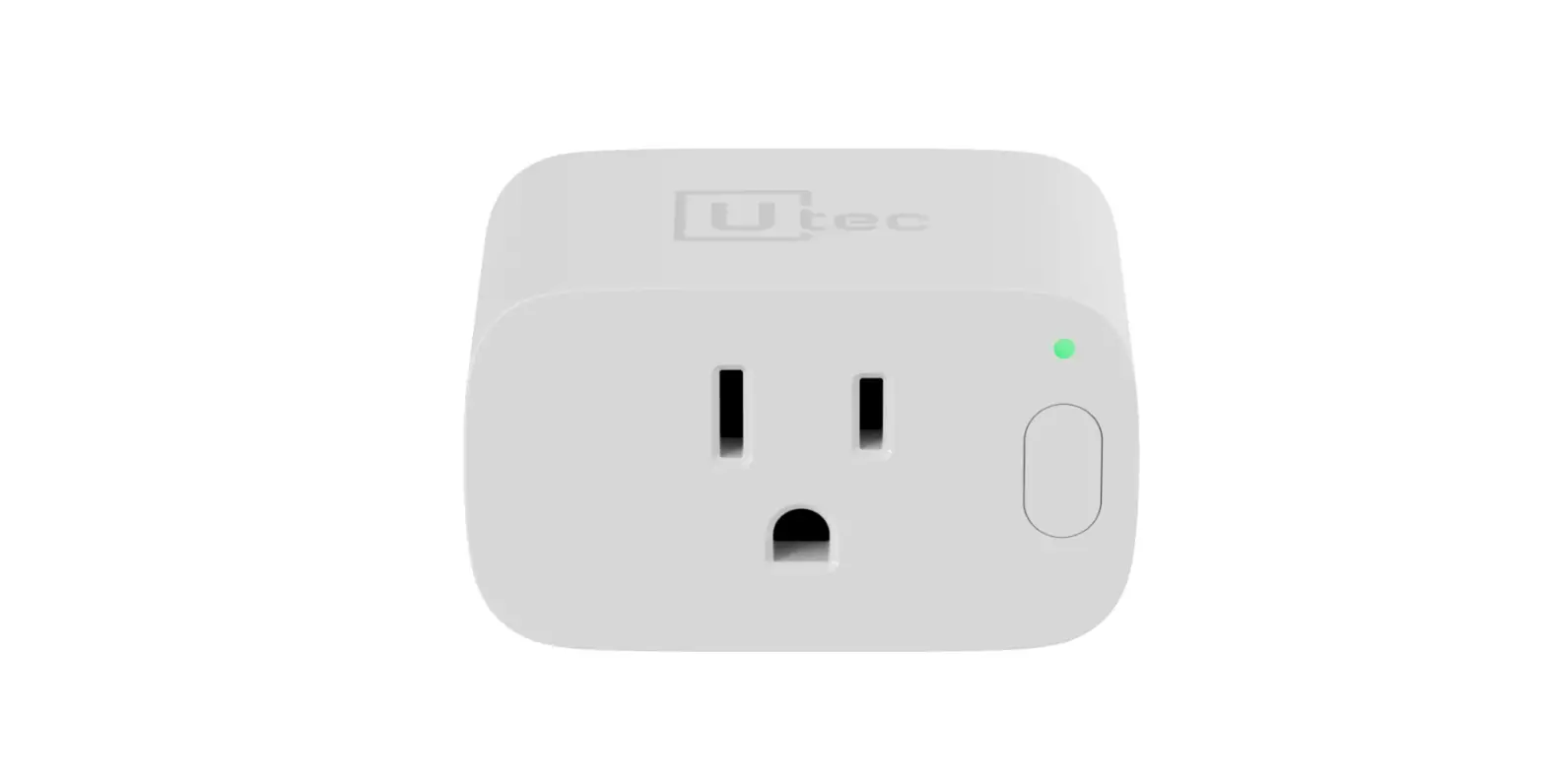
140137 Smart Plug
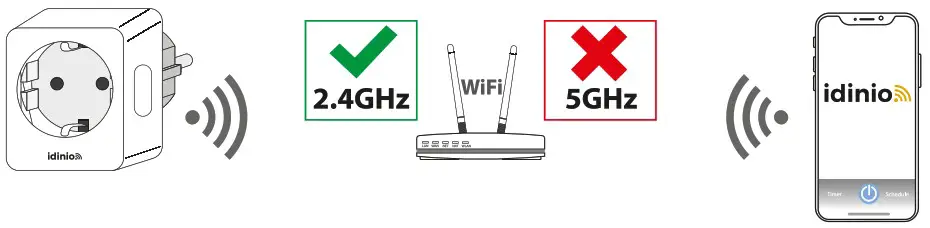
- your tablet or smartphone must be connected to a 2.4GHz WiFi network
- Download the Idinio Smart app from the Google Play or Apple App Store and create a user account.
 |  |  |
| https://itunes.apple.com/nl/app/idinio/id1457970650?mt=8 | Idinio app | https://play.google.com/store/apps/details?id=com.smart.ledsgo |
 Basic network requirements
- This device only supports2.4GHzWiFi networks so when you own a 5GHz router you mustselectthe2.4GHz network or disable the 5GHz network first in your route( menu. Refer to your router manual for instructions.

- Make sure that during the pairing process this device as well as your iOS or Android device will remain in the WiFi range of your router.
Installation
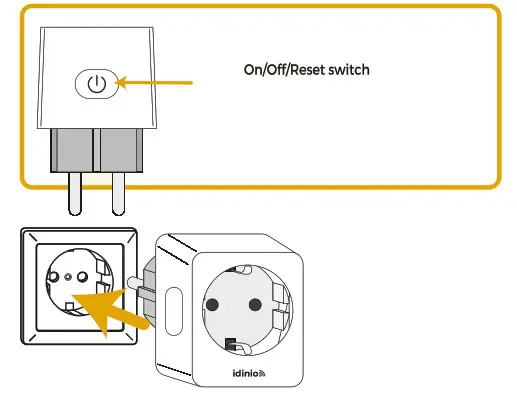
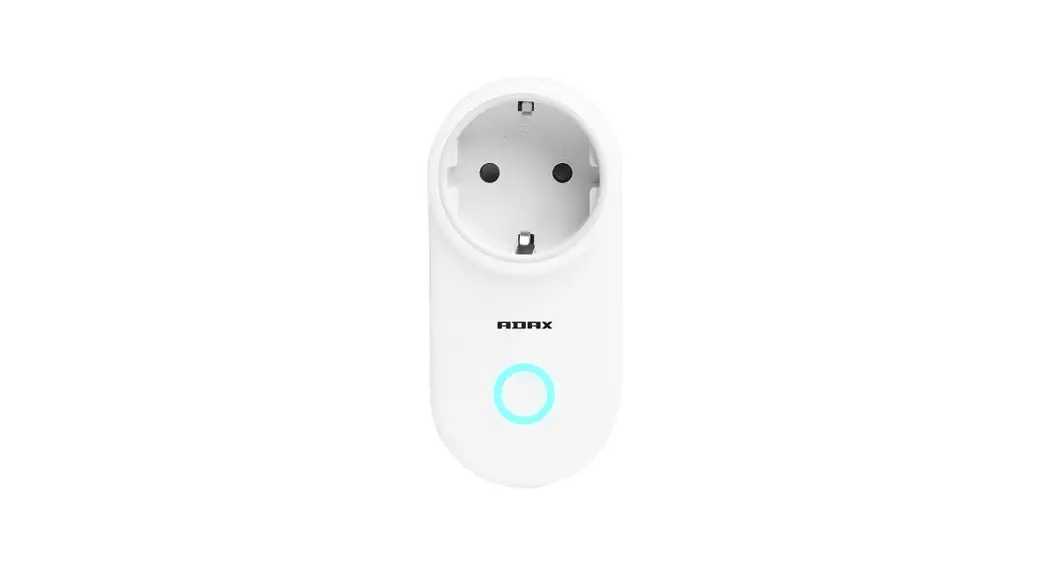
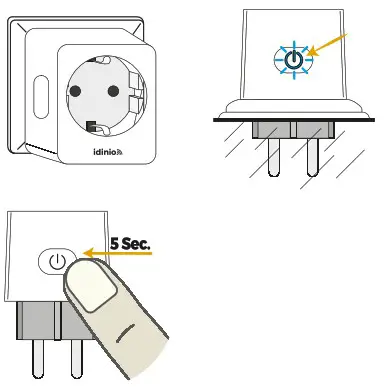
Power up the device. The LED indicator will start blinking rapidly.
If this is not the case you must reset the device by pressing the power button for approximately 5 seconds.
WARNING
Add device
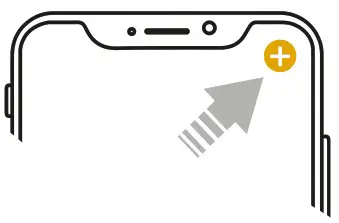
Launch the app and tap the ‘+’ in the top right corner
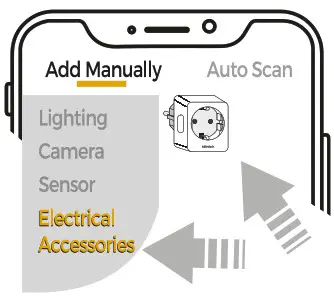
Select Electrical Accessories and tap ‘Power View 2’.
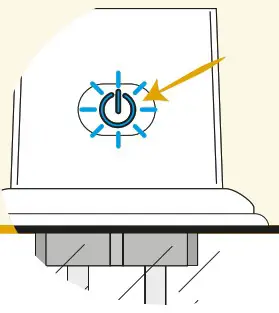
Tap ‘Confirm indicator rapidly blinks’
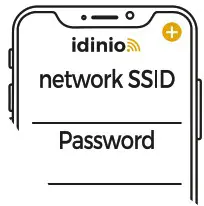
Select the right 2.4GHz WiFi network and password and tap ‘Confirm’
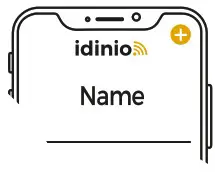
The app will auto-connect with the device. Once the process is completed, it will prompt you to rename the device. Enter a ne\lV name and ‘Save’
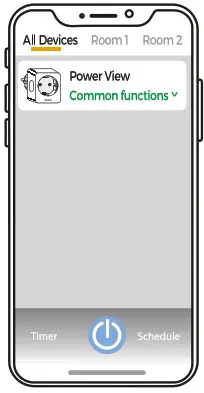 | 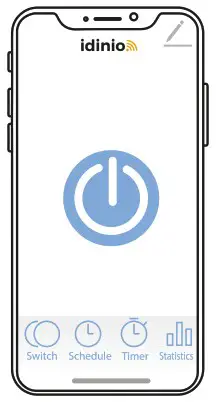 |
“On: power is on, press power-icon to tum off the device
Off: power is off. press power-icon to turn on the device Press Power view 2-icon for all settings Offline: connection lost”
AP Mode
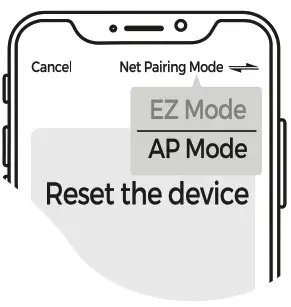
If adding the device failed, it maybe a networking problem. You can now proceed using the AP Mode for adding the device
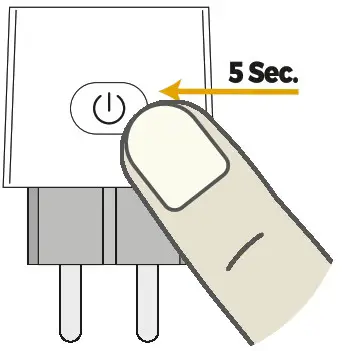
Press the On/Off button for 5 seconds and make sure that the device lights are flashing slow.
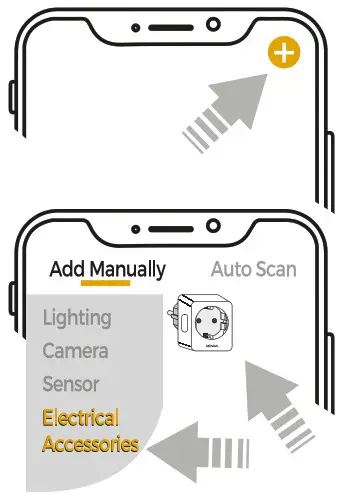
Tap the’+’ icon in the top right corner, then select ‘Electron Accessories, then select “Power View2
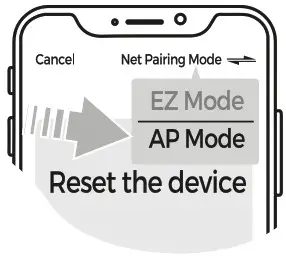
Tap ‘Other Mode’ in top right corner and select ‘AP Mode
Check if the connection light is flashing slowly. Press ‘Confirm indicator slowly blinks. Then select your 2.4CHz network, password and confirm.
Now Connect you smartphone or tablet with the devices hotspot. lap connect. the app will now open the settings menu of your smartphone or tablet. Open WiFi settings.
Search the smart device name in the list of WiFi networks and connect. Devices Will connect. Now open the Idinio Smart app again and wait until the connection process is finished
Wait until the connection is successful.
WARNING
 Safety warning!
 Safety warning!
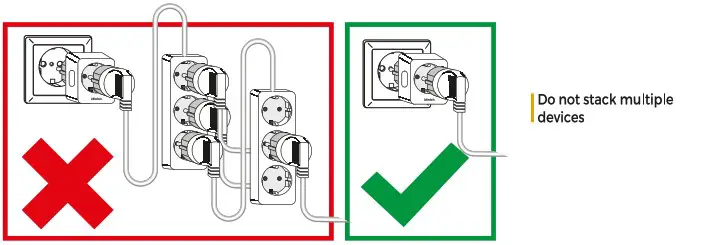
Ensure you have fully read and understood the instructions in this document before you install or use the product following the installation/wire diagram (when applicable). Keep this document for future reference and only use the product as described in this document Any other use of the product than described in this manual may damage the product or cause injury to the user (e.g. due to a short circuit fire or electric shock). Disconnect the product from the power source if problems occur. Do not drop the product and avoid bumping. Do not use the product if a part is damaged or defective. Replace a damaged defective product immediately. When a non-standard consumer (power)installation is required this should be performed by a qualified technician to reduce the risk of an electric shock Make sure the product is sufficiently ventilated during use. Never cover an electrical (LED) device during usage since it cangenerate heat causing damage. Besides LED can be extremely bright and may cause serious eye damage so don’t stare at it directly. When a product is meant for indoor and/or outdoor use only, this will be mentioned on the product/parts or in the manual. Keep the product out of reach of children or animals.
 Cleaning and Maintenance warning!
 Cleaning and Maintenance warning!
Do not use cleaning solvents or abrasives. Do not clean the inside of the device. Do not attempt to repair the device when the device does not operate correctly, replace it Clean the outside of the device using a soft. damp cloth (don’t use microfiber cloth)
 Support
 Support
If you need further help or have comments or suggestions please visit www.shada.nl/nl/contact
 Caution! Risk of electric shock.
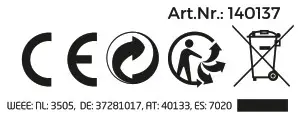
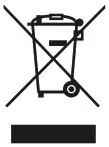 The item should be disposed of separately from household waste. The item should be handed in for recycling in accordance with local environmental regulations for waste disposal. By separating a marked item from household waste. you will help reduce the volume of waste sent to incinerators or land-flatland minimize any potential negative impact on human health and the environment.
 This product comes the CE mark of certification, which confirms that this product meets EU safety, health, and environmental protection requirements

Molenmakershoek 28, NL-7328 JK APELDOORN – The Netherlands
www.shada.nl