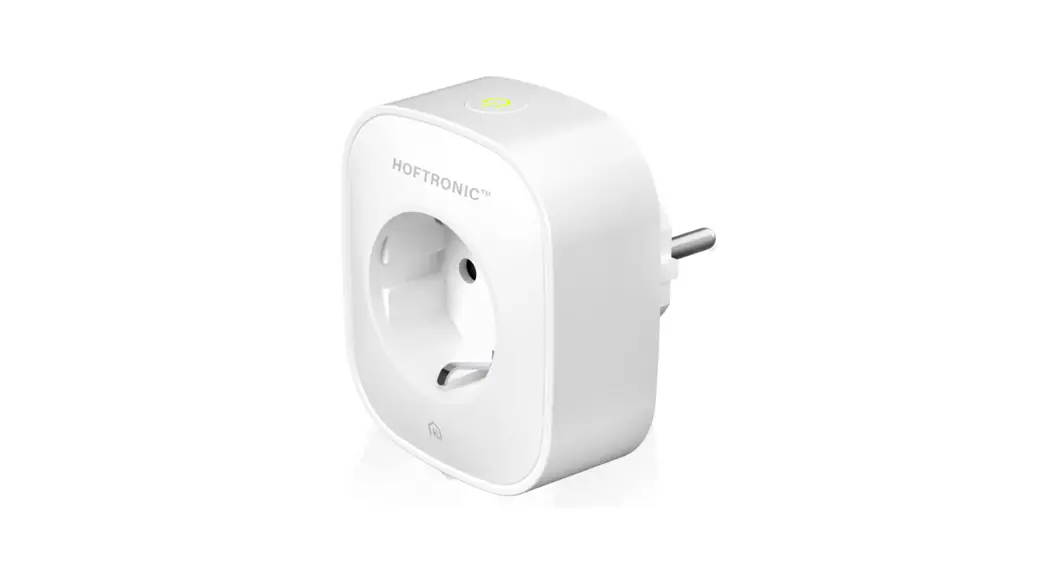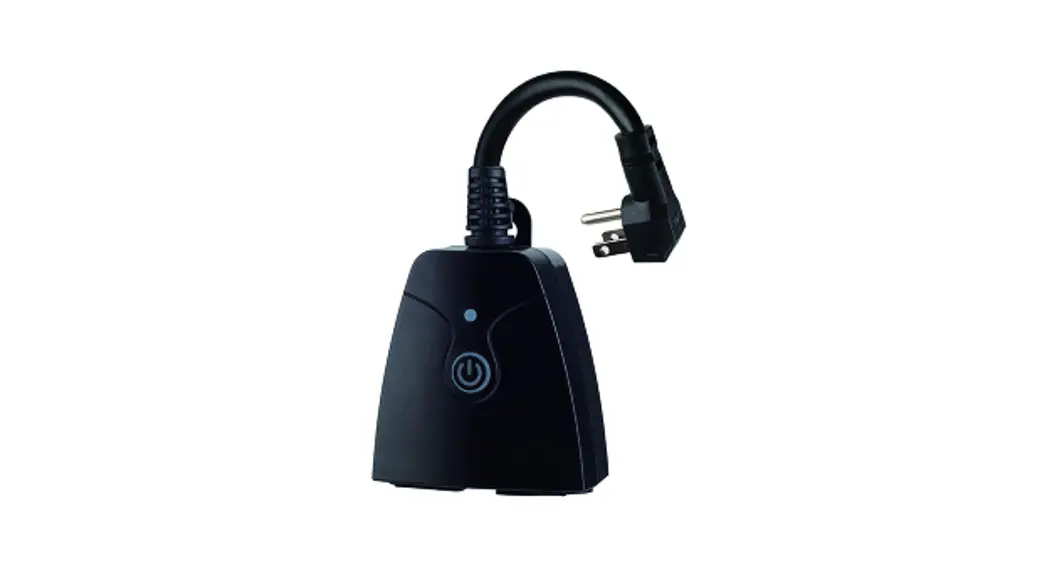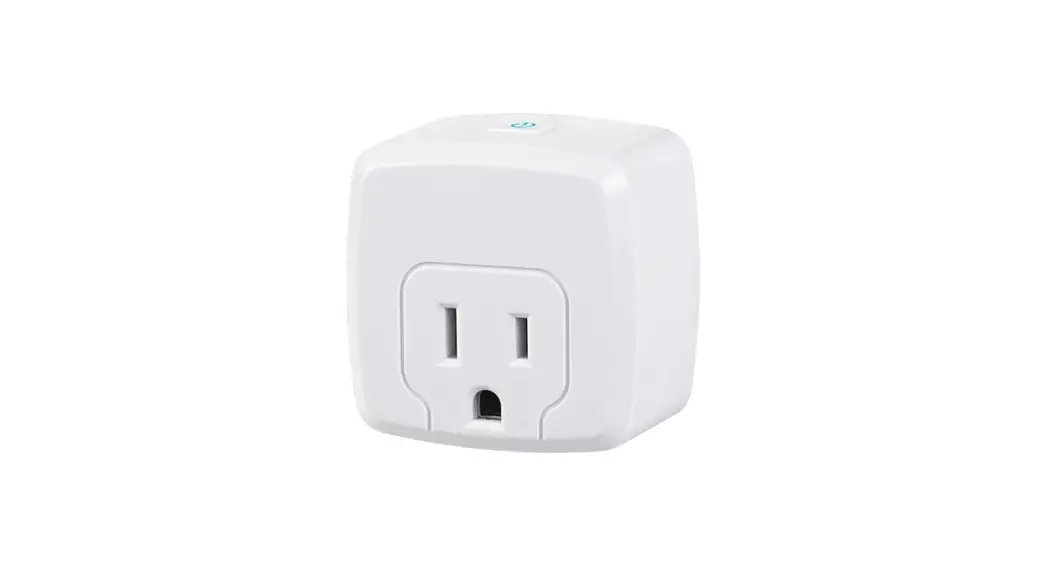
Govee H5081101 Smart Plug User Manual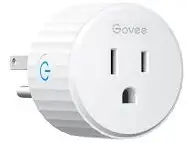
At a Glance
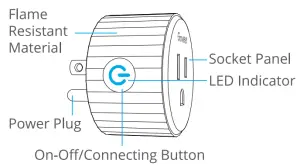
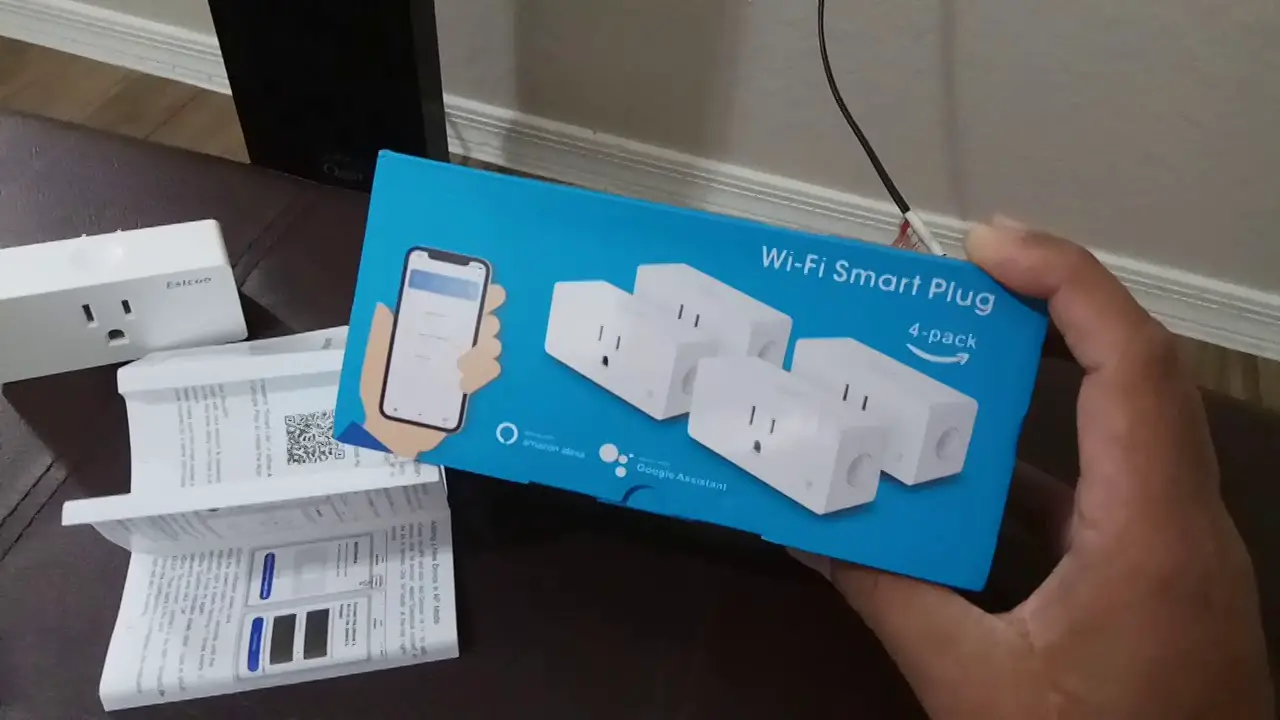
With Govee Smart Wi-Fi Plug, you can remotely turn on or off home appliances simply with a network-connected mobile phone. or just press  on the device to come them on or off.
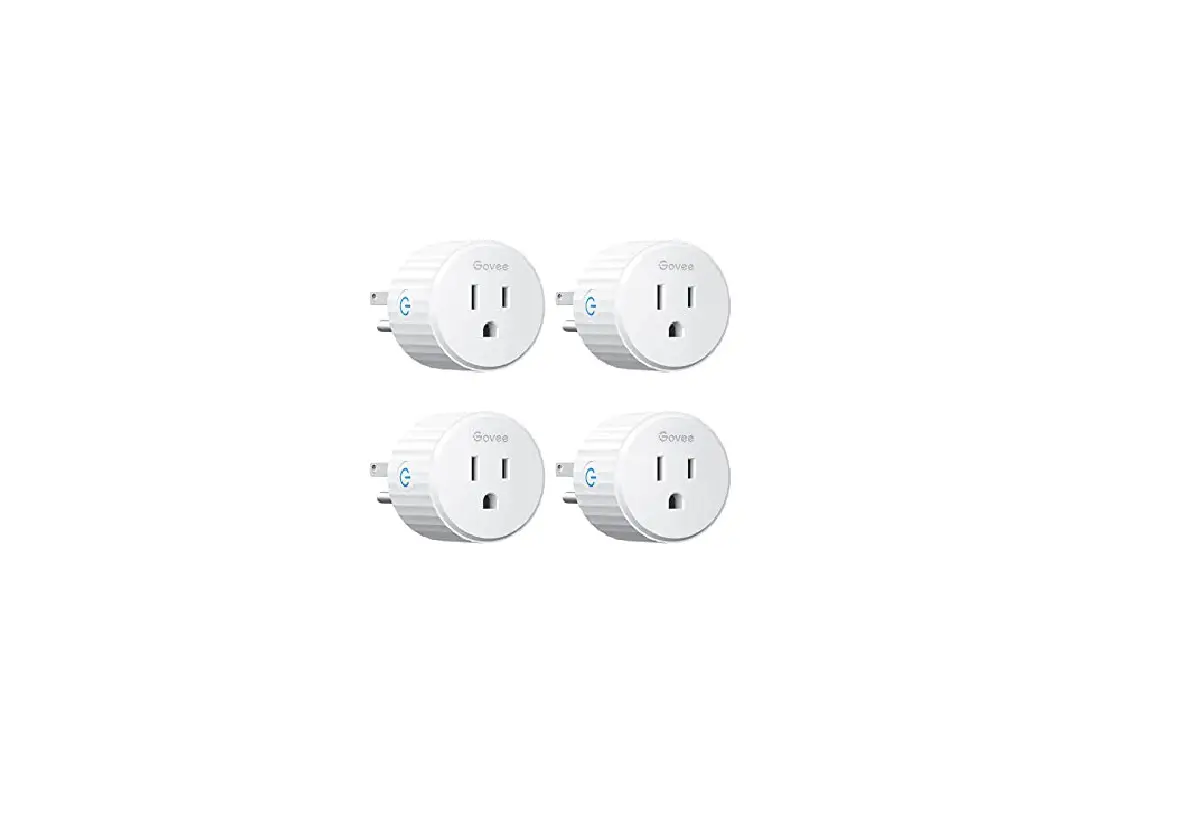
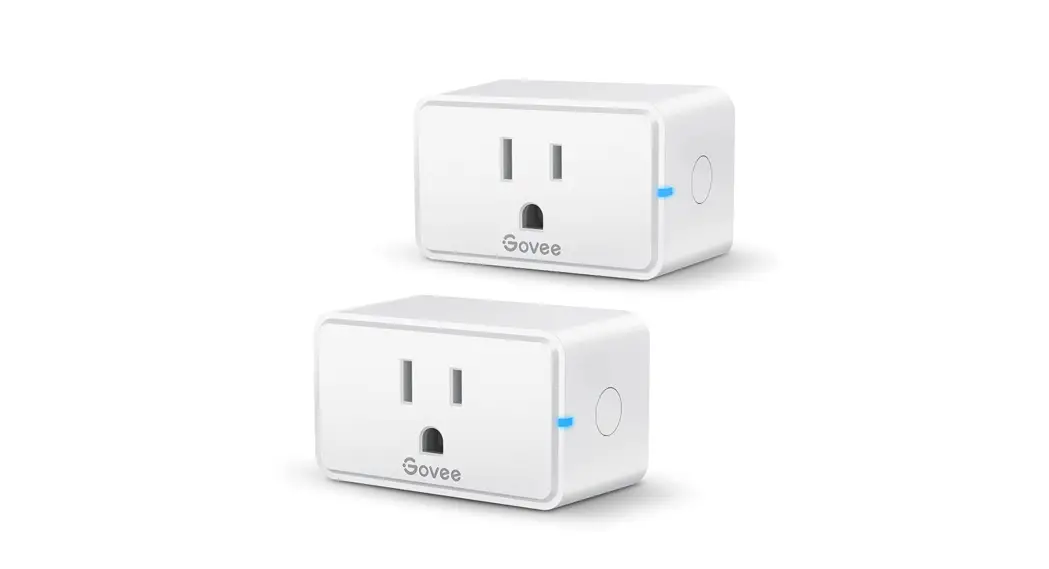
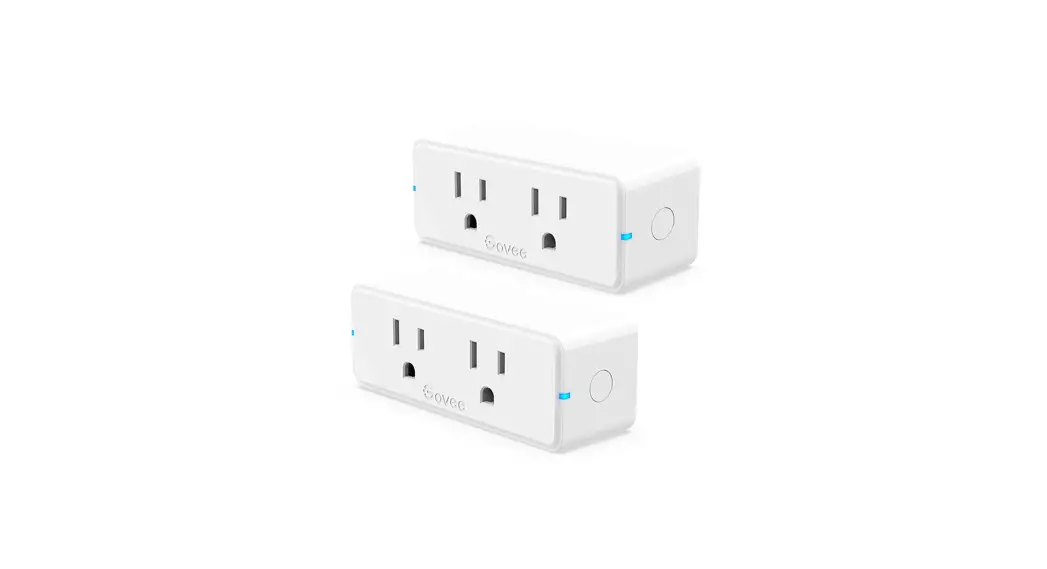
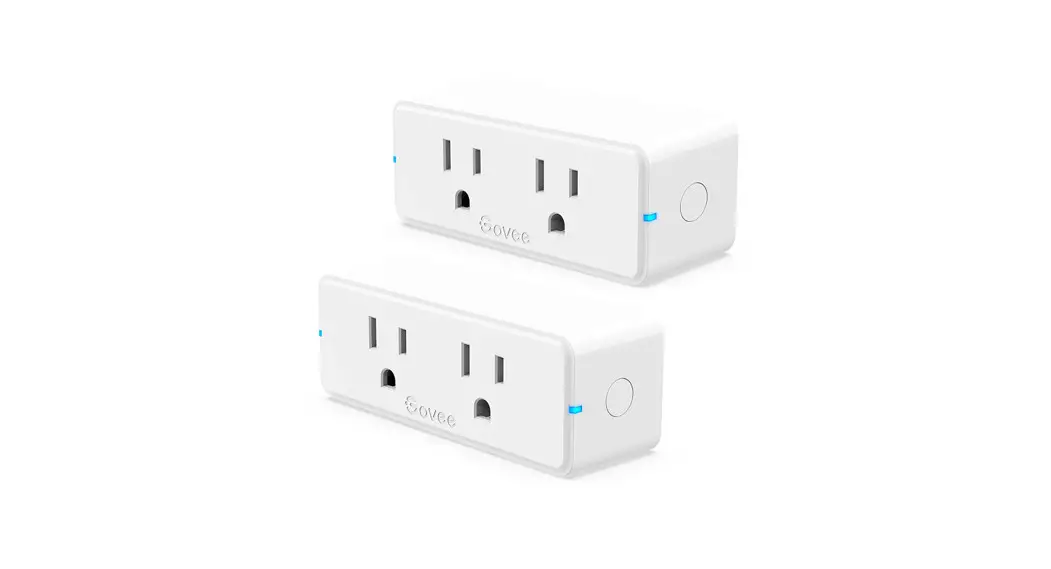
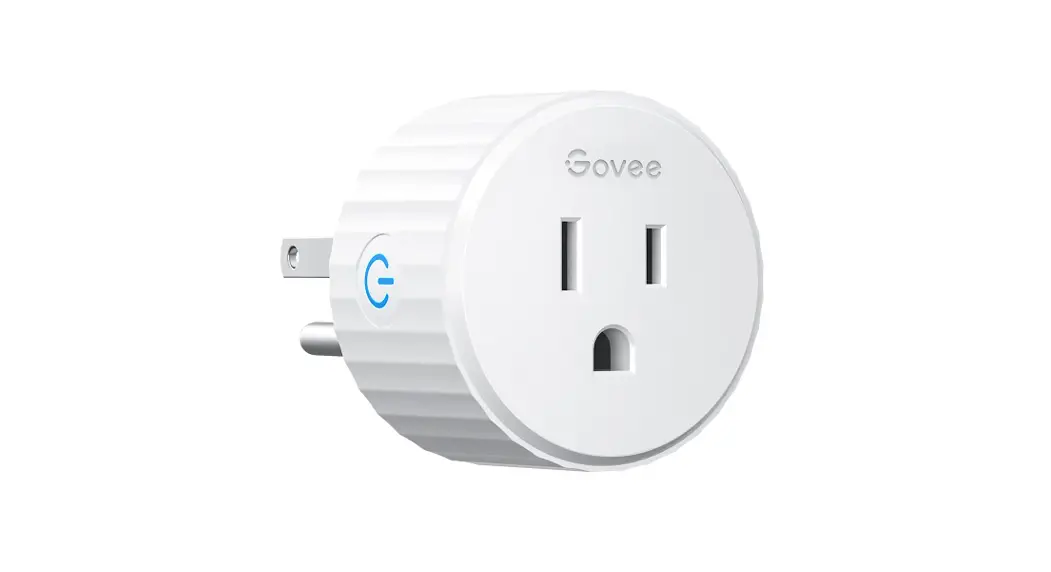
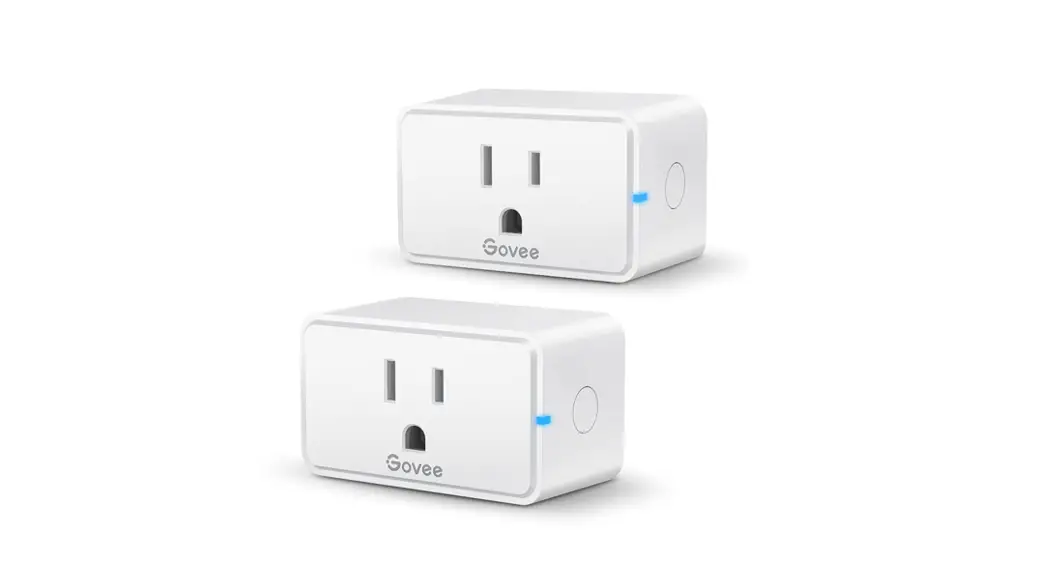
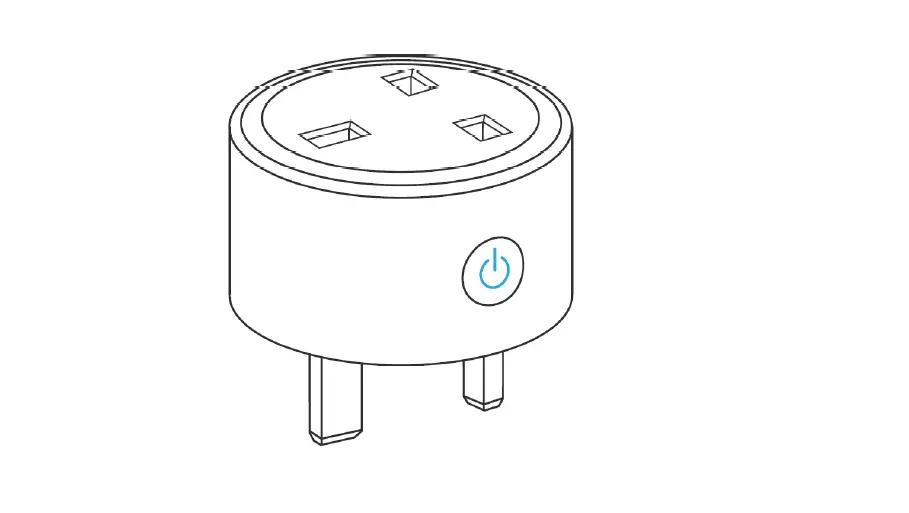
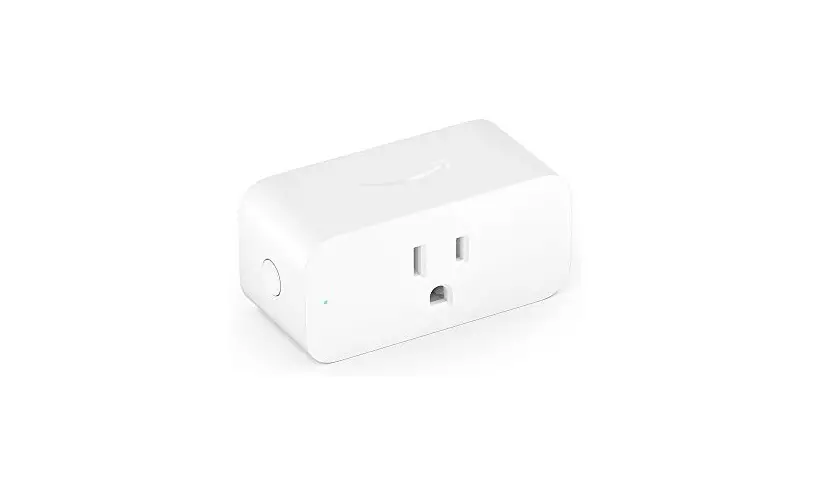
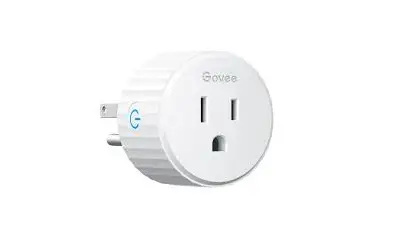
- Socket Panel: Connect to electric appliances.
- On-Off Button: Turn on/off the device. /Connect to the network.
- Power Plug: Plug into the socket.
- LED Indicator: Show the device status.
| LED Indicator | Status |
Solid blue  | Power on. Wi-Fi connected. |
| No light | Power off. Wi-Fi connected. |
Solid purple  | Power on. Disconnect from Wifi. |
Solid red  | Power off. Disconnect mom Wi-Fi. |
Flashing blue  | Get ready to connect to Wi-Fi. |
Flashing blue quickly  | Connecting to Wi-Fi |
What You Get
| SKU | H5081101 | B50B1101 | B5081102 |
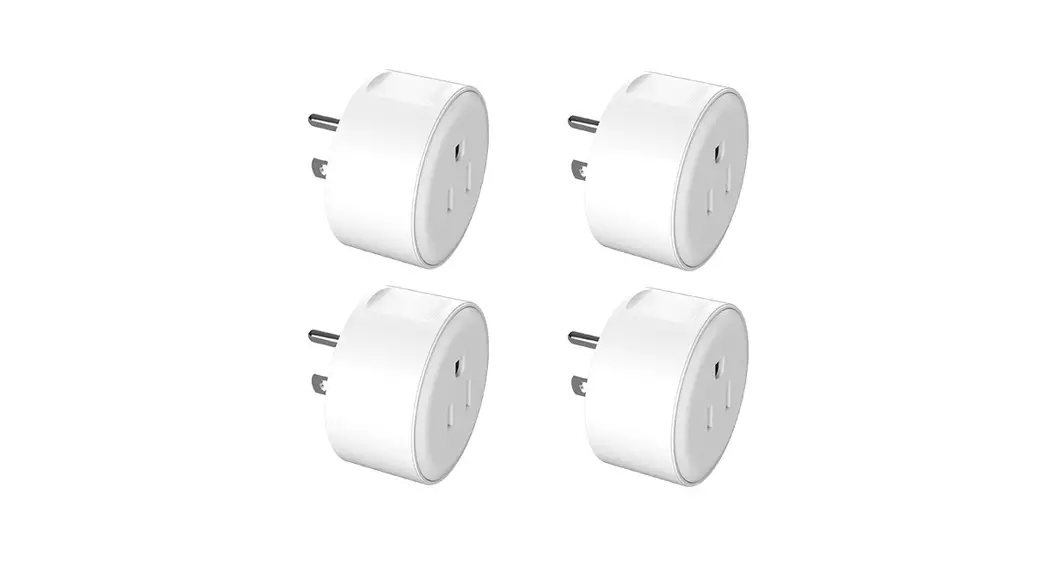
| Wi-Fi Socket | 1 | 2 | 4 |
| User Manual | 1 | 1 | 1 |
Installing Your Device
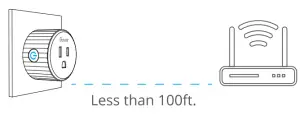
Plug the device into the socket.
Notice:
- Make sure the distance between the device and the router is less than 100ft.
- Keep as few obstructions (e.g. wall, windows) as possible between the device and the router.

Downloading the Govee Home App
What You Need:
- A Wi-Fi router supporting the 2.4GHz (not 5GHz) and 802.11 b/g/n bands.
- A smart phone or tablet running iOS 9.3 (or above) or Android 4.3 (or above).


Download the Govee Home app from the App Store (iOS devices) or Google Play (Android devices). Connecting to a Wi-Fi Network


- Connect your mobile phone to 2.4GHz home network;
(Notice: Android device users should turn on Location and iOS users should tap Setting – Govee Home – Location – Always in your phone.) - Open the Govee Home, tap “+” icon in the top right corner and select “HSO81”;
- Press On-Off button and hold for 6s until LED indicator flashes blue, indicating it enters pairing mode;
- Follow on-screen instructions in the app to complete the connection. (Notice: Make sure the Wi-Fi connected is your home network and the password entered is correct.)
- Wi-Fi connection completed when LED indicator keeps solid blue or turns off. (Notice: You can find the new-added Smart Wi-Fi Socket in the device list once connection completes. If you can’t, please swipe down the device list page to refresh.)
- Wi-Fi connection failed if the LED indicator turns to be red or purple. Check the above steps and try again. Please contact Govee team for help if it still failed.
Using Your Device
App Control
| Remote On/Off | Turn on/off the device remotely. |
| Timer Setting | Turn on/off the device at preset time automatically. |
| Off Delay | Automatically turn off the device after the time period you preset. |
Warm Tips:
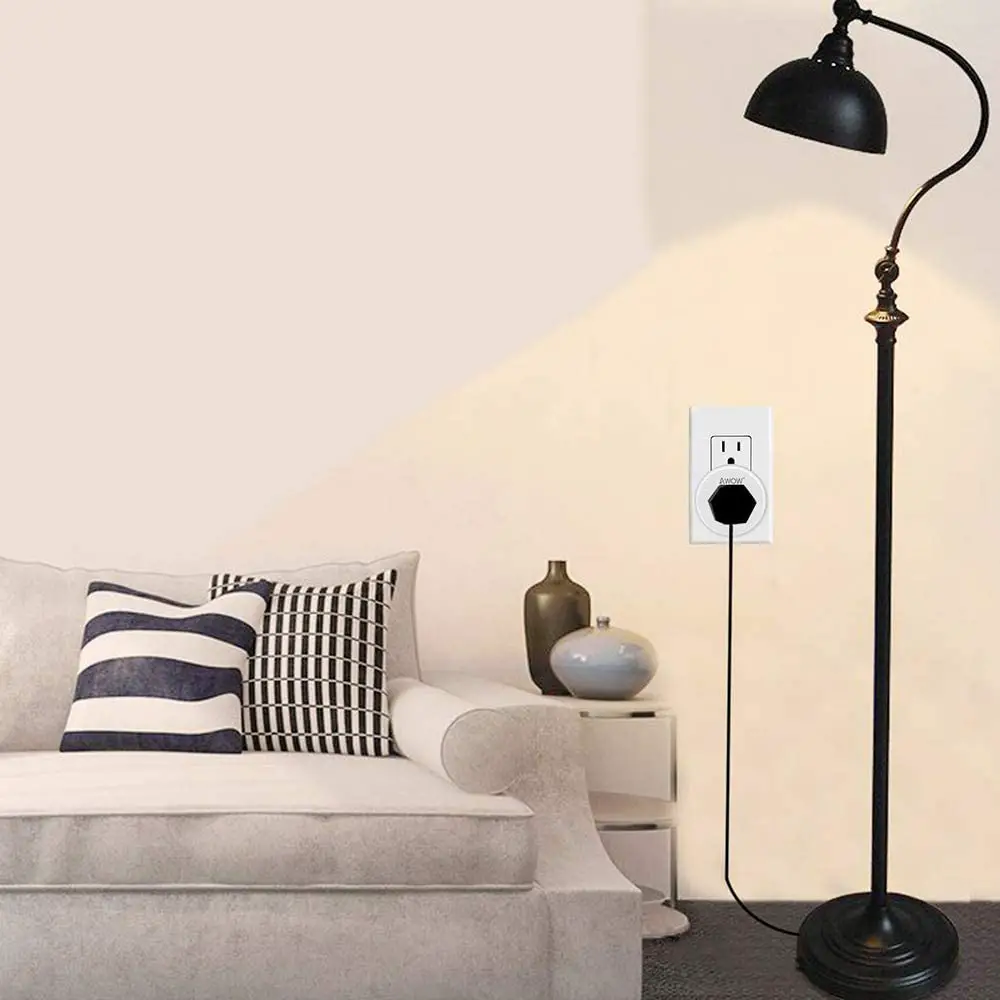
The Govee Wi-Fi Socket can be used with the electric fan, humidifier, LED bulbs and more electric appliances. Remotely control them on the Govee Home app.
Voice Control
The device supports voice control via Alexa and Google Assistant, please refer to “Using guidance” to activate. The “Using guidance” can be found through:
- Open the Govee Home app, select your Wi-Fi plug in the Devices page.
- Tap setting icon in the top right corner.
- Tap “Using guidance” to follow on-screen instructions.
Troubleshooting
- Fail to connect to Wi-Fi.
- Make sure the distance between the device and the router is less than 100ft.
- Keep as few obstructions (e.g. wall, windows) as possible between the device and the router.
- Make sure the Wi-Fi name and the password you entered is correct.
- Make sure the Wi-Fi you connect to is 2.4GHz. 5GHz is not supported.
- Cannot use the device with the Govee Home app on your tablet./Cannot display the whole app interface on the tablet.
Please turn off the portrait orientation lock — hold your tablet upright — turn on the portrait orientation lock. - How to exit the pairing mode?
- Plug out the Smart Wi-Fi Socket and re-plug it in.
- It exits the pairing mode 3 minutes later automatically.
- Lost W-Fi connection./Cannot use the device with the app.
- Make sure your home Wi-Fi works well.
- Check whether the Wi-Fi password has been modified.
- Keep as few obstructions (e.g. wall, windows) as possible between the device and the router.
- The Wi-Fi-enabled range will be shortened if the power of the electric appliance is too high.
- Check whether the device has connected to Wi-Fi by the indicator. If the indicator is red or purple, please re-connect the device to Wi-Fi as steps mentioned above.
Warning
Do not press the On-Off button quickly and frequently. O Do not plug in the appliance whose power is higher than 1100W.
Specifications
| Input | AC 1 00 – 240V |
| Output | 10A Resistive (Max) |
| ACT/frequency | 50 – 60Hz |
| Power | 1 1 OOW |
| Working Temperature | -20°C – 60°C (-4°F -122°F) |
| Wireless Standard | |EEE 802.11 b/gin, 2.4GHz |
| Using Scenes | Indoor Use Only |
| App Support | iOS/Android |
Safety Instructions
- This device is recommended for use indoors and in a dry location only.
- The device should only be used within it’s issued outlet rating stated in the instructions.
- Please contact the Govee team for a replacement if there is any damage caused by transportation.
- Please correctly plug in the socket and keep away from children.
- For added safety, please make sure to plug in the socket fully before using.
- Please do not disassemble the device. Otherwise, the device may get damaged or become a safety hazard.
Warranty
12-Month Limited Warranty
Customer Service
Support: Lifetime Technical Support
Email: [email protected]
Official Website: www.govee.com
 @Govee
 @Govee
 @Govee
 @Goveeofficial
FCC Statement
This device complies with Part 15 of the FCC Rules. Operation is subject to the following two conditions: (1) This device may not cause harmful interference, and (2) This device must accept any interference received, including interference that may cause undesired operation. Warning: Changes or modifications not expressly approved by the party responsible for compliance could void the user’s authority to operate the equipment.
NOTE: This equipment has been tested and found to comply with the limits for a Class B digital device, pursuant to Part 15 of the FCC Rules.
These limits are designed to provide reasonable protection against harmful interference in a residential installation. This equipment generates uses and can radiate radio frequency energy and, if not installed and used in accordance with the instructions, may cause harmful interference to radio communications. However, there is no guarantee that interference will not occur in a particular installation. If this equipment does cause harmful interference to radio or television reception, which can be determined by turning the equipment off and on, the user is encouraged to try to correct the interference by one or more of the following measures:
- Reorient or relocate the receiving antenna.
- Increase the separation between the equipment and receiver.
- Connect the equipment into an outlet on a circuit different from that to which the receiver is connected.
- Consult the dealer or an experienced radio/TV technician for help.\
FCC Radiation Exposure Statement
This equipment complies with FCC radiation exposure limits set forth for an uncontrolled environment. This equipment should be installed and operated with minimum distance 20cm between the radiator & your body.
Govee is a trademark of Shenzhen Intellirocks Tech Co. Ltd.
Copyright ©2020 Shenzhen Intellirocks Tech Co. Ltd. All Rights Reserved.
Govee Home App
For FAQs and more information, please visit: www.govee.com