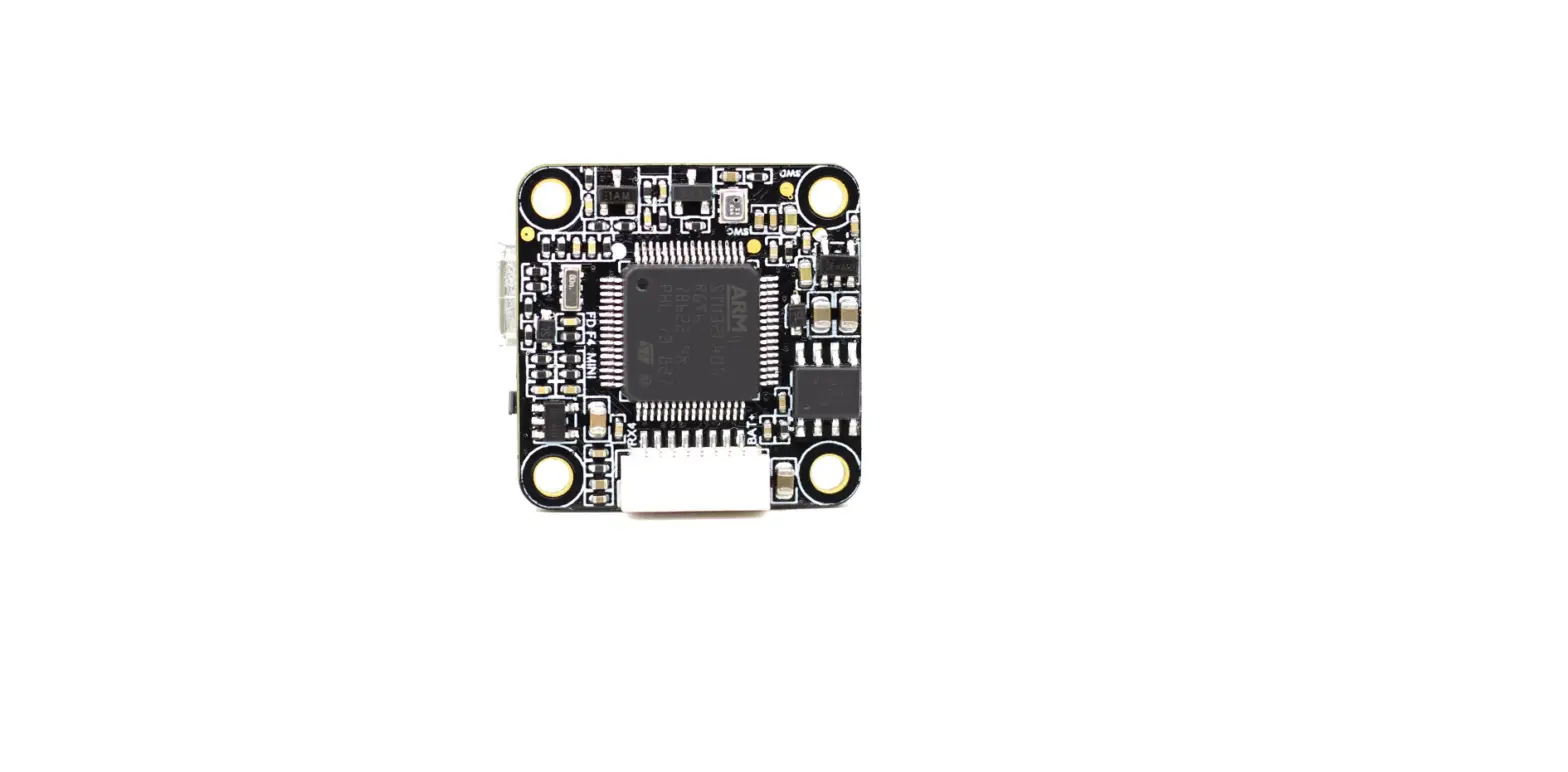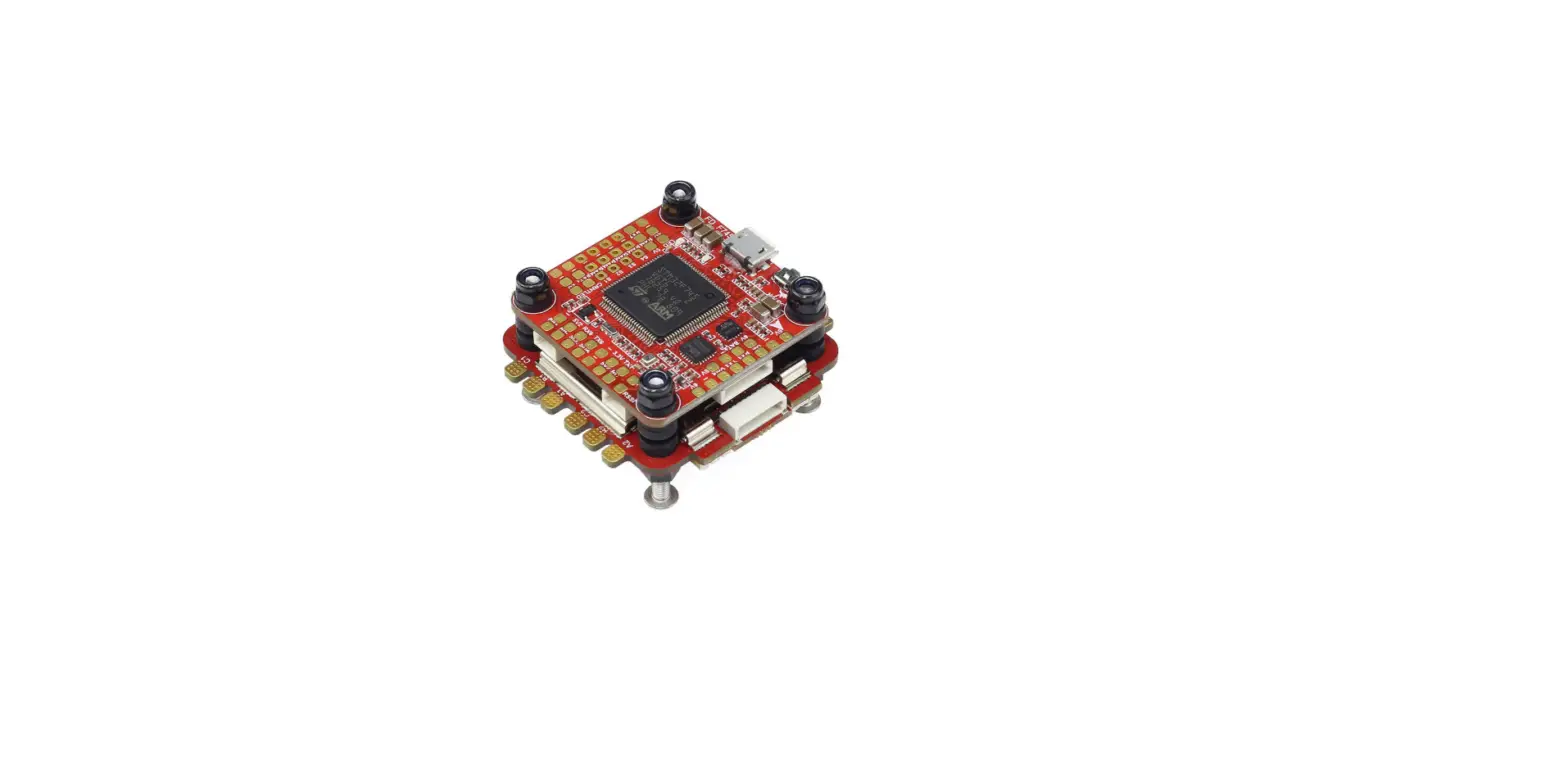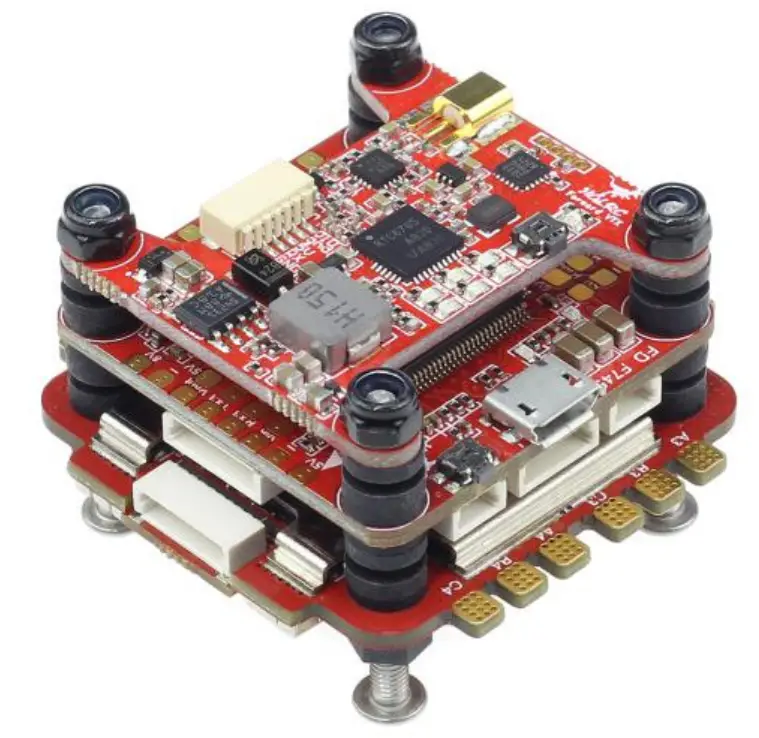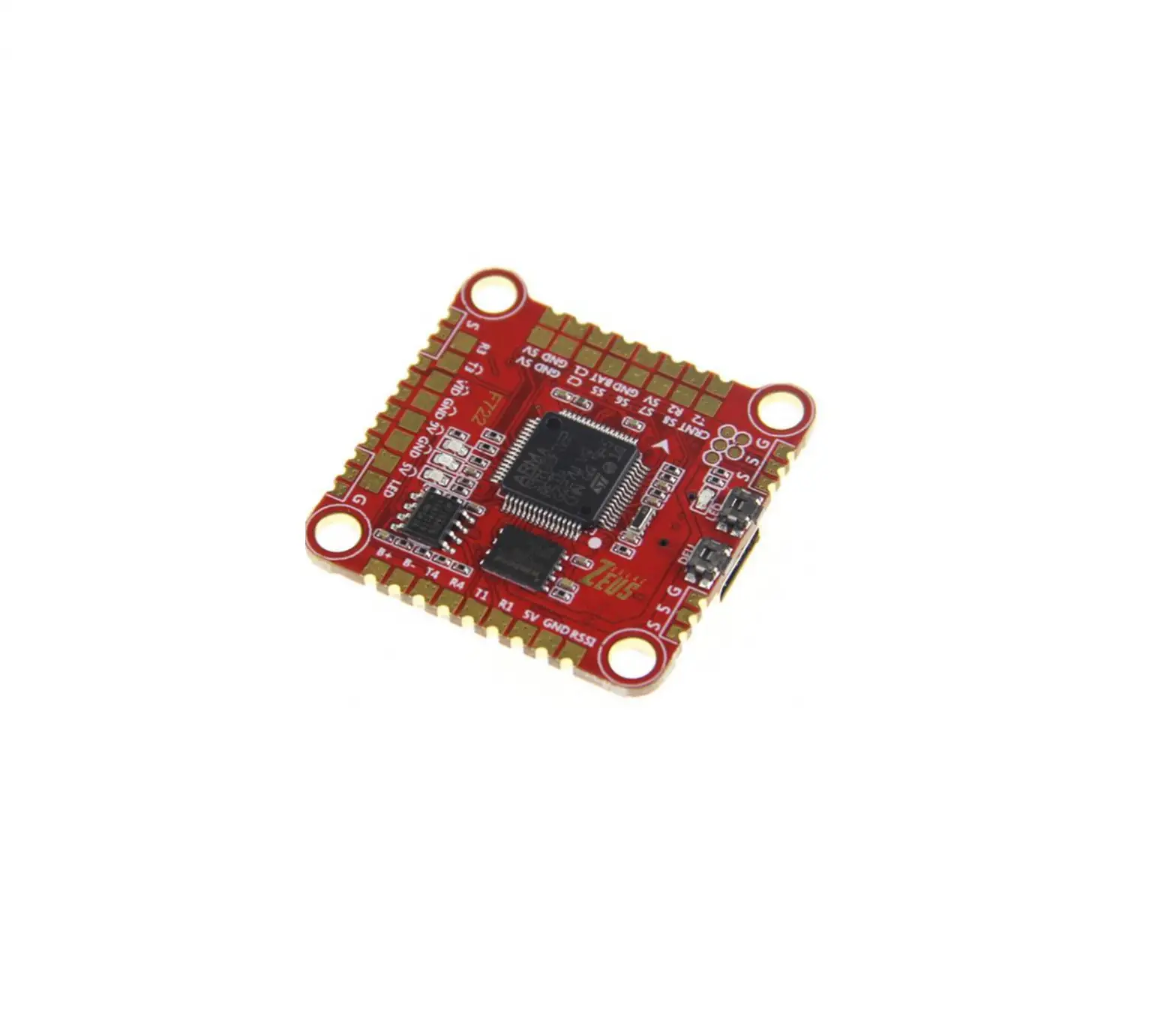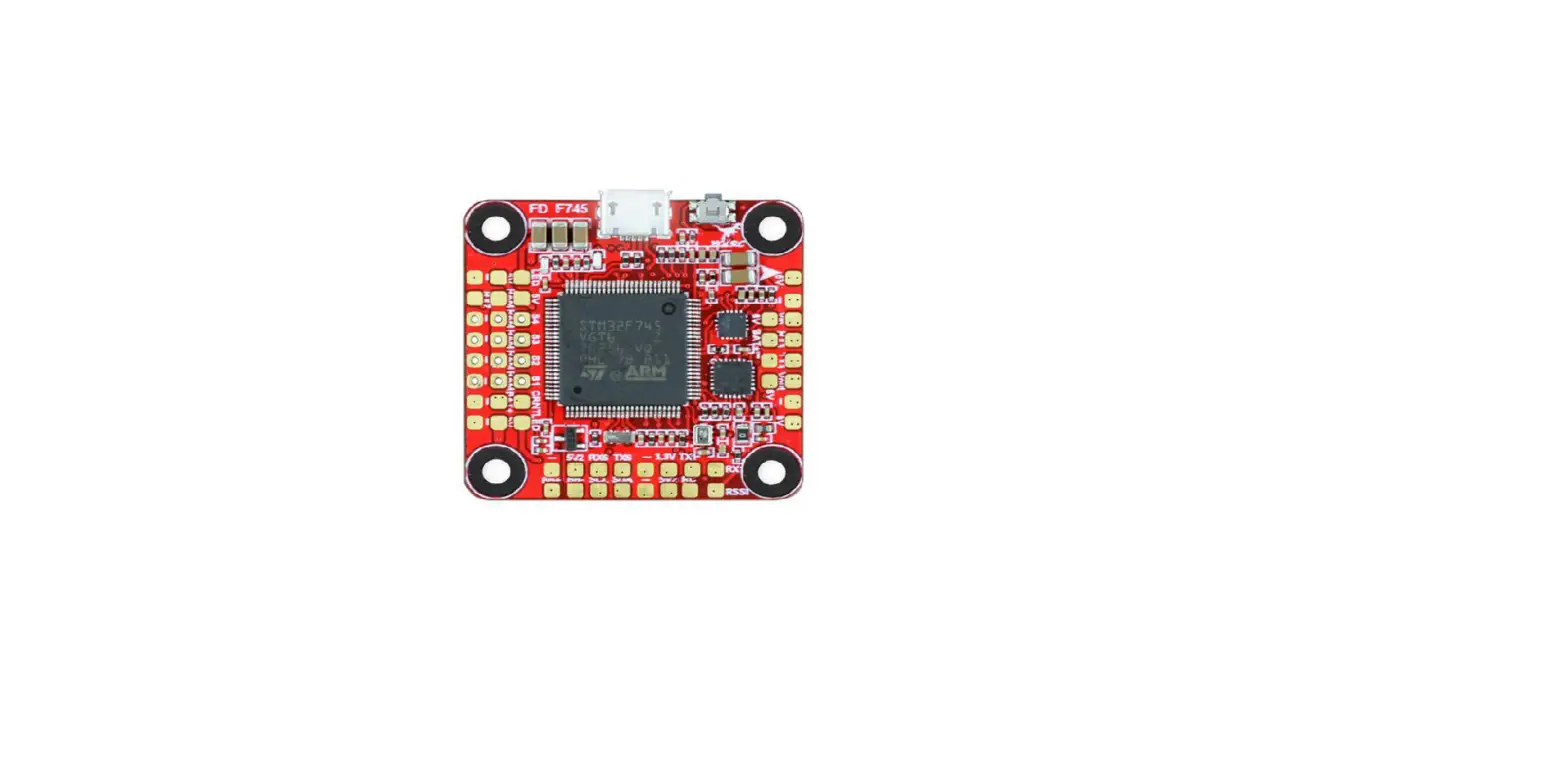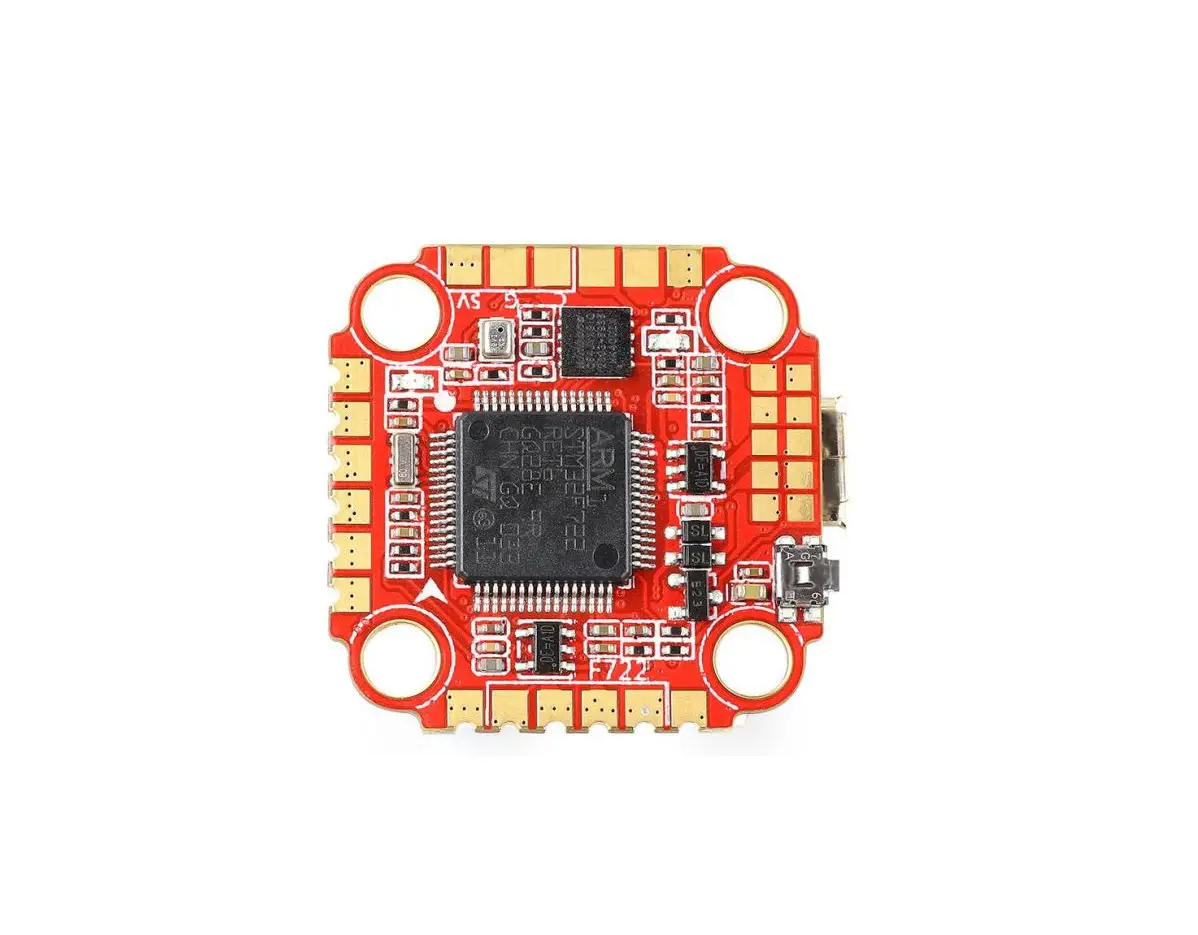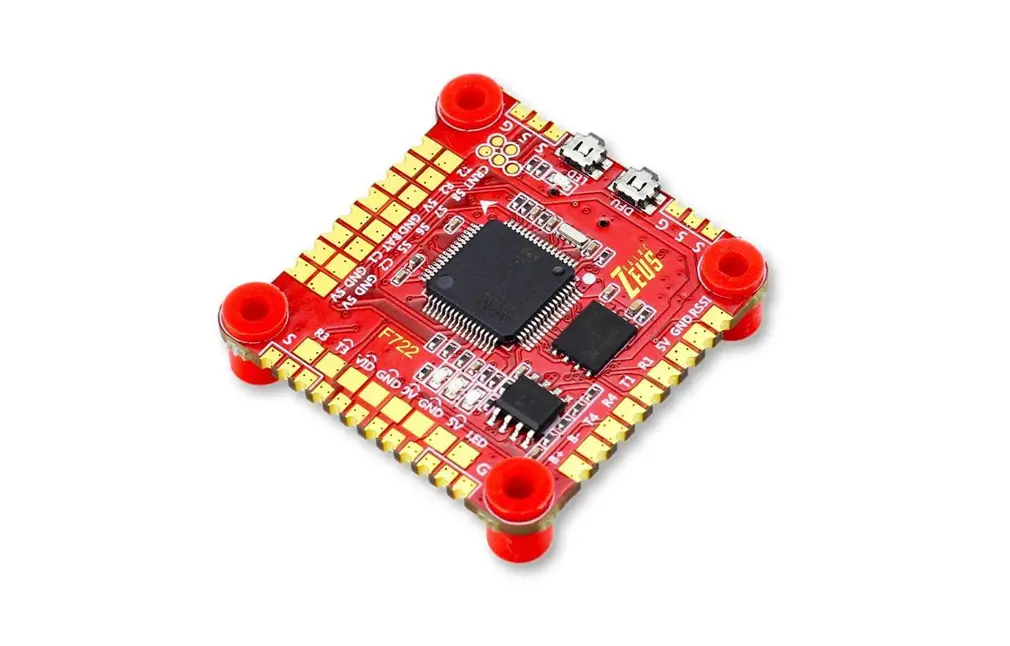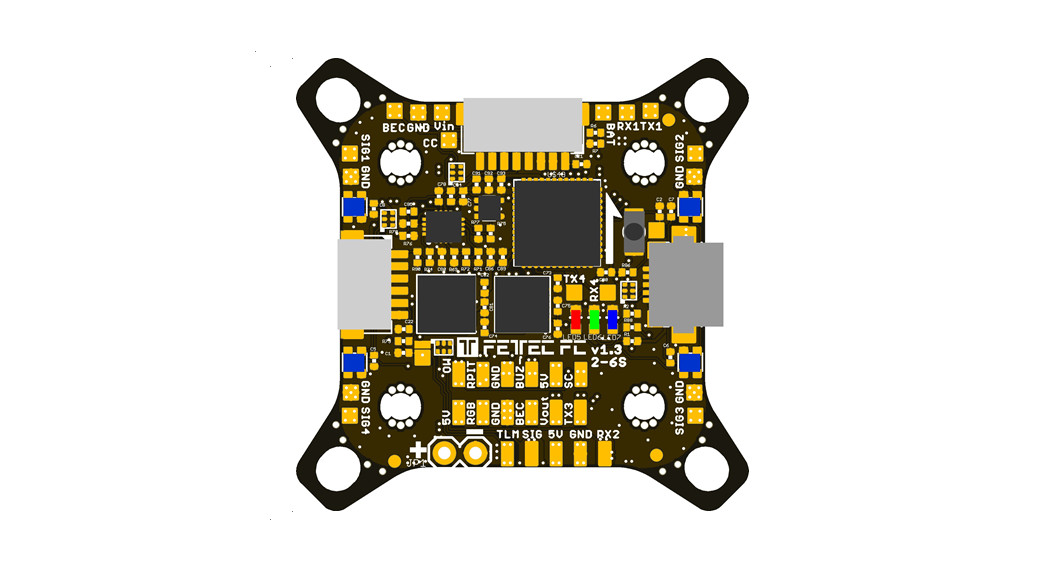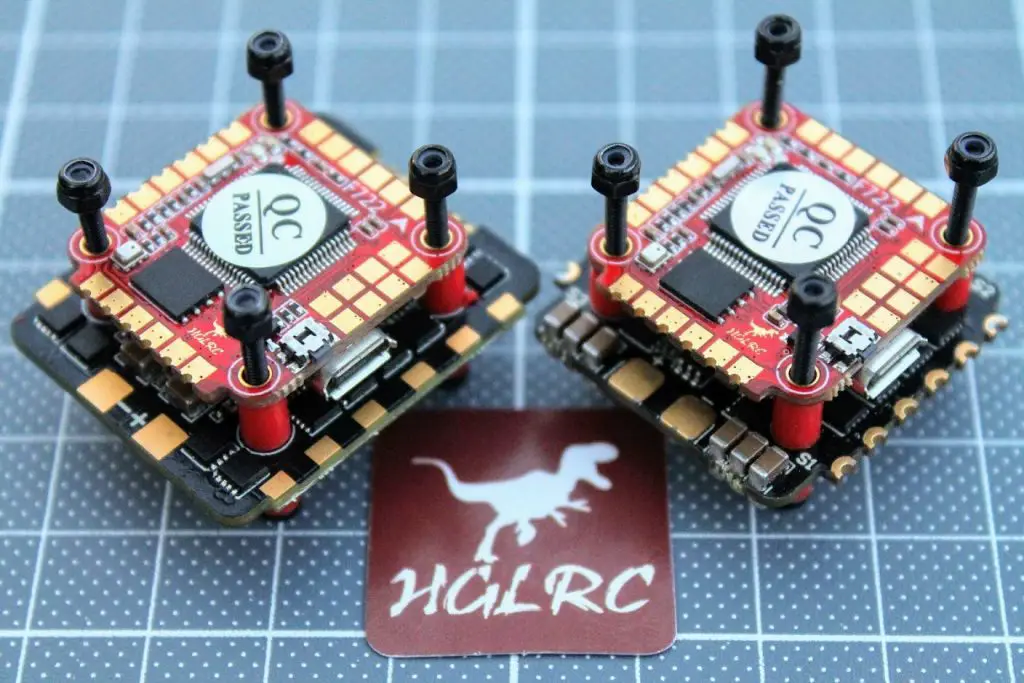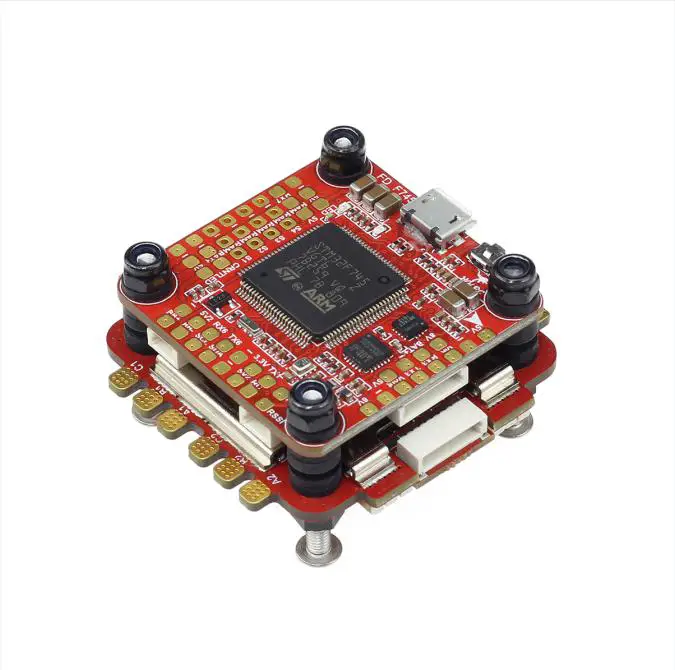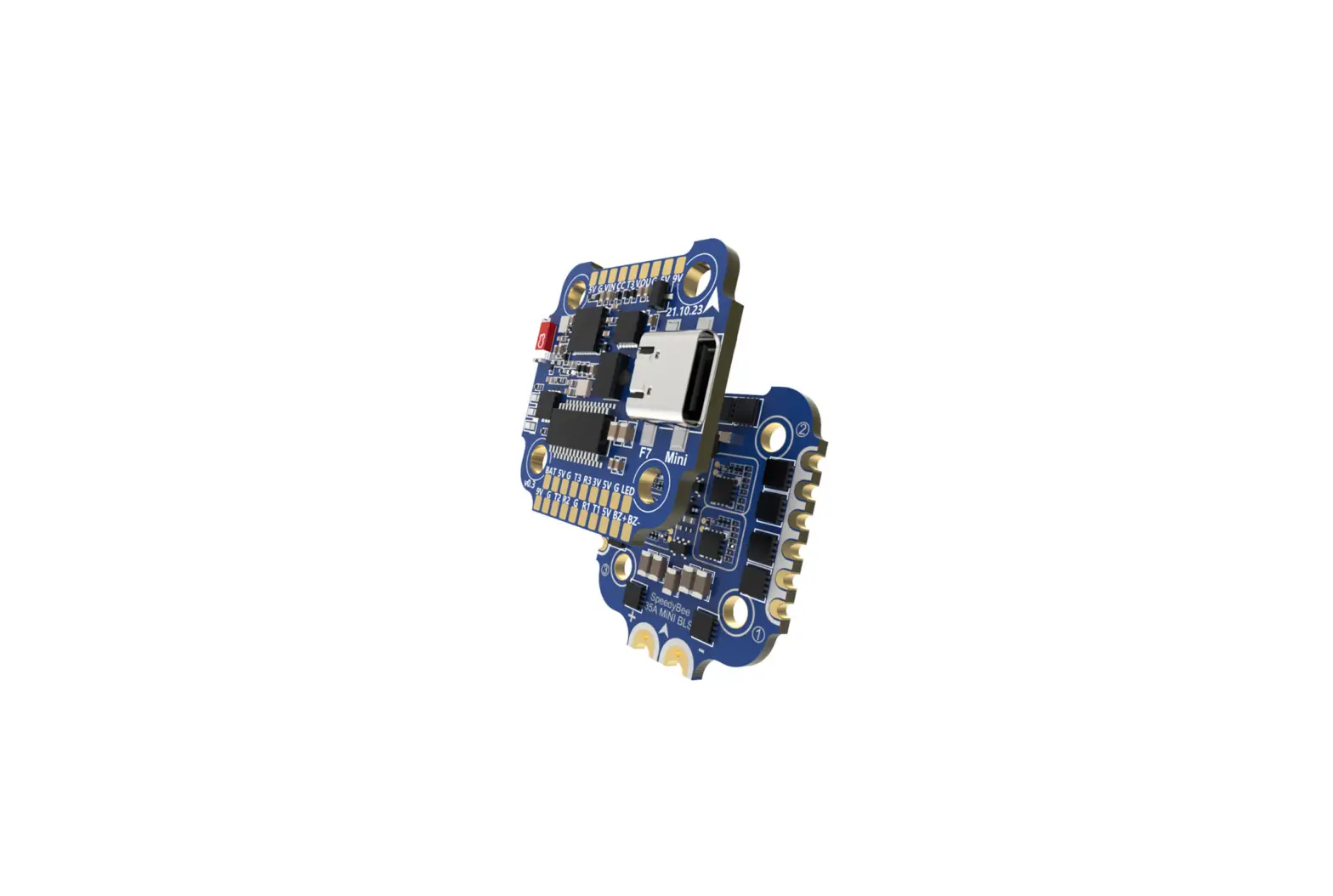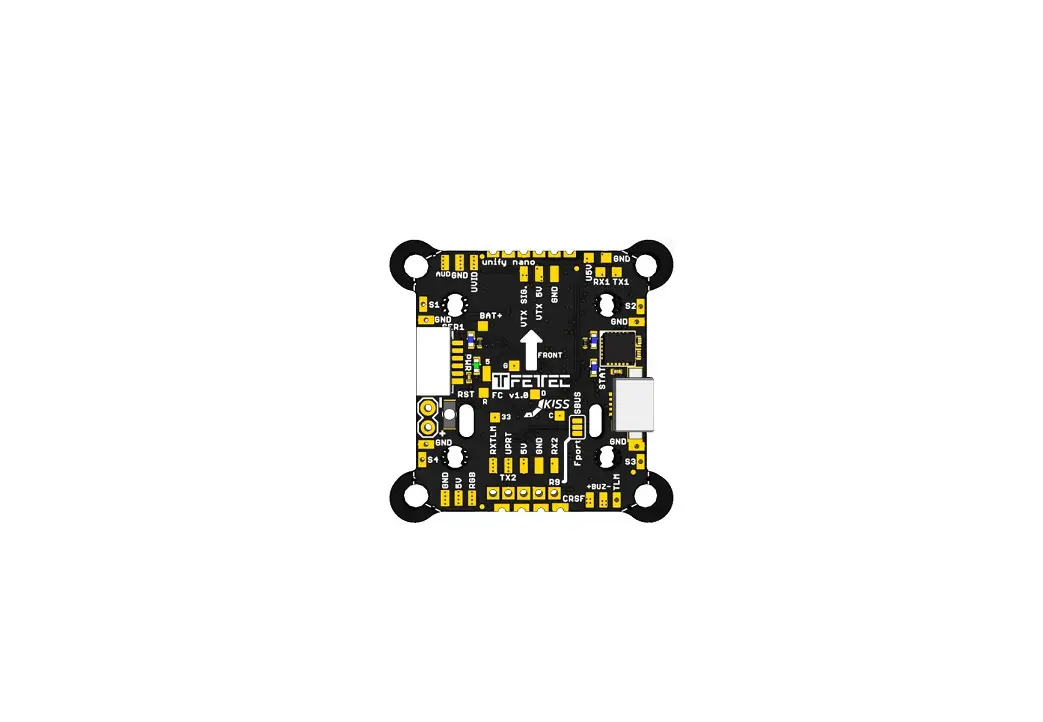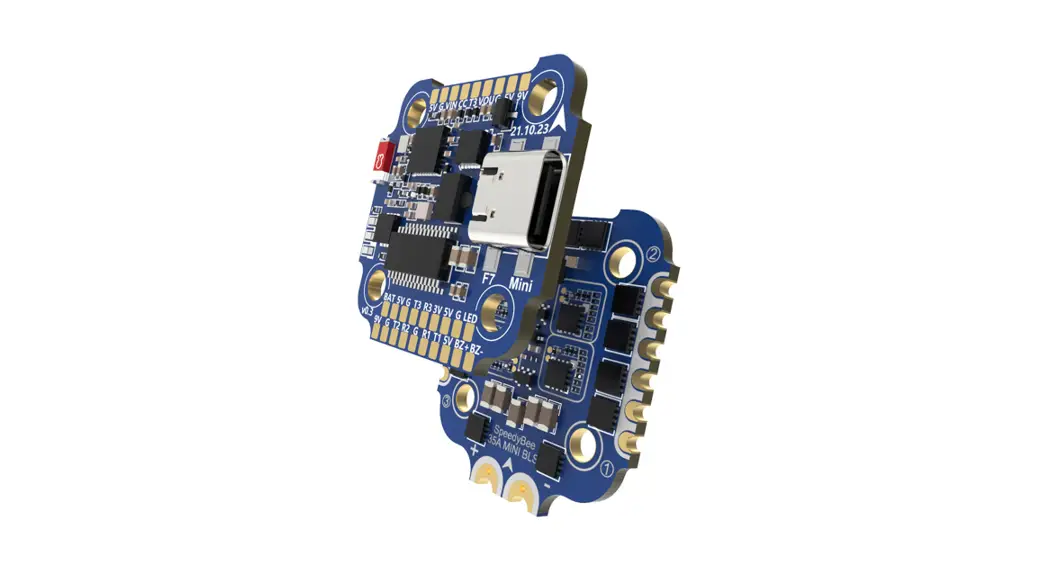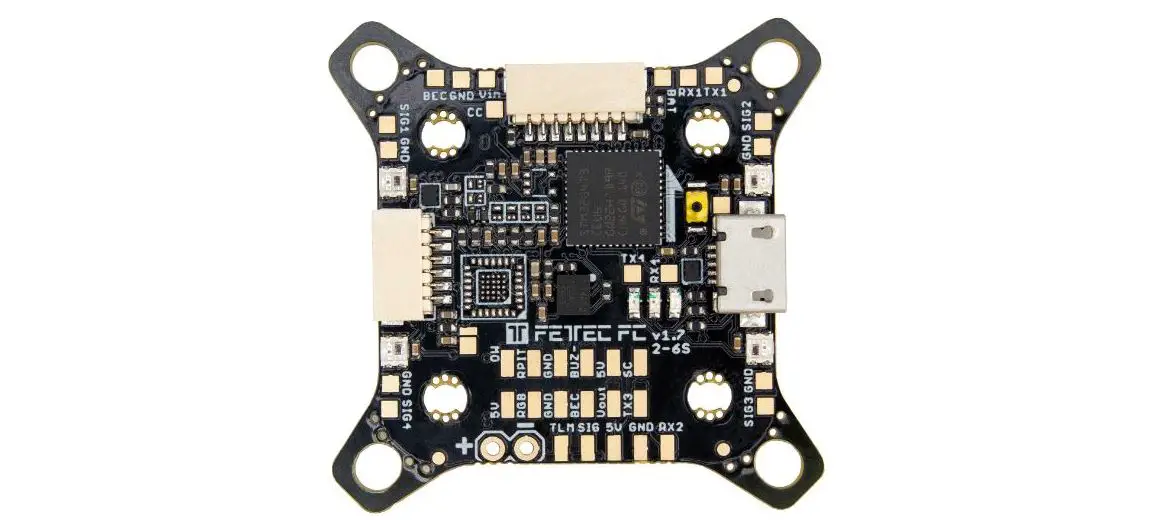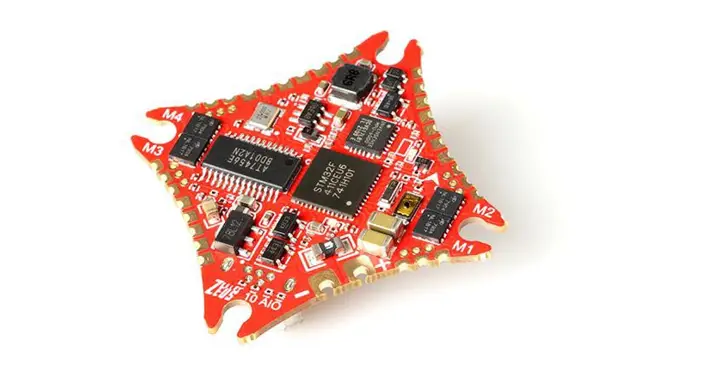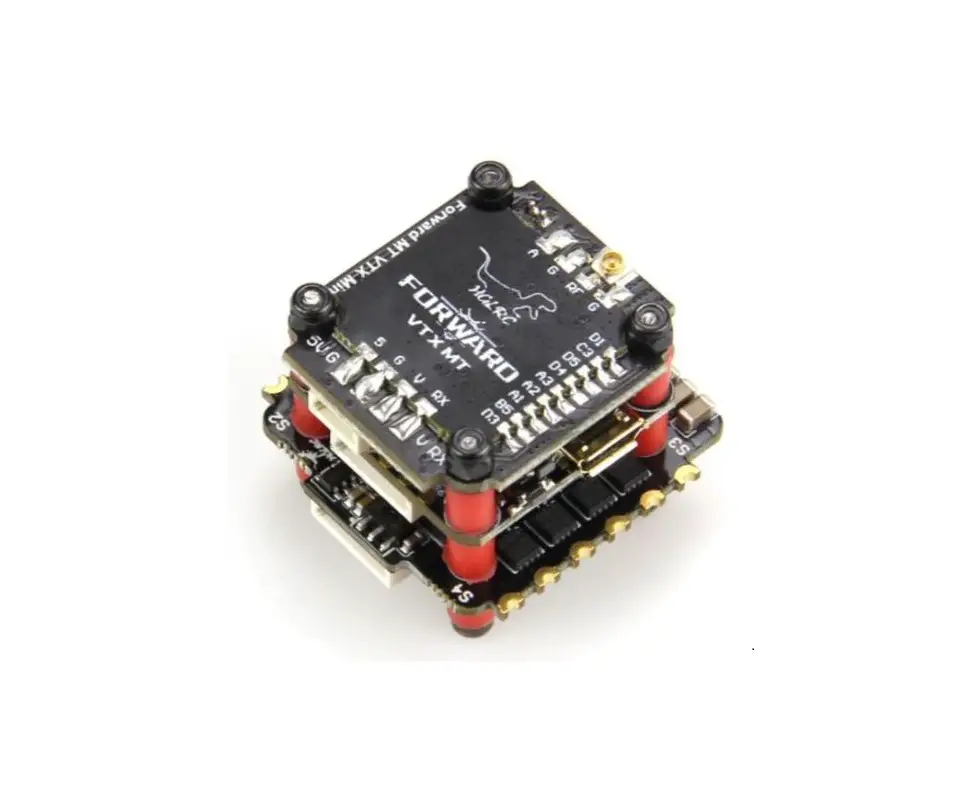
HGLRC Stack FD F4 Mini Fight controller
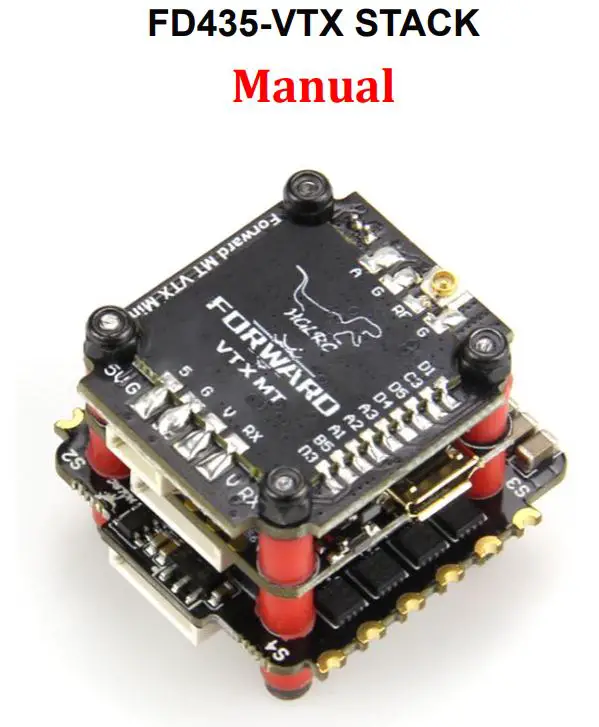
Package included
FD435-VTX STACK*1 — Accessory Bag*1
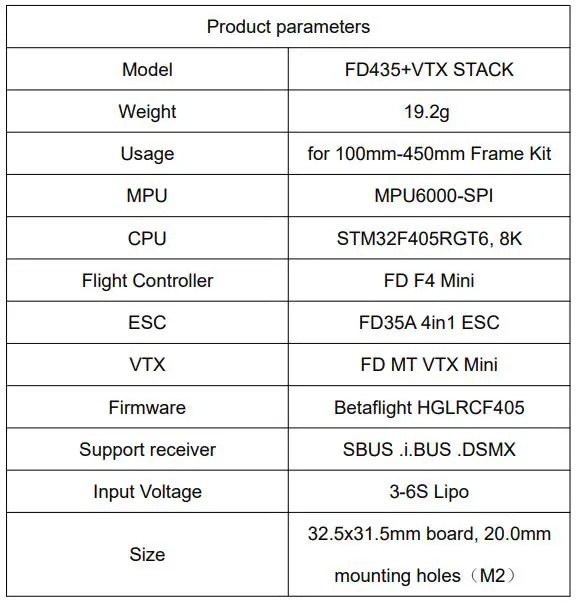
1.Product Specifications
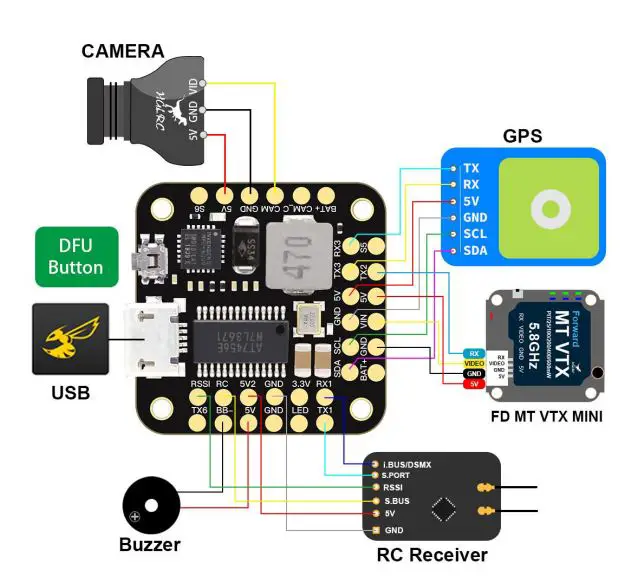
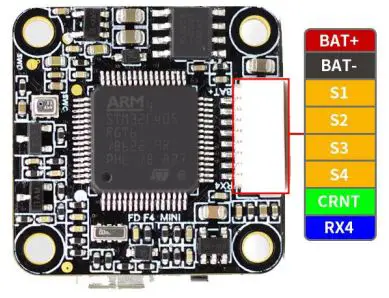
2.Interface Description
3.Check the flight control drive
1. Long Press BOOT buttons. connect USB. The system automatically install the driver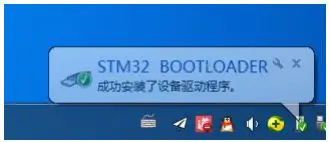
2.Driver cannot be installed, please download ImpulseRC_Driver_Fixer
3.Double-click on the run(Plug in the flight controller to automatically install the driver)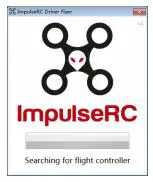
4.open betaflight configurator enter DFU mode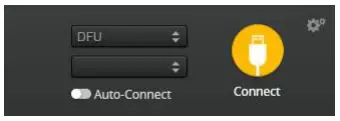
5.Click Select firmware version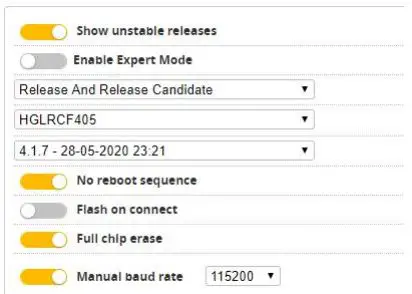
6.Click Load Firmware (Online)Load firmware. Flash Firmware Waiting for completion Erasing… It will be prompted upon completion of Programming SUCCESSFUL
7.open betaflight configurator Controller plugged into the computer. Betaflight Automatically assigned port click “Connect” Enter setup interface different computer COM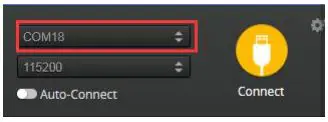
4. Calibration accelerometer
1. Put the aircraft horizontally and click”Reset Z-axis” Click again Calibrate Accelerometer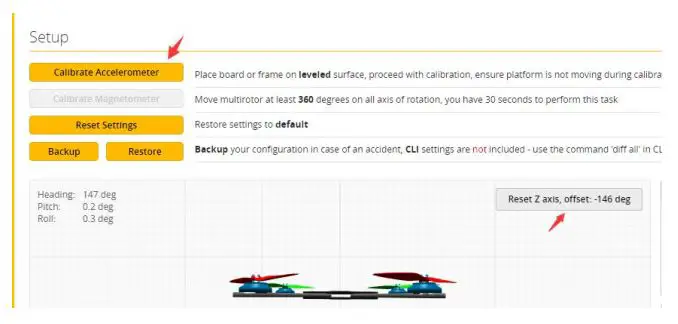
5.URAT serial port use
URAT1 uses receiver telemetry
UART2 uses VTX image transmission
UART3 uses GPS
UART4 uses ESC telemetry
URAT6 uses the receiver
6.Select an aircraft model
1.Click Select model
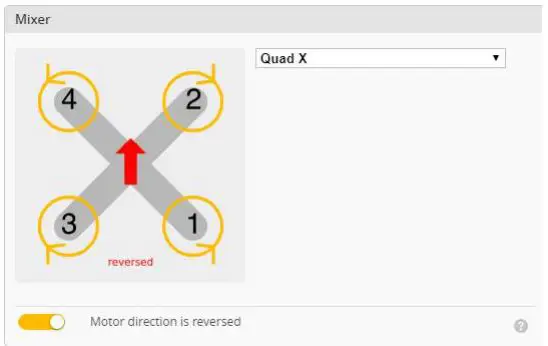
2.Click Click “I understand the risks”Push Master to check motor steering”Master” Steering can be changed at BLHeliSuite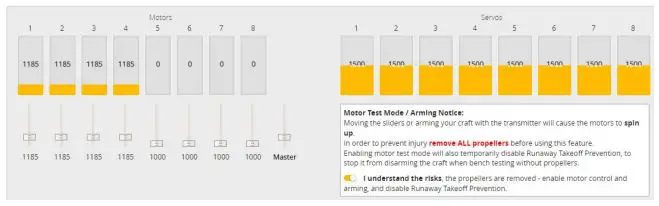
7.Choose ESC protocol
1.Choose the right ESC protocol, the optional universal protocol DSHOT600.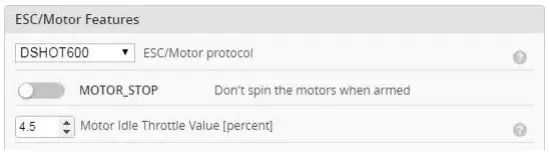
8.Turn on ESC telemetry
1.Open ESC telemetry serial port.TX on the ESC needs to be connected to the RX4 on the flight controller to use the ESC telemetry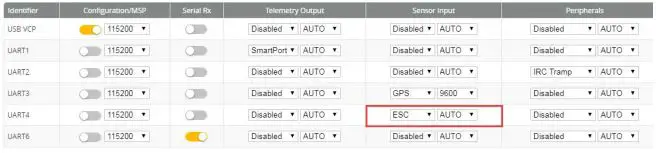 2.Use KISS/BLHeli_32 ESC telemetry as a sensor.
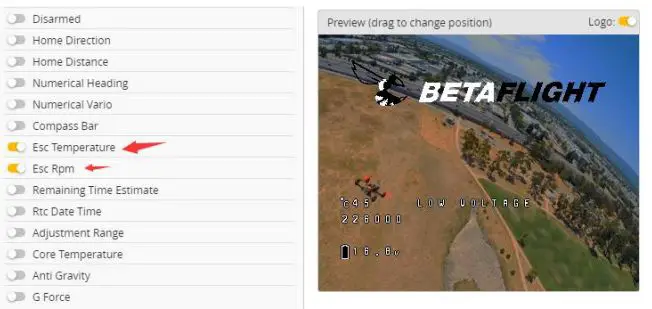
3.View telemetry data on OSD

9.Voltage and current parameters setting
1. Click Setting parameters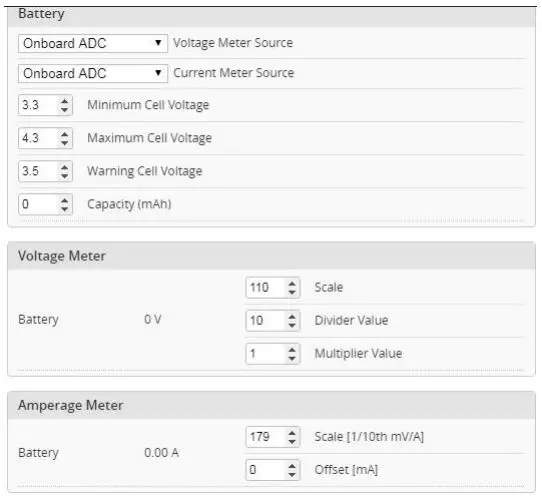
10.Setting up the receiver
1.Receiver connection diagram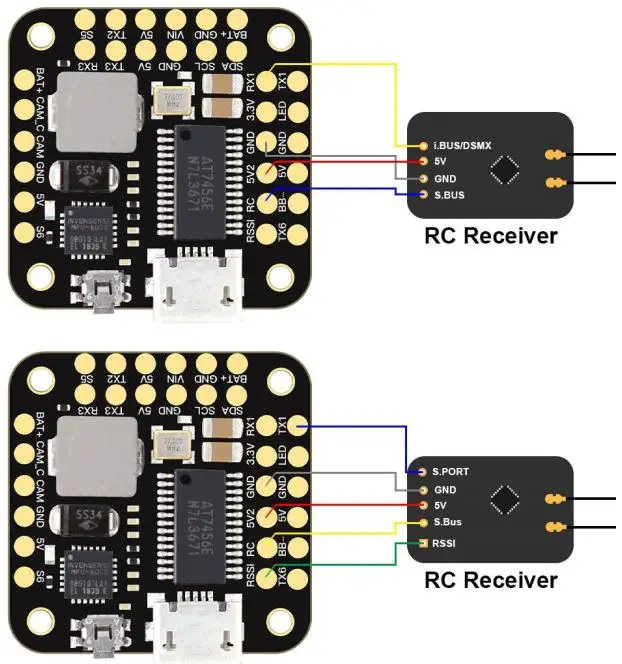 2.Click
 .have found”UART6″Open SBUS the receiver serial port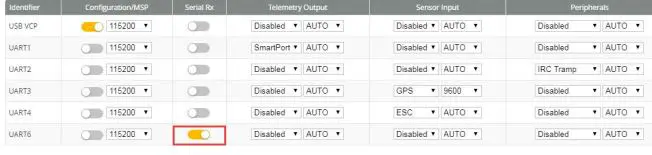
3.Open (i.BUS/DSMX) receiver serial port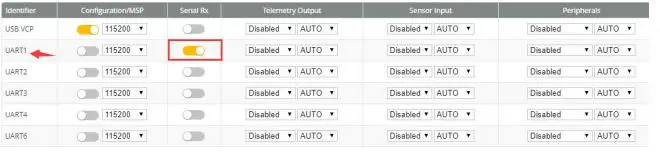
4.Set the SBUS receiver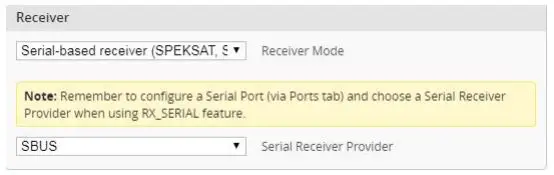
5.Set the i.BUS receiver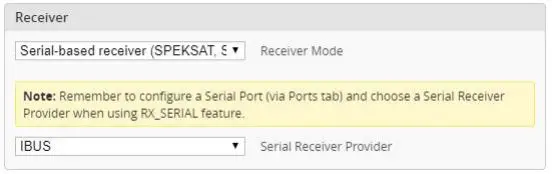
6.Set the DSMX receiver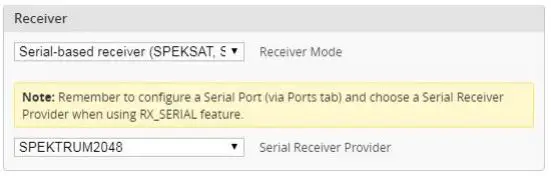
7.Turn on the receiver telemetry serial port Function on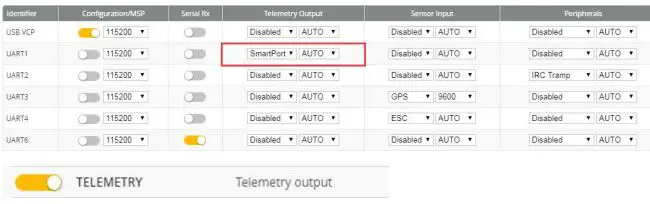
11.VTX serial port use. VTX uses OSD smart audio
1.VTX connection diagram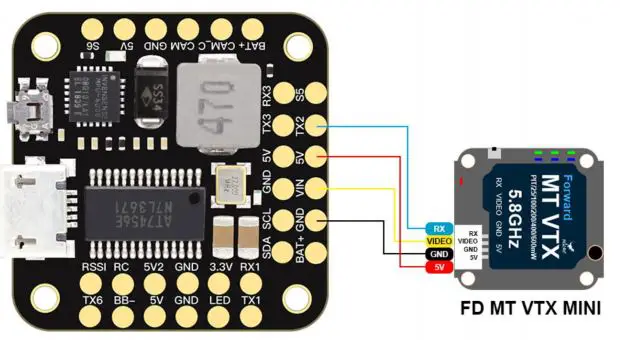
2.VTX serial port opens. The protocol is selected according to its own VTX protocol.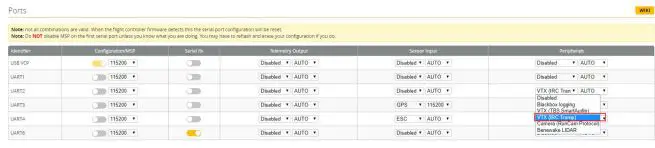
3.Use OSD to adjust VTX
which displays information like battery voltage and mAh consumed while you fly. In addition, the Betaflight OSD can be used to configure the quadcopter, making in-field adjustments and tuning more
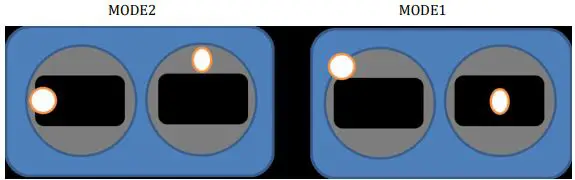
The graphics above show the stick command to bring up the OSD menu. The stick command is throttle centered, yaw left, pitch forward. The exact stick command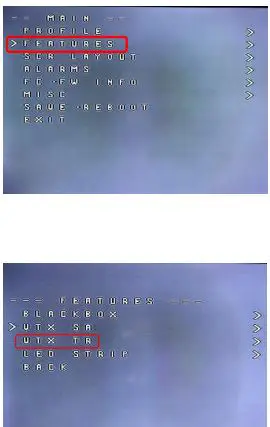 , therefore, depends on which mode your transmitter sticks are in. In the OSD menu, use pitch up/down to move the cursor between menu items. When a menu option has a > symbol to the right of it, this indicates that it contains a sub-menu. Roll-right will enter the sub-menu. For example, in the screen to the right, moving the cursor to “Features” and then moving the roll stick to the right will enter the “Features” sub-menu.
If you are using a video transmitter that supports remote configuration, enter the “Features” menu to configure the VTX. From there, enter either “VTX SA” if you are using SmartAudio (TBS Unify) or “VTX TR” if you are using IRC Tramp Telemetry.
To adjust PIDs, rates, and other tuning-related parameters, enter the “Profile” sub-menu. In the “Scr Layout” sub-menu, you can move the OSD elements (like battery voltage, mAh, and so forth) around on the screen.
The “Alarms” sub-menu lets you control when the OSD will try to alert you that battery voltage is too low or mAh consumed is too high.
When a parameter can be modified, the parameter’s current value will be shown on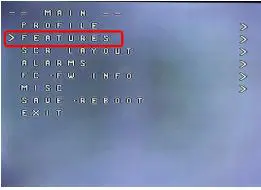 the right-hand side of the screen. In this case, roll left/right will adjust the parameter up and down. The screen to the right shows the current VTX settings. From here, you can change the frequency band, channel, and power level of the video transmitter. After making the changes, move the cursor to “Set” and press roll-right to confirm the settings.
12.GPS parameters setting
1. GPS connection diagram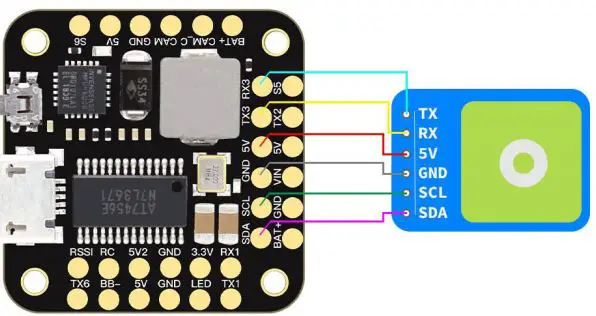
2. Open the GPS serial port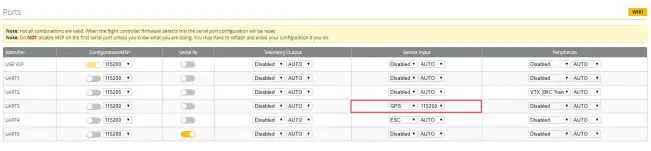
3.When using the GPS function, remember to configure the serial port (via the Ports tab).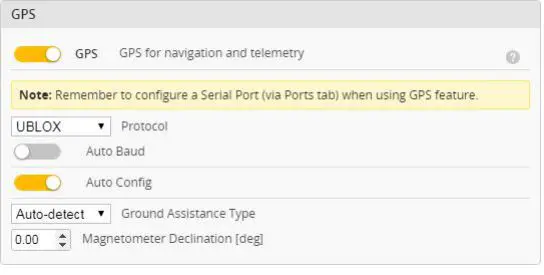
13.Check receiver signal
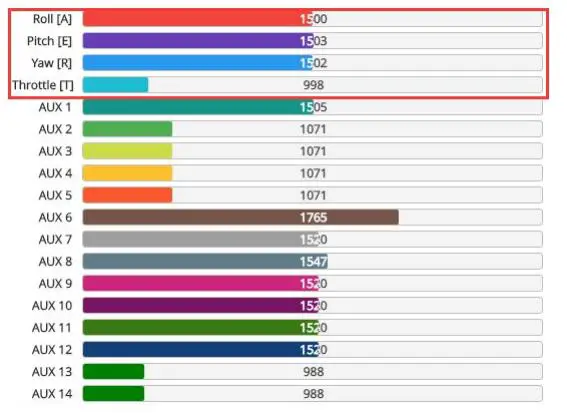
1. Click Check the remote control output signal
14.Select flight mode startup mode
1. Click  set up the function of remote control switch across the channel (below are for reference only)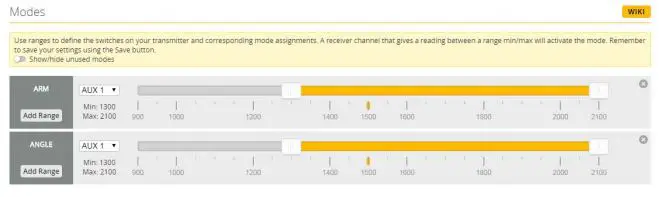
15. OSD settings
1. Click the OSD Settings, according to the need to choose, drag the OSD schematic diagram of the parameters that can be adjusted.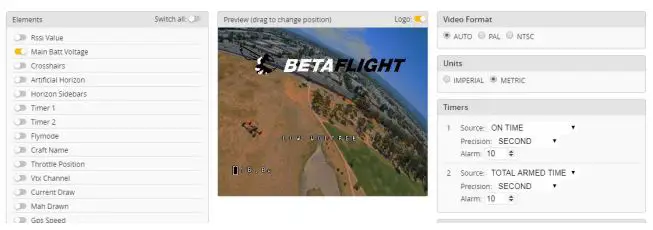
16. LED settings
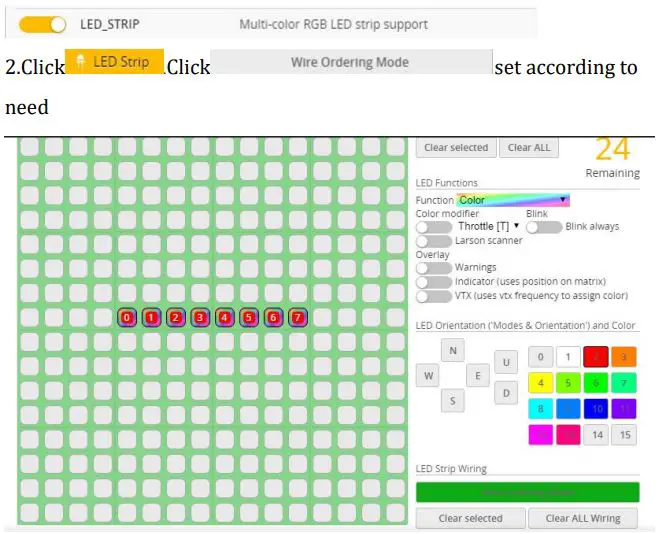
17.Troubleshooting
Warning:
Please read the cautions as follows, otherwise, the stability of your flight controller cannot be ensured, your flight controller will even get damaged.
- Keep the focus on the polarity. Check carefully before the power supply.
- Cut off the power when you connect, plug, and pull anything.
- The refresh rate of PID and Gyroscope is up to 32K/16K.
after-sales question:
1. After receiving the goods, it is found that the product can not be used normally. If the return to the factory is a quality problem, the repair service will be provided free of charge.
2. If the product is damaged due to improper operation, the repair service may be provided under the condition that the inspection can be repaired.
3. For domestic customers, please contact the after-sales service personnel. For overseas customers, please contact the official website for after-sales service.
Product daily problems
1.OSD garbled:
If you find garbled characters, please open Betaflight, click “OSD” .and click “Font Manager” clicks on “Upload Font” to update
1. When plugged in the battery, the aircraft does not pass the self-test without the “BBB” sound. There is only one sound. Please check if the ESC agreement is correct
3.The spin of the aircraft keeps spinning
1. Please check if the propeller is correct
2. Please check if the motor direction is correct
www.hglrc.com
 Innovation ignites your life – HGLRC Company