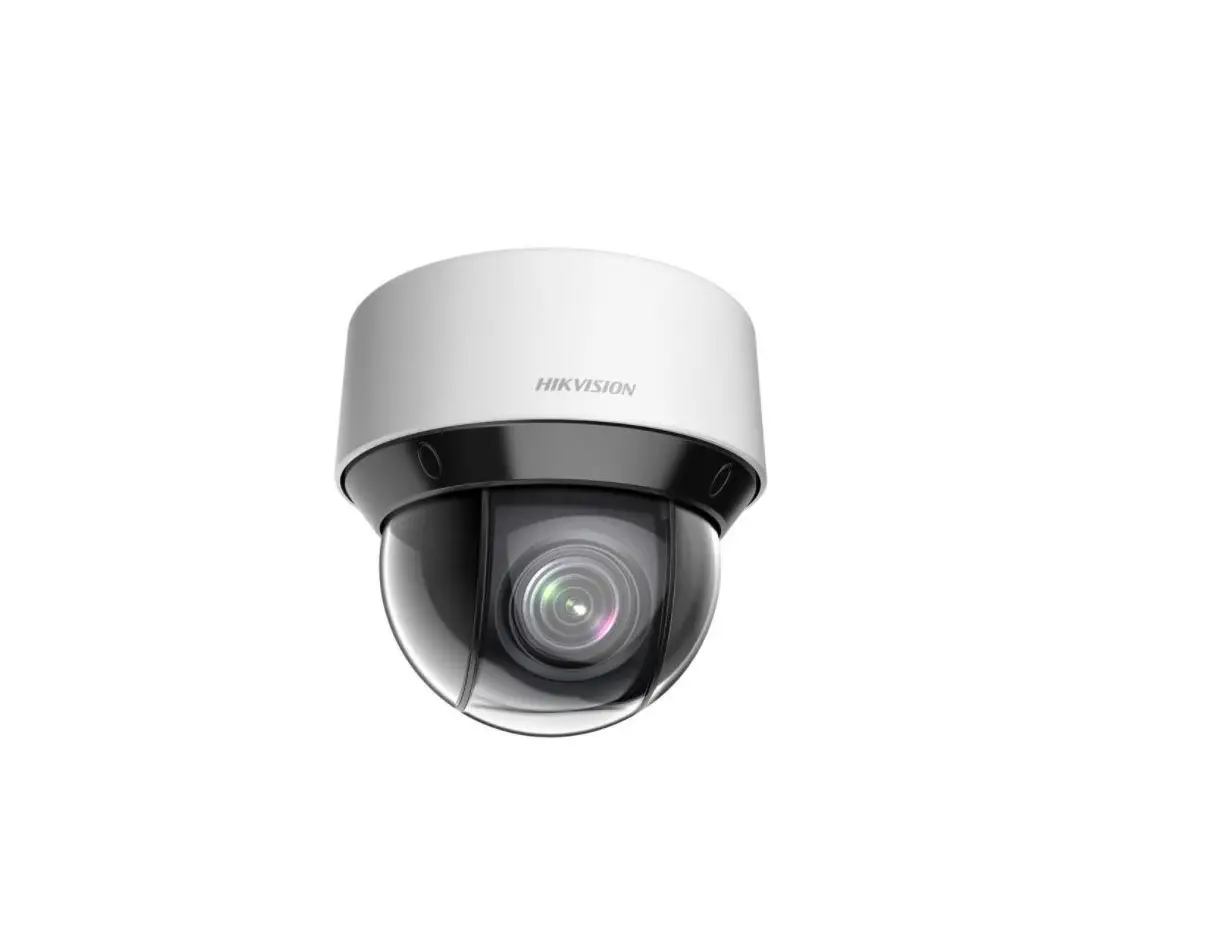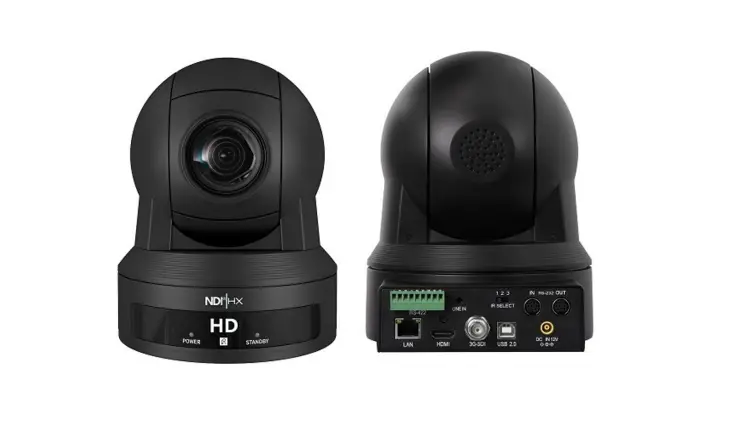

FOS technologies ICON HX PTZ HD Camera
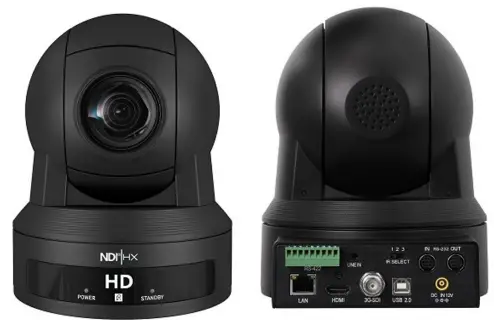
Device Installation
- Connect the camera to your network through a CAT5 or CAT6 direct network cable, or directly connect to a PC through a crossover network cable
- Connect the camera power, the camera works normally
- If successful, the green indicator light is always on and the orange indicator light flashes; if it is unsuccessful, you need to check the connection wire
Internet connection
The connection between the camera and the computer is shown like picture 1.1/1.2
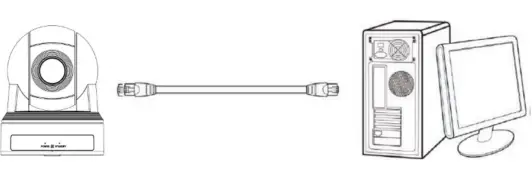
Picture 1.1 Connect directly to the computer through a crossover network cable
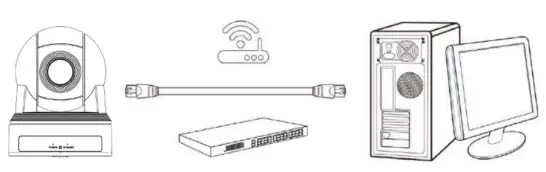
Picture 1.2 Connect to a LAN switch through a direct network cable (POE function, need to use POE switch 802.3 af)
Set up the computer network
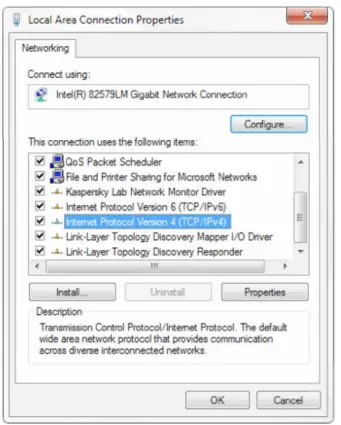
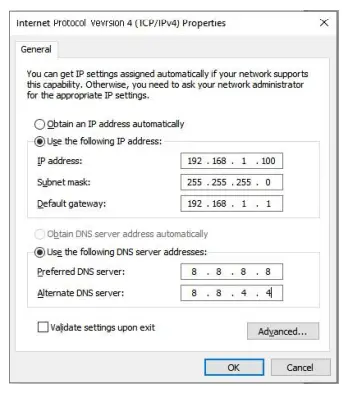
- Open the “local Area Connection Properties” on computer, select“Internet Protocol Version 4(TCP/IPv4)”, as shown below.

- Select “Internet protocol versions 4(TCP/IPv4)”, Click “Properties” or directly double-click in the “Internet Protocol Version 4 (TCP/IPv4)” column to enter the “Internet Protocol Version 4 (TCP/IPv4) Properties” window. Manually set the computer IP address

- Remarks: DHCP is OFF for cameras by default, and the IP address is 192.168.1.118; the IP manually set by the computer can be on the same network as the camera. As shown in the figure above, set the computer IP as 192.168.1.100
Note: When you need to manually modify the device IP in the LAN, you need to pay attention to avoid IP conflicts, and contact the network administrator if necessary
NDI┃HX camera compatible with NDI Studio Monitor
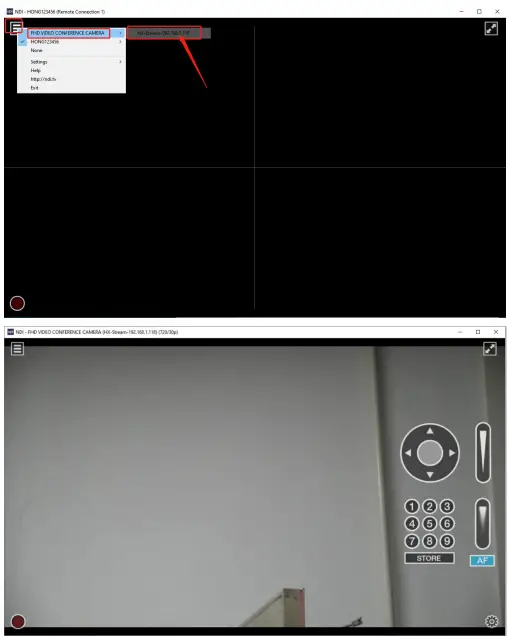
Remarks: NDI source video parameters (such as: resolution, bit rate…), follow the camera’s main stream parameters
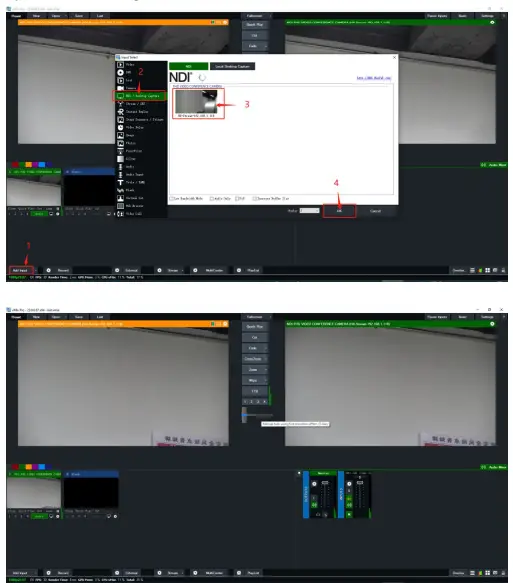
NDI┃HX camera compatible with vMix software
Requirements: vMix23 version and above
Open vMix23, add NDI signal source
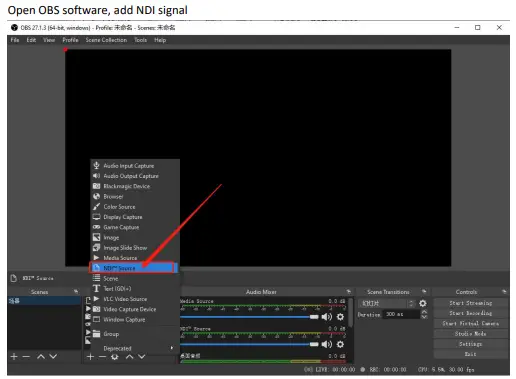
NDI┃HX camera compatible with OBS software;
OBS NDI Plug-in download address:
https://github.com/Palakis/obs-ndi/releases/tag/4.9.1
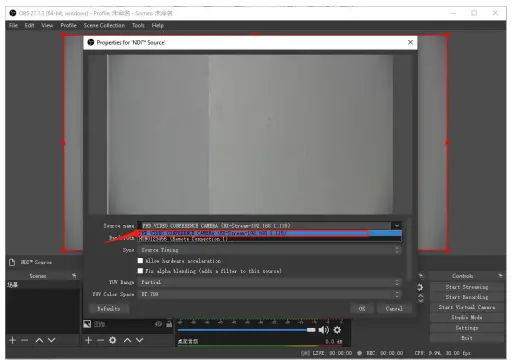
NDI audio source is enabled
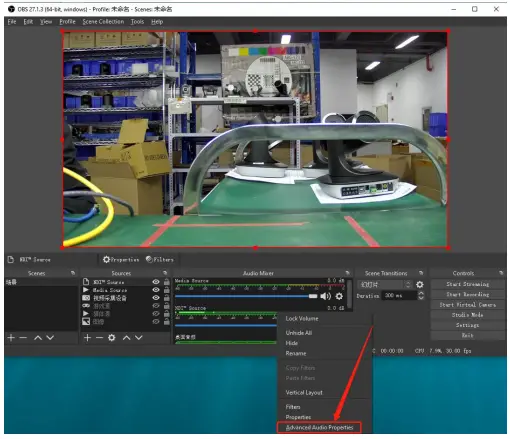
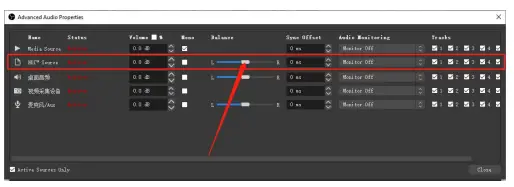
Google Chrome login, set the NDI source audio and video parameters
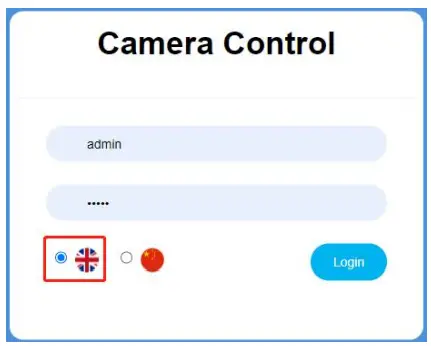
Open the Google browser, input the camera IP 192.168.1.118, select the English version, the default user name and password: admin
Set NDI source video parameters
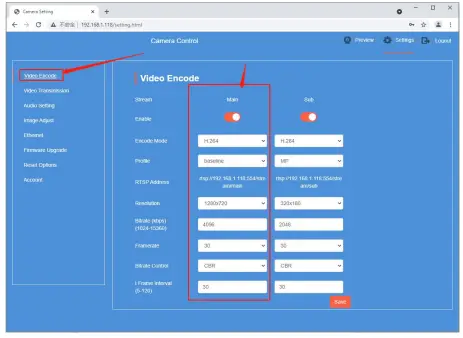
Note: The current NDI┃HX version only supports H.264 encoding mode, and it will not be supported when the encoding mode is selected as H.265;
Set NDI source audio parameters
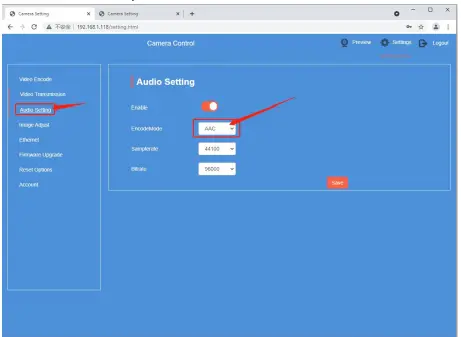
Note: NDI┃HX audio only supports AAC encoding mode
 Release obs-ndi 4.9.1 (Ubuntu package bugfix) · Palakis/obs-ndi · GitHub