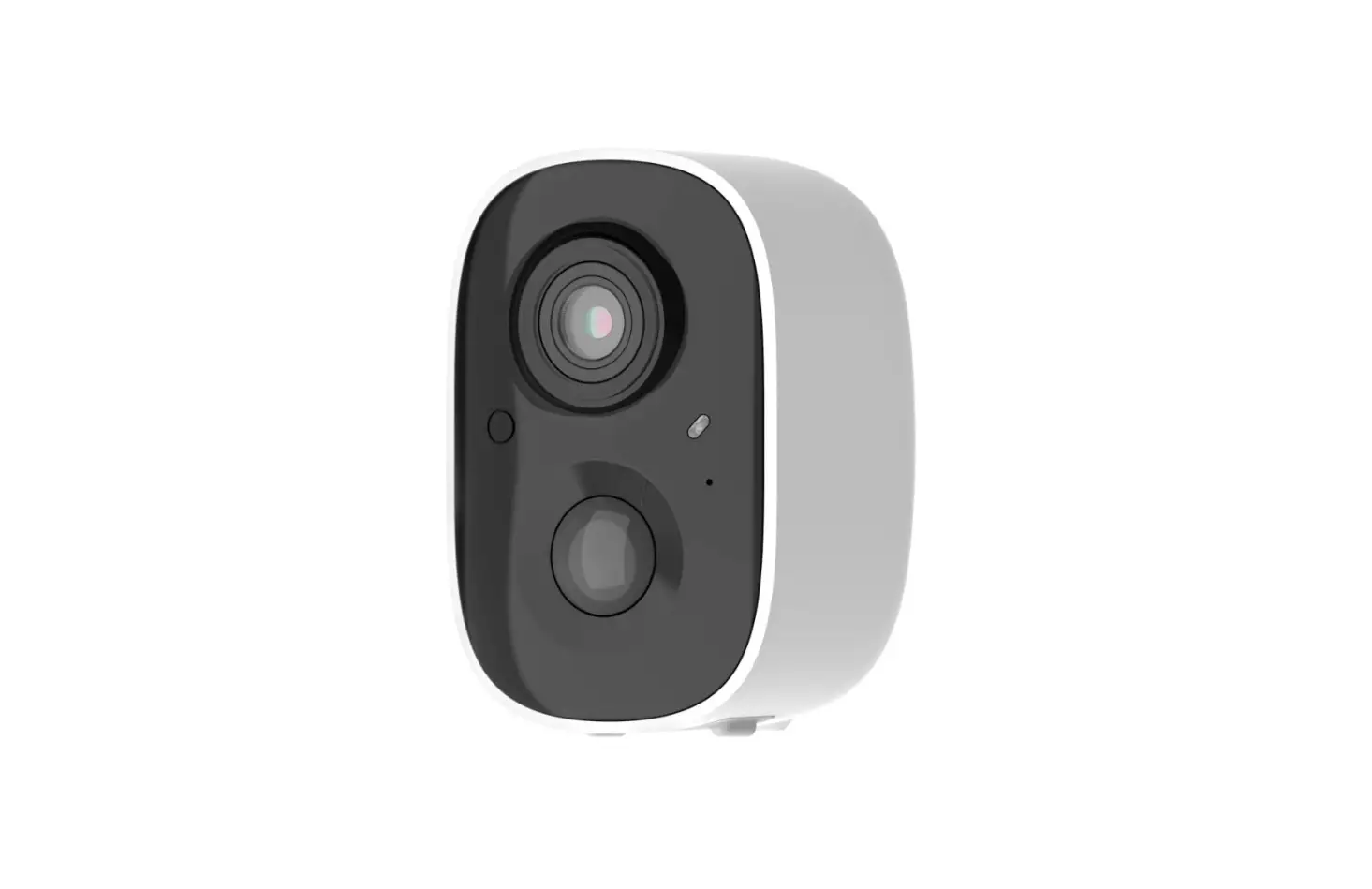
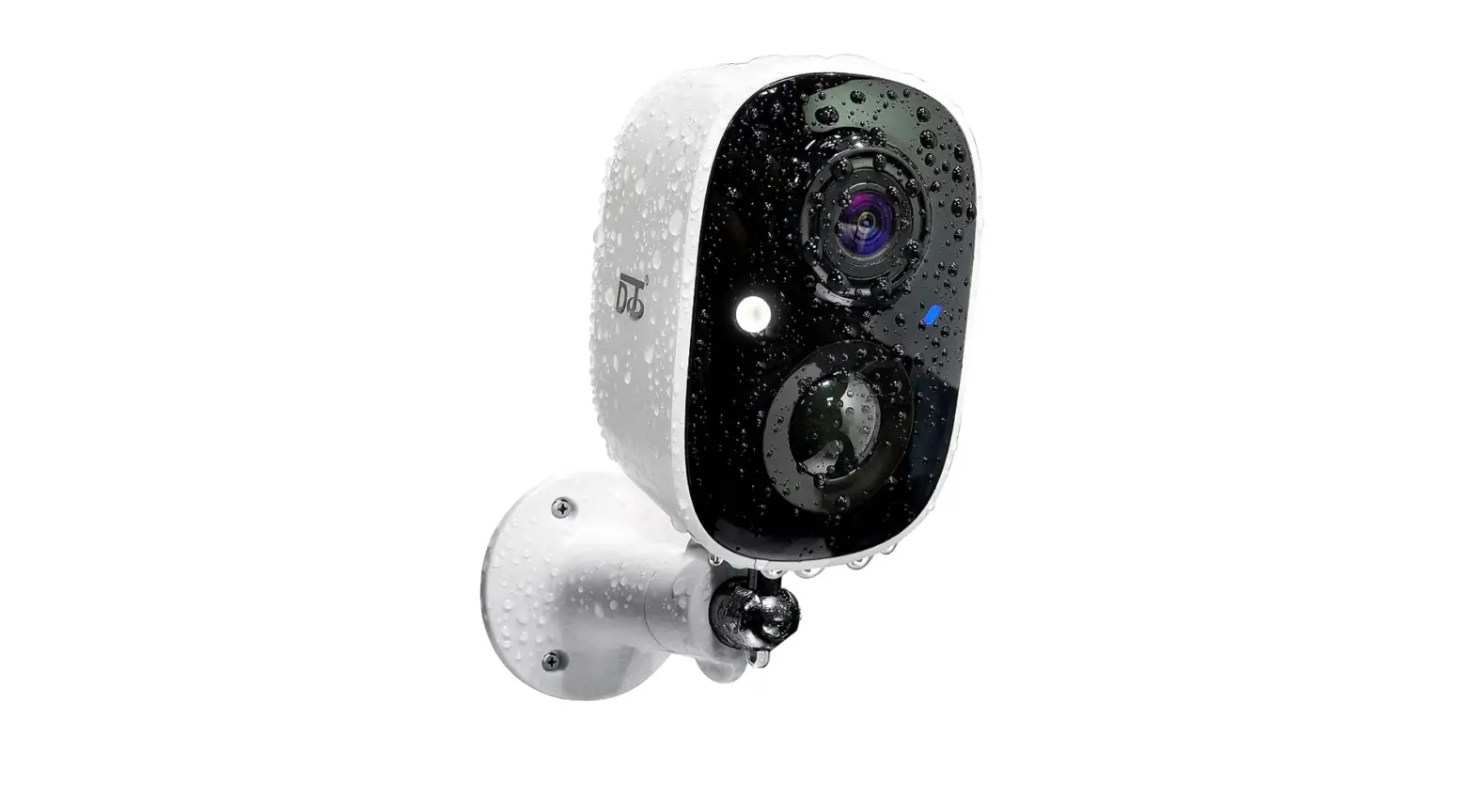
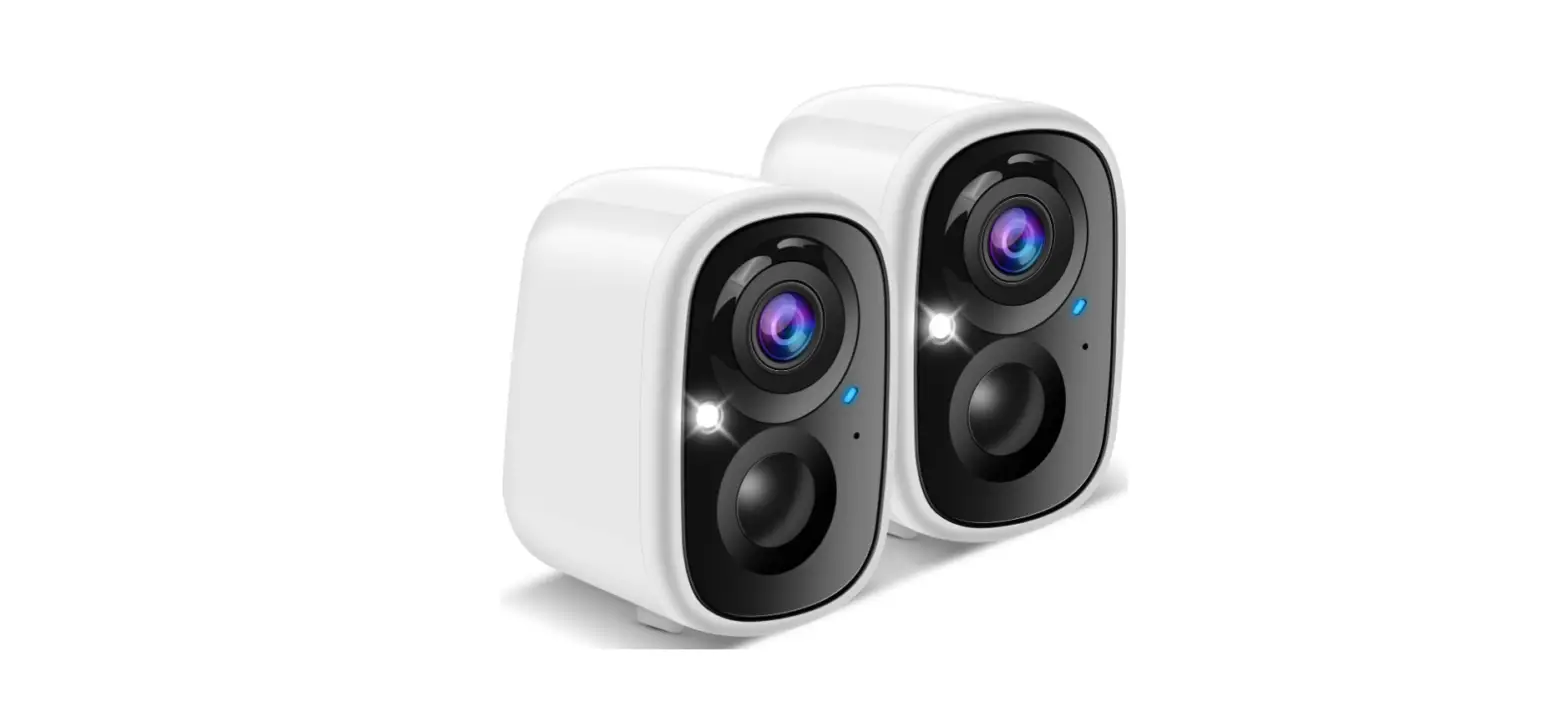
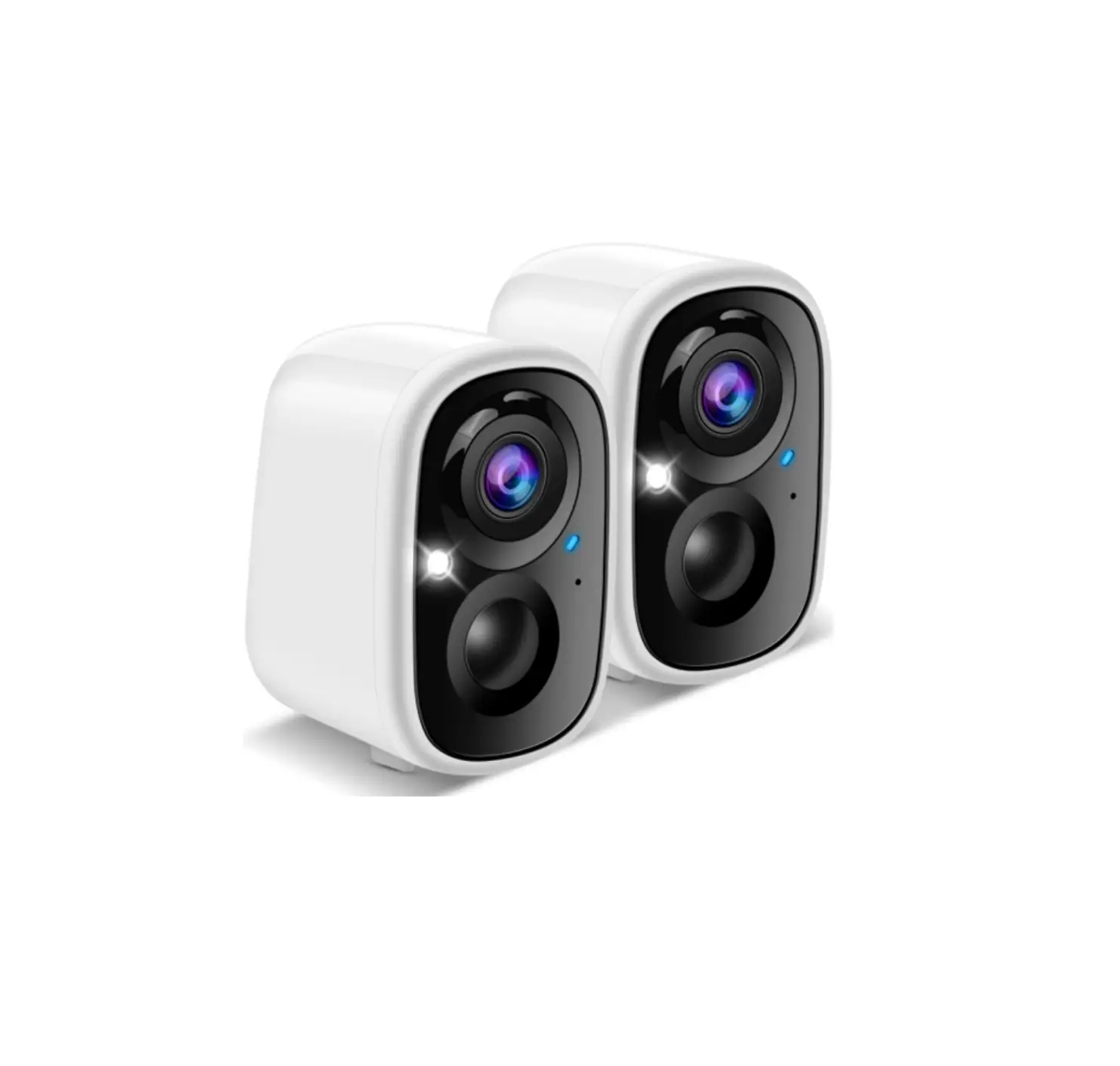
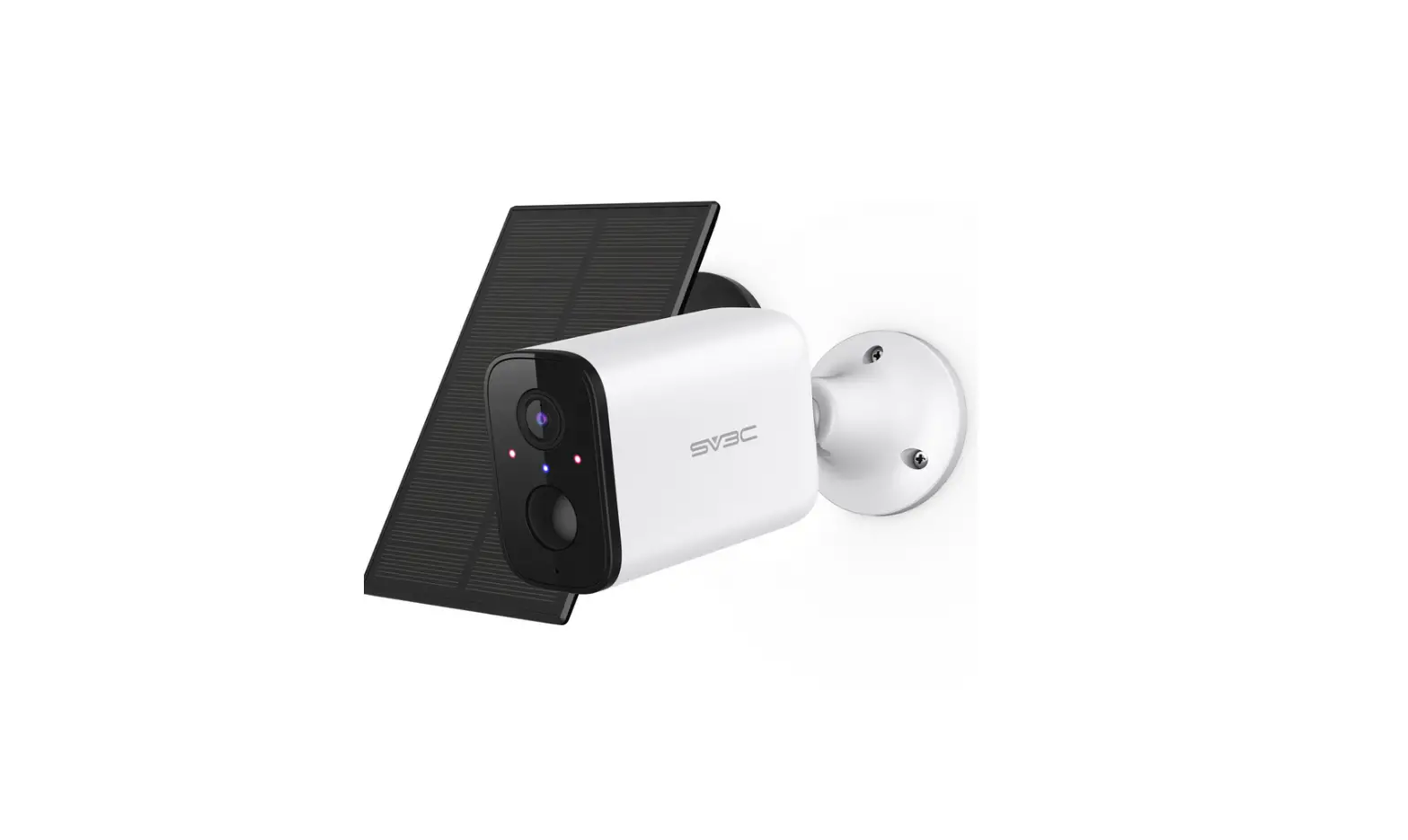
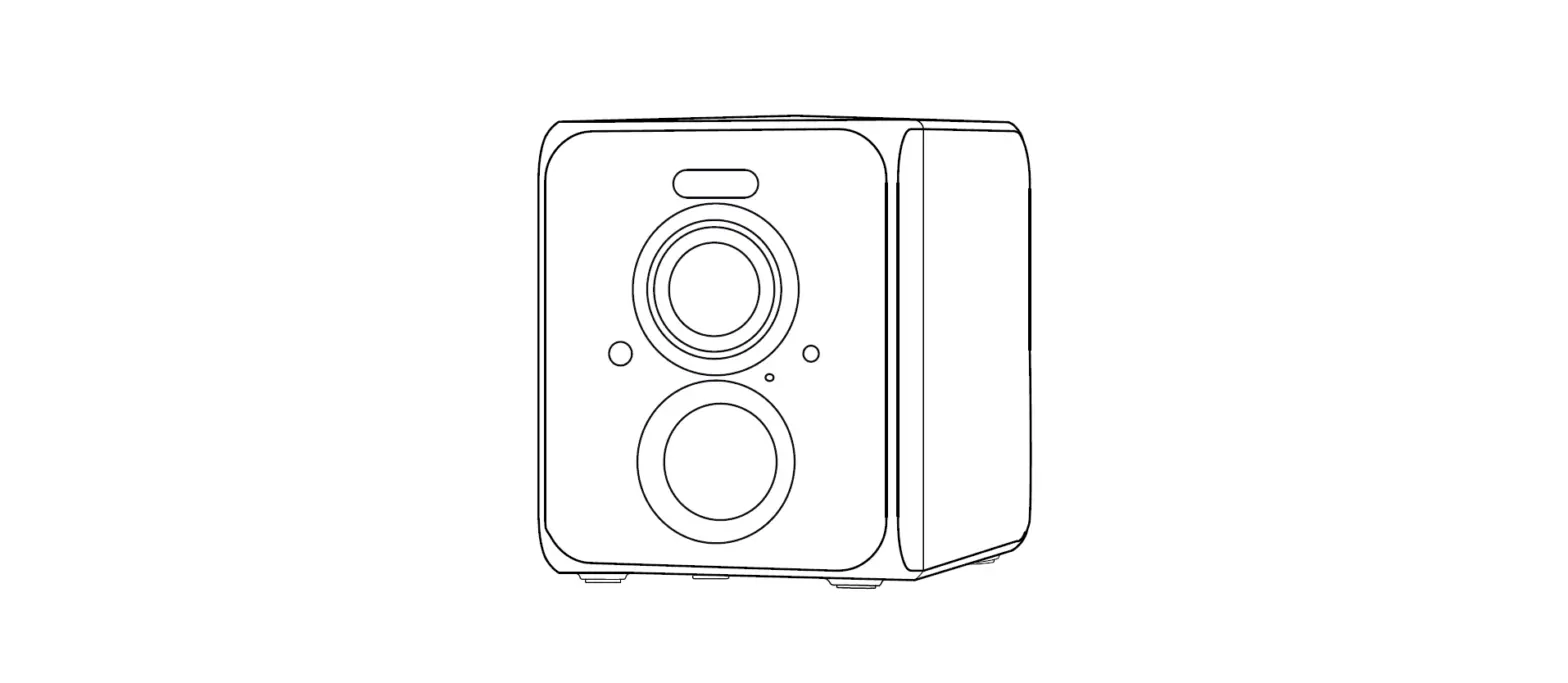
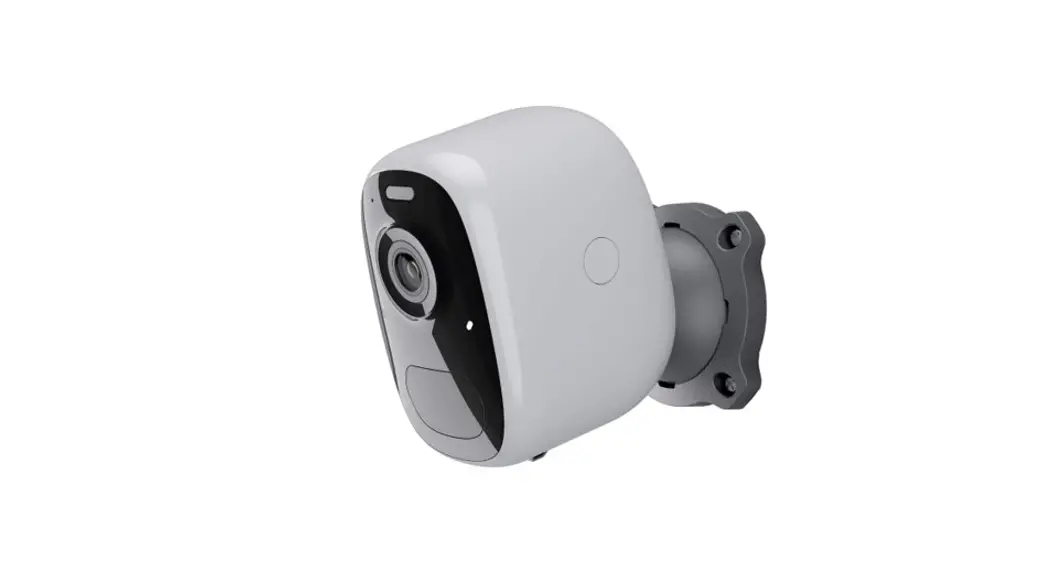
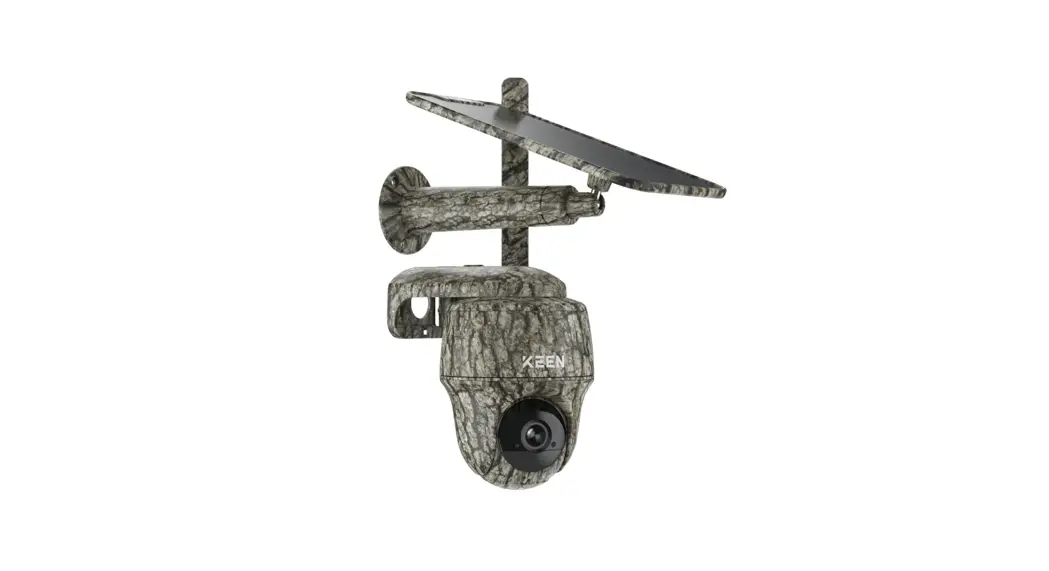
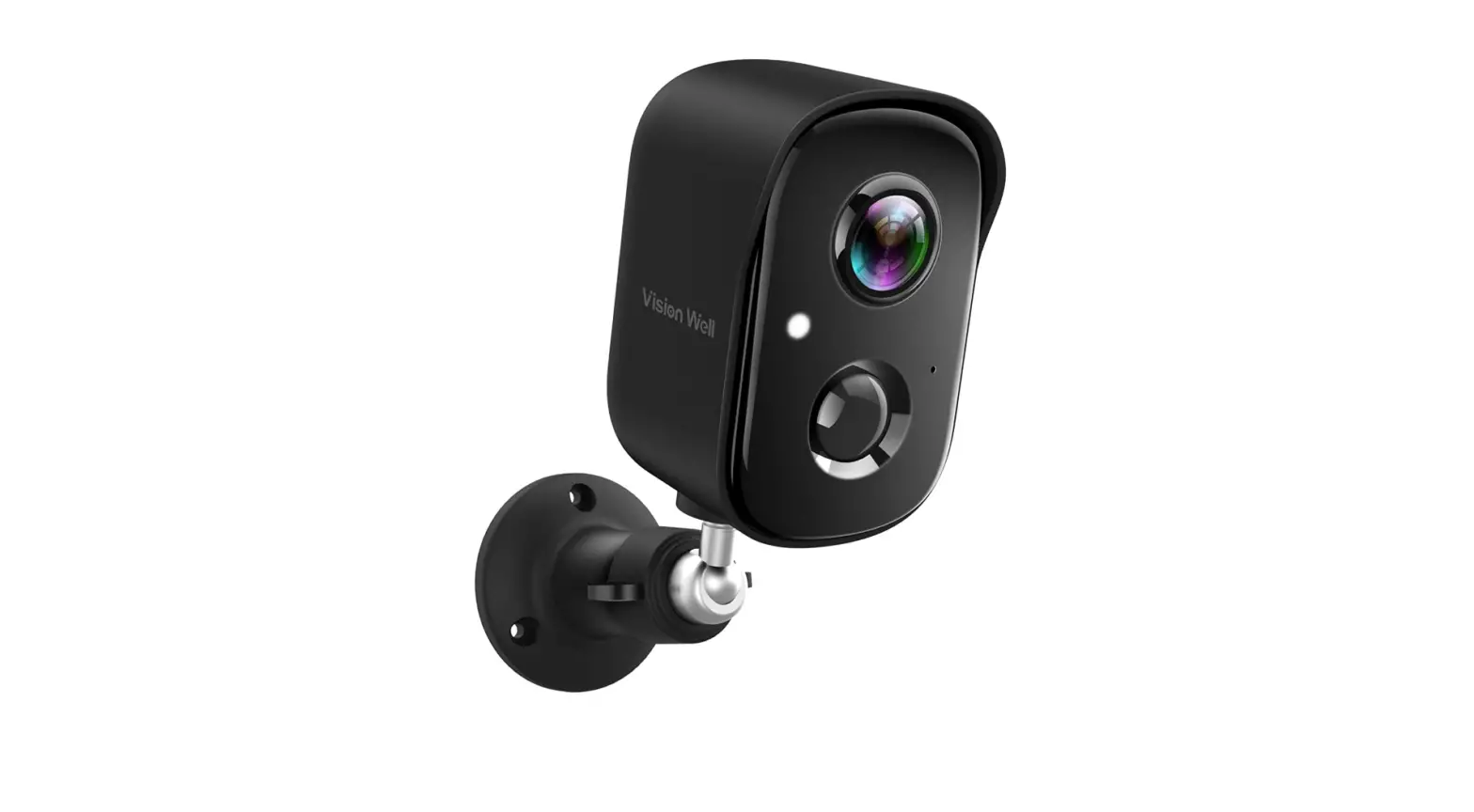
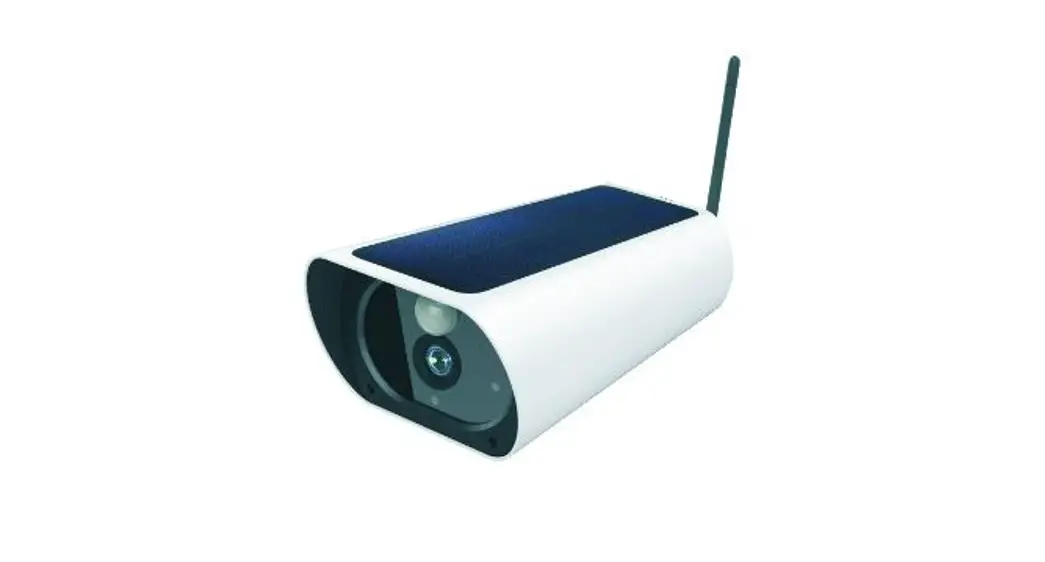
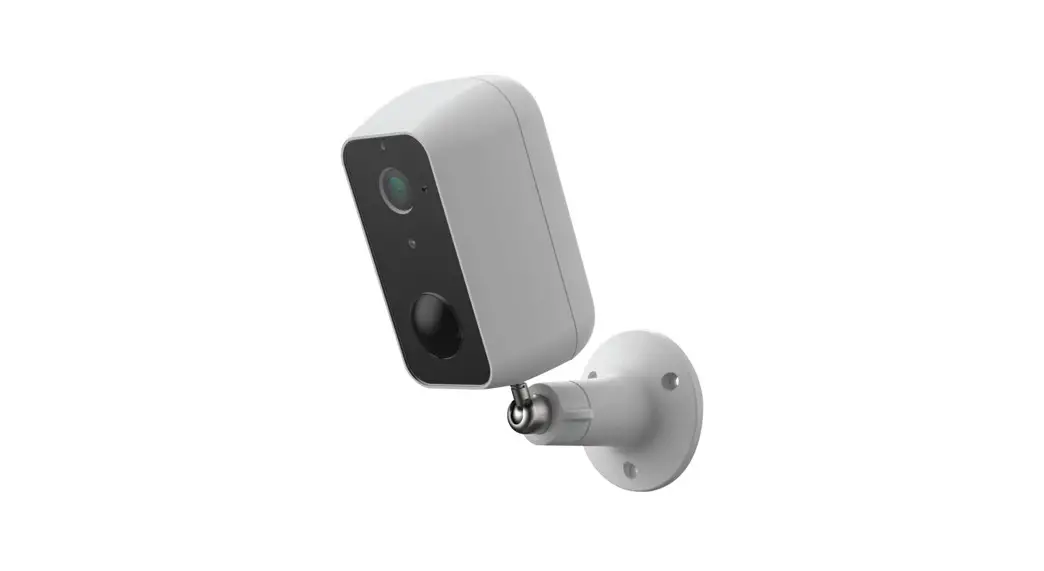
CG1 Wireless Outdoor 4MP Battery Powered Camera
Product Information:
This product is a WiFi device that operates on either the 2.4
GHz or 5 GHz frequency band. It allows users to connect to wireless
networks for internet access.
Product Usage Instructions:
1. Determine WiFi Network Frequency on Android Phone:
To check the frequency band (2.4 GHz or 5 GHz) on an Android
phone, follow these steps:
- Connect your Android phone to the Wi-Fi network.
- Go to Settings > Wi-Fi > Select the network you are
connected to view the Wi-Fi details. - Check the frequency band setting. The pictures provided in the
manual demonstrate examples of 2.4 GHz and 5 GHz Wi-Fi.
2. Determine WiFi Network Frequency on iPhone:
To check the frequency band on an iPhone, you need to install a
WiFi Analyzer App.
3. Determine WiFi Network Frequency on Windows Computer:
To check the network band on a Windows computer, follow these
steps:
- Connect to the Wi-Fi network.
- Click on the Wi-Fi icon located in the bottom right corner of
your computer screen. - Select the Properties option for the network you are currently
connected to. - In the new window that appears, scroll down to the properties
section. - Find the Network Band, which will indicate either 2.4 GHz or 5
GHz.
4. Determine WiFi Network Frequency on MacBook Computers:
To find out the channel information of your Wi-Fi on MacBook
computers, follow these steps:
- Establish a connection to the Wi-Fi network.
- Press and hold the Option key on your computer keyboard, then
click on the Wi-Fi icon to access detailed information about your
Wi-Fi connection. - In the middle of the information, you will find the channel
being used by your Wi-Fi. The Channel field will indicate either
2.4 GHz or 5 GHz in parentheses.
5. Changing WiFi Network Bands on Wi-Fi Router:
If your home Wi-Fi router does not label the bands as 2.4 GHz or
5 GHz, follow these steps to change them:
- Locate the Information button near your router’s network name
and click on it. - Scroll down until you see the number next to Router in the IPV4
Address section. The router number will be in the format of
168.123.1.234. - Enter the IP address of your router into the address bar of
your web browser to access the router’s webpage. - Log in using the provided username and password. If you don’t
know the login credentials, check for a sticker attached to the
router with the default username (usually ‘Admin’). - Once logged in, look for a setting in your router’s
configuration to create separate network names for each band. This
will allow you to have different names for the 2.4 GHz and 5 GHz
bands.
Note: When connecting to separate bands, you may need to enter
the password separately for each band when logging in for the first
time.
Methods to Determine if Your WiFi Network is 2.4 GHz or 5 GHz
The majority of routers are equipped with “dual-band” WiFi, which implies they are capable of supporting both the 2.4GHz and 5GHz WiFi frequency bands. In some cases, they utilize the same SSID (SSID = network name), while in others they have distinct SSIDs, such as “YourWifi” and “YourWifi_5G”. Given that all Security devices exclusively operate on the 2.4GHz WiFi network frequency, this article will provide you with instructions on how to connect your Security device to the correct 2.4GHz WiFi network.
Look at Your Available Networks
Go to the WiFi menu on your phone or computer and look for different options with the same name as your WiFi network. For example, you may see options like “home_wifi” and “home_wifi_5G”, “home_wifi 2.4G” and “home_wifi”, etc. If there are multiple options, select the one with either 2.4G or no additional label in the WiFi name. Avoid choosing the one with 5G or 5GHz in the WiFi name. If you can’t find the above scenarios on your phone or computer, follow the methods below to check the Wi-Fi channels and network band.
1.For Android Phone – Check the Frequency Band in the Wi-Fi Setting
If you are using an Android phone, you can check the network frequency (2.4G or 5G) by looking at the Wi-Fi band. Here are the steps: 1. Connect your Android phone to the Wi-Fi network. 2. Go to Settings > Wi-Fi > Select the network you are connected to view the Wi-Fi details. Note: Settings may vary depending on your Android phone. 3. Check the frequency band setting. The pictures below show examples of 2.4GHz Wi-Fi and 5GHz Wi-Fi.
2.For iPhone – Install a WiFi Analyzer App
While the iPhone offers no built-in feature for detecting which networks run on which frequency, there are a few simple workarounds you can use to detect the GHz of routers in your home. 1. Check the name of the Wi-Fi network you’re connected to. If you’re connected to a dual-band Wi-Fi router, you may be able to find out which band you’re connected to based on the name of the access point on your iPhone. Here’s where to look: Open the Control Center by swiping down from the top-right corner of your screen (for iPhones without Home buttons) or swiping up from the bottom of the screen (for iPhones with Home buttons). 2. Tap and hold the Wi-Fi icon in the top-left corner. The name of your Wi-Fi access point appears below “Wi-Fi” on the left side of the panel. If you see either “2.4GHz” or “5GHz” here, you’ll know that you’re connected on that frequency.
3.For Windows Computer – Check the Network Band in Wi-Fi Properties
1. To start, connect to the WiFi network and access your network panel by clicking the Wi-Fi icon located in the bottom right corner of your computer screen. 2. Click on the Properties option for the network you are currently connected to. 3. Once the new window appears, scroll down to the properties section. 4. Find that the Network Band is either 2.4GHz or 5GHz.
4.For MacBook Computers – Find Out the Channel Information of Your Wi-Fi
1. Establish a connection to the Wi-Fi network. 2. Press and hold the “Option” key on your computer keyboard, then click on the Wi-Fi icon to access detailed information about your Wi-Fi connection. In the middle of the information, you will find the channel being used by your Wi-Fi. 3. The “Channel” field will indicate either “2.4GHz” or “5GHz” in parentheses.
5.If you’re connected at home and your bands are not labeled these ways, read on to learn how to change them on your Wi-Fi router.
1.Locate the Information button near your router’s network name and click on it. Scroll down until you see the number next to Router in the IPV4 Address section. The router number will be in the format of 168.123.1.234.
2.To access your router’s webpage, enter its IP address into the address bar of your web browser. This will allow you to view information about the router and modify settings like the network name.
3. To access your router’s settings, use the provided username and password. After opening the router’s page, you’ll be asked to log in. If you don’t know your login credentials, they are typically
printed on a sticker attached to the router. The default username for most routers is ‘Admin’.
4. To create separate network names for each band, look for a setting in your router’s configuration. For smaller companies or startups, a simplified financial BP template may be sufficient, while larger enterprises may require more detailed and comprehensive templates.
5. To easily identify the network your phone is connected to, it is recommended to assign a unique name to each band. For example, you can name the 2.4GHz network as “Home_Network-2.4GHz” and the 5GHz network as “Home_Network-5GHz”. However, it is worth noting that Apple does not recommend giving separate names to your bands. By using the same name for both bands, your iPhone can automatically switch between them to maintain a strong connection. To connect to your preferred band on your iPhone, go to the iPhone Settings
App, then select Wi-Fi under the Wi-Fi section. Choose the network you want to join and enter the password. Once connected, you will see a blue checkmark next to the network name. If you separate the bands, you may need to enter the password separately for each band when you log in for the first time.