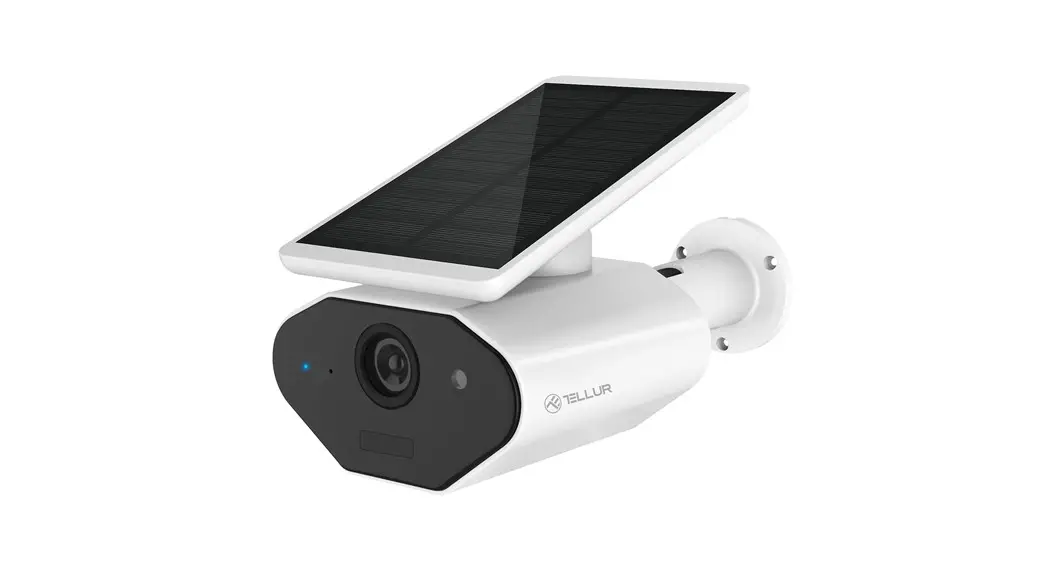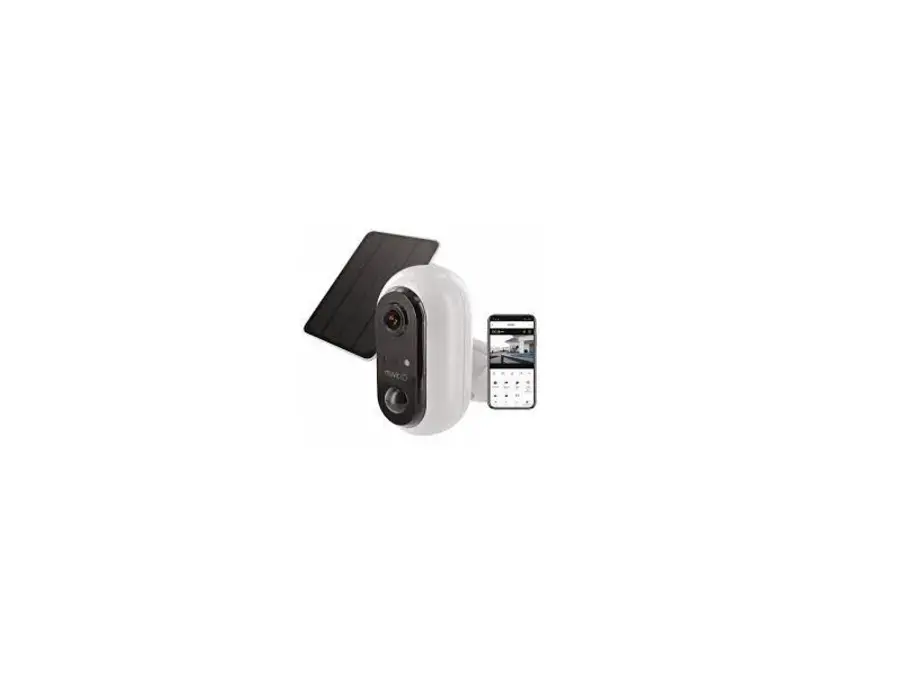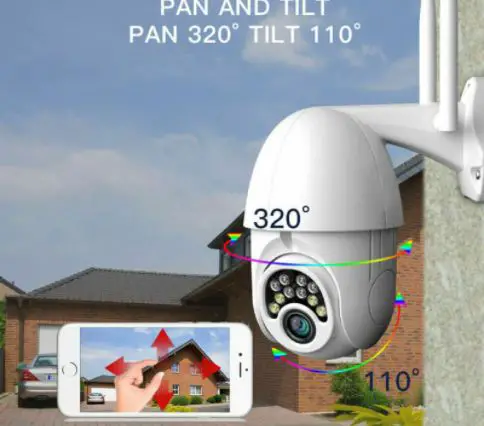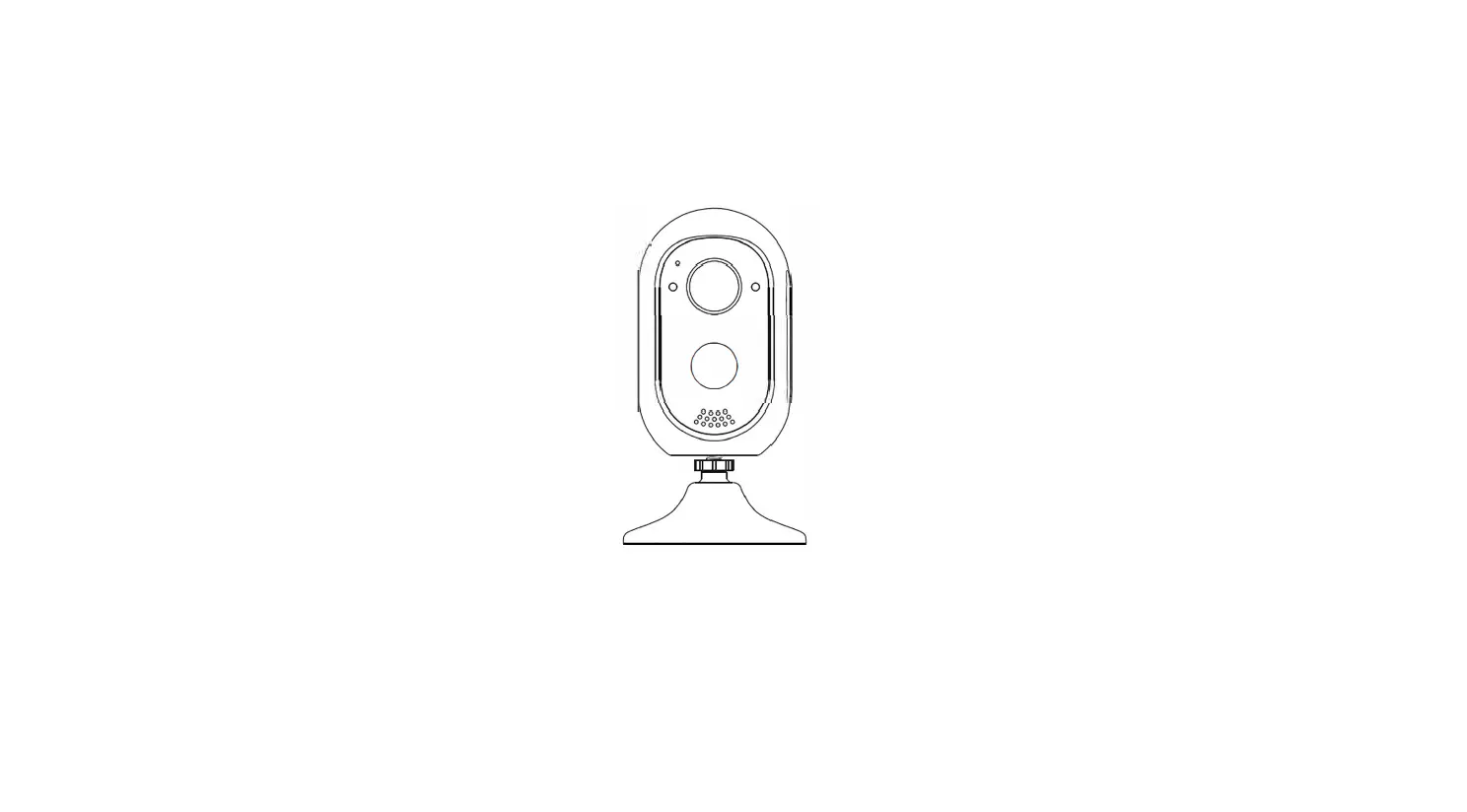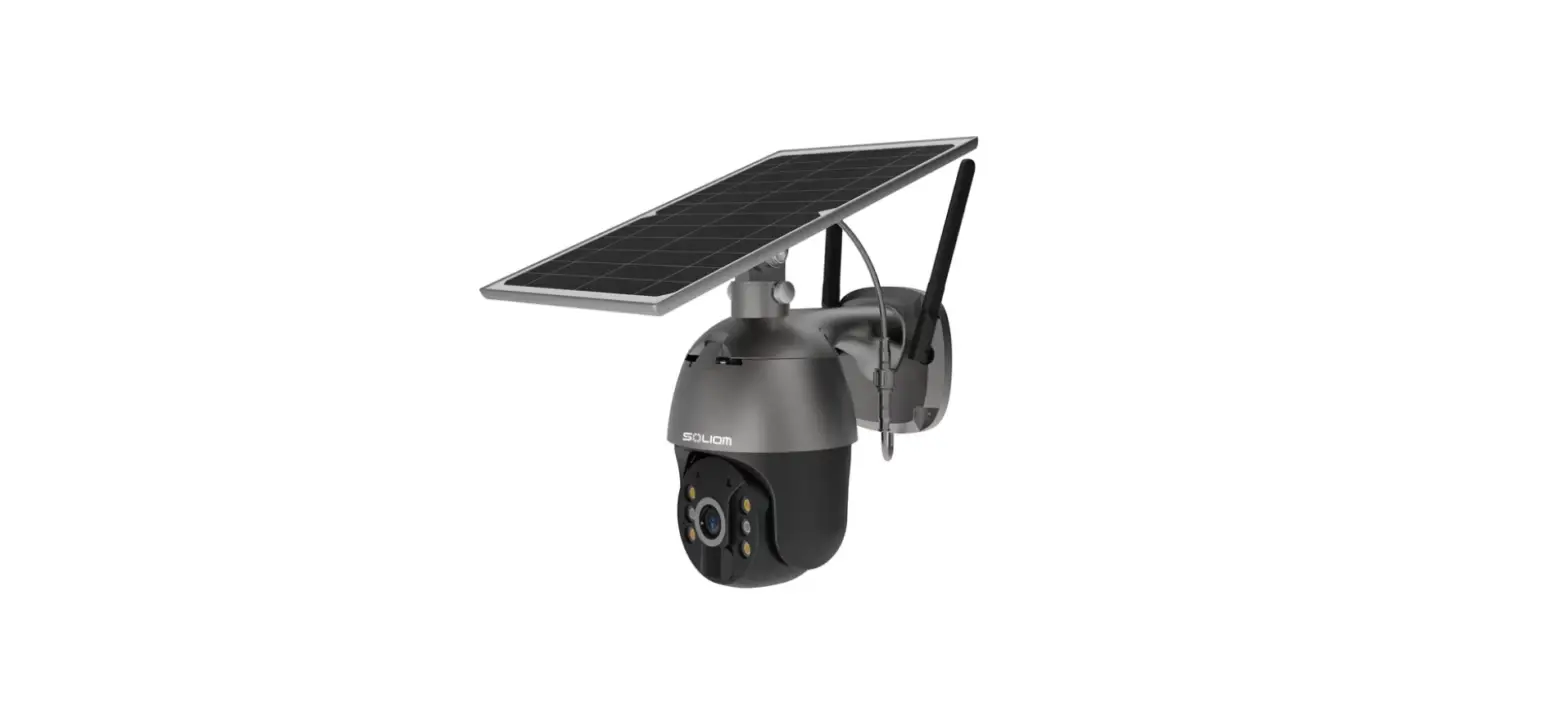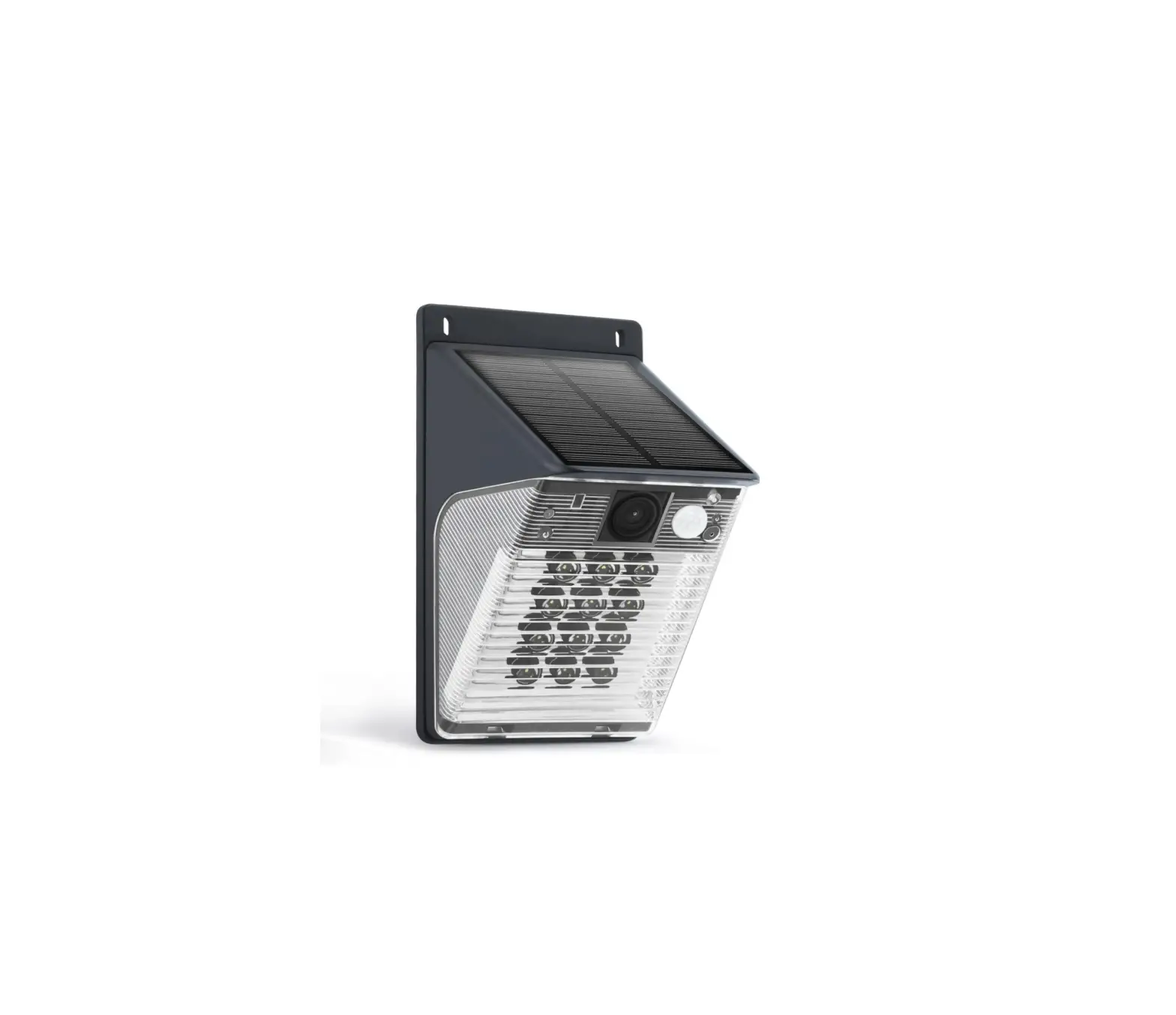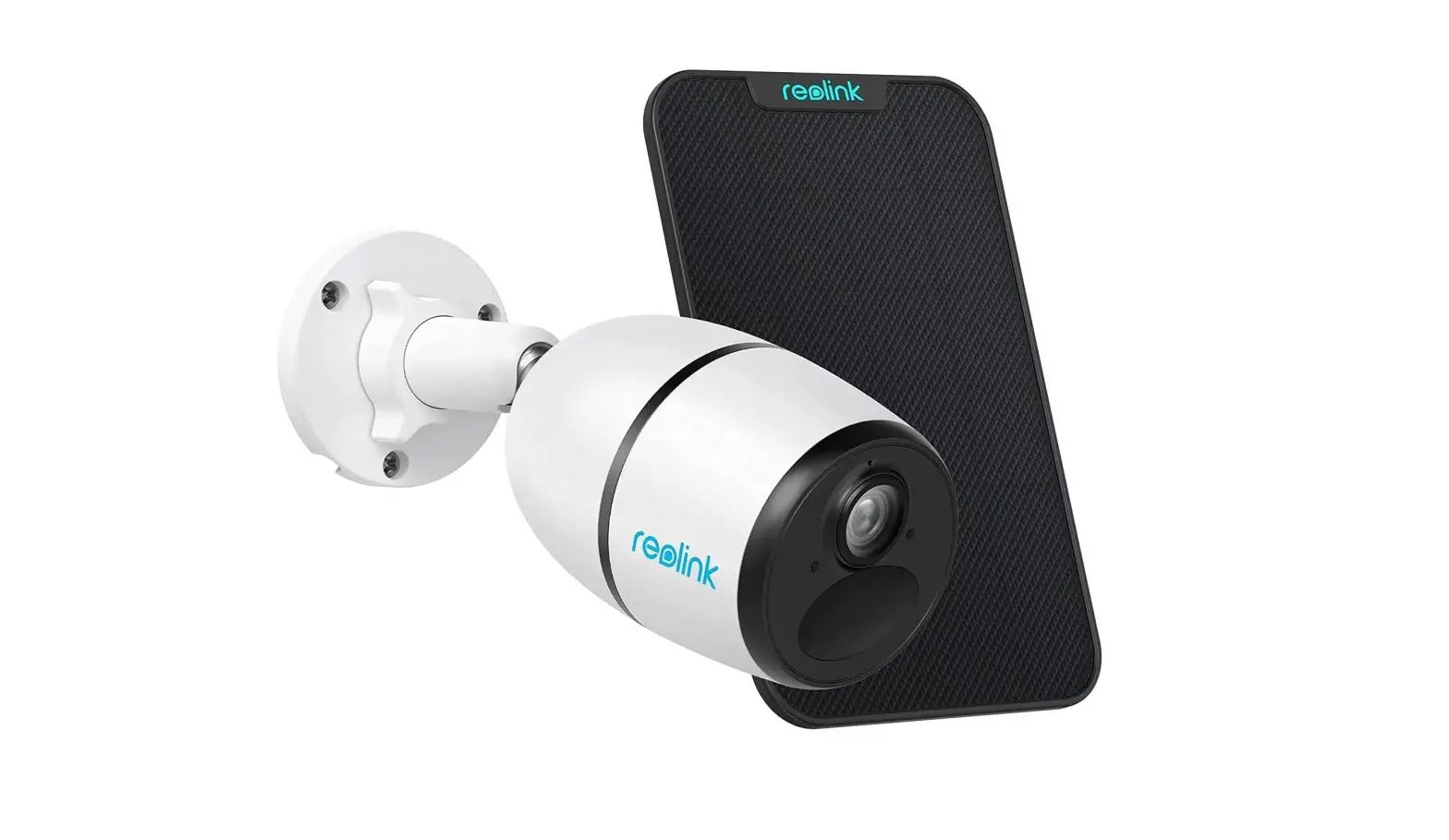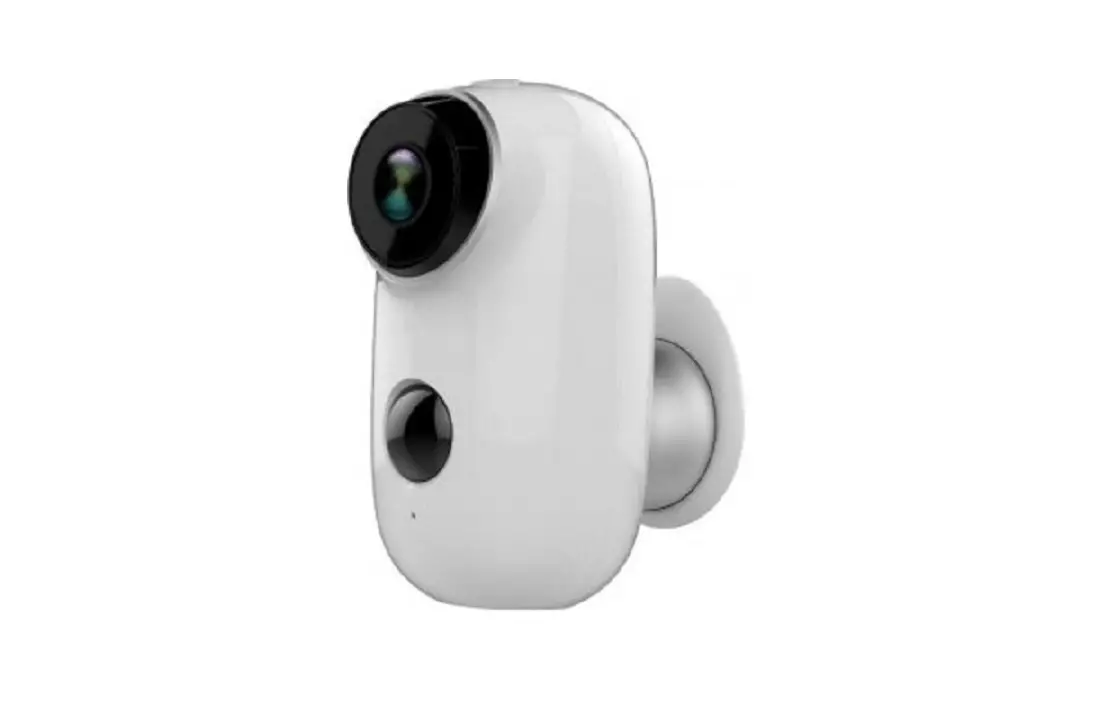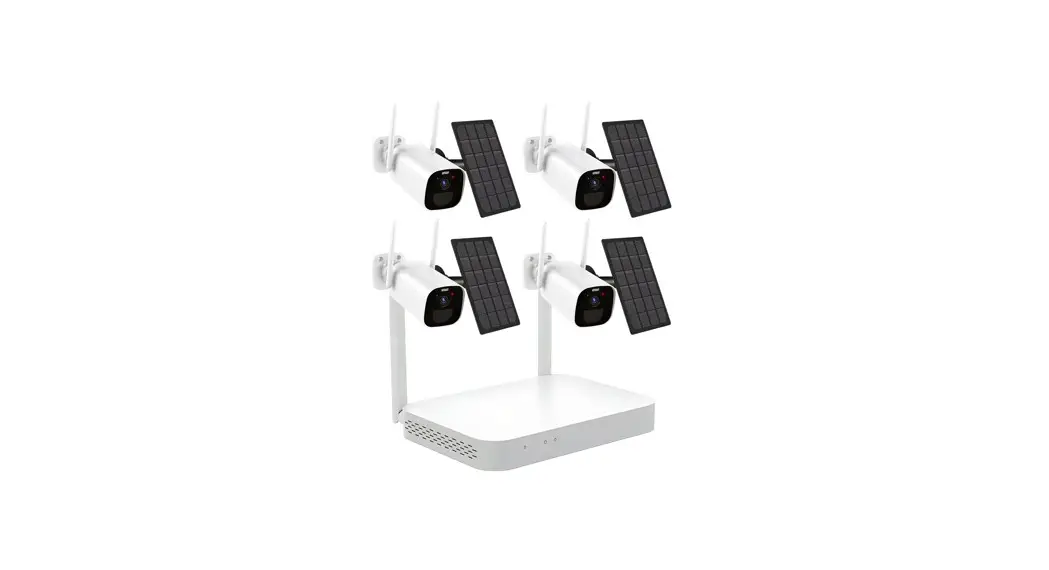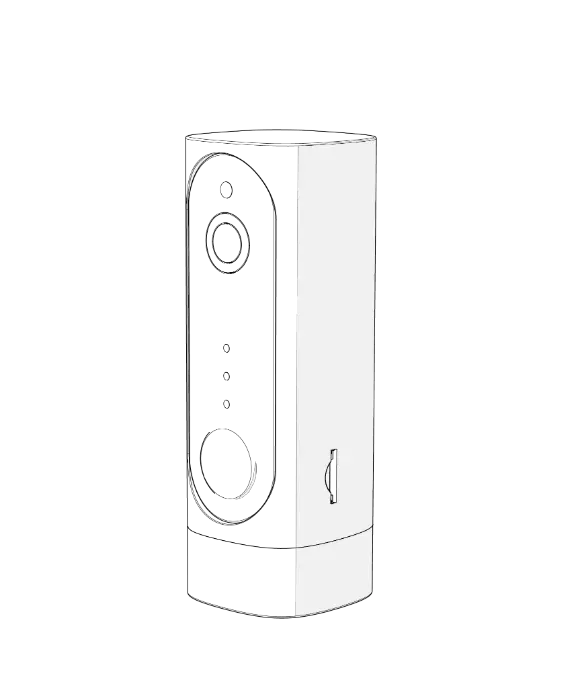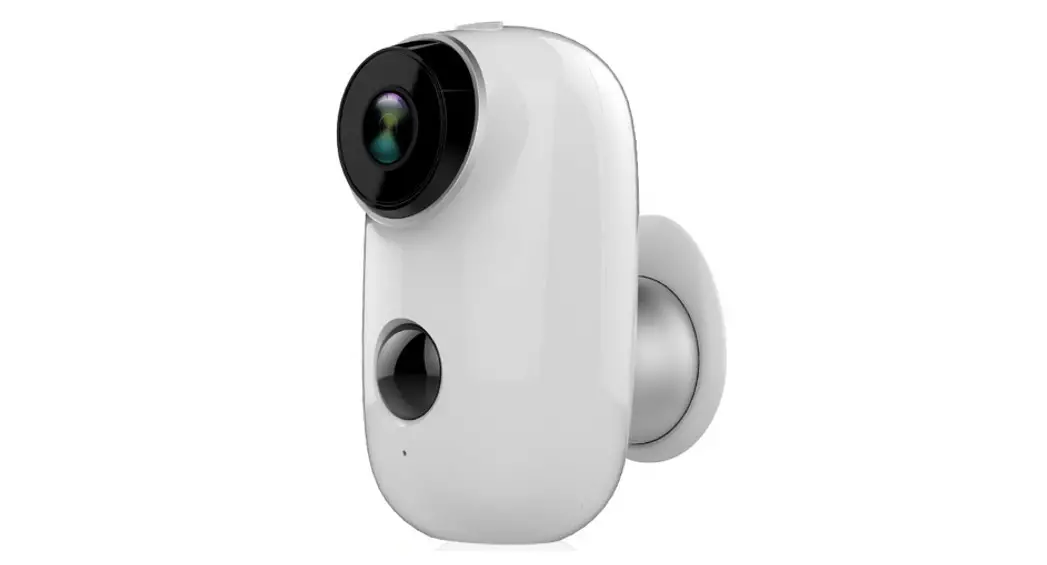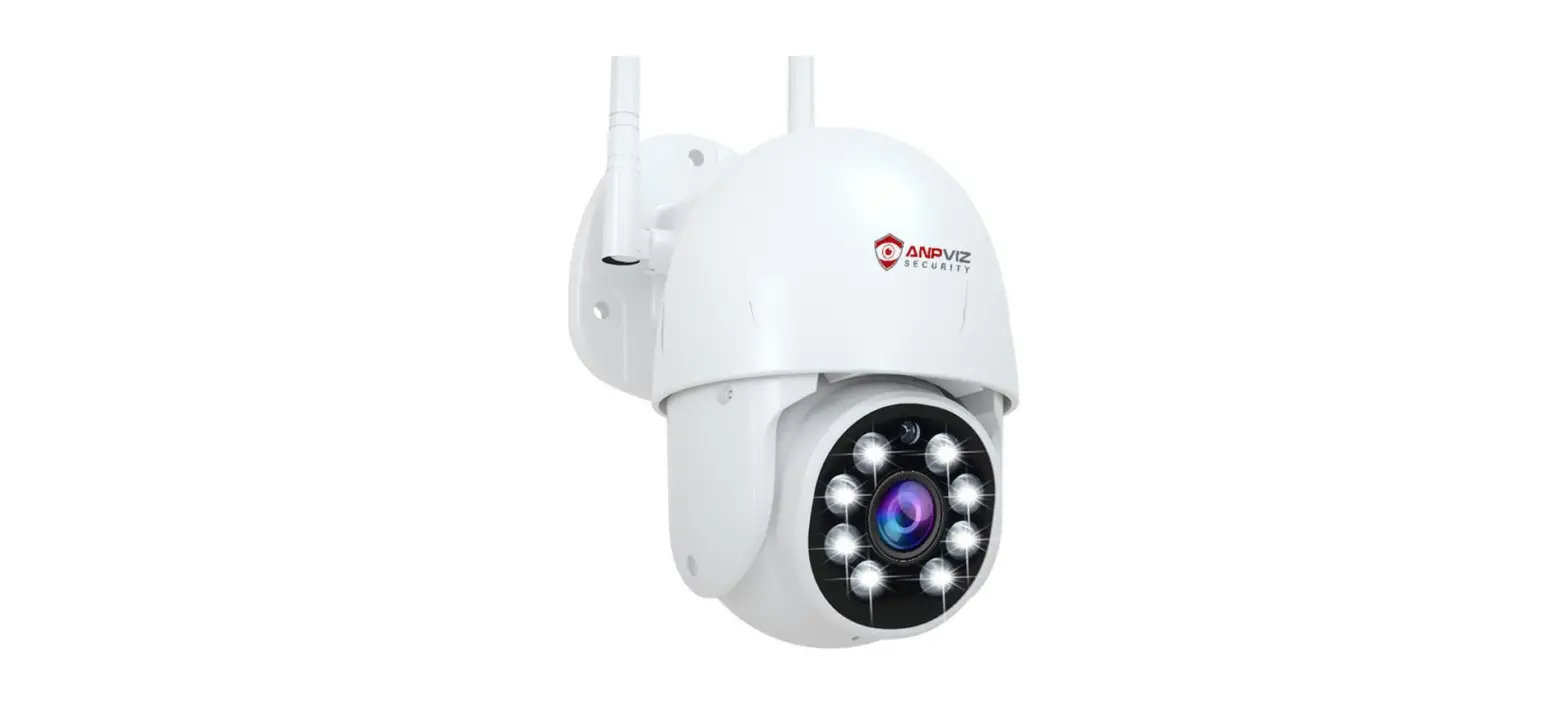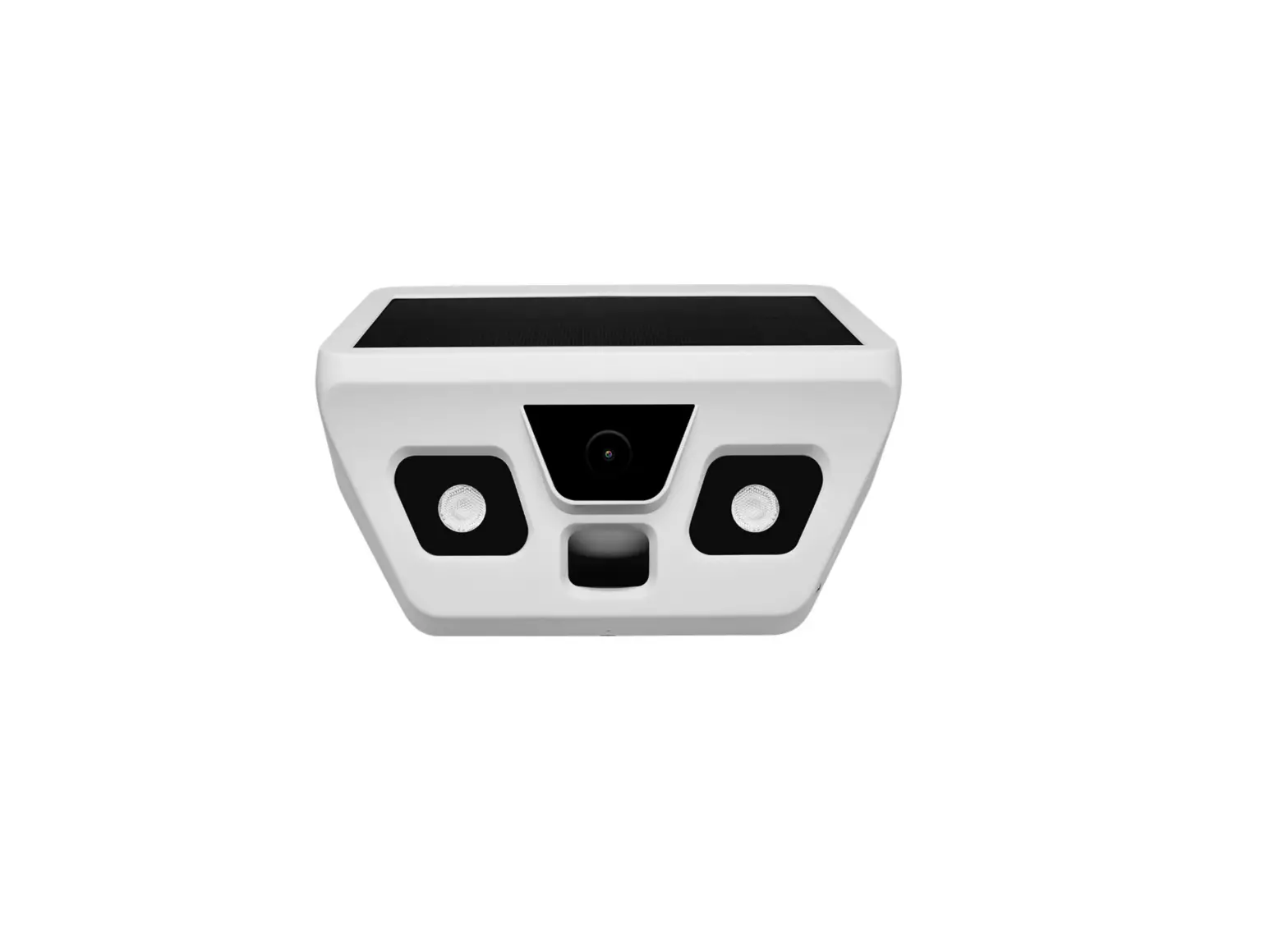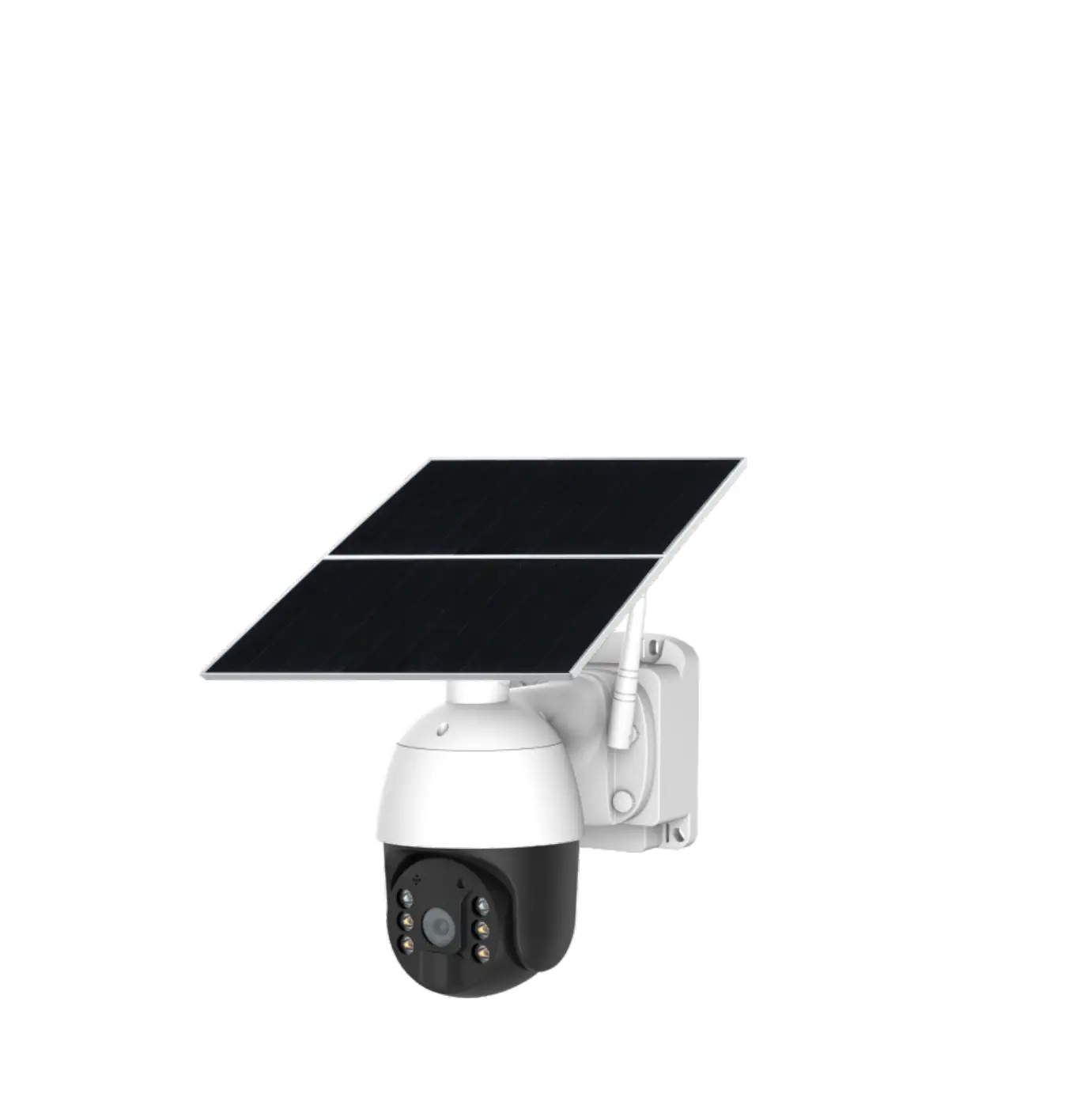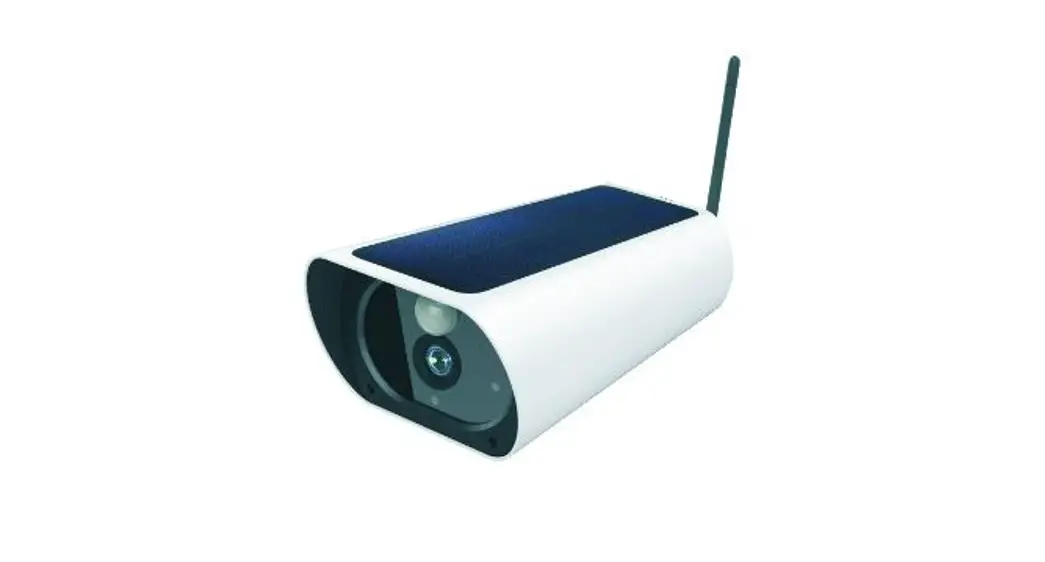
SOLAR
4G BATTERY WIFI
IP CAMERA
USER MANUAL
Thank you for choosing our products! Please follow the below instruction to setup and using your camera device.
Products Description:
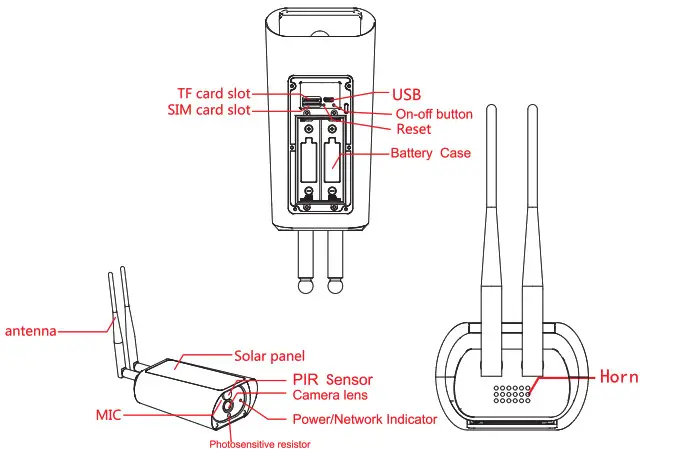
Download and Install the App.
Open the App Store (for IOS) or the Google Play Store(for Android) on your mobile phone. Search “i-Cam” or scan the following QR Codes to install the app on your device.
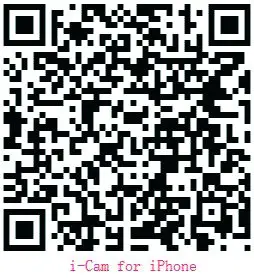
https://itunes.apple.com/cn/app/i-cam/id958791813?mt=8
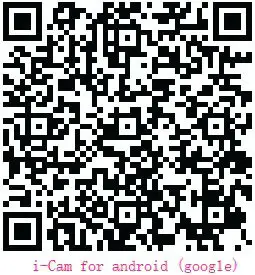
https://play.google.com/store/apps/details?id=com.ubia.xiaochang
First time connect to the device
Before you begin…
- Make sure the app is installed on your device.
- Make sure the current location has the device’s operator 4G network coverage.
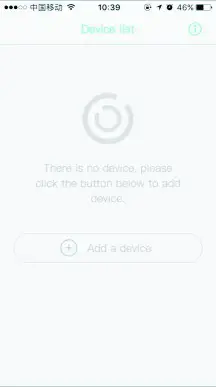
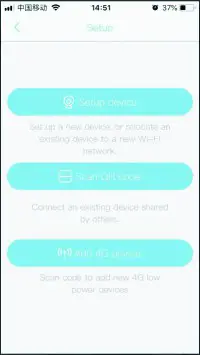
- Launch the Ubell app on your device and tap Eg Select Add 4G Device “Add a device” in the “Device list” section.

- Select Add 4G Device
Note: If you have multiple cameras, only setup one by one.
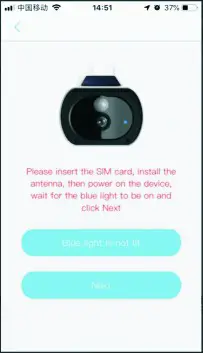
- Before setup, please reset the device and wait for the blue LED are light, Tap “Next” to continue the setup.

- If the blue LED is not lit, please check the SIM card is inserted correctly, the antenna is already installed , and 4G networks are coverage.
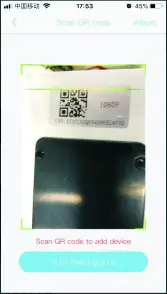
- Find the Device QR code on Device, then tap “Next” on the app.

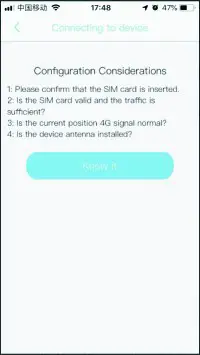
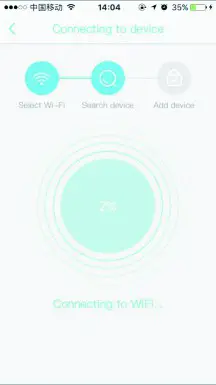
- Wait for the device to configure the network.

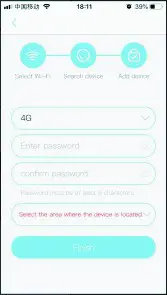
- After the connection is successfully done, there will be a prompt asking for the device name and password. The password must be more than 8 numbers. then select the location where you are.

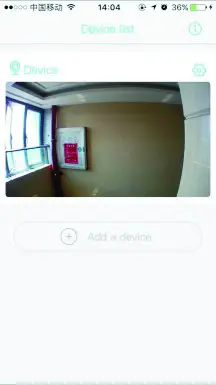
- Setup completed! The APP will enter the device list interface automatically. Congratulations! The device is ready for use.
Features
To change your device settings, tap the “Device settings” icon in the device list section.(As below image shown)
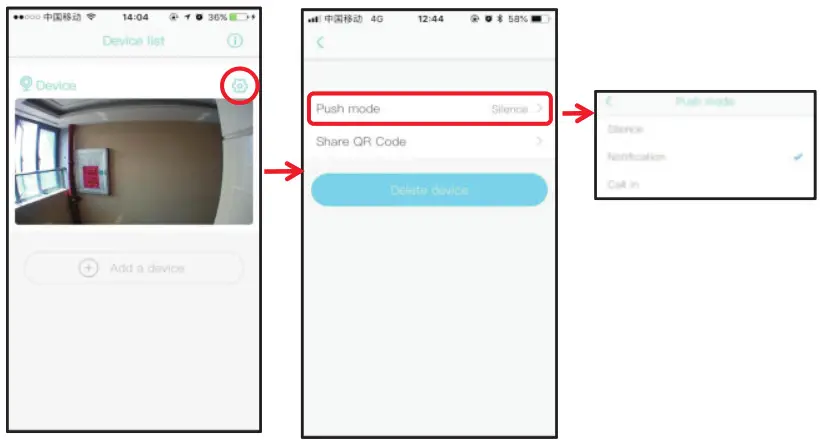
Push mode
Silence – The mobile phone will not receive the notifications. Notification – App sends an alert message to the mobile phone when the camera detected the movement.
Call in – It shows incoming calls on a mobile phone when the camera detected the
Share QR Code
Send the QR code to share the device to your friends and family or someone that you want to share.
Delete camera
The mobile device will not receive the notifications after you delete the camera. But the camera still works and the other connected mobile devices are still able to receive the notifications.
Cloud Storage
You can choose the video events to save to Cloud or SD memory card.
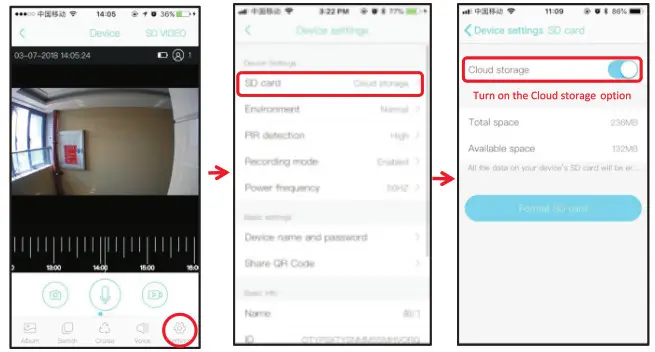
- Tap the “Settings” icon in the preview section to open “Device settings”.
- Tap “SD card” and turn on the “Cloud storage” option.

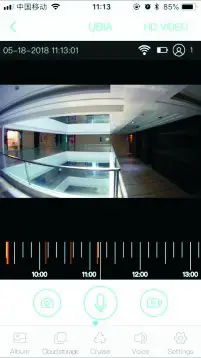
- After turn on the Cloud storage function, the “Switch” icon in the preview section will be changed to “Cloud storage”

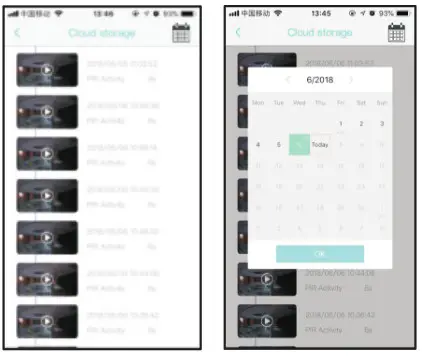
- To playback, the Cloud storage events, tap the “Cloud storage” to get the list. Tap the “Calendar” icon at the right top corner to choose the date to launch the previous videos.

Note regarding Cloud Storage:
The device records and uploads an 8-second video to the cloud every time when PIR detected movements when the camera sleeping Each device can upload 20 event videos to the cloud every day; and free Cloud storage service provides one week of loop recording space and traffic for users.
PIR Detection Instructions.
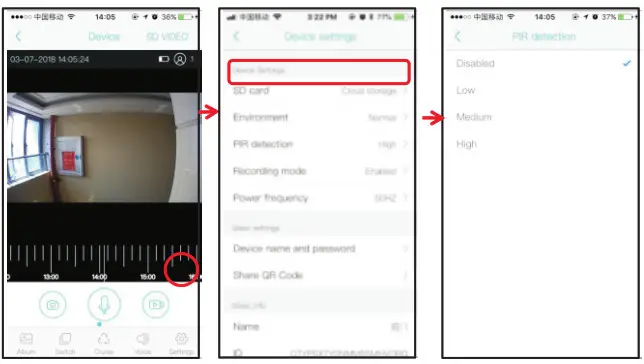
Disabled: Close the PIR function.
Low: The device will start to take videos and send an alert to the mobile device 7 seconds from the moment it detects a moving object. B133
Medium: The device will start to take videos and send an alert to the mobile device 5 seconds from the moment it detects a moving object.
High: The device will start to take videos and send an alert to the mobile device 1 second from the moment it detects a moving object.
Note: It is recommended to set the PIR detection at “Disabled” or “Low” to save battery power.
And the camera only send one alert when it detected one event after the camera slept it will
Special Notes!
- this device is powered by a lithium battery and consumes about 250mAH of current every day. It is estimated that it can be used for 15 days if it is fully charged with 4000mAH. At the same time, frequent PIR wake-ups will reduce the use time. The solar version device may need to be additional charging if there is no sunlight for 2 consecutive weeks. When the battery power is low, there will be a warning/reminder from the App. Please charge the device immediately.
- in the installation, please ensure the 4G network coverage of the SIM card operator used by the equipment. If 4G signal is weak, it is necessary to add 4G signal relay amplifier or ask the SIM card operator to improve.
- It is a delicate device with a low power consumption design. Every time the device is awakened, it’ll work for 30 seconds. After that, the device will enter standby mode to save power.
Specifications
| Model | Solar 4G Battery Camera (Low Power Consumption) | ||
| DSP | Hisilicon Hi3518EV200 | ||
| Sensor | FHD 1080P COMS sensor 1/2.7PS5230 | ||
| Video | 1920’1080/15fps 640960/30fps | ||
| Sensor mode | AWB. AE. Automatic backlight compensation, Digital wide Dynamic | ||
| Day/Night mode | Photosensitive automatic switch Day/Night mode | ||
| Night Distance | 850nm IR ray. distance about 10 meters | ||
| Win | Hisilicon Hi1131 Low Power Consumption Wi-Fi Module | ||
| Lens | F =3.6mm, degree wide | ||
| Battery | 218650 Lithium battery. Solar Battery | ||
| Battery Life | support about 10 days without sunshine | ||
| Charging | Solar charging, USB about 6 hours full charges | ||
| Active mode | 15S/30S/60S/Always | ||
| Wifi configuration | QR code scanning | ||
| system | Lite OS | ||
| audio | Audio decode protocol | AAC and G.726 | |
| MIC | ‘-38dB high sensitivity | ||
| Video | Video compressed format | H264 | |
| Network | 4G | Support full band 4Gmeeds to choose the version | |
| Network | TCP/IP. NT7P. TCP. UDP. SM7P. MCP. DNS. P7P | ||
| SIM card | Nano SIM | ||
| Features | Events Alert | Support | |
| Keys | Power, Reset | ||
| Status indication | Blue & Red LED | ||
| Storage | Support TF Card 4GB-64GB | ||
| Video playback | Timeline and Cloud Storage | ||
| Waterproof | Ip67 | ||
| Full duplex intercom | Support | ||
| APP | i-Cam, ios10.0, android5.0 | ||
| Environment | Temperature | -10•C -+502 | |
| Humidity | s80%RH | ||