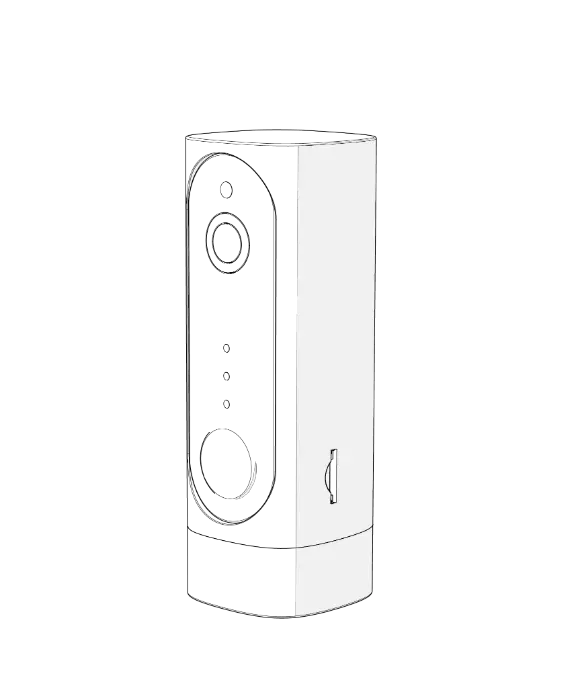
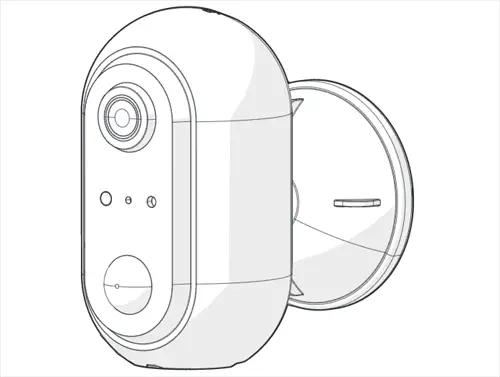
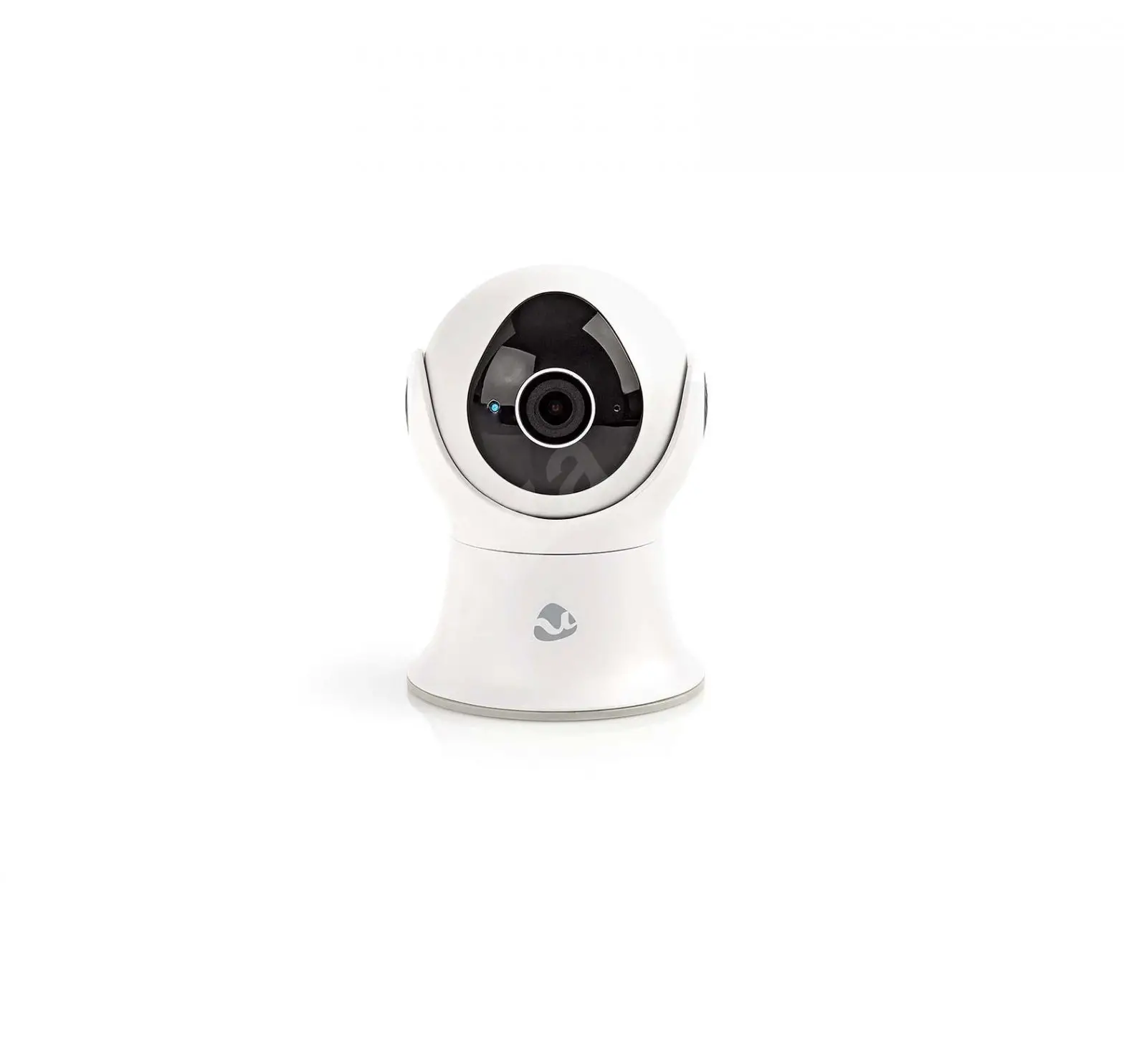
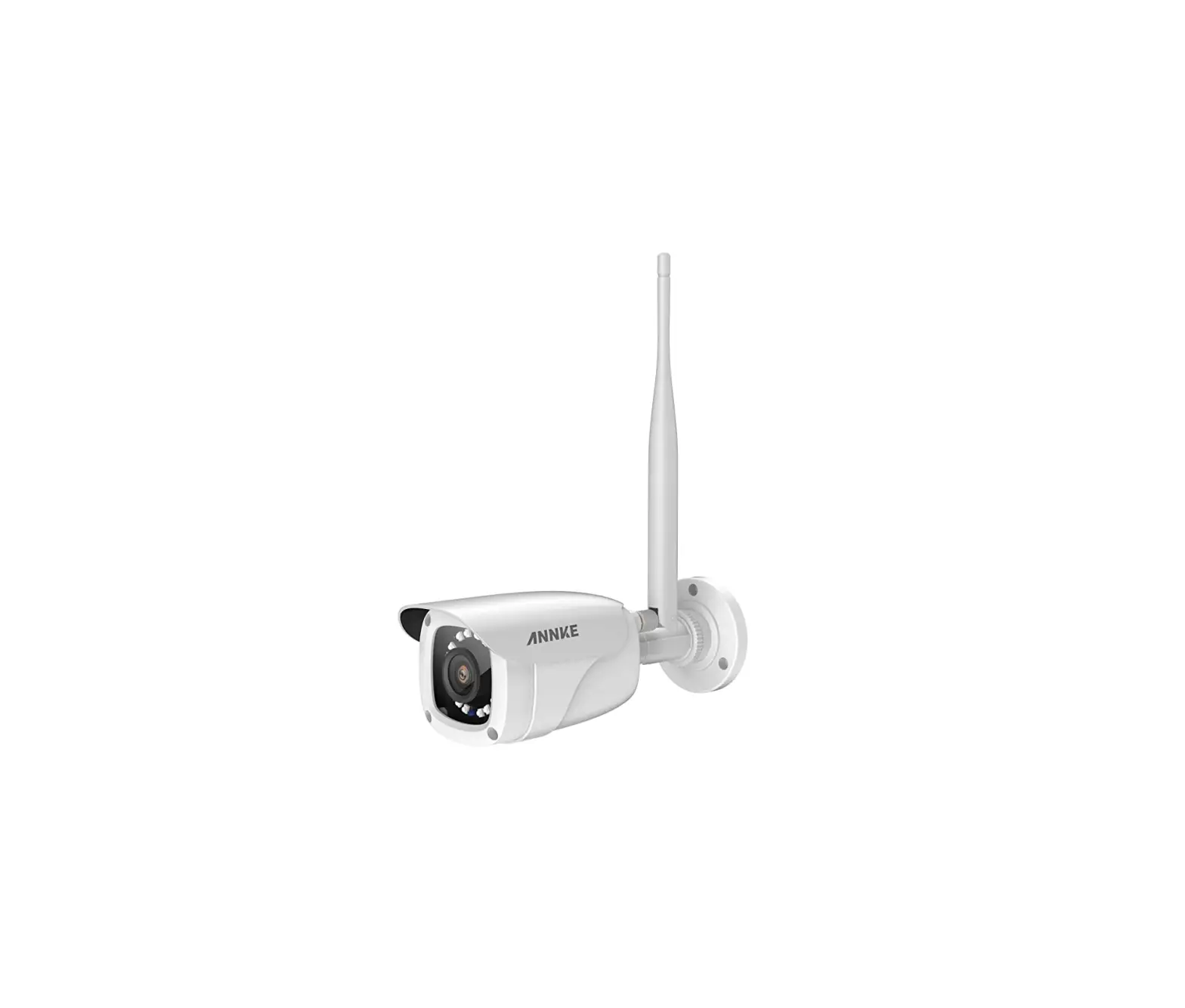
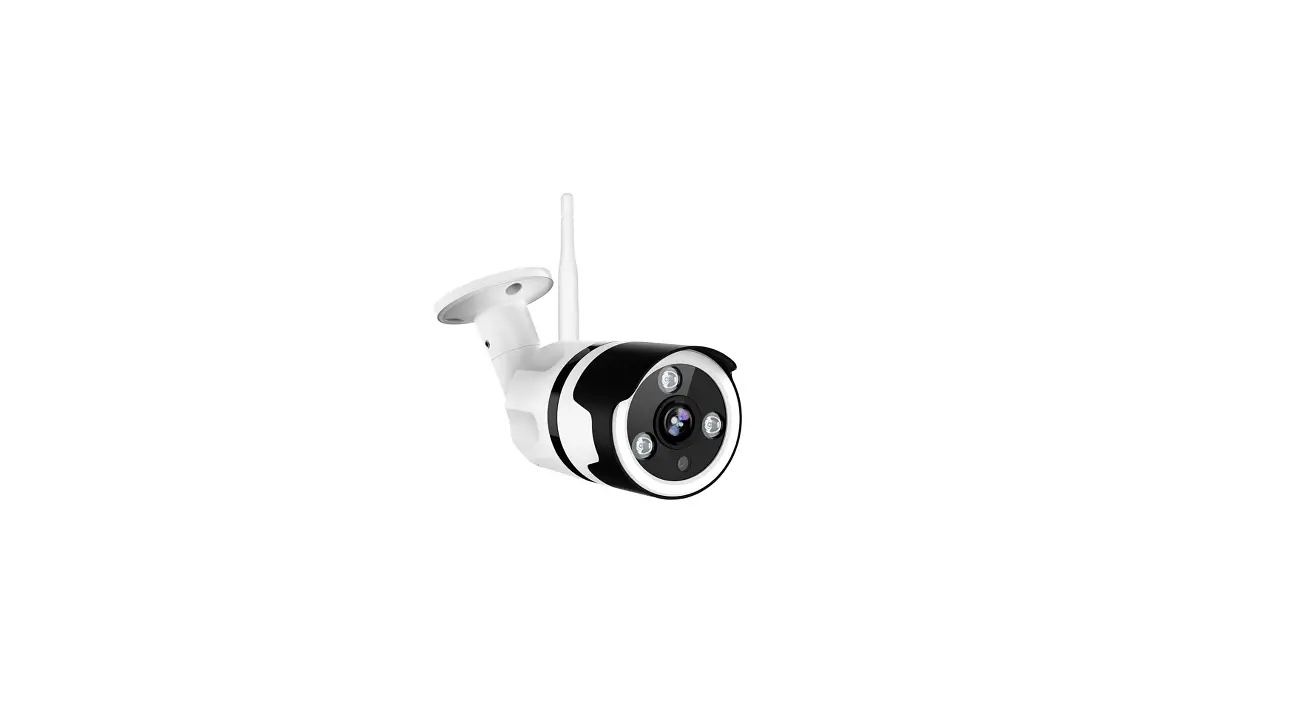
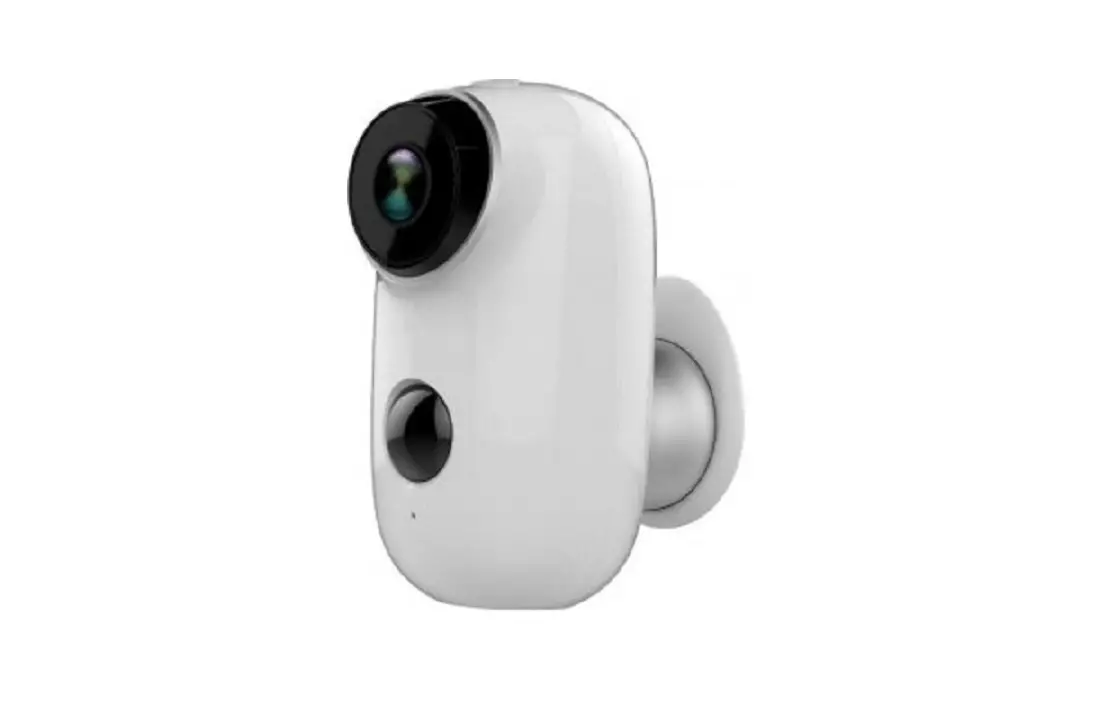
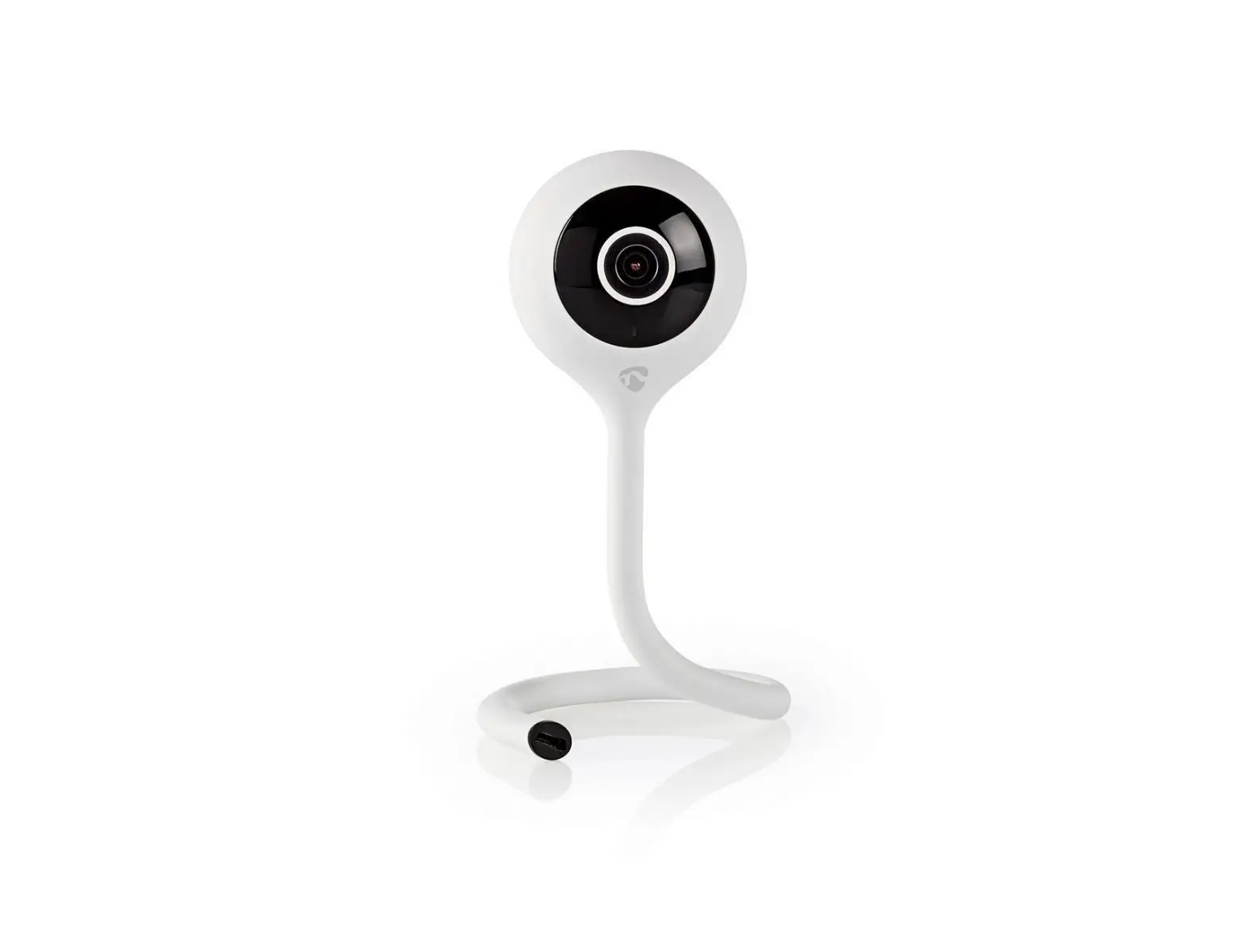
WIFICBO10WT Rechargeable IP Camera
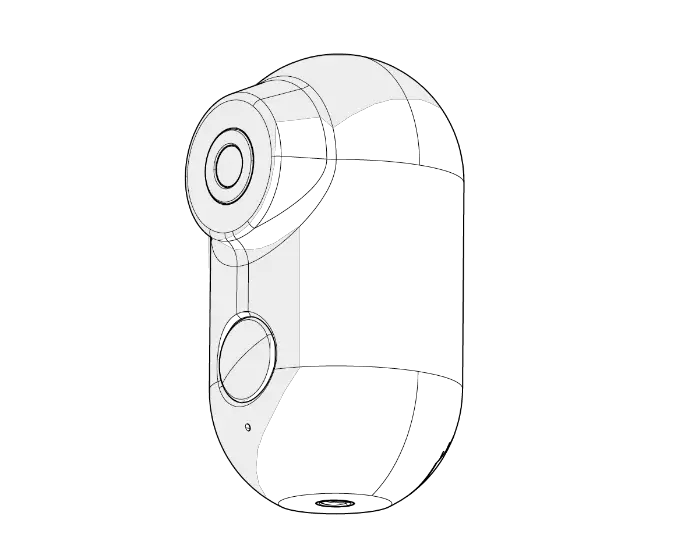
User Manual
For outdoor use (IP65)
Preface
Thank you for purchasing the Nedis WIFICBO10WT.
This document is the user manual and contains all the information for correct, efficient and safe use of the product.
This user manual is addressed to the end user. Read this information carefully before installing or using the product.
Always store this information with the product for use in the future.
Product description
The Nedis WIFICBO10WT is a rechargeable IP security camera with a battery lifetime up to 10 months on a single charge.
The camera has a waterproof housing (IP65) for indoor and outdoor use.
If the security camera detects movement or sound, you will receive a warning message on your phone.
With the app you can watch live video images, play back, but also listen in and talk back.
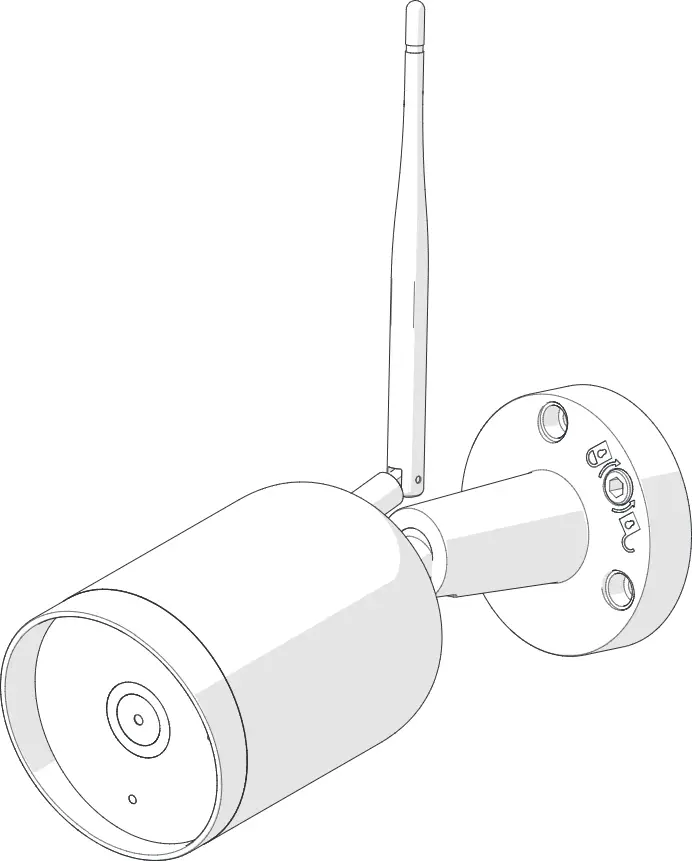
The security camera can easily be attached with the supplied mounting bracket.
Intended use
The product is intended as an IP security camera for outdoor use.
Consult the local laws and regulations for security cameras before using and installing.
Any modification of the product may have consequences for safety, warranty and proper functioning.
Specifications
Product | IP Outdoor Security Camera |
Article number | WIFICBO10WT |
Dimensions (l x w x h) | 57 x 57 x 100 mm |
Input voltage | 5 VDC |
Battery | 2x 18650 (6000 mAh) |
Max. battery lifetime | 10 months standby / 1000 recordings |
Weight | 225 g |
Memory | MicroSD card (8 – 128 GB) (not included) |
Resolution | 1920 x 1080 px |
Frame speed | 15 fps |
Video format | .mp4 |
Photo size | .jpg |
Viewing angle | 130 degrees |
PIR sensor detection angle | 120 degrees |
Waterproof | IP65 |
Max. radio transmit power | 15 dBm |
Antenna gain | 3 dBi |
Frequency range | 2412 – 2472 GHz |
Parts list
 | |
1. Magnetic iron ball bracket | 11. Reset button |
2. Status indicator LED | 12. Power button |
3. Camera lens | 13. Micro USB port |
4. Infrared light | 14. Mounting hole |
5.. PIR sensor | 15. Wall plug 6 mm (3x) |
6. Microphone | 16. Flat head screw 3.0 x 25 mm (3x) |
7. Double-sided adhesive tape | 17. Reset pin |
8. Speaker | 18. USB cable |
9. Magnetic connector | 19. Mounting bracket |
10. MicroSD card slot | 20. Protective cap |
Safety instructions
WARNING
- Only use the product as described in this manual.
- Do not use the product if a part is damaged or defective. Replace a damaged or defective device immediately.
- Do not drop the product and avoid bumping.
- This product may only be serviced by a qualified technician for maintenance to reduce the risk of electric shock.
- Disconnect the product from the electrical outlet and other equipment if problems occur.
Installation
- Check the contents of the package
- Check that all parts are present and that no damage is visible on the parts. If parts are missing or damaged, contact the Nedis B.V. service desk via the website: www.nedis.com.
Prepare the security camera
 |
- Use a microSD card with a minimum of 8 GB and a maximum of 128 GB.
1. Insert the new microSD card into the microSD card slot q.
2. Connect the USB cable o to the micro USB port r.
3. Connect the USB cable o to a USB power adapter (not included).
4. Connect the USB power adapter to the mains to charge the camera.
5. Press and hold the power button e for 5 seconds to turn on the device. The status indicator LED 2 will start blinking red.
Installation of the Nedis SmartLife app
1. Download the Nedis SmartLife app for Android or iOS on your phone via Google Play or the Apple App Store.
2. Open the Nedis SmartLife app on your phone.
3. Create an account with your mobile phone number or your e-mail address and tap Continue.
4. Enter the received verification code.
5. Create a password and tap Done.
6. Tap Add Home to create a SmartLife Home.
7. Set your location, choose the rooms you want to connect with and tap Done.
Connect to the security camera
 |
1. Tap + in the top right corner in the Nedis SmartLife app.
2. Select the device type you want to add from the list.
3. Confirm the status indicator LED 2 is blinking.
4. Enter the Wi-Fi network data and tap Confirm.
- The product is now ready for use.
 |
- If the camera is not found, try again but this time, after step 2, tap Otherwise (upper right corner) and select QR code. Enter the Wi-Fi network and Confirm.
5. Tap Continue and a QR-code will appear.
6. Hold your phone with a 15 – 20 cm distance in front of the camera.
- If the camera has detected the QR-code, you will hear a sound.
7. Tap to confirm you heard the sound.
8. Give the camera a name and tap Done. The status indicator LED 2 will turn blue.
- The product is now ready for use.
If the camera failed to connect, the status indicator LED 2 will be continuously red. To reset the camera, press and hold the reset button w for 5 seconds until you heard the sound. Press and hold the power button e for 5 seconds to turn on the device. Then repeat step 1 to 9 closer to the router.
Mounting the security camera
You can install the camera with the mounting bracket p, or place it on any flat surface.
 |  |
Install the mounting bracket
1. Draw three marks to indicate the desired location.
2. Drill the holes and place the plugs 15.
3. Fasten the mounting bracket p with the screws u.
4. Tighten the screw of the mounting bracket p into the mounting hole t of the camera.
Install the magnetic iron ball bracket
1. Draw one mark to indicate the desired location. Drill the hole and place the plug y.
2. Place the iron ball bracket 1 over the screw u.
3. Continue with step 4.
Install with the double-sided adhesive tape
1. Remove the film of the tape 7.
2. Place the tape 7 on the back of the iron ball bracket 1.
3. Stick the bracket to a clean flat surface and press firmly.
4. Connect the camera with the magnetic connector 9 to the iron ball bracket 1.
Important instructions to reduce false alarms
- Do not install the camera facing any objects with bright lights, including sunshine, etc.
- The ideal viewing distance is 2 – 10 meters.
- Do not place the camera close to frequently moving vehicles. The recommended distance between the camera and moving vehicles is 15 meters.
- Stay away from air outlets, including air conditioner and heat transfer vents, etc.
- Do not install the camera facing a mirror.
- Keep the camera at least 1 meter away from any wireless devices, including Wi-Fi routers and phones, in order to avoid wireless interference.
Use
- The start screen of the Nedis SmartLife app
- After making a successful connection with the security camera, the Nedis SmartLife app displays an overview of the products that are connected.
- Select the desired product in the overview.
The overview screen of the security camera
 |
Here you can use the functions of the product and change the settings.
The interface consists of the following buttons:
a | Back |
b | Settings |
c | Wi-Fi signal |
d | The video mode. |
e | Turn the sound on or off |
f | View full screen |
g | Battery life |
h | Start a video recording |
i | Speak through the speaker of the security camera |
j | Take a picture |
k | Play motion detected videos |
- Make video recordings and screenshots
- You can make video recordings and screenshots on your phone, by tapping Record h and Screenshot j.
- Play video recordings and screenshots
- Photo and video recordings are stored on your phone’s memory.
1. Open the Gallery on Android, or Photos on iOS. You will see an overview of photo and video recordings.
2. Open a photo or video recording to view or play it back.
Motion detected videos playback
Motion detected videos are automatically saved on the microSD card. (If inserted in the camera).
1. Tap Playback k to open the stored videos.
2. Tap a video file to play it back.
Adjust the PIR detecting distance
Go to the settings key b, and tap PIR Switch. Enable, disable or change the PIR sensitivity.
Sensitivity | Detecting distance |
Low | Up to 4 meters |
Middle | Up to 6 meters |
High | Up to 8 meters |
Settings
- Tap the settings key b to open the settings screen.
Modify device name | Change the name of the security camera. |
Share devices | Share access to the device with others. |
Device info | View information of the device. |
Use Echo | See how to connect the Alexa app to use the camera with voice control. |
Power manage | View the battery status and set the low battery signal. |
Basic feature settings | Change the camera settings. |
PIR switch | Adjust the sensitivity of the motion detection. |
SD card settings | View the microSD card settings and set recording settings. |
Feedback | Send product related feedback to Nedis. |
Firmware info | View the version of the software. |
Remove device | Remove the device from the Nedis SmartLife app |
Maintenance
- Clean the product regularly with a soft, clean, dry cloth. Avoid abrasives that can damage the surface.
- Do not use aggressive chemical cleaning agents such as ammonia, acid or acetone when cleaning the product.
Warranty
Any changes and/or modifications to the product will void the warranty. We accept no liability for damage caused by improper use of the product.
Disclaimer
Designs and specifications are subject to change without notice. All logos, brands and product names are trademarks or registered trademarks of their respective owners and are hereby recognized as such.
Disposal
 | This symbol indicates that this product should not be thrown away with other household waste throughout the EU. To prevent possible harm to the environment or human health by uncontrolled waste disposal, you are responsible for recycling it so that it can promote the sustainable reuse of raw materials. To return your used product, you can use the regular return and collection systems or contact the store where the product was purchased. They can recycle this product for the environment. |
Declaration of Conformity
We, Nedis B.V. declare as manufacturer that the product WIFICBO10WT from our brand Nedis®, produced in China, has been tested according to all relevant CE standards and regulations and that all tests have been passed successfully. This includes, but is not limited to the RED 2014/53/EU regulation.
The complete Declaration of Conformity (and the safety datasheet if applicable) can be found and downloaded via webshop.nedis.com/WIFICBO10WT#support
For additional information regarding the compliance, contact the customer service:
Web: www.nedis.com
E-mail: [email protected]
Phone: +31 (0)73-5991055 (during office hours)
Nedis B.V., de Tweeling 28
5215 MC ’s-Hertogenbosch, the Netherlands