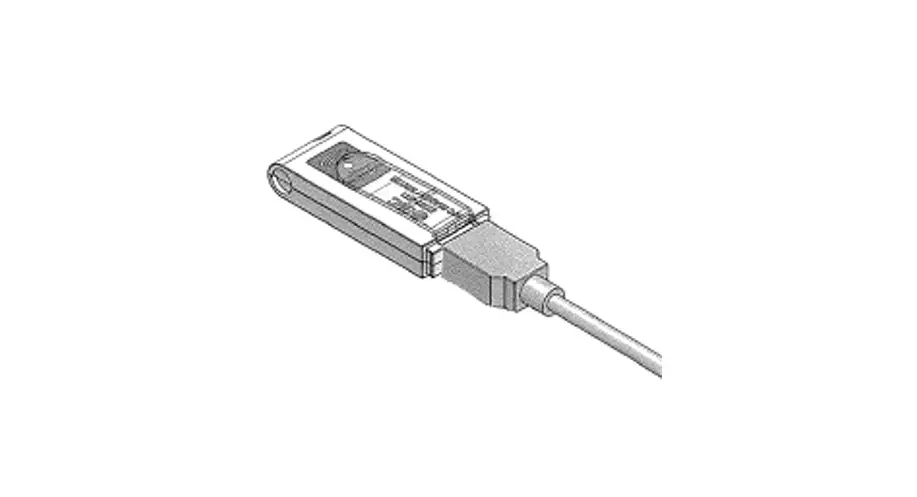
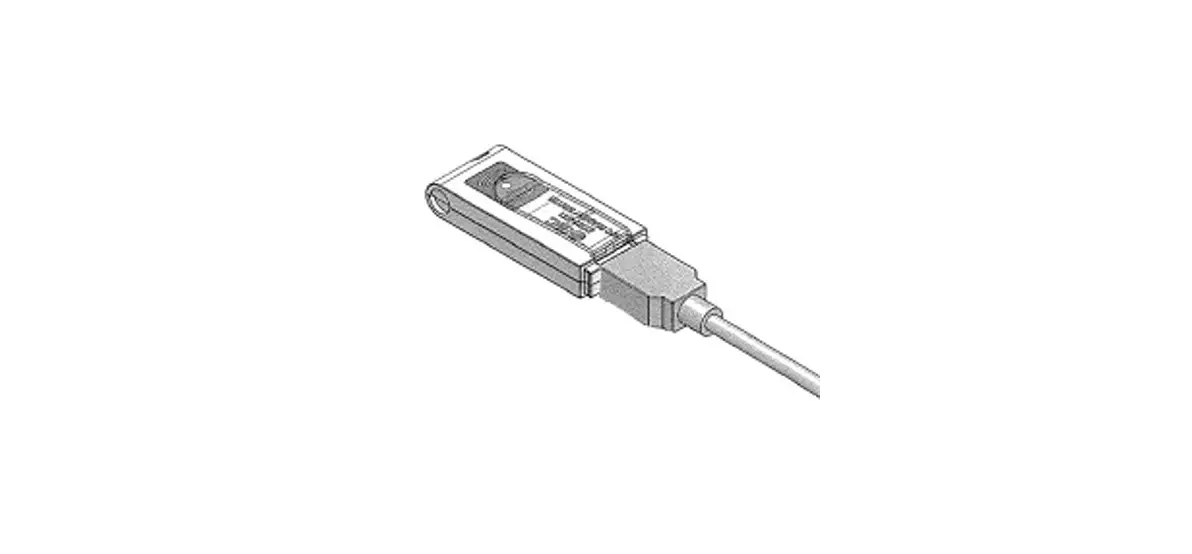
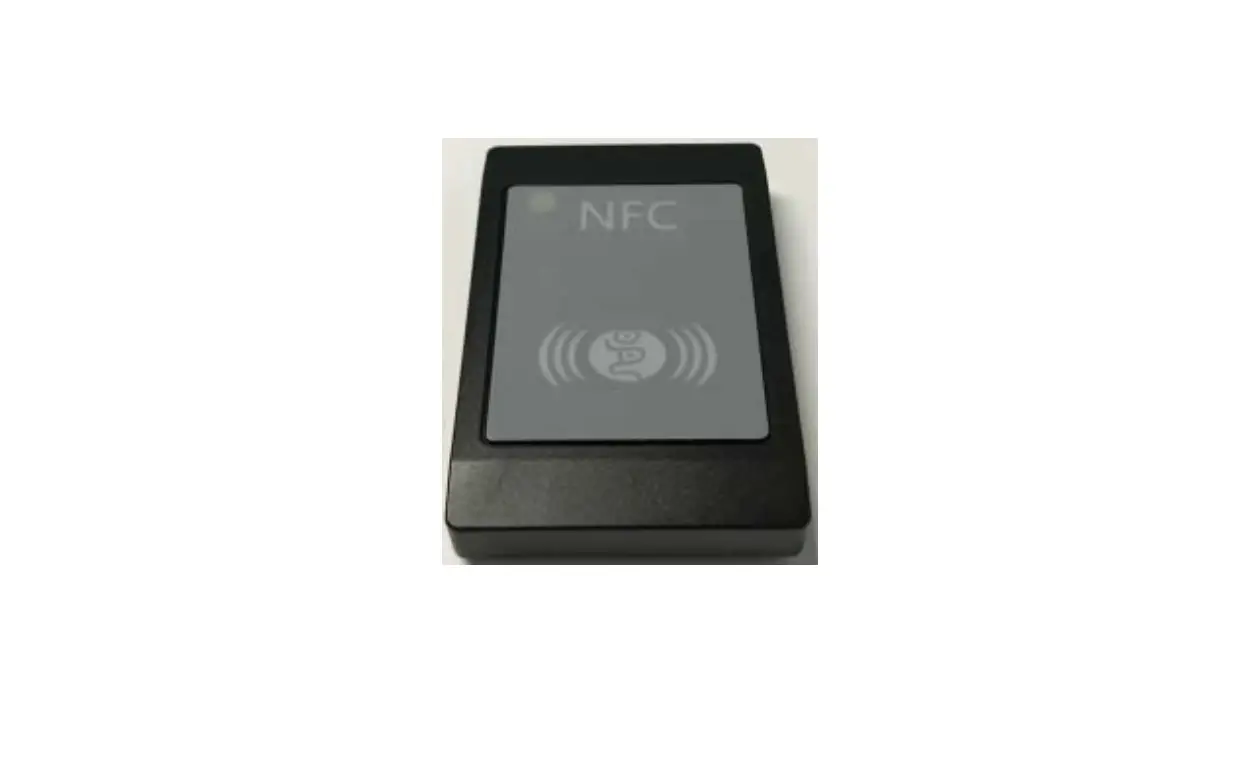
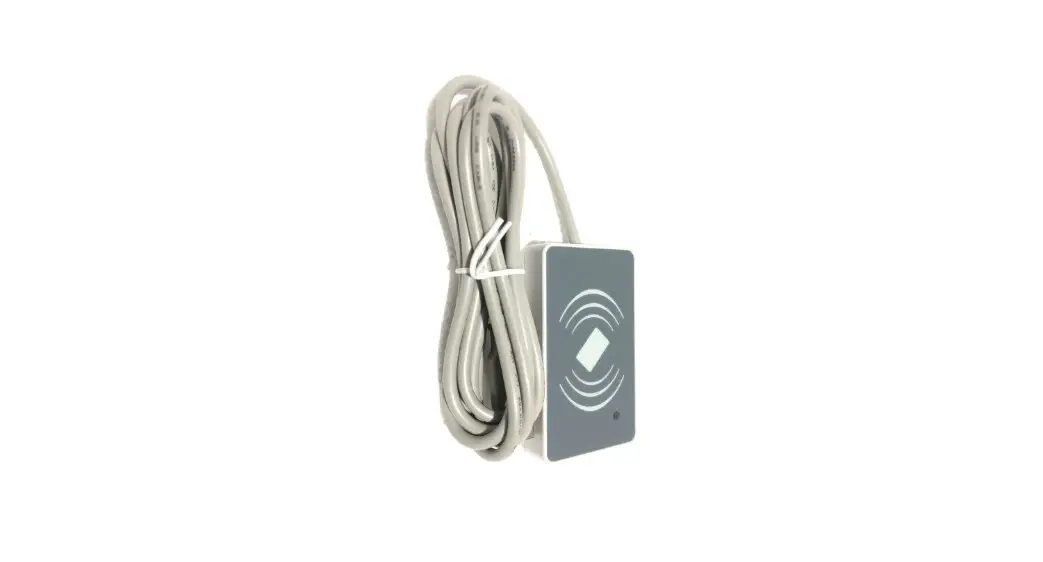
C series NFC and RFID Reader Writer
Product Information
- Scanning Window
- Power Button (On/Off)
- Battery Light/Read Indicator Light (Green/Blue/Red)
- Trigger button
- Bluetooth Light
- Beeper Lanyard Eyelet
- Type C (1)
Package Included:
- 1PC X Reader
- 1PC X USB Cable
- 1PC X Quick Setup Guide
Note: This is a general manual. If you need a full manual please
download it from our official website: www.netum.net
Product Usage Instructions
Charge the battery
- Turn on the reader.
- Connect the reader with your computer via the provided USB
cable or use a DC plug to charge it on an electrical wall
outlet.
- Red Light On: Charging
- Red Light Off: Fully charged
DC Plug: V:5V; A>500mA
Factory Reset
To reset the reader, follow these steps:
- Disconnect the USB cable.
- Switch the power button to Off.
- Press and hold the button while switching it to ON.
- Hold it for at least 15 seconds and release it after hearing 1
beep.
For more configurations, please download the software from the
following address: https://www.netum.net/pages/netum-rid-para-setting-software
Please program the reader in Windows device. Currently, it’s
only compatible with Windows.
- Connect the reader with your device via USB cable or Bluetooth
(refer to Connection Way section). - Hold the reader on the card, tag, or smart device to be
read. - For best results, the card, tag, or smart device should be
parallel to the reader. - Press the trigger button momentarily. The blue LED light will
turn on with a short beep to indicate a successful scan.
If you want to change it to continuous scan mode, please
download the software and refer to the scan mode in the Para
Setting page.
Important Notes:
- Key Delay Mode is set by default. Press the button and the
green LED light will turn on and off in 3 seconds if it hasn’t read
any cards. - If the reader fails to connect to your device via USB cable or
Bluetooth, scanned characters will be stored in the reader. Once
it’s connected with your device, pressing the button for 5 seconds
will upload the scanned characters and clear them.
Connection Way
The reader can be connected to your device via Bluetooth or USB
cable. Choose either way to get started.
USB Cable Connection
Get Started: Connect the reader with your
device via USB cable. If you use a US keyboard, it’s plug and play.
If you use another type of keyboard, please configure the keyboard
language in the provided software before using it.
LED Activity/Prompt Tone/Indication under different
Connections:
| Red indicator light | Bluetooth Light | Indication | LED light Status | Beep |
|---|---|---|---|---|
| Bluetooth Unpaired | Bluetooth Unpaired | Bluetooth Pairing | Red Light Status | Green Light Status |
| Bluetooth paired | Bluetooth LED Indicator | Working | Light Status | Red Light Status |
| Pattern Mode | Blue LED flashing slow | Bluetooth HID Mode | Blue LED flashing quickly | |
| Bluetooth SPP/ BLE Mode | Blue LED flashing quickly and off in 30s if a connection hasn’t been made | |||
| Power On/Bluetooth Paired/ data uploaded | Successful Scan | Bluetooth unpaired/ successful scan in low power | Low power warning, power volume less than 20% | Low power warning, power volume less than 10% |
NFC & RFID Reader/Writer
Package Included:
1PC X Reader; 1PC X USB Cable; 1PC X Quick Setup Guide Note: This is a general manual. If you need a full manual please download it from our oficial website: www.netum.net
1.Product Information
Scanning Window
Power Button (On/Off )
Battery Light/Read Indicator Light (Green/Blue/Red) Trigger button Bluetooth Light
Beeper Lanyard Eyelet
Type C (1)
2. Charge the battery
1
. Turn it On 2
. Connect reader with your computer via USB cable (provided by Netum)or take a DC plug and charge it on an electrical wall outlet.
Red Light On: Charging Red Light Off: Fully charged
DC Plug: V:5V; A>500mA
Power Button “On”
(2)
3.Factory Reset By following below steps will reset the reader. Disconnect the USB cable switch power button to Off press and hold the button meanwhile switch it to ON Hold on it for at least 15 seconds, release it after you heard 1 beep For more conigurations please download the software from below address: https://www.netum.net/pages/netum-rid-para-setting-software
Please program the reader in windows device. Currently it’s only compatible with windows. 4.Reading Tags 1
Connet the reader with your device via USB cable or bluetooth refer to Connection Way section
. 2
Hold the reader on the card, tag or smart device to be read. 3
For best results, card, tag, or smart device should be parallel to the reader. 4
Press the trigger button momentarily; blue led light will be on with a short beep to indicate a successful scan. If you want to change it to continuous scan mode, please download the software and refer to scan mode in the Para Setting page.
Important Notes: 1
Key Delay Mode was set by default, press the button, green led light will be on and off in 3s if it hasn’t read any cards .
(3)
2
If the reader fails to connect to your device via USB cable or bluetooth, scanned characters will be stored in the reader. Once it’s connected with your device, ,pressing the button for 5 seconds, scanned characters will be uploaded and then been cleared. 5.Connection Way The reader can be connected to your device via bluetooth, or USB cable. Choose either way to get started. 1
USB Cable Connection Get Started: Connect reader with your device via USB cable. If you use US keyboard, it’s plug and play. If you use other type of keyboard , please conigure the keyboard language in below software before using it. Open the software C RFID Para Setting Keyboard layout
(4)
2)BLUETOOTH CONNECTION · Bluetooth HID Mode: Open the software Para Setting page BT Proile Mode HID
· Serial Port Proile (SPP) / Apple Speciic Serial Proile (BLE) Mode: If you have an application that supports SPP or BLE this is the mode recommended. Open the software Para Setting page BT Proile Mode
6.LED Activity/Prompt Tone /Indication under different Connections :
Red indicator light Bluetooth Light (5)
Indication
Bluetooth Unpaired Bluetooth Unpaired Bluetooth Pairing
Bluetooth paired
Bluetooth LED Indicator LED light Status Beep
Working
Light Status Red Green Blue
Pattern Mode
Blue Led lashing slow
Blue Led lashing quickly
Bluetooth HID Mode
Bluetooth SPP/ BLE Mode
Blue Led lashing quickly and off in 30s if a connection haven’t been made
Blue Led on and in solid blue
RFID searching for cards
Charging power/ Full charged Low power warning, power volume less than 20% Low power warning, power volume
less than 10%
Power On/Bluetooth Paired/ data uploaded
Successful Scan
Bluetooth unpaired/ successful scan in low power
Data transmit failed
Fail to turn the reader on
ON
ON/OFF Red led lashing slowly Red led lashing
quickly
Red Led lash twice Red Led lashing three times Red Led lashing ive times
Blue LED on
and then off 1 long beep
(in 0.3s)
in 3 tones
Blue LED on and then off 1 short beep (in 0.1s)
2 beeps
3 beeps
5 beeps
(6)
Note:
Please do not hesitate to contact us if you have any inquires. Contact Information Tel.: +0086 20-3222-8813 Whatsapp: +86 188 2626 1132 Email: [email protected] Addr.:Room 301, 6th Floor and full 3rd Floor, Building 1, No. 51 Xiangshan Avenue, Ningxi Street, Zengcheng District, Guangzhou City, Guangdong Province, China Name: APEX CE SPECIALISTS LIMITED Add: UNIT 3D NORTH POINT HOUSE,NORTH POINT BUSINESS PARK, NEW MALLOW ROAD,CORKT23 AT2PIRELAND Contact: Wells Tel: +353212066339 E-Mail: [email protected] Made in China
(7)
 ce.com
 NETUM | Barcode Scanner | Thermal Printer | PDA Terminal Device