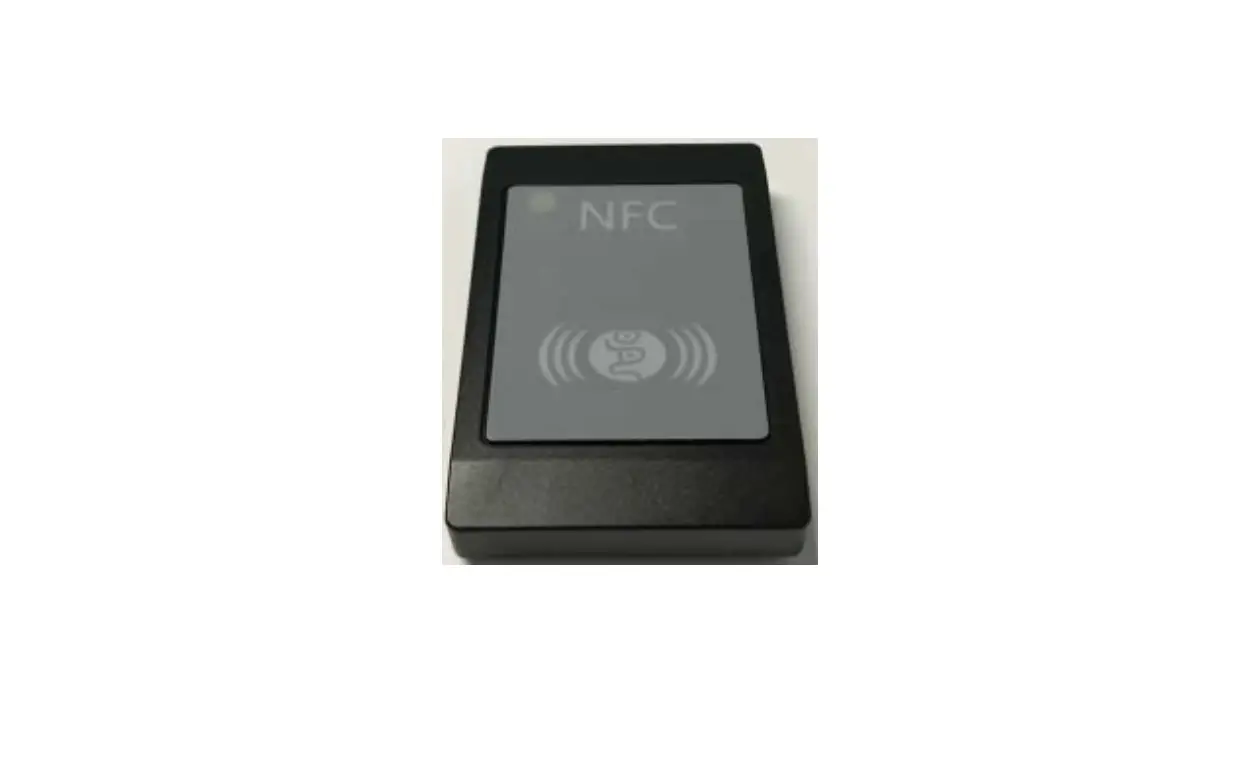
EHUOYAN ER719 NFC Reader Writer User Manual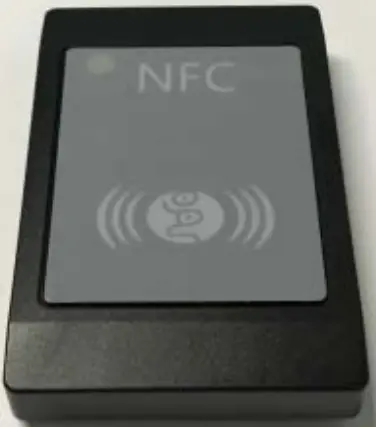
| Ordering Information | |
| Model No. | ER719 |
| Name | NFC Reader Writer |
| Interface | VCP(HID, RS232,RS485 optional) |
| Phone | 86-010-80218328 |
| [email protected] | |
| Web | http://www.ehuoyan.com/ |
Overview
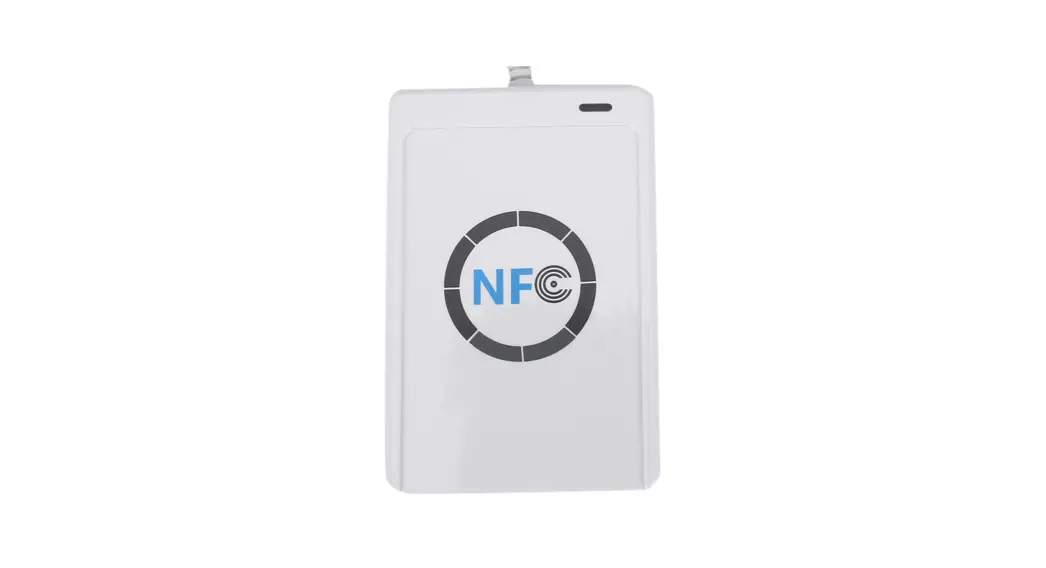
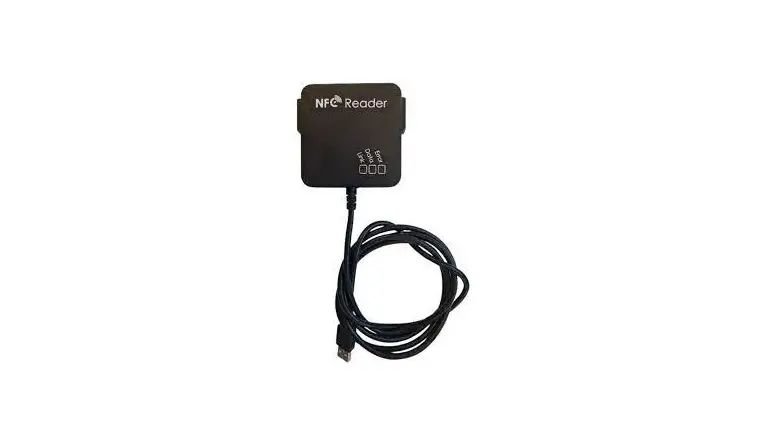
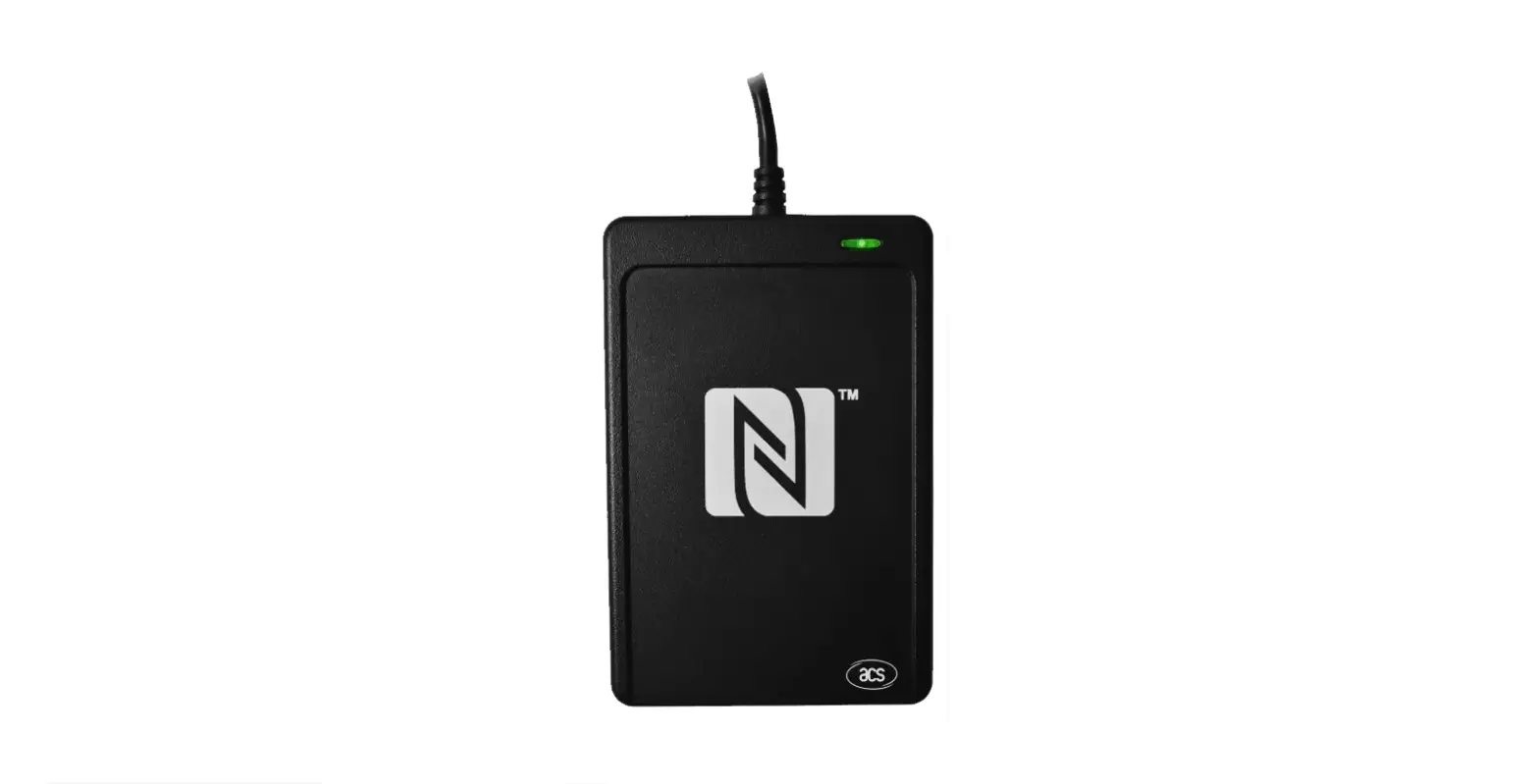
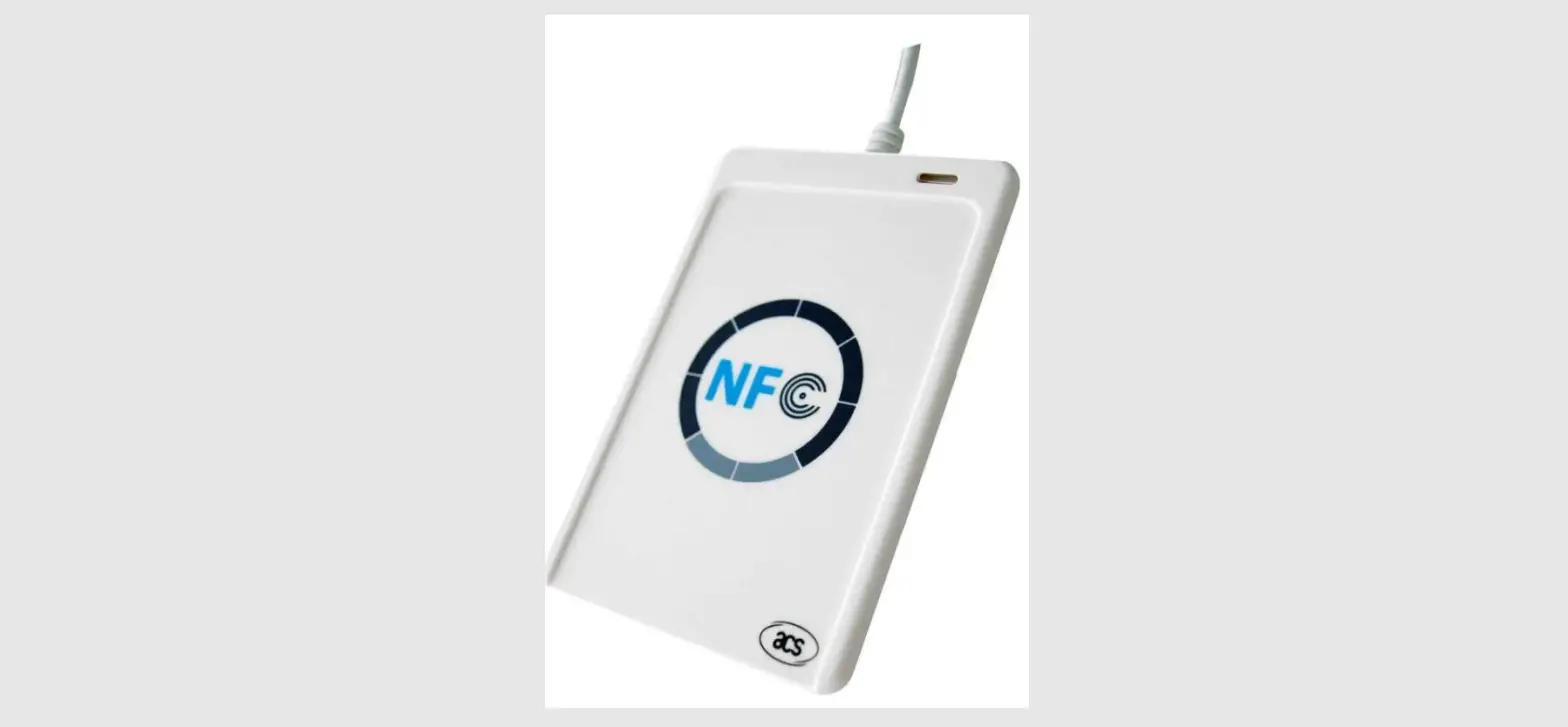
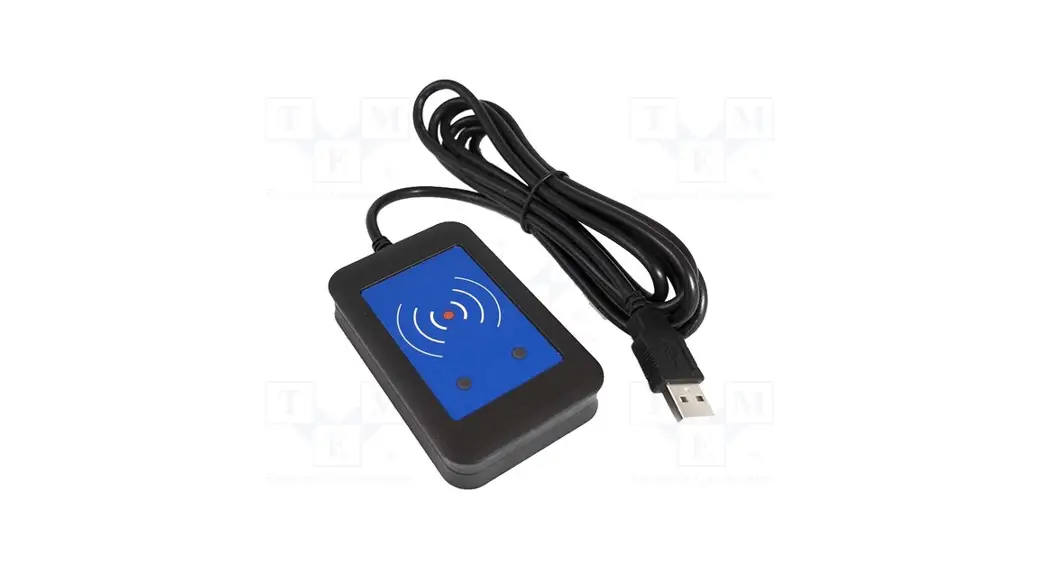
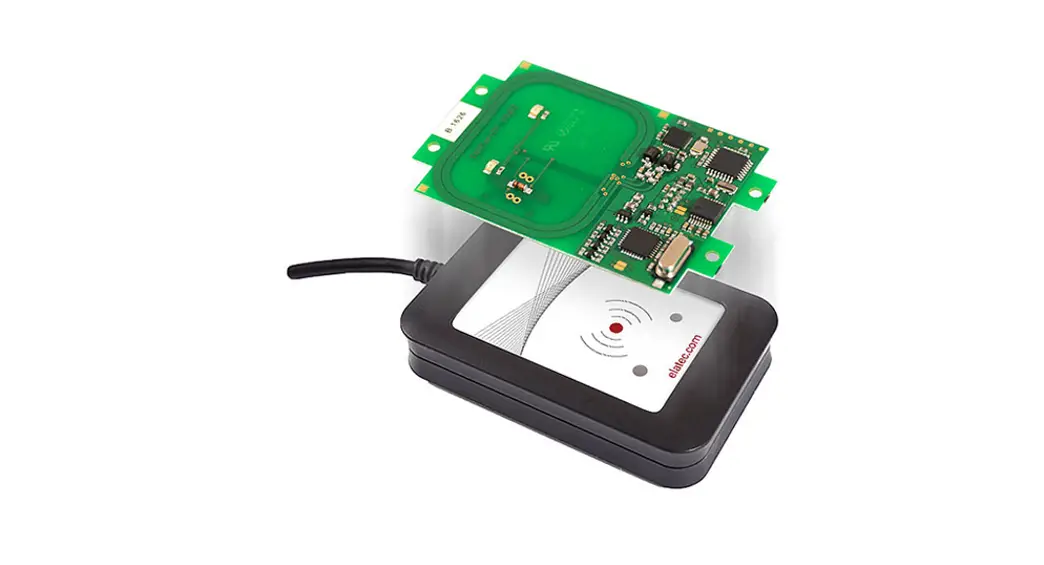
The ER719 NFC Writer is a PC-linked contactless smart card reader/writer
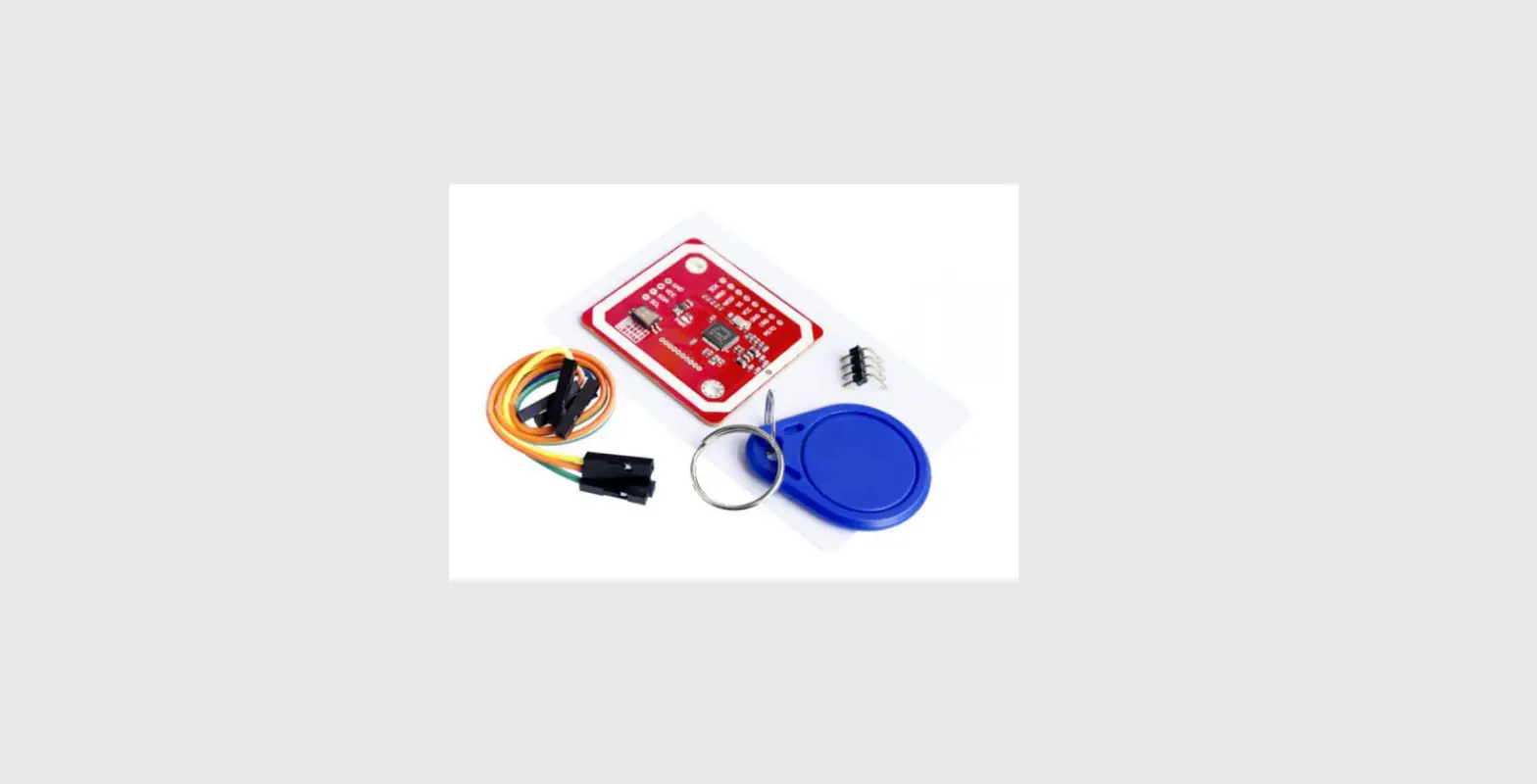
developed based on the 13.56 MHz Contactless (RFID) Technology. It supports MIFARE®1k, MIFARE®4k, MIFARE Ultralight®, NTAG213, NTAG216 and ISO 14443A compatible cards.
ER719 use USB port to act as a virtual COM port. The proximity operating distance of ER719 is up to 5cm, depending on the type of contactless tag in use.
The ER719 is ideal for secure personal identity verification, access control, e-payment, e-ticketing for events and mass transit, toll road fare collection and network authentication.
Special Features
- Support card: MIFARE®1k, MIFARE®4k, MIFARE Ultralight®, NTAG213
- RF Frequency: 13.56 MHz.
- Typical time of command:<100ms
- Operating distance: up to 5cm
- Communications Interface: USB(VCP default,HID/ RS232/RS485 Optional)
- Dual LEDs indicator (software controlled)
- Buzzer alarm (software controlled)
- Mechanic characteristics:
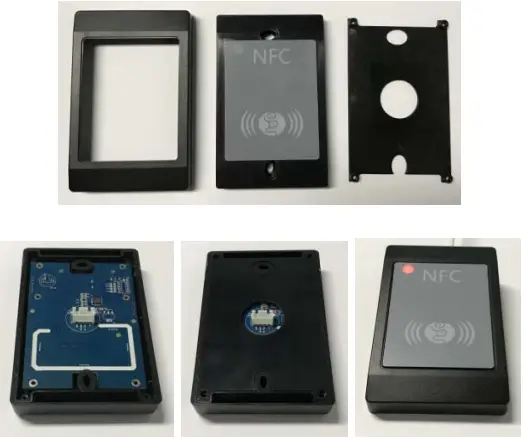
- Size: 114 ×74× 16 (mm)
- Cable length: 1.5m(Optional)
- Weight: 70g (not include cable)
Technical Specifications
| Dimensions | 114 mm (L) x 74 mm (W) x 16 mm (H) |
| Weight | 70 g |
| Cable length | 1.5m(optional) |
| Color | Black( White optional) |
| Interface | USB (VCP default, HID/RS232/RS485 Optional) |
| Baud rate | 115200 bps (default, 9600-115200bps optional) |
| Operating Distance | Up to 5cm (depends on the tag type and size) |
| Supply Voltage | 5V DC defalut (up to 14V optional) |
| Supply Current | 45mA (operating); 25mA (close port); 120mA (maximum) |
| Operating Temperature | -10~50 °C |
| Storage Temperature | -20~70 °C |
| Operating Frequency | 13.56 MHz |
| RF Speed | 212 kbps |
| Smart Card Supported | MIFARE®1k, MIFARE®4k, MIFARE Ultralight®, NTAG213 |
| Operating System | Windows, Linux, Android |
Typical Applications
- E-Payment
- E-Healthcare
- E-Game
- E-Government
- E-Ticketing
- Access Control
- Network Login
- Transportation
- Loyalty Program
How to use
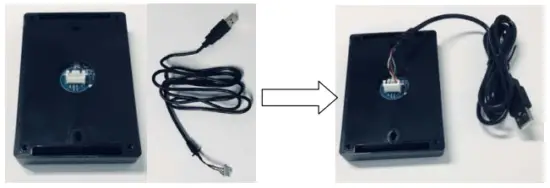
Step1:
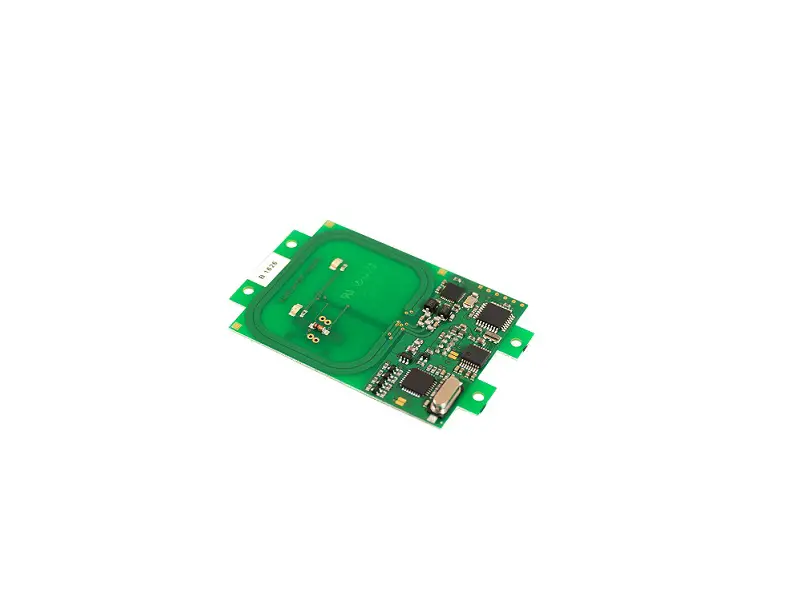
Connect the cable to the ER719 connector J1(shown on above).
Step2:
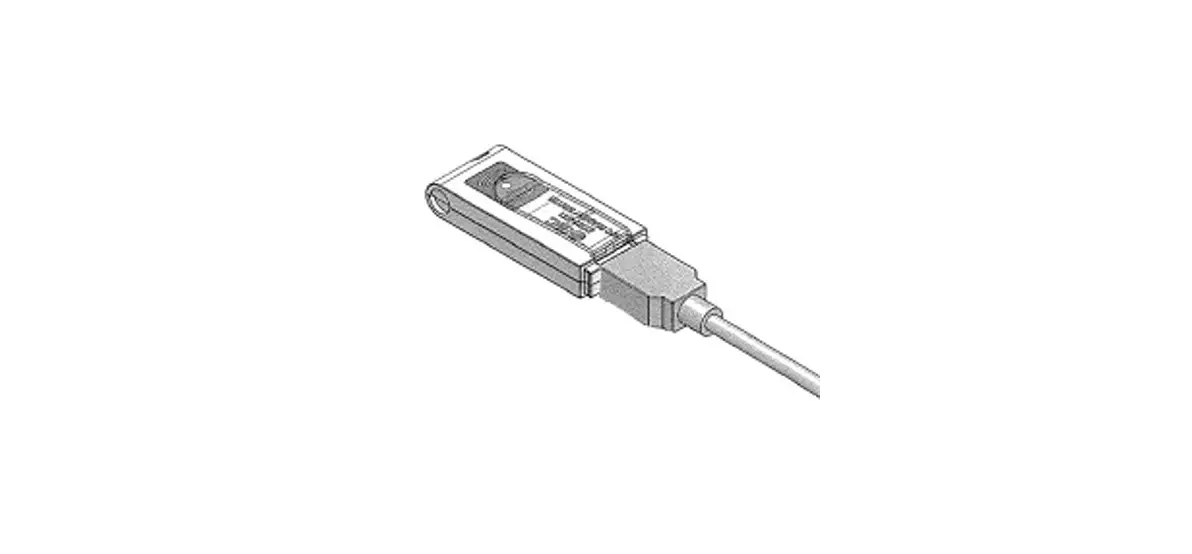
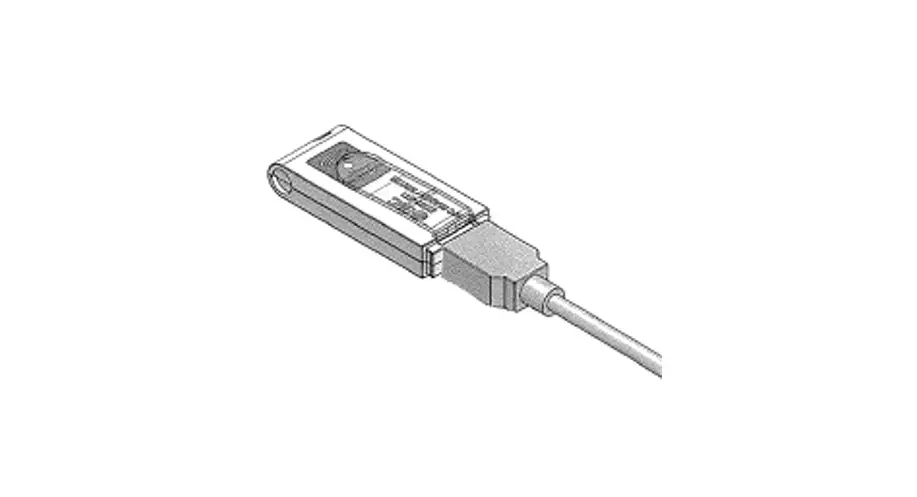
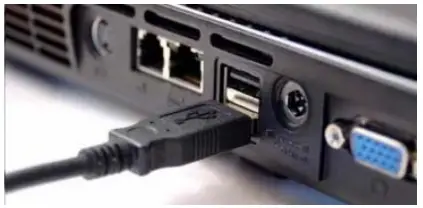
Connect the USB connector to PC( or other smart host device, if RS232 or RS485 interface please reference your host’s connector) USB port( if you use a smart pad or phone, then you may need to use an OTG converter for it) . Shown as below.
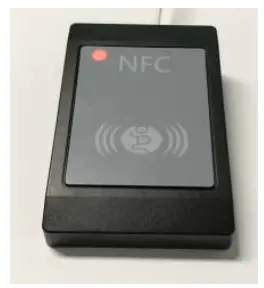
After power on the blue led will flash one time, then the buzzer will beep one time, at last the red led will light on, this means that the device is ready now.
Step3:
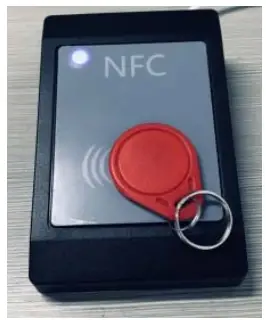
Now, you can run the program to send commands to the ER719 (if works on reader mode then you can open a text file to receive the data for test). You can run the eReader.exe or else App(base on the ER719 API) to communicate with the ER719.
On writer mode, you can send commands to control the ER719 to read or write data with the NFC(RFID) cards and control the LEDs and beep.
How to install USB driver?
If works on USB interface then the host will install the USB driver itself, just step into the tips on the OS. If works on optional RS232 or RS485 interface then it needs no driver to be installed.
If the VCP USB works on windows OS and can not find a USB driver for it, then you can open the folder “USB_Driver_Windows”, then you will find two installer programs shown as below.
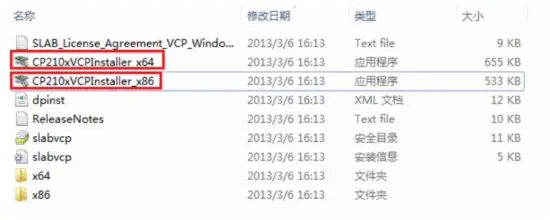
If the user’s OS is windows 32 bits, then click “CP210xVCPInstaller_x86.exe” to install the driver, else if 64 bits, then click “CP210xVCPInstaller_x64.exe” to install the USB driver.
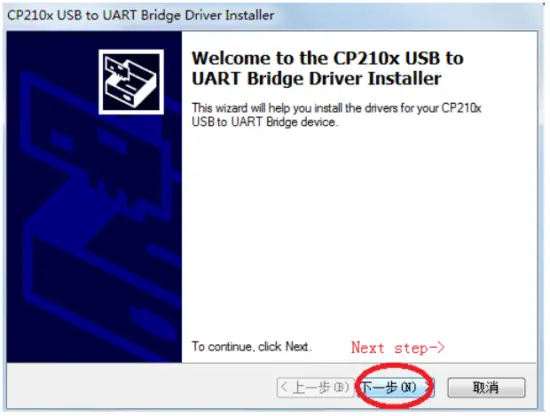
On the next picture, please click “next step”.
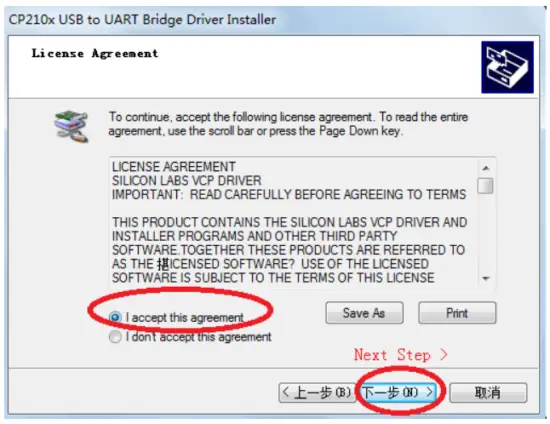
On the next picture, select “I accept this agreement”, next click “next step”.
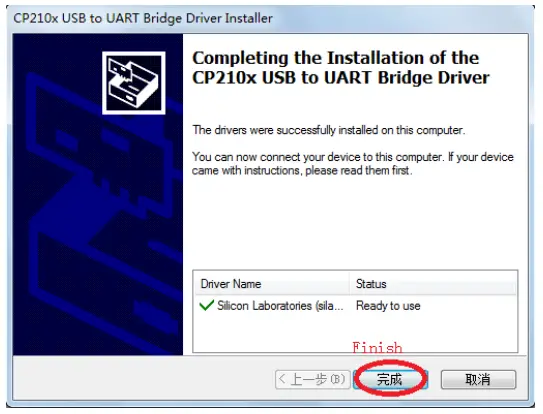
On the next picture, click “Finish”, then the USB driver install fully.
How to find out which communications port the operating system has assigned to the USB driver?
Windows XP—
The path is:
Start=>Control Panel=>System(you might need to set your Control Panel to ‘Classic View’)=>Hardware=>Device Manager=>Ports(COM & LPT)
Windows 7 and above versions—
The path is:
Start=>Control Panel=>Device Manager(you might need to set your Control Panel to ‘Classic View’)=>Ports(COM & LPT)
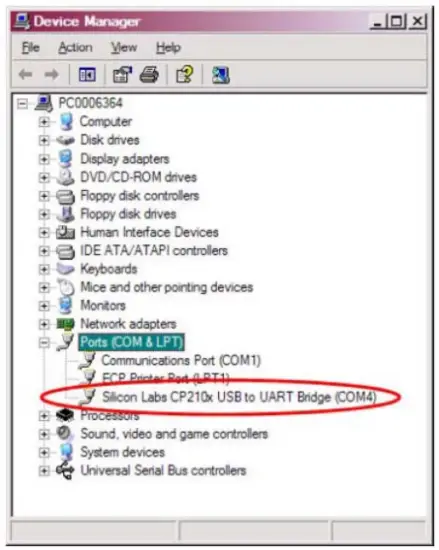
Note: If the COMX exceed COM10, please change it between 1 to 8, for example, it shows COM12, then you can change it into COM3.
Troubleshooting
| No. | fault | solution |
| 1 | No sound when power on | If the red led is not light, plug the USB again or plug it into another USB port or supply correct power for it. |
| 2 | Red led not light when power on | Same with above. |
| 3 | Beep all the time when power on | Reconnect or repower it. |
| 4 | Can not read the card | No card on the ER719 antenna area or the card maybe bad or it is not a supported card. |
| 5 | Can read card SN, but can not read or write the blocks | You have not the right authenticated keys. |
Contact Information:
Ehuoyan Technology Co., Ltd.
Tel: +86 -010-80128328
Email: [email protected]
Web Site: www.ehuoyan.com
FCC STATEMENT
This device complies with Part 15 of the FCC Rules. Operation is subject to the following two conditions:
- This device may not cause harmful interference, and
- This device must accept any interference received, including interference that may cause undesired operation.
Warning: Changes or modifications not expressly approved by the party responsible for compliance could void the user’s authority to operate the equipment.
NOTE: This equipment has been tested and found to comply with the limits for a Class B digital device, pursuant to Part 15 of the FCC Rules. These limits are designed to provide reasonable protection against harmful interference in a residential installation. This equipment generates uses and can radiate radio frequency energy and, if not installed and used in accordance with the instructions, may cause harmful interference to radio communications. However, there is no guarantee that interference will not occur in a particular installation. If this equipment does cause harmful interference to radio or television reception, which can be determined by turning the equipment off and on, the user is encouraged to try to correct the interference by one or more of the following measures:
- Reorient or relocate the receiving antenna.
- Increase the separation between the equipment and receiver.
- Connect the equipment into an outlet on a circuit different from that to which the receiver is connected.
- Consult the dealer or an experienced radio/TV technician for help.
FCC Radiation Exposure Statement:
This equipment complies with FCC radiation exposure limits set forth for an uncontrolled environment. This equipment should be installed and operated with minimum distance 20cm between the radiator & your body.
 Ehuoyan,Focused on RFID & NFC Technology From 2008