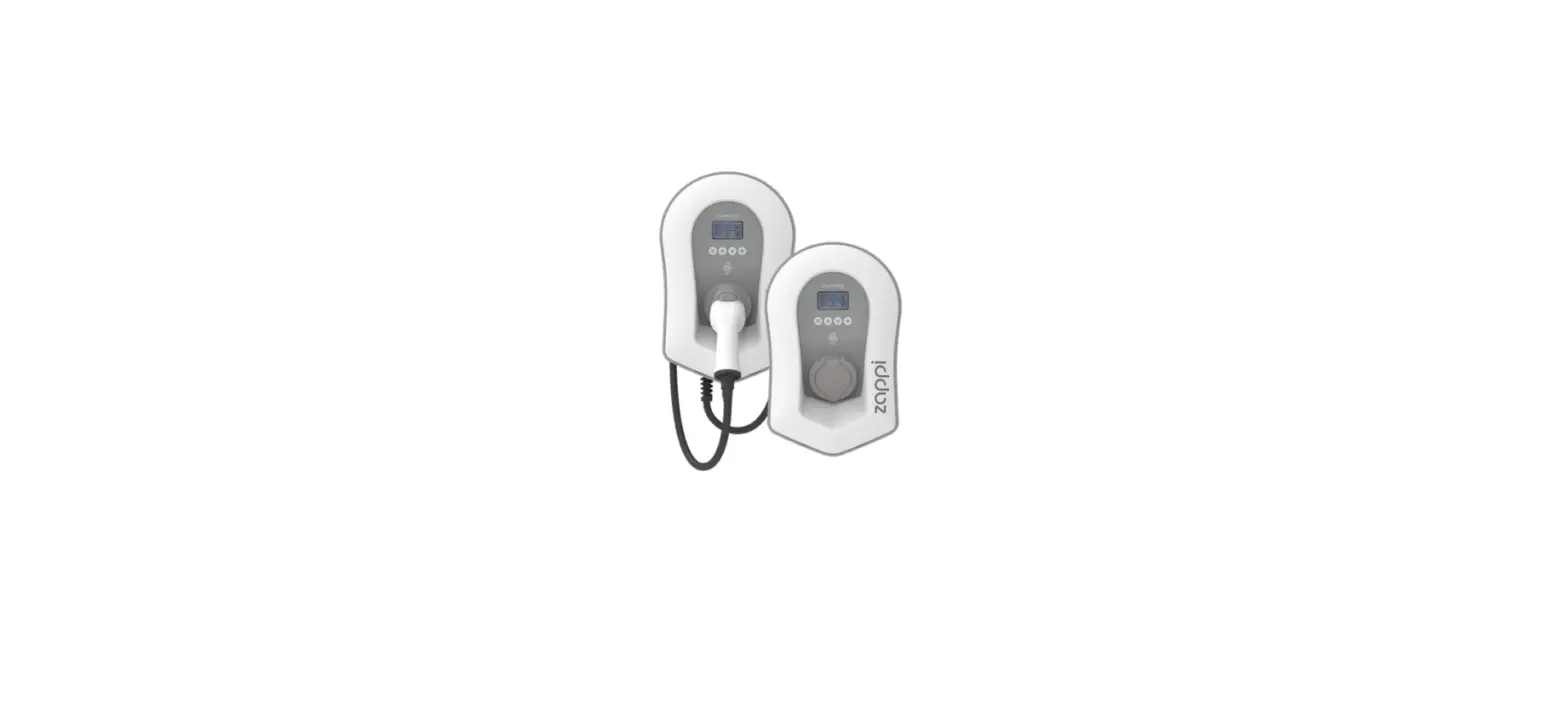
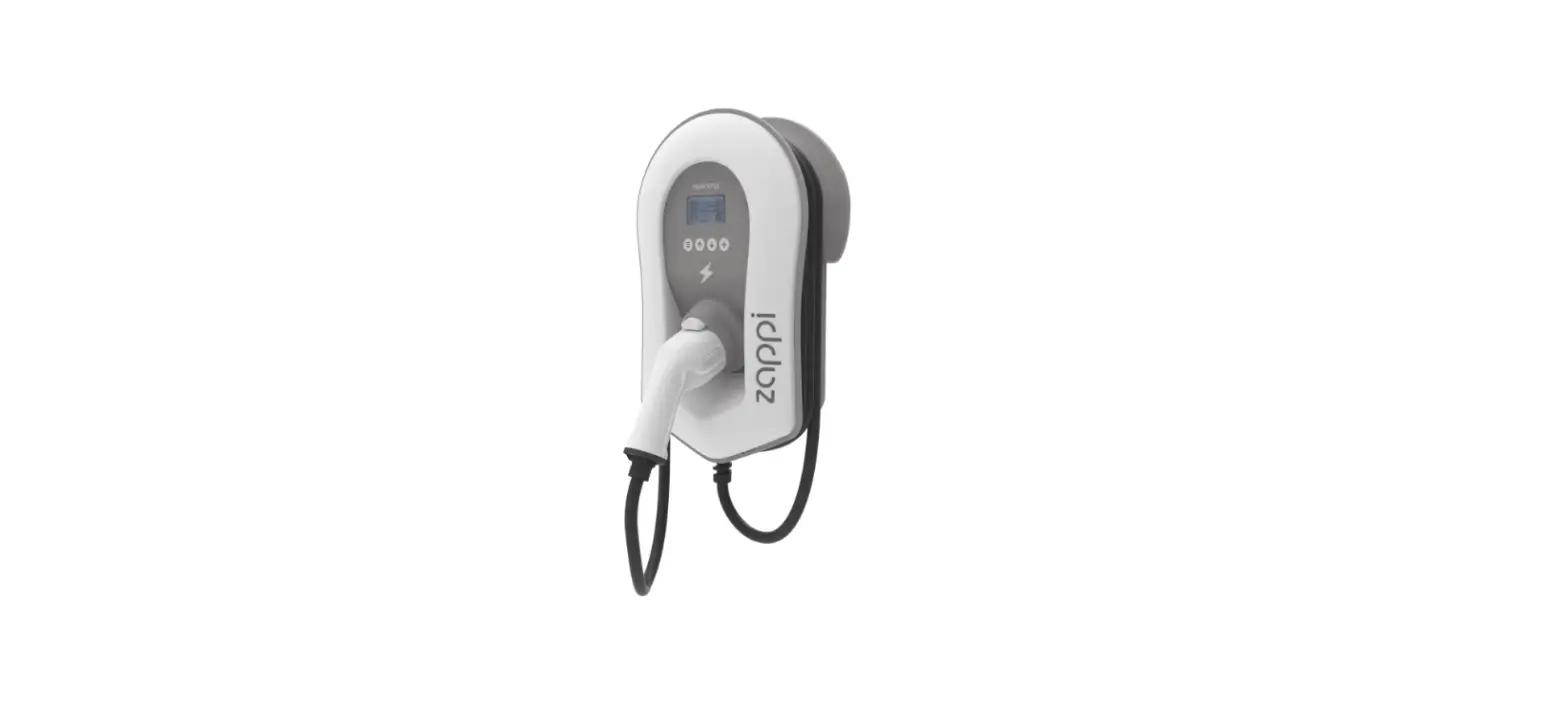
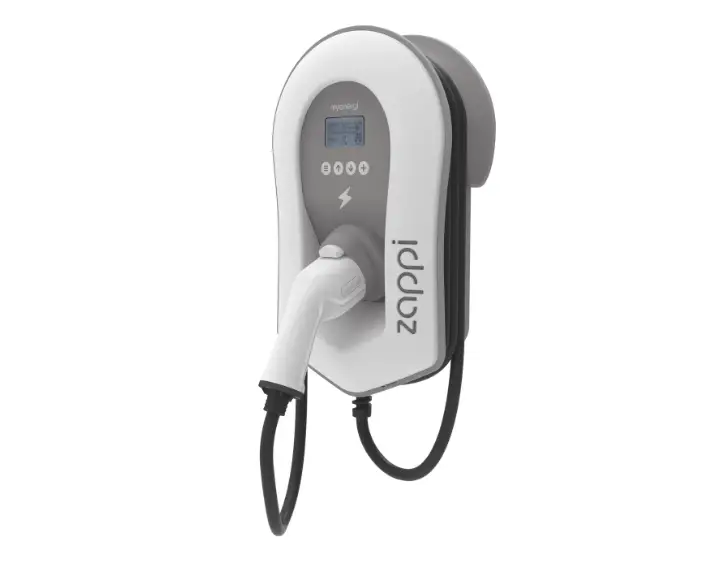
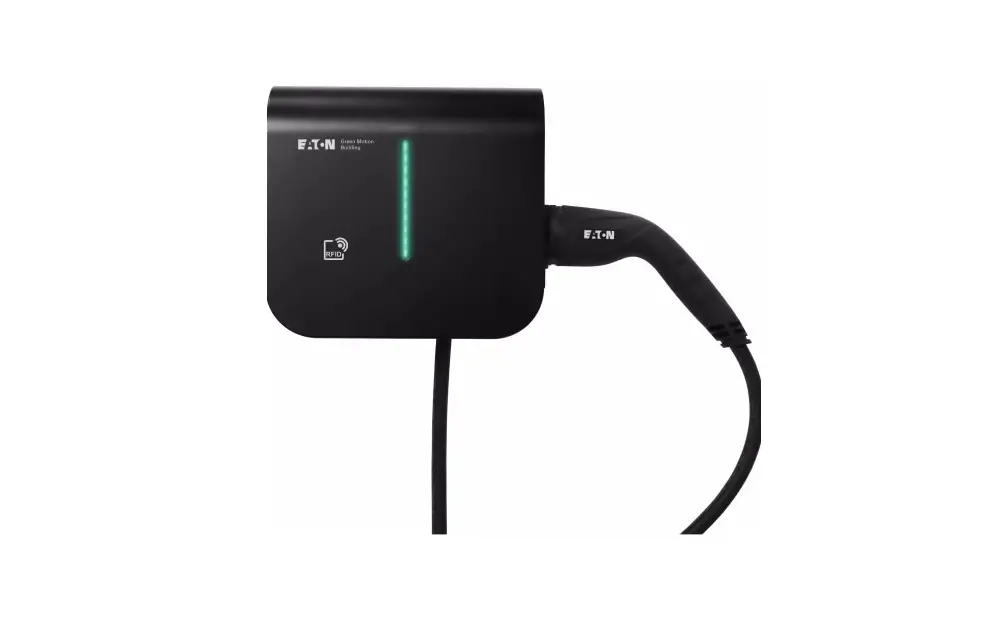
GLB-SMART EV Charger
GARO GLB-SMART Quick Start User Guide
GARO Electric Limited Unit 19/307 Northwest Business Park,
Ballycoolin, Dublin D15AV81
Phone: +353 (0) 1 866 5360
Email: [email protected]
Website: garoelectric.com
Product Information
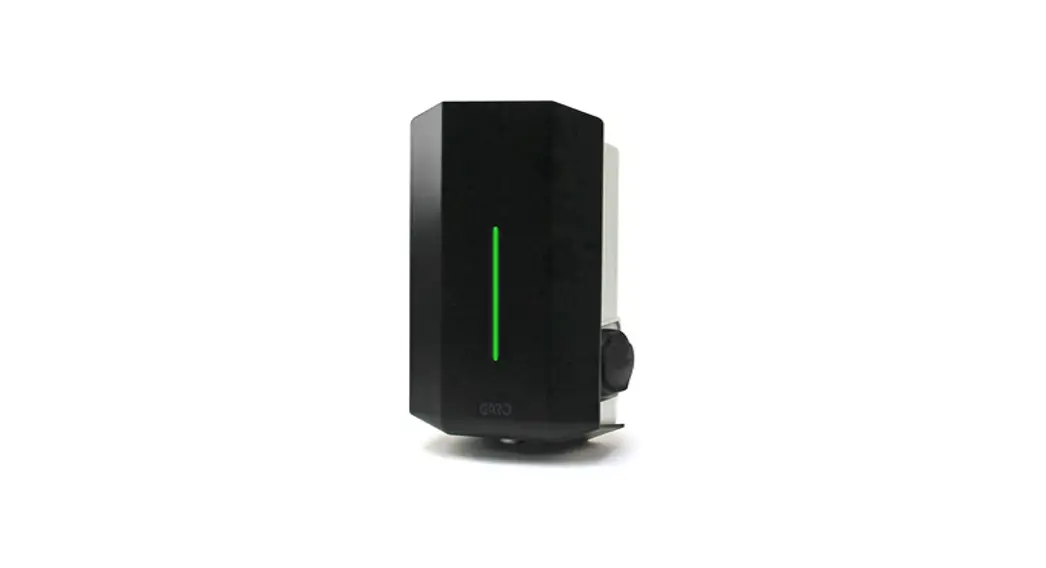
The GARO GLB-SMART is an electric vehicle charging station that
features metering, WiFi/LAN, and a web application. This product
allows for optimized charging sessions in terms of cost, energy
efficiency, and sustainability. It is assumed that the GLB-SMART
has been connected to the home router or phone as per the
installation manual.
Product Usage Instructions
Viewing your Chargepoint Main Screen
- Click to set time
- Double-click the GARO logo for extended information
- Wallbox status
- Dropdown list*:
Scheduling Charging
Energy providers may offer reduced tariffs for EV charging. To
set the GLB-SMART to charge at specific time periods:- Available for charging means that the GLB Wallbox is
activated. - Not available for charging means that the GLB Wallbox is
deactivated. - Schedule means that you can set periods when the GLB Wallboxes
should be activated. Enter your times for charging and click
book.
You can also select periods of low charging rate. During this
time period, you can choose a different power output from the
charger to reduce costs at peak times. From the Charge Current
Settings tab, select a charging rate, time period, and click
Add.- Available for charging means that the GLB Wallbox is
Connecting GLB-SMART to your Phone or Network
- Access the point password – more information shows wifi
module’s MAC address. - Field for own password.
- Enable internet hotspot (only visible for LAN connected
wallbox). - Connect GLB Wallbox to local WiFi network.
- Access the point password – more information shows wifi
General Information
- Connect wallbox to local WiFi network. Choose “Connected to
router” in the dropdown list. - Click “scan for WiFi networks”. Click wanted network, type in
password, and click save. - Save
- Connect wallbox to local WiFi network. Choose “Connected to
Garo WebApp
Enter http://chargebox.webel.se/ to access the Garo WebApp.
GARO GLB-SMART Quick Start User Guide
GARO Electric Limited Unit 19/307 Northwest Business Park, Ballycoolin, Dublin D15AV81 Phone: +353 (0) 1 866 5360 [email protected] garoelectric.com
GARO GLB-SMART Quick Start User Guide Garo GLB-SMART features Metering, Wifi/LAN and a WebApp to allow you to optimise your charging sessions from a cost, energy efficiency and sustainability point of view. The following guide assumes your GLB-SMART has been connected to your home Router or Phone as per the installation manual (Steps are repeated at the end of this guide).
1) Viewing your Chargepoint Main Screen
A. Click to set time B. Double Click GARO logo for extended information C. Wallbox Status D. Dropdown List*:
·Available for charging ·Not available for charging ·Schedule E. Details of Load Balancing
1
2) Scheduling Charging Energy Providers can offer reduced tariffs for EV Charging. To set your GLB-SMART to Charge at specific time periods follow step C below.
A. Available for charging means that the GLB Wallbox is activated. B. Not available for charging means that the GLB Wallbox is deactivated. C. Schedule means that you can set periods when the GLB Wallboxes should be activated. Enter your times for charging and click book.
You can also select periods of low Charging rate. During this time period you can choose a different power output from the Charger (to reduce costs at peak times). From the Charge Current Settings tab select a Charging rate, time period and click Add.
2
3) Viewing Your Energy Analysis Select “Energy” from the bottom of Home menu. Your current month’s kWh usage will be displayed. You can also: ·select any historical month ·export to PDF ·add a unit of electricity cost to work out the monetary cost of charging
3
4) Load Balancing From External Meter Your Garo GLB-SMART can connect to an external Meter (Garo GNM100-RS485) to manage the amount of power used in your home and safely distribute it between the Charger and appliances. The appliances in the home are given priority. Should their consumption climb to a threshold which could exceed the main fuse if full EV Charging is present, the GLB-SMART will reduce its charging rate until the appliances power has reduced. You can view the status of the Load Balancing System by selecting the LoadBalancing Meter as shown below.
4
Connecting GLB-SMART to your Phone or Network General information GLB Wallbox Conditions ·Installed wifi module ·Electrified wallbox Note: Please wait up to 3 minutes before the wifi module is ready after power on. The wifi module is set to “Accesspoint” as default and in this mode you should search after the wallbox SSID in your device. SSID and password are written on the label inside the black front on the GLB. You can connect the wifi module to a local network via wifi or LAN (ethernet port). In this mode, your device need to be connected to same network to have access to the web interface. Connect device to GLB Wallbox access point 1. Search for the GLB Wallbox SSID and press connect. Type in the password located on the wallbox label. The label is located inside the black front on the GLB. 2. Open a web browers. If the web interface does not appear, type in “172.24.1” in the address field.
5
Connecting GLB-SMART to your Phone or Network
A. Dropdown List: ·Local accesspoint (default) ·Connect to router ·Wifi diabled (only visible for LAN connected wallbox)
B. Accesspoint password – more information shows wifi modules MAC address.
C. Field for own password.
D. Enable internet hotspot (only visible for LAN connected wallbox)
Connect GLB Wallbox to local wifi network
General information
Make sure that your local network uses a secure firewall to avoid unwanted access to the wallbox from the internet. Only 2.4GHz wifi network are supported. 5GHz wifi network is not supported. Firewall/router must handle outgoing request to: *8.8.8.8 via ICMP(ping) *85.11.39.104 (www.webel-online.se) via ICMP(ping), TCP port 80 and TCP port 443 Make sure your router/firewall does not block this traffic. WPA/WPA2 encryption is supported. WPA2 Enterprise is not supported. Local wifi network must have a password. The wallbox can not connect to an open wifi network that does not request a password.
A. Connect wallbox to local wifi network. Choose `Connected to router’ in the dropdown list. B. Click scan for wifi networks. Click wanted network, type in password and click save. C. Save
Enter http://chargebox.webel.se/ to access the Garo WebApp
6