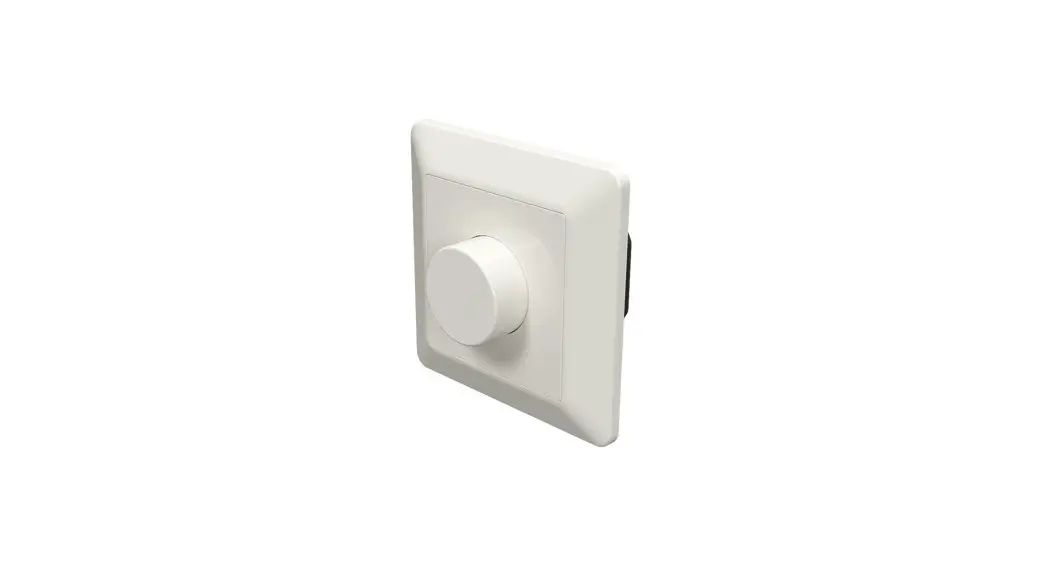
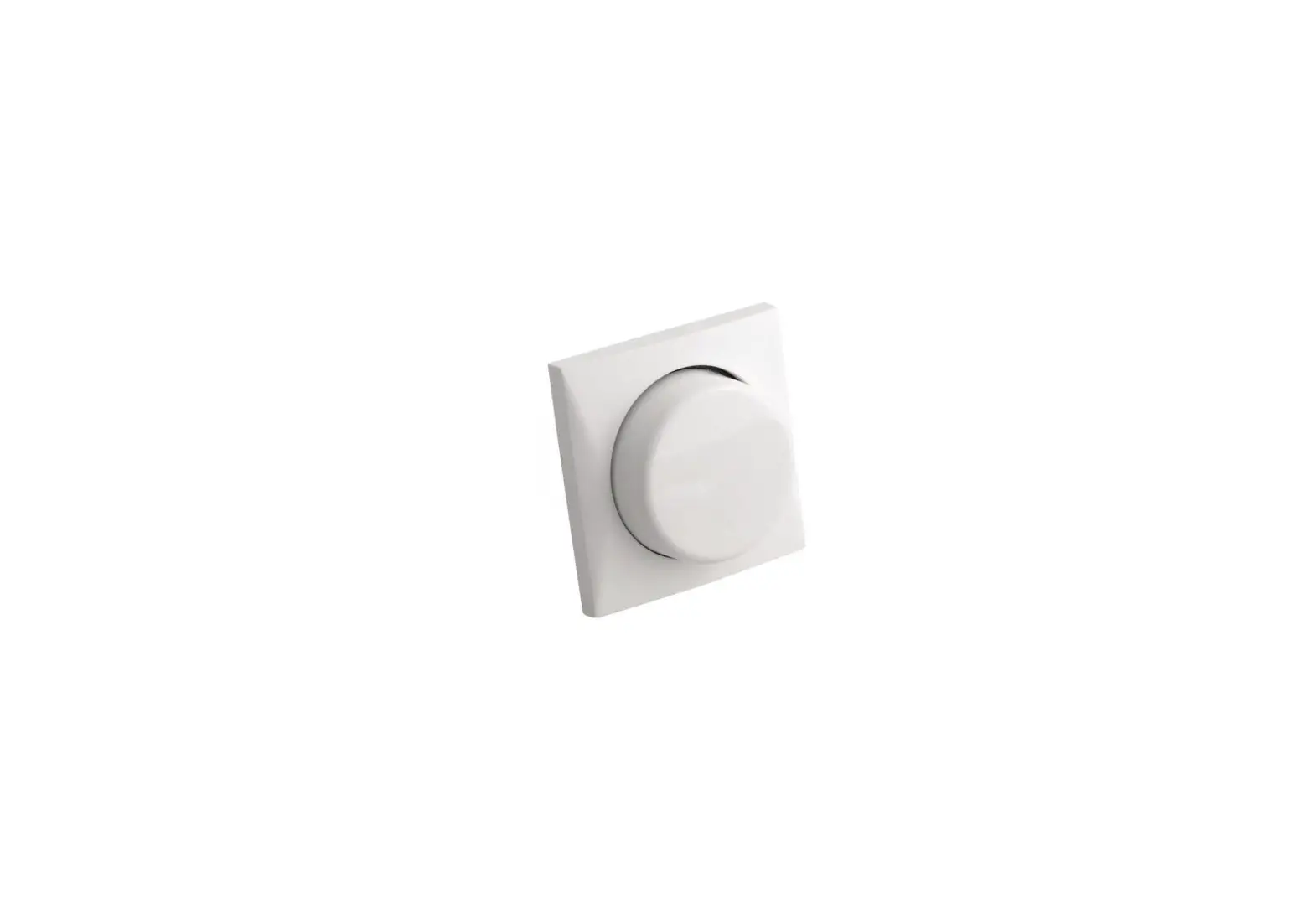
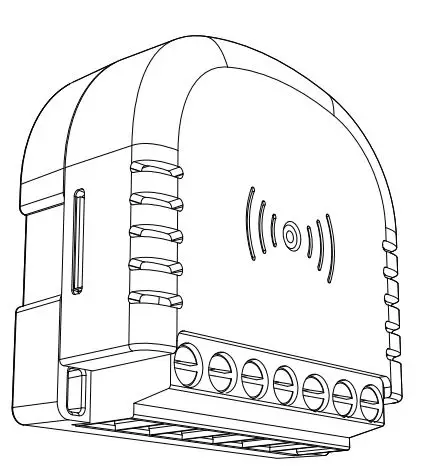
14 444 49 ZM Dimmer
HEATIT ZM DIMMER
Product Information
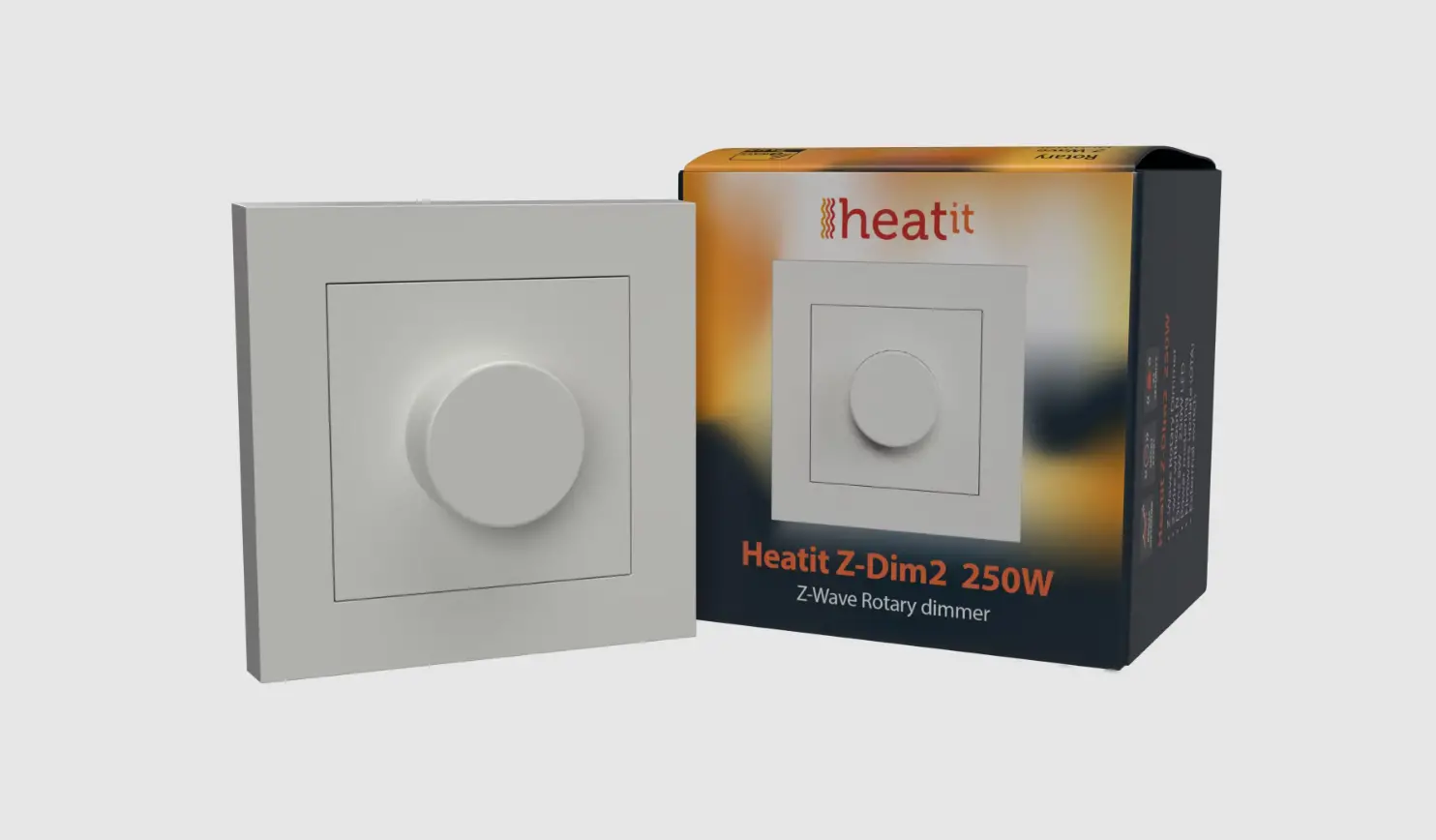
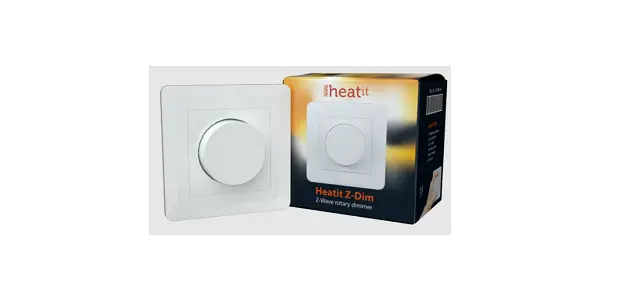
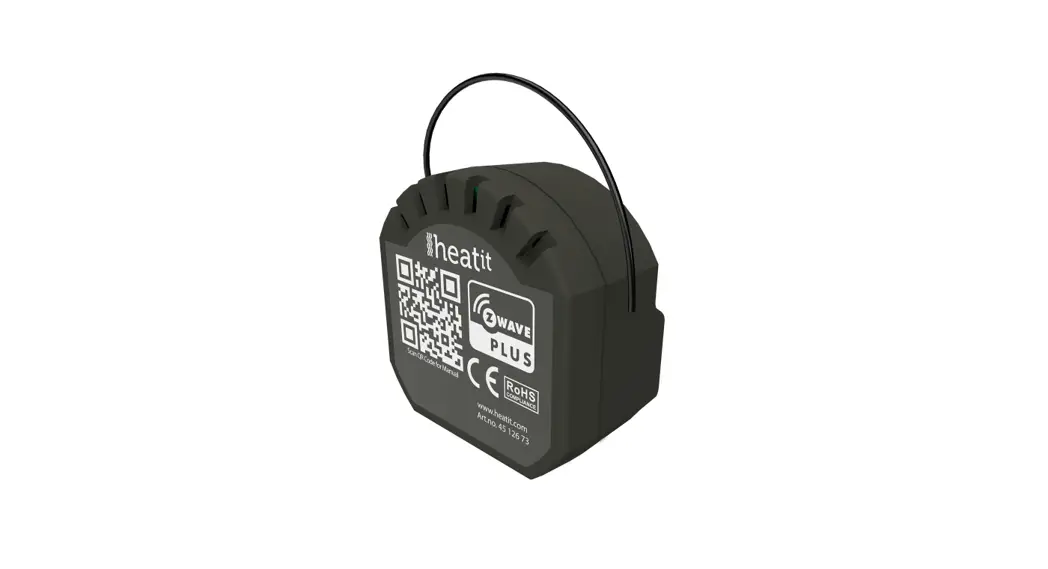
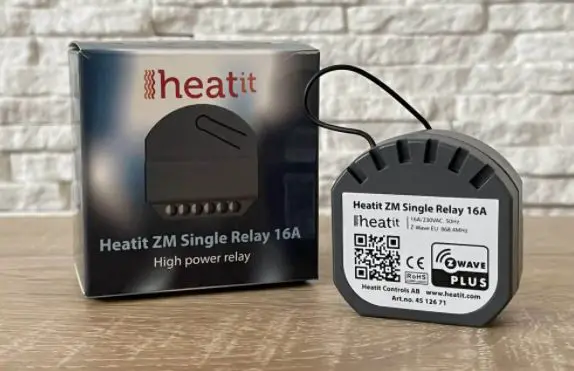
The Heatit ZM Dimmer is an inwall dimmer designed for
installation in European electrical wall boxes. It allows users to
control light sources from the Z-Wave network and/or an external
switch. The dimmer works well with most low loads of both LEDs and
other light fixtures without causing flickering. However, when
connecting low loads, it is recommended to use a bypass. The Heatit
ZM Dimmer has active power metering and provides real-time
information about power consumption. It can be connected to two
external switches that can be used to control the lights,
associated devices, and scenes.
Note: Dimming may be challenging, and it is recommended to check
the compatibility of different light sources before
installation.
Product Usage Instructions
- Switch off the mains voltage (turn off the fuse).
- Open the junction box.
- Connect according to the wiring diagram as shown in chapter 6
Installation & wiring. - After verifying the connections, switch on the mains
voltage. - Set the primary controller in add mode
(security/non-security). - Press the reset button on dimmer 3 times in a rapid sequence.
The Heatit ZM Dimmer is now included in your Z-Wave network.
Note: Installation must be done by a qualified electrician in
accordance with national building codes. Before installation,
disconnect the power to the device from the mains. During
installation of the device, power to the device must be
disconnected at all times! The dimmer can be used in a 2 and 3-wire
mode. In 2-wire mode, neutral can only be connected to the load and
not the dimmer itself. The dimmer automatically detects if it is
connected in 2 or 3-wire mode.
External Switch
Momentary Switch (NO): When using external switches, the switch
functionality can be selected using Parameter 6 and 7. The
connected switches must be normally open switches.
HEATIT ZM DIMMER
Installers manual
TO PRODUCT DOCUMENTS
Firmware version
FW 1.0
Article no.
14 444 49
Document version
2023-B
Document date
01.06.2023
Org. doc. date 01.02.2023
TABLE OF CONTENTS 1. Introduction 2. Statement regarding products from multiple
manufacturers 3. Behaviour within the Z-Wave network 4. Quick start 5. Illustrations 6. Installation guidelines 7. External switch 8. Add/remove
8.1 Standard (Manual) 8.2 SmartStart (Automatic) 9. Factory reset 10. Startup 11. LED blinking patterns description 12. QR-code placement (DSK) 13. Security 14. Node Information Frame 15. Associations 15.1 Setting and removing associations 16. Association groups 17. Configuration parameters 18. Autocalibration of maximum dim level 19. Manual calibration of minimum dim level 20. ON/OFF functionality 21. Overload protection 22. Command Classes 22.1 Basic Command Class 22.2 Multilevel Switch Command Class 22.3 Meter Command Class 22.4 Indicator Command Class 22.5 Central Scene Command Class 22.6 Notification Command Class 23. Supported Command Classes Product info
1. INTRODUCTION Heatit ZM Dimmer is an inwall dimmer for installation in European electrical wall boxes. The dimmer enables the user to control light sources from the Z-Wave network and/or an external switch.
The Heatit ZM Dimmer works on most low loads of both LEDs and other light fixtures without causing flickering. When connecting low loads it is recommended to use a bypass.
The dimmer may be connected to two external switches that can be used to control the lights, associated devices and scenes.
Heatit ZM Dimmer has active power metering and it gives you real time information about your power consumption.
NB! DIMMING Dimming may be challenging, and we recommend checking the compatibility of different light sources before installation. We are happy to answer any questions.
2. STATEMENT REGARDING PRODUCTS FROM MULTIPLE MANUFACTURERS Please read this before installation This device may be used with all devices certified with the Z-Wave PlusTM certificate and should be compatible with such devices produced by any manufacturer. Every primary controller is different depending on the manufacturer, their target audience and intended use/application. Please review the functionalities implemented by the primary controller you intend to use with our Z-Wave Plus certified device to ensure that it provides the necessary controls to take full advantage of our product’s capabilities.
3. BEHAVIOUR WITHIN THE Z-WAVE NETWORK This device may be operated within any Z-WaveTM network with Z-Wave-certified devices from other manufacturers. All non-battery-operated nodes within the network will act as repeaters regardless of manufacturer to increase the reliability of the network. On delivery, the device does not belong to any Z-Wave network. The device needs to be added to an existing network to communicate with the other devices within it. Devices may also be removed from a network. The add/ remove processes are initiated by the primary controller of the Z-Wave network.
4. QUICK START 1. Switch off the mains voltage (turn off the fuse). 2. Open the junction box. 3. Connect according to the wiring diagram as shown in
chapter 6 “Installation & wiring”. 4. After verifying the connections, switch on the mains voltage. 5. Set the primary controller in add mode
(security/non-security). 6. Press the reset button on dimmer 3 times in a rapid
sequence. The Heatit ZM Dimmer is now included in your Z-Wave network.
5. ILLUSTRATIONS
45mm
21mm
46mm
6. INSTALLATION GUIDELINES Installation must be done by a qualified electrician in accordance with national building codes. Before installation, disconnect the power to the device from the mains. During installation of the device, power to the device must be disconnected AT ALL TIMES!
Max tightening torque for terminal screws: 2Nm
NB! The dimmer can be used in a 2 and 3-wire mode. In 2-wire mode, neutral can only be connected to the load and not the dimmer itself. The dimmer automatically detects if it is connected in 2 or 3-wire mode.
1. Turn off the fuse. 2. Connect the Live to the dimmer terminal marked “L”.
Optional: Connect the Neutral to the dimmer terminal marked “N”. 3. Connect the load terminal marked “L” to the dimmer terminal marked 4. Connect the load terminal marked “N” directly to Neutral. 5. Install the dimmer in the junction box. Make sure that no wires are pinched.
S1: External momentary switch. Used for dimming the load Can be used as a scene controller.
S2: External momentary switch. Can be used for either dimming or scene controller.
Wiring diagram
2-wire LN
Switch 2 Switch 1 Last/Load
Reset button
3-wire LN
Switch 2 Switch 1 Last/Load
7. EXTERNAL SWITCH Momentary Switch (NO) When using external switches, the switch functionality can be selected using Parameter 6 and 7. The connected switches must be normally open switches.
8. ADD/REMOVE The primary controller/gateway has a mode for adding or removing devices. Please refer to your primary controller manual on how to set the primary controller in add/remove mode.
The device may only be added or removed from the network if the primary controller is in add/remove mode. When the device is removed from the network, it will NOT revert to factory settings.
An always listening node must be powered continuously and reside in a fixed position in the installation to secure the routing table. Adding the device within a 2 meters range from the gateway can minimize faults during the Interview process.
There are two ways to add the device to a Z-Wave network.
8.1 Standard (Manual) Add/remove mode is indicated on the device by a blinking green LED. It indicates this for 90 seconds until a timeout occurs, or until the module has been added to/removed from the network. Configuration mode can also be cancelled by performing the same procedure used for starting Configuration mode.
To start the configuration process, press the reset button 3 times in rapid succession. The LED will light up in solid green for 3 seconds if add/remove is successful. The device is now ready for use with default settings.
NB! When the device is removed from the gateway, the parameters are not reset. To reset the parameters, see “Factory reset”.
If inclusion fails, please perform a “remove device” process and try again. If inclusion fails again, please see “Factory reset”.
8.2 SmartStart (Automatic) SmartStart enabled products may be added to a Z-Wave network by scanning the Z-Wave QR-code on the product if your primary controller supports SmartStart inclusion. No further action is required and the SmartStart product will be added automatically after being powered on within range of the primary controller.
9. FACTORY RESET Please read this before installation Press and hold the reset button. After 3 seconds the LED will start to blink green. After 20 seconds the LED will start blinking green rapidly. You may now release the button. If reset was successful the LED will light up in solid green for 3 seconds.
Please use this procedure only when the network primary controller is missing or otherwise inoperable.
10. STARTUP After powering up the device for the first time, all the parameters will have default settings.
11. LED BLINKING PATTERNS DESCRIPTION The device supports numerous LED blinking patterns to make it as easy as possible to identify what the device is doing.
Device Not in Network
The LED will blink red when the device is not added to a Z-Wave network.
0s 0,5s 1s 2s 3s 4s 5s
Add/Remove
When device enters add/remove mode the LED will blink green.
Successful
If successful, the LED will light up in solid Unsuccessful
green for 3 seconds.
If unsuccessful, the LED will light up in
0s 0,5s 1s 2s 3s xs
x+3s
solid red for 3 seconds.
Factory Reset
If the button is held for more than 3 seconds, the GREEN LED will start blinking with 0.5s intervals. When the button has been held for 20 seconds, the GREEN LED will blink rapidly with 0.1s intervals for 3 seconds.
Figure 1 (success)
Within the 3 second period the button must be released. If the button is released within this period, the device will indicate that it has been successfully reset by lighting up in solid GREEN for 3 seconds. The device will then start blinking RED because it is not included in a gateway.
0s 0,5s 1s 2s 3s 4s 5s 19s 20s 0,5s 1s 1,5s 2s 2,5s 3s 1s 2s 3s
Figure 2 (fail)
If the button is released before the 3 seconds period, the device will indicate fail by turning RED LED on for 3 seconds.
Released @ x seconds
0s 0,5s 1s 2s 3s 4s 5s 3<x<20s
6<x+3<23s
Figure 3 (fail)
The button MUST be released between 20 and 23 seconds for local reset to take place. If held longer, the device will ignore the command.
0s 0,5s 1s 2s 3s 4s 5s 19s 20s 20,5s 21s 21,5s 22s 22,5s 23s 24s
12. QR-CODE PLACEMENT (DSK) The QR-code is needed when including a device using S2 security or SmartStart. The DSK can be found in the QR-code and is located; · On the product. · In the Quick Guide. · On the packaging box/gift box.
13. SECURITY S2 security enhances Z-Wave Plus with an additional layer of AES 128-bit encryption of the wireless Z-Wave communication to prevent hacking and man-in-middle attacks on the home network. This device supports S2 and has a Z-Wave DSK QRcode label that may be used when the module is added to the Z-Wave home network. The primary controller will ask for a 5-digit code, which can be found underneath the QR-code.
14. NODE INFORMATION FRAME The node information frame is the “business card” of a Z-Wave device. It contains information about the device type and its technical features. The add and remove procedure of the device is confirmed by sending out a node information frame. Besides this, it may be necessary for certain network operations to send out a node information frame.
15. ASSOCIATIONS Z-Wave devices interact with other Z-Wave devices. The relationship between one device controlling another device is called an association. In order to control a subordinate device, the controlling device needs to maintain a list of devices that will receive controlling commands. These lists are called “Association groups”. They are always related to the specific event triggered (e.g., sensor reports). In case the event is triggered, all devices stored in the respective association group will receive a joint wireless command.
15.1 Setting and Removing Associations Associations may be assigned and removed via Z-Wave commands. Please refer to your primary controller/Z-Wave gateway for more information.
16. ASSOCIATION GROUPS
MULTI LEVEL SWITCH DEVICE
Group 1 Lifeline
Group 2 Basic Set
Group 3 Switch Multilevel
DESCRIPTION
Lifeline. (Normally used by the Z-Wave Controller) Sends: – Switch Multilevel Report – Device Reset Notification – Indicator Report – Meter Report – Central Scene Notification – Configuration Report – Notification Report
Max nodes in group: 1 -Basic Set. Sends Basic Set commands representing the status of the dimmer when changed.
OFF/ON (0x00, 0xFF) 1-99% (0x01, 0x63)
Max nodes in group: 5 -Switch Multilevel When S1 or S2 is pressed/held/released and when changed from gateway or from an association.
Press: OFF/ON (0x00, 0xFF) Held: Multilevel Switch Start Level Change/Stop Level Change Command Level Increase Start / Level Increase Stop Level Decrease Start / Level Decrease Stop Released: Multilevel switch set (Synchronization of values)
Max nodes in group: 5
17. CONFIGURATION PARAMETERS Z-Wave products are supposed to work out of the box after inclusion. Some device configuration may, however, alter the functionality to better serve user needs or unlock further enhanced features. None of the parameters below feature altering capabilities, advanced or read only flags.
PARA NO# PARA SIZE (BYTE) MIN MAX DEFAULT
NAME
SHORT DESCRIPTION / COMMENT
DESCRIPTION OF VALUE
The state the dimmer
1
1
Power restore level
should return to once power is restored after a
power failure.
0
0
Off.
1
99 100 1% – 99%.
100 100
Returns to level before power outage (Default).
Defines the dimming level 0 2 1 Switch ON level when restored from the
0
Restores last dim level 0 (Default)
OFF state.
1 99
1% – 99%.
3
4
Automatic turn OFF
Time for the dimmer to turn off automatically after turning it on.
0 1
0 86400
0
Auto OFF disabled (Default).
Duration 1 – 86400 seconds.
4
4
Automatic turn ON
Time for the dimmer to turn on automatically after turning it off.
0
0
Auto ON disabled (Default).
1
86400
0
Duration 1 – 86400 seconds.
5
1
Turn off delay time
The time it takes before the dimmer turns off after turning it off.
0 1
0 60
Disabled (Default). 0 Duration
1 – 60 seconds.
6
1
S1 functionality
Decide the S1 switch functionality.
Single press and hold for
dimming.
0
0
Double press for 100%.
Triple press for inclusion. 0 (Default).
1
1
Scene controller.
2
2
Scene controller and Dimming
3
3
Disabled.
7
1
S2 functionality
Decide the S2 switch functionality.
Single press and hold for
dimming.
0
0
Double press for scene
controller.
1 Triple press for inclusion.
1
1
Scene controller functionality (Default).
2
2
Scene controller and Dimming
3
3
Disabled.
8
1
Dimming duration
Define how long it takes to dim when using the external switch..
0
0
Instantly.
1
100
50 1 – 100 = 0.1 – 10 sec. (Default 5 seconds).
9
1
Choose the dimmer curve
Choose if the dimmer uses Linear or Logarythmic dimming.
0 1
0 1
Linear dimming (Default). 0
Logarithmic dimming.
10
1
Load dimming mode
Choose the dimming type.
0 1
0 1
Trailing edge (Default). 0 Leading edge.
11
1
Maximum dim level
Highest dim level of the dimmer.
2
99
90
2% – 99%. (Default 90).
PARA NO# PARA SIZE (BYTE) MIN MAX DEFAULT
NAME
SHORT DESCRIPTION / COMMENT
12
1
Minimum dim level
Lowest dim level of the dimmer.
13
1
Meter report threshold
14
2
Meter report interval
Threshold for device to send meter report in W.
Time interval between consecutive meter reports in seconds.
15 1
ON/OFF Functionality
Decide if the connected load should only turn ON/ OFF and not dim
DESCRIPTION OF VALUE
1
98
15
1% – 98%. (Default 15).
0
0
Disabled.
10
1 250
1 – 250W (Default 10W).
30
65535
810
30 – 65535 sec. (Default 810 sec=13,5 min).
0
0
0
ON/OFF mode disabled.
0 (Default).
1
1
1 ON/OFF mode enabled.
18. AUTOCALIBRATION OF MAXIMUM DIM LEVEL The dimmer supports an autocalibration feature for the maximum dim level. Autocalibration will initiate if flimmer is detected. The Maximum dim level parameter (11) will be updated automatically upon completion of the autocalibration. The value will also be reported to the gateway.
19. MANUAL CALIBRATION OF MINIMUM DIM LEVEL The minimum dim level may be calibrated by using the “Min.” button on the device. To adjust the minimum level, hold down the “Min.” button. The lighting will start from the lowest level and increase the dim level slowly. Release the button when the desired minimum dim level is reached. The minimum dim will now be set on the dimmer. Minimum dim level parameter (12) will be updated automatically.
20.ON/OFF FUNCTIONALITY The dimmer has support for non-dimmable loads. To activate this feature, change parameter (15) “ON/OFF functionality” to 1. When this is active, the load can no longer be dimmed, but only turned ON and OFF. When using this functionality, we recommend using the dimmer in 3-wire mode. Some light fixtures might not be compatible with 2-wire mode.
21. OVERLOAD PROTECTION The dimmer supports an overload protection feature. When the connected load exceeds 250W, the dimmer will send a notification to the gateway using the Notification Command Class. (Not all gateways support this feature, so depending on the gateway you may or may not get a warning). The dimmer will continue to function normally until it reaches 300W. It will then turn off the load to protect itself.
22.COMMAND CLASSES Besides the mandatory command classes, the device has support for the following command classes:
22.1 Basic Command Class Basic Set commands are mapped to Multilevel Switch and are also used to control the dimming level and associated devices in group 2. Uses the following values: 0x00 = OFF 0xFF = ON 0x01…0x63 = 1% – 99%
22.2 Multilevel Switch Command Class Multilevel Switch commands are used to control the dimming level and associated devices in group 3. Uses the following values: 0x00 = OFF 0xFF = ON 0x01…0x63 = 1% – 99%
22.3 Meter Command Class The device supports Meter Command Class Get, and the device will only respond on supported electric meter scales: kWh (accumulated) and Watt (instant).
The device will report when asked:
Rate type:
Import (0x01)
Meter type:
Electric meter (0x01)
TYPE Electric Electric
SCALE kWh W
VALUE 0x01 0x02
SIZE PRECISION REPORT HYSTERESIS
4
1
810s, configurable
2
2
10W, configurable 810s, configurable
22.4 Indicator Command Class The device supports Indicator Command Class. The indicator Command Class will turn ON/OFF internal LED as wanted as well as turning the load ON/OFF.
22.5 Central Scene Command Class The device supports the Central Scene Command Class. This command class is used to perform actions chosen in the controller.
The following attributes are supported:
BUTTON
SCENE NUMBER
KEY ATTRIBUTE
DESCRIPTION
0x00
Pressed 1 time
0x01
Released (send only after button was held)
S1 (External switch 1) 1
0x02
Held down (send only when held for more than 500ms)
0x03
Pressed 2 times
0x04
Pressed 3 times
0x00
Pressed 1 time
0x01
Released (send only after button was held)
S2 (External switch 2) 2
0x02
Held down (send only when held for more than 500ms)
0x03
Pressed 2 times
0x04
Pressed 3 times
22.6 Notification Command Class The product features security features that announce any action using the Notification Command Class. The following commands are implemented:
NAME
VALUE
EVENT/ STATE
STATE VARIABLE
STATE VARIABLE AFTER
NOTIFICATION NAME
VALUE
Power management 0x08 State Overload status Idle
Overload detected 0x08
23. SUPPORTED COMMAND CLASSES The following table lists all Command Classes supported by the Z-Wave device. The device supports S0, S2 Authenticated security and S2 Unauthenticated security.
ASSOCIATION
Association Association Group Information Device Reset Locally Firmware Update MD Indicator Manufacturer Specific Multi Channel Association Power level Security Security 2 Supervision Transport Service Version Z-Wave Plus Information Application Status Basic Central Scene Configuration Meter Notification Switch Multilevel
VERSION
v2 v3 v1 v5 v3 v2 v3 v1 v1 v1 v1 v2 v3 v2 v1 v2 v3 v4 v5 v8 v4
INSECURE ON SECURE INCLUSION
Yes Yes Yes Yes Yes
SECURE ON SECURE INCLUSION
Yes Yes Yes Yes Yes Yes Yes Yes
Yes
Yes Yes Yes Yes Yes Yes Yes
PRODUCT INFO Heatit ZM Dimmer 250W
FEATURES · Z-Wave · Dimmer for inwall installations · 2 or 3-wire · 5W – 250W · LED, incandescent and halogen · SmartStart · Scene controller · Firmware update (OTA) · Power metering · Overload protection · Short circuit protection · Surge protection · Overheat protection · Two external switches · Min. dim level adjustable · Max. dim level auto-calibration · On/off functionality · Supports encryption mode S0, S2 Authenticated Class,
S2 Unauthenticated Class
The product must be used with a security-enabled Z-Wave controller in order to fully utilize security/encryption.
TECHNICAL DATA Protocol Chip Rated voltage Power Ambient temperature Storage temperature Humidity Range RF Screw terminals IP Code Size (DxWxH)
Z-Wave Plus, 868.4MHz Z-Wave 800 chip 230VAC 50Hz 5W – 250W 5°C to 40°C -30°C to 70°C 10% to 85% RH Min. 40 meters Max. 2.5mm2 2Nm IP20 46 x 45 x 21mm
Approvals
Z-Wave Plus v2, CE, Nemko
MAINTENANCE The device is maintenance-free. Indoor use only.
DISPOSAL GUIDELINES Do not dispose of electrical appliances as unsorted municipal waste, use separate collection facilities. Contact your local government for information regarding the collection systems available. If electrical appliances are disposed of in landfills or dumps, hazardous substances can leak into the groundwater and get into the food chain, damaging health and well-being.
We have designed this product in accordance with our strict quality requirements (ISO 9001) and environmental requirements (ISO 14001). All electrical installations must be carried out by an authorized electrical installer. The product must be installed in accordance with our installers manual and national building codes. Any wrongful installation, misuse or damage to the product is not covered under warranty.
Heatit Controls AB can not be held liable for any type of errors or omittances in our product information. Product specifications may change without further notice.
Heatit Controls AB · Läkarvägen 4, 454 31 BRASTAD, SWEDEN Phone: +47 61 18 77 77 · [email protected] · heatit.com