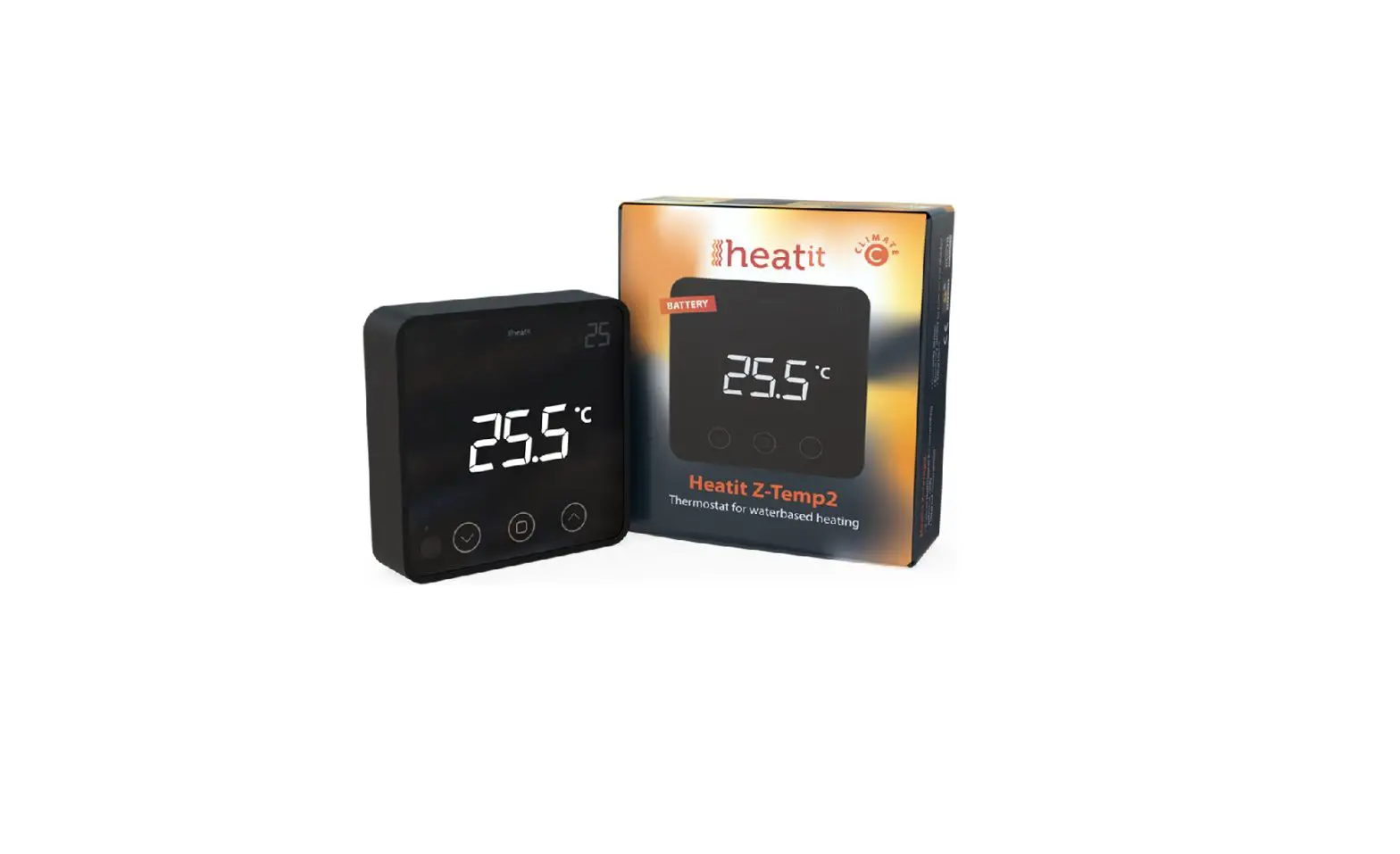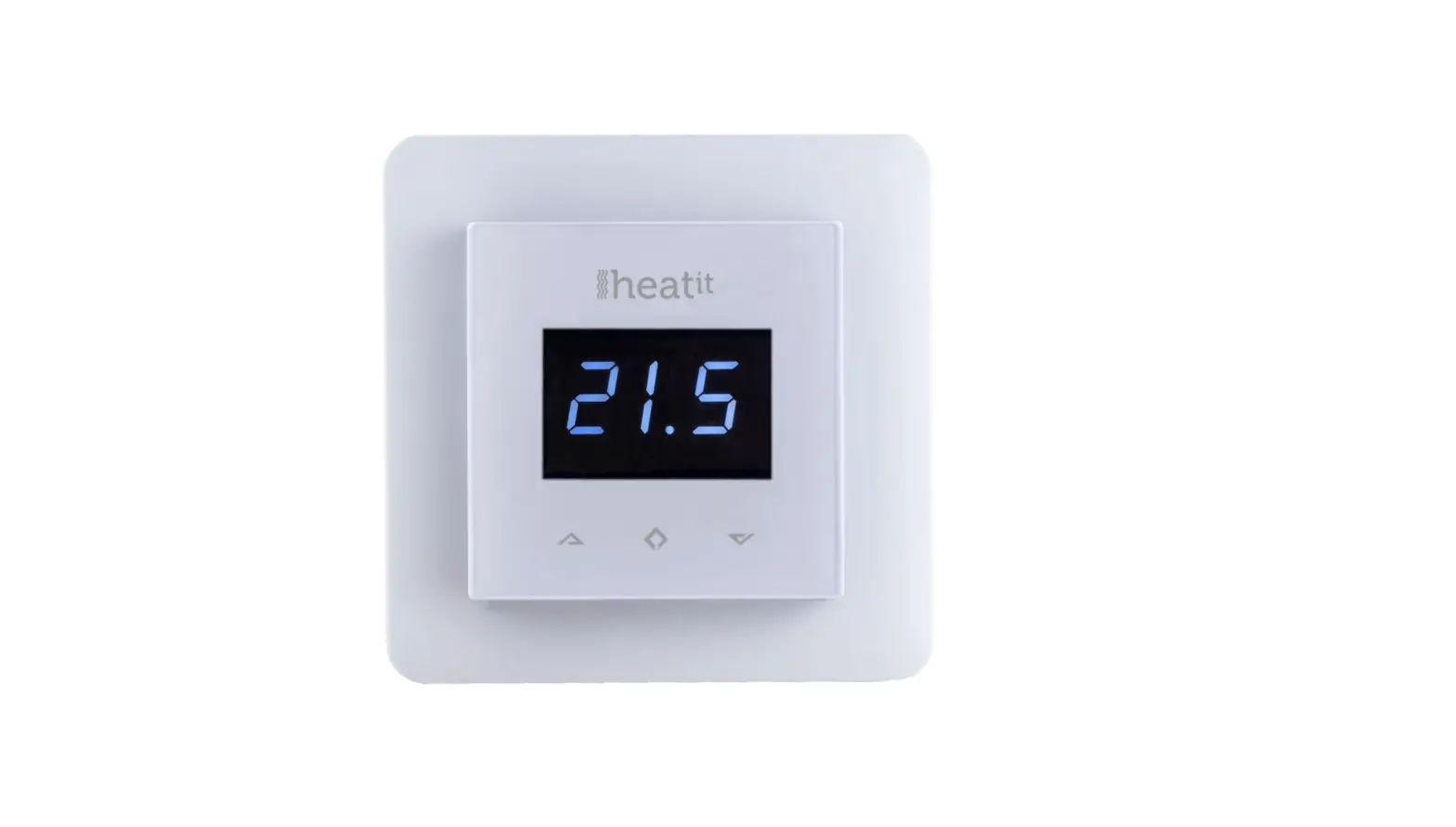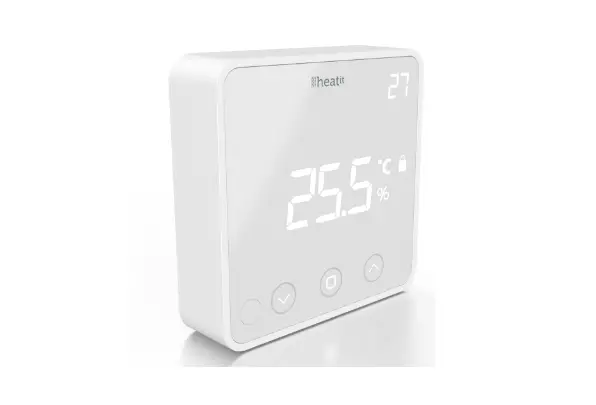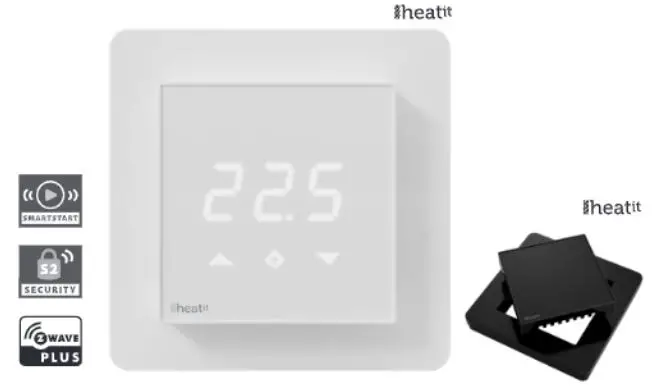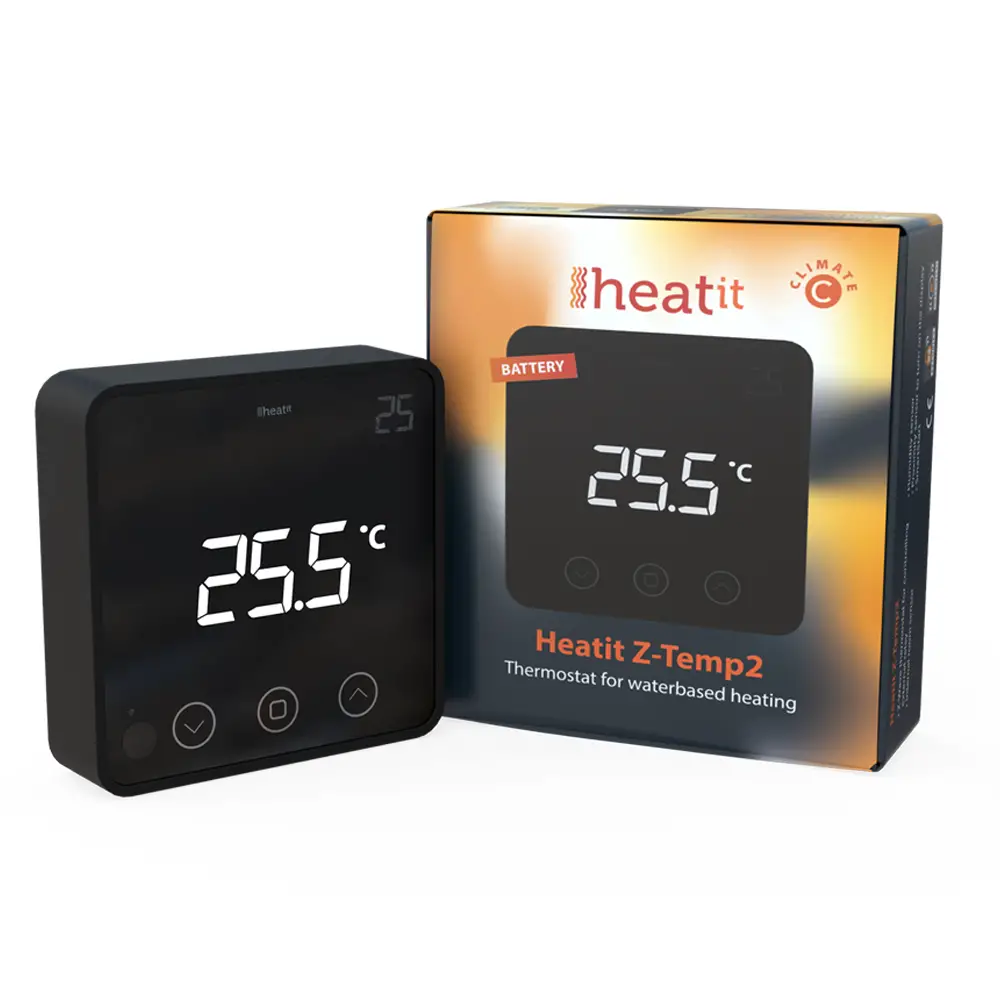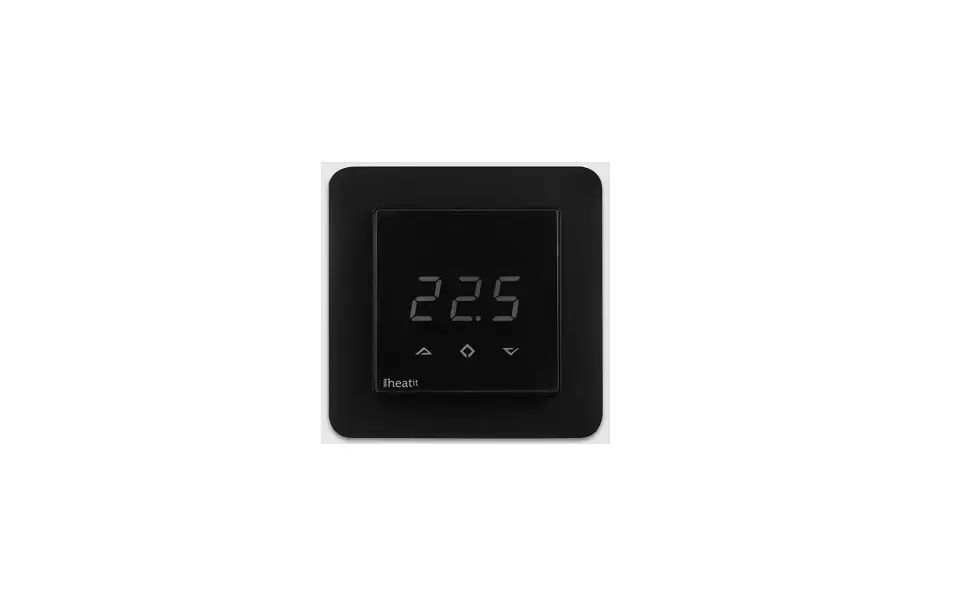

heatit 4969 Z-TEMP2 Z-Wave Thermostat 
INTRODUCTION
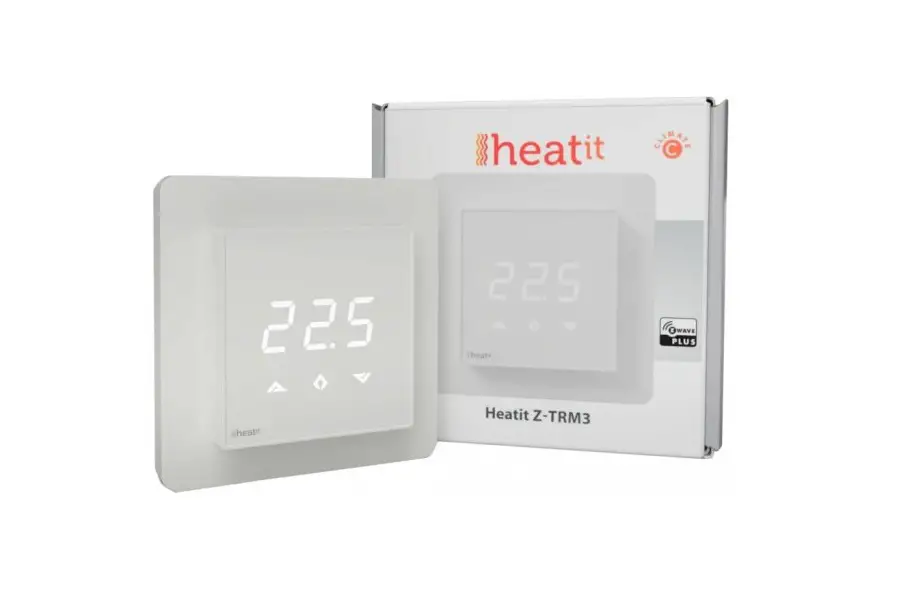
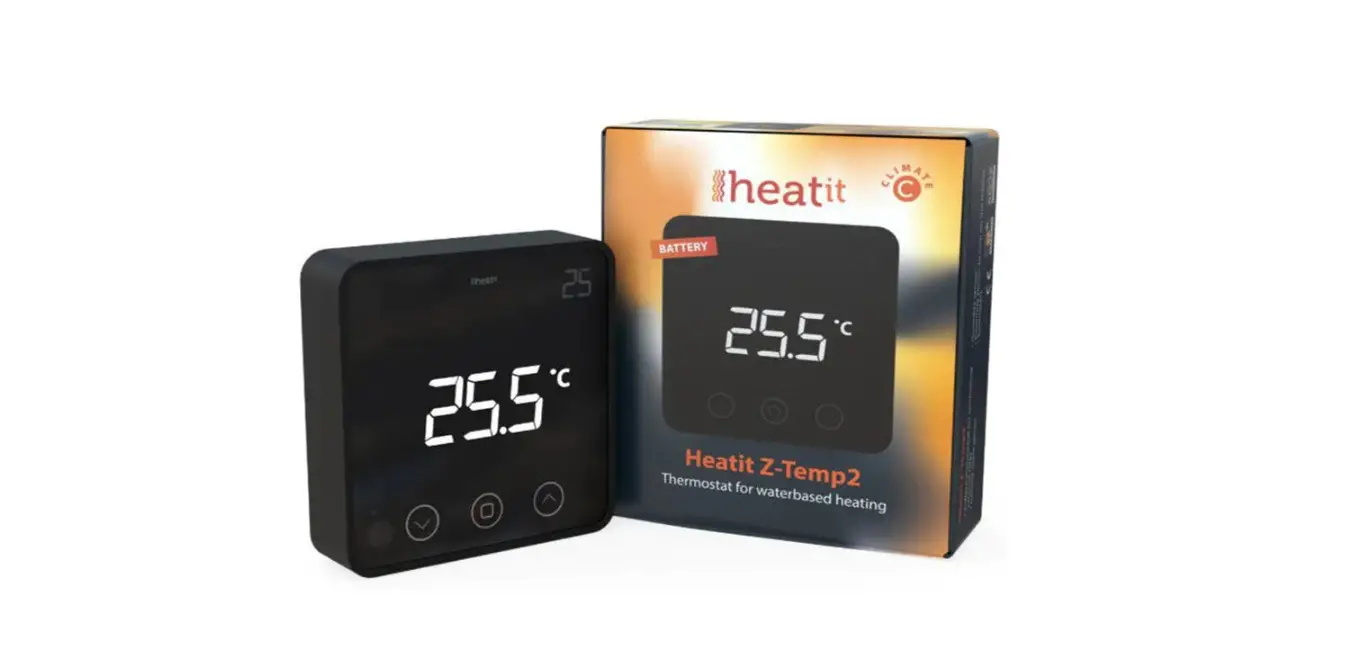
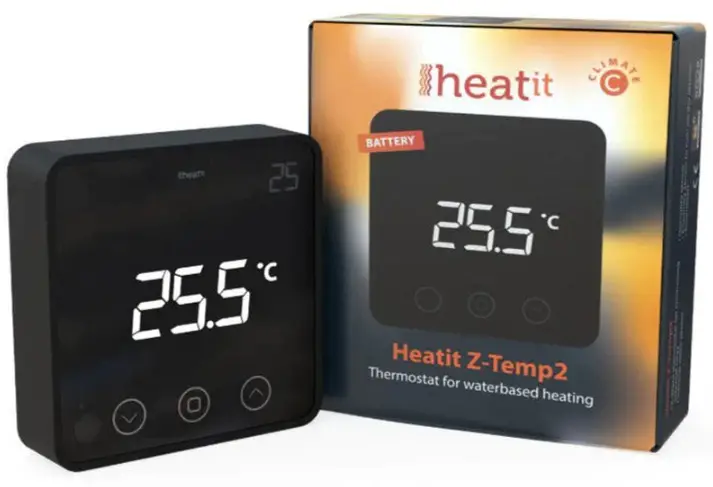
Heatit Z-Temp2 is a battery-operated thermostat designed for use with water-based heating systems. Used in combination with the Heatit
Z-Water regulator you can control your heating system with a Z-Wave primary controller/gateway. All communication between the Heatit Z-Temp2 and the controlled device is 100% wireless.
STATEMENT REGARDING PRODUCTS FROM MULTIPLE MANUFACTURERS
Please read this before installation
This device may be used with all devices certified with the Z-Wave Plus™ certificate and should be compatible with such devices produced by other manufacturers. Every primary controller is different depending on the manufacturer, their target audience, and intended
use/application. Please review the functionalities implemented by
the primary controller you intend to use with our Z-Wave Plus
certified device to ensure that it provides the necessary controls
to take full advantage of our product’s capabilities.
BEHAVIOR WITHIN THE Z-WAVE NETWORK
This product can be operated in any Z-Wave network with other Z-Wave certified devices from other manufacturers. All non-battery-operated nodes within the network will act as repeaters regardless of manufacturer to increase reliability of the network. On delivery, the device does not belong to any Z-Wave network. The device
needs to be added to an existing network to communicate with the devices of this network. Devices can also be removed from a network. Both adding and removing process are initiated by the primary controller of the Z-Wave network.
This controller will enter a mode for adding or removing devices. Please refer to your primary controller/gateway manual on how to turn your controller into add or remove mode. The device can only be added or removed from the network if the primary controller is in add/remove mode. When the device is removed from the network, the device will revert to factory default settings.
QUICK START
- Install the batteries (as stated in the technical specification).
- Install the device on a flat vertical surface using screws or double-sided tape
- Set the controller/gateway in add mode (security/non- security).
- Press the link button 3 times in a rapid sequence.
- The thermostat will display “INC” when the thermostat is successfully included.
NB! If adding/removing fails, Err (error) will appear.
INSTALLATION
Use a large flathead screwdriver to remove the back cover.
Fix the unit to the wall by double-sided tape, screws or installed on top of a Euro wall box.
Make sure the mounting surface is clean and dry.
Then install 3x AA batteries (alkaline) in the device’s battery-holder.
NB! Be careful to when installing batteries, ensuring the polarity of the batteries is in accordance with the printing in plastic. 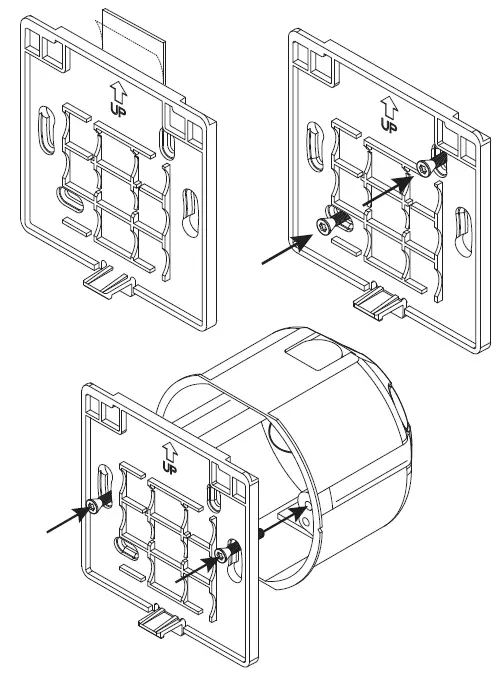
ADD/REMOVE
There are two ways to add your devices in a Z-Wave network.
Method 1: standard (manual)
Please refer to your primary controller/gateway manual on how to
enter add/remove mode. The device can only be added or removed from the network if the primary controller is in add/remove mode.
When the primary controller/gateway is set to add/remove mode press the link button on the thermostat 3 times in a rapid sequence.
Method 2: SmartStart (automatic)
Please refer to your primary controller/gateway to see if SmartStart is supported by the controller. SmartStart-enabled products can be added to a Z-Wave network by scanning the Z-Wave QR-Code present on the product with a controller providing SmartStart inclusion. No further action is required and the SmartStart product will be added automatically within 10 minutes of being switched on in the network vicinity.
Enter SmartStart modus from your primary controller.
With the batteries for the devices taken out of the device. Scan the QR code on the back of the device, then follow the gateway instructions.
If the device already belongs to a network, follow the removal process before adding it in your network. Otherwise, the addition of this device will fail. When the device is removed from the network, the device will revert to factory settings. 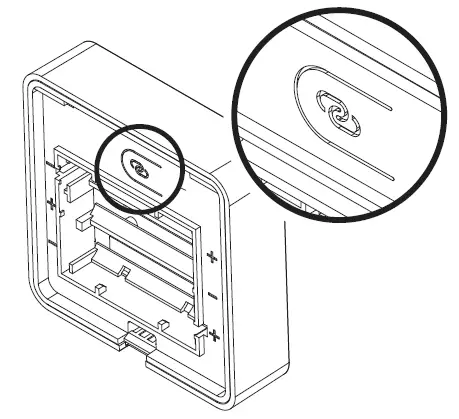
FACTORY RESET
By pressing and holding the link button for 20 seconds, the thermostat will perform a complete factory reset. rES will be displayed.
NB! Please use this procedure only when the primary controller/ gateway is missing or otherwise inoperable.
COMPATIBILITY / PRINCIPLES PRINCIPLES FOR FOR REGUL REGULATION
Water based heating
The thermostat uses temperature readings retrieved from the internal sensor. Heatit Z-Temp2 is designed to work together with water based heating solutions. Heatit recommends using Heatit Z-Temp2 together with Heatit Z-Water. These two products allow for an advanced water based heating solution by using a Z-Wave enabled controller. This is a “wire-free” solution which save both time and money. All the communication between Heatit Z-Temp2 and the controlled device is wireless. The range can be extended using Heatit Z-Repeater or any other device that supports routing. This makes our water based solutions a good addition to your existing or new home automation system.
Electrical heating
Heatit Z-Temp2 could also be used in situations where a traditional electrical thermostat is not suited. The battery-operated thermostat can be used together with Heatit Z-Relay or any other relay device installed in a remote location. Rehabilitation could be done using this solution to avoid unnecessary wiring.
INFORMATION SHOWN IN DISPLAY
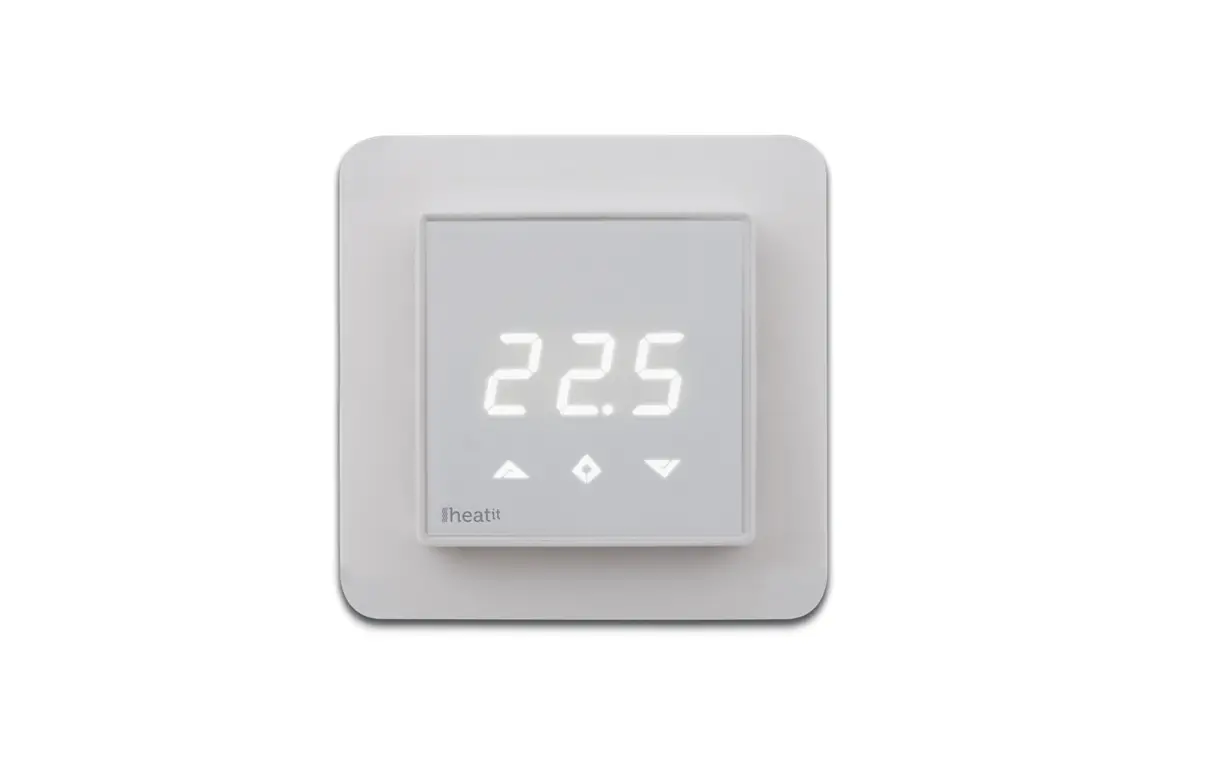
The thermostat benefits from two screens.
The main screen
The main screen displays measured temperature readout or relative humidity. You can switch between the humidity and measured temperature by pressing the center button while display is active. The temperature and humidity can be calibrated using parameter 4 and 5 respectively. When childlock is active, there will displayed a lock icon adjacent to the Celsius icon.
Secondary screen
This screen displays the setpoint temperature when the thermostat is in heating mode. When the thermostat mode is turned OFF, the thermostat will not use this display. To turn ON or OFF the thermostat you need to hold center button for 10 seconds, or use Z-Wave command Basic or Thermostat mode.
Connecting to an external relay
After the device is added to your Z-Wave gateway you will need to link the thermostat to the device that is going to control the heating. This
is done by using association groups from the thermostat’s root device
(EP0) with Group 3 (ON/OFF Control) towards your actuator device (using Multichannel or Single channel, based on the controlled device type.
*To set associations in your primary controller/gateway, please refer to your primary controller/Z-Wave gateway for more information.
HYSTERESIS (DIF)
You can make changes to the hysteresis in the thermostat via the parameter. This means that you can changes the hysteresis from 0,3°C up to max 3,0°C. Default is 0,5°C.
CHILD LOCK – LOC
By pressing Left and Right (down and up buttons for 10 seconds,
the thermostat will display LOC. Child lock is now activated, and the lock icon will be lit up when the display is active. Trying to make changes from the display is not possible within this modus. Changes with the Z-Wave controller is still possible. Refer to your primary controller/gateways user manual on how to change the setpoint.
Child lock is deactivated by pressing Left and Right (down and up) buttons for 10 seconds, the thermostat will display oPn. The lock symbol is no longer lit when the display is active, and now you can make changes using buttons.
INVERTED OUTPUT
The thermostat can invert its signal sent to external relays. This allows users to use the Heatit Z-TEMP2 together with other systems. You can change this behaviour using a quick feature in the thermostat or, using Parameter 15 “Inverted Output”.
Changing the behaviour,
- From physical device by holding centre and right button for 10 sec.
- From gateway by changing parameter 15 (for more information regarding the configuration parameter, see chapter “Configuration Parameters”).
The thermostat will display “HEA” for regular operation, and “COO” for inverted operation. You can check what mode you are using by holding centre button for 10 seconds.
STANDBY AND MAIN SCREEN
When the thermostat remains untouched for a while, it will automatically go to standby screen. Due to power saving settings, while in standby, the display will be turned off. The proximity sensor will activate the thermostat when proximity is sensed. You can also activate the thermostat manually by pressing any button.
Z-WAVE QR-CODE / DSK
The QR Code is needed when including using S2-Security or SmartStart. The Z-Wave DSK can be found in the QR-Code and is located;
- On the back of wall mount (above the battery compartment).
- Inside the packaging attached on the note.
- On the product packaging.
SECURITY
The S2 security enhances Z-Wave Plus with an additional layer of AES 128-bit encryption of the wireless Z-Wave communication to prevent hacking and man-in-middle attacks on the home network. The Heatit Z-Temp2 supports S2 and has a Z-Wave DSK QR-Code label that may be used when the module is added to the Z-Wave home network. The primary controller will ask for a 5-digit Code, which can be found underneath the QR-Code. The primary controller will then ask you to confirm the rest of the code that is contained in the QR-Code.
NODE INFORMATION FRAME
The node information frame is the business card of a Z-Wave device.
It contains information about the device type and its technical features. The add and remove procedure of the device is confirmed by sending out a node information frame. Besides this, it may be necessary for certain network operations to send out a node information frame.
ASSOCIATIONS
Z-Wave devices interact with other Z-Wave devices. The relationship between one device controlling another device is called an association. In order to control a subordinate device, the controlling device needs to maintain a list of devices that will receive controlling commands. These lists are called ”Association Groups”. They are always related to the specific event triggered (e.g., sensor reports). In case the event is triggered, all devices stored in the respective association group will receive a joint wireless command.
SETTING AND REMOVING ASSOCIATIONS
Associations may be assigned and removed via Z-Wave commands. Please refer to your primary controller/Z-Wave gateway for more information.
ASSOCIATION GROUPS
| ROOT DEVICE | THE MAIN THERMOSTAT DEVICE |
| Group 1 Lifeline
Group 2 Temperature Report | Lifeline. (Normally used by the Z-Wave Controller) Sends: – Battery Report (sent when battery runs low). – Notification Report (sent first time power on). – Device Reset Locally Notification (sent if device is reset). – Indicator Report – Thermostat Mode Report (sent when mode changed from panel). – Thermostat Setpoint Report (sent when setpoint changed from panel). – Thermostat Operating State Report (sent when heating should be active). – Heating – when external relay is turned ON, in Standard Output – Cooling – when external relay is turned ON, in Inverted Output. – Sensor Multilevel Report (periodical reports). – Protection Report (childlock activated/ deactived from panel). Max. nodes in group: 5 |
| Group 3 ON/OFF Control | Multilevel Sensor Report (internal measured temperate and measured relative humidity). Max. nodes in group: 5 |
| Binary Switch Set (normally used to control external relays). Sends: 0x00 = OFF 0xFF = ON Max. nodes in group: 5 |
CONFIGURATION PARAMETERS
Z-Wave products are supposed to work out of the box after inclusion. Some configuration of a device can alter the functionality to better serve the user’s needs or unlock further enhanced features.
Parameter 1, Parameter Size 2. Temperature/ Humidity report interval
Used to adjust the time between report interval for Temperature and humidity reports.
| VALUE | READ- ONLY | ADVANCED | ALTERING CAPABILITIES | DESCRIPTION |
| 30 to 32 767 | 0 | 0 | 0 | 30 to 32 767 seconds (Default 900) |
Parameter 2, Parameter Size 2. Temperature delta value
| VALUE | READ- ONLY | ADVANCED | ALTERING CAPABILITIES | DESCRIPTION |
| 0 |
0 |
0 |
0 | Reporting tempe- rature based on change is disabled |
| 5 to 50 | 0.5 to 5°C (Default 10, 1.0°C) |
Parameter 3, Parameter Size 2. Humidity delta value
| VALUE | READ- ONLY | ADVANCED | ALTERING CAPABILITIES | DESCRIPTION |
| 0 |
0 |
0 |
0 | Reporting tempe- rature based on change is disabled |
| 5 to 50 | 5 to 50% (Default 10, 10%) |
Parameter 4, Parameter Size 2. Temperature offset settings
Calibrate the internal sensor. NB! To set negative values; 65 535 – desired value + 1.
| VALUE | READ- ONLY | ADVANCED | ALTERING CAPABILITIES | DESCRIPTION |
| -100 to 100 | 0 | 0 | 0 | -100 to 100°C (Default 0, 0°C) |
Parameter 5, Parameter Size 2. Humidity offset settings
Offsets the measured relative humidity. NB! To set negative values; 65 535 – desired value + 1.
| VALUE | READ- ONLY | ADVANCED | ALTERING CAPABILITIES | DESCRIPTION |
| -100 to 100 | 0 | 0 | 0 | -10 to 10% (Default 0, 0%) |
Parameter 6, Parameter Size 2. Proximity sensor retrigger interval
| VALUE | READ- ONLY | ADVANCED | ALTERING CAPABILITIES | DESCRIPTION |
| 2 to 270 | 0 | 0 | 0 | 2 to 270 seconds (Default 10, 10 seconds) |
Parameter 7, Parameter Size 2. Proximity sensor Enable / Disable Choose if proximity sensor is used or not.
| VALUE | READ- ONLY | ADVANCED | ALTERING CAPABILITIES | DESCRIPTION |
| 0 | 0 | 0 | 0 | Disable |
| 1 | Enable (Default) |
Parameter 8, Parameter Size 2. LED maximum brightness Adjust the backlight of LCD display.
| VALUE | READ- ONLY | ADVANCED | ALTERING CAPABILITIES | DESCRIPTION |
| 0 to 99 | 0 | 0 | 0 | 0 to 99% (Default 50, 50%) |
Parameter 9, Parameter Size 2. LED turned on before timeout
Adjust the time from proximity sensor / display touched until display goes to sleep.
| VALUE | READ- ONLY | ADVANCED | ALTERING CAPABILITIES | DESCRIPTION |
| 3 to 300 | 0 | 0 | 0 | 3 to 300 seconds (Default 3, 3 seconds) |
Parameter 10, Parameter Size 2. Temperature Control Hysteresis Adjust the delta values for the thermostat to turn on off heating.
| VALUE | READ- ONLY | ADVANCED | ALTERING CAPABILITIES | DESCRIPTION |
| 3 to 30 | 0 | 0 | 0 | 0.3 to 3°C (Default 5, 0,5°C) |
Parameter 11, Parameter Size 2. Minimum Temperature Limit Set the mimum temperature limit.
| VALUE | READ- ONLY | ADVANCED | ALTERING CAPABILITIES | DESCRIPTION |
| 50 to 400 | 0 | 0 | 0 | 5 to 40°C (Default 50, 5°C) |
Parameter 12, Parameter Size 2. Maximum Temperature Limit Set the maximum temperature limit.
| VALUE | READ- ONLY | ADVANCED | ALTERING CAPABILITIES | DESCRIPTION |
| 50 to 400 | 0 | 0 | 0 | 5 to 40°C (Default 400, 40°C) |
Parameter 13, Parameter Size 2. External Relay & Operating State update interval Set time on how often the devices sends Binary Switch Set and thermostat mode to gateway.
| VALUE | READ- ONLY | ADVANCED | ALTERING CAPABILITIES | DESCRIPTION |
| 0 |
0 |
0 |
0 | Sends only when changed (Default) |
| 1 to 240 | 1 to 240 minutes + When changed |
Parameter 14, Parameter Size 2. Report when presence is detected Decides if the thermostat sends temperature when presence is detected.
| VALUE | READ- ONLY | ADVANCED | ALTERING CAPABILITIES | DESCRIPTION |
| 0 |
0 |
0 |
0 | Do not report to gateway when presence is detected, only at interval. (Default) |
| 1 | Send temperature report to gateway when presence is detected. |
Parameter 15, Parameter Size 2. Inverted output Decides if the relay output should be inverted.
| VALUE | READ- ONLY | ADVANCED | ALTERING CAPABILITIES | DESCRIPTION |
| 0 | 0 | 0 | 0 | Disabled (Default) |
| 1 | Enable |
OPERATING THE DEVICE
No Multi Channel support/ Multichannel support:
Besides the mandatory command classes, Heatit Z-Temp2 has
support for following command classes:
Thermostat Mode
It is possible to change the operating mode of the thermostat by sending a Thermostat Mode Set command.
Uses the following values;
0x00 = OFF (Thermostat regulation is deactivated)
0x01 = Heating Mode (Thermostat regulation is active)
Thermostat Setpoint Command Class
When a Thermostat Setpoint Set command is received by the root device, it sets the actual setpoint for heating mode.
Basic Command Class
A Basic Set to the root endpoint will change the thermostat mode.
Uses the following values;
0x00 = OFF (Thermostat regulation is deactivated)
0x01 = Heating Mode (Thermostat regulation is active)
Multilevel Sensor Report
The device sends Multilevel Sensor Reports to indicate measured temperature and relative humidity. The device will send a humidity and temperature report when powered on after a power loss.
| USE CASE | SENSORTYPE | SIZE | SCALE | PRECISION |
| Sends tempe- rature report from internal sensor | Temperatu- re(version 1) = 0x01 | 2Byte = 0x02 | Celsius (°C) = 0x00 | 1 decimal = 0x01 |
| Sends relative humidity report from internal sensor | Relative humi- dity (version 2) = 0x05 | 2Byte = 0x02 | Percentage value (%) =0x00 | 1 decimal = 0x01 |
Notification Command Class
When the device is turned back on after a power outage (insearted fresh batteries), the device sends a notification command to indicate that the device is back in idle state. The Device will also send a humidity report and temperature report when powered back on.
| EVENT | TYPE | EVENT | LENGTH |
| Power On (OxFF) | Power maneg- ment (0x08) | Power has been applied (0x01) | 0x00 |
SUPPORTED COMMAND CLASSES
The following table lists all Command Classes supported by the Z-Wave Device. The device supports both S0, S2 Authenticated security and S2 Unauthenticated security.
| INSECURE INCLUSION | INSECURE ON SECURE INCLUSION | SECURE ON SECURE INCLUSION | |
| COMMAND_CLASS_ZWAVEPLUS_INFO_V2 | Yes | Yes | Yes |
| COMMAND_CLASS_ASSOCIATION_V2 | Yes | Yes | |
| COMMAND_CLASS_MULTI_CHANNEL_ ASSOCIATION_V2 | Yes | Yes | |
| COMMAND_CLASS_ASSOCIATION_GRP_ INFO_V3 | Yes | Yes | |
| COMMAND_CLASS_TRANSPORT_ SERVICE_V2 | Yes | Yes | |
| COMMAND_CLASS_VERSION_V3 | Yes | Yes | |
| COMMAND_CLASS_MANUFACTURER_SPE- CIFIC_V2 | Yes | Yes | |
| COMMAND_CLASS_DEVICE_RESET_ LOCALLY_V1 | Yes | Yes | |
| COMMAND_CLASS_INDICATOR_V3 | Yes | Yes | |
| COMMAND_CLASS_POWERLEVEL_V1 | Yes | Yes | |
| COMMAND_CLASS_BATTERY_V1 | Yes | Yes | |
| COMMAND_CLASS_SECURITY_V1 | Yes | Yes | |
| COMMAND_CLASS_SECURITY_2_V1 | Yes | Yes | |
| COMMAND_CLASS_NOTIFICATION_V8 | Yes | Yes | |
| COMMAND_CLASS_SUPERVISION_V1 | Yes | Yes | |
| COMMAND_CLASS_FIRMWARE_ UPDATE_MD_V5 | Yes | Yes | |
| COMMAND_CLASS_THERMOSTAT_MODE_ V3 | Yes | Yes | |
| COMMAND_CLASS_THERMOSTAT_SETPO- INT_V3 | Yes | Yes | |
| COMMAND_CLASS_THERMOSTAT_ OPERATING_STATE_V1 | Yes | Yes | |
| COMMAND_CLASS_PROTECTION_V1 | Yes | Yes | |
| COMMAND_CLASS_CONFIGURATION_V4 | Yes | Yes | |
| COMMAND_CLASS_SENSOR_ MULTILEVEL_V5 | Yes | Yes | |
| COMMAND_CLASS_APPLICATION_ STATUS_V1 | Yes | Yes | Yes |
FEATURES
- Z-Wave thermostat for controlling external relays
- Internal room sensor
- Humidity sensor
- Proximity sensor to turn on the display
- SmartStart
- Automatic brightness control
- Firmware updates (OTA)
- Weekly program/setback via gateway
- 5 associations
- Lock mode/child lock
- Supports encryption modes S0, S2 Authenticated Class, S2 Unauthenticated Class
This product is a security-enabled Z-Wave Plus product with encryption. The product must be used with a security-enabled Z-Wave Controller in order to fully utilize the product.
TECHNICAL DATA
- Protocol Z-Wave
- Chip Z-Wave 700 chip
- Rated voltage 3 x AA batteries (1,5V)
- Ambient temperature 5°C to 40°C
- Humidity Max. 85% RH
- Range RF Min. 40 meters
- Hysteresis 0,3°C to 3,0°C (default 0,5°C)
- IP Code IP 21
Approvals Z-Wave Plus V2, CE,
RED 2014/53/EU, ETSI EN 301 489-1 V2.2.3 (2019-11), ETSI EN 301 489-3 V2.1.1 (2019-03), ETSI EN 300 220-1 V3.1.1 (2017-02), ETSI EN 300 220-2 V3.2.1 (2018-06), EN 62479:2010, EN 62368-1:2014+A11:2017, RoHS 2011/65/EU
MAINTENANCE
The device is maintenance-free, but must never be covered.
| ART. NO. | PRODUCT | COLOR | FREQUENCY |
| 45 126 66 | Heatit Z-Temp2 thermostat Battery | White RAL 9003 | EU 868,4MHz |
| 45 126 67 | Heatit Z-Temp2 thermostat Battery | Black RAL 9011 | EU 868,4MHz |
| 99 306 10 | Heatit Z-Temp2 thermostat Battery | White RAL 9003 | RU 869,0MHz |
| 99 306 68 | Heatit Z-Temp2 thermostat Battery | White RAL 9003 | AUS 921,4MHz |
Heatit Controls AB can not be held liable for typographical errors, other errors or omittances in our information. Product specifications may change without further notice.
All electrical installations must be carried out by a licensed electrician. The product must be installed in accordance with national building codes and our installers manual.
Heatit Controls AB l Läkarvägen 4, 454 31 BRASTAD, SWEDEN Phone: +47 61 18 77 77 l [email protected] – www.heatit.com
 Heatit