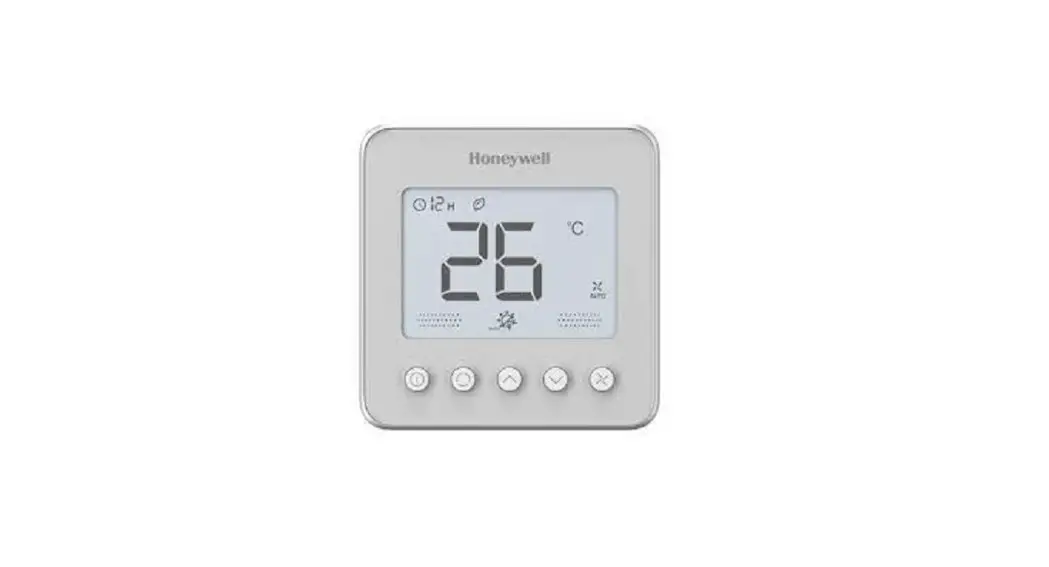

 TFxNAP Series
Sylk Digital Thermostat Wall Module
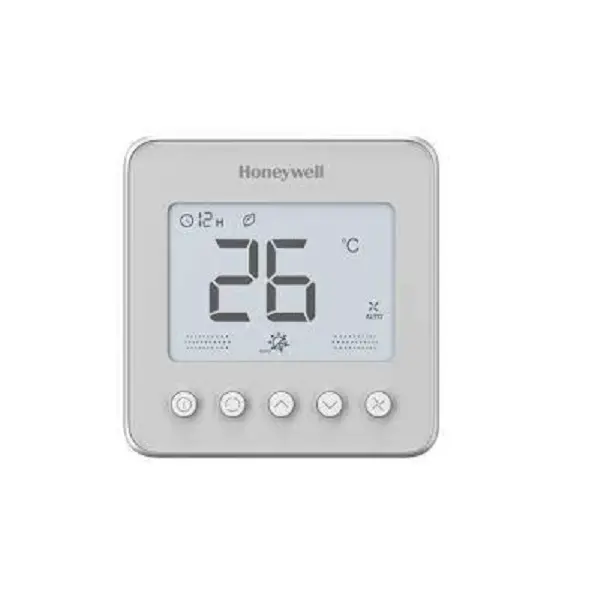
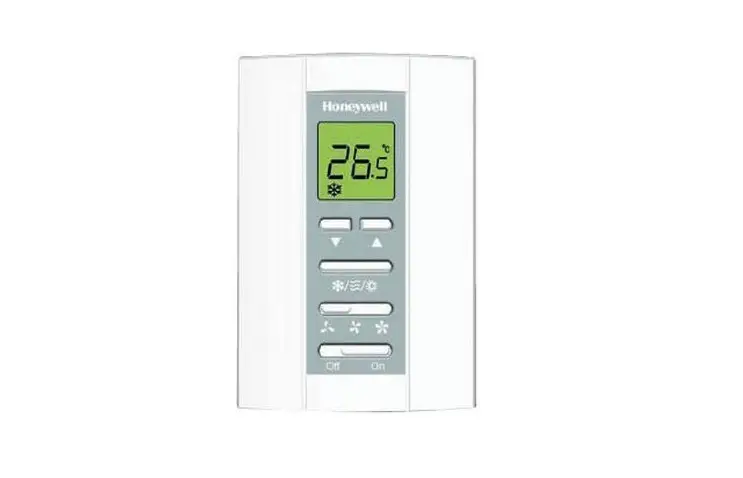
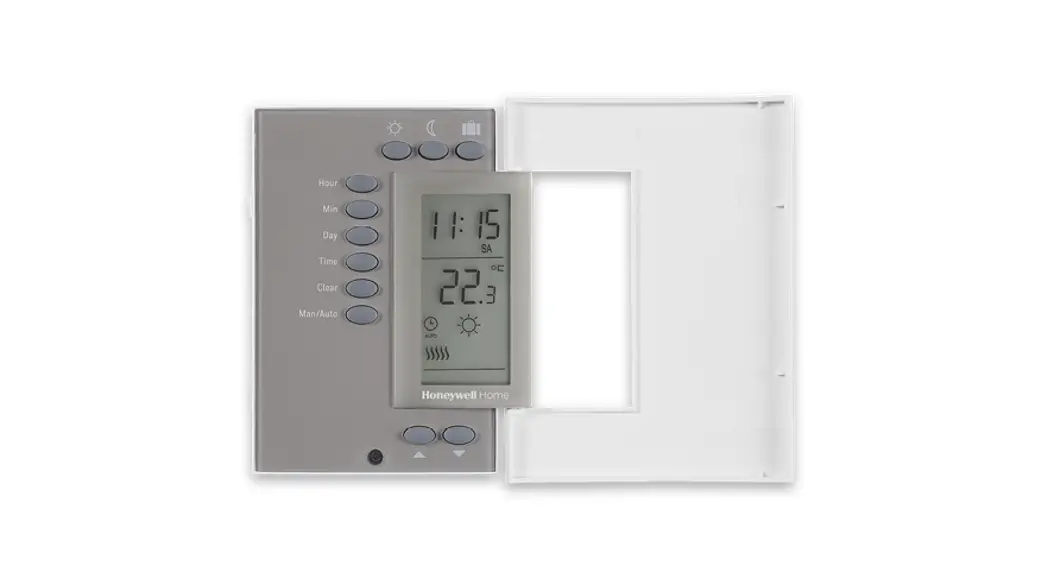
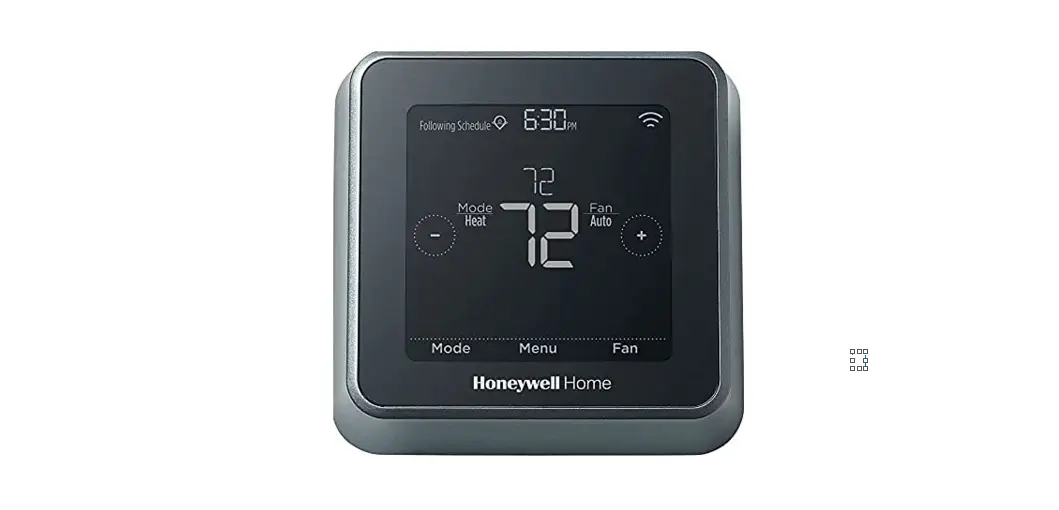
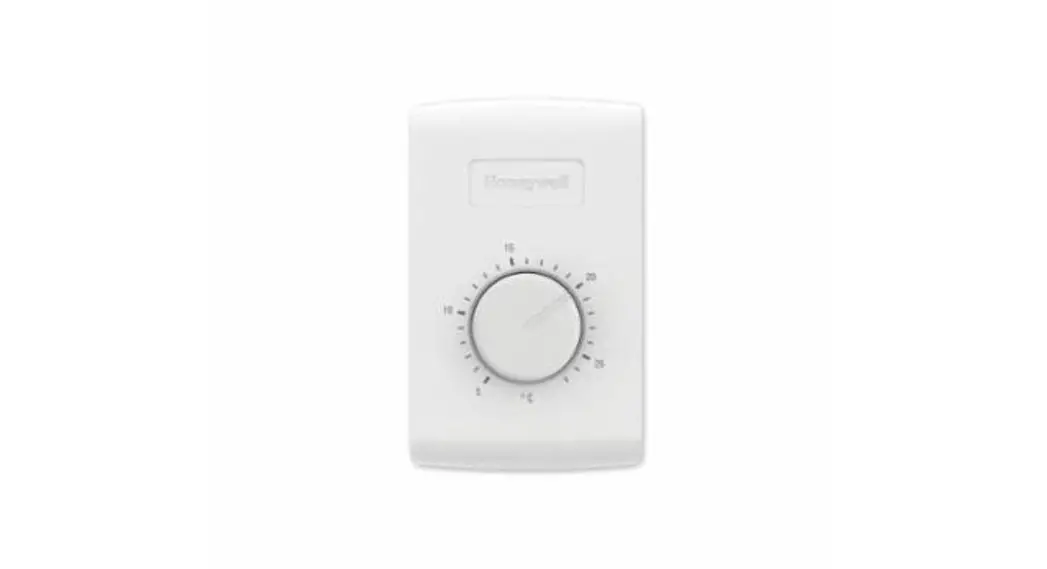
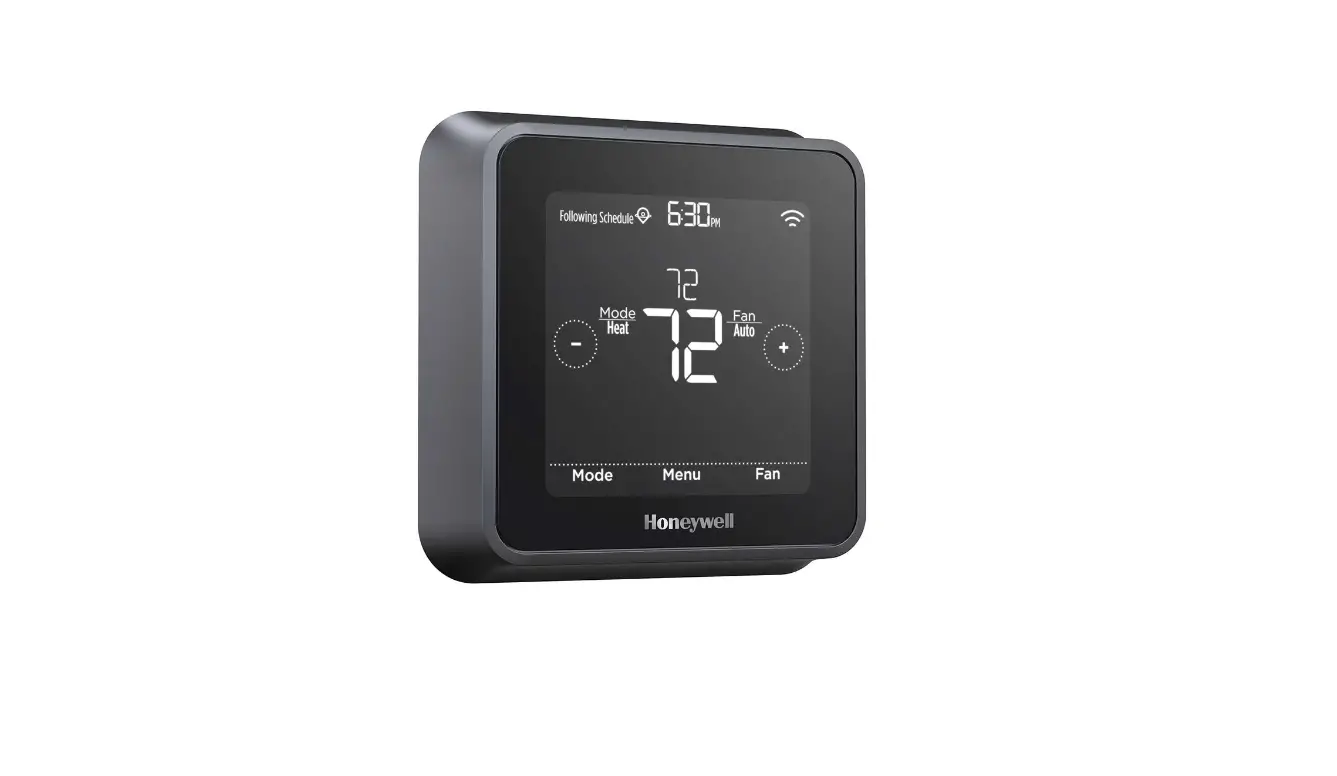
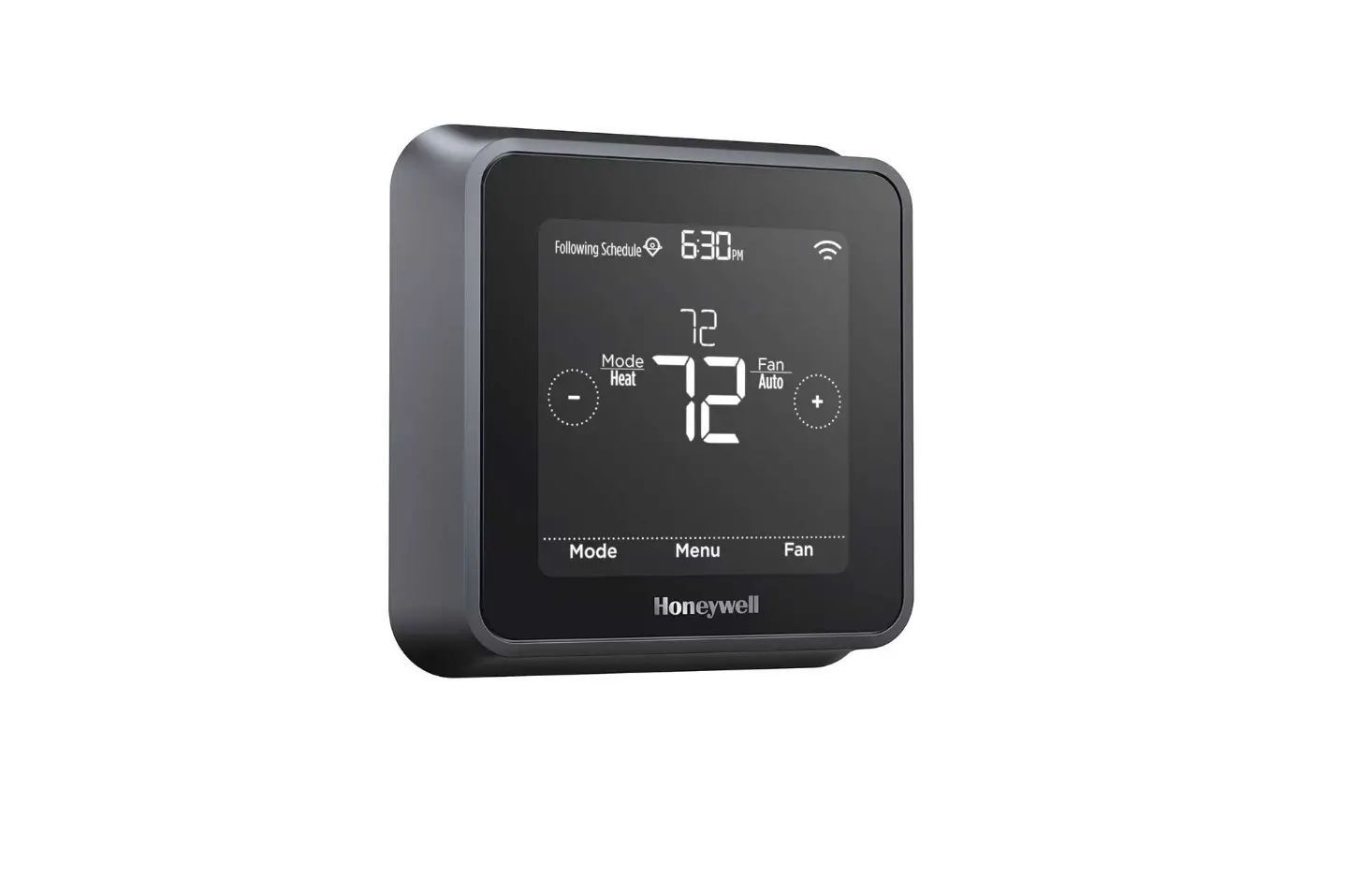
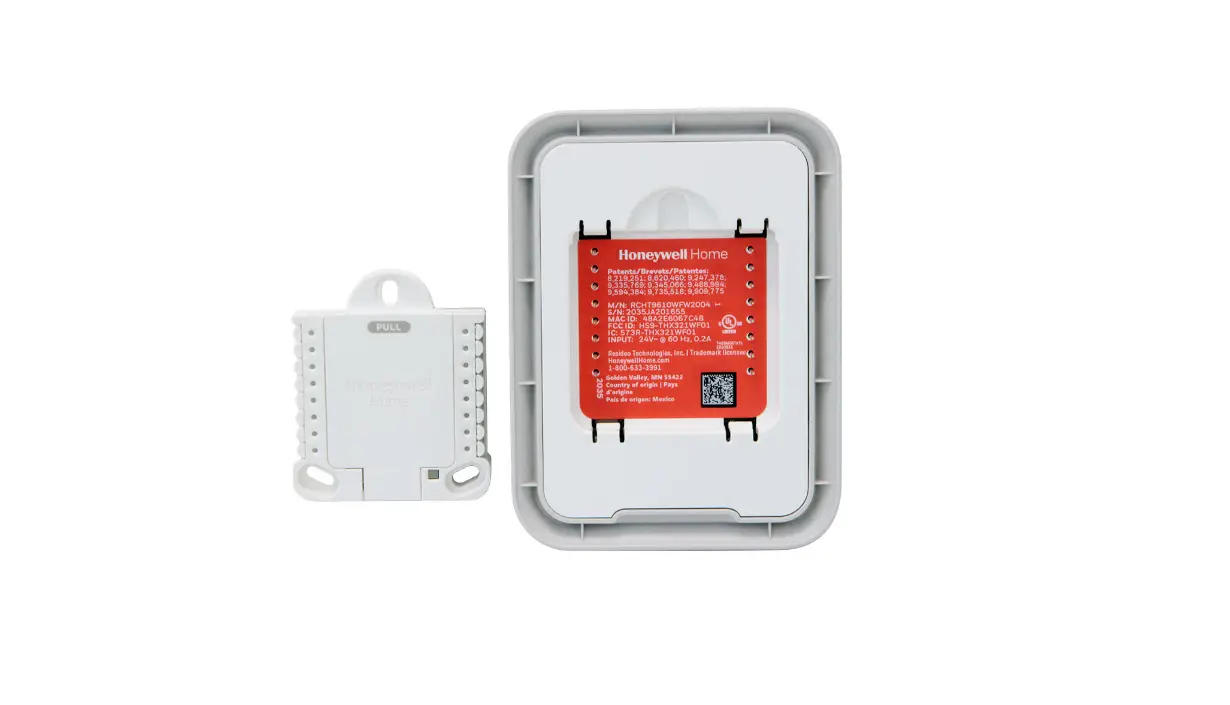
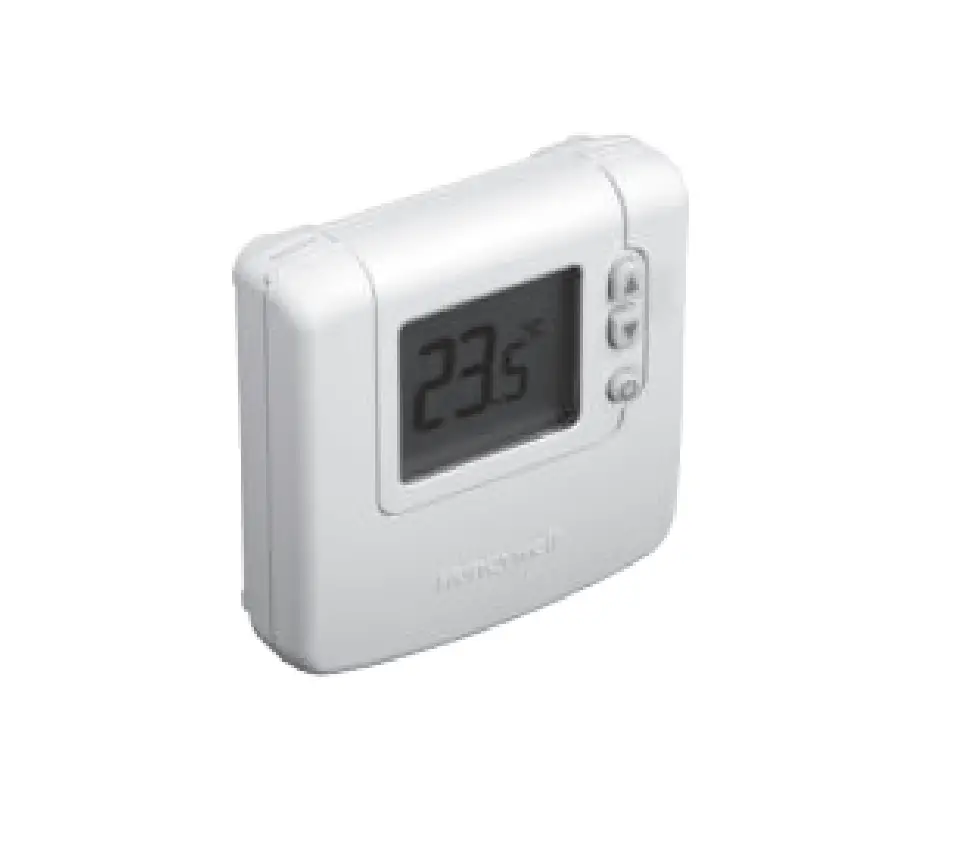
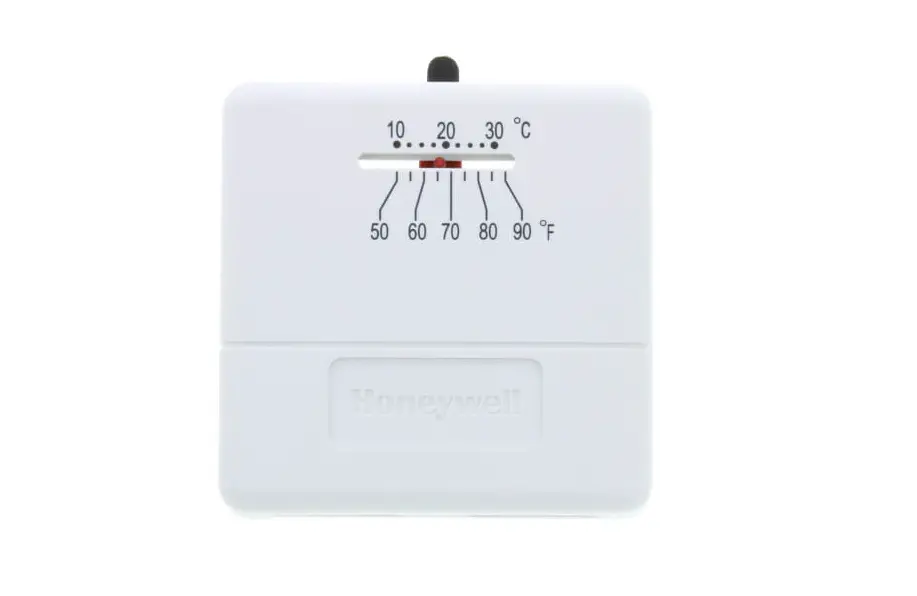
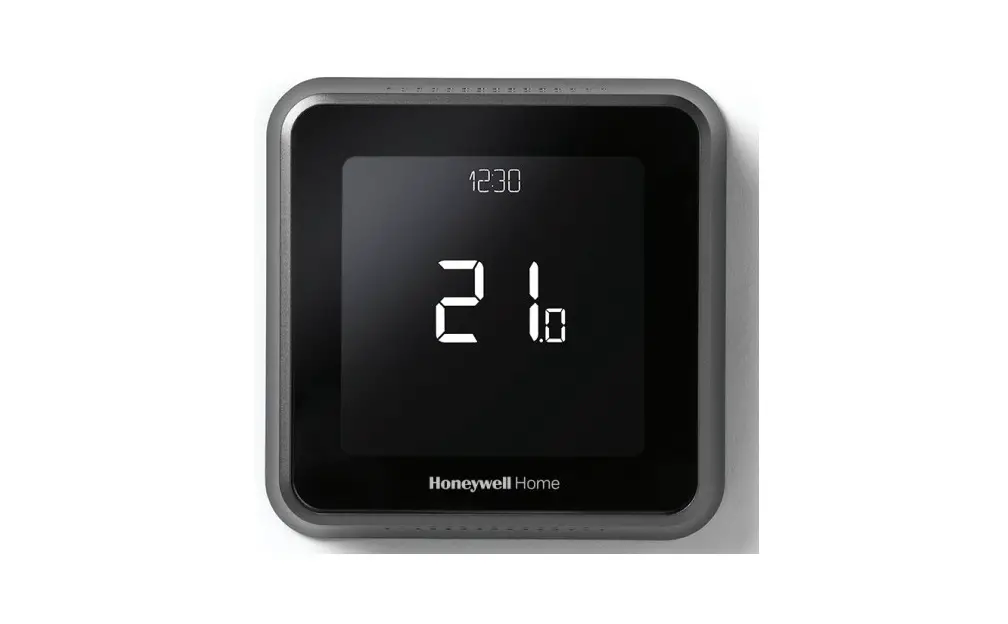
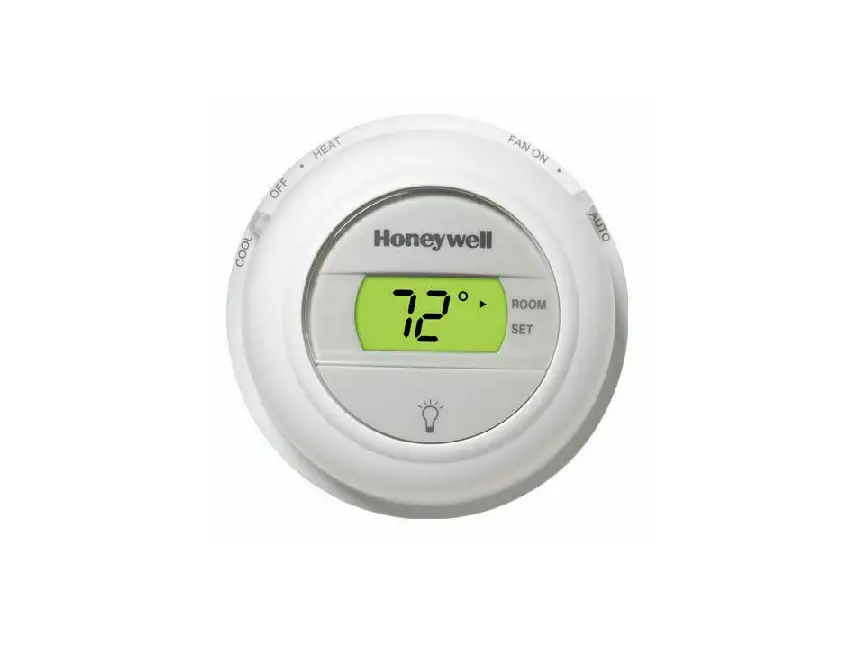
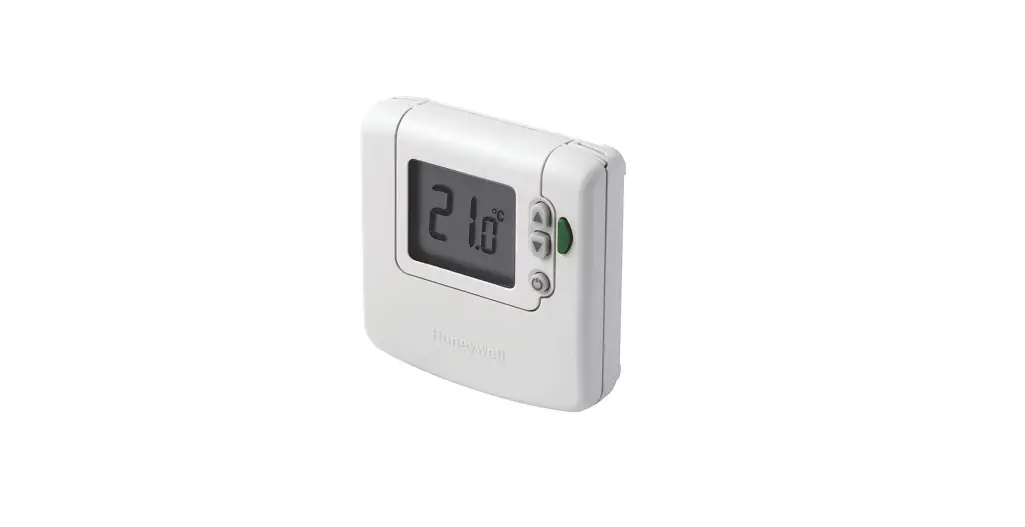
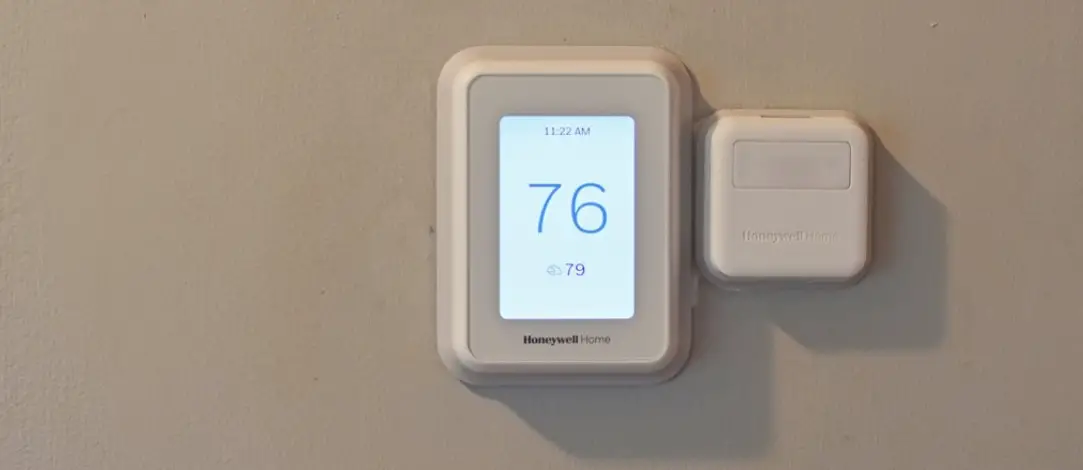
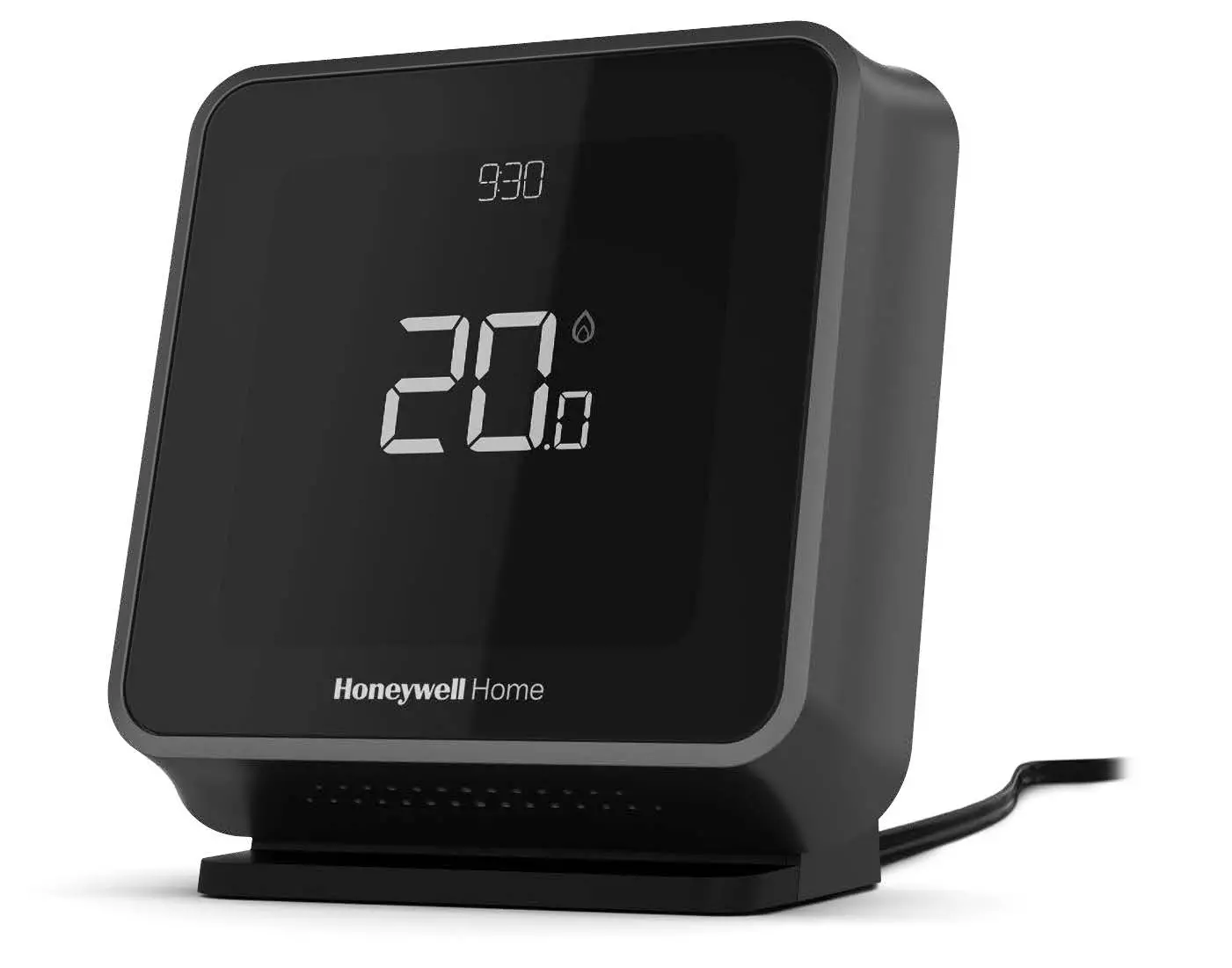
Wall Module Appearance
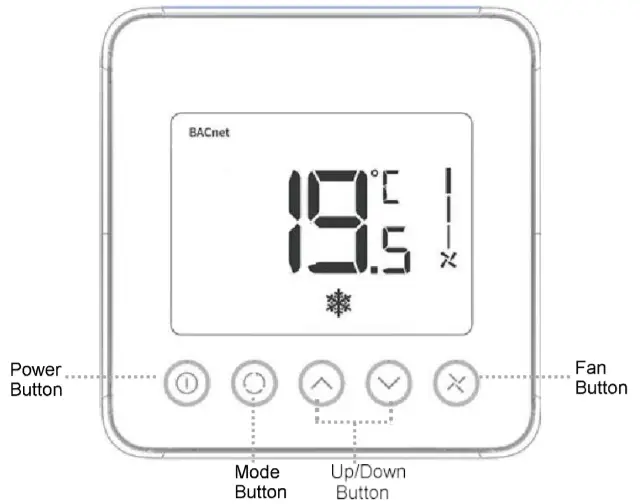
LCD Display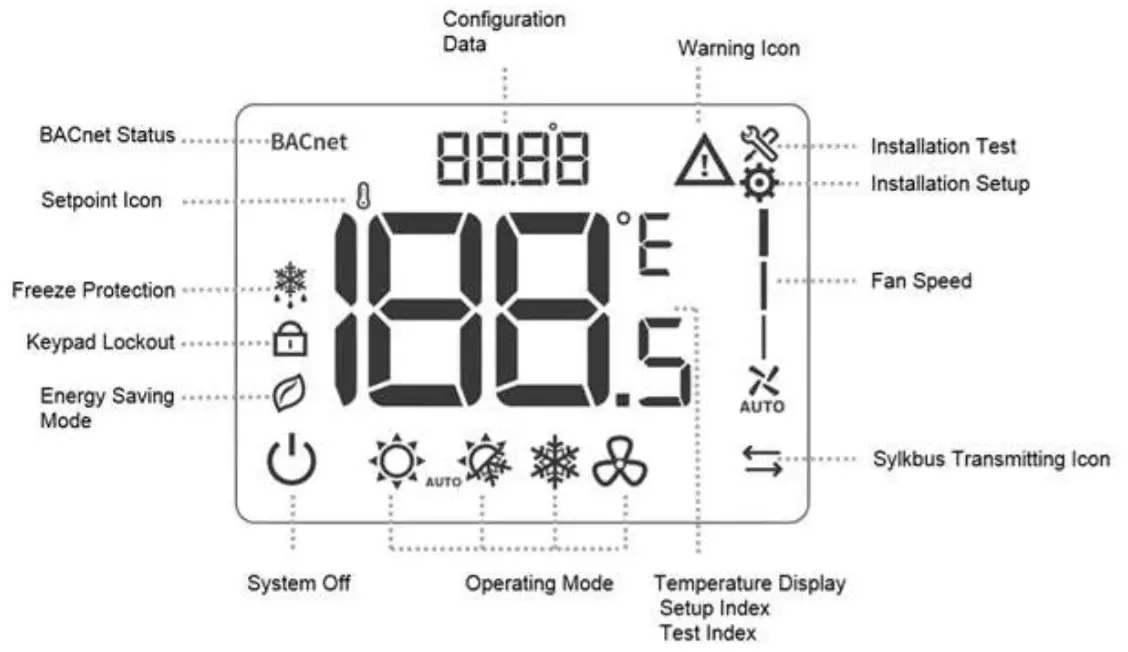
Must be installed by a trained, experienced technician
- Make sure the devices are all used in the isolated internal network, only the authorized person could operate the devices and access the network.
- Read this instruction carefully. Failure to follow this instruction can damage the product or cause a hazardous condition.
- Check the product ratings to verify that this product is suitable for your application.
- The wall module shall work with the TF series driver.
- Always test for proper operation after installation.
Installation Tips
Install the wall module about 5 feet(1.5m) above the floor in an area with good airflow at an average temperature.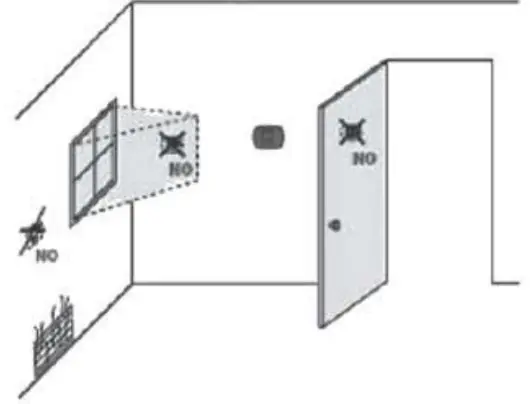
Do not install in a location where the wall module can be affected by:
- Drafts or dead spots behind doors and in the corner
- Hot or cold air from ducts
- Sunlight or radiant heat from appliances
- Concealed pipes or chimneys
- Unheated/uncooled area such as an outside wall behind the thermostat
Pre-installation Checklist
Check to make sure your package includes the following items:
| • | Wall module and terminal wire | 1 SET |
| • | Wall module mounting screw | 2 PCS |
| • | Wall module wiring connector | 2 PCS |
| • | Wall module installation guide (this booklet) | 1 PCS |
Terminal Designations
Tips: Sylk terminals have no polarity.
| Terminal# | Terminal Name | Description of Function |
| 1 | Sylk | Sylk terminal |
| 2 | Sylk | Sylk terminal |
Installation
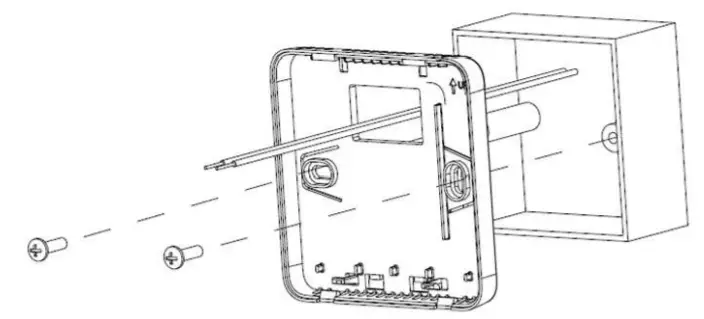
- Place the wall module back cover over the junction box, insert and tighten mounting screws.

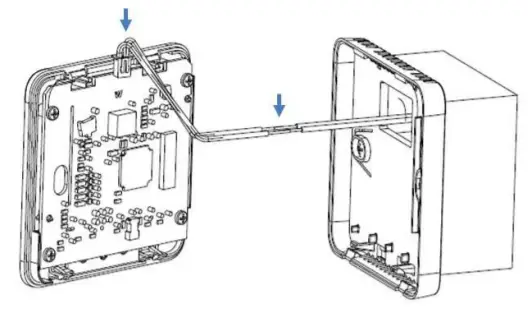
- lnse rt the terminal wires and connect SYLK communi- eating wires of the driver with wiring connectors.

- Align tabs on the back cover with corresponding slots on the back of the wall module, and then push it until the wall module snaps in place.

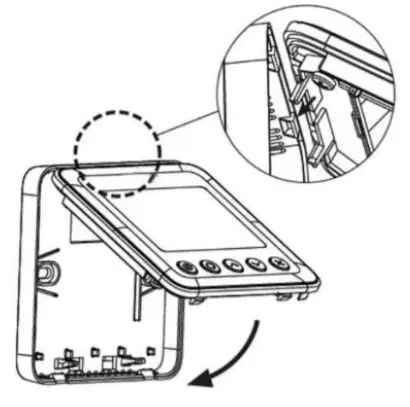
Installer Setup
Press and hold  and
and  buttons 3 seconds to enter setup mode.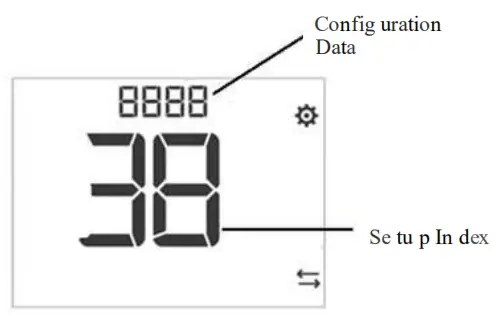
- Press
 or
or  button to change the setting
 - Press
 button to switch to the next item
 - Press and buttons and hold 3 seconds to exit setup mode and save the settings
- Press
 the button to change digital position when setup Device ID.
 the button to change digital position when setup Device ID.
| ISU Code | Description | Configuration Data |
| 0 | BACnet MAC Address | 0-99. default 1 |
| System Type | 0 – Heat only | |
| – Cool only | ||
| 2 – Two pipe manual (default) | ||
| 3 – Two pipe auto | ||
| 4 – Four pipes manual | ||
| 5 – Four pipes auto |
| 2 | Sensor Option | 0 – Onboard Sensor( default) |
| – Remote Sensor | ||
| 3 | Hotel Card (Dry Contact) | 0 – Disabled (default) |
| – Enabled | ||
| 4 | Window Contact (Dry Contact) | 0 – Disabled (default) |
| 1 – Enabled | ||
| 12 | Hotel Card Op- lion | 0 – NO (default) |
| 1 – NC | ||
| 13 | Window Contact Option | 0 – NO (default) |
| 1 – NC | ||
| 20 | Temperature Scale | 0 – OF |
| 1 – •C (default) | ||
| 21 | Fan Control Type | 0 – Cycle only |
| – Constant only low-med- high | ||
| 2 – User can choose Cycle or Constant (default), Low – Med -High – Auto | ||
| 26 | Display Tern- perature adjustment | -5°C – 5°C (- 10°F -10°F). de-fault 0. step 0.5°C(1°F) |
| .,7 a | Temperature Display Mode | 0 – display room temperature (Default) |
| 1 – display Setpoint | ||
| 28 | Minimum range stop of setpoint | 10°C – 32°C(50°F-90°F.)delault 10•c (50•F), step 0.5°C(1°F) |
| 29 | Maximum range stop of setpoint | 10°C – 32°C(50°F-90F). default 32•C (90•F), step 0.5°C(1°F) |
| 30 | Keypad lockout | 0 – All keys are available (Default) |
| 1 – System button Locked out | ||
| 2 – Fan and System button locked out | ||
| 3 – All buttons lacked out except the power button | ||
| 4 – All buttons are locked | ||
| 32 | ES Heating Setpoint | Range 10-21°C Default : 18•C (Range 50-70°F Default: 64) |
| 33 | ES Cooling Setpoint | Range 22-32°C Default: 26 •C (Range 72-90 °F Default . 79 •F) |
| 35 | Power recovery Status | 0 – OFF |
| 1 – Previous Status (Default) | ||
| 37 | Fan mode in ES mode | 0 – Run at auto fan speed when ISU 21 =2 |
| 1 – Run at low fan speed when ISU_21 = 2 (Default) | ||
| 38 | Device ID | 0-9999. Default 5555 |
Installer Test
Press and  buttons and hold 3 seconds to enter Installer Test mode.
- Press or button to change the configuration data
- Press button to switch to the next index
- Press and buttons and hold 3 seconds to exit test mode
| Index | Description | Configuration Data | |
| 10 | VO (TF228AD/TF428AD) | 0 – Off | |
| 1 – On | |||
| 10 | VM (TF223AD) | 0 – OV output | |
| 1 – 2.5V output | |||
| 2 – 5V output | |||
| 3 – 7.5V output | |||
| 4 – 10V output | |||
| 30 | VO2 (TF428AD) | 0 – Off | |
| 1 – On | |||
| 40 | Fan control | 0 – Fan Close | |
| – Low Speed on | |||
| 2 – Medium Speed on | |||
| 3 – High Speed on | |||
| 50 | Pipe Sensor | Temperature value, If out of range, display “–“ | |
| 60 | Remote Setback 1 | 0 – Open | |
| 1 – Close | |||
| 70 | Remote Setback 2 | 0 – Open | |
| – Close | |||
| 80 | Application No. | 0 – TF228AD | |
| 1 – TF428AD | |||
| 2 – TF223AD | |||
| 90 | 91 | Software main version | 01 |
| 92 | Software vice version | 01 | |
| 93 | Configura- lion Data Main version | 01 | |
Error Code
| Error Code | Error Information | Description |
| El | Room Temperature error | The room temperature is higher than 48°C or lower than -10°C |
| E2 | Syllabus communication error | Syllabus communication is a failure. |
| E3 | Pipe temperature error | The temperature of the pipe sensor is higher than 93° C or lower than 0°C |
| E4 | Room temperature and Sylkbus error | Room temperature and Sylkbus communication are both failures. |
| E5 | Room temperature and Pipe temperature error | Room temperature and pipe temperature are both failures. |
| E6 | Syllabus and pipe tern-perature error | Sn and d pipe temperature communication are both failures. |
| E7 | Room temperature, pipe temperature, and Sylkbus error | Room temperature pipe temperature and Sylkbus are all failures. |
Hazardous Substances and Content of the Product.
| Parts | Hazardous substances | |||||
| Pb | Hg | Cd | Cr(VI) | PBB | PBDE | |
| PCBA | X | 0 | 0 | 0 | 0 | 0 |
| This table is based on SJ/T 11364. | ||||||
0 . the hazardous substances contained in the related part are less than the limit in GB/T 26572 standard. | ||||||
X. the hazardous substances contained in the related part are more than the limit in GB/T 26572 standard. | ||||||
Other parts all conform to China’s RoHS requirements.
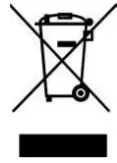 | WEEE Directive 2012/19/EU At the end of the product, life disposes of the packaging and product in a corresponding recycled ing center. Do not dispose of the unit with the usual domestic refuse. Do not burn the product. |
 www.resideo.com
Ademco 1 GmbH
Hardhofweg 40
74821 Mosbach
Phone: +49 1801 466 388
[email protected]
homecomfort.resideo.com
@2020 Resideo Technologies, Inc. All rights reserved. The Honeywell Home
trademark is used under license from Honeywell International Inc. This product
is manufactured by Resideo Technologies, Inc and its affiliates.
 HoneywellHome comfort Europe from Resideo
 Smart Home Products and Systems | Resideo