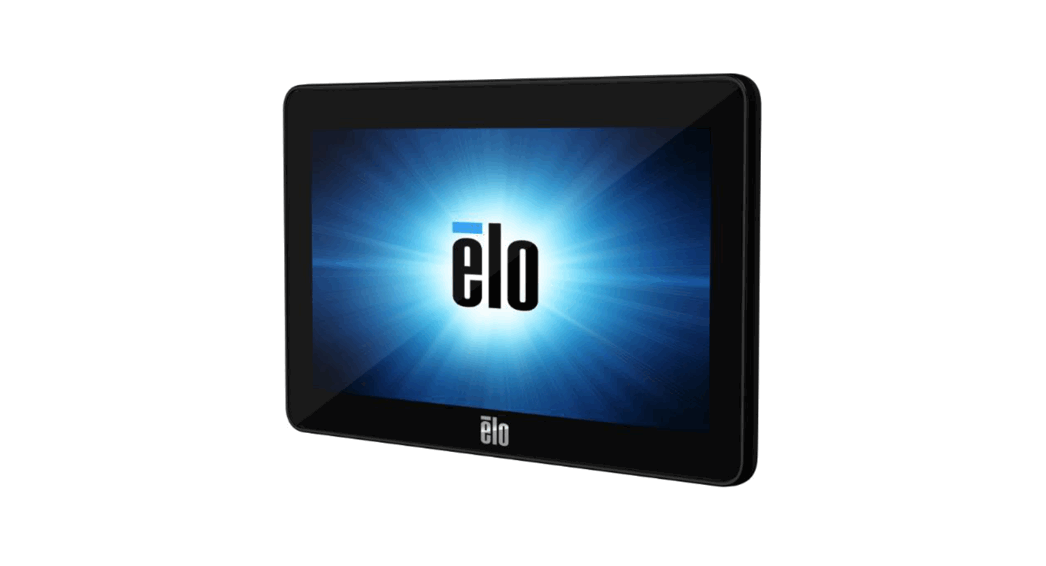
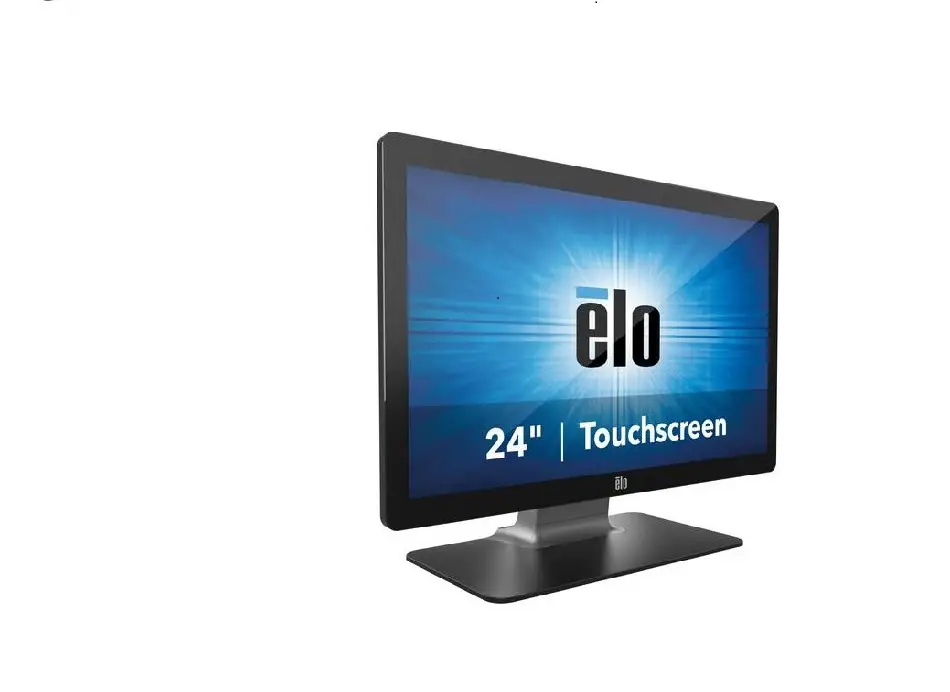
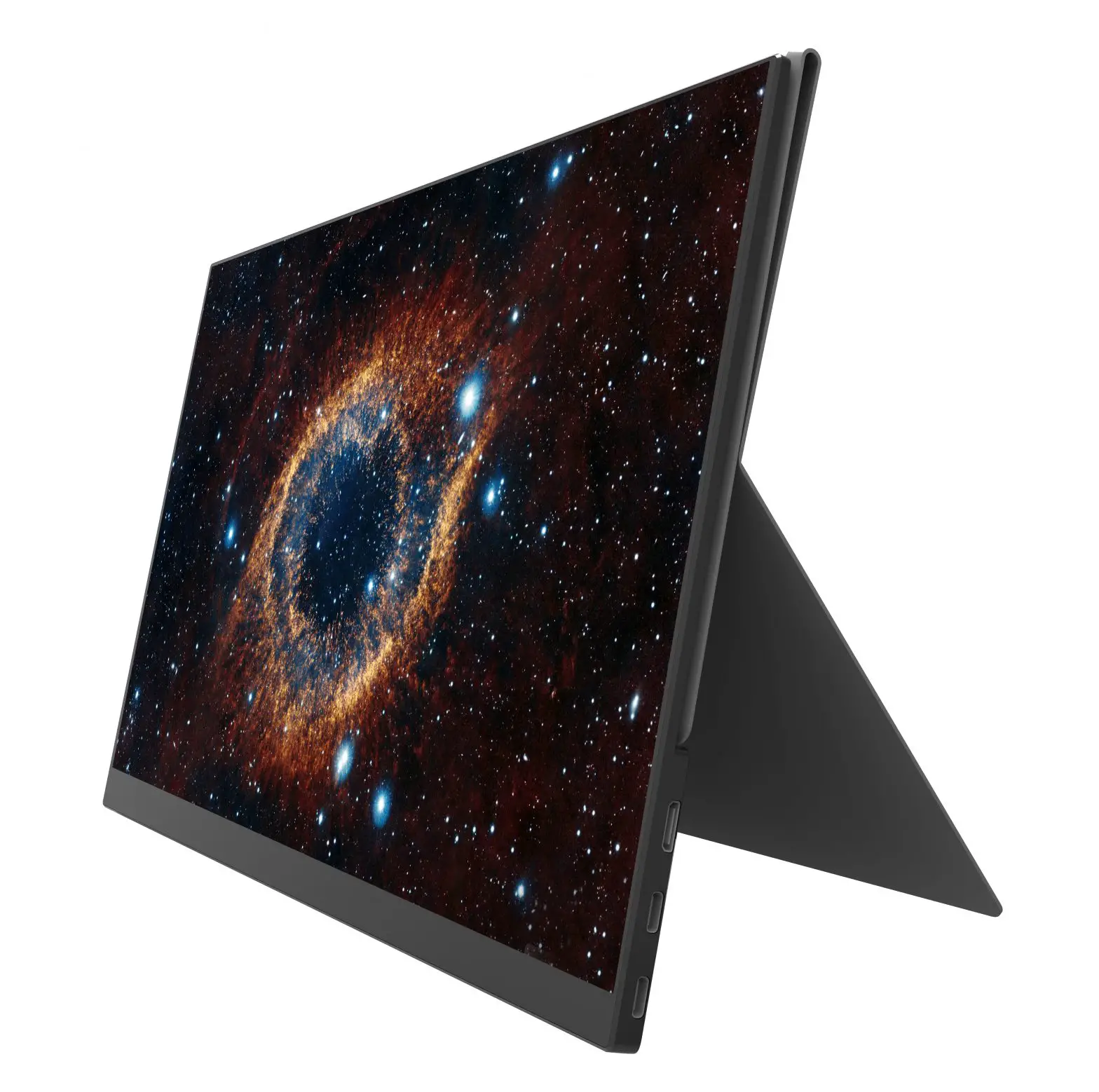
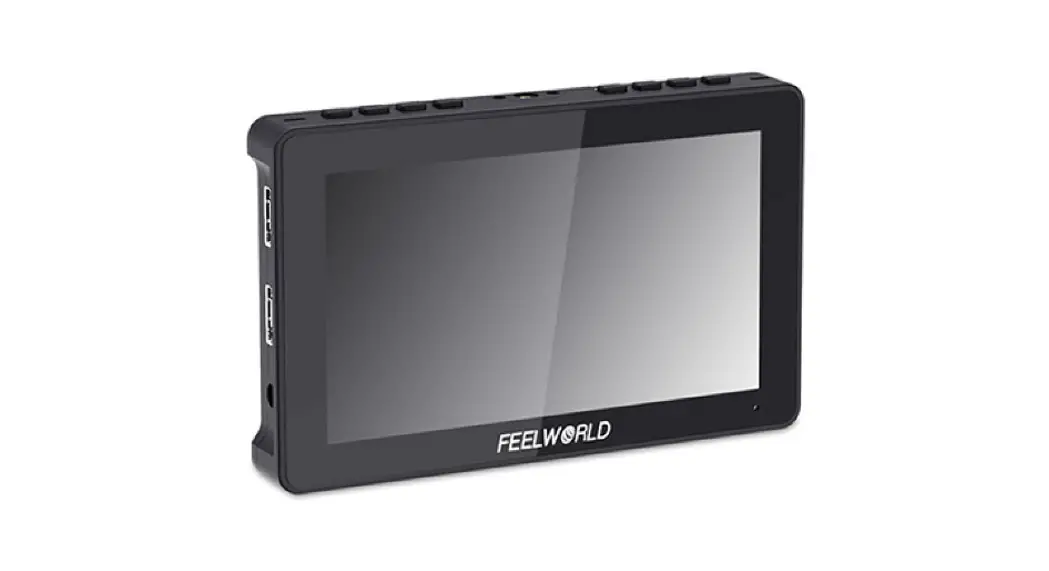
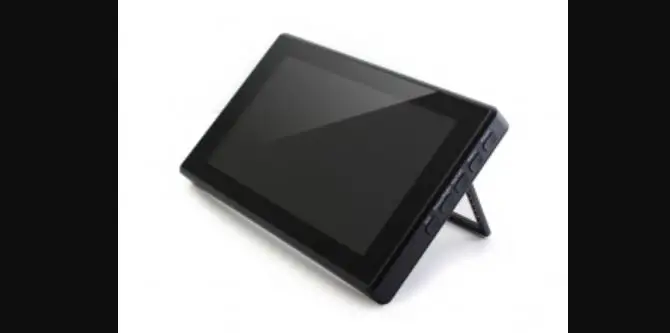
DC-550 Pro 5.5 Inch HD Portable Monitor Touch Screen
Product Information
Product Name: 5.5-inch HD Portable Monitor – Touch Screen
Manufacturer: Shenzhen Jueying Technology Co., Ltd.
Executive Standard: Q/JYKJ001-2019
Contact Information:
Tel: +86-755-2877 9024
Fax: 0755-2877 4730
Email: [email protected]
Website: www.viltrox.com
Address: 1207, Floor 12, Block B, Chinto Science&Technology
Building, Minzhi Street, Longhua, Shenzhen,Guangdong,China
Production Address: Floor 3, Building 1, Simaiou Science Park, No.
52-1, Juyuan Road, Qiuchang Town, Huiyang District, Huizhou,
Guangdong ,China
Product Features
- 3D LUT function: Allows control of full stereo color space and
expands the color display potential of the monitor. It supports
hardware calibration and different display effects can be switched
by loading different 3D LUT files through an SD card. - Audio column: Monitors the audio signal in the HDMI
high-definition signal and provides real-time waveform switching at
different levels. - Gyroscope functions: The device has a gyroscope detection
function that automatically adjusts the screen up and down and
flips the image without manual adjustment. This optimizes the user
experience and meets the needs of photographers.
Usage Instructions
- Please read the User Manual carefully before using this
product. Keep the manual for future reference. - Check for the following accessories:
- [List of accessories]
- Use a compatible battery or power adapter.
- Purchase a proper battery or power adapter separately if
necessary.
- Do not put any heavy objects on the LCD screen to prevent loss
of uniformity. - If used in a cold environment, horizontal lines or afterimages
may appear.
- Remove the battery before cleaning.
- The surface of the LCD screen has been specially treated to
reduce [Specify cleaning instructions].
- Do not place this device near liquids as it is not waterproof,
splash-proof, or dust-proof. - Avoid placing the device in direct sunlight or high-temperature
environments to prevent deformation or malfunction. - Avoid placing the device in places with excessive vibration to
protect it from damage after falling from a high place. - Avoid placing the device in places with excessive
electromagnetic strength to avoid malfunction. - Avoid placing the device in sandy places to prevent malfunction
caused by sand and dust. - Dispose of this device properly and according to local
regulations. Do not dispose of it with general waste. - The top, ventilation holes, and metal parts of this device may
become hot after extended use. Use with care. - Follow the regulations about the operation of this device on an
airplane during take-off and landing.
English
User Manual
5.5-inch HD Portable Monitor – Touch Screen
5.5
English English
English English
Please read the User Manual carefully before using this product. Please keep this Manual properly for future reference.
Please use it correctly after fully understanding the contents herein.
Shenzhen Jueying Technology Co., Ltd. Executive standard: Q/JYKJ001-2019
Tel: +86-755-2877 9024
Fax: 0755-2877 4730
Email: [email protected]
Website: www.viltrox.com
Address: 1207, Floor 12, Block B, Chinto Science&Technology Building, Minzhi Street ,
Longhua, Shenzhen,Guangdong,China
Production Address: Floor 3, Building 1, Simaiou Science Park, No. 52-1, Juyuan Road,
Qiuchang Town, Huiyang District, Huizhou, Guangdong ,China
Check accessories
Please check for the following accessories:
1. Monitor ×1
2. Sunshade hood ×1
4. Carrying pouch ×1 5. Warranty card ×1
7. HDMI mini C-type data cable ×1
3. Standard Shoe Adapter × 1 6. Micro HDMI-to-HDMI HD cable ×1
Contents
Warning ……………………………………………………………………………………. 1 Cleaning……………………………………………………………………………………. 2 Operation precautions……………………………………………………………….. 2 Introduction to functions……………………………………………………………. 3 Part identification………………………………………………………………………. 4 Installation of battery and adapter……………………………………………… 5 Connection of HDMI high-definition signal cable………………………….. 6 Hood ………………………………………………………………………………………… 6 Mounting method of device………………………………………………………… 7 Menu function……………………………………………………………………………. 7 Touch screen operation……………………………………………………………… 9 Troubleshooting………………………………………………………………………… 9 Available signal format………………………………………………………………. 10 Product specifications……………………………………………………………….. 10 Firmware update……………………………………………………………………….. 10
Warning
About batteries, chargers and power adapters Please use a compatible battery or power adapter. Please purchase a proper battery or power adapter separately if necessary.
Operation of LCD screen Do not put any heavy objects on the LCD screen, otherwise, the screen may
lose the uniformity. If this device is used in a cold environment, horizontal lines or afterimages
may appear on the screen, which is not a malfunction. The screen will return to normal after the display warms up. If a fixed image (such as a split image or time code, or a still image) is displayed for a long time, afterimages may be left on the screen and even layered into a ghost image. The screen and chassis may gradually become hot during operation, which is not a malfunction. The LCD screen used in this equipment is produced with high precision technology, so only a small number of pixels may appear as “bright spots”, or remain dark (black), brighten (red, green, or blue) or flicker. In addition, sometimes such “bright spots” naturally be formed due to the physical characteristics of LCD screen after a long period of use, which is not a malfunction.
Cleaning
1. Please remove the battery before cleaning. 2. The surface of the LCD screen has been specially treated to reduce
reflected light, so its performance may be reduced in case of improper maintenance. 3. Gently wipe the screen or chassis with a soft and dry cloth (such as a cleaning cloth or glass cleaning cloth). 4. Remove stubborn stains using neutral detergent. 5. Do not clean this device using thinner, alcohol and other organic solvents to avoid damage to the chassis and screen. 6. Do not wipe the chassis with a rough cloth to avoid scratching the surface of the chassis. 7. The surface coating of the chassis may be damaged or peeled off after it has been in contact with rubber or vinyl products for a long time.
Operation precautions
Please read this User Manual and the operation instructions of camera carefully.
1.Do not place this device near liquids, because it is not designed with waterproof, splash-proof and dust-proof functions.
2.Do not place this device in the sun for a long time, or make it close to a place with high temperature for a long time, so as not to cause deformation or malfunction of machine.
3.Do not place the device in a place with excessive vibration, so as to protect it from being damage after falling from a high place.
4.Do not place the device in a place with excessive electromagnetic strength to avoid malfunction.
5.Do not place the device in a sandy place, so as to avoid malfunction caused after being attacked by sand and dust.
6.Do not dispose of this device with general waste. 7.The top, ventilation holes and metal parts of this device may become hot
after it has been used for a long time. Please use it with care. 8.Please follow the regulations about the operation of this device on the
airplane in the take-off and landing process of airplane.
1
2
Introduction to functions
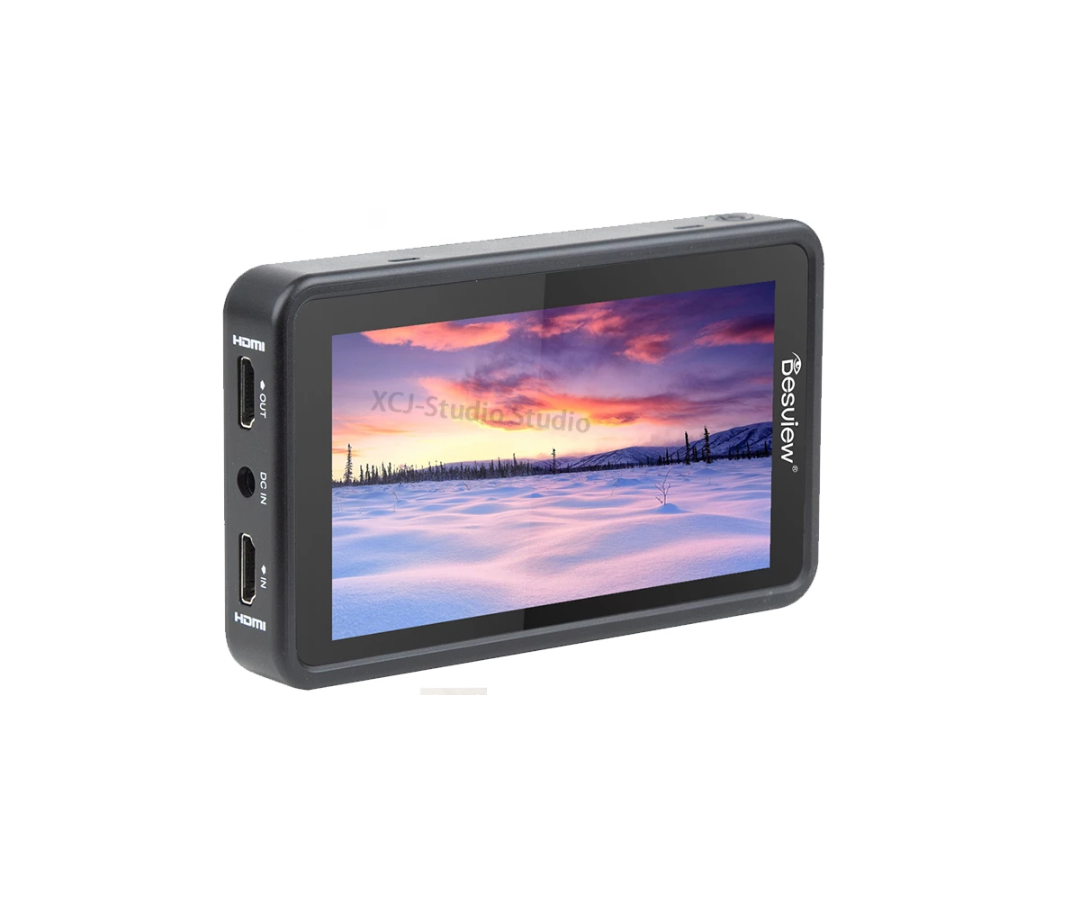
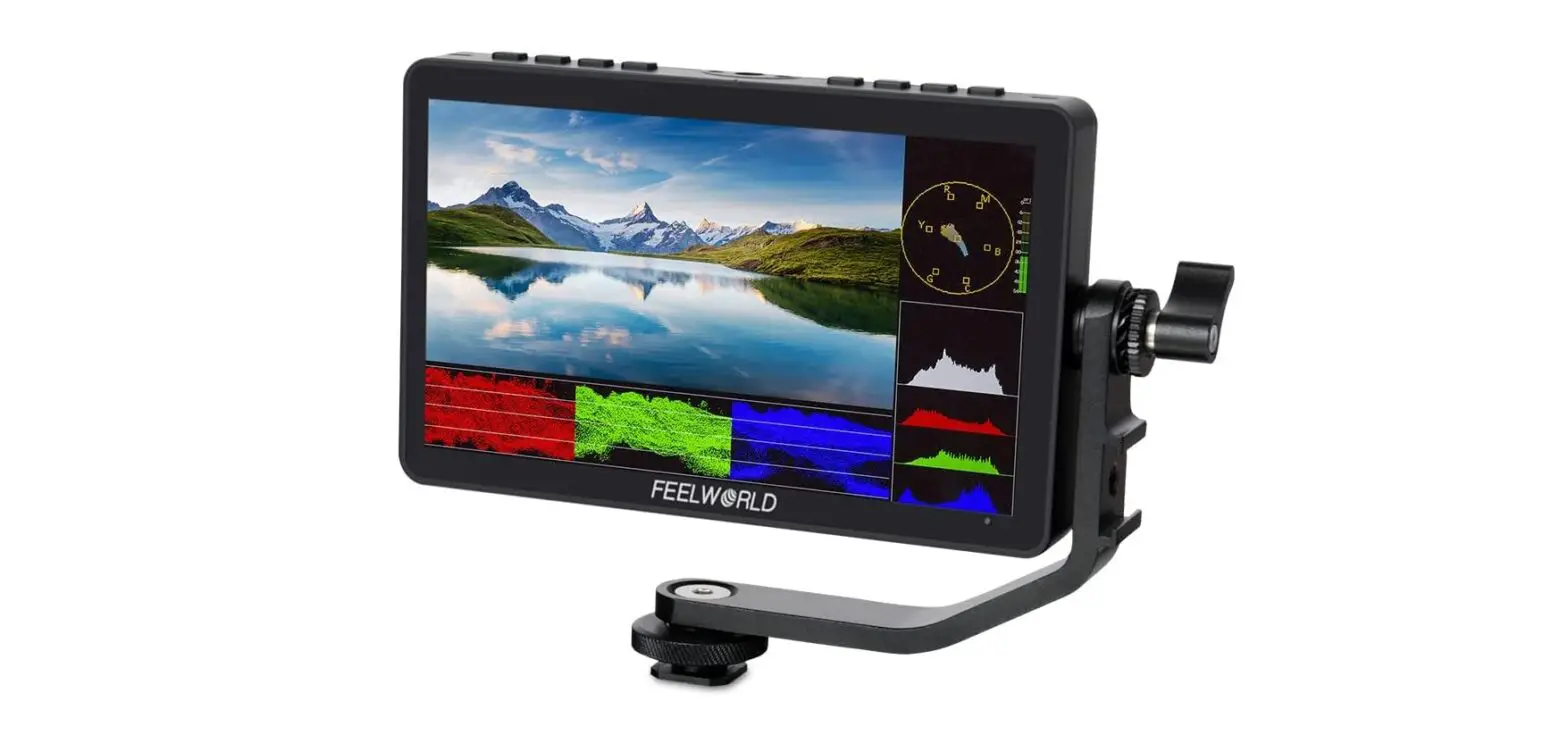
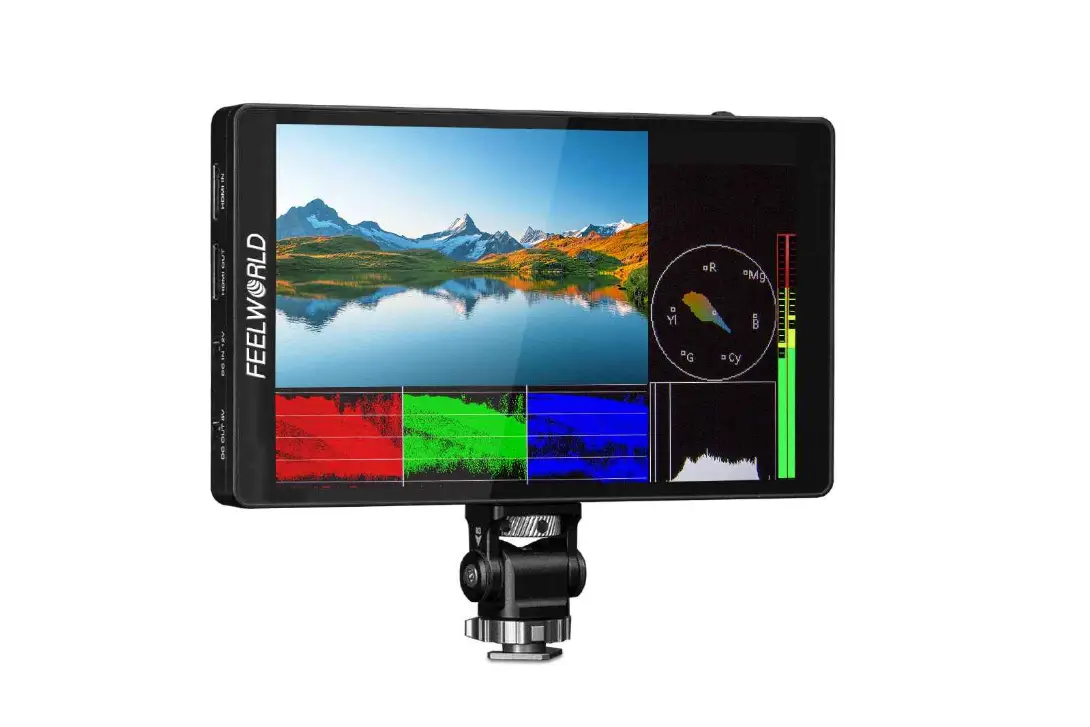
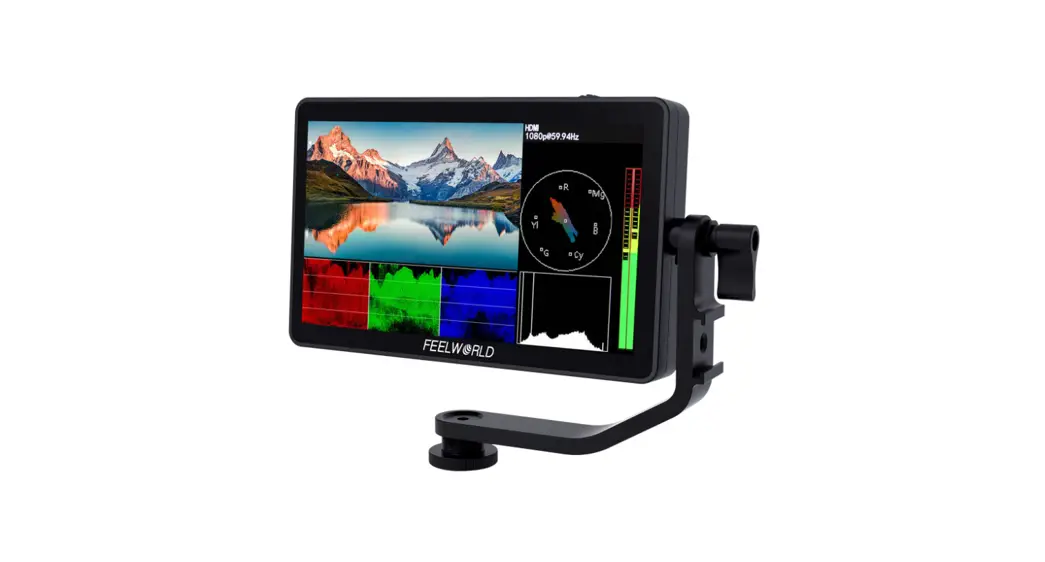
DC-550 Pro is a 5.5-inch touchscreen HD monitor with a resolution of 1920×1080 pixels. It can be used in digital cameras or digital HD camcorders with interchangeable lenses to display the HDMI video signal from the camera in real time. With powerful functions, it provides photographers with an auxiliary system for monitoring, and meanwhile meets the needs of photographers for HD images.
Product features:
3D LUT function: 3D LUT is used to control full stereo color space and greatly expand the color display potential of the monitor, and it is also a solid backing for the realization of WYSIWYG for hardware calibration.3D LUT files are loaded through SD card, and different display effects can be switched by selecting different files.
Audio column: Monitor the audio signal in the HDMI high-definition signal, and switch the waveforms at different levels in real time.
Gyroscope functions: This device has gyroscope detection function to adjust the screen up and down and automatically flip the image without manual adjustment, optimize and improve the user experience, and thus better meet the needs of photographers.
Brightness histogram: It can monitor the brightness of incoming HDMI high-definition images, as well as capture and display brightness change values in real time according to changes in the image.
False color function: It can achieve more precise exposure and lighting control through image conversion, with red for excessive lighting, blue for insufficient lighting and green for appropriate lighting conditions.
Focusing function: Set the focus on the screen area. De-squeeze function: Restores the compressed and deformed image of the
camera, displaying the original proportion of the physical object.
Power supply: It can switch among the three power supply modes of DC adapter, lithium battery and Type-C at any time to fully meet the power supply needs of customers in different scenarios without waiting for a single power supply.
Shortcut keys: F1/F2/F3, it can set different shortcut keys according to the customer’s preferences, to meet the needs of one-key setting without entering the menu for setting.
Signal: This device has HDMI IN function; in addition, it comes with HDMI OUT output function, which is convenient to connect other monitors or devices on site and thus meet the external expansion display functions of different photographers.
SDcardinterface:ItsupportsSDcardupgrade,3DLUTfunctionfileloading. This interface is designed with an automatic pop-up function, SD card can be inserted after pressing it lightly; the SD card will automatically pop up after pressing it hard again, which is convenient for operation.
Touch screen: 5.5-inch sensitive touch screen is provided to facilitate different photographers to operate the device.
Parts identification
SD card cover F1/F2/F3 shortcut keys Return key Display ON/OFF key Knob key* Type-C interface Locating hole 1/4 screw hole
DC interface HDMI output HDMI input Locating hole 1/4 screw hole Fan outlet Headphone jack Battery release key Cooling air inlet
* Note: Knob key: Rotate up and downSelect key; Middle buttonMenu key/Enter key.
3
4
Installation of battery and adapter
Installation of battery
This product can be equipped with rechargeable lithium batteries.
The battery models include NP-F550/F570/F750/F770/F960/F970 and other specifications.
1.Gently press the battery inwards in the direction shown, and then slide it to the left (do not release). There is a clicking sound when the battery is fixed properly.
2.Remove the battery. Slide the battery to the right while holding down the battery release key, and then take out the battery.
Note:Be careful to prevent the battery from falling on the ground when taking it out.
Installation of adapter
1. Select the direction in which the
adapter is mounted according to the shape of hot shoe on the camera. ()
2. Align the 1/4 screw of the adapter with the 1/4 screw hole on the device. ()
3. Tighten the adjustment knob of the adapter. ()
4. Use the adapter Fully insert the base of the adapter into the universal hot shoe base in the direction shown in the figure. Tighten the rotary table of the adapter to fix it on the camera.
Connection of HDMI high-definition signal cable
1.Connect the device to the camera using the accompanied HDMI high-definition signal cable.
HDMI IN
HDMI OUT(mini)
Tip: Please purchase extra HDMI cables if the HDMI high-definition signal cable is not long enough.
2. The image of camera viewfinder will be displayed on the LCD screen of the device after turning on the power switch of the camera and the device. Please set it to AUTO or 16:9 if the camera is designed with an HDMI output setting function.
Notes When connecting this device to the camera via an HDMI high-definition signal cable, the following situations may occur depending on the camera conditions: — No image is displayed on the screen of camera. — The camera is switched to playback mode. (make sure the camera is in capture mode before taking a photo)
Tips In the following cases, screen have no signal after a certain period of time: — The camera is not outputting an HDMI signal. — The HDMI high-definition signal cable is disconnected. Backlight will be turned on again after performing the following operations: — Press the rotary key of the device. — Operate the camera and output HDMI signals. — Reconnect the HDMI high-definition signal cable and turn on the power of camera.
Sunshade hood
1. Put the device on the two bottom brackets of the hood, and then gently buckle it up to complete the installation of hood.
2. Pull the top of the hood frame outward to remove it.
Note: Before using a camera with a pop-up built-in flash, you need to note the following points: Turn off the built-in flash of camera. If the camera is designed with a built-in auto flash function, please turn off this function. Please remove this device from the camera before using the flash.
Please open and close the hood in the steps below:
5
6
Mounting method of device
The device can be mounted in the ways shown in or below according to the needs.
Note This device may interfere with the built-in flash, so do not apply excessive
force when panning or tilting. When pulling the HDMI high-definition signal cable, do not make it tense or
trip over any moving parts.
Menu function
Menu operation
1. Press the <Knob key> to the right, the screen will display the menu options. 2. Rotate the <Knob key> up and down to select option. 3. Press the <Knob key> to the right again to enter the function options. 4. Press < > to return to the previous menu. * Before operating the menu, please make sure that the product is connected to the correct HDMI signal cable and power cable.
Introduction to menu
Level-1 menu (primary menu)
Power
Input
System
SourceHDMI settings
Input Source HDMI
Level-2 menu Level-3 menu
Wave form
7
Volume Bar
Histogram
Vector
Parade
FullWaveform
LUT Table
Input Source HDMI
dpfs 0
-6
-15
Volume Bar
Histogram
Vector
Parade
FullWaveform
-30 -40 -50 -100
LUT Table
Menu function
Monitoring tool
Camera mode Image freezing Gravity-induced flip Mirror image flipping Scanning mode
Pixel to pixel Monochrome
Zebra-stripe False color
Focus peaking
Input Source HDMI
8
Mark and composition
Input Source HDMI
De-squeeze function Frame zoom
Aspect ratio zoom Mark ratio
Triple centerline Safe area
Tag setting
MakeColor White
Mark Thick
1
Border Transp…
Off
Image
Input Source HDMI
Brightness Contrast Saturation Hue
Sharpness
Backlight Color Temp
80
RGB
System settings
Input Source HDMI
Language
Fan Speed
Volume
Chinese
Menu
Reset
F Key
English
System
*Shortcut settings Set shortcut functions for F1/F2/F3 respectively
Monochro… Center Mark Pix To Pix Camera M… Volume Bar Main Menu
False Color Screen Mark Zoom Mute Parade None
Cancel
Peaking Video Ratio Flip Exposure Vector
Input Source HDMI
Peaking C… Scan Mode Freeze Lumia Hist… FullWavefo…
OK
Language
Fan Speed
F1 FullWaveform
Volume
Menu
Reset
F2 False Color
F Key
System
F3 Peaking
8
Touch screen operation
Menu: Double-tap the screen start the menu options; tap the blank space to exit the menu mode.
Input Source HDMI
Volume adjustment: Scroll up and down on the left side of the screen for adjustment.
Volume Bar
Histogram
Vector Parade FullWaveform LUT Table
Backlight adjustment: Scroll up and down on the right side of the screen for adjustment.
Zoom in and out: Zoom in and out with your finger (as shown in the figure) to see details.
Input Source HDMI
Volume Bar
Histogram
Vector Parade FullWaveform LUT Table
(Zoom in)
(frame disappears)
(Double-tap again)
Note: Do not double-tap to display the menu in the process of zooming in and out, but double-tap to display the menu after the”box for zooming in and out”disappears. (As shown in the figure above)
Troubleshooting
Necessary inspections should be carried out before sending the device for repair. Please contact your dealer if the device is still unable to work properly.
Fault
Causes and troubleshooting measures
Battery cannot be taken out This device has no power
The battery is not unlocked press the battery release button, and then take out the battery. The battery has run down replace the battery. The power adapter (not accompanied) is disconnected. Please reconnect it properly.
This device cannot be mounted in camera
The model of adapter is not correct. Check the model of hot shoe of camera and choose the correct one.
No images are displayed on the screen of this device
The camera is in power saving mode and some camera operations cannot be performed. Please press the shutter button halfway to exit the power saving mode. The HDMI high-definition signal cable is disconnected; or the signal source is not turned on, please reconnect and set it properly. When using a camera without a live view function, the captured images cannot be displayed on this device. Please refer to the instruction manual of camera for details.
No images are displayed on the screen of camera
This depends on the camera. When an HDMI high-definition signal cable is connected to this device, images may only displayed on the screen of this device.
No sound can be heart
Please ensure that the volume of this device is not set to 0 before connecting headphones. Make sure that the sound setting of camera is not set to OFF.
No photo can be captured
This depends on the camera. When it is connected to this device, it may sometimes switch to playback mode. Please switch the camera to capture mode before taking photos.
The screen is not clear outdoors Block out the sun with a hood. Turn the backlight value of this device up.
The screen is not clear
9
The aspect ratio of the LCD screen of this device is 16:9. Therefore, black streaks may appear in some images.
Available signal format
This device supports the following signal formats:
System
Number of buses
Number of effective
lines
Frame frequency
Scanning
575 / 50I ( PAL )
625
575
25
2: interlacing
Aspect ratio 16 :9 / 4 :3
480 / 60I ( NTSC ) 525
483
30
2: interlacing 16 :9 / 4 :3
576 / 50P
625
576
50
Sequential scanning 16 :9 / 4 :3
480 / 60P 640 X 480 / 60P 1080 / 50I 1080 / 60I 720 / 50P 720 / 60P
525 525 1125 1125 750 750
483 480 1080 1080 720 720
60
Sequential scanning 16 :9 / 4 :3
60
Sequential scanning 4 :3
25
2: interlacing
16 :9
30
2:1 interlacing
16 :9
50
Sequential scanning 16 :9
60
Sequential scanning 16 :9
1080 / 50P
1125 1080
50
Sequential scanning 16 :9
3840X2160/30P
2250 2160
30
Sequential scanning 16 :9
Design or specifications are subject to change without notice.
Product specifications
Screen display
LCD screen Resolution
5.5-inch 1920X1080 pixels
Input signal interface
Output signal interface
Brightness 1200cd/ HDM I 1.4 signal input HDM I 1.4 signal output
Audio
Headphone jack 3.5
Firmware upgrade SD card upgrade
Power interface DC 12V-18V 2AType-C interface5V 3A
Applicable battery
Working environment
NP-F550/F570/F750/F770/F960/F970
Operating temperature + 0 to +4 0 ° C (+ 3 2 to + 1 0 4 ° F)
Storage temperature
-2 0 to +6 0 ° C (-4 to +1 4 0 ° F)
Dimensions
165X91X28.5mm
Weight
280g
* Input and output signal interface: HDMI 1.4, maximum supported size: 4K30HZ, 3840×2160 4096×2160; 24HZ 25HZ 30HZ
Firmware update
Please scan the QR code below with your browser to learn about the firmware upgrade steps.
10
, , ,
Q/JYKJ001-2019
+86-755-2877 9024
:0755-2877 4730
: www.viltrox.com
B121207
52-113
1. X1 2. X1 3. X1 4. X1 5. X1 6.MICRO HDMI HDMI X1 7.HDMI mini C X1
……………………………………………………………………………………….. 1 ……………………………………………………………………………………….. 2 ………………………………………………………………………………….. 2 ………………………………………………………………………………….. 3 ………………………………………………………………………………….. 4 …………………………………………………………………….. 5 HDMI ………………………………………………………………… 6 ……………………………………………………………………………………… 6 ……………………………………………………………………………. 7 ………………………………………………………………………………….. 7 ………………………………………………………………………………….. 9 ………………………………………………………………………………….. 9 …………………………………………………………………………….10 ………………………………………………………………………………….. 10 ………………………………………………………………………………….. 10
LCD LCD ,
, ( ,
) , , LCD
“”, ( ) ( ) , , , , “”
1. 2. ,
3. 4. 5. 6. 7.
1. 2.
3. 4. 5. 6. 7.
8.
1
2
DC-550 Pro5.5, 1920X1080; HD, HDMI
3D LUT3D LUT SD3D LUT
HDMI
HDMI
DCType-C,
F1/F2/F3
HDMI INHDMI OUT
SDSD3D LUT
SDSD 5.5
SD F1/F2/F3 ON/OFF * Type-C 1/4
DC HDMI HDMI 1/4
* /
3
4
NP-F550/F570/F750/F770/F960/F970
1. , ( )
2.
,
1.
()
2. 1/4 1/4()
3. ()
4. :
HD MI
1. HDMI
HDMI IN
HDMI OUT(mini)
: HDMI , HDMI 2. , LCD
HDMIAUTO169
HDMI, , : — — ( , ) ,,: — HDMI — HDMI : — — HDMI — HDMI
1.
2. ,
: , : , ,
:
5
6
HDMI
1.<> 2.<> 3.<> 4.< >
* HDMI
HDMI
HDMI
Parade
LUT Table
HDMI
dpfs 0
-6
-15
Parade
-30 -40 -50 -100
LUT Table
7
HDMI
8
HDMI
1
HDMI
RGB
80
HDMI
* F1/F2/F3/
Parade
F1
F2
HDMI
F3
8
HDMI
Parade
LUT Table
HDMI
Parade
LUT Table
“”
, ,
,
, ( )
,
HDMI , , ,
, HDMI
, 0 OFF( )
, ,
LCD 16: 9,
9
:
575/ 50I(PAL) 625 575
25 2: 16:9 / 4:3
480/ 60I(NTSC) 525 483
30 2: 16:9 / 4:3
576 / 50P
625 576
50
16:9 / 4:3
480 / 60P 640X480 /60P 1080 / 50I 1080 / 60I 720 /50P
525 525 1125 1125 750
483 480 1080 1080 720
60
16:9 / 4:3
60
4:3
25 2: 16:9
30 2: 16:9
50
16:9
720 /60P
750 720
60
16:9
1080 / 50P
1125 1080 50
16:9
3840X2160/30P 2250 2160 30
16:9
,
5.5
1920X1080
1200cd/
HDM I 1.4
HDM I 1.4
3.5 SD
DC 12V-18V 2AType-C5V 3A NP-F550/F570/F750/F770/F960/F970
+ 0 ~ + 40+ 32 ~ + 104° F
-20 ~ + 60- 4 ~ + 140° F
165X91X28.5mm
280g
* HDMI 1.44K30HZ3840X2160 4096X2160; 24HZ 25HZ 30HZ
10
English English
English English
English English
Japanese
Korean
5.5HD
5.5
Japanese Japanese
Korean Korean
Japanese Japanese
Korean Korean
Q/JYKJ001-2019
: +86-755-2877 9024
FAX: 0755-2877 4730
URL: www.viltrox.com
B121207
52-113
1.×1 2.×1 3.×1 4.×1 5. ×1 6.MICRO HDMI to HDMI×1 7.HDMI mini C ×1
…………………………………………………………………………………………. 1 ………………………………………………………………………………………….. 2 ………………………………………………………………………….. 2 ……………………………………………………………………………………. 3 ……………………………………………………………………………………. 4 ……………………………………………………. 5 HDMI HD………………………………………………………………… 6 ……………………………………………………………………………………….. 6 ………………………………………………………………………….. 7 ……………………………………………………………………………… 7 ………………………………………………………………… 9 …………………………………………………………….. 9 ………………………………………………………. 10 ……………………………………………………………………………………. 10 ………………………………………………… 10
LCD LCD
) LCD ()( )
1. 2.
3. ()
4. 5.
6.
7.
1.
2.
3.
4.
5.
6. 7.
8.
1
2
DC-550 Pro 1920×10805.5 HDHD HDMI
3D LUT :3D LUT
HDMI
HDMI
:
: DCType-C3
F1/F2/F3
HDMI INHDMI OUT
SDSD 3D LUT SD SD
5.5
3
SD F1/F2/F3 ON/OFF * TypeC 1/4
DC HDMI HDMI 1/4
* /
4
NP-F550/F570/F750/F770/F960/F970
1. ()
2.
:
1. ()
2. 1/4 1/4 ()
3. ()
4.
HDMI HD
1. HDMI
HDMI IN
HDMI OUT(mini)
HDMIHDMI
2. LCD HDMI AUTO() 16:9
HDMI : ()
LCD: HDMI HMDI : HDMI HDMI
1. 2
2.
:
5
6
HDMI
1. <> 2.<> 3. <> 4. < > *HDMI
()
HDMI
Input Source HDMI
7
Volume Bar
Histogram
Vector
Parade
FullWaveform
LUT Table
Input Source HDMI
dpfs 0
-6
-15
Volume Bar
Histogram
Vector
Parade
FullWaveform
-30 -40 -50 -100
LUT Table
Input Source HDMI
8
/
/
MakeColor White
Mark Thick
1
Input Source HDMI
Border Transp…
Off
Input Source HDMI
Brightness Contrast Saturation Hue
Sharpness
Backlight Color Temp
80
RGB
Input Source HDMI
Language
Fan Speed
Volume
Chinese
Menu
Reset
F Key
English
System
* F1/F2/F3
Monochro… Center Mark Pix To Pix Camera M… Volume Bar Main Menu
False Color Screen Mark Zoom Mute Parade None
Cancel
Peaking Video Ratio Flip Exposure Vector
Input Source HDMI
Peaking C… Scan Mode Freeze Lumia Hist… FullWavefo…
OK
Language
Fan Speed
F1 FullWaveform
Volume
Menu
Reset
F2 False Color
F Key
System
F3 Peaking
8
:
Input Source HDMI
Volume Bar
Histogram
Vector Parade FullWaveform LUT Table
/ () /
Input Source HDMI
Volume Bar
Histogram
Vector Parade FullWaveform LUT Table
(/)
()
()
: / / ()
()
HDMI
HDMI
0 OFF()
LCD 16:9
9
575 / 50I ( PAL ) 480 / 60I ( NTSC ) 576 / 50P 480 / 60P 640 X 480 / 60P 1080 / 50I 1080 / 60I 720 / 50P 720 / 60P 1080 / 50P 3840X2160/30P
625 525 625 525 525 1125 1125 750 750 1125 2250
575
25 2:1 16 :9 / 4 :3
483
30 2:1 16 :9 / 4 :3
576
50
1
16 :9 / 4 :3
483
60
1
16 :9 / 4 :3
480 1080
60
1
4 :3
25 2:1 16 :9
1080
30 2:1 16 :9
720
50
1
16 :9
720
60
1
16 :9
1080
50
1
16 :9
2160
30
1
16 :9
5.5
1920×1080
1200cd/
HDM I 1.4
HDM I 1.4
3.5 SD
DC 12V-18V 2AType-C 5V 3A
NP-F550/F570/F750/F770/F960/F970
+ 0 ~ + 40+ 32 ~ + 104° F
-20 ~ + 60- 4 ~ + 140° F
165X91X28.5mm
280g
* : HDMI 1.4: 4K30HZ3840×21604096×2160 24HZ 25HZ 30HZ
QR
10
, . . .
Q/JYKJ001-2019
: +86-755-2877 9024
: 0755-2877 4730
: www.viltrox.com
: B 12 1207
: 52-1 1 3
1. X1
2. X1
3. X1
4. X1
5. X1
6. MICRO HDMI HDMI X1
7. HDMI mini C X1
……………………………………………………………………………………………… 1 ………………………………………………………………………………………………. 2 ………………………………………………………………………………………. 2 ………………………………………………………………………………………. 3 ………………………………………………………………………………………. 4 ………………………………………………………………… 5 HDMI …………………………………………………………… 6 ………………………………………………………………………………………. 6 ……………………………………………………………………………….. 7 ………………………………………………………………………………………. 7 …………………………………………………………………………….. 9 ………………………………………………………………………………………. 9 …………………………………………………………………….. 10 ………………………………………………………………………………………. 10 …………………………………………………………………………. 10
, , .
LCD LCD
. ,
. . ( , ) , . . LCD “” (), (, ), . “” .
1. . 2. .
. 3. ( )
. 4. . 5. ,
. 6. . 7.
.
.
1. . , .
2. , .
3. . 4. . 5.
. 6. . 7. , ,
. 8. ,
.
1
2
DC-550 Pro5.5 1920X1080 . HD HDMI . .
:
3D LUT 3D LUT . SD 3D LUT .
HDMI .
.
HDMI .
, , .
.
: .
DC Type-C, 3 .
F1/F2/F3, .
HDMI IN HDMI OUT .
SD SD , 3D LUT . SD SD .
5.5 .
SD F1/F2/F3 ON/OFF * Type-C 1/4
DC HDMI HDMI 1/4
*: : , ; /
3
4
.
NP-F550/F570/F750/F770/F960/F970 .
1. , ( ) .
2. , .
: , .
1.
. ()
2. 1/4 1/4 .()
3. . ()
4. : .
.
HDMI
1. HDMI .
HDMI IN
HDMI OUT(mini)
: HDMI HDMI .
2. LCD . HDMI , AUTO 169 .
HDMI , : — . — ( ) .
, LCD : — HDMI . — HDMI . : — . — HDMI . — HDMI .
1. 2 .
2. .
: , : . , . , .
:
5
6
.
. HDMI
.
1. < > . 2. < > , . 3. < > . 4. < > . * , HDMI .
1 ( )
HDMI
Input Source HDMI
2 3
7
Volume Bar
Histogram
Vector
Parade
FullWaveform
LUT Table
Input Source HDMI
dpfs 0
-6
-15
Volume Bar
Histogram
Vector
Parade
FullWaveform
-30 -40 -50 -100
LUT Table
Input Source HDMI
8
MakeColor White
Mark Thick
1
Input Source HDMI
Border Transp…
Off
Input Source HDMI
Brightness Contrast Saturation Hue
Sharpness
Backlight Color Temp
80
RGB
Input Source HDMI
Language
Fan Speed
Volume
Chinese
Menu
Reset
F Key
English
System
* F1/F2/F3 .
Monochro… Center Mark Pix To Pix Camera M… Volume Bar Main Menu
False Color Screen Mark Zoom Mute Parade None
Cancel
Peaking Video Ratio Flip Exposure Vector
Input Source HDMI
Peaking C… Scan Mode Freeze Lumia Hist… FullWavefo…
OK
Language
Fan Speed
F1 FullWaveform
Volume
Menu
Reset
F2 False Color
F Key
System
F3 Peaking
8
: ; .
Input Source HDMI
Volume Bar
Histogram
Vector Parade FullWaveform LUT Table
: .
:
: ( ) .
Input Source HDMI
Volume Bar
Histogram
Vector Parade FullWaveform LUT Table
( )
( )
( )
: ” ” . ( )
.
. ( ) . .
. .
, . HDMI ; . , .
,HDMI .
0 . OFF() .
, , . .
. .
LCD 16:9 .
9
:
575 / 50I ( PAL )
625
575
25
480 / 60I ( NTSC ) 525
483
30
576 / 50P
625
576
50
2:1 2:1
16 :9 / 4 :3 16 :9 / 4 :3 16 :9 / 4 :3
480 / 60P
525
483
60
640 X 480 / 60P
525
480
60
1080 / 50I
1125 1080
25
1080 / 60I
1125 1080
30
720 / 50P
750
720
50
720 / 60P
750
720
60
1080 / 50P
1125 1080
50
2:1 2:1
16 :9 / 4 :3 4 :3 16 :9 16 :9 16 :9 16 :9 16 :9
3840X2160/30P
2250 2160
30
16 :9
, .
5.5
1920×1080
1200cd/
HDMI 1.4
HDMI 1.4
3.5
SD
DC 12V-18V 2AType-C 5V 3A
NP-F550/F570/F750/F770/F960/F970
+ 0 ~ + 40+ 32 ~ + 104° F -20 ~ + 60- 4 ~ + 140° F
165X91X28.5mm
280g
* , HDMI 1.4 4K30HZ, 3840X2160, 4096X2160; 24HZ 25HZ 30HZ
QR .
10
Japanese Japanese
Korean Korean
Japanese Japanese
Korean Korean
Japanese Japanese
Korean Korean
German
Produktanleitung
Spanish
Manual de Instrucciones del Producto
5,5″ Tragbarer HD-Monitor mit Touchscreen
5.5 Pulgadas Monitor Táctil Portátil HD
German German
Spanish Spanish
German German
Spanish Spanish
Bitte lesen Sie die Anleitung sorgfältig durch, wenn Sie dieses Gerät benutzen. Bitte bewahren Sie die Anleitung griffbereit auf, damit Sie auch in Zukunft jederzeit darin nachschlagen können. Bitte verwenden Sie dieses Gerät ordnungsgemäß und mit vollem Verständnis für den Inhalt der Anleitung.
Shenzhen Jueying Technology Co., Ltd. Ausführende Norm: Q/JYKJ001-2019
Tel: +86-755-2877 9024
Fax: 0755-2877 4730
Email: [email protected]
Website www.viltrox.com
Adresse: Nr. 1207, 12/F, Gebäude B, Zhantao Gebäude, Minzhi Straße, Bezirk Longhua,
Stadt Shenzhen, Provinz Guangdong
Produktionsadresse: 3/F, Gebäude 1, Smayo Technologiepark, Nr. 52-1, Orangengartenstraße,
Stadt Qiuchang, Bezirk Huiyang, Stadt Huizhou, Provinz Guangdong, China
Kontrolle beim Auspacken
Bitte überprüfen Sie, ob folgende Zubehörteile vorhanden ist:
1. Monitor X1
2. Gegenlichtblende X1
3. Adapter X1
4. Tragetasche X1
5. Garantiekarte X1
6. MICRO-HDMI zu HDMI-HD Umwandlungskabel X1
7. Datenkabel vom Typ HDMI mini C X1
Inhalt
Warnung ……………………………………………………………………………………. 1 Reinigung…………………………………………………………………………………… 2 Gebrauchsanweisung………………………………………………………………….. 2 Einführung in die Funktionen………………………………………………………. 3 Identifizierung der Komponenten………………………………………………… 4 Einsetzen der Batterie und des Adapters………………………………………. 5 HDMI-HD-Signalkabelanschluss ………………………………………………….. 6 Gegenlichtblende……………………………………………………………………….. 6 Befestigungsweise des Geräts …………………………………………………….. 7 Menüfunktionen…………………………………………………………………………. 7 Touchscreen-Bedienung …………………………………………………………….. 9 Fehlersuche ……………………………………………………………………………….. 9 Verfügbare Signalformate ……………………………………………………………10 Produktspezifikationen ……………………………………………………………….10 Firmware aktualisieren ………………………………………………………………..10
Warnung
Für Batterien, Ladegeräte und Netzteile Verwenden Sie bitte eine kompatible Batterie oder ein kompatibles Netzteil, wenn Sie keines haben, erwerben Sie es bitte separat.
Bedienung des LCD-Bildschirms Legenen Sie keine schweren Gegenstände auf den LCD-Bildschirm, da der Bildschirm
seine Gleichmäßigkeit verlieren könnte. Wird das Gerät in kalten Umgebungen verwendet, können horizontale Linien oder
Restbilder auf dem Bildschirm erscheinen; was aber kein Fehler ist. Wenn der Monitor aufgewärmt ist, wird der Bildschirm wieder normal angezeigt. Wenn ein fixiertes Bild (z. B. ein geteiltes Bild, ein Zeitcode oder ein Standbild) über einen längeren Zeitraum angezeigt wird, kann das Bild auf dem Bildschirm verbleiben und zu einer Bildüberlappung verschmelzen. Der Bildschirm und das Gehäuse werden während des Betriebs allmählich wärmer; dies ist kein Fehler. Der in diesem Gerät verwendeten LCD-Bildschirm wird mit hochpräziser Technologie hergestellt. Daher kann es vorkommen, dass nur eine kleine Anzahl von Pixeln als ,,helle Flecken” erscheint, oder dass sie immer dunkel (schwarz) sind, sich aufhellen (rot, grün oder blau) oder flackern. Darüber hinaus können solche ,,hellen Flecken” nach längerem Gebrauch aufgrund der physikalischen Eigenschaften des LCD-Bildschirms selbst manchmal auf natürliche Weise auftreten. Sie sind keine Störungen.
Reinigung
1. Nehmen Sie vor der Reinigung unbedingt die Batterie heraus. 2. Die Oberfläche dieses Bildschirms wird speziell behandelt, um Lichtreflexionen zu
reduzieren. Unsachgemäße Wartung kann die Leistung des Bildschirms beeinträchtigen. 3. Verwenden Sie ein weiches, trockenes Tuch (z. B. ein Reinigungstuch oder ein Glasreinigungstuch), um den Bildschirm oder das Gehäuse vorsichtig abzuwischen. 4. Verwenden Sie ein neutrales Reinigungsmittel, mit dem sich hartnäckige Flecken entfernen lassen. 5. Verwenden Sie zur Reinigung des Geräts keine organischen Lösungsmittel wie Verdünner oder Alkohol, da dies das Gehäuse und den Bildschirm beschädigen kann. 6. Verwenden Sie zum Abwischen des Gehäuses kein raues Tuch, da dies die Oberfläche des Gehäuses zerkratzen könnte. 7. Wenn das Gehäuse längere Zeit mit Gummi- oder Vinylprodukten in Berührung kommt, wird die Oberflächenbeschichtung des Gehäuses beschädigt oder abblättert.
Gebrauchsanweisung
Bitte lesen Sie diese Anleitung und die Anleitung der Kamera sorgfältig durch.
1. Stellen Sie das Gerät nicht in der Nähe von Flüssigkeiten auf. Das Gerät ist nicht wasserdicht, spritzwassergeschützt oder staubdicht.
2. Lassen Sie die Kamera nicht für längere Zeit in der Sonne oder in der Nähe von hohen Temperaturen liegen, da dies zu Verformungen oder Fehlfunktionen der Kamera führen kann.
3. Stellen Sie das Gerät nicht an einem Ort auf, an dem es übermäßigen Vibrationen ausgesetzt ist, da dies das Gerät beschädigen kann.
4. Stellen Sie das Gerät nicht an einem Ort mit übermäßiger elektromagnetischer Stärke auf, um Fehlfunktionen zu vermeiden.
5. Stellen Sie das Gerät nicht in sandigen Gebieten auf, da dies zu Fehlfunktionen führen kann.
6. Entsorgen Sie das Gerät nicht mit dem Hausmüll zusammen. 7. Nach längerem Gebrauch können die Oberseite, die Lüftungsöffnungen und die
Metallteile des Geräts heiß werden. 8. Wenn Sie das Gerät in einem Flugzeug bei dem Abflug und der Landung verwenden,
beachten Sie bitte die für dieses Gerät geltenden Vorschriften.
1
2
Einführung in die Funktionen
Das Modell DC-550 Pro ist ein 5,5″ HD-Monitor mit einem Touchscreen von einer Auflösung von 1920×1080 Pixeln. Es kann mit Digitalkameras mit wechselbaren Objektiven oder digitalen HD-Camcordern verwendet werden, um das HDMI-Videosignal der Kamera in Echtzeit anzuzeigen. Der Monitor ist so leistungsstark, dass er allen Fotografen eine Überwachungshilfe anbietet und ihre fotografischen Anforderungen in HD-Qualität erfüllt.
Produktmerkmale:
3D LUT-Funktion: Die Verwendung von 3D LUT ermöglicht eine vollständige Kontrolle des stereoskopischen Farbraums, wodurch das Farbdarstellungspotenzial des Monitors erheblich erweitert wird und eine solide Grundlage für die Hardware-Kalibrierung geschaffen wird. Laden Sie eine 3D LUT-Datei über die SD-Karte und wählen Sie eine andere Datei aus, um zwischen verschiedenen Anzeigen zu wechseln.
Audio-Spalte: Es überwacht das Audiosignal innerhalb des HDMI HD-Signals und schaltet in Echtzeit zwischen verschiedenen Wellenformen in hoch und niedrig um.
Gyroskopfunktion: Dieses Gerät verfügt über eine Gyroskoperkennung, passt die Aufund Ab-Richtung des Bildschirms an und kann das Bild automatisch spiegeln, ohne dass eine manuelle Einstellung erforderlich ist, wodurch die Nutzungserfahrung optimiert und verbessert wird und die Bedürfnisse der meisten Fotografieliebhaber besser erfüllt werden.
Helligkeitshistogramm: Es überwacht die Helligkeit eingehender HDMI-HD-Bilder und erfasst den Wert der Helligkeitsänderung in Echtzeit entsprechend der Änderung des Bildes.
Pseudofarbenfunktion: Genauere Belichtungs- und Beleuchtungssteuerung durch Umwandlung des Bildes in Rot bei der Überbelichtung, Blau bei Unterbelichtung und Grün bei der richtigen Lichtumgebung.
Fokussierungsfunktion: Fokuseinstellung für den Bildbereich. Anti-Extrusionsfunktion: Stellt das komprimierte und deformierte Bild der Kamera
wieder her und zeigt den ursprünglichen Anteil des physischen Objekts an. Stromversorgung: DC-Adapter, Lithiumbatterie, Typ-C, drei Stromversorgungsmodi
jederzeit umschaltbar, Erfüllung des Stromversorgungsbedarfs der Kunden in verschiedenen Szenarien in allen Aspekten möglich, ohne auf eine einzige Stromversorgung zu warten. Tastenkombinationen: Mit F1/F2/F3 können verschiedene Tastenkombinationen nach Kundenwunsch eingestellt werden, um die Ein-Klick-Einstellung zu treffen. Es ist unnötig, die Menüeinstellung einzugeben. Signal: Dieses Gerät verfügt über eine HDMI-IN-Funktion; gleichzeitig verfügt es über eine HDMI-OUT-Funktion, die es ermöglicht, andere Monitore oder Geräte vor Ort anzuschließen und die Funktion der externen Bildschirmerweiterung für verschiedene Liebhaber zu erfüllen. SD-Kartensteckplatz: Es unterstützt SD-Karten-Upgrade, Laden von 3D LUT-Funktionsdateien. Dieser Steckplatz verfügt über eine automatische Auswurffunktion, drücken Sie leicht, um die SD-Karte einzulegen; drücken Sie erneut mit größerer Kraft, wird die SD-Karte automatisch ausgeworfen, um die Bedienung zu erleichtern. Touchscreen: 5,5 Zoll-Touchscreen für die einfache Bedienung des Geräts durch verschiedene Benutzer.
Identifizierung der Komponenten
SD-Kartenschlitzabdeckung F1/F2/F3-Schnelltaste Zurücktaste Bildschirm ON/OFF-Taste Knopftaste* Typ-C-Anschluss Positionsbohrung 1/4 Schraubenbohrung
DC-Anschluss HDMI-Ausgang HDMI-Eingang Positionsbohrung 1/4 Schraubenbohrung Lüfterausgang Kopfhöreranschluss Batterieentriegelungstaste Kühllufteinlass
*Hinweis:Knopftaste: Nach oben und unten drehen Auswahl-Taste; Mittlere Schaltfläche Menü/OK-Taste
3
4
Einsetzen der Batterie und des Adapters
Batterien einbauen
Dieses Produkt ist mit wiederaufladbaren Lithiumbatterien erhältlich. Die Batteriemodelle sind in den Größen NP-F550/F570/F750/F770/F960/F970 wählbar.
1. Drücken Sie die Batterie vorsichtig in der gezeigten Richtung nach innen und
schieben Sie ihn nach links (nicht
loslassen). Die Batterie gibt ein klickendes
Geräusch von sich aus, wenn sie einrastet.
2.Entfernen Sie die Batterie. Halten Sie die Batterieentriegelungstaste
gedrückt, schieben Sie die Batterie
nach rechts und entfernen Sie sie.
HINWEIS: Achten Sie beim Entfernen darauf, die Batterie nicht auf den Boden fallen zu lassen.
Anbringen des Adapters
1. Wählen Sie die Ausrichtung der Adapterhalterung je nach Form des Blitzschuhs der Kamera. ()
2. Richten Sie die 1/4 Schraube des Adapters auf das 1/4 Schraubenbohrung des Geräts aus. ()
3. Verriegeln Sie das Einstellrad des Adapters in seiner Position. ()
4. Basis des Adapters verwenden:
Stecken Sie die Basis des Adapters vollständig in den Universal-Blitzschuhhalter in der in der Abbildung gezeigten Richtung.
Befestigen Sie den Adapter an der Kamera, indem Sie das Einstellrad des Adapters verriegeln.
HDMI HD-Signalkabelanschluss
1. Schließen Sie dieses Gerät mit dem mitgelieferten HDMI-HD-Signalkabel an die Kamera an.
HDMI IN
HDMI OUT(mini)
Hinweis: Wenn das HDMI-Signalkabel nicht lang genug ist, kaufen Sie bitte ein HDMI-Kabel anderer Größe.
2. Schalten Sie den Netzschalter der Kamera und des Geräts ein, das Bild des Kamerasuchers wird auf dem LCD-Bildschirm des Geräts angezeigt. Wenn die Kamera über eine Funktion zur Einstellung des HDMI-Ausgangs verfügt, stellen Sie diese bitte auf AUTO oder 16:9 ein.
Hinweis: Wenn Sie dieses Gerät über das HDMI-HD-Signalkabel an die Kamera anschließen, kann es je nach der Kamera zu den folgenden Situationen kommen: – Auf dem bildschirm der Kamera wird kein Bild angezeigt. – Die Kamera ist in den Wiedergabemodus geschaltet. (Stellen Sie sicher, dass sich die Kamera im Aufnahmemodus befindet, bevor Sie ein Bild aufnehmen)
Tipps: In den folgenden Situationen zeigt die LCD nach dem Ablauf einer bestimmten Zeit an, dass kein Signal vorhanden ist: – Die Kamera gibt kein HDMI-Signal aus. – Das HDMI-HD-Signalkabel ist nicht angeschlossen. Wenn Sie die folgenden Schritte ausführen, wird die Hintergrundbeleuchtung wieder eingeschaltet: – Drücken Sie den Drehknopf des Geräts. – Bedienen Sie die Kamera und geben Sie das HDMI-Signal aus. – Schließen Sie das HDMI-HD-Signalkabel wieder an und schalten Sie die Kamera ein.
Gegenlichtblende
1 .Setzen Sie das Gerät auf die beiden unteren Halterungen der Gegenlichtblende und klappen Sie es vorsichtig nach oben, um die Installation der Gegenlichtblende abzuschließen.
2. Ziehen Sie die Oberseite des Gegenlichtblende nach außen, um sie zu entfernen.
Bitte öffnen und schließen Sie die Gegenlichtblende wie abgebildet:
Hinweis: Wenn Sie eine Kamera mit einem aufklappbaren eingebauten Blitz verwenden, sollten Sie die folgenden Punkte beachten: Stellen Sie sicher, dass Sie den eingebauten Blitz der Kamera ausschalten. Wenn die Kamera über eine integrierte automatische Blitzfunktion verfügt, schalten Sie diese bitte aus. Entfernen Sie dieses Gerät von der Kamera, bevor Sie den Blitz verwenden.
5
6
Befestigungsweise des Geräts
Dieses Gerät kann je nach Bedarf entweder in oder befestigt werden.
Hinweis
Dieses Gerät kann den eingebauten Blitz stören. Wenden Sie daher beim Schwenken oder Neigen keine übermäßige Kraft an.
Wenn Sie das HDMI-HD-Signalkabel ziehen, sollten Sie es nicht straff ziehen oder über bewegliche Teile stolpern.
Menüfunktionen
Menübedienung
1. Drücken Sie die Knopftaste nach rechts, um die Menüoptionen anzuzeigen. 2.Drehen Sie die Knopftaste nach oben oder unten, um die gewünschte Option
auszuwählen. 3. Drücken Sie die Knopftaste nach rechts, um den Zugriff auf die Funktionsoptionen zu
bestätigen. 4. Drücken Sie , um zur vorherigen Ebene zurückzukehren. * Stellen Sie vor der Menübedienung sicher, dass das Gerät mit dem richtigen HDMI-Signalkabel und
Netzkabel verbunden ist, bevor Sie mit der Menübedienung fortfahren.
Einführung ins Menü
Batterieleistung Systemein-
HDMI-Signalquell
stellungen
Menü 1. Ebene Hauptmenü
Input Source HDMI
Menüfunktionen
Überwachungsinstrument
Kamera-Modus Bild einfrieren
Schwerkraft induziertes Flippen Spiegelung
Scannmodus Punkt-zu-Punkt Monochromanzeige
Zebrastreifen Pseudofarbe Spitzenschärfe
Input Source HDMI
8
Kennzeichnung und Komposition
Anti-Extrusionsfunktion Skalierung der Bildschirmgröße Skalierung der Bildschirmverhältnisse
Kennzeichnungsverhältnisse Dreiteilige Mittellinie Sicherheitsrahmen
Kennzeichnungseinstellungen
MakeColor White
Mark Thick
1
Input Source HDMI
Border Transp…
Off
Bildanzeige
Input Source HDMI
Brightness Contrast Saturation Hue
Sharpness
Backlight Color Temp
80
RGB
Menü 2. Ebene Menü 3. Ebene
Volume Bar
Histogram
Vector
Parade
FullWaveform
LUT Table
Wellenkarte
Input Source HDMI
dpfs 0
-6
-15
Volume Bar
Histogram
Vector
Parade
FullWaveform
-30 -40 -50 -100
LUT Table
7
Systemeinstellungen
Input Source HDMI
Language
Fan Speed
Volume
Chinese
Menu
Reset
F Key
English
System
*Einstellung der Schnelltasten Schnelltastenfunktionen sind jeweils für Schnelltasten F1/F2/F3 einzustellen.
Monochro… Center Mark Pix To Pix Camera M… Volume Bar Main Menu
False Color Screen Mark Zoom Mute Parade None
Cancel
Peaking Video Ratio Flip Exposure Vector
Input Source HDMI
Peaking C… Scan Mode Freeze Lumia Hist… FullWavefo…
OK
Language
Fan Speed
F1 FullWaveform
Volume
Menu
Reset
F2 False Color
F Key
System
F3 Peaking
8
Touchscreen-Bedienung
Menü: Doppelklicken Sie auf den Bildschirm, um die Menüoptionen aufzurufen; klicken Sie auf das leere Feld, um den Menümodus zu verlassen.
Input Source HDMI
Volume Bar
Histogram
Vector Parade FullWaveform LUT Table
Lautstärkeregelung: Wischen Sie auf der linken Seite des Bildschirms nach oben und unten, um die Lautstärke anzupassen.
Einstellung der Hintergrundbeleuchtung: Wischen Sie auf der rechten Seite des Bildschirms nach oben und unten, um die Einstellung vorzunehmen.
Vergrößern und verkleinern: Verwenden Sie Ihren Finger (wie abgebildet) zum Vergrößern und Verkleinern, um Details anzuzeigen.
Input Source HDMI
Volume Bar
Histogram
Vector Parade FullWaveform LUT Table
(Vergrößern und verkleinern)
((Rahmen ausgeblendet)
(Erneutes Doppelklicken)
Hinweis: Beim Vergrößern und Verkleinern können Sie das Menü nicht mit einem Doppelklick verlassen. Sie müssen warten, bis das Feld ,,Vergrößern und Verkleinern” verschwindet, und dann erneut doppelklicken. Das Menü wird wieder angezeigt. (wie oben gezeigt)
Fehlersuche
Bevor Sie das Gerät zur Reparatur einschicken, sollten Sie die notwendigen Kontrollen durchführen. Wenn das Gerät dann immer noch nicht richtig funktioniert, wenden Sie sich bitte an Ihren Händler.
Störung
Ursache und Gegenmaßnahme
Die Batterie kann nicht entnommen werden
Die Batterie ist nicht entriegelt. – Drücken Sie die Batteriefreigabetaste und nehmen Sie die Batterie heraus.
Die Batterie ist erschöpft. – Ersetzen Sie die Batterie. Das Gerät ist nicht aufgeladen Der Netzadapter (nicht mitgeliefert) ist nicht angeschlossen. Bitte stellen Sie
die Verbindung korrekt wieder her.
Das Gerät kann nicht an der Der verwendete Adaptertyp ist nicht korrekt. Kamera befestigt werden Überprüfen Sie den Blitzschuhtyp der Kamera und wählen Sie den richtigen
Typ aus.
Die Kamera befindet sich im Energiesparmodus und einige Kamerafunktionen können nicht ausgeführt werden; drücken Sie den Auslöser halb herunter, um den Energiesparmodus zu beenden. Es wird kein Bild auf dem Das HDMI-Signalkabel ist nicht angeschlossen; oder die Signalquelle ist nicht Bildschirm des Geräts angezeigt eingeschaltet, bitte schließen Sie es wieder an und richten Sie es richtig ein. Wenn Sie eine Kamera ohne Live View-Funktion verwenden, werden die aufgenommenen Bilder nicht auf diesem Gerät angezeigt.
Je nach Kamera werden Bilder möglicherweise nur auf dem Bildschirm des Auf dem Kamerabildschirm Geräts angezeigt, wenn das HDMI-Hochauflösungssignalkabel an das Gerät werden keine Bilder angezeigt angeschlossen ist.
Kein Ton ist anzuhören
Wenn Sie einen Kopfhörer anschließen, stellen Sie sicher, dass die Lautstärke des Geräts nicht auf 0 eingestellt ist. Stellen Sie sicher, dass die Toneinstellung der Kamera nicht auf 0FF (Aus) eingestellt ist .
Es können keine Bilder aufgenommen werden
Je nach Kamera schaltet diese manchmal in den Wiedergabemodus, wenn sie mit diesem Gerät verbunden ist. Bitte schalten Sie die Kamera in den Aufnahmemodus, bevor Sie ein Bild aufnehmen.
Der Bildschirm ist im Freien Verwenden Sie die Gegenlichtblende, um das Sonnenlicht abzuschirmen.
nicht sichtbar
Stellen Sie die Hintergrundbeleuchtung des Geräts höher ein.
Der Bildschirm ist nicht sichtbar
Der LCD-Bildschirm dieses Geräts hat ein Seitenverhältnis von 16:9. Daher können einige Bilder als schwarze Streifen erscheinen.
9
Verfügbare Signalformate
Dieses Gerät unterstützt die folgenden Signalformate:
System 575 / 50I ( PAL )
Anzahl der
Busanzahl effektiven Bildrate Zeilen
Scannen
Bildseitenverhältnis
625
575
25 2:1 Zeilensprungverfahren 16 :9 / 4 :3
480 / 60I ( NTSC ) 525
483
30 2:1 Zeilensprungverfahren 16 :9 / 4 :3
576 / 50P
625
576
50 Zeilenweises Verfahren 16 :9 / 4 :3
480 / 60P
525
483
60 Zeilenweises Verfahren 16 :9 / 4 :3
640 X 480 / 60P
525
480
60 Zeilenweises Verfahren 4 :3
1080 / 50I
1125
1080
25 2:1 Zeilensprungverfahren 16 :9
1080 / 60I
1125
1080
30 2:1 Zeilensprungverfahren 16 :9
720 / 50P
750
720
50 Zeilenweises Verfahren 16 :9
720 / 60P
750
720
60 Zeilenweises Verfahren 16 :9
1080 / 50P
1125
1080
50 Zeilenweises Verfahren 16 :9
3840X2160/30P
2250
2160
30 Zeilenweises Verfahren 16 :9
Änderungen des Designs oder der technischen Daten sind ohne Vorankündigung möglich.
Produktspezifikationen
Bildschirmanzeige
LCD-Anzeige Auflösung
5.5 Zoll 1920X1080 Pixel
Helligkeit
1200cd/
Eingangssignalanschluss HDMI 1.4 -Signaleingang
Ausgangssignalanschluss HDMI 1.4 -Signalausgang
Audio
Firmware-Upgrade Stromversorgungsanschluss Geeignete Batterie
Kopfhöreranschluss 3.5 SD-Karten-Upgrade DC 12V-18V 2ATyp-C-Anschluss5V 3A NP-F550/F570/F750/F770/F960/F970
Betriebsumgebung
Betriebstemperatur + 0 ~ + 40+ 32 ~ + 104° F Lagertemperatur -20 ~ + 60- 4 ~ + 140° F
Produktabmessungen 165X91X28.5mm
Produktgewicht
280g
*Eingangs- und Ausgangssignalanschluss: HDMI 1.4, maximale Unterstützung: 4K30HZ, 3840X2160 4096X2160; 24HZ 25HZ 30HZ
Firmware aktualisieren
Bitte scannen Sie den QR-Code unten mit Ihrem Browser, um mehr über die Firmware-Upgrade-Schritte zu erfahren.
10
Asegúrese de leer el presente manual de instrucciones antes de usar el aparato.
Conserve bien este manual para la consulta en el futuro. Use el aparato basándose en la compresión plena del
contenido en el manual.
Shenzhen Jueying Technology Co., Ltd.
Estándar ejecutivo: Q/JYKJ001-2019
Tel: +86-755-2877 9024
Fax: 0755-2877 4730
Correo electrónico: [email protected]
Sitio web: www.viltrox.com
Dirección: No. 1207, Piso 12, Edificio B, Torre Zhantao, Calle Minzhi, Distrito de Longhua,
Ciudad de Shenzhen, Guangdong
Dirección de producción: Piso 3, Edificio 1, Parque Industrial de Smell, No.52-1, Calle Juyuan,
Pueblo Changzhen, Distrito de Huiyang, Ciudad de Huizhou, Guangdong
Comprobación de los accesorios
Compruebe los siguientes accesorios:
1. Monitor x1 2. Parasol x1 3. Adaptador x1 4. Bolsa portátil x1
5. Tarjeta de garantía x1
6. Cable de adaptador HD de MICRO HDMI a HDMI x1
7. Cable de datos tipo C de HDMI mini x1
Contenido
Alarma………………………………………………………………………………………. 1 Limpieza……………………………………………………………………………………. 2 Precauciones de Uso………………………………………………………………….. 2 Presentación de Funciones…………………………………………………………. 3 Identificación de Componentes…………………………………………………… 4 Instalación de Batería y Adaptador……………………………………………… 5 Conexión de Cable de Señal de HD HDMI……………………………………… 6 Parasol……………………… 6 Método de Fijación del Aparato………………………………. 7 Función de Menú……………………………. 7 Operación de la Pantalla Táctil………………………… 9 Soluciones de Fallas……………………….. 9 Formatos de Señal Disponibles………………………… 10 Especificaciones del Producto…………………………. 10 Actualización de firmware………………….. 10
Alarma
Sobre la baterías, cargador y adaptador de fuente de alimentación Use una batería o un adaptador de fuente de alimentación compatible; cómprelos por cuenta propia en casa de no tenerlos.
Operación de la pantalla LCD Está prohibido colocar ningún objeto pesado sobre la pantalla LCD para no perderse la
uniformidad de la pantalla. Es posible que aparezcan líneas horizontales o imágenes restantes en la pantalla si se
usa el producto en un ambiente frío, esto no es una falla, sino que podrá recuperarse una vez que se caliente el monitor. Es probable que quede una imagen restante en la pantalla y se superponga en una imagen de sombra si se muestra durante mucho tiempo una imagen fija (como una imagen segmentada o un código de tiempo, o una imagen estática). Se calentarán la pantalla y la carcasa gradualmente durante el funcionamiento, lo que no es una falla. La pantalla LCD usado en este equipo adopta una tecnología de alta precisión. Por lo tanto, solo una pequeña parte de píxeles puede aparecer como “puntos brillantes”, o sea siempre oscuros (negros), más brillantes (rojo, verde o azul) o en estado de parpadeo. Además, a veces se forman naturalmente estos “puntos brillantes” después de un largo período de uso, debido a las características físicas de la propia pantalla LCD, Esto no se considera como falla.
Limpieza
1. Asegúrese de retirar la batería antes de limpiar el aparato. 2. La superficie de la pantalla se aplica un tratamiento especial para reducir la luz
reflejada. Un mantenimiento inadecuado puede reducir el rendimiento del monitor. 3. Use un paño suave y seco (como un paño de limpieza o un paño de limpieza especial
para cristales) para limpiar suavemente la pantalla o la carcasa. 4. Use un limpiador neutro para quitar las manchas. 5. Está prohibido usar solvente orgánico como diluyentes, alcohol para limpiar el aparato
a fin de evitar el daño a la carcasa y la pantalla. 6. Está prohibido usar paño áspero para limpiar la carcasa, de lo contrario, podrá rayar la
superficie de la carcasa. 7. Está prohibido colocar la carcasa en contacto con productos de goma o vinilo durante
mucho tiempo, de lo contrario, se dañará o se caerá el revestimiento especial de la superficie de la carcasa.
Precauciones de Uso
Lea detenidamente el presente manual de instrucciones y el de la cámara. 1. Está prohibido colocar el aparato cerca de líquidos, pues este no lleva las funciones a
prueba de agua, anti-salpicaduras ni antipolvo. 2. Está prohibido exponer el aparato bajo el sol durante mucho tiempo, o en un lugar cerca
de alta temperatura durante mucho tiempo, a fin de evitar deformaciones o mal funcionamiento de este. 3. Está prohibido poner el aparato en un lugar con vibración excesiva, para evitar la caída. 4. Está prohibido poner el aparato en un lugar con fuerza electromagnética excesiva para evitar un mal funcionamiento. 5. Está prohibido colocar el aparato en un lugar con arenas para evitar la penetración de la arena y el polvo que podrá provocar un mal funcionamiento. 6. Está prohibido desechar el aparato junto con las basuras comunes. 7. Tenga mucho cuidado al usar el producto durante mucho tiempo, ya que la parte superior, el orificio de ventilación y las partes metálicas del aparato pueden calentarse. 8. Siga las normas pertinentes al usar el aparato en el avión o durante el proceso de despegue y aterrizaje de este.
1
2
Presentación de Funciones
El DC-550 Pro es un monitor HD de pantalla táctil de 5.5 pulgadas, cuya resolución puede alcanzar 1920X1080 píxeles; es aplicable en cámaras digitales o videocámaras digitales HD con lentes intercambiables, que puede mostrar la señal de video HDMI de la cámara en tiempo real. Tiene diversas funciones que no solo pueden proporcionar un sistema auxiliar de monitoreo para la mayoría de los fotógrafos, sino también satisfacer sus necesidades de una fotografía de alta definición.
Características:
Función 3D LUT: la función 3D LUT permite el control del espacio de color tridimensional completo, a través de lo cual se puede ampliar en gran medida el potencial de visualización en color del monitor, que es un respaldo sólido para la realización de la calibración de hardware. Se permite cargar el archivo 3D LUT a través de la tarjeta SD, y la selección de diferentes archivos permite cambiar diferentes efectos de visualización.
Columna de audio: ayuda a controlar la señal de audio en la señal de alta definición HDMI y cambiar en tiempo real las formas de onda altas y bajas.
Función de giroscopio: la función de detección de giroscopio permite ajustar la dirección hacia arriba y hacia abajo de la pantalla, por lo que se puede voltear automáticamente la imagen sin ajuste manual, de tal modo que se optimiza y mejora la experiencia del usuario y se satisfacen mejor las necesidades de los fotógrafos.
Histograma de brillo: vigila el brillo de la imagen de alta definición HDMI cargada y captura y muestra en tiempo real el valor de cambio de brillo basándose en los cambio de las imágenes.
Función de pseudocolor: permite transformar las imágenes de exposición y control de iluminación más precisos, el rojo indica la luz excesiva, el azul, luz insuficiente y el verde, luz adecuado.
Función de enfoque: realiza el enfoque en el área de la pantalla. Función antiextrusión:recupera la imagen comprimida y deformada de la cámara,
mostrando la proporción original del objeto físico. Suministro de corriente: adaptador de CC, batería de litio, tipo C, tres modos de
suministro de corrientes que se pueden cambiar en cualquier momento para satisfacer las necesidades suministro de corriente de los clientes en diferentes entornos sin esperar un solo modo de suministro. Teclas de acceso directo: F1/F2/F3, permiten configurar diferentes teclas de acceso directo según las preferencias del usuario, no hace falta ingresar al menú para la configuración de una tecla. Señal: viene con la función HDMI IN; mientras tanto, la función de salida HDMI OUT, es conveniente para conectar otros monitores o equipos en el sitio, de tal manera que se cumple con la función de visualización de expansión externa de diferentes fotógrafos. Puerto de tarjeta SD: admite la actualización de tarjeta SD, carga de archivo de función 3D LUT. Lleva una función de rebote automático, que se permite insertar la tarjeta SD por presionarlo ligeramente; después de presionar profundamente, la tarjeta SD rebotará automáticamente, lo cual es muy fácil y simple para la operación. Pantalla táctil: la pantalla táctil sensible de 5.5 pulgadas, facilita la operación del aparato por los diversos apasionados.
Identificación de Componentes
Tapa de la tarjeta SD Teclas de acceso directo F1/F2/F3 Tecla de retorno Pantalla Botón ON/OFF Perilla* Puerto tipo C Orificio de posicionamiento Orificio de tornillo de 1/4
Puerto CC Salida HDMI Entrada HDMI Orificio de posicionamiento Orificio de tornillo de 1/4 Orificio de salida de aire del ventilador Puerto de auriculares Tecla de liberación de batería Orificio de entrada para disipación de calor
*Nota: Perilla: Giro hacia arriba y hacia abajoTecla de selección; Botón intermedioTecla de menú/Tecla de confirmación
3
4
Instalación de Batería y Adaptador
Instalación de la batería
El producto puede usar batería de litio recargable. Los modelos de batería compatibles son NP-F550/F570/F750/F770/F960/F970, etc.
1. Presione ligeramente la batería hacia adentro según la dirección mostrado, luego deslícela hacia la izquierda (sin soltarla), hasta escuchar un clic, lo que indica que la batería está asentada en su lugar.
2.Retire la batería. Mantenga presionada la tecla de liberación
de la batería mientras deslice la
batería hacia la derecha para
retirarla.
Nota: tenga cuidado de no hacer caerse la batería al retirarla.
Instalación del adaptador
1. Seleccione la dirección de instalación del adaptador según la forma de la zapata de la cámara. ()
2. Alinee el tornillo de 1/4 del adaptador con el orificio del tornillo de 1/4 del aparato. ()
3. Bloquee el dial del adaptador. ()
4. Uso del adaptador: Inserte la base del adaptador por completo en la zapata universal en la dirección como se muestra en la figura. Apriete el dial del adaptador para fijarlo en la cámara.
Conexión de Cable de Señal de HD HDMI
1. Conecte el aparato a la cámara usando el cable de señal de HD HDMI que viene con el equipo.
HDMI IN
HDMI OUT(mini)
Nota: compre otro tamaño de cable HDMI en caso de que el cable de señal tenga una longitud insuficiente.
2. Encienda los interruptores de la fuente de alimentación de la cámara y el aparato, la imagen del visor de la cámara se mostrará en la pantalla LCD del aparato. Si la cámara tiene una función de configuración de salida HDMI, configúrela en AUTO o 16:9.
Atención Al conectar el aparato a la cámara usando el cable de señal de HD HDMI, dependiendo de las cámaras aparecerán casos siguientes : — No se muestra ninguna imagen en la pantalla de la cámara. — La cámara cambia al modo de reproducción. (asegúrese de que la cámara esté en modo de fotografía antes de tomar una foto)
Nota Después de un cierto período de tiempo, el LCD indica que no hay señal en los casos siguientes: — La cámara no emite una señal HDMI. — El cable de señal de HD HDMI está desconectado. Vuelva a encender la luz de fondo implementando las operaciones siguientes: — Presione la perilla del aparato. — Opere la cámara para que emita señales HDMI. — Vuelva a conectar el cable de señal y encienda la cámara.
Parasol
1 .Coloque el aparato en los dos soportes inferiores del parasol y luego abróchelos suavemente para terminar la instalación.
2. Tire de la parte superior del cuadro del parasol hacia afuera para desmontarlo.
Nota: Al usar una cámara con un flash incorporado de rebote, tenga en cuenta los siguientes puntos: apague el flash incorporado de la cámara. Si la cámara tiene la función de flash automático incorporada, deshabilítela. Retine el aparato de la cámara antes de usar el flash.
Abra y cierre el parasol como se muestra en la figura:
5
6
Método de Fijación del Aparato
Se puede instalar el aparato de forma o según sea necesario.
Atención:
Se puede incorporar el flash en el aparato, así que no aplique demasiada fuerza girar e inclinarlo para tomar foto.
Al tirar del cable HDMI, está prohibido tensarlo ni interferirlo con ninguna pieza móvil.
Función de Menú
Operación del menú
1. Presione la < Perilla> a la derecha, la pantalla mostrará las opciones del menú. 2. Gire la < Perilla > hacia arriba y hacia abajo para seleccionar la opción deseada. 3. Presione la < Perilla > a la derecha para ingresar a las opciones de función. 4. Presione < > para volver al anterior. * Asegúrese de que el producto esté conectado al cable de señal HDMI y al cable de alimentación de forma correcta antes de operar el menú.
Presentación del menú
Menú principal
Carga debatería Ajustesdel
Fuente de señal HDMI
sistema
Input Source HDMI
Función de Menú
Instrumento de monitoreo
Modo de cámara Imagen bloqueada Volteo por inducción de gravedad
Volteo del espejo Modo de escaneo
Punto a punto Visualización monocromática
Paso de cebra Pseudocolor
Enfoque de valor pico
Input Source HDMI
8
Anotación y composición fotográfica
Función antiextrusión
Escalado del tamaño de la pantalla Escalado de relación de la pantalla
Marca de relación Línea central de tres secciones
Cuadro de seguridad Ajustes de marcado
MakeColor White
Mark Thick
1
Input Source HDMI
Border Transp…
Off
Mostrar imágenes
Input Source HDMI
Brightness Contrast Saturation Hue
Sharpness
Backlight Color Temp
80
RGB
Menú secundario Menú terciario
Volume Bar
Histogram
Vector
Parade
FullWaveform
LUT Table
Oscilograma
Input Source HDMI
dpfs 0
-6
-15
Volume Bar
Histogram
Vector
Parade
FullWaveform
-30 -40 -50 -100
LUT Table
7
Ajustes del sistema
Input Source HDMI
Language
Fan Speed
Volume
Chinese
Menu
Reset
F Key
English
System
*Configuración de teclas de acceso rápido Se configura la función de acceso rápido respectivamente por las teclas F1/F2/F3.
Monochro… Center Mark Pix To Pix Camera M… Volume Bar Main Menu
False Color Screen Mark Zoom Mute Parade None
Cancel
Peaking Video Ratio Flip Exposure Vector
Input Source HDMI
Peaking C… Scan Mode Freeze Lumia Hist… FullWavefo…
OK
Language
Fan Speed
F1 FullWaveform
Volume
Menu
Reset
F2 False Color
F Key
System
F3 Peaking
8
Operación de la Pantalla Táctil
Menú: haga doble clic en la pantalla para ingresar a las opciones del menú; haga clic en el espacio en blanco para salir del modo de menú.
Input Source HDMI
Volume Bar
Histogram
Vector Parade FullWaveform LUT Table
Ajuste de volumen: Deslice hacia arriba y hacia abajo en el lado izquierdo de la pantalla para ajustarlo.
Ajuste de luz de fondo: Deslice hacia arriba y hacia abajo en el lado derecho de la pantalla para ajustarlo.
Ampliación y disminución: use los dedo (como se muestra) para ampliar o disminuir para ver los detalles.
Input Source HDMI
Volume Bar
Histogram
Vector Parade FullWaveform LUT Table
(Ampliar o disminuir)
(Cuadro desaparece)
(Haga doble clic de nuevo)
Nota: En el caso de ampliación y disminución, no se puede hacer doble clic para mostrar el menú, sino que debe volver a hacer doble clic de nuevo esperando a que se desaparezca “Cuadro de ampliar o disminuir ” y luego hacer doble clic en él nuevamente. (Como se muestra en la figura)
Soluciones de Fallas
Deben realizar las inspecciones necesarias antes de enviar el aparato para la reparación. Si aún no puede funcionar correctamente, póngase en contacto con el distribuidor.
Fallas
Causas y soluciones
No se puede retirar la batería
La batería está bloqueada, presione el botón de liberación de la batería y retírela.
El aparato no tiene carga
La batería está agotada, reemplace la batería. El adaptador de la fuente de alimentación (no llevado) está desconectado. Vuelva a conectarlo correctamente.
No se puede conectar el aparato a la cámara
Modelo de adaptador incorrecto. Compruebe el modelo de zapata de su cámara y elija el correcto.
La cámara está en modo de ahorro de energía y no se permiten implementar algunas operaciones de la cámara. Presione el botón del obturador hasta la mitad para salir del modo de ahorro de energía. No se muestra ninguna imagen El cable de señal de HD HDMI está desconectado o la fuente de señal no está en la pantalla del aparato encendida, vuelva a conectar y configurar correctamente. Al usar una cámara sin la función de vista en vivo, no se muestran en este aparato las imágenes grabadas, consulte el manual de instrucciones de la cámara para obtener más información.
Dependiendo de la cámara, es posible que las imágenes solo se muestren No se muestra ninguna imagen en la pantalla del aparato que está conectado a un cable de señal de HD
en la pantalla de la cámara HDMI.
No tiene sonido
Al conectar los auriculares, asegúrese de que el volumen del aparato no esté ajustado a 0. Asegúrese de que la configuración del volumen de la cámara no esté ajustada como OFF (apagado).
No puede fotografiarse
Dependiendo de la cámara, cuando se conecta la cámara con el aparato, se cambia a veces al modo de reproducción. Cambie la cámara al modo de fotografía antes de tomar fotos.
No se puede ver claramente Use el parasol para cubrir el sol. Ajuste hacia arriba el valor de la luz de fondo la pantalla al aire libre del aparato.
La pantalla no es clara
La relación de aspecto de la pantalla LCD del aparato es 16:9. Por lo tanto, algunas imágenes muestran rayas negras.
9
Formatos de Señal Disponibles
El aparato es compatible con los siguientes formatos de señal:
Estándar 575/50I(PAL)
Número de líneas totales
Número de líneas válidas
Frecuencia de fotograma
Escaneo
625
575
25
Escaneo entrelazado 2:1
Relación de aspecto
16 :9 / 4 :3
480/60I(NTSC)
525
483
30
Escaneo entrelazado 2:1 16 :9 / 4 :3
576/50P
625
576
50
Escaneo línea por línea 16 :9 / 4 :3
480/60P
525
483
60
Escaneo línea por línea 16 :9 / 4 :3
640 X 480/60P
525
480
60
Escaneo línea por línea 4 :3
1080/50I
1125 1080
25
Escaneo entrelazado 2:1 16 :9
1080/60I
1125 1080
30
Escaneo entrelazado 2:1 16 :9
720/50P
750
720
50
Escaneo línea por línea 16 :9
720/60P
750
720
60
Escaneo línea por línea 16 :9
1080/50P
1125 1080
50
Escaneo línea por línea 16 :9
3840X2160/30P 2250
2160
30
Escaneo línea por línea 16 :9
El diseño o las especificaciones están sujetos a cambios sin previo aviso.
Especificaciones del Producto
Visualización de pantalla
Pantalla LCD Resolución
5.5 pulgadas 1920X1080 píxeles
Brillo
1200cd/
Interfaz de señal de entrada Entrada de señal HDMI 1 .4
interfaz de señal de salida Salida de señal HDMI 1.4
Audio
Puerto de auriculares 3.5
Actualización de hardware Actualización de la tarjeta SD
Interfaz de alimentación Batería aplicable Ambiente de trabajo
Dimensión del producto
DC 12V-18V 2APuerto tipo C5V 3A
NP-F550/F570/F750/F770/F960/F970
Temperatura de trabajo
Temperatura de almacenamiento
+ 0 ~ + 40+ 32 ~ + 104° F -20 ~ + 60- 4 ~ + 140° F
165X91X28.5mm
Peso del producto
280g
* Puerto de señal de entrada y salida: HDMI 1.4, admite lo máximo: 4K30HZ, 3840X2160 4096X2160, 24Hz 25Hz 30Hz
Actualización de firmware
Escanee el siguiente código QR con su navegador para conocer los pasos de actualización del firmware.
10
German German
Spanish Spanish
German German
Spanish Spanish
German German
Spanish Spanish
 VILTROX Wei Zhuo Shi-Home