Rev. 2.0 Switcho Lights
Product Information: SWITCHO LIGHTS
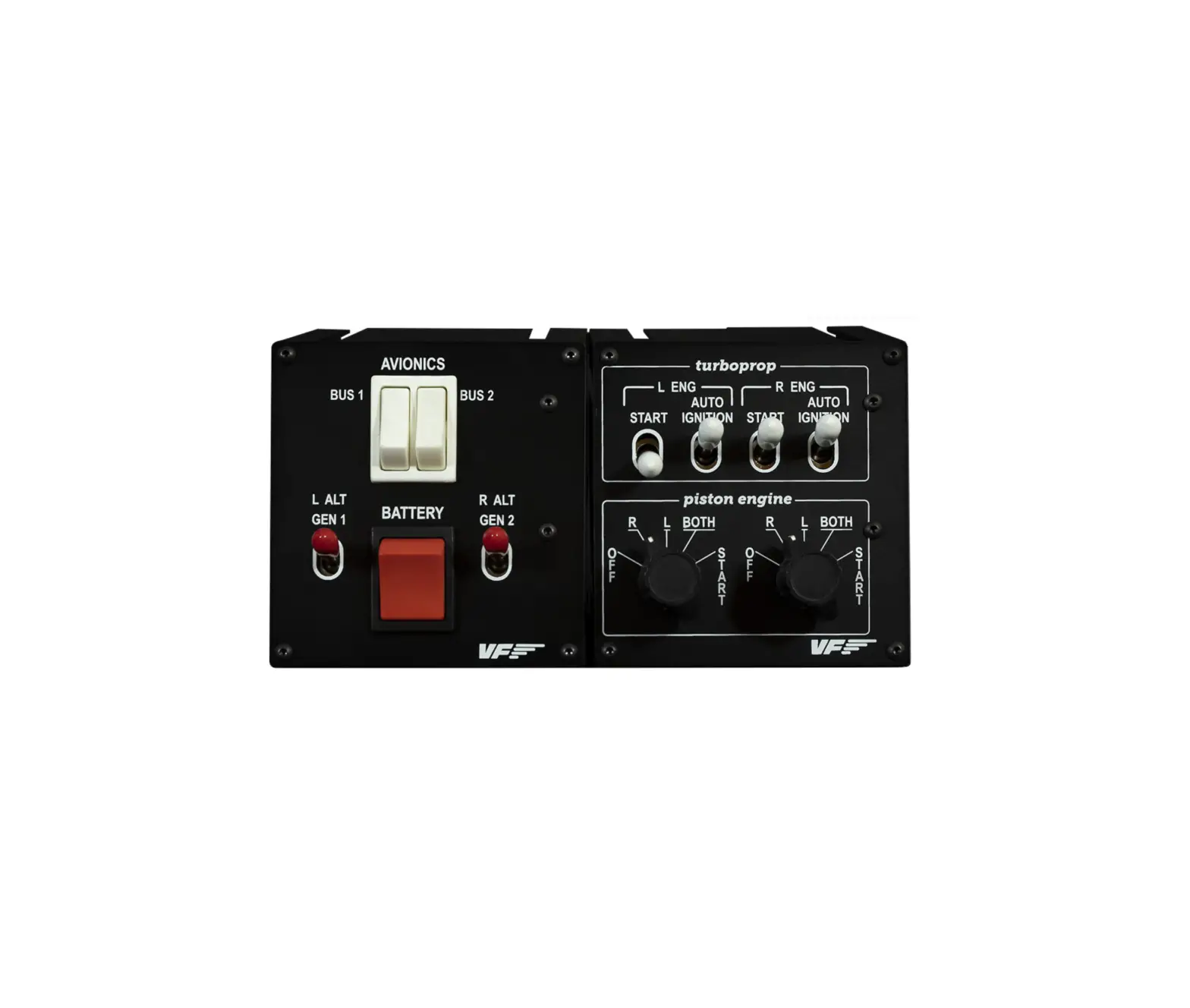
The SWITCHO LIGHTS is a product designed for home cockpit setups
for flight simulator software. It comes with anti-slip legs,
connecting pieces between modules, a USB-A to USB-C cable, and two
Allen keys. It is compatible with MSFS, Prepar3DV4-V5, and X-Plane
11/12. The product can be assembled with other SWITCHO modules and
expanded to create rows and columns as per user preference.
Product Usage Instructions
Hardware Setup
Attaching to Desktop/Home Cockpit Setup
Option A: Using Anti-slip Legs
- Introduce both anti-slip legs (B) in the lower slots from the
backside of the device. - Use the n.2 Allen key (H) to tighten the screw on each
anti-slip leg until you feel resistance. - Place the device on the surface it will rest, and the anti-slip
legs will ensure it won’t move.
Option B: Using SWITCHO CLAMP (not
included)
- Set up your SWITCHO LIGHTS in your home cockpit using the
SWITCHO Clamp. - Slide in the SWITCHO Clamp into the lower slots of the SWITCHO
LIGHTS as displayed in the diagram below, and attach the clamp onto
the support base.
Module Assembly
- Join the modules you want to combine and introduce the
connecting pieces (C) as displayed in the diagram. - Use the n.3 Allen key (H) to tighten the screw until you feel
resistance.
Connecting to PC
- Connect the USB cable to the back of the SWITCHO LIGHTS and the
computer where the flight simulator software is running.
Software Setup
- Download the latest VFHub version from this link:
https://www.virtual-fly.com/setup-support. - Install VFHub and all the required modules.
- Connect the SWITCHO LIGHTS to your computer.
- Run VFHub, locate the SWITCHO LIGHTS section in the Dashboard,
and select the device’s options button ( ) to access the SWITCHO
LIGHTS settings screen. - Select the COM port to activate your SWITCHO LIGHTS.
- For detailed instructions on getting your device running, check
the USER’s MANUAL button in the VFHub software. - VFHub must always be running when you use the SWITCHO LIGHTS as
it takes care of making your SWITCHO LIGHTS work with MSFS and
X-Plane 11/12.
SWITCHO LIGHTS 1x
USER’S MANUAL
A
Rev. 2.0 – November 2022
1. IN THE BOX
A) SWITCHO LIGHTS B) Anti-slip legs C) “H”connecting piece between modules D) USB-A to USB-C Cable E) Allen keys (n.2, n.3)
2x
B
C
2x
For support, contact us at [email protected]
D
1x
© 2022 Virtual Fly, SL All trademarks and brand names are trademarks or registered trademarks of their respective owners. All rights reserved.
E
1x
C. Maria Aurèlia Capmany, 21 P.I. La Fàbrica 08297 Castellgalí (Spain) Phone: (+34) 938 333 301 https://www.virtual-fly.com
2. HARDWARE SETUP
2.1 ATTACHING TO DESKTOP/HOME COCKPIT SETUP
OPTION A: Using Anti-slip Legs
Introduce both anti-slip legs (B) in the lower slots from the backside, as indicated below. Using the n.2 Allen key (H), tighten the screw on each anti-slip leg until you feel res1 istance.
A
OPTION B: Using SWITCHO CLAMP (not included)
Set up your SWITCHO LIGHTS in your home cockpit using the SWITCHO Clamp to fix it into your support base. This item is sold separately in our website at: https://www.virtual-fly.com/ shop/avionics/switcho-lights#accessories.
2Slide in the3 SWITCHO4 Clamp int5o the lowe6 r slots of t7he SWITCHO LIGHTS as displayed in the diagram below, and attach the clamp onto the support base.
B
C
To secure your SWITCHO LIGHTS into your dDesktop, simply place them the device on the surface it will rest, and the antislip legs will ensure it won’t move.
E
2
F
DO NOT
SCALE
IF IN DOUBT
ASK
UNLESS OTHERWISE STATED
1) MACHINE AT TO 3.2 um Ra MAX 2) TOLERANCE ON MACHINED DIMENSIONS
AS FOLLOWS: 0-500 0.2; 500-1000 0.4
LUMED
THE UNIVERSITY OF LEEDS SCHOOL OF MECHANICAL ENGINEERING
SDAWTE ITCHTOITLE LIGHTS | User’s manual
SCALE
1
2
3
4
5
6
7
2.3 MODULE ASSEMBLY
2.4 CONNECTING TO PC
If you own another SWITCHO module, you can combine the modules with the provided connecting pieces (C). The modules can be combined forming rows and columns. Expand your SWITCHO Family and configure it to your preferences.
Connect the USB cable to the back of the SWITCHO LIGHTS and the computer where the flight simulator software is running.
Join the modules you want to combine and introduce the connecting pieces (C) as displayed below. Tighten the screw with n.3 Allen key (H) until you feel resistance.
SWITCHO LIGHTS | User’s manual
3
3. SOFTWARE SETUP
The SWITCHO LIGHTS interacts with any computer using our own custom protocol through VFHub, which makes it compatible with MSFS, Prepar3DV4-V5 and X-Plane 11/12. VFHub is the software developed by Virtual Fly to simplify setting up our products. With VFHub, you can fly your favorite flight simulation software without worrying about configuring your Virtual Fly flight controls.
You can download the latest VFHub version from this link: https://www.virtual-fly.com/setup-support. The VFHub installer takes care of installing VFHub and all the required modules. VFHub is compatible with MSFS, Prepar3DV4-V5 and X-Plane 11/12.
After installing VFHub, make sure your SWITCHO LIGHTS is connected to your computer. Run VFHub, locate the SWITCHO LIGHTS section in the Dashboard and select the device’s options button ( ) to access the SWITCHO LIGHTS settings screen.
Inside the SWITCHO LIGHTS settings screen, you must select the COM port to activate your SWITCHO LIGHTS For detailed instructions on getting your device running, check the USER’s MANUAL button in the VFHub software.
VFHub takes care of making your SWITCHO LIGHTS work with MSFS and X-Plane 11/12, so it must always be running when you use the SWITCHO LIGHTS.
To customize how your SWITCHO LIGHTS works, select the device’s options button ( ) in VFHub’s Dashboard. For detailed instructions on all the tuning and customization possibilities, check the USER’s MANUAL button in the VFHub software.
4
SWITCHO LIGHTS | User’s manual
After installing VFHub and configuring the SWITCHO LIGHTS, verify that the SWITCHO LIGHTS status displayed in the Dashboard is “Connected”:
SWITCHO LIGHTS | User’s manual
5
 Cheap Flights: Flights Tickets, Airline Tickets, Search Flights | Fly.com us
 Virtual Fly | Professional Flight Simulators and Controls